

Page 1

F18 User Manual
Version: 1.3
Date: June 15, 2013
Introduction:
This document mainly introduces interface and operation of 2.4 Inches
color products.
Page 2

About this manual
1. “ ”Means optional functions, not all devices have this function.
2. There is a slight difference between the photo and the real product.
The later prevails.
3. Key functions of various models are different. Please read the key
board instruction in appendix firstly.
4. Due to the constant renewal of products, the company can not
undertake the actual product in consistence with the information in
the document, also any dispute caused by the difference between
the actual technical parameters and the information in this
document. Please forgive any change without notice.
5. All rights Reserved.
Page 3

Contents
Contents
1. Operating Instruction ............................................................................. - 1 -
1.1 Abbreviated Operating Procedures ....................................... - 1 -
1.2 Introduction to Fingerprint Recognition technology ............ - 2 -
1.3 About Verification Mode ...................................................... - 3 -
1.4 Connection with PC ............................................................ - 11 -
1.5 Main menu .......................................................................... - 13 -
2. User Management ................................................................................ - 15 -
2.1 Add user .............................................................................. - 15 -
2.2 Manage user ........................................................................ - 19 -
2.2.1 Search user ............................................................... - 20 -
2.2.2 Query attendance record .......................................... - 21 -
2.2.3 Edit user ................................................................... - 22 -
2.2.4 Delete user ............................................................... - 23 -
2.2.5 Add user ................................................................... - 24 -
2.3 Card management★ ........................................................... - 25 -
2.3.1 Enroll card ............................................................... - 25 -
2.3.2 Enroll fingerprint card ............................................. - 27 -
2.3.3 Clear card information ............................................. - 29 -
2.3.4 Copy card information ............................................. - 29 -
2.3.5 Set card parameter value .......................................... - 30 -
2.4 Access Control Option★ .................................................... - 32 -
2.4.1 Time Zone Setting .................................................... - 33 -
2.4.2 Holidays Setting ....................................................... - 34 -
2.4.3 Group time zone setting ........................................... - 36 -
2.4.4 Set Unlock Combination .......................................... - 38 -
2.4.5 Access Control Parameters ...................................... - 40 -
2.4.6 Duress Alarm Parameters......................................... - 42 -
I
Page 4

Contents
2.4.7 Anti-passback Setting★ .......................................... - 43 -
2.4.8 RS485 Reader Function★ ....................................... - 46 -
3.1 Network option ................................................................... - 47 -
3.2 Serial port option★ ............................................................ - 48 -
3.3 Security ............................................................................... - 49 -
3.4 Wiegand option★ ............................................................... - 50 -
3.4.1 Input configuration .................................................. - 51 -
3.4.2 Output configuration ................................................ - 52 -
4. System Option ...................................................................................... - 54 -
4.1 System parameters .............................................................. - 54 -
4.2 Data management ............................................................... - 56 -
4.3 Upgrade firmware ............................................................... - 57 -
4.4 Display Setting ................................................................... - 58 -
4.4.1 Verification .............................................................. - 58 -
4.4.2 Time display............................................................. - 58 -
4.4.3 Picture cycle interval ............................................... - 59 -
4.4.4 Clock display delay .................................................. - 59 -
4.4.5 Interface style ........................................................... - 59 -
4.5 Reset ................................................................................... - 60 -
4.6 Other options ...................................................................... - 61 -
5. Date Time ............................................................................................. - 63 -
5.1 Date Time option ................................................................ - 63 -
5.2 DLST★ .............................................................................. - 63 -
6. PenDrive Management ........................................................................ - 66 -
6.1 Download data .................................................................... - 66 -
6.2 Upload data ......................................................................... - 67 -
7. Auto Test .............................................................................................. - 69 -
7.1 TFT display test .................................................................. - 69 -
7.2 Audio test ............................................................................ - 69 -
II
Page 5

Contents
7.3 Keyboard test ...................................................................... - 70 -
7.4 Sensor test ........................................................................... - 70 -
7.5 Real-time clock ................................................................... - 70 -
8. Query Record ....................................................................................... - 71 -
9. System Information .............................................................................. - 74 -
9.1 Record capacity .................................................................. - 74 -
9.2 Device information ............................................................. - 74 -
10. Appendixes ......................................................................................... - 75 -
10.1 Keyboard .......................................................................... - 75 -
10.2 USB .................................................................................. - 78 -
10.3 Quick query of attendance record ..................................... - 78 -
10.4 Propaganda picture upload rules ....................................... - 79 -
10.5 Card support (ID/EM, MIFARE Card) ★ ....................... - 80 -
10.6 Web time & attendance★ ................................................. - 81 -
10.7 9 Digit Code★ .................................................................. - 82 -
10.9 Daylight Saving Time★ ................................................... - 82 -
10.10 Master-slave function ★ ............................................... - 83 -
10.11 About the human rights privacy statement ...................... - 85 -
10.12 Environmental protection ............................................... - 86 -
III
Page 6

1. Operating Instruction
1. Operating Instruction
1.1 Abbreviated Operating Procedures
Step 1: Install the device and power it up.
Step 2: Enroll users by registering his/her fingerprints, passwords or
card. Assign users’ security privileges directly on the device.
Step 3: After enrolling users, verify that his/her enrolled fingerprint,
passwords or card is valid.
Step 4: Configure the device communication settings. Then download
the users’ newly enrolled information from the device onto the
Attendance Management on the computer. Data can be transmitted via
TCP/IP, RS232, RS485 and USB client or by using a USB flash drive.
Step 5: Modify users’ information in the Attendance Management, and
upload this newly information to the device after connected. Then the
users’ newly information will be displayed on the screen upon
attendance. (Some models allow directly name edition and other
operation on the device. Therefore, it is no necessary to connect device.)
Step 6: Verify the device displays the correct day and time. Then start to
attendance.
Step7: Download attendance records to the Attendance Management
and statistics them at the end of the month.
- 1 -
Page 7
2.4 inch color screen series User Manual
improper
1.2 Introduction to Fingerprint Recognition technology
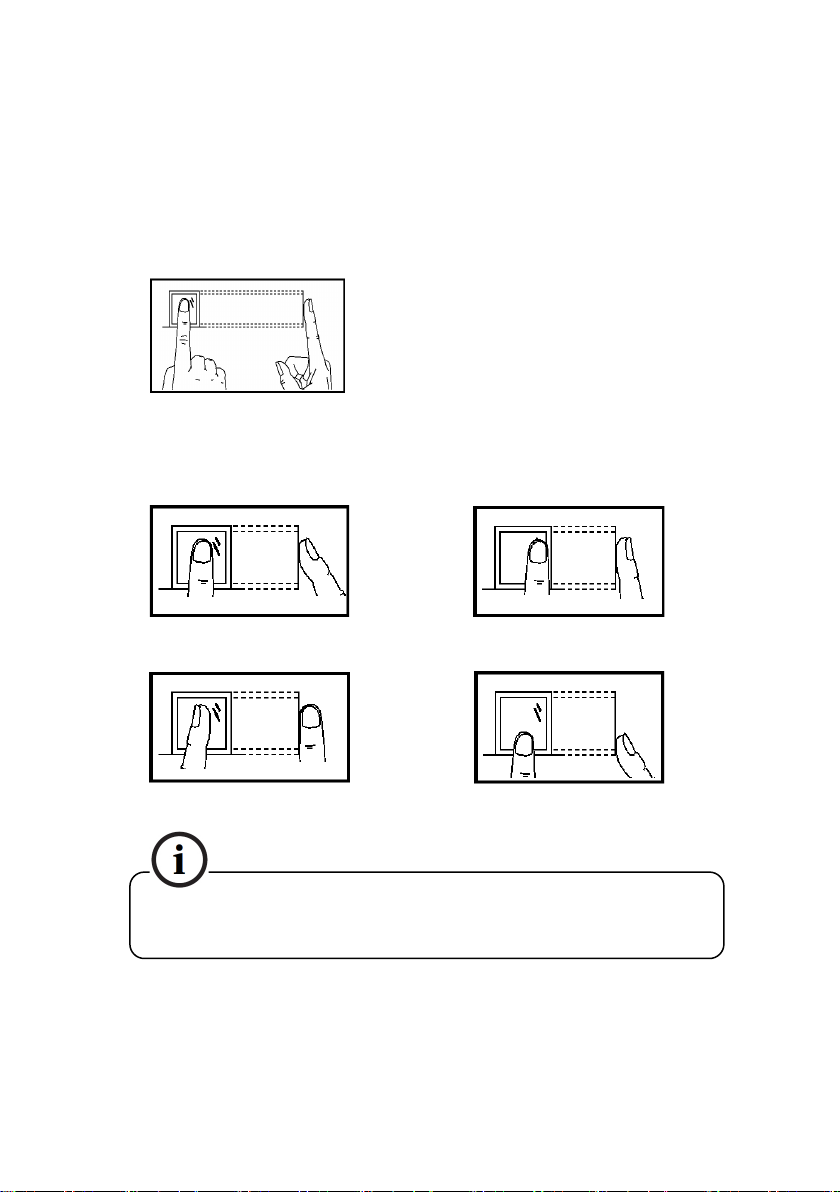
Enroll fingerprint by pressing index finger, middle finger or ring finger .
Proper press:
Improper press:
Upright
Slant
Please adopt the correct way to place the finger to avoid
operation led to the identification performance degradation.
Make finger center pressed
on the sensor window
Too lean
Too downward
- 2 -
Page 8
1. Operating Instruction
1.3 About Verification Mode
When the device is on initial interface, only after successful fingerprint or
password or Card verification, user can save attendance record on the device.
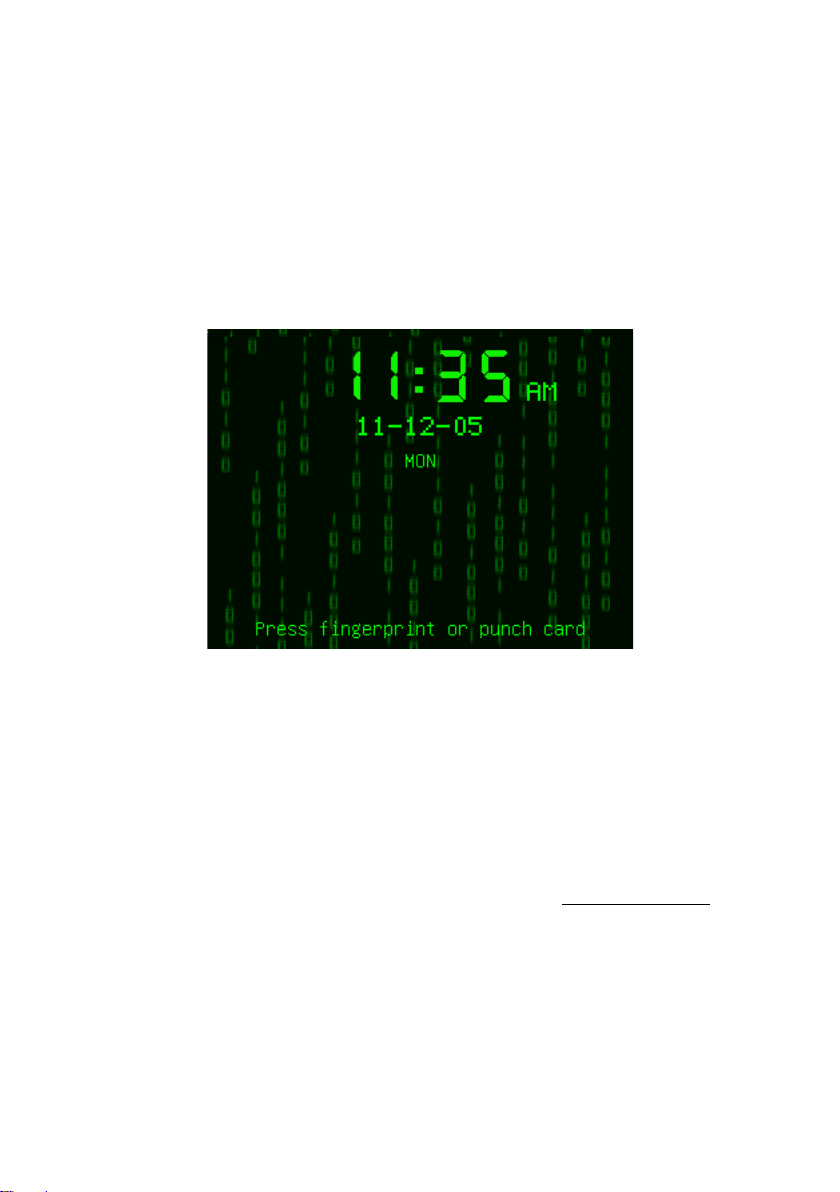
Initial Interface (As shown below):
Notice:
1) If the device have ID module, so Interface of Matrix and Magic style
can be displayed "Press fingerprint or punch card". When have not ID
module, it can be displayed "Please Press fingerprint" only.
2) The device has three interface styles for option. Each style displayed
different contents on the screen. For details please refer to 4.4 Display Setting.
3)As above the "Name" of screen, you can edit different names can be
executed by "Access Control Management Software ".
- 3 -
Page 9
2.4 inch color screen series User Manual
Fingerprint Matching
(1) 1:N fingerprint matching
Verify the fingerprint pressed on the sensor at present with all
fingerprint data in the fingerprint reader.
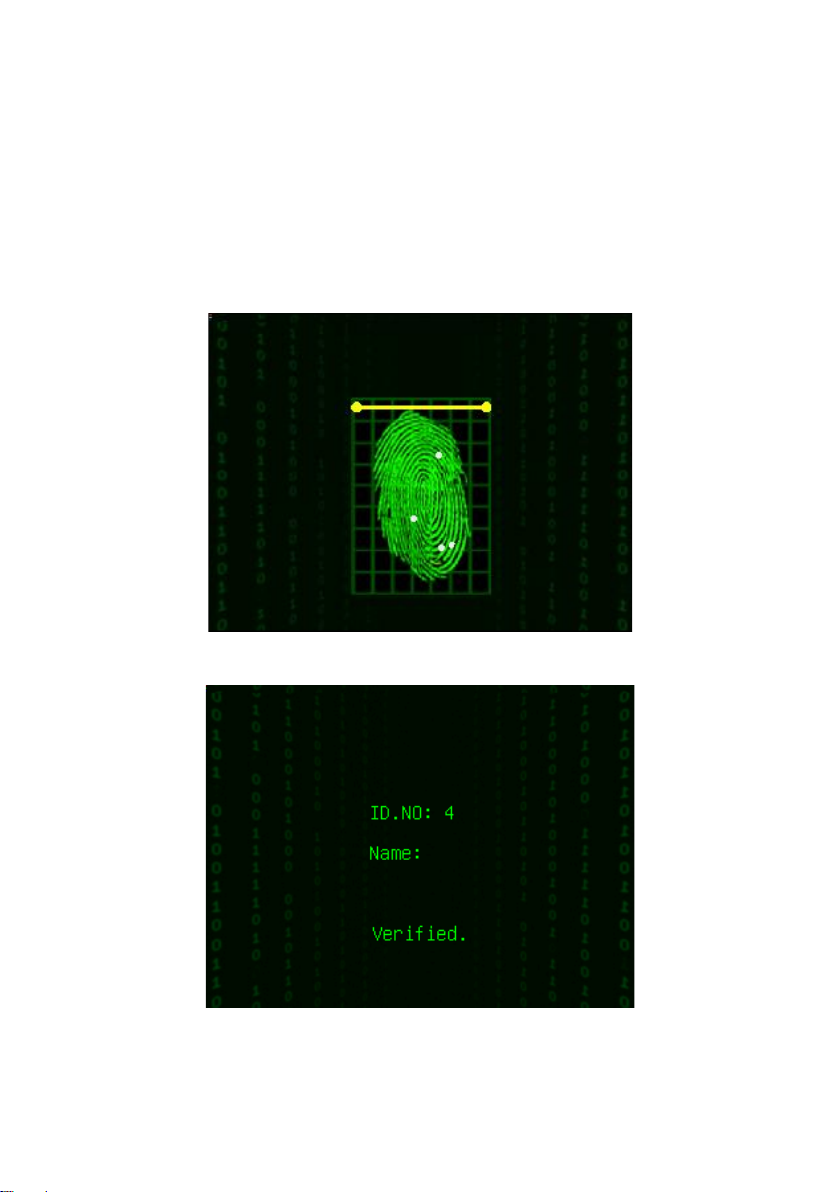
Step 1: Press fingerprint properly on the sensor on initial interface.
Step 2: If device says ‘Thank you”, the verification is completed.
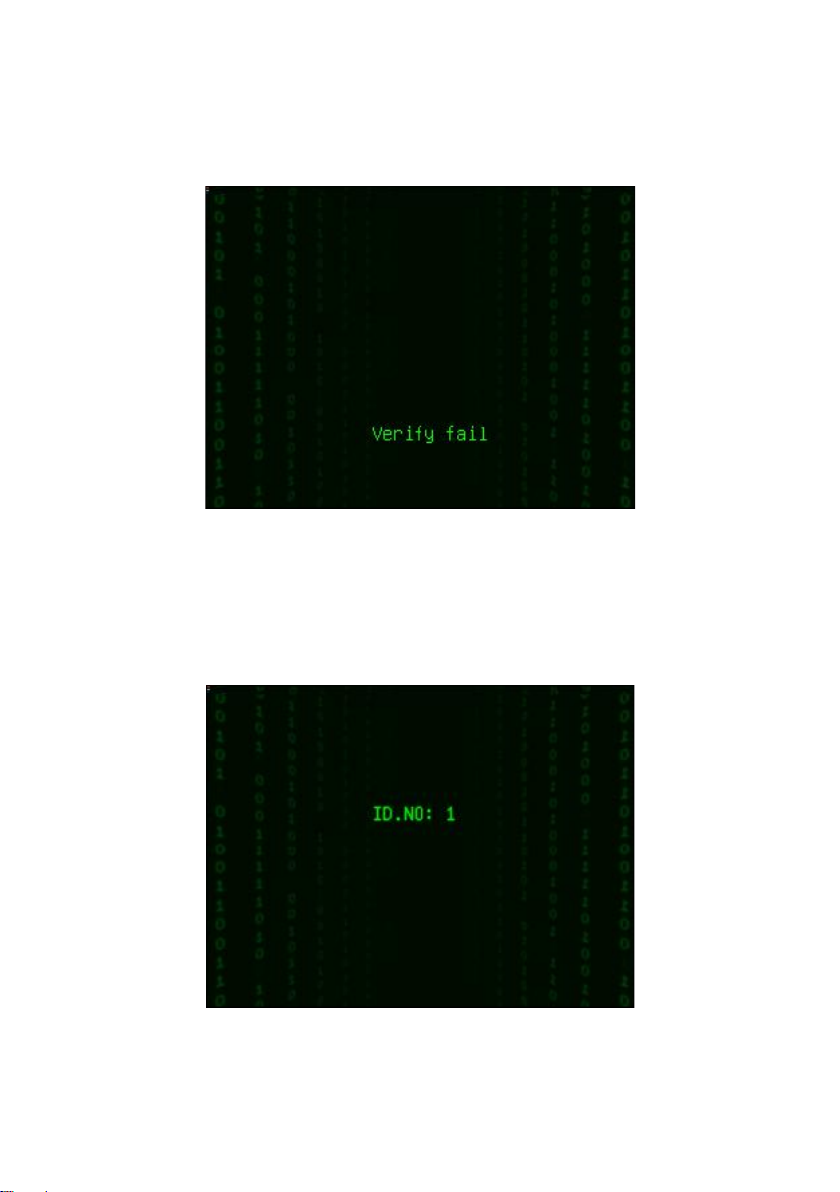
If device says " Please press again", and displayed "Verify fail" on the screen.
- 4 -
Page 10
1. Operating Instruction
Return Step 1 for the second operation.
(2) 1:1 fingerprint match(User ID+fingerprint)
Verify the fingerprint pressed on the sensor at present with the
fingerprint related with user number. Use this method when it is difficult
to identify user’s fingerprint.
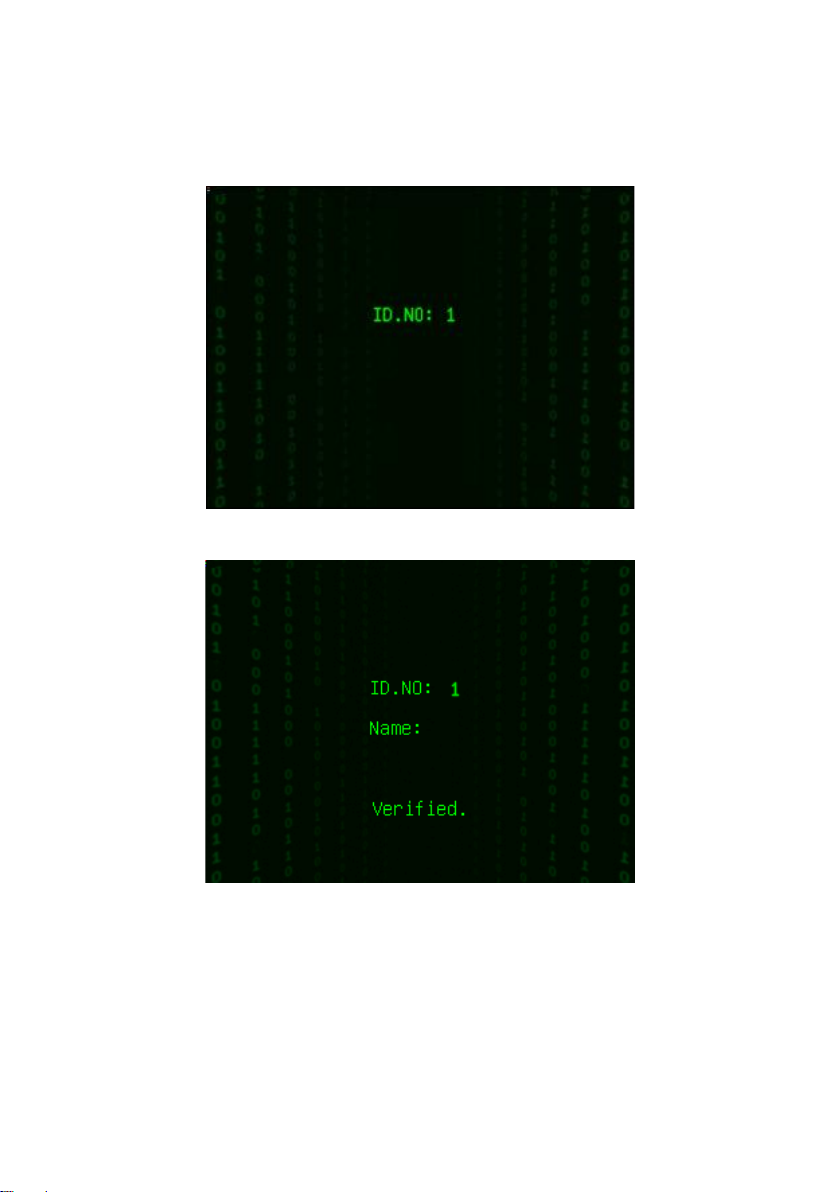
Step 1: Input User ID of employee to be verified on initial interface.
- 5 -
Page 11
2.4 inch color screen series User Manual
Step 2: Press fingerprint properly on the sensor.
Step 3: If device says ‘Thank you”, the verification is completed.
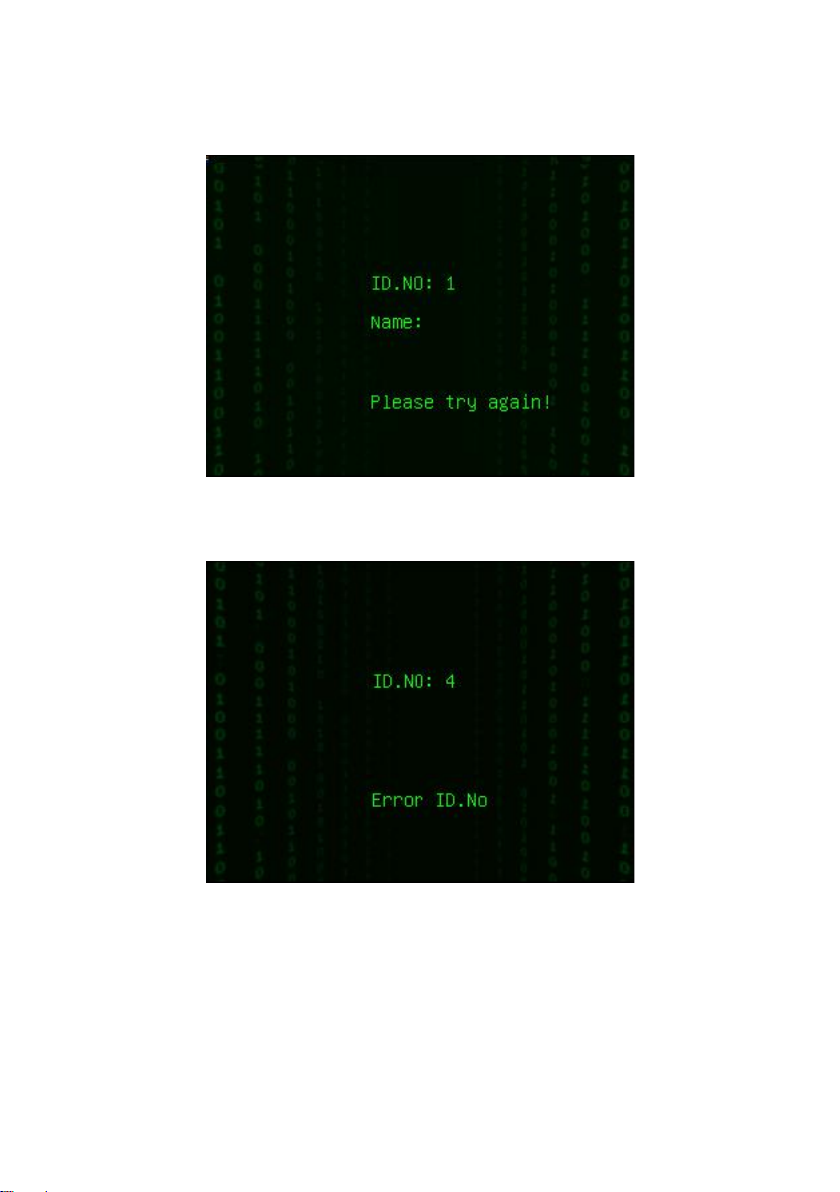
Notice:
If device says “Please press again”, return Step 2 for the second operation.
- 6 -
Page 12
1. Operating Instruction
If device says “Error ID”, that means you input ID number is wrong, please
return Step 1 for the second operation.
Password Matching
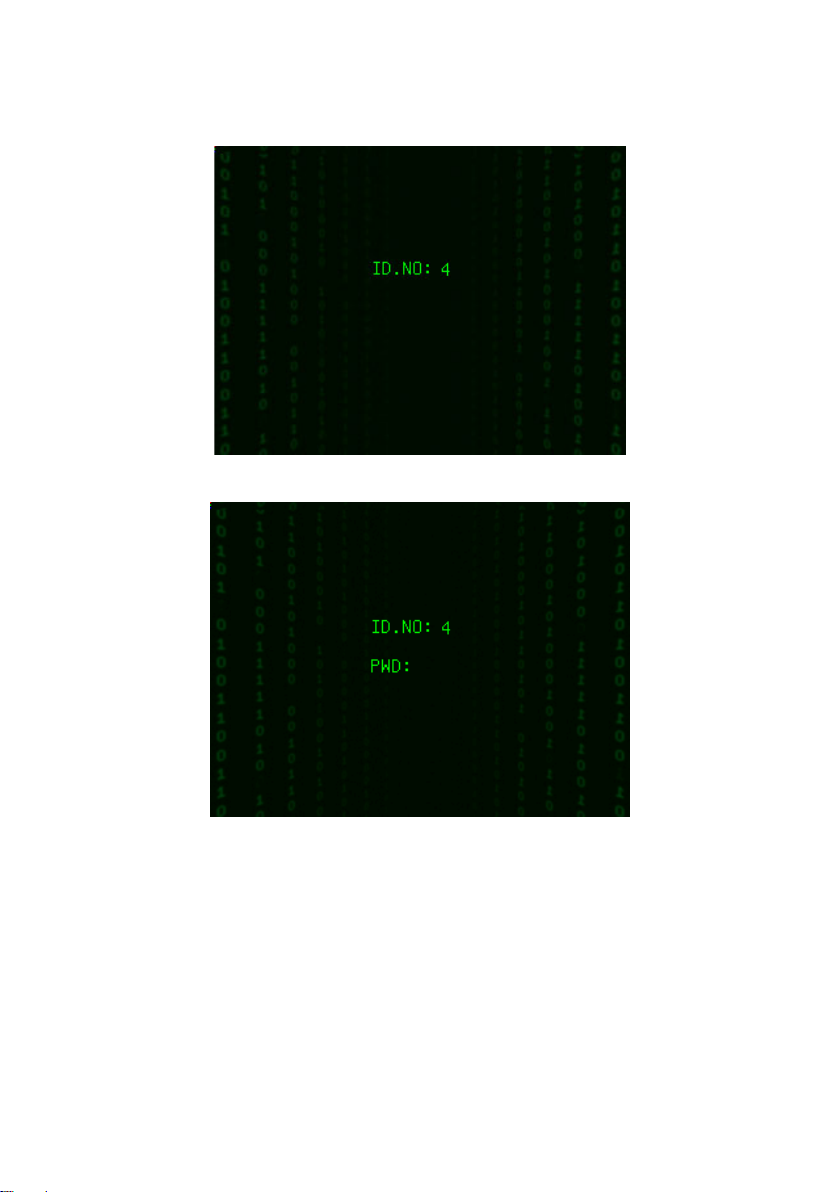
Step 1: Input User ID of employee to be verified on initial interface.
Then press OK.
Step 2: If it says that the enroll number is wrong, it means that there is
no such number or the employee does not enroll password.
- 7 -
Page 13
2.4 inch color screen series User Manual
Step3: Input password when the interface appears.
Step 4: If device says ‘Thank you”, the verification is completed.
- 8 -
Page 14
1. Operating Instruction
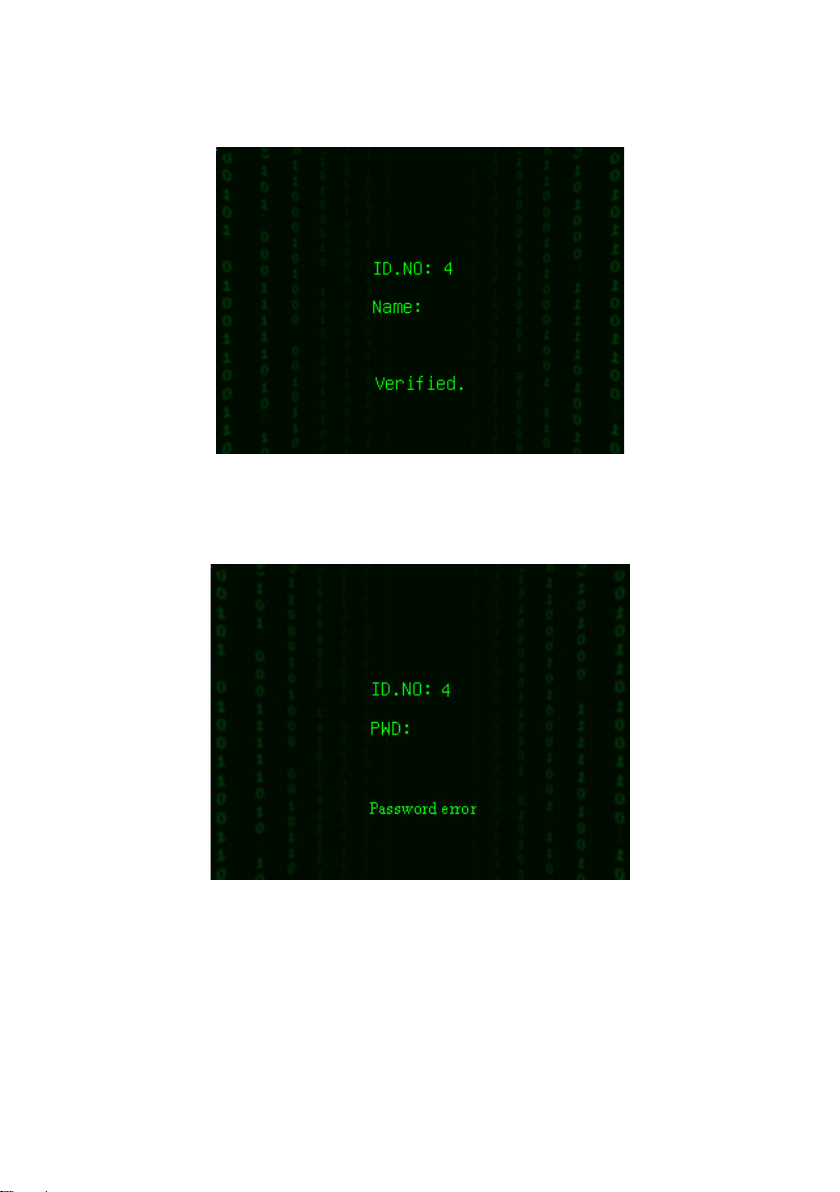
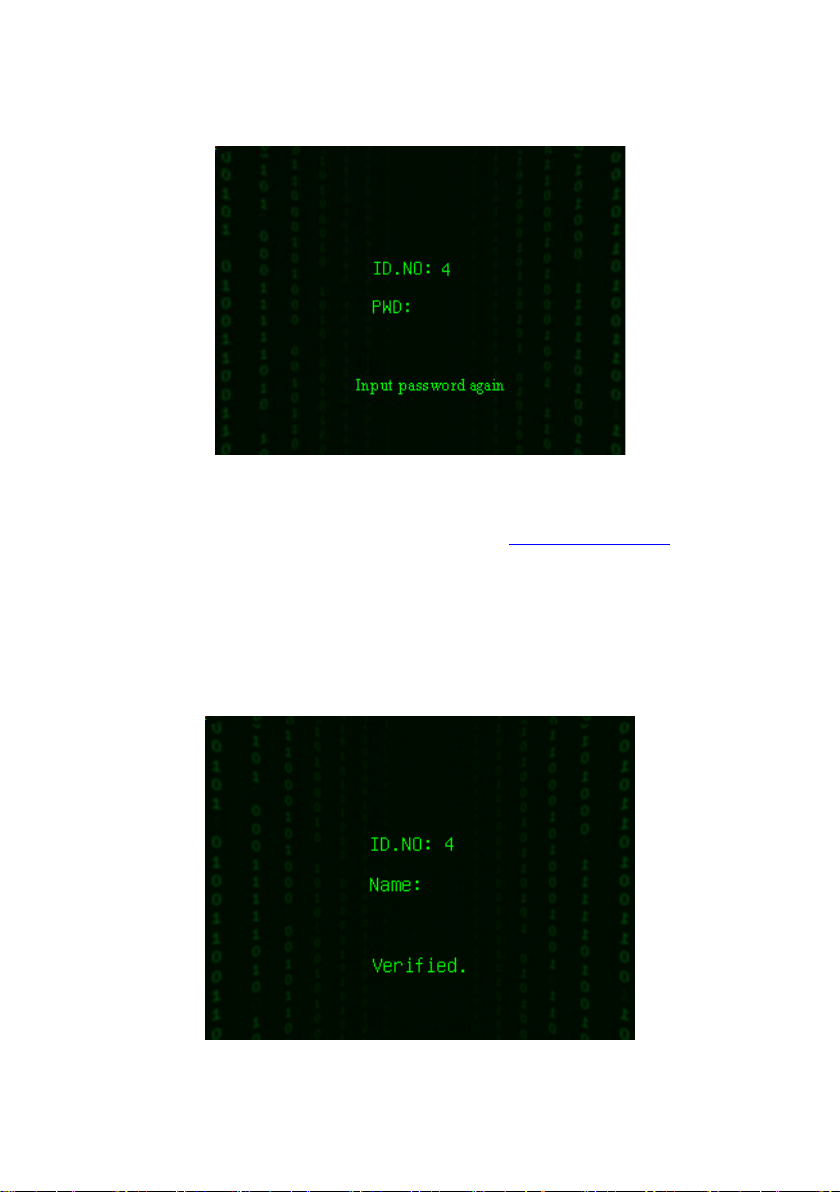
When the screen displayed "password error" and "Input password again"
as shown below:
- 9 -
Page 15
2.4 inch color screen series User Manual
Please return Step 3 input password again for the second operation.
Ranges of the input password time is 0~9. Employee can set default
time what you want. For details please refer to 4.4 Display Setting
.
Card Matching ★
The card area is round the keyboard.
Step 1: Wave the card near the induction area on initial interface, after
the induction equipment finding the card, please remove the card.
Step 2: When the equipment gives the tip "Thank you", the certification completed.
- 10 -
Page 16
1. Operating Instruction
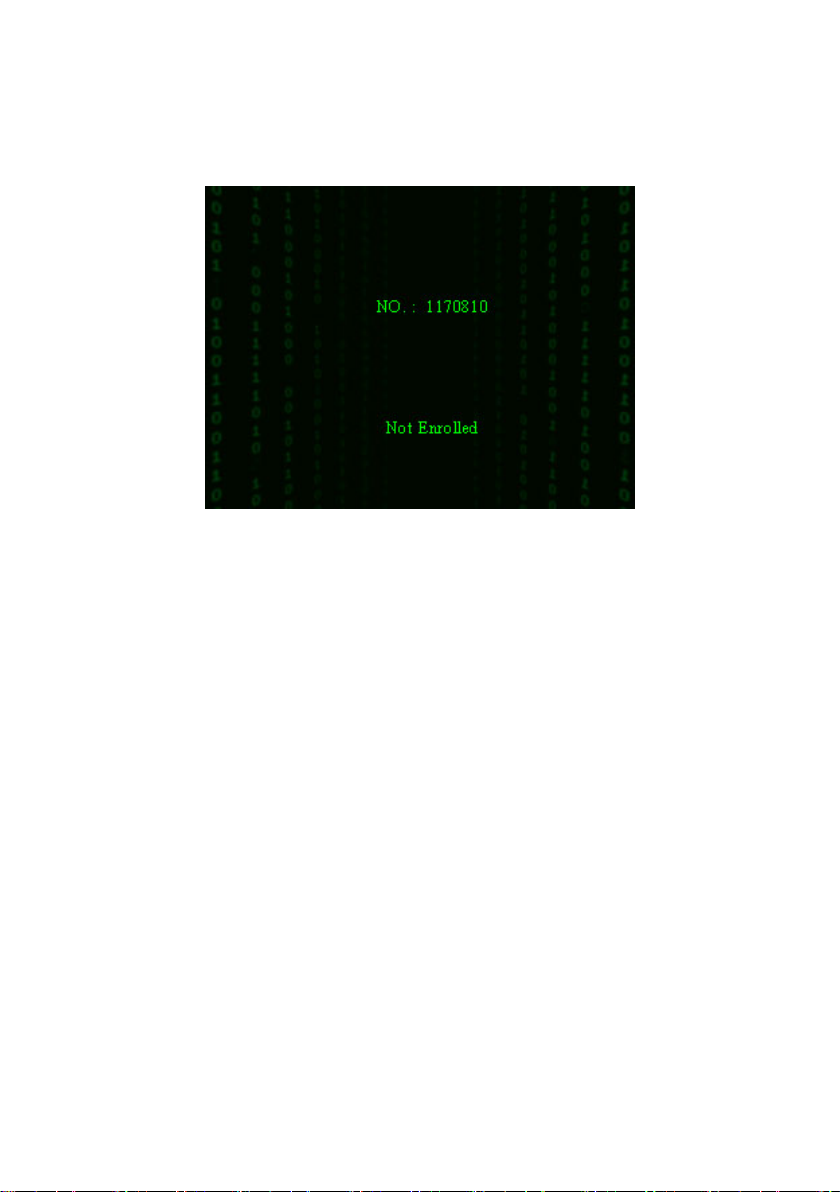
Step 3: If the card has not registered yet, prompt that card is not registered.
1.4 Connection with PC
The device only records attendance time. The statement can be disposed
by software on PC. Therefore, it is necessary for device to connect PC to
download attendance record to attendance software.
The following is some connection methods:
Ethernet:
(1) Through hub: Use parallel net cable (to connect network card and
hub) to connect device into the network.
(2) Direct connection: use cross net cable(connect two Ethernet
terminals directly) to connect device and PC.
Set device: Enter Menu-Communication option-Network to set the
following items:
IP address: Default IP as 192.168.1.201.You can modify it if it is
necessary.
- 11 -
Page 17

2.4 inch color screen series User Manual
Subnet mask: Default subnet mask as 255.255.255.0. You can modify it
if it is necessary.
Gateway address: Default gateway address0.0.0.0. You can modify it if
it is necessary.
Network speed: There are three options: ATUO, 10M, and 100M.
Connection password: Set it in “Menu-Communication option-
Security”. It can be set or not. If it is set, input corresponding numerical
value on connection interface of PC software.
RS232: Use RS232 serial port wire for connection.
Set device: Enter Menu-Communication option to set the following
options:
Baud rate: Set it in “RS232/485”. Communication speed rate (with
computer),if the communication speed is high, RS232 (115200, 57600)
is recommended.
RS232: Set it in “RS232/485”.Select “Yes” for RS232.
Communication password: Set it in “Security”. It can be set or not set. If
it is set, input corresponding numerical value on connection interface of
PC software.
RS485
set device: Enter Menu-Communication option to set the following
options:
Device ID: Set it in “Security”. It can be set from 1-254.
Baud rate: Set it in “RS232/485”.Communication speed rate (with
computer),if the communication speed is low and stable, RS 485
(9600, , 38400) is recommended.
RS485: Set it in “RS232/485”.Select “Yes” for RS485
Communication password: Set it in “Security”. It can be set or not. If it
- 12 -
Page 18
1. Operating Instruction
is set, input corresponding numerical value on connection interface of
PC software.
USB
Set device: Enter Menu-Communication option to set the following
items:
Device ID: Set it in “Security”. It can be set from 1-254.
USB: Set it in “RS232/485”.Select “Yes” for USB communication.
Communication password: Set it in “Security”. It can be set or not. If it
is set, input corresponding numerical value on connection interface of
PC software.
1.5 Main menu
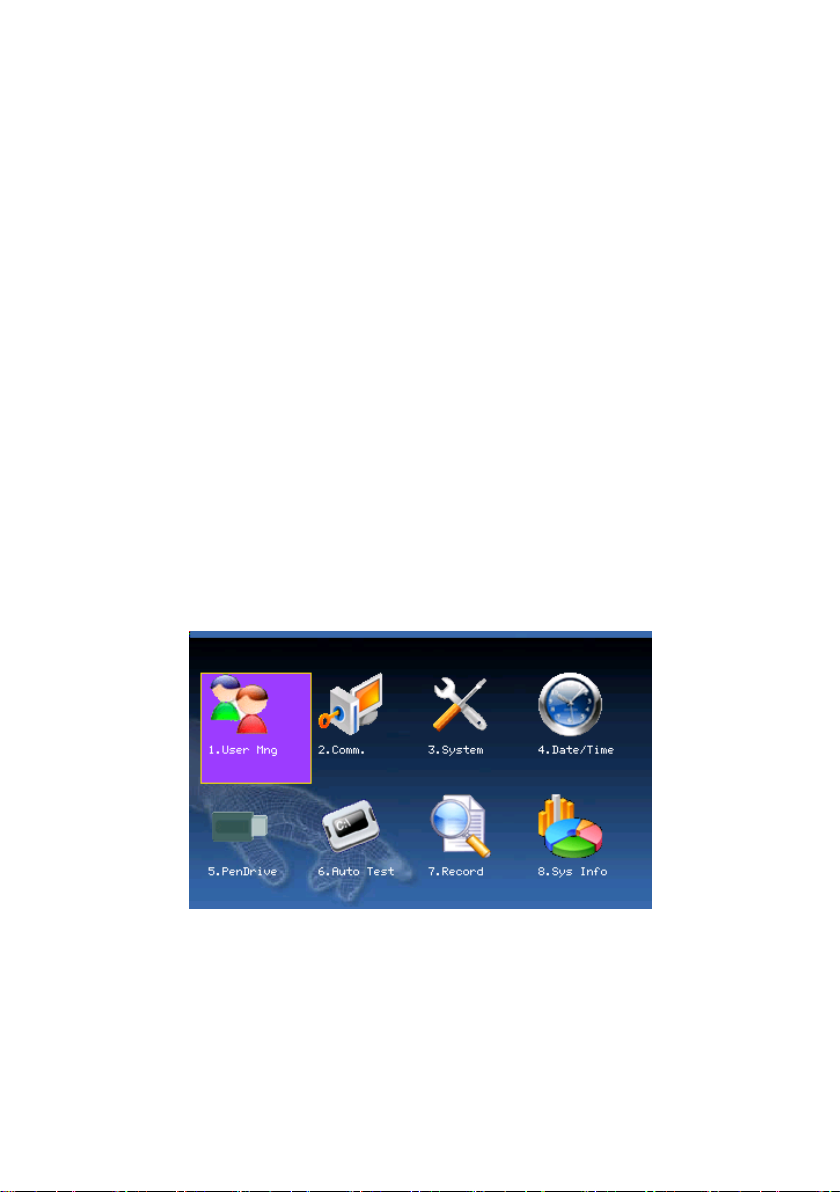
On the initial interface, press the Menu key about 3 seconds to open the
Main Menu, as shown in the following figure:
User management: Browse the users’ basic information like ID, name,
fingerprint, card, password and privilege and so on; Increase, edit or
delete operation the basic information; Set the work code for user and
card management.
- 13 -
Page 19

2.4 inch color screen series User Manual
Communication: Set up communication parameters between the
equipment and the PC, including IP address, gateway, subnet mask,
baud rate, device number, communications password etc.
System: Manage the data and set the system parameters, including basic
parameters, interface parameters, fingerprint and attendance parameters,
to maximize meet user’s needs in the functional, display and other areas.
Date/Time: Device time date should set accurate to ensure the accurate
attendance time.
PenDrive: By USB, the user info and attendance data etc. can be
imported to the accordingly software to deal or import the user
information for other fingerprint devices to use.
Auto Test: automatically test the function of each module if it is
workable, including the screen, sensor, voice, keyboard and clock tests.
Record: For query the record saved in the device convenience, query
record function is provided.
Sys Info: Use system information to check the current device’s saving
status, its version information and so on.
- 14 -
Page 20
2. User Management
2. User Management
The user’s basic information on the device includes fingerprint,
password and management access. In company’s attendance
management, for employee’s change, the information on the device
also needs modification. Therefore, operations including “add, delete,
check, modify and so on” can be done on the device.
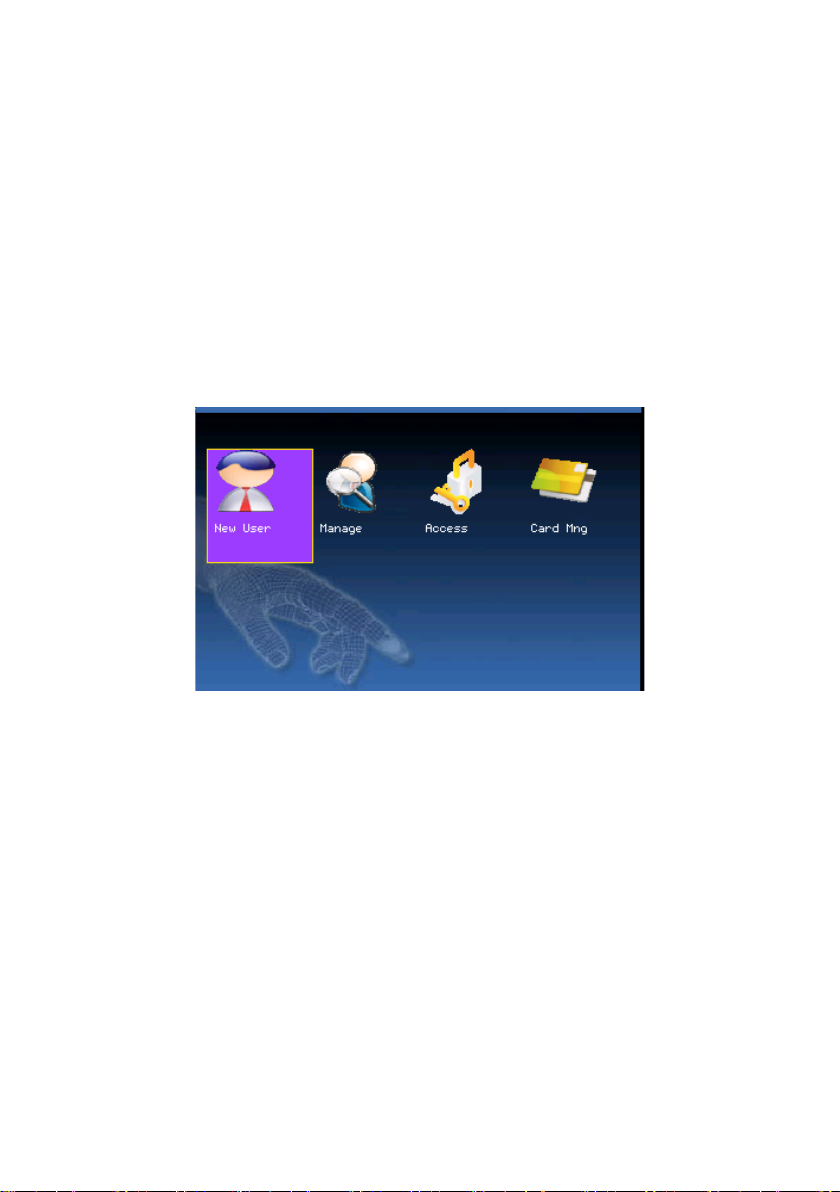
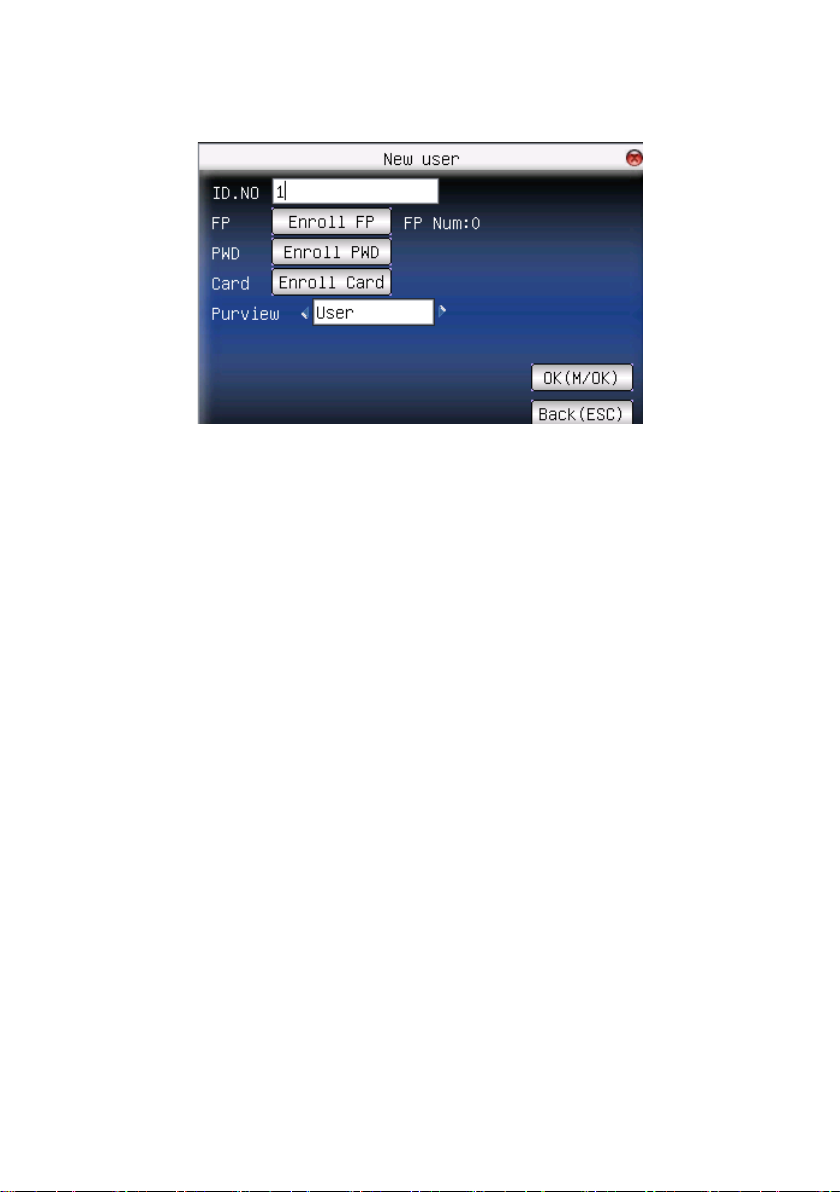
2.1 Add user
Firstly, enroll employee’s fingerprint or password in the device.
Enter New User interface:
- 15 -
Page 21
2.4 inch color screen series User Manual
Notice: Only some models have name and card options.
ID.NO: Staff's attendance number.
FP (Fingerprint): enroll employee’s fingerprint. Ten fingerprints can be
enrolled at most.
The employee with fingerprint enrolled can use fingerprint to record
attendance.
PWD (Enroll password): enroll user’s password. The effective digit is
1~8. The employee with password enrolled can use password to record
attendance.
Card: Registered staff's Card, only the registered card is possible to
check attendance.
Purview: Users are people whose identity must be authenticated before
enter a menu. The ordinary consumer can track attendance by the card
or the password only; the manager already may equally carry on the
daily checking attendance with the ordinary consumer, but may enter the
menu to operate each option.
Notice: When there is no appointed the manager, any person all
may entry the menu operation; after the manager is appointed, anyone
- 16 -
Page 22
2. User Management
is unable to entry the menu until the manager status is confirmed, after
the success can entry the menu:
For example: the following is the flow for add user.
Input User ID
1) Allocate User ID by default.
2) Press “
from keyboard. If the User ID is wrong, press “
” to delete the allocated User ID by default. Input User ID
” to input it again.
Input name ★
Use T9 input to input employee’s name.
Press OK or ▲/▼ to select “enroll fingerprint”, then press OK to start
fingerprint.
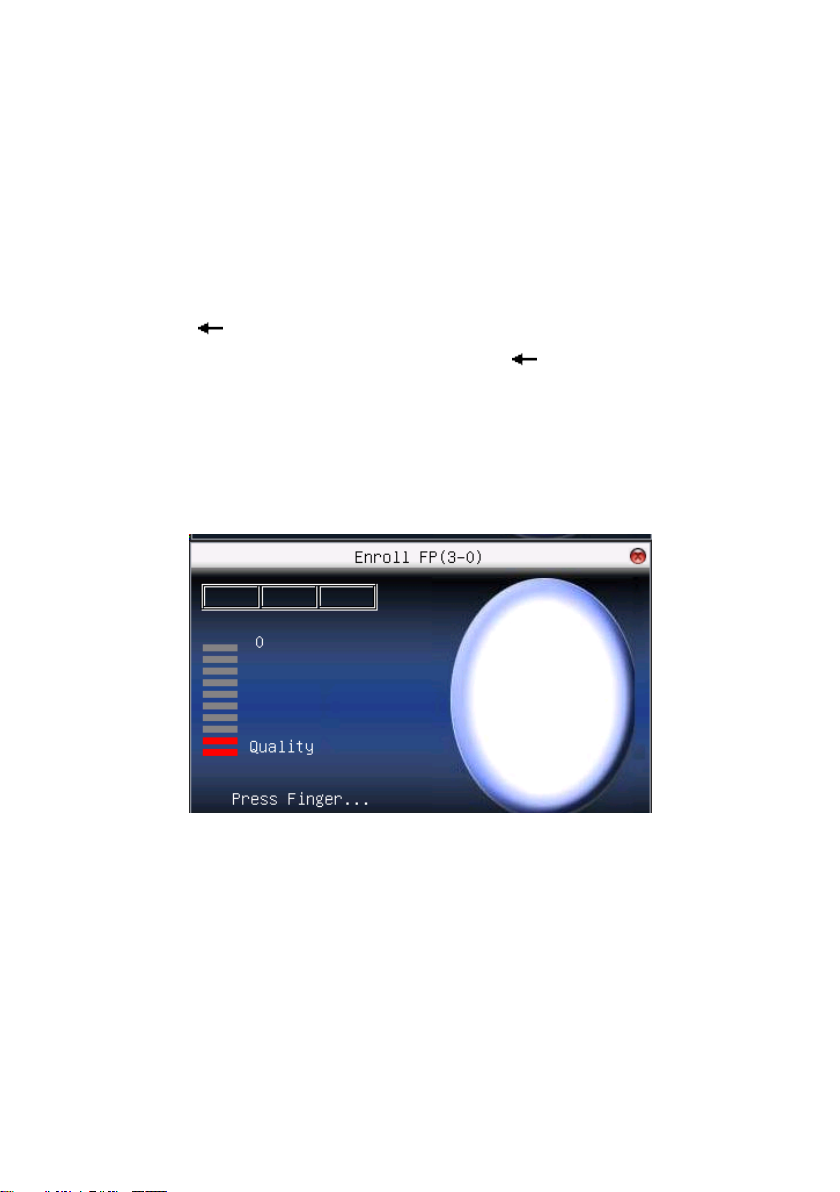
Enroll fingerprint
Press finger according to device’s prompt. Press the finger three times in
the proper way.
If one fingerprint is enrolled successfully, press OK to continue another
finger, then press menu and ESC to return the last interface.
Press ▲/▼ to select “enroll password” and press OK to enroll
password.
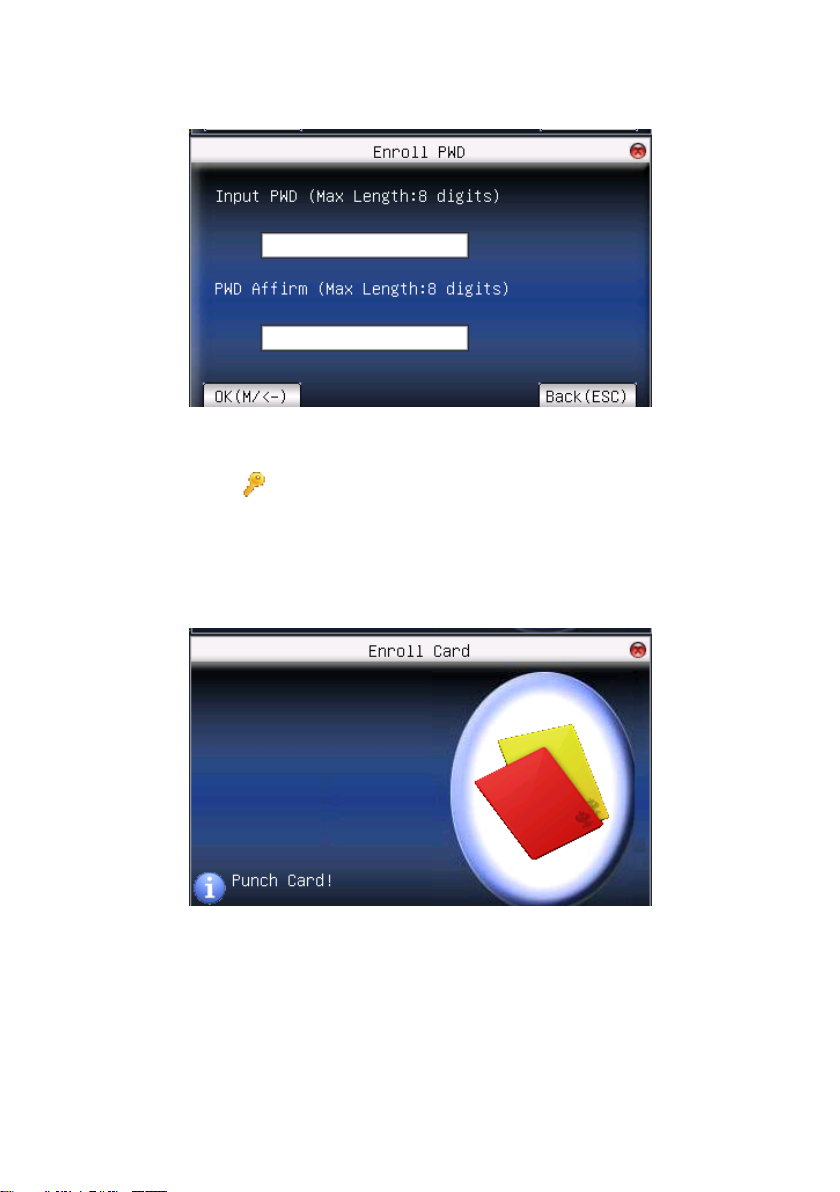
Enroll password
- 17 -
Page 23
2.4 inch color screen series User Manual
Input password (1~8) according to device’s prompt, and press OK to
verify it. Then press OK save it or press ESC to exit without saving it.
After saving,
display will be on the device, which means the
password has been set.
Enroll card★
Scroll ▲ / ▼keys to locate the cursor on "enroll card" button, and press
"OK" to enter the registration card
Slight ware the card near the induction area, after the equipment found
the card number, press OK key to save, press to give up, then remove
the card from the equipment, after the "Enroll successfully" the card
number will display on the register button.
Privilege setting
- 18 -
Page 24

2. User Management
Scroll the▲/▼ key and local cursor on the "Privilege" option box, scroll
/ key to choose privilege.
Save/exit user registration
To confirm the registration information is correct, after getting
confirmation, save it.
The way for saving:
1) Scroll ▲/▼key to locate cursor on the "completes (
)"button,
please press "OK" key again, the prompt "the data has been changed, Are you
sure to save it?” on the equipment, press "OK" the key to save it, if you do not
want saving, press "ESC" to exit. If the prompt, “Save successfully!
Continues to input?" appear on equipment, want continuing to press "OK", if
you abandon this operation, press "ESC" key.
2) Press the ESC key or scroll ▲/▼key to locate the cursor on the "
return (ESC)"button, please press "OK" key again, the prompt "the data
has been changed, Are you sure to save it" appear on equipment, press
"OK" key to save and return to the preceding of menus, does not serve
and return to the preceding of menus, press "ESC" key.
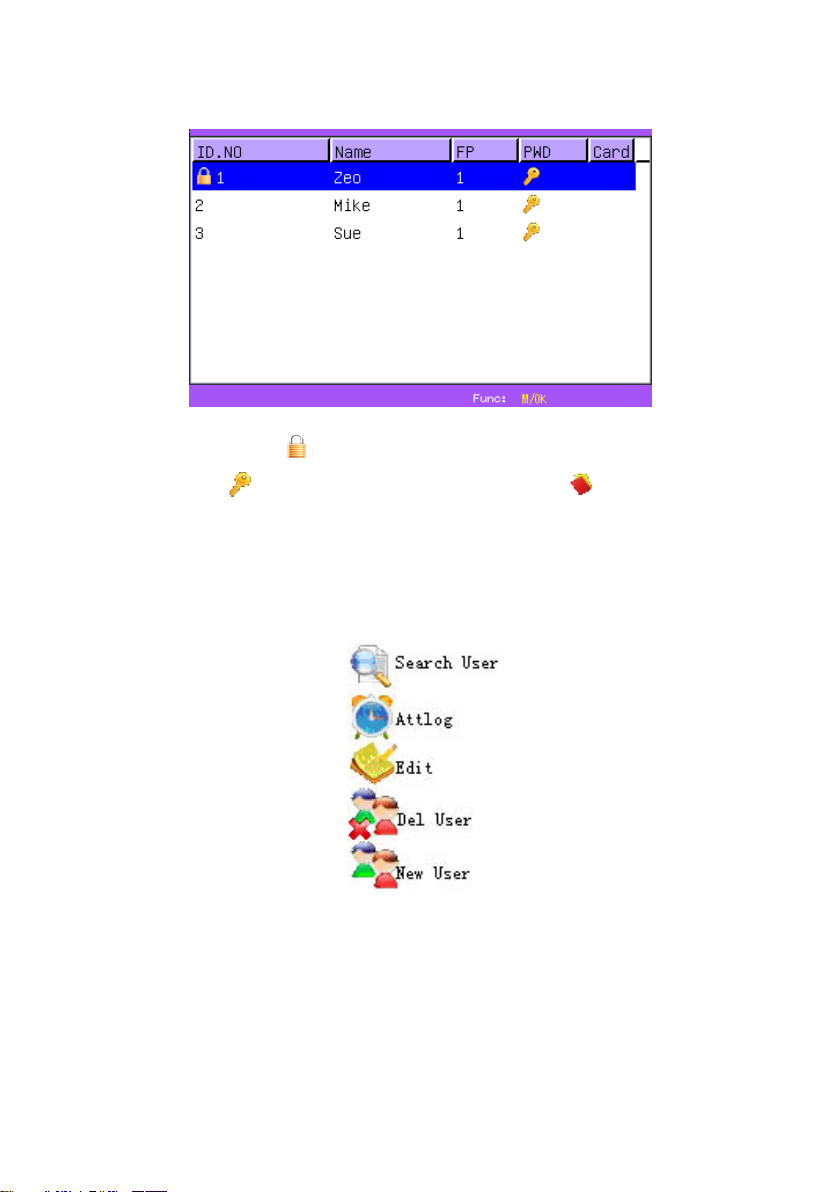
2.2 Manage user
All users’ information saved in the current device can be queried in
manage user, including user name, fingerprint count, whether to enroll
password or card, user attendance record and so on. Editing or deleting
user can also be done here.
- 19 -
Page 25
2.4 inch color screen series User Manual
Notice:1) means this employee is the administrator.
means password has been enrolled. means ID Card
has been enrolled.
2) The picture may be different from your device. The
real product prevails.
Press menu on the above interface, and the operating menu will pop out:
Press ▲/▼ to select the item.
2.2.1 Search user
If many users are enrolled, in order to find an employee quickly, the
- 20 -
Page 26
2. User Management
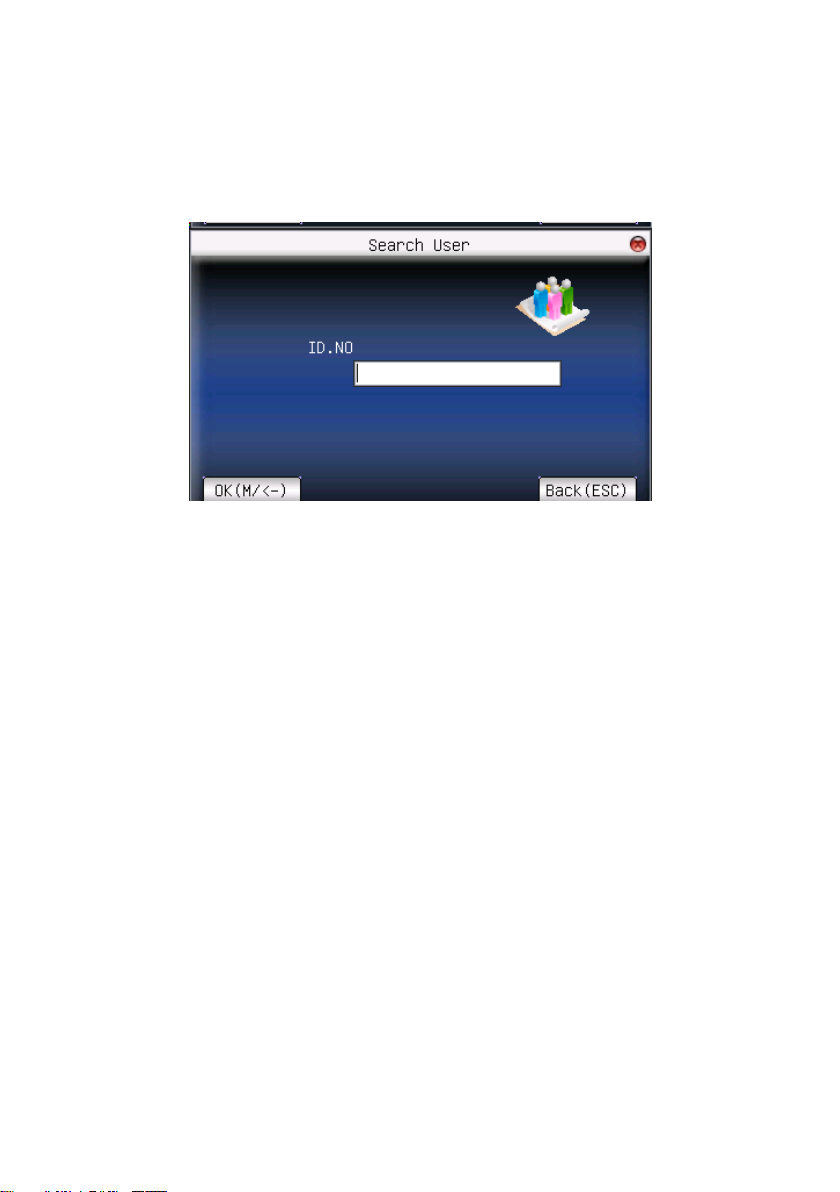
device has provided “User ID” to search the employee.
Press menu on manage user interface to get operating menu. Select
“Search user” or press any numeric key to enter the following page:
Input User ID of employee to be queried. Press OK, after successful
query, the blue cursor will point to the employee. If there is no such
employee, “no enrolled data” will appear.
2.2.2 Query attendance record
When administrator is checking employee’s fingerprint and other
enrolled information, he can also check the employee’s attendance
record during that month.
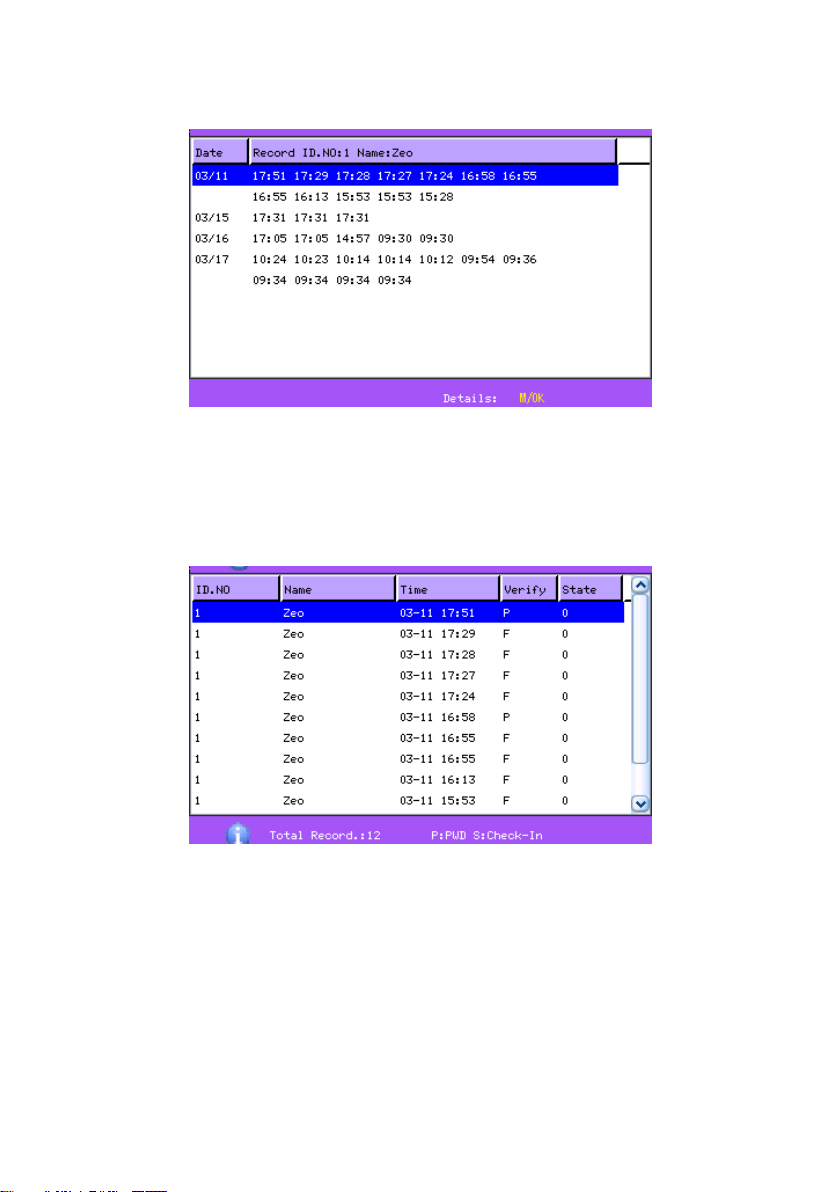
Press menu on manage user interface to get the operating menu, select
“record”, and the employee’s monthly attendance record can be checked:
- 21 -
Page 27
2.4 inch color screen series User Manual
Notice: The picture may be different from your device. The real
product prevails.
Press ▲/▼ to read attendance record.
Press OK/menu to query detailed information.
Then press “ESC” to return to manage user interface.
2.2.3 Edit user
Edit user information saved in the device. For example, the former
enrolled fingerprints are unusable, enter “edit user” to re-enroll
fingerprint, password or card.
- 22 -
Page 28
2. User Management
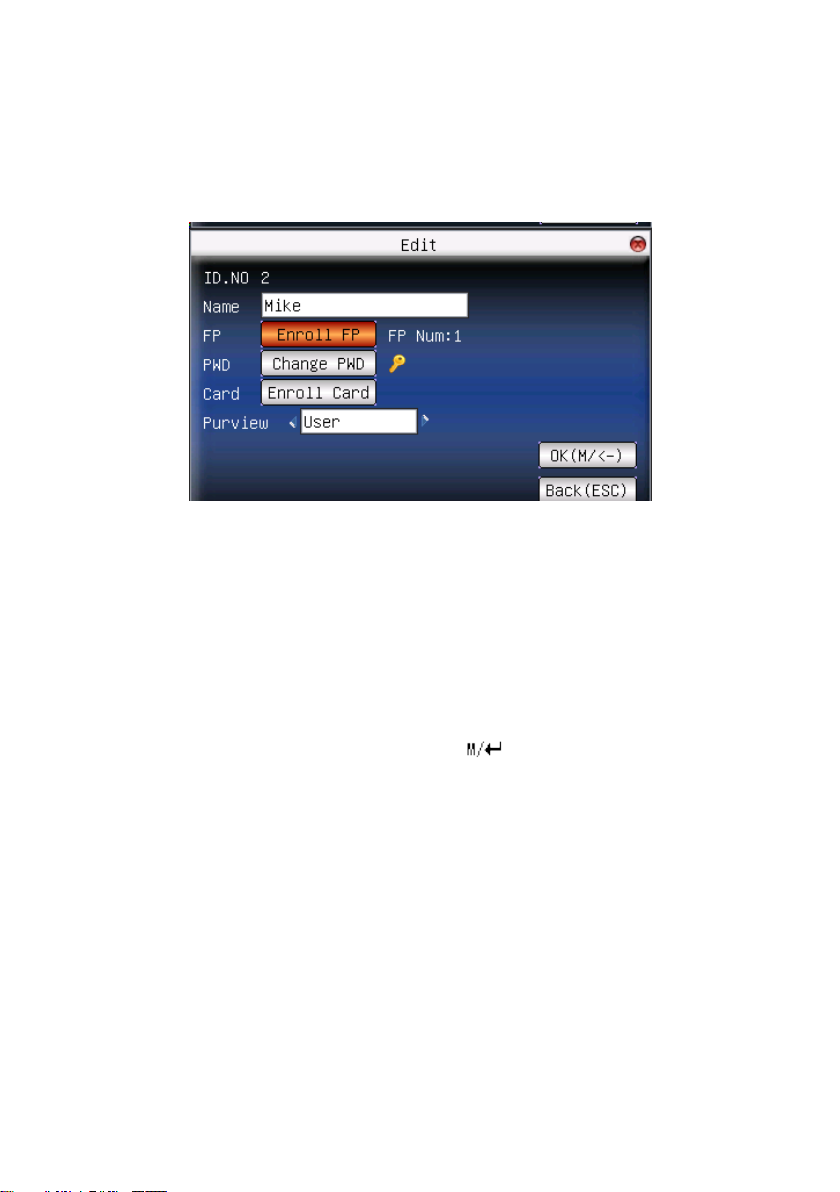
Use ▲/▼ or query user on manage user interface to select employee
to be edited. Then press menu to select “edit” or press shortcut to
verify it, and all enrolled information can be displayed on the device:
Notice: Only some models have name and card options.
User ID cannot be modified. The operation is similar to that of add user.
Fingerprint can be re-enrolled. Click “enroll password” directly to set
password or modify password. The access can also be modified.
Save edition/exit edition
Press menu or ▲/▼ to select “complete
and return to manage user interface.
Press “ESC” or ▲/▼ to select “return(ESC) ” and then press OK, and
the device will prompt “data has been changed. Are you sure to save?”.
If you want to save it, press OK and return to the last menu. Or press
“ESC” to return the last menu.
)”, press OK, save edition
2.2.4 Delete user
“Del user” is to delete employee’s partial information or all information
from the device. It is used when the following states happen:
- 23 -
Page 29
2.4 inch color screen series User Manual
1) When employee’s fingerprint or password is not needed any more.
2) When employee leaves the position.
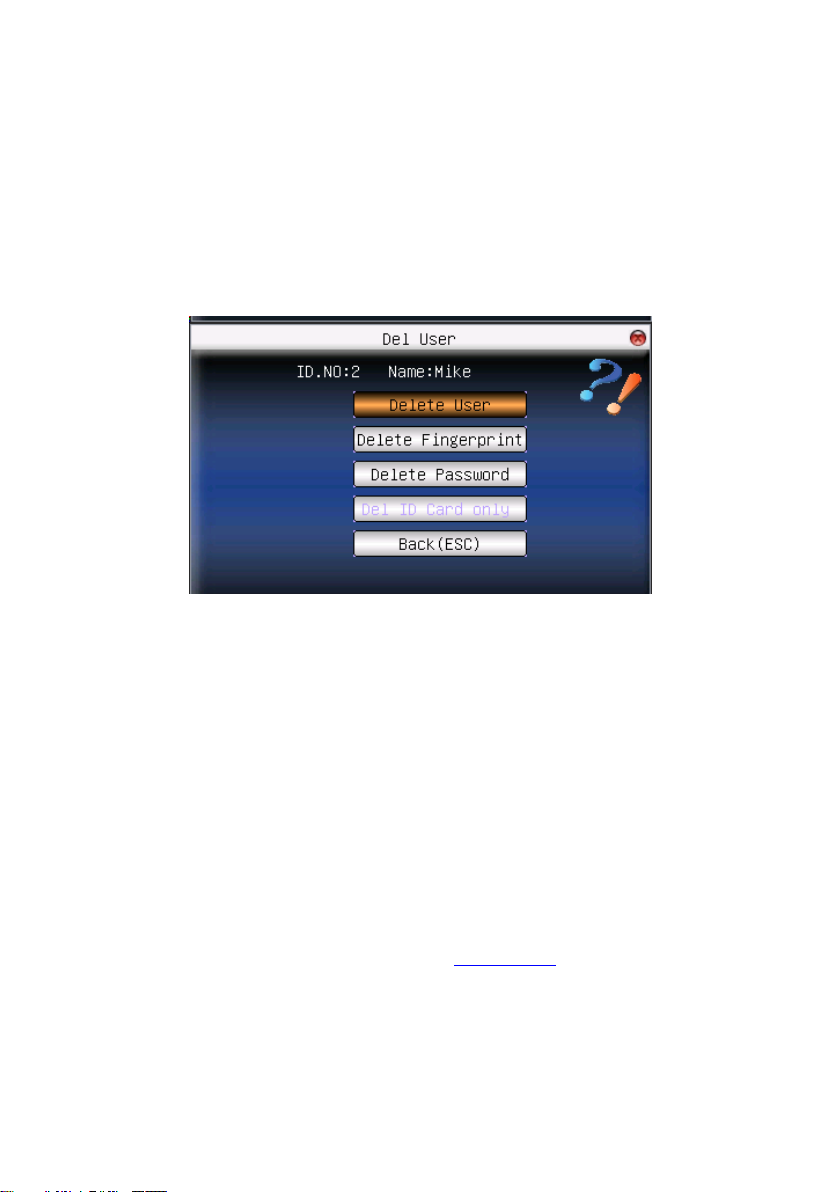
Press ▲/▼ on manage user interface or use query user to select the
employee to be edited. Click menu to get operating menu, and then
select “delete user”.
Delete user
Notice: Only some models have Del ID Card Only options.
If the user has no fingerprint or password, the corresponding item is blue
and cannot be operated. Press ▲/▼ to select the item to be operated.
Press OK to pop out dialog box and verify whether to delete this item or
not. Then the device will give corresponding prompt. Press “ESC” to
return to manage user page.
2.2.5 Add user
In order to add user conveniently for operator, add user is configured
here. The function is the same as that of 2.1 add user
- 24 -
.
Page 30

2. User Management
2.3 Card management ★
Support Mifare non-touch intelligent card with working frequency of
13.56MHZ. Integrate fingerprint attendance to other systems and support
multi-verification mode to meet the demands of different people.
Operation:
Press ▲/▼ to select your desired item, press OK to execute the current
selected item.
2.3.1 Enroll card
R
egard Mifare card as ID card use, just register card number, do not need
to enroll the fingerprint.
Operation:
1. Enrollment
Step 1: Select enroll card and then press OK.
- 25 -
Page 31

2.4 inch color screen series User Manual
Step 2: press keyboard to input the number to be enrolled(if the number
has been there already, the device will prompt you to copy the
information to the card.), and then press OK.
Step 3: The device prompts to show card.
Step 4: Put the card in the induction area until the operation is
successful.
2. Verification:
Sway the card in the induction area. After the device inducts the card,
move the card off. When the verification is successful, the device will
give prompt.
Tips: Please enter user access control option to modify the
- 26 -
Page 32

2. User Management
verification mode as RF, or verification won’t be successful.
2.3.2 Enroll fingerprint card
Enroll fingerprint and write fingerprint into card.
Operation:
1. Enrollment
Step 1: Select enroll fingerprint card and press OK.
Step 2:Use keyboard to input the number to be enrolled(if the number
has been there already, the device will prompt you to copy the
information to the card.), and then press OK. The device will prompt
you to move off your finger.
- 27 -
Page 33

2.4 inch color screen series User Manual
Step 3: Press finger properly three times.
Step 4: Device prompts “please show card”.
Step 5: Put the card in the induction area, waiting for the device to read
fingerprint data into card until the enrollment succeeds.
2. Verification:
Sway the card in the induction area. After the device inducts the card,
move the card off. When the verification is successful, the device will
give prompt. If the pressed fingerprint is different from that stored in the
card, the verification will fail.
- 28 -
Page 34

2. User Management
2.3.3 Clear card information
Delete all the information in the card being operated at present.
Operation:
Put the card in the induction area, waiting for device to delete all the
information in the card. If the card data has been stored in the device,
the device will remind you whether to delete the information in the
device or not. “Yes” is to delete the user’s fingerprint and information in
the device. “No” is to keep the information.
2.3.4 Copy card information
Copy card information to the device(after copy, the fingerprint is still in
the card) ,then press fingerprint attendance directly on the device, with
no need of using Mifare card.
Operation:
- 29 -
Page 35

2.4 inch color screen series User Manual
Press ▲/▼ to select “only copy user information” or “copy user
information and fingerprint”, and then press OK.
2.3.5 Set card parameter value
Set password of Mifare card and decide whether the information should
be saved or not.
Fingerprint card password: After the password is set, the device will
write password into the enrolled fingerprint card. Then the fingerprint
card can only be used on this device.
- 30 -
Page 36

2. User Management
Save the information: Decide whether to save the enrolled information
to the device when enrolling card or fingerprint card. “No” means the
information is only saved in the card. “Yes” means the information is
saved in both card and device.
Operation:
Press ▲/▼to move cursor to the item to be set. If it is the input box,
press numeric keys on small keyboard to input the value. If it is the roll
box, press
return to the last interface. Press “ESC” to cancel setting and return to
the last interface.
/ to switch values. After setting, press menu directly to
Notice: Card induction area is 3cm—5cm above fingerprint reader.
- 31 -
Page 37

2.4 inch color screen series User Manual
2.4 Access Control Option ★
Access control option is to set user’s open door time zone, control lock
and related device’s parameters.
If the device support external facial instrument, it can not support the
camera and advanced access control at the same time.
To unlock, the enrolled user must accord with the following conditions:
1. The current unlock time should be in the effective time of user time
zone or group zone.
2. The group where user is must be in access control (or in the same
access control with other group, to open the door together).
The system default the new enrolled user as the first group, default
group time zone as 1, access control as the first group, and the new
enrolled user is in unlock (if user has modified the related setting of
access control, the system will be changed with user’s modification) .
Operation:
Press Menu -> User Management -> Access Setting (as shown below)
Press ▲/▼ to select your desired item, press OK to execute the current
selected item.
- 32 -
Page 38

2. User Management
2.4.1 Time Zone Setting
Time zone is the minimum unit of access control option. The whole
system can define 50 time zones. Every time zone defines seven time
sections (namely, a week). Every time section is the effective time zone
within 24 hours everyday. Every user can set 3 time zones, “or” exists
among the three zones. It is effective if only one is satisfied. Every time
section format is HH:MM-HH:MM, namely, accurate to minute.
If end time is smaller than start time (23:57- 23:56), the whole day is
forbidden. If end time is bigger than start time(00:00- 23:59), it is
effective section.
Effective time zone for user unlocking: 00:00-23:59 or the time zone
when end time is bigger than start time.
Notice: System default time zone 1 as whole day open(namely,
the new enrolled user is unlocking) .
Operation:
Press Menu -> User Management -> Access Setting -> Time Zone
Setting(shown as below)
Input time zone number. If the enrolled time zone has number already,
- 33 -
Page 39

2.4 inch color screen series User Manual
then the time zone setting will displayed automatically. Press ▲/▼,
/ to move the cursor to the input box, press numeric key on small
keyboard to input value. Then press Menu to save it and press ESC to
exit.
2.4.2 Holidays Setting
Special access control time may need during holiday. It is difficult to
modify everybody’s access control time. So a holiday access control
time (as access control exceptions) can be set, which is applicable for all
employees.
Operation:
Press Menu -> User Management -> Access Setting -> Holidays Setting
(as shown below).
Add holidays
Press Menu to get operation menu
Press ▲/▼ to select add.
- 34 -
Page 40

2. User Management
Press ▲/▼ to move cursor to the input box. Press numeric key on small
keyboard to input the value. After setting, press Menu to save it. Then
press ESC to exit.
Edit holidays
Select the line to be edited. Press OK directly or press Menu to select
edit in operating menu.
Press ▲/▼ to move cursor to the input box. Press numeric key on small
keyboard to input the value. After setting, press Menu to save it. Then
press ESC to exit.
Delete holidays
Select the line to be deleted. Press Menu to select delete in operating
menu.
- 35 -
Page 41

2.4 inch color screen series User Manual
Notice: If holiday access control time is set, user’s open door time
zone during holiday subject to the time zone here.
2.4.3 Group time zone setting
Grouping is to manage employees in groups. Employee in groups use
group time zone by default. Group members can also set user time zone.
Every group can hold three time zones. The new enrolled user belongs
to Group 1 by default. He can also be allocated to other groups.
Operation:
Press Menu -> User management -> Access setting -> Group Time Zone
setting:
1. Add group time zone
Press Menu to get operating menu.
Press ▲/▼ to select add. For example, to add a group whose time zone
is 2 and 3, as shown below:
- 36 -
Page 42

2. User Management
Notice: 1) If holiday is effective, only when there is intersection
between group zone and holiday time zone, can the group member
open the door.
2) If holiday is ineffective, the access control time of
group member won’t be affected by holiday.
Press ▲/▼to move cursor to the item to be set. If it is the input box,
press numeric keys on small keyboard to input the value. If it is the roll
box, press
return to the last interface. Press “ESC” to cancel setting and return to
the last interface.
2. Edit Group time zone
In the Access Group setting interface, select the line to be edited. Press
OK directly or press Menu to select edit in operating menu.
/ to switch values. After setting, press Menu directly to
- 37 -
Page 43

2.4 inch color screen series User Manual
Press ▲/▼to move cursor to the item to be set. If it is the input box,
press numeric keys on small keyboard to input the value. If it is the roll
box, press
/ to switch values. After setting, press Menu directly to
return to the last interface. Press “ESC” to cancel setting and return to
the last interface.
3. Delete group time zone
In the Access Group setting interface, select the line to be deleted. Press
Menu to select delete in operating menu.
2.4.4 Set Unlock Combination
Make various groups into different access controls to achieve
multi-verification and improve security. An access control can be made
up of 5 groups at most.
Operation:
Press Menu -> User management -> Access Setting -> Unlock
Combination setting:
- 38 -
Page 44

2. User Management
1. Add unlock combination
Press Menu to get operating menu:
Press ▲/▼ to select add. For example, to add an unlocking
combination, this needs the verification of both group 1 and 2, as shown
below:
Press ▲/▼ to move cursor to the input box. Press numeric key on small
keyboard to input value. After setting, press Menu to save it. Then press
ESC to exit.
- 39 -
Page 45

2.4 inch color screen series User Manual
2. Edit unlock combination
Select the line to be edited. Press OK directly or press Menu to select
edit in operating menu.
Press ▲/▼ to move cursor to the input box. Press numeric key on small
keyboard to input value. After setting, press Menu to save it. Then press
ESC to exit.
3. Delete unlock combination
Select the line to be deleted. Press Menu to select Delete in operating
menu.
2.4.5 Access Control Parameters
Set device control locks and related device parameters.
Lock driver time length: Device control electronic lock is in enabling
time. (effective value 1~10 seconds)
Door sensor delay: After the door is open, delay the time to check door
sensor. If door sensor state is different from the normal state of door
sensor mode, alarm will be given off. This time is called door sensor
delay. (effective value: 1~
99 seconds)
Door sensor mode: It includes NONE, NC and NO. NONE means there
is no door sensor. NO means the door is open normally. NC means the
- 40 -
Page 46

2. User Management
door is closed normally.
Door sensor alarm: When abnormal door sensor state is detected, alarm
will be given off after some time. This time is door sensor alarm.
(effective value: 1~99 seconds)
Alarm count: When the failed press times reach the set times, alarm
signal will come out.(effective value 1~9 times)
NC time zone: Set time zone for access control NC. Nobody can unlock
during this time zone.
NO time zone: Set time zone for access control NO. The lock is always
in enabling state during this time zone.
Whether holiday is effective: Define time zone for NO or NC. Whether
the time zone set in time zone is effective.
Notice: 1) when time zone is set for NO or NC, please set door
sensor mode as “None”, or alarm signal may come out during
time zone of NO or NC.
2) If time zone of NO or NC has no definition, the device
will prompt it and add the definition in time zone setting.
Operation:
Press Menu -> User Management -> Access Setting -> Access Control
Parameters:
- 41 -
Page 47

2.4 inch color screen series User Manual
Press ▲/▼to move cursor to the item to be set. If it is the input box,
press numeric keys on small keyboard to input the value. If it is the roll
box, press
/ to switch values. After setting, press Menu directly to
return to the last interface. Press “ESC” to cancel setting and return to
the last interface.
2.4.6 Duress Alarm Parameters
There is duress alarm parameter setting in the device. When employee
come across duress, select duress alarm mode, the device will open the
door as usual. But the alarm signal will be sent to the alarm.
Help key: If select “Yes”, press help then press fingerprint in the
following 3 seconds or press ID number, and duress alarm will come out
after successful identification. If select “No”, it is useless to press help.
(help can be set in keyboard definition.)
1:1 Trig: if select “Yes”, when user use 1:1 match mode, alarm signal
will come out. Or there is no alarm signal.
1: N Trig: if select “Yes”, when user use 1: N match mode, alarm signal
will come out. Or there is no alarm signal.
Pwd Trig: If select “Yes”, when user use password verification mode,
alarm signal will come out. Or there is no alarm signal.
Alarm delay: After duress alarm gets started, the alarm signal is not
output directly. But it can be defined. After some time, alarm signal will
be generated automatically.(0-255 seconds) 。
Operation::
Press Menu -> User Management -> Access Setting -> Duress alarm
parameters (as shown below).
- 42 -
Page 48

2. User Management
Press ▲/▼to move cursor to the item to be set. If it is the input box,
press numeric keys on small keyboard to input the value. If it is the roll
box, press
/ to switch values. After setting, press Menu directly to
return to the last interface. Press “ESC” to cancel setting and return to
the last interface.
2.4.7 Anti-passback Setting★
【overview】
Sometimes, some illegal person follows the employee into the gate,
which will bring security problem. To prevent such risk, this function is
enabled. In record must match out record, or the gate won’t be open.
This function needs two machines to work together. One is installed
inside the door (master machine hereinafter), the other is installed
outside the door (slave machine hereinafter). Same Wigand signal
communication is adopted between the two machines. Same user and
user ID number enrolled。
- 43 -
Page 49

2.4 inch color screen series User Manual
Operation:
Press Menu -> User Management -> Access Setting -> Anti-Passback
setting (as shown below).
The choice of Machine models: Press ▲/▼ to switch the input box.
Press
/ to modify the setting. Select Anti-Out, refer to out anti-pass
back, only user’s last record is in-record, the door can be open.
Otherwise it will trigger the alarm signal as illegal access. Select
“None”, refer to no anti-pass back, and no alarm will be triggered. After
- 44 -
Page 50

2. User Management
setting, press Menu directly to return to the last interface. Press “ESC”
to cancel setting and return to the last interface.
Anti-passback Function:
The master machine control OUT and the slave machine control IN.
In anti-passback (APB-In):
Only user’s last record is out-record, can the door be opened. Otherwise
it will trigger the alarm signal as illegal access.
Enter: New user’s first time access will pass.
In anti-passback mode not restrict of OUT.
Out anti-passback (APB-Out):
Only user’s last record is in-record, the door can be opened. Otherwise it
will trigger the alarm signal as illegal access.
Out: New user’s first time access will pass.
In anti-passback mode not restrict of IN.
In-Out anti-passback (APB-Out/In):
New user’s first time access will pass. Only user’s last record is
out-record, can the door be open when he/she want IN. Otherwise it will
trigger the alarm signal as illegal access. Only user’s last record is
in-record, can the door be open when he/she want out. Otherwise it will
trigger the alarm signal as illegal access.
None anti-passback:
Slave machine can verify to open the door, and the prompt “no enrolled
data” on the master machine.
Anti-passback function is available.
Machine status: Press
/ to move cursor to the item to be set. If
select “Control Out”, the master control out, the other machine control
entry. Need two machines cooperation.
- 45 -
Page 51

2.4 inch color screen series User Manual
2.4.8 RS485 Reader Function★
Equipment supports RS485 reader function, can be through the RS485
communication connected reader; meanwhile, it can act as Master-slaver
which device for master, reader for slaver, achieve RS485 Anti-passback
functions.
Note: If select to supports “485reader function”, so device can not with
PC through 485 communications.
- 46 -
Page 52

2. User Management
3. Communication Option
When the device and PC are used to transmit data, it is necessary to use
communication wire to set communication parameters in the device.
When the device is in communication, “communicating…” appears.
Don’t operate the device then.
Notice: When the device is communicating with computer, please
check the setting here. The parameters here must be in accordance
with that of software communication interface.
3.1 Network option
When Ethernet is used for communication of device and PC, the
following settings need to be checked:
Device IP address: IP is 192.168.1.201 by default. You can modify it if
it is necessary. But it cannot be the same with that of PC.
Subnet mask: It is 255.255.255.0 by default. You can modify it if it is
- 47 -
Page 53

2.4 inch color screen series User Manual
necessary.
Gateway address: It is 0.0.0.0 by default. If the device and PC are in
different net segment, it is necessary to set address.
Net speed: Set the speed according to the LAN where the device is.
Operation:
Press ▲/▼to move cursor to the item to be set. If it is the input box,
press numeric keys on small keyboard to input the value. If it is the roll
box, press
/ to switch values. After setting, press Menu directly to
return to the last interface. Press “ESC” to cancel setting and return to
the last interface.
3.2 Serial port option ★
When serial port (RS232/RS485) is used for communication of device
and PC, the following settings need to be checked:
Baud rate: Used for communication with PC. There are five options:
9600, 19200, 38400, 57600 and 115200. If the communication speed is
high, RS232 is recommended. If the communication speed is low, RS
485 is recommended.
RS232: Whether use RS232 to communicate. Select “ON” if RS232 is
to be used.
- 48 -
Page 54

2. User Management
RS485: Whether use RS485 to communicate. Select “ON” if RS485 is
to be used.
USB: Whether use USB to communicate. Select “ON” if USB is to be
used.
RS232, RS485 and USB cannot be used at the same time.
Operation:
Press ▲/▼to move cursor to the item to be set. Press / to switch
values. After setting, press Menu directly to return to the last interface.
Press “ESC” to cancel setting and return to the last interface.
Notice: 1) Only some models have RS232/RS485/USB communications.
2) The picture may be different from your device. The real
product prevails.
3.3 Security
When RS232/RS485 is used for communication of device and PC, it is
necessary to set device ID.
Device ID: 1—254. If RS232/RS485 is used, this ID needs to be input
on the software communication interface.
To improve the security of attendance data, connection password needs
- 49 -
Page 55

2.4 inch color screen series User Manual
to be set here. Connection password must be input when PC software is
to connect device to read data.
Connection Password: System password is 0 by default.(namely, there
is no password. ) it can be set as other value. After setting, the password
must be input if software is to communicate with device. Or the
connection will fail. The password length is 1~6 digits.
Operation:
3.4 Wiegand option ★
Define Wiegand input & output format.
- 50 -
Page 56

2. User Management
3.4.1 Input configuration
User defined format: User defined Wiegand input format
Bit digit: Wiegand data digit length
Pulse width: Pulse width is 100 microseconds by default, which can be
adjusted from 20 to 800.
Pulse interval: It is 900 microseconds by default, which can adjusted
between 200 and 20000.
Input content: Content contained in Wiegand input signal, including
User ID or card number.
Operation:
- 51 -
Page 57

2.4 inch color screen series User Manual
Input the name of user-defined format. Press ▲/▼to move cursor to the item
to be set. If it is the input box, press numeric keys on small keyboard to
input the value. If it is the roll box, press
/ to switch values. After
setting, press Menu directly to return to the last interface. Press “ESC”
to cancel setting and return to the last interface.
3.4.2 Output configuration
Format: It is the defined format in the system. User need not specify
total digit and the information position.
There are 4 definition formats by default in the system: Wiegand 26 with
site code, Wiegand26 with site code means W26 format output with
device ID. If there is no site code, then the signal not to be output does
not contain the information. If there is site code, the output is the set site
code(similar to device ID. But this code is specified by the user and
different devices can be repeated, with range of 0-255.) .
Failed ID: It is the failed ID after unsuccessful verification. “Close”
means not to output it. (With range of 0-65534)
Site code: Similar to device ID. But the code is specified by user.
Different device can be repeated. (With range of 0-255)
Pulse width: Pulse width is 100 microseconds by default, which can be
adjusted from 20 to 800.
Pulse interval: It is 900 microseconds by default, which can adjusted
between 200 and 20000.
Output content: Content contained in Wiegand output signal, choose
User ID or card number.
Operation:
- 52 -
Page 58

2. User Management
Input the name of user-defined format. Press ▲/▼to move cursor to the
item to be set. If it is the input box, press numeric keys on small keyboard to
input the value. If it is the roll box, press
example, to modify failed ID as 10, press
/ to switch values. For
/ firstly to select “Yes”, then
input 10 in the input box. After setting, press Menu directly to return to the
last interface. Press “ESC” to cancel setting and return to the last interface.
- 53 -
Page 59

2.4 inch color screen series User Manual
1:N 1:1
4. System Option
Set system parameters to meet user’s demand as many as possible.
4.1 System parameters
1: 1 matching threshold value: The similarity of ID + fingerprint
verification and the enrolled template
1: N matching threshold value: The similarity of verification and the
enrolled template
Recommended matching threshold value:
FRR FAR
high low 45 25
middle middle 35 15
low high 25 10
Matching threshold value
- 54 -
Page 60

4. System Option
Time format: Time format displayed on initial interface. Press / to
set 24H or 12H.
Date format: Press
/ to select format. The fingerprint sensor
supports ten date format: YY-MM-DD, YY/MM/DD, YY.MM.DD,
MM-DD-YY, MM/DD/YY, MM.DD.YY, DD-MM-YY, DD/MM/YY,
DD.MM.YY and YYYYMMDD. Select your desired date format. Press
/ to set 24H or 12H.
Keyboard voice: Press
/ to set whether the key has voice or not.
“Yes” means having voice, and “No” means no voice.
Voice prompt: Press
/ to select whether to give voice prompt or
not. The device will give corresponding voice prompt during Operation.
Volume: Press
/ to set it.
Attendance record alarm: when the free space reaches the set value,
the device will give alarm automatically (effective value is 0~99,0
means the space is all used and there is no alarm. )
Repeat verification time: it is in the set time range(unit: Minute). If
somebody’s attendance record has been there, then the record of second
attendance won’t be saved. (effective value is 0~60 minutes. 0 means
all the records after verification are saved.)
Operation:
Press ▲/▼ to move cursor to the input box. Press numeric key on small
- 55 -
Page 61

2.4 inch color screen series User Manual
keyboard to input the value. If it is the input box, press numeric keys on
small keyboard to input the value. If it is the roll box, press
/ to
switch values. After setting, press OK or menu directly to save the
setting and return to the last interface. Press “ESC” to cancel setting and
return to the last interface.
4.2 Data management
Delete attendance record: Delete all attendance records.
Delete all data: Delete all enrolled employees’ information, fingerprint
and attendance record.
Clear management access: Change all administrators into common users.
Operation: Press System Menu→ Data Mng (as below :)
Press ▲/▼ to move cursor to the selected button. Press OK or menu to
start operation. The device will remind you whether to continue the
current operation or not. Then press OK or menu to delete all the data,
which won’t be recovered after deletion. Press “ESC” to return to the
last interface.
Clear propaganda picture: Clear the propaganda pictures uploaded to the
device from U disk.(refer to Upload User Defined Picture in
6.2 Upload
data for how to upload the propaganda pictures.)
- 56 -
Page 62

4. System Option
Operation:
Press “▲/▼” to preview the propaganda pictures in the device. Click
OK to delete all these pictures. After deletion, the next picture will
appear. Click “delete all” to delete all the propaganda pictures in the
device. Then press “ESC” to return to data management interface.
4.3 Upgrade firmware
Update the firmware by utilizing the USB Pen Drive (flash drive)
Notice: If you need such upgrade file, please contact technician.
Usually, firmware upgrade is not recommended.
Operation:
Insert U disk with upgrade file into the slot. The device will identify the
file automatically. The device will give prompt whether it is successful
or not.
- 57 -
Page 63

2.4 inch color screen series User Manual
4.4 Display Setting
Press ▲/▼ or
on small keyboard to input the number. After setting, press menu
directly to save the setting and return to the last interface. Press “ESC”
to cancel setting and return to the last interface.
◀/▶ to move cursor to the input box. Press numeric key
4.4.1 Verification
When user is using 1:1 match or password verification, he may forget to
enroll fingerprint or does not press the finger in the proper way. For
user’s convenience and to reduce repeat key, the device allows retry.
4.4.2 Time display
There are two clock modes for Select. After verification, the selected
clock mode will be displayed on the screen.
- 58 -
Page 64

4. System Option
4.4.3 Picture cycle interval
Picture cycle interval means how soon will the picture be changed
(effective value is 3~999 seconds.)
Display propaganda picture: User can display some propaganda pictures on the
screen. The operation refers to this manual 10.4 Propaganda picture upload rules
4.4.4 Clock display delay
Time display delay means the clock picture display time length after
verification. After the display delay, the propaganda picture will be
displayed on initial interface again (with effective value of 0~999
seconds, and 0 means displaying clock all along. )
4.4.5 Interface style
User can set initialize interface’s style. Press menu → System →
Display→ Initialize style.
There are three modes: common, matrix(default), magic. If change
- 59 -
Page 65

2.4 inch color screen series User Manual
"4.
and
"4.
display delay"
functions are fit use common
mode of interface style only.
When you select matrix or magic
mode, these functions are
invalid. Display screen show the
matrix or magic style all the
interface success, machine displayed: "Standby Interface modified success".
hen you should restart the device.
T
Notice:
4.3 Picture cycle interval"
4.4 Clock
Common-Style
Matrix-Style Magic-Style
4.5 Reset
Make device’s communication option, system option and so on reset to
the state of factory.
Factory reset: Make all the parameters in the device reset to the state of
factory.
Reset keyboard definition: Reset the corresponding setting of
- 60 -
Page 66

4. System Option
keyboard definition to that of factory.
Reset bell option: Only reset bell option to factory state.
Reset other parameters: only reset communication option, system
parameter and interface option and so on to factory state.
Press ▲/▼ to move cursor to the button to be operated. Press OK to
start operation. The device will say “Are you sure to execute the current
operation?” Press OK to reset it to factory state and press “ESC” to
cancel operation.
Notice: The employee’s information and attendance data won’t be
deleted when this operation is being done.
4.6 Other options
Set sleep time, external bell and other parameters for the device.
Scheduled sleep: When it is the scheduled sleep time, the device not in
operation will enter sleep status. Press any key or finger to awake it.
External bell: whether to enable external bell (It is the bell ring given
off from external electronic bell, connected with the internal of the
device, instead of the device speaker.
- 61 -
Page 67

2.4 inch color screen series User Manual
Fingerprint image display: Select whether to display the fingerprint
image on the screen when it is enrolling or verifying there are 4 options:
display upon both enrollment and verification, only display upon
enrollment, only display upon verification, not display upon enrollment
and verification.
Lock power-off: To prevent hostile power-off, select whether to lock
power-off or not.
“Disable”: the power is off 3 seconds after pressing power-off.
“Enable”: it is ineffective after pressing power-off.
Language: To choose the display language.
Master Slave: Select whether to establish master slave connection or
not.
Push: Select whether to use the PUSH function or not.
- 62 -
Page 68

5. Date Time
5. Date Time
5.1 Date Time option
Accurate attendance time is based on accurate time date.
Enter time date to set options:
Operation:
Press ▲/▼ to move cursor to the input box. Press numeric key on small
keyboard to input the value. After setting, press menu directly to save
the setting and return to the last interface. Press “ESC” to cancel setting
and return to the last interface.
5.2 DLST ★
DLST, also called Daylight Saving Time, is a system to prescribe local
time in order to save energy. The unified time adopted during the system
date is called “DLST”. Usually, the time will be one hour forward in
summer. It can make people sleep early and get up early. It can also
reduce lighting to save power. In autumn, the time will be recovered.
- 63 -
Page 69

2.4 inch color screen series User Manual
The regulations are different in different countries. At present, nearly
110 countries adopt DLST.
To meet the demand of DLST, a special option can be customized on our
RF Card Time & Attendance recorder. Make the time one hour forward
at XX (minute) XX (hour) XX (day) XX (month), and make the time
backward to the standard time at XX (minute) XX (hour) XX (day) XX
(month) if necessary.
Operation:
1) Set DLST as “ ON ”.
2) Input DLST start time and end time.
st
For example, if 08:00, April 1
time will be one hour forward. If it is 08:00, August 1
is set, the device enter DLST, and the
st
, the device will
reset normal time.
- 64 -
Page 70

3) Press
5. Date Time
/“OK” to save setting. Press “ESC” to exit without saving.
- 65 -
Page 71

2.4 inch color screen series User Manual
6. PenDrive Management
Import user information, fingerprint template, attendance data and so on
in the device to attendance software or import user information and
fingerprint to other devices through U disk.
6.1 Download data
1. Download attendance data
Save all attendance data in the device to U disk.
Operation:
1) Insert U disk into USB slot of the device through mini USB.
2) Press “▲/▼” to Download Record.
Press OK for verification. “Downloading data, please wait…” will
appear on the display when the device is downloading attendance data
until it is successfully downloaded.
3) Press “ESC” to return to initializing interface. Pull out U disk.
X_attlog.dat (attendance log) will be saved in U disk. (X stands for
- 66 -
Page 72

6. PenDrive Management
device ID).
2. Download user data
Save all users’ information and fingerprint in the device to U disk.
Operation:
Insert USB flash disk into USB slot of the device, press “▲/▼” to
download user, then user.dat (user information) and template.dat
(fingerprint template) will be saved in U disk.
6.2 Upload data
1. Upload user data
Upload user information and fingerprint saved in U disk to device.
Operation:
Insert U disk into USB slot of fingerprint sensor. Press “▲/▼” to select
upload user data, then press OK, and user.dat(user information) and
template.dat(fingerprint template) in U disk will be uploaded to the
device. If there are no such files, “data copy error” will appear.
2. Upload user defined picture
Upload JPG picture started with “ad_” in U disk to the device. Then this
picture will be displayed on initial interface. (Refer to appendix 10.4
Operation:
)
- 67 -
Page 73

2.4 inch color screen series User Manual
Insert U disk into USB slot of device. Press “▲/▼” to preview the
pictures of U disk. If you want to upload the picture, click OK. Then the
next picture will appear automatically. After upload, press ESC to exit.
- 68 -
Page 74

7. Auto Tes t
7. Auto Test
The device can test various modules automatically to help operator to
judge the module with fault quickly. Auto test include TFT display Test,
Audio Test, Keyboard Test, Sensor Test and RTC Test.
Press “▲/▼” to select the item to be selected. Press OK to start it.
7.1 TFT display test
The device can automatically test TFT color display effect through color
display, white display and black display) to see whether the screen
works normally.
Press OK to continue and press ESC to exit.
7.2 Audio test
The device can automatically test voice prompt effect through playing
voice files in the device to see whether the files are complete and the
voice effect are good or not.
- 69 -
Page 75

2.4 inch color screen series User Manual
Press OK to continue and press ESC to exit.
7.3 Keyboard test
The device can automatically test various keyboards to see whether the
keys work normally or not.
Press any keyboard on the test interface (except for OK and ESC) to
check whether the pressed keyboard is in accordance with that displayed
on the screen.
Will appear whether it is the right key, and will appear whether
it is not the right key.
Press ESC to exit.
7.4 Sensor test
The device will automatically test the sensor to see whether it works
normally. Press fingerprint to see whether the image is clear and usable.
Press fingerprint on the sensor window and the fingerprint image will
appear on the screen.
Press ESC to exit.
7.5 Real-time clock
The device can automatically test the clock to see whether it works
normally.
Press OK to start time and then press OK to stop time.
Press ESC to exit.
- 70 -
Page 76

8. Query Record
8. Query Record
Employee’s attendance records will be saved in the device. For
convenience, query record function is provided.
According to user’s input query condition, the record will be displayed
on the screen for user to check.
Notice: The picture may be different from your device. The real
product prevails.
Enter query attendance, input corresponding information in the query
condition input box.
When the User ID is blank, all employees are inquired.
When input a User ID, only this employee’s attendance record can be
queried.
After query, the records in accordance with the conditions will be
displayed on the screen:
- 71 -
Page 77

2.4 inch color screen series User Manual
Press “▲/▼” to move the cursor to the line to be queried. And press OK
to check attendance record.
For example, the detailed attendance information of employee 10001 on
May8th as follows:
At the bottom of the screen, there are some remark, and the capital
letters with their meanings:
Verification:
F: means Fingerprint verification
P: means Password verification
C: means ID card verification
Status:
- 72 -
Page 78

8. Query Record
It is the attendance status. The code displayed in the list is the status
code. And status name will be displayed in the information column.
- 73 -
Page 79

2.4 inch color screen series User Manual
9. System Information
Use system information to check the current device’s saving status, its
version information and so on.
9.1 Record capacity
Display the count of enrolled users, administrator, password enrollment,
the current enrolled fingerprint and the current saved attendance record.
Also display the capacity of the fingerprint and attendance record, as
show below:
9.2 Device information
Display device name, serial number, version information, and vendor
and manufacture date in device information for check.
- 74 -
Page 80

10. Appendixes
9 , used to input employee number, password and so
2. Status key.
off. Press it on initial interface for 3 seconds to
value are input incorrectly to delete the wrong value and
M/OK
Menu, OK
2. Press ESC on initial interface to display the keyboard
10. Appendixes
10.1 Keyboard
Different device has different kinds of keyboard, and the function of the
keyboard is different. Please check the fallows:
Keyboard type 1:
key function
Numeric
key
▲ 1. Upward.
▼ 1. Downward.
1. 0~
on.
2. 0 on manage user interface is shortcut of “query user”.
2. Status key.
/ 1. Power-
ESC 1. Cancel the operation and return to the superior menu
1. Modify current item value.
2. Status key.
enter power-off count down state.
2. Space back. Press it when User ID, password and system
input the value again.
3. Status key.
definition of the present device.
- 75 -
Page 81

2.4 inch color screen series User Manual
9,used to input employee number, password and so
2. Shortcut.
2. Space back. Press it when User ID, password, and
3. Shortcut.
Keyboard type 2:
key function
Numeric
key
1. 0~
on.
2. 0 on manage user interface is shortcut of “query user”.
▲ 1. Upward.
▼ 1. Downward.
2. Shortcut.
*/ 1. Modify current item value.
2. Shortcut.
3. Enable T9 input.
4. Switch input method in T9 input.
/
1. Modify current item value.
system value are input incorrectly to delete the wrong value
and input the value again.
0/
1. power-off. Press it on initial interface for 3 seconds to
enter power-off count down state.
2. Shortcut.
M/OK Menu, OK
ESC 1. Cancel the operation and return to the superior menu.
2. Close T9 input.
- 76 -
Page 82

Keyboard type 3:
9,used to input employee number, password and so
2. Shortcut.
1. Shutdown. In the initial interface press this key for 3
2. Space back. Press it when User ID, password, and
y to inquire
OK
OK
N/A
Invalid key( Access machine do not have this key)
key function
Numeric
key
1. 0~
on.
2. 0 on manage user interface is shortcut of “query user”.
▲ 1. Upward.
2. Shortcut.
▼ 1. Downward.
2. Shortcut.
1. Right.
1. Left.
2. Shortcut.
/
seconds to enter a shutdown countdown status.
10. Appendixes
system value are input incorrectly to delete the wrong value
and input the value again.
MENU Menu, OK, after verification press this ke
records。
F1 Sign in state key.
F2 Sign out state key.
Doorbell key(Access machine have this key)
ESC Cancel the operation and return to the superior menu.
- 77 -
Page 83

2.4 inch color screen series User Manual
10.2 USB
USB Host
The device will may be used as USB Host to exchange data with
external U disk.
The data transmission speed is quick, the traditional fingerprint machine
only supports the RS232, RS485 or Ethernet way data transmission,
when as a result of physical condition limit, data quantity big, and the
data transmission cost quite long time. But the USB data transmission is
more quick than the former any transmission mode, may complete
downloading data by U disk in a short period of time, like this greatly
enhances the efficiency.
The operational steps of the device as USB Host please refer to the
manual "6. PenDrive management
USB Client ★
The device will be as removable storage devices and the data in the
device will transfer to a PC via connected USB cable.
When the device is an USB Client, the Communication Option will have
USB communication options. For more details please refer to the
manual “3. Communication Option
" detailed briefing.
”.
10.3 Quick query of attendance record
It is used for common user to query his intraday attendance record to see
whether there is something wrong for attendance time and notify
administrator the abnormal recorder in time.
Operations:
Press
to display the employee’s intraday records after successful
- 78 -
Page 84

10. Appendixes
fingerprint or password verification in 10 minutes.
For example: the employee with User ID of 1 can check his intraday
attendance record by pressing
after fingerprint verification.
Notice: The picture may be different from your device. The real
product prevails.
Press ▲/▼ to read attendance record.
Press
Press ESC to return to initial interface.
to query detailed information.
10.4 Propaganda picture upload rules
The picture format must be JPG. Other formats are not accepted here.
The file name of propaganda picture must be ad_0~ad_9, for example
ad_1.Jpg.
The file name won’t be changed after it is uploaded to the device. If it is
necessary to change this picture, upload another picture with the same
file name to cover it.
Every picture cannot be over 30K, or it cannot be uploaded.
- 79 -
Page 85

2.4 inch color screen series User Manual
The picture’s resolution is 320 wide and 240 high. It is better not to be
more or less than it.
The propaganda pictures’ count should be 10 at most.
If you want it, please contact our businessman or technician.
10.5 Card support (ID/EM, MIFARE Card) ★
In order to meet security market need, our fingerprint biometric
verification reader can be embedded EM, MIFARE reader module.
Mifare Card
The FRT supports MIFARE non-contact smart cards with working
frequency of 13.56 MHz and card reading distance of 3m to 5m.
Using 13.56 MHz non-contact smart card technology, these
fingerprint products provide users with new options for
supporting multi-authentication of identity. Combine a non-contact card
presentation with a fingerprint biometric. Or, use a personal identification
number (PIN) number along with a non-contact card presentation. (See multi-
authentication).
The fingerprint products provide three levels of fingerprint verification.
During the enrollment process, the LCD prompt will guide the user to
place their finger on the sensor. The fingerprint template is collected at
the unit and immediately transferred to the card. During this enrollment
process, the fingerprint template is stored on the card or the fingerprint
machine. During verification at the door, the LCD graphical display
will assist the user with instructions about finger placement on the
biometric sensor. For more detail see ID/EM, Mifare Card user Guide.
- 80 -
Page 86

10. Appendixes
10.6 Web time & attendance ★
Summary
The T & A system is based on Web Server technical, use Page Request
technical to process and manage data, it integrate many feature ,such
local data collection , intellectualized port (RS232/RS485),
communication protocol conversion, image collection, alarm data stored
up , and WEB server etc. basing on this equipment to create an unifying
monitoring platform that supply one solution for equipment
management, Time &Attendance, as well as monitor, in addition the
Web Time & Attendance solution is independent on regional limit, and
do not need to install other software. utilize IE or Netscape browser,
downloading and remote on-line management, handle time sheet
corrections and create report table on the fingerprint terminal is
available , it supply easy way for manager of enterprise know the
employ in post or attendance state at any moment, in time search for
information, statistic data, deal with operation at same time, provide a
solution of staff attendance , check in or out management, pay roll
management, in word and deed realize that at everywhere any moment
the information is synchronization, its go far beyond traditional Time &
Attendance solution.
Why does embedded Web Server into the device?
1. a few or nobody keep watch
Thought TCP/IP and Ethernet, WEB Server is able to reliable apply to
local network, the data fingerprint machine store up can be watch and
deal via long distance network, with browser it is not need to
administrator or person specially assigned go to local for to achieve task
collect data, upload and download data, as well as upgrade system, , not
have other software and tools
- 81 -
Page 87

2.4 inch color screen series User Manual
2. Fully compatible with our company Inc program
WEB Server platform may be fully compatible with current program
each other entirely is mutually beneficial, ability to much more flexible
to meet customer need.
3. More reliable, fast through long distance transfer data
Through WEBSERVER , the data is able to reliable and fast be
download local system, utilize browse ability to down all data in short
time, do not worry about the reliability of data.
4. More flexible, easy for data management and source share
Via the platform created by Web server, the application program, data
management becomes more easy and flexible.
5. May easy integrate OA, CRM system, reliable base on network
human force management.
10.7 9 Digit Code ★
When go on enrolling user in the fingerprint machine, along with the
standard enrolling code is five digit(its range is 1-65534) , if you need
that the enrolling code is longer in the actual application, we can provide
a customized design that the fingerprint machine own nine digit code.
10.9 Daylight Saving Time ★
Some device provides correct and current time in any world time period,
country or major city. Accurate adjustments for Daylight Saving Time
(or Summer Time) are made according to each location's rules and laws.
No matter what time period a country or city is located in, this is your
top choice for a clock resource site.
- 82 -
Page 88

10. Appendixes
This function can be set in the fingerprint machine option, Press Manu
key, enter the Date Time. In the XX Month XX Date XX minute move
forward an hour, and that in the XX Month XX Date, XX Minute move
Back an hour.
The operation refers to this manual
5.2 DLST.
10.10 Master-slave function ★
Overview
In order to reduce the repeated enrollment operation in multiple devices,
we can use the master-slave option. It only needs to enroll user
information in one master device; other slave units will send
synchronization requests to the master according to set master-slave
parameters. The master unit sends its all user information and
fingerprint template data to slave units when it has checked a
synchronization request on the network. Slave units receive and save the
data from master. So the user enrolled in the master unit may record
attendance in multiple slave units.
Operation
1) Menu setup
Enter "Menu - Communication option - Master-slave option", there
are four relevant options:
Master unit: Whether set this device to be a master unit. Select “Y” if
you want to.
Slave unit: Whether set this device to be a slave unit. Select “Y” if you
want to.
Master Server IP: Input the master server IP manually if you set this
device as a slave unit.
Sync Each hour: The synchronization frequency after the connection --
- 83 -
Page 89

2.4 inch color screen series User Manual
You can set every few hours to synchronize. (With range of 0-99, only
the device is set as master unit, this setting is valid)
2) Connection
Choose the master unit and slave unit. Connect them to the LAN
through the switch.
Restart the devices after connection. The master unit is an ordinary
fingerprint device. After the device restarted, slave unit will
automatically search the master unit and send a request.
If the message “Fail to sync” shown on the slave unit, it means the slave
unit can’t found the master unit, and the data update is failed. Please
check the settings through the device menu.
If there is no prompt in the client, which means the connection is
successful. The process in the master unit is same to the ordinary
fingerprint device. The data in the master unit will be synchronized to
the slave units according to the parameters set in master slave option.
- 84 -
Page 90

10. Appendixes
10.11 About the human rights privacy statement
Dear customer:
First thank you for using Multi-biometric identification product we
design and produce. As one of the global famous fingerprint
identification core technology provider, we are constantly carrying on
the development and research, also we believe such action is necessary
to: (a) comply with the law or legal process served on Our company; (b)
protect and defend the rights or property of Our company (including the
enforcement of our agreements); or (c) be governed by related law or
legal that involve to the human rights and the privacy in each country.
We are committed to protecting your privacy.
We state as follows:
1. Our civil fingerprints identification equipment merely captures
fingerprint features point, but not the fingerprint image, does not involve
and retain privacy.
2. The fingerprint features points are not to be recovered the primitive
fingerprint image, will not involve the privacy.
3. We took an equipment provider, in no event shall we are liable for any
direct or the indirect against legal behavior arising out of use or inability
use our equipment.
4. If you have the different dispute for close the human rights or the
privacy arising out of using our equipment, please directly contacts with
your employer. Our other the police fingerprint equipment or the
development kit provide with the function that ability to capture citizen's
fingerprint primitive image, as for whether will constitute the right
infringement to you, please contact with the local government or the
equipment final provider as the equipment original producer, we have
- 85 -
Page 91

2.4 inch color screen series User Manual
the conditions specified by this manual without toxic and
The environmental protection use period marked on
d tear
components required to be replaced regularly such as the
battery etc. The battery’s environmental protection use
not any legal liability for any damage it cause.
Note: There are limited rights to privacy and human rights in the
Chinese Constitution.
The personal dignity of citizens of the People's Republic of China is
inviolable and further, that insult, libel, false accusation or false
incrimination directed against citizens by any means is prohibited, the
protection of freedom of the person and the residence .The Constitution
provides for the freedom and privacy of correspondence of the citizen.
Finally we hereby stressed that once again, as one kind of advanced
identification technology the fingerprint identification will apply to
electronic commerce, bank, insurance, law service industry in the future,
every year, all world cause from the lack of security password , the
humanity are suffering the heavy loss. In under high safe and secure
environment the fingerprint identification protect your status from
damage in fact.
10.12 Environmental protection
The environmental protection use period marked on
our products is the safety period of our products used under
harmful substances leaking happened
our products does not include the easy wear an
period is 5 years.
Toxic and harmful substances or element names and the content table
- 86 -
Page 92

10. Appendixes
f the toxic and harmful substance
contained in all homogeneous materials of this part is in the
of this part is beyond the
of the toxic and harmful
substances or elements contained can not be achieved because of the
Part name
SMD
resistor
SMD
capacitor
SMD
inductance
SMD diode
ESD
components
Buzzer
Adapter
Screw
The toxic and harmful substances or elements
Pb Hg Cd Cr6 + PBB PBDE
× ○ ○ ○ ○ ○
× ○ ○ ○ ○ ○
× ○ ○ ○ ○ ○
× ○ ○ ○ ○ ○
× ○ ○ ○ ○ ○
× ○ ○ ○ ○ ○
× ○ ○ ○ ○ ○
○ ○ ○ × ○ ○
○:Indicate that the content o
limitation requirement stipulated in SJ / T 11363-2006.
×:Indicate the content of the toxic and harmful substance contained
in at least one homogeneous material
limitation requirement stipulated in SJ / T 11363-2006.
Note: The 80% product has adopted the manufacture with non-toxic
and harmless environmental protection materials, the non-toxic and
harmless substances or elements instead
current technology and economic constraints.
- 87 -
Page 93

2.4 inch color screen series User Manual
FCC Note
This device complies with part 15 of the FCC Rules. Operation is
subject to the following two conditions: (1) This device may not cause
harmful interference, and (2) this device must accept any interference
received, including interference that may cause undesired operation.
NOTE: This equipment has been tested and found to comply with the
limits for a Class B digital device, pursuant to Part 15 of the FCC Rules.
These limits are designed to provide reasonable protection against
harmful interference in a residential installation. This equipment
generates, uses and can radiate radio frequency energy and, if not
installed and used in accordance with the instructions, may cause
harmful interference to radio communications. However, there is no
guarantee that interference will not occur in a particular installation. If
this equipment does cause harmful interference to radio or television
reception, which can be determined by turning the equipment off and on,
the user is encouraged to try to correct the interference by one or more
of the following
measures:
-- Reorient or relocate the receiving antenna.
-- Increase the separation between the equipment and receiver.
-- Connect the equipment into an outlet on a circuit different
from that to which the receiver is connected.
-- Consult the dealer or an experienced radio/TV technician
for help.
Note: The manufacturer is not responsible for any radio or TV
interference caused by unauthorized modifications to this equipment.
- 88 -
Page 94

10. Appendixes
such modifications could void the user’s authority to operate this
equipment
Changes or modifications not expressly approved by the party
responsible for compliance could void the user's authority to operate the
equipment.
This equipment complies with FCC RF radiation exposure limits set
forth for an uncontrolled environment.
This equipment should be installed and operated with a minimum
distance of 20 centimeters between the radiator and your body.
- 89 -
Page 95

2.4 inch color screen series User Manual
CE Note
Manufacturer: ZKTECO CO., LTD.
Address: No.26, Pingshan 188 Industry zone, Tangxia Town, Dongguan
City, Guangdong Province, China
Hereby, ZKTECO CO., LTD. declares that this device is in compliance
with the essential requirements and other relevant provisions of
Directive 2014/53/EU
Importers: ZKTECO EUROPE SL
Address:Carretera de Fuencarral, 44 Edificio 1, Planta 2, 28108
Alcobendas , Madrid- Spain
A copy of the declaration of conformity can be obtained with this user
manual; This product is not restricted in the EU.
The wireless operation frequency
RFID: 13.56MHz Max H-Field Strength: -20.05dBuA/m at 10m
WiFi: 2412MHz - 2472MHz
- 90 -
 Loading...