

Page 1

USER MANUAL
AL20B Fingerprint Lock with Touch Keypad
Version: 1.0
Date: November, 2017
1
Page 2

Table of Contents
Read Before Use ............................................................................................................ 1
Safety Precautions ....................................................................................................................... 1
Structure ............................................................................................................................................. 2
Basic Function ............................................................................................................... 3
User Introduction ......................................................................................................................... 3
Initialization ...................................................................................................................................... 4
Random Password ....................................................................................................................... 4
Voice Guide ...................................................................................................................................... 5
Volume setting ............................................................................................................................... 5
Language setting ......................................................................................................................... 5
Lockout mode ................................................................................................................................ 5
Normal Open .................................................................................................................................. 6
Low Battery Warning ................................................................................................................. 6
9V External Battery ...................................................................................................................... 7
Page 3

How to change handle direction ...................................................................................... 8
Emergency Mechanical Key ................................................................................................. 9
How to Use .................................................................................................................. 10
Register First Administrator ................................................................................................ 10
Register Other Administrator ............................................................................................ 12
Register Normal User .............................................................................................................. 13
Delete Admin ............................................................................................................................... 14
Delete Normal User ................................................................................................................. 15
Back up enroll .............................................................................................................................. 16
Volume setting ............................................................................................................................ 17
Language setting ...................................................................................................................... 18
Lockout mode ............................................................................................................................. 19
Normal open mode ................................................................................................................. 20
Page 4

Read Before Use
Safety Precautions
1. The factory setting of all new locks will allow ANY fingerprints to open them.
2. Please register at least one administrator for the newly installed lock. The lock cannot
register any normal users without an administrator.
3. The lock is equipped with mechanical keys for manual unlocking. Please keep the
mechanical keys at a safe place.
4. To power ON the lock, four alkaline AA batteries (not included) are required.
Non-alkaline and rechargeable batteries ARE NOT RECOMMENDED.
5. Do not remove batteries when the lock is in working state.
6. Please replace the battery soon when the lock prompts of low battery.
7. If the lock does not have any activity for seven seconds it will go into sleep mode and
prompts of time expired.
8. For best results, apply clean fingers to the fingerprint sensor.
Page | 1
Page 5
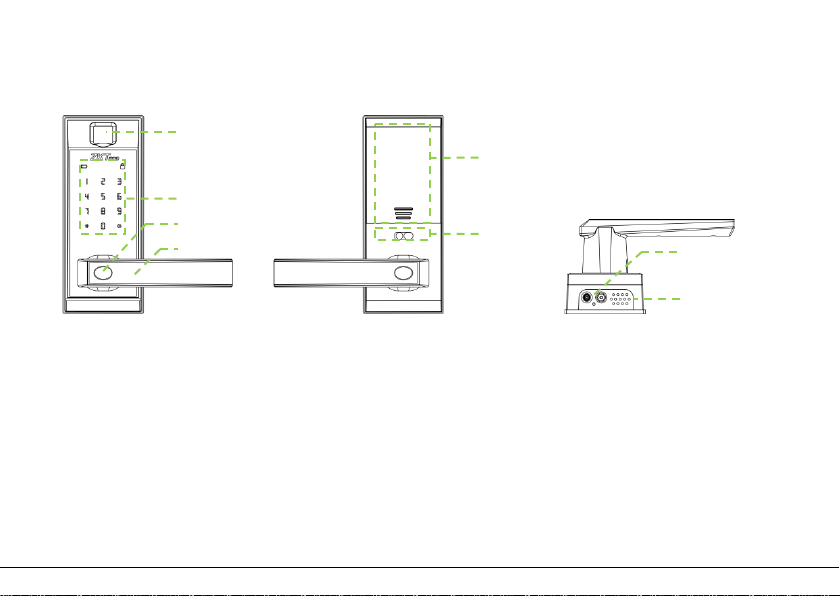
Structure
1
2
3
4
1
2
3
4
5
6
. Fingerprint Sensor
. Keypad & Card Detection Area
. Mechanical Key Hole
. Handle
Page | 2
5. Battery Area
6. Louckout Switch
7. 9V Battery Interface
8. Speaker
7
8
Page 6

Basic Function
User Introduction
Group Verification Mode Function Capacity
Administrator
Normal User
Note:
1. The maximum fingerprint/password capacity is 100 for all groups.
2. The length of password is six digits.
Fingerprint
Password Max.100
Fingerprint
Password Max.100
Register / Delete User,
Open The Door,
Access in menu
Open the door
Page | 3
Max.100
Max.100
Page 7

Initialization
Initializing the lock means all data will be delete and restore to factory default setting.
Operation steps: Press the reset button on the back body of the lock, then touch the
keypad to power on the lock holding the reset button for 5 seconds until the lock
prompts the voice of “Restore to default settings, wait a moment”. After around 30
seconds, the lock prompts the voice of “completed”, and then the initialization is finished
completely.
Random Password
Random password = Users may enter any number of random digits before or after the
correct six digit password as long as the maximum number of digits entered is 32 or less.
For example: If the correct password is 123456, the random password can be
89123456807, 1234562363, 389123456, etc.
Page | 4
Page 8

Voice Guide
After accessing the menu, the lock provides voice prompts before and after each
operation for easy configuration.
Volume Setting
The lock volume can be set, which has three modes, high volume mode, low volume
mode and silent mode.
Language Setting
Supports English / Spanish.or English / Portuguese.
Lockout Mode
When the lock set as lockout mode, only administrator can open the door, and also can
use the Lockout Switch to enable or disable the mode.
Page | 5
Page 9

Normal Open
Normal open mode is to keep door always unlocked, which is fit for meeting room and
some places free to in or out.
Low Battery Warning
When the lock has a low battery a short beep and voice prompt of "Battery is low, please
replace" will be prompted".
Note: Access to menu steps is not allowed in low battery status.
Page | 6
Page 10

9V External Battery
9V external battery is used to open doors in emergency.
Note: The above battery must be 9V alkaline battery (6LR61).
Page | 7
Page 11

How To Change Handle Direction
2 3 4
Step:
1. Remove the screws with a screwdriver.
2. Take out the lock handle.
3. Turn the handle in the opposite direction.
4. Replace the screws.
Page | 8
Page 12

Emergency Mechanical Key
The mechanical key is used to open door when the lock has electronic malfunction.
Note: Keep the mechanical key at a safe place.
Page | 9
Page 13

Touch the keypad to power ON the lock
Press 0 and # to access into menu
Enter 3 digit user number
Press # to continue
registering another user
Press * to complete
Enter fingerprint or password
How to Use
Register First Administrator
Operating Steps
Page | 10
Page 14

Note:
1. Place one finger three times on fingerprint sensor to register fingerprint.
2. The length of password should be of six digits.
3. Default user number length is three digits, but one or two digit user numbers
are accepted by pressing the # key.
4. Press * to cancel registration before the registration is complete.
Page | 11
Page 15

Register Other Administrator
Touch the keypad to power ON the lock
Press 0 and # to access into menu
Verify administrator by fingerprint or password
Enter 3 digit user number
Press 1 to register user, and press # to continue
Enter # to continue
registering another admin
Enter * to complete
Enter fingerprint or password
Note:
Operating Steps
If you verify administrator by password, please end with button #.
Page | 12
Page 16

Register Normal User
Touch the keypad to power on the lock
Press 0 and # to access into menu
Enter fingerprint or password
Verify administrator by fingerprint or password
Press 2 to register user, and press # to continue
Enter # to continue
registering another normal
user
Enter * to complete
Operating Steps
.
Page | 13
Page 17

Delete Admin
Touch the keypad to power on the lock
Press 0 and # to access into menu
Enter 3 digit user number
Verify administrator by fingerprint or password
Press 3 to delete admin, and press # to continue
Enter * to complete
Enter # to continue deleting
another admin
Operating Steps
Page | 14
Page 18

Delete Normal User
Touch the keypad to power on the lock
Press 0 and # to access into menu
Enter 3 digit user number
Verify administrator by fingerprint or password
Press 4 to delete user, and press # to continue
Enter * to complete
Enter # to continue deleting
another normal user
Operating Steps
Page | 15
Page 19

Back Up Enroll
Touch the keypad to power on the lock
Press 0 and # to access into menu
Enter 3 digit user number
Verify administrator by fingerprint or password
Press 5 to back up enroll, and press # to continue
Enter fingerprint or passcode
Enter * to complete
Enter # to continue backup
another information
Operating Steps
Page | 16
Page 20

Volume Setting
Touch the keypad to power on the lock
Press 0 and # to access into menu
1. High volume 2. Low volume 3. Silent mode
Verify administrator by fingerprint or password
Press 6 to set volume, and press # to continue
Enter # to confirm
Operating Steps
Page | 17
Page 21

Language Setting
Touch the keypad to power on the lock
Press 0 and # to access into menu
1. English 2. Spanish 3. Portuguese
Verify administrator by fingerprint or password
Press 7 to set language, and press # to continue
Enter # to confirm
Note:
or
,
Operating Steps
There are only two language mode, English/Spanish, or English/Portuguese. F
example, if the lock is equipped with English/Spanish, selecting "3" (Portuguese)
will still show Spanish mode.
Page | 18
Page 22

Lockout mode
Verify administrator by fingerprint or password
Enter # to confirm
Press 8 to set lockout mode, and press # to continue
1. Enable 2. Disable
Press 0 and # to access into menu
Operating Steps
Page | 19
Page 23

Normal open mode
Touch the keypad to power on the lock
Press 0 and # to access into menu
1. Enable 2. Disable
Verify administrator by fingerprint or password
Press 9 to set normal open mode, and press # to continue
Enter # to confirm
Operating Steps
Page | 20
Page 24

ZK Building, Wuhe Road, Gangtou, Bantian, Buji Town,
www.zkteco.com
© Copyright 2014. ZKTeco Inc. ZKTeco Logo is a registered trademark of ZKTeco or a related company. All other product and company
Longgang District, Shenzhen China 518129
Tel: +86 755-89602345
Fax: +86 755-89602394
names mentioned are used for
Page | 21
 Loading...