

Page 1

ZINWELL
ZINWELL
ZINWELL ZINWELL ZINWELL
ZINWELL
ZINWELL
ZINWELL ZINWELL ZINWELL
ZINWELL
ZINWELL
ZINWELL ZINWELL ZINWELL
ZINWELL
ZINWELL
ZINWELL ZINWELL ZINWELL
ZINWELL
ZINWELL
ZINWELL ZINWELL ZINWELL
ZINWELL
ZINWELL
ZINWELL ZINWELL ZINWELL
ZINWELL
ZINWELL
ZINWELL ZINWELL ZINWELL
ZINWELL
ZINWELL
ZINWELL ZINWELL ZINWELL
ZINWELL
ZINWELL
ZINWELL ZINWELL ZINWELL
ZINWELL
ZINWELL
ZINWELL ZINWELL ZINWELL
ZINWELL
ZINWELL
ZINWELL ZINWELL ZINWELL
ZINWELL
ZINWELL
ZINWELL ZINWELL ZINWELL
ZINWELL
ZINWELL
ZINWELL ZINWELL ZINWELL
ZINWELL
ZINWELL
ZINWELL ZINWELL ZINWELL
ZINWELL
ZINWELL
ZINWELL ZINWELL ZINWELL
ZINWELL
ZINWELL
ZINWELL ZINWELL ZINWELL
ZINWELL
ZINWELL
ZINWELL ZINWELL ZINWELL
ZINWELL
ZINWELL
ZINWELL ZINWELL ZINWELL
ZINWELL
ZINWELL ZINWELL ZINWELL
ZINWELL
ZINWELL
ZINWELL ZINWELL ZINWELL
ZINWELL
ZINWELL
ZINWELL ZINWELL ZINWELL
ZINWELL
ZINWELL
ZINWELL ZINWELL ZINWELL
ZINWELL
ZINWELL
ZINWELL ZINWELL ZINWELL
ZINWELL
ZINWELL
User Manual
R
Brite-View
BLS-2000
Page 2

Chapter 1 Introduction
Important Notices
Product Functions
Package Contents
Chapter 2 Installation
Product Overview
Brite-View
Brite-View
System Installation
Chapter 3 Operation Instruction
Chapter 4 Other Information
1.1 ...............................................................................................
1.2 ..............................................................................................
1.3 ..............................................................................................
2.1 ...............................................................................................
2.1.1 ...............................................................................
2.1.2 ...............................................................................
2.2 .............................................................................................
3.1 .......................................................................................................
3.2 I ............................................................................................................
3.3 ...............................................................................................
3.4
3.4.1
4.1 Troubleshooting..................................................................................................
Front view of
Rear view of
Initial Setting
R Control
PICTURE Setting
PREFERENCE Setting......................................................................................
PESOLUTION setting..................................................................................
3.4.2 ASPECT setting............................................................................................
3.5 RESET setting.....................................................................................................
3.6 INPUT source setting........................................................................................
4.2 Specifications......................................................................................................
2
2
3
4
4
5
6
7
8
10
9
9
9
10
11
12
1
Table of Contents
Table of Contents
10
Page 3

1.1 Important Notices
Please use the Brite-View under a normal environment
1. Try to avoid the following circumstances.
Avoid exposure the Brite-View to direct sunlight or high temperatures
Avoid exposure the Brite-View to moisture or high humidity
Avoid positioning the Brite-View in unstable places
2. Do not attempt repair yourself, the warranty does not cover repair or attempted
repair by unauthorized personnel.
3. Unplug this product from AC outlet and remove batteries from IR control when
this product is left unused for a long time.
1.2 Product Functions
With the advanced video processing technology to improve video quality.
Double scan conversion (15.75 KHz to 31.5 KHz) and 3:2 pull down technology.
Full screen, true color display.
Easy operation - With one button to select signals coming from composite
VIDEO, S-VIDEO or YCbCr.
Easy on screen display operation with hot key on IR remote control.
2
Chapter 1 Introduction
Thanks for your purchase of Zinwell Brite-View. With Brite-View, you can turn
your existing standard video into a high quality picture on your display devices.
The system set up is very easy and no additional hardware or software required.
You don't need to learn a complicated set up procedure and you can enjoy your
Brite-View with just plug and play.
Introduction
Page 4
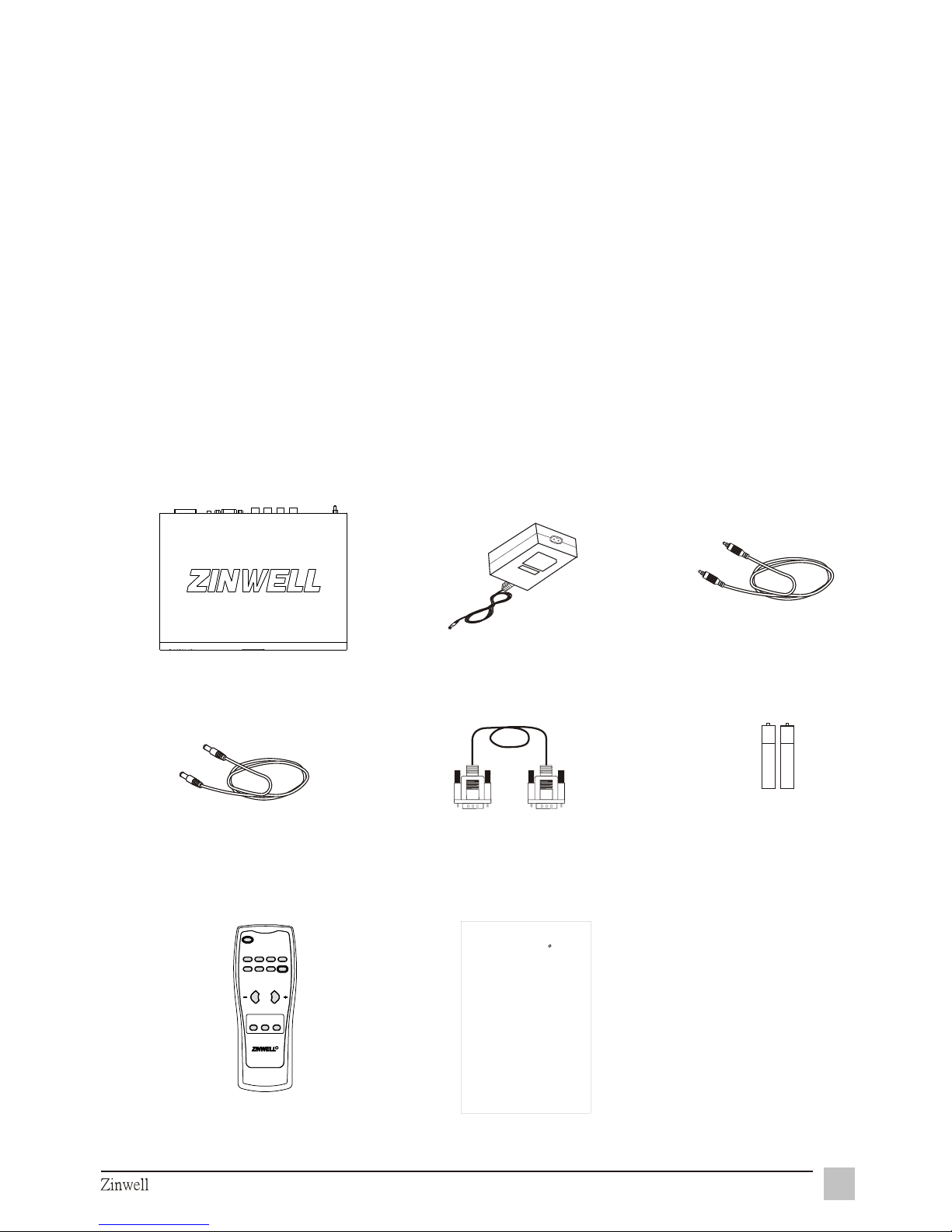
1.3 Package Contents
As you unpack the Brite-View, please make sure the following items were
included. If any of these items are missing, call your local agencies.
1. Brite-View......................................................................................x1
2. Power supply ..................................................................................x1
3. Video cable......................................................................................x1
4. S-video cable...................................................................................x1
5. VGA cable........................................................................................x1
6. AAA batterie....................................................................................x2
7. IR control.........................................................................................x1
8. User manual....................................................................................x1
1. Brite-View
2. Power supply
8. User manual
7. IR control
6. AAA batteries x2
3
Introduction
ZINWELL
ZINWELL
ZINWELL ZINWELL ZINWELL
ZINWELL
ZINWELL
ZINWELL ZINWELL ZINWELL
ZINWELL
ZINWELL
ZINWELL ZINWELL ZINWELL
ZINWELL
ZINWELL
ZINWELL ZINWELL ZINWELL
ZINWELL
ZINWELL
ZINWELL ZINWELL ZINWELL
ZINWELL
ZINWELL
ZINWELL ZINWELL ZINWELL
ZINWELL
ZINWELL
ZINWELL ZINWELL ZINWELL
ZINWELL
ZINWELL
ZINWELL ZINWELL ZINWELL
ZINWELL
ZINWELL
ZINWELL ZINWELL ZINWELL
ZINWELL
ZINWELL
ZINWELL ZINWELL ZINWELL
ZINWELL
ZINWELL
ZINWELL ZINWELL ZINWELL
ZINWELL
ZINWELL
ZINWELL ZINWELL ZINWELL
ZINWELL
ZINWELL
ZINWELL ZINWELL ZINWELL
ZINWELL
ZINWELL
ZINWELL ZINWELL ZINWELL
ZINWELL
ZINWELL
ZINWELL ZINWELL ZINWELL
ZINWELL
ZINWELL
ZINWELL ZINWELL ZINWELL
ZINWELL
ZINWELL
ZINWELL ZINWELL ZINWELL
ZINWELL
ZINWELL
ZINWELL ZINWELL ZINWELL
ZINWELL
ZINWELL ZINWELL ZINWELL
ZINWELL
ZINWELL
ZINWELL ZINWELL ZINWELL
ZINWELL
ZINWELL
ZINWELL ZINWELL ZINWELL
ZINWELL
ZINWELL
ZINWELL ZINWELL ZINWELL
ZINWELL
ZINWELL
ZINWELL ZINWELL ZINWELL
ZINWELL
ZINWELL
User Manual
R
Brite-View
BLS-2000
5. VGA cable
4.S-video cable
3. Video cable
ZRC-100ZRC-100
R R
POWERPOWER
HUEHUE
SATURATIONSATURATION
SHARPNESSSHARPNESS
BR
IG
H
TN
ES
S
BR
IG
H
TN
ES
S
CO
NT
RASTCO
NT
RAST
ASPECTASPECT
RESETRESET
RESOLUTIONRESOLUTION
S-VIDEOS-VIDEO
VIDEOVIDEO
YPbPrYPbPr
INPUT SOURCEINPUT SOURCE
Page 5
Chapter 2 Installation
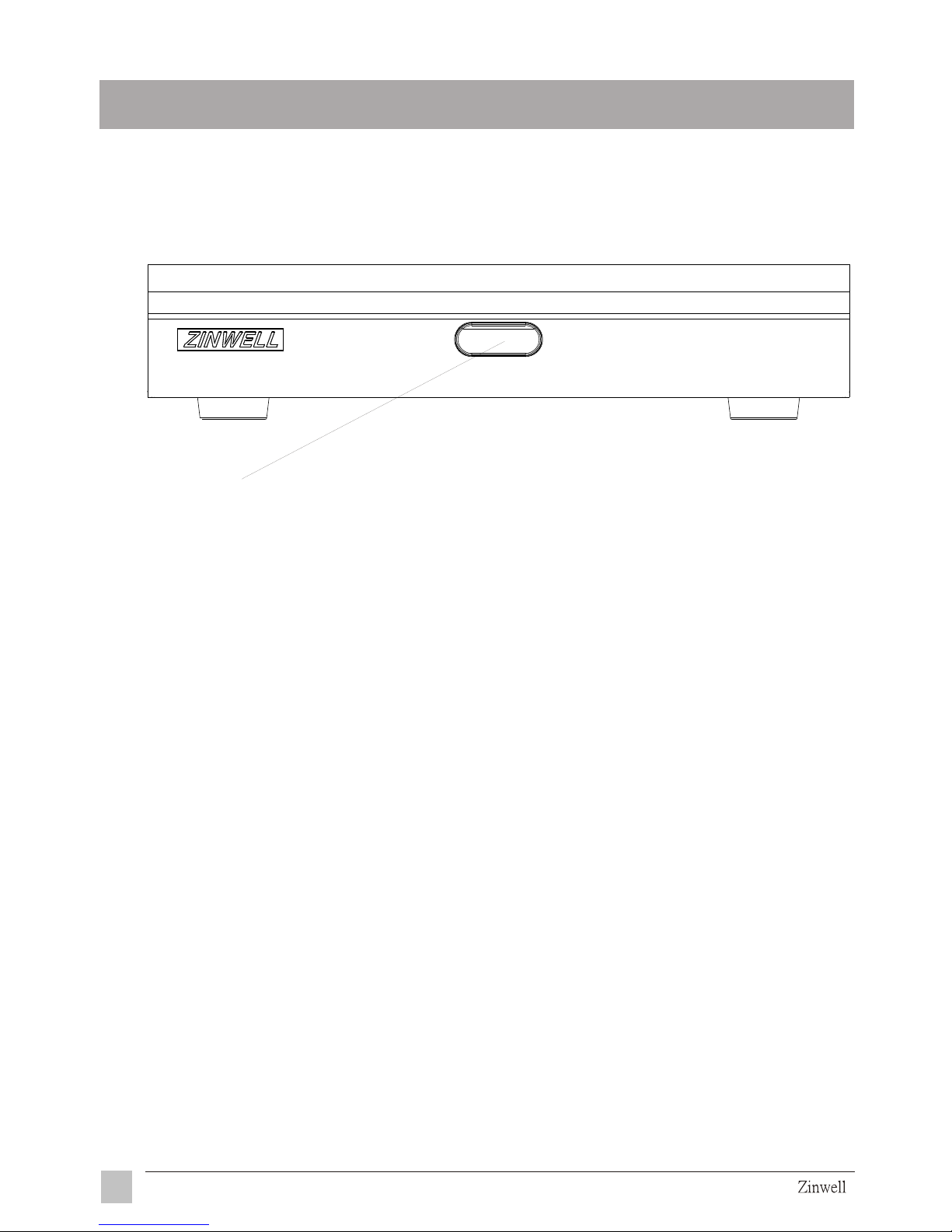
2.1.1 Front view of Brite-View
2.1 Product Overview
4
Installation
Power indicator and IR receiver
Using blue LED to indicate the status of power
and IR receiver
Brite-View
Progressive Scan
Page 6
2.1.2 Rear view of Brite-View
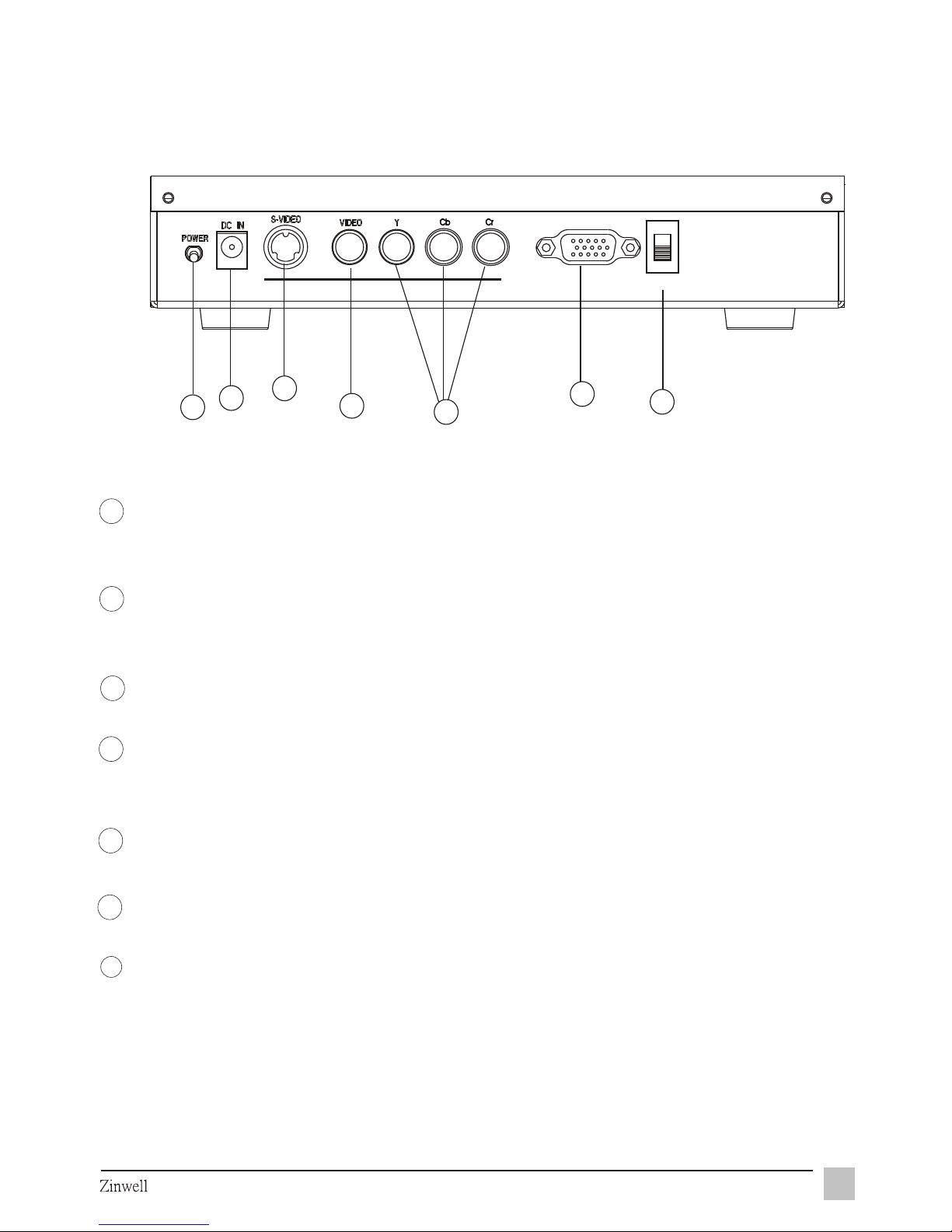
OUTPUT SOURCE SWITCH
Please check your output device and switch YPbPr or RGB to select output
signal.
VGA OUTPUT
Please use the VGA OUTPUT to connect your progressively scanned TV or
projector.
YCbCr INPUT
Please connect the RCA cable to DVD player.
VIDEO INPUT
Please connect the external video from VCR, LD, V8 or video game to the
VIDEO INPUT of box.
S-VIDEO INPUT
If the external video is s-video, please connect to the S-VIDEO INPUT of box.
DC IN
Please connect to your 12V power supply.
POWER
Switch between power-on and power-off.
5
7
Installation
44
55
66
77
33
22
1 1
6
5
2
1
3
4
INPUTINPUT
RGB RGB
SELECTSELECT
OUTPUTOUTPUT
RGB / Y Pb Pr OUTPUTRGB / Y Pb Pr OUTPUT
Y Pb PrY Pb Pr
Page 7
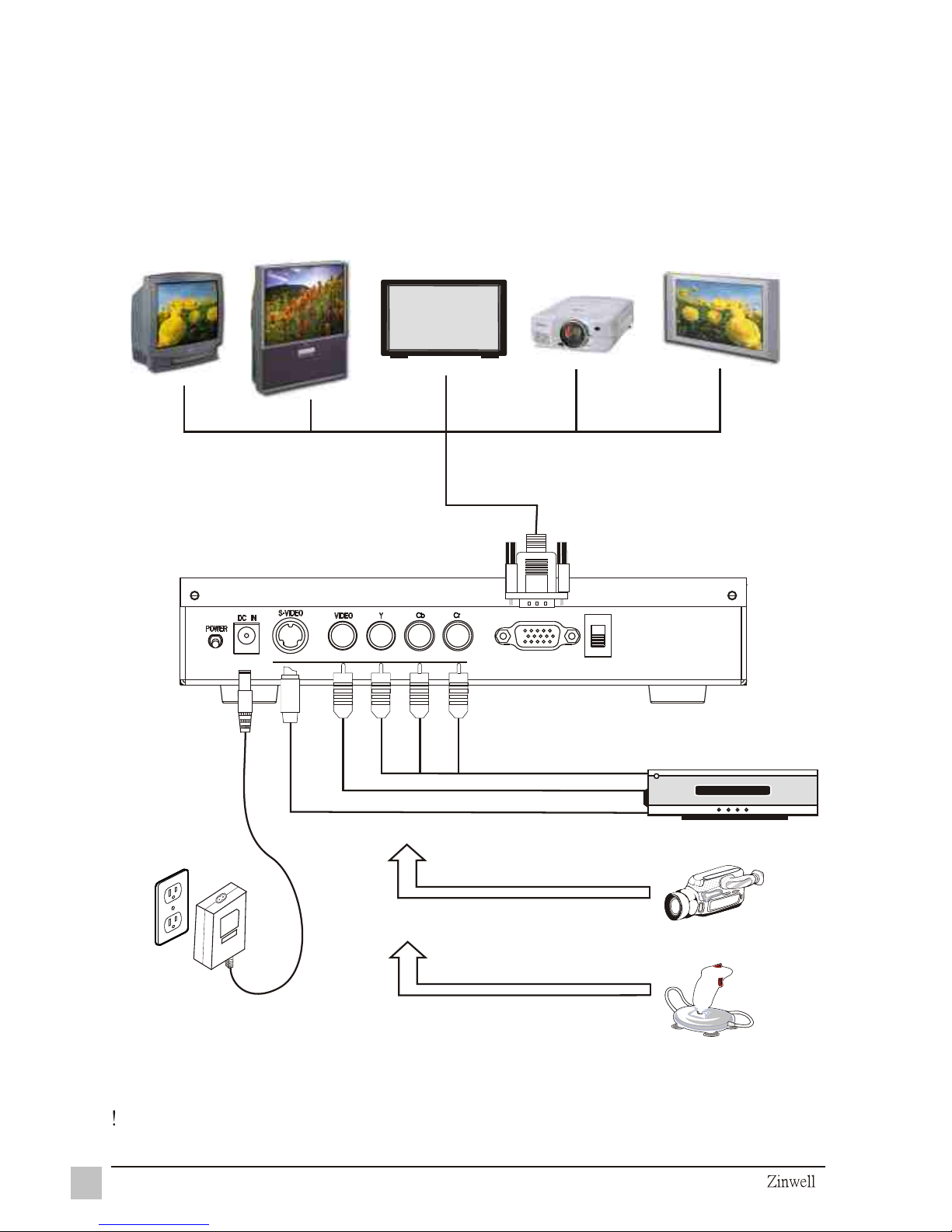
2.2 System Installation :
Warrning: please turn off the power of all devices before connection.
6
Installation
Progressive DVD
Camera
Video game
Adapter
S-VIDEO cable
DVD
HDTV monitor
Composite
Widescreen TV
Projection TV
Projector
Plasma HDTV
monitor
INPUTINPUT
RGBRGB
SELECTSELECT
OUTPUTOUTPUT
RGB / Y Pb Pr OUTPUTRGB / Y Pb Pr OUTPUT
Y Pb PrY Pb Pr
Page 8

Chapter 3 Operation Instruction
When you finish the connections of Brite-View, please refer to the following
instructions of IR control and start the system setting, because all the function
settings are in the IR control.
Steps:
1. Please install 2 AAA batteries into IR control.
2. Please refer to p6 for your configuration.
3. Turn on the power.
4. Press the "Video", "S-Video" or "YCbCr" on IR control button to select input
signal Source.
5.Switch YPbPr or RGB on Brite-View to select output signal.
3.1 Initial Setting
7
Operation Instruction
Page 9
ZRC-100ZRC-100
RR
POWERPOWER
HUEHUE
SATURATIONSATURATION
SHARPNESSSHARPNESS
B
R
I
G
H
T
N
E
S
S
B
R
I
G
H
T
N
E
S
S
CON
T
RAST
CON
T
RAST
ASPECTASPECT
RESETRESET
RESOLUTIONRESOLUTION
S-VIDEOS-VIDEO
VIDEOVIDEO
YCbCrYCbCr
INPUT SOURCEINPUT SOURCE
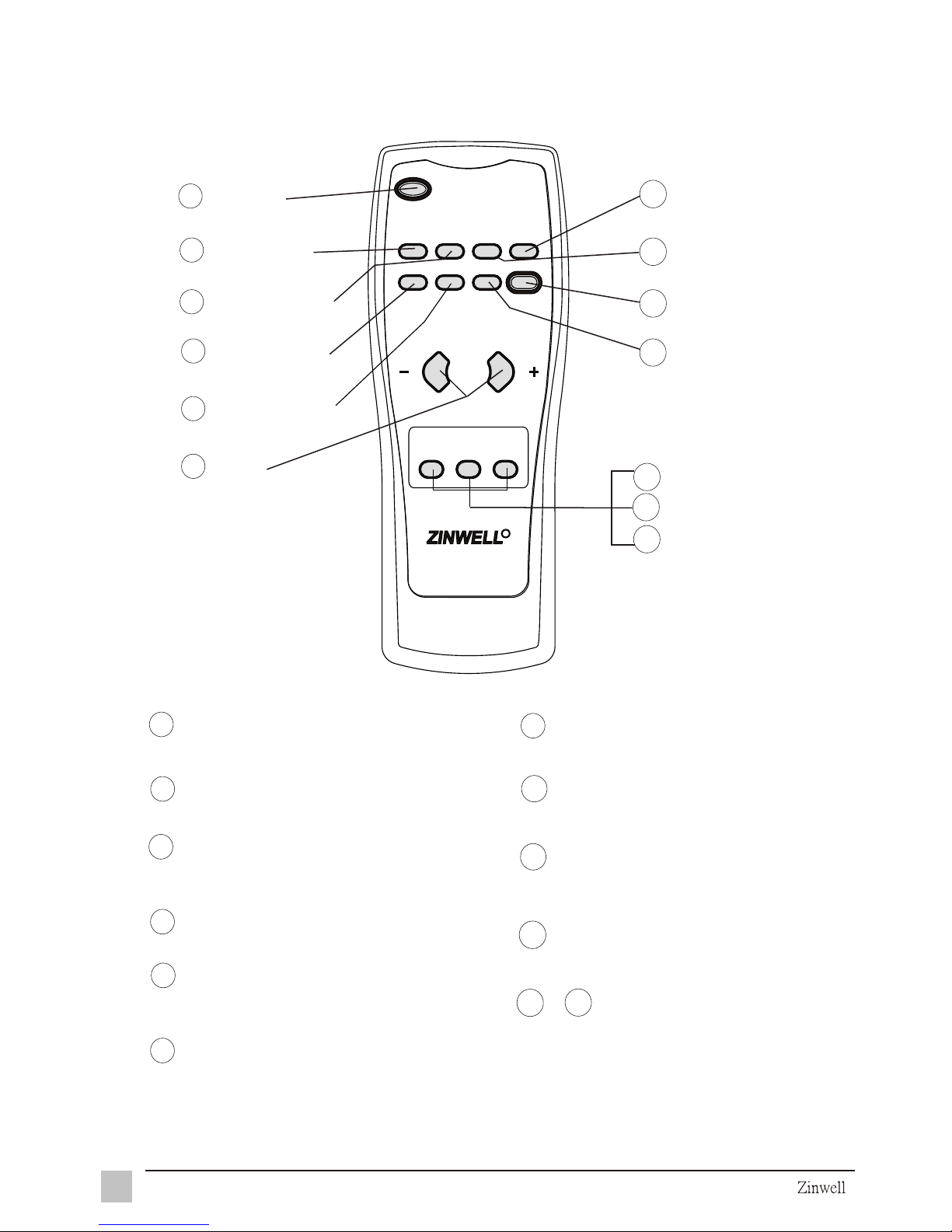
3.2 IR Control
1
3
8
Operation Instruction
BRIGHTNESS
YCbCr
POWER
2
CONTRAST
4
SHARPNESS
5
RESOLUTION
6
+ & -
7
9
RESET
HUE
8
SATURATION
10
ASPECT
11
S-VIDEO
1
3
7
BRIGHTNESS
Display BRIGHTNESS BAR , press" + "or" "to adjust
POWER
Switch on/off
2
CONTRAST
Display contrast bar , press" + "or" - "to adjust
4
SHARPNESS
Display SHARPNESS , press" + "or" - "to adjust
5
RESOLUTION
Switch to select RESOLUTION of
1280*1024,1024*768,800*600,640*480.
6
+ & -
Adjustment keys
8
10
RESET
Select RESET to return adjustments
back to factory setting
HUE
Display HUE , press" + "or" - "to adjust
9
SATURATION
Display SATURTION , press" + "or" - "to
adjust
11
ASPECT
Switch to select ratio 4:3 or 16:9
13
12
13
VIDEO
~
Input source
Select one of S-Video , Video , YCbCr
to set up input source
Page 10
3.3 PICTURE Setting
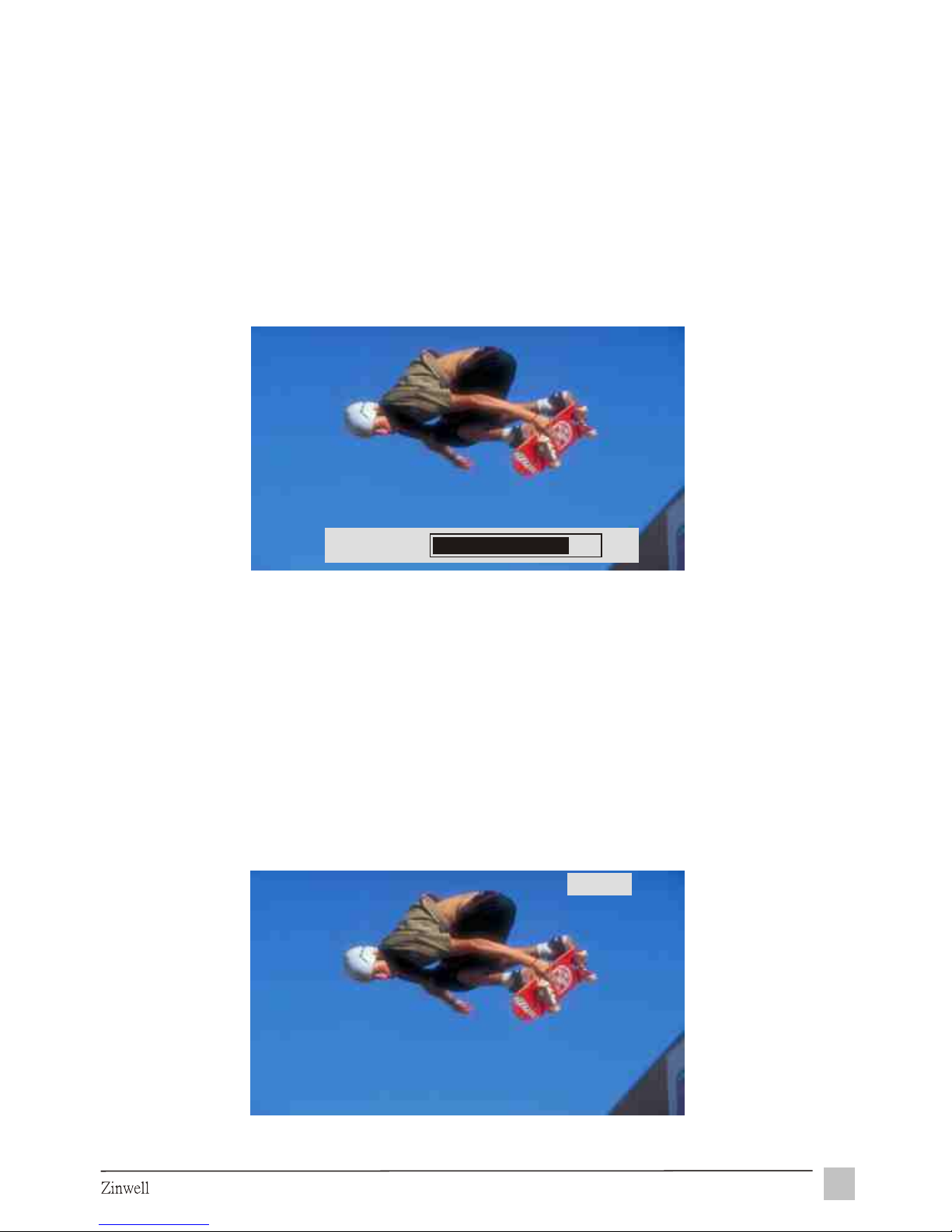
The PICTURE setting are provided by hot key adjustment on remote
controller.
When you press the CONTRAST, BRIGHTNESS, SATURATION, HUE,
and SHARPNESS buttons on remote controller, an adjustment bar shall
show up on the middle down of display screen; to press "+" or "-" to adjust
the value, and the bar shall disappear automatically after 5 seconds.
A small indicator shall show up on the right top of display screen.
RGB mode: 640 x 480, 800 x 600, 1024 x 768, 1280 x 1024.
YPbPr mode: 480p, 720p, 1080i.
3.4 PREFERENCE Setting
Operation Instruction
9
3.4.1 RESOLUTION: to press RESOLUTION button on remote
Controller to select
BRIGHTNESS
80
720p
Page 11
3.4.2
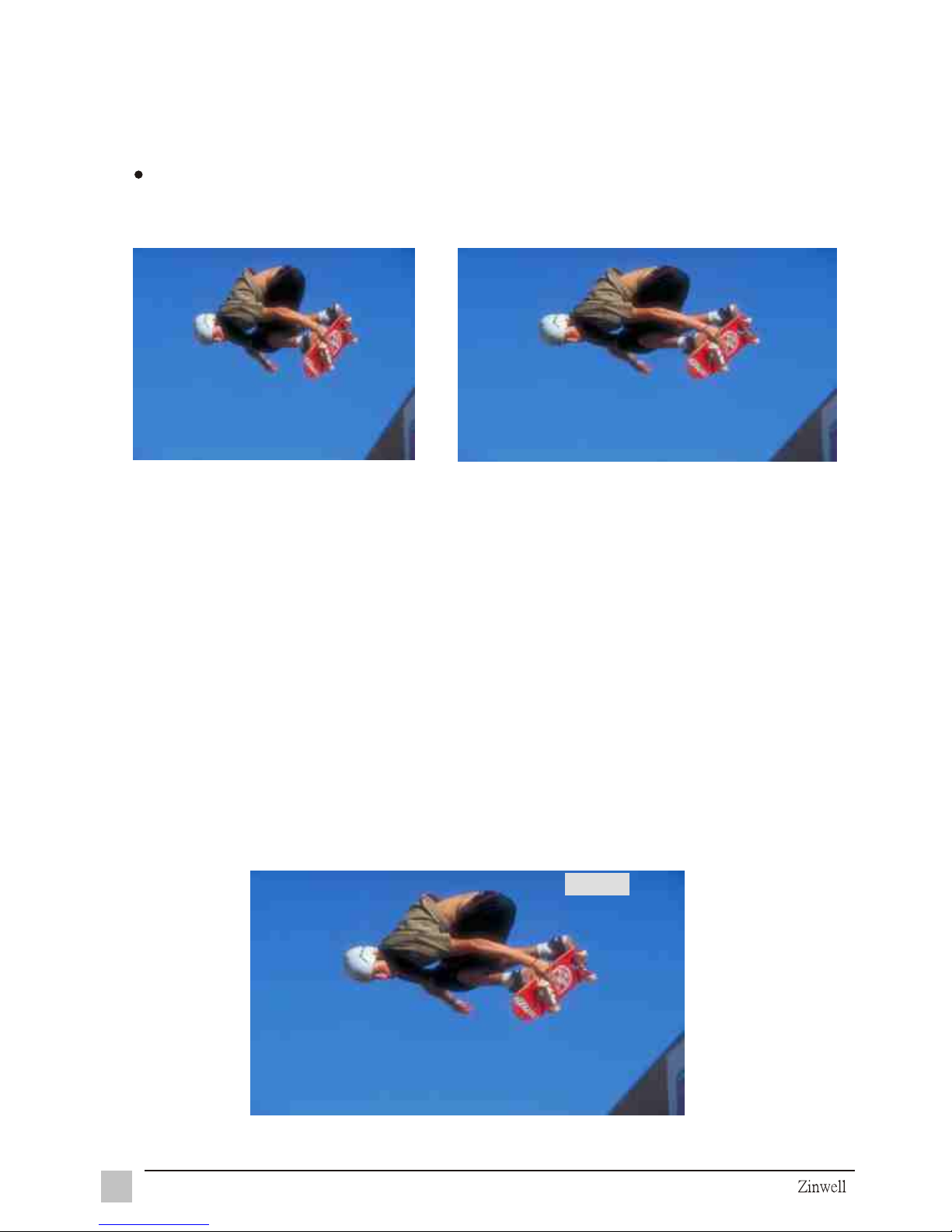
This selection is available only for RGB mode output.
ASPECT: to press ASPECT to select 4:3 or 16:9
10
Operation Instruction
4:3 16:9
RESET: to press RESET to return all system settings (including PICTURE
settings, ASPECT, RESOLUTION, INPUT source) to factory default value.
When you press RESET button, all the previous personal settings shall
be cleared.
3.5
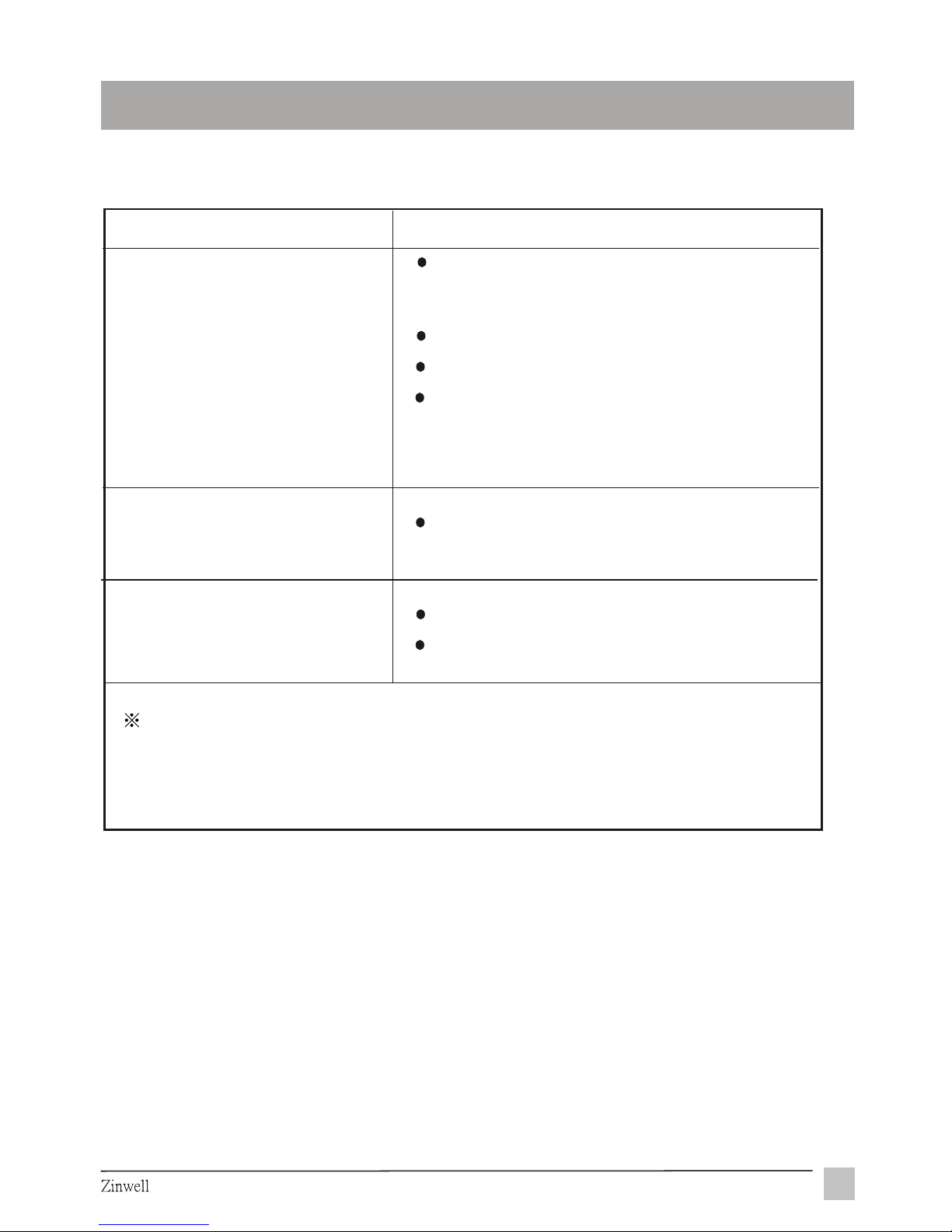
INPUT source: to press Video (Composite Video), S-Video, or YCbCr,
button to select input signal. A small indicator shall show up on the right
top of display screen.
3.6
S-Video
Page 12
Operation Instruction
Chapter 4 Other Information
4.1 Troubleshooting
Symptom
Solution
No picture on display
Make sure the power cord is connected to
an AC outlet, DC plug is connected to DC IN
port and the power LED is on.
Make sure the display's power is on.
Check the connection of your source signal.
To reset the Brite-View, unplug the DC IN
adapter from the unit and then plug it back in
again.
The remote control out of
function
Make sure batteries are installed.
Check remaining battery life.
Video distorted
Check all of the connection.
Brite-View;
If you still have difficulties not resolvable by using the tips described above,
please unplug and plug in the AC cord to reset your otherwise,
please call your local agency for servicing.
11
Page 13

4.2 Specifications
POWER
VIDEO INPUT
Composite video RCA connector
VGA OUT
D-Sub 15 pin Female connector
Operating Temperature
5 ~ 45
5% ~ 80%
Operating Humidity
Dimensions
206(L) x 157(W) x 45(H) mm
Weight
1080g
IR Control
14 Buttons (AAA batteries x2)
S-VIDEO INPUT
S-Video 4-pin mini DIN
5% ~ 80%
Power Consumption
15W Typical
100 ~ 240VAC 0.4A
50/60HZ - 12VDC 1.25A OUTPUT
YCbCr INPUT
3 RCA connector
12
Other Information
Page 14

ZINWELL ZINWELL ZINWELL ZINWELL ZINWELL
ZINWELL ZINWELL ZINWELL ZINWELL ZINWELL
ZINWELL ZINWELL ZINWELL ZINWELL ZINWELL
ZINWELL ZINWELL ZINWELL ZINWELL ZINWELL
ZINWELL ZINWELL ZINWELL ZINWELL ZINWELL
ZINWELL ZINWELL ZINWELL ZINWELL ZINWELL
ZINWELL ZINWELL ZINWELL ZINWELL ZINWELL
ZINWELL ZINWELL ZINWELL ZINWELL ZINWELL
ZINWELL ZINWELL ZINWELL ZINWELL ZINWELL
ZINWELL ZINWELL ZINWELL ZINWELL ZINWELL
ZINWELL ZINWELL ZINWELL ZINWELL ZINWELL
ZINWELL ZINWELL ZINWELL ZINWELL ZINWELL
ZINWELL ZINWELL ZINWELL ZINWELL ZINWELL
ZINWELL ZINWELL ZINWELL ZINWELL ZINWELL
ZINWELL ZINWELL ZINWELL ZINWELL ZINWELL
ZINWELL ZINWELL ZINWELL ZINWELL ZINWELL
ZINWELL ZINWELL ZINWELL ZINWELL ZINWELL
ZINWELL ZINWELL ZINWELL ZINWELL ZINWELL
ZINWELL ZINWELL ZINWELL ZINWELL ZINWELL
ZINWELL ZINWELL ZINWELL ZINWELL ZINWELL
ZINWELL ZINWELL ZINWELL ZINWELL ZINWELL
ZINWELL ZINWELL ZINWELL ZINWELL ZINWELL
ZINWELL ZINWELL ZINWELL ZINWELL ZINWELL
Headquarters : 7F, 512, Yuan Shan Rd., Chung Ho City, Taipei Hsien 235, Taiwan
Tel: 886-2-2225-1929 Fax: 886-2-2225-1447 e-mail: [email protected] http://www.zinwell.com.tw
Hsinchu Plants (Sat-Comm & Satellite TV Product Sales) : 2, Wen Hua Rd., Hsin Chu Industrial Park, Hsin Chu Hsien 303,
Taiwan
Tel: 886-3-597-9050 Fax: 886-3-597-8857 e-mail: [email protected]
 Loading...