

Page 1
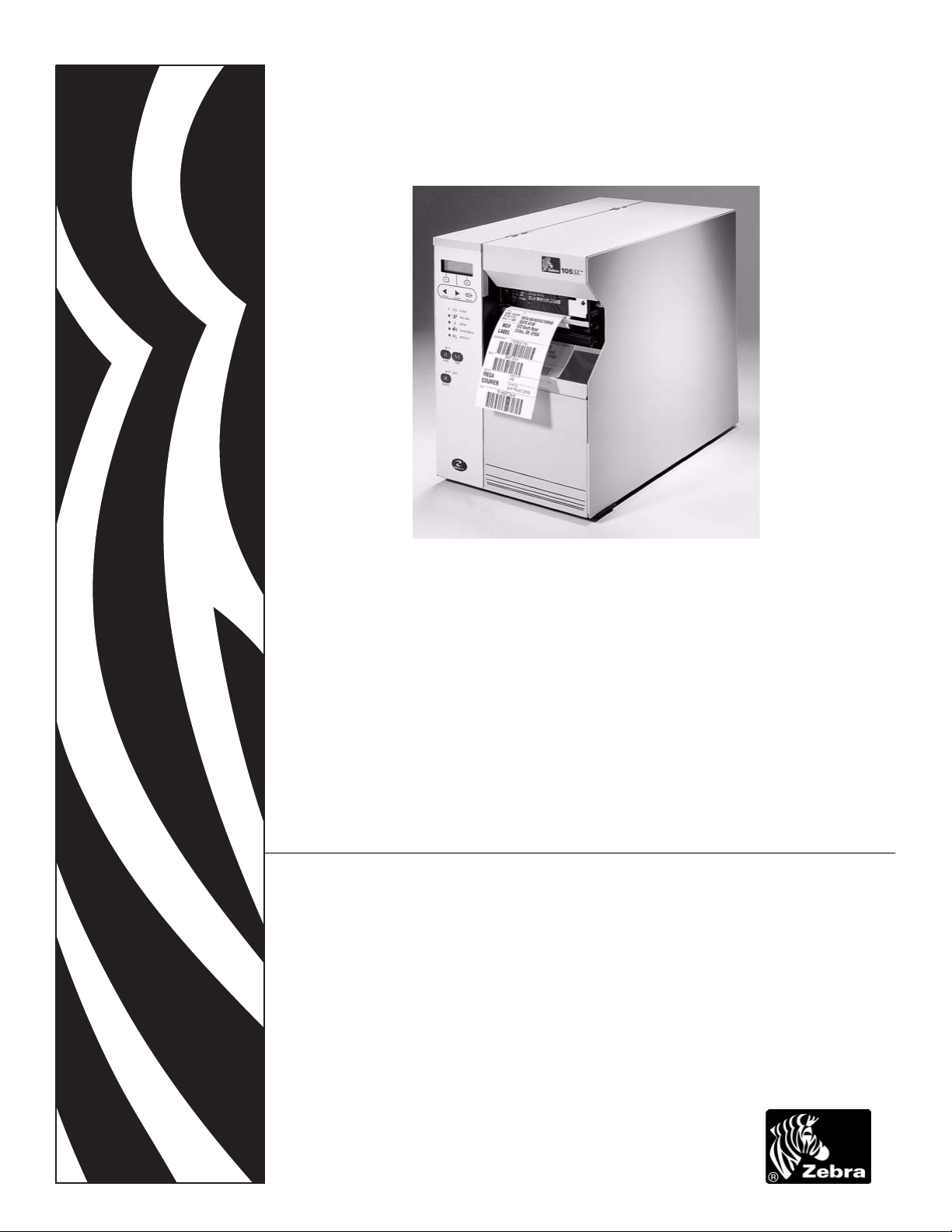
Zebra® 105
SL
Quick Reference Guide
Page 2

© 2005 ZIH Corp.
The copyrights in this manual and the label print engine described therein are
owned by Zebra Technologies Corporation. Unauthorized reproduction of this
manual or the software in the label print engine may result in imprisonment of up
to one year and fines of up to $10,000 (17 U.S.C.506). Copyright violators may be
subject to civil liability.
This product may contain ZPL®, ZPL II®, and ZebraLink™ programs; Element
Energy Equalizer® Circuit; E3®; and AGFA fonts.
Software © ZIH Corp. All rights reserved worldwide.
ZebraLink and all product names and numbers are trademarks, and Zebra, the
Zebra logo, ZPL, ZPL II, Element Energy Equalizer Circuit, and E3 Circuit are
registered trademarks of ZIH Corp. All rights reserved worldwide.
CG Triumvirate is a trademark of AGFA Monotype Corporation. All rights
reserved worldwide. CG Triumvirate(tm) font © AGFA Monotype Corporation.
Intellifont® portion © AGFA Monotype Corporation. All rights reserved
worldwide.
UFST is a registered trademark of AGFA Monotype Corporation. All rights
reserved worldwide.All other brand names, product names, or trademarks belong
to their respective holders.
Page 3
Zebra 105SL
Quick Reference Guide
This Quick Reference Guide contains basic information on how to install and operate the
printer as well as some simple adjustments that can be performed by the operator; however, it
is not comprehensive.
Contact your distributor for additional information covering the Zebra 105SL printer:
13372 105SL User CD 45541L ZPL Programming Guide Vol. 1
11342L 105SL User Guide 45542L ZPL Programming Guide Vol. 2
31560 105SL Maintenance Manual CD 45631 ZPL II Programming Guide CD
Contents
Specifications. . . . . . . . . . . . . . . . . . . . . . . . . . . . . . . . . . . . . . . . . . . . . . . . . . . . . . . . . . . 2
Ribbons and Printhead Wear. . . . . . . . . . . . . . . . . . . . . . . . . . . . . . . . . . . . . . . . . . . . . 2
Types of Media. . . . . . . . . . . . . . . . . . . . . . . . . . . . . . . . . . . . . . . . . . . . . . . . . . . . . . . . . . 3
Ribbon . . . . . . . . . . . . . . . . . . . . . . . . . . . . . . . . . . . . . . . . . . . . . . . . . . . . . . . . . . . . . . . . 5
When to Use Ribbon . . . . . . . . . . . . . . . . . . . . . . . . . . . . . . . . . . . . . . . . . . . . . . . . . . . 5
Coated Side of Ribbon. . . . . . . . . . . . . . . . . . . . . . . . . . . . . . . . . . . . . . . . . . . . . . . . . . 5
Media and Ribbon Loading . . . . . . . . . . . . . . . . . . . . . . . . . . . . . . . . . . . . . . . . . . . . . . . . 7
Media Loading . . . . . . . . . . . . . . . . . . . . . . . . . . . . . . . . . . . . . . . . . . . . . . . . . . . . . . . . 7
Ribbon Loading . . . . . . . . . . . . . . . . . . . . . . . . . . . . . . . . . . . . . . . . . . . . . . . . . . . . . . 11
Removing Used Ribbon . . . . . . . . . . . . . . . . . . . . . . . . . . . . . . . . . . . . . . . . . . . . . . . . 12
Operator Controls. . . . . . . . . . . . . . . . . . . . . . . . . . . . . . . . . . . . . . . . . . . . . . . . . . . . . . . 13
Front Panel Keys . . . . . . . . . . . . . . . . . . . . . . . . . . . . . . . . . . . . . . . . . . . . . . . . . . . . . 13
Front Panel Lights . . . . . . . . . . . . . . . . . . . . . . . . . . . . . . . . . . . . . . . . . . . . . . . . . . . . 13
Calibration . . . . . . . . . . . . . . . . . . . . . . . . . . . . . . . . . . . . . . . . . . . . . . . . . . . . . . . . . . . . 14
Configuration . . . . . . . . . . . . . . . . . . . . . . . . . . . . . . . . . . . . . . . . . . . . . . . . . . . . . . . . . . 15
Preventive Maintenance. . . . . . . . . . . . . . . . . . . . . . . . . . . . . . . . . . . . . . . . . . . . . . . . . . 17
Printhead and Platen Roller Cleaning . . . . . . . . . . . . . . . . . . . . . . . . . . . . . . . . . . . . . 17
Adjustments . . . . . . . . . . . . . . . . . . . . . . . . . . . . . . . . . . . . . . . . . . . . . . . . . . . . . . . . . . . 19
Toggle Positioning . . . . . . . . . . . . . . . . . . . . . . . . . . . . . . . . . . . . . . . . . . . . . . . . . . . . 19
Printhead Pressure Adjustment . . . . . . . . . . . . . . . . . . . . . . . . . . . . . . . . . . . . . . . . . . 19
Media Sensor Position Adjustments . . . . . . . . . . . . . . . . . . . . . . . . . . . . . . . . . . . . . . 20
32055L-001 Rev. A 08Jun2005 105SL Quick Reference Guide EN-1
Page 4

Zebra 105SL Quick Reference Guide
Specifications
Specifications
Electrical
Initial Power
Consumption
Environmental
Ranges
Fuses
90–264 VAC, 48–62 Hz
Maximum 180W
Minimum 19W
Operating 40°F (5°C) to 104°F (40°C)
Storage –40°F (–40°C) to +140°F (+60°C)
F5A, 250V, 5 x 20 mm IEC style as supplied with printer or
purchased from Zebra Technologies.
Ribbons and Printhead Wear
For thermal transfer print mode, load ribbon before performing CALIBRATION. Do not load
ribbon if the printer is to be used in the direct thermal mode. Ribbons used in the 105SL
printer must be as wide as or wider than the media. Zebra ribbons provide an extremely
smooth backing surface that protects the printhead from abrasion by the media. If the ribbon is
narrower than the media, areas of the printhead will be unprotected and subject to premature
wear.
20% to 85% non-condensing relative humidity
5% to 85% non-condensing relative humidity
2105SL Quick Reference Guide 32055L-001 Rev. A 08Jun2005
Page 5
Zebra 105SL Quick Reference Guide
Types of Media
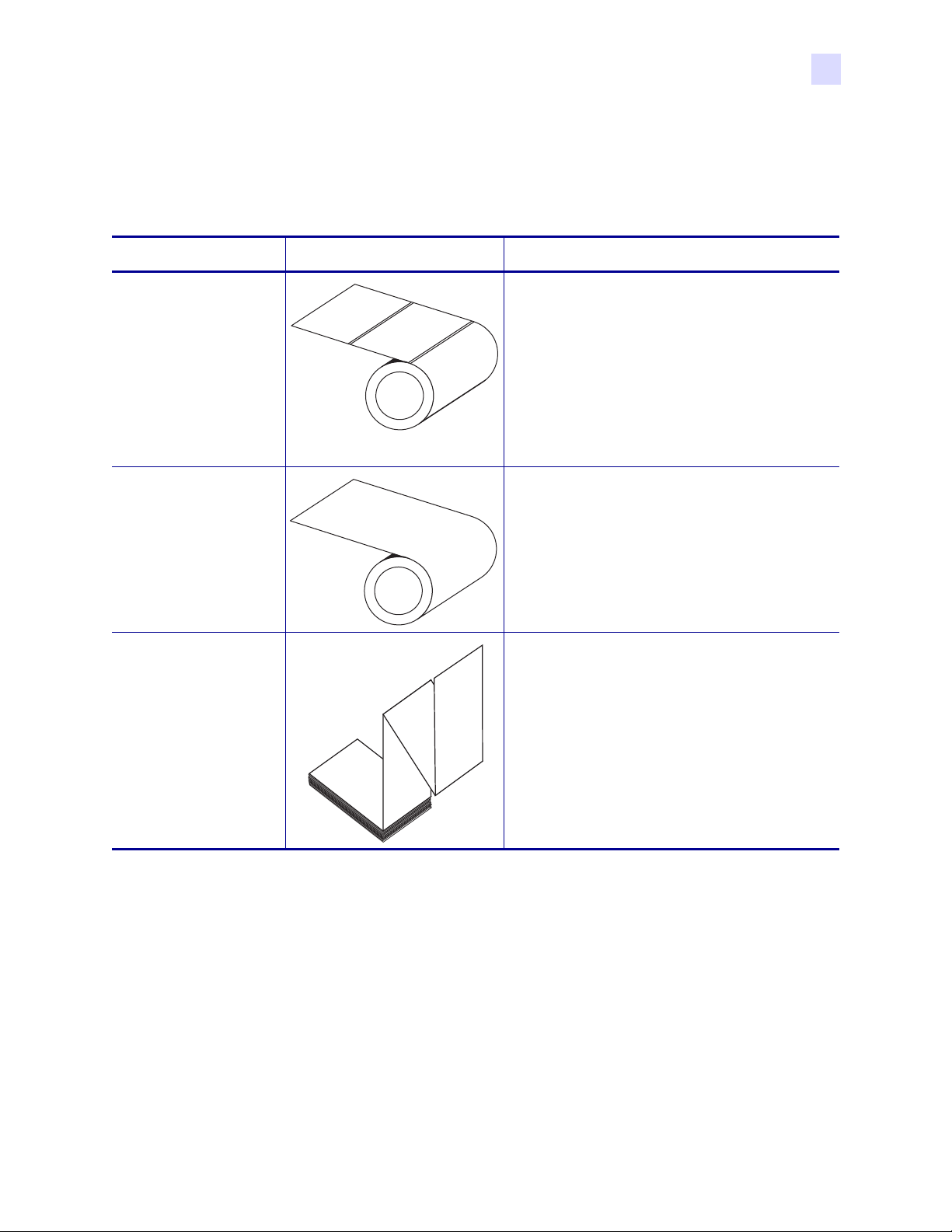
The printer can use various types of media (Table 1).
Table 1 • Types of Media
Media Type How It Looks Description
Types of Media
Non-Continuous
Roll Media
Continuous
Roll Media
Fanfold Media The media is folded in a zigzag pattern.
The media is wound on a core. Individual labels
are separated by a gap, black mark, notch, or
hole, which enables you to see where one label
ends and the next one begins.
When using media that has holes or notches,
position the transmissive media sensor directly
over a hole or notch. When using black mark
media, use the reflective sensor.
The media is wound on a core and is without
gaps, holes, notches, or black marks. This
allows the image to be printed anywhere on the
label.
32055L-001 Rev. A 08Jun2005 105SL Quick Reference Guide 3
Page 6
Zebra 105SL Quick Reference Guide
Ribbon
Ribbon
Ribbon is a thin film that is coated on one side with wax, resin, or wax resin, which is
transferred to the media during the thermal transfer process.
When to Use Ribbon
Thermal transfer media requires ribbon for printing while direct thermal media does not.
To determine if ribbon must be used with a particular media, perform a media scratch test.
To perform a label scratch test, complete these steps:
1. Scratch the print surface of the media rapidly with your fingernail.
2. Did a black mark appear on the media?
If a black mark... Then the media is...
Does not appear on the media Thermal transfer. A ribbon is required.
Appears on the media Direct thermal. No ribbon is required.
Coated Side of Ribbon
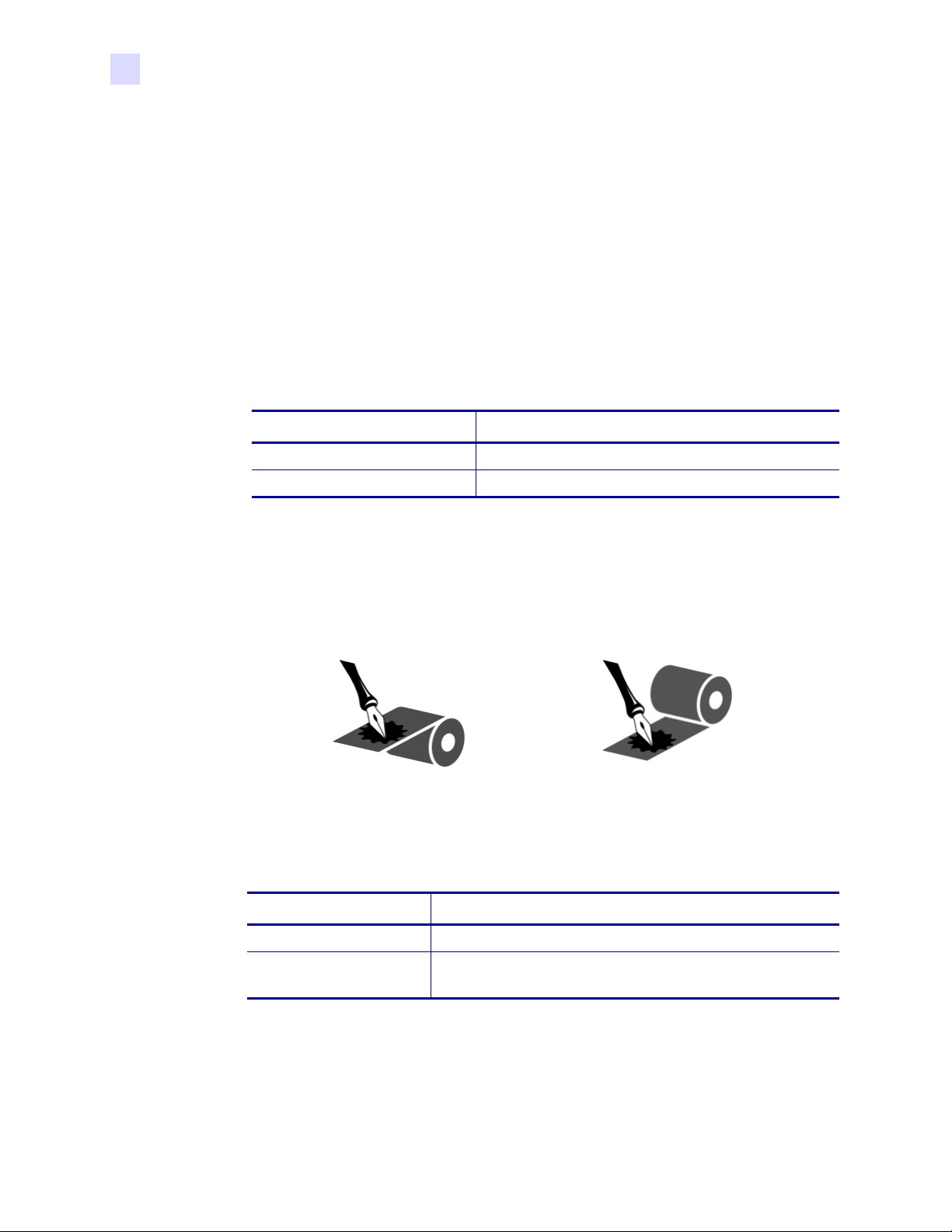
Ribbon can be wound with the coated side on the inside or outside (Figure 1).
Figure 1 • Ribbon Coated on Outside or Inside
1. Peel a label from its liner.
2. Press a corner of the sticky side of the label to the outer surface of the roll of ribbon.
3. Peel the label off of the ribbon.
4. Observe the results. Did flakes or particles of ink from the ribbon adhere to the label?
If ink from the ribbon... Then...
Adhered to the label The ribbon is coated on the outer surface.
Did not adhere to
the label
Outside Inside
The ribbon is coated on the inner surface. To verify this,
repeat the test on the inner surface of the roll of ribbon.
4105SL Quick Reference Guide 32055L-001 Rev. A 08Jun2005
Page 7
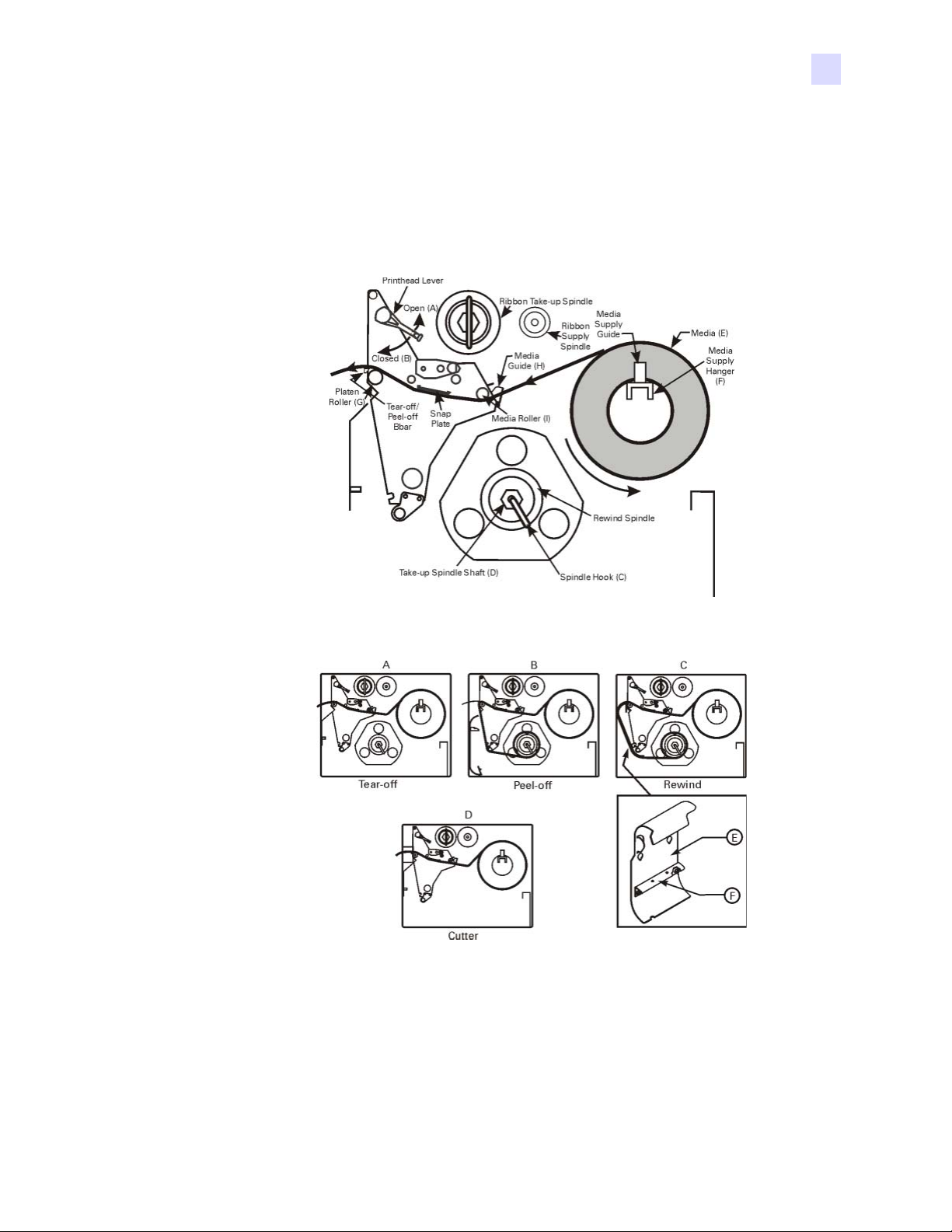
Media and Ribbon Loading
Media Loading
Figure 2 • Media Loading—Printer Components
Zebra 105SL Quick Reference Guide
Ribbon
Figure 3 • Media Loading Modes
32055L-001 Rev. A 08Jun2005 105SL Quick Reference Guide 5
Page 8

Zebra 105SL Quick Reference Guide
Ribbon
Roll Media Loading in Tear-off Mode (Figure 3-A)
1. Place the media roll (Figure 2-E) on the media supply hanger (Figure 2-F).
2. Open the printhead by moving the lever located on the upper printhead assembly to the
open (Figure 2-A) position.
3. Loosen the media guide (Figure 2-H) thumbscrew and position the media guide as far out
from the printer frame as possible.
4. Thread the media under the media roller (Figure 2-I), between the upper media guide plate
and main media guide, under the printhead, and over the platen roller (Figure 2-G).
5. Adjust the media guide (Figure 2-H) position until it just touches the outer edge of the
media without causing it to buckle. Make sure it is parallel to the edge of the media, then
tighten the thumbscrew.
6. Close the printhead by moving the lever located on the upper printhead assembly to the
closed (Figure 2-B) position.
7. IMPORTANT: Perform the Media Sensor Position Adjustments found on page 20.
Peel-off Mode (Figure 3-B)
Note • For best results, install the printer on a level surface. This is especially helpful using
wide media. If the surface is not level, the media may “telescope” off of the rewind spindle,
causing unsatisfactory results.
1. From the front panel, select the appropriate print mode.
2. Remove the rewind plate if one is present and store it on the two mounting screws on the
inside of the front panel. Align the notch in the bracket so that the take label sensor can
sense a peeled label.
3. Load media according to the directions for Tear-off Mode (Figure 3-A). When loading the
media, allow about 39” (1 m) of media to extend past the tear-off bar. If using label stock,
remove all labels from this portion of the media to create a leader.
4. Remove the spindle hook (Figure 2-C) from the take-up spindle shaft (Figure 2-D). If you
are using a core, remove all tape from the core and slide it onto the rewind spindle until it
is flush against the guide plate.
5. Wind the backing 1-2 times around the rewind spindle and reinstall the spindle hook.
Make sure that the media backing is against the backing guide plate. (With some types of
media, especially tag stock, you may need to tape the end of the media to the core if it will
not otherwise tighten onto the core. Do not
tape the label stock unless absolutely
necessary.)
Note • Before closing the printhead open lever, make sure that throughout the media
pathway (1) the media is positioned against the inside guides, and the outer guide and
media supply guide barely touch the media, (2) the media is taut, and (3) the media is
parallel with itself and with the pathway when wound on the rewind spindle/core.
6. After all of the above steps have been completed, close the printhead open lever to lock
the media in place. If not aligned correctly, the material may not rewind properly on the
rewind spindle/core, which may affect media movement and/or printing.
6105SL Quick Reference Guide 32055L-001 Rev. A 08Jun2005
Page 9

Rewind Mode (Figure 3-C)
Note • For best results, install the printer on a level surface. This is especially helpful with
wider printers using wide media. If the surface is not level, the media may “telescope” off of
the rewind spindle, causing unsatisfactory results.
1. Remove the media rewind plate (Figure 3-E) from its storage location in front of the print
mechanism inside the media compartment.
2. Invert the rewind plate so that the lip on the attached hook plate (Figure 3-F) points down.
3. Insert the hook plate lip into the lower opening in the side plate and slide the rewind plate
in so that it stops against the main frame.
4. Load media according to the directions for Tear-off Mode (Figure 3-A). When loading the
media, allow about 39” (1 m) of media to extend past the tear-off bar. If using label stock,
remove all labels from this portion of the media to create a leader.
5. Remove the spindle hook (Figure 2-C) from the take-up spindle shaft (Figure 2-D). If you
are using a core, remove all tape from the core and slide it onto the rewind spindle until it
is flush against the guide plate.
Zebra 105SL Quick Reference Guide
Ribbon
6. Route the media as shown in Figure 2 and Figure 3-C and wind it 1-2 times around either
(1) the rewind spindle and reinstall the spindle hook, or (2) a 3” (76.2 mm) core. (With
some types of media, especially tag stock, you may need to tape the end of the media to
the core if it will not tighten onto the core. Do not
necessary.)
Note • Before closing the printhead open lever, make sure that throughout the media
pathway (1) the media is positioned against the inside guides, and the outer guide and
media supply guide barely touch the media, (2) the media is taut, and (3) the media is
parallel with itself and with the pathway when wound on the rewind spindle/core.
7. After all of the above steps have been completed, close the printhead open lever to lock
the media in place. If not aligned correctly, the material may not rewind properly on the
rewind spindle/core which may, in turn, affect media movement and/or printing.
Cutter Mode (Figure 3-D)
1. Load media according to the directions above for Tear-off Mode (Figure 3-A), except feed
the media through the cutter module as shown in Figure 3-D.
2. Make sure that the Cutter option is available and installed on the printer and that the Cutter
Mode is configured using the front panel keys and display screen.
tape the label stock unless absolutely
32055L-001 Rev. A 08Jun2005 105SL Quick Reference Guide 7
Page 10

Zebra 105SL Quick Reference Guide
Ribbon
Fanfold Media Loading
Refer to Figure 4. Fanfold media can be placed in the bottom of the media compartment, in the
fanfold supply bin, or outside of the printer with access through the bottom or the rear.
Adjust the media guide (Figure 2-H) thumbscrew to keep the media from drifting; make sure it
is parallel to the edge of the media.
Figure 4 • Fanfold Media Loading
8105SL Quick Reference Guide 32055L-001 Rev. A 08Jun2005
Page 11

Ribbon Loading
Refer to Figure 5. When loading ribbon, make sure that the ribbon core is pushed up against
the stop on the ribbon supply spindle (Figure 5-D). Do not use ribbon narrower than the
media.
Zebra 105SL Quick Reference Guide
Ribbon
Figure 5 • Ribbon Loading
1. Align the segments of the ribbon supply spindle (Figure 5-G).
2. Place the ribbon roll on the ribbon supply spindle (Figure 5-D).
3. Make a leader for your ribbon. Tear off a strip of media (labels and backing) about 152-
305 mm (6-12 in.) long. Peel off a label from this strip. Apply half of this label to the end
of the strip and the other half to the end of the ribbon. This acts as a ribbon leader.
4. Open the printhead (Figure 5-A) and thread the leader and attached ribbon through the
print mechanism, under the upper ribbon roller (Figure 5-E), and past the platen roller
(Figure 5-F).
5. Before wrapping the ribbon around the ribbon take-up spindle (Figure 5-C), ensure the
ribbon hook is placed correctly. The ribbon hook should fit snugly as shown in Figure 6.
Figure 6 • Ribbon Take-Up Spindle
6. Place the ribbon (with leader, if used) around the ribbon take-up spindle
(Figure 5-C) and wind counterclockwise for several turns.
7. Close the printhead (Figure 5-B).
32055L-001 Rev. A 08Jun2005 105SL Quick Reference Guide 9
Page 12

Zebra 105SL Quick Reference Guide
Ribbon
Removing Used Ribbon
Refer to Figure 7.
1. Break the ribbon close to the ribbon take-up spindle.
2. Pop the hook out of the slot (1) by sliding it to the side (2).
3. Rotate the hook side-to-side (3) and pull straight out to remove (4).
4. Grasp the used ribbon and remove it from the ribbon take-up spindle.
5. Remove the empty core from the ribbon supply spindle.
Figure 7 • Ribbon Removal
10 105SL Quick Reference Guide 32055L-001 Rev. A 08Jun2005
Page 13

Operator Controls
Front Panel Keys
Button/Key Description
Zebra 105SL Quick Reference Guide
Operator Controls
Table 2 • Front Panel Keys
Configuration process.
Front Panel Lights
Press to enter/exit Pause Mode.
Feeds one blank label each time you press the
key.
(Active only in Pause Mode)
Press once to cancel printing of current label
batch. To clear the entire buffer, press and hold
until the DATA light turns off.
These keys are used in the
Figure 8 • Front Panel
Table 3 describes the operation of the front panel lights.
Note • If an operating condition that causes a light to be on constantly and one that causes the
same light to flash occur at the same time, the light flashes.
Table 3 • Front Panel Lights
Light Status Indication
POWER Off The printer is off or power is not applied.
On The printer is on.
TAKE
LABEL
32055L-001 Rev. A 08Jun2005 105SL Quick Reference Guide 11
Off Normal operation.
Flashing (Peel-off Mode Only.) Label is available. Printing is paused until
the label is removed.
Page 14

Zebra 105SL Quick Reference Guide
Calibration
Light Status Indication
ERROR Off Normal operation — no printer errors.
Flashing Printer error exists. Check the display screen for more
information.
Table 3 • Front Panel Lights
CHECK
RIBBON
PA PE R
OUT
PAUSE Off Normal operation.
DATA Off Normal operation — no data being received or processed.
Off Normal operation — ribbon is properly loaded.
On Printing is paused, the front panel displays a warning message,
and the PAUSE light is on. If the printer is in direct thermal mode:
Ribbon is loaded. If the printer is in thermal transfer mode: No
ribbon is loaded.
Off Normal operation — media is properly loaded.
On No media is under the media sensor. Printing is paused, the
display shows an error message, and the PAUSE light is on.
On Printer has stopped all printing operations. Either the PAUSE key
was pressed, a pause command was included in the label format,
the on-line verifier detected an error, or a printer error was
detected. Refer to the display screen for more information.
On Data processing or printing is taking place — no data is being
received.
Flashing Printer is receiving data from or sending status information to the
host computer. Flashing slows when the printer cannot accept
more data, but returns to normal once data is again being received.
Calibration
After you have correctly installed the media and ribbon, turn the printer on. The printer will
perform a power-on self test (POST). When this is complete, the display screen will read
“PRINTER READY”.
The printer will then automatically calibrate. During this process, the printer feeds a few
labels to automatically determine the label length and ribbon sensor settings. This process is
repeated whenever the printhead is opened.
Important • If autocalibration is turned off, perform the Ribbon and Media Calibration
procedure from the LCD menu whenever a different type of media or ribbon is installed.
12 105SL Quick Reference Guide 32055L-001 Rev. A 08Jun2005
Page 15

Configuration
Once the POST is complete and “PRINTER READY” is displayed, you may set printer
parameters for your application using the front panel display and the five keys directly below
it. The configuration procedure in Table 4 contains the information you will need to get your
printer up and running, but it is not
information.
Enter the Configuration Mode by pressing at the PRINTER READY display.
Follow the procedure in Table 4. You may exit the Configuration Mode at any time by
pressing (follow the instructions at the end of the table).
• An asterisk (*) in the upper left-hand corner of the display indicates that you have changed
this setting from what is currently stored in memory.
• To change a parameter, use the left (-) and right (+) tan oval keys just below the display
screen:
Zebra 105SL Quick Reference Guide
Configuration
comprehensive. Refer to the user’s guide for more
Increases value, answers “yes”, indicates “on”, or displays the next selection.
Decreases value, answers “no”, indicates “off”, or displays the previous selection.
Table 4 • Configuration
Press: Display Shows: Action/Explanation:
— PRINTER
READY
DARKNESS Press the (+) or (-) keys to change the darkness of printing.
To change the front panel display language (skip if the display is already in your preferred language):
LANGUAGE Press the (+) or (-) keys to change the language of the front panel display
DARKNESS Press the (+) or (-) keys to change the darkness of printing.
TEAR OFF Press the (+) or (-) keys to change the position of the media over the tear
Normal printer operation.
CAUTION: Set the Darkness to the lowest setting that provides good
print quality. Darkness set too high may cause ink smearing and/or it may
burn through the ribbon.
text.
CAUTION: Set the darkness to the lowest setting that provides good print
quality. Darkness set too high may cause ink smearing and/or may burn
through the ribbon.
bar after printing. Adjust this setting if labels are being torn in the wrong
place.
PRINT MODE Press the (+) or (-) keys to select Tear-off, Peel-off, Cutter, or Rewind
mode. Make sure you choose a mode that is available for your specific
printer (some of these modes require special options).
32055L-001 Rev. A 08Jun2005 105SL Quick Reference Guide 13
Page 16

Zebra 105SL Quick Reference Guide
Configuration
Table 4 • Configuration
Press: Display Shows: Action/Explanation:
MEDIA TYPE Press the (+) or (-) keys to select continuous or non-continuous media
type. Non-continuous: the printer automatically determines the label
length by sensing the notch, gap, web, or black mark between labels.
Continuous: you must include a label length instruction in your label
format (^LLxxxx if you are using ZPL or ZPLII).
SENSOR TYPE Press the (+) or (-) keys to select web or mark sensing mode. If your
media does not have black marks on the back, leave your printer at the
default (web) setting.
PRINT
METHOD
Press the (+) or (-) keys to select the method of printing you want to use;
direct thermal (no ribbon) or thermal transfer (using thermal transfer
media and ribbon).
PRINT WIDTH Press the (+) or (-) keys to set the printer to a width that is close to your
media, and AT LEAST as wide.
MAXIMUM
LENGTH
Press the (+) or (-) keys to set the maximum print length. Select the value
closest to but not less than the length of label you are using.
LIST FONTS Press the (+) key to print a list of available fonts.
LIST BAR
Press the (+) key to print a list of available bar codes.
CODES
LIST IMAGES Press the (+) key to print a list of available images.
LIST FORMATS Press the (+) key to print a list of all formats currently stored in the
printer’s DRAM, optional EPROM, or on an optional memory card.
LIST SETUP Press the (+) key to print a list of the current printer configuration settings.
SAVE
SETTINGS
Press the (+) or (-) keys to select:
PERMANENT — saves the changes when the power is turned off.
TEMPORARY — saves the changes until changed again or until power is
turned off.
CANCEL — cancels all changes since entering the Configuration Mode.
LOAD DEFAULTS — loads factory default values for all parameters.
Note: Refer to the user’s guide! This requires Calibration and resetting of
the Head Resistance.
LOAD LAST SAVE — loads values from the last permanent save.
Press to accept a selection.
— PRINTER
READY
14 105SL Quick Reference Guide 32055L-001 Rev. A 08Jun2005
You have exited the Configuration Mode and are now ready for normal
printer operation.
Page 17

Preventive Maintenance
Perform the following cleaning activities according to the schedule below.
Table 5 • Preventive Maintenance Schedule
Area Method Interval
Printhead Solvent* Direct Thermal Print Mode:
Platen Roller Solvent*
Transmissive sensor Air blow
Media Sensor Air blow
Media Path Solvent*
Ribbon Sensor Air blow
Black Mark Sensor Air blow
Label Available Sensor Air blow Monthly.
Zebra 105SL Quick Reference Guide
Preventive Maintenance
After every roll of media (or
150 m of fanfold media).
Thermal Transfer Print Mode:
After every roll of ribbon.
Tear Off Bar Solvent* As needed.
Snap plate Solvent*
Cutter Solvent*
* Use Zebra’s Preventative Maintenance kit, part number 47362, or a solution of 90%
isopropyl alcohol and 10% deionized water.
Printhead and Platen Roller Cleaning
Inconsistent print quality such as voids in the bar code or graphics may indicate a dirty
printhead. For best results, perform the following cleaning procedure after each roll of ribbon.
Clean after every roll (1500 ft or 450 m) of thermal transfer ribbon, after every roll (500 ft or
150 m) of direct thermal media, or when “CLEAN HEAD NOW” appears on the LCD.
Note • You do NOT need to turn off the power for this procedure. If you turn off the power, all
data stored in the printer’s temporary memory is lost.
Caution • An improperly connected printhead data or power cable may cause the
printhead to generate excessive heat and/or a false HEAD COLD message to display
while the printhead is hot enough to cause severe burns. Allow the printhead to cool.
Electrostatic Discharge Caution • Observe proper electrostatic safety precautions when
handling any static-sensitive components such as circuit boards and printheads.
1. Open the printhead by moving the printhead lever to the open position.
2. Remove the media and ribbon from the print mechanism.
32055L-001 Rev. A 08Jun2005 105SL Quick Reference Guide 15
Page 18

Zebra 105SL Quick Reference Guide
Preventive Maintenance
3. Use Zebra’s Preventative Maintenance kit, part number 47362, or a solution of 90%
isopropyl alcohol and 10% deionized water on an applicator. Wipe the printhead elements
from end to end. (The printhead elements form the grayish/black strip just behind the
chrome strip.) Allow a few seconds for the solvent to evaporate.
4. Rotate the platen roller and clean thoroughly with solvent.
5. Brush/vacuum any paper lint and dust away from the rollers, the media sensor, the black
mark sensor, and the ribbon sensors.
6. Reload ribbon and/or media as necessary. Close the printhead by moving the lever to the
closed position. You may now continue printing.
Note • If print quality has not improved, try cleaning the printhead with Save-a-Printhead
cleaning film. This specially coated material removes contamination buildup without
damaging the printhead. Refer to the User’s Guide or call your authorized Zebra reseller
or distributor for more information.
16 105SL Quick Reference Guide 32055L-001 Rev. A 08Jun2005
Page 19

Adjustments
Toggle Positioning
Position the toggle to provide even pressure on the media by sliding it to the desired location.
Printhead Pressure Adjustment
Adjust the printhead pressure if printing is too light on one side or if thick media is used.
Refer to Figure 9.
1. Lower the darkness setting and print some labels.
2. Loosen the upper locking nuts.
3. Increase or decrease pressure using the adjusting nuts until the left and right edges of the
printed area are equally dark.
4. Increase darkness to desired level.
5. Tighten the locking nuts.
Zebra 105SL Quick Reference Guide
Adjustments
Note • Maximize printhead life by using the lowest pressure that provides the desired
print quality.
Figure 9 • Printhead Pressure Adjustment
32055L-001 Rev. A 08Jun2005 105SL Quick Reference Guide 17
Page 20

Zebra 105SL Quick Reference Guide
Adjustments
Media Sensor Position Adjustments
The media sensor must be positioned so that it can detect the “web” between labels or a hole or
notch in the media.
The factory-set position should be sufficient for most applications. If not, perform the
appropriate adjustments.
Upper Media Sensor Adjustment
Refer to Figure 10.
1. Remove the ribbon. Locate the upper media sensor.
2. Loosen the screw.
3. Slide the upper sensor along the slot until it is directly above the web, notch, or hole in the
media.
4. Tighten the screw.
Note • When adjusting the media sensor, the wires from the sensors may need to be
guided through the wire exit on the mainframe.
Figure 10 • Upper Media Sensor
18 105SL Quick Reference Guide 32055L-001 Rev. A 08Jun2005
Page 21

Lower Media Sensor Adjustment
Refer to Figure 11.
1. Locate the lower media sensor assembly under the rear idler roller. (It is a spring clip
holding a circuit board.)
2. Slide the sensor until the two brass-colored infrared emitters are under the upper media
sensor. Gently pull wires out as needed (wires should have a little slack).
Note • If the sensor is being moved inward and a large loop of wire develops, remove the
cover from the electronics side of the printer and gently pull the wires through. Clamp the
wires so that they do not rub any drive belts.
Figure 11 • Lower Media Sensor
Zebra 105SL Quick Reference Guide
Adjustments
32055L-001 Rev. A 08Jun2005 105SL Quick Reference Guide 19
Page 22

Zebra 105SL Quick Reference Guide
Adjustments
20 105SL Quick Reference Guide 32055L-001 Rev. A 08Jun2005
Page 23

Page 24

Zebra Technologies Corporation
333 Corporate Woods Parkway
Vernon Hills, Illinois 60061.3109 USA
Telephone: +1 847.634.6700
Fax: +1 847.913.8766
Zebra Technologies Europe Limited
Zebra House
The Valley Centre, Gordon Road
High Wycombe
Buckinghamshire HP13 6EQ, Great Britain
Telephone: +44 (0) 1494 472872
Fax: +44 (0) 1494 450103
Customer Order # 32055L-001
Manufacturer Part # 32055L-001 Rev. A
© 2005 ZIH Corp.
 Loading...