

Page 1

User Manual
iPad Folio Keyboard Case
For more support, please email us at cs@yekbee.com
Your questions will be answered promptly.
Page 2
Overview
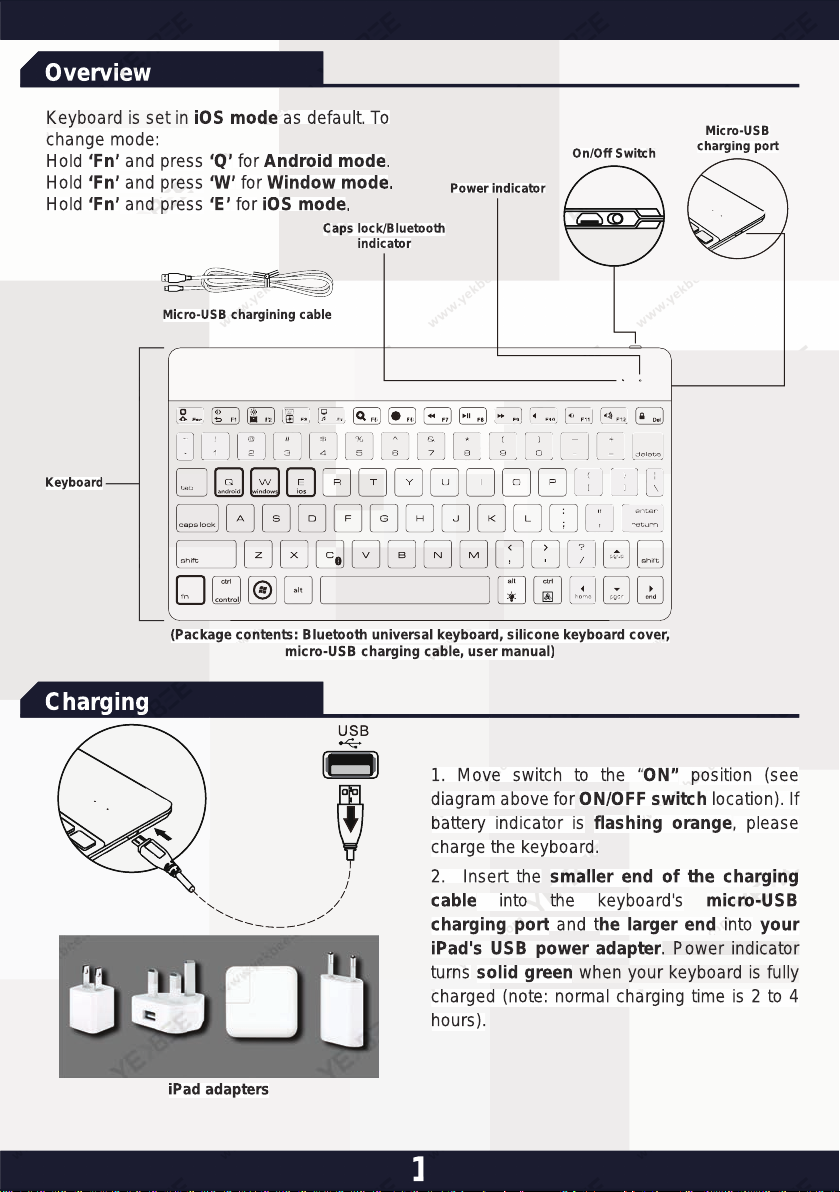
Keyboard is set in iOS mode as default. To
change mode:
Hold ‘Fn’ and press ‘Q’ for Android mode.
Hold ‘Fn’ and press ‘W’ for Window mode.
Hold ‘Fn’ and press ‘E’ for iOS mode.
Caps lock/Bluetooth
indicator
Micro-USB chargining cable
Keyboard
(Package contents: Bluetooth universal keyboard, silicone keyboard cover,
micro-USB charging cable, user manual)
Power indicator
On/Off Switch
Micro-USB
charging port
Charging
1. Move switch to the “ON” position (see
diagram above for ON/OFF switch location). If
battery indicator is flashing orange, please
charge the keyboard.
2. Insert the smaller end of the charging
cable into the keyboard's micro-USB
charging port and the larger end into your
iPad's USB power adapter. Power indicator
turns solid green when your keyboard is fully
charged (note: normal charging time is 2 to 4
hours).
iPad adapters
1
Page 3
Connect to iOS Device
A. First time pairing:
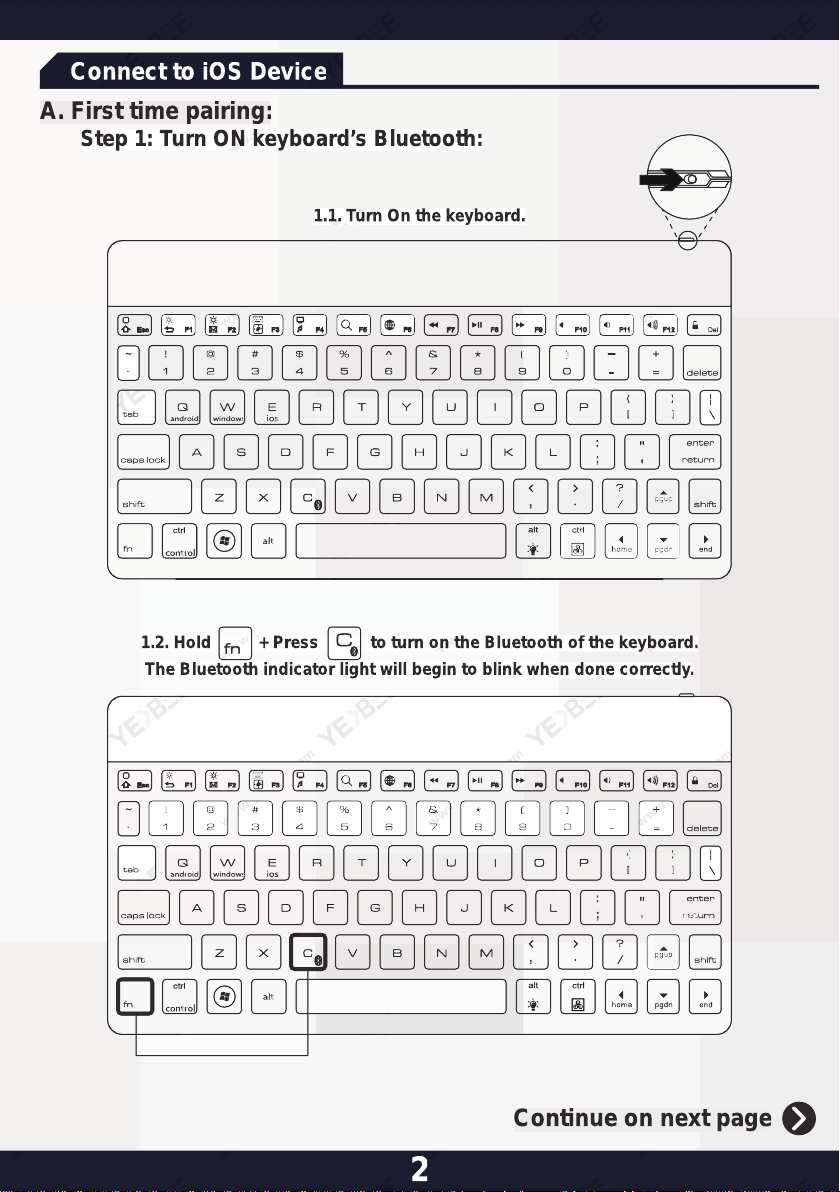
Step 1: Turn ON keyboard’s Bluetooth:
1.1. Turn On the keyboard.
1.2. Hold + Press to turn on the Bluetooth of the keyboard.
The Bluetooth indicator light will begin to blink when done correctly.
2
Continue on next page
Page 4
Connect to iOS Device
A. First-time pairing (continued):
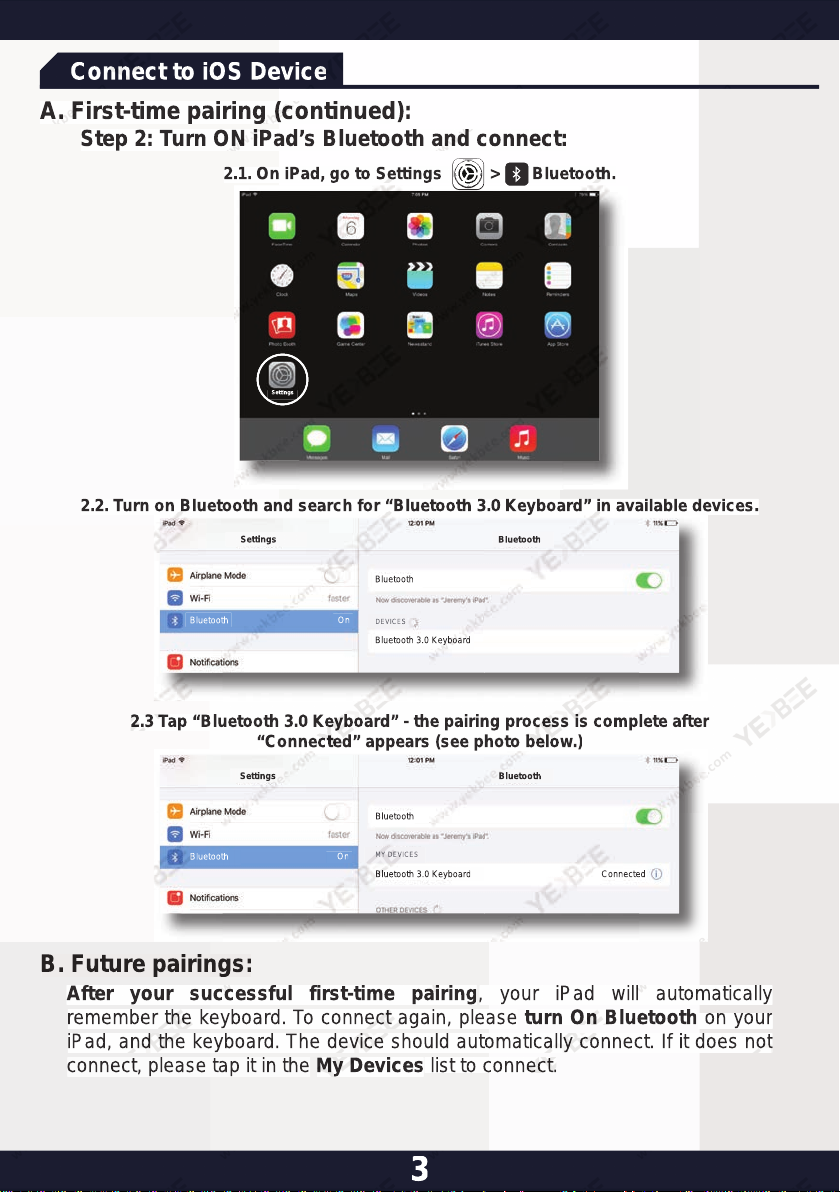
Step 2: Turn ON iPad’s Bluetooth and connect:
2.1. On iPad, go to Settings > Bluetooth.
Settings
2.2. Turn on Bluetooth and search for “Bluetooth 3.0 Keyboard” in available devices.
Settings
Bluetooth
Bluetooth
Bluetooth
On
DEVICES
Bluetooth 3.0 Keyboard
2.3 Tap “Bluetooth 3.0 Keyboard” - the pairing process is complete after
“Connected” appears (see photo below.)
Bluetooth
Settings
Bluetooth
MY DEVICES
On
Bluetooth 3.0 Keyboard
Bluetooth
Connected
B. Future pairings:
After your successful first-time pairing, your iPad will automatically
remember the keyboard. To connect again, please turn On Bluetooth on your
iPad, and the keyboard. The device should automatically connect. If it does not
connect, please tap it in the My Devices list to connect.
3
Page 5
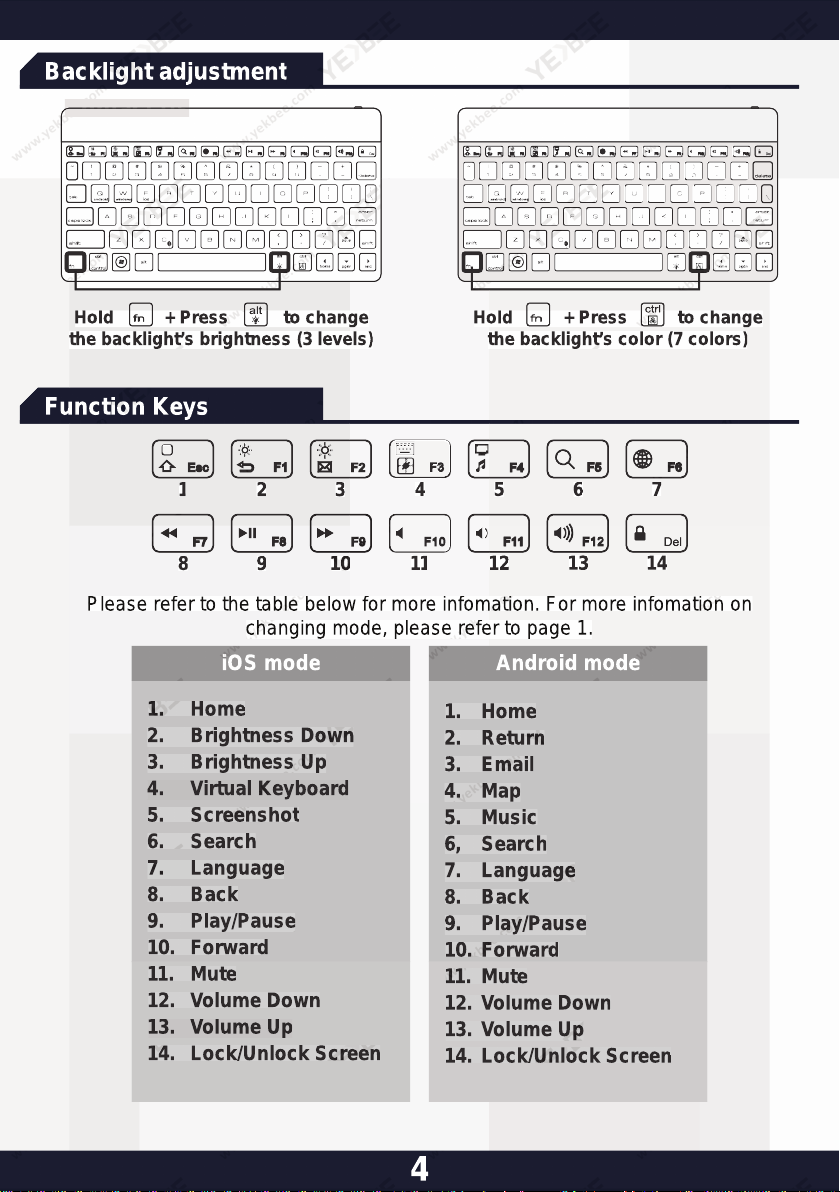
Backlight adjustment
Contact Us
Hold + Press to change
the backlight’s brightness (3 levels)
Hold + Press to change
the backlight’s color (7 colors)
Function Keys
1
8
Please refer to the table below for more infomation. For more infomation on
2
9
changing mode, please refer to page 1.
3
10
11
5
12
6
13
iOS mode Android mode
1. Home
2. Brightness Down
3. Brightness Up
4. Virtual Keyboard
5. Screenshot
6. Search
7. Language
8. Back
9. Play/Pause
10. Forward
11. Mute
12. Volume Down
13. Volume Up
14. Lock/Unlock Screen
1. Home
2. Return
3. Email
4. Map
5. Music
6, Search
7. Language
8. Back
9. Play/Pause
10. Forward
11. Mute
12. Volume Down
13. Volume Up
14. Lock/Unlock Screen
7
14
4
Page 6
Troubleshooting
If the keyboard is not working correctly, please check the following:
1) The Bluetooth function on the iPad (or other Bluetooth devices) is
enabled.
2) The Bluetooth keyboard is within 33 feet.
3) The Bluetooth keyboard is charged.
If certain keys or commands begin to fail or work sporadically , please try
restarting (or powering off and powering on) your iPad. This fixes 99%
of these types of issues.
If a problem persists, please try the following steps:
- Delete all the Bluetooth devices on the iPad (or other Bluetooth
devices.)
- Switch off the Bluetooth function on the iPad (or other Bluetooth
devices.)
- Reboot the iPad (or other Bluetooth devices.)
- Switch Bluetooth on the iPad (or other Bluetooth devices) back on &
pair again.
Contact Us
Please contact us if your issue isn’t addressed here, or if you have
any other question or concern. We really want to help and we
REALLY appreciate your FIVE STAR reviews and feedback on
Amazon.
If your experience with our product has been less than FIVE STARS,
please contact us immediately and we will do everything we can to
make it right. Here are the best ways to get ahold of us:
1. Email: [email protected]
2. Phone: 832-303-2219
3. Support link: https://yekbee.com/support/
5
 Loading...