

Page 1

User Manual
For more support, please email us at [email protected]
Your questions will be answered promptly.
iPad 360 Keyboard Case
Page 2
1
Overview
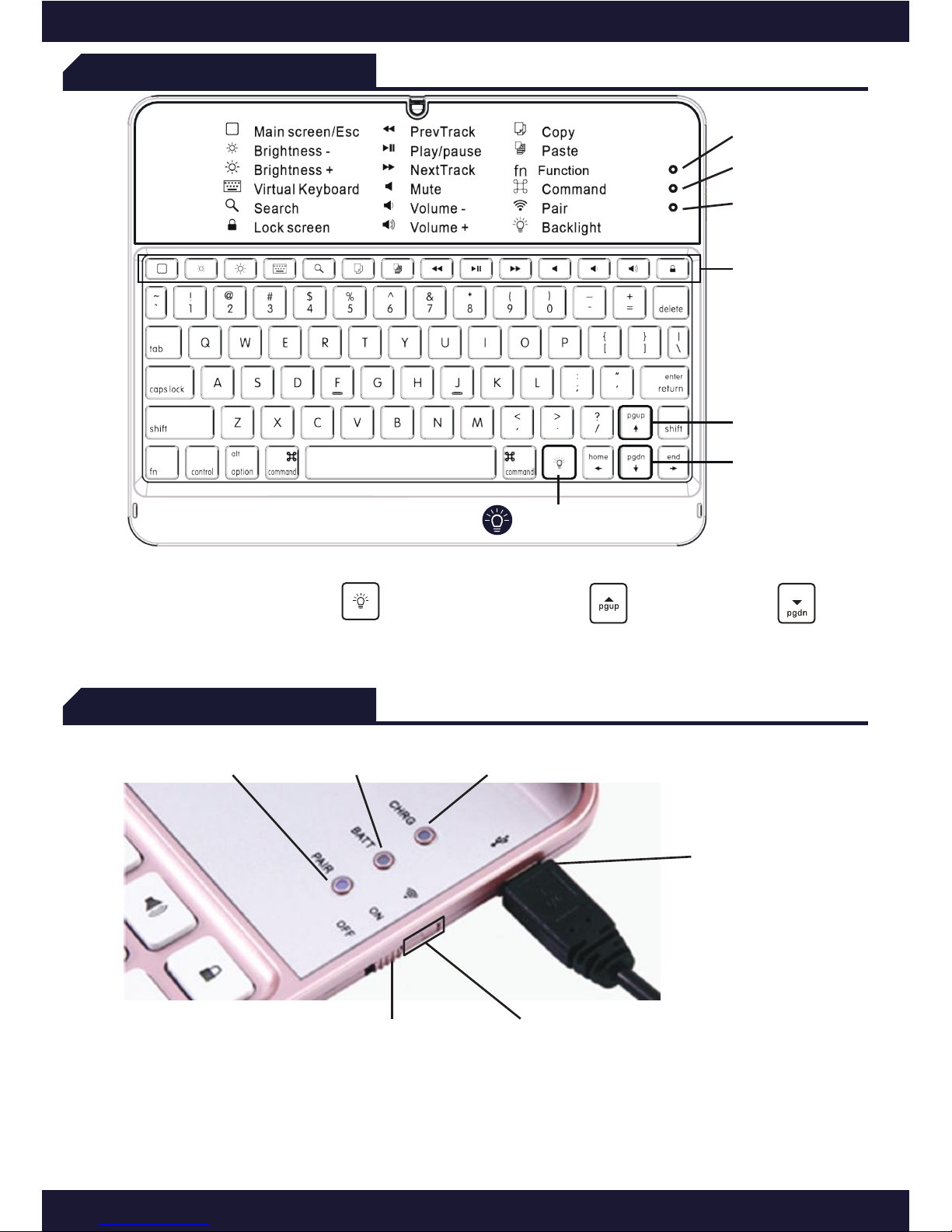
Pairing light
ON/OFF switch
Pairing button
Charging lightBattery light
Micro-USB port
To change your Wireless Keyboard’s backlight colors, please Hold down
Backlight Key and Press Up key or Down key
30 seconds without key press: backlight turns off automatically.
10 seconds without key press: keyboard goes into power saving mode.
Charging light
Battery light
Pairing light
Backlight key
Function keys
Connecting (pairing)
Up key
Down key
First-time pairing:
- Step 1: Move ON/OFF switch to ON.
- Step 2: Press the Pair button.
Note: Blue pairing light will begin blinking.
Page 3
2
Connecting (pairing)
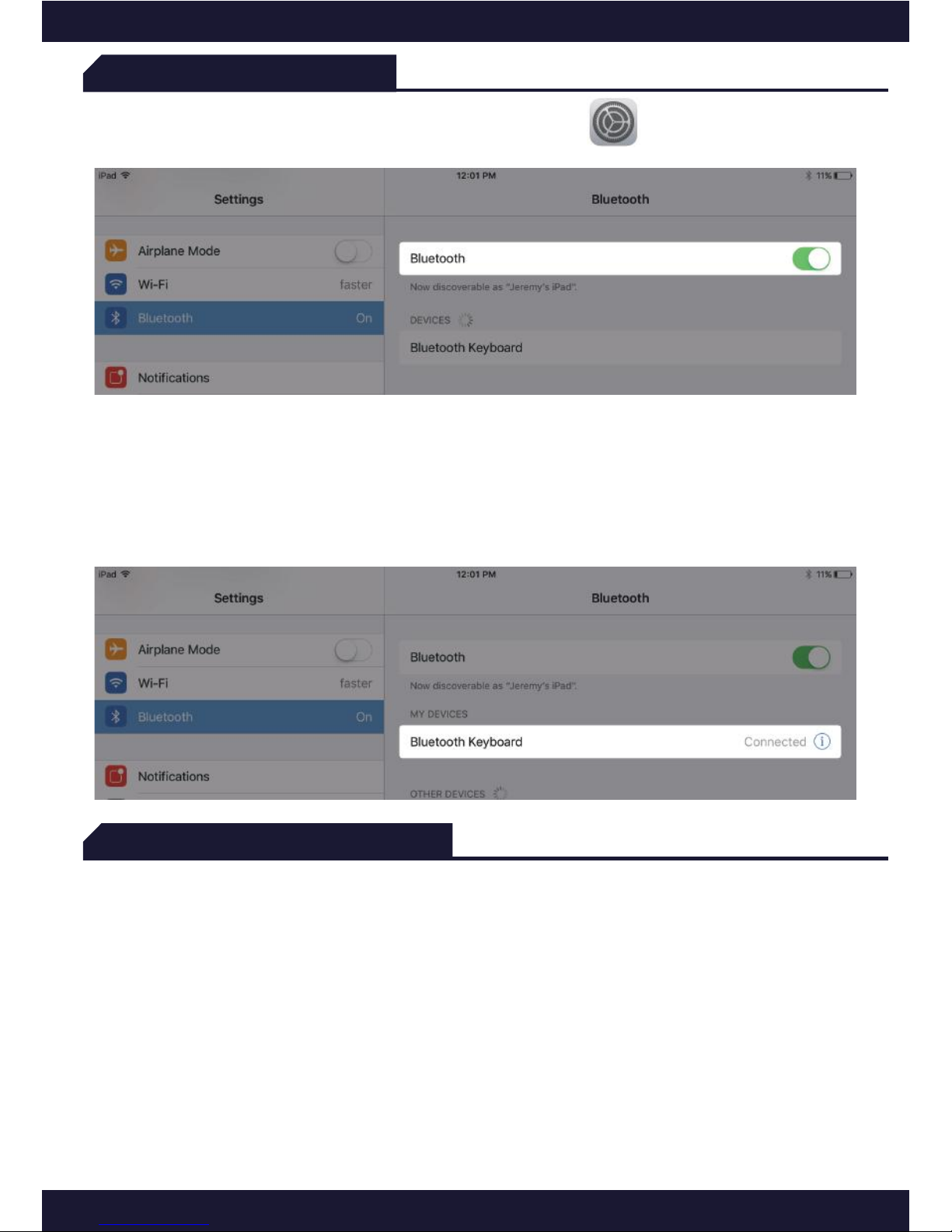
- Step 4: Tap “Bluetooth Keyboard” under “DEVICES” in the Bluetooth section
of the Settings app.
For future pairings, please repeat steps 1-3 (if necessary). Bluetooth Keyboard
will appear under My Devices. Tap it to connect.
- Step 3: Toggle Bluetooth On in the Settings app on your iPad.
Charging
Before first use, charge the keyboard fully. Red light will change to solid green
when fully charged.
To charge the keyboard:
a) Locate the micro-USB cable from the package or use your own.
b) Plug in the micro-USB (small tip) into the keyboard and the other end
into a USB port (if you have difficulty in locating Micro-USB port,
please refer to page 1).
(Recommend: 5V/1A input)
Note: Charging light (Red LED on: Charging); Battery light (Green LED on:
Full battery charge, Green LED blinking: Low battery).
Page 4
3
Installation and Removal
Function Keys
(1)
(2)
(3) (4)
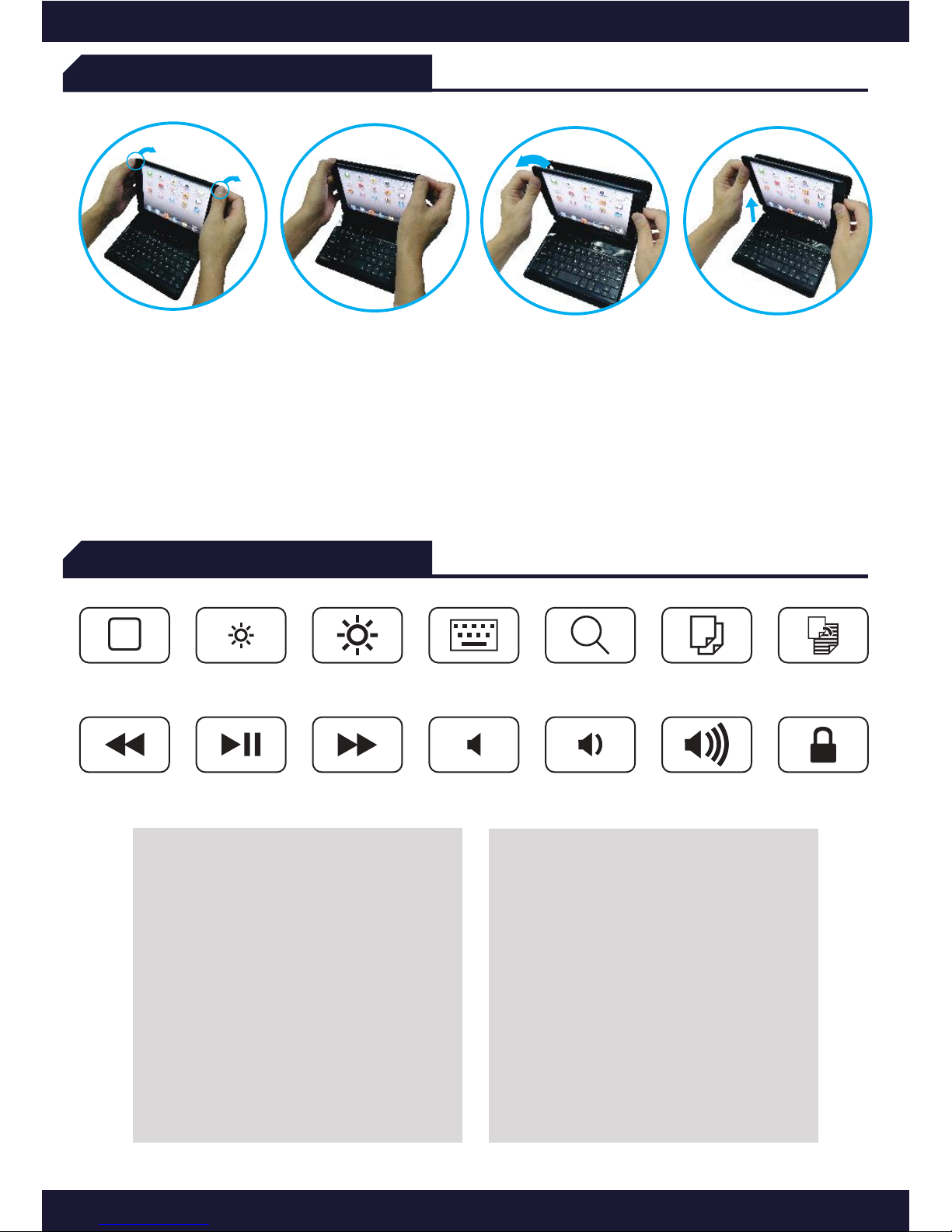
1) Removing back protective piece: hold iPad on both sides and use thumbs to
gently push off the back cover (see photo.) Cover is held in place by two tabs.
2) Proceed to “peel” cover away from iPad.
3) Take iPad out.
4) Take iPad out upwards.
1
2
3
4
5
6
7
8
9
10
11
12
13
14
8. Backward
9. Pause/Play
10. Forward
11. Mute/Unmute
12. Volume Down
13. Volume Up
14. Lock iPad.
1. Home Screen
2. Brightness Down
3. Brightness Up
4. Virtual Keyboard
5. Search
6. Copy
7. Paste
Page 5
4
Rotation
Usage
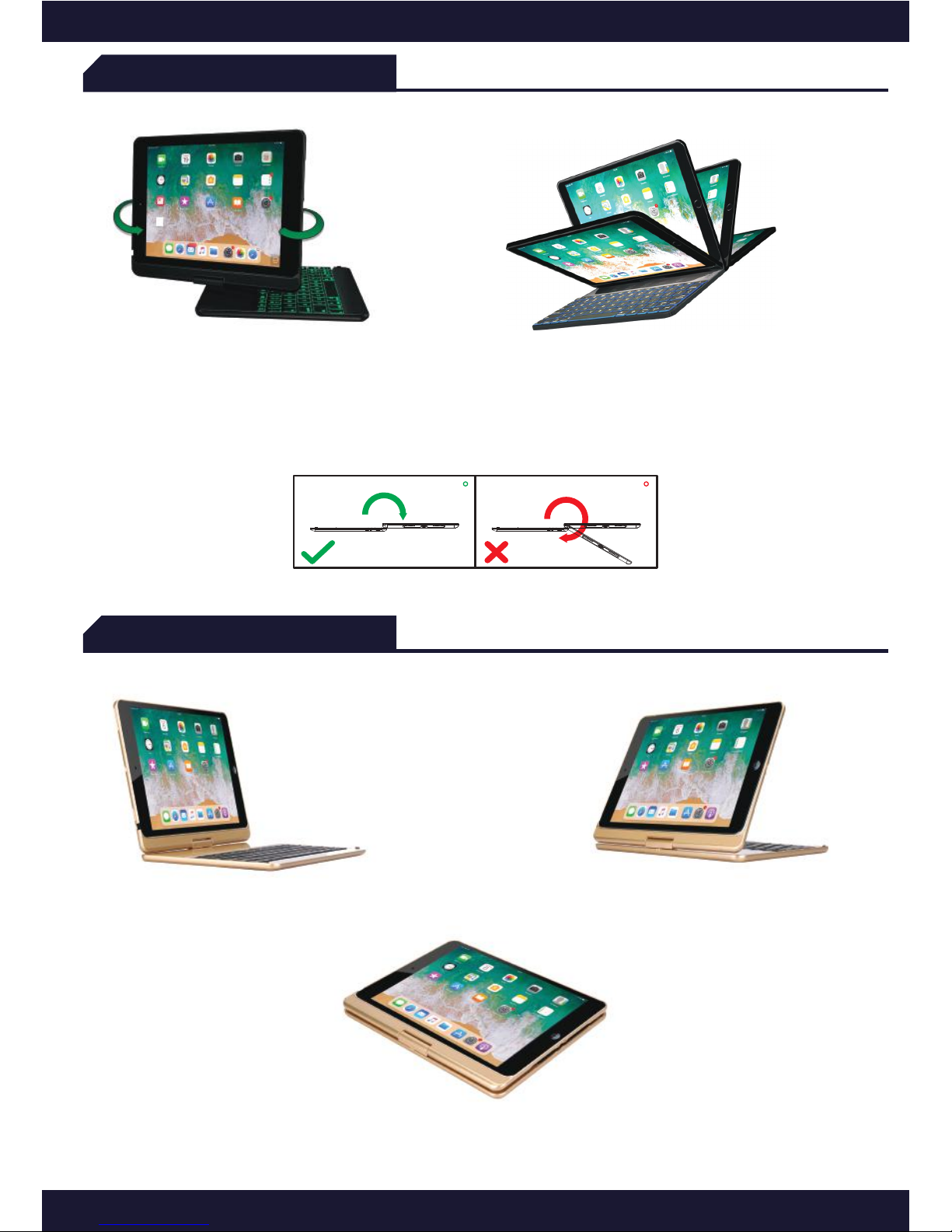
Twist to rotate 360°
Open up to 180°
(Twist to use in 360° Tablet mode and Video mode as below)
WARNING:
180
MORE THAN 180
Laptop mode Video Mode
Tablet mode
Page 6
5
Troubleshooting
If the keyboard is not working correctly, please check the following:
1) The Bluetooth function on the iPad (or other Bluetooth devices) is enabled.
2) The Bluetooth keyboard is within 33 feet.
3) The Bluetooth keyboard is charged.
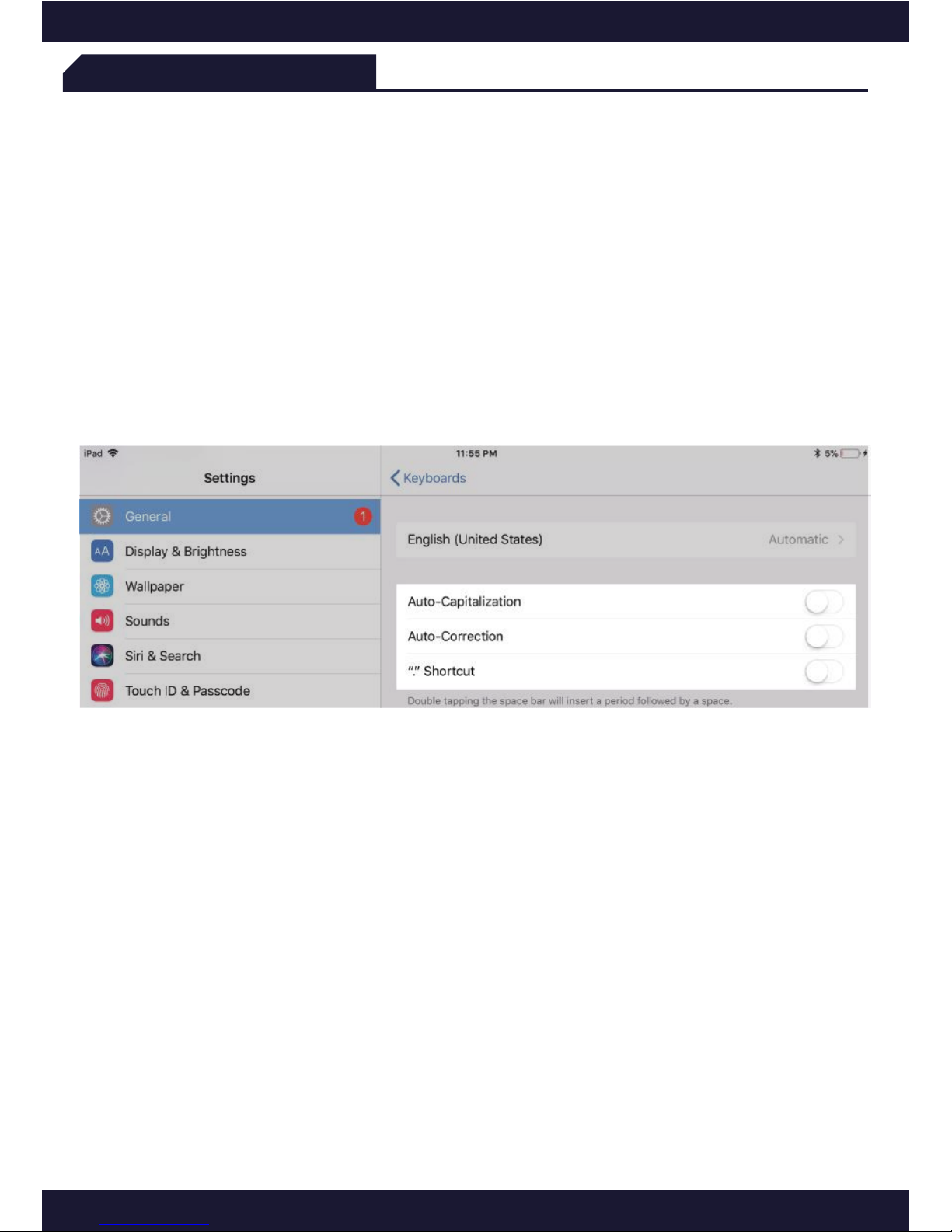
If you have unwanted auto-correction or punctuation, please try to change
Wireless keyboard’s setting on your iPad:
4) Connect your iPad to Wireless keyboard.
5) Go to iPad Settings app > General > Keyboard > Hardware Keyboard.
6) Toggle OFF Auto-Capitalization, Auto-Correction, and “.” Shortcut.
(please refer to the figure below)
If certain keys or commands begin to fail, work sporadically or lag in
response time, please restart your iPad (power on and power off).
This fixes 99% of these types of issues.
If a problem persists, please try the following steps:
- Delete all the Bluetooth devices on the iPad
- Switch off the Bluetooth function on the iPad
- Reboot the iPad
- Switch on Bluetooth on the iPad
- Switch the keyboard off and on
- Repeat the steps on pages 1 and 2 to connect the keyboard
Page 7

6
If you have any issues or questions, let us know ASAP! We would love to get
you taken care of and happy right away! All units come with a full 12 month
warranty, so you can relax and take comfort in your purchase.
For the fastest & friendliest support, contact us (not Amazon) via one of the
contact methods below. Our email support is open 24/7/365.
1. Email: [email protected]
2. Phone: 832-303-2219
3. Support link: https://yekbee.com/support/
Contact Us
Technical Specs
• Transmit Range: up to 10m.
• Battery Life: 100++ working hours.
Standby mode: up to 300 days.
• Backlight with 7 different colors
(green, blue, white, yellow, purple,
cyan blue, red), and three levels of
brightness (low, medium, high).
• Operating Voltage: 3.7V DC
(Li- ion powered).
• Operation current: < 5mA.
• Standby current: 1.0mA.
• Sleep current: < 0.1mA.
 Loading...