

Page 1
OWNER’S MANUAL
Page 2
SPECIAL MESSAGE SECTION
PRODUCT SAFETY MARKINGS: Yamaha electronic
products may have either labels similar to the graphics shown
below or molded/stamped facsimiles of these graphics on the
enclosure. The explanation of these graphics appears on this
page. Please observe all cautions indicated on this page and
those indicated in the safety instruction section.
CAUTION
RISK OFELECTRIC SHOCK
DO NOT OPEN
CAUTION: TO REDUCE THE RISK OF ELECTRIC SHOCK.
DO NOT REMOVE COVER (OR BACK).
NO USER-SERVICEABLE PARTS INSIDE.
REFER SERVICING TO QUALIFIED SERVICE PERSONNEL.
The exclamation point within the equilateral triangle is intended to alert the
user to the presence of important operating and maintenance (servicing)
instructions in the literature accompanying the product.
The lightning flash with arrowhead
symbol, within the equilateral triangle,
is intended to alert the user to the presence of uninsulated “dangerous voltage” within the product’s enclosure
that may be of sufficient magnitude to
constitute a risk of electrical shock.
IMPORTANT NOTICE: All Yamaha electronic products are
tested and approved by an independent safety testing
laboratory in order that you may be sure that when it is
properly installed and used in its normal and customary
manner, all foreseeable risks have been eliminated. DO NOT
modify this unit or commission others to do so unless
specifically authorized by Yamaha. Product performance
and/or safety standards may be diminished. Claims filed under
the expressed warranty may be denied if the unit is/has been
modified. Implied warranties may also be affected.
ENVIRONMENTAL ISSUES: Yamaha strives to produce
products that are both user safe and environmentally friendly.
We sincerely believe that our products and the production
methods used to produce them, meet these goals. In keeping
with both the letter and the spirit of the law, we want you to be
aware of the following:
Battery Notice: This product MAY contain a small nonrechargable battery which (if applicable) is soldered in place.
The average life span of this type of battery is approximately
five years. When replacement becomes necessary, contact a
qualified service representative to perform the replacement.
Warning: Do not attempt to recharge, disassemble, or
incinerate this type of battery. Keep all batteries away from
children. Dispose of used batteries promptly and as regulated
by applicable laws. Note: In some areas, the servicer is
required by law to return the defective parts. However, you do
have the option of having the servicer dispose of these parts
for you.
Disposal Notice: Should this product become damaged
beyond repair, or for some reason its useful life is considered
to be at an end, please observe all local, state, and federal
regulations that relate to the disposal of products that contain
lead, batteries, plastics, etc.
NOTICE: Service charges incurred due to lack of knowledge
relating to how a function or effect works (when the unit is
operating as designed) are not covered by the manufacturer’s
warranty, and are therefore the owners responsibility. Please
study this manual carefully and consult your dealer before
requesting service.
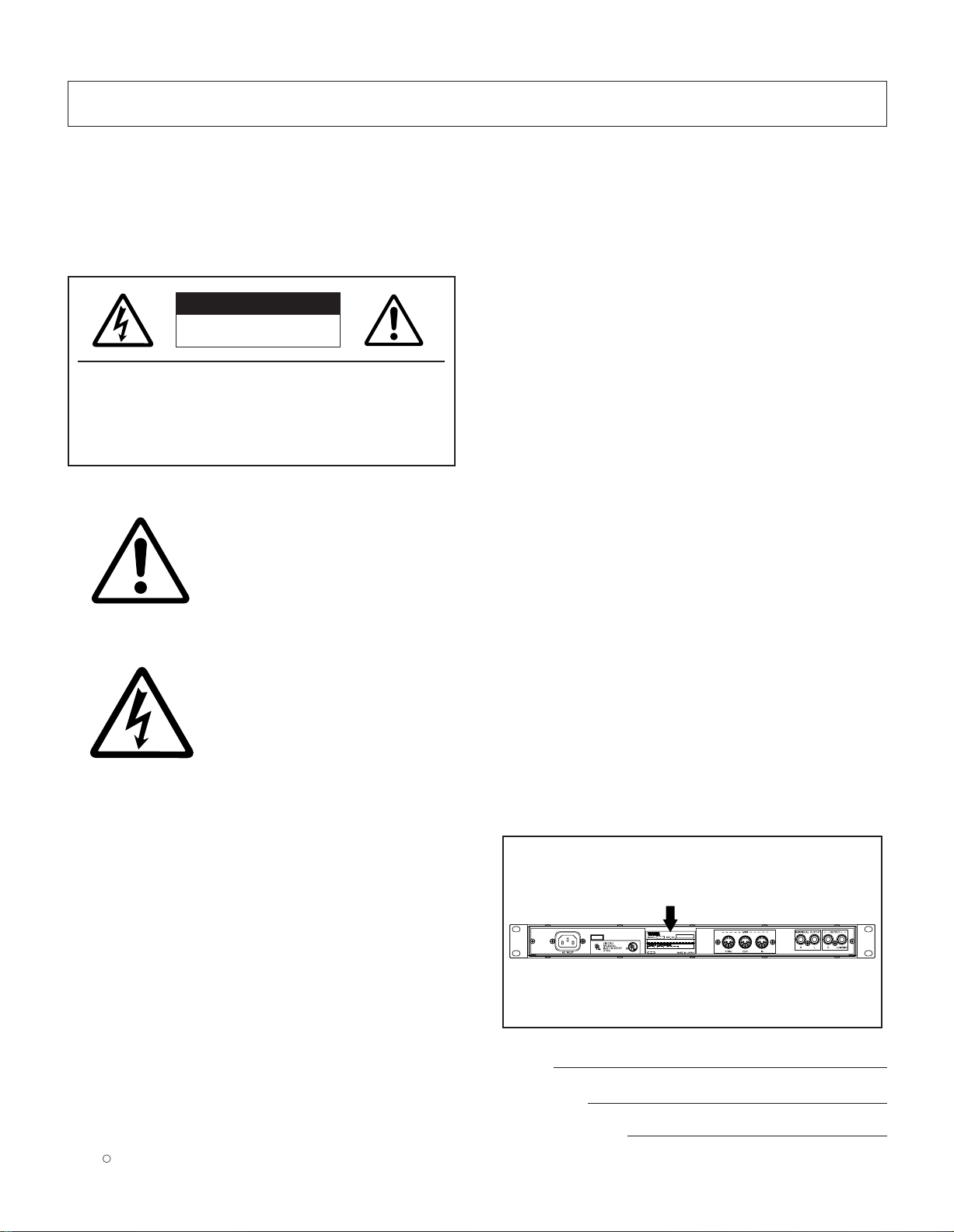
NAME PLATE LOCATION: The graphic below indicates the
location of the name plate. The model number, serial number,
power requirements, etc., are located on this plate. You should
record the model number, serial number, and the date of
purchase in the spaces provided below and retain this manual
as a permanent record of your purchase.
SPECIFICATIONS SUBJECT TO CHANGE: The information
contained in this manual is believed to be correct at the time
of printing. However, Yamaha reserves the right to change or
modify any of the specifications without notice or obligation to
update existing units.
92-469- 1
Model
Serial No.
Purchase Date
Page 3

IMPORTANT SAFETY INSTRUCTIONS
INFORMATION RELATING TO PERSONAL INJURY, ELECTRICAL SHOCK,
AND FIRE HAZARD POSSIBILITIES HAS BEEN INCLUDED IN THIS LIST.
WARNING- When using any electrical or electronic product,
basic precautions should always be followed. These
precautions include, but are not limited to, the following:
1. Read all Safety Instructions, Installation Instructions,
Special Message Section items, and any Assembly
Instructions found in this manual BEFORE making any
connections, including connection to the main supply.
2. Do not attempt to service this product beyond that
described in the user-maintenance instructions. All other
servicing should be referred to qualified service personnel.
3. Main Power Supply Verification: Yamaha products are
manufactured specifically for the supply voltage in the area
where they are to be sold. If you should move, or if any doubt
exists about the supply voltage in your area, please contact
your dealer for supply voltage verification and (if applicable)
instructions. The required supply voltage is printed on the
name plate. For name plate location, please refer to the
graphic found in the Special Message Section of this manual.
8. This product was NOT designed for use in wet/damp
locations and should not be used near water or exposed to
rain. Examples of wet /damp locations are; near a swimming
pool, spa, tub, sink, or wet basement.
9. This product should be used only with the components
supplied or; a cart ,rack, or stand that is recommended by the
manufacturer. If a cart, rack, or stand is used, please observe
all safety markings and instructions that accompany the
accessory product.
10. The power supply cord (plug) should be disconnected
from the outlet when electronic products are to be left unused
for extended periods of time. Cords should also be
disconnected when there is a high probability of lightening
and/or electrical storm activity.
11. Care should be taken that objects do not fall and
liquids are not spilled into the enclosure through any openings
that may exist.
4. DANGER-Grounding Instructions: This product must be
grounded and therefore has been equipped with a three pin
attachment plug. If this product should malfunction, the ground
pin provides a path of low resistance for electrical current,
reducing the risk of electrical shock. If your wall socket will not
accommodate this type plug, contact an electrician to have
the outlet replaced in accordance with local electrical codes.
Do NOT modify the plug or change the plug to a different type!
5. WARNING: Do not place this product or any other
objects on the power cord or place it in a position where
anyone could walk on, trip over, or roll anything over power or
connecting cords of any kind. The use of an extension cord is
not recommended! If you must use an extension cord, the
minimum wire size for a 25' cord (or less) is 18 AWG. NOTE:
The smaller the AWG number, the larger the current handling
capacity. For longer extension cords, consult a local
electrician.
6. Ventilation: Electronic products, unless specifically
designed for enclosed installations, should be placed in
locations that do not interfere with proper ventilation. If
instructions for enclosed installations are not provided, it must
be assumed that unobstructed ventilation is required.
7. Temperature considerations: Electronic products should
be installed in locations that do not seriously contribute to their
operating temperature. Placement of this product close to heat
sources such as; radiators, heat registers etc., should be
avoided.
12. Electrical/electronic products should be serviced by a
qualified service person when:
a. The power supply cord has been damaged; or
b. Objects have fallen, been inserted, or liquids have
been spilled into the enclosure through openings; or
c. The product has been exposed to rain; or
d. The product does not operate, exhibits a marked
change in performance; or
e. The product has been dropped, or the enclosure of the
product has been damaged.
13. This product, either alone or in combination with an
amplifier and headphones or speaker/s, may be capable of
producing sound levels that could cause permanent hearing
loss. DO NOT operate for a long period of time at a high
volume level or at a level that is uncomfortable. If you
experience any hearing loss or ringing in the ears, you should
consult an audiologist.
IMPORTANT: The louder the sound, the shorter the time
period before damage occurs.
14. Some Yamaha products may have benches and/or
accessory mounting fixtures that are either supplied as a part
of the product or as optional accessories. Some of these items
are designed to be dealer assembled or installed. Please
make sure that benches are stable and any optional fixtures
(where applicable) are well secured BEFORE using. Benches
supplied by Yamaha are designed for seating only. No other
uses are recommended.
92-469- 3
PLEASE KEEP THIS MANUAL
Page 4

FCC INFORMATION (U.S.A.)
1. IMPORTANT NOTICE: DO NOT MODIFY THIS UNIT!
This product, when installed as indicated in the instructions
contained in this manual, meets FCC requirements. Modifications
not expressly approved by Y amaha may void your authority, granted
by the FCC, to use the product.
2. IMPORTANT: When connecting this product to accessories and/or
another product use only high quality shielded cables. Cable/s
supplied with this product MUST be used. Follow all installation
instructions. Failure to follow instructions could void your FCC
authorization to use this product in the USA.
3. NOTE: This product has been tested and found to comply with the
requirements listed in FCC Regulations, Part 15 for Class “B” digital
devices. Compliance with these requirements provides a
reasonable level of assurance that your use of this product in a
residential environment will not result in harmful interference with
other electronic devices. This equipment generates/uses radio
frequencies and, if not installed and used according to the
instructions found in the users manual, may cause interference
harmful to the operation of other electronic devices. Compliance
with FCC regulations does not guarantee that interference will not
* This applies only to products distributed by YAMAHA CORPORATION OF AMERICA.
ADVARSEL!
Lithiumbatteri—Eksplosionsfare ved fejlagtig håndtering. Udskiftning
må kun ske med batteri af samme fabrikat og type. Levér det brugte
batteri tilbage til leverandoren.
VARNING
Explosionsfara vid felaktigt batteribyte. Använd samma batterityp
eller en ekvivalent typ som rekommenderas av apparattillverkaren.
Kassera använt batteri enlight fabrikantens instruktion.
VAROITUS
Paristo voi räjähtää, jos se on virheellisesti asennettu. Vaihda paristo
ainoastaan laitevalmistajan suosittelemaan tyyppiin. Hävitä käytetty
paristo valmistajan ohjeiden mukaisesti.
NEDERLAND / THE NETHERLANDS
• Dit apparaat bevat een lithium batterij voor geheugen back-up.
• This apparatus contains a lithium battery for memory back-up.
• Raadpleeg uw leverancier over de verwijdering van de batterij op
het moment dat u het apparaat ann het einde van de levensduur
afdankt of de volgende Yamaha Service Afdeiing:
Yamaha Music Nederland Service Afdeiing
Kanaalweg 18-G, 3526 KL UTRECHT
Tel. 030-2828425
• For the removal of the battery at the moment of the disposal at the
end of the service life please consult your retailer or Yamaha
Service Center as follows:
Yamaha Music Nederland Service Center
Address : Kanaalweg 18-G, 3526 KL UTRECHT
Tel : 030-2828425
occur in all installations. If this product is found to be the source of
interference, which can be determined by turning the unit “OFF”
and “ON”, please try to eliminate the problem by using one of the
following measures:
Relocate either this product or the device that is being affected by
the interference.
Utilize power outlets that are on different branch (circuit breaker or
fuse) circuits or install AC line filter/s.
In the case of radio or TV interference, relocate/reorient the
antenna. If the antenna lead-in is 300 ohm ribbon lead, change the
lead-in to co-axial type cable.
If these corrective measures do not produce satisfactory results,
please contact the local retailer authorized to distribute this type of
product. If you can not locate the appropriate retailer, please contact
Yamaha Corporation of America, Electronic Service Division, 6600
Orangethorpe Ave, Buena Park, CA90620
The above statements apply ONLYto those products distributed by
Yamaha Corporation of America or its subsidiaries.
IMPORTANT NOTICE FOR THE UNITED KINGDOM
WARNING: THIS APPARATUS MUST BE EARTHED
IMPORTANT. The wires in this mains lead are coloured in
accordance with the following code:
As the colours of the wires in the mains lead of this apparatus
may not correspond with the coloured markings identifying the
terminals in your plug proceed as follows:
The wire which is coloured GREEN-and-YELLOW must be
connected to the terminal in the plug which is marked by the
letter E or by the safety earth symbol or colored GREEN or
GREEN-and-YELLOW.
The wire which is coloured BLUE must be connected to the
terminal which is marked with the letter N or coloured BLACK.
The wire which is coloured BROWN must be connected to the
terminal which is marked with the letter L or coloured RED.
• This applies only to products distributed by Yamaha-Kemble Music (U.K.) Ltd.
Connecting the Plug and Cord
GREEN-AND-YELLOW: EARTH
BLUE : NEUTRAL
BROWN : LIVE
• Gooi de batterij niet weg, maar lever hem in als KCA.
• Do not throw away the battery. Instead, hand it in as small chemical
waste.
Page 5
PRECAUTIONS
PLEASE READ CAREFULLY BEFORE PROCEEDING
* Please keep these precautions in a safe place for future reference.
WARNING
Always follow the basic precautions listed below to avoid the possibility of serious injury or even death from electrical shock,
short-circuiting, damages, fire or other hazards. These precautions include, but are not limited to, the following:
• Do not open the instrument or attempt to disassemble the internal parts or
modify them in any way. The instrument contains no user-serviceable parts. If
it should appear to be malfunctioning, discontinue use immediately and have
it inspected by qualified Yamaha service personnel.
• Do not expose the instrument to rain, use it near water or in damp or wet
conditions, or place containers on it containing liquids which might spill into
any openings.
• If the power cord or plug becomes frayed or damaged, or if there is a sudden
loss of sound during use of the instrument, or if any unusual smells or smoke
should appear to be caused by it, immediately turn off the power switch,
disconnect the electric plug from the outlet, and have the instrument
inspected by qualified Yamaha service personnel.
• Only use the voltage specified as correct for the instrument. The required
voltage is printed on the name plate of the instrument.
• Always connect the three-pin attachment plug to a properly grounded power
source. (For more information about the main power supply, see page 17.)
• Before cleaning the instrument, always remove the electric plug from the
outlet. Never insert or remove an electric plug with wet hands.
• Check the electric plug periodically and remove any dirt or dust which may
have accumulated on it.
CAUTION
Always follow the basic precautions listed below to avoid the possibility of physical injury to you or others, or damage to the
instrument or other property. These precautions include, but are not limited to, the following:
• Do not place the power cord near heat sources such as heaters or radiators,
and do not excessively bend or otherwise damage the cord, place heavy
objects on it, or place it in a position where anyone could walk on, trip over,
or roll anything over it.
• When removing the electric plug from the instrument or an outlet, always hold
the plug itself and not the cord. Pulling by the cord can damage it.
• Do not connect the instrument to an electrical outlet using a multipleconnector. Doing so can result in lower sound quality, or possibly cause
overheating in the outlet.
• Remove the electric plug from the outlet when the instrument is not to be
used for extended periods of time, or during electrical storms.
• Before connecting the instrument to other electronic components, turn off the
power for all components. Before turning the power on or off for all
components, set all volume levels to minimum.
• Do not expose the instrument to excessive dust or vibrations, or extreme cold
or heat (such as in direct sunlight, near a heater, or in a car during the day) to
prevent the possibility of panel disfiguration or damage to the internal
components.
• Do not use the instrument near other electrical products such as televisions,
radios, or speakers, since this might cause interference which can affect
proper operation of the other products.
• Do not place the instrument in an unstable position where it might
accidentally fall over.
• Before moving the instrument, remove all connected cables.
• When cleaning the instrument, use a soft, dr y cloth. Do not use paint
thinners, solvents, cleaning fluids, or chemical-impregnated wiping cloths.
Also, do not place vinyl, plastic or rubber objects on the instrument, since
this might discolor the panel or keyboard.
• Do not rest your weight on, or place heavy objects on the instrument, and do
not use excessive force on the buttons, switches or connectors.
• Use only the stand/rack specified for the instrument. When attaching the
stand or rack, use the provided screws only. Failure to do so could cause
damage to the internal components or result in the instrument falling over.
• Do not operate the instrument for a long period of time at a high or
uncomfortable volume level, since this can cause permanent hearing loss. If
you experience any hearing loss or ringing in the ears, consult a physician.
■ REPLACING THE BACKUP BATTERY
• This instrument contains a non rechargeable internal backup battery which
permits internal data to remain stored even when the power is off. When the
backup battery needs replacing, the message "Battery Low" will display in the
LCD. When this happens, immediately back up your data (using an external
device such as the floppy disk-based Yamaha MIDI Data Filer MDF3), then have
qualified Yamaha service personnel replace the backup battery.
• Do not attempt to replace the backup batter y yourself, in order to prevent the
possible serious hazards. Always have qualified Yamaha service personnel
replace the backup battery.
• Never place the backup batter y in a location that a child can reach, since a
child might accidentally swallow the battery. If this should happen, consult a
physician immediately.
■ SAVING USER DATA
• Save all data to an external device such as the Yamaha MIDI Data Filer MDF3,
in order to help prevent the loss of important data due to a malfunction or
user operating error.
Yamaha cannot be held responsible for damage caused by improper use or
modifications to the instrument, or data that is lost or destroyed.
Always turn the power off when the instrument is not in use.
(1)-3
Page 6

Congratulations!
Your FS1R Format Shaping/FM Synthesis Tone Generator gives you the power of two extraordinary tone generation
systems in one compact, easy-to-use rack-mount unit. Formant Shaping synthesis gives musicians unprecedented
capability to produce and control sounds with characteristics and flexibility similar to that of the human voice. It can
also produce instrument voices that have the response and rich pitch-dependent timbral variations. FS technology
also lends itself ideally to FM synthesis, similar to the type introduced in the legendary Yamaha DX-series
synthesizers and TX-series tone generators. In addition to unprecedented voicing versatility and expressive scope,
the FS1R features an advanced control interface that facilitates both real-time performance control and editing.
Please read this owner’s manual carefully, and follow the instructions within in order to ensure proper operation. Also
keep this manual in a safe place for later reference.
6
Page 7

Contents
FS (Formant Shaping) and
FM (Frequency Modulation) Synthesis........................8
FS Synthesis ......................................................................................8
*Formant Control...........................................................................9
*Formant Sequences:“FSeqs” ....................................................10
*Other Formant Applications ......................................................11
FM Synthesis....................................................................................11
*FM In Brief .................................................................................12
Putting It All Together.......................................................................13
The Controls & Connectors ........................................14
Front Panel.......................................................................................14
Rear Panel .......................................................................................16
Setting Up .....................................................................17
Power Supply...................................................................................17
MIDI Connections ............................................................................17
*Keyboard...................................................................................17
*Sequencer or Computer............................................................18
*G50 Guitar MIDI Converter .......................................................18
*WX-series Wind MIDI Controller................................................18
Audio Connections ..........................................................................19
*Headphones..............................................................................19
*Instrument Amplifier or Stereo Sound System ..........................19
*Mixing Console..........................................................................19
Power-on Procedure ........................................................................20
Play the Demo..................................................................................20
The PLAY Mode............................................................21
Performance & Voice Organization .................................................21
*Performance Combinations.......................................................21
*Voices........................................................................................21
*Bank Selection via MIDI ............................................................22
The Play Mode (Performance).........................................................22
Perf Ch (Performance Channel) .................................................23
(Bank) .........................................................................................23
(Program Number)......................................................................23
Pfm Vol (Performance Volume)...................................................23
Pfm Pan (Performance Pan) .......................................................23
RevRtn (Reverb Return)..............................................................23
VarRtn (Variation Return) ............................................................24
PfmNSft (Performance Note Shift) ..............................................24
The PART ASSIGN Mode.................................................................24
Rcv Ch (Receive Channel) .........................................................25
Rcv Max (Maximum Receive Channel: parts 1 & 2 only)...........25
(Bank) .........................................................................................25
(Program Number)......................................................................25
Volume ........................................................................................25
Pan..............................................................................................25
RevSend (Reverb Send).............................................................26
VarSend (Variation Send)............................................................26
InsEfSw (Insertion Effect Switch)................................................26
DryLvl (Dry Level) .......................................................................26
Filter (Filter Frequency Offset)....................................................26
NoteSft (Note Shift) .....................................................................26
The [MUTE/SOLO] Button in the Part Assign Mode...................26
The Search Function.............................................................................27
EDITING.........................................................................28
General Editing Procedure ..............................................................28
The [MUTE/SOLO] Button in the Edit Modes .............................29
EDIT [PERFORMANCE] ...................................................................30
COMMON ...................................................................................30
*CtrlSrc (Control Source).......................................................30
*CtrlDst (Control Destination) ................................................31
*Fseq (Format Sequence) .....................................................32
*Others...................................................................................35
PART ...........................................................................................37
*Tone......................................................................................37
*EG (Envelope Generator).....................................................39
*Pitch......................................................................................40
*Others...................................................................................41
STORE PERFORMANCE.............................................................44
RECALL PERFORMANCE...........................................................44
EDIT [EFFECT].................................................................................45
Effect Signal Flow .......................................................................45
Rev..............................................................................................45
Type .......................................................................................46
Type-Specific Reverb Parameters.........................................46
Reverb Pan ............................................................................46
Rev Return .............................................................................46
Var...............................................................................................46
Type .......................................................................................46
Type-Specific Variation Parameters.......................................46
Var Pan ..................................................................................47
Var Return..............................................................................47
SendVar→Rev........................................................................47
Ins ...............................................................................................47
Type .......................................................................................47
Type-Specific Insertion Parameters.......................................47
Ins Pan...................................................................................47
SendIns→Rev.........................................................................48
SendIns→Var..........................................................................48
InsDryLevel............................................................................48
EQ ...............................................................................................48
Low Freq................................................................................48
Low Gain................................................................................48
Low Q ....................................................................................48
Low Shape.............................................................................48
Mid Freq.................................................................................49
Mid Gain ................................................................................49
Mid Q .....................................................................................49
High Freq...............................................................................49
High Gain...............................................................................49
High Q ...................................................................................49
High Shape............................................................................49
EDIT [VOICE] ...................................................................................50
COMMON ...................................................................................50
*LFO1 (Low Frequency Oscillator 1).....................................51
*LFO2 (Low Frequency Oscillator 2).....................................52
*Filter......................................................................................53
*PitchEG (Pitch Envelope Generator)....................................57
*Others...................................................................................58
OPERATOR .................................................................................61
*Osc (Oscillator) ....................................................................62
*EG (Amplitude Envelope Generator) ...................................66
*FrqEG (Frequency EG).........................................................67
*Sns (Sensitivity) ....................................................................68
STORE VOICE.............................................................................70
RECALL VOICE...........................................................................70
UTILITY Functions .......................................................71
SYSTEM ...........................................................................................71
*Master........................................................................................71
*MIDI ...........................................................................................72
*Control .......................................................................................74
*Others........................................................................................76
DUMPOUT .......................................................................................77
*DUMPOUT Operation................................................................77
INITIAL .............................................................................................78
DEMO...............................................................................................78
Troubleshooting ...........................................................79
Alert Display .................................................................82
Specifications...............................................................83
Index..............................................................................84
7
Page 8
FS (Formant Shaping) and FM
(Frequency Modulation) Synthesis
FS (Formant Shaping) and
FM (Frequency Modulation) Synthesis
Although based on Yamaha’s newly developed FS (Formant Shaping) synthesis technology, The FS1R actually
integrates two tone generation concepts for extraordinarily broad voicing versatility. Formant Shaping synthesis
gives musicians unprecedented capability to produce and control sounds with characteristics and flexibility similar
to that of the human voice. It can also produce instrument voices that have the response and rich pitch-dependent
timbral variations — in short, the “musicality” — of natural acoustic instruments. The bonus is that the base FS
technology has been realized using an architecture which also lends itself ideally to FM synthesis, similar to the type
introduced in the legendary Yamaha DX-series synthesizers and TX-series tone generators. Thus the FS1R can
create anything from totally new simulations of human vocal sounds to classic DX electric piano voices, and
anything in between.
FS Synthesis
The term “formant” refers to the distinct spectral patterns which define the recognizable sounds of human speech,
such as the vowels “a” or “i.” In human speech, the vocal cords themselves are only capable of creating the basic
driving sound and defining pitch (similar to the oscillator in a music synthesis system). The formants which define
the sounds of speech are created by the shape of the vocal cavity (i.e. the trachea and mouth). In traditional speech
synthesis systems this is simulated by using an oscillator to perform the function of the vocal cords, and a series of
controllable bandpass filters to create the required format shapes. Consonant sounds such as “k” or “t,” and
fricatives such as “f,” are based on slightly different principles, requiring a noise generator rather than an oscillator,
and depending more on amplitude envelope shape than formant shape for recognizability. Formants play an
important role in defining the sound of many acoustic musical instruments as well as the human voice.
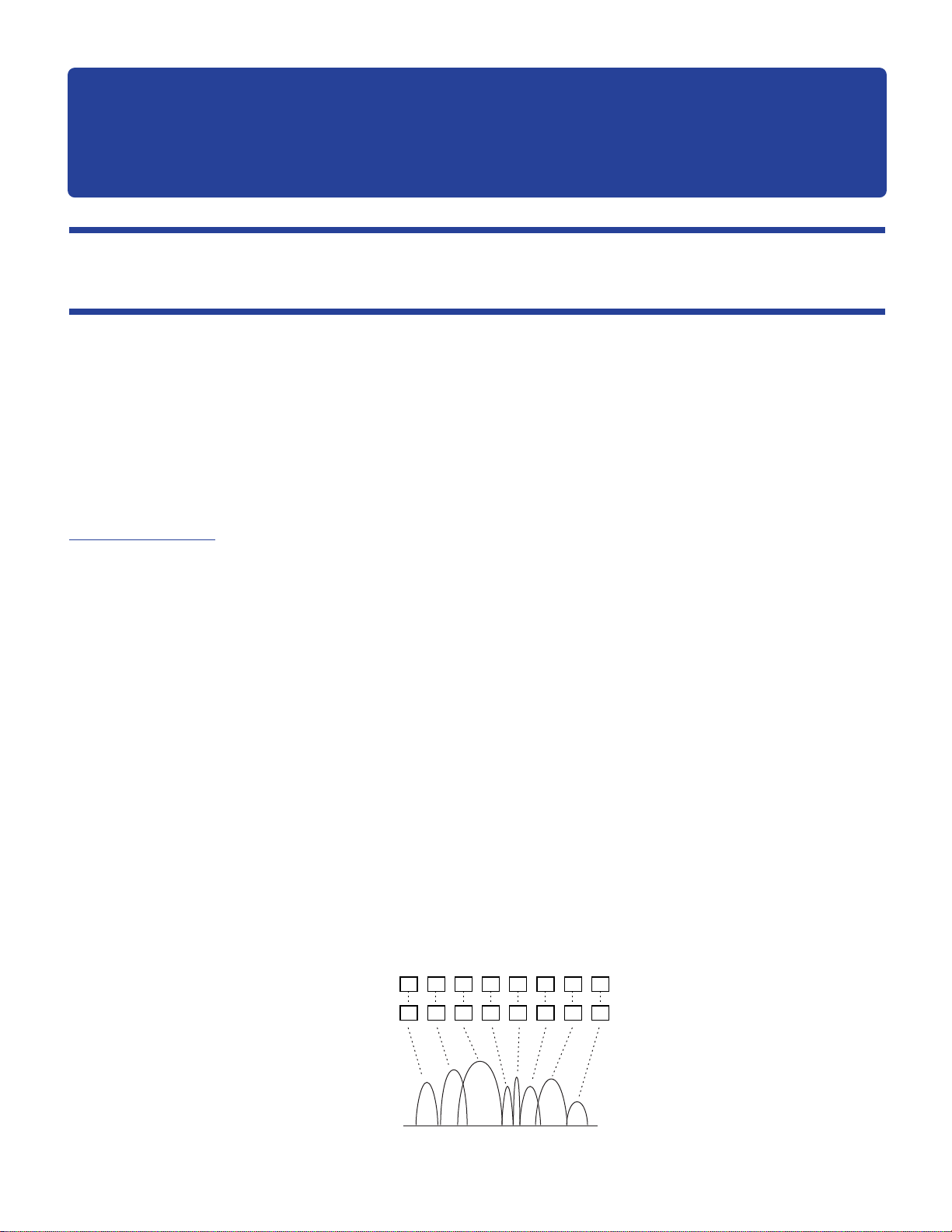
Rather than a cumbersome system of oscillators and filters to synthesize the effect of formants, the FS synthesis
system consists of 16 formant “operators” — 8 “voiced” operators, and 8 “unvoiced” operators (3 to 5 formants are
generally considered to be more than enough to synthesize speech). Each operator digitally simulates the effect of
both the driving source (oscillator) and filter in one easily manageable unit. The voiced operators produced pitched
sounds which can be played on a musical scale via a MIDI keyboard or other MIDI controller. The unvoiced
operators can be used to produce noise components of speech-like sound, or they can be used in much the same
way as noise generators in more orthodox synthesis systems (e.g. to produce percussive sounds or sound effects).
The term “operators” is borrowed from Yamaha FM synthesis, because the FS1R’s voiced operators can be
combined in a variety of “algorithms” to create sound in exactly the same way as in the original FM synthesizers
such as the DX7.
Operators
Voiced
1 2 3 4 5
Unvoiced
Formants
6 7 8
8
Page 9
■ Formant Control
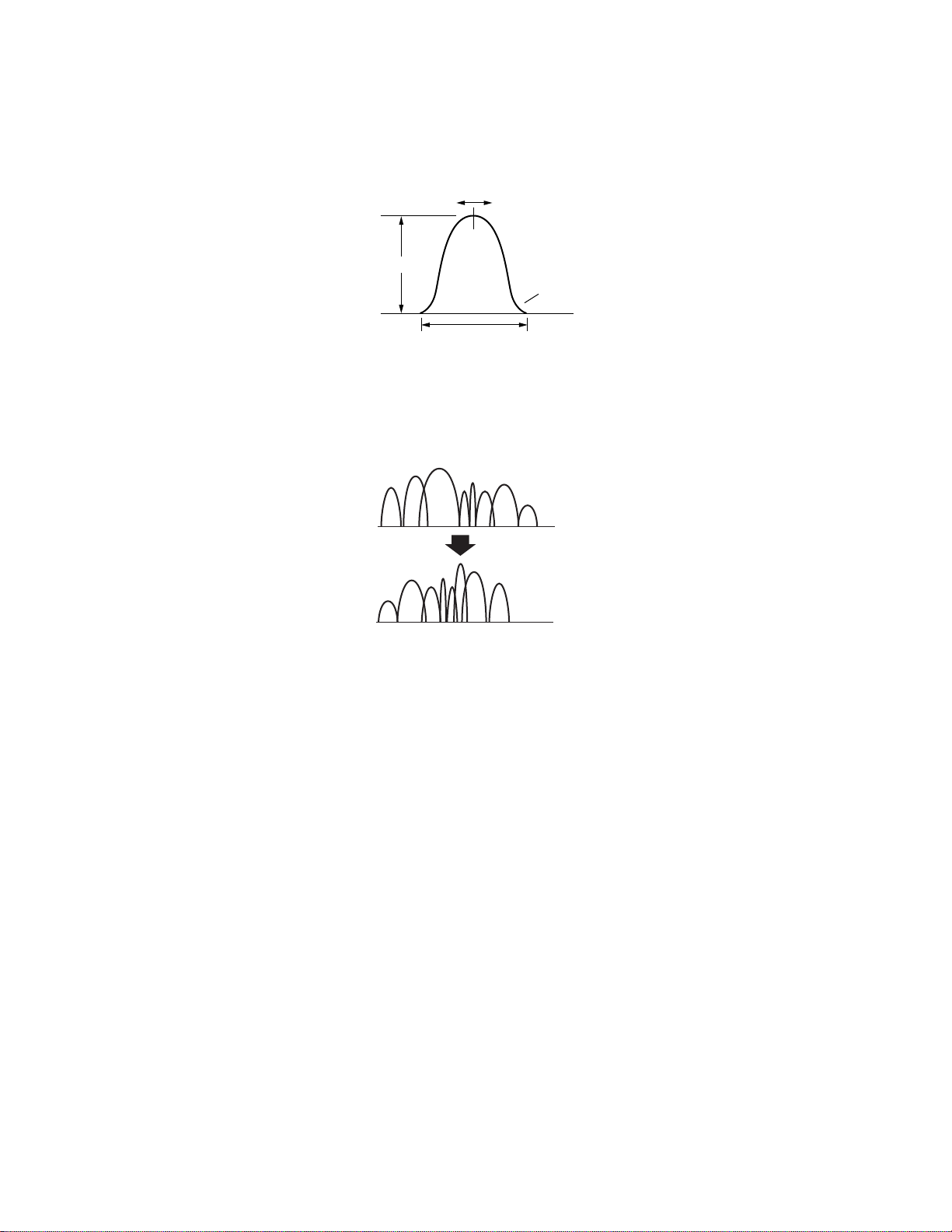
Each formant operator has a range of parameters which determine its shape and therefore contribute to the overall
sound: center frequency, level, width, and skirt (the shape of the “flare” at the bottom of the formant’s bell-shaped
response curve).
Center Frequency
Level
Skirt
Width
As an example, suppose we have a formant configuration that produces an “a” type sound. This can be changed to
an “i” sound by shifting the center frequencies and levels of the formants. If this is done in real time at an
appropriate speed, we produce the sound “ai”.
=“a”
=“i”
This type of formant control can be accomplished in the FS1R in several ways. First, independent frequency and
level envelope generators are provided for each operator, so time-based timbral shifts like the one described above
can be achieved entirely by using the envelope generators. Second, any of the available controllers can be
assigned to the formant parameters — the control knobs, a modulation wheel, foot controller, etc. — to allow realtime
manual control while playing. Either of these methods of formant control are all you’ll need to create musical sounds
for most applications, but the last and most complex type of formant control on the FS1R is made possible by
“FSeqs” (Formant Sequences), described in the following section.
9
Page 10

EG, LFO1, Velocity, and Manual Formant Control Parameters
The following parameter groups and parameters are essential for EG-based formant control. Refer to the
parameter descriptions for details:
• EDIT [VOICE] mode OPERATOR/Osc/.....................................................Page 62
• EDIT [VOICE] mode OPERATOR/EG/ ......................................................Page 66
• EDIT [VOICE] mode OPERATOR/FrqEG/.................................................Page 67
• EDIT [VOICE] mode OPERATOR/Sns/ .....................................................Page 68
The following parameter groups and parameters are essential for manual and MIDI formant control. Refer to the
parameter descriptions for details:
• EDIT [PERFORMANCE] mode COMMON/CtrlSrc....................................Page 30
• EDIT [PERFORMANCE] mode COMMON/CtrlDst....................................Page 31
• EDIT [PERFORMANCE] mode PART/Tone/Formant.................................Page 37
• EDIT [PERFORMANCE] mode PART/Tone/FM .........................................Page 37
• EDIT [VOICE] mode OPERATOR/Osc/.....................................................Page 62
• EDIT [VOICE] mode OPERATOR/Sns/Freq Bias......................................Page 69
• EDIT [VOICE] mode OPERATOR/Sns/Width Bias....................................Page 69
• EDIT [VOICE] mode COMMON/Others/Formant .....................................Page 59
• EDIT [VOICE] mode COMMON/Others/FM..............................................Page 59
The following parameter groups and parameters are essential for LFO1 formant control. Refer to the parameter
descriptions for details:
• EDIT [VOICE] mode COMMON/LFO1/FreqModDepth ............................Page 52
• EDIT [VOICE] mode OPERATOR/Sns/Freq Mod......................................Page 70
The following parameter groups and parameters are essential for velocity formant control. Refer to the
parameter descriptions for details:
• EDIT [VOICE] mode OPERATOR/Sns/FreqVelocity..................................Page 68
■ Formant Sequences: “FSeqs”
In addition to envelope generator, LFO1, velocity, and manual control, the FS1R features a range of 90 preset FSeqs
(Formant Sequences) which can be used to “sequence” the formants to produce voice-like phrases, rhythm loops,
and more. FSeqs are sequences of formant frequency, fundamental pitch, and level data which have been created
by analyzing the formant content of actual sounds. FSeq playback speed can be set at a fixed value, controlled via
a MIDI clock signal, varied by note velocity (e.g. keyboard dynamics) or varied manually when the “scratch” Fseq
mode is selected. And since the sound of formants is not pitch dependent, FSeq playback speed and pitch can be
varied over an extremely wide range without altering the basic timbre of the sound (something that even the best
samplers cannot do).
Fseqs actually have 8 “tracks”, each of which contains the frequency and level data for one operator pair (voiced
and unvoiced). Normally, the Fseq tracks are assigned to the corresponding operator pair, but these assignments
can be changed for special effects.
10
Page 11
FSeq Formant Control Parameters
The following parameter groups and parameters are essential for FSeq formant control. Refer to the parameter
descriptions for details:
• EDIT [PERFORMANCE] mode COMMON/Fseq/ .....................................Page 32
• EDIT [VOICE] mode OPERATOR/Osc/.....................................................Page 62
■ Other Formant Applications
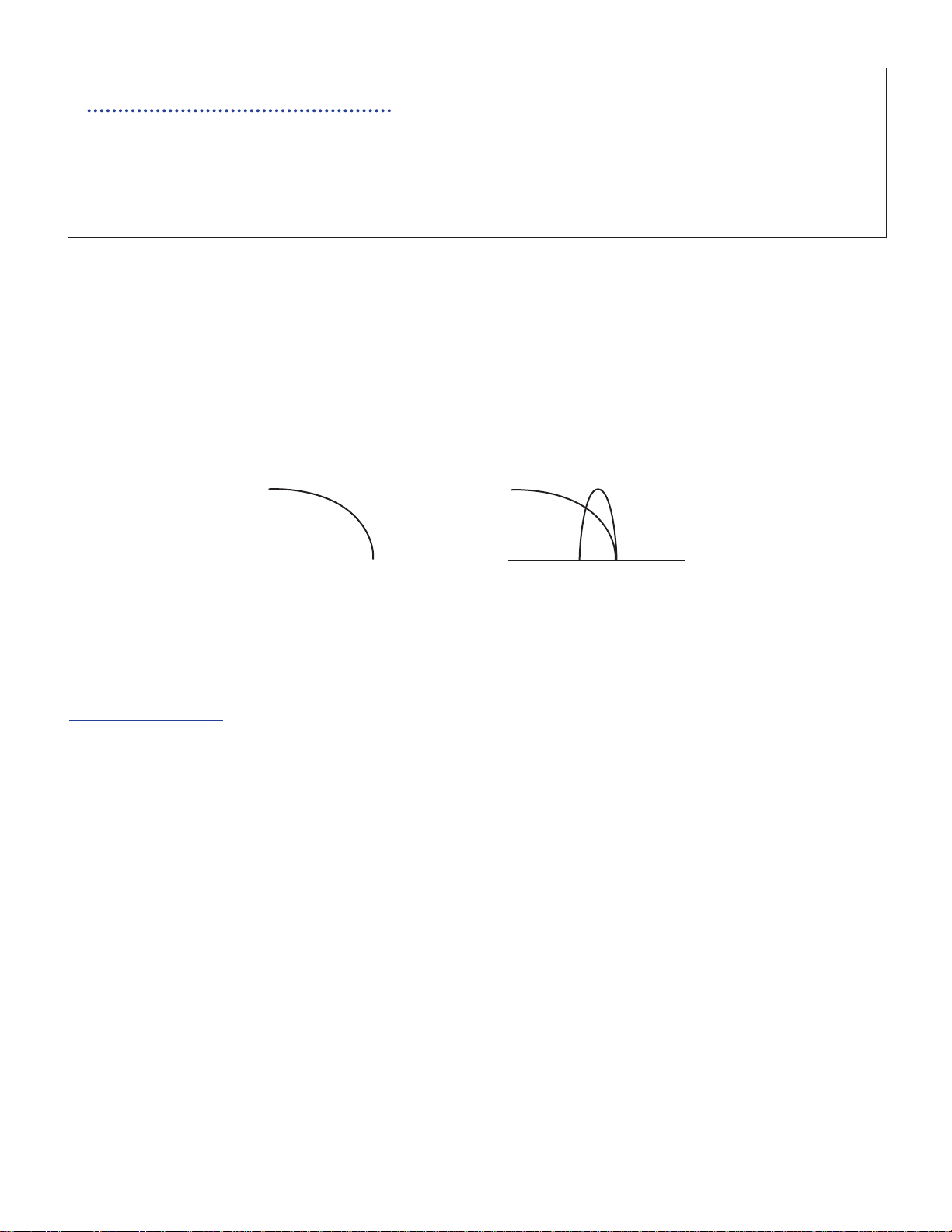
By modifying our approach slightly and thinking of each FS1R formant operator as a combination of oscillator, filter,
and amplifier (similar to the standard VCA → VCF → VCA structure of traditional analog synthesizers), it is possible
to come up with some innovative uses for these flexible sonic building blocks. For example, although each formant
is basically a bandpass filter, if we broaden the bandwidth enough and lower the center frequency we end up with
what looks more like a low pass filter. If we add another narrow-bandwidth formant to our low-pass filter we end up
with a resonant low-pass filter.
Synthesized Low-pass Filter Synthesized Resontant Low-pass Filter
The unvoiced operators also offer some unique possibilities. Although they basically produce noise, if the bandwidth
of the formant is made narrow enough we remove all harmonics and end up with a pure sine wave. Thus, in some
applications the unvoiced operators can actually be used as extra oscillators.
FM Synthesis
The fact that Formant Shaping synthesis uses a system of operators to produce sound is what makes it compatible
with FM (Frequency Modulation) synthesis. By rearranging the operators into a variety of “algorithms” with
carrier/modulator relationships between certain operators, the FS system is fully capable of producing the same type
of FM sounds as the Yamaha DX-series synthesizers and TX-series tone generators.
The FS1R actually takes FM synthesis to new levels of musical versatility and control. Unlike Yamaha’s original FM
synthesizers and tone generators the FS1R provides a range of 88 algorithms to choose from, and a choice of 8
different waveforms for each oscillator, thus significantly expanding the range of sound which can be produced.
And, of course, the ability to combine Formant Shaping with FM opens a whole new universe of musical possibilities.
Not only is the FS1R capable of reproducing the great sounds of the DX and TX-series instruments, it actually comes
with a complete set of 1,152 original DX voices pre-programmed in preset memory If you have other DX voices you
have programmed yourself or obtained from other sources, they can be loaded into the FS1R too, and used with
virtually no change in sound (See the separate “Data List” booklet for details on parameter compatibility).
nThe FS1R can receive bulk voice data from Yamaha DX-series synthesizers and TX-series tone generators. The received data (single voice)
will be loaded into the part 1 voice edit buffer of the currently selected performance setup.
11
Page 12
■ FM In Brief
Briefly, FM synthesis is based on arranging operators — individual oscillators which can function as both modulators
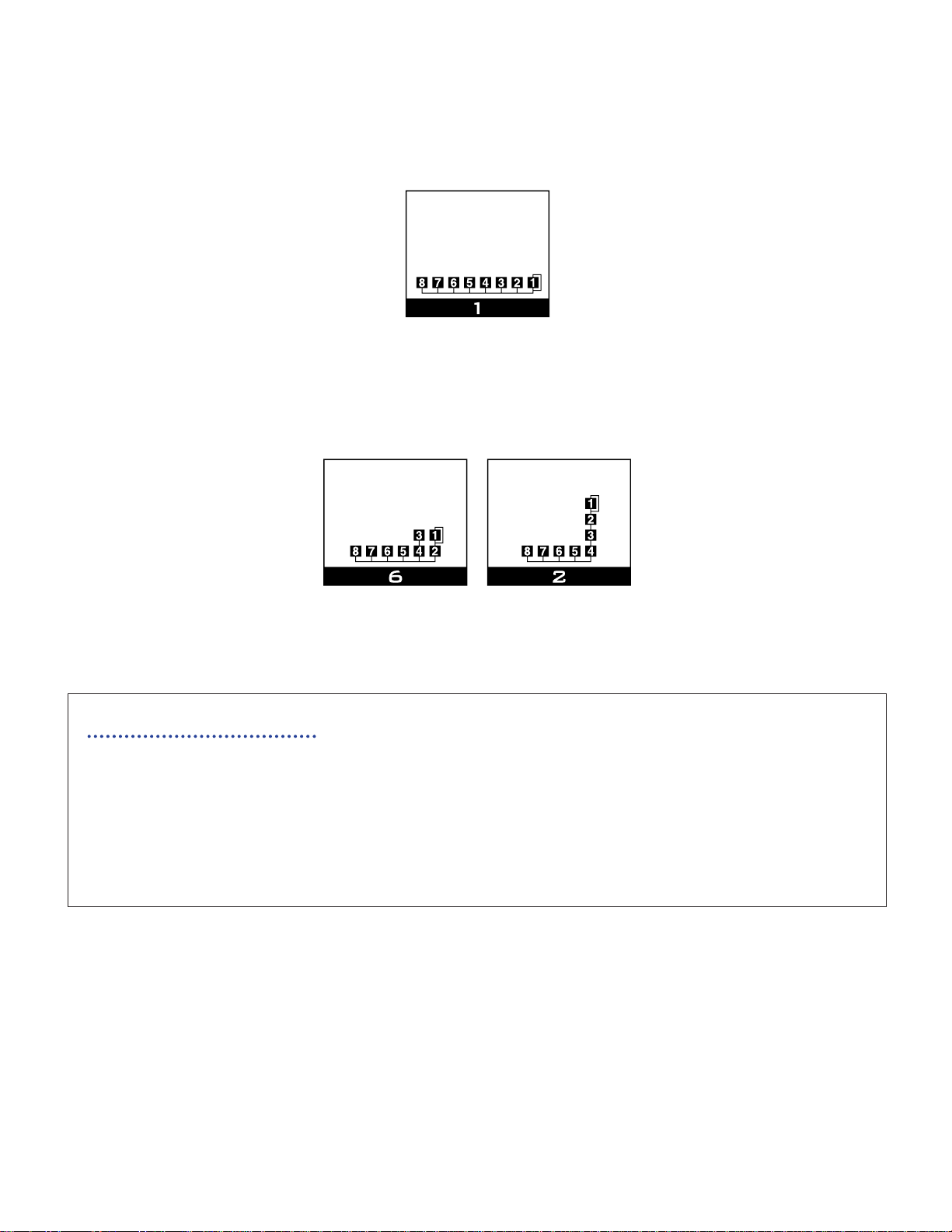
and carriers — in “algorithms” capable of producing the desired sound. the most simple algorithm (algorithm 1 in
the FS1R) simply add the output of all 8 operators together, with no modulator-carrier relationships. This algorithm is
ideal for synthesizing simple “additive” sounds — like some organ voices, for example.
Much more complex harmonic spectra can be produced by using algorithms in which one or more operators
function as modulators, modulation the output of their respective carrier operators. In algorithm 6, for example,
operator 1 modulates operator 2, operator 3 modulates operator 4, and operators 5 through 8 are unmodulated.
Algorithm 2, on the other hand, includes a modulator “stack” in which operator 1 modulates operator 2, which in turn
modulates operator 3, which in turn modulates operator 4.
Note that in all three algorithms introduced above, operator 1 includes a feedback loop which allows a specified
portion of the operator’s output to be fed back to its own input for even greater timbral complexity. Since each
operator has its own amplitude EG, a virtually unlimited spectrum of responsive, musical voices can be produced.
FM Synthesis Parameters
The following parameter groups and parameters are essential for basic FM synthesis. Refer to the parameter
descriptions for details:
• EDIT [VOICE] mode COMMON/Others/...................................................Page 58
• EDIT [VOICE] mode OPERATOR/Osc/.....................................................Page 62
• EDIT [VOICE] mode OPERATOR/EG/ ......................................................Page 66
• EDIT [VOICE] mode OPERATOR/Sns/ .....................................................Page 68
12
Page 13
Putting It All Together
Please note that the parameter groups referred to in the preceding sections are only those that apply directly to the
FS or FM functions mentioned. Keep in mind that there is an extensive range of others — envelope generators,
filters, low-frequency operators, and more — which apply to both FS and FM voices. There’s also a comprehensive
effect system including reverb, delay, modulation, and many, many more effects that can be used to refine and
polish your sound.
Indeed, the FS1R is a complex tone generator, and a thorough understanding can only be achieved through
experimentation. If you want to go beyond the presets provided (although they should be more than enough for
many applications), we urge you to go ahead and play with the parameters. Try editing the presets to create
variations. And when you’re ready for some serious programming try initializing a few internal voices (voice
initialization on page 78) and starting from scratch. Keep the manual handy and refer to the parameter descriptions
in the “EDITING” section (starting on page 28) to guide you.
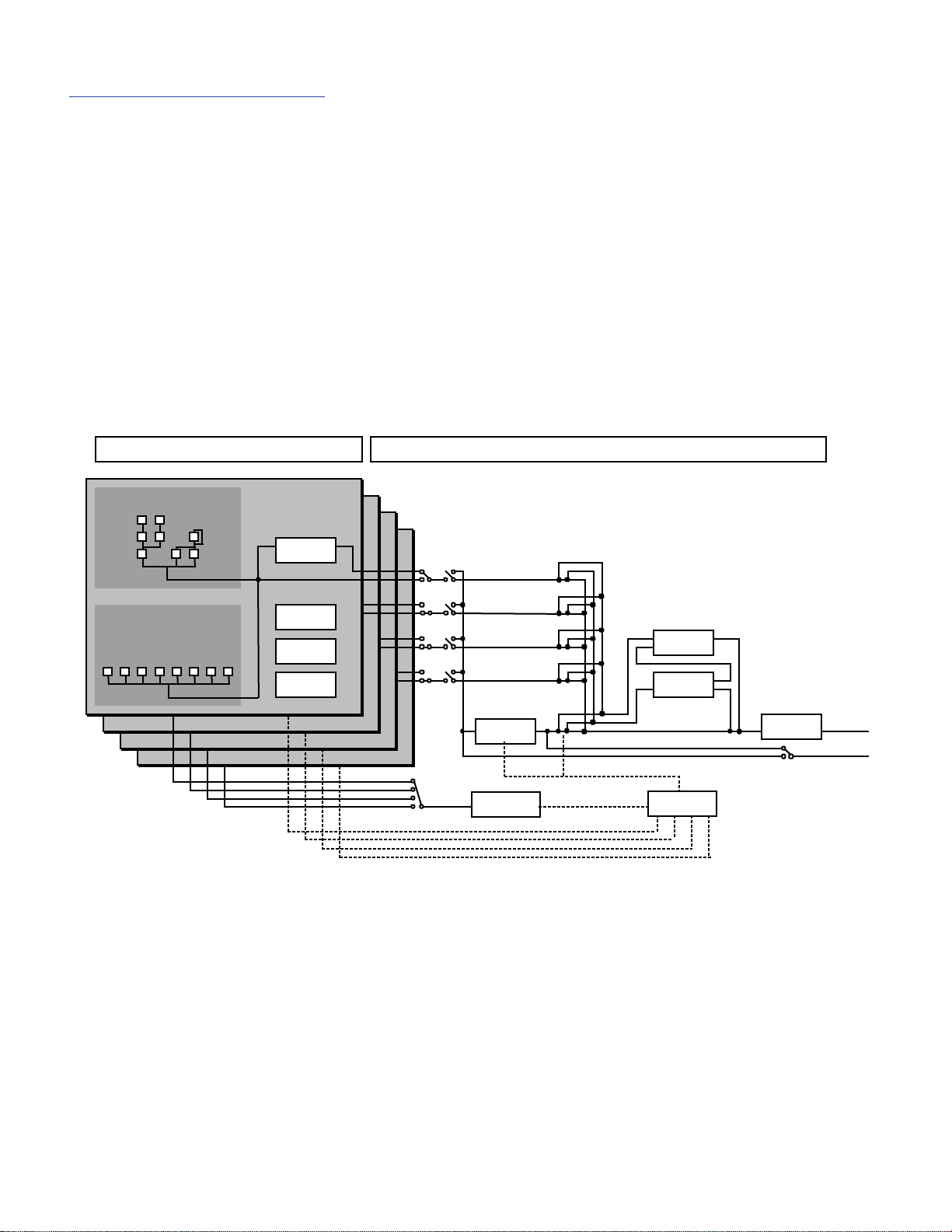
The following diagrams show an overall view of how the tone generator PERFORMANCE and VOICE parameters are
related, and how the performance parts connect to the FS1R effect system.
FS1R Tone Generator Structure
VOICE
VOICED OPERATOR
UNVOICED OPERATOR
FILTER
LFO1
LFO2
PITCH EG
FILTER SW
FSEQ PART
INS EF SW
INSERTION
FSEQ
PERFORMANCE
REV/VAR SEND
REVERB
VARIATION
CONTROLLER
EQ
IND.OUTPUT
OUTPUT
13
Page 14
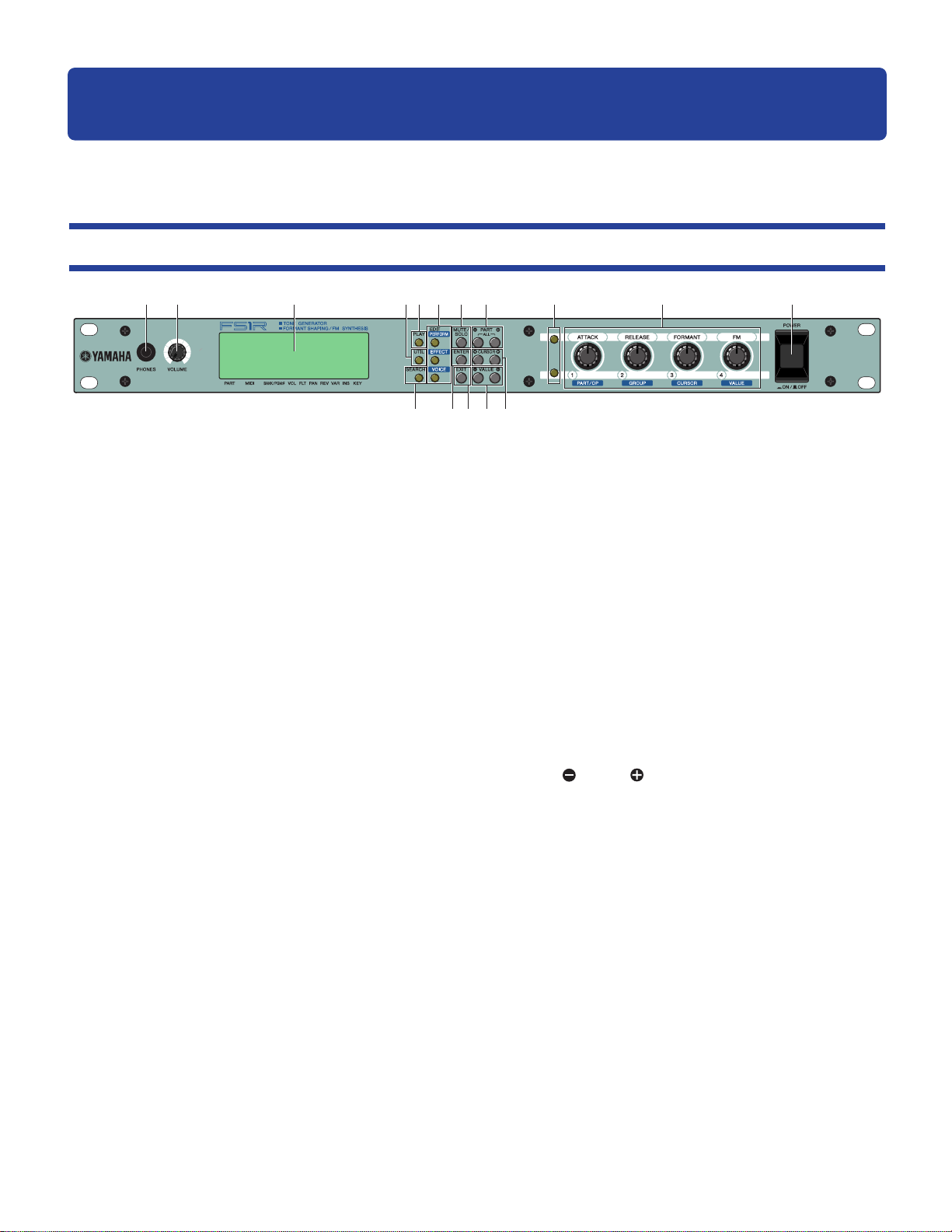
The Controls & Connectors
The following brief descriptions of the FS1R controls and connectors should help you to understand the overall logic
of the interface.
Front Panel
1 2 3 4
5 6 7 8 9 ) !
^ $% # @
1 PHONES Jack
Accepts a standard pair of stereo headphones (1/4” stereo phone
plug) for headphone monitoring of the FS1R sound without the need
for external amplification equipment. The volume of the headphone
sound is adjusted via the [VOLUME] control.
2 Volume Control
Adjusts the volume of the PHONES and rear-panel R and L/MONO
outputs (the VOLUME control does not affect the INDIVIDUAL OUTPUT
jacks). Rotate clockwise to increase output volume.
3 Display
This large backlit liquid crystal display panel shows all parameters and
prompts necessary for easy, efficient operation and programming of
the FS1R. In addition, a row of icons across the bottom line of the
display simultaneously shows the status of a number of important
parameters (page 22).
The display contrast can be adjusted as described on page 76 for
optimum visibility.
6 EDIT Buttons: [PERFORMANCE], [EFFECT], and
[VOICE]
These buttons activate the corresponding FS1R EDIT mode.
The EDIT [PERFORMANCE] button provides access to all parameters
and functions you’ll need to edit and create new performance setups.
The EDIT [EFFECT] button takes you a range of effect and EQ
parameters that you can use to add the finishing touches to your
sound.
The EDIT [VOICE] button allows detailed editing of individual voices.
Details on pages 30, 45, 50.
7 [MUTE/SOLO] Button
In any mode other than Voice Edit the [MUTE/SOLO] button can be
used to mute or solo monitor the currently selected performance part.
In the Voice Edit mode, it can be used to mute or solo monitor the
selected operator.
4 [UTIL] Button
Selects the FS1R UTILITY mode. The UTILITY mode includes a range
of important utility functions that affect operation of the FS1R: SYSTEM,
DUMP OUT, INITIAL, and DEMO.
Details on page 71.
5 [PLAY] Button
Press this button to select the FS1R PLAY mode in which performance
setups and individual voices can be selected and played. While the
PLAY mode is active, pressing the [PLAY] button activates the
Rehearsal function which plays the currently selected voice for quick,
convenient sound-checks.
Details on page 22.
8 PART [ ] and [ ] Buttons
When the PLAY mode is selected (page 22) these buttons select the
part (voice) to be played or edited. Either button can be pressed
briefly for single stepping in the specified direction, or held for
continuous scrolling. Pressing both buttons simultaneously switches to
the Performance Select (ALL parts) play mode.
When the EDIT mode is selected the PART buttons can be used to
switch between parameters without having to return to the EDIT mode
menu.
14
Page 15

9 Knob Mode Buttons
These two buttons determine the function of the FS1R’s four controller
knobs. When the upper button is lit, the knobs directly affect the FS1R
sound by controlling the parameters listed above the knobs: ATTACK,
RELEASE, FORMANT, and FM. When the lower button is lit the knobs
control the parameters assigned to KN1 through KN4 in the
UTILITY/SYSTEM/Control mode (page 74). When both buttons are
disengaged and the PART ASSIGN mode is selected, the knobs can
be used to edit the currently selected parameter for all 4 performance
parts (page 24). When both Knob Mode Buttons are disengaged, the
knobs can be used to quickly select parts or operators and edit the
corresponding values (page 28).
) Controller Knobs
These four multi-function controller knobs make realtime sound control
and editing on the FS1R easier than ever. In the PLAY mode they allow
direct realtime control of the sound as well as parameter editing, and
in the EDIT mode they can be used to directly change parameters and
values for fast, efficient operation. The knobs can be assigned to the
various parameters for exceptionally versatile control.
Press the [ENTER] button while operating the knobs for faster value
selection.
! [POWER] Control
Press to turn power ON or OFF.
@ CURSOR [ ] and [ ] Buttons
These buttons are used to select sub-modes or parameters. In some
cases the selection will be made from a menu display, and in others
the CURSOR buttons will actually switch display pages.
# VALUE [ ] and [ ] Buttons
Used to select performance setups and voices, and to edit parameter
values. Either button can be pressed briefly for single stepping in the
specified direction, or held for continuous scrolling. They also have a
large-step function which allows you to skip ahead or backward in
larger increments when selecting voices or editing numeric
parameters: press either the [ ] or [ ] button while holding the
other button.
$ [EXIT] Button
This button is used to exit from sub-modes and cancel certain
operations. No matter where you are in the FS1R display structure,
pressing the [EXIT] button (a number of times if necessary) will
eventually return you to the PLAY mode.
% [ENTER] Button
The [ENTER] button is used to engage sub-modes, confirm input, and
execute certain operations. Double-clicking this button (i.e. press the
button twice in rapid succession) provides access to the MIDI View
mode (below).
^ [SEARCH] Button
The FS1R includes a vast range of presets, which can at time make it
difficult to locate a specific performance setup or voice. The SEARCH
mode makes it easier to locate to a desired performance setup or
voice by specifying the appropriate bank and categories.
Details on page 27.
MIDI View
This function displays the MIDI control change or system exclusive data string required to control the currently
selected parameter from an external MIDI device. The MIDI data is displayed in hexadecimal format.
To engage the MIDI View function first select the desired parameter in any mode other than the SEARCH
mode, then "double click" the [ENTER] button (i.e. press the [ENTER] button twice in rapid succession). The
MIDI View display will appear.
While the MIDI View function is engaged the VALUE [ ] and [ ] buttons can be used to change values, and
the CURSOR [ ] and [ ] buttons can be used to select different parameters.
Press the [EXIT] button to return to the previous display.
15
Page 16

Rear Panel
*& ( º
& Power Cord Connector
Plug the female end of the supplied AC power cord in here before
plugging it into an AC wall outlet.
Details on page 17.
* MIDI IN, OUT and THRU Connectors
The MIDI IN connector receives the data from an external keyboard,
sequencer or other MIDI device which is to control or transmit data to
the FS1R. The MIDI THRU connector simply re-transmits the data
received at the MIDI IN connector, allowing convenient chaining of
MIDI devices. The MIDI OUT connector transmits data corresponding
to FS1R controller knob operation, or bulk data when one of the MIDI
data transmission functions are activated.
Details on page 17.
( INDIVIDUAL OUTPUT L and R Jacks
In addition to the OUTPUT L/MONO and R jacks, described above,
individual performance parts can be assigned to the INDIVIDUAL
OUTPUT L and R jacks so that they can be sent to separate channels
of a mixer for independent processing, etc.
Details on page 19.
º OUTPUT L/MONO and R Jacks
These are the main stereo outputs from the FS1R. Be sure to connect
both outputs to the appropriate channels of a stereo sound system in
order to appreciate the full quality of the FS1R sound and effects. The
L/MONO jack can be used alone when connecting to a mono sound
system (e.g. a musical instrument amplifier).
Details on page 19.
16
Page 17

Setting Up
Power Supply
Before making any other connections the “female” end of the AC power cord supplied with the FS1R should be
firmly plugged into the rear-panel AC cord socket. Ideally the power cord should then be plugged into a convenient
AC outlet after you’ve made all other necessary connections and placed the FS1R in the position in which it will be
used. Always make sure that the POWER switch is in the OFF (extended) position before plugging the power cord
into an AC outlet.
WARNING!
• Make sure your FS1R is rated for the AC voltage supplied in the area in which it is to be used (as listed on
the rear panel). Connecting the unit to the wrong AC supply can cause serious damage to the internal
circuitry and may even pose a shock hazard!
• Use only the AC power cord supplied with the FS1R. If the supplied cord is lost or damaged and needs to
be replaced, contact your Yamaha dealer. The use of an inappropriate replacement can pose a fire and
shock hazard!
• The type of AC power cord provided with the FS1R may be different depending on the country in which it is
purchased (a third prong may be provided for grounding purposes). Improper connection of the grounding
conductor can create the risk of electrical shock. Do NOT modify the plug provided with the FS1R. If the
plug will not fit the outlet, have a proper outlet installed by a qualified electrician. Do not use a plug adapter
which defeats the grounding conductor.
MIDI Connections
The FS1R can be used with virtually any type of MIDI controller: keyboard, wind controller, sequencer, etc. To ensure
reliable error-free transfer of MIDI data always use high-quality MIDI cables obtained from your Yamaha dealer or
music equipment store. Also avoid MIDI cables that are longer than about 15 meters, since cables longer than this
can pick up noise which can cause data errors.
The FS1R MIDI receive channel number parameters are available via the PERFORMANCE PLAY and PART ASSIGN
mode displays (pages 22 and 24, respectively). Make sure these parameters are set to match the corresponding
settings of the MIDI controller used with the FS1R. See the MIDI Implementation Chart in the separate “Data List”
booklet, and the MIDI Data Format section beginning in the separate “Data List” booklet for details for the types of MIDI
data received and transmitted by the FS1R.
nThe [MIDI] icon in the FS1R display will appear whenever MIDI data is received by the FS1R.
nWhen using the FS1R with other MIDI equipment, it is a good idea to refer to the MIDI specifications (implementation chart, MIDI data
format) of the equipment used to ensure compatibility.
■ Keyboard
This is the simplest type of setup you might use with the FS1R. Simply connect the MIDI OUT connector of the
keyboard to the MIDI IN connector on the FS1R with a MIDI cable. In this case you should set the PgmMode
parameter in the UTILITY/SYSTEM/MIDI group to “perform” (page 73).
MUSIC SYNTHESIZER
REALTIME CONTROL
EXTENDED SYNTHESIS
MIDI
MIDI IN
OUT
FS1R
MIDI Master Keyboard
or
Synthesizer
17
Page 18

■ Sequencer or Computer
If you plan to use the FS1R with a sequencer or a computer equipped with sequencing software, the actual
connections you will need to make will depend on the type of sequencer/software you use, the type of MIDI interface
used, and the other equipment in your system. A simple system is shown below. In any case, you’ll probably want to
set the FS1R for multi-timbre playback (i.e. each part can be played via separate MIDI channel) by setting the
PgmMode parameter in the UTILITY/SYSTEM/MIDI group to “multi” (page 73).
FS1R
MIDI In
MIDI Thru
EX5 etc.
MUSIC SYNTHESIZER
REALTIME CONTROL
EXTENDED SYNTHESIS
Computer
MIDI
Interface
MIDI Out
MIDI In MIDI Out
MIDI In
■ G50 Guitar MIDI Converter
The Yamaha G50 is a high-performance Guitar MIDI Converter designed to work in conjunction with the Yamaha
G1D or B1D Divided Pickup Unit installed on an electric or steel-string acoustic guitar. The FS1R is an ideal tone
generator for use with a MIDI guitar system based on the G50.
FS1RG50
G1D etc.
DIVIDED
MIDI Out
DIVIDED
MONO SYNTH
MIDI In
Since the G50 produces MIDI output, the standard MIDI connection rules that apply to a keyboard or any other MIDI
controller also apply when connecting the G50 to the FS1R. One feature of the FS1R which makes it ideal for use
with the G50 is the ability to allow reception on a specified range of MIDI channels for each performance part.
■ WX-series Wind MIDI Controller
The FS1R is an ideal tone generator for use with a Yamaha WX-series Wind MIDI Controller such as the WX5 or
WX11. The WX5 can be directly connected to the FS1R MIDI IN connector, while the WX11 will require the optional
BT7 wind controller interface.
WX5
MIDI Out MIDI In
Special care must be taken with the following parameters and controls when using a WX-series Wind MIDI
Controller:
FS1R
18
Page 19

Pitch Bend
WX Lip Sensor and Pitch Bend data as transmitted in the form of MIDI pitch bend data. Be sure to set an
appropriate pitch bend range on your FS1R. For subtle control a pitch bend range setting of between about 2 and 4
should be ideal. For broader control try a range setting between about 5 and 7. For really sweeping pitch bends, try
a setting of 8 or more.
Pitch bend range parameter details on page 41.
Velocity
The WX Wind MIDI Controllers transmit breath attack information in the form of MIDI velocity data. Yamaha
recommends, however, that you set the FS1R velocity to a fixed value in order to facilitate breath control of volume.
However, if velocity is the only means you have of controlling volume and timbre, then it might be a good idea to
allow some velocity sensitivity particularly when playing voices such as bass, drums, and piano, which depend on
the characteristics of the attack for their sound.
Velocity sensitivity parameter details on page 68.
Breath Control
Breath strength information is transmitted by the WX Wind MIDI Controllers in the form of MIDI breath control data
which is primarily used to control volume and timbre. Make sure that the FS1R is set to receive breath control, and
initially set the breath control response so that the full breath control range can be used, then readjust for the
optimum range while actually playing the WX Wind MIDI Controller.
Breath control assignment and sensitivity parameter (Amp EG Bias) details on pages 69, 71 and 75.
Audio Connections
Headphones
For private listening and practice headphones are ideal. You don’t have to hook up and complete sound system,
and you won’t disturb the neighbors no matter how loud or late you play. Recommended Yamaha headphones for
FS1R monitoring are the HPE-170, HPE-160, or HPE-150 Stereo Headphones. Any standard pair of stereo
headphones with a 1/4” stereo phone plug and an impedance of between about 33 and 150 ohms can be used.
Instrument Amplifier or Stereo Sound System
The FS1R voices and effects are designed to sound their best in stereo, so you should always use a stereo sound
system to appreciate the full impact of the FS1R voices and expressive features. The OUTPUT L/MONO and R jacks
can be connected directly to musical instrument amplifiers designed for keyboard use, or to the line inputs of a
mixing console. It is also possible to connect the outputs directly to the inputs of a multitrack or stereo tape recorder.
When connecting to a mono sound system be sure to use only the OUTPUT L/MONO jack.
nIf you need to drive a mono amp or other device, connect only the L/MONO output jack. The left and right channel signals are
automatically combined and delivered via the L/MONO jack when a single phone plug is inserted in this jack and the R output jack is left
unconnected.
nMake sure that both the FS1R and your sound system are turned OFF when making connections.
Mixing Console
In addition to the stereo OUTPUT L/MONO and R jacks, the FS1R has two individual outputs: the INDIVIDUAL
OUTPUT L and R jacks. The stereo and individual outputs can be fed to separate channels of a mixing console for
individual processing. Individual “parts” of a performance setup can be assigned to the individual outputs via the
PLAY mode InsEfSw parameter (page 26) and EDIT PERFORMANCE Mode COMMON/Others/IndOut parameter
(page 35).
19
Page 20

Power-on Procedure
Always follow proper procedure when powering-up a sound system to minimize the possibility of damage to the
equipment (and your ears!).
Make sure your sound system’s main level/volume control(s) and the FS1R volume control are turned all
1.
the way down prior to turning power on.
Turn on the FS1R.
2.
Turn on your MIDI controller (and computer/sequencer, if used).
3.
Turn on the sound system.
4.
Raise the sound system volume to a reasonable level.
5.
Gradually raise the FS1R VOLUME control while playing the MIDI controller to set the desired listening
6.
level.
nSome keyboards and other MIDI controllers automatically transmit MIDI control change data corresponding to their control status when the
power switch is turned ON or OFF. The FS1R is programmed to receive this data and respond accordingly, so it is preferable to turn the
FS1R ON before turning the controlling device ON.
Play the Demo
Once you’ve set up your FS1R system, you might like to play the pre-programmed demo sequence to hear how
some of the voices sound. This process will also help to familiarize you with some of the FS1R’s selection and
editing procedures.
Select the Utility Mode
1.
Press the [UTILITY] button to select the utility mode.
Select the Demo Mode
2.
Use the CURSOR [ ] and [ ] buttons to select the “DEMO” item.
Press [ENTER] and Confirm
3.
Press the [ENTER] button to engage the DEMO mode, then press [ENTER] again if it’s OK to go ahead with the
demo, or [EXIT] to abort.
Select a Song
4.
Use the VALUE [ ] and [ ] buttons to select the demo song number you want to start with.
Run the Demo
5.
Press the [ENTER] button to run the demo. Playback will start with the selected song, then all other songs will
be played in sequence. The cycle will repeat until stopped.
Stop the Demo
6.
Press the [EXIT] button to stop demo playback. This will return you to the demo song select display.
Return To the Play Mode When Done
7.
Press the [PLAY] button to return to the PLAY mode.
nAfter demo playback, data corresponding to the voices used in the demo will remain in the FS1R edit buffer. Demo voice bulk data,
program change and other events can be handled in the same way as other FS1R data.
20
Page 21

The PLAY Mode
The PLAY mode is initially selected when the FS1R power is turned on, and can be selected from any other mode by
pressing the [PLAY] button. This mode allows performance setups and voices to be selected and played, and thus
is the mode you’ll normally use when playing the FS1R. The PLAY mode also provides access to several important
performance parameters including volume, panning, etc. The PLAY mode actually has two control modes —
PERFORMANCE and PART ASSIGN — which provide access to different sets of parameters, as described below.
But first let’s take a quick look at how the FS1R voices and performance setups are organized.
Performance & Voice Organization
Performance Combinations
Normally when you play the FS1R, you’ll be playing a “performance combination” consisting of anywhere from one
to four “parts.” Each part can be assigned a voice, and has a number of parameters which define the “mix” of all
parts used in that performance combination. The FS1R has a total of four performance memory banks, each
containing 128 performance setups (a total of 512 performance setups). The contents of each bank are summarized
in the chart below:
INTERNAL
PRESET A
PRESET B
PRESET C
The INTERNAL bank has 128 memory locations in which performance setups you have edited can be stored and easy recalled for
use as required. When the FS1R is initially shipped the INTERNAL bank contains the same data as provided in the PRESET banks.
The PRESET A and B banks each contain 128 preset performance setups which have been created primarily to be played via a
keyboard or other standard MIDI controller.
The PRESET C bank contains 128 preset performance setups which have been created to provide maximum expressive capability
when used with the Yamaha G50 Guitar MIDI Controller. Please note that the maximum MIDI receive channel for these voices is “6”,
and the pitch bend range is -12 … +12.
Performance combinations are selected and played in the PERFORMANCE PLAY mode (page 22).
nEdited performance setups can only be stored to the INTERNAL performance bank.
nThe factory preset INTERNAL performance setups can be restored by using the Initialize Factory Set function described on page 78.
nRefer to the separate “Data List” booklet for a complete listing of the FS1R performance setups.
Voices
As mentioned above, each FS1R performance combination can have anywhere from one to four “parts.” A single
voice can be assigned to each part. The FS1R includes a total of 12 voice banks (a total of 1,536 voices), described
in the chart below:
INTERNAL
PRESET A
PRESET B
PRESET C through
PRESET K
The INTERNAL bank has 128 memory locations in which voices you have edited can be stored and easy recalled for use as required.
When the FS1R is initially shipped the INTERNAL voice bank contains the Init Voice.
The PRESET A and B banks each contain 128 preset voices which have been created to take advantage of the advanced musical
capabilities of the Formant Shaping synthesis system/FM synthesis.
These 9 banks contain a selection of FM voices originally used in the ground-breaking Yamaha DX-series synthesizers.
Voices can be selected and assigned to performance parts, played individually, and otherwise set up for use in
performance combinations via the PART ASSIGN mode (page 24).
nEdited voices can only be stored to the INTERNAL voice bank.
nThe factory preset INTERNAL voices can be restored by using the Initialize Factory Set function described on page 78.
nRefer to the separate “Data List” booklet for a complete listing of the FS1R voices.
21
Page 22

Bank Selection via MIDI
Use the MIDI bank MSB (control number 00) and LSB (control number 32) numbers listed below to select FS1R
voice and performance banks from an external MIDI device. See the “MIDI Data Format” section, in the separate
“Data List” booklet for more details.
Memory Bank Bank MSB Bank LSB
Voice INTERNAL 63 0
PRESET A 63 1
PRESET B 63 2
PRESET C 63 3
PRESET D 63 4
: : :
PRESET K 63 11
Performance INTERNAL 63 64
PRESET A 63 65
PRESET B 63 66
PRESET C 63 67
nWhen Voice Bank = off no MIDI data will be received for the corresponding part.
The Play Mode (Performance)
This is the mode you will normally use when playing the FS1R, and is initially selected when the FS1R power is
turned on. If the PART ASSIGN mode is active (see page 24), the PERFORMANCE mode can be selected by
simultaneously pressing the PART [ ] and [ ] buttons, or by pressing the [EXIT] button. The PERFORMANCE
mode display looks like this:
Performance Edit Mark
Performance
Channel
nThe performance edit mark will appear when any performance edit operation is performed.
Bank Program Number
Volume Pan Reverb
Return
Variation
Return
Note Shift
Note the icons across the bottom the display simultaneously showing the status of the PART, MIDI (channel),
BANK/PGM#, VOL (volume), PAN, REV (reverb return level), VAR (variation effect return level), and KEY (note shift)
parameters.
The various parameters in this mode are selected via the CURSOR [ ] and [ ] buttons. The name of the currently
selected parameter appears in the upper right corner of the display (when the bank and program number
parameters are showing a solid triangular pointer indicates which of the two parameters is selected). A small
triangular pointer appears above the icon corresponding to the selected parameter in the bottom line of the display.
Once the desired parameter has been selected, it’s value can be set as required via the VALUE [ ] and [ ]
buttons.
nIn the PLAY mode, the [MUTE/SOLO] button alternately mutes and un-mutes the entire performance combination (i.e. no solo function is
available in the PLAY mode). The SOLO function is available in the Part Assign and Edit modes (pages 24 and 29).
22
Page 23

Perf Ch (Performance Channel)
❑ Settings: off, 001 … 016, all
The Perf Ch parameter specifies the MIDI channel via which MIDI bank select, program change, volume, and pan
messages will be received for the PERFORMANCE PLAY mode. FS1R performance setups can be switched via
MIDI bank select and program change messages transmitted via this channel. MIDI performance volume and
performance pan messages received via the Performance Channel will have the same effect as when received via
the individual part receive channels (see “The PART ASSIGN Mode”, page 24).
The “all” setting allows reception on all channels.
When “off”, received bank select, program change, volume and pan messages will be received according to the
part Receive Channel.
nWhen the UTILITY mode SYSTEM/MIDI/PgmMode parameter is set to “perform” (e.g. when playing the FS1R from a keyboard or other MIDI
controller) and the PLAY mode Pfm Ch parameter is set to any value other than “off”, all received bank select, program change, volume,
and pan data affects the overall performance setup, not individual parts. All other received MIDI channel messages affect individual parts
on the corresponding MIDI channels.
nWhen the UTILITY mode SYSTEM/MIDI/PgmMode parameter is set to “multi” (e.g. when playing the FS1R from a sequencer or computer),
the FS1R functions as a multi-timbre tone generator, allowing the parts to be individually controlled via their respective MIDI channels. If the
PLAY mode Pfm Ch parameter is set to any value other than “off”, however, all bank select, program change, volume, and pan data
received on the specified performance channel will affect the overall performance setup, not individual parts.
nIn either of the above cases, if the PLAY mode Pfm Ch parameter is set to “off” then channel messages received on any channel will only
affect the individual part assigned to the corresponding channel.
(Bank)
❑ Settings: Int, PrA, PrB, PrC
Selects the FS1R Internal (Int), PRESET A (PrA), PRESET B (PrB), or PRESET C (PrC) bank (see “Voice Organization”
on page 21).
(Program Number)
❑ Settings: 001 … 128
Selects the performance setup to played on the FS1R. The Int, PrA, PrB, and PrC banks each have program
numbers from “001” to “128”.
Pfm Vol (Performance Volume)
❑ Settings: 000 … 127
Sets the volume of the current performance setup. The higher the value the louder the volume.
Pfm Pan (Performance Pan)
❑ Settings: L63 … Cnt … R63
Sets the pan position of the current performance setup - i.e. the position of the sound between left and right in the
stereo sound field. A setting of “L63: sets the pan position full left, “C” sets the pan at center, and “R63” sets the pan
full right. In between settings produce corresponding intermediate pan positions.
RevRtn (Reverb Return)
❑ Settings: 000 … 127
Adjusts the level of the signal returned from the FS1R reverb effect stage. The higher the value, the higher the level
of the reverb signal.
23
Page 24

VarRtn (Variation Return)
❑ Settings: 000 … 127
Adjusts the level of the signal returned from the FS1R variation effect stage. The higher the value, the higher the
level of the variation signal.
PfmNSft (Performance Note Shift)
❑ Settings: -24 … 0 … +24
Transposes the pitch of the performance setup down or up in semitone steps over a ±2 octave range. “0”
corresponds to standard pitch. Each increment corresponds to a semitone. A setting of “-12”, for example,
transposes the pitch down one octave.
The PART ASSIGN Mode
The PART ASSIGN mode is primarily intended to be used to assign voices to the performance parts, and to set the
individual MIDI receive channel, volume, pan, effect send levels, and other parameters for the corresponding part.
The PART ASSIGN mode can, however, also be used to play individual voices.
The PART ASSIGN mode can be selected from the PERFORMANCE PLAY mode by pressing either the PART [ ] or
[ ] button. The PART ASSIGN display looks like this:
Voice (part) Edit Mark
Channel
nThe voice edit mark will appear when any voice edit operation is performed.
nWhen the Insertion Effect Switch is on, REV refers to "Send Insertion to Reverb", and VAR refers to "Send Insertion to Variation". See page 13
for effect system details.
Volume Pan Reverb
Filter
Bank Program Number
Insertion
Send
Variation
Send
Effect
Switch
Note Shift
In the PART ASSIGN mode the controller knobs can be used to directly edit the selected parameter when both knob
mode buttons are disengaged: the knobs adjust the values of the corresponding parts on the display, from left to
right. When both Knob Mode buttons are disengaged, however, parameters of 4 parts appear at a time, like this:
Part1 Part2
Part3 Part4
Part1 Part2 Part3 Part4
24
Page 25

In either case the part to be edited - 01 through 04 - can be selected via the PART [ ] and [ ] buttons (the
selected part number appears above “PART” in the lower left corner of the display). The various parameters are
selected via the CURSOR [ ] and [ ] buttons. The name of the currently selected parameter appears in the
upper right corner of the display, and the solid triangular pointer indicates which of the parameters is selected. A
small triangular pointer appears above the icon corresponding to the selected parameter in the bottom line of the
display. Once the desired parameter has been selected, it’s value can be set as required via the VALUE [ ] and
[ ] buttons.
Rcv Ch (Receive Channel)
Rcv Max (Maximum Receive Channel: parts 1 & 2 only)
❑ Settings: of (off), 01 … 016, pf (performance)
These two parameters function together, and thus will be described together. The Rcv Ch and Rcv Max parameters
specify a single channel, or a range of channels, via which MIDI data will be received by the currently selected part.
When the Rcv Ch parameter is selected (a triangular pointer appears to the left of the leftmost number), the VALUE
[ ] and [ ] buttons set both the left and right channel numbers simultaneously. In this case, MIDI data will only be
received via the single specified channel. When the Rcv Max parameter is selected (the triangular pointer appears
to the left of the rightmost number), the VALUE [ ] and [ ] buttons can only be used to increment (increase) the
setting of the rightmost channel number, and MIDI data will be received on all channels ranging from the Rch Ch to
the Max Ch numbers. Please note that the Rcv Max parameter is only available for parts 1 and 2.
When “pf” is selected, the Rcv Ch refers to the Perf Ch (page 23).
nWhen a range of receive channels is specified (i.e. the Rcv Ch and Rcv Max numbers are different), an “M” will appear before the MIDI
channel number on the lower line of the display when the corresponding part is selected.
nWhen “pf” is selected and Perf Ch (page 23) is set to “off”, no MIDI data is received.
(Bank)
❑ Settings: Off, Int, PrA … PrK
This parameter refers to the bank containing the selected voice in the PART ASSIGN mode. When “Off” no voice is
assigned to the selected part. “Int” is the Internal voice bank which can be used to save original edited voices, and
PrA and PrB are the normal preset banks. The PrC through PrK banks contain an extensive range of FM voices
originally provided in the DX-series synthesizers (a complete list is provided in the separate “Data List” booklet).
(Program Number)
❑ Settings: 001 … 128
This parameter refers to the selected voice in the PART ASSIGN mode. All banks have voice numbers from “001” to
“128”.
Volume
❑ Settings: 000 … 127
Sets the volume of the current voice. The higher the value the louder the volume.
Pan
❑ Settings: rdm, L63 … C … R63
Sets the pan position of the current voice - i.e. the position of the voice between left and right in the stereo sound
field. A setting of “L63: sets the pan position full left, “Cnt” sets the pan at center, and “R63” sets the pan full right. In
between settings produce corresponding intermediate pan positions. The “rdm” setting produces a random pan
position which changes with each note played.
nThis parameter is the same as the EDIT [PERFORM] mode PART/Others/Pan parameter.
25
Page 26

RevSend (Reverb Send)
❑ Settings: 000 … 127
Adjusts the level of the signal sent to the FS1R reverb effect stage. The higher the value, the higher the level of the
reverb send signal.
VarSend (Variation Send)
❑ Settings: 000 … 127
Adjusts the level of the signal sent to the FS1R variation effect stage. The higher the value, the higher the level of the
variation send signal.
InsEfSw (Insertion Effect Switch)
❑ Settings: off, on
When this parameter is “on,” the output from the selected part is sent to the insertion effect stage before the reverb
and variation effects stages (pages 45 and 46). When “off” the output from the selected part is sent directly to the
reverb and variation effect stages, bypassing the insertion effect stage.
DryLvl (Dry Level)
❑ Settings: 000 … 127
Sets the output level of the “dry” sound (i.e. the direct sound without effects) in relation to the effect sound. Higher
settings produce a “drier” sound.
Filter (Filter Frequency Offset)
❑ Settings: -64 … +63
Sets the cutoff frequency of the filter. This parameter duplicates the EDIT [PERFORMANCE] mode
PART/Tone/FilterFreq parameter, and offsets the value of the EDIT [VOICE] mode COMMON/Filter/Cutoff Freq
parameter.
NoteSft (Note Shift)
❑ Settings: -24 … 0 … +24
Transposes the pitch of the current voice down or up in semitone steps over a ±2 octave range. “0” corresponds to
standard pitch. Each increment corresponds to a semitone. A setting of “-12”, for example, transposes the pitch
down one octave. This parameter duplicates the EDIT [PERFORMANCE] mode PART/Pitch/NoteShift parameter.
■ The [MUTE/SOLO] Button in the Part Assign Mode
In the Part Assign mode the [MUTE/SOLO] sequentially mutes, then solos, the currently selected part. Press once to
mute, a second time to solo, and a third time to return to the normal mode:
Mute → Solo → Normal
When muted, the current part does not sound so you can hear all other parts without the current part. When soloed,
only the current part sounds so you can hear it alone without the other parts.
nIn the PLAY mode, the [MUTE/SOLO] button alternately mutes and un-mutes the entire performance combination.
26
Page 27

The Search Function
The FS1R Search function makes it easy to find a specific voice or performance from within the large number of
presets provided. The Search function can also be used to locate original performance setups or voices you have
created yourself and assigned to a category via the EDIT [PERFORMANCE] or EDIT [VOICE] mode “Catgry”
parameter (pages 36 and 60, respectively).
Engage the Search function
1.
Press the [SEARCH] button to engage the search function.
Select a Performance or Voice
2.
In the PLAY mode (when PART = ALL on the lower line of the display), use Knob (2) to select a voice category,
Knob (3) to select a bank, and Knob (4) to select the desired performance setup.
In the PART ASSIGN mode (when PART = 01, 02, 03, or 04 on the lower line of the display) you can select
individual voices in the same way, and Knob (1) or the PART [ ] and [ ] buttons can be used to select the
desired part.
If a corresponding performance setup or voice is not found within the specified part, category, and/or bank,
“Not Found!” will appear on the Search display.
nIn addition to using Knob (2), Knob (3) and Knob (4) as described above, the CURSOR [ ] and [ ] buttons can be used to select
the bank number, performance/voice number, or category on the display (the selected parameter will flash), and the VALUE [ ] and
[ ] buttons can be used to adjust the selected parameter.
nIf the category name is flashing on the display, be sure to press the [ENTER] button to register the category before going on to step
3, below.
Return to the PLAY or PART ASSIGN mode
3.
When the desired performance setup or voice has been selected, press the [EXIT] key to return to the PLAY or
PART ASSIGN mode. The performance or voice selected via the Search function will be the current
performance or voice.
27
Page 28

EDITING
General Editing Procedure
The EDIT [PERFORMANCE], [EFFECT], or [VOICE] mode can be accessed from the PLAY mode as follows:
Select an Edit Mode
1.
Press the EDIT button corresponding to the type of parameters you want to edit: [PERFORMANCE], [EFFECT],
or [VOICE]. See the FS1R Parameter Groups chart, below.
Select a Parameter Group
2.
Use the CURSOR [ ] and [ ] buttons or Knob 2 (when both Knob Mode buttons are disengaged) to select
the desired parameter group if necessary (the parameter groups and corresponding manual page numbers are
listed in the chart below). The triangular pointer to the left of the selected group name will be highlighted
(solid).
FS1R Parameter Groups
Edit Mode Group Sub-Group Page
PERFORMANCE • COMMON • CtrlSrc 30
• CtrlDst 31
• Fseq 32
• Others 35
• PART • Tone 37
• EG 39
• Pitch 40
• Others 41
• STORE 44
• RECALL 44
EFFECT • Rev 45
• Var 46
• Ins 47
• EQ 48
VOICE • COMMON • LFO1 51
• LFO2 52
• Filter 53
• PitchEG 57
• Others 58
• OPERATOR • Osc 62
• EG 66
• FrqEG 67
• Sns 68
• STORE 70
• RECALL 70
Press [ENTER] and Select a Sub Group
3.
Press the [ENTER] button to go to the selected parameter group. Unless you are in the EDIT [EFFECT] mode or
accessing the STORE or RECALL functions, you will also need to select a Sub Group in the same way as in the
previous step: use the CURSOR [ ] and [ ] buttons or Knob 2 (when both Knob Mode buttons are
disengaged) to select the desired sub-group if necessary. The triangular pointer to the left of the selected subgroup name will be highlighted (solid).
Press [ENTER]
4.
Press [ENTER] to go to the selected Sub Group (not necessary if you are in the EDIT [EFFECT] mode or
accessing the STORE or RECALL function).
28
Page 29

Select a Parameter
5.
Use the CURSOR [ ] and [ ] buttons or Knob 3 (when both Knob Mode buttons are disengaged) to select
the parameter you want to edit. The parameter number appears in the top right corner of the display. The name
of the currently selected parameter and its current setting appear on the second line of the display. An arrow to
the left and/or right of the parameter name/value indicates that the CURSOR [ ] and/or [ ] buttons or Knob
3 (when both Knob Mode buttons are disengaged) can be used to select more parameters in the indicated
direction.
Edit the Selected Parameter
6.
Use the VALUE [ ] and [ ] buttons or Knob 4 (when both Knob Mode buttons are disengaged) to set the
value of the selected parameter as required. For parameters with a wide value range, use Knob 4 (when both
Knob Mode buttons are disengaged) while holding the [ENTER] button for faster access.
Repeat As Necessary
7.
Repeat the above steps to edit as many parameters as required.
Exit When Done
8.
Press the [EXIT] button once to return to the EDIT sub-group menu, twice to return to the Edit mode menu, or
three times to return to the PLAY mode. The [PLAY] button will return you directly to the PLAY mode from any
edit level.
■ The Compare Function
To compare the sound of the voice or performance being edited with that of the voice or performance prior to
editing, press the EDIT button corresponding to the currently active edit mode: [PERFORMANCE], [EFFECT], or
[VOICE]. The EDIT button will flash to indicate that the EDIT COMPARE mode is active, and you can play and hear
the pre-edit voice or performance setup. To return to the edited voice/performance, press the EDIT button a second
time so that the button lights continuously.
IMPORTANT!
• If you want to keep the changes you made in the EDIT mode, be sure to store the edited voice/performance
to an appropriate INTERNAL voice/performance number before selecting a new voice/performance. All
edited data may be lost if you select a new voice/performance before storing the edited voice/performance!
See pages 44 and 70 for the STORE procedure.
• If you do accidentally select a new voice/performance before storing the edited data, the RECALL function
makes it possible to recall the edited data as long as you haven’t gone ahead and made other edits. See
pages 44 and 70 for details.
■ The [MUTE/SOLO] Button in the Edit Modes
In the EDIT modes the [MUTE/SOLO] sequentially mutes, then solos, the currently selected part or operator. Press
once to mute, a second time to solo, and a third time to return to the normal mode:
Mute → Solo → Normal
When muted, the current part or operator does not sound so you can hear all other parts or operators without the
current part/operator. When soloed, only the current part/operator sounds so you can hear it alone without the
others.
nThe MUTE/SOLO function will be cancelled as soon as you exit from an operator edit display.
29
Page 30

EDIT [PERFORMANCE]
COMMON
The COMMON group provides access to a range of parameters which mostly affect all parts of performance setup.
They are thus “common” to all parts.
Parameter Sub-Group Parameter Page
• CtrlSrc • VC1 by KN1 … VC8 by PB 30
• CtrlDst • VC1 Part 1 … VC8 Part 4 31
• Fseq • Part 32
• Fseq Assign 32
• Play Mode 33
• Key On Trigger 33
• Play Speed Ratio 33
• Speed Velocity Sensitivity 33
• Level Velocity Sensitivity 33
• Pitch Mode 34
• Start Delay 34
• Start Offset 34
• Loop Mode 34
• Loop Start 34
• Loop End 35
• Others • Individual Output 35
• Performance Category 36
• Performance Name 36
CtrlSrc (Control Source)
One of the most powerful features of the FS1R controller system is the ability to create “voice control sets” for
realtime performance control. Up to 8 voice control sets - “VC1” through “VC8” - can be created for each
performance setup. Each set allows any or all of the “source” controllers to be assigned to one of the available
“destination” parameters (specified in the “CtrlDst” function, below), and control of each performance part can be
turned on or off as required.
A voice controller set can, for example, assign a single controller such as Knob 1 or a Foot Controller to a single
parameter such as, say, LFO speed. Or it could assign a number of controllers to the same parameter: Knob 1, a
Foot Controller, and a Modulation wheel, for example could all be assigned to control LFO speed. On the other
hand, the same controller can be assigned to control different parameters in different control sets, so you end up
with a single controller controlling up to 8 different parameters at the same time!
The available source controllers are:
Display Abbreviation Source Controller
KN1 … KN4
MC1 … MC4
FC
BC
MW
CAT
PAT
PB
Knob 1 through Knob 4. MIDI control change numbers can be assigned to each knob via the UTILITY mode SYSTEM/Control
parameters (page 74).
MIDI Control 1 through MIDI Control 4.
These are assignable MIDI control change messages, the MIDI control change numbers of which can be specified via the UTILITY
mode SYSTEM/Control parameters (page 74).
Foot Controller. MIDI control change numbers can be assigned to foot control via the UTILITY mode SYSTEM/Control parameters
(page 74).
Breath Controller. MIDI control change numbers can be assigned to breath control via the UTILITY mode SYSTEM/Control
parameters (page 74).
Modulation Wheel
Channel Aftertouch
Polyphonic Aftertouch (handled the same way as Channel Aftertouch on the FS1R)
Pitch Bend Wheel
30
Page 31

In the CtrlSrc parameter group you can turn any of the available source controllers on or off for any of the 8 voice
control sets: “VC1” through “VC8.” The CURSOR [ ] and [ ] buttons individually select the full range of voice set
and controller combinations. For example, when “VC1 by KN3” is “on”, Knob 3 is assigned to control whichever
destination parameter and parts and assigned to voice control set 1 (“VC1”) via the CtrlDst parameters, below.
Or if “VC6 by FC” is “on”, then a Foot Controller is assigned to whichever destination parameter and parts and
assigned to voice control set 6 (“VC6”) via the CtrlDst parameters.
The PART [ ] and [ ] buttons can be used to switch directly to different voice control sets: e.g. VC1 → VC2 →
VC3, etc. The VALUE [ ] and [ ] buttons turn the selected “VC by controller” assignment on or off. Knob 1 can
also be used to select different voice control sets when the knob LED is not lit.
CtrlDst (Control Destination)
The CtrlDst parameters specify the parts to be controlled by the voice control sets defined in the CtrlSrc parameters,
above, and the parts to be controlled. In the CtrlDst parameter group the following parameters are available for each
voice set, where the “n” in “VCn” is a number from 1 to 8 (i.e. “VC1” through “VC8”), and “***” is a parameter name:
Parameter Settings Effect
VCn = ***
(Control Destination)
VCn Depth
VCn Part1
VCn Part2
VCn Part3
VCn Part4
A range of controllable parameters, including a number of insertion
effect parameters. The parameters are listed in the separate “Data
List” booklet. The available insertion effect parameters will depend
on the selected insertion effect type (page 47).
-64 … +63
on, off
on, off
on, off
on, off
Specifies the parameter to be controlled by the corresponding
voice control set.
Please note that when “off”, any of the insertion effect parameters,
“Fseq Speed”, or “Fseq Scratch” are selected the VCn Part1
through Part4 parameters are not available.
Sets the depth of control which can be applied via the
corresponding voice control set. Higher values allow greater
(deeper) control. With a setting of “+63”, for example, 100% depth
will be produced with the assigned controller at the halfway
position. A setting of “+31” produces 100% depth at the maximum
controller settings.
When “on”, the correspondingly numbered voice controller set is
assigned to part 1.
When “on”, the correspondingly numbered voice controller set is
assigned to part 2.
When “on”, the correspondingly numbered voice controller set is
assigned to part 3.
When “on”, the correspondingly numbered voice controller set is
assigned to part 4.
31
Page 32

The CURSOR [ ] and [ ] buttons individually select the full range of control destination parameters. The PART
[ ] and [ ] buttons can be used to switch directly to different voice control sets: e.g. VC1 → VC2 → VC3, etc.
Knob 1 can also be used to switch between voice control sets when both Knob Mode buttons are disengaged. The
VALUE [ ] and [ ] buttons set the selected parameter as required.
nWhen an Insertion Effect parameter (EQ Freq, EQ Gain, etc., for all types) is assigned as a control destination, rapid operation of the
corresponding controller may produce noise.
■ The Graphic Control Matrix
The graphic matrix at the bottom of the display shows which control sets are assigned to which parts. The eight
vertical lines correspond to VC1 through VC8, from left to right. The four horizontal lines represent parts 1 through 4,
from top to bottom. When the dot at the point at which the lines cross is showing (i.e. dark), then the corresponding
control set is assigned to the corresponding part. When a dot is not showing, the the corresponding control set is
not assigned to the corresponding part.
Part1
Part2
Part3
Part4
VC1
VC4 VC6 VC8VC7VC5VC2 VC3 VC1
Part1
Part2
Part3
Part4
VC4 VC6 VC8VC7VC5VC2 VC3
Fseq (Formant Sequence)
• 01: Part
❑ Part
❑ Settings: off, 1 … 4
Selects the part to which the Fseq (Formant Sequence) specified by the Fseq parameter, below, will be assigned (an
Fseq can be assigned to only one part at a time). No Fseq can be assigned when the Part parameter is set to “off.”
• 02: Fseq
❑ Fseq Assign
❑ Settings: Pre/Int * 01 … 90
Specifies the Fseq to be assigned to the part selected in the Part parameter, above. 90 Preset formant sequences
are available. An addition 6 internal formant sequences, transferred to the FS1R from an external device via MIDI,
can be made available if the UTILITY mode SYSTEM/Others/Mem parameter is set to “IntVoice 64” (page 76).
nFseq data cannot be created or edited using the FS1R.
32
Page 33

Use the CURSOR [ ] and[ ] buttons to select the bank (Pre/Int) or number parameter, and the VALUE [ ] and
[ ] buttons to set as required. “Pre” (Preset) or “Int” (Internal) can be selected when the left triangular
pointer is highlighted, and the Fseq number can be selected when the right triangular pointer is highlighted.
nPlease note that only the Fseq pitch data will be effective if the EDIT [VOICE] mode OPERATOR/Osc/FseqSw parameter is turned off for all
operators.
• 03: Mode
❑ Play Mode
❑ Settings: scratch, fseq
Selects the “fseq” or “scratch” Fseq playback mode.
Setting
fseq
scratch
This is the normal Fseq playback mode. Fseq playback speed is basically determined by the Play Speed Ratio setting, below.
Variations, however, can be produced by velocity variations, as determined by the Speed Vel parameter, below.
When this mode is selected and the FseqScratch parameter is selected as the controller destination (“CtrlDst,” above) for a voice
control set, the formant sequence is played manually by the assigned controller.
Effect
• 04: KeyOnTrig
❑ Key On Trigger
❑ Settings: all, first
Determines how Fseq playback is triggered when several notes are played simultaneously. When “first” is selected,
Fseq playback is triggered by the first note played. The “all” setting, which can only be selected when the “poly”
mode is selected (page 41), causes Fseq playback to be retriggered by each note played.
• 05: Speed
❑ Play Speed Ratio
❑ Settings: midi1/4, midi1/2, midi, midi2/1, midi4/1, 10.0 … 500.0
Specifies the Fseq playback speed when the “fseq” mode is selected via the Mode parameter, above.
Numeric values (10.0 … 500.0) correspond to a percentage of the original Fseq playback speed.
The “midi” setting allows the Fseq playback speed to be controlled directly via a MIDI clock signal applied to the
MIDI IN connector, although playback may not be in perfect synchronization with the MIDI clock. Fractional “midi”
settings - i.e. midi1/4, midi1/2, midi2/1, midi4/1 - have the same effect, but at the specified fraction of the MIDI clock
speed.
• 06: Speed Vel
❑ Speed Velocity Sensitivity
❑ Settings: 0 … 7
When a Tempo Vel value other than “0” is specified, Fseq playback speed in the “fseq” mode (see Mode parameter,
above) can be varied by note velocity (e.g. keyboard initial touch response). The higher the value, the greater the
amount of speed variation can be produced.
• 07: Level Vel
❑ Level Velocity Sensitivity
❑ Settings: -64 … +63
Determines to what degree the level of Fseq playback will be affected by note velocity. With positive values higher
velocity produces higher level, and with negative values higher velocity produces lower level.
Both the velocity values and Amp Vel parameter settings (page 68) affect operators for which the Fseq SW
parameter (page 62) is turned off, while only the velocity values affect operators for which the Fseq SW parameter is
turned on.
33
Page 34

• 08: Pitch
❑ Pitch Mode
❑ Settings: fseq, fixed
Determines whether or not the pitch data included in the formant sequence data will be used for Fseq playback.
Setting
fseq
fixed
The Fseq pitch data is used for Fseq playback.
The Fseq pitch data is not used for Fseq playback.
Effect
• 09: Start Delay
❑ Start Delay
❑ Settings: 0 … 99
Specifies a delay before Fseq playback begins after a note is played. A setting of “0” produces no delay, while a
setting of “99” produces maximum delay.
• 10: StartOffset
❑ Start Offset
❑ Settings: 0 … 511*
Offsets the start of Fseq playback anywhere from the normal start point to the end point of the sequence. With a
setting of “0” Fseq playback begins from the normal start point when the LpStart and LpEnd parameters (below) are
set so that the sequence plays normally (i.e. LpStart <LpEnd), or from the end of the sequence when the LpStart
and LpEnd parameters are set so that the sequence plays backwards (i.e. LpStart >LpEnd). Higher values shift the
start point towards the end or beginning of the sequence, depending on the specified playback direction.
*511 is the maximum setting. The actual range will depend on the selected Fseq data.
• 11: LoopMode
❑ Loop Mode (Only available when 03: Mode = fseq)
❑ Settings: oneway, round
Specifies whether the format sequence will play back in the “oneway” or “round” mode.
Setting
oneway
round
The formant sequence plays in one direction only when a note is played, beginning at the specified start offset point. The section of
the format sequence between the LpStart and LpEnd points will play repeatedly until all keys are released (key off), then the
remaining section of the sequence will play. Whether the sequence plays in the forward or reverse direction depends on the settings
of the LpStart and LpEnd parameters (below) are set.
Formant sequence playback begins at the specified start offset point, and then cycles back and forth between the specified loop start
and loop end point as long as a note is held. The initial playback direction depends on how the LpStart and LpEnd parameters
(below) are set.
Effect
• 12: Loop Start
❑ Loop Start (Only available when 03: Mode = fseq)
❑ Settings: 0 … 511*
Specifies the loop start point for Fseq playback. A setting of “0” sets the loop start point at the beginning of the
actual formant sequence data. Higher values shift the loop start point toward the end of the sequence. The highest
available value corresponds to the end of the formant sequence.
If the loop start point is set at a higher value than the loop end point (below), the formant sequence will play
backwards.
*511 is the maximum setting. The actual range will depend on the selected Fseq data.
34
Page 35

• 13: Loop End
❑ Loop End (Only available when 03: Mode = fseq)
❑ Settings: 0 … 511*
Specifies the loop end point for Fseq playback. The highest available value corresponds to the end of the formant
sequence. Higher values shift the loop end point toward the end of the sequence.
If the loop end point is set at a lower value than the loop start point (above), the formant sequence will play
backwards.
*511 is the maximum setting. The actual range will depend on the selected Fseq data.
Loop Start < Loop End
Frame0
Loop Start > Loop End
Frame0
Keyon LoopStart LoopEnd FrameEnd(max511)
Offset KeyOff
KeyonLoopStartLoopEnd FrameEnd(max511)
OffsetKeyOff
Others
• 01: IndOut
❑ Individual Output
❑ Settings: off, pre ins, post ins
This parameter, in conjunction with the insEfSw parameters for each part (page 26), determines how the individual
parts are assigned to the FS1R’s INDIVIDUAL OUTPUT jacks. When “off” no signal is delivered via the individual
outputs. When set to “pre ins” only parts for which the InsEfSw parameter is turned “on” will appear at the individual
outputs, and the sound will be “dry” (without effects). When set to “post ins” the sound of all parts will appear “post
insertion effect” at the individual outputs.
35
Page 36

• 02: Catgry
❑ Performance Category
❑ Settings: —, Pf, Cp, Or, Gt, Ba, St, En, Br, Rd, Pi, Ld, Pd, Fx, Et, Pc, Se, Dr, Sc, Vo, Co, Wv, Sq
Specifies the Category assignment for the current performance setup. The category assignments are used by the
FS1R SEARCH function (page 26). The meanings of the settings are listed below.
LCD
Category
--
No Assign
Pf
Piano
Cp
Chromatic Percussion
Or
Organ
Gt
Guitar
Ba
Bass
St
Strings/Orchestral
En
Ensemble
Br
Brass
Rd
Reed
Pi
Pipe
Ld
Synth Lead
LCD
Category
Pd
Synth Pad
Fx
Synth Sound Effects
Et
Ethnic
Pc
Percussive
Se
Sound Effects
Dr
Drums
Sc
Synth Comping
Vo
Vocal
Co
Combination
Wv
Material Wave
Sq
Sequence
• 03: Name
❑ Performance Name
❑ Settings: A performance name of up to 12 characters.
When the “NAME” parameter is selected the current performance name will appear between square brackets on the
display with an underline cursor under the first character (the underlined character is selected for editing). Use the
VALUE [ ] and [ ] buttons to select a new character for the current edit location, as required, then use the
CURSOR [ ] and/or [ ] buttons to move to the next character to be edited, and repeat until done.
36
Page 37

PART
In any of the PART EDIT modes the PART [ ] and [ ] buttons can be used to select the part to be edited. The
selected part number appears in the lower left corner of the display, and the bar corresponding to the selected part
will flash in the upper right corner of the display, to the left of the parameter number.
Parameter Group Parameter Page
• Tone • Formant 37
• FM 37
• Voiced/Unvoiced Balance 38
• LFO1 Speed 38
• LFO1 Pitch Modulation 38
• LFO1 Delay 38
• Filter Switch 38
• Cutoff Frequency 38
• Resonance 38
• Filter EG Depth 39
• LFO2 Speed 39
• LFO2 Filter Modulation 39
• EG • Envelope Generator Attack Time 39
• Envelope Generator Decay Time 39
• Envelope Generator Release Time 39
• Pitch Envelope Generator Initial Level 40
• Pitch Envelope Generator Attack Time 40
• Pitch Envelope Generator Release Level 40
• Pitch Envelope Generator Release Time 40
• Pitch • Detune 40
• Note Shift 40
• Pitch Bend Range 41
• Pitch Bend Low Range 41
• Portamento Switch 41
• Portamento Mode 41
• Portamento Time 41
• Others • Monophonic/Polyphonic Mode 41
• Note Assign Priority 42
• Reserved Note 42
• Low Note Limit 42
• High Note Limit 42
• Low Velocity Limit 42
• High Velocity Limit 42
• Velocity Sensitivity Depth 43
• Velocity Sensitivity Offset 43
• Expression Low Limit 43
• Sustain Receive Switch 43
• Pan 43
• Pan Scaling 43
• Pan Modulation 43
Tone
• 01: Formant
❑ Formant
❑ Settings: -64 … +63
This parameter is linked to and has the same effect as the panel FORMANT knob, controlling the function assigned
to the knob via the EDIT [VOICE] mode COMMON/Others/Formant parameter. See page 59 for details.
• 02: FM
❑ FM
❑ Settings: -64 … +63
This parameter is linked to and has the same effect as the panel FM knob, controlling the function assigned to the
knob via the EDIT [VOICE] mode COMMON/Others/FM parameter. See page 59 for details.
37
Page 38

• 03: V/N Balance
❑ Voiced/Unvoiced Balance
❑ Settings: -64 … +63
Specifies the balance between the voiced and unvoiced (noise) operators. A setting of “+0” produces equal
balance between the voiced and unvoiced operators. Positive values increase the level of the unvoiced operators in
relation to the voiced operators, and negative values increase the level of the voiced operators in relation to the
unvoiced operators.
• 04: LFO1 Speed
❑ LFO1 Speed
❑ Settings: -64 … +63
LFO1 (Low Frequency Oscillator 1) is used primarily for pitch modulation, and thus to produce vibrato effects. The
“LFO1 Speed” parameter sets the speed of the vibrato effect. Positive values produce a faster vibrato, while
negative values produce a slower vibrato. This parameter offsets the value of the EDIT [VOICE] mode
COMMON/LFO1/Speed parameter.
• 05: LFO1 PMod
❑ LFO1 Pitch Modulation
❑ Settings: -64 … +63
Sets the amount of LFO pitch modulation applied by the modulation controller (e.g. the modulation wheel on a
keyboard). The higher the value the greater the amount of pitch modulation produced by modulation controller
operation. This parameter offsets the value of the EDIT [VOICE] mode COMMON/LFO1/PitchModDpt parameter.
• 06: LFO1 Delay
❑ LFO1 Delay
❑ Settings: -64 … +63
Sets the delay time between the beginning of a note and the beginning of the vibrato effect. Positive values produce
longer delays while negative values result in shorter delays. This parameter offsets the value of the EDIT [VOICE]
mode COMMON/LFO1/Delay parameter.
• 07: Filter SW
❑ Filter Switch
❑ Settings: off, on
Turns the filter “on” or “off.” The filter parameters which follow (CutoffFreq, Resonance, FiltEGDepth, LFO2 Speed,
and LFO2 FltMod) only become available when this parameter is “on.”
• 08: Filter Freq (only available when Filter SW “on”)
❑ Cutoff Frequency
❑ Settings: -64 … +63
Sets the cutoff frequency of the filter. This parameter offsets the value of the EDIT [VOICE] mode
COMMON/Filter/Cutoff Freq parameter.
• 09: Filter Reso (only available when Filter SW “on”)
❑ Resonance
❑ Settings: -64 … +63
This parameter produces a resonant peak at the filter’s cutoff frequency, thereby emphasizing frequency
components at that frequency. When “Resonance” is set to its minimum value, the filter response rolls off sharply at
the cutoff point. As the resonance value is increased, however, a peak of correspondingly increasing amplitude is
produced at the cutoff frequency. This parameter offsets the value of the EDIT [VOICE] mode
COMMON/Filter/Resonance parameter.
38
Page 39

• 10: Flt EGDepth (only available when Filter Sw “on”)
❑ Filter EG Depth
❑ -64 … +63
The “FiltEGDept” parameter determines to what degree the envelope generator (page 56) affects the filter’s cutoff
frequency. Higher values allow the envelope generator to vary the filter cutoff frequency over a wider range. This
parameter offsets the value of the EDIT [VOICE] mode COMMON/Filter/EG Depth parameter.
• 11: LFO2 Speed (only available when Filter Sw “on”)
❑ LFO2 Speed
❑ Settings: -64 … +63
LFO2 (Low Frequency Oscillator 2) is used primarily for filter modulation, and thus to produce “wow” type effects.
The “LFO2 Speed” parameter sets the speed of the effect. Positive values produce a faster effect, while negative
values produce a slower effect. This parameter offsets the value of the EDIT [VOICE] mode COMMON/LFO2/Speed
parameter.
• 12: LFO2 FltMod (only available when Filter Sw “on”)
❑ LFO2 Filter Modulation
❑ Settings: -64 … +63
Sets the amount of LFO 2 filter modulation applied by the modulation controller (e.g. the modulation wheel on a
keyboard). The higher the value the greater the amount of filter modulation produced by modulation controller
operation. This parameter offsets the value of the EDIT [VOICE] mode COMMON/LFO2/FilterModDpt parameter.
EG (Envelope Generator)
• 01: Attack Time
❑ Envelope Generator Attack Time
❑ Settings: -64 … +63
Sets the attack time of the amplitude/filter envelope generator. “Attack time” refers to the length of time it takes for
the envelope to reach maximum level from the instant a note is played. Positive values produce a slower attack while
negative values produce a faster attack. Please note that positive values only affect carrier attack time. This
parameter offsets the value of the EDIT [VOICE] mode COMMON/Filter/EG Time1 parameter. (page 56) and the
EDIT [VOICE] /OPERATOR/EG/Time1 parameter (page 66).
• 02: Decay Time
❑ Envelope Generator Decay Time
❑ Settings: -64 … +63
Sets the decay time of the amplitude/filter envelope generator. “Decay time” refers to the length of time it takes for
the envelope to fall to the sustain level after the maximum attack level has been reached. Positive values produce a
slower decay while negative values produce a faster decay. This parameter offsets the value of the EDIT [VOICE]
mode COMMON/Filter/EG Time2, EG Time3 parameters, and EDIT [VOICE] mode OPERATOR/EG/Time2, Time3.
• 03: ReleaseTime
❑ Envelope Generator Release Time
❑ Settings: -64 … +63
Sets the release time of the amplitude/filter envelope generator. “Release time” refers to the length of time it takes for
the envelope to fall to “zero” level after the note has been released. Positive values produce a slower release while
negative values produce a faster release. This parameter offsets the value of the EDIT [VOICE] mode
COMMON/Filter/EG Time4 parameter, and EDIT [VOICE] mode OPERATOR/EG/Time4.
39
Page 40

• 04: PEG InitLvl
❑ Pitch Envelope Generator Initial Level
❑ Settings: -64 … +63
Sets the initial level of the pitch envelope generator. Positive values raise the initial pitch while negative values lower
the initial pitch in relation to normal pitch. This parameter offsets the value of the EDIT [VOICE] mode
COMMON/PitchEG/Level0 parameter. (page 57)
• 05: PEGAtak Time
❑ Pitch Envelope Generator Attack Time
❑ Settings: -64 … +63
Sets the attack time of the pitch envelope generator. In this case “attack time” refers to the length of time it takes for
the pitch envelope to reach L1 from the L0 (see the diagram, above). Positive values produce a slower attack while
negative values produce a faster attack. This parameter offsets the value of the EDIT [VOICE] mode
COMMON/PitchEG/Time1 parameter.
• 06: PEG ReleLvl
❑ Pitch Envelope Generator Release Level
❑ Settings -64 … +63
Sets the final pitch to be reached after a note is released. Positive values raise the final pitch while negative values
lower the final pitch. This parameter offsets the value of the EDIT [VOICE] mode COMMON/PitchEG/Level4
parameter.
• 07: PEGReleTime
❑ Pitch Envelope Generator Release Time
❑ Settings: -64 … +63
Sets the release time of the pitch envelope generator. “Release time” refers to the length of time it takes for the pitch
envelope to reach the release level specified by the “PEGReleLvl” parameter (above)after a note is released.
Positive values produce a slower release while negative values produce a faster release. This parameter offsets the
value of the EDIT [VOICE] mode COMMON/PitchEG/Time4 parameter.
Pitch
• 01: Detune
❑ Detune
❑ Settings: -64 … +63
The “Detune” parameter allows the pitch of the selected part to be shifted slightly upward or downward to produce
detune effects in relation to other parts or other tone generators being used with the FS1R. Positive values shift the
pitch upward, and negative values shift the pitch downward.
• 02: Note Shift
❑ Note Shift
❑ Settings: -24 … 0 … +24
Transposes the pitch of the current part down or up in semitone steps over a ±2 octave range. “0” corresponds to
standard pitch. Each increment corresponds to a semitone. A setting of “-12”, for example, transposes the pitch
down one octave.
40
Page 41

• 03: PB Range
❑ Pitch Bend Range
❑ Settings: -48 … +24
This parameter sets the maximum amount of pitch bend which will occur when the pitch controller is set to its
maximum position (e.g. when the pitch bend wheel on a keyboard is rolled all the way up). Minus setting produce a
downward pitch bend. Each increment corresponds to a semitone. A setting of “+12”, for example, results in
maximum upward pitch bend of one octave.
• 04: PB Range Lo
❑ Pitch Bend Low Range
❑ Settings: -48 … +24
“PB RangeLo” sets the maximum amount of pitch bend which will occur when the pitch controller is set to its lowest
position (e.g. when the pitch bend wheel on a keyboard is rolled all the way down). Plus settings produce an
upward pitch bend. Each increment corresponds to a semitone. A setting of “-12”, for example, results in maximum
downward pitch bend of one octave.
• 05: Porta Sw
❑ Portamento Switch
❑ Settings: off, on
Turns portamento “on” or “off”. When “on” the portamento effect will be produced as determined by the “Porta
Mode” and “Porta Time” parameters, below.
• 06: Porta Mode
❑ Portamento Mode (Only available when 05: Porta Sw = on)
❑ Settings: Ful, Fng
Portamento produces a “slide” effect between subsequently played notes. The “Porta Mode” parameter determines
how the portamento slide is produced. When “Ful” is selected the portamento slide will occur between any two
subsequent notes when the “Porta Sw” parameter, above, is “on” even if the first note is released before the second
is played. When “Fng” (Fingered) is selected the portamento slide will only occur if the first note is still held when the
second note is played.
• 07: Porta Time
❑ Portamento Time (Only available when 05: Porta Sw = on)
❑ Settings: 0 … 127
The “Porta Time” parameter sets the portamento time (i.e. the length of the slide between notes). A setting of “0”
produces the fastest portamento time; “127” produces the longest portamento slide effect.
Others
• 01: Mono/Poly
❑ Monophonic/Polyphonic Mode
❑ Settings: mono, poly
Selects the FS1R monophonic or polyphonic note mode. When “mono” is selected the note priority is determined by
the setting of the Priority parameter, below.
41
Page 42

• 02: Priority
❑ Note Assign Priority (Only available when 01: Mono/Poly = mono)
❑ Settings: last, top, btm, frst
Determines which note will be played when more than one note is played in the “mono” mode (see Mono/Poly,
above).
Setting
last
top
btm
frst
The “last” setting causes only the last note played will sound.
When “top” is selected only the highest note in a group of notes played simultaneously will sound.
When “btm” (bottom) is selected only the lowest note in a group of notes played simultaneously will sound.
When “frst” is selected only the first note played will sound.
Effect
• 03: Reserve Note
❑ Reserved Note
❑ Settings: 0 … 32
Specifies the minimum number of notes reserved for the current part. For example: 10 notes for part 1, 5 notes for
part 2, 9 notes for part 3, and 8 notes for part 4. The total number of reserved notes for all four parts can be no
higher than the maximum polyphony (i.e. 32 notes maximum for voices which do not use the filter, or 16 note
maximum for voices which use the filter).
• 04: NoteLimitL
❑ Low Note Limit
❑ Settings: C-2 … G8
Specifies the lowest note that will be produced by the FS1R. This and the “NoteLimitH” parameter, below, specify
the FS1R note range.
nIf the NoteLimitL parameter is set to a note which is higher than that specified by the NoteLimitH parameter, below, no sound will be
produced between the NoteLimitL and NoteLimitH notes.
• 05: NoteLimitH
❑ High Note Limit
❑ Settings: C-2 … G8
Specifies the highest note that will be produced by the FS1R. This and the “NoteLimitL” parameter, above, specify
the FS1R note range.
nIf the NoteLimitH parameter is set to a note which is lower than that specified by the NoteLimitL parameter, above, no sound will be
produced between the NoteLimitL and NoteLimitH notes.
• 06: Vel LimitL
❑ Low Velocity Limit
❑ Settings: 1 … 127
Specifies the lowest velocity value which will be recognized by the FS1R. This and the Vel LimitH parameter, below,
specify the FS1R velocity range.
nIf the VelLimitL parameter is set to a velocity value which is higher than that specified by the VelLimitH parameter, below, no sound will be
produced between the VelLimitL and VelLimitH velocities.
• 07: Vel LimitH
❑ High Velocity Limit
❑ Settings: 1 … 127
Specifies the highest velocity value which will be recognized by the FS1R. This and the Vel LimitL parameter, above,
specify the FS1R velocity range.
nIf the VelLimitH parameter is set to a velocity value which is lower than that specified by the VelLimitL parameter, above, no sound will be
produced between the VelLimitL and VelLimitH velocities.
42
Page 43

• 08: VelSens Dpt
❑ Velocity Sensitivity Depth
❑ Settings: 0 … 127
Determines the slope of the velocity curve. The graph at the bottom of the display indicates the current velocity
curve as determined by the “VelSensDpt” and “VelSensOfs” parameters. The horizontal axis represents keyboard
velocity and the vertical axis represents output level.
• 09: VelSens Ofs
❑ Velocity Sensitivity Offset
❑ Settings: 0 … 127
Specifies an offset value that will apply to the keyboard velocity level. The graph at the bottom of the display
indicates the current velocity curve as determined by the “VelSensDpt” and “VelSensOfs” parameters. The horizontal
axis represents keyboard velocity and the vertical axis represents output level.
• 10: ExprLimitLo
❑ Expression Low Limit
❑ Settings: 0 … 127
Specifies the lowest MIDI expression control change message which will be recognized by the FS1R, and therefore
the lowest volume level which will be produce when, for example, an expression pedal is rocked all the way
backward.
• 11: Sus Rcv Sw
❑ Sustain Receive Switch
❑ Settings: on, off
Determines whether MIDI sustain switch data will be received by the current part. The current part will respond to
sustain switch messages when this parameter is turned “on”.
• 12: Pan
❑ Pan
❑ Settings: rdm, L63 … C … R63
Sets the pan position of the current part - i.e. the position of the part between left and right in the stereo sound field.
A setting of “L63: sets the pan position full left, “Cnt” sets the pan at center, and “R63” sets the pan full right. Inbetween settings produce corresponding intermediate pan positions. The “rdm” (random) setting produces a
random pan position for each note played.
• 13: Pan Scaling
❑ Pan Scaling
❑ Settings: -50 … +50
Sets panning in relation to pitch. When set to “+0” the pan position is exactly as specified by the Pan parameter,
above. Increasing positive values produce a wider pitch-based pan range, with notes lower than C3 being panned
to the left and notes higher than C3 being panned to the right of the pan position specified by the Pan parameter.
Negative values reverse the pan direction. Please note that the C3 point will shift in accordance with the settings of
the Note Shift parameters (pages 24, 40, 59, 71).
• 14: Pan Mod
❑ Pan Modulation
❑ Settings: 0 … 99
Sets the depth of pan modulation in accordance with the setting of LFO1 (Waveform, Speed, Delay, and Key Sync).
The higher the value, the greater the degree of pan modulation.
43
Page 44

STORE PERFORMANCE
Once you’ve created a new performance setup by using the parameters in the PLAY mode, the EDIT
[PERFORMANCE] mode, and/or the EDIT [EFFECT] mode, it’s necessary to store the setup to one of the internal
memory locations otherwise the edited data will be lost when a new performance setup is selected.
nAny previous data in the memory location to which the new data is stored will be erased. If you want to keep the previous data, save it to
an external MIDI data storage device via the UTILITY mode DUMPOUT function (page 77).
nSTORE PERFORMANCE should be executed after storing edited voice data using the STORE VOICE function (page 70).
When the STORE function is selected, “Store Perform” will appear at the top of the display along with the flashing
number of the currently selected internal performance number. Use the VALUE [ ] and [ ] buttons to select the
number of the internal memory location you want to store the edited performance setup to (I001” through “I128”).
When the destination performance number has been selected, press the [ENTER] button. “Are you sure?” will
appear on the display. Press the [ENTER] button again to actually store the performance setup, or [EXIT] to cancel.
“Executing” will appear on the display briefly while the data is being stored, then the FS1R will return to the EDIT
[PERFORMANCE] mode menu.
RECALL PERFORMANCE
If you do accidentally select a different performance setup, execute the UTILITY mode INITIAL/Perform function, or
receive bulk performance data prior to storing an edited setup, it is possible to recall the most recent edit by using
the RECALL PERFORMANCE function.
When the RECALL function is selected, “Recall Edit Perf” and “Are you sure?” will appear on the display. Press the
[ENTER] button to recall the edited data, or [EXIT] to cancel. “Executing” will appear on the display briefly while the
data is being recalled, then the FS1R will return to the EDIT [PERFORMANCE] mode menu.
44
 Loading...