

Page 1
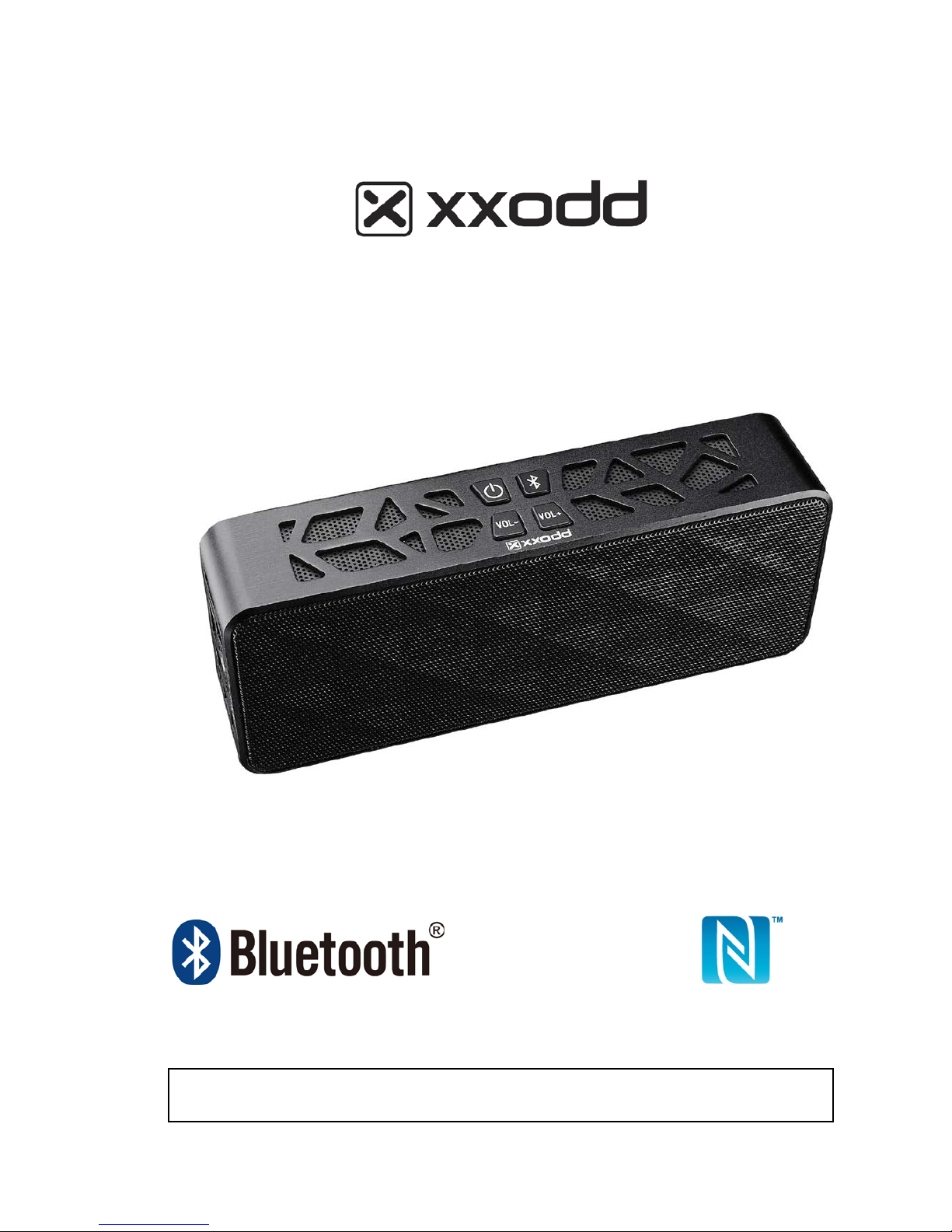
BLUETOOTH WIRELESS STEREO SPEAKER
WOOMBOX USER MANUAL V2
IMPORTANT SAFETY INSTRUCTIONS
PLEASE READ THIS USER MANUAL COMPLETELY BEFORE OPERATING THIS UNIT
AND RETAIN THIS BOOKLET FOR FUTURE REFERENCE.
Page 2

1
IMPORTANT SAFETY INSTRUCTIONS
When used in the directed manner, this unit has been designed and manufactured to
ensure your personal safety. However, improper use can result in potential electrical
shock or fire hazards. Please read all safety and operating instructions carefully
before installation and use, and keep these instr ucti ons han dy for future reference.
Take special note of all warnings listed in these instructions and on the unit.
1. Read these instructions – All the safety and operating instructions should be read
before the appliance is operated.
2. Keep these instruc ti o n s – The safety and operating instructions s ho ul d b e kept for
future reference.
3. Heed all warnings – All warnings on the appliance and in the operating
instructions should be adhered to.
4. Follow all instructions – All operation and use instructions should be followed.
5. Do not use this apparatus near water – The appliance should not be used near
water; for example, near a bath tub, washbowl, kitchen sink, laundry tub, in a wet
basement, or near a swimming pool.
6. Clean only with dry cloth – The appliance should be cleaned only as
recommended by the manufacturer.
7. Do not block any ventilation openings. Install in accordance with the
manufacturer’s instructions. The appliance should be situated so that its location
or position does not interfere with its proper ventilation. For example, the
appliance should not be situated on a bed, sofa, rug, or similar surface that may
block the ventilation openings; or placed in a built-in installation, such as a
bookcase or cabinet that may impede the flow of air through the ventilation
openings.
8. Do not install near any heat sources such as radiators, heat registers, stoves, or
other apparatus (includ i ng ampli fier s) th at pr o duce heat.
9. Only use attachments / accessories specified by the manufacturer.
10. Refer all servicing to qualified service personnel. Servicing is required when the
apparatus has been damaged in any way, such as power-supply cord or plug is
damaged, liquid has been spilled or objects have fallen into the apparatus, the
apparatus has been exposed to rain or moisture, does not operate normally, or
has been dropped.
11. This appliance shall not be exposed to dripping or splashing water and that no
object filled with liquids such as vases shall be placed on the apparatus.
12. Power Sources – The appliance should be connected to a power supply only of
the type described in the o perat ing i nstruc ti ons or as marked on the appli ance. D o
not overload wall outlet.
13. Danger of explosion if battery is incorrectly replaced. Replace only with the same
or equivalent type.
14. There is a high energy rechargeable battery inside the speaker box, do not throw
it into fire to avoid danger of explosi on.
15. Do not charge the internal rechargeable battery longer than specified to prevent
danger of fire. Overcharging rechargeable batteries may shorten their life span.
16. Do not attempt to dismantle, open or repair this product yourself. If a fault occurs,
seek advice from your local qualified service technician or contact the distributor.
17. Caution marking and nameplate are located at the back of the product.
Page 3

2
IMPORTANT NOTES
Avoid installing the unit in locations described below:
• Places exposed to direct sunlight or close to heat radiating appliances such as
electric heaters.
• Places subject to constant vibration.
• Dusty, humid or moist places.
NOTE: This product is not magnetically shielded and may cause color distortion on
the screen of some TVs or video monitors. To avoid this, you may need to move the
unit further away from the TV or monitor if unnatural color shifts or image distortion
occurs.
COMPLIANCE WITH FCC REGULATIONS
This device complies with Part 15 of the FCC Rules. Operation is subject to the
following two conditions:
(1) this device may not cause harmful interference, and
(2) this device must accept any interference received, including interference that
may cause undesired oper ation.
NOTE : This equipment has been tested and found to comply with the limits for a
Class B digital device, pursuant to Part 15 of the FCC Rules. These limits are
designed to provide reasonable protection against harmful interference in a
residential installation. This equipment generates, uses and can radiate radio
frequency energy and, if not installed and used in accordance with the instructions,
may cause harmful interference to radio communications. However, there is no
guarantee that interference will not occur in a particular installation. If this equipment
does cause harmful interference to radio or television reception, which can be
determined by turning the equipment off and on, the user is encouraged to try to
correct the interference by one or more of the following measures:
- Reorient or relocate the receiving antenna.
- Increase the separation between the equipment and receiver.
- Connect the equipment into an outlet on a circuit diff erent from that to which the
receiver is connected.
- Consult the dealer or an experienced radio/TV technician for help.
CAUTION:
Changes or modifications not expressly approved by the party responsible for
compliance could void the user’s authority to operate the equipment.
Page 4

3
PROTECT YOUR FURNITURE
This model is eq ui ppe d with non-skid rubber 'feet' to prevent the pr oduct fro m moving
when you operate the controls. These 'feet' are made from non-migrating rubber
material specially formulated to avoid leaving any marks or stains on your furniture.
However certain types o f oil based furnitur e polishes , wood pres erva tiv es, or cleani ng
sprays may cause the rubber 'feet' to soften, and leave marks or a rubber residue on
the furniture. To prevent any damage to your furniture we strongly recommend that
you purchase small self-adhesive felt pads, available at hardware stores and home
improvement centers everywhere, and apply these pads to the bottom of the rubber
'feet' before you place the product on fine wooden furnit ur e.
PRODUCT FEATURES
The WOOMBOX is a Bluetooth portable stereo speaker with the following features:
Auxiliary input jack to play music from your iPod or digital audio player
Wireless playback o f musi c from y our mobile phone via the Bluetooth connection
Up to 33 feet (10 meters) operating range
Digital volume control
Built-in 1000mAh Li-Polymer rechargeable battery .
Near Field Communication (only on selected models)
LOCATION OF CONTROLS
Page 5
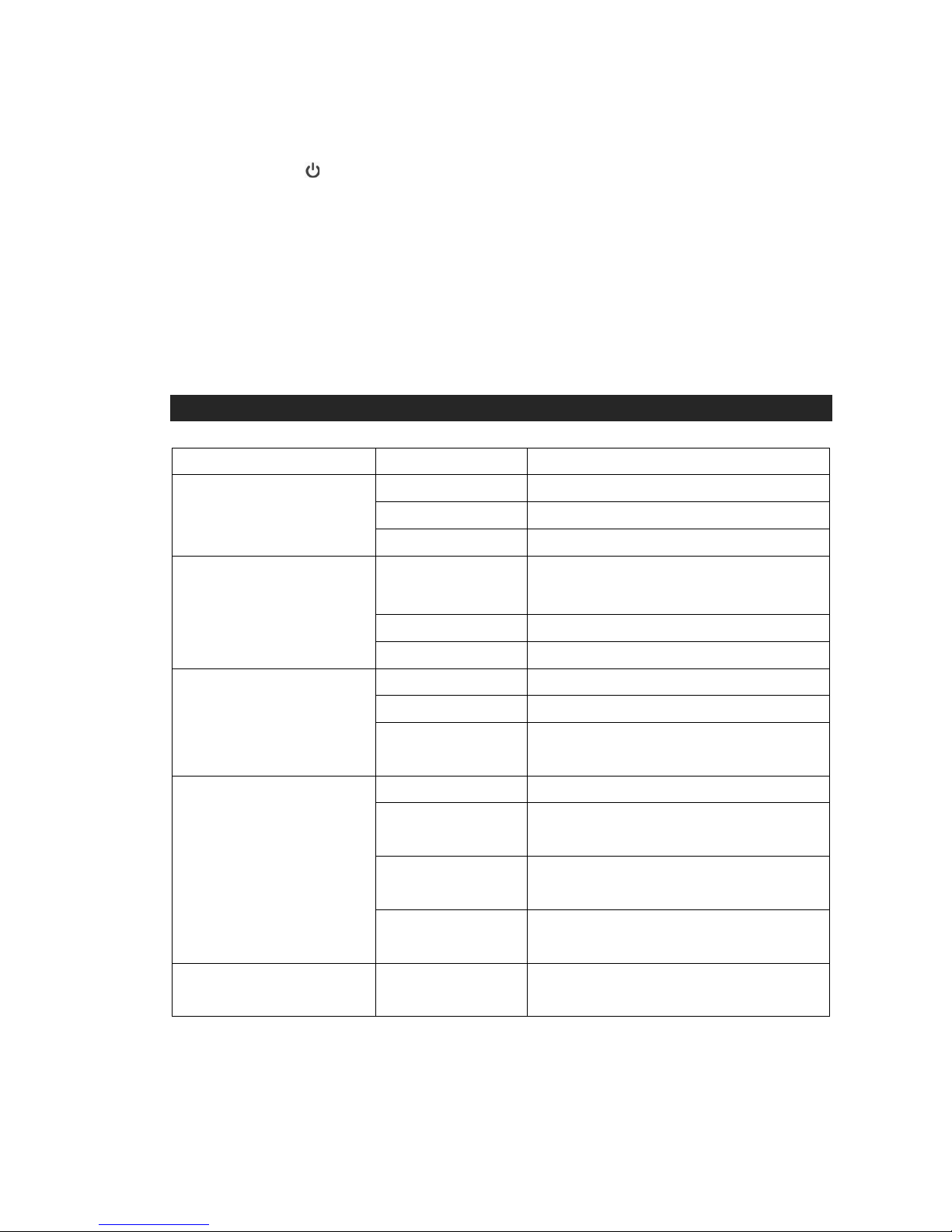
4
1. VOLUME DOWN (-) BUTTON
2. POWER ON/OFF BUTTON; POWER/CHARGING INDICATOR
3. BLUETOOTH ON/OFF BUTTON; BLUETOOTH STATUS INDICATOR
4. VOLUME UP (+) BUTTON
5. SPEAKER
6. AUX-IN JACK
7. DC IN/BATTERY CHARGING (JACK OR MICRO-USB PORT)
8. CONDENSOR MIC
9. NEAR FIELD COMMUNICATION (*ONLY FOR NFC MODELS)
LED STATUS INDICATORS
LED Position Description LED Status
Power Indicator
No Power LED Off
Power on Slow Flashing Green
Low Battery Fast Flashing Red
Charging Indicator
(Power On Mode)
On and working
Slow Flashing Green and Red
Low Battery Fast Flashing Red
Battery Full Solid Green and Red
Charging Indicator
(Power Off Mode)
No charging Red LED Off
Charging Slow Flashing Red
Charging Finished
Solid Red
Bluetooth Status Indicator
Off LED Off
Ready to Link
Blue & Red LED flash alternatively
Not linked
Blue LED flash 2 times per second
Linked
Blue LED flash every 4 seconds
Low Battery
Red LED quick flash 2 times every 30
seconds
Remarks:
Fast Flashing - less than 1 second apart.
Slow Flashing - around 3 - 4 seconds apart
Page 6

5
CHARGING INSTRUCTIONS
This unit operates on a built-in Li-Polymer battery that can be recharged either using
the USB port on your computer or from a USB power adaptor (not included) with a
rated output of DC 5V, 1000mA.
Note: The DC input port (jack or micro-USB) located on this unit is mainly designed
for charging the built- in Li-Polymer battery. The unit will still operate normally
while charging, but doing this may reduce the battery life.
CHARGING THE BATTERY
1. Charge the built-in Li-Polymer battery a minimum of 4 hours prior to first use.
2. Plug the unit into a USB port on your computer or into a USB power adaptor
(not included) using the included USB cable.
3. Unplug the USB cable from the power source once the battery is fully charged.
4. After prolonged use, the battery voltage may discharge and operation might
become intermittent. When the internal battery charge is very low, the Red power
button backlight will begin flashing alerting you to recharge the internal battery.
Battery Note and Care
1: Do not burn or bury batteries.
2: Do not puncture or crush.
3: Do not disassemble.
4: Recycle Li-Polymer batteries. Do not dispose of in the trash.
5: Use only chargers rated for Li-Polymer cells. Be sure the charger’s voltage and
current settings are correct for the battery pack being charged.
6: Charge batteries on a fireproof surface away from flammable items or liquids.
7: Batteries should NEVER be left unattended while charging. Only adults should
charge the batteries.
8: Follow the manufacturer’s instructions for charging the product and do not charge
longer than recommended. Unplug the charger when the battery is charged or not
used.
Page 7

6
TURNING THE SPEAKER POWER ON/OFF and NFC MODE
1. In standby mode, tap the POWER button to turn on the unit, the power
button backlight will light up green and begin blinking slowly.
2. In power on mode, tap the POWER button to turn the unit off, the green
power button backlight turns off.
3. At ON and Bluetooth mode the Bluetooth button light flashes blue and red
alternatively. Turn o n the Bluetooth of your device to perform p ai r i n g i n cas e
it fails to link with the previously paired device
4. Turn on and using NF C Near Field Communication function.
When WOOMBOX is in ON mode and the NFC function is turned on, in
your Smartphone. Touch the backside of WOOMBOX with your Smartphone
and press the confirmation on your Smartphone to link wirelessly.
To unlink simply touch WOOMBOX again with your Smartphone.
Note: Before first use, please charge the speakers for at least 4 hours
because the batteries may not fully charged, even though the charging LED
lights.
OOTH OPERATIO
BLUETOOTH OPERATION
Power on the unit and follow the directions below to use the A2DP profile Bluetooth
features of this unit.
Turn on the Bluetooth
At OFF mode, tap POWER button to turn speaker and its Bluetooth on.
The Bluetooth button light will flash red. It will start pairing with your Bluetooth device
after 7 seconds. Bluetooth light will flash red and blue. Blue light will flash when
pairing succeeded. At ON mode tap the POWER button to shut down and tap again
to turn on power and Bluetooth. It will link automatically with the previously paired
device.
Turn off the Bl uetooth
In Bluetooth ON mode. Bluetooth will turn off automatically if linking was not
processed or the link has been interrupted for over 5 minutes.
Page 8

7
PAIRING (LINKING) A BLUETOOTH ENABLED MOBILE PHONE OR OTHER
BLUETOOTH ENABLED DEVICE TO THE WOOMBOX
1. With the power on and Bluetooth Off, p ress the power button to turn off and on
again after 7 seconds. The Bluetooth button backlight will flash blue and red.
The WOOMBOX is ready to pair (link) with your Bluetooth device.
2. Turn on the Bluetooth feature of your mobile phone and enable the search or
scan feature to find the WOOMBOX.
3. Select "WOOMBOX" from the device list when it appears on your screen. If
required, enter the pass code “0000” to pair (link) the WOOMBOX with your
mobile phone.
4. After successfully pairing (linking) your mobile phone with the WOOMBOX, you
can play music from your mobile phone wirelessly to the WOOMBOX.
5. Hold the Volume Up (+) / Down (-) button to adjust the desired volume level.
6. To turn off the WOOMBOX Bluetooth, press and hold the Bluetooth button for
about 3 seconds until a beep sound is heard and the Bluetooth button backlight
flashes red and then all lights go off. Don’t forget to also turn off the Bluetooth
feature on your mobile phone.
Notes:
1. Refer to manual of your mobile phones, iPad, computer or other Bluetooth
enabled device for Bluetoo th oper ation , since it may v ary from mode l to model .
Your Bluetooth enabled device will not play the music through the speaker,
even it can be connected, if the device does not support A2DP.
2. If the built in Li-Polymer battery reaches a very low power level that affects
Bluetooth operation, The Bluetooth button backlight indicator will begin to
rapidly blink red two times every second before it turns off. Three gong type
sounds will be heard prior to the WOOMBOX turning off. This will alert you to
recharge the speaker battery immediately.
3. Do not plug in the Audio jack when the Bluetooth is in operation.
4. If you are pairing (linking) your computer to the WOOMBOX using Blueto oth ,
you may need to set th e WOOMBOX as your computer’s de fault sou nd dev ice.
Using the WOOMBOX as a Hands Free Bluetooth Speakerphone
1. Link your mobile phone to the speaker via Bluetooth as described above.
2. When receiving an incoming call on your mobile phone, tap the Bl ueto oth button
on the WOOMBOX to switch an incoming call from mobile phone to the WOOMBOX.
A short beep sound will be heard confirming the call was answered. Complete your
call using the built-in microphone and speaker of the WOOMBOX.
3. Press the VOLUME UP(+) /DOWN (-) button on the WOOMBOX to adjust the
volume to your desired sound level. Adjusting volume of linked device will do as well.
Page 9

8
4. To end the call, just tap the Bluetooth button again on the WOOMBOX. A short
beep sound will be heard and the call will end. If you were st reaming music fro m y our
mobile phone to the WOOMBOX, the music will automatically resume streaming to
the WOOMBOX.
5. To reject an incoming call, simply press and hold the Bluetooth button on the
WOOMBOX for about 2 seconds, a long beep sound will be heard.
NOTE:
If you press and hold the Bluetooth button for about 3 seconds , it will turn off
the Bluetooth of the WOOMBOX.
Redialing the last number with the WOOMBOX
The WOOMBOX will automatically redial the last number you dialed by tapping the
WOOMBOX Bluetooth butt on tw ic e.
Hang up with the WOOMBOX
A quick press on the Bluetooth button will end the call in progress. A short beep tone
will be heard from the WOOMBOX confirming the call ended.
Re-linking to the mobile phone
If your mobile phone is already paired with the WOOMBOX, but became unlinked
even with both Bluetooth devices turned on. You can re-link them by:
1. Turn off the WOOMBOX Bluetooth and turn it on again to re-link your mobile
phone. The red Bluet ooth b utt on st atus i ndi cat or w ill bl ink tw o ti mes w ith two s hort
beeps if the WOOMBOX and your mobile phone have been re-linked success fully.
2. You can also re-link the WOOMBOX by using Bluetooth operation of your mobile
phone. Please refer to operati on ma nual o f yo ur mobile phone for mor e
information.
PLAYING MUSIC USING THE AUXILIARY INPUT
The WOOMBOX features an auxiliary audio signal input jack for connecting external
audio devices like M P3 player s, CD play ers, iPhones or iPods (ex cept i Pod shu ffle 3rd
gen) and listen to the through the speakers of the WOOMBOX.
1. Use the audio cable (included) wit h one 3.5 m m ster eo pl ug on each end o f the
cable.
2. Plug one end into the AUX-IN jack on the WOOMBOX and the other end of the
cable into the Line-out Jack or Headphone Jack of your external audio device.
3. Tap the POWER button to turn on the WOOMBOX. The POWER button
backlight will turn green and begin flashing slowly.
Page 10

9
4. Turn on your external audio device.
5. Press the VOLUME UP (+) / DOWN (-) button to adjust the desired volume level.
Operate all other functions on the auxiliary device as usual.
NOTES:
(1). If you’re connected to the Line Out Jack of your external device then you only
need to adjust the volume control on the WOOMBOX. If you’re connected to the
Headphone Jack of your external device, then you may need to adjust both the
volume control of your external device and the volume control on the WOOMBOX to
find the most desirable volume setting.
(2). If you use AUX IN function in Bluetooth on mode, Blueto oth audio will be
temporarily disconnected when the audio cable plugged in. Unplugging the audio
cable will resume Bluetooth audio. We suggest you turn off the Bluetooth to save
battery power when playing music via AUX IN mode.
(3). Tap the POWER button to turning off the system when you finish listening.
Don't forget to switch off the power of your external device as well.
RECHARGING WOOMBOX BATTERY
When you listen to music, the built-in rechargeable Li-Polymer battery will eventually
reach a low power condition. The power indicator will turn red and start flashing
quickly, so please charge the speaker battery as soon as possible.
1. Plug the unit into a USB port on your computer or into a DC 5V, 1000mA USB
power adaptor (not included) using the included USB cable.
2. Plug the DC plug (jack or micro-USB) of the cable into the WOOMBOX.
Charging in Power On mode
The Red LED flashes quickly every second if battery is still at a low level.
The Green LED will turn on and the Red LED slowly flashes Green
simultaneously if battery is charged up to a workable level.
Both Green & Red LED lit solid if battery is fully charged.
Charging in Unit Power Off mode
The Red LED turns on and start s flas hi ng slowly.
The Red LED lights solid when the battery is fully charged after charging for
about 4 hours.
Page 11

10
NOTES:
1. Charging t ime will vary if you are listening t o music while c h ar g i ng the s p eaker
battery. We recommend you switch off the speaker power during the charging
process or until the speaker batteries are fully charged.
2. To prolong the life of a rechargeable battery, it is recommended to completely
discharge it before fully charging it again.
3. Rechargeable batteries need to be cycled for maximum performance and
longer battery life. If you don’t use the player that often, be sure to recharge the
battery at least once a month in order to keep the internal battery working
properly.
Remarks:
Quick flashing implies the LED lights up for 1 second and shuts off for 1
second.
Slow flashing implies the LED lights up for 4 seconds and shuts off for 4
seconds.
CARE AND MAINTENANCE
1. Av oi d operating your unit u nder direct sunlight or in hot, humid or dusty places.
2. Keep your unit away from heating appliances and sources of electrical noise such
as fluorescen t lamps or motors.
3. Unplug the un it f rom th e elec tric al pow er out le t imme dia tely in cas e o f mal fun cti on .
CLEANING THE UNIT
To prevent fire or shock hazard, disconnect your unit from the USB port of power
source when cleaning.
The finish on the unit may be cleaned with a dust cloth and cared for as other
furniture. Use caution when cleaning and wiping the plastic parts.
If the cabi net b eco mes dus ty w ipe i t w ith a soft dry dust cloth. Do not us e any w ax
or polish sprays on the cabinet.
If the front panel becomes dirty or smudged with fingerprints it may be cleaned
with a soft cloth slightly dampened with a mild soap and water solution. Never
use abrasive cloths or polishes as these will damage the finish of your unit.
CAUTION: Never allow any w ater or other l iq uids t o get ins ide t he uni t w hile cl eani ng
Page 12

11
TROUBLESHOOTING GUIDE
Symptom
Possible Problem
Solution
No Charging
AC Adaptor is not plugged
into a wall outlet or the
connector is not plugged
into the power supply jack
on the back of the unit.
Plug the AC adaptor into a wall outlet and plug
the connector into the supply jack on the unit.
Wall outlet is not
functioning.
Plug another device into the same outlet to
confirm the outlet is working.
Computer USB port is not
functioning.
Make sure your computer power is turned on
and try another USB port.
No Sound
Speaker batteries are dead Recharge the speaker batteries
Bluetooth speaker is not
linked with the mobile
phone
Go through “Bluetooth Operations” process to
link the speakers.
Speaker placement out of
range
Relocate the speaker within Bluetooth
operating range
Volume set too low
Press the Volume+ button to turn the sound
level up.
Sound is
distorted.
Volume level is set too high.
Decrease the volume.
Sound source is distorted.
If the mobile-phone original sound source is of
poor quality, distortion and noise are eas il y
noticed with high-power speakers. Try a
different audio source such as a music CD.
If you are using an external sound source like
older generation of iPod, try reducing the
output volume on the device itself. Also try
turning bass boost OFF or change the EQ
setting.
Unit gets warm
after extended
play at high
volume.
This is normal.
Turn the unit off for a period of time or lower
volume.
Page 13

12
SPECIFICATIONS
Bluetooth: v2.1
Near Field Communication*: NFC only for model WoomBox Two NFC
Wireless Receiving Distance: 10M / 33FT
Bluetooth Profiles: A2DP + HFP + HSP
Advanced Audio Distribution Profile (A2DP) for wireless music streaming.
Hands-Free (HFP) and Headset Profiles (HSP) for Hands-Free speakerphone.
Hands-Free Speaker for Bluetooth phone.
Built-in Microphone.
Audio Input : AUX-IN 3.5mm. Connect your iPod, MP3, Digital Audio Player.
Audio Cable included.
Audio Output Power : 1.25W (RMS) X 2
Impedance: 4 Ohm
Sensitivity: 76dB
THD: < 1%
Audio Frequency Response: 150Hz – 20KHz
Digital Volume Control.
Built-in Rechargeable 1000mAh Battery.
USB charge cable included.
DC IN : 5V / 1000mA
6-10 Hours of continuous playback
Material : Aluminum Alloy
Dimension: 14.5(W) x 5.7(H ) x 3.2(D) cm
Weight : 220g
Carry Pouch included
Bluetooth® is a registered trademark of Bluetooth SIG, Inc.
The N-Mark is a trademark or registered trademark of NFC Forum, Inc.
 Loading...