

Page 1

User’s Manual
Xpad 82
Page 2

USER’S MANUAL
20
User’s Manual
Attention
This handbook contains important security measures and the correct
use of the product information, in order to avoid accidents. Pls make sure to
reading the manual carefully before use the device.
Please don’t be in high temperature, moisture or very dust place −
Please don’t be in high temperature, Especially in summer don’t put −
the device in the car when Windows closed.
Avoid fall or Violent collision of the device, don’t make the TFT di-
−
splay screen were violent tremor, This could cause TFT display screen
abnormal or damage.
Please choose the appropriate volume, Use headphones shoulds not −
be too big volume, If feel tinnitus, Lower the volume or stop using it
please charge In the following condition,
A. The battery power ICONS shows have no power
B. The system automatically shut off, startup after power off soon
C. Operation buttons no response
When the device in the format or ongoing upload and download file, −
please don’t suddenly disconnect, This could cause application error.
For those who because of damage to the product, repair, or other
−
causes of erased the memory, The company shall not be liable for any
responsibility, please follow the user manual for the standardized
operation to use the device.
Don’t disassemble the product, don’t use alcohol. Thinner or benzene
−
to scrubbing products
Don’t use the device one of the place of prohibit to use electronic
−
equipment in regional (such as the plane)
Please don’t using the Tablet PC when you in driving or walking down
−
the street, USB just only be used for data transmission
Page 3
USER’S MANUAL
21
The company reserves the right to improve product, products specification
and design have any change, The information is subject to changes without
prior notice. (This tablet is no waterproof function)
Remark! All pictures in this manual is just for your reference. produc ts
specification and design have any change, The information is subject
to changes without prior notice.
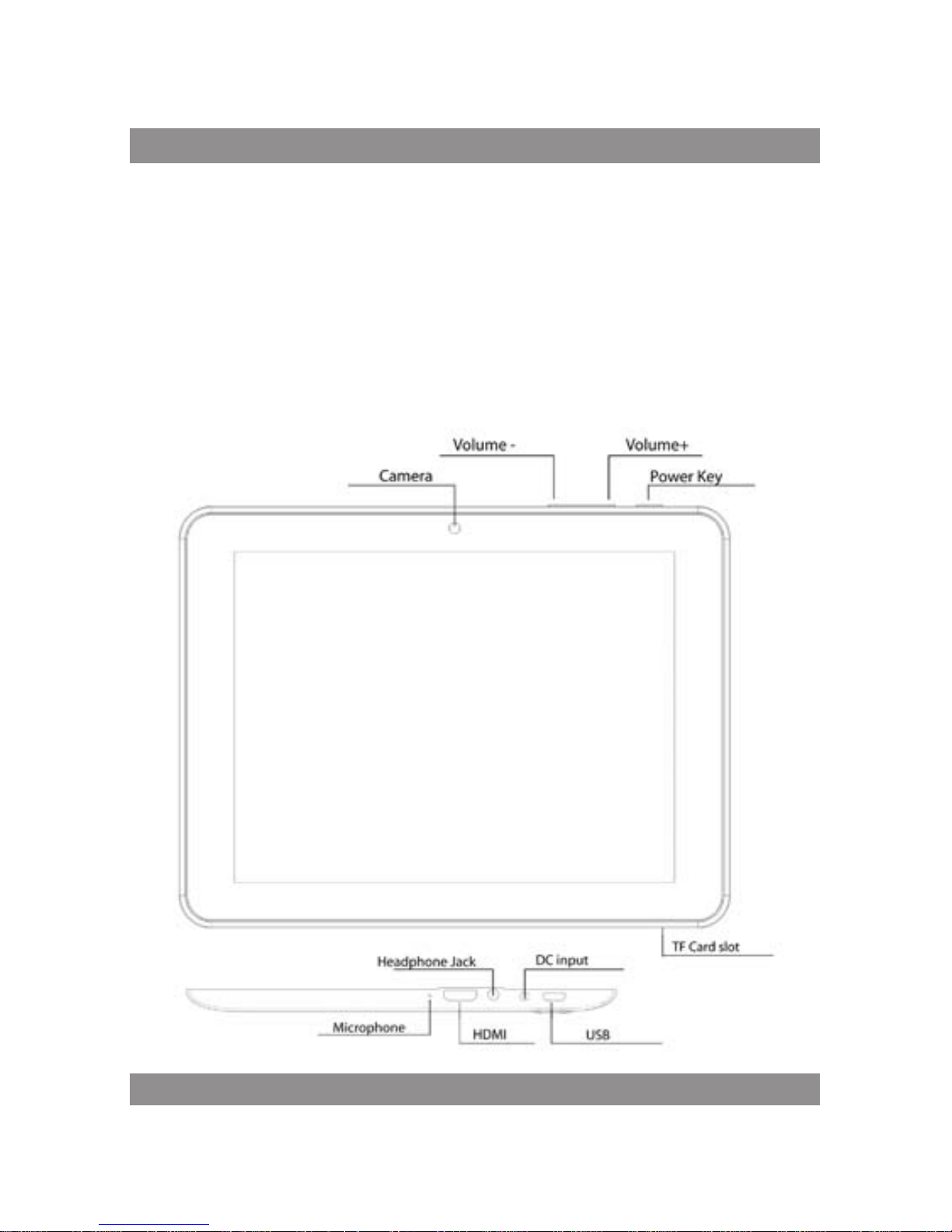
Appearance and button
Page 4

USER’S MANUAL
22
Touch panel
8” Capacitive touch panel: In The Operation, to click dragging on the
touch panel
POWER
Startup: Long Press and hold the power button, the system will enter
the main interface
Shutdown: In the main menu interface, Press the power button about 5
second to shutdown, The system can hint “power off” option, Clike” ok”. you
can safely shut down.
Lock screen: Short press Power button to lock screen or unlock screen.
Remark!
1. When power is empty, system will shut down automatically.
2. Illegal turn off the device, restart will scan and restore the disk, it may
take longer time to enter into system
Volume +, Volume-
The buttons on top Volume +, Volume-achieve changes in the volume.
Earphone jack
3.5 mm standard earphone jack
Video output interface – HDMI output interface
TF card – Slot for MicroSD card
Micro USB – you can use it to connect the computer for data transmission,
charging and external connection USB flash drive
Remark!
Unless unable to shutdown, otherwise don’t use the reset, suggest you to
shutdown by normal, if no will easy to damage the machine system.
Page 5

USER’S MANUAL
23
First use
Battery management and charge
Before first use, please set the device’s battery is fully charged
Just need to connect the adaptor or USB interface, then you can charge
The first two times charging please keep about 6 hours, after that you
just need 4 hours to charge.
Remark:
This tablet using Built-in type polymer battery, Charge must be to choose standard adaptor (Input: AC110~240V 50/60Hz Max: 180MA. Output:
DC5.0~5.5V/1.5A), this device without supply DC charging, USB interface can
charge, Choose USB interface to charger
During the charging, the battery icon will scroll
When finished charging, battery icon will become green and stop
rolling
In order to prolong the service life of the machine, suggest use out battery
power before charge it
Remark:
1. If you long time don’t to use this Tablet, in order to avoid power consump-
tion caused damage, pls charge/ play the battery once a month.
2. After low battery shut down, connect DC adaptor, device will remind
low battery, charging, need to wait some time until the battery is enough
power to enter into main menu.
3. Device charging should be in standby status for reach normal charging
time.
Because with device and screen consumption, it may cause longer char-
ging time.
Page 6
USER’S MANUAL
24
Connection with PC
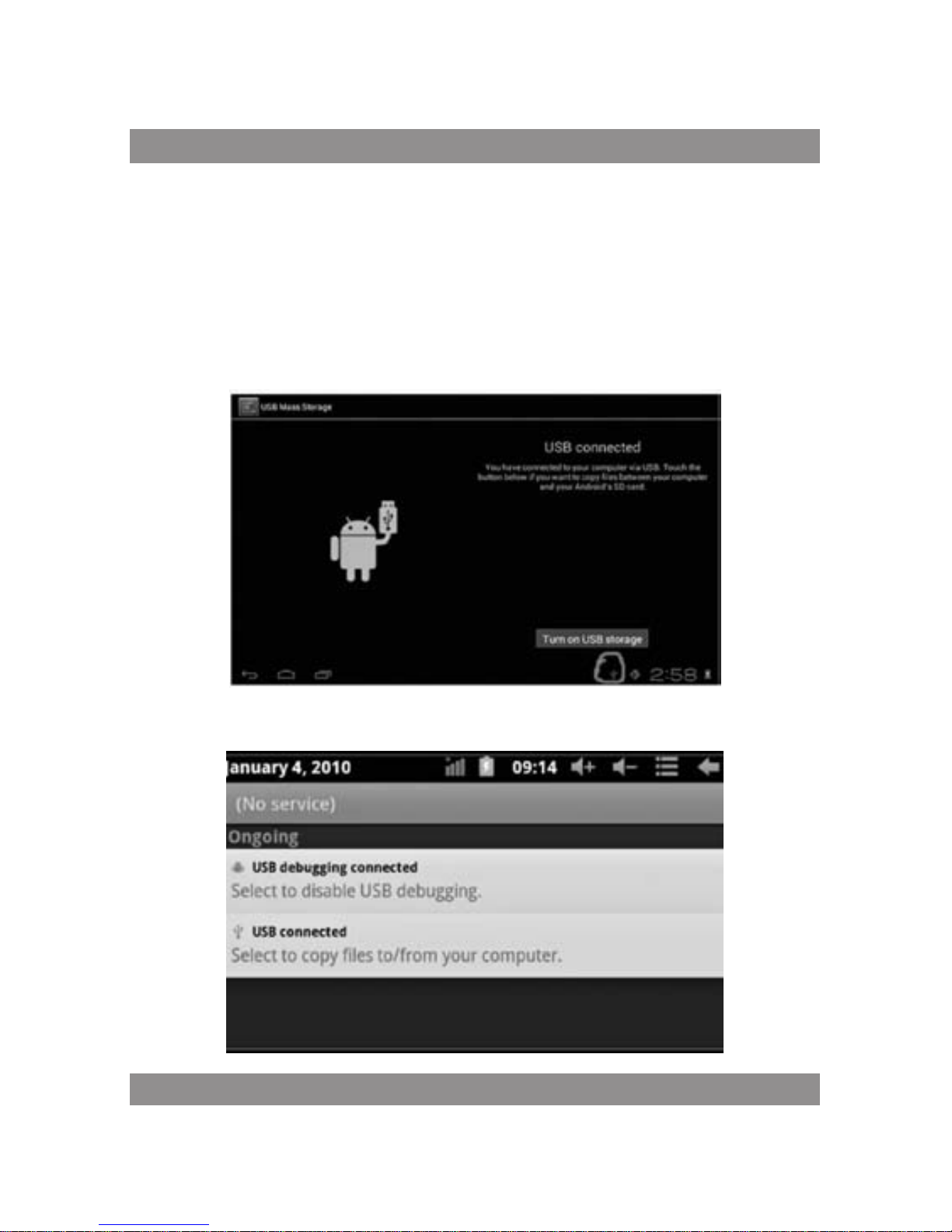
USB connection
Using USB to connect the MID and PC, the default connection mode is a
synchronous mode. You can see this USB icon and then drag the status bar
to drop, appeared the following interface:
Step 1:
Step 2:
Page 7
USER’S MANUAL
25
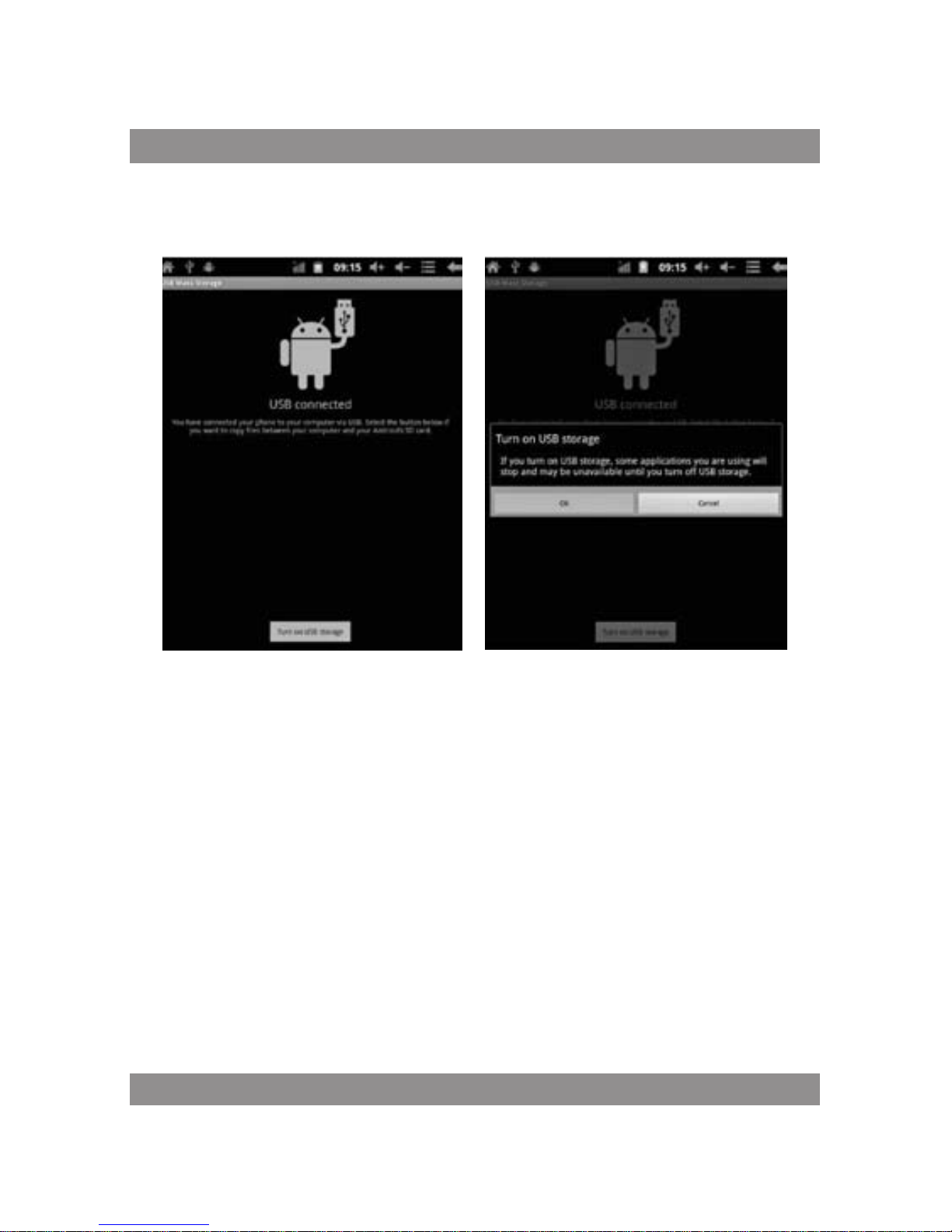
Step 3: According to the above photo, please choose USB connected. Then
you can see the following interface:
Step 4: Please press “turn on USB storage”. Then you will find the following photos:
Please choose “OK”. Then USB is connected. “USB is connected”: means
external memory (SD) loading is completed, and you can see the corresponding letter in the PC terminal.
Use USB cable to connect device to PC, device will pop up the USB connection window, click Turn on USB storage to connect to PC
Page 8
USER’S MANUAL
26
Equipment operation interface
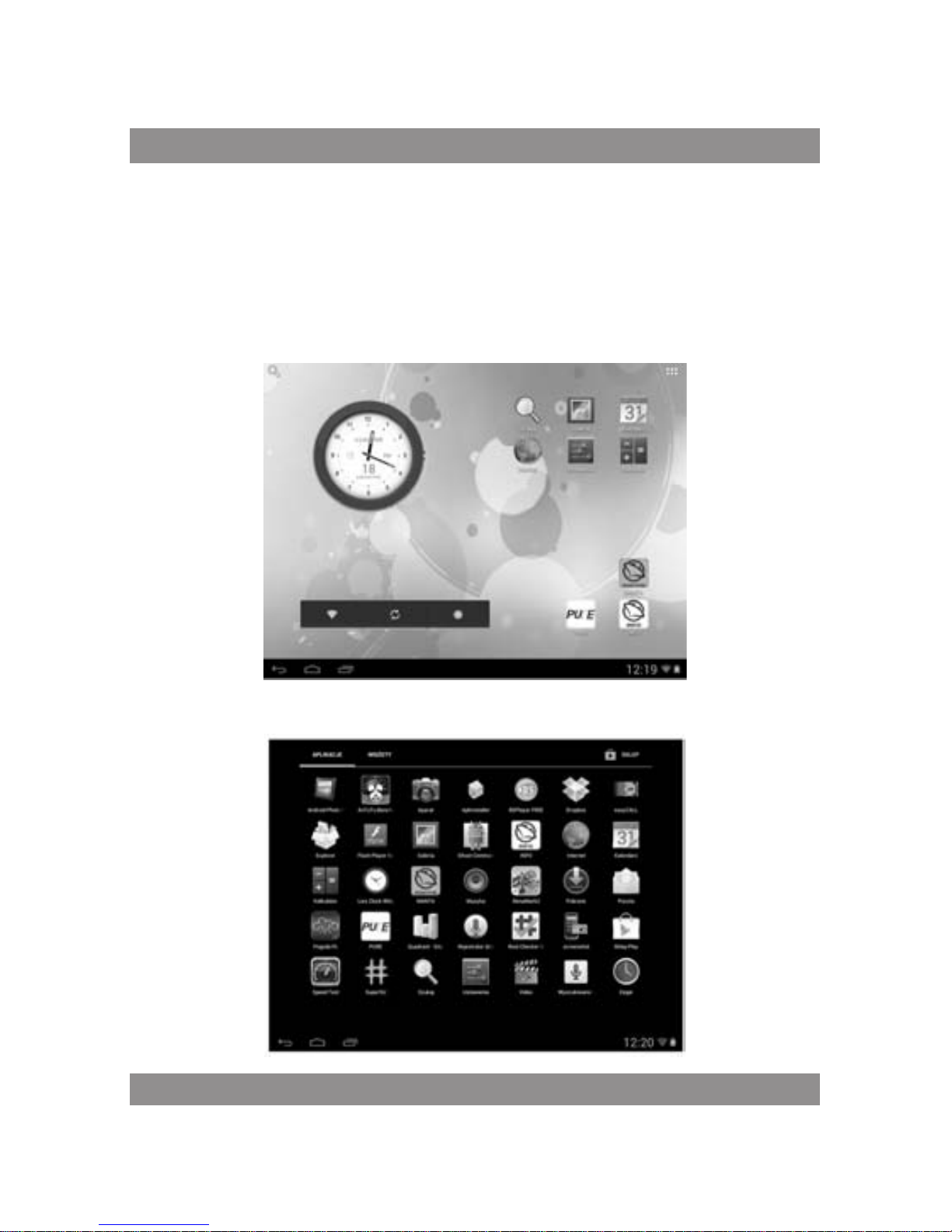
Main interface describe
After startup will enter the main interface
In the main interface, you can:
Page 9
USER’S MANUAL
27
Management main interface software ICONS: long press the icons 3 second,
after the icons will bigger, then you can drag anywhere in the interface.
Delete icons: long press the icons 3 second, drag the icons to the Recycle Bin
icon, once it become red, Loosen your hand, after that you can delete icon
Status bar describe
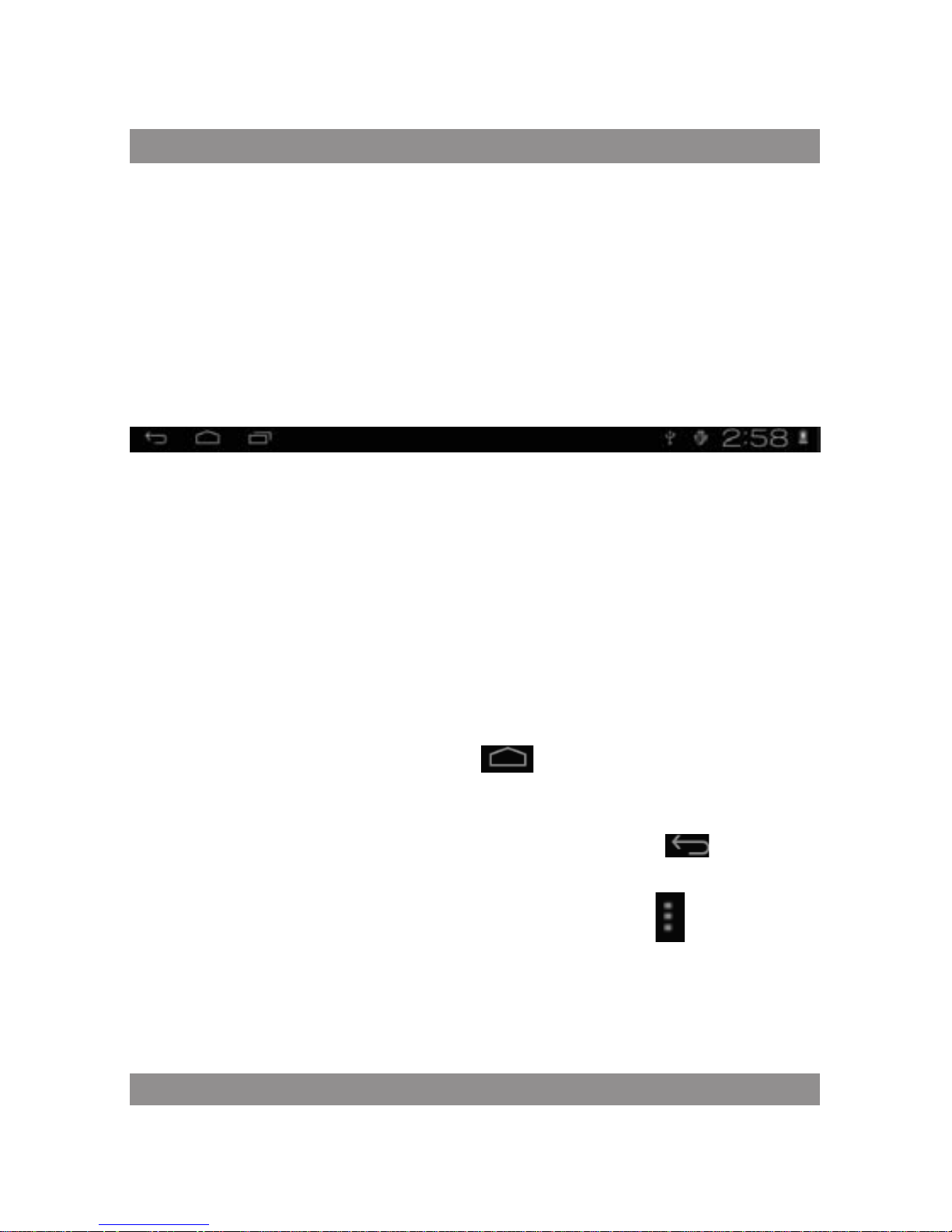
The status bar below of the screen
From left: BACK, HOME, recent applications. From Right: battery status,
time, other icons.
Use touch panel
Device equipped with a 10 “touch screen. Following the main touch
screen area is described, and describes some of the tips for how to use the
touch screen.
No matter which interface you are on the screen, can go back to main
screen through pressing the soft key on the bottom right corner of
the main screen.
Attention!
In different applications, by tapping the back soft key
on the bottom right corner on the touch screen, you can return to its interface on the
upfloor
In different applications, by tapping the menu key on the upper
right corner of touch screen, the screen will appear the operation setting
interface as follows,
Remark:
In the main interface, you can touch the icon to open the APPs
Page 10
USER’S MANUAL
28
In different browser(file, music, video, pictures), You shift and drag the
scroll bar, so that the file list can up or down to roll.
Equipment
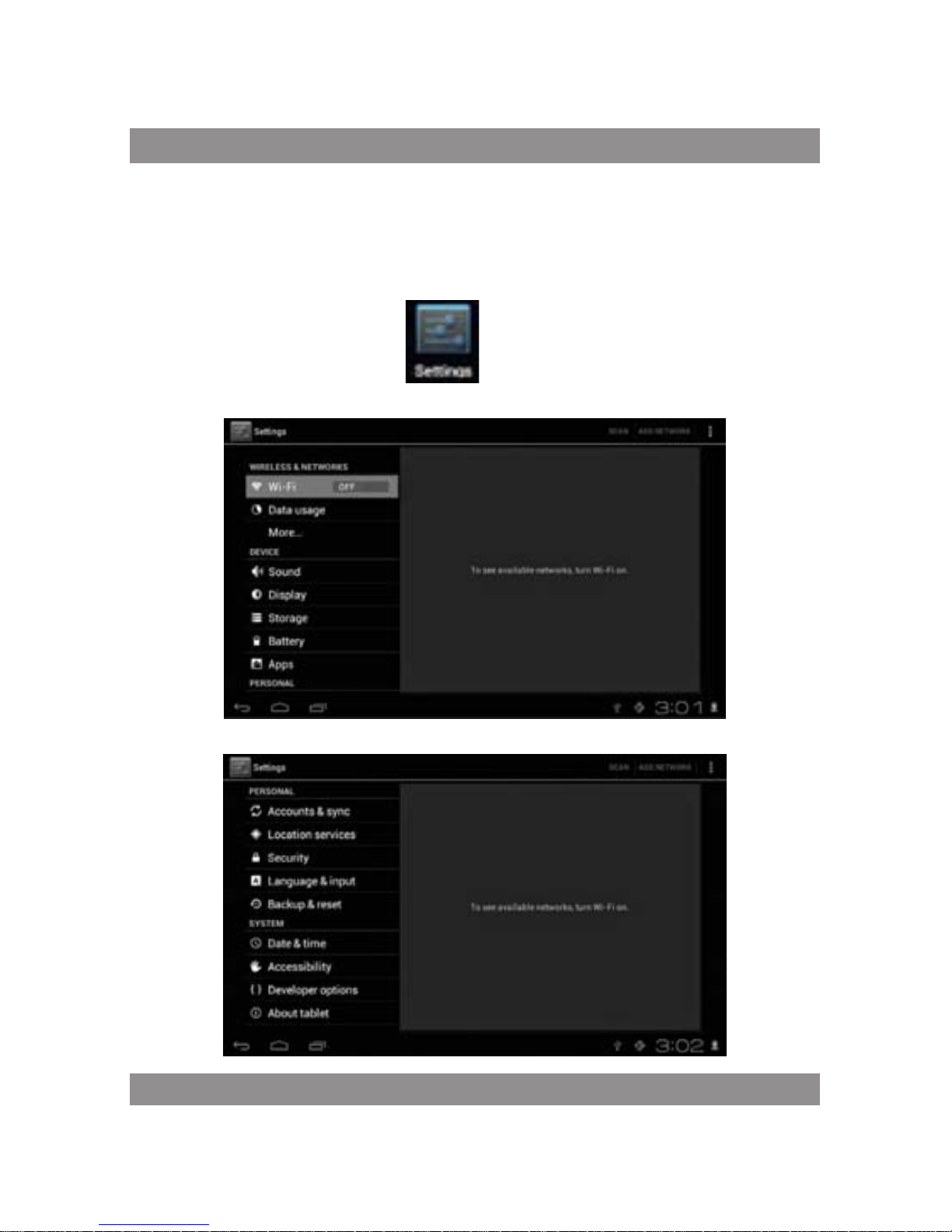
basic set
Setting: Click setting icons , enter setting interface
Page 11
USER’S MANUAL
29
Application
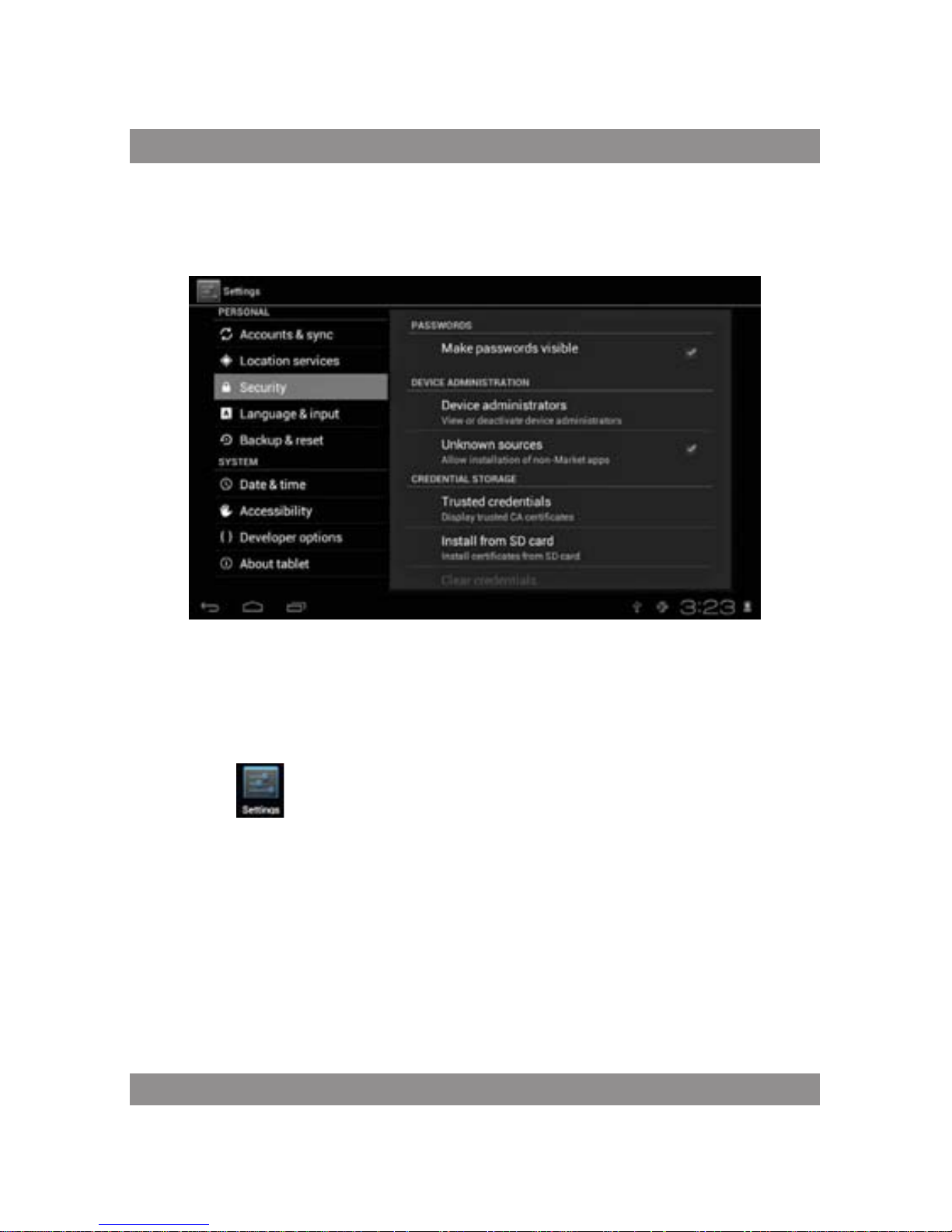
Manage applications
Unknown sources: Click “Unknown Sources”, then click “OK”
Manage application: manager and uninstall Application
Remark:
when you Firmware Upgrade, pls close the USB connect
How to uninstall?
1. enter “setting”>”Application”>”Manage application” And then
there will be installed the program list
2. Click you want to uninstall icons, will enter the following interface
3. Click Uninstall, then you can delete the application
Page 12
USER’S MANUAL
30
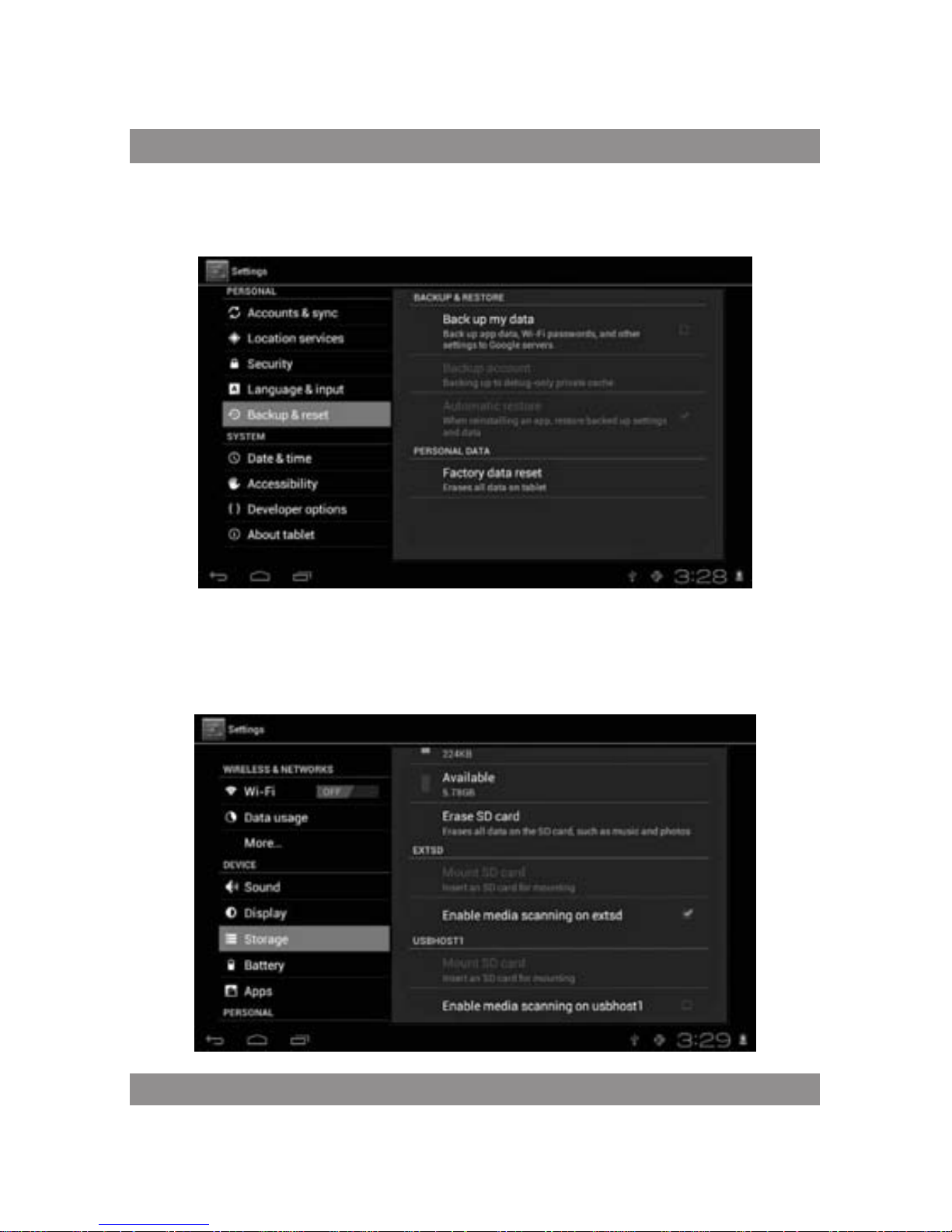
Backup & reset
Factory data reset
Storage
Remove TF card, view of the available storage space
Page 13
USER’S MANUAL
31
Remark:
Please touch option” delete SD card”, so that can safety to remove SD
card
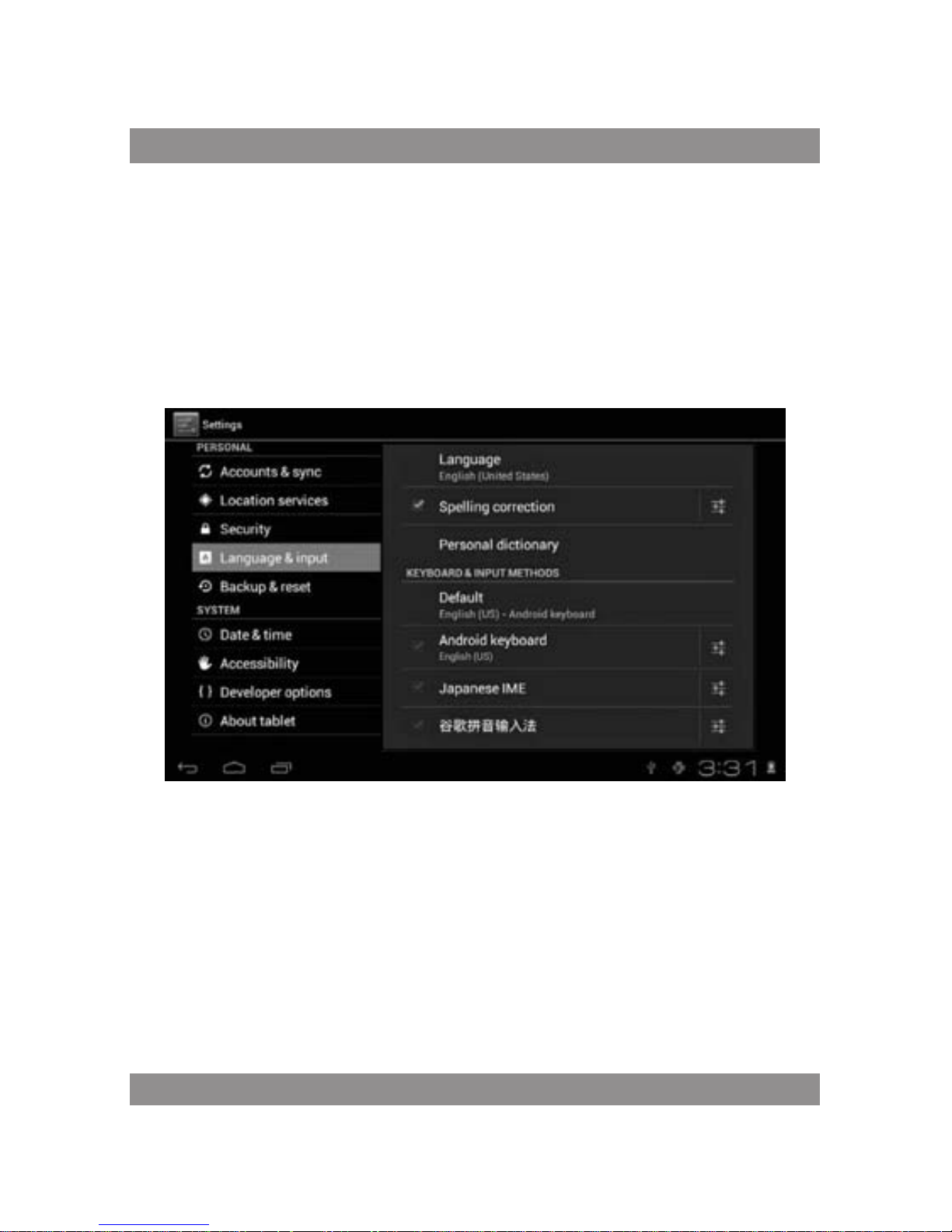
Language & input
Setting: (Language), text input and automatic error correction options;
Select Language: 54 kind of national languages are available
Remark: Android system can support 54 kind of language, now menu
interface just support 14 language,
Android keyboard: Android keyboard setting
Sound on Key-press
Auto- capitalisation
Show suggestions: Display suggested words while typing
Auto-complete: Specebar and punctuation automatically insert highlighted word
Page 14
USER’S MANUAL
32
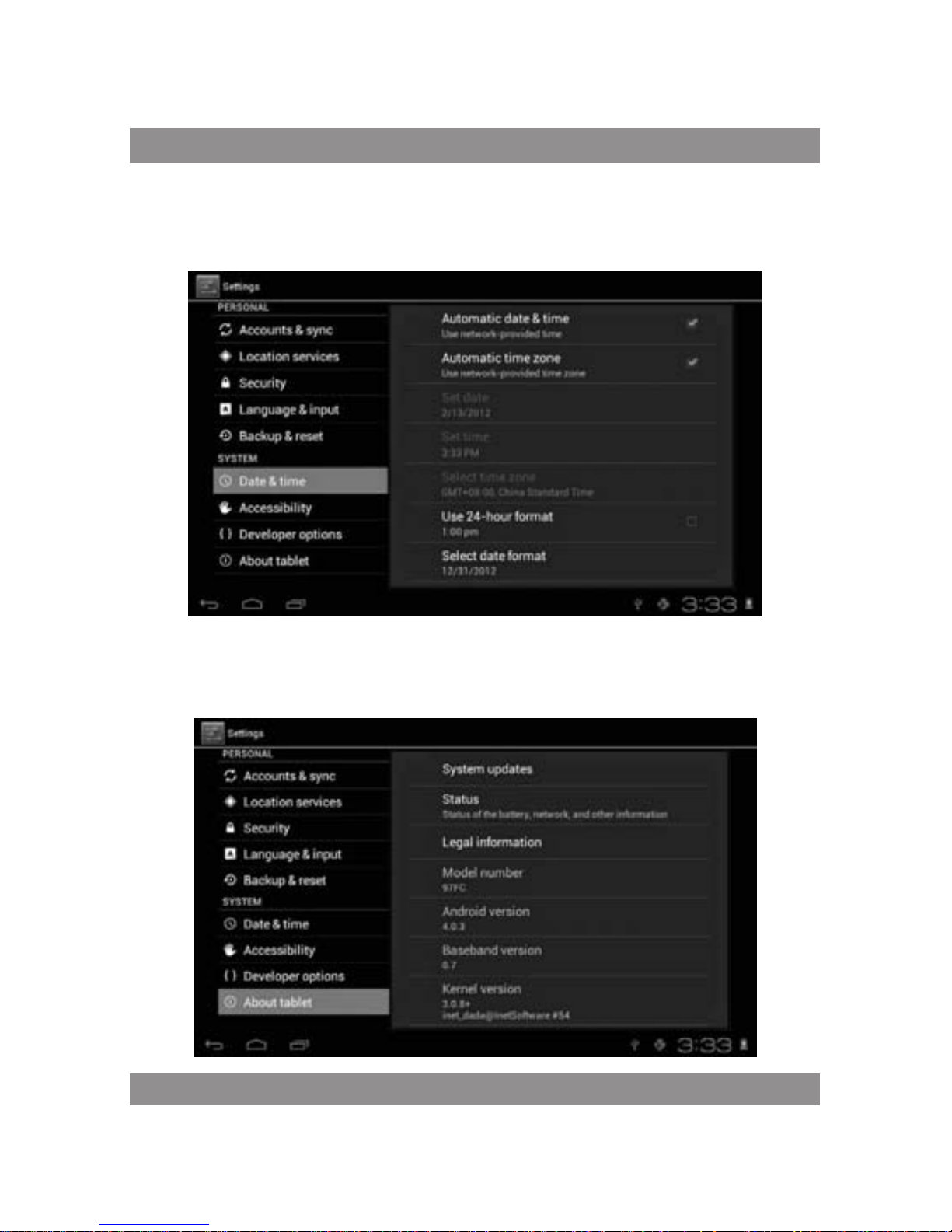
Date & time
Set date, set time, Select time zone and select date format
About tablet
Page 15

USER’S MANUAL
33
Problem solution
Device can’t to open
1) Check the battery power
2) Connect adaptor first, then check again
3) After charging then can’t to open, pls contact with the supplier
After startup the screen or the opening picture has been appeared,
the device appear shutdown
1) Power is not enough, please charge
Headset can’t hear the voice
1) Pls check the volume whether set to 0
2) Check the music file whether damaged. Try playing other music, if the
file have damaged may lead to serious noise or hop sounds.
Can copy file or paly music and so on
1) Pls check between computer and device is correct connection
2) Check the memory storage space is already full
3) Check the USB cable is good or not
4) USB connection is disconnected
Page 16

159
NOTE
Page 17
Made in P.R.C.
 Loading...