

Page 1
Please read the following in detail before using this equipment.
Chapters such as “Safety Instructions” and “Important Notes”
will provide important information on how to properly operate
this equipment.
To ensure that the user will have good operation and controlling capability of
all the performances given by DMP560, the User’s Manual shall be
thoroughly read and readily kept in accessible places.
Safety Instructions
Instructions to avoid fire, electric shock and bodily injury
WARNING
Remind users that the possibility of sever bodily injury can be caused by
improper use of the product.
CAUTION
Remind users that improper use of the machine can result in possible injury
or damage.
Machine damage refers to the family, furniture, damage caused by pets, or
influence.
Page 2

Please follow the instructions below at all times.
WA R N ING
●Please read the following instructions
and the User’s Manual first before
using this product.
●Please do not dismantle the machine
or transformer. Do not make any
changes to the inner structure.
●Please do not repair the machine by
yourself or change any components
(unless specially instructed by the
User’s Manual). Please completely
hand over all the repair work to the
agency nearest 10 Moons Timmid
branch company or agents authorized
by 10 Moons Timmid.
● Please do not use or place the
machine at the following sites:
1. Places where the temperature
differences are severe (carriage
with direct sunlight, pipelines area
that gives out heat, or equipments
that give out heat)
2. Damp environment (such as
bathrooms, washrooms)
3. Dusty environment and places
●Please avoid damages to the power
wires. Do not excessively bend, stamp
on or put heavy weight on the power
wires. Damaged power wire can result
in electric shocks or sparking. Do not
use damaged power wires.
●Please do not let any objects (such as
combustibles, coins or needles) fall
into, or any liquids (such as water,
beverage) penetrate into the machine.
● When the following circumstances
happen, please turn off the power, pull
the power transformer out from the
socket, and make inquiries at the
nearest 10 Moons Timmid branch or
agent authorized by 10 Moons
Timmid.
1. Power transformer or the power
wire is damaged.
2. Liquids penetrate into the
machine.
3. The machine is exposed to rain
fall (or becomes damp).
4. The machine can not work
Page 3
with sharp vibration. normally.
● Make sure that the machine remains
flat and stable. Please do not put the
machine in places that might shake.
● Keep children away. Adults shall
watch over children until they are able
to operate the machine properly
according to the necessary
instructions.
● Make sure that the only power
supply for this machine is from the
power transformer. Be sure that the
actual line voltage is the same as the
input voltage given on the outer
covering of the power transformer. For
different power transformers, the
polarity and voltage may differ. Using
the wrong power transformer could
result in damages, mal-functions or
short circuits.
● Avoid strong collision (avoid
machine falling down).
● Please do not share the same socket
with too many other electric
appliances. Please pay special caution
when using extended wire. The total
power of the devices connected to the
extended wire must not exceed the
maximum affordability. Overloading
of current shall result in wire heating
and will dissolve the insulation coating
of the wire.
● When using this machine overseas,
please inquire the nearest 10 Moons
Timmid technical service center.
CAUTION
● Please put the machine and power
transformer in places with good
● When inserting or pulling the plug
out from the socket, make sure to hold
Page 4

ventilation. the plug of the power transformer.
● When the machine is not being used
for a long period, please pull the
power wire out from the socket and
avoid dust accumulation. Dust
accumulated between the power plug
and socket can result in insulation fault
or fire accidents.
● When there’s a possibility of
lightning striking, please pull out the
power transformer.
●Please pull out the power transformer
and cables of all external equipments
before any location moves.
● Please avoid getting the power wire
and other conducting wires twisted.
Also, please keep children away from
those conducting wires.
● Please do not put heavy weight on
the machine.
● Please do not insert or pull out the
power transformer when your hand is
wet.
● Please turn off the power and pull
out the power transformer before any
cleaning work to the machine body.
Page 5

Contents
ChapterOneProductsandAccessories.......................................................... 1
ChapterTwoTechnicalSpecifications............................................................. 1
ChapterThreeRemoteControl ...................................................................... 2
ChapterFourInstallationConnectionandPower‐On..................................... 4
ChapterFiveMainInterfaceIntroductions .................................................... 7
ChapterSixBasicOperationofAndroidSystem............................................. 9
ChapterSevenApplicationProgramsIntroduction ...................................... 15
ChapterEightCommonProblemsandTreatment........................................ 19
Appendix....................................................................................................... 21
Aboutthisinstructions ........................................................................ 21
Page 6

Statement
All the information in this manual is subject to changes without any prior
notifications. Our company is entitled to modify the information at any time.
Please understand that there will be no further notice. Information contained in
this manual is correct and reliable. No responsibilities shall be taken by our
company to any users of this manual, to any damages or right of any use. Our
company will not license any authority to any party.
Should there be any technical problems, please E-mail us to our technical
service: [email protected]
For other problems, please contact your agents or go through the following
websites and inquiry: Http://www.10moons.com
.
Page 7

F u l l En j o y of La r g e A m o u n t of Ne t w o r k F i lm s Xuanying DMP560 HD Smart Player Instructions Mannual
Chapter One Products and Accessories
XUANYING DMP560 main
unit 1
Remote control 1, 7# battery 2
Instructions 1
Warranty Card 1
Certificate 1
Power adapter 12V2A 2
Component AV cable 1
Audio cable 1
1
Page 8

Full Enjoy of Large Amount of Network Films Xuanying DMP560 HD Smart Player Instructions Mannual
Chapter Two Technical Specifications
This chapter introduces the technical specifications that XUANYING DMP560
supports.
XUANYING DMP560 technical specifications:
-- CPU adapts ARM A9, core frequency of CPU reaches 1GHz;
-- Large-capacity memory design of 512M
-- Software system adapts the intelligent operating system Android 2.2 and a
mass of APK is available on the internet for installation.
-- Inbuilt SATA hard disk is supported. Drawer type disk design. 2.5 and 2.5 cun
( 1 cun ≈ 1.3 inch) hard disk both can be easily installed
-- Complete HDMI HD TV output interfaces/YUV interfaces
-- Hardware acceleration, decode full HD, 1080P Video format
-- Integrated SD card reader
-- Intergrated browser, which supports HTML5 websites, online play of artificial
Ipad video sites;
-- Intergrated files browsing system, with Samba file sharing functions.
-- Intergrated HD player, which supports encoded videos of MPEG1/2/4, divx,
H.264, VC-1, Real Video and movies with suffixes like mkv, m2ts, ts, wmv, mp4,
3gp, avi, dat, rm, rmvb and wmv.
-- Intergrated lossless music player, which supports APE, FLAC and common
mp3 music, as well as the synchronized lyrics display.
1
Page 9
Full Enjoy of Large Amount of Network Films Xuanying DMP560 HD Smart Player Instructions Mannual
Chapter Three Remote Control
This chapter is the remote control instructions of XUANYING DMP560.
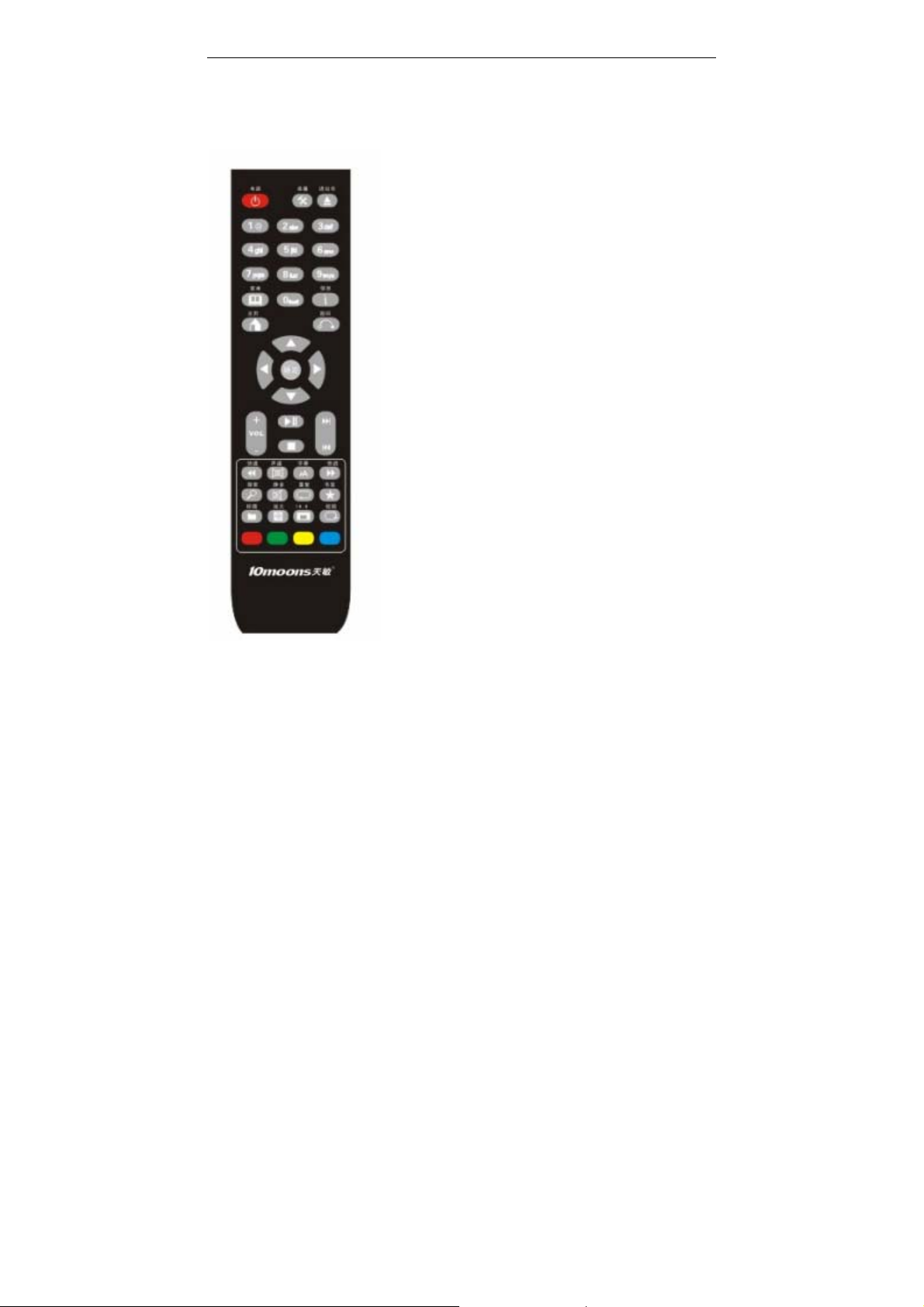
(1)RC: Remote control switch. Press for 3 seconds to enable the control.
(2)XUANYING DMP560 main unit switch: Turn on the main unit.
(3)-(8)Operation: previous, next, fast forward, fast backward, stop,
play/pause.
(9)Mute: System mute.
2
Page 10

Full Enjoy of Large Amount of Network Films Xuanying DMP560 HD Smart Player Instructions Mannual
(10)Seek: Time-selecting play button of video.
(11)Menu: Menu button to access the application programs
(12)Back: Exit program
(13)-(16)Directions: Up, down, left, right
(17)OK: To confirm and open programs
(18)Left click: Enter the selected program
(19)Right click: Exit the program
(20)-(23)Functions shortcuts: Directly enter the related options
(24)-(25)Vo l u m e
(26)-(27)Zooms in/out
(28)Home: Back to main interface
(29)All programs: Move directly from main interface to programs interface
(30)-(38)(40)Number: Input numbers
(39)(41)Invalid
(42)output: Resolution selection, invalid in present
(43)Salk: Percentage switching
(44)Repeat: Switch menu button for repeat play
(45)Sub: Recall menu button for subtitles
Remote control instructions:
A. Air mouse features: After entering the system, the mouse icon turns up and
moves by somatosensory. if the mouse icon doesn’t come out, press left click.
B. Air mouse connection: After entering the system, connection will be made
automatically, with long bright light.
C. The remote control will automatically shut down after 5 minutes of none
operation to save energy.
D. If the mouse is successfully connected (can be operated) and the indicator is
still blinking, the battery is too low.
E. If the mouse doesn’t normally work, press the left and right directional buttons
3
Page 11

Full Enjoy of Large Amount of Network Films Xuanying DMP560 HD Smart Player Instructions Mannual
and reset. Remove the batteries and try again after a few minutes if the problem
has not been solved.
Chapter Four Installation Connection and
Power-On
This chapter introduces the cable connections, power-on setups and other
operations of XUANYING DMP560 on first use.
4
Page 12
Full Enjoy of Large Amount of Network Films Xuanying DMP560 HD Smart Player Instructions Mannual
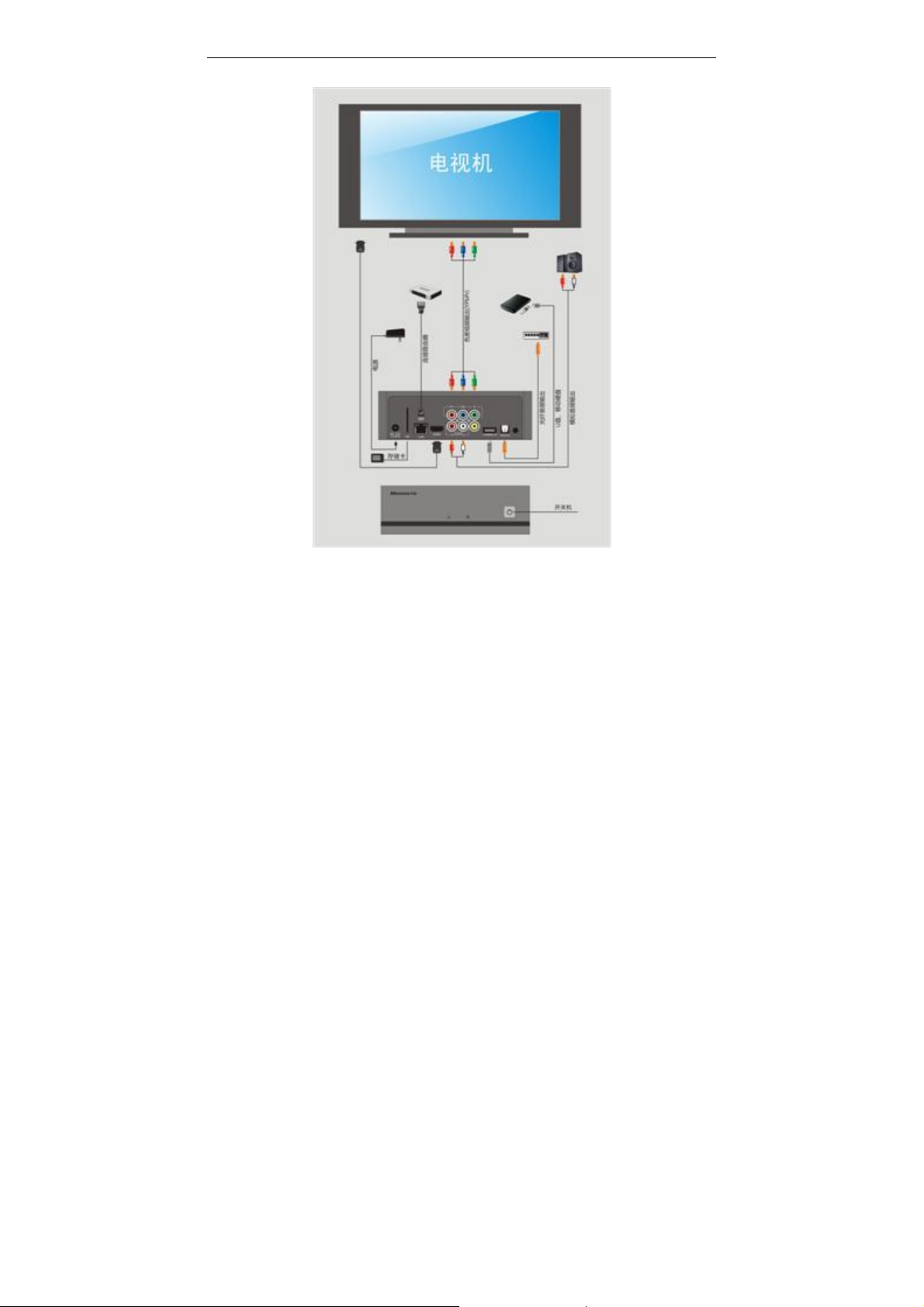
XUANYING DMP560 Cable Connections 4-1
[Connection Installation]
Please confirm the type of video input signal that your television set can
provide before using this device: the types of video output signal that
XUANYING DMP560 can provide are component video output and HDMI
audio and video signal output.
First step: Correctly connect XUANYING DMP560 to your television set. You
may choose to use the component video cable output (green, blue, red.
5
Page 13

Full Enjoy of Large Amount of Network Films Xuanying DMP560 HD Smart Player Instructions Mannual
Audio cable needs to be connected separately.) Or the HDMI output (It
is not required to connect audio cable specially.)
Second step: Power on the TV and XUANYING DMP560. After entering the
system, you may choose 720P or 1080P output
Method of resolution switch:
All programs--> resolution switch
Optional: 720P and 1080P
Note: Reboot is required for every resolution switch.
[Note]
1. Note: The television must support more than 720P color shading or
HDMI input. It must not support PAL and NTSC input of AV.
2. If XUANYING DMP560 is going to be connected to the Internet, please
put one end of the network cable into the network port of XUANYING DMP560,
the other end into the router, and set an IP address for XUANYING DMP560. (It
is suggested to open the automatic IP address distribution function of the router.)
6
Page 14
Full Enjoy of Large Amount of Network Films Xuanying DMP560 HD Smart Player Instructions Mannual
Chapter Five Main Interface Introductions
This chapter is the main interface introduction of XUANYING DMP560.
5.1 Main interface introductions
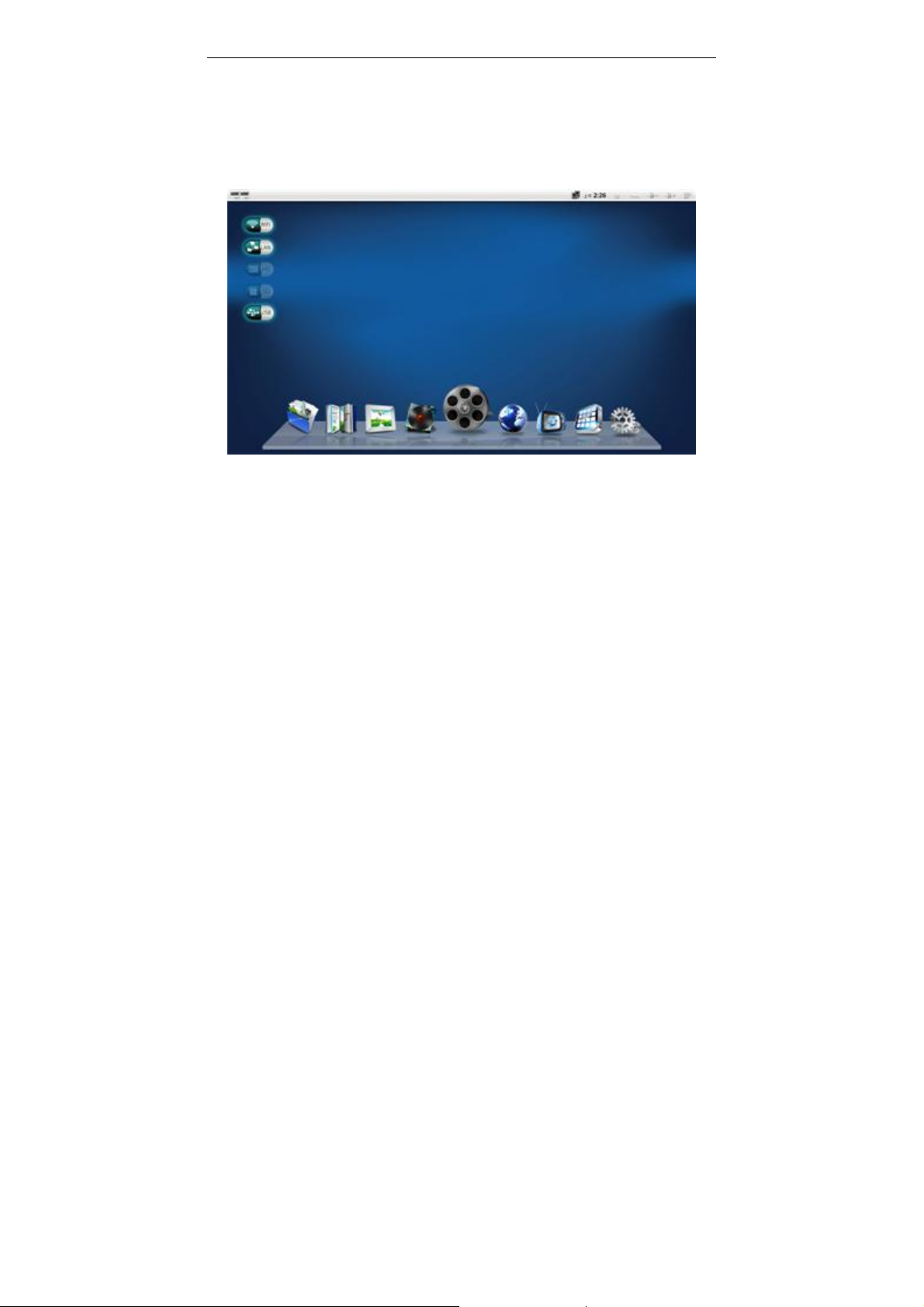
Picture 5-1
We can see from the main interface “All Files,” “Text,” “Photo,” “Music,”
“Movie,” “Browser,” “Online Video,” “All Programs” and “Setup”.
Click “All Files,” “Text,” “Photo,” “Music,” “Movie” to enter the
corresponding options of “All Files,” “Text,” “Photo,” “Music,” “Movie” of
the files browser (For specific details for using the files browser, please refer to
Chapter Seven.);
Browser: Click it to open the browser. Please refer to Chapter Seven for
specific using details.
Online video: Choose default online video websites.
All programs: Go to the interface with all application programs installed in
the system.
Setup: Go to the setup menu.
7
Page 15

Full Enjoy of Large Amount of Network Films Xuanying DMP560 HD Smart Player Instructions Mannual
Display input state of the device.
LAN light: Cable network is connected.
HD light: Intergrated movable hard disk is connected.
SD light: SD card is connected.
USB light: USB storage device is connected.
5.2 Basic operation of main interface
5.2.1 Remote control mouse operation
Left key: Select and enter the program.
Right key: Exit the program.
Mouse move: Move the remote control to realize somatosensory.
Dragging operation: Press the left click and hold to move the selected custom
icons on the main interface.
5.2.2 Operation of corresponding buttons of remote control
Direction: Choose the icon with left or right key; up and down keys are invalid.
OK: Enter the program corresponding with the selected icon.
Video: Enter “Movie” in the files browser.
Music: Enter “Music” in the files browser.
Photo: Enter “Photo” in the files browser.
Web: Open the browser.
All Files: Open the interface with all the programs.
Menu: Open the menu. (For specific using details, please refer to Chapter
Six Basic Operation of Android System.
8
Page 16

Full Enjoy of Large Amount of Network Films Xuanying DMP560 HD Smart Player Instructions Mannual
Chapter Six Basic Operation of Android
System
This chapter mainly introduces basic operations of the Android system. As
Android is an open type intelligent system, this chapter will only provide a brief
introduction. For detailed and further understandings, please check and inquire
on professional books and internet.
6.1 Status bar explanation
Picture 6-1
From right to left in sequence are “Menu,” “Volume Up,” “Volume Down,”
“Back” and “Home”.
Menu icon: Open the menus of the application programs (Take main interface as
an example.):
Volume Up: Increase the system volume.
Volume Down: Decrease the system volume.
Back: Exit the program.
Home: Exit the program and return to the main interface.
Click the left key of the mouse and hold it at status bar, drag it down and then
the running application programs of the system can be seen.
Take the main interface as an example to demonstrate the function of “Menu
Icon” at the status bar.
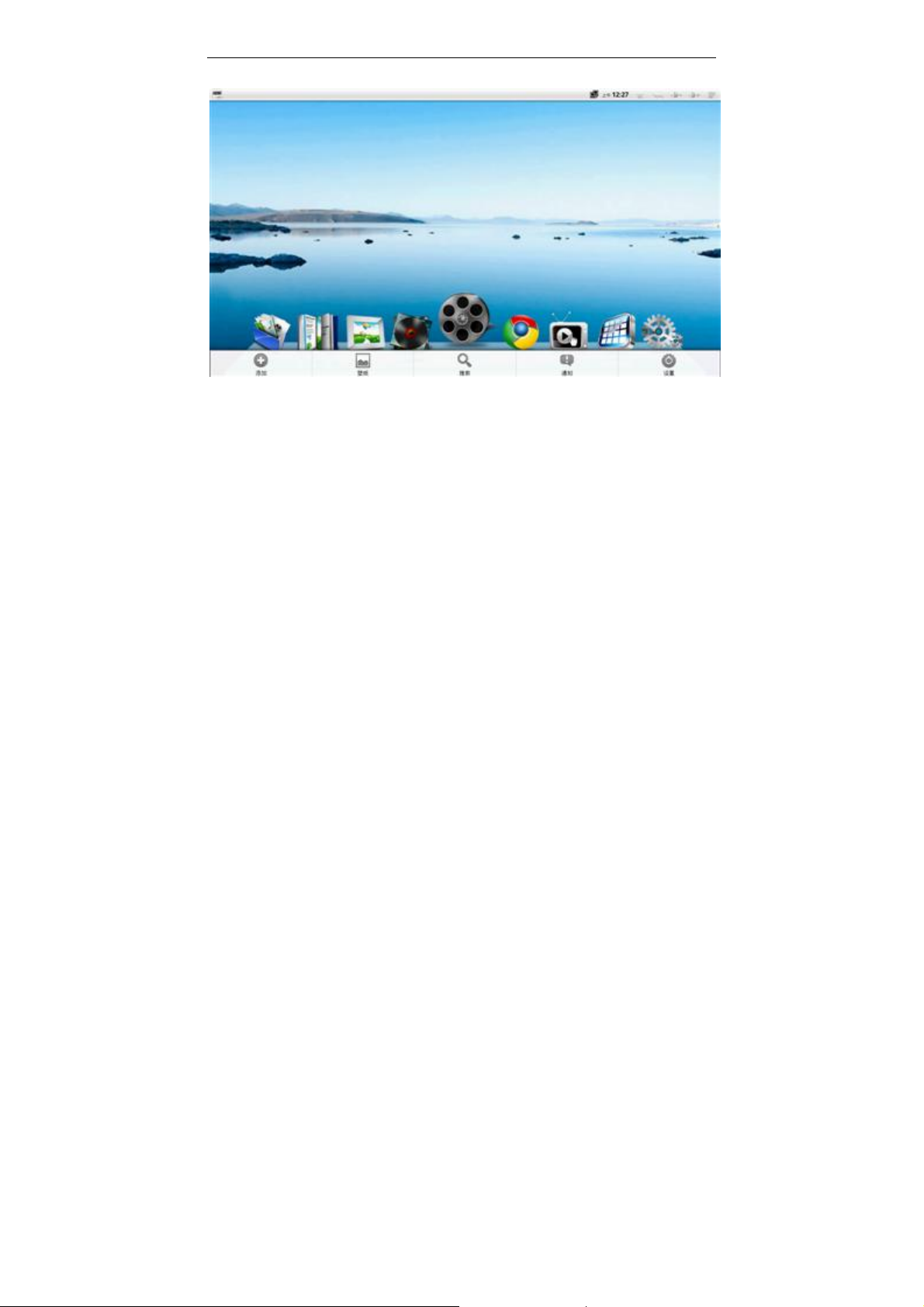
”Click “Menu” at main interface (or MENU button of the remote control)
9
Page 17
Full Enjoy of Large Amount of Network Films Xuanying DMP560 HD Smart Player Instructions Mannual
图 6-2
Wall paper can be changed and new small icons can be added to this interface.
Note: Normally this key will be used for other application programs developed
with the Android program.. Therefore, in case of unknown operations, use this
key to solve part of the operation.
6.2 Set menu description
Simple settings can be done to the main interface of the Android’s basic setup.
10
Page 18
Full Enjoy of Large Amount of Network Films Xuanying DMP560 HD Smart Player Instructions Mannual
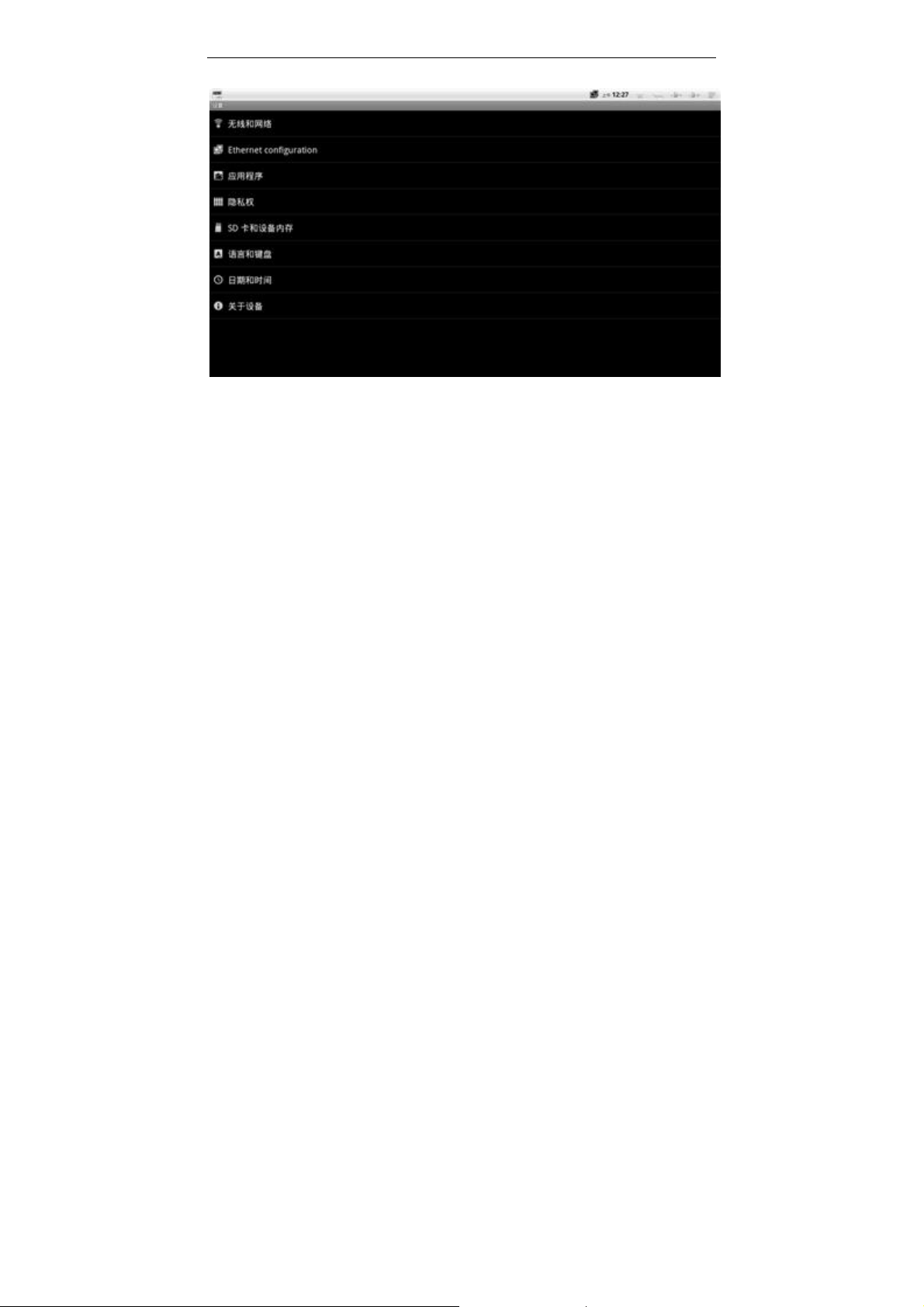
Picture 6-3
6.2.1 Wireless network settings
A. Open WIFI network. Please select this item if you want to use WIFI.
Otherwise, WIFI cannot be used.
B. WIFI settings: Wireless network setup and management.
C. Virtual private network settings: Virtual private network setup and
management.
If DHCP of the router is not opened, click Menu at Picture 6-3 interface and
setup a static IP address.
6.2.2 Cable settings
A. Open cable connection access. Please select this item if cable connection
access is required. Otherwise, cable network cannot be used.
B. If DHCP of the router is not open, select this item and fill static IP address.
6.2.3 Application programs
A. Unknown sources. This item must be selected in condition of third party
software.
B. Application programs management. Manage and install application
11
Page 19
Full Enjoy of Large Amount of Network Films Xuanying DMP560 HD Smart Player Instructions Mannual
programs.
C. Other items: As Android is an open type system, other items are for advanced
user. Here we will make no further explanations.
6.2.4 Privacy settings
Restore to factory defaults.
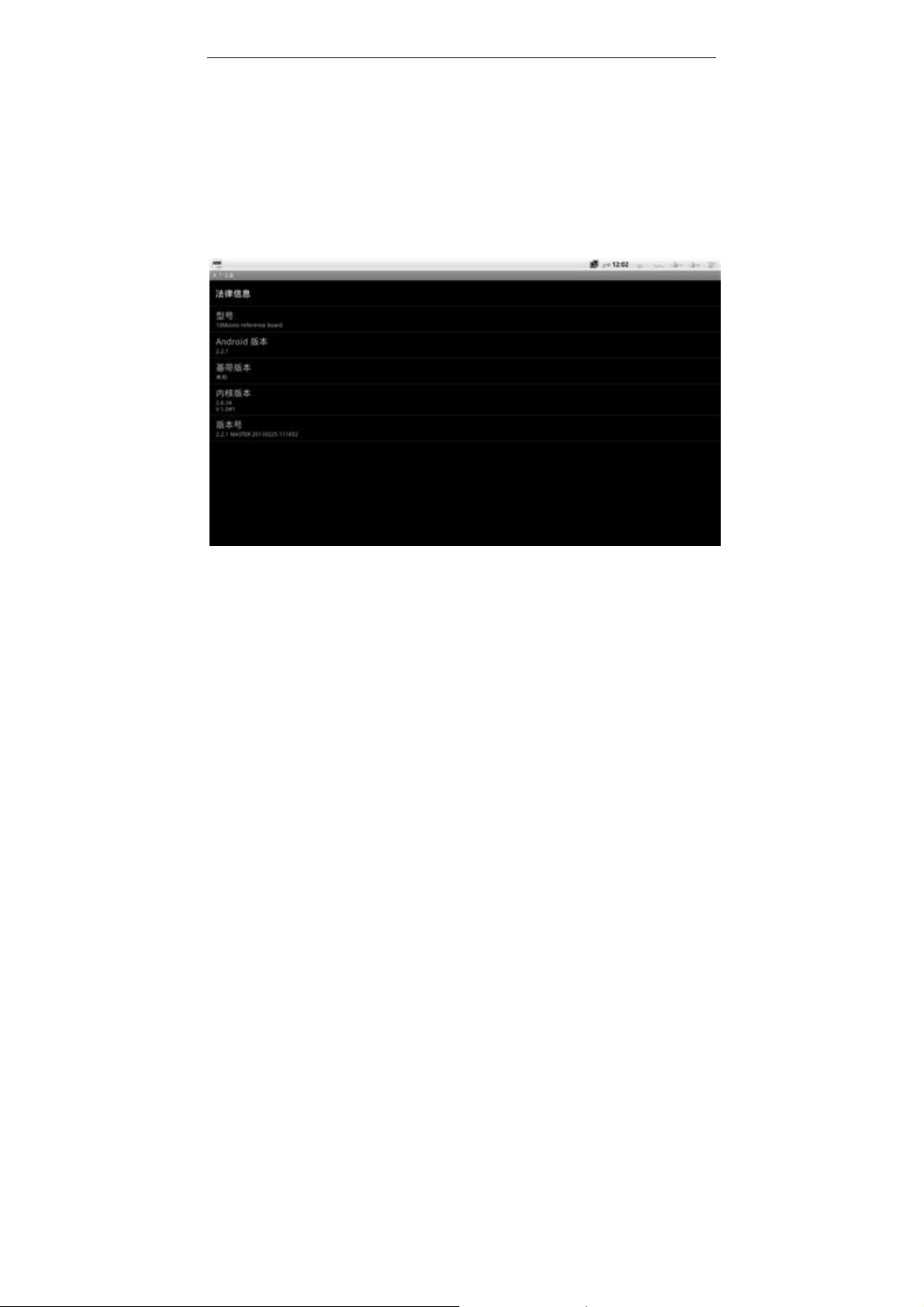
6.2.4 About the machine
You may check the software version used on this interface.
Picture 6-4
6.2.5 Other items
Other items can be set according to system suggestions. Here there will be no
further explanations.
6.3 Browser application
12
Page 20
Full Enjoy of Large Amount of Network Films Xuanying DMP560 HD Smart Player Instructions Mannual
Picture 6-5
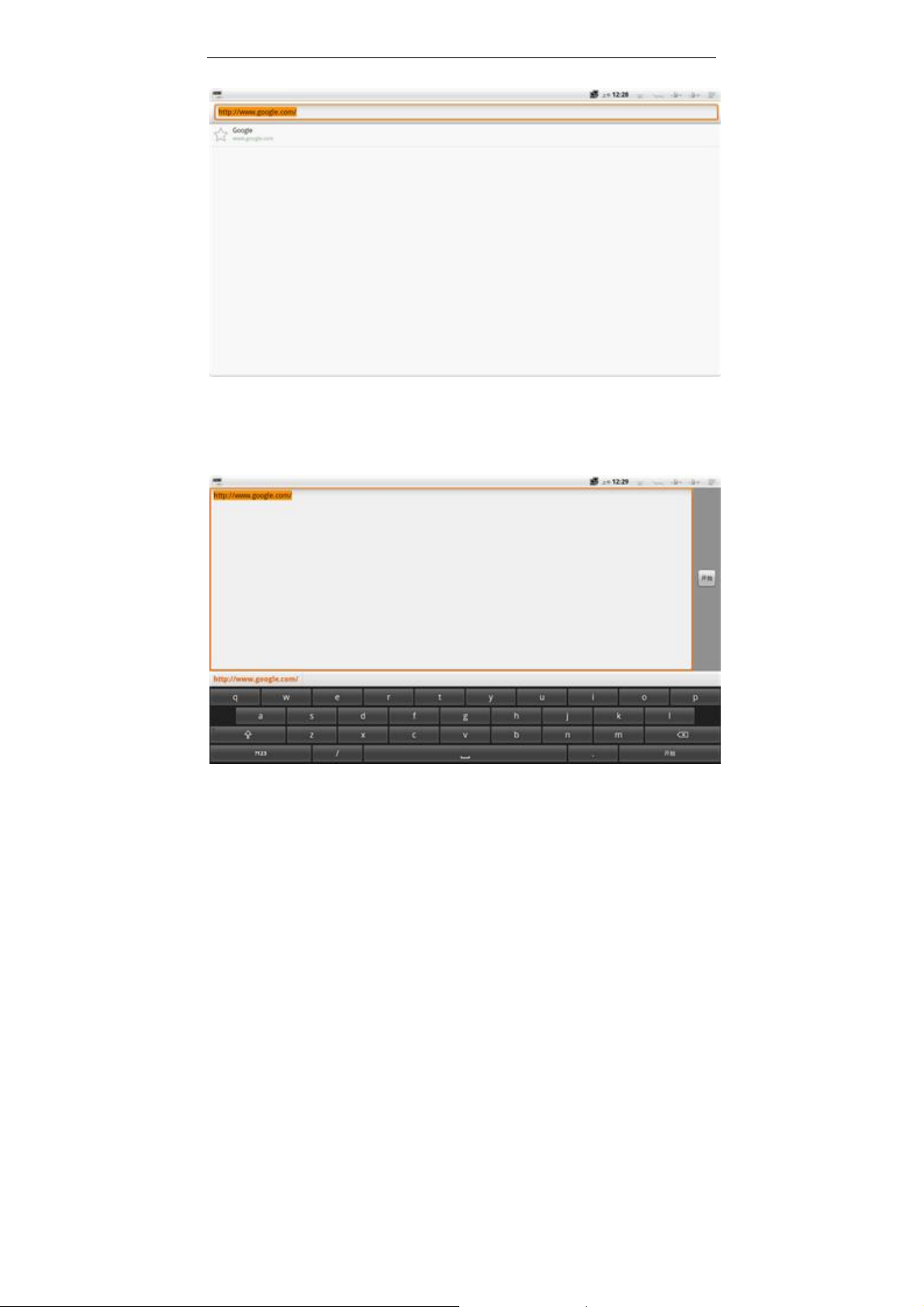
6.3.1 Function operation statement
A. Input the website. Left click on the mouse at the input area and the screen’s
English keyboard will come out.
Picture 6-6
13
Page 21

Full Enjoy of Large Amount of Network Films Xuanying DMP560 HD Smart Player Instructions Mannual
B. Left click on the mouse and hold at the input area and choose the input
method that you want to switch to.
C. “Menu”: Open the menu, add more windows, save labels and other functions.
Note: Writings in the input area can be found referring to A and B. This is an
important operation.
14
Page 22
Full Enjoy of Large Amount of Network Films Xuanying DMP560 HD Smart Player Instructions Mannual
Chapter Seven Application Programs
Introduction
This chapter describes related operations of movie, music and photo play,
file management browsing and net browser.
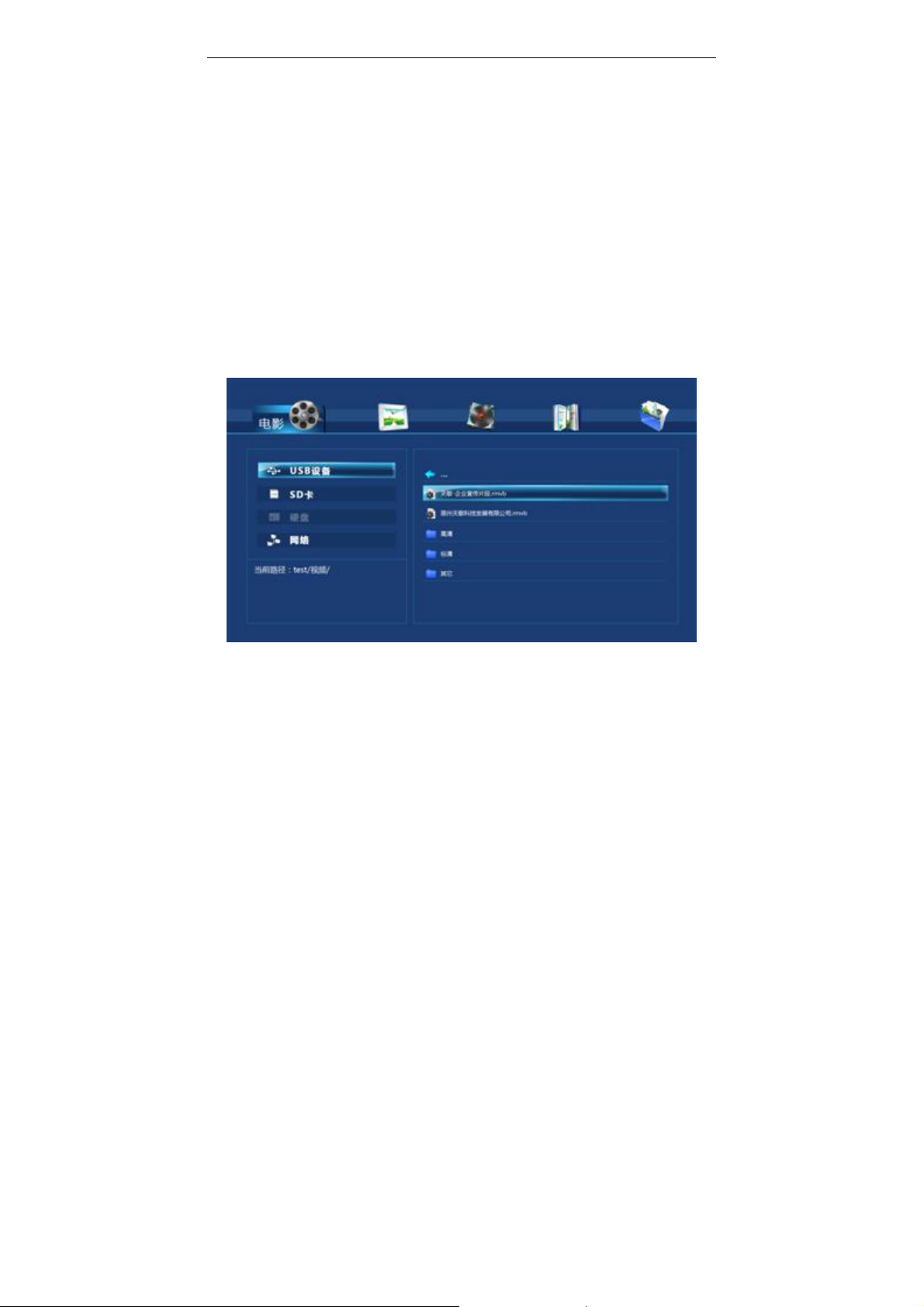
7.1 File browser introduction
Enter file browser through “All files,” “Text,” “Photo,” “Music,” and “Movie”
of main interface.
Picture 7-1
7.1.1 [Remote control instructions]
Left and right direction button: “All files,” “Text,” “Photo,” “Music,””
Movie” switching;
Up and down direction button: Select files in the catalogue of the
equipment.
15
Page 23

Full Enjoy of Large Amount of Network Films Xuanying DMP560 HD Smart Player Instructions Mannual
Volume and Mute button: Adjust the volume of audio output.
Ok: Play the current selected file, or enter the current selected catalogue.
Back: Return.
Web: Switch the images of network function interface.
Video: Enter “Movie” into the files browser.
Music: Enter “Music” into the files browser.
Photo: Enter “Photo” into the files browser.
Left click of the mouse is to confirm and right click is to return.
7.1.2 Function introduction
A. Files filtering function: The Files browser of this machine is equipped with
a files filtering function so users can simply and quickly find their files. For
example, if “Movie” is selected, only suffixes of video files in this option will be
displayed and other files will not be shown so users are able to find their needed
files fast. It is the same with “Music” and “Photo.” The “All files” option
displays files in the storage device and network APK program can be setup here.
B. Functions to read LAN sharing files: Select “Net”. LAN sharing files are
accessible if there are any in the LAN computers.
7.2 Movie player introduction
Select video files using files browser and choose the movie player to play.
7.2.1 Remote control buttons introduction
Play/Pause: Pause or resume to play.
Fast Forward/Backward: Fast forward or backward the movie, maximum 8
times.
Previous/Next: Previous file and next file.
Stop: Exit playing.
Sub: Access the subtitles menu.
Salk: Access the video scale menu.
Repeat: Access the repeat play menu.
Back: Exit and return to files browser.
16
Page 24
Full Enjoy of Large Amount of Network Films Xuanying DMP560 HD Smart Player Instructions Mannual
Seek: Jump to a selection.
Mouse left click: Hide or access the control bar.
Mouse right clicks: Exit and return to the files browser.
Home: Exit and return to the main interface.
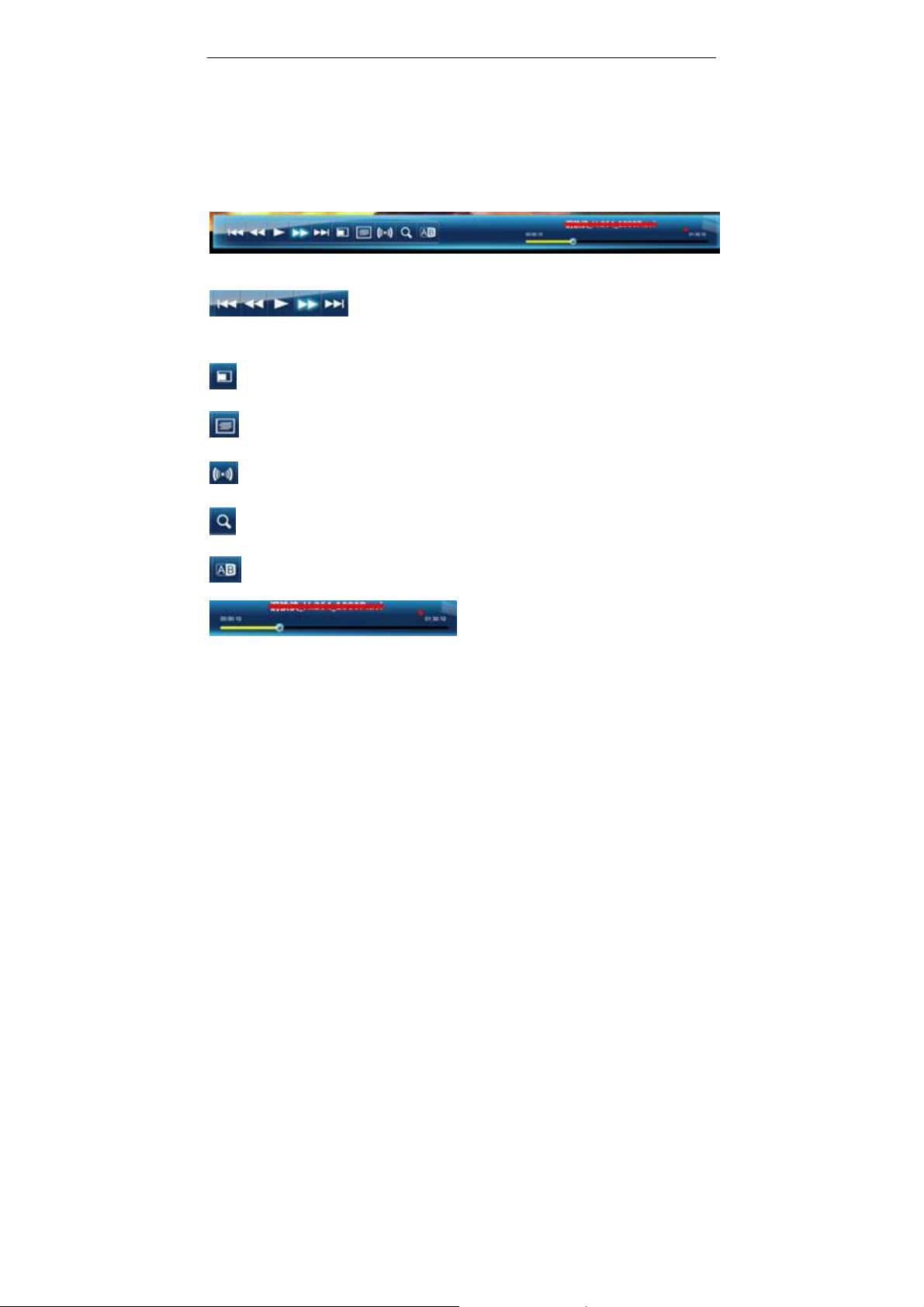
7.2.2 Toolbar introduction
Click the right key of the mouse to get this menu.
“Previous,” “Fast Backward,” “Play/Pause” and “Fast
Forward” functions.
: Access the scale menu.
: Access the subtitles menu.
: Access the track switching menu.
: Access the time-selecting play menu.
: Access the repeat play menu.
: Click left key of the mouse to drag the
play bar of time-selecting play.
7.3 Music player introduction
Select music files using files browser and choose the movie player to play.
7.3.1 Remote control buttons introduction
Play/Pause: Pause or resume to play.
Previous and Next: Previous file and next file.
17
Page 25
Full Enjoy of Large Amount of Network Films Xuanying DMP560 HD Smart Player Instructions Mannual
Stop: Exit.
Sub: Full screen lyrics switching.
All files: Get music play list.
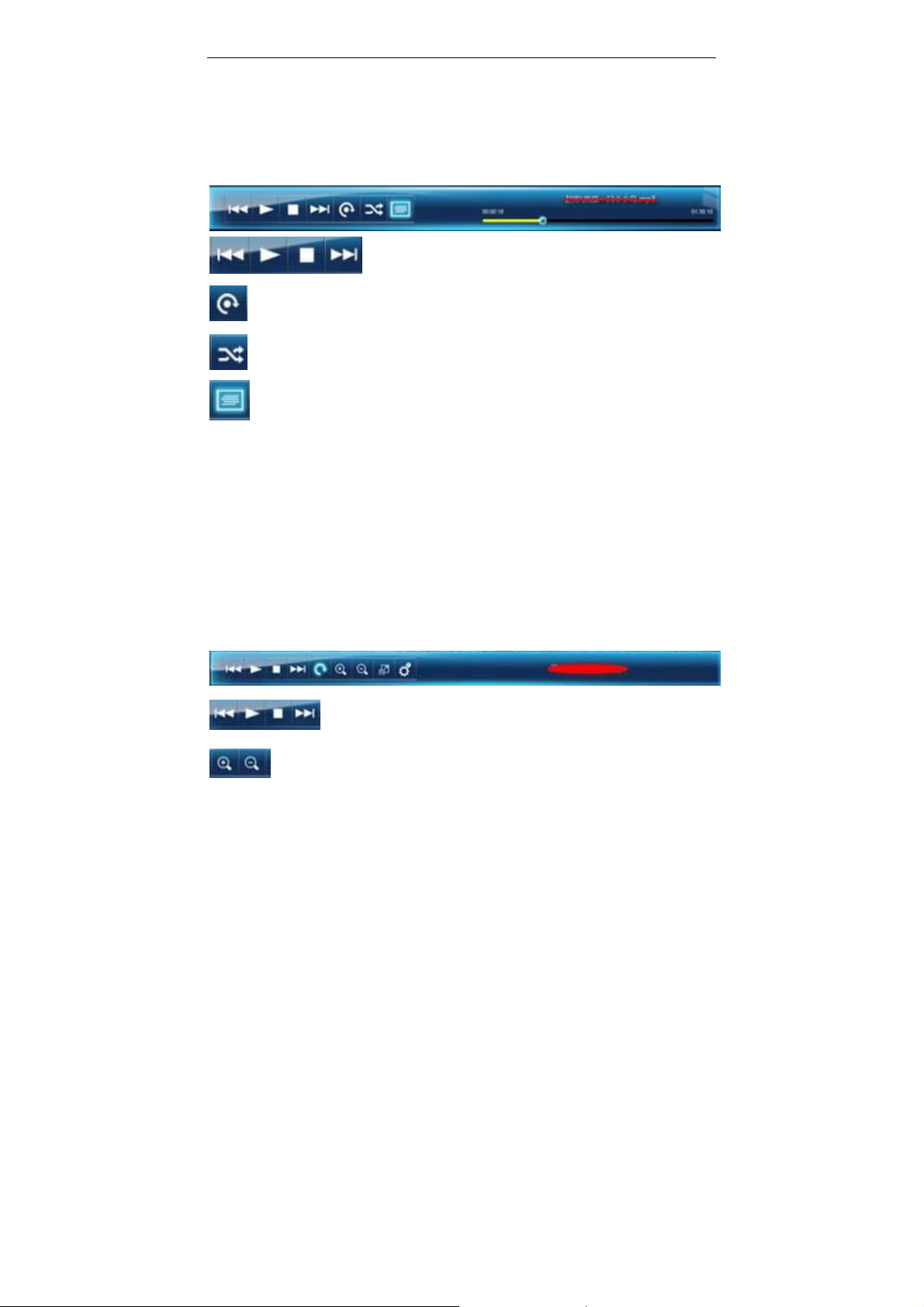
7.3.2 Toolbar introduction
“Previous”, “Next”, “Play/Pause”, “Stop”
Repeat and One-repeat
Sequence play and Random play
Full screen lyrics display
7.4 Photo browser introduction
Select photo files using files browser and choose movie player to open the photo
player.
7.4.1 Remote control button introduction
Play/Pause: Pause and resume to play.
Previous and Next: Previous file and next file
Stop: Exit.
Zoom In/Out: Enlarge or reduce the images.
7.4.2 Toolbar introduction
“Previous”, “Next”, “Play/Pause”, “Stop”
Zoom in or out
18
Page 26

Full Enjoy of Large Amount of Network Films Xuanying DMP560 HD Smart Player Instructions Mannual
Photo spinning
Photo ratio Settings
Chapter Eight Common Problems and
Treatment
This chapter contains common problems and treatment of XUANYING
DMP560.
Q1. What to do when the equipment crashes or buttons won’t respond?
Check the indicator light at the front of the movable storage device. If the
red and green lights frantically flash , please wait for a second and then operate,
as the equipment may be reading hard disk data. If it is clear that the equipment
crashed, power off from the remote control or press the power control button on
the machine body, connect to power and use again.
Q2. What to do when there’s an abnormal start of the XUANYING
DMP560, or no image outp ut?
Check the equipment following these steps:
1) Check if the power indicator light of the XUANYING DMP560 is on. If
not, please check if the power is properly connected.
2) Check if there is signal output of TV images. If not, please check if the
video output cable is properly connected and the correct video channel output
(Color component or HDMI) is setup on the TV set. It should support 720P input
and above.
19
Page 27

Full Enjoy of Large Amount of Network Films Xuanying DMP560 HD Smart Player Instructions Mannual
3) Remove the SD card, U-disk at USB socket or removable hard disk.
Plug in and use after normal start up.
4) As it is an intelligent system, third party software is allowed to be
installed. Therefore, it might conflict with third party software. Find out the
conflicting software and delete.
Q3. What to do when the player cannot play?
First, please be sure that the film format of this video file is supported by
the XUANYING DMP560. Then, the equipment must be in normal working
order. It is suggested to reboot the equipment and play again to verify. If the file
still cannot be opened, then this video file may be noncompliant with the
XUANYING DMP560 supported video files format regulations.
Q4. What to do when no network access to the main interface?
1) Please check if the player has network access.
2) Please check if the network cable is damaged.
3) Please check if the router is in normal working order.
4) Please check if the DHCP of the router is opened. If not, please setup
IP address.
5) Please check if wireless network is accessible when using a wireless
network card. Please check if the DHCP of the router is opened. If not,
please setup IP address.
Q5. What to do when DNS errors prompt to network great film
recommendation or hot searches?
1) Please check if the IP address, subnet mask, gateway and NDS of the
player are correctly setup.
2) Please select automatically capture of IP address at Network Settings
and make sure that the DNS service of the router is enabled.
3) Please check if the network is in normal working state.
Q6. Is an update patch provided to this product?
The software used in this product is intelligent control system and open to
20
Page 28

Full Enjoy of Large Amount of Network Films Xuanying DMP560 HD Smart Player Instructions Mannual
program patches. Please pay attention to the official website and forum release
of our company.
Appendix
Aboutthisinstructions
As there will be continuous updating and improving to the inbuilt software
of XUANYING DMP560, some descriptions of the instructions might not
comply with practical operations. Please take practical operations as standard.
Additionally, as it is Android control system, the description might not be utmost
detailed. Please check relevant books and network resources for reference.
21
Page 29

FCC information to the user
This device complies with part 15 of the FCC Rules. Operation is subject to the following two
conditions: (1) This device may not cause harmful interference, and (2) this device must accept any
interference received, including interference that may cause undesired operation.
Note: This equipment has been tested and found to comply with the limits for a Class B digital device,
pursuant to part 15 of the FCC Rules. These limits are designed to provide reasonable protection
against harmful interference in a residential installation. This equipment generates, uses and can
radiate radio frequency energy and, if not installed and used in accordance with the instructions, may
cause harmful interference to radio communications. However, there is no guarantee that interference
will not occur in a particular installation. If this equipment does cause harmful interference to radio or
television reception, which can be determined by turning the equipment off and on, the user is
encouraged to try to correct the interference by one or more of the following measures:
—Reorient or relocate the receiving antenna.
—Increase the separation between the equipment and receiver.
—Connect the equipment into an outlet on a circuit different from that to which the receiver is
connected.
—Consult the dealer or an experienced radio/TV technician for help.
Caution: changes or modifications not expressly approved by the party responsible for compliance
could void the user's authority to operate the equipment.
 Loading...