

Page 1
X-Micro Combo Bluetooth Printer Adapter
Quick St art Guide
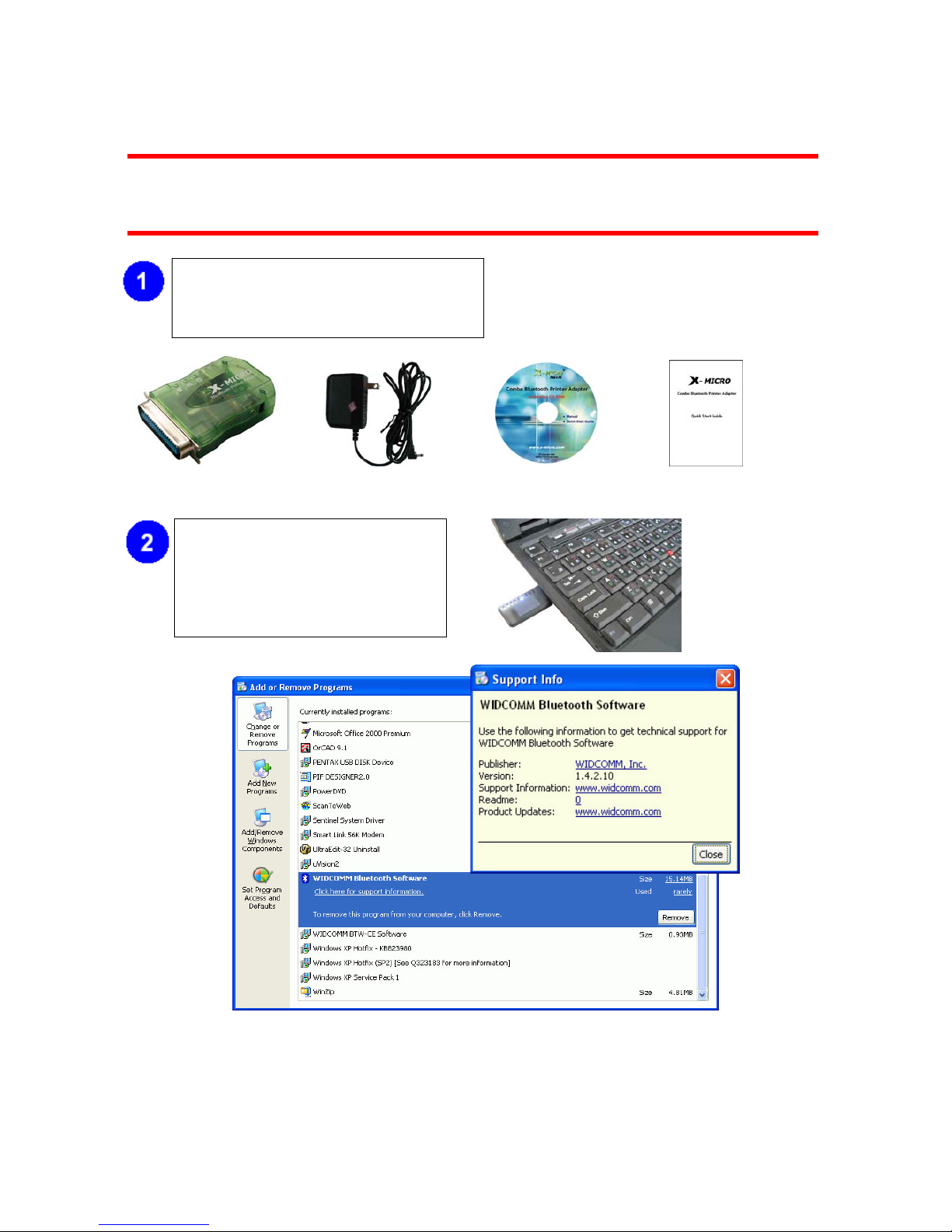
Check your package, there are
X-Micro Combo Bluetooth Printer
A
dapter, 7.5V DC adapter, Utility CD and
this Quick Start Guide.
X-Micro Combo Bluetooth
Printer Adapter
7.5V DC adapter Utility-CD Quick Start Guide
Check your PC, there must be a
Bluetooth USB dongle plus
Widcomm or Windows XP
Bluetooth driver installed. If there is
NOT, you shall purchase one, and
install the driver.
Page 2
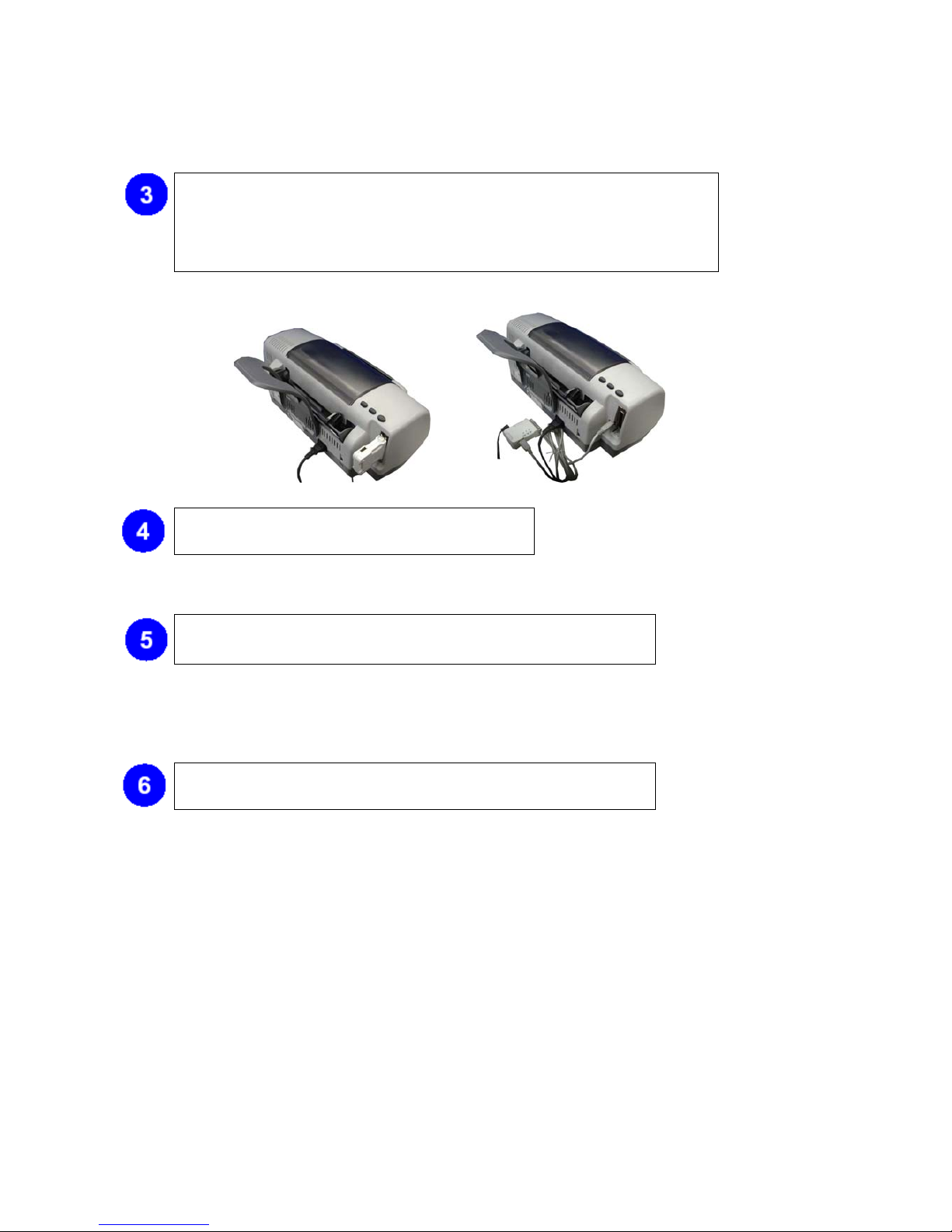
Connect X-Micro Combo
Bluetooth Printer Adapter
to parallel port of your
printer.
ODER
Connect one end of USB cable
to X-Micro Combo Bluetooth
Printer Adapter, and connect
another end to USB port of
your printer.
Power on your printer, wait until it is ready.
Apply power to X-Micro Combo Bluetooth Printer Adapter by
using the accompanied 7.5V DC adapter.
1. Power LED will be on.
2. Bluetooth LED will be blinking once a second.
Power on your PC, follow the steps mentioned in next four
pages to :
1. Find your X-Micro Combo Bluetooth Printer Adapter device.
2. Add a printer driver to work with this X-Micro Combo Bluetooth Printer Adapter device.
3. Start your normal printing.
Page 3
MY BLUETOOTH PLACES
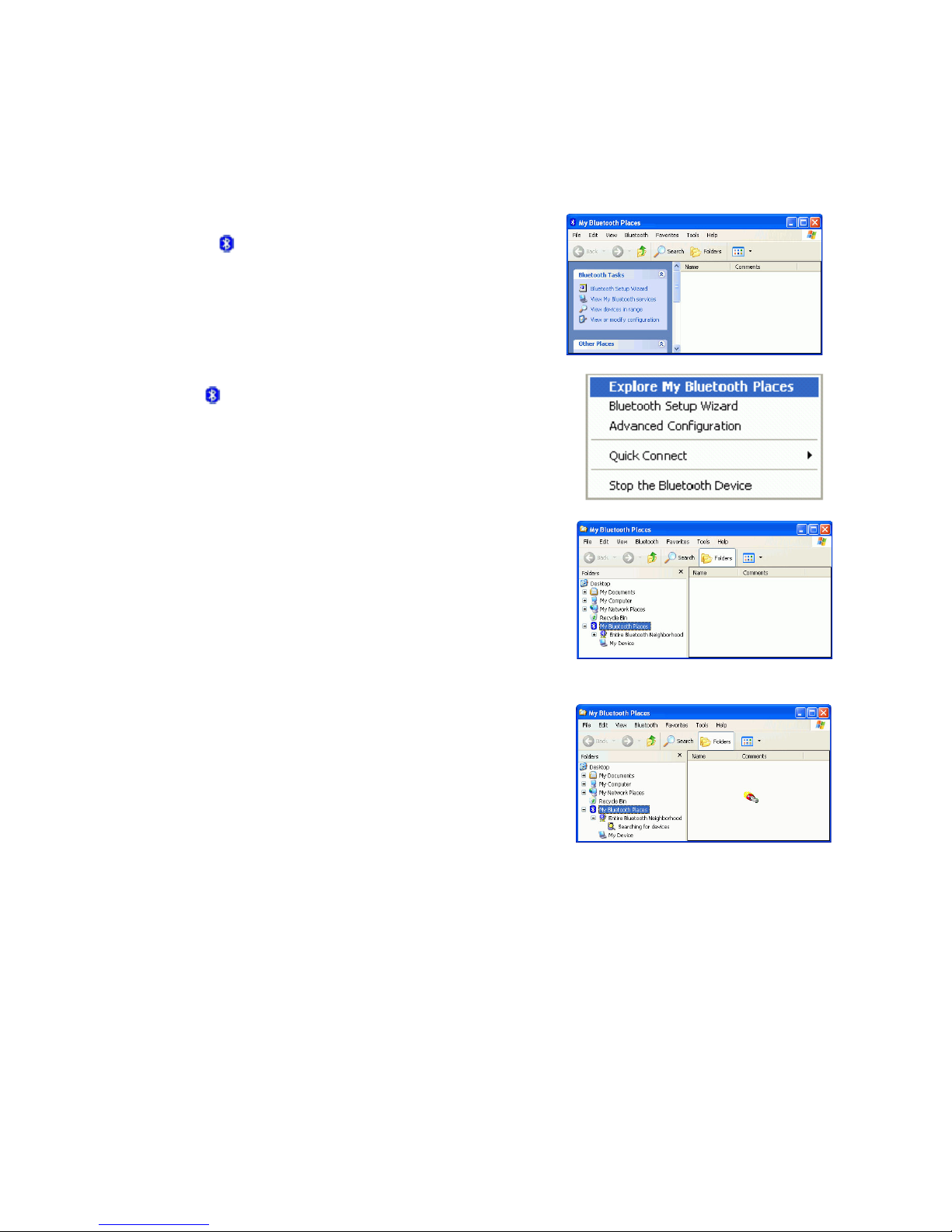
Step 1 :
Methode 1:
Double click
on your desktop.
Click Folder on the toolbar. Folder window will
appear on left side of your screen.
Methode 2:
Right click
on the lower right hand corner of
your screen.
Select Explore My Bluetooth Places.
Two folders appear on the window. They are :
Entire Bluetooth Neighborhood
and My Device..
Step 2 :
Click Entire Bluetooth Neighborhood to search for
devices available to you. Once Bluetooth devices
are detected, their icons together with device
names will be displayed on the screen.
Page 4
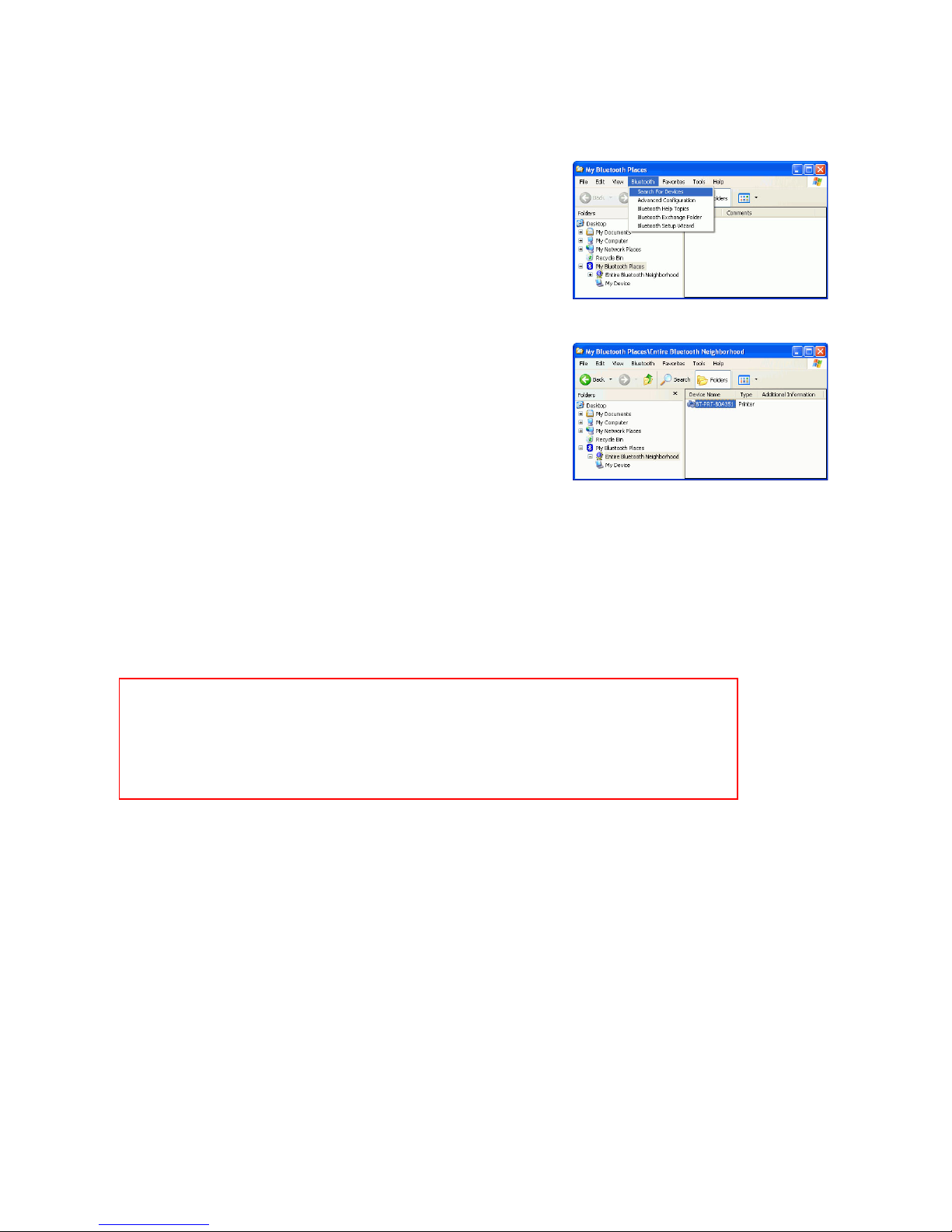
You also may start a search for devices by
clicking Bluetooth from the toolbar.
Step 3:
In this example, One Bluetooth printer device is
found in your Bluetooth neighborhood.
This is the service we want to know. We will look
at it later
The “My Bluetooth Places“ program provides an easy way to find different application services
through Bluetooth connections. A variety of Bluetooth services and explanations can be found
in the “Help file“ of the “My Bluetooth Places“ program.
Note :
If you are using Widcomm Bluetooth driver in your Windows XP system, please
refer to User Manual (Widcomm) in CD for detail.
If you are using Windows Native Bluetooth driver for your Windows XP system,
please refer to you User Manual (XP) for detail.
Page 5
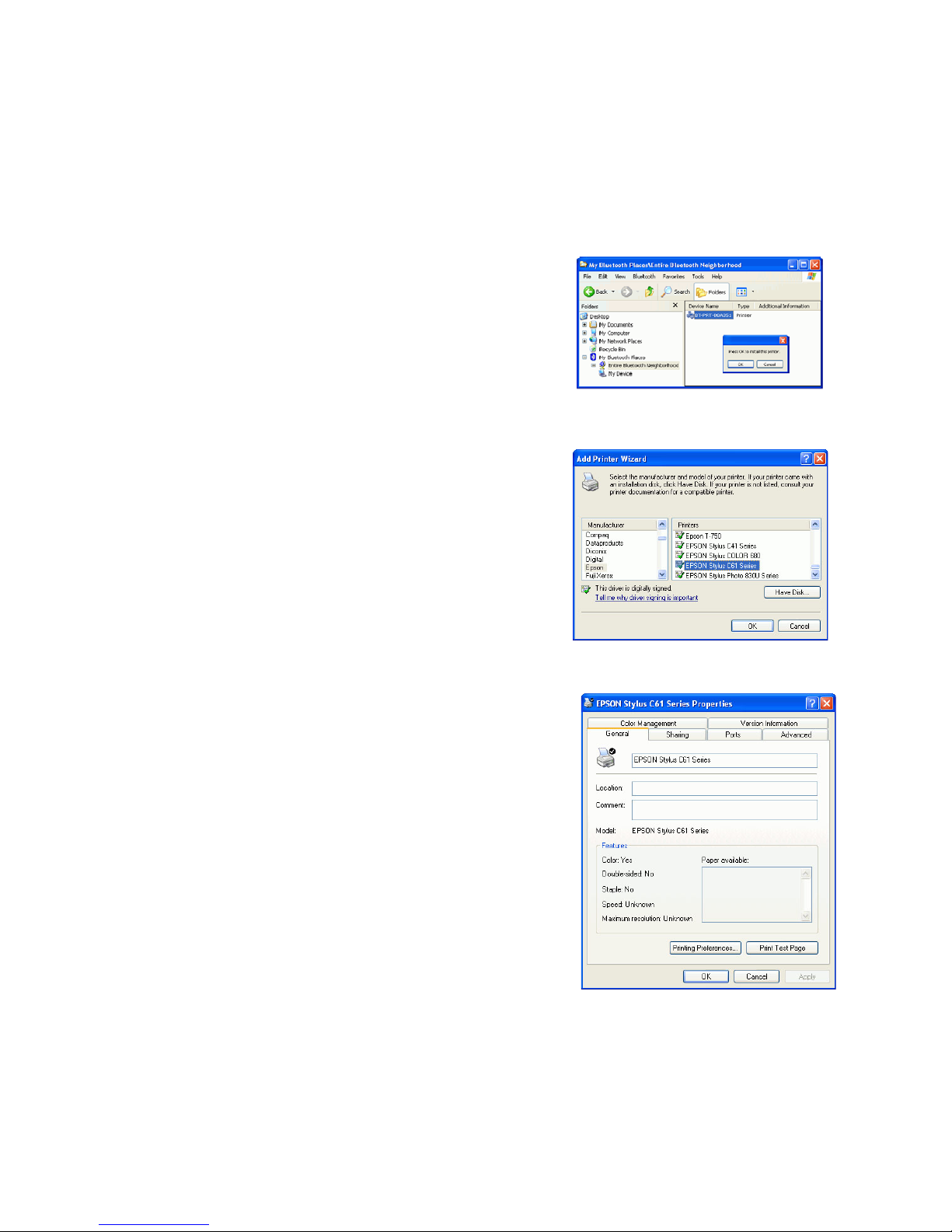
ADD LOCAL PRINTER
In the following example, we assume a X-Micro Combo Bluetooth Printer Adapter (with series# :
BT-PRT-B0A351) is connected to an EPSON Stylus C61 printer.
Step 1 :
From MY BLUETOOTH PLACES, Right click on
Printer Adapter folder (with series# :
BT-PRT-B0A351), then select OK to install a
printer driver for it.
Step 2 :
Add Printer Wizard will show up, find the brand
name and model number of the printer driver you
want this Printer Adapter to use. It will ask you to
install the printer driver if it has not been installed
in your system before. If the driver has been
installed, Add Printer Wizard will pass very quickly.
In this example, we select EPSON Stylus C61 as
the printer, supposed its driver was installed
before, so just click OK to continue.
Step 3:
You can assign a name such as EPSON Stylus
C61 Series to the Printer Adapter just selected. At
end user side, you will only find a printer named
EPSON Stylus C61 Series, you will not see any
printer named BT-PRT-B0A351.
Click OK to complete the installation.
Page 6
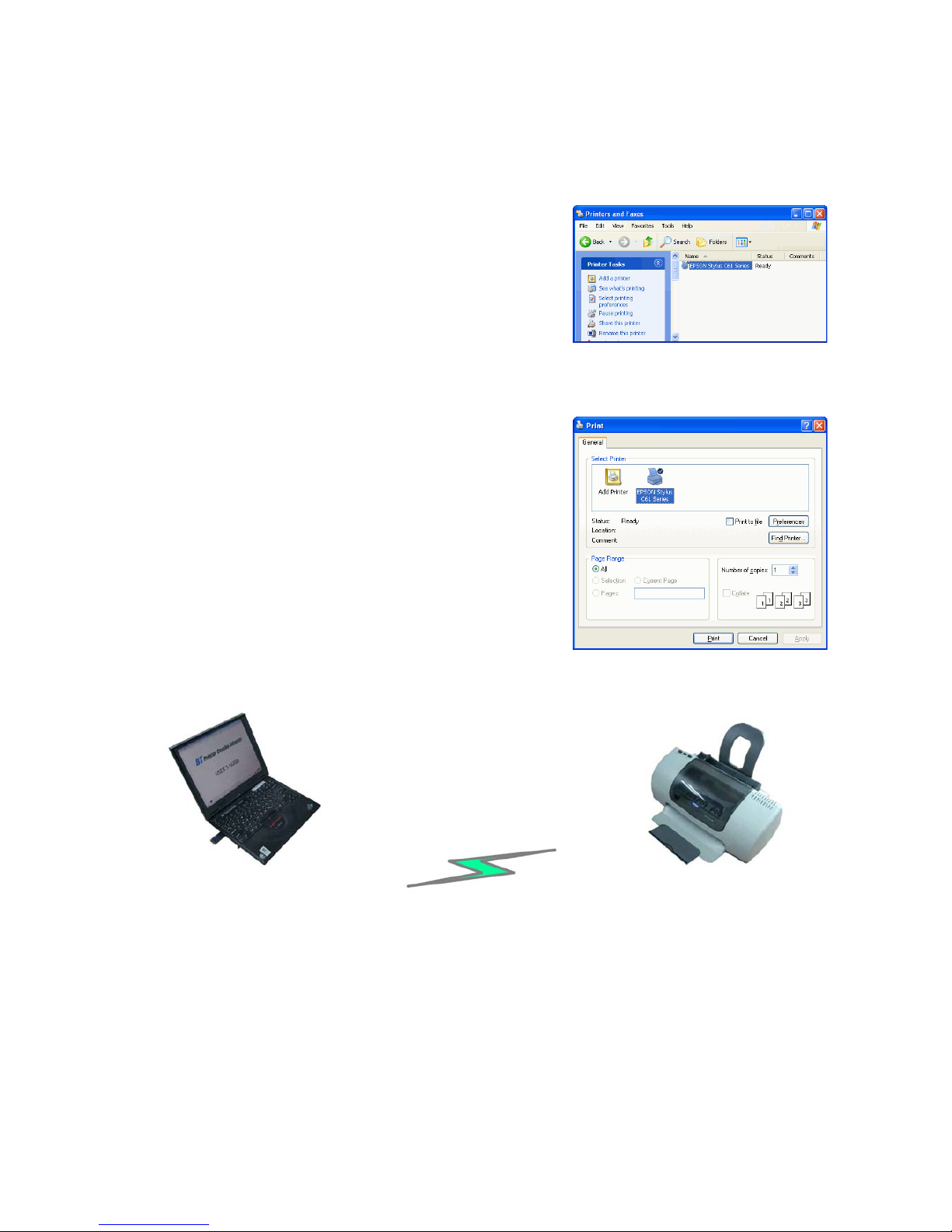
START PRINTING
Click My Computer icon on the desktop screen,
select Control Panel, select Printers and Faxes,
then you can find a Bluetooth Printer is there :
EPSON Stylus C61 Series.
Print a file by using Printer Adapter is quite
straigth forward, it is just like the normal way you
are printing a file.
For EPSON Stylus C61 Series :
When page range and number of copies screen
prompts, select EPSON Stylus C61 Series
printer, then click OK.
EPSON Stylus C61 Series
 Loading...