

Page 1

Bluetooth Stereo Media Phone
User’s Manual
With additional Operation Instruction
for Skype using IVT software
Version1.0
Page 2

1
Copyright
Copyright 2005 by X-Micro Technology Corp., All rights reserved. No part of
this publication may be reproduced, transmitted, transcribed, stored in a
retrieval system, or translated into any language or computer language, in
any form or by any means, electronic, mechanical, magnetic, optical,
chemical, manual or otherwise, without the prior written permission of X-Micro
Technology Corp.
Disclaimer
X-Micro Technology Corp. makes no representations or warranties, either
expressed or implied, with respect to the contents hereof and specifically
disclaims any warranties, merchantability or fitness for any particular purpose.
Any software described in this manual is sold or licensed "as is". Should the
programs prove defective following their purchase, the buyer (and not this
company, its distributor, or its dealer) assumes the entire cost of all necessary
servicing, repair, and any incidental or consequential damages resulting from
any defect in the software. Further, X-Micro Technology Corp., reserves the
right to revise this publication and to make changes from time to time in the
contents hereof without obligation to notify any person of such revision or
change.
All brand and product names mentioned in this manual are trademarks and/or
registered trademarks of their respective holders.
Page 3

2
INFORMATION TO USER
Model Name: XBT-DG7X, XBT-HS3X
Federal Communication Commission Interference Statement
This equipment has been tested and found to comply with the limits for a
Class B digital device, pursuant to Part 15 of the FCC Rules. These limits are
designed to provide reasonable protection against harmful interference in a
residential installation.
This equipment generates, uses and can radiate radio frequency energy
and, if not installed and used in accordance with the instructions, may cause
harmful interference to radio communications. However, there is no
guarantee that interference will not occur in a particular installation. If this
equipment does cause harmful interference to radio or television reception,
which can be determined by turning the equipment off and on, the user is
encouraged to try to correct the interference by one of the following
measures:
* Reorient or relocate the receiving antenna.
* Increase the separation between the equipment and receiver.
* Connect the equipment into an outlet on a circuit different from that to which
the receiver is connected.
* Consult the dealer or an experienced radio/TV technician for help.
Page 4
3
This device complies with Part 15 of the FCC Rules. Operation is subject
to the following two conditions: (1) This device may not cause harmful
interference, and (2) this device must accept any interference received,
including interference that may cause undesired operation.
FCC Caution: Any changes or modifications not expressly approved by the
party responsible for compliance could void the user's authority to operate
this equipment.
IMPORTANT NOTE:
FCC Radiation Exposure Statement:
* This equipment complies with FCC radiation exposure limits set forth for
an uncontrolled environment.
This equipment should be installed and operated with minimum distance
20cm between the radiator & your body.
* This transmitter must not be co-located or operating in conjunction with
any other antenna or transmitter.
Page 5

4
TABLE OF CONTENT
1.Introduction .................................................................................................6
1.1 Bluetooth Stereo Headset
1.2 Package Contents
2. Headset Features ..................................................................................... 6
3. LED Indication .......................................................................................... 7
4. Charge Battery and Reset the Headset ................................................... 7
4.1 Charge Battery
5. Turn On / Off the Headset ........................................................................ 8
5.1 To turn the Headset On
5.2 To turn the Headset Off
6. Connect With PC/Notebook ..................................................................... 8
6.1 Pair with your PC/Notebook
6.2 Play Music with PC and Notebook
6.2.1 Button Functionality Under Music Mode
7. Connect with Skype ……..................................................................... …..13
7.1 Configure Audio Gateway to work with Skype
7.2 Pair Headset with PC
7.3 Establish Link between BTW Software and Skype
7.4 Configure Skype’s Settings
7.5 Basic Operation within Skype Mode
8. Link with Mobile Phone............................................................................. 18
8.1 Pairing
8.2 Connect with Mobile Phone
8.3 Answer & End a Phone Call
Page 6

5
9. Multiple Links ………………………….................................................. ….23
9.1 Pair both side first
9.2 Switch between Mobile Phone and PC(music)
9.3 Switch between PC(music) and PC(Skype)
9.4 Switch between Mobile phone and PC(Skype)
10. FAQ ..................................................................................................... ..25
11. Support………. ....................................................................................27
Page 7

6
1 INTRODUCTION
Thank you for your purchasing of our X-Micro Bluetooth Stereo Media
Phone. Bluetooth is a technology which is very popular in short range
wireless communication. It allows wireless connections between Bluetooth
devices such as cellular phones, personal digital assistants (PDA), desktop
and notebook computers, input-output devices (mouse, keyboards,
printers)...etc.
1.1 Bluetooth Stereo Headset
This Bluetooth headset offers the latest innovation in Bluetooth
technology. It features crystal clear stereo sound, which is a remarkable
break through that others do not have. With this Bluetooth stereo headset,
you can connect it wirelessly with other Bluetooth devices such as mobile
phone, desktop or notebook computer, PDA (with audio gateway profile
supported) within a range of 10 meters. (BTW software version 2.0.1.2101
or higher is recommended.)
1.2 Package Content
* Bluetooth stereo headset.
* Detachable stereo earpiece with
microphone.
* USB cable.
* User’s manual.
* 5VDC power adapter (Optional)
2 HEADSET FEATURES
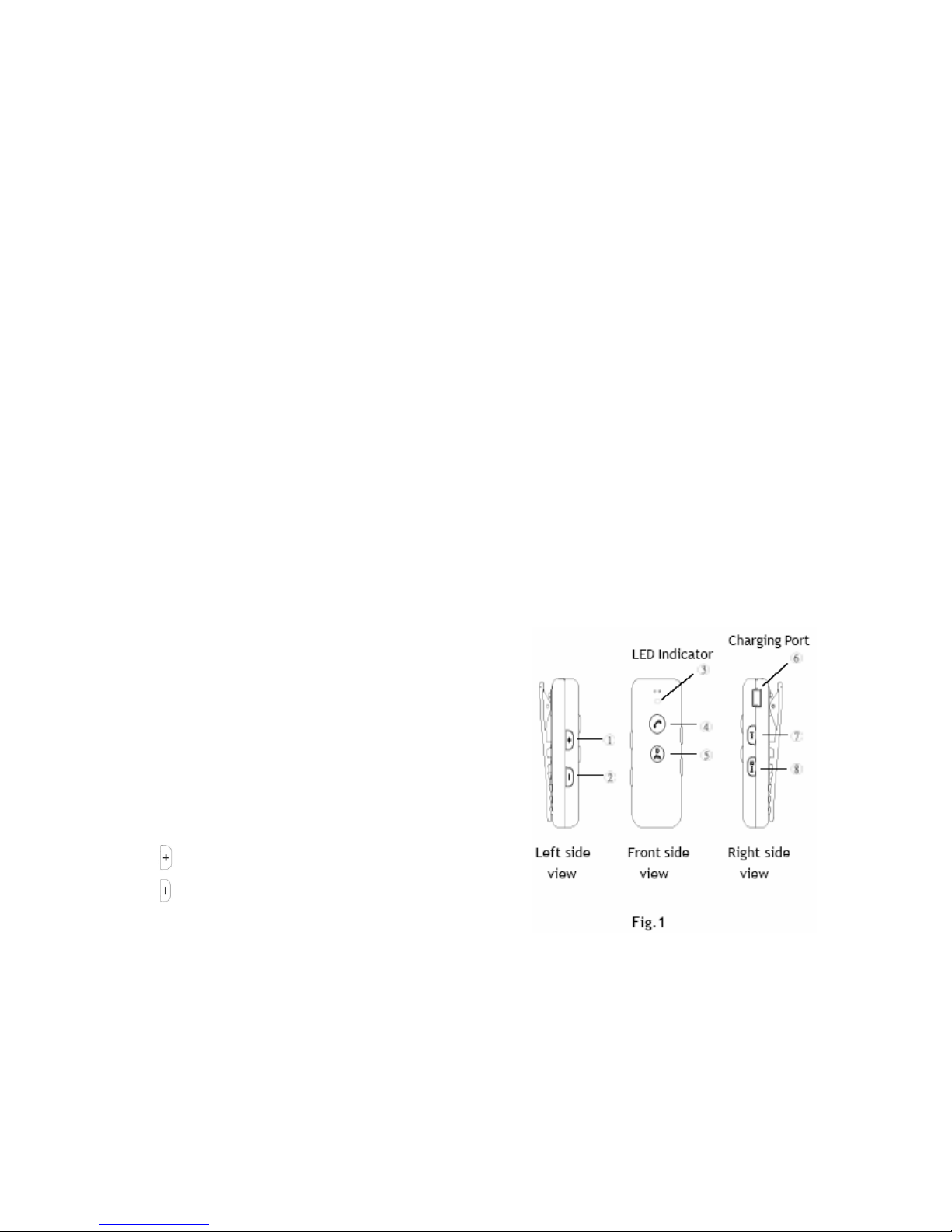
1
Buttons : Increase Volume (V+).
2
Buttons : Decrease Volume (V-).
3
LED Indicator
Page 8

7
4 Play/Talk Button : Answer call, Play music, Pause.
5
On/Off Button : Power on/off, End Call,Stop Music, Pairing.
6 Charging Port
7
Reverse Button: Reverse, Previous Song Title.
8
Forward Button: Forward, Next Song Title.
3 LED Indication and Definition
1. Stand-By Mode - Red LED flash in slow pace.
2. Pairing Mode - Blue and Red LED flash simultaneous.
3. PC Mode - Red LED flash regularly.
4. Mobile Mode - Blue LED flash regularly.
5. Battery Low - Red LED blinks about 2 seconds interval.
6. Charge Mode - Red LED stays solid without blinking.
4 CHARGE BATTERY AND RESET THE HEADSET
The headset comes with a build-in high capacity battery; please let the
battery be fully charged before first time use.
1. Connect the USB charging cable into the headset charging port (Fig.1).
The red LED stays ON continuously without blinking.
The unit will automatically switch to “ON” status regardless its status is
On or Off.
2. Once the battery has been fully charged, the red LED light will start to
blink.
Page 9

8
5 Turn On / Off the Headset
5.1 To turn on: Press and hold the On/Off button
for around 1 second,
Both red and blue light will blink one time
simultaneous to indicate the headset is on.
The headset is now turned on and in stand-by mode.
The red LED light will blink continuously in stand-by
mode.
5.2 To turn off: Press and hold the On/Off button
for around 4 seconds.
The red LED light will blink 3 times then turn off.
6 CONNECT WITH PC/NOTEBOOK
6.1 Pair with your PC/Notebook
Pairing process is required before making connection with either PC or
Notebook device.
(1) Make sure your PC or Notebook has been installed Bluetooth driver first,
double click on the
Bluetooth icon
at the desktop or the right hand of task bar to enter the
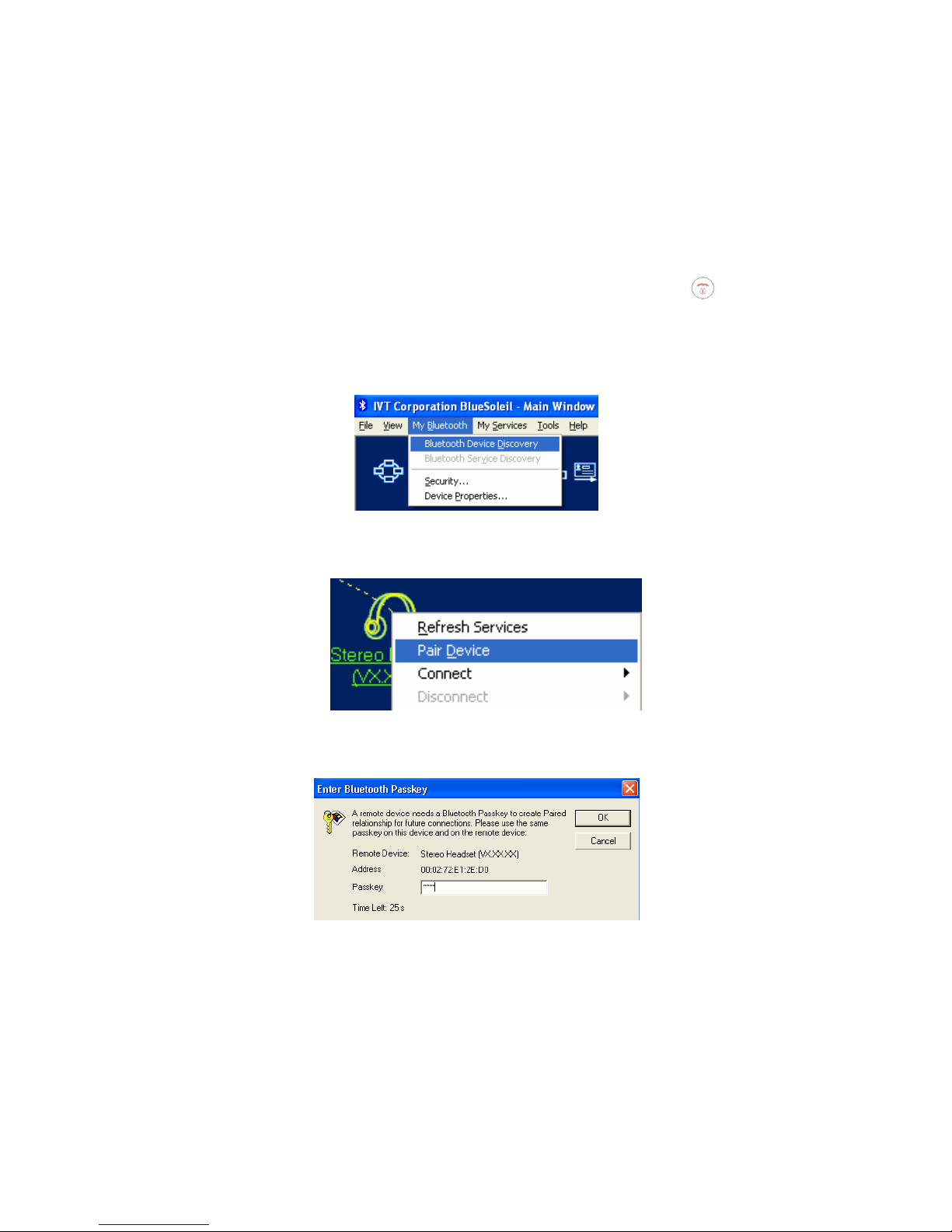
setup window “IVT Corporation BlueSoleil – Main window”.
Page 10
9
(2) Turn on the headset, press and hold on the On/Off Button briefly for
about 3 seconds.
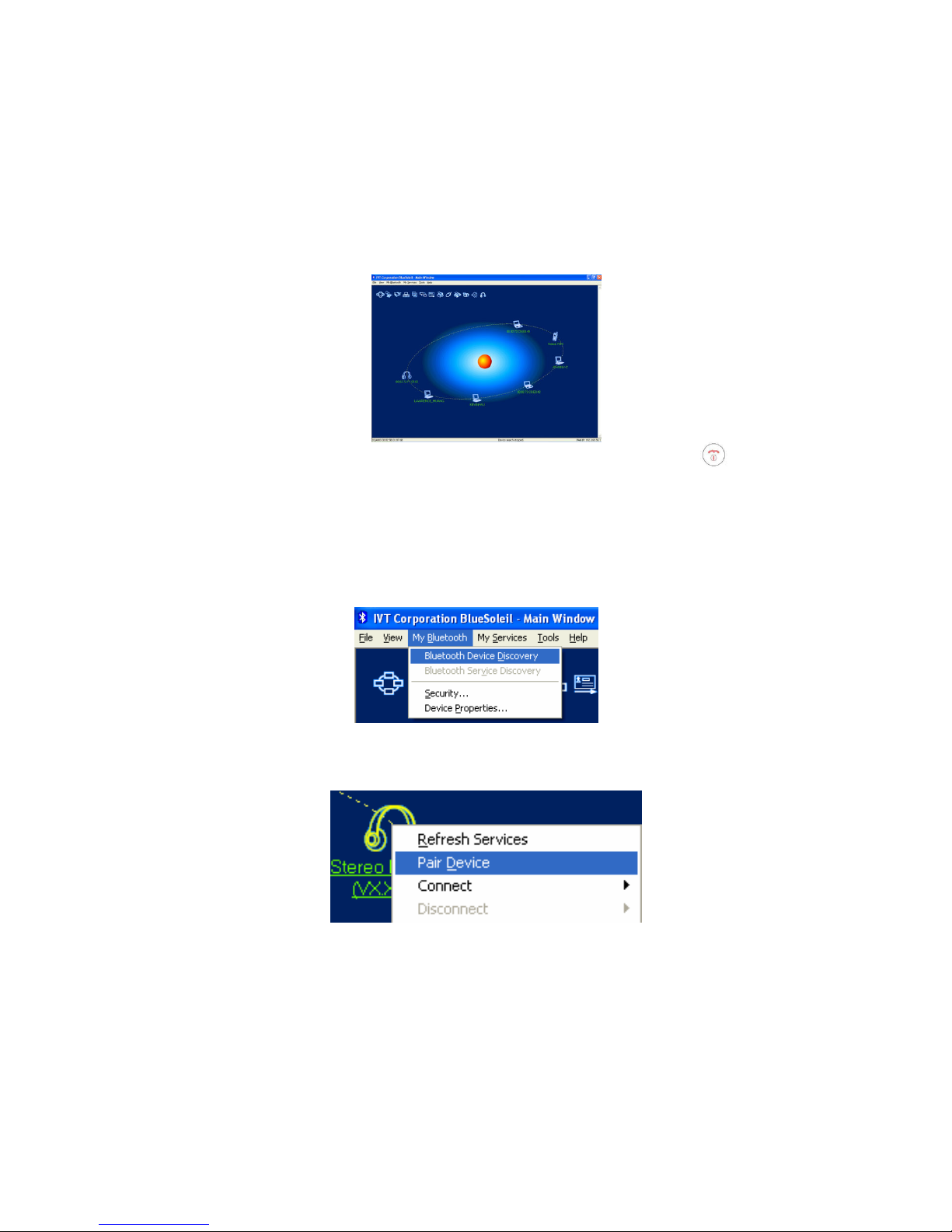
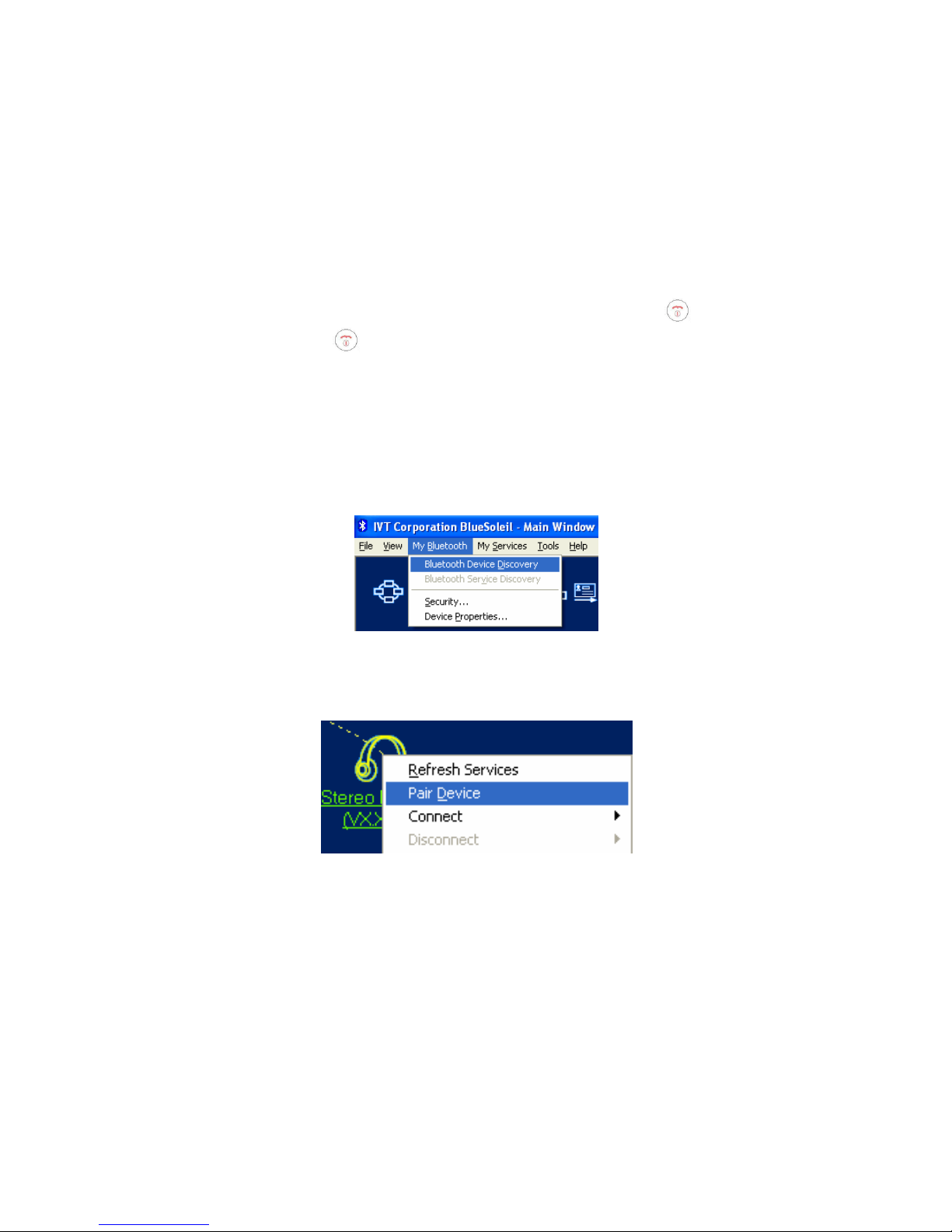
(3) From “BlueSoleil” select “My Bluetooth” tab and select “Bluetooth
Device Discovery”.
(You may also press F5 for quick device search)
(4) Select and Right Click on “Stereo Headset (VX.XX.XX)” , then select
“Pair Device”.
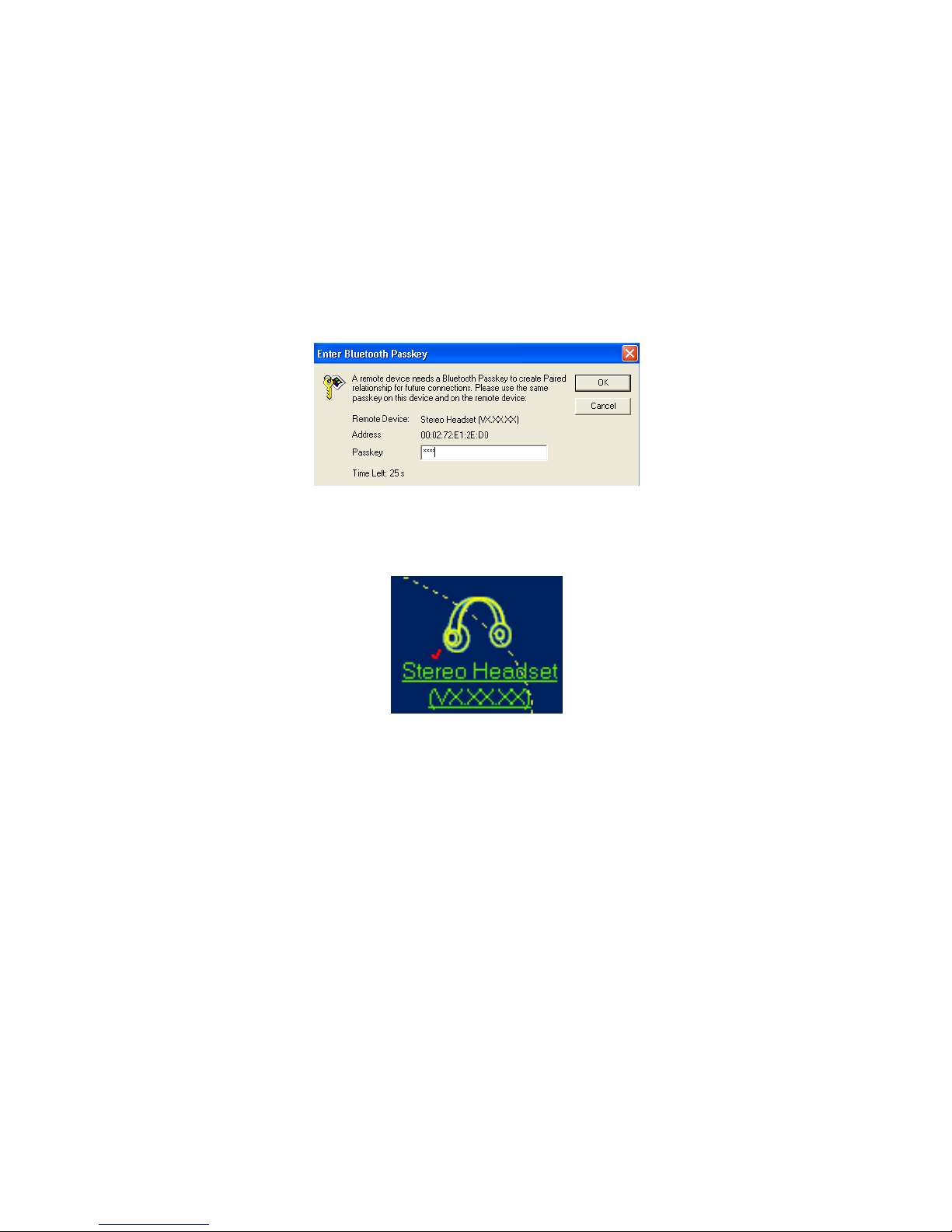
(5) When “Bluetooth PIN Code Request” window comes up, enter the
default password “ 0000 ” and press OK.
Page 11

10
(6) Once the password has been entered, a check mark will appear next to
the headset shape icon, which is the indication that the “Pairing process”
has been completed.
6.2 Play music with PC and Notebook
Once the pairing process is completed with the PC or Notebook device, do
the following to establish the connection:
First, right click on the “Stereo Headset (VX.XX.XX)” icon to display the
drop-down window.
Then, select “Refresh Services”.
Page 12

11
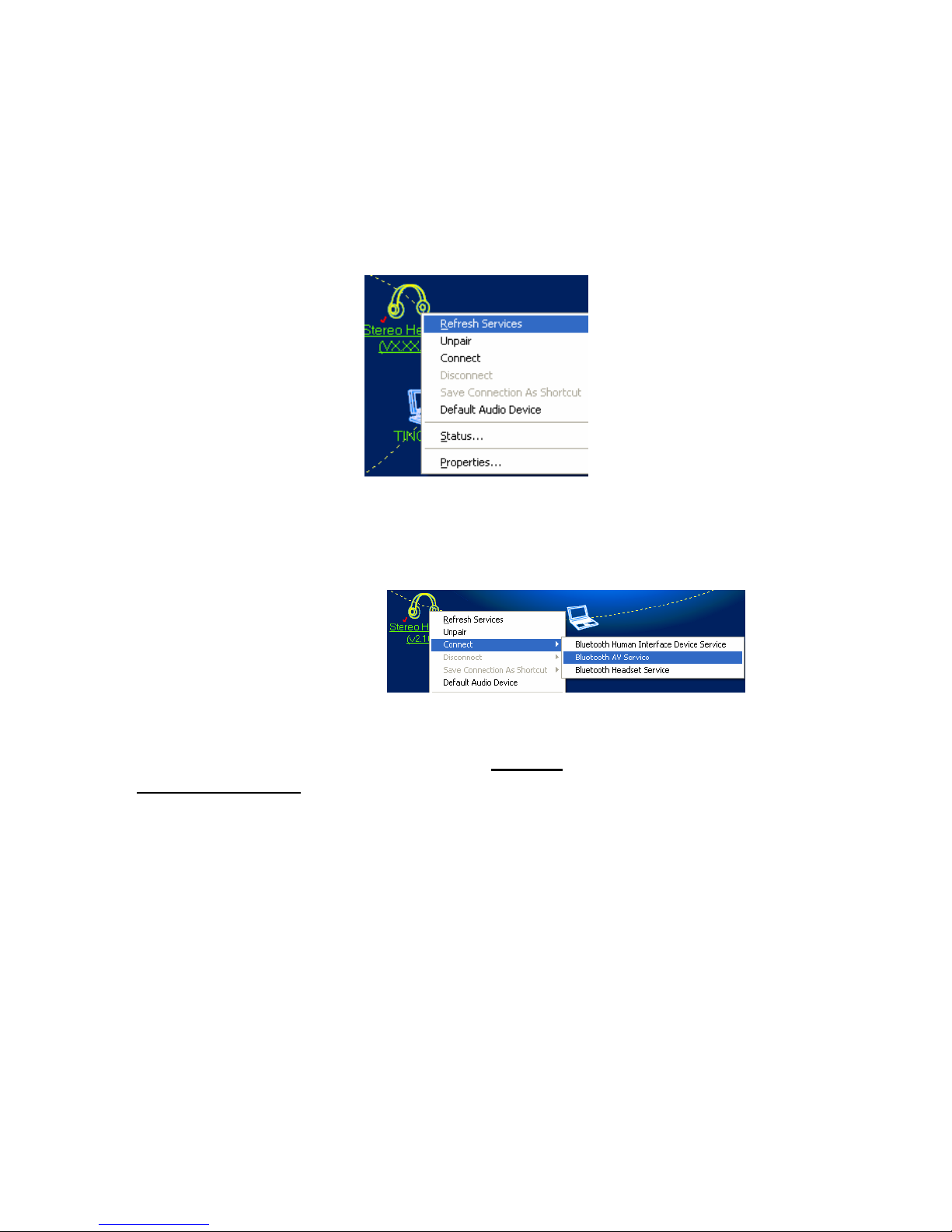
Second, right click on the “Stereo Headset (VX.XX.XX)” icon to display the
drop-down window.
Then, select “Connect” to complete the connection.
Note:
After you have successfully paired and connected the headset with the target
device(s) for the first time, you may press the Play
button twice to activate
speed connection
.
However, you do have to complete these pairing sequences manually for the
first time.
You may listen to the audio through audio adapter or PC software such as
Window Media player or Real Player.
If you have followed these sequence but still not able to establish the
connection.
Please double check the steps or repeat the connecting sequence from
Section 6.
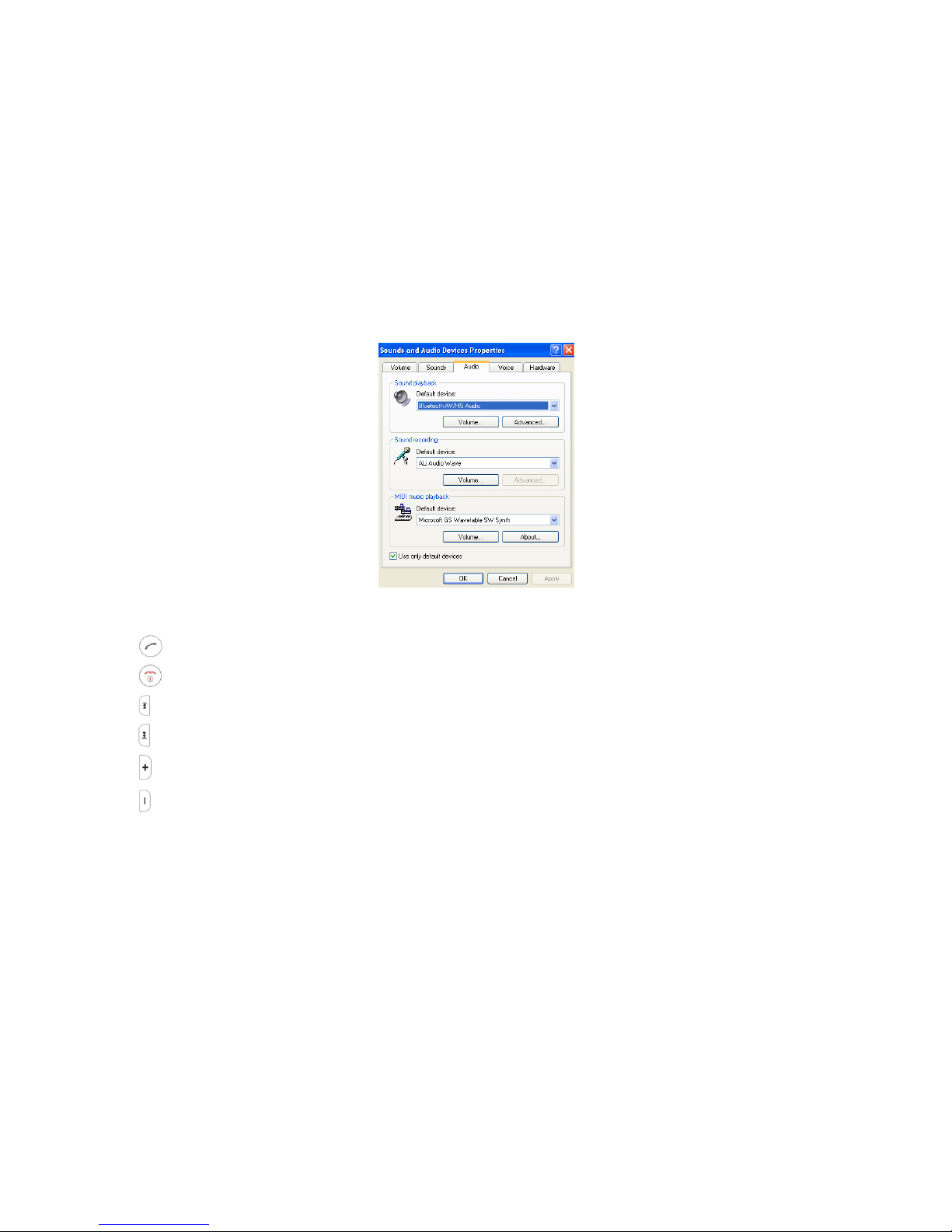
You may confirm the status of the connectivity between Stereo Headset and
PC by checking on the Audio tab under Sounds and Audio Devices
Property. “Bluetooth AV/HS Audio” will show under Sound Playback
section if the device has been properly connected.
In case your operation system does not automatically set with “Bluetooth
Page 13
12
AV/HS Audio” at the Sound Playback section after being properly
connected, just select this option manually.
6.2.1 Button Functionality Under Music Mode
Play music, Pause
Stop music,Power off
Reverse, Previous Song Title.
Forward, Next Song Title.
Increase Volume (V+).
Decrease Volume (V-).
Page 14

13
7. CONNECT WITH SKYPE
This headset offers a convenient solution to receive and dial out calls from
Skype remotely.
The following instructions will take you through the steps to connect with
Skype.
7.1 Configure audio gateway to work with Skype
1. Double click on the Bluetooth icon to activate IVT Corporation
BlueSoleil – Main window.
7.2 Pair Headset With PC
1. Turn on or reactivate the headset by pressing
icon.
Be sure to press the
key continuously until single red LED light is blinking
regularly with slow
beat, which indicates the headset is now under pairing mode.
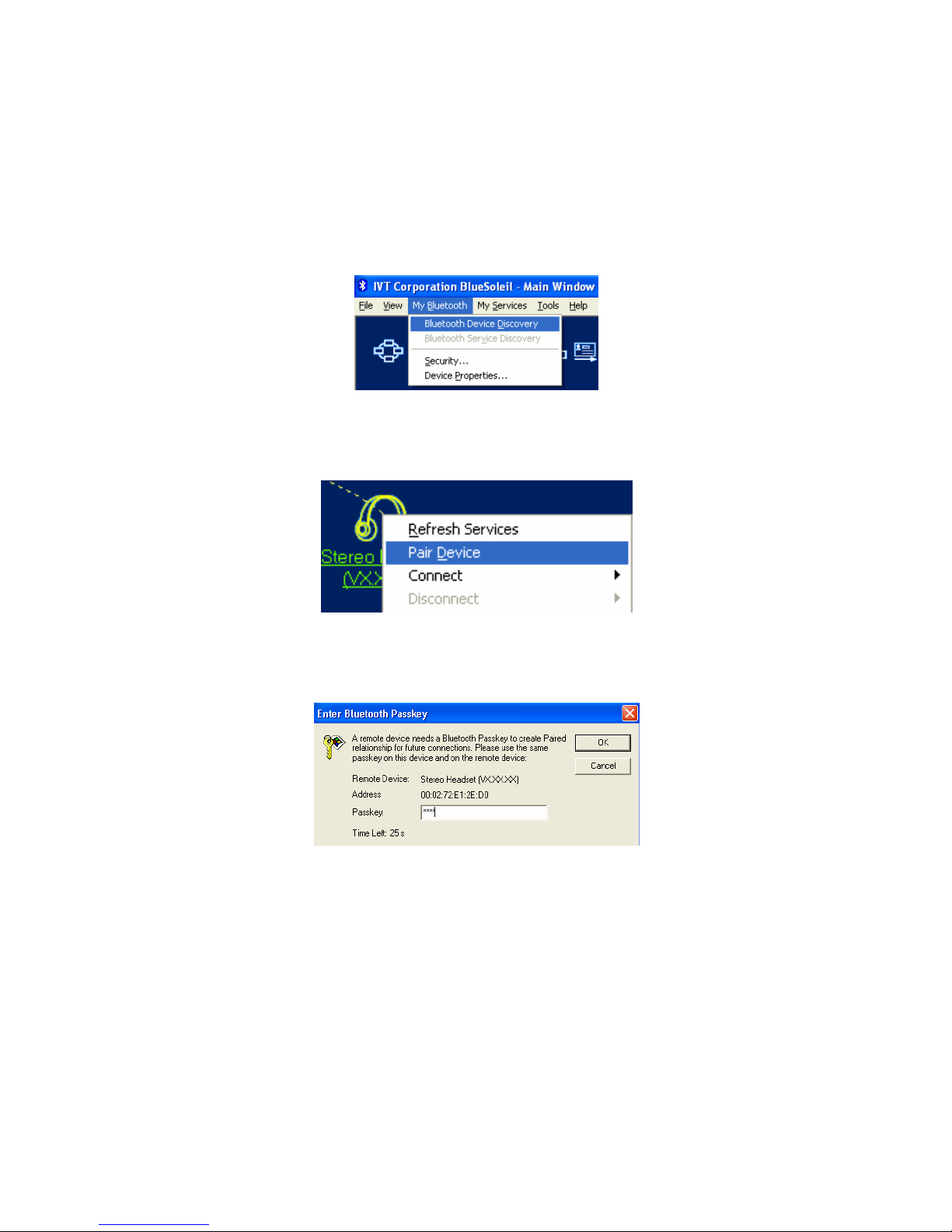
2. From “BlueSoleil” select “My Bluetooth” tab and select “Bluetooth
Device Discovery”. (You may also press F5 for quick device search)
Page 15
14
3. Select and Right Click on “Stereo Headset (VX.XX.XX)” , then select
“Pair Device”.
4. When “Bluetooth PIN Code Request” window comes up,
enter the default password “ 0000 ” and press OK.
5. Once the password has been entered, a check mark will appear next to the
headset shape icon, which is the indication that the “Pairing process” has
been completed.
Page 16
15
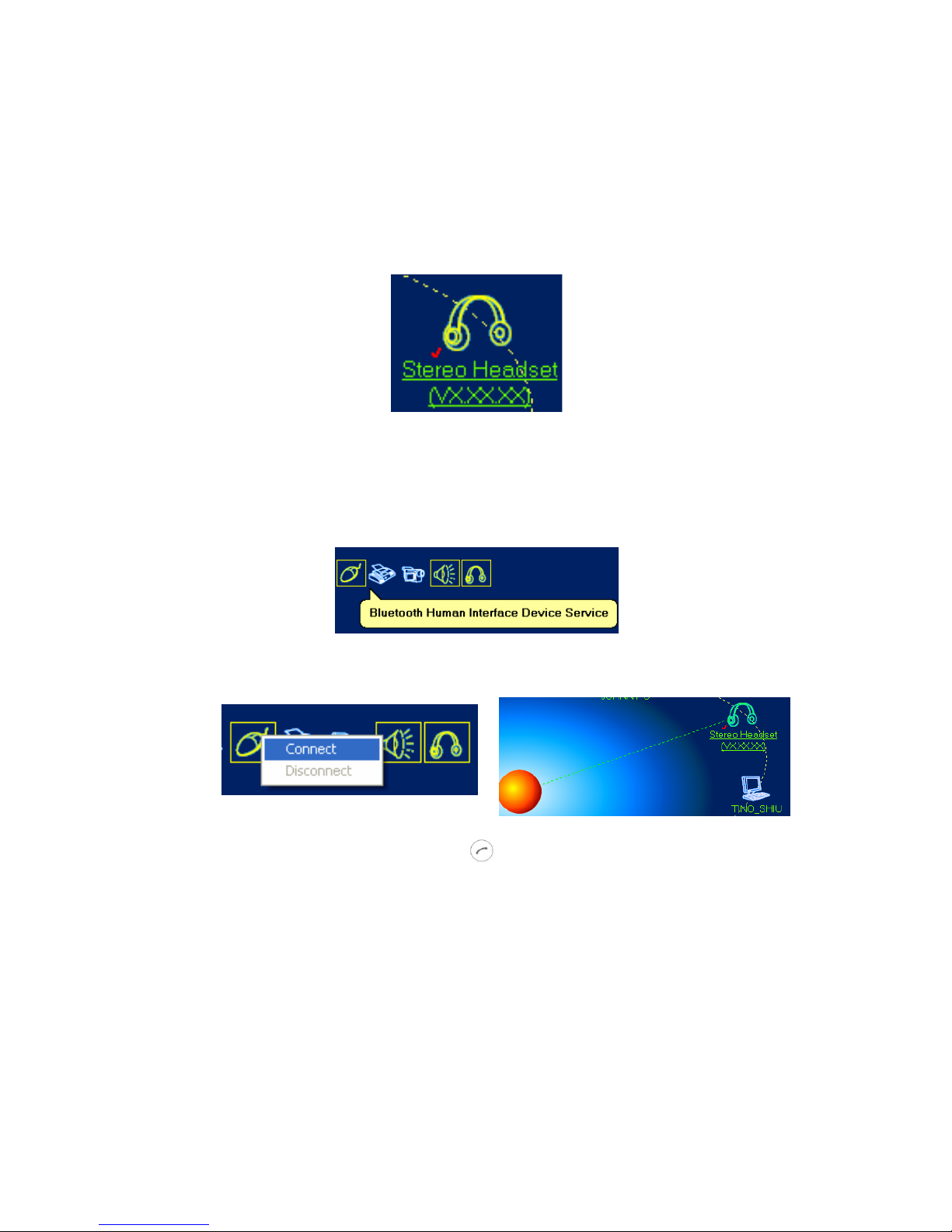
Note: When “Paired” appears under the Additional Information column, it is
an indication that your headset has been successfully paired with PC.
7.3 Establish link between IVT software and Skype
1. Select “Bluetooth Human Interface Device Service”.
2. Right click on “Bluetooth Human Interface Device Service” first and
select “Connect” to activate.
3. Then, press continuously on the
key of the headset until a message
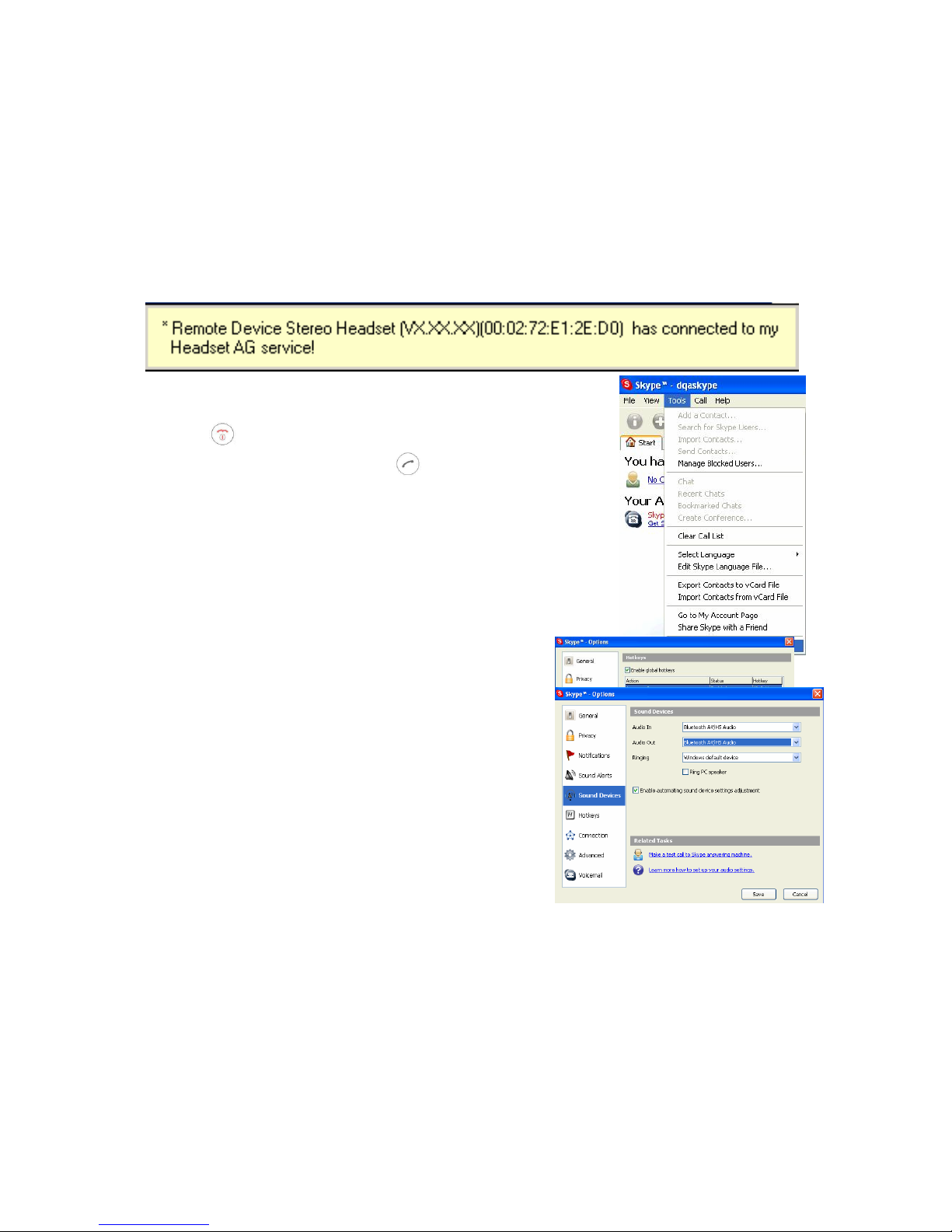
“Remote Device Stereo Headset (VX.XX.XX) has connected to my
Headset AG service!” show up at the lower right hand corner.
Page 17
16
Now, the headset is ready in dialing/receiving position with Skype.
Now, the headset is ready in dialing/receiving
position with Skype.
4. Press
twice to turn off Skype.
5. Press continuously on the
key of the headset
to activate Skype again.
7.4 Configure Skype’s Settings
Few simple modifications need to be done before
you can connect this headset with Skype properly.
Please refer to the steps below to make the
changes.
1. Activate Skype from your computer.
(The following steps are based on Skype
Version 1.2.0.48)
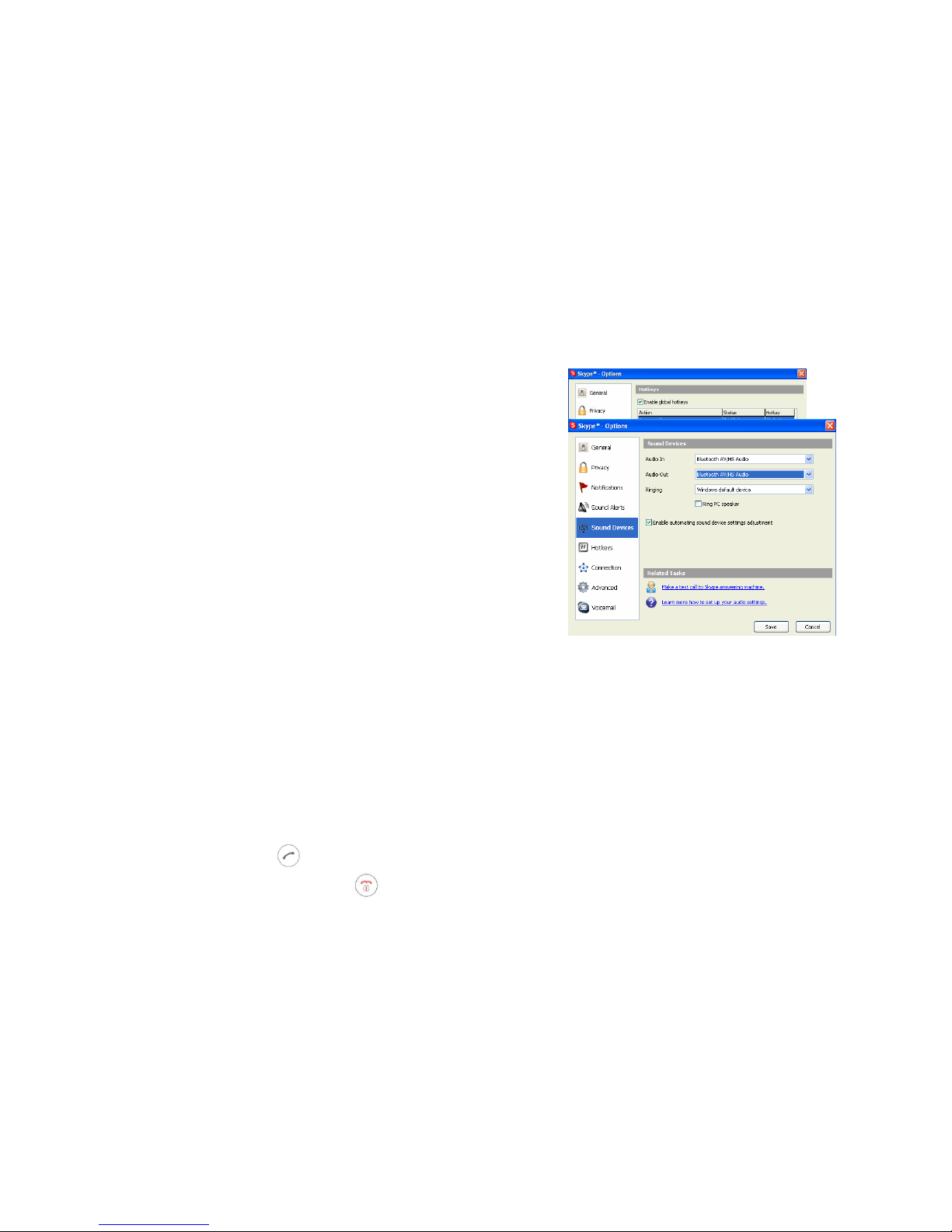
2. Select “Tools” tab and select “Options”
3. Under Hotkeys tab, select and enable
the “Enable global hotkeys” option by placing
the check mark. Then, enable both the
“Answer call” and “Reject/Hang up call”
features by click on the Enable Hotkey tab.
Page 18

17
4. Make sure the Hotkey value for “Answer call” is set as “Alt+PgUp”, and
“Reject/Hang up call” is set as “Alt+PgDn” in order to work properly.
(“Alt+PgUp” and “Alt+PgDn” is the default value of Skype.)
5. Under Sound Devices tab, change the default value of Audio In and
Audio Out to Bluetooth Audio.
6. Press Save to complete the setup.
7.5 Basic Operation within Skype Mode
Now, you are ready to use your Bluetooth headset to work with Skype. As a
prerequisite, Skype’s interface MUST remain as the ACTIVE WINDOW when
using your headset to control remotely.
1. Press on Play key
once to dial out or receive incoming calls.
2. Press
twice to turn off Skype.
3. Press continuously on the
key of the headset to activate Skype again.
4. Press on Forward key
for 3 seconds or press on Ctrl +Tab keys to
switch in between tabs under Skype environment.
(Make sure Skype’s “Contact tab” remains as the ACTIVE window.)
5. Switch between
and keys to rotate between contact names under
the Contact tab, and press on Play key
to initiate the call. The cursor
must not stay in the INPUT Box
area
in order to let your headset control Skype remotely.
(Make sure Skype’s “Contact tab” remains as the ACTIVE window.)
Page 19

18
6. Press on Play key once to dial out after you entered the numbers at
the INPUT Box or by the number pad.
INPUT Box
Note:
Under Skype you may also listen to music on the side, but it is set under
“Mono Tone” and without
remote control function because the controlling priority has been preserved
for Skype’s functionality.
8. Link with Mobile Phone
Before headset connecting to your mobile phone you need to do their
PAIRING procedures first. PAIRING is a Bluetooth function that Bluetooth
devices can remain constant link to designate device.
Page 20

19
Note:
This headset is not comprehensive support to all models of
Bluetooth mobile phone.
Please make sure with your dealer if it supports connection to
your mobile phone or not.
The following PAIRING procedure is taking one of mobile phone as an
example; other mobile phones may have different but similar PAIRING
procedures.
8.1 PAIRING
Step 1
Turn off the headset and turn on again before
initiating the pairing.
Please refer to Sec. 5 for the turn off/on
operations
Step 2
Turn on your mobile phone and find the Setup
manual in your mobile phone.
Step 3
Move cursor keys to Connection item, press
“confirm” button to select it.
Step 4
When Bluetooth item screen comes out,
press “confirm” button to select it.
Page 21
20
Step 5
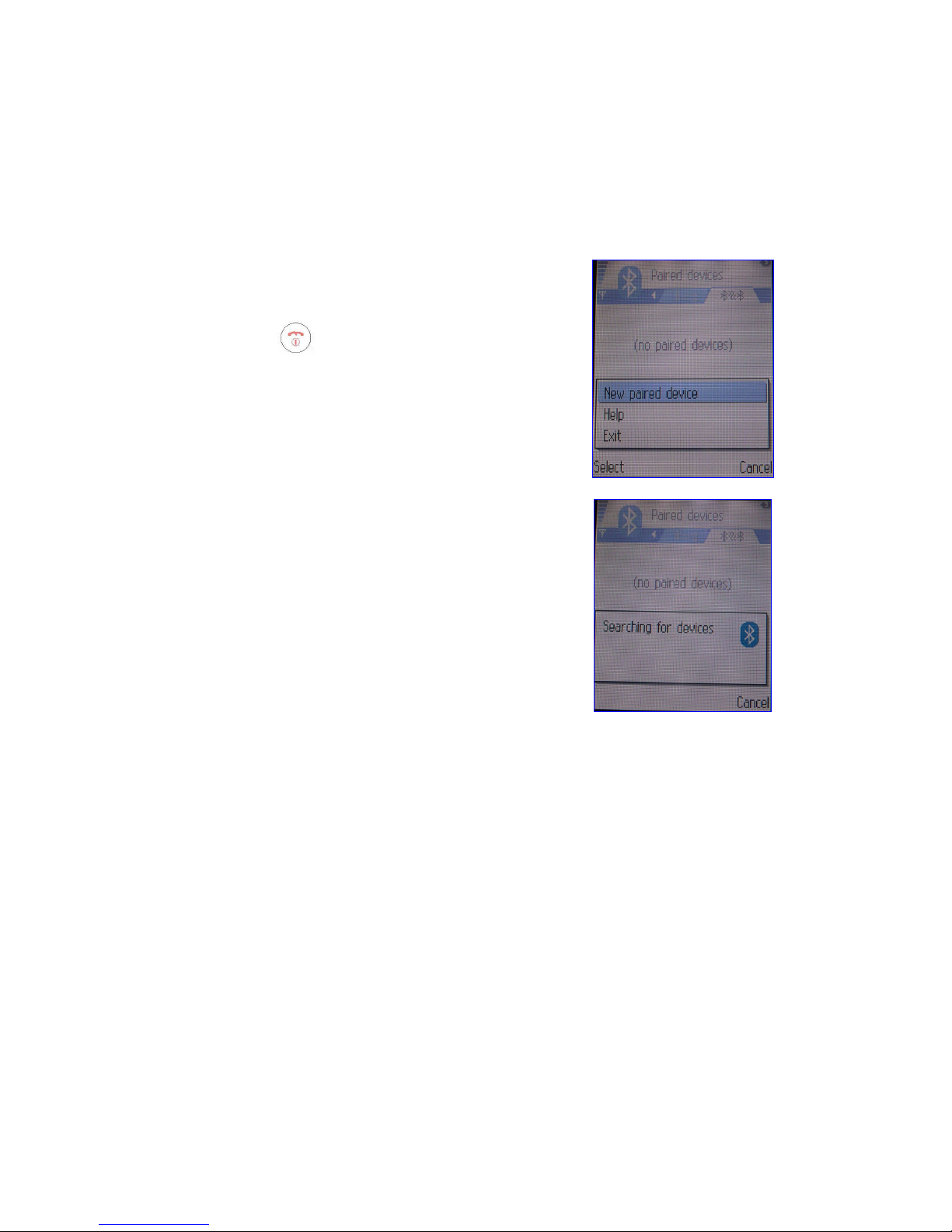
Turn on the headset, press and hold on the
On/Off Button
briefly for about 3 seconds.
Move cursor keys and point to New paired
device item, press “confirm” button to select it.
Note:
If no pairing is possible for a period of time
(approx. one minute), maybe the previous pairing
is re-invoked (if any please delete it), You may
need to repeat thee steps again until pairing
succeeds.
Step 6
Your mobile phone will start looking for all the
Bluetooth devices near it.
Page 22

21
Step 7
Ppress “confirm” button to confirm the PAIRING
connection.
Step 8
When asked the Passkey by the mobile phone,
enter the default pin-code number 0000,
then press “confirm” button to confirm it.
When pairing is complete, the blue light on the
headset will blink once every 2 seconds to
indicate its linking with your mobile phone.
Page 23
22
8.2 Connect with Mobile phone
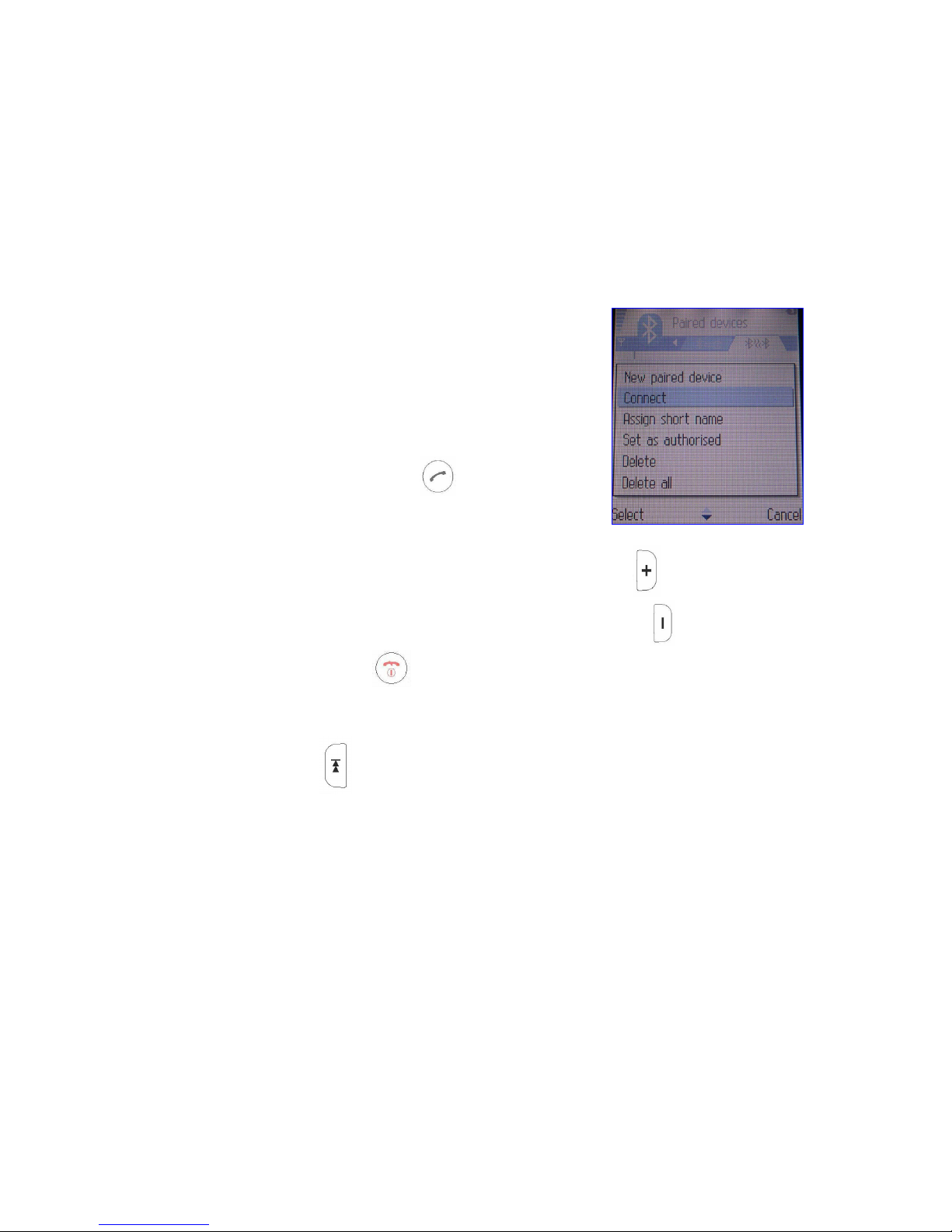
After Pairing, press “Connect” to activate the
connection of mobile phone.
8.3 Answer & End a phone call
The headset will ring when there is an incoming
call.
1. Press the Play/Talk Button
to answer a
phone call.
2. Adjust the headset volume
Increase the volume: pressing the Increase Button
.
Decrease the volume: pressing the Decrease Button
.
3. Pressing On/Off button
to end a phone call.
4. Support Voice-Control feature
If your mobile phone supports Bluetooth based Voice-Control feature,
just press button
for three seconds after the pairing process has
been completed.
Page 24

23
9. MUTIPLE LINKS
You can link your PC(Music), PC(Skype) and Mobile phone with headset
simultaneously.
9.1 Pair both side first.
Please complete this section procedures before you switch
between different links.
1. Pair the PC first.
Please refer to “Section 6-1” for PC paring steps.
2. Then pair the mobile phone.
Please refer to “Section 8-1” for Mobile phone paring steps.
9.2 Switch between Mobile phone and PC(music)
a. First, make sure you ever activate the Mobile phone connection as
Sec. 8.2 before.
b. Then, make sure you ever activate PC(music) as Sec.6.2 before.
1. Press
to answer the coming call.
2. Press
to end the call, the PC(music) will resume several
seconds later.
Page 25

24
9.3 Switch between PC(music) and PC(Skype)
a. First, make sure you ever activate PC(music) as Sec.6.2 before.
b. Then, make sure you ever activate the Skype connection before.
(Press the
for few seconds to activate PC(Skype) connection.)
1. Press
to answer the Skype call.
2. Pressing the
2 times quickly to turn off PC(Skype) and back to
PC(music).
9.4 Switch between Mobile phone and PC(Skype)
a. First, make sure you ever activate the Mobile phone connection as
Sec. 8.2 before.
b. Then, make sure you ever activate the Skype connection before.
(Press the
for few seconds to activate PC(Skype) connection.)
1. Press
to answer the coming call.
2. Press
to switch the calls between Mobile and Skype phone if
both calls coming in the same time.
3. Press
to end all the call,
Page 26

25
10. F.A.Q
Q1. What is Pairing ?
Ans : Pairing is a Bluetooth function that enables Bluetooth devices to remain constant
link to designate communication unit with added security.
Q2. What to do when my headset cannot re-establish connection after being turned off?
Ans : Re-do the pairing procedures to re-establish proper connection.
Q3. My headset has paired with my PC, but can not establish connection after I have turn
off my PC.
Ans : Sometimes, headset may lost the pairing relationship after the designated PC has
been turned off. Just redo the pairing procedures to reestablish pairing.
Q4. What should I do when I can not hear very well with the headset ?
Ans : Adjust the sound volume on your mobile phone, or press the V+ button of the
headset to increase volume, or check if your mobile phone is in a good signal area.
Q5. Does the headset work with all types of mobile phones ?
Ans : No. It works only with Bluetooth enabled mobile phones and is not comprehensive
support to all models of Bluetooth mobile phone, please make sure with your dealer if it
supports connection to your mobile phone or not.
Q6. Why the headset does not work with my mobile phone after the headset is fully
charged and turned on ?
Ans : You have to activate the Bluetooth function of your mobile phone then pair it with
the headset.
Q7. Why my mobile phone can not find the headset for pairing ?
Ans : If the headset is not in pairing mode, then your mobile phone will not find it.
Please set the headset into pairing mode, then use your mobile phone to look for it and
pair with it.
Q8. Do I need to pair the headset with my mobile phone every time I use it ?
Ans : No. Once the Pairing is set up between two devices, they will remain paired even
when one or both devices are turned off.
Page 27

26
Q9. When my mobile phone was searching for the headset, why did several Bluetooth
devices appear on my mobile phone?
Ans : Most Bluetooth enabled mobile phones with Bluetooth function activated can
search for more than one Bluetooth device in its neighborhood. The headset will appear
as "BT headset" or "Unknown Device" on your mobile phone after it is found by your
mobile phone.
Q10. What is the working distance between this headset and a Bluetooth mobile phone ?
Ans : The basic operating distance of this Bluetooth device is about 10 meters. However,
it is also depending on the environment if there is any radio interference or obstacle
around. The quality of a Bluetooth mobile phone also effects the clarity of the connection.
Some mobile phones are providing less operating distance.
Q11. What to do when the controlling interface is not responding while attached device
such as “Dongle” is in use?
Ans : Unplug the attached device(s), and plug in again. If these actions do not restore
the system back to normal status, try to reboot the system.
Q12. I have followed the instruction and setup my headset properly, but still can not make
the connection with Skype. What to do?
Ans : Turn off the headset then turn on again to initiate Skype connection.
Q13. What to do when the headset can not control Skype’s controlling buttons during
use?
Ans : Turn off the headset then turn on again to resume operation. If it still don't work you
may try to reboot PC or mini headset to solve this problem.
Page 28

27
11. Support
1. The headset can not be turned on.
Simply plug the unit into the Mini USB connector of the battery charger
and unplug it to reset the unit.
2. No sound contact between Headset and other devices.
* Make sure that the two devices have been paired.
* Make sure that the Headset is turned on.
* Make sure that the two devices are within a working range.
* Make sure that your mobile phone is within signal strength.
* Some Bluetooth mobile phones can support only one Bluetooth
Headset.
* Disconnection may happen when there is more than one Headset
paired with our mobile phone.
3. No indication of charging is shown.
For the Headset battery that is empty, or has not been used for a
long time, it may take a couple of minutes for the Headset
indicator to show charging status with a steady red light.
More supports, please browse X-Micro’s global website
http://www.x-micro.com
Page 29

Bluetooth Stereo Media Phone
MANUEL D’UTILISATION
With additional Operation Instruction
for Skype using IVT software
Version 1.0
Page 30

28
INFORMATION TO USER
Federal Communication Commission Interference Statement
This equipment has been tested and found to comply with the limits for a
Class B digital device, pursuant to Part 15 of the FCC Rules. These limits are
designed to provide reasonable protection against harmful interference in a
residential installation.
This equipment generates, uses and can radiate radio frequency energy
and, if not installed and used in accordance with the instructions, may cause
harmful interference to radio communications. However, there is no
guarantee that interference will not occur in a particular installation. If this
equipment does cause harmful interference to radio or television reception,
which can be determined by turning the equipment off and on, the user is
encouraged to try to correct the interference by one of the following
measures:
* Reorient or relocate the receiving antenna.
* Increase the separation between the equipment and receiver.
* Connect the equipment into an outlet on a circuit different from that to which
the receiver is connected.
* Consult the dealer or an experienced radio/TV technician for help.
This device complies with Part 15 of the FCC Rules. Operation is subject
to the following two conditions: (1) This device may not cause harmful
interference, and (2) this device must accept any interference received,
including interference that may cause undesired operation.
FCC Caution: Any changes or modifications not expressly approved by the
party responsible for compliance could void the user's authority to operate
this equipment.
Page 31

29
IMPORTANT NOTE:
FCC Radiation Exposure Statement:
* This equipment complies with FCC radiation exposure limits set forth for
an uncontrolled environment.
This equipment should be installed and operated with minimum distance
20cm between the radiator & your body.
* This transmitter must not be co-located or operating in conjunction with
any other antenna or transmitter.
Page 32

30
TABLE DES MATIERES
1.Introduction .................................................................................................32
1.1 Bluetooth Stereo Headset
1.2 Contenu De l’Emballage
2. Fiche Technique Du Kit Main Libre ...........................................................32
3. Indications LED ........................................................................................ 33
4. Chargement de la Batterie et Remise à Zéro du asque............................ 33
4.1 Charger La Batterie
5. Mise sous/hors tension du Casque .......................................................... 34
5.1 Mise sous tension du Casque
5.2 Mise hors tension du Casque
6. Connexion avec un PC ............................................................................. 34
6.1 Synchronisation avec un PC
6.2 Ecouter de la musique avec un PC
6.2.1 Fonctions des Boutons pendant l’écoute de Musique
7. Connexion avec Skype ……..................................................................... 39
7.1 Configuration du Canal Audio pour Skype
7.2 Synchroniser le Casque avec le PC
7.3 Connexion entre IVT Software et Skype
7.4 Configuration des Paramètres de Skype
7.5 Opération de Base en Mode Skype
8. Connexion avec un Téléphone Cellulaire.................................................. 44
8.1 Synchronisation avec un Téléphone Cellulaire
8.2 Connexion avec un Téléphone Cellulaire
8.3 Répondre et mettre fin à un Appel Téléphonique
Page 33

31
9. Connexions Multiple ……………………………….................................... 49
9.1 Synchroniser des deux appareils
9.2 Basculer entre Téléphone Cellulaire et PC (musique)
9.3 Basculer entre PC (musique) et PC (Skype)
9.4 Basculer entre Téléphone Cellulaire et PC (Skype)
10. FAQ ...................................................................................................... ..52
11. Support ....................................................................................................54
Page 34
32
1 INTRODUCTION
Merci d’avoir choisi d’acquérir notre Casque Stéréo Bluetooth X-Micro. Le
Bluetooth est devenu une technologie très populaire dans le monde de la
communication. Cela permet les connections Wifi entre les appareils
bluetooth comme les téléphone mobile, PDA, PC et Ordinateurs portable,
(souris, clavier, imprimante)...etc. …
1.1 Casque Stéréo Bluetooth
Ce casque Bluetooth offre les dernières innovations en terme de Technologie
Bluetooth.
Ce casque propose un son d’une qualité audio remarquable que d’autres ne
possède pas.
Vous pouvez le connecter aisément sans fil un autre system Bluetooth
comme un téléphone mobile, un PC ou un PC portable, un PDA sur une porté
de 10 mètres.
1.2 Contenu De l’Emballage
* Un Casque Bluetooth stéréo.
* Détachable stereo earpiece with
microphone.
* Un câble USB.
* Un manuel d’utilisation.
* Un adaptateur secteur 5VDC(en Option)
2 Fiche Technique Du Kit Main Libre
1
Boutons : Augmenter Volume (V+).
2
Boutons : Diminuer Volume (V-).
Page 35

33
3 LED Indicator
4
Lecture/Parler Bouton : Répondre aux appels, Lecture de musique,
Pause.
5
Bouton On/Off: Allumer/Eteindre, Raccrocher, Musique Stop,
Synchroniser.
6 Port de Charge
7
Bouton Retour: Retour, Titre Précédent.
8
Bouton Avant: Avant, Titre Suivant.
3 LED Indication and Definition
1. Mode Veille – La LED rouge clignote lentement.
2. Mode Synchronisation - Les LED Bleu et Rouge s’allument
simultanément
3. Mode PC- La LED rouge s’allume régulièrement.
4. Mode Téléphone - La LED bleu s’allume régulièrement.
5. Batterie Faible - La LED rouge clignote à 2 secondes d’intervalle.
6. Mode Charge - La LED rouge reste allumée sans clignoter.
4 Chargement de la Batterie et Remise à Zéro du Casque
Le casque est livré avec une batterie haute capacité; veillez à laisser la
batterie se charger complètement avant la première utilisation.
1. Connectez le câble de charge USB au port de charge du casque (Fig.1).
La LED rouge reste allumée continuellement sans clignoter.
Le casque s’allumera automatiquement suivant son statut (off ou on)
2. Une fois la batterie entièrement chargée la LED rouge commence à
clignoter
Page 36

34
5 Allumer/Eteindre le casque
5.1 Allumage: Appuyez et maintenez le bouton On/Off
pendant
environ 1 seconde,les 2 LED rouge et bleu vont commencer à
clignoter une fois simultanément pour indiquer que le casque
est allumé.
Le casque est désormais allumé et est en mode attente.
La LED rouge va clignoter continuellement durant le mode
attente.
5.2 Mise hors tension: Appuyez et maintenez le bouton On/Off
pendant environ 4 secondes La LED rouge va clignoter 3 fois
avant de s’éteindre.
6 CONNECTION AVEC UN PC/PC PORTABLE
6.1 Synchronisation avec un PC/PC Portable
La synchronisation est requise avant de créer une connexion avec un PC ou
un PC portable.
(1) Assurez- vous dans un premier temps que votre PC ou votre PC portable
est bien doté de drivers Bluetooth, double cliquer sur l’icône Bluetooth
sur le bureau ou sur l’icône à droite dans la barre de tâche de Windows.
“IVT Corporation BlueSoleil – Main window”.
Page 37
35
(2) Allumer le casque, appuyez et maintenez le bouton On/Off
brièvement pendant 3 secondes.
(3) Depuis “BlueSoleil” sélectionnez le menu “My Bluetooth” et
sélectionnez “Bluetooth Device Discovery”.
(Vous avez la possibilité de pressez la touche F5 pour une
recherche rapide)
(4) Sélectionnez et faites clique droit sur “Stereo Headset (VX.XX.XX)”, puis
sélectionnez “Pair Device”.
Page 38
36
(5) Lorsque la fenêtre “Bluetooth PIN Code Request” apparaît, entrez le
mot de passe par défaut “ 0000 ” et faites OK
(6) Une fois que le mot de passe validé, une encoche apparaît à côté de
l’icône casque, indiquant que le processus de synchronisation est terminé.
6.2 Ecouter de la musique avec un ordinateur.
Une fois le processus de synchronisation terminé avec l’ordinateur, suivez les
instructions suivantes pour établir la connexion:
Tout d’abords, faites click droit sur l’icône “Stereo Headset (VX.XX.XX)” pour
afficher le menu.
Puis, selectionnez “Refresh Services”.
Page 39
37
Ensuite, faites click droit sur l’icône “Stereo Headset (VX.XX.XX)” afficher le
menu.
Puis, sélectionnez “Connect” pour finir d’établir la connexion.
Note:
Après avoir synchronisé et connecté le casque avec l’appareil une première
fois, vous pouvez appuyer sur le bouton Lecture
2 fois pour activer une
connexion rapide
.
Cependant, vous devez exécuter entièrement la synchronisation manuelle la
première fois.
L’écoute se fera à travers l’adaptateur audio ou bien par un logiciel tel que
Windows Media Player ou Real Player.
Page 40

38
Si malgré avoir suivi les instructions aucune connexion n’est établie.
Veuillez vérifier chaque étape ou répéter la séquence de connexion depuis la
Section 6
Vous pouvez vérifier la connexion entre le casque et l’ordinateur dans la
fenêtre Propriété de Son et Périphérique Audio. “Bluetooth AV/HS
Audio” est affiché dans la section Lecture Audio si le périphérique est
installé et connecté correctement.
Le “Bluetooth AV/HS Audio” n’est pas automatiquement sélectionné dans
la section Lecture Audio après une connexion correcte, sélectionnez
simplement cette option manuellement.
Page 41

39
6.2.1 Fonctions des Boutons pendant l’écoute de Musique
Lecture, Pause
Stop
Mise hors tension
Retour, Titre précédent.
Suivant, Titre suivant.
Augmenter Volume (V+).
Réduire Volume (V-).
7. CONNECTION AVEC SKYPE
Ce casque offre une solution pratique pour recevoir des appels et dialoguer
par Skype à distance.
Les instructions suivantes vous guident pour vous connecter à Skype.
7.1 Configuration du Canal Audio pour Skype
1. Double cliquez sur l’icône Bluetooth pour activer IVT Corporation
BlueSoleil – Main window.
Page 42
40
7.2 Synchroniser le casque avec le PC
1. Allumez ou réactivez le casque en appuyant sur le bouton
.
Appuyez sur le bouton
jusqu’à ce que la LED rouge clignote lentement et
régulièrement, indiquant que le casque est en synchronisation.
2. Depuis “BlueSoleil” sélectionnez le menu “My Bluetooth” et
sélectionnez “Bluetooth Device Discovery”.
(Vous pourrez appuyer sur la touche F5 pour une recherche
rapide)
3. Sélectionner et faites Click Droit sur“Stereo Headset (VX.XX.XX)”, puis
sélectionnez “Pair Device”.
4. Lorsque la fenêtre “Bluetooth PIN Code Request” apparaît,
Entrez le mot de passe par défaut “ 0000 ” puis pressez OK.
Page 43

41
5. Une fois que le mot de passe validé, une encoche apparaît à côté de
l’icône casque, indiquant que le processus de synchronisation est terminé.
Note: Lorsque “Paired” apparaît dans la colonne Additional Information,
cela signifie que votre casque est bien synchronisé avec votre ordinateur.
7.3 Connexion entre IVT Software et Skype
1. Selectionnez “Bluetooth Human Interface Device Service”.
2. Faites d’abord click droit sur “Bluetooth Human Interface Device
Service” et sélectionnez “Connect” pour activer.
Page 44

42
3. Puis, restez appuyé sur le bouton
du casque jusqu’à avoir le
message “Remote Device Stereo Headset (VX.XX.XX) has connected to
my Headset AG service!” apparaissant dans le coin en bas à droite de
l’écran.
Maintenant, le casque est prêt à appeler et recevoir avec Skype.
4. Pressez
deux fois pour désactiver Skype.
5. Restez appuyé sur le bouton
du casque
pour activer Skype de nouveau.
7.4 Configuration des Paramètres de Skype
Quelques modifications simples sont requises
avant de pouvoir connecter ce casque à Skype
correctement. Veuillez suivre les étapes
suivantes pour effectuer ces modifications.
Page 45
43
1. Lancez Skype depuis l’ordinateur.
(Les instructions suivantes sont basées sur la Version 1.2.0.48 de Skype)
2. Sélectionnez “Outils” puis sélectionnez “Options”
3. Dans le menu Clavier, sélectionnez et
activez l’option“Activé les raccourcis globaux”
en cochant la case. Puis, activez les deux
options “Décrocher” et “Raccrocher”.
4. Assurez vous que le raccourci pour
“Répondre” est bien “Alt+PgUp”,et
“Raccrocher” “Alt+PgDn”.
(“Alt+PgUp” et “Alt+PgDn” sont les touches
par défaut pour Skype.)
5. Dans le menu Audio, changez les valeurs
par défaut de Entrée Audio et Sortie Audio pour Bluetooth Audio.
6. Cliquez sur Enregistrer pour terminer l’installation.
7.5 Opération de Base en Mode Skype
Maintenant, tout est prêt pour utiliser votre casque Bluetooth avec Skype.
L’interface de Skype DOIT apparaître comme une FENÊTRE ACTIVE
lorsque vous utilisez le casque à distance.
1. Appuyer sur
pour appeler ou décrocher.
2. Appuyez deux fois sur
pour désactiver Skype.
Page 46
44
3. Restez appuyé sur pour réactiver Skype.
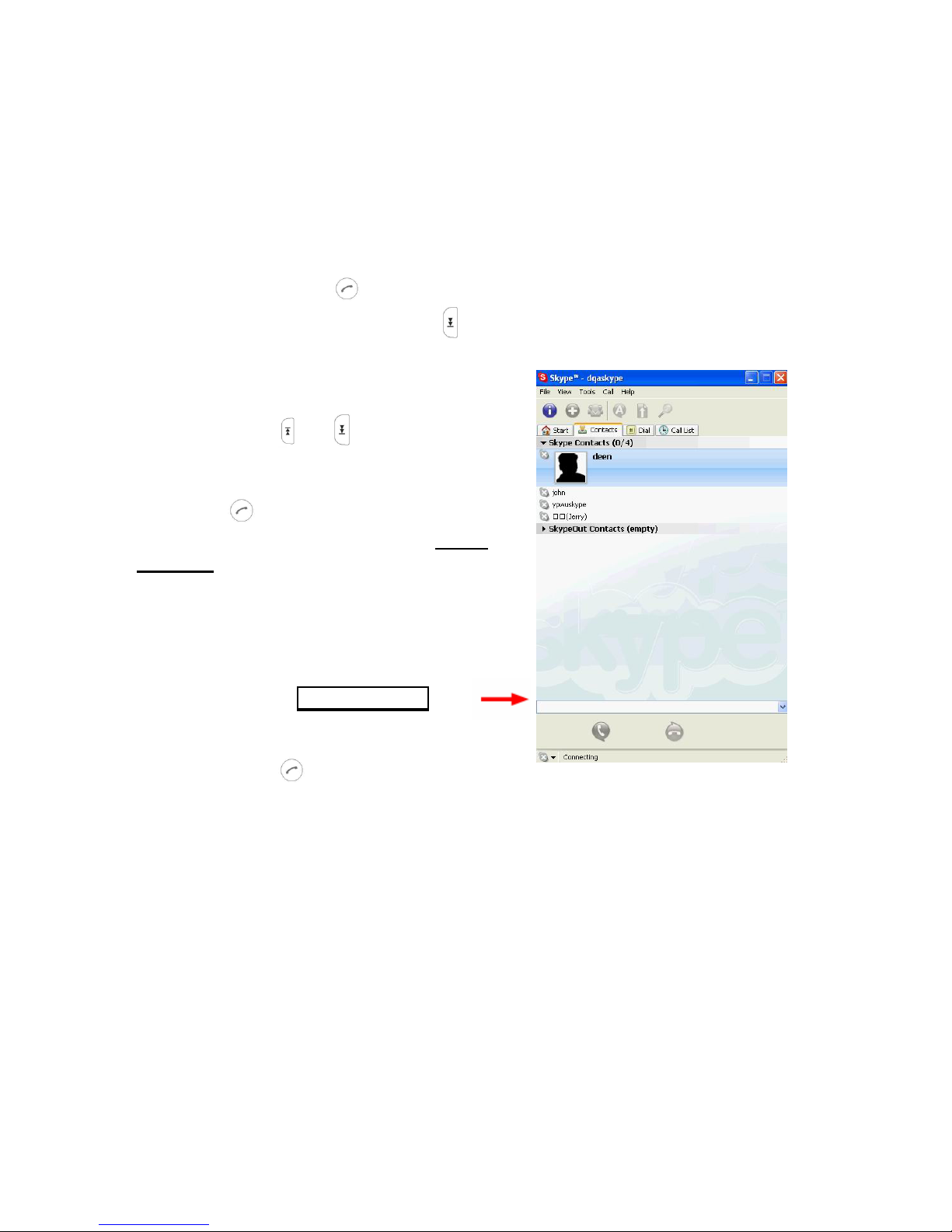
4. Appuyez sur la touche Suivant
pendant 3 secondes ou appuyez sur
Ctrl +Tab pour basculer entre les différents onglets de Skype.
(Assurez vous que la fenêtre ‘’Contacts ‘’
reste en fenêtre active.)
5. Appuyez sur
et pour naviguer
entre les noms de contacts dans l’onglet ‘’
Contacts ’’, et appuyez sur le bouton
Lecture
pour effectuer un appel. Le
curseur ne doit pas rester dans la Zone
d’entrée pour laisser le casque contrôler
Skype à distance.
(Assurez vous que la fenêtre ‘’Contacts ‘’
reste en fenêtre active.)
Zone d’entrée
6. Appuyez sur
une fois pour appeler
après avoir entré le numéro dans la Zone d’entrée ou par le pavé numérique
8. Connexion avec un Téléphone Cellulaire
Avant de pouvoir connecter votre casque à votre téléphone mobile, il est
d’abord nécessaire d’effectuer une synchronisation entre les deux appareils.
Page 47

45
Note:
Ce casque n’est assurément pas compatible avec tous les models
de téléphone mobile Bluetooth.
Veuillez vérifier au près de votre revendeur si celui-ci est
compatible ou non avec votre téléphone mobile.
L’exemple de synchronisation suivant est valable pour un type de
téléphone mobile ; d’autres téléphones peuvent avoir une procédure de
synchronisation similaire ou différente.
8.1 Synchronisation
Etape 1
Eteignez et rallumez le casque avant d’initialiser la synchronisation.
Veuillez vous référer à la section5 pour les opérations de mise
sous et hors tension.
Etape 2
Allumez votre téléphone et trouvez l’installation manuelle de votre téléphone
mobile.
Etape 3
Déplacez le curseur sur l’icône Connexion,
appuyez sur “confirmer” pour le sélectionner
Page 48

46
Etape 4
Lorsque l’icône Bluetooth apparaît, appuyez
sur“confirmer” pour le sélectionner.
Step 5
Eteignez le casque, appuyez et maintenez le
bouton
pendant 3 secondes.
Déplacez le curseur sur Nouvelle
Synchronisation, appuyez sur ‘’confirmer ‘’
pour le sélectionner.
Note:
Si la synchronisation ne s’exécute pas après
un certains temps (une minute environ), il est
possible qu’une précédente connexion soit
toujours utilisée (si c’est le cas la supprimer), répétez alors la procédure
jusqu’à ce que la synchronisation réussisse.
Page 49

47
Etape 6
Votre téléphone mobile commence alors à
rechercher tous systèmes Bluetooth à
proximité.
Etape 7
Appuyez sur ‘’confirmer’’ pour confirmer la
synchronisation.
Etape 8
Lorsque le Clé Bluetooth vous est demandé par
le téléphone mobile, entrez le code pin par
défaut 0000, puis appuyez sur ‘’confirmer”.
Page 50

48
Lorsque la synchronisation est terminée, la LED
bleue sur le casque se mets alors à clignoter
une fois toutes les 2secondes pour signaler qu’il
est bien connecté à votre téléphone mobile.
8.2 Connexion avec un Téléphone Cellulaire
Après synchronisation, appuyez sur
“Connecter” pour activer la connexion du
téléphone.
8.3 Répondre et mettre fin à un Appel Téléphonique
Dès qu’un appel entrant est reçu, le casque se met à sonner.
1. Appuyez sur le bouton Lecture/Décrocher
pour répondre à un
appel téléphonique.
2. Ajustez le volume du casque.
Augmenter le volume: appuyez sur le bouton
.
Page 51

49
Réduire le volume: appuyez sur le bouton .
3. Appuyez sur le bouton On/Off
pour mettre fin à un appel
4. Support de la Commande Vocale.
Si votre téléphone bluetooth supporte la fonction commande vocale
appuyez sur le bouton
pendant trois secondes après que le
processus de synchronisation se soit terminé.
9. CONNEXIONS MULTIPLES
Vous pouvez connecter votre PC (musique), PC (Skype) et votre Téléphone
mobile avec le casque simultanément.
Page 52

50
9.1 Synchronisation des deux appareils.
Veuillez exécuter entièrement la procédure suivante avant de
basculer entre les différentes connexions.
1. Synchronisez l’ordinateur en premier.
Veuillez vous référer à la “Section 6-1” pour les étapes de
synchronisation.
2. Puis synchronisez le téléphone mobile.
Veuillez vous référer à la “Section 8-1” pour les étapes de
synchronisation.
9.2 Basculer entre Téléphone mobile et PC (musique)
c. Assurez- vous que la connexion avec votre téléphone mobile est
toujours active comme dans la section précédente 8.2.
d. Puis, assurez- vous que la connexion avec votre ordinateur est
toujours active comme dans la section précédente 6.2.
1. Appuyez sur
pour répondre au appel entrant.
2. Appuyez sur
pour mettre fin au appel, puis la musique (PC)
reprendra ensuite quelques secondes après.
9.3 Basculer entre PC (musique) et PC (Skype)
a. Assurez-vous que la connexion avec votre ordinateur est toujours
active comme dans la section précédente 6.2.
b. Puis, Assurez- vous que la connexion avec Skype est toujours active.
(Appuyez sur
pendant quelques secondes pour activer la
connexion avec Skype)
Page 53

51
3. Appuyez sur pour répondre à un appel Skype.
4. Appuyez sur
2 fois rapidement pour fermer Skype(PC) et
revenir à la Musique(PC).
9.4 Basculer entre un Téléphone Cellulaire et PC (Skype)
a. Assurez- vous que la connexion avec votre téléphone mobile est
toujours active comme dans la section précédente 8.2.
b. Puis, Assurez-vous que la connexion avec Skype est toujours active.
(Appuyez sur
pendant quelques secondes pour activer la
connexion avec Skype.)
1. Appuyez sur
pour répondre à un appel entrant.
2. Appuyez sur
pour basculer entre le Téléphone et Skype si vous
avez un appel sur les deux supports en même temps.
3. Appuyez sur
pour mettre fin à un appel.
Page 54

52
10. F.A.Q
Q1. Qu’est-ce que la synchronisation?
Rep : La synchronisation permet d’activer la fonction Bluetooth sur les appareils et
d’établir une connexion sécurisée entre ces derniers.
Q2. Que faire si le casque n’arrive pas rétablir la connexion après une mise hors
tension?
Rep : Recommencer une synchronisation pour rétablir la connexion.
Q3. Mon casque a été synchronisé avec mon PC, mais ne peut pas établir de
connexion après avoir une mise hors tension de mon PC.
Rep : Parfois, le casque peut perdre la synchronisation après une extinction de
l’ordinateur. Il vous suffit de refaire la procédure de synchronisation pour réparer
cette dernière.
Q4.Que puis-je faire si la qualité sonore obtenue ave le casque est médiocre ?
Rep : Ajustez le volume sur votre téléphone mobile, ou appuyez sur le bouton V+ du
casque pour augmenter le volume, ou vérifier si la réception de votre téléphone est
correcte.
Q5. Ce casque fonctionne-t-il avec tous les types de téléphones mobiles?
Rep : Non. Il fonctionne uniquement avec les models Bluetooth et n’est pas assuré
de fonctionner avec tous les model Bluetooth , veuillez -vous assurer de la
compatibilité de votre téléphone au près de votre revendeur.
Q6. Pourquoi le casque ne fonctionne-t-il pas avec mon téléphone après l’avoir
chargé complètement et l’avoir mis sous tension.
Rep : Il est nécessaire d’activer la fonction Bluetooth sur votre téléphone puis de le
synchroniser avec le casque.
Q7.Pourquoi mon téléphone ne trouve-t-il pas le casque pour se synchroniser?
Rep : Si le casque n’est pas en Mode Synchronisation, alors votre téléphone ne
pourra pas le détecter. Veuillez mettre le casque en Mode Synchronisation, puis le
recherchez avec votre télé
p
hone et le synchroniser avec celui-ci.
Page 55

53
Q8. Dois-je toujours réparer la synchronisation avec mon téléphone pour pouvoir
l’utiliser avec celui-ci?
Rep : Non, une fois la synchronisation installée entre les deux appareils, ils
garderont en mémoire la synchronisation lorsque un des deux ou les deux appareils
sont hors tension.
Q9. Quelle est la distance d’utilisation maximum entre ce casque et un téléphone
Bluetooth?
Rep : La distance théorique est de 10mètres. Cependant, cela dépend de
l’environnement (ondes d’interférences, obstacles). La qualité du signal Bluetooth du
téléphone influe également sur la qualité de la connexion. Beaucoup de téléphones
mobiles fournissent une distance de fonctionnement assez réduite.
Q10. Que faire quand le logiciel ne répond pas quand l’appareil est connecté et en
marche ?
Rep : Débranchez le(s) appareil(s), et branchez de nouveaux. Si ces actions ne
ramènent pas le système à la normal, tentez de redémarrer le système.
Q11. J’ai suivi les instructions à la lettre, cependant la connexion avec Skype ne se
fait pas. Que faire ?
Rep : Eteignez et rallumer le casque pour activer la connexion à Skype.
Q12. Que faire si les boutons du casque ne fonctionnent pas durant une utilisation
avec Skype ?
Rep : Eteignez et rallumez le casque. Si malgré cette manipulation les boutons ne
fonctionnaient toujours pas, essayez de redémarrer l’ordinateur ou le casque pour
résoudre le problème.
Page 56

54
11. SUPPORT
1. Le casque ne s’allume pas.
Branchez simplement l’appareil au mini câble USB du chargeur de
batterie puis déconnecté le pour remettre à zéro l’appareil.
2. Pas de signal sonore entre le casque et d’autres appareils.
* Assurez- vous que les deux appareils ont bien été synchronisés.
* Assurez- vous que le casque est bien allumé.
* Assurez -vous que les deux appareils fonctionnent correctement.
* Assurez -vous que le signal fourni par le téléphone soit correct.
* Certains models de téléphone portable ne sont simplement pas
compatible avec cet appareil.
* Une déconnection a pu se produire si plusieurs casques sont
synchronisés avec un téléphone.
3. Indications de charge non présente.
Si la batterie du casque est vide, ou n’a pas été utilisé durant
une période prolongé, il est possible que l’indicateur de charge
prenne quelques minutes avant que la LED rouge ne s’allume
durant la charge.
Pour plus d'informations, veuillez vous rendre sur le site web global de
X-Micro à l'adresse suivante
http://www.x-micro.com
Page 57

55
www.x-micro.com
 Loading...