

Page 1

X-Micro Bluetooth 56K Modem
User’s Guide
Page 2

User’s Guide
Copyright
Copyright 2003 by X-Micro Technology Corp., All rights reserved. No part of this
publication may be reproduced, transmitted, transcribed, stored in a retrieval system, or
translated into any language or computer language, in any form or by any means, electronic,
mechanical, magnetic, optical, chemical, manual or otherwise, without the prior written
permission of X-Micro Technology Corp.
Disclaimer
X-Micro Technology Corp., makes no representations or warranties, either expressed or
implied, with respect to the contents hereof and specifically disclaims any warranties,
merchantability or fitness for any particular purpose. Any software described in this manual is
sold or licensed "as is". Should the programs prove defective following their purchase, the
buyer (and not X-Micro Technology Corp, its distributor, or its dealer) assumes the entire cost
of all necessary servicing, repair, and any incidental or consequential damages resulting from
any defect in the software. Further, X-Micro Technology Corp., reserves the right to revise this
publication and to make changes from time to time in the contents hereof without obligation to
notify any person of such revision or change.
.
All brand and product names mentioned in this manual are trademarks and/or registered
trademarks of their respective holders.
http://www.x-micro.com
2
Page 3

User’s Guide
FCC Requirements
This equipment complies with Part 68 of the FCC Rules. On the bottom of this equipment is a
label that contains, among other information, the FCC Registration Number and Ringer
Equivalence Number (REN) for this equipment. IF REQUESTED, THIS INFORMATION
MUST BE GIVEN TO THE TELEPHONE COMPANY.
The REN is useful to determine the quantity of devices you may connect to your telephone line
and still have these entire devices ring when your telephone number is called In most but not all
areas the sum of the REN’s of all devices connected to one line should not exceed five (5.0). To
be certain of the number of devices you may connect to your line. As determined by the REN,
you should contact your local telephone company to determine the maximum REN of the area
you are calling from. If your telephone equipment causes harm to the telephone network, the
Telephone Company may discontinue your service temporarily. If possible, they will notify you
in advance. But if the advanced notice fails, you will be notified as soon as possible. You will
be informed of your right to file a complaint with the FCC.
Your telephone company may change its facilities, equipment, operations or procedures that
could affect the proper functions of your equipment. If this occurs, you will be notified in
advance to give you an opportunity to maintain uninterrupted telephone service.
If you experience trouble with this telephone equipment, please contact the following address
and phone number for information on obtaining service or repairs. The Telephone Company
may ask you to disconnect this equipment from the network until the problem is solved or until
that the equipment is not detected malfunctioning. This equipment may not be used on coin
service provided by the Telephone Company. Connection to party lines is subject to state
tariffs.
Federal Communications Commission
Radio Frequency Interference Statement.
Note: This equipment has been tested and found to comply with the limitation for a class B
digital device pursuant to Part 15 of the FCC Rules. These restrictions are designed to provide
reasonable protection against harmful interference when the equipment is operated in a
residential installation. This equipment generates, uses, and can radiate radio frequency energy
and if not installed and used in accordance with the instructions manual it may cause harmful
interference to radio communications. However, there is no guarantee that interference will not
occur in a particular installation. If the equipment does cause harmful interference to radio or
television reception, which can be determined by turning the equipment off and on, the user is
suggested to try to correct the interference by one or more of the following measures:
-Reorient or relocate the receiving antenna.
-Increase the distance between the equipment and receiver.
-Connect the equipment into an outlet on a circuit different from that to which the receiver
is connected. Consult the dealer or an experienced radio TV technician for help.
Notices:
(1) The changes or modifications not expressly approved by the party responsible for
compliance could void the user’s authority to operate the equipment.
(2) Shielded interface cables and AC power cord if any must be used in order to comply with
the emission limits.
3
Page 4
CO
User’s Guide
Notices to Australian users:
The modem card must only be used in a data terminal equipment (DTE) e.g. computer, that has
a screw down cover (lid). As unsafe voltages (TNV) exist on the modem card, disconnect the
modem card from the telephone line while the cover (lid) of the DTE (computer) is removed.
Installation of the modem card in a DTE (computer) which does not require a tool to open the
cover (lid) will render the permit void.
Disconnect the telephone line before opening the cover (lid) of the DTE (computer). Do not
connect the customer equipment to the telephone line while the cover (lid) of the DTE
(computer) is open.
Modems connected to the Australian telecommunications network must be marked in
accordance with the Labeling Notice. This modem has been specifically configured to ensure
compliance with the ACA Standards. Do not adjust your modem or software outside the values
indicated as below. To do so would result in your modem being operated in a non-compliant
manner.
Modem Commands:
Command
ATA - Do not use
ATB B0 Do not set to B1
AT&G &G0 &G2
AT&P &P0 &P1
ATSn see table below
S register Default Permissible Range
s6 2 2 to 6
Call Attempts/Retries:
Applications software shall be configured so that no more than 3 attempts are made to
establish a connection to a given number (Note: if the modem can detect service tones, up to
10 attempts can be made). If the call sequence is unsuccessful, there shall be a delay of at
least 30 minutes before attempting to call the number again.
Failure to set the modem and any application software used with the modem, to the values
shown as above will result in the modem being operated in a non-compliant manner.
Consequently, this would be in violation of the Labeling Notice for this equipment, and the
Telecommunications ACT 1997 prescribes penalties for the connection of non-compliant
equipment.
Trademarks
All trademarks belong to their respective proprietors.
Copyright Statement
No part of this publication may be reproduced in any form or by any means or used to make
any derivative such as translation, transformation, or adaptation without permission from
X-Micro Technology Corp., Contents subject to change without prior notice.
ONLY CONNECT EQUIPMENT WITH A TELECOMMUNICATIONS
FOR SAFETY REASONS, ONLY CONNECT EQUIPMENT WITH A
TELECOMMUNICATIONS COMPLIANCE LABEL. THIS INCLUDES
CUSTOMER EQUIPMENT PREVIOUSLY LABELLED,
PERMITTED OR CERTIFIED.
Default Permissible Range
WA R N IN G
MPLIANCE LABEL
WARNING
4
Page 5

User’s Guide
CONTENTS
Chapter 1 Introduction....................................................................... 6
Chapter 2 Installation ......................................................................... 8
Chapter 3 How to use Bluetooth Modem ..........................................9
3.1 Dial-up Network...................................................................................9
3.1.1 Windows 98/ME.........................................................................................9
3.1.2 Windows 2000/XP.................................................................................... 13
3.2 Fax.......................................................................................................17
3.2.1 Windows 98/ME.......................................................................................17
3.2.2 Windows 2000/XP.................................................................................... 20
5
Page 6

User’s Guide
Chapter 1 Introduction
This Bluetooth Modem allows you connect your computer to the Internet and other
fax modems wirelessly. This user’s guide describes those features.
Specifications of External Modem
Chip Set : Conexant SC56D
Line Connection : PSTN,2 wires
Data Transmission : BELL 103 and 212A
ITU-T V.21 (300 bps)
ITU-T V.22 (1200 bps)
ITU-T V.23 (1200/75 bps)
ITU-T V.22 bis (2400 bps)
ITU-T V.32 (9600/4800 bps)
ITU-T V.32 bis (14400/7200/1200 bps)
ITU-T V.34 bis (33600/28800 bps)
ITU-T V.90 and K56 flex
ITU-T V.92
ITU-T V.92 : Quick connect Theory of Operation
Modem on-hold
PCM Upstream
Fax Transmission : Send/Receive G3 Fax
ITU-T V.27ter (2400 bps)
ITU-T V.29 (9600 bps)
ITU-T V.17 (14400 bps)
Error Correction : MNP 2-4/V.42 LAPM
Data Compression : MNP 5/V.42 bis/V.44
Command Set : EIA/TIA 578 Class 1 & T.31 Class 1.0
Transmit Level : Country depend
Flow Control : XON/XOFF , RTS/CTS(default)
Escape code : TIES
Dialing Mode : Tone /pulse
Noted Features : Speed Buffering
Auto Format/Speed sensing
Auto Retrain
DATA Interface : UART
Telephone Interface : PSTN Line through RJ-11
Signal light : Power;BT;CD;TX;RX
LED Color : Red
6
Page 7

User’s Guide
Radio Specifications
Chip set : CSR
Standards : Bluetooth Specification V1.1
Carrier Frequency : 2.4GHZ to 2.4835GHZ
DATA Rate : Asymmetric: 723.2kbps max/57.6kbps
Symmetric : 433.9kbps
Receiving sensitivity : -80dBm
Output Power : +3dBm to –20dBm (class 2)
Modulation Method : GFSK
Support Profile : Dial-Up Networking; FAX; Serial port
OS : Windows 98 SE/ME/2000/XP
Antenna : External
EMI/Safety/Certification
PTT : FCC Part68 Class B
CTR21
Safety : FCC Part15 Class B
CE; LVD EN60950
Package Contents
The box includes the following items:
One 56K Bluetooth Modem
Power Adapter
One Phone Line Cable
One User’s Guide
7
Page 8
User’s Guide
Chapter 2 Hardware Installation
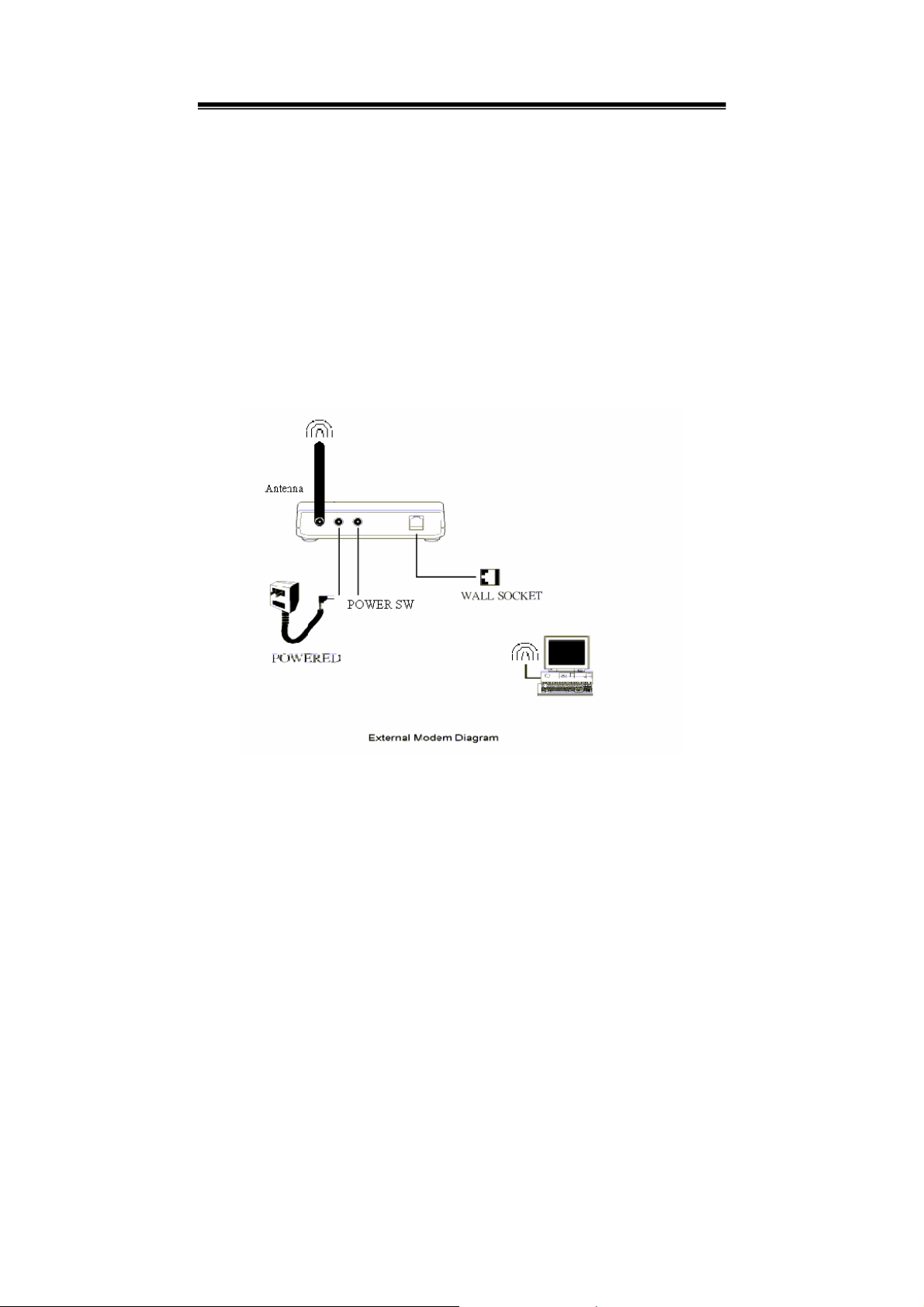
Plug the supplied phone cable into the jack on the back of the modem marked
“LINE”.
Plug the other end of the cable into the wall socket.
Plug the power cord of the supplied power adapter into the jack on the back of the
modem marked “POWER”.
Plug the power adapter into the power socket.
Push the power switch to turn on the power of the modem, push again to turn off.
8
Page 9
User’s Guide
Chapter 3 How to use Bluetooth Modem
The user’s guide hereafter is based on the example that the users
already successfully install the Bluetooth dongle or other similar
Bluetooth adapter with Widcom software and Fax application software
like BVRP on his/her desktop or laptop computer.
3.1 Dial-up network
3.1.1 Windows 98/ME
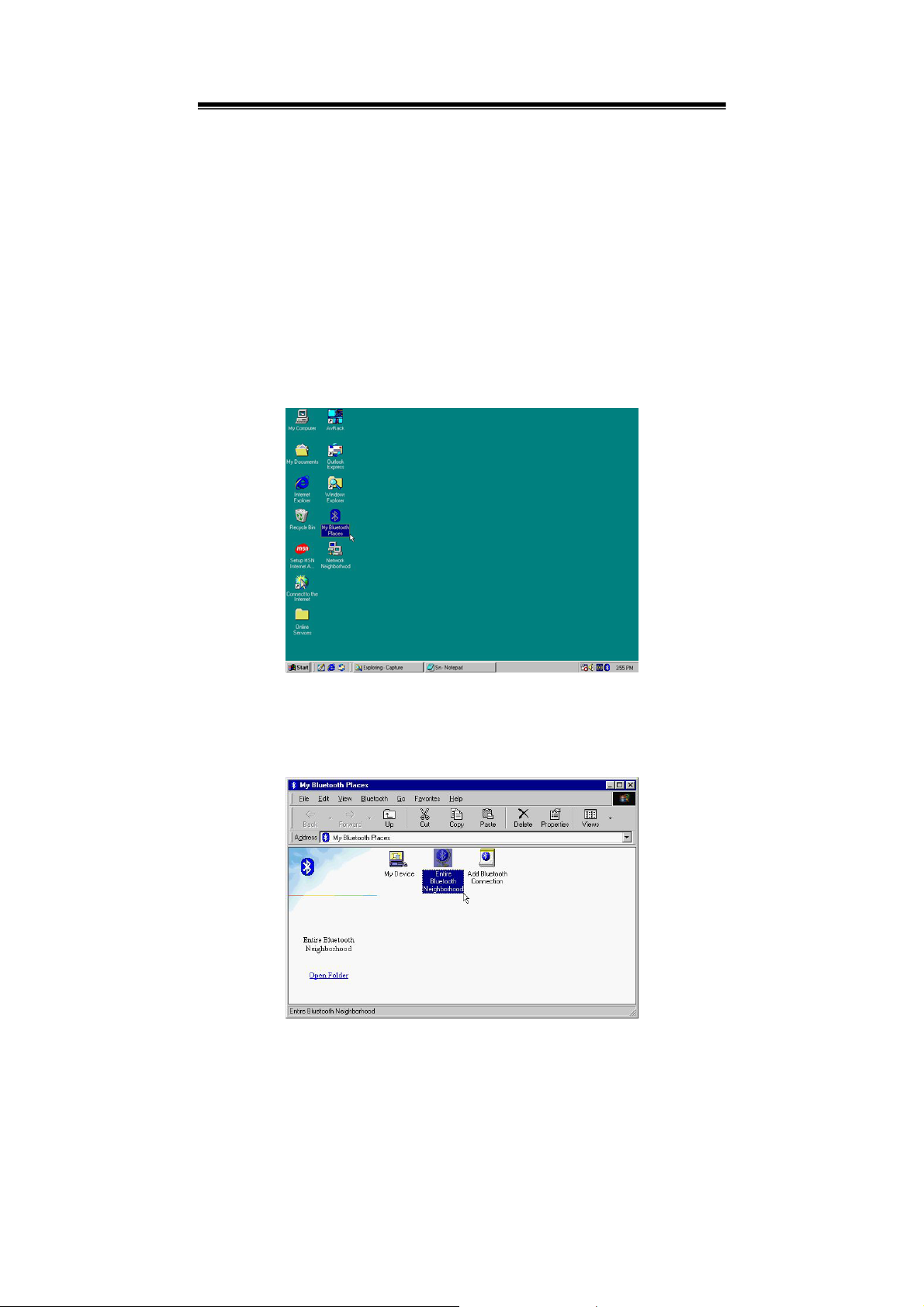
2.1.1.1 Double click on the My Bluetooth Places icon on desktop screen.
3.1.1.2 Select “Entire Bluetooth Neighborhood” to search Bluetooth Devices in
proximity. You will find a Bluetooth Modem icon on the list if you have
plugged in phone line and powered on the Bluetooth Modem successfully.
9
Page 10
User’s Guide
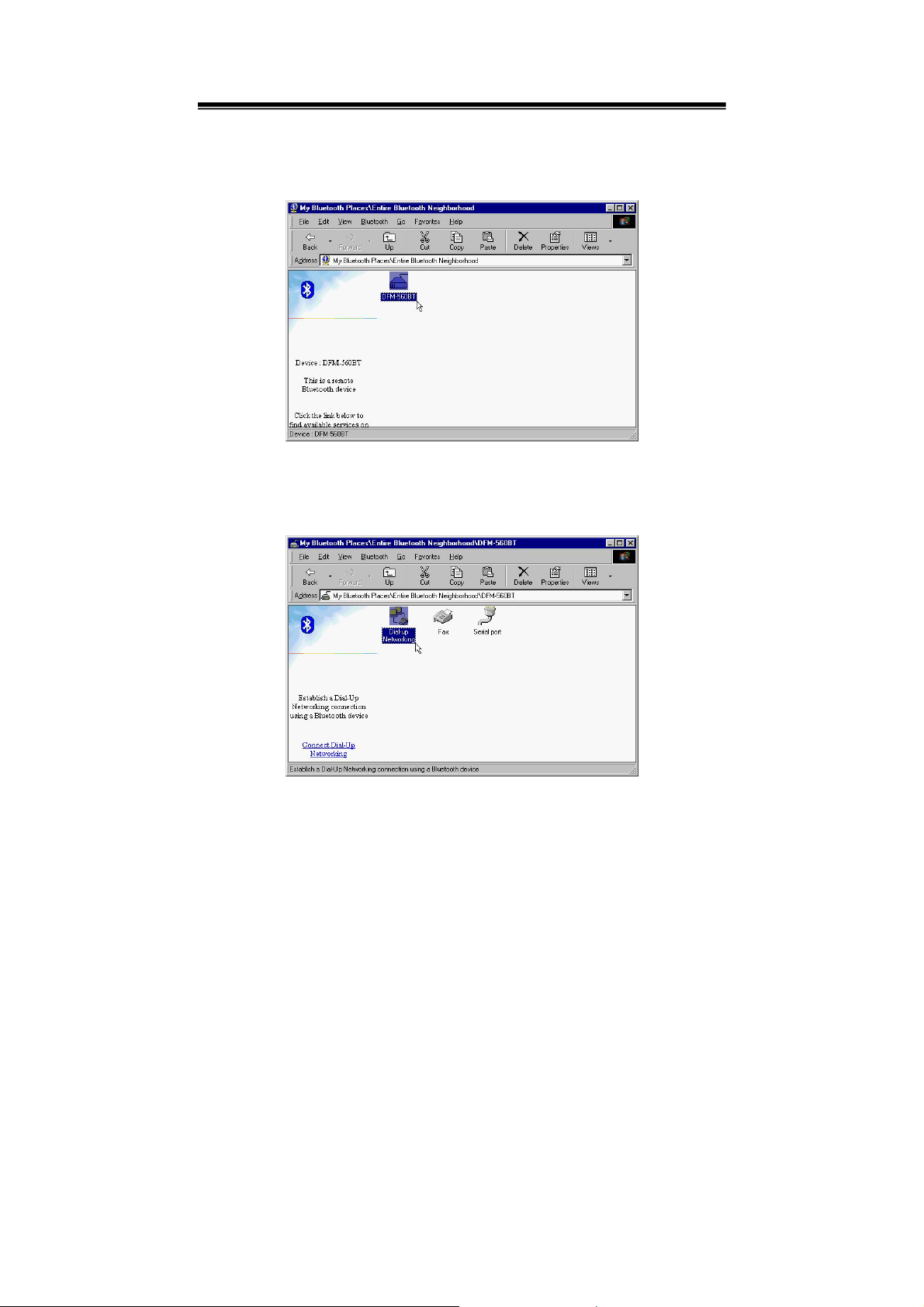
3.1.1.3 When the Bluetooth dongle find the new Bluetooth device, it will show
“Bluetooth Modem” then double-click on this icon.
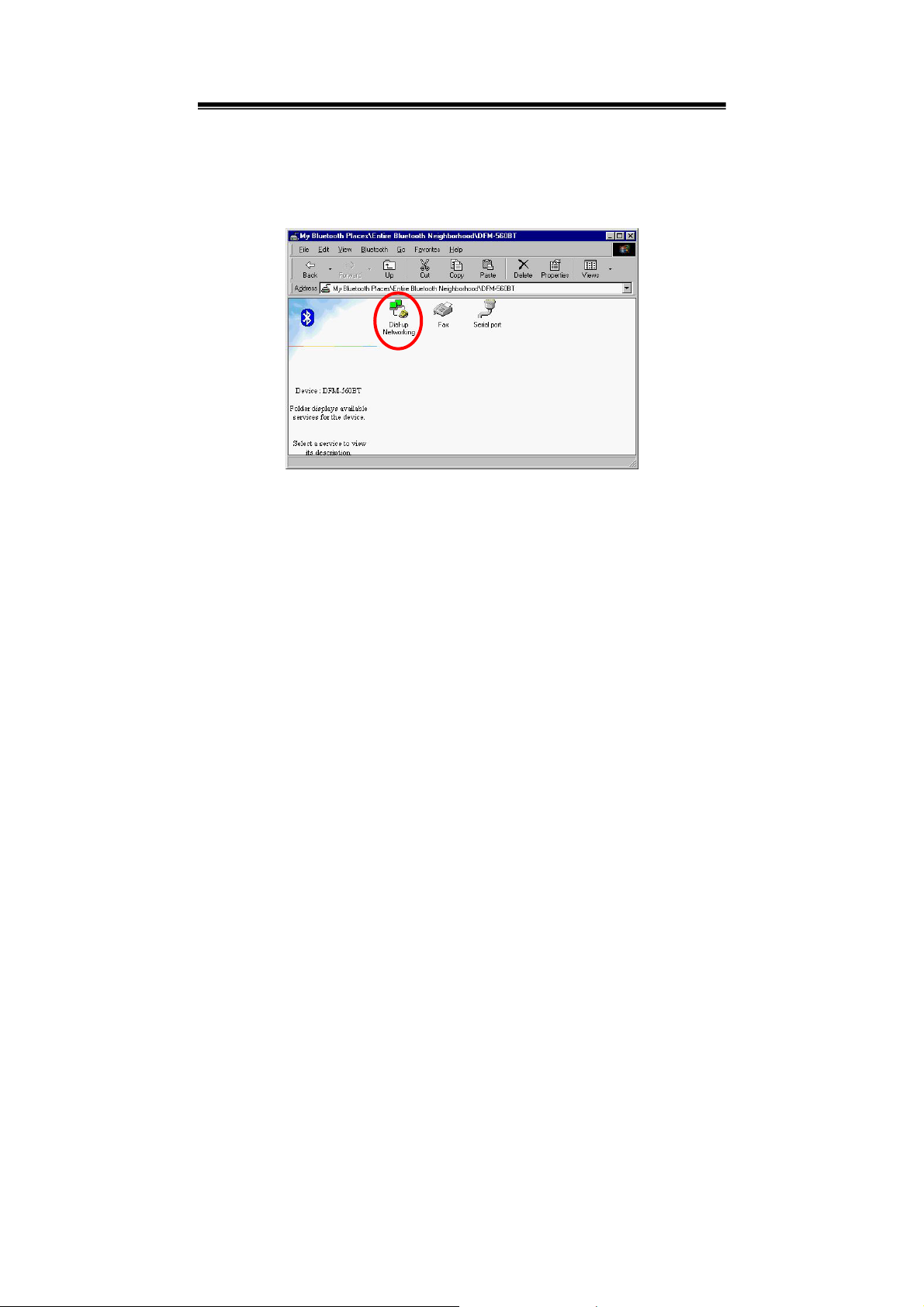
3.1.1.4 Click on the Dial-up Networking.
10
Page 11
User’s Guide
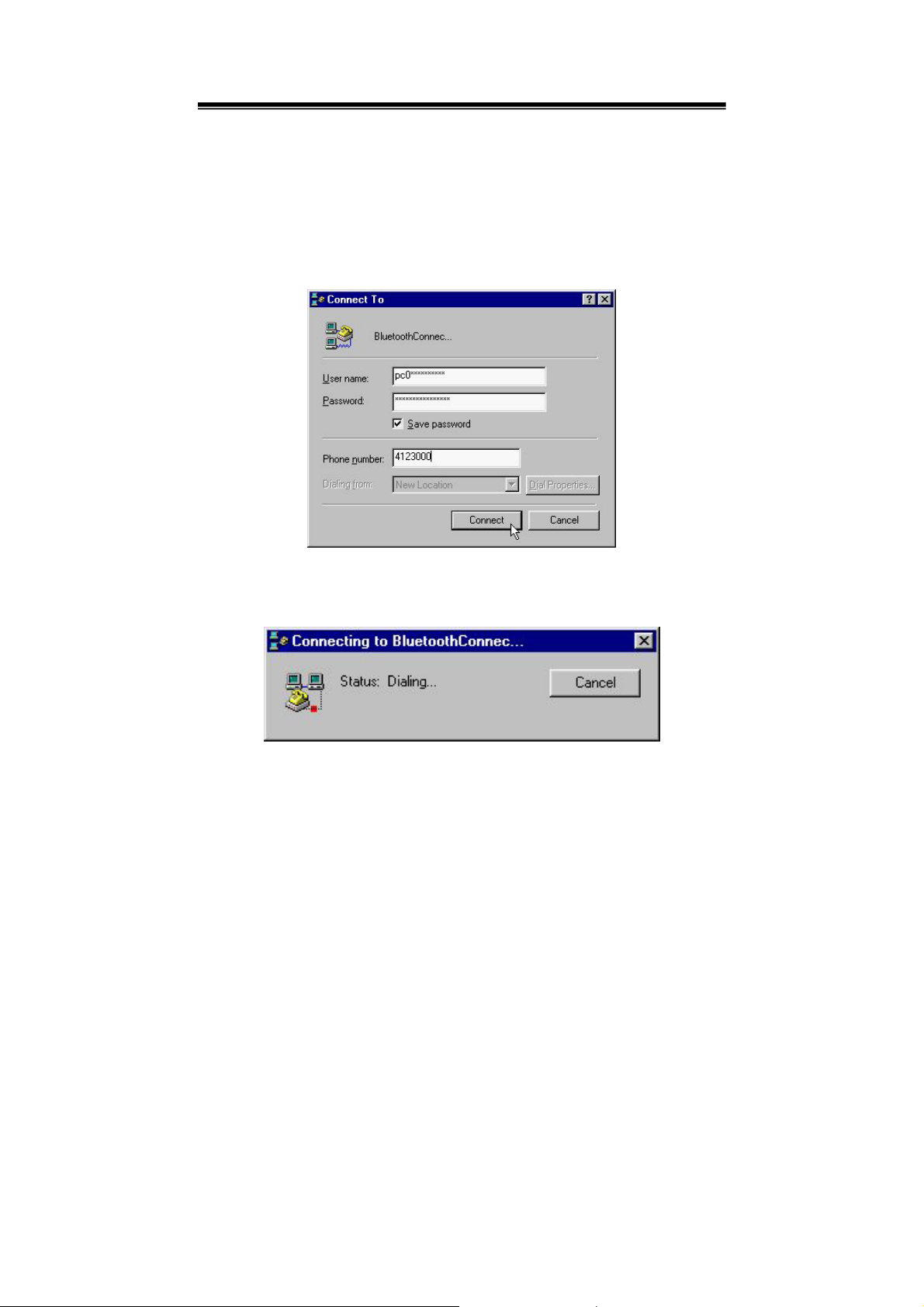
3.1.1.5 Fill in your dial-up username, password, and the phone number to be
dialed; check the “Save password “ check box then you will not require
to enter the password for subsequent connections to the same phone
number and then click on the “Connect” button.
3.1.1.6 It takes seconds to connect to the Internet.
11
Page 12
User’s Guide
3.1.1.7 The Dial-up Networking Icon turns Green when connection is established.
You can now open a web browser and surf the Internet wirelessly.
12
Page 13
User’s Guide
3.1.2 Windows 2000/XP
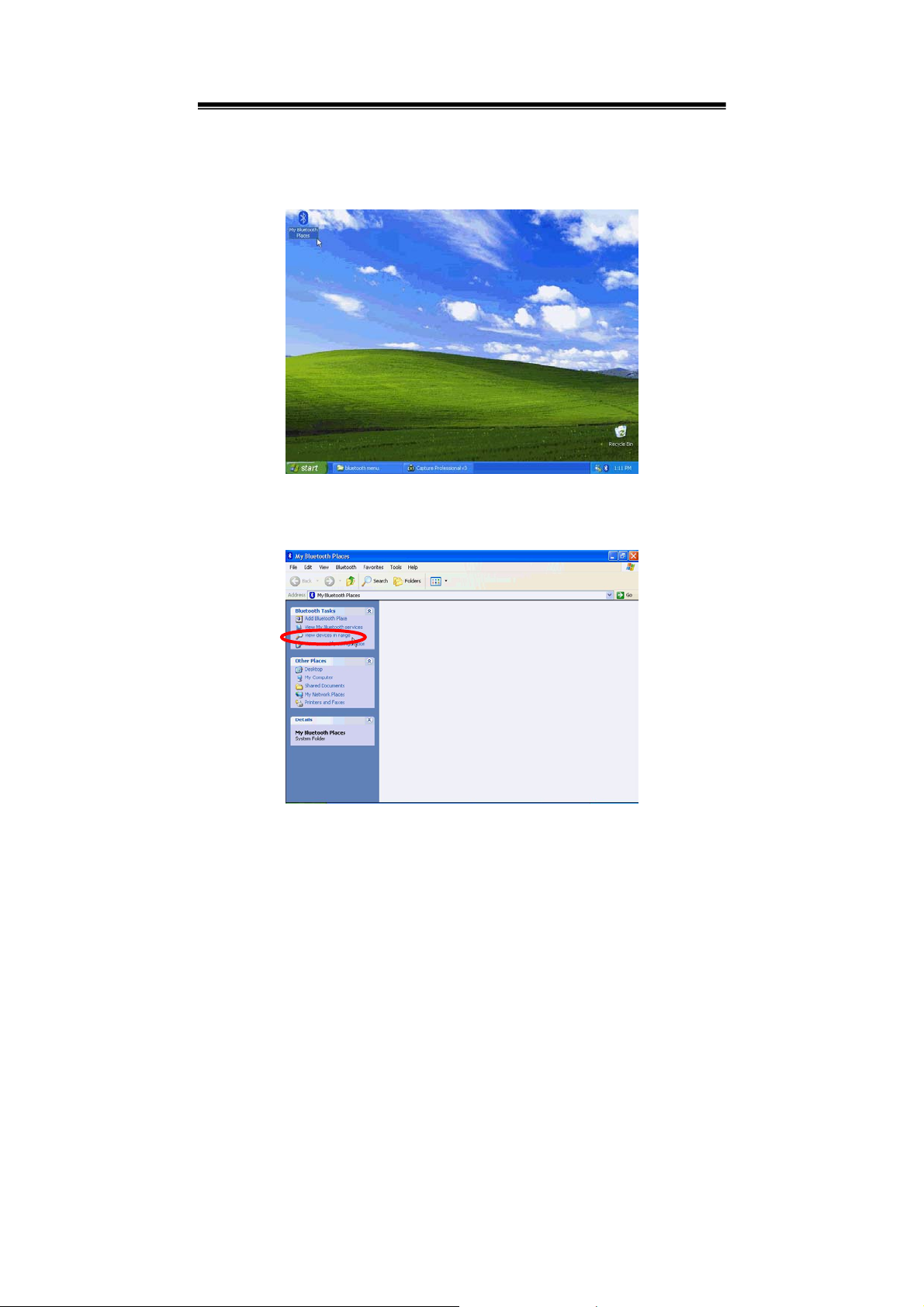
3.1.2.1 Double click on the My Bluetooth Places icon on desktop screen.
3.1.2.2 Click “Search for devices in range” to find Bluetooth device.
13
Page 14
User’s Guide
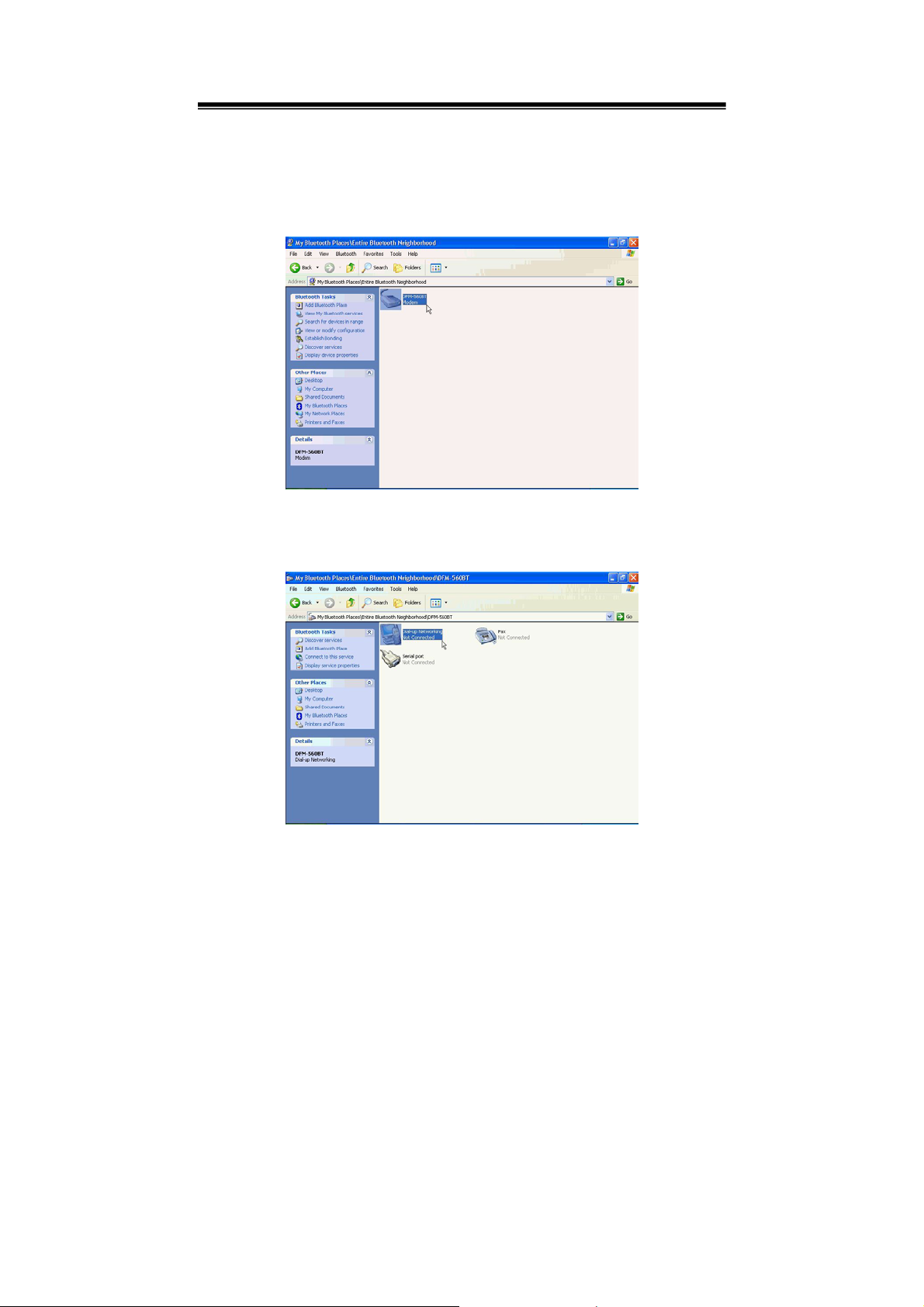
3.1.2.3 When the dongle finds the new Bluetooth device, it will show “Bluetooth
Modem” then double-click on this icon.
3.1.2.4 Click on Dial-up Networking.
14
Page 15
User’s Guide
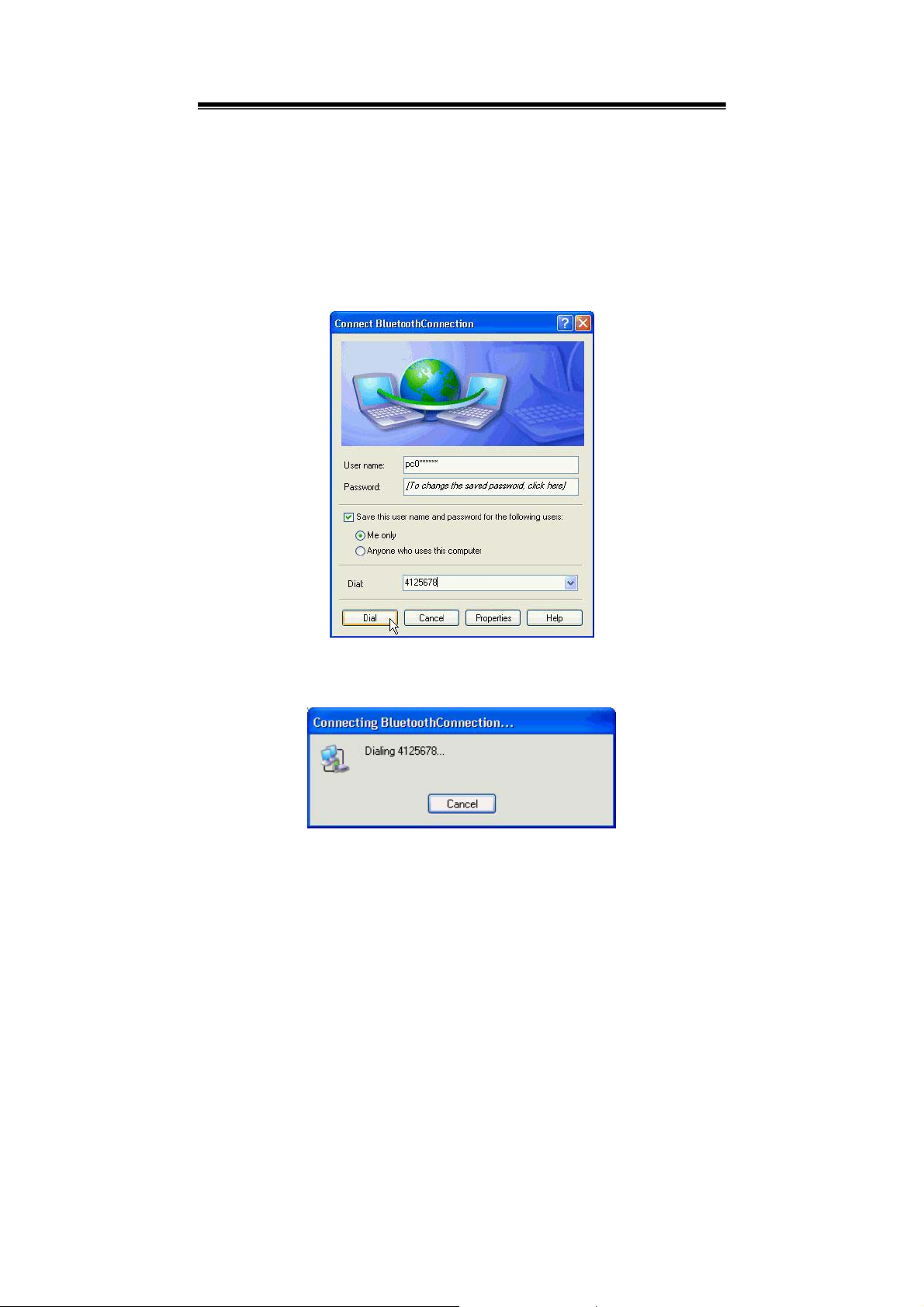
3.1.2.5 Fill in your dial-up username, password and the phone number to be dialed;
check the “Save this user name and password for the following users:
“ check box then you will not require to enter the password for subsequent
connections to the same phone number.
Click on the “Dial” button to start connecting.
3.1.2.6 It takes seconds to connect to the Internet.
15
Page 16
User’s Guide
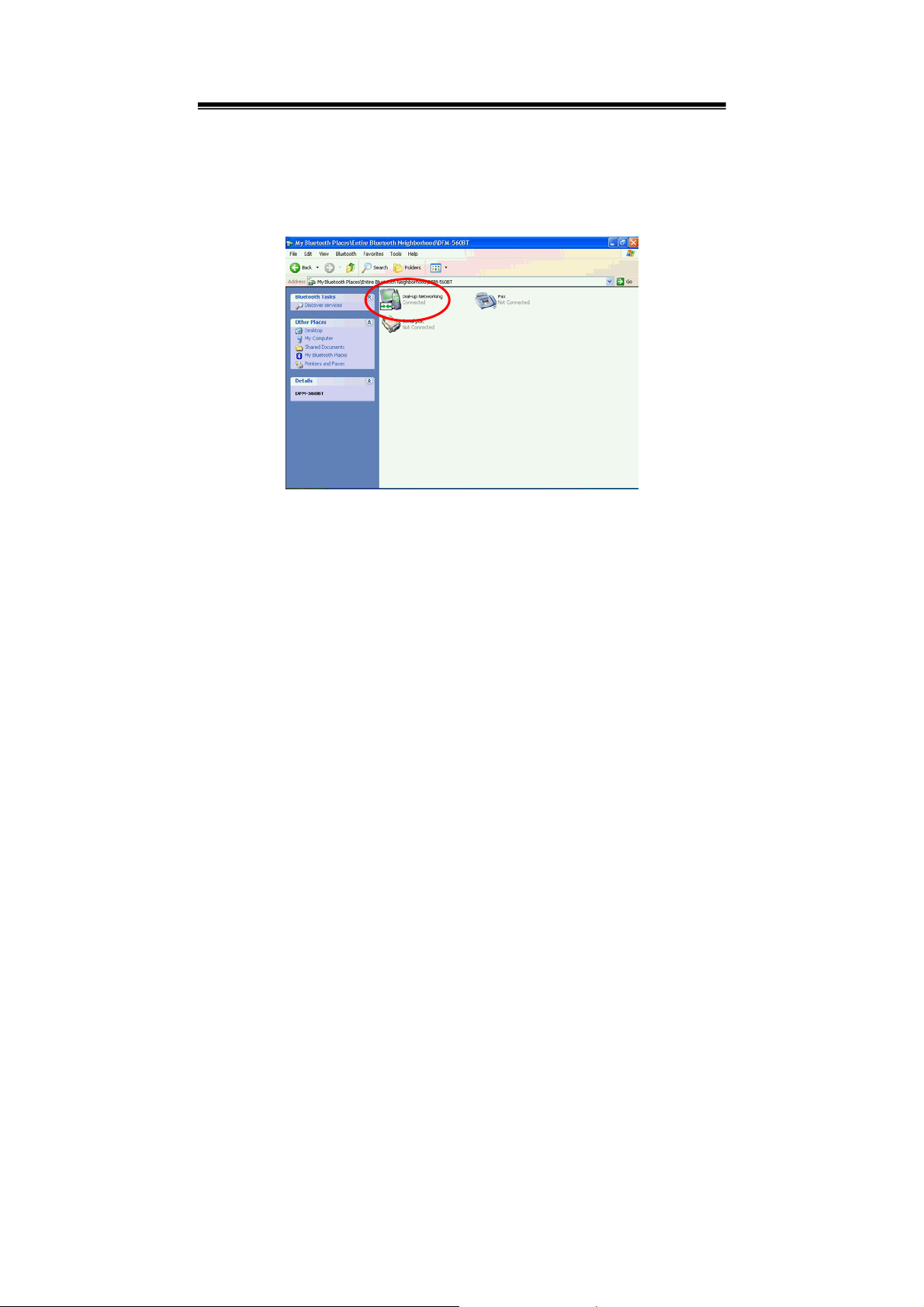
3.1.2.7 The Dial-up Networking icon turns Green when connection is established.
You can now open a web browser and surf the Internet wirelessly.
16
Page 17
User’s Guide
3.2 Fax
3.2.1 Windows 98/ME
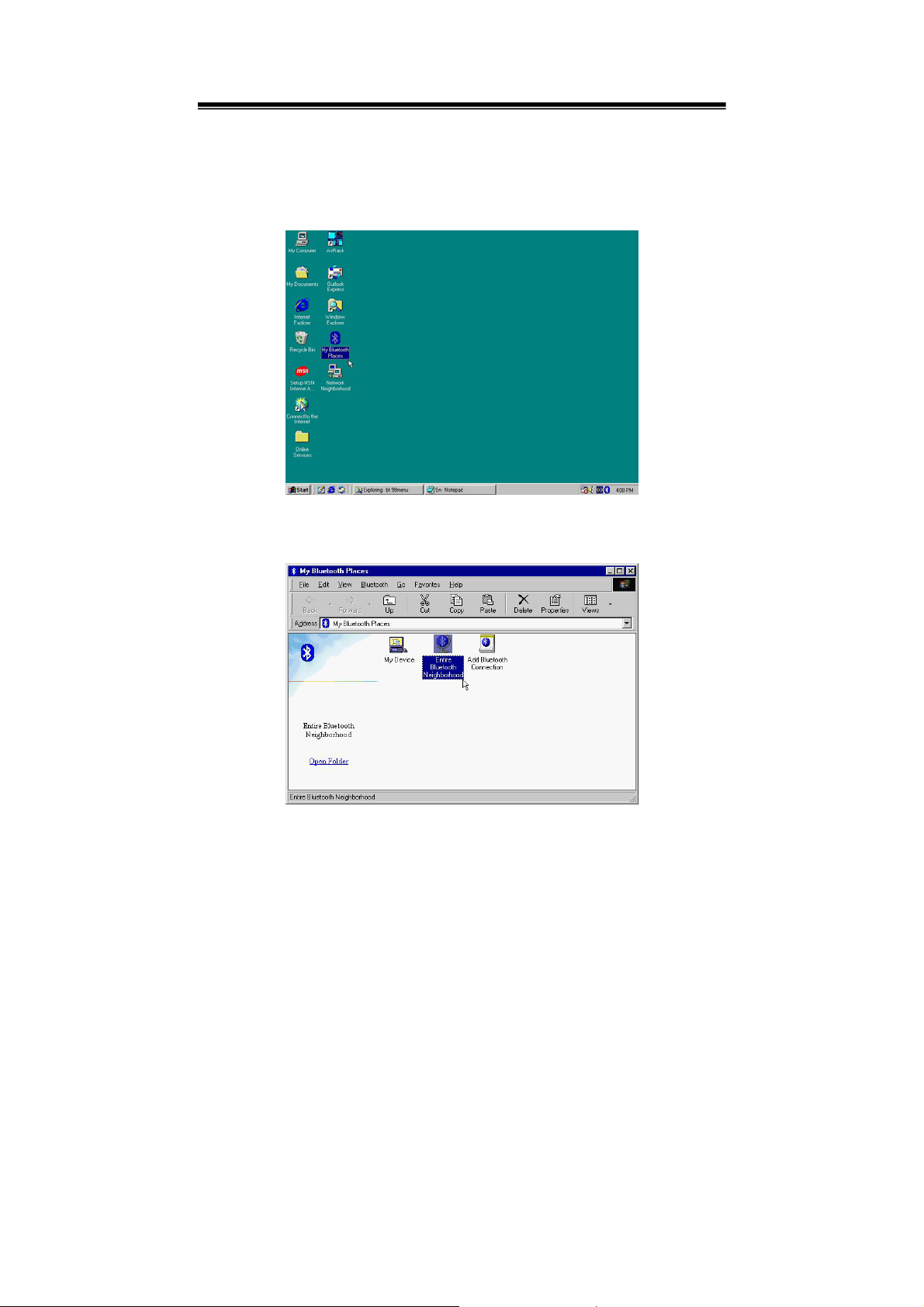
3.2.1.1 Double click the My Bluetooth Places icon on desktop screen.
3.2.1.2 Click “Search for devices in range” to find Bluetooth device.
17
Page 18
User’s Guide
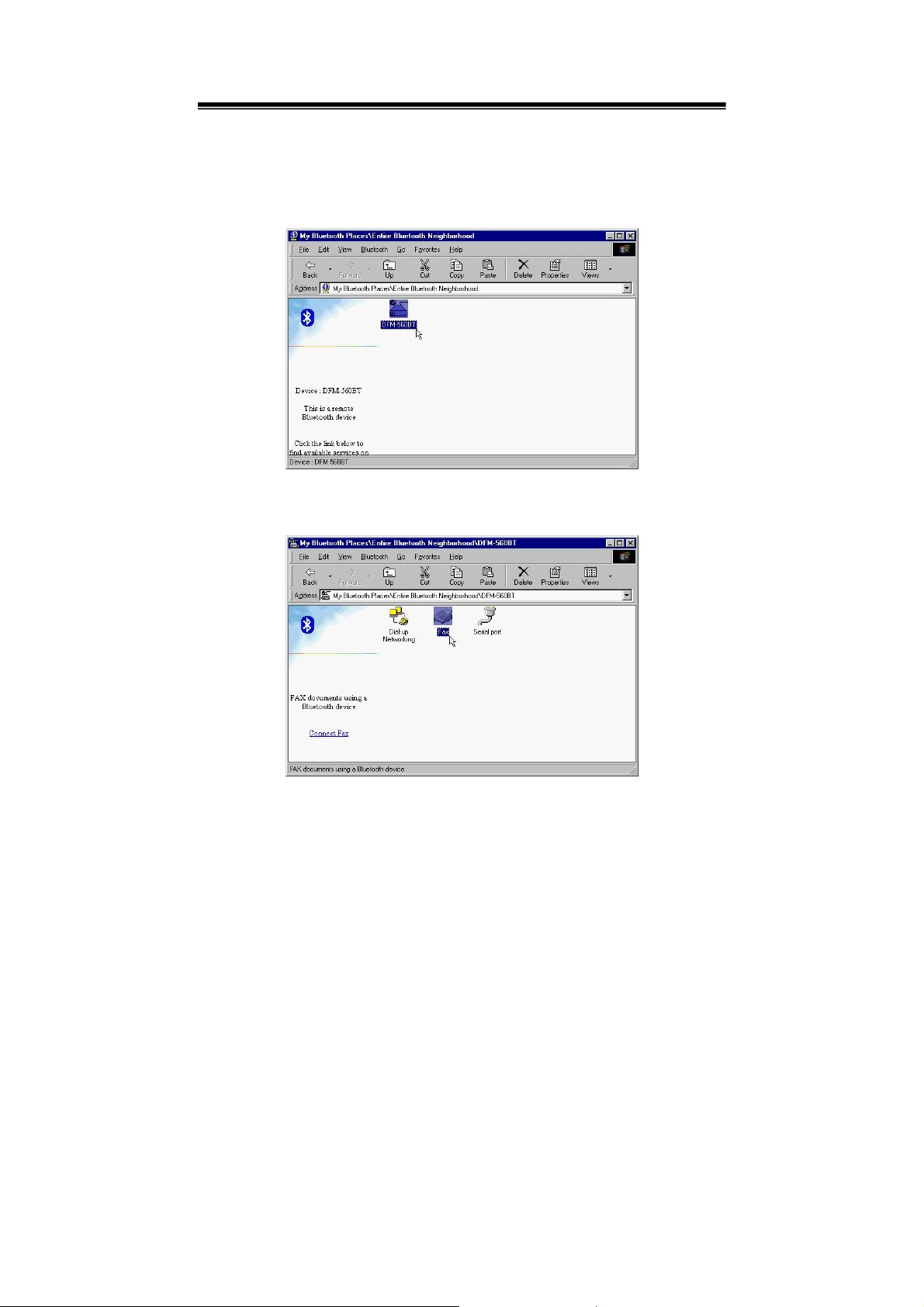
3.2.1.3 When the dongle finds the new Bluetooth device, it will show “Bluetooth
Modem” then double-click on this icon.
3.2.1.4 Double-click on Fax.
18
Page 19
User’s Guide
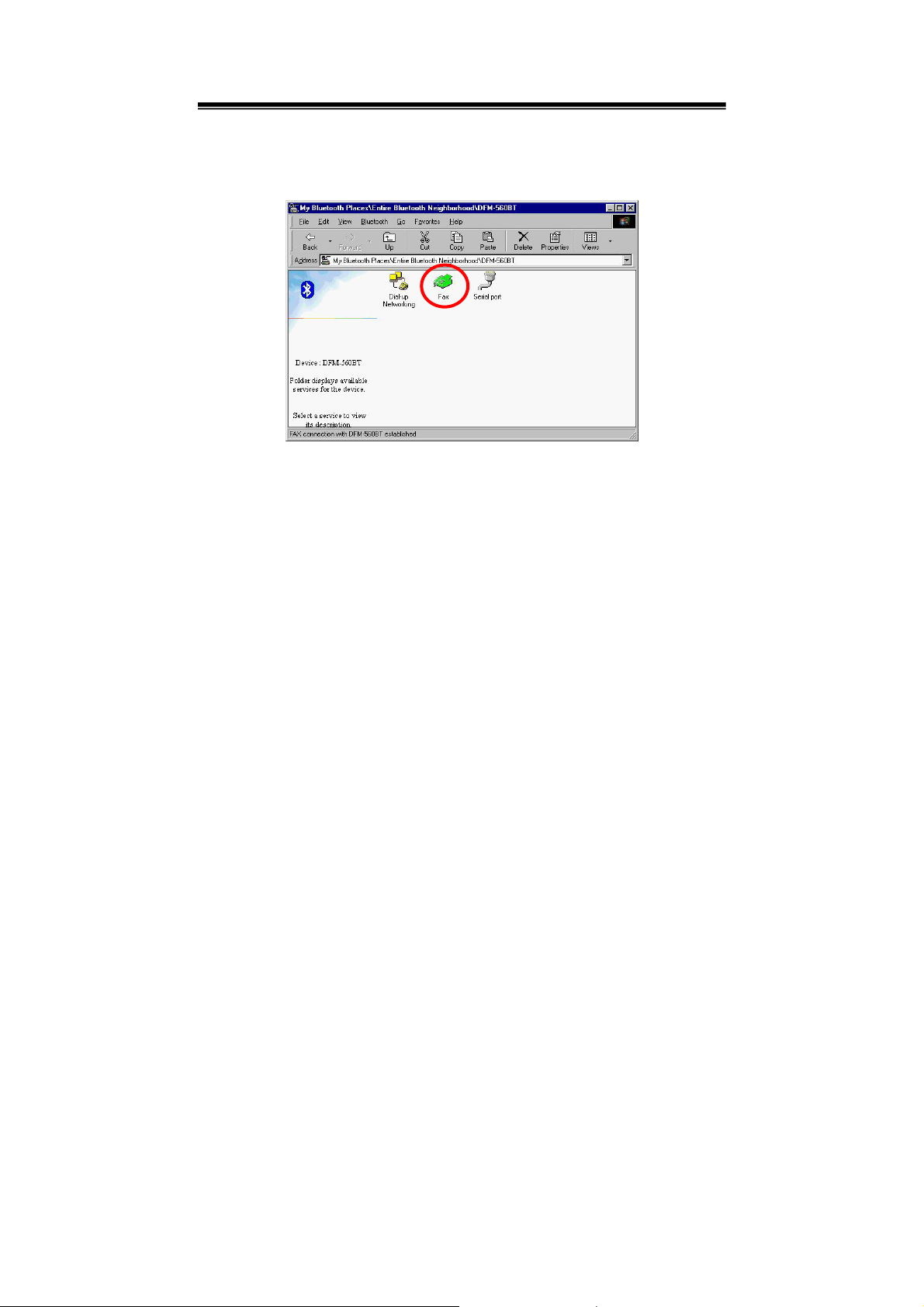
3.2.1.5 The Fax Icon turns Green when Fax function is established.
3.2.1.6 If you are using Fax again, all you need to do is to initialize BVRP Tools
or other similar application software to start Fax function.
19
Page 20
User’s Guide
3.2.2 Win 2000/XP
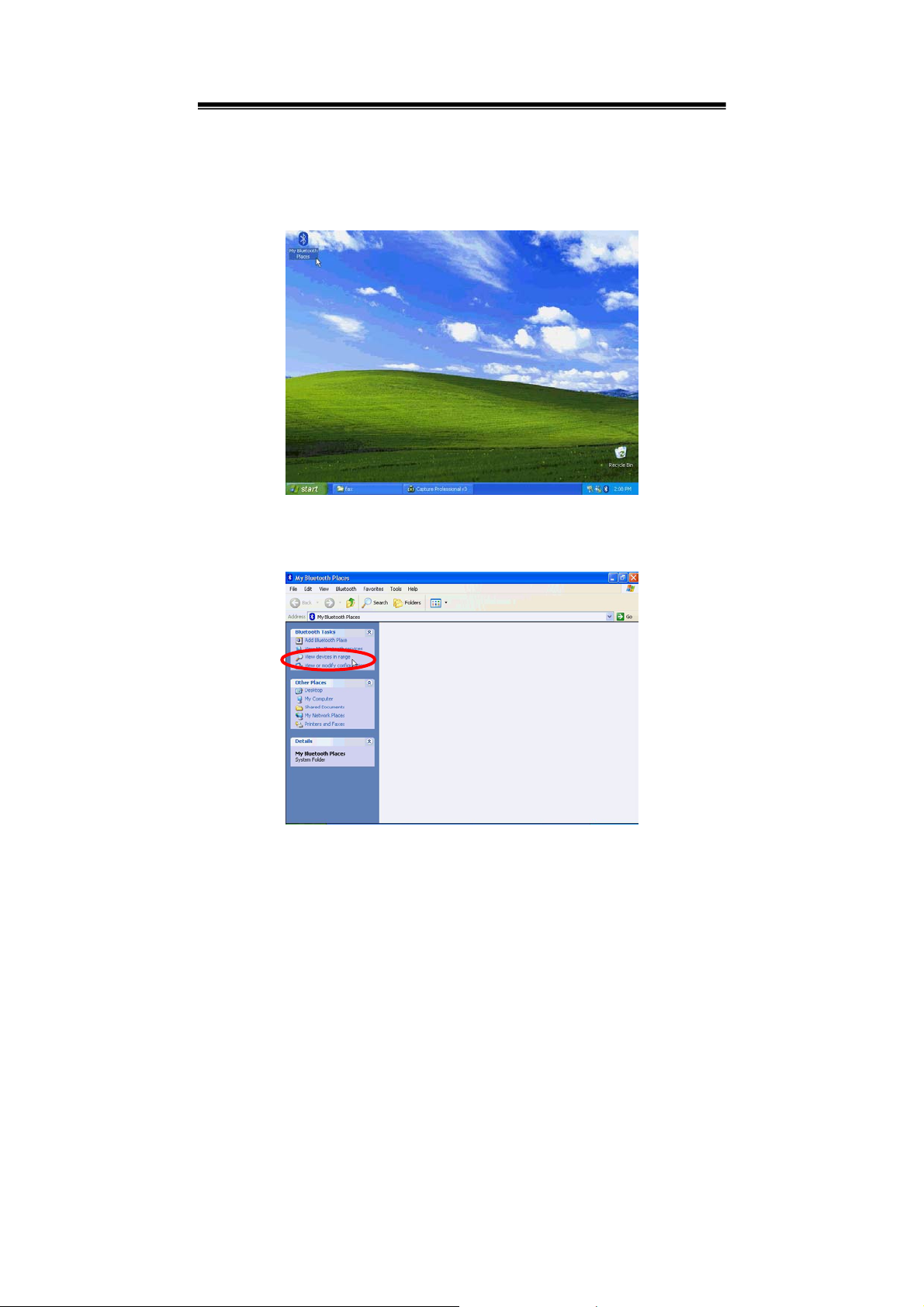
3.2.2.1 Double click the My Bluetooth Places icon on desktop screen.
3.2.2.2 Click “Search for devices in range” to find Bluetooth device.
20
Page 21
User’s Guide
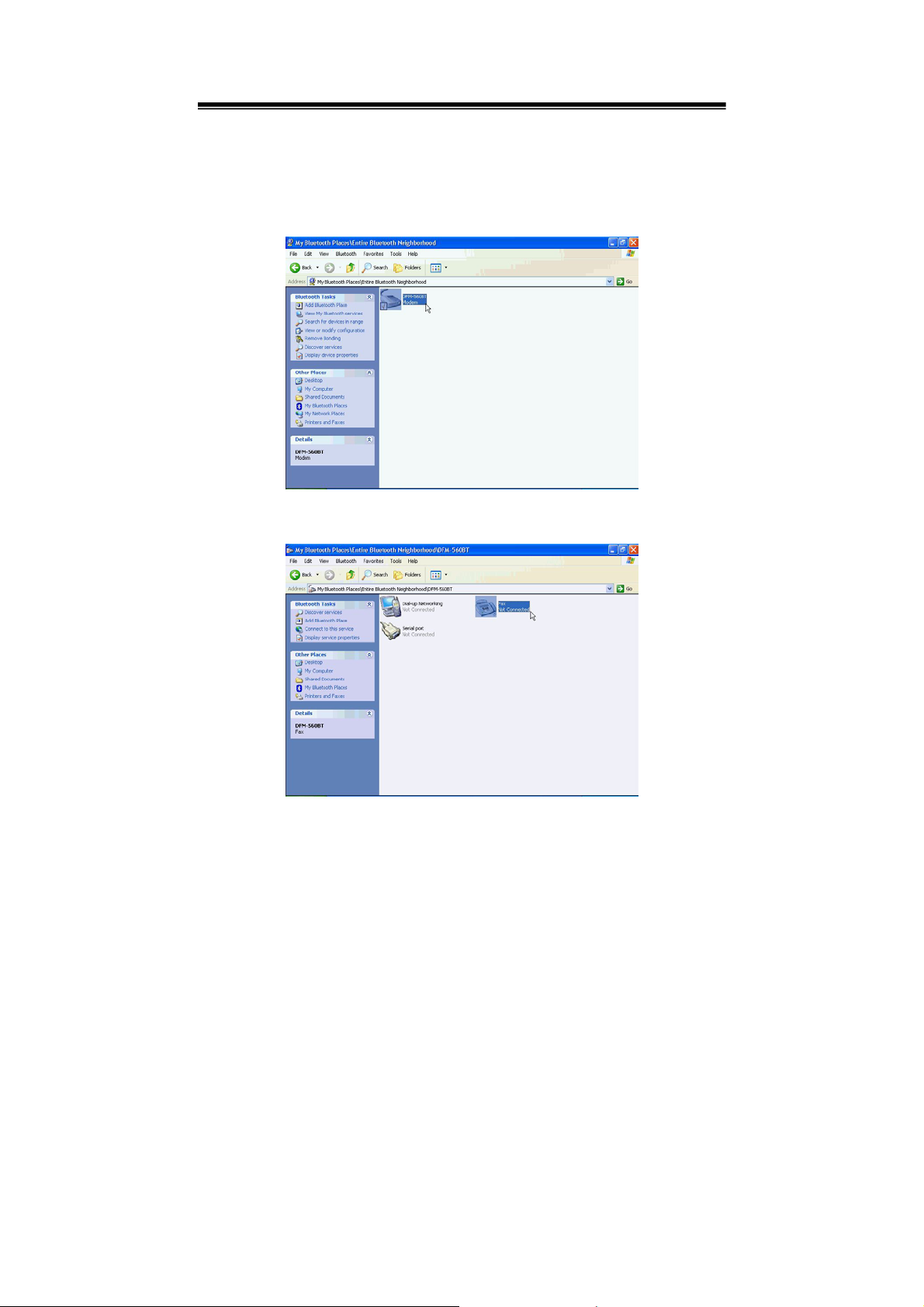
3.2.2.3 When the dongle finds the new Bluetooth device, it will show “Bluetooth
Modem” then double-click on this icon.
3.2.2.4 Double-click on Fax.
21
Page 22
User’s Guide
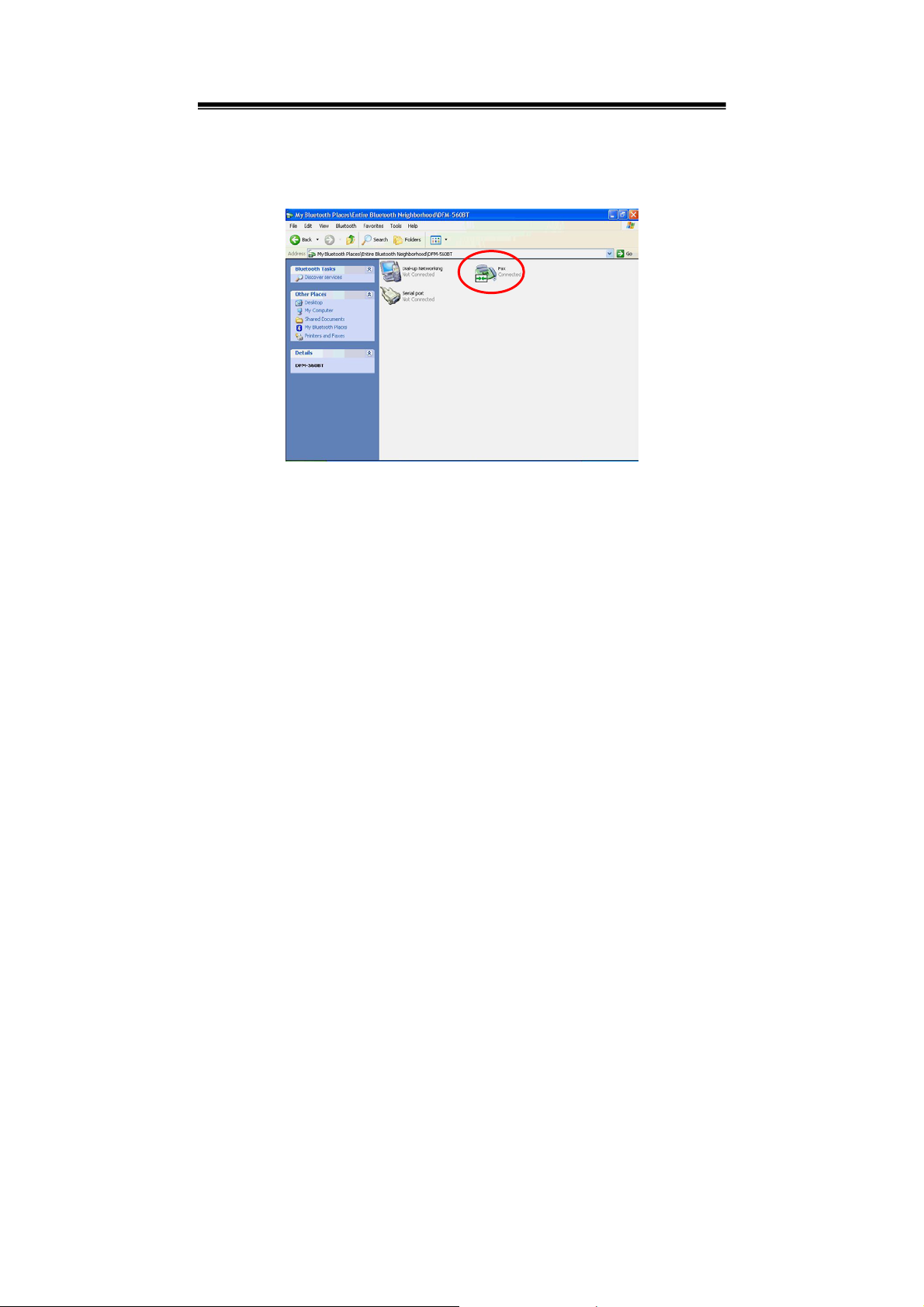
3.2.2.5 The Fax Icon turns Green when Fax function is established.
3.2.2.6 If you are using Fax again, all you need to do is to initialize BVRP Tools
or other similar application software to start Fax function.
22
 Loading...