

Page 1

X-Micro APEX Flash Stick
USB 2.0
User Manual
Page 2

Copyright
Copyright 2003 by X-Micro Technology Corp., All rights reserved.
No part of this publication may be reproduced, transmitted,
transcribed, stored in a retrieval system, or translated into any
language or computer language, in any form or by any means,
electronic, mechanical, magnetic, optical, chemical, manual or
otherwise, without the prior written permission of X-Micro
Technology Corp.
Disclaimer
X-Micro Technology Corp., makes no representations or warranties,
either expressed or implied, with respect to the contents hereof and
specifically disclaims any warranties, merchantability or fitness for
any particular purpose. Any software described in this manual is
sold or licensed "as is". Should the programs prove defective
following their purchase, the buyer (and not X-Micro Technology
Corp, its distributor, or its dealer) assumes the entire cost of all
necessary servicing, repair, and any incidental or consequential
damages resulting from any defect in the software. Further, X-Micro
Technology Corp., reserves the right to revise this publication and to
make changes from time to time in the contents hereof without
obligation to notify any person of such revision or change.
Page 3

All brand and product names mentioned in this manual are trademarks and/or
registered trademarks of their respective holders.
http://www.x-micro.com
Page 4

Introduction
Congratulations on your purchase of the X-Micro APEX Flash Stick
USB 2.0 ! This APEX Flash Stick USB 2.0 works as a friendly and
lightweight removable mass storage device disk. It plugs thru the
USB port so your computer will immediately detect and configure the
disk without needing to restart the computer. You read, write, copy
and delete files just the same way as you use a disk drive. You can
even play MP3 files, run applications or play videos directly from it.
This APEX Flash Stick USB 2.0 is so light and compact that you can
carry it with you anywhere. It comes in various storage capacities
starting at 32MByte up to 1GByte. It is easy to install that you can
actually use the APEX Flash Stick USB 2.0 to replace your floppy
diskettes, ZIP drives, and even CD-RW discs. And because it uses
durable solid-state storage flash memory, there are no moving parts
inside making it shock resistant and longer to use.
Features & Specifications
¾ Smart and removable data storage for business and personal
use.
¾ Full Compliance with the Universal Serial Bus Specification
v2.0 and v1.1.
¾ Offers 32MB, 64MB, 128MB, 256MB, 512MB, and 1GB
capacities.
¾ Data Write-Protect Switch.
Page 5

¾ High performance write over 4Mbyte/s and read over
5Mbyte/s.
¾ Windows Mass Storage Device class compatible so no driver
needed in Windows ME, 2000, XP or above. Only requires
USB2.0 device driver in advance.
¾ Bus Powered – no separate power supply or battery required.
¾ State-of-the-art NAND Flash Memories.
¾ Shock resistant, noise-free and longer data retention.
¾ Size/weight: appro. 77 x 28 x 9 m/m / 20g
System Requirements
¾ Windows 98, ME, 2000, XP, Mac OS 8.6 or above
¾ AMD or Intel Pentium 133MHz or better based computer
¾ USB 1.1, USB 2.0 or higher port
¾ APEX Flash Stick USB 2.0 Setup Program
Important Notice
¾ Make sure you have installed USB 2.0 device driver of
your main board, otherwise you can’t use APEX Flash
Stick USB 2.0.
Page 6

¾ Some of computers may have power leaky or other
problems, to avoid any direct damage caused to APEX
Flash Stick USB 2.0, we suggest you use extension cable,
USB hub or docking station to connect APEX Flash Stick
USB 2.0 to your computer. Do not straightly plug APEX
Flash Stick USB 2.0 to computer.
How to set up driver in Windows 98
1. Power on your computer and boot to Windows and run the
SETUP.EXE program. Follow the instructions shown on the
screen until driver is completed.
2. Locate the USB port and plug in APEX Flash Stick USB 2.0.
Windows will detect the USB Mass Storage Device.
How to set up driver in Windows XP/2000/ME
It doesn’t need installation driver for Windows XP/2000/ME.
However, when you first time plug Storage to USB port, it will be
recognized as USB2.0 device and the system will automatically
install necessary program. You just click 【next】and complete set
up program.
Using the APEX Flash Stick USB 2.0
Once you have done the Setup installation, you are now ready to
use the APEX Flash Stick USB 2.0. You work with it just like another
disk drive. You can even unplug it when the computer is turned on.
Page 7
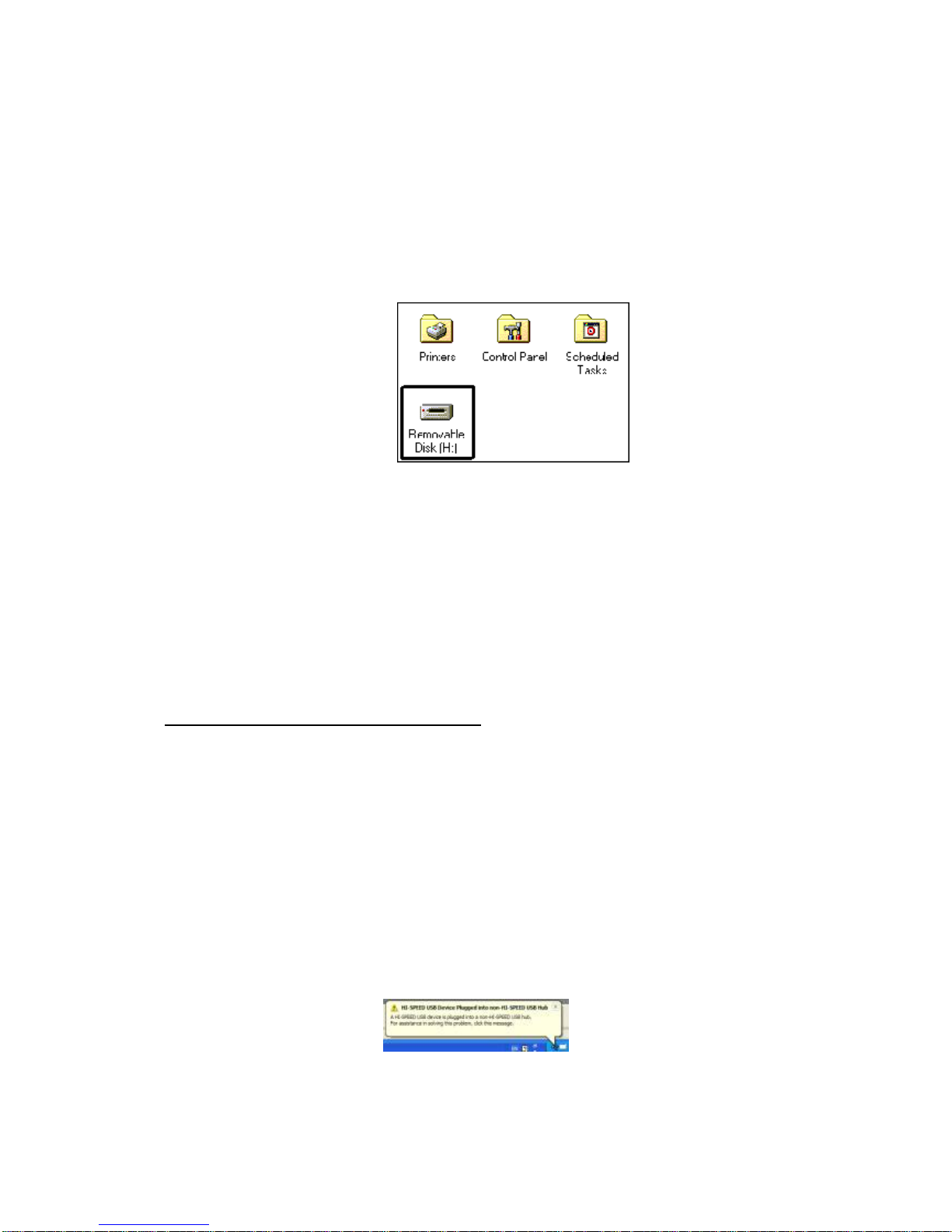
Windows will also instantly remove the drive letter when the disk is
removed.
When using APEX Flash Stick USB 2.0, LED will be on. It will off
after data transaction finished.
Following are somethings you to need to remember.
Plugging APEX Flash Stick USB 2.0
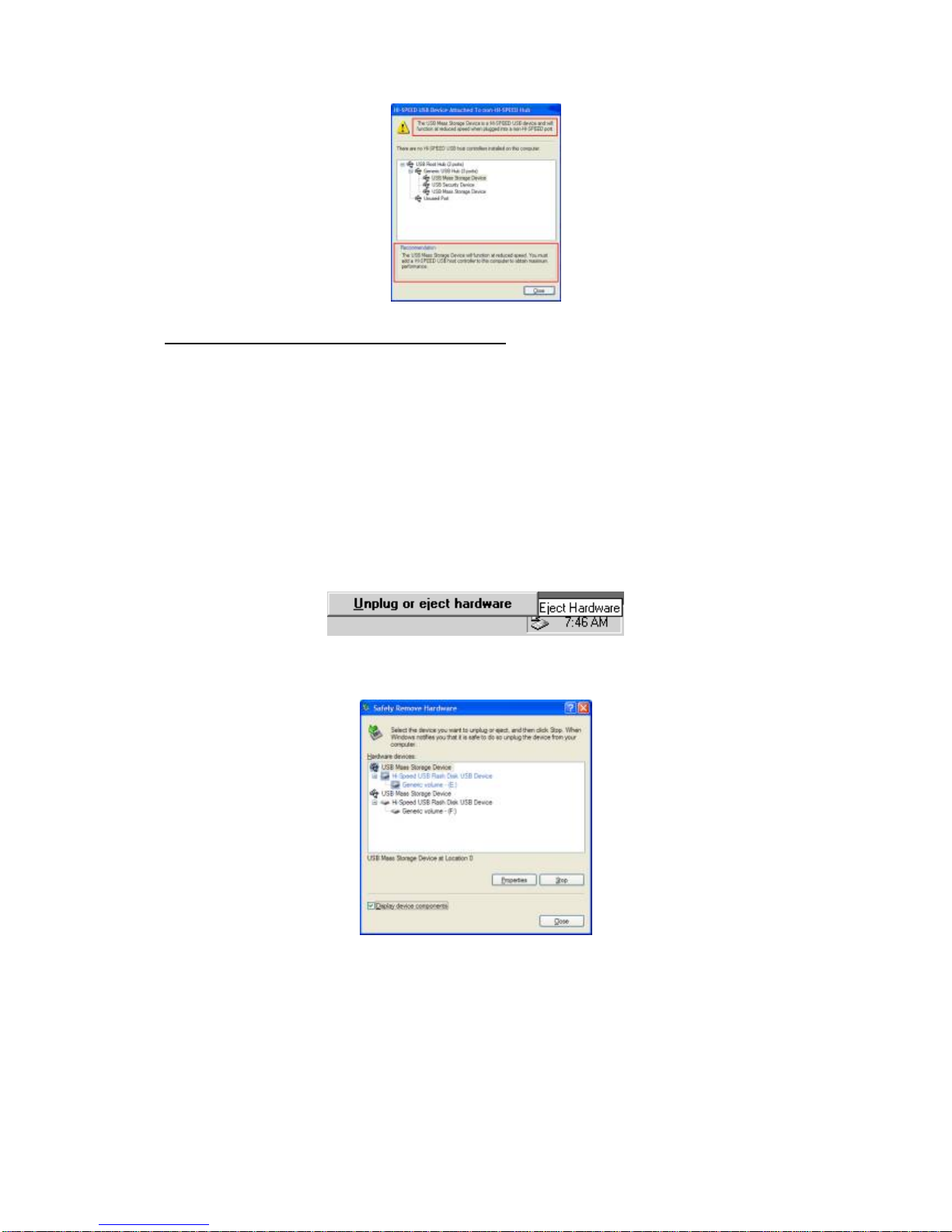
This APEX Flash Stick USB 2.0 is a USB 2.0 compliant device and
is recommended that you plug it into a Hi-Speed USB 2.0 port.
Whenever you plug the disk into a non-Hi-Speed USB port,
Windows will show an alert message at the taskbar telling you that it
is plugged into a non-Hi-Speed USB hub. You can still continue to
use the disk but it will run at a reduced speed. Windows will
recommend you to add a Hi-Speed USB host controller to your
computer to obtain maximum performance.
Page 8
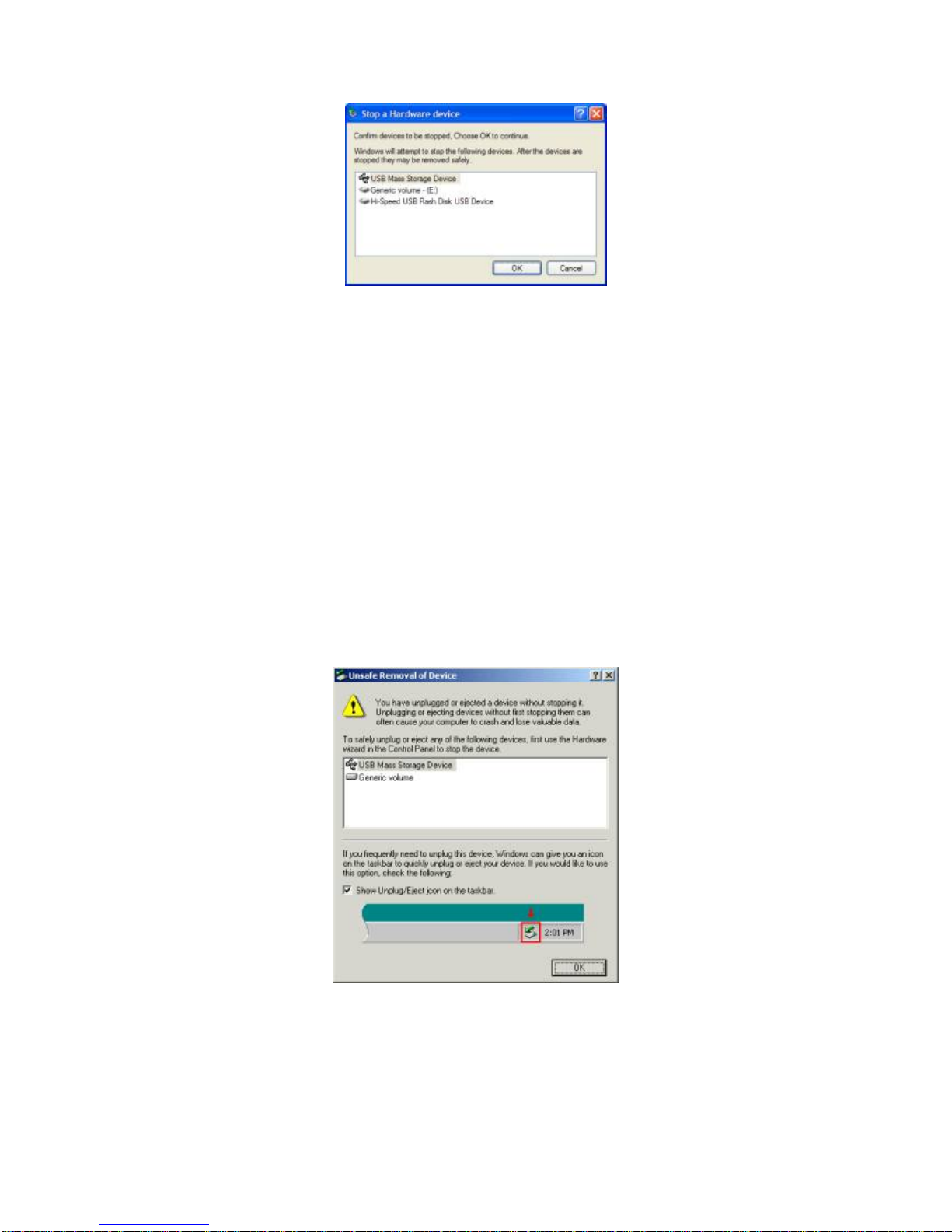
Unplugging APEX Flash Stick USB 2.0
To properly unplug APEX Flash Stick USB 2.0, you must doubleclick on the Unplug/Eject icon found on the right side of the taskbar
to stop the device. Click on the USB Mass Storage Devices and
click the Stop button to safely remove the device. You can also click
first on the Display device components to the details.
Page 9
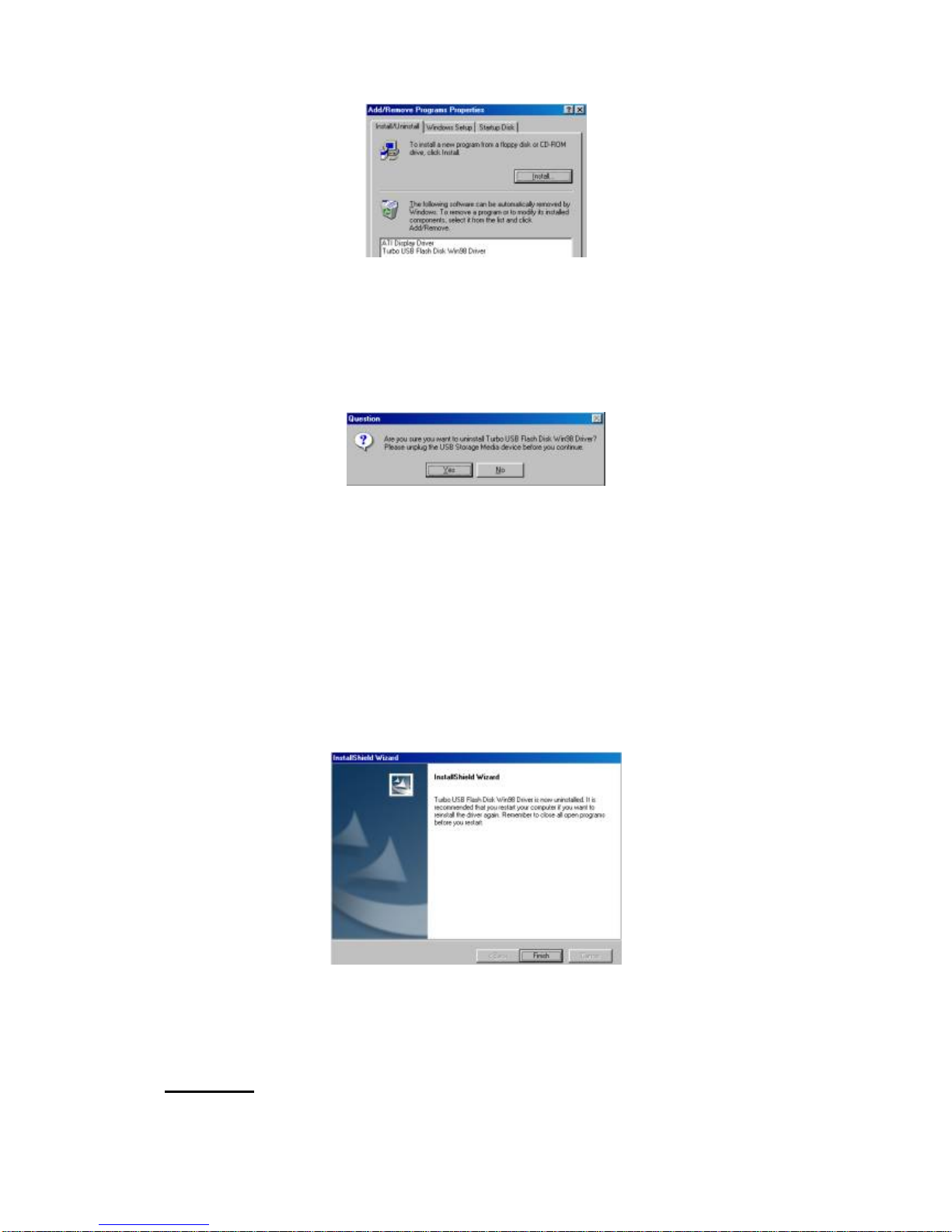
Once you have safely remove the device, Windows will then show
that the USB Mass Storage Device can now be safely removed.
In Windows 2000 or Windows ME, whenever you unplug the disk
without safely removing it, Windows will show you a warning
message that you unplug a device without stopping it and this may
cause your computer to crash or lose valuable data. Also do not
unplug APEX Flash Stick USB 2.0 when the read/write LED is still
on.
Note: Do not unplug or remove the device if the read/write LED is
on or blinking. Wait for the LED to turn off before you safely remove
the device.
Page 10

Write Protect Switch
APEX Flash Stick USB 2.0 also comes with a user write-protect
switch. This switch works very much like the floppy disk write protect
switch. Turn this switch if you want to prevent APEX Flash Stick
USB 2.0 from being written.
Note: You must first safely remove the disk before you turn on or
turn off the write-protect switch. Do not enable or disable the write
protect switch while the disk is still plugged into the port.
Uninstalling APEX Flash Stick USB 2.0 Driver
It is easy to uninstall APEX Flash Stick USB 2.0 device driver.
1. Go to Control Panel and double-click on Add or Remove
Programs.
2. Look for the APEX Flash Stick USB 2.0 and click
Change/Remove button.
Page 11
3. The Setup program will prompt you whether you are sure to
uninstall or not. Make sure that you have unplug APEX Flash
Stick USB 2.0 and click Yes to continue.
4. The Setup program will then start to uninstall the APEX Flash
Stick USB 2.0 driver. Wait for Setup to complete uninstallation.
5. After Setup has completely uninstalled the driver and programs, it
will prompt you to restart Windows. It is recommended that you
restart your computer.
Disclaimer
Page 12

All the information in this document is subject to change without
prior notice. The manufacturer does not make any representations
or any warranties (implied or otherwise) regarding the accuracy and
completeness of this document and shall in no event be liable for
any loss of profit or any other commercial damage, including but not
limited to special, incidental, consequential, or other damages.
No part of this document may be reproduced or transmitted in any
form by any means without the express written permission of the
manufacturer.
All brand names and product names used in this document are
trademarks or registered trademarks of their respective holders.
 Loading...