

Page 1
USER GUIDE
www.gromaudio.com
www.gromaudio.com/support.html
Page 2

CONTENTS
Chapter 1 — Getting started. . ......................................................................3
Setting up WiFi.........................................................................................................3
Chapter 2 — Google Apps and Maps. ...........................................................6
2.1 Installing Google Apps (GApps).......................................................................6
2.2 Signing into Play Store. ....................................................................................9
2.3 Maps Setup. . ...................................................................................................13
2.4 Voice Activation Button for Navigation . ......................................................15
2.5 Changing Text-to-Speech Output Voice . .....................................................16
Chapter 3 — MEDIA PLUGINS. .....................................................................18
3.1 Spotify. . ...........................................................................................................19
3.2 Web Radio. . ....................................................................................................20
3.3 Google music . . ..............................................................................................21
3.4 Local Music (USB, MicroSD) . . .......................................................................22
3.5 A2DP Bluetooth Music Streaming ................................................................23
Setting up Bluetooth for A2DP music streaming. .............................................23
A2DP stream..........................................................................................................24
Chapter 4 — OTA SOFTWARE UPDATES ......................................................25
Chapter 5 —SUPPORT. .................................................................................27
Periodic Apps Cleanup. ........................................................................................27
FAQ. ........................................................................................................................28
Additional Support................................................................................................28
Page 3
CHAPTER 1 – Getting Started
Setting up Wifi
The VLINE module will require an internet connection while on the road to
take advantage of majority of its features.
Two ways to provide internet to VLine:
1. Smartphone tethering and hotspot
On iPhone: Home->Settings->Personal Hotspot .Turn it on and set up
network name and password.
On Android: Home->Settings->Wireless Networks -> More -> Tethering
& Portable Hotspot -> Portable Wifi Hotspot. Tap to turn it on, and set up
network name and password.
2. Dedicated modem hotspot with SIM card and data plan - either USB
modem or any other kind of portable modem. Check with the carrier of your
choice on the availability of internet only data plans.
Resources: https://gromaudio.com/blog/2018/09/how-to-get-internet-to-car/
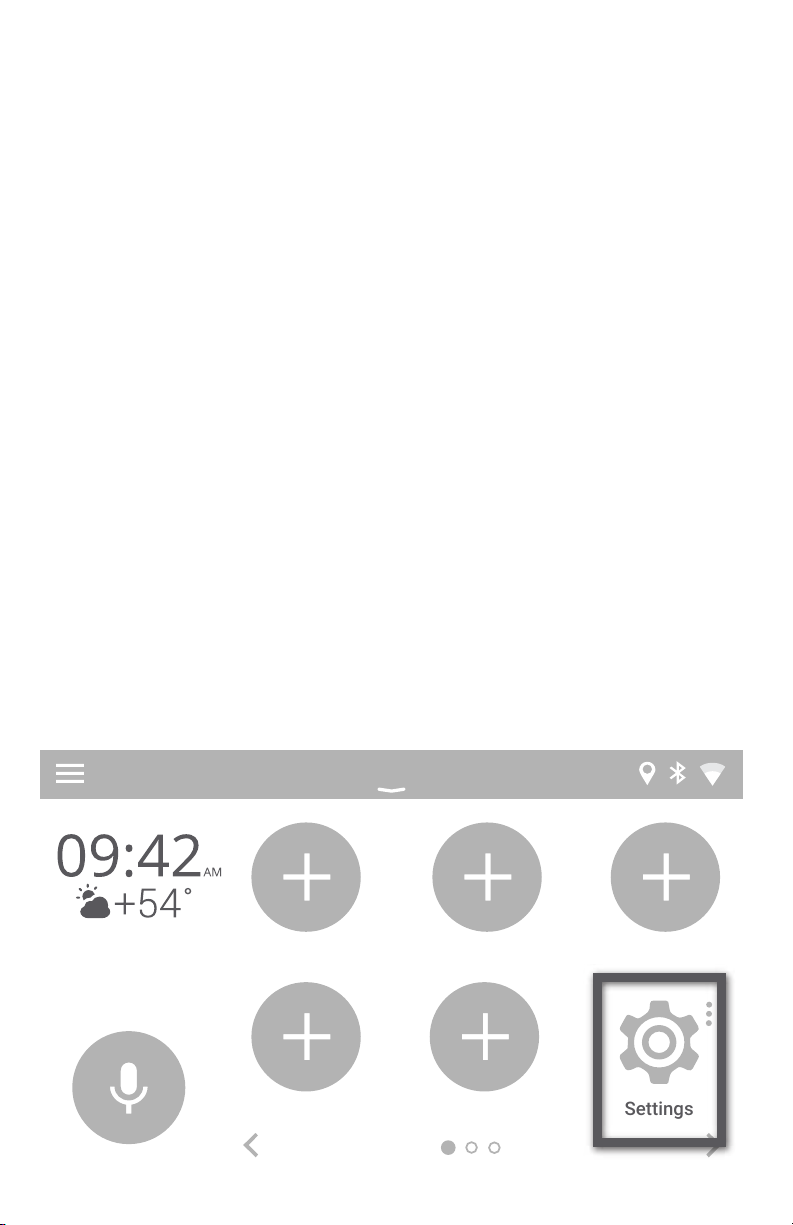
Once you setup Wifi Hotspot in your vehicle, connect VLine to the internet.
Go to VLine--> Settings
Settings
3
Page 4
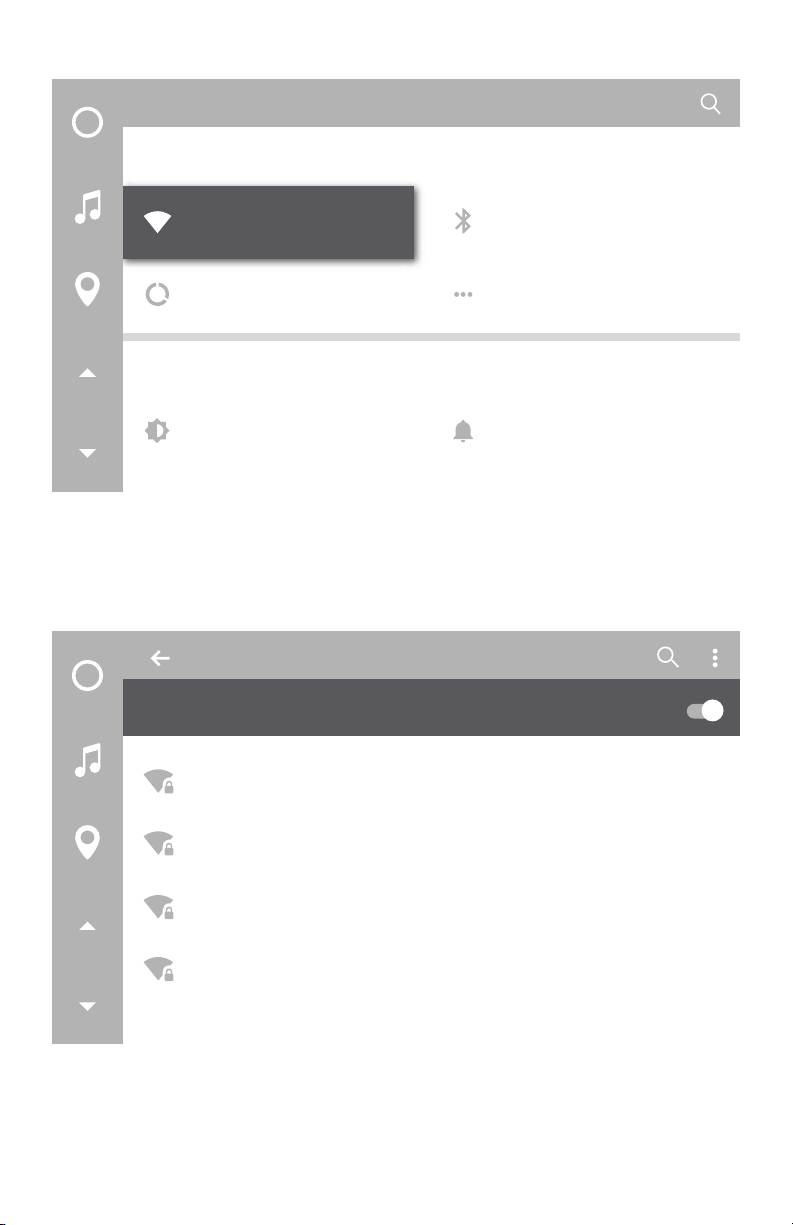
Go into WiFi Settings
Settings
Wireless & networks
Wi-Fi
Data usage More
Device
Display
Select WiFi channel to connect
Settings
On
Vline Setup
Bluetooth
Sound & notification
CBCI-1EA1-2.4
ATT896
CBCI-44AB-2.4
4
Page 5
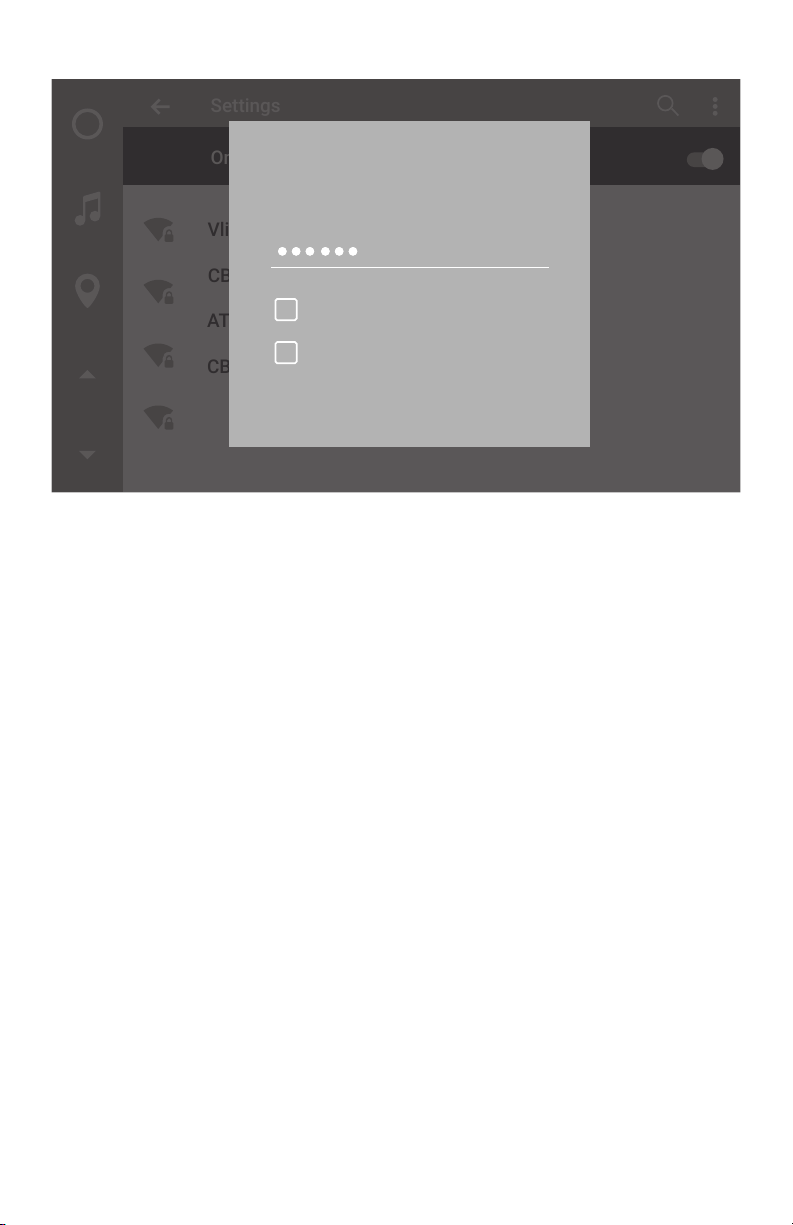
Enter [Password] and select CONNECT
Settings
On
Vline Setup
CBCI-1EA1-2.4
ATT896
CBCI-44AB-2.4
VVVLLLiiinnneee SSSeeetttuuuppp
PPPaaasssssswwwooorrrddd
SSShhhooowww pppaaasssssswwwooorrrddd
AAAdddvvvaaannnccceeeddd oooppptttiiiooonnnsss
CONNECTCANCEL
NOTE: Please check with your mobile carrier for hotspot data usage limits If
you are using your smartphone to tether internet to VLine. Depending on
mobile provider you might be subject to mobile data and tethering charges.
5
Page 6
CHAPTER 2 — Google Apps and Maps
2.1 Installing Google Apps (Gapps)
Installing Google Apps will allow you to access Google Play Store to download any applicatition to VLine, and to use voice assistant (RED) button.
Once GApps are installed, you can download and use any music apps and
maps from Google Play Market.
To install the Gapps (Google Apps) Package:
1. Connect VLine to internet. Check Chapter 1, we recommend to connect
to home Wifi to install GApps, so you do not spend your mobile data.
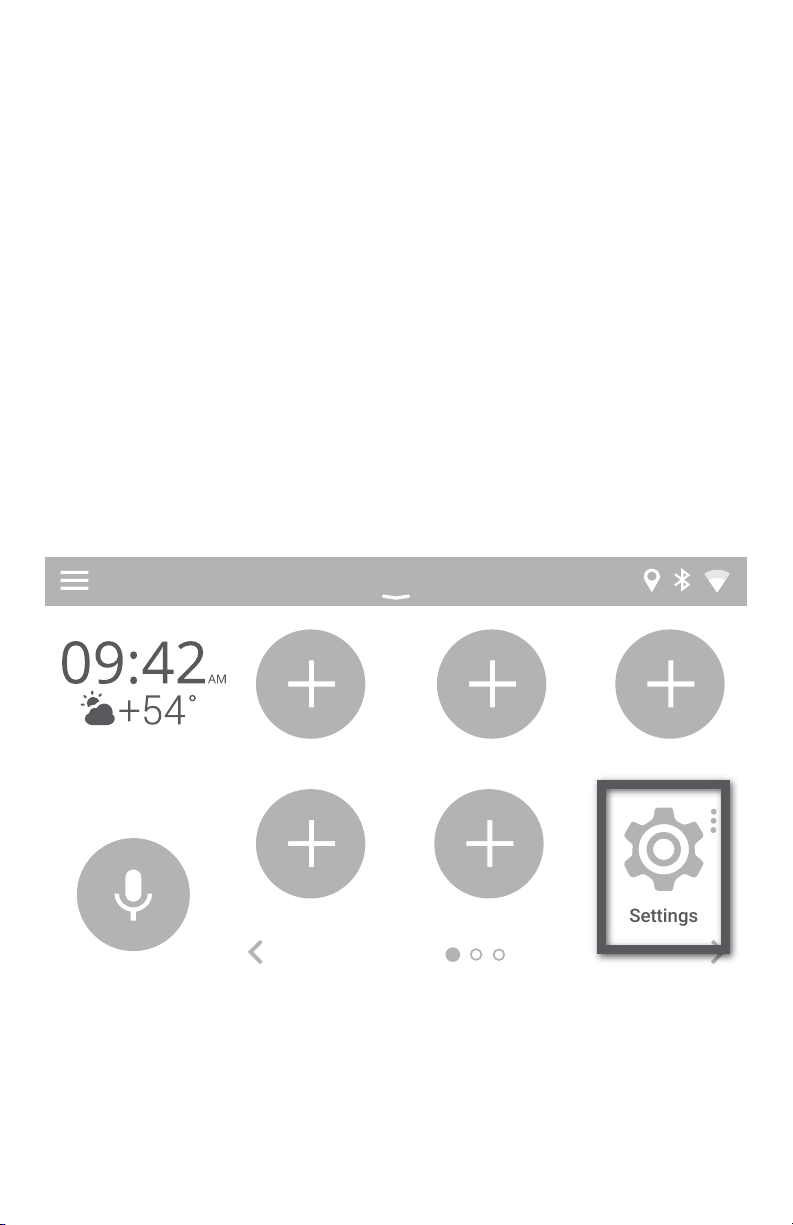
2. Go to Settings
Settings
6
Page 7
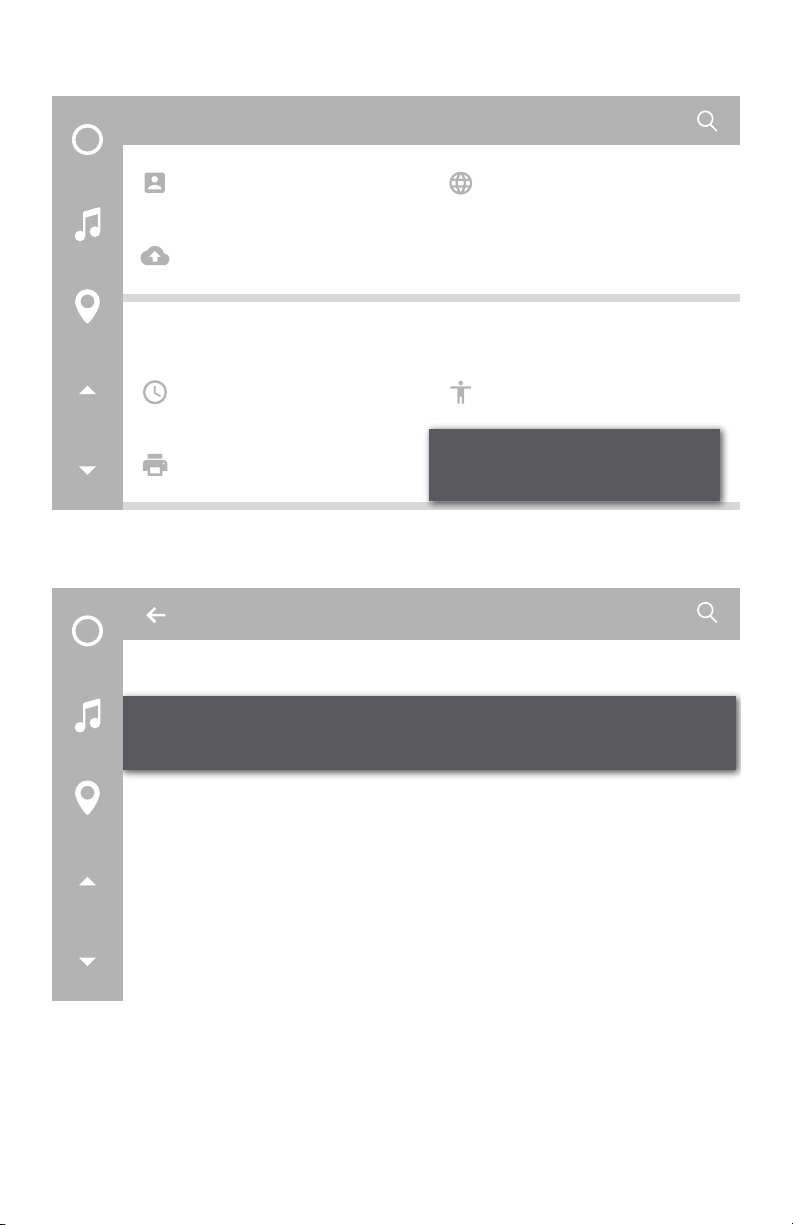
Scroll down all the way to the bottom and select “About Device”
Settings
Accounts
Backup & reset
System
Printing
Then select “VLINE System Updates
About device
System updates
VLine system updates
Language & input
AccessibilityDate & time
About Device
About deviice
Status of the battery, network, and other information
Legal information
Regulatory information
7
Page 8
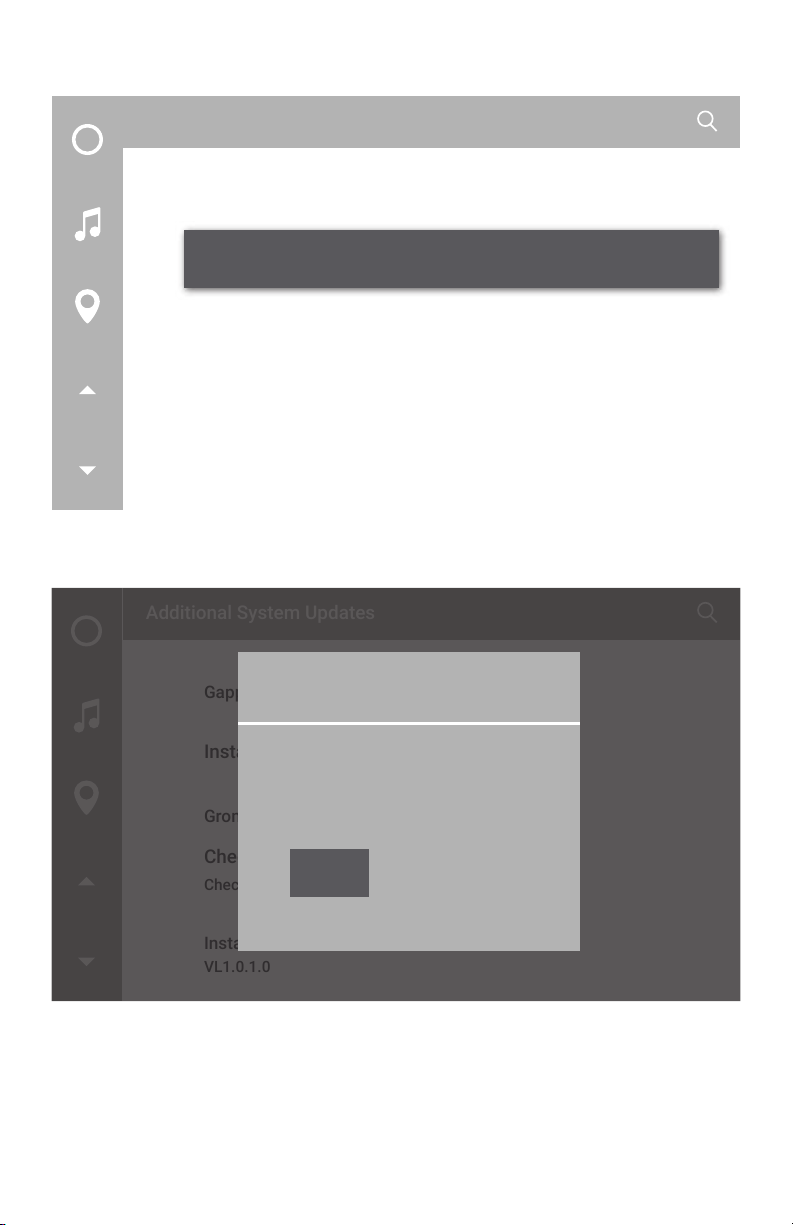
Select “Install Gapps”
Additional System Updates
Gapps
Install Gapps
Grom OTA
Check to update
Check to availabke updates
Installed version
VL1.0.1.0
Press the “Install” button to apply update.
Additional System Updates
VLine Update System
Gapps
Install Gapps
Grom OTA
Install Gapps
Download size: 109.2MiB
Check to update
Check to available updates
Installed version
VL1.0.1.0
Install
Wait for update to download and apply. The VLINE will restart during the
process (this may take up to 10 minutes)
If system does not boot up within 15 minutes, please turn off Ignition
and wait 1 minute and then turn ignition on again.
YouTube demo video: bit.ly/vline_gapps
8
Page 9
SHORTCUTS
PLUGINS
2.2 Signing into Play Store and Adding Apps to Home Screen
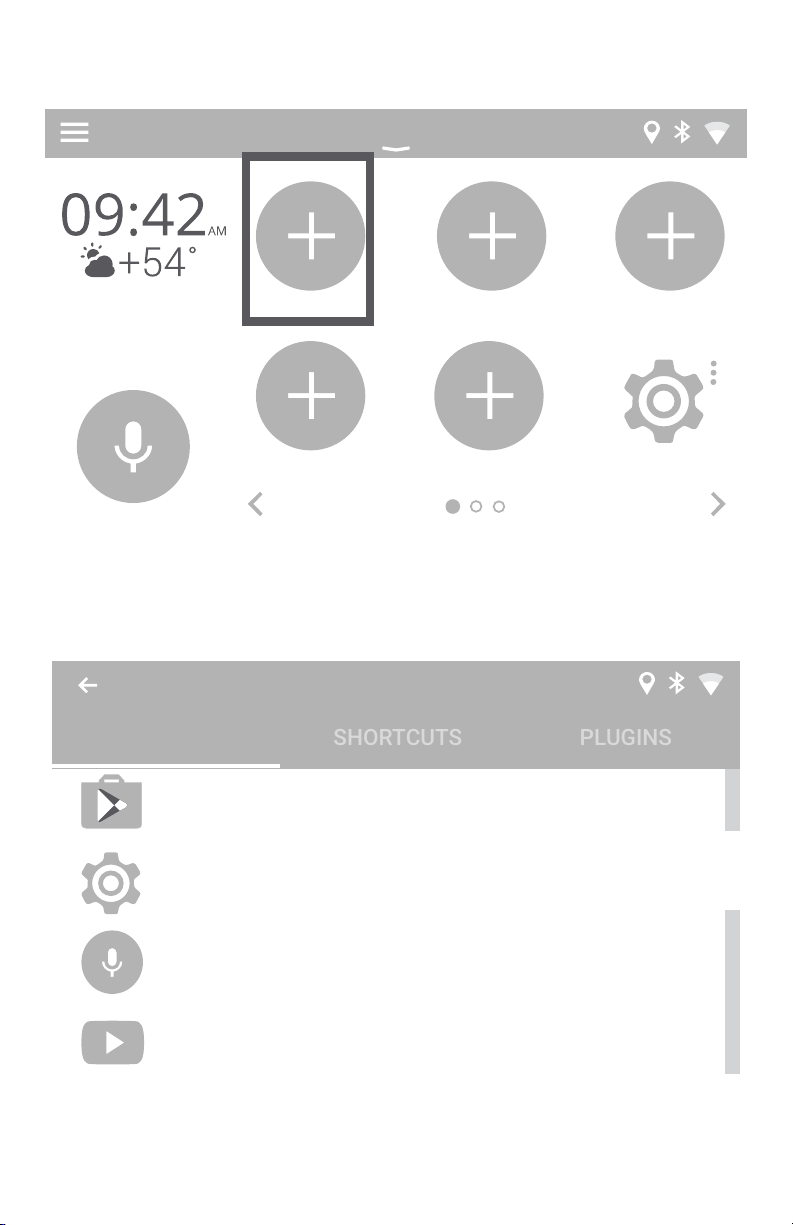
Select Empty Spot You Wish to Add Icon to
Settings
Select the Apps/Shortcuts/Plugins you wish to add,
in this case the “Play Store” Application.
Choose App
APPS
Settings
Voice Search
Play Store
You Tube
9
Page 10
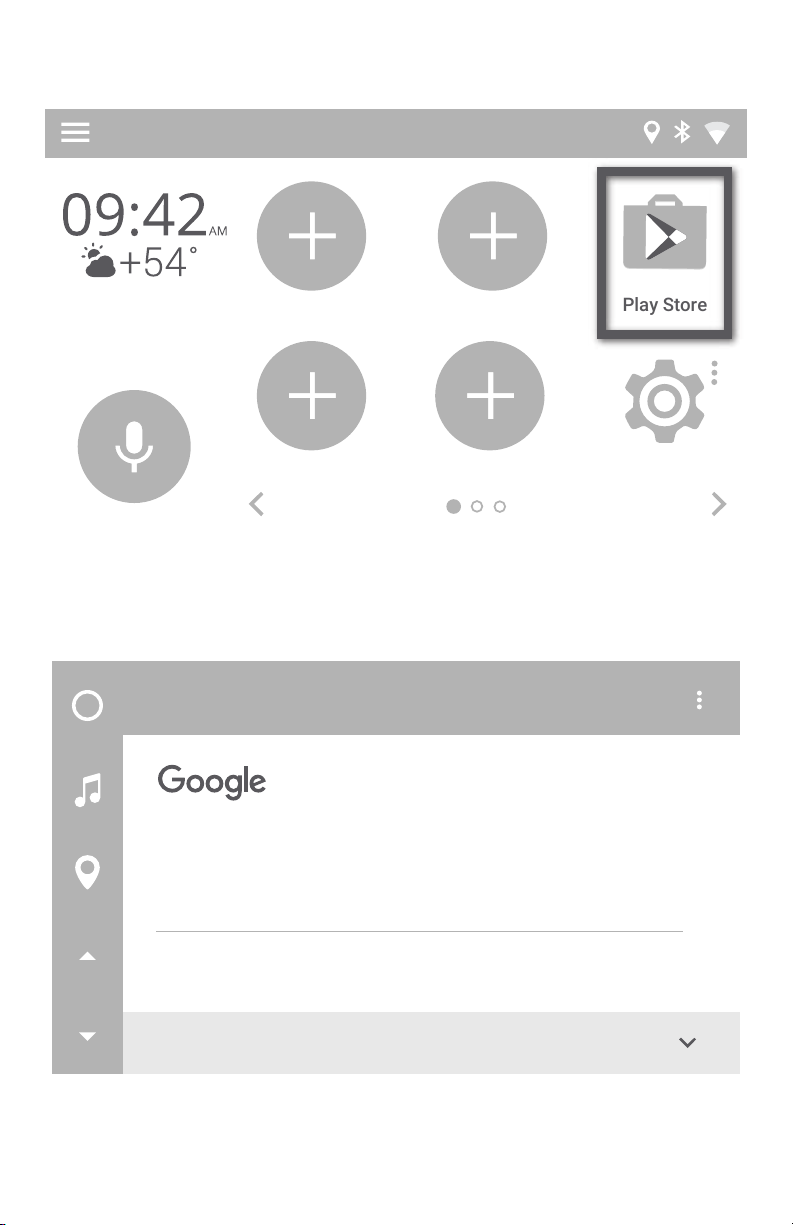
Signing onto Google Account
Select the Play Store Icon
Play Store
Settings
First time signing into the Google Play Store, you will be promoted to enter
your Google (Gmail) account information.
10
Add your account
Sign in to get the most out of your device. Learn more
Enter your email
Or create a new account
MORE
Page 11
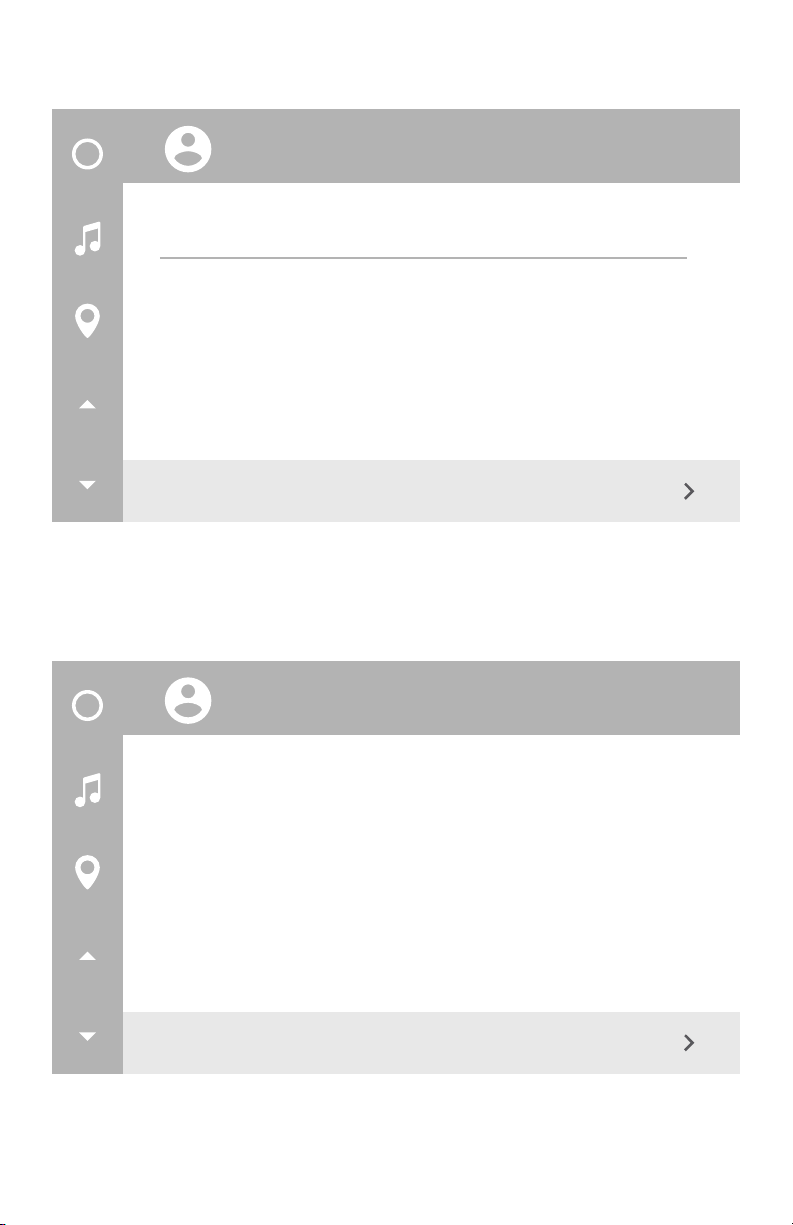
Enter the password for Gmail account
Password
Forgot password?
NEXT
Confirm the onscreen Terms of Service and Privacy Policy prompts from
Google
By sign in, you agree to the Terms of Service and
Privacy Policy.
ACCEPT
11
Page 12
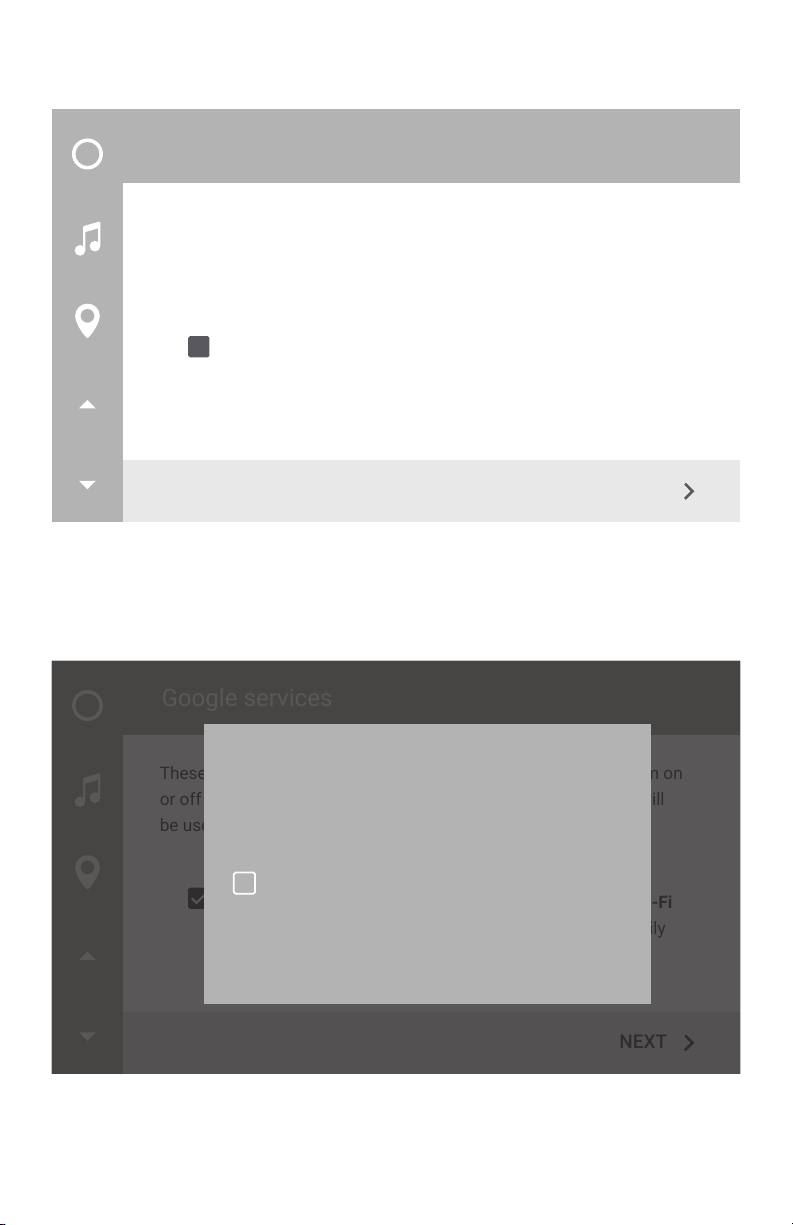
Select next on Google Services Prompt
Google services
These services put Google to work for you, and you can turn them on
or off at any time for your [email protected] account. Data will be
used in accordance with Google’s Privacy Policy.
Back up your device’s apps, app data, settings, and Wi-Fi
passwords using your Google Account so you can easily
restore later. Learn more
Confirm Google Play store agreement
NEXT
12
Google services
These services put Google to work for you, and you can turn them on
or off at any time for your rod.gr[email protected] account. Data will
be used in accordance with Google’s Privacy Policy.
By using Google Play, you agree to the Google Play
Terms of Service
Keep me up to date with news and offers
Back up your device’s apps, app data, settings, and Wi-Fi
from Google Play
passwords using your Google Account so you can easily
restore later. Learn more
DECLINE
ACCEPT
NEXT
Page 13
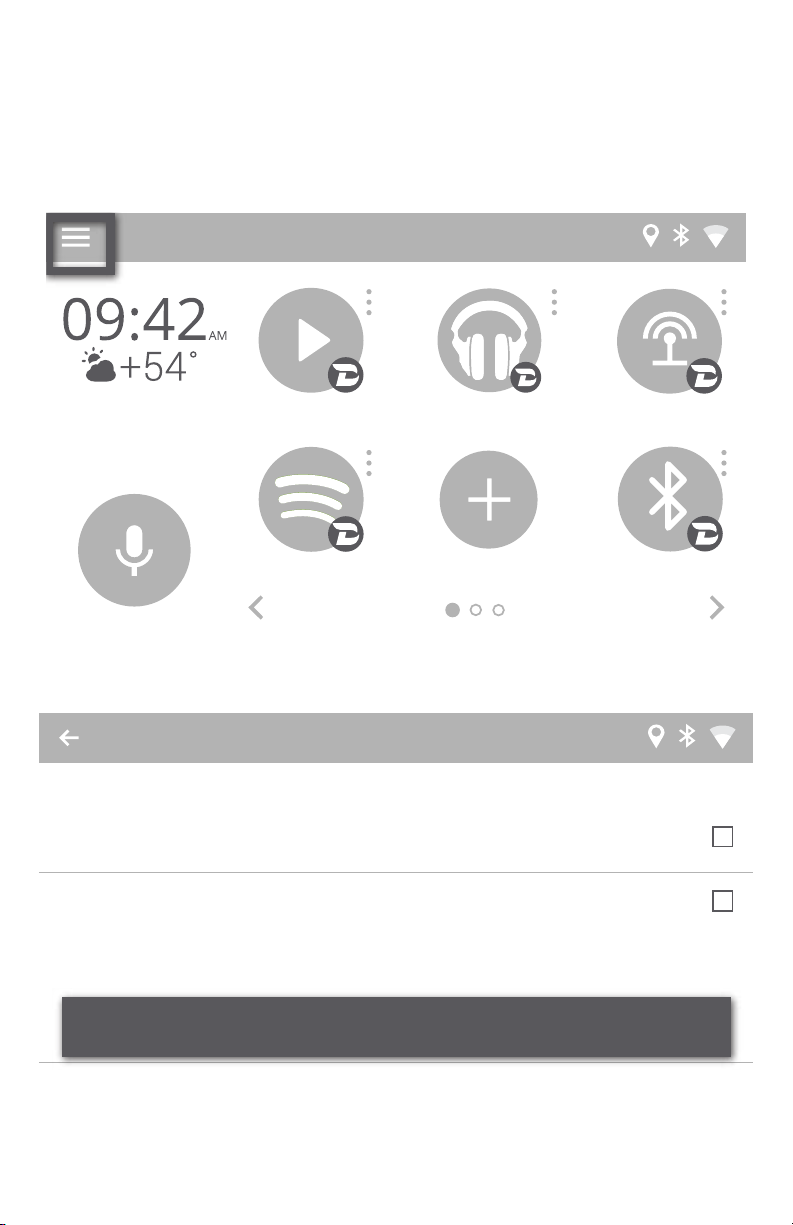
2.3 Maps Setup
Go to Play Store and install the map(s) of your choice - Google, Waze, Sygic ,
others. Once you install the map(s) of your choice, go to
1. Main Menu -->Settings
2. Select navigation
Settings
Units
Speed
MPH
Speed
°F
Advanced functionality
Navigation
Maps
Local Music
GMusic
WebRadio
Spotify A2DP Stream
Speech to Text Engine
Google
13
Page 14
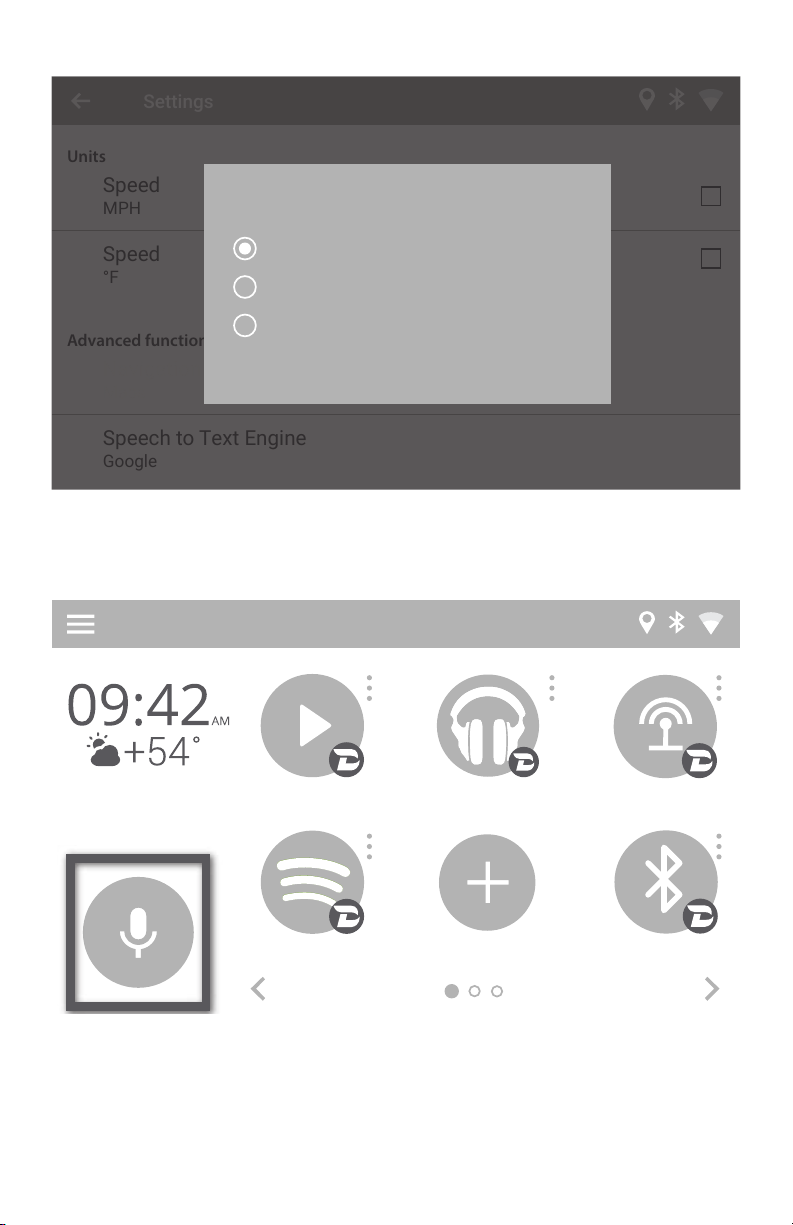
3. Choose your perferred map application
Settings
Units
Speed
MPH
Navigation
Speed
°F
Advanced functionality
Navigation
Maps
Maps
Waze
HERE WeGo
CANCEL
Speech to Text Engine
Google
4. Now you can activate preferred navigation using voice icon
Local Music
GMusic
WebRadio
14
Spotify A2DP Stream
Page 15
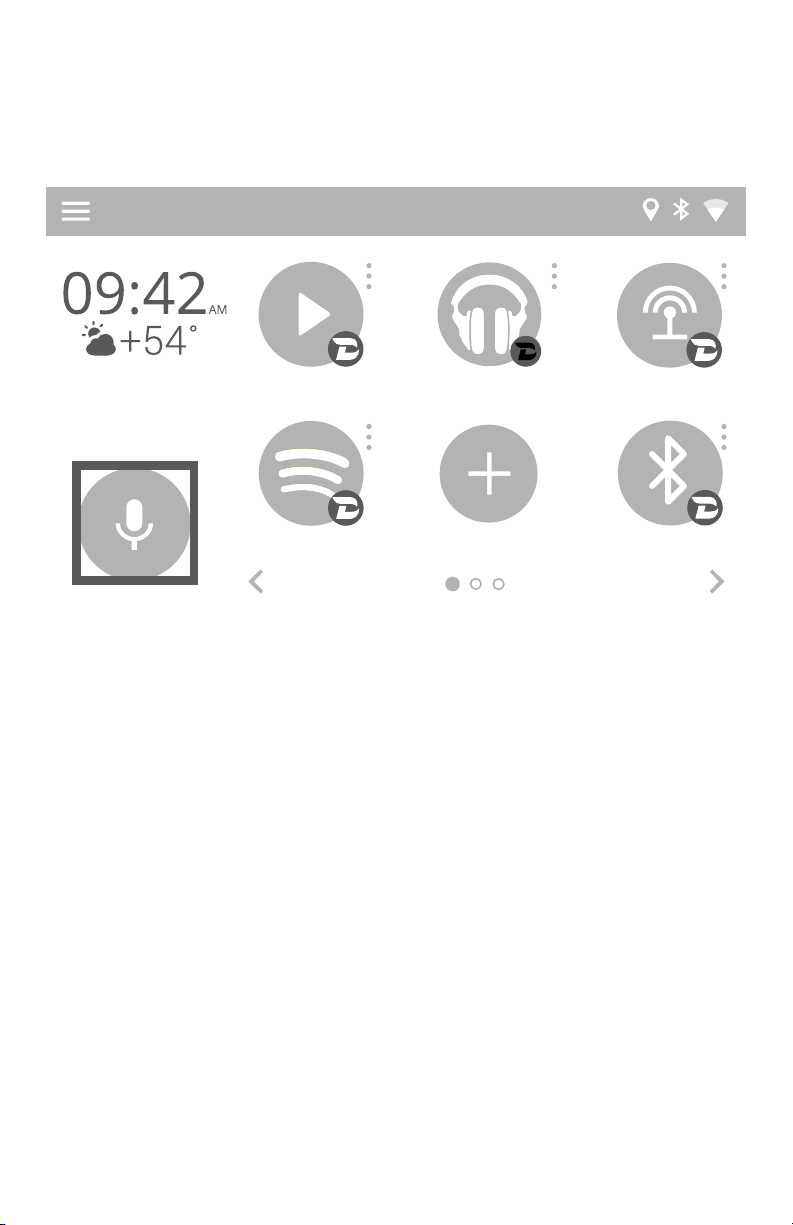
2.4 Voice Activation Button for Navigation
Voice Activation button will allow you to start navigation with just one tap.
The button only works when there is an internet connection to VLine.
Local Music
GMusic
WebRadio
Spotify A2DP Stream
Once pressed it will ask “Where would you like to go?” You can say address,
such as “123 Broadway Street San Francisco”, or the name of the place, such
as “San Francisco Opera”
VLine will start navigating with the map of your choice that you selected in
Main menu --> Settings (see page 13).
15
Page 16
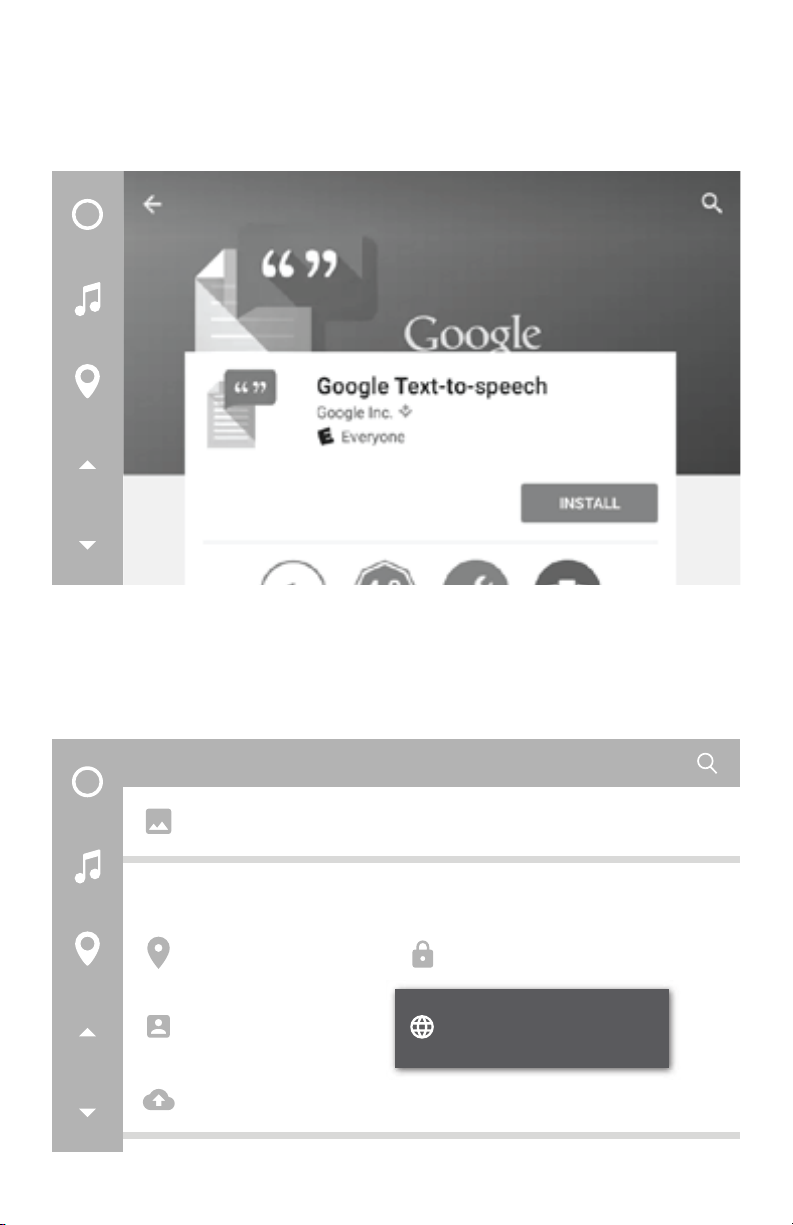
2.5 Changing Text-to-Speech Output Voice
Once GApps are installed, you can download and install Google Text-to-
speech app from the Google Play store to change the Voice Synthesizer for
Voice Activation Red Button to one that is more pleasing to listen to.
After installing “Google Text-to-speech” from the Google Play store, go to
VLINE Settings to make change in Language & input-->Text-to-speech
output.
In Settings, “select Language & input”
Settings
Screenshot Setting
Personal
Location
Accounts
Backup & reset
16
Security
Language & input
Page 17
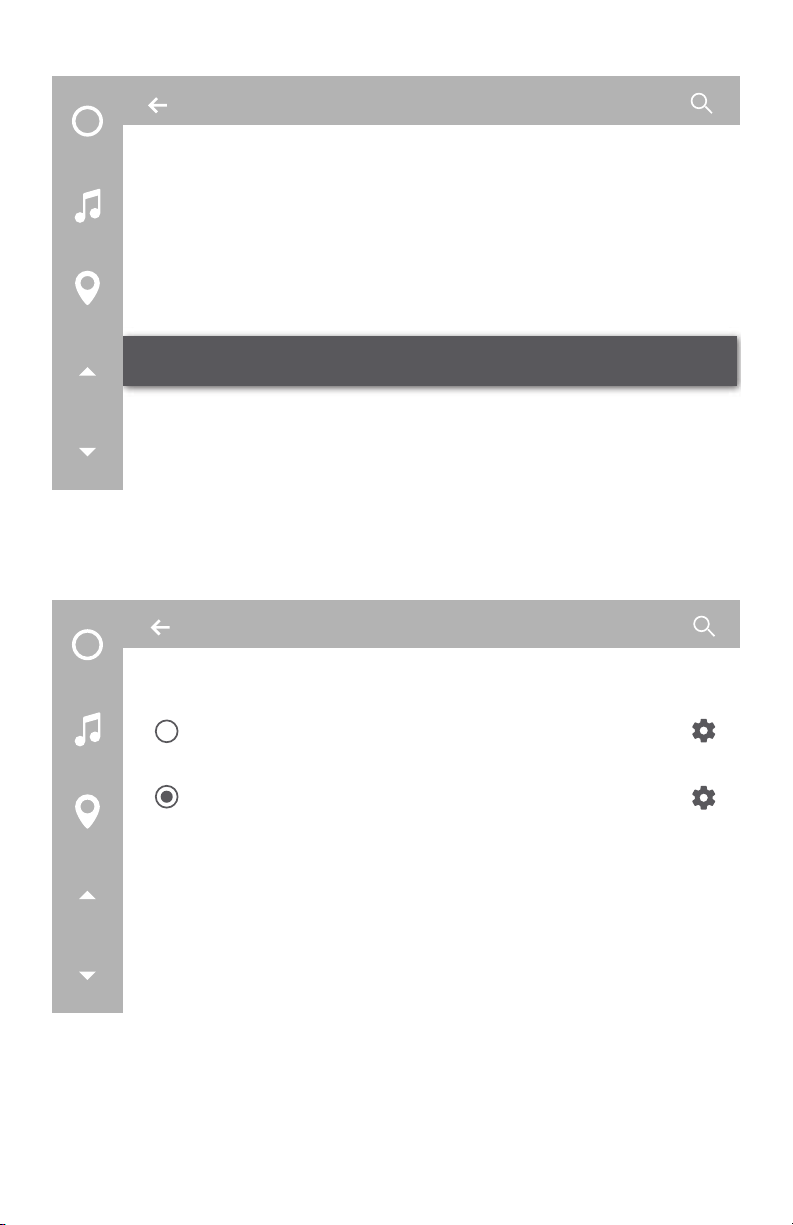
Select “Text-to-speech output”
Language & input
vbase input android
default
Speech
Voice input
Text-to-speech output
Mouse/trackpad
Pointer speed
Select “Google Text-to-speech Engine” for Prefered engine
Text-to-speech output
Prefered engine
Pico TTS
Google Text-to-speech Engine
General
Speech rate
Speed at which the is spoken
Listen to an example
17
Page 18
SHORTCUTS
PLUGINS
CHAPTER 3 — MEDIA PLUGINS
VLINE provides music plugins with an optimized interface with bold graphics
and easy to press buttons for the vehicle environment. Most of these plugins
require an internet data connection to work besides Local Music and A2DP
Stream.
Currently available plugins:
Spotify, Web Radio, Google Music, Local (stored on USB drive or MicroSD
Card) music, and A2DP Bluetooth music streaming. Additional plugins are
coming soon!
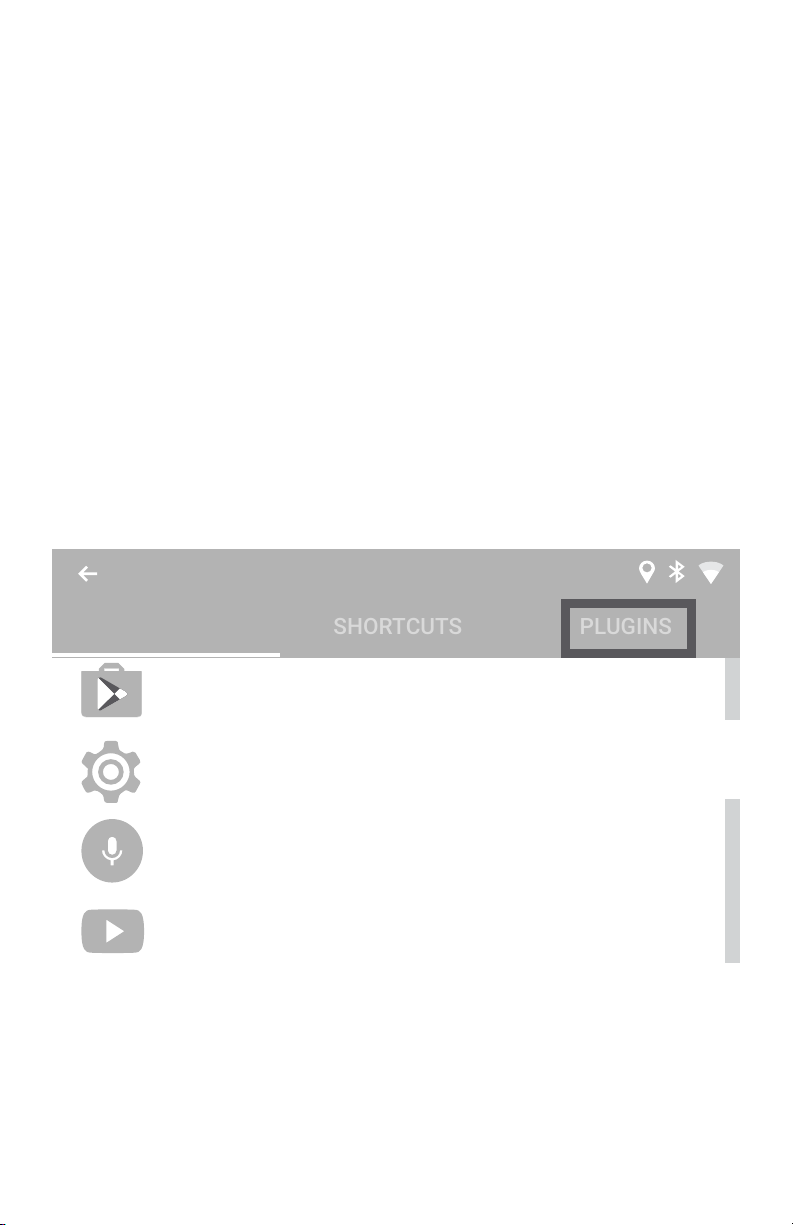
To add a plugin onto the Home screen, select an EMPTY “+” where you
would like to place the icon. Then go to PLUGINS.
Then scroll through PLUGINS and select the desired plugin to add.
Choose App
18
APPS
Play Store
Settings
Voice Search
You Tube
Page 19
Comedy
Comedy
3.1 Spotify
Stations Charts New Releases Genres and Moods
Blues
Christian music
Classical
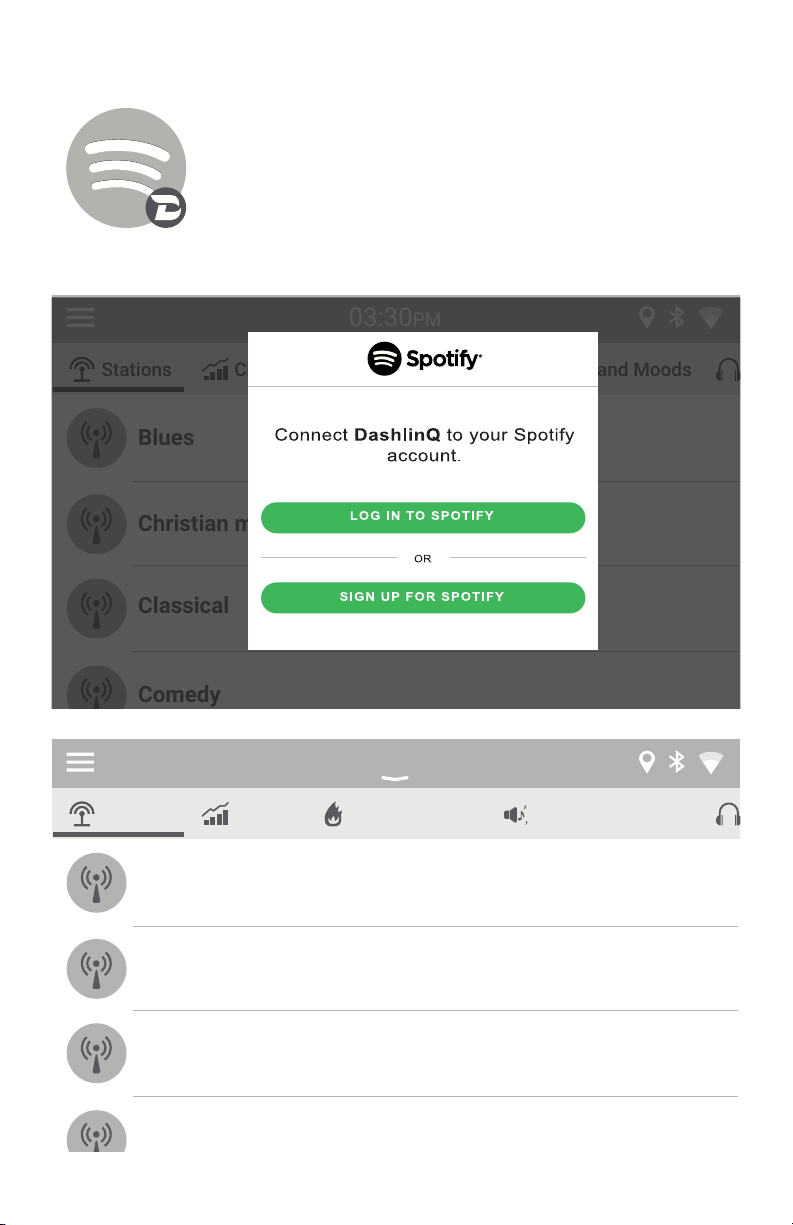
Requires Spotify Premium (paid) account. Login to Spotfy
by going to Spotify ->Menu->Accounts
You can add multiple accounts and switch between them
simultaneously.
Access and create playlists, search music with voice, see
cover art and titles, discover new music.
03:30PM
03:30PM
Stations Charts New Releases Genres and Moods
Blues
Christian music
Classical
19
Page 20
3.2 Web Radio
Stations Favorites Recents Records Search
Local Radio
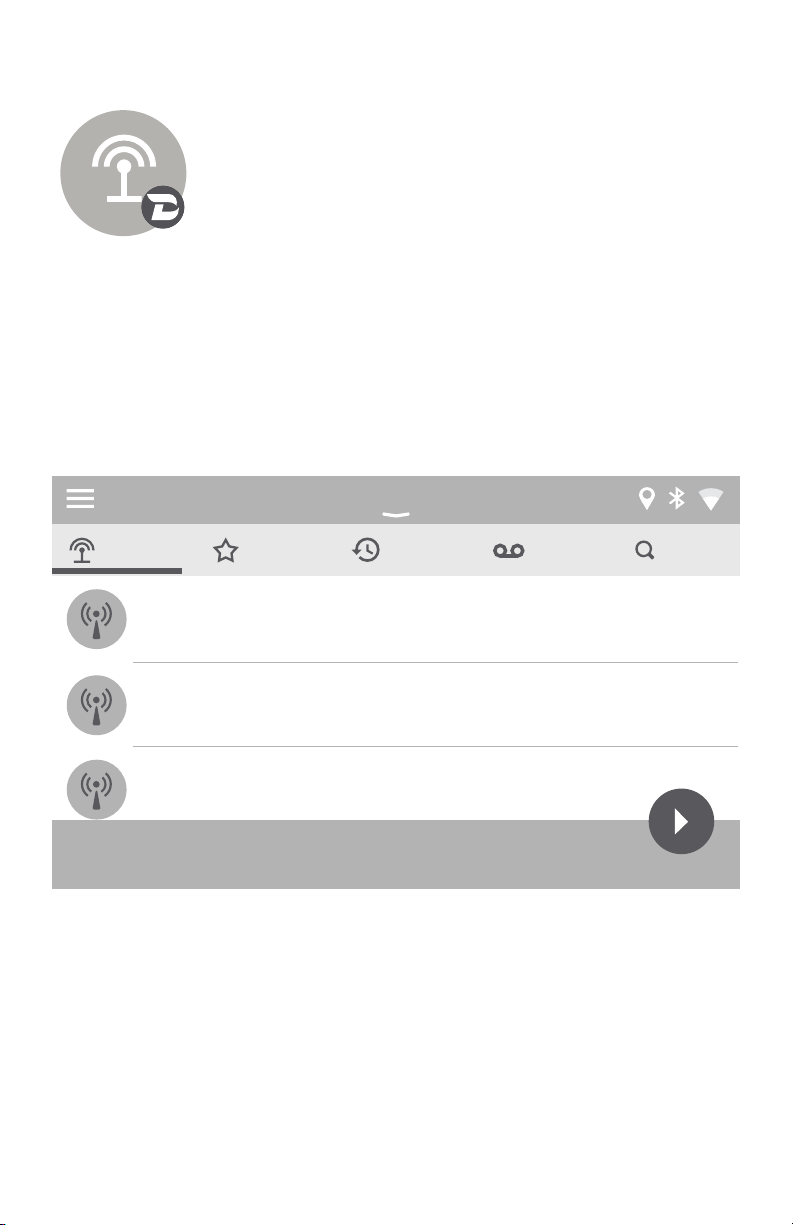
• Does not require an account to use. Stream Radio
stations from around the world as well as local radio
stations
• Listen to 100,000+ live radio stations, plus on-demand content like podcasts & shows anywhere you
go.
• Browse Stations by Local, Trending, Music Genre,
Sports, News, Location, and Language.
• “Star” your favorite radio stations so you can easily
access next time
• Record what is currently playing and listen to it later
without WiFi connection.
Search with voice.
12:33PM
Trending
Music
88.5 | KQED-FM (National News)
20
Page 21
3.3 Google Music
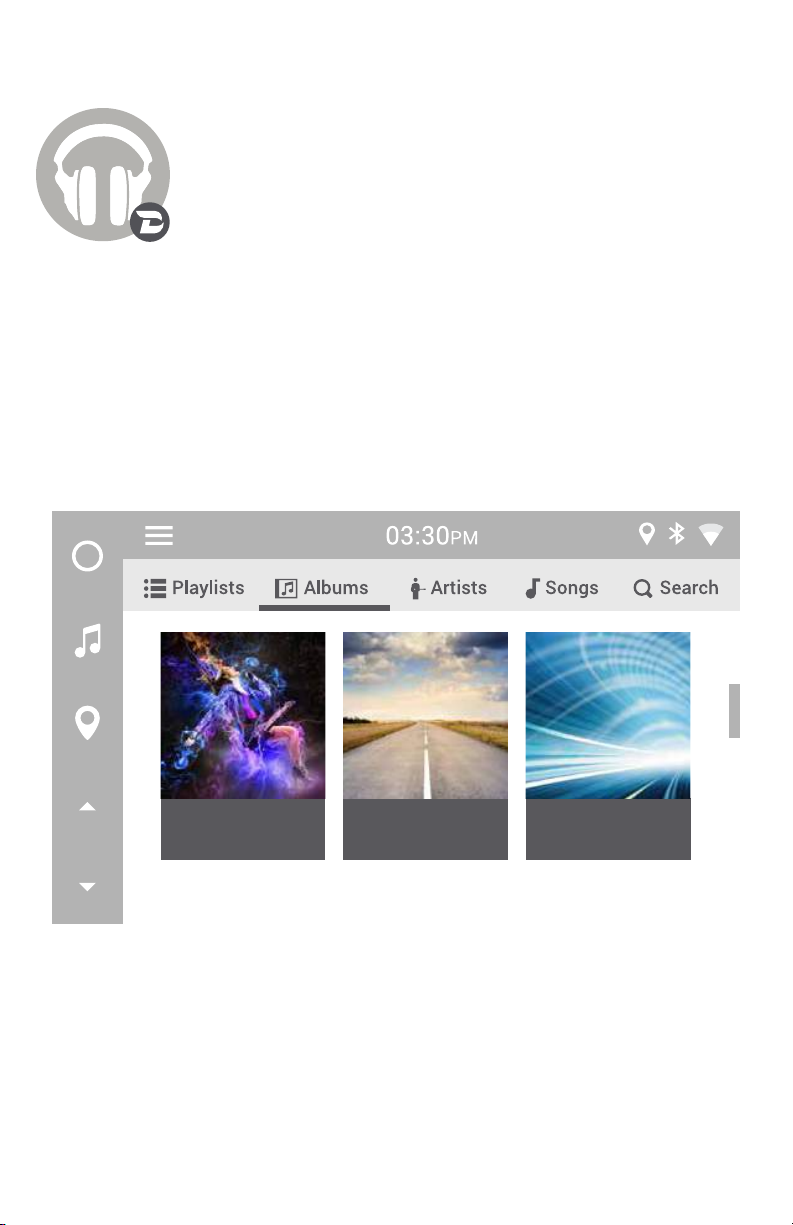
• Allows access to your Google Play music
• Will require Gapps to be installed on VLINE
• To use Gapps you must have a Google account and be
• *Only Purchased music library and Uploaded media
(Purchased/Uploaded*).
(please refer to Gapps Installation section of this
manual p. 6).
signed into the account.
will work, unlimited subscription/radio music will not
work.
Electrify
Jamie Smith
Long Road H...P3Highway
The Joneses
21
Page 22
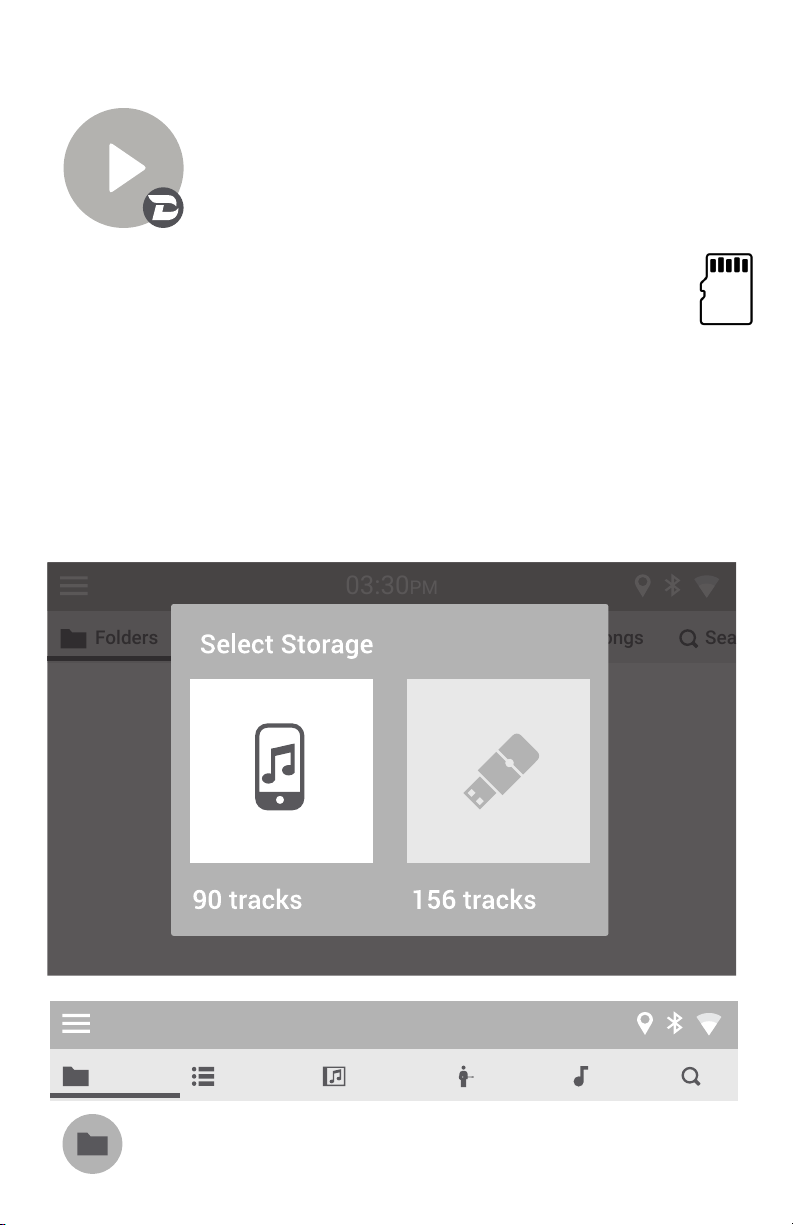
3.4 Local Music (USB, MicroSD)
Sea
Sea
• Play music/audio stored on USB drive or MicroSD
card
• USB Drive - use USB2 port of VLine to insert USB
flash drive or external hard drive
MicroSD Card
Insert MicroSD card (*pin side up) with your music to play via VLine.
Up to 128GB supported.
1. Go to Local Music ->Settings->Storage and select your desired storage.
2. Plugin will read the music on selected storage and automatically
organize music library by categories (Folder, Playlist, Album, Artist and
Songs).
3. Create Playlists from within the plugin if needed.
03:30PM
Pin Side Up
Folders Playlists Albums Artists Songs
03:30PM
Folders Playlists Albums Artists Songs
Adele - 25
11 songs
22
Page 23
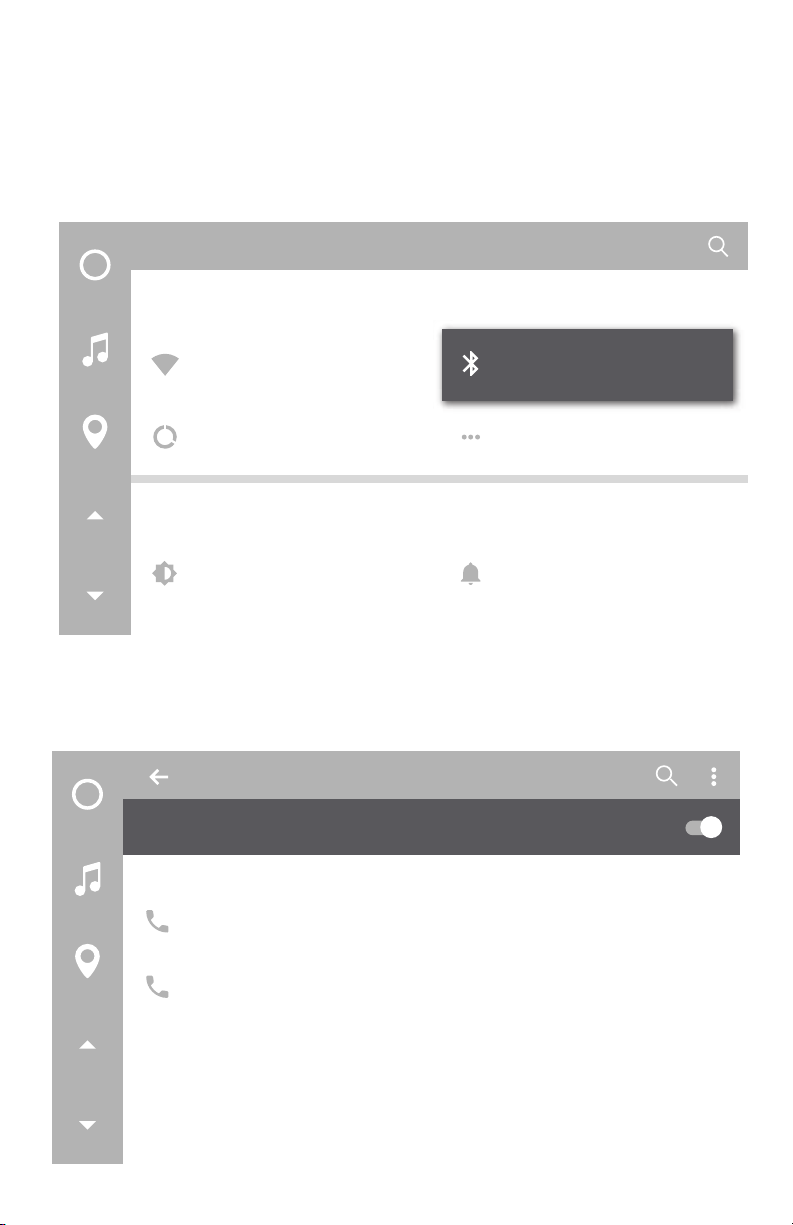
3.5 A2DP Bluetooth Music Streaming
Setting up Bluetooth for A2DP music streaming
Demo video: bit.ly/vline_bluetooth
1. Select Settings -> Bluetooth. Turn on Bluetooth on VLine.
Settings
Wireless & networks
Wi-Fi
Bluetooth
Data usage
More
Device
Display
Sound & notification
2. Turn on Bluetooth on your phone. Use VLine to find your phone.
Bluetooth
On
Available Devices
Android
iPhone
VLine is visible to nearby devices while Bluetooth settings is open
23
Page 24
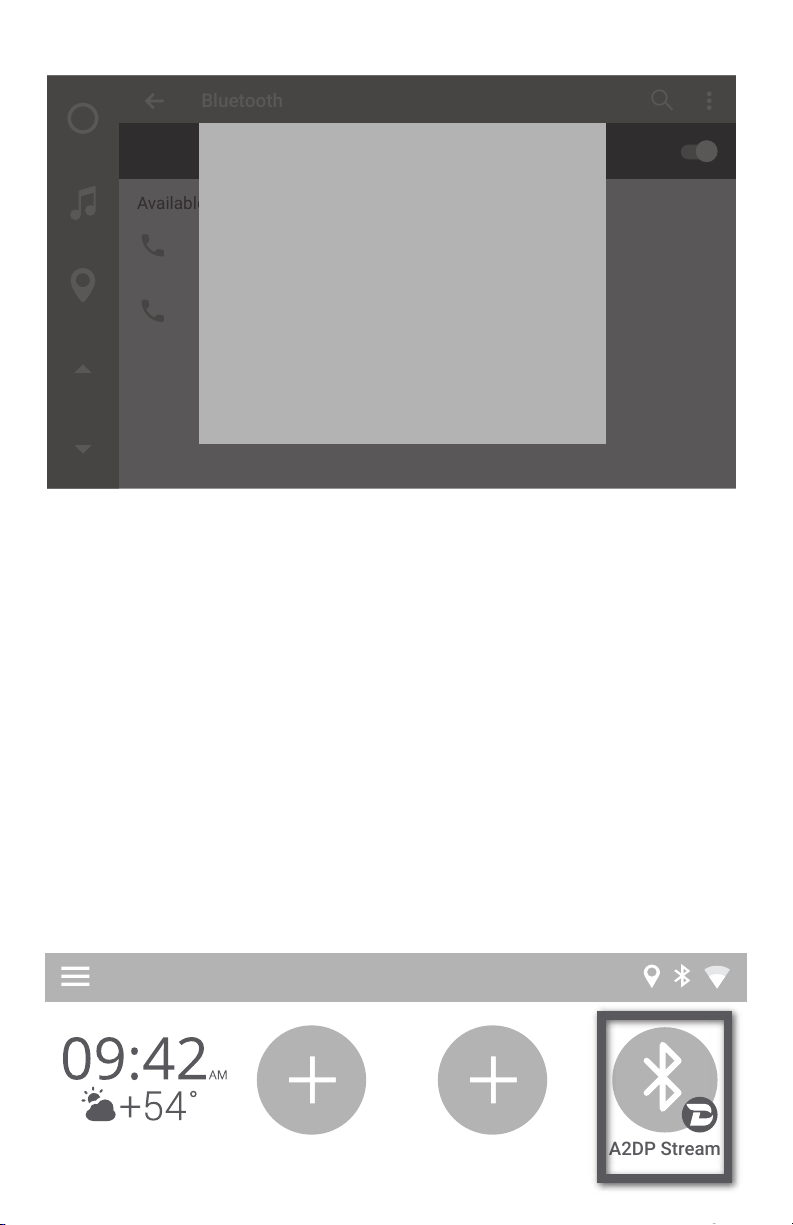
Confirm PIN code on VLine and phone. Hit PAIR on both - VLine and phone.
Bluetooth
On
Bluetooth pairing request
Available Devices
Device
Android
Android
Pairing code
622398
iPhone
Pairing grants access to your contacts and call
history when connected
VLine is visible to nearby devices while Bluetooth settings is open
PAIRCANCEL
Go to phone Bluetooth settings and make sure it is now connected to VLine.
You can rename this connection on the phone if you like.
Now you can start streaming the music via Bluetooth A2DP.
A2DP Stream
connection from phone to VLine. If the icon is grey - check your phone’s
Bluetooth settings and make sure it is on and says “Connected” to VLine.
Play any music from your phone.
VLine screen.
24
A2DP Stream
Page 25
CHAPTER 4 – OTA SOFTWARE UPDATES
Periodically there will be software updates available for the VLINE to
enhance features or to fix minor bugs. The updates are downloaded via
internet (over-the-air or OTA).
NOTE: We recommend to connect VLine to your home Wifi connection
before downloading any updates. Make sure you are close enough to the
internet router to get a good signal.
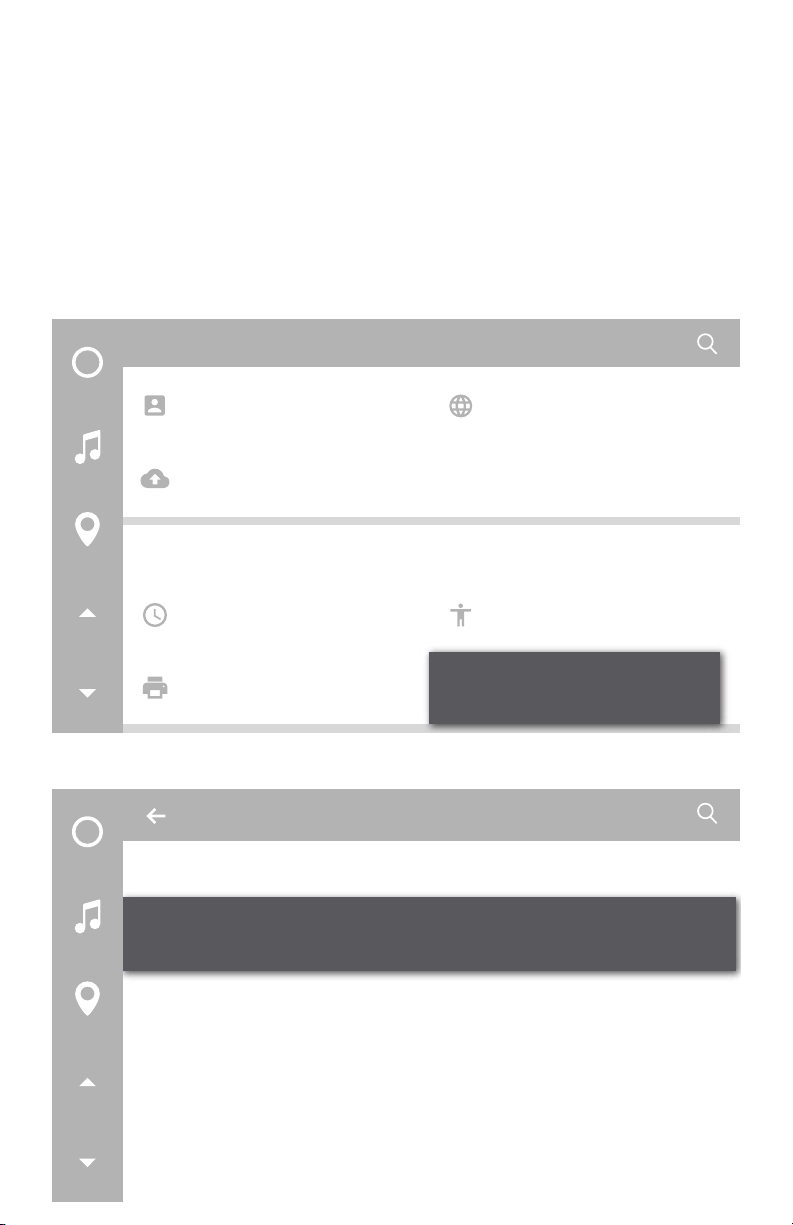
To install OTA updates go to “Settings -> About Device”
Settings
Accounts
Backup & reset
System
Date & time
Printing
Select “VLINE System Updates”
About device
System updates
VLine system updates
Language & input
Accessibility
About deviice
Status of the battery, network, and other information
Legal information
Regulatory information
25
Page 26
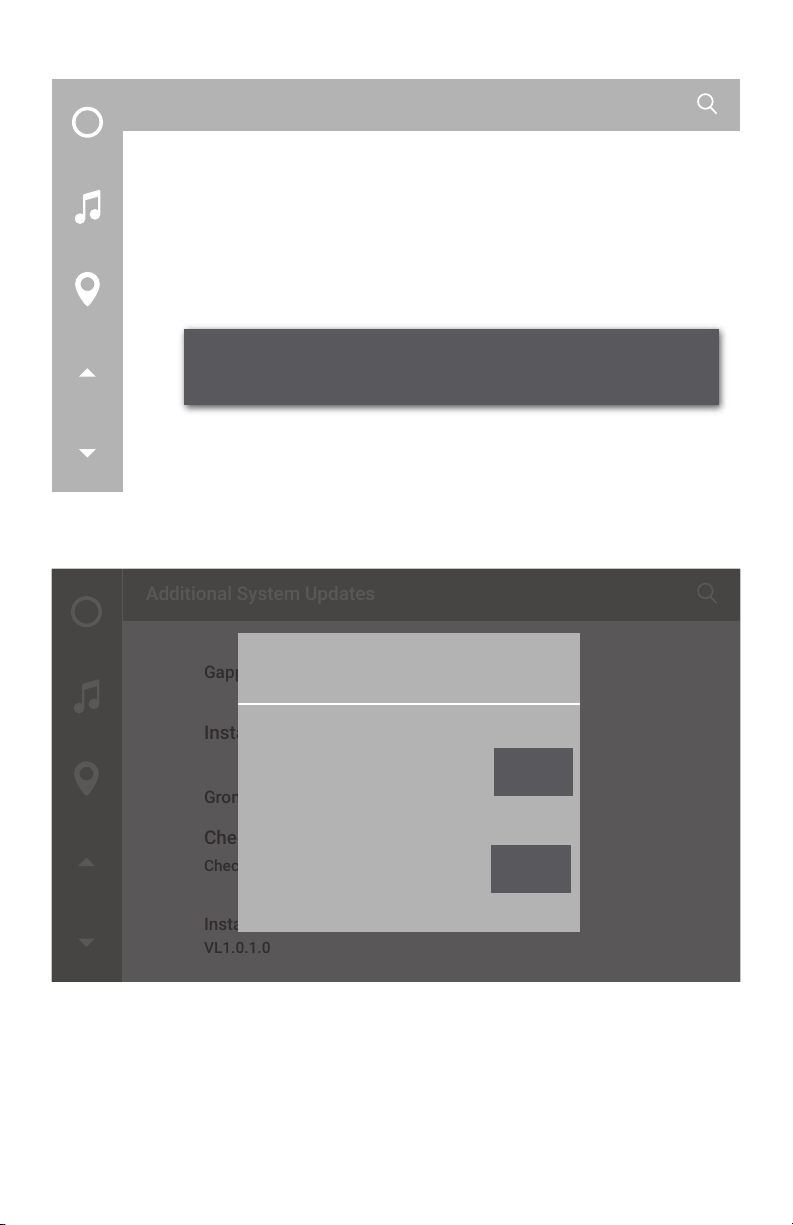
Then select “Check for Updates”
Additional System Updates
Gapps
Installed
GROM Updates
Check for updates
Check for available updates
Installed version
VL1.0.1.0
If there is an update available it will appear on screen to download.
Additional System Updates
VLine Update System
Gapps
Install Gapps
VLine Update
Download size: 158.3MiB
Grom OTA
VL1.0.1.0 relase
Check to update
Firmware Update
Check to available updates
Download size: 40.1KiB
Firmware Release
Installed version
VL1.0.1.0
Install
Install
Wait for update to download and install. VLINE will restart during the
process (this may take up to 10 minutes)
If the system does not boot up within 15 minutes, please turn off
ignition, wait 1 minute, and then turn ignition on again.
26
Page 27
CHAPTER 5 – SUPPORT
Periodic System Cleanup
To improve speed and performance of your VLine, it is recommended to
periodically uninstall any apps that you do not use.
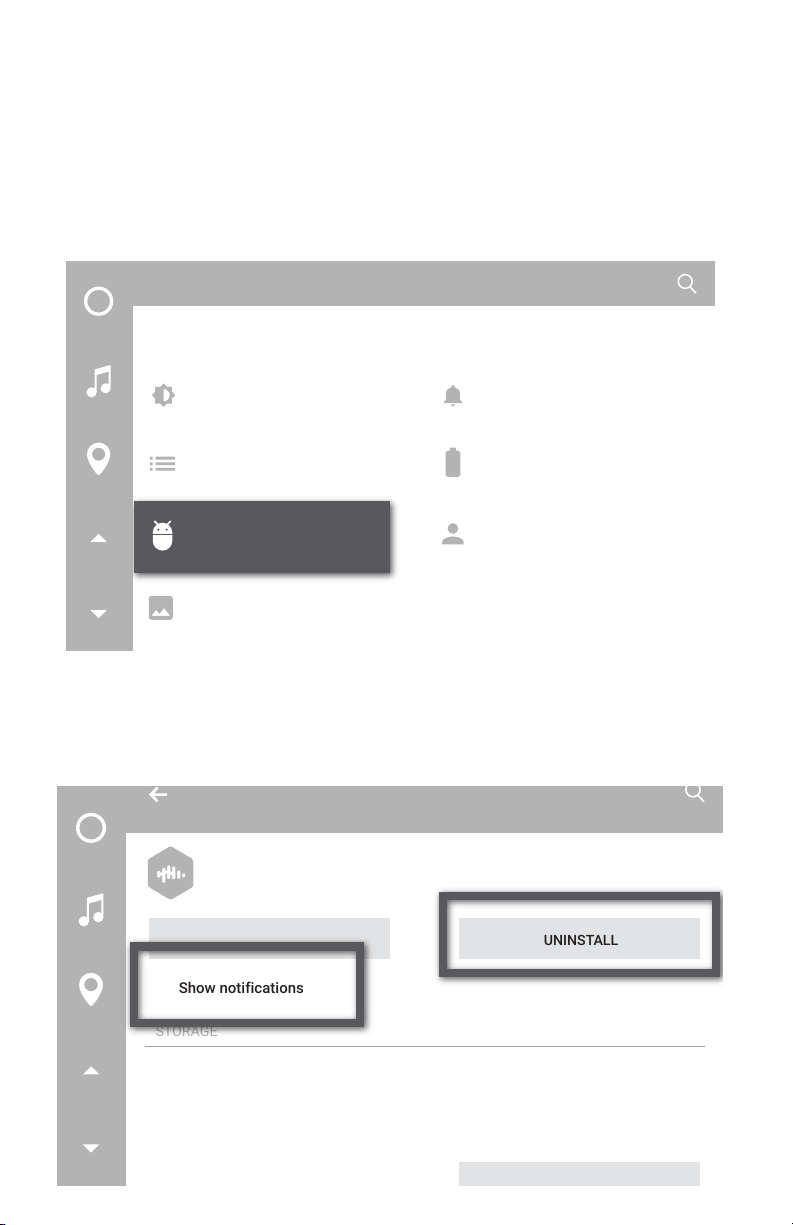
Go to Settings --> Apps -->Downloaded and review the apps that you down-
loaded.
Settings
Device
Display
Sound & notification
Storage
Battery
Apps
Users
Screenshot Setting
Select the app you wish to uninstall and tap UNINSTALL. If you want to keep
the app, but do not need it to run, uncheck Show notifications instead of
uninstalling.
Warning: do not uninstall any system apps. If unsure - contact us first.
App info
CastBox
version 1.7.7-17.010136
FORCE STOP
UNINSTALL
Show notifications
STORAGE
Total
App ……………………………………………………………………………………………
Data
30.26MB
29.66MB
616MB
27
Page 28

FAQ
Red Voice button is not working - what can I do?
Voice Assistant Button requires Gapps and Internet. Connect VLine to WiFi
and Install Gapps (see p. 6)
How can I install Maps and Apps?
Connect VLine to Wifi, install Gapps, add Play Store button on the home
screen, go to Play Store and install the maps and apps of your choice.
I am connected to WiFi but can’t download update - what can I do?
VLine is not getting good WiFi signal. Try to move VLine and the vehicle
closer to WiFi signal or use the hotspot in your vehicle.
ADDITIONAL SUPPORT
Technical support: http://gromaudio.com/support.html
Live chat: https://gromaudio.com
VLine Setup & Use Videos:
http://gromaudio.com/vline/ video.html
VLine installs:
https://gromaudio.com/installs/index.html
Google® and Waze® are registered trademark of Google, Inc. All trademarks or registered trademarks used in this manual are for informational purposes only. All trademarks are the property of the
respective owners, and in no way associated with GROM Audio.
Copyright © 2018 GROM Audio 2.1
 Loading...