

Page 1
Copyright © 2011 XIM Technologies. All rights reserved.
Congratulations on your purchase of XIM3! Designed by gamers for gamers, XIM3 (short for Xbox 360 Input
Machine) provides the best possible mouse and keyboard (and more) solution for the Xbox 360. XIM3 is focused on
quality gaming experiences. Fully customizable, XIM3 has the flexibility to adapt your gaming-grade PC input
peripherals to your favorite Xbox 360 games. Through advanced technology called Smart Translators, XIM3 is able to
provide a level of mouse precision unachievable by any other gaming adapter available.
Visit www.XIM3.com for the community forum, instructional videos, and latest Smart Translators and firmware available for download.
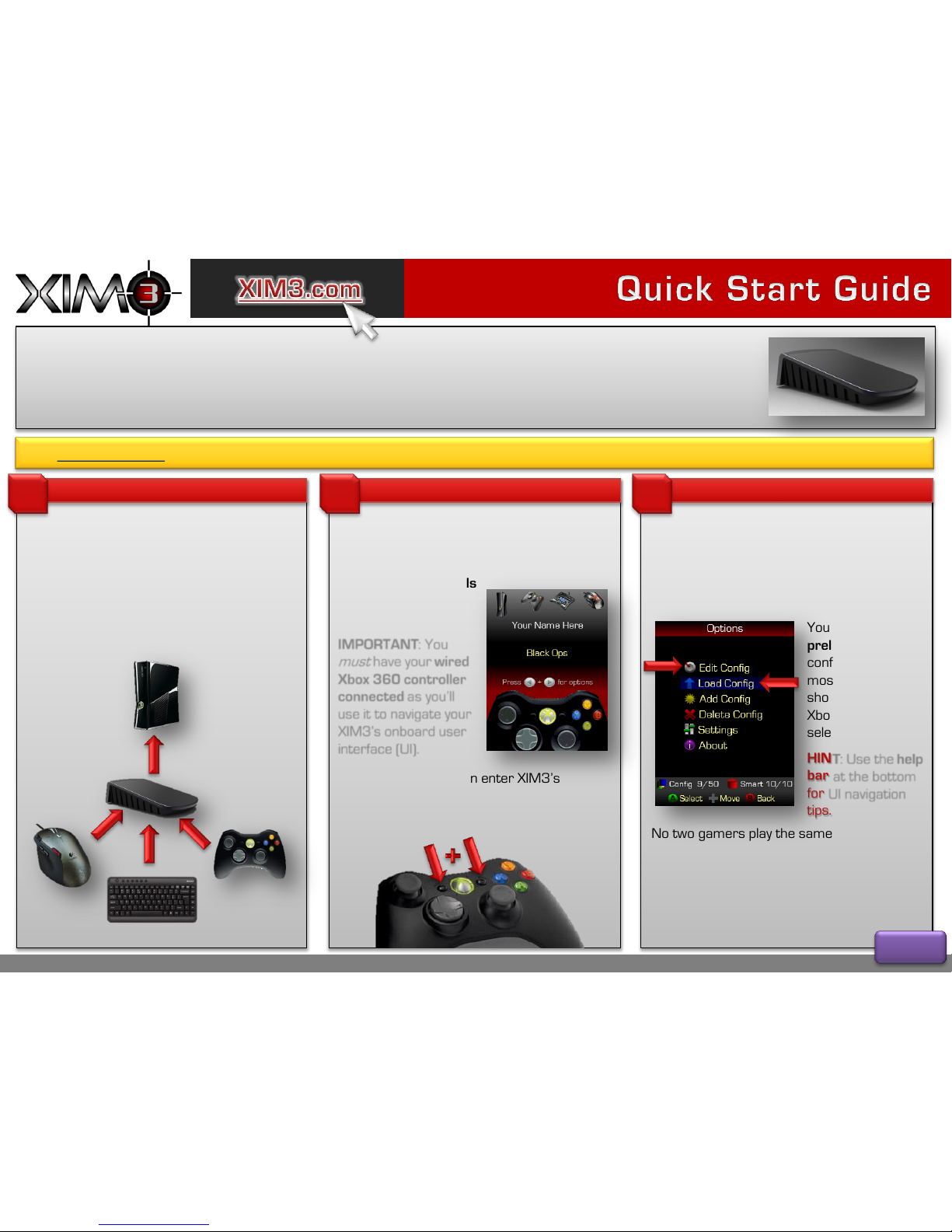
Connect your XIM3
Connecting up your XIM3 is as easy as
hooking up a USB hub to your PC.
Connect your mouse, keyboard (or joystick),
and wired Xbox 360 controller to your
XIM3. Then, connect your XIM3 to your
Xbox 360.
1
The HUD
2
The HUD is the first screen you’ll see on your
XIM3. It’ll show you what type of devices are
connected, what configuration is active and
what controller signals
your XIM3 is sending
to your Xbox 360.
IMPORTANT: You
must
have your wired
Xbox 360 controller
connected as you’ll
use it to navigate your
XIM3’s onboard user
interface (UI).
From the HUD, you can enter XIM3’s
configuration system. To do so, press
START and BACK on your controller at the
same time:
Configurations
3
A configuration (or config) is how you map
your mouse and keyboard to your Xbox
controller’s buttons and sticks. The Options
screen is where you can manage configs and
other settings.
Your XIM3 comes
preloaded with
configs for the
most popular
shooters on the
Xbox. To load one,
select Load Config.
HINT: Use the help
bar at the bottom
for UI navigation
tips.
No two gamers play the same way. XIM3’s
flexibility enables you to tune to your gaming
hardware, setup, and style.
Use Edit Config to modify mouse sensitivity,
button mappings, and more.
Page 1
Page 2
Copyright © 2011 XIM Technologies. All rights reserved.
Configuring your mouse
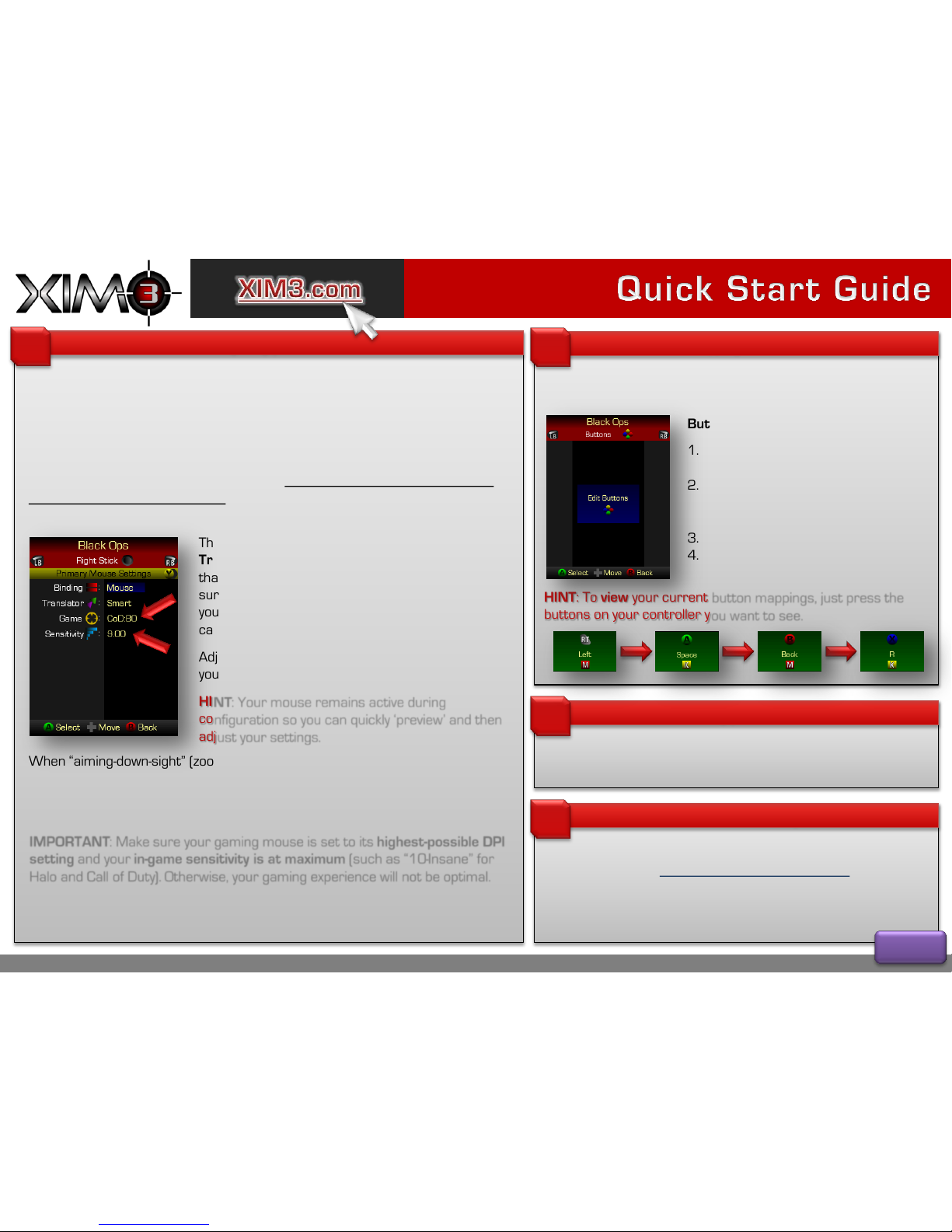
Edit Config is used to set how your gaming hardware is mapped to the Xbox
controller’s Right Stick, Left Stick, and Buttons. Your mouse controls your aim
in-game, so, it is typically mapped (bound) to the Right Stick of the controller.
Xbox games are designed for controllers, not mice, and every game is different.
So, this is where you get to take advantage of XIM3’s sophisticated Smart
Translator technology to ensure you have the best possible precision gaming
experience with minimal settings. (For games that don’t have Smart Translators,
the general-purpose Standard Translator is available for use.)
4
The Game setting is used to specify what Smart
Translator to use in the configuration. Remember
that a Smart Translator is game-specific, so, make
sure to always use the correct one for the game
you are targeting for your configuration. Your XIM3
can hold up to 10 Smart Translators at a time.
Adjust the Sensitivity setting to control how fast
your aim moves.
HINT: Your mouse remains active during
configuration so you can quickly ‘preview’ and then
adjust your settings.
When “aiming-down-sight” (zooming) in a shooter, you may need to increase your
Sensitivity if aiming is slowed by the game. For this, select Secondary mouse
settings (by pressing Y) to configure alternate behavior. Make sure to bind your
zoom button to the Secondary activation toggle.
IMPORTANT: Make sure your gaming mouse is set to its highest-possible DPI
setting and your in-game sensitivity is at maximum (such as “10-Insane” for
Halo and Call of Duty). Otherwise, your gaming experience will not be optimal.
When done, press RB to switch to the Left Stick configuration screen to map
your keyboard (or joystick) for control of your in-game movement.
Mapping buttons
5
Use LB or RB on your controller to flip to the Buttons screen.
Press A to start mapping buttons.
Button mapping is simple:
1. Press a button on your Xbox
controller
2. Press the button on your mouse,
keyboard, or joystick you want to
map it to
3. Repeat
4. Press and hold A on your controller
when done
HINT: To view your current button mappings, just press the
buttons on your controller you want to see.
Setting your name
6
Personalize your XIM3 with your GamerTag. From the Options
screen, select Settings and then edit your Name.
Join the community!
7
Get the most out of your XIM3 by joining and participating in our
community forum (http://XIM3.com/community) and share
tips, tricks, and suggestions with other XIM gamers.
Thank You!
The XIM3 Team
Page 2
 Loading...