

Page 1
G7801 - Release 3.3
Page 2

2
CN5100 Mobile Hotspot Quick Start Guide - G7801 - Release 3.3
Product features and specifications are subject to change without prior notice.
xG® and xMax® are registered trademarks of xG Technology, Inc.
All other trademarks used herein are property of their respective owners.
For the latest product documentation and software
updates, please refer to our Web site at
www.xGTechnology.com/support
xG Technology, Inc.
240 South Pineapple Avenue, Suite 701
Sarasota, FL 34236
(941) 953-9035
www.xGTechnology.com
Page 3

3
CN5100 Mobile Hotspot Quick Start Guide - G7801 - Release 3.3
Table of Contents
Introduction ............................................................................................................... 5
About this Product .................................................................................................................... 5
About this Book ........................................................................................................................ 5
Before you Begin ...................................................................................................................... 5
Hardware Overview .................................................................................................... 6
Important Safety and Installation Requirements ........................................................ 7
Electrical Safety Information .................................................................................................... 7
RF Exposure .............................................................................................................................. 7
FCC Compliance ........................................................................................................................ 8
Configuring the CN5100 Mobile Hotspot ..................................................................... 9
Connecting the CN5100 Mobile Hotspot to the xMax Network ................................. 14
Improving Wireless Performance ........................................................................................... 14
Connecting Wireless Devices to the xMax Network .................................................. 15
Wired Internet Connectivity ................................................................................................... 15
xMod Management Tool .......................................................................................... 16
Overview ................................................................................................................................. 16
Content and Functions Chart ................................................................................................. 18
xMod Management Details .................................................................................................... 19
Home View ...................................................................................................................................... 19
Information View – Home ............................................................................................................... 19
Information View – xMax ................................................................................................................ 20
Information View – WiFi.................................................................................................................. 20
Information View – System Information ......................................................................................... 21
Information View – Tools ................................................................................................................ 21
Settings View – WiFi ........................................................................................................................ 22
Settings View – xMax ...................................................................................................................... 22
Settings View – Other ...................................................................................................................... 23
Logs View ......................................................................................................................................... 23
Accounts View ................................................................................................................................. 24
Upgrade View .................................................................................................................................. 24
Technical Specifications ............................................................................................ 25
Page 4

4
CN5100 Mobile Hotspot Quick Start Guide - G7801 - Release 3.3
Warranty .................................................................................................................. 26
Limited Warranty .................................................................................................................... 26
SCOPE OF THE WARRANTY .............................................................................................................. 26
ADDITIONAL PROVISIONS OF THE WARRANTY ............................................................................... 27
OBTAINING SERVICE AND SUPPORT UNDER WARRANTY ............................................................... 28
EXCLUSIVITY OF THE WARRANTY .................................................................................................... 28
Page 5

5
CN5100 Mobile Hotspot Quick Start Guide - G7801 - Release 3.3
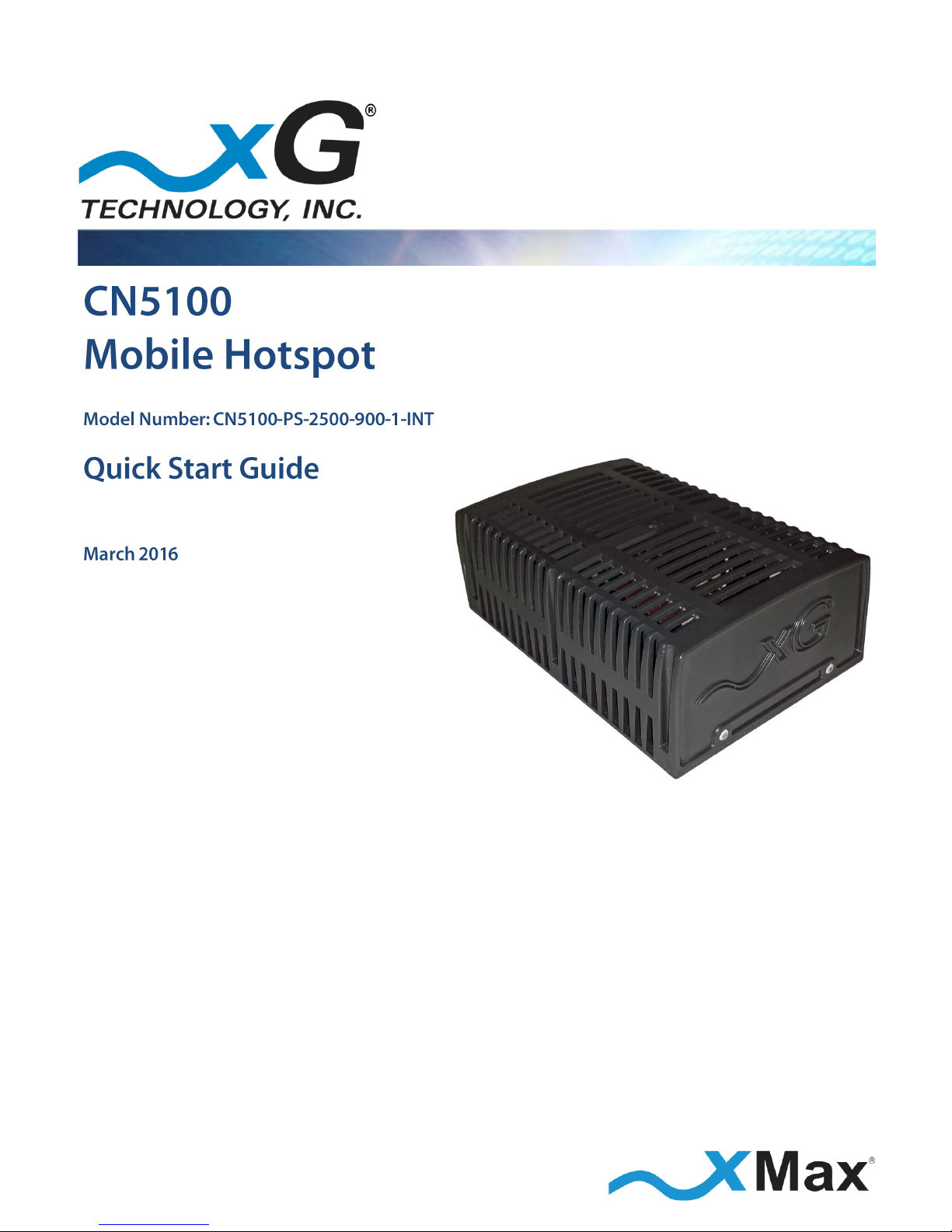
The CN5100 Mobile Hotspot is a bridge between the xMax® Network and wireless 802.11 Internet
protocols. When within range of an xMax Network, the CN5100 provides any Internet-ready device
the ability to connect to the xMax Network, either wirelessly using secure WiFi links, or through a
wired Ethernet connection.
This manual provides basic instructions for installation and configuration of the CN5100 Mobile
Hotspot. It describes:
How to setup and connect the CN5100 Mobile Hotspot to the xMax Network
How to connect WiFi enabled devices to the Internet using the xMax Network
IMPORTANT
The CN5100 Mobile Hotspot is shipped with the parts needed for installation and operation.
These items are shown below. Be sure each item is included in your product package.
If any item is missing, please contact the place of purchase.
AC Adapter
with power cord
(100-240 VAC, 50-60 Hz)
Ethernet Cable
(3 ft., CAT5e, 350 MHz)
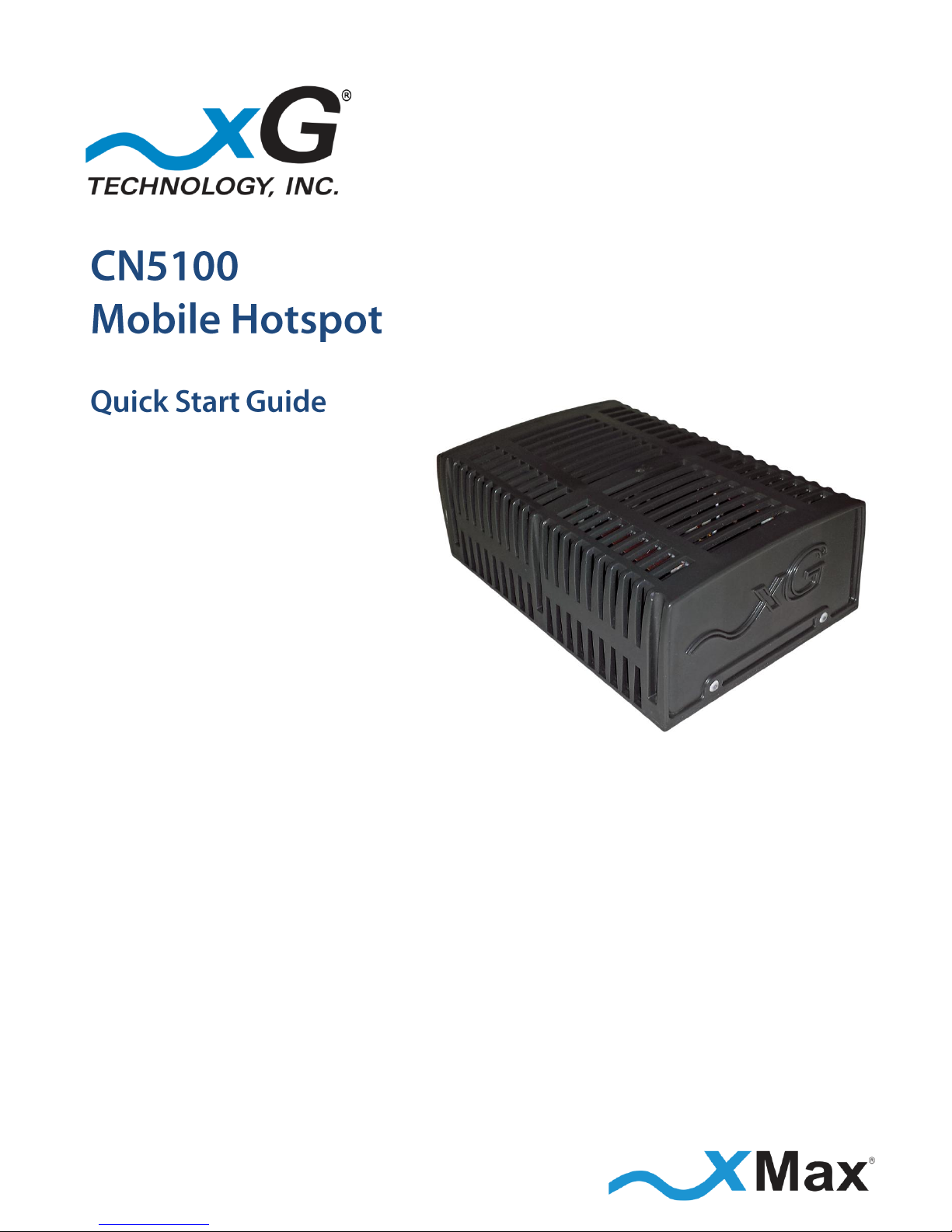
CN5100 Mobile Hotspot
Page 6

6
CN5100 Mobile Hotspot Quick Start Guide - G7801 - Release 3.3
The CN5100 Mobile Hotspot is a self-contained IEEE 802.11b/g access point and xMax modem.
It is a full-featured hotspot allowing connection by up to 5 users.
The CN5100 Mobile Hotspot has Ethernet, USB and Power connectors on the rear panel, as shown.
REAR PANEL
CONNECTORS
Ethernet
Mini USB
Power
The CN5100 has a Power LED and a Status LED on the front panel, as shown.
FRONT PANEL
STATUS LEDS
Power LED
Status LED
The operational status of the CN5100 is shown by the two LEDs, as defined below.
Under normal operating conditions, both LEDs glow GREEN.
Power LED
ORANGE
Startup
GREEN
Normal
Status LED
ORANGE
Registering with xMax
GREEN
Connected to xMax
RED
Not Connected to xMax
Page 7

7
CN5100 Mobile Hotspot Quick Start Guide - G7801 - Release 3.3
These notices apply to the CN5100 Mobile Hotspot and its power supply.
Be sure to read, understand and follow these instructions.
Heed all warnings.
Only use accessories and attachments specified by xG Technology.
Keep a copy of these instructions for future reference.
Compliance is required with respect to voltage, frequency, and current requirements indicated
on the manufacturer’s label.
Connection to a different power source than those specified may result in improper operation,
damage to the equipment or pose a fire hazard if the limitations are not followed.
There are no operator serviceable parts inside this equipment. Service should be provided only
by a qualified service technician.
This equipment is provided with a detachable power cord which has an integral safety ground
wire intended for connection to a grounded safety outlet.
Do not substitute the power cord with one that is not the provided approved type. Never use an
adapter plug to connect to a 2-wire outlet as this will defeat the continuity of the grounding
wire.
The equipment requires the use of the ground wire as a part of the safety certification,
modification or misuse can provide a shock hazard that can result in serious injury or death.
Contact a qualified electrician or the manufacturer if there are questions about the installation
prior to connecting the equipment.
This equipment complies with FCC radiation exposure limits set forth for an uncontrolled
environment. This equipment should be installed and operated with minimum distance of
23 cm (0.75 ft) between the radiator and your body. This transmitter MUST not be co-located or
operating in conjunction with any other antenna or transmitter.
Page 8
8
CN5100 Mobile Hotspot Quick Start Guide - G7801 - Release 3.3
Changes or modifications to this device not expressly approved
by xG Technology could void the user’s authority to operate
the equipment and void the warranty.
This equipment has been tested and found to comply with the limits for a Class B digital device,
pursuant to Part 15 of the FCC Rules. These limits are designed to provide reasonable protection
against harmful interference in a residential installation. This equipment generates, uses, and can
radiate radio frequency energy and, if not installed and used in accordance with the instructions,
may cause harmful interference to radio communications. However, there is no guarantee that
interference will not occur in a particular installation. If this equipment does cause harmful
interference to radio or television reception, which can be determined by turning the equipment
off and on, the user is encouraged to try to correct the interference by one or more of the following
measures:
Reorient or relocate the receiving antenna.
Increase the separation between the equipment and receiver.
Connect the equipment into an outlet on a circuit different from that to which the receiver is
connected.
Consult the dealer or an experienced radio technician for help.
Page 9
9
CN5100 Mobile Hotspot Quick Start Guide - G7801 - Release 3.3
These steps set up the CN5100 Mobile Hotspot for use.
After completing these configuration steps, the CN5100 Mobile Hotspot will be fully functional
and ready for operation. The CN5100 provides any Internet-ready device the ability to connect
wirelessly to the xMax network, using a secure WiFi connection.
Devices may also be connected to the xMax network through a wired Ethernet connection to the
CN5100. For more information, please refer to the topic Wired Internet Connectivity on page 15.
A personal computer is used to configure the CN5100 Mobile Hotspot. The xMax xMod Management
tool is supported and operates on the following platforms:
Operating Systems
Any version of Windows that supports the listed browsers (XP, Vista, 7, 8, 10)
Any version of Linux that supports Chrome or Firefox
Any version of OSX that supports Chrome or Firefox
Browsers
Firefox 3 or later
Internet Explorer 6 or later
Chrome 13 or later
NOTE
This sequence assumes that the CN5100 device is in factory-default configuration and has not been
previously configured.
1. Use a laptop or desktop computer to configure the CN5100 Mobile Hotspot.
Configure the computer network adapter to Internet Protocol Version 4 (TCP/IPv4)
for a static IP address and subnet mask.
BEFORE YOU CONTINUE
Be sure to take note of the current settings to restore them after configuration.
2. Use the IP Address as shown below:
Computer Network Adapter Settings
IP Address:
169.254.90.100
Subnet Mask:
255.255.255.0
3. Using an Ethernet cable, connect the computer to the Ethernet connector on the CN5100.
Page 10
10
CN5100 Mobile Hotspot Quick Start Guide - G7801 - Release 3.3
4. Connect the supplied power cord to the CN5100 AC adaptor, and then connect the AC adaptor
power cable to the power connector on the CN5100 Mobile Hotspot.
5. Plug the AC adaptor into a power outlet. At power up, the CN5100 Mobile Hotspot internal cooling
fan starts operating at low speed and the LEDs are not lit.
NOTE
The CN5100 startup process takes two to three minutes.
Before continuing, wait until this process completes and the LED glows GREEN.
Within 15 seconds, the two LEDs glow ORANGE.
Within one minute, the fan operates at high speed. The Power LED changes
from ORANGE to GREEN, and the Status LED remains ORANGE.
6. After approximately one more minute, the startup sequence completes.
The fan turns off, the Power LED remains GREEN and the Status LED changes to RED.
NOTE
At this time, if an xMax Network is within range, the Status LED then changes from RED to GREEN
and configuration may proceed:
7. On the computer, open a Web browser.
In the address line enter the IP address to open the CN5100 xMod Management window:
xMod Management
IP Address:
http://169.254.90.101
8. In the User name and Password fields enter:
User name:
admin
Password:
admin1
The password is case sensitive.
Page 11
11
CN5100 Mobile Hotspot Quick Start Guide - G7801 - Release 3.3
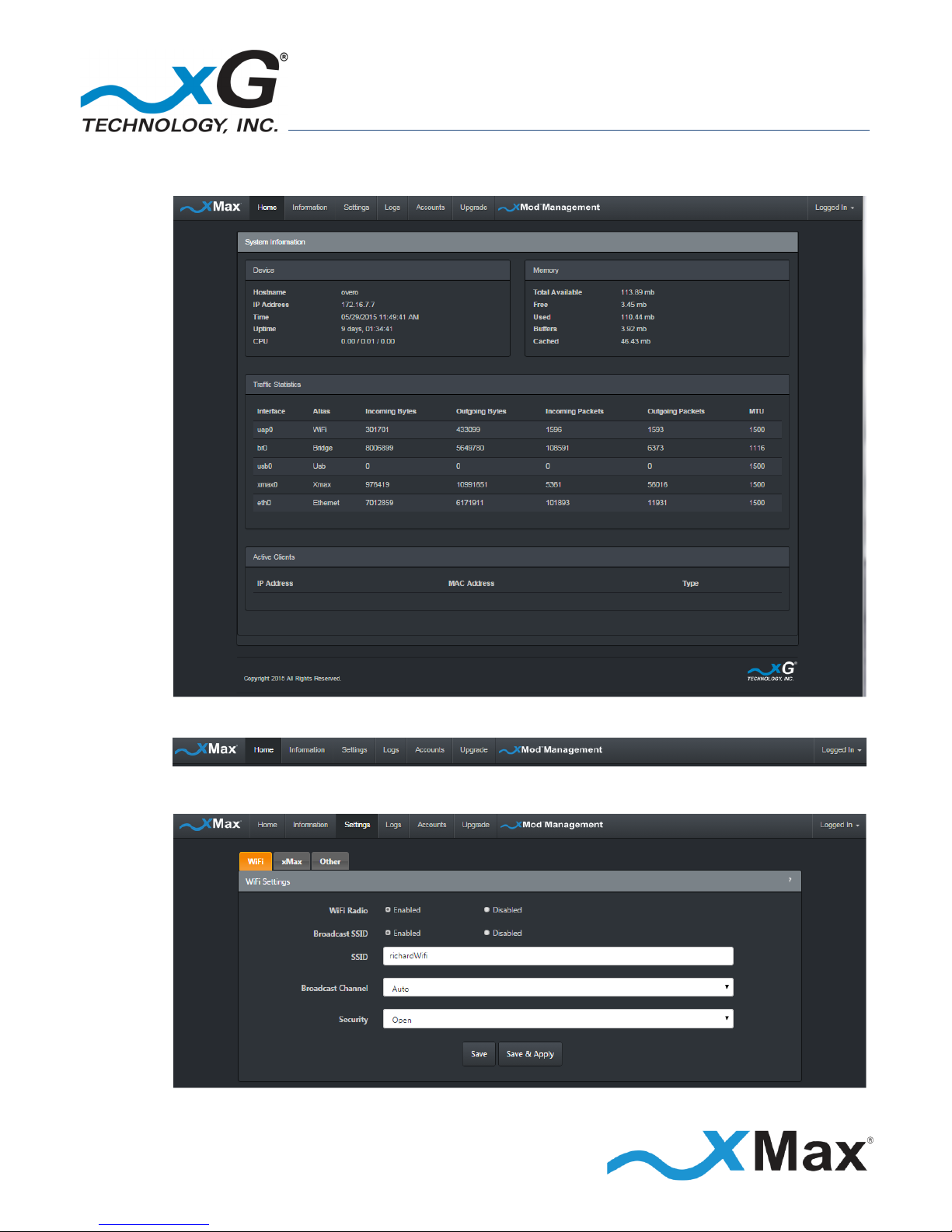
The CN5100 xMod Management window opens to the Home view.
The menu bar is at the top of the window.
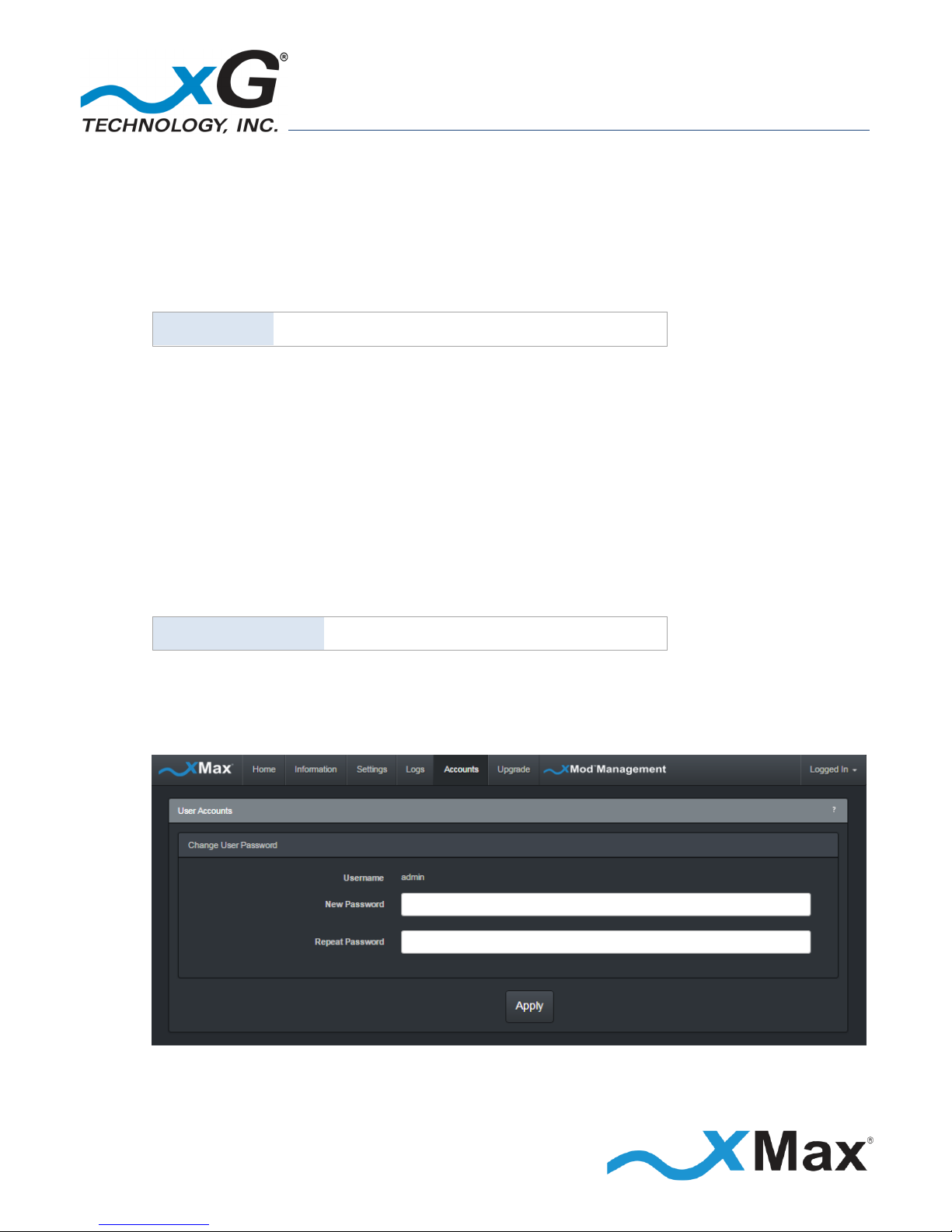
On the tool bar, click Settings to open to the Settings – WiFi view.
Page 12
12
CN5100 Mobile Hotspot Quick Start Guide - G7801 - Release 3.3
xG Technology strongly recommends changing the SSID and WPA security key.
IMPORTANT
Before saving changes, be sure to write down the new SSID, and then keep it in a safe place
for future reference:
SSID:
In the SSID field, enter a unique SSID for the device.
Select a security protocol:
9. Click the down arrow on the right side of the Security field to reveal the options menu.
10. Click the desired security protocol. The best, and most secure, level of security is WPA2.
Enter the desired security key/passphrase:
Be sure to write down the new Shared Key and then keep it in a safe place for future reference:
Shared Key
After confirming that the settings are written down for future reference, click Save.
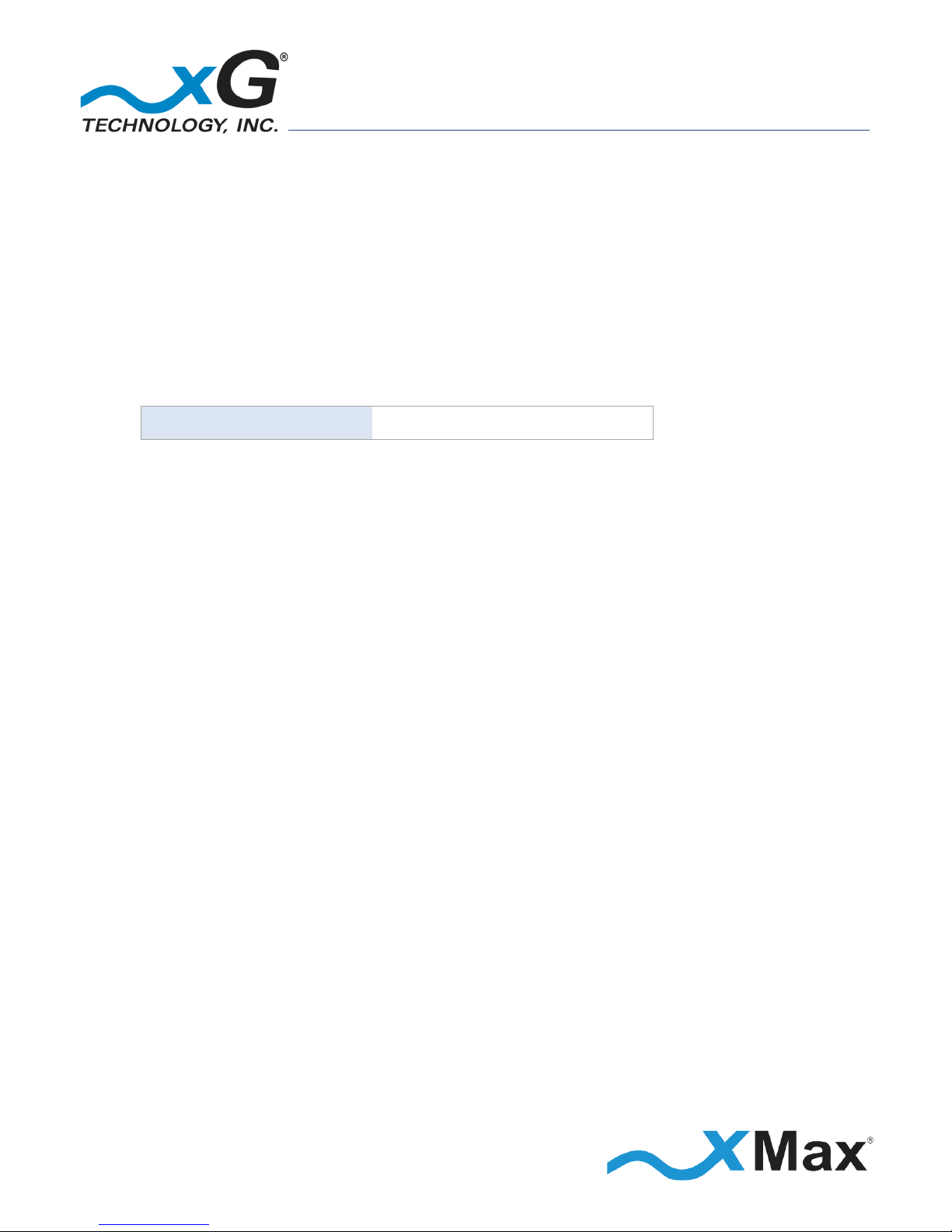
On the tool bar, click Accounts to open the User Accounts view.
The Change User Password section, displays the current Username.
Page 13
13
CN5100 Mobile Hotspot Quick Start Guide - G7801 - Release 3.3
xG Technology strongly recommends that you change the default Account Password.
IMPORTANT
Before clicking Apply, be sure to write down the new password, and then keep it in a safe place
for future reference.
The password length must be a minimum of 6 characters.
The password is case sensitive, and may contain any alphanumeric or special character.
Note the New Password:
11. Enter the selected password in the New Password field, and then again enter the password
in the Repeat Password field. Finally, click Apply.
The system displays the message:
Saving Settings! Please wait while the server saves your settings, and then followed by
Settings saved! Server has successfully saved your settings.
NOTE
This completes the minimum setup. For additional information on the many features of the
CN5100 xMod Management tool, please refer to the topic xMod Management Tool starting on
page 16.
12. To complete the setup, log out of the CN5100 xMod Management tool.
On the right side of tool bar click Logged In to reveal the options menu, and then click Log Out.
Be sure to restore the computer network adapter to its previous settings.
Page 14
14
CN5100 Mobile Hotspot Quick Start Guide - G7801 - Release 3.3
IMPORTANT
Before beginning this procedure, it is assumed that the CN5100 Mobile Hotspot has been configured
as described in the steps Configuring the CN5100 Mobile Hotspot for the First Time on page 7.
These steps connect the CN5100 Mobile Hotspot to an xMax Network.
1. Plug the AC adaptor into a power outlet. At power up, the CN5100 Mobile Hotspot
internal cooling fan starts operating at low speed and the LEDs are not lit.
2. Within 15 seconds, the two LEDs glow ORANGE.
Within one minute, the fan operates at high speed.
The Power LED, on the left side of the front panel, changes from ORANGE to GREEN and the
Status LED remains ORANGE.
After approximately one more minute, the startup sequence completes.
The fan turns off, the Power LED remains GREEN and the Status LED changes to RED.
If an xMax Network is within range, the Status LED then changes to GREEN.
The CN5100 Mobile Hotspot is now fully functional and provides 802.11 Internet access
to wireless devices through the private and secure xMax Network.
NOTE
If the Status LED remains RED after two minutes have elapsed,
ensure that the CN5100 Mobile Hotspot is within range of an operating xMax Network.
If the CN5100 is within range of an operating xMax Network, but not connecting,
follow these steps to restart the CN5100:
Power off the CN5100.
Wait 60 seconds.
Power on the CN5100.
Placing the CN5100 Mobile Hotspot in another location may improve signal strength.
Metal walls or roofs, or other large metal objects may interfere with, or reflect,
the wireless signal.
Position the CN5100 away from electric appliances, microwave ovens, Bluetooth® wireless
devices, 2.4GHz cordless phones, baby monitors, wireless security cameras, high-powered
audio equipment, television sets, powerful magnets, heavy equipment, electric motors,
fluorescent lights, large aquariums and computer monitors.
Consult your xMax Network service provider for additional assistance.
Page 15
15
CN5100 Mobile Hotspot Quick Start Guide - G7801 - Release 3.3
When within range of a CN5100 Mobile Hotspot, any Internet-ready device has the ability to
securely connect to the Internet through the xMax Network via WiFi.
These steps connect WiFi devices to the xMax Network.
1. Configure a WiFi-enabled device for Internet Protocol Version 4 (TCP/IPv4)
and DHCP operation.
2. Enter the SSID and password that was saved in the steps performed in the section
Configuring the CN5100 Mobile Hotspot for the First Time on page 7.
Once connected, the device can be used for any common Internet function.
A properly configured device, such as a PC or laptop computer, can be connected directly to
the CN5100 Mobile Hotspot via USB for Internet access.
1. Configure the device network interface for DHCP operation.
2. Using the provided Ethernet cable, connect the device to the operating
CN5100 Mobile Hotspot.
Page 16
16
CN5100 Mobile Hotspot Quick Start Guide - G7801 - Release 3.3
Much like a common wireless router, the CN5100 Mobile Hotspot requires only minimal
configuration for general use. Additional configuration features, however, are available using the
xMod Management tool.
The xMod Management tool provides a means to perform the complex configuration tasks in a
visually appealing, Web-based interface. In addition, the tool provides powerful facilities for network
monitoring and analysis.
Before You Begin
Ensure that the computer network adapter is configured is as described in the topic
Configuring the CN5100 Mobile Hotspot on page 9.
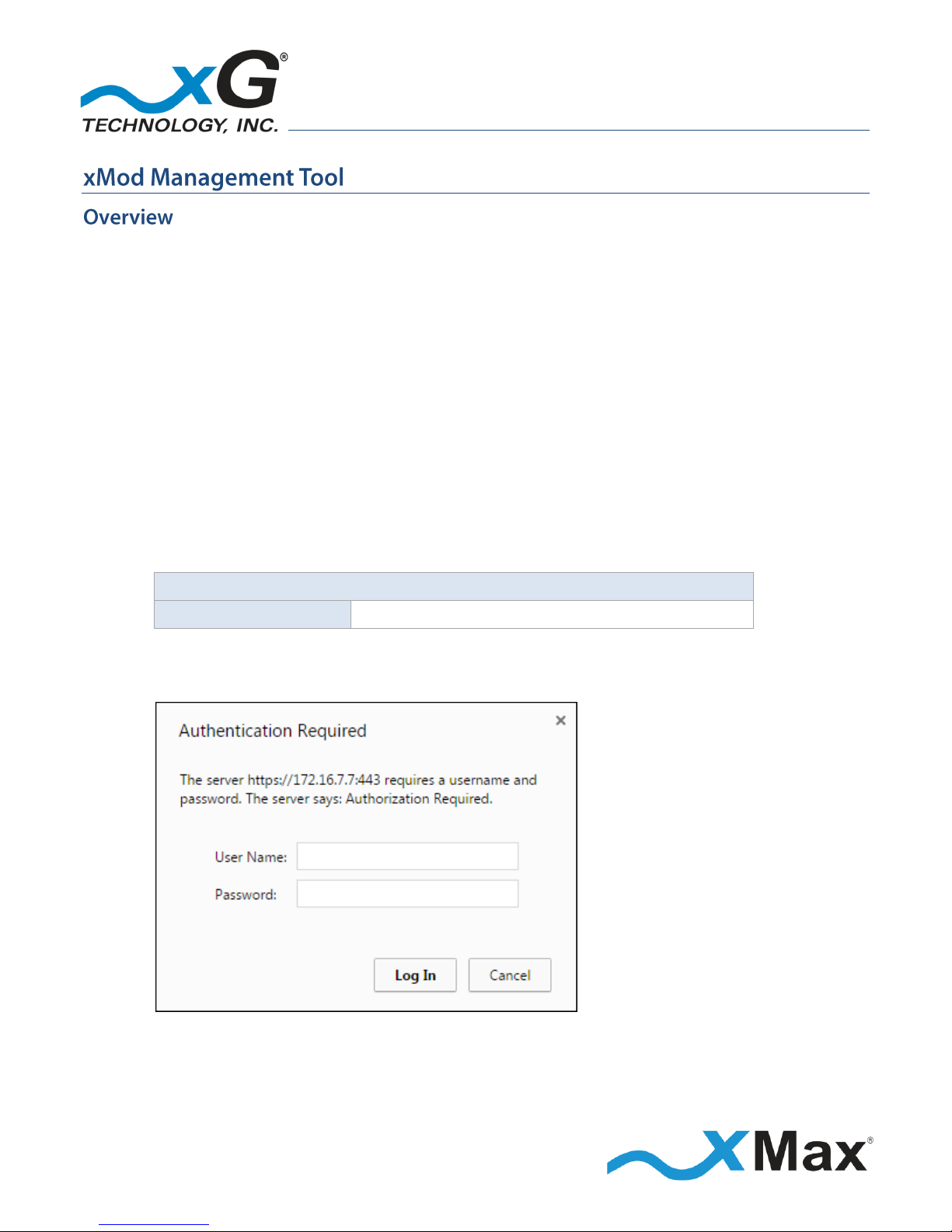
1. On the computer, open a Web browser, type the CN5100 xMod Management
IP address in the address line, and then press Enter:
xMod Management
IP Address:
http://169.254.90.101
2. The User Authentication window displays.
Enter the User Name and Password, and then click Log In.
Page 17
17
CN5100 Mobile Hotspot Quick Start Guide - G7801 - Release 3.3
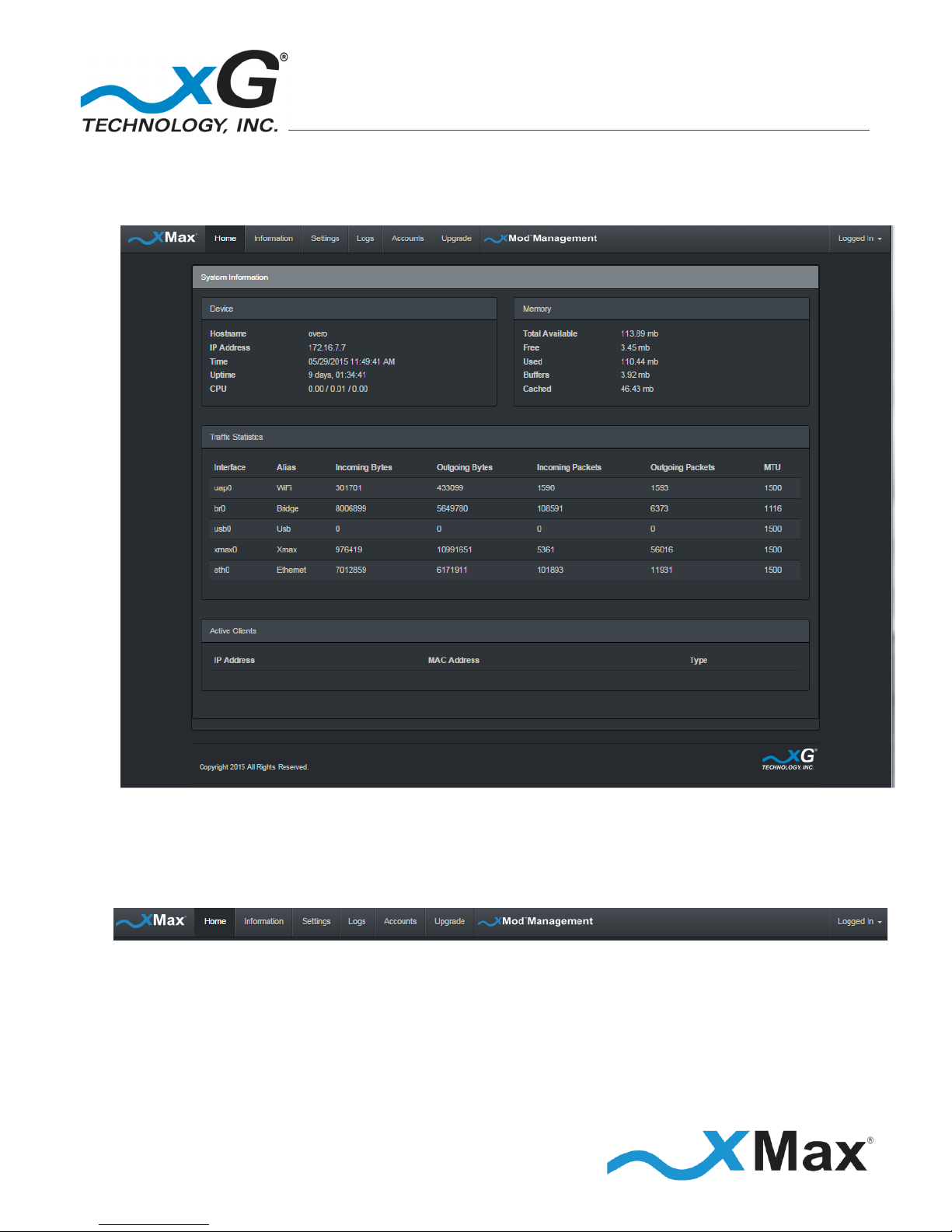
The xMod Management window opens to the Home view, as shown.
Figure 1: xMod Management – Home View
There are six xMod Management tabs at the top of the window.
Each of these tabs presents additional xMod Management functions.
Topics in this section describe the functions of each xMod Management tab.
Page 18
18
CN5100 Mobile Hotspot Quick Start Guide - G7801 - Release 3.3
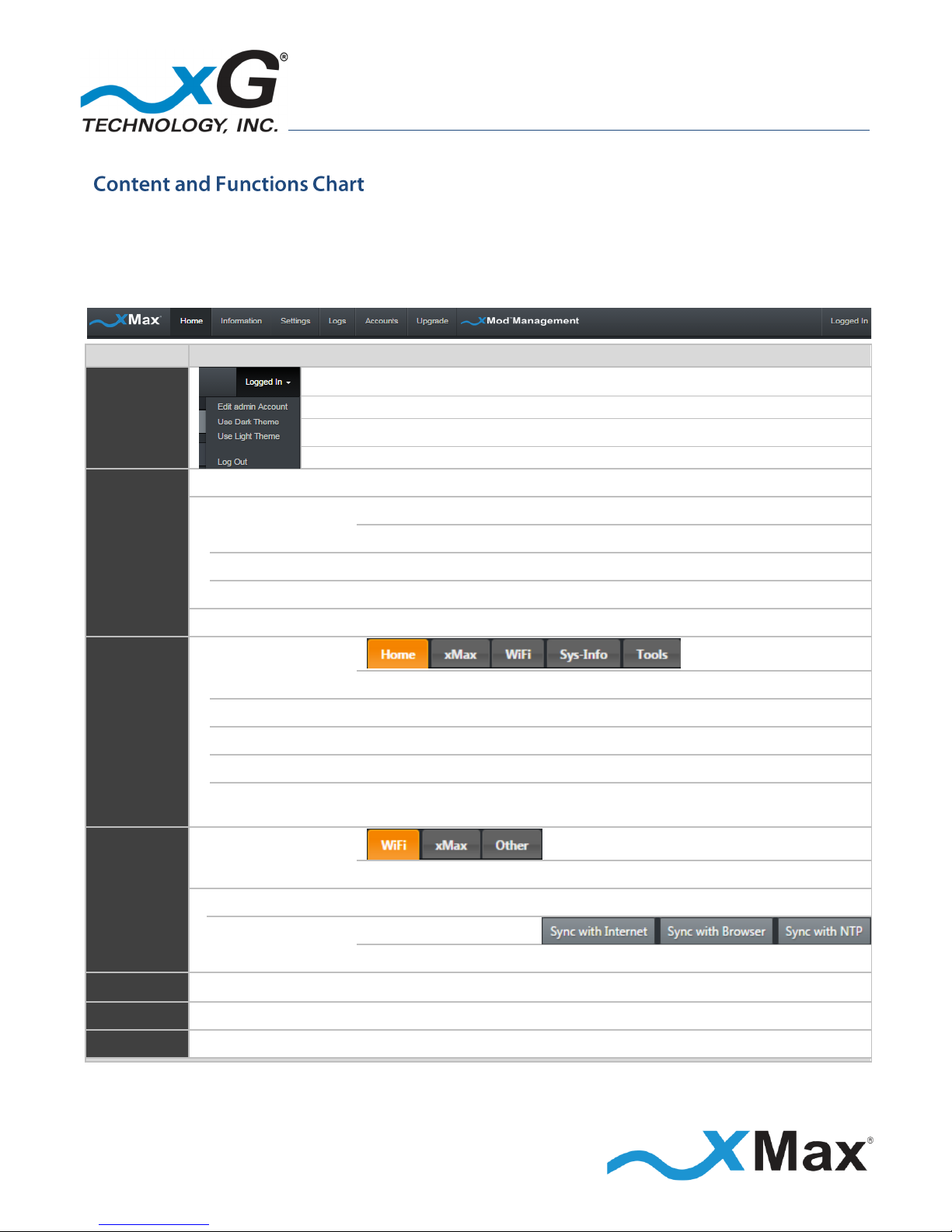
This diagram shows the major functions in each of the xMod Management views. Topics in this
guide describe the features and usage information for each xMod Management function.
Click one of the six xMod Management tabs, at the top of the window, to display that view.
VIEW
CONTENT AND FUNCTIONS OVERVIEW
Toolbar
Options
Click the arrow to the right of the of Logged In status to reveal the options menu:
Click Edit Account to display the User Accounts view.
Click to select the xMod Management Dark Theme or Light Theme.
Click to Log Out of xMod Management.
Home
The Home view displays a real-time overview of xMod system information:
System Information
Device
Hostname, IP Address, Time, Uptime, CPU
Memory
Total Available, Free, Used, Buffers, Cached
Traffic Statistics
Interface, Alias, Bytes (In/Out), Packets (In/Out), MTU
Active Clients
IP Address, MAC Address, Type
Information
Device Information
Home
Version, Wireless, Network, Control System Components
xMax
WAN Information: Configuration Type, Total Traffic, RF Settings, Wireless
WiFi
Status, Packets, Clients
System Information
Device, Memory, Traffic Statistics, Active Clients
Tools
System – Network: Ping, Trace Route, NS Lookup
Restart: xMod
Settings
WiFi
WiFi Radio Enable, Broadcast SSID Enable, SSID, Broadcast Channel, Security
xMax Radio
Radio: RF Channel, Network ID, Transmit Power, Enable Other Parameters
Other
Date/Time - Set or Sync:
RADIUS Secret, System Reboot Enable
Logs
View
messages, debug, syslog, Dmesg, WdReboot
Accounts
User Accounts
Change User Password
Upgrade
Sofware Upgrade
Display Current Software and xMax Components, Upload File, Swap to Backup
Figure 2: xMod Management – Content and Functions Overview
Page 19
19
CN5100 Mobile Hotspot Quick Start Guide - G7801 - Release 3.3
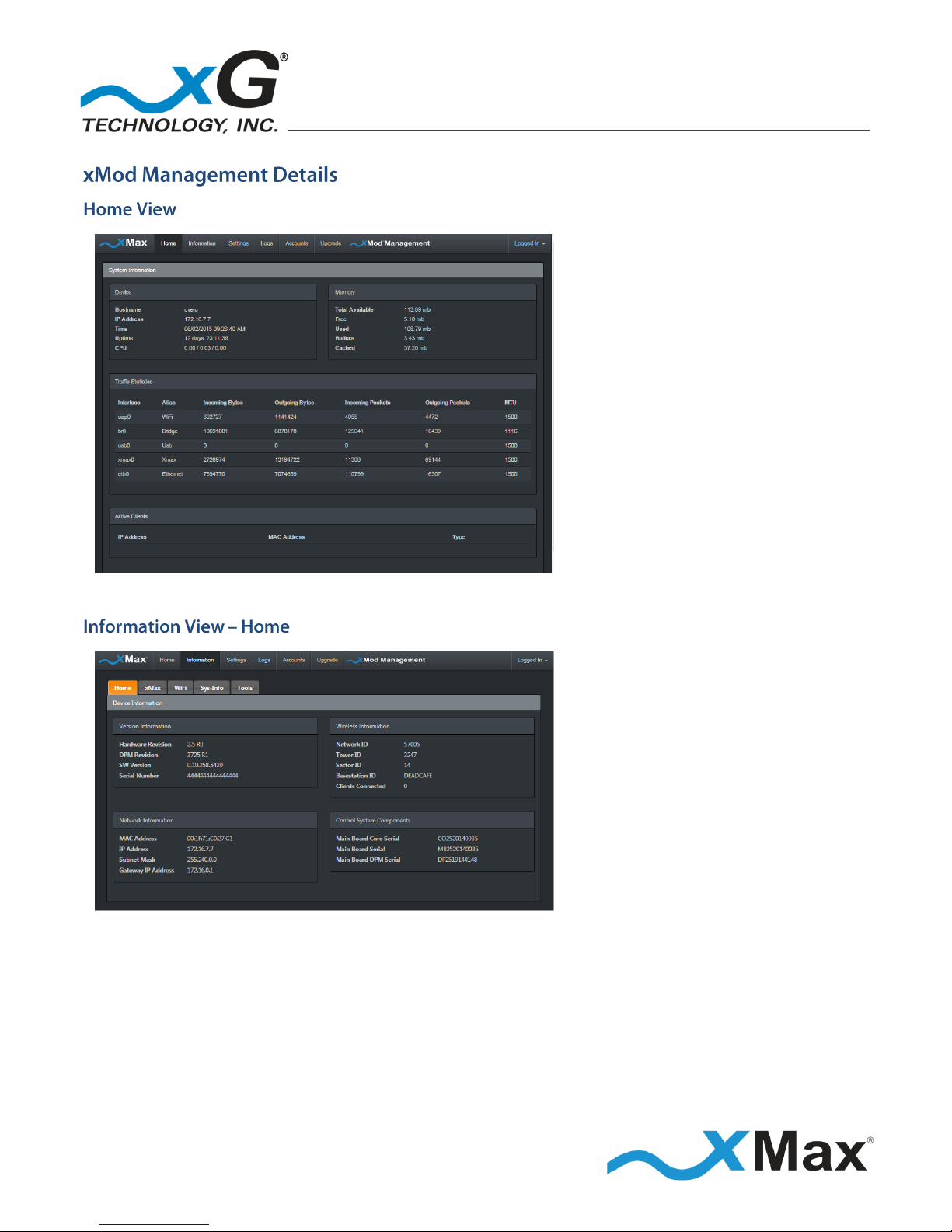
The Home view is the initial page
presented.
This page displays real-time System
Information from the xMCC database
for:
Devices
Memory
Traffic Statistics
Active Clients
The Information – Home view
displays Device Information:
Version
Wireless
Network
Control System Components
Page 20
20
CN5100 Mobile Hotspot Quick Start Guide - G7801 - Release 3.3
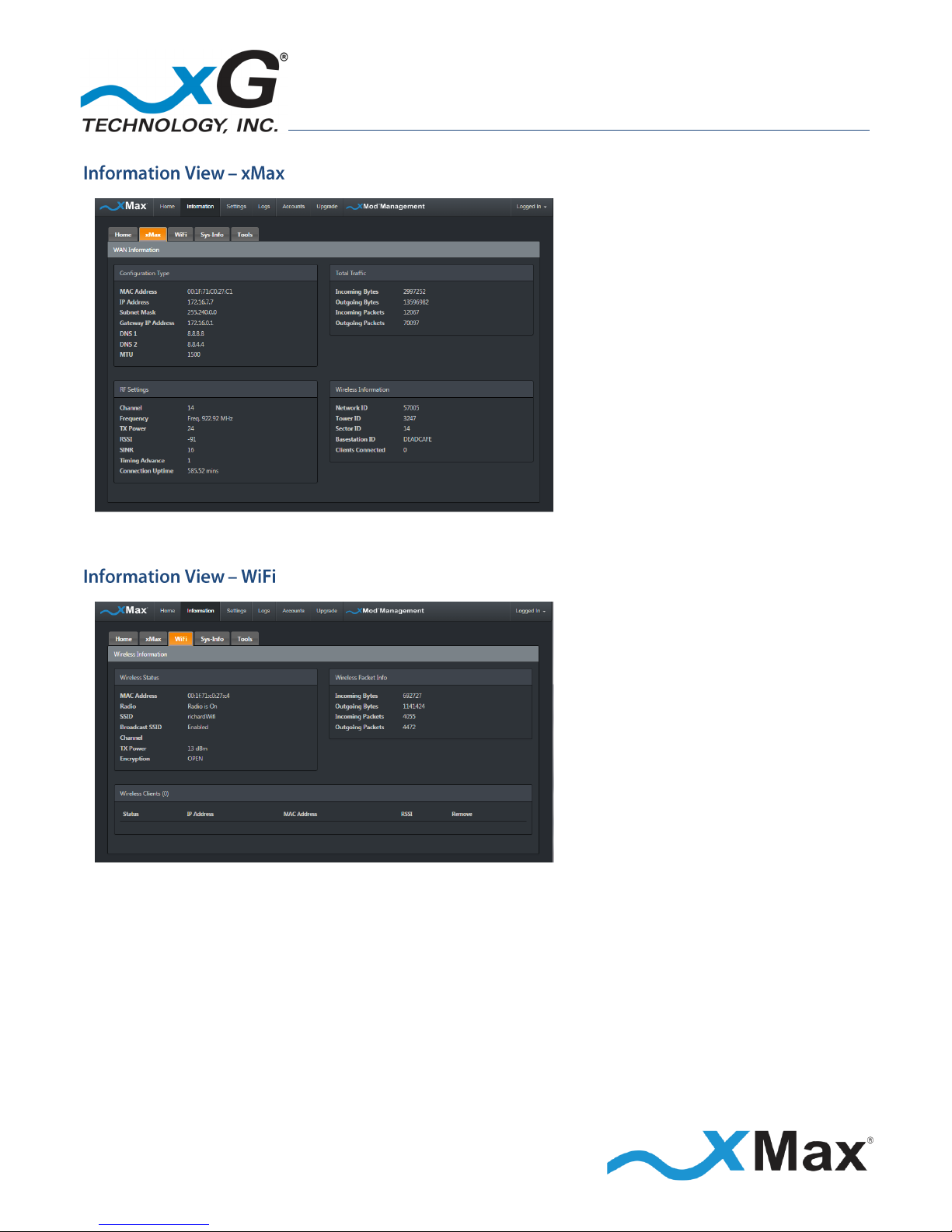
The Information – xMax view
displays WAN Information:
Configuration Type
Total Traffic
RF Settings
Wireless
The Information – WiFi view displays
WAN Information:
Wireless Status
Wireless Packets
Wireless Clients
Page 21
21
CN5100 Mobile Hotspot Quick Start Guide - G7801 - Release 3.3
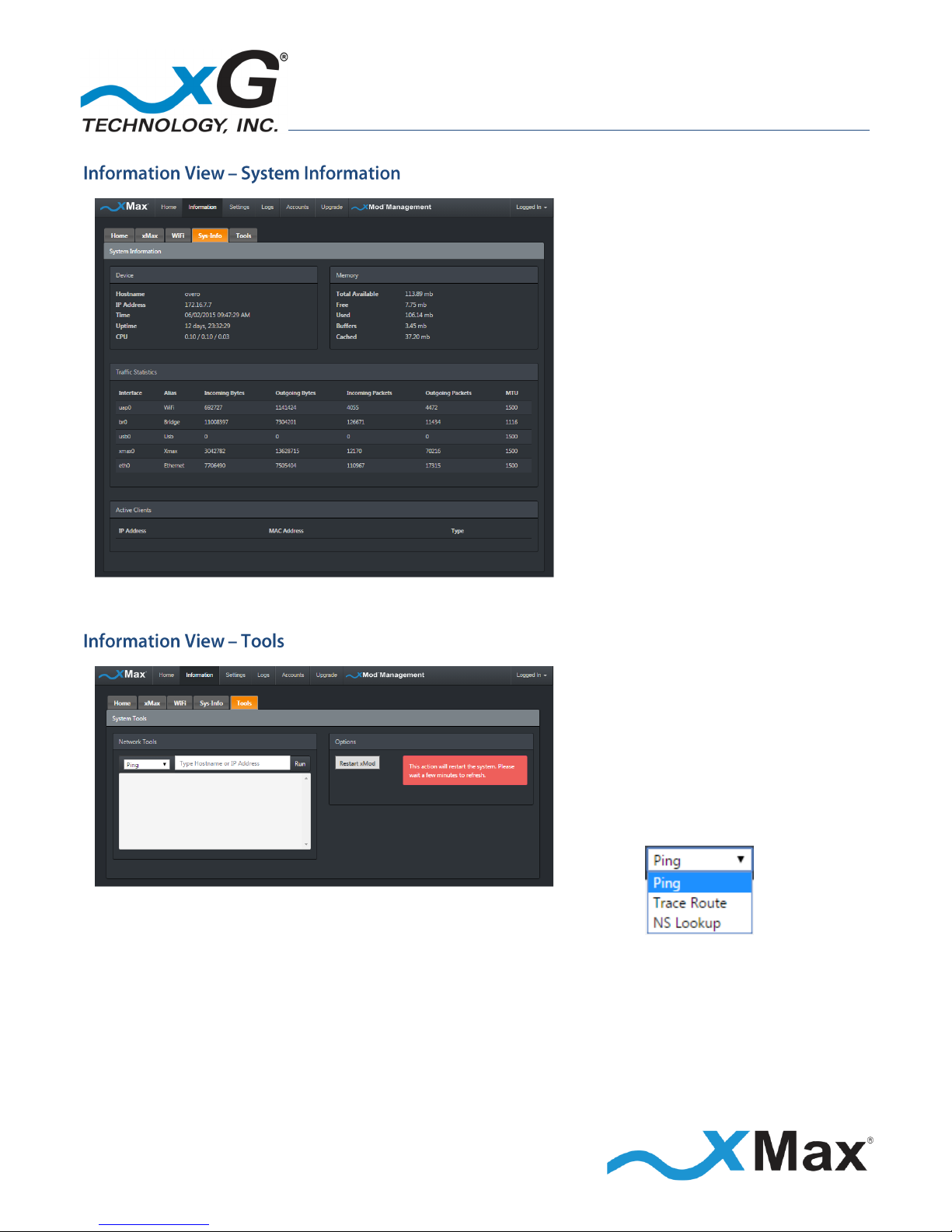
The Information – Sys-Info view
displays System Information:
Device
Memory
Traffic Statistics
Active Clients
The Information – Tools view
displays System Tools:
Network Tools
Click the down arrow to
the right of Ping to reveal
the other tools:
Option: Restart xMod
Page 22
22
CN5100 Mobile Hotspot Quick Start Guide - G7801 - Release 3.3
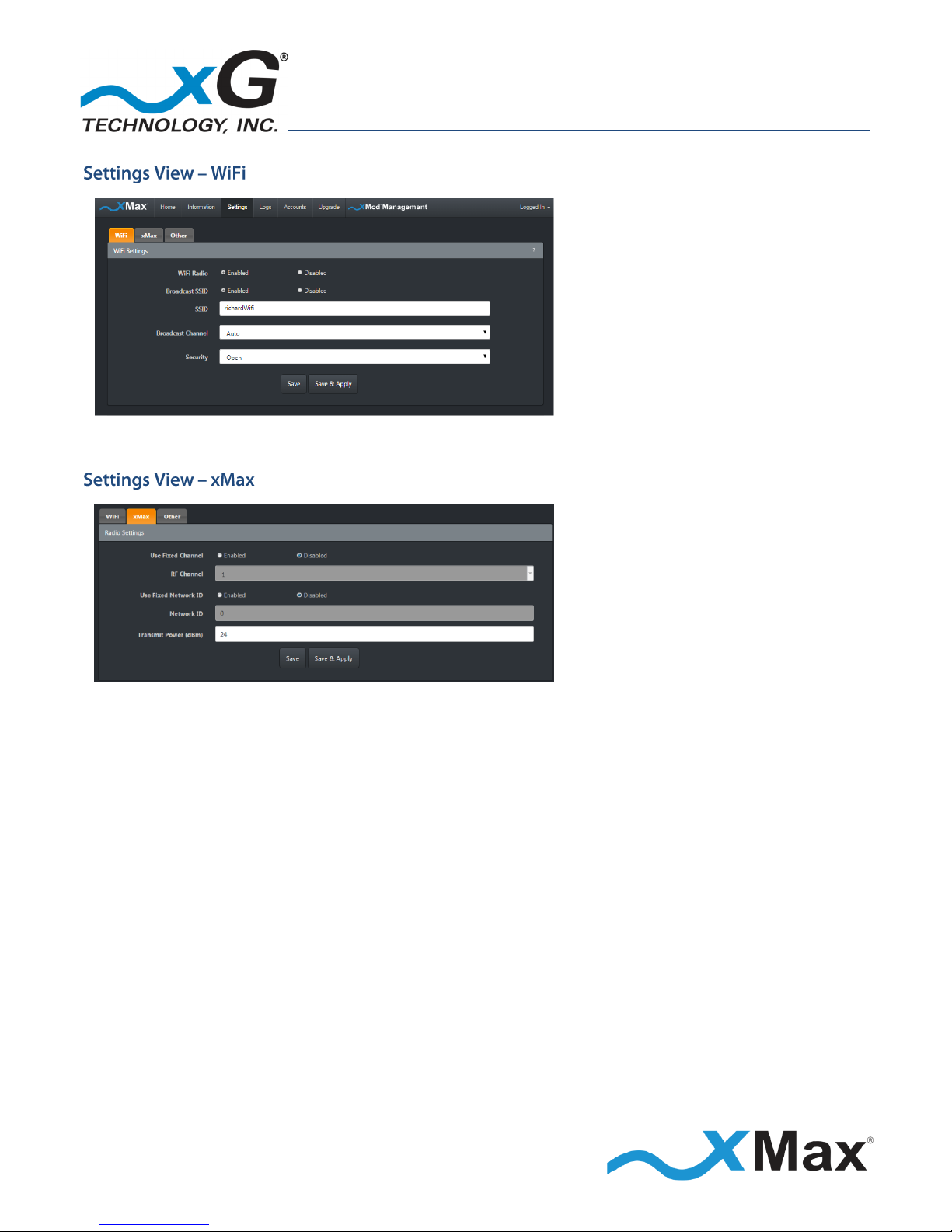
The Settings – WiFi view displays
WiFi Settings:
WiFi Radio Enable
Broadcast SSID Enable
SSID
Broadcast Channel
Security
The Settings – xMax view displays
Radio Settings:
RF Channel
Network ID
Use Fixed Channel and ID
Transmit Power
Page 23
23
CN5100 Mobile Hotspot Quick Start Guide - G7801 - Release 3.3
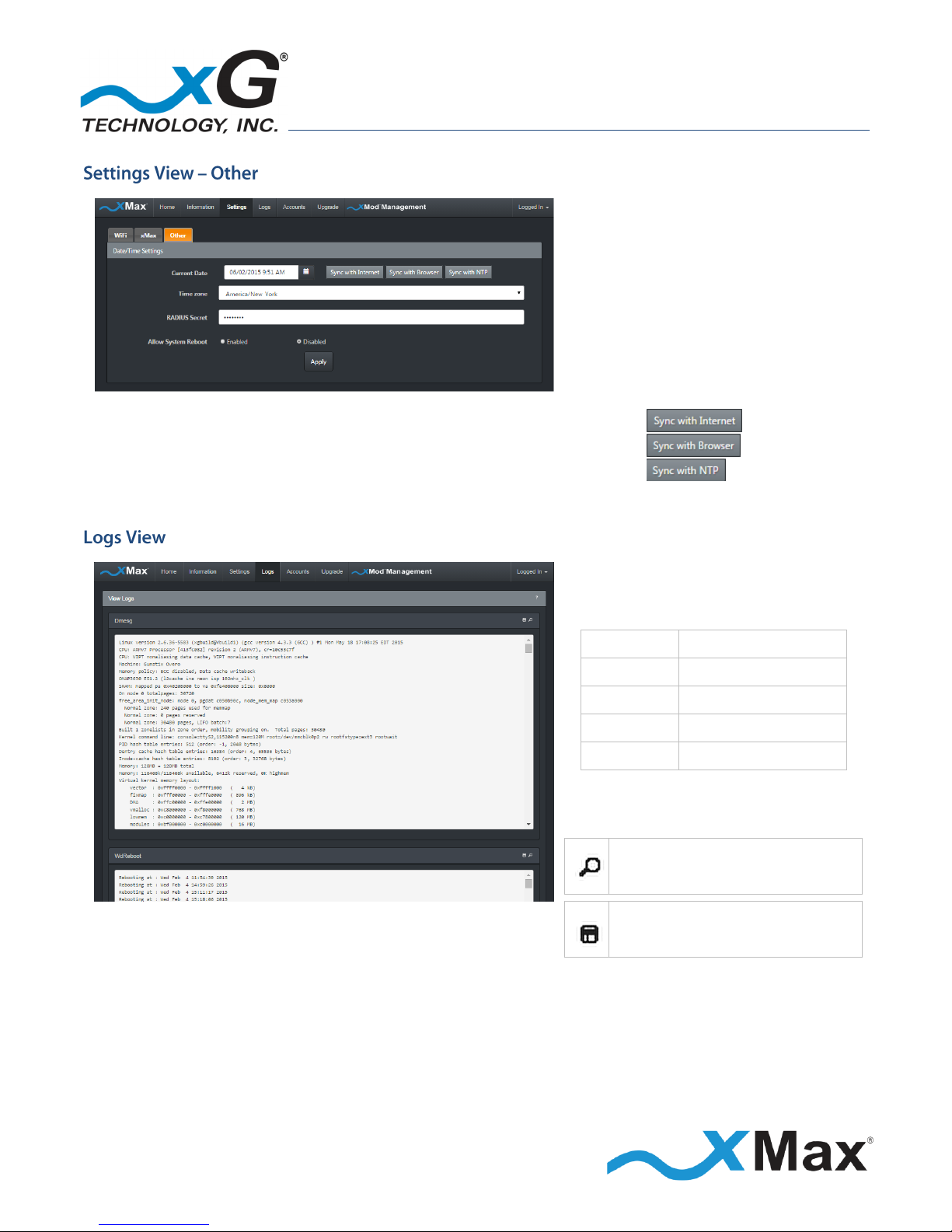
The Settings – Other view enables
configuration of additional settings:
RADIUS Secret
Enable System Reboot
Date/Time Settings:
Manually set date, time,
and time zone, or
Time/Date Sync Options:
Automatically syncs the date and time with a preset Internet time IP address.
Acquires the date and time from the current local machine and sets it to that device.
Syncs the date and time with a specific NTP server.
The Logs view enables viewing of
xMod logs. Scroll down to view any
available log.
messages
Software Events
debug
Debug Events
syslog
All Events
Dmesg
Hardware Events
wdReboot
Reboot Events
Useful icons are available in the
upper right corner of each log frame:
Click to enable filtering of
searched information.
Click to download the Log file
in .TXT format.
Page 24
24
CN5100 Mobile Hotspot Quick Start Guide - G7801 - Release 3.3
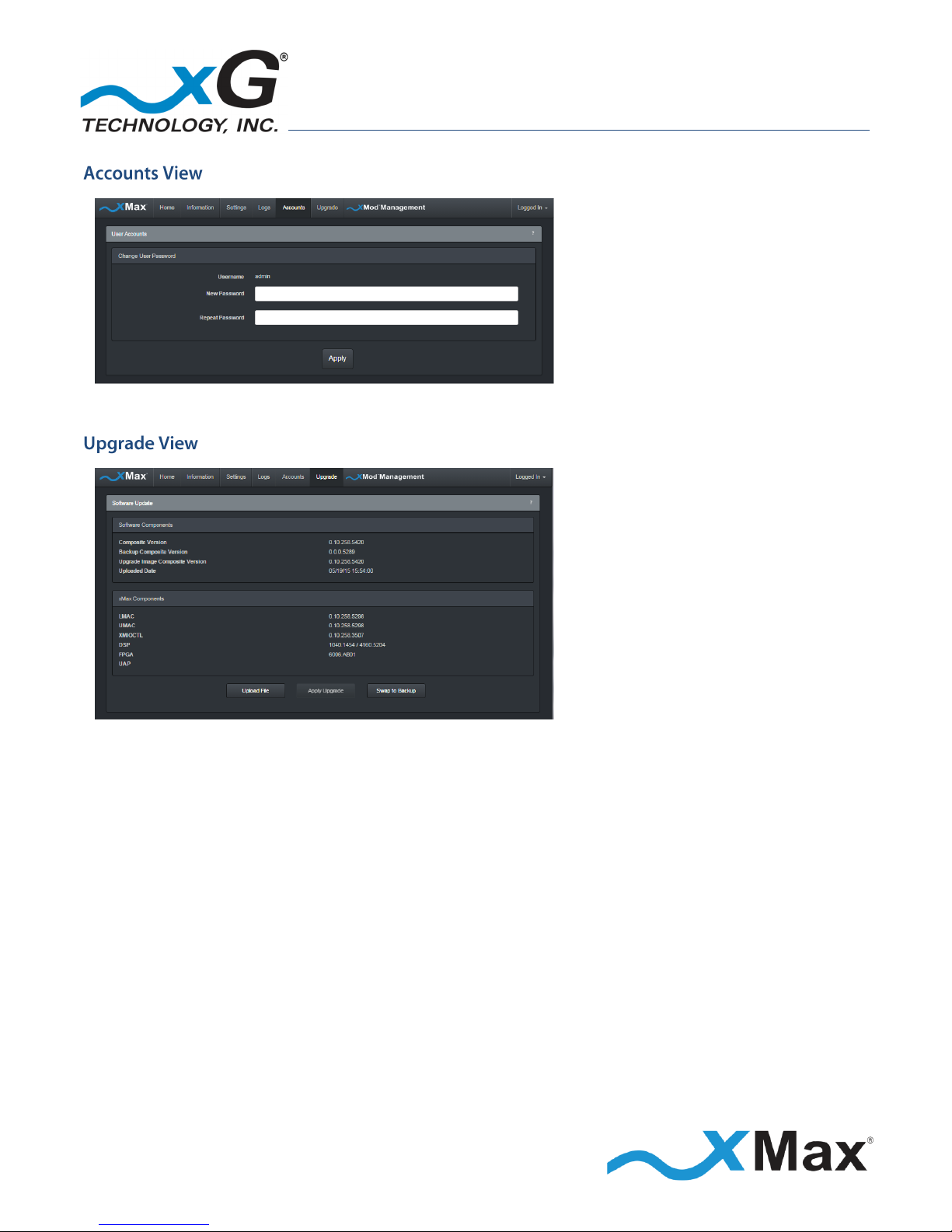
The Accounts view enables the
currently logged-in user to update
the account password.
The Upgrade view displays the
software versions for the xMod
components:
Software Components
xMax Components
This view also enables upgrading and
rollback of the firmware and software
on the xMod.
Page 25
25
CN5100 Mobile Hotspot Quick Start Guide - G7801 - Release 3.3
SYSTEM OVERVIEW
Frequency Band:
902-928 MHz
Channel size:
1.44 MHz
Modulation:
Adaptive BPSK / QPSK / QAM16 / QAM64
Spectral Efficiency:
Up to 4.25 bit/s/Hz
PHY Protocol:
Proprietary OFDM, 2x4 MIMO
Mobility:
Up to 100 MPH
Raw Data Rate:
Up to 6 Mbps
RADIO PERFORMANCE
Tx Power Output :
RANGE: 27 dBm in 1 dB steps (BPSK, QPSK, QAM 16/64)
Receiver Sensitivity:
-100 dBm BPSK/-90 dBm QAM64
ANTENNA
2 x 4 MIMO (internal configuration)
POWER
Power Adapter - Input: 110 VAC, 1.4 A; Output: 15 VDC, 4 A
CN5100 - Input: 15 VDC, 4 A
INTERNAL WiFi ACCESS POINT
Operating Parameters :
IEEE 802.11g, 2.4 GHz, Channels 1-11,
Tx Power: +10 dBm; Rx Sensitivity -90 dBm
Security:
WEP, WPA, WPA2, VPN passthrough
Configuration:
Internal Web page, DHCP Relay
Antenna:
Built-in WiFi antenna
PHYSICAL DESCRIPTION
Size:
6.4” x 4.5” x 2.5” (16.25 cm x 11.43 cm x 6.35 cm)
Weight:
1 lb. (0.45 kg), including internal antenna
Interface:
100BASE-T Ethernet, Mini USB, WiFi
ENVIRONMENTAL
Operating Temp:
-4° F to 122° F (-20° to 50° C)
Water/Dust:
Indoor
Humidity:
0 to 95% non-condensing
ESD:
ESD ±30 kV
REGULATORY
EMC:
FCC CFR 47 Part 15 Class B
MANAGEMENT
NMS:
xMonitor® Proprietary Event/Fault Manager
Page 26
26
CN5100 Mobile Hotspot Quick Start Guide - G7801 - Release 3.3
CN5100 Mobile Hotspot
xG Technology, Inc. (“xG”)
240 South Pineapple Avenue, Suite 701
Sarasota, FL 34236
Unless a different period is specified for a particular hardware Product, or in a sales agreement
between xG and customer, or in the published specification sheet for the hardware Product, xG's
hardware Products are generally warranted against defects in workmanship and materials for a
period of twelve (12) months from the date of original purchase, provided the Product remains
unmodified and is operated under normal and proper conditions. Unless otherwise so provided the
warranty period for computer programs in machine-readable form included in a hardware Product,
which are essential for the functionality will be coincident with the warranty period of the
hardware Product. Software patches, bug fixes or workarounds do not extend the original warranty
period. For Software sold by xG and run outside the hardware Product (e.g. xMCC), the warranty
term is 90 days from date of original purchase. All accessories (e.g. antennas, cables, power supply,
POE) carry a warranty term of 90 days from date of original purchase.
The Limited Warranty extends only to the original purchaser of the Product from xG, or its
authorized Resellers, and is not assignable or transferable to any subsequent purchaser or enduser.
xG’s warranty applies only to a Product that is manufactured by or for xG Technology and is
identified within xG’s price book at time of purchase. Any products not covered by xG’s warranty,
but supplied under the customer's Purchase Order with xG as part of the delivered equipment, are
covered under that manufacturer's standard warranty and any warranty claims should be handled
directly with that manufacturer.
xG’s warranty shall not apply: (i) to any Product subjected to accident, misuse, neglect, alteration,
acts of God, improper handling, improper transport, improper storage, improper use or application,
improper installation, improper testing or unauthorized repair; (ii) use of parts or accessories not
approved or supplied by xG, or failure to perform operator handling and scheduled maintenance
instructions supplied by xG or (iii) to cosmetic problems or defects that result from normal wear
and tear under ordinary use, and do not affect the performance or use of the Product.
If the Product develops a covered defect within the warranty period, xG will, at its option, either
repair or replace the Product found by xG to be defective or not in conformity with material
specifications, provided that the Product is returned during the warranty period.
Page 27
27
CN5100 Mobile Hotspot Quick Start Guide - G7801 - Release 3.3
Customer is responsible for shipment to xG (or authorized service provider) and assumes all costs
and risks associated with this transportation; return shipment to the Customer will be at xG’s
expense. Customer shall be responsible for return shipment charges for Product returned where xG
determines there is no defect ("No Defect Found"), or for Product returned that xG determines is
not eligible for warranty repair. No charge will be made to customer for replacement parts for
warranty repairs.
Product that has been repaired or replaced may consist of refurbished equipment that contains
used components, some of which have been reprocessed. The used components comply with xG
Product performance and reliability specifications. The repair services provided are warranted
against defects in workmanship and materials on the repaired component of the product for a
period of 30 days from the shipment date of the repaired product, or until the end of the original
warranty period, whichever is longer.
xG is not responsible for any damage to or loss of any software programs, data or removable data
storage media, or the restoration or reinstallation of any software programs or data other than the
software, if any, installed by xG during manufacture of the Product or shipped with Product. xG’s
sole obligation for software that when properly installed and used does not substantially conform
to the published specifications in effect when the software is first shipped by xG, is to use
commercially reasonable efforts to correct any reproducible material non conformity (as
determined by xG at its sole discretion) by providing Customer with: (a) telephone or e-mail access
to report non conformance so that xG can verify reproducibility; (b) a software patch or bug-fix, if
available, or a workaround to bypass the issue, if available; and (c) where applicable, replacement
of damaged or defective external media, such as a CD-ROM disk, on which the software was
originally delivered. xG does not warrant that the use of the software will be uninterrupted, errorfree, free of security vulnerabilities, or that the software will meet Customer’s particular
requirements. Customer’s sole and exclusive remedy for breach of this warranty is, at Seller's
option, to receive (i) suitably modified software, or part thereof, or (ii) comparable replacement
software or part thereof.
Because it is impossible for xG to know the purposes for which the purchaser acquired this Product
or the uses to which this Product will be put, the purchaser assumes full responsibility for the
selection of the Product for its installation and use. While every reasonable effort has been made
to insure that the purchaser will receive a Product that can be used and enjoyed, xG does not
warrant that the functions of the Product will meet the purchaser’s requirements or that the
operation of the Product will be uninterrupted or error-free. xG is not responsible for problems
caused by the interaction of the Product with any other software or hardware.
Page 28
28
CN5100 Mobile Hotspot Quick Start Guide - G7801 - Release 3.3
To obtain warranty service or technical support, please contact the party from whom you
purchased the product. If you purchased the product directly from xG, contact your xG Sales
Representative or call 754-206-4800. To take advantage of this Limited Warranty Purchasers are
required to supply an original point of purchase receipt. Returned Product must be accompanied by
the purchaser’s sales receipt or comparable substitute proof of sale showing the date of purchase,
the serial number of Product, and the sellers’ name and address (if purchased through a authorized
xG reseller).
This Limited Warranty Policy shall be the sole and exclusive remedy of the purchaser with respect
to xG’s Products. xG's sole liability on any claim arising out of the sale of the Product or xG's
replacement of defective product, whether in contract, warranty, tort, or otherwise shall be limited
to the purchase price of the goods that prove defective or nonconforming. In no event shall xG be
liable for, and purchaser shall hold xG harmless from, any damages, direct, indirect, or
consequential, whether resulting from xG's negligence or otherwise, arising out of, in connection
with, or resulting from the goods sold to the Purchaser (including, without limitation, damages, for
loss of business profits, business interruption, loss of information, or any other pecuniary loss), and
any and all claims, actions, suits, and proceedings which may be instituted in respect to the
foregoing, including those made by subsequent owners and users of the goods. In no event shall xG
be liable for damages from alleged negligence, breach of warranty, strict liability, incidental or
consequential damages, or any other theory, other than the Limited Warranty set forth herein.
xG neither assumes nor authorizes any of its dealers, representatives, or any other person or entity
to assume for it any other obligation or liability beyond that which is expressly provided for in this
Limited Warranty.
xG MAKES NO WARRANTY OTHER THAN THE LIMITED WARRANTY REFERRED TO HEREIN. THIS
LIMITED WARRANTY IS EXPRESSLY IN LIEU OF ANY AND ALL OTHER EXPRESS OR IMPLIED
WARRANTIES, INCLUDING ANY IMPLIED WARRANTY OF MERCHANTABILITY OR FITNESS FOR A
PARTICULAR PURPOSE, AND IT CONSTITUTES THE ONLY WARRANTY MADE WITH RESPECT TO THE
GOODS COVERED BY THESE TERMS AND CONDITIONS. xG SHALL UNDER NO CIRCUMSTANCES BE
LIABLE FOR ANY INCIDENTAL OR CONSEQUENTIAL DAMAGES.
Page 29

29
CN5100 Mobile Hotspot Quick Start Guide - G7801 - Release 3.3
THIS PAGE INTENTIONALY LEFT BLANK
Page 30
G7801 - Release 3.3
© Copyright xG Technology, Inc. 2016. All Rights Reserved.
xG Technology, Inc.
240 South Pineapple Avenue, Suite 701
Sarasota, FL 34236
(941) 953-9035
www.xGTechnology.com
 Loading...