

Page 1

99 Washington Street
Melrose, MA 02176
Fax 781-665-0780
TestEquipmentDepot.com
XFTP SAT LITE
Satellite Meter
Quick Reference Guide
Page 2

Operation
Loading a Satellite Configuration
To use the last satellite configuration loaded (even prior to
power off), press the F4 Button to go directly to the Signal
Display Mode.
To load a new satellite configuration, press the
to display the satellite configuration list.
Note: The XFTP SAT LITE will always power up
in this mode.
• Use the or Direction Button(s) to highlight the
desired configuration, or use the or Direction
Button(s) to move through the list 4 configurations at a
time.
• With the desired satellite configuration highlighted, press
ENTER
the
parameters. The display will momentarily indicate
Loading... while the instrument is loading the satellite
configuration.
Button to load the satellite configuration
FIND
Button
99 Washington Street
Melrose, MA 02176
Fax 781-665-0780
TestEquipmentDepot.com
Page 3

Signal Display
After loading a satellite configuration (or pressing the
Button to use the last configuration), the XFTP SAT LITE shows
the Signal Display Mode with S (Signal Strength) and Q (Signal
Quality) displayed for dish alignment.
Note: If a signal is present, an audible tone is
heard proportional to signal strength. Press the
C/S
Button to enable or disable the audio.
F4
Press the
ENTER
Button to switch between the S & Q
percentages display:
• With Satellite Name
• With Bar Graphs
On the bar graph display, an OK will appear in the upper
right corner of the display when the meter is locked on
the satellite signal.
99 Washington Street
Melrose, MA 02176
Fax 781-665-0780
TestEquipmentDepot.com
Page 4
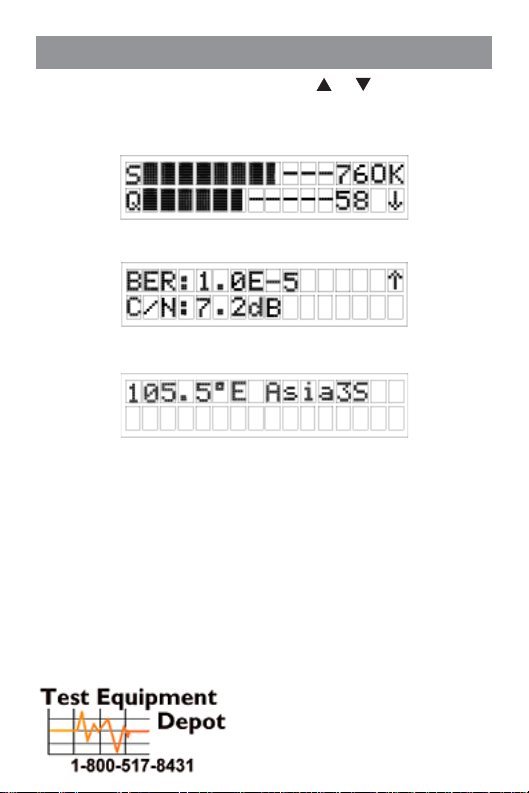
Signal Measurement
From the Signal Display Mode, use the or Direction
Button(s) to advance the display through the three modes:
• Signal Display - Signal Strength & Signal Quality
• Measurement Display - BER & C/N
• Satellite Display - Satellite Name & Longitude
See the XFTP SAT LITE Operation Manual for complete
instructions on how to use your instrument.
99 Washington Street
Melrose, MA 02176
Fax 781-665-0780
TestEquipmentDepot.com
Page 5
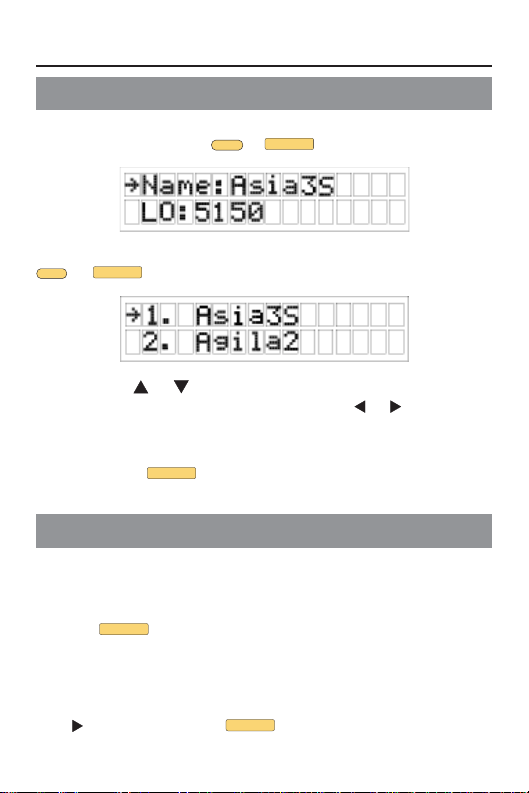
Satellite Configurations
Viewing Configuration Parameters
To display the parameters of the currently loaded satellite
configuration, press the F1or
To view the list of stored satellite configurations, press the
F2
LOAD
or
Button.
• Use the or Direction Button(s) to move through the
list of stored configurations, or use the or Direction
Button(s) to move through the list 4 configurations at a
time.
• Press the
ENTER
Button to view the configuration
parameters.
Changing Configuration Parameters
From the configuration parameter display, all parameters
(including the name for a new satellite entry) can be changed.
• With the desired configuration parameter selected, press
ENTER
the
• Use the alphanumeric keypad to enter the new value for
the configuration parameter.
• When you are finished entering the new value, press the
Direction Button or
configuration parameter.
Button.
SET
Button.
ENTER
Button to finish editing the
Page 6
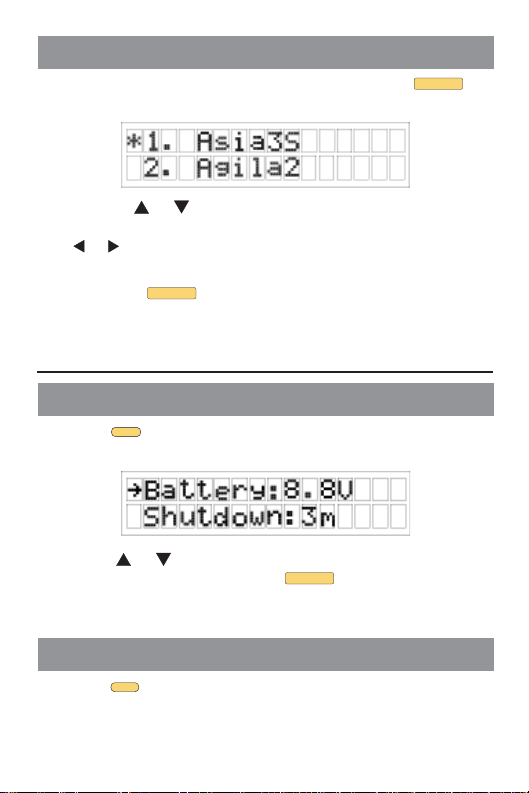
Saving Configurations
From the configuration parameter display, press the
Button to save the new satellite configuration.
• Use the or Direction Button(s) to highlight the
memory location for your satellite configuration, or use the
or Direction Button(s) to move through the list 4
configurations at a time.
• Press the
in the selected memory location.
ENTER
Button to save the satellite configuration
Other Functions
Battery Voltage & Shutdown Time
Press the F3 Button to display the battery voltage and
automatic shutdown time.
C/S
Use the or Direction Button(s) to highlight the
Shutdown Field and press the
scroll through the following options; always, 3m, 10m, or
30m.
ENTER
Button repeatedly to
Exit to Signal Display Mode
Press the F4 Button to exit the current mode and go to the
Signal Display mode.
Page 7

99 Washington Street
Melrose, MA 02176
Fax 781-665-0780
TestEquipmentDepot.com
9710 Park Davis Drive
Indianapolis, IN 46235
(317) 895-3600
www.trilithic.com
P/N 0010280000 Rev. 11/07
 Loading...