

Page 1
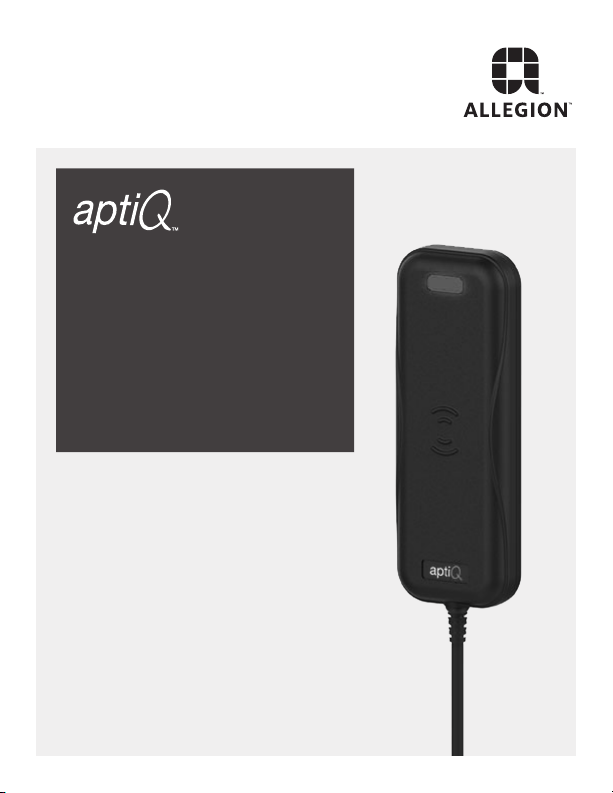
MT20w
Enrollment
Reader
User Guide
Page 2

Page 3

Table of Contents
Overview .................................................................................... 4
Operational Behavior ................................................................. 5
Communication ..................................................................... 5
Output ................................................................................... 5
RF Field ................................................................................. 6
Conguration Card ..................................................................... 6
Specications ............................................................................. 7
Reader Specications ........................................................... 7
Card Specications ............................................................... 7
Card Technologies Supported ................................................... 8
125kHz Technologies ............................................................ 8
13.56MHz Technologies ........................................................ 8
Notes ......................................................................................... 9
AptiQ • MT20w Enrollment Reader User Guide • 3
Page 4

Overview
The aptiQ MT20w multi-technology enrollment reader is designed to
simplify the enrollment of proximity and smart credentials by using a
computer’s USB connection. The MT20w does not require software to
operate, and will function on any operating system.
The MT20w is an ISO14443 and ISO15963 contactless credential
reader, and is compatible with aptiQ smart credentials (MIFARE
Classic and MIFARE DESFire EV1), aptiQmobile credentials, PIV
credentials, and most proximity credentials up to 37-bits.
Connect the reader’s USB to your operating system. You will see a
series of green/red LED ashes and beeps:
2 green LED ashes.
1 red LED ash, followed by a beep.
3 red LED ashes, with each ash followed by a beep.
The LED will then turn red and stay on, indicating that the reader is
ready. If the LED and the beeper do not respond, check the cable
connections.
Put the cursor in the desired eld to receive the output and present a
valid credential. You will see a series of green/red LED ashes, along
with a beep:
Red LED will ash to green, followed by a beep.
Green LED will ash back to red and stay on, indicating the reader is
again ready for the next valid credential.
The enrollment reader output will place the information from the
credential to the cursor’s location on the screen. If a non-valid
credential is presented to the enrollment reader, the red LED will not
change, and there will be no beep.
Spanish and French translations are online at www.allegion.com/us.
Overview
4 • AptiQ • MT20w Enrollment Reader User Guide
Page 5

Operational Behavior
Communication
The MT20w Enrollment Reader communicates over USB.
Output
The USB connection uses Human Interface Device (HID) Keyboard
Interface that requires the user to put the cursor in the desired eld to
receive the output. The default output is (Hexadecimal) for the NDE
“ENGAGE” product. There are other outputs available and they can be
ordered when ordering the enrollment reader. If you ordered the default
output and now require a different output, please contact Allegion
Technical Support at 1-877-671-7011, option 2. The following are the
outputs available.
Output Examples:
The examples provided were read from a 26 bit card FC 55, BID 1546
Default Conguration - CE-401-073
For use with ENGAGEv Web Application
Octal Output - CE-401-061
FC/BID Output - CE-401-060 (SUSB89 default)
BID Only - CE-401-069
Example - 26E0C15;26A;55;1546;
For use with Schlage Express
Example - 0000000633406025
For use as Keystroke Emulator
Example - 55000001546
For use as Keystroke Emulator
Example - 000001546
Operational Behavior
Note: Please proceed to the following link to nd a list of card
formats supported by the ENGAGE (NDE) Web app.
www.allegionengage.com
AptiQ • MT20w Enrollment Reader User Guide • 5
Page 6

Configuration CardOperational Behavior
Configuration Card
Using a Conguration Card to change enrollment readers output
To change the enrollment reader output you will need a conguration
card.
Power cycle the reader
After reader has powered up and within 60 seconds present the
conguration card to the reader.
The reader will conrm the conguration change by:
2 short beeps
2 ashes of Red LED
The reader will then reset itself
2 green LED ashes + beeps
1 red LED ash + beep
3 Red LED ashes + 3 beeps
The LED will then turn red and stay on, indicating that the reader is
ready.
RF Field
Every 100ms the RF eld turns on and the reader polls for cards. The
13.56 MHZ eld is on for approximately 42 ms in the default reader
conguration, which is maximum complexity. The 125 kHZ eld is on
for approximately 20 ms in the default reader conguration, which is
maximum complexity.
6 • AptiQ • MT20w Enrollment Reader User Guide
Page 7

Reader SpecificationsSpecifications
Specifications
Reader Specifications
Physical Dimensions (L x W x H) 5.56” x 2.00” x .695”
Operating Temperatures 0 to 40 C
Frequency 125 kHz & 13.56 MHz
Weight 4.1 oz
Power Supply Connect to powered USB port or via USB power
Interface USB
Current Requirement 110 mA
Max Current Requirement 275 mA
Card Specifications
Card Read Ranges
Card Frequency Card Type Read Range
125 kHz ASK, FSK Up to 2.5” (6.3 cm)
13.56 MHz ISO 15693 Up to 3.0” (7.6 cm)
13.56 MHz ISO 14443A MIFARE
13.56 MHz ISO 14443A MIFARE
®
Standard Up to 2.0” (5.1 cm)
®
DESFire EV1 Up to 1” (2.5 cm)
AptiQ • MT20w Enrollment Reader User Guide • 7
Page 8

Card SpecificationsCard Technologies Supported
Card Technologies Supported
125kHz Technologies
®
GE
/CASI® Proximity
®
HID
Proximity (up to 37-bits)
®
AWID
Proximity
LenelProx
13.56MHz Technologies
ISO14443 MIFARE DESFire EV1 with PACSA enabled
ISO14443 Secure MIFARE Classic:
ISO14443 PIV enabled 75-bit format (other formats available)
iClass/CSN enabled 64-bit format
ISO15693 CSN enabled 64-bit format
ISO14443 CSN disabled (can be enabled using the conguration card)
aptiQmobile
®
XCeedID MIFARE app enabled
OESM (dormant - ready to be enabled by end-user)
8 • AptiQ • MT20w Enrollment Reader User Guide
Page 9

Notes
Card SpecificationsNotes
AptiQ • MT20w Enrollment Reader User Guide • 9
Page 10

Notes
Card SpecificationsNotes
10 • AptiQ • MT20w Enrollment Reader User Guide
Page 11

This device complies with Part 15 of the FCC Rules. Operation is subject to the following two conditions: (1)
this device may not cause harmful interference, and (2) this device must accept any interference received,
including interference that may cause undesired operation.
FCC Part 15.21 Statement
Changes or modications not expressly approved by the XceedID Corporation to this device could void the
user’s authority to operate the device.
FCC part 15.105 Statement
This equipment has been tested and found to comply with the limits for a Class A digital device, pursuant to part
15 of the FCC Rules. These limits are designed to provide reasonable protection against harmful interference
when the equipment is operated in a commercial environment. This equipment generates, uses, and can radiate
radio frequency energy and, if not installed and used in accordance with the instruction manual, may cause
harmful interference to radio communications. Operation of this equipment in a residential area is likely to cause
harmful interference in which case the user will be required to correct the interference at his own expense.
Industry Canada Statement
This device complies with Industry Canada licence-exempt RSS standard(s). Operation is subject to the
following two conditions: (1) this device may not cause interference, and (2) this device must accept any
interference, including interference that may cause undesired operation of the device.
Le présent appareil est conforme aux CNR d’Industrie Canada applicables aux appareils radio exempts de
licence. L’exploitation est autorisée aux deux conditions suivantes : (1) l’appareil ne doit pas produire de
brouillage, et (2) l’utilisateur de l’appareil doit accepter tout brouillage radioélectrique subi, même si le brouillage
est susceptible d’en compromettre le fonctionnement.
© 2015 Allegion – ALL RIGHTS RESERVED
Document Part Number: xxxxxxxxx – Revision A – 08/15
Windows is a trademark of Microsoft Corporation.
The trademarks used in this manual are the property of the trademark holders. The use of these trademarks in
this manual should not be regarded as infringing upon or affecting the validity of any of these trademarks.
Allegion reserves the right to change, without notice, product offerings or specications.
No part of this publication may be reproduced in any form without the express written permission of Allegion.
Customer Service
U.S.A.: 877-671-7011
www.allegion.com/us
Revision
Check www.allegion.com/us for latest
product revisions.
AptiQ • MT20w Enrollment Reader User Guide • 11
Contact Information
Should a system design engineer or
developer need assistance, contact
XceedID at:
Allegion
500 Golden Ridge Road
Building 1, Suite 160
Golden, CO 80401
Phone: 1-877-671-7011
Fax: 1-866-954-1779
www.allegion.com/us
Page 12

About Allegion
Allegion (NYSE: ALLE) is a global pioneer in safety
and security, with leading brands like CISA®, Interflex®,
LCN®, Schlage® and Von Duprin®. Focusing on security
around the door and adjacent areas, Allegion
produces a range of solutions for homes, businesses,
schools and other institutions. Allegion is a $2 billion
company, with products sold in almost 130 countries.
For more, visit www.allegion.com.
© 2015 Allegion
xxxxxxxxx, Rev. 08/15
www.allegion.com/us
Page 13
8.50
4.25
BEGINNING SHEET
FRONT
5.50
FRONT
5.50
FINAL SIZE
Additional Notes: Revision History Revision Description:
1. Printed saddle-stitched booklet A B C D E F
063451
Material
White Paper
Notes
1. printed two sides
2. Printed saddle-stitched booklet
2. printed black
3. tolerance ± .13
4. printed in country may vary
5. drawings not to scale
A > Revised artwork
Edited By Approved By EC Number Release Date
D. Toppins M. Sasso 063451 08-28-15
Title
Creation Date
07-20-15
Created By
D. Toppins
MT20w Enrollment Reader UG
Number
xxxxxxxxx
Activity
3899 Hancock Expwy
Security, CO 80911
Revision
A
© Allegion 2015Software: InDesign CS6
 Loading...