

Page 1

WritFun W120
User Manual
English v1.04
©2017 Copyright by BandRich Co., Ltd. All rights reserved. BandRich, the logo and
WritFun are trademarks and/or registered trademarks of BandRich Co., Ltd.
Modifications and errors excepted.
Page 2

Writfun W120 User Manual
www.Writfun.com
Page: 1
Contents
1、Inside Box 3
1.1 Device & Pen (WritFun W120) 3
1.2 Micro USB Cable 3
1.3 Protective Case 4
1.4 Quick Start Guide 4
2、Buttons & LEDs 5
2.1 Power 5
2.2.1 Power Indicator (Red/Green) 5
2.2.2 Bluetooth Indicator (Blue) 6
2.3 Erase Button 6
2.4 Send Button 6
2.5 Save Button 6
2.6 Reset Button (Back) 6
2.7 USB Connector (Side) 6
3、Attention 7
3.1 Warnings 7
3. 2 Startup & Pairing 7
4、Connecting 8
4.1 Connect with Android App 8
4.2 Connect with iOS App 14
4.3 Connect with Windows 20
5、Product Specification 22
Page 3

Writfun W120 User Manual
www.Writfun.com
Page: 2
About
Thanks for using WritFun W120 as your personal writing board. WritFun W120 is a
wireless signature pad which is portable and easy to use by connecting
Bluetooth to your smart phone, or use USB to connect with PC/NB. This user
manual can help you understand how to install and operate WritFun W120 device.
Page 4
Writfun W120 User Manual
www.Writfun.com
Page: 3
1、Inside Box
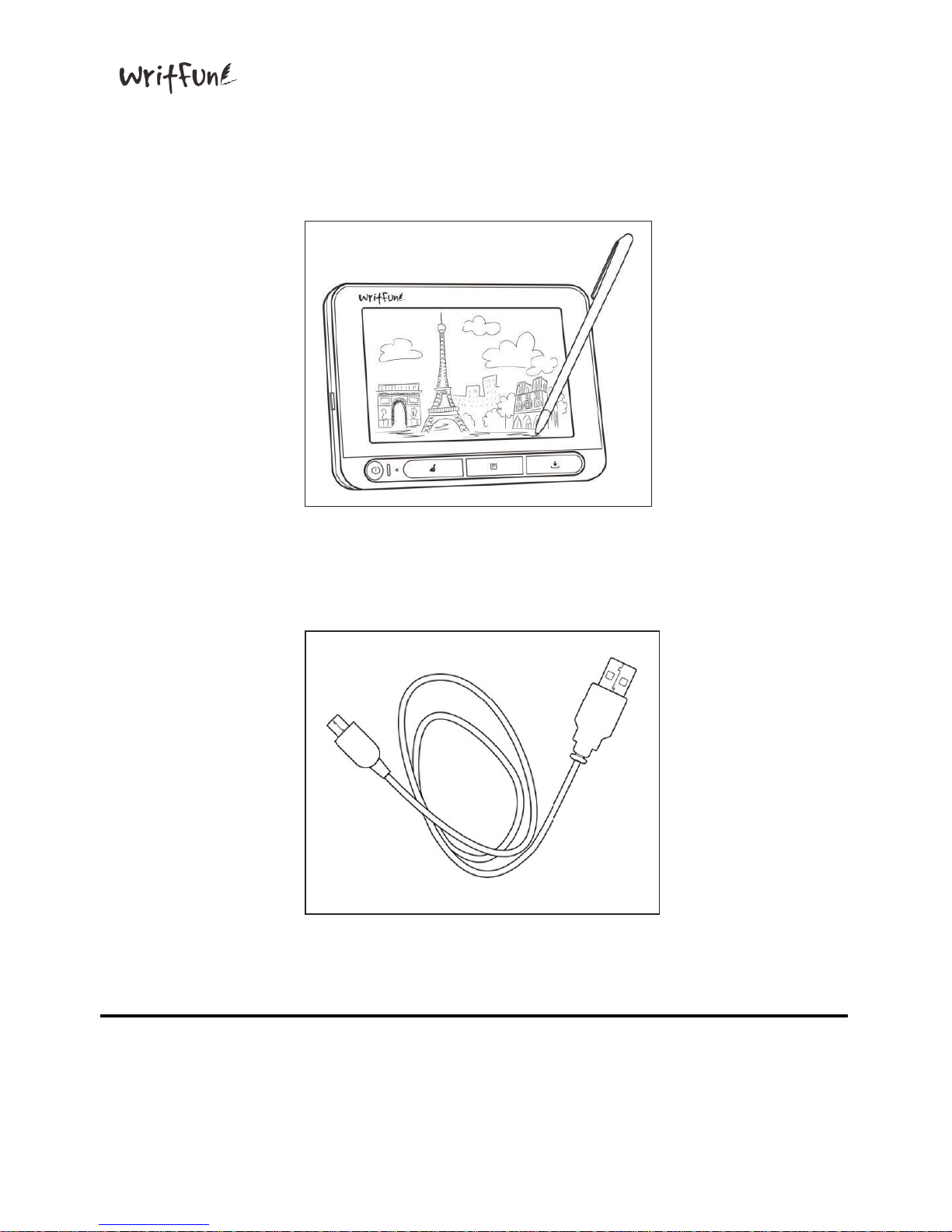
1.1 Device & Pen (Writfun W120)
1.2 Micro USB Cable
Page 5
Writfun W120 User Manual
www.Writfun.com
Page: 4
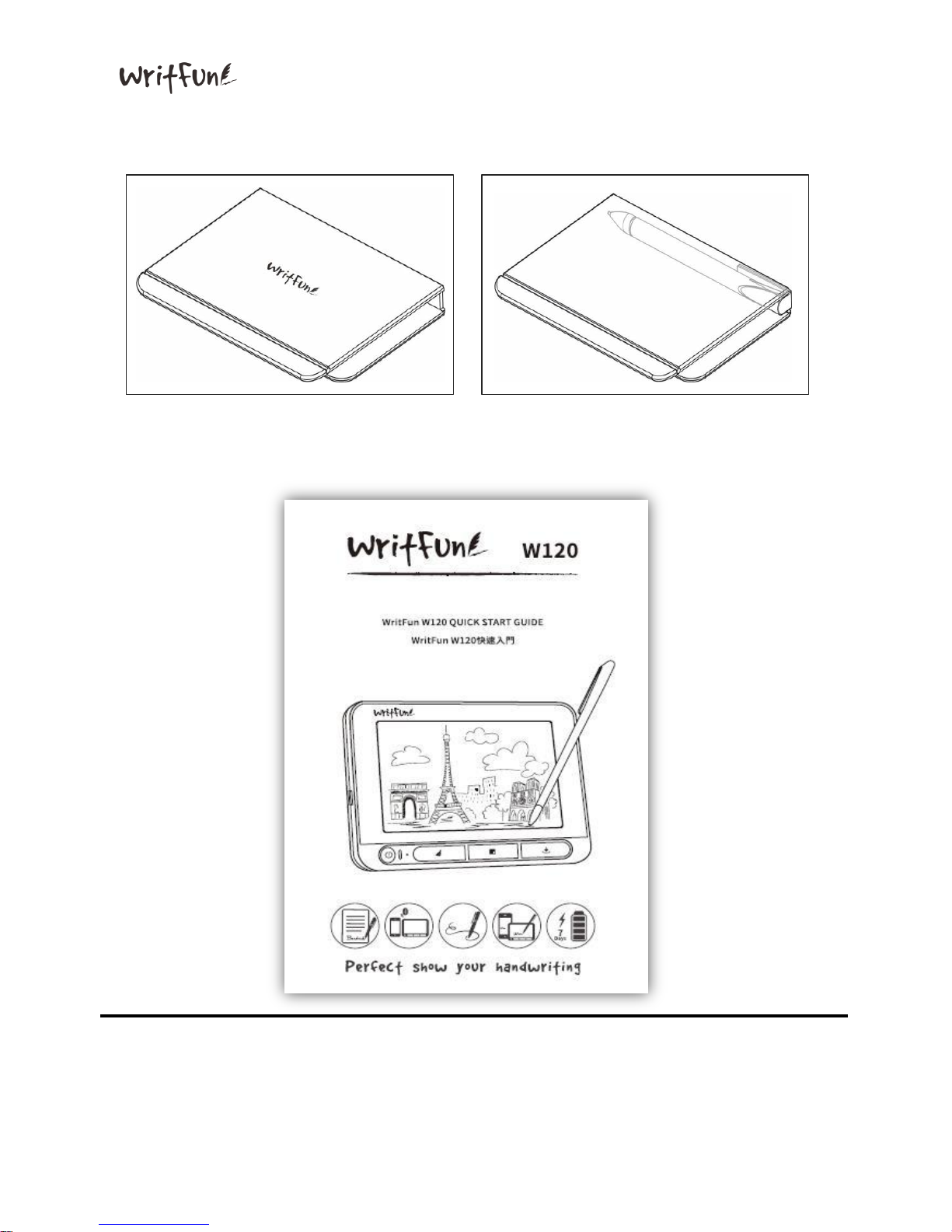
1.3 Protective Case
1.4 Quick Start Guide
Page 6
Writfun W120 User Manual
www.Writfun.com
Page: 5
2、Buttons & LEDs
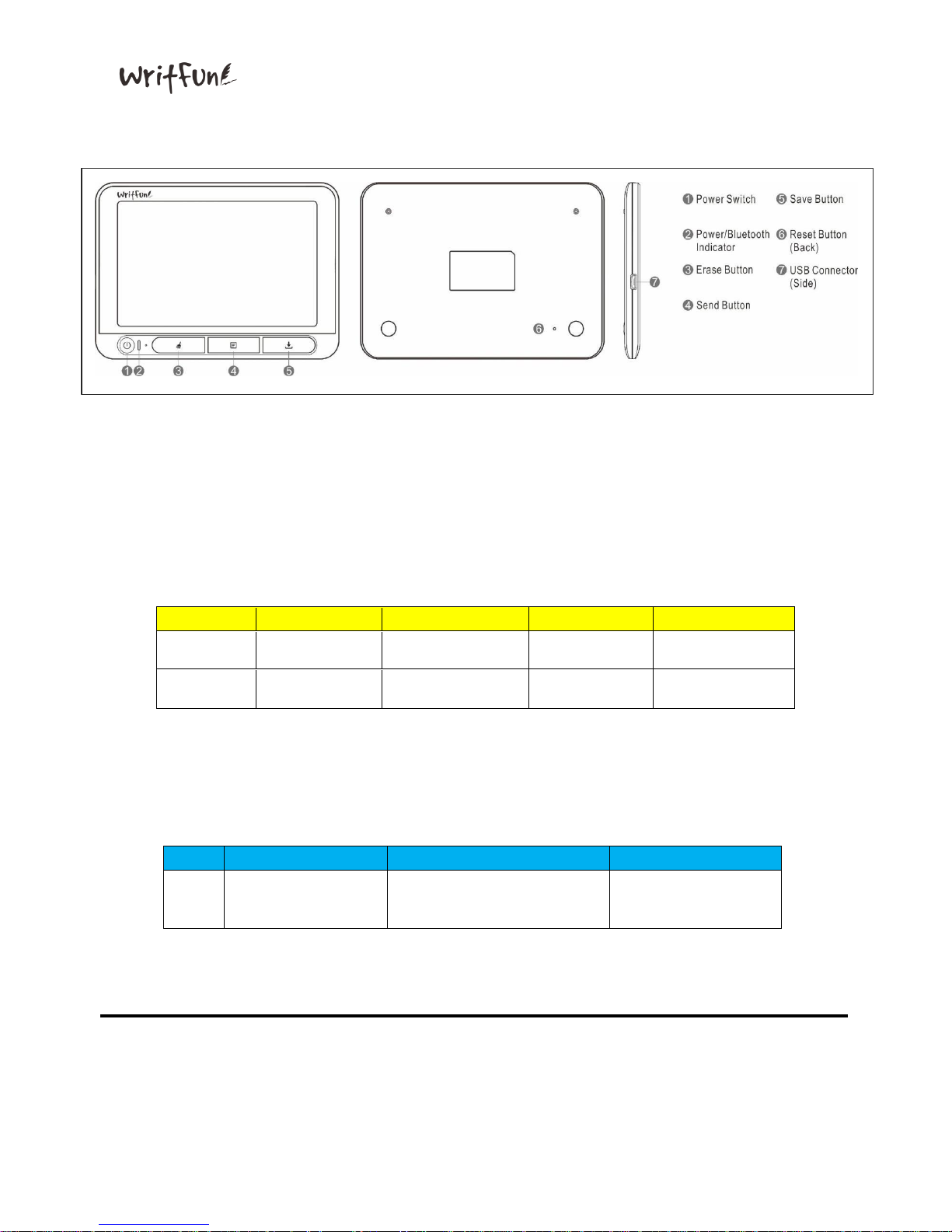
2.1 Power Switch
W120 will automatically power off without any operation after 5 minutes
(Connecting to USB / Laptop or power supplier are not subject to the limit)
2.2.1 Power Indicator (Red / Green Light)
LED
Solid
Blinking
Blink(once)
Off
Green
Power On
N/A
Input Data
Power Off
Red
Charging
Low Battery
N/A
Device Shut Down
/ Fully Charged
2.2.2 Bluetooth Indicator (Blue Light)
LED
Solid
Off
Blink
Blue
Device connected
Device power Off
/ Bluetooth initializing
complete
Bluetooth initializing
Page 7

Writfun W120 User Manual
www.Writfun.com
Page: 6
2.3 Erase Button
Click to clean display (Under Power on Status)
2.4 Send Button
Send handwriting contents from W120 to smartphone or PC applications
2.5 Save Button
Save handwriting contents from W120 to smart phones or PC
2.6 Reset Button (Back)
Reset the device by poking the reset button
2.7 USB Connector (Side)
a.Connect W120 to PC/laptops by using micro USB cable
b.Charge W120 with an adaptor
Page 8

Writfun W120 User Manual
www.Writfun.com
Page: 7
3、Attentions and Bluetooth Connecting
3.1 Warnings
1. Please fully charge before use (at least 2 hours).
2. Do not use unknown or over specification adapter (5V) to charge the product.
3. Battery life is up to seven days but depends on different operating condition.
4. Do not attempt to open, replace battery or repair this product by your own.
5. Do not expose to prolonged sunlight or dip in water.
6. Do not apply to extreme pressure or use any possible tools that could damage the
writing surface.
7. Do not apply any chemical products to the device. Use dry soft cloth to clean the
surface.
8. Failure to follow these safety instructions could result in fire, electric shock or
other injury and damage.
3.2 Startup and Pairing
1. W120 supports bluetooth function, range: 5 meters.
2. Please follow the startup and pairing instructions to finish installation:
● PC: Download W120 software and install the driver then ready to use (With
USB Only).
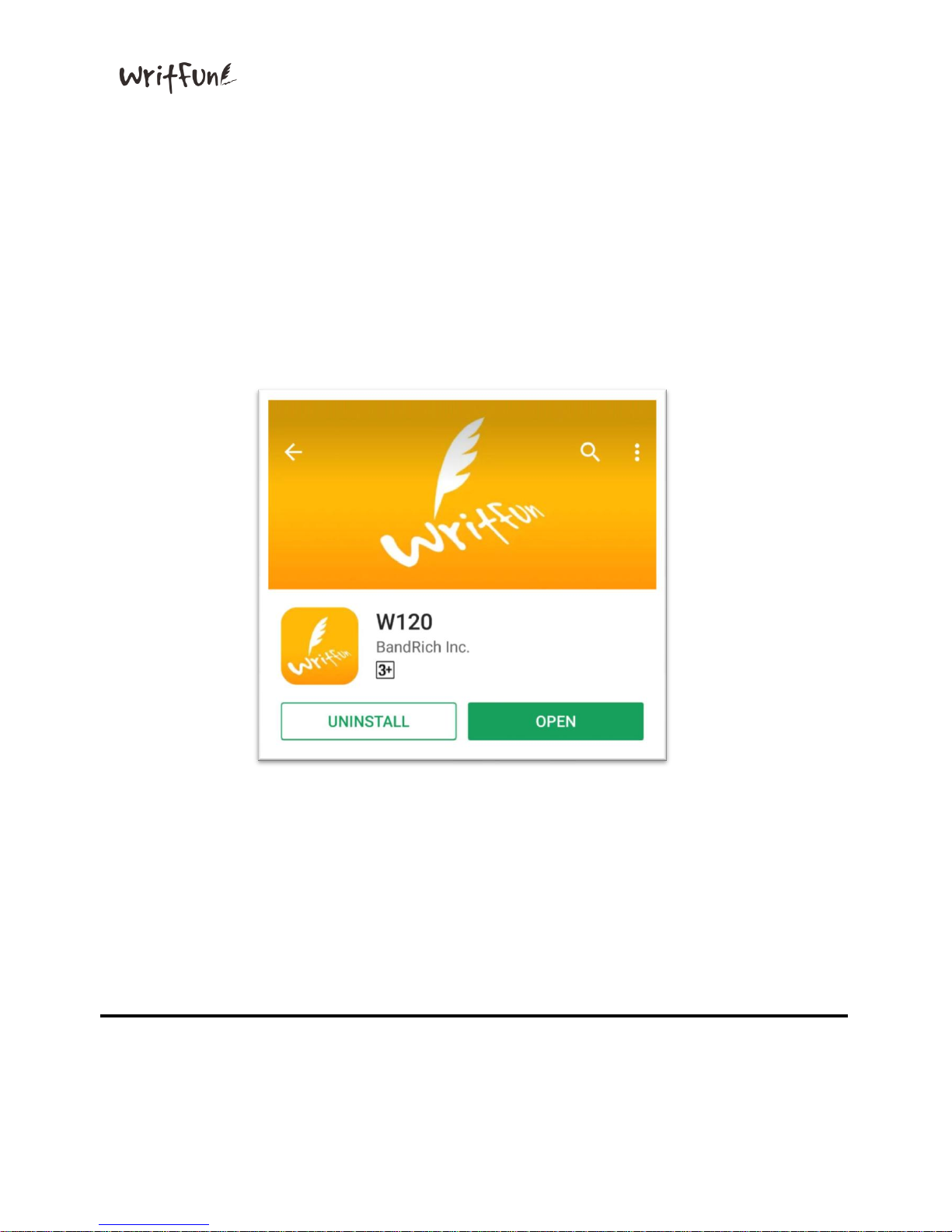
● Smart phones: For iOS and Android, please search and install W120 App at
App Store (iOS) or Google Play (Android), then turn Bluetooth and GPS on.
Users may synchronize handwriting contents from W120 after connecting to
the device. (Please refer to 4.1, 4.2 section)
Page 9
Writfun W120 User Manual
www.Writfun.com
Page: 8
4、Connecting
4.1 Connect with Android App
1. System Requirement:
W120 app should be installed on Android 6.0 version or above
(Bluetooth must support BLE function)
2. Install:
Search in Google Play with keyword “W120” to install the application.
Page 10
Writfun W120 User Manual
www.Writfun.com
Page: 9
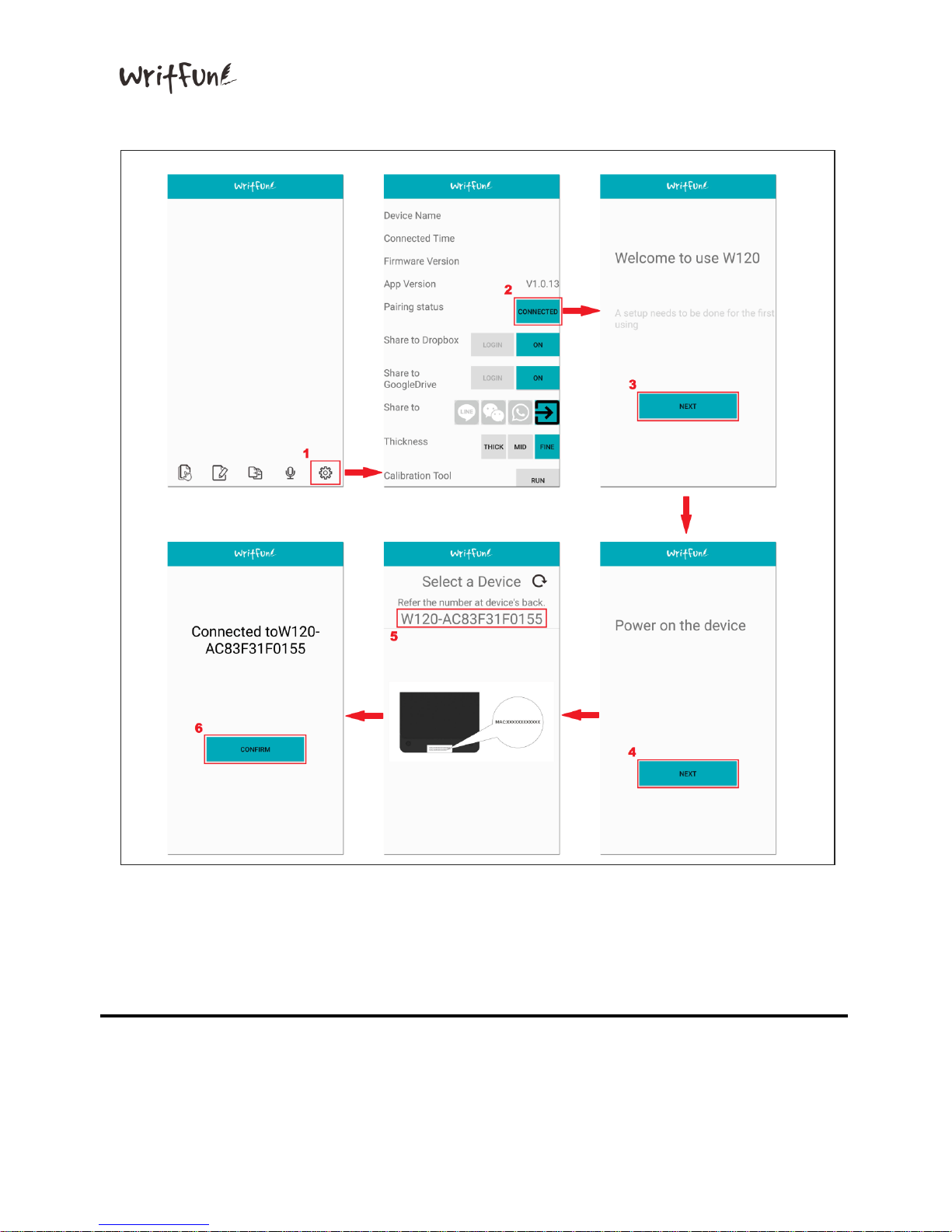
a. Please follow the steps below to connect your smart phone to W120:
Page 11
Writfun W120 User Manual
www.Writfun.com
Page: 10
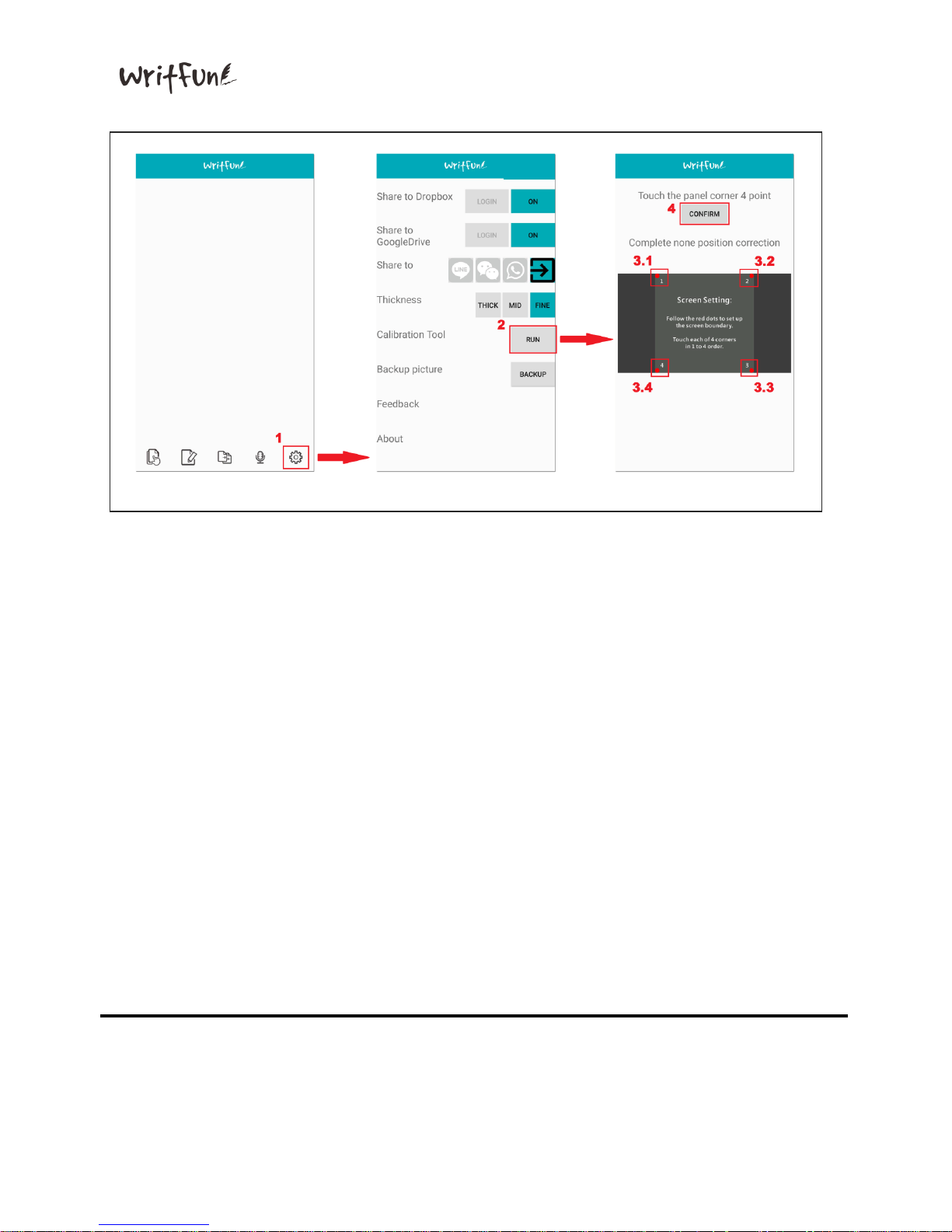
b. After Bluetooth is paired, go to the setup page and run calibration function.
Page 12
Writfun W120 User Manual
www.Writfun.com
Page: 11
3. How to use:
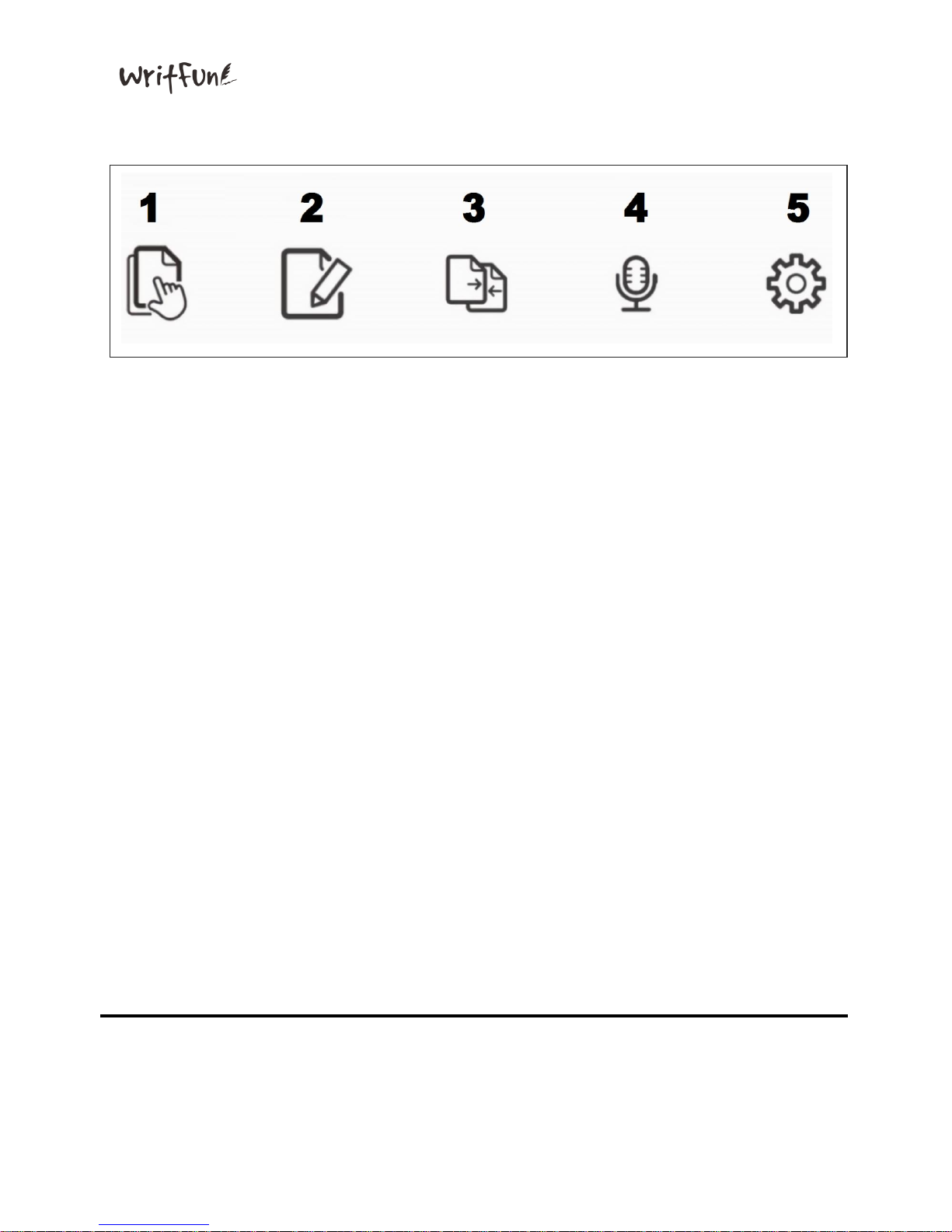
● Function List:
1. Edit:Delete one or multiple files from application, or move one or
multiple files to smart phone album.
2. New:Create new drawing file
3. Merge:Select any two drawing files to merge as a new image
4. Recording:Record your drawing video
5. Setup:
Device Name:Current connected device(MAC#)
Sync:Last time Bluetooth setup on the device
Firmware version:Current version of firmware on device
App version:Current version of Writfun W120
Device connection: Connect to W120 via Bluetooth
Share to Line/WeChat/WhatsApp: Send image or video to only
Line/WeChat/WhatsApp directly
Share to Dropbox:Activate Dropbox cloud sharing
Share to Google Drive:Activate Google Drive cloud sharing
Pen:Change your pen thickness
Calibration Tool: Reposition touch screen max boundary
Feedback: report issue to Writfun official website
About: Company information
Page 13
Writfun W120 User Manual
www.Writfun.com
Page: 12
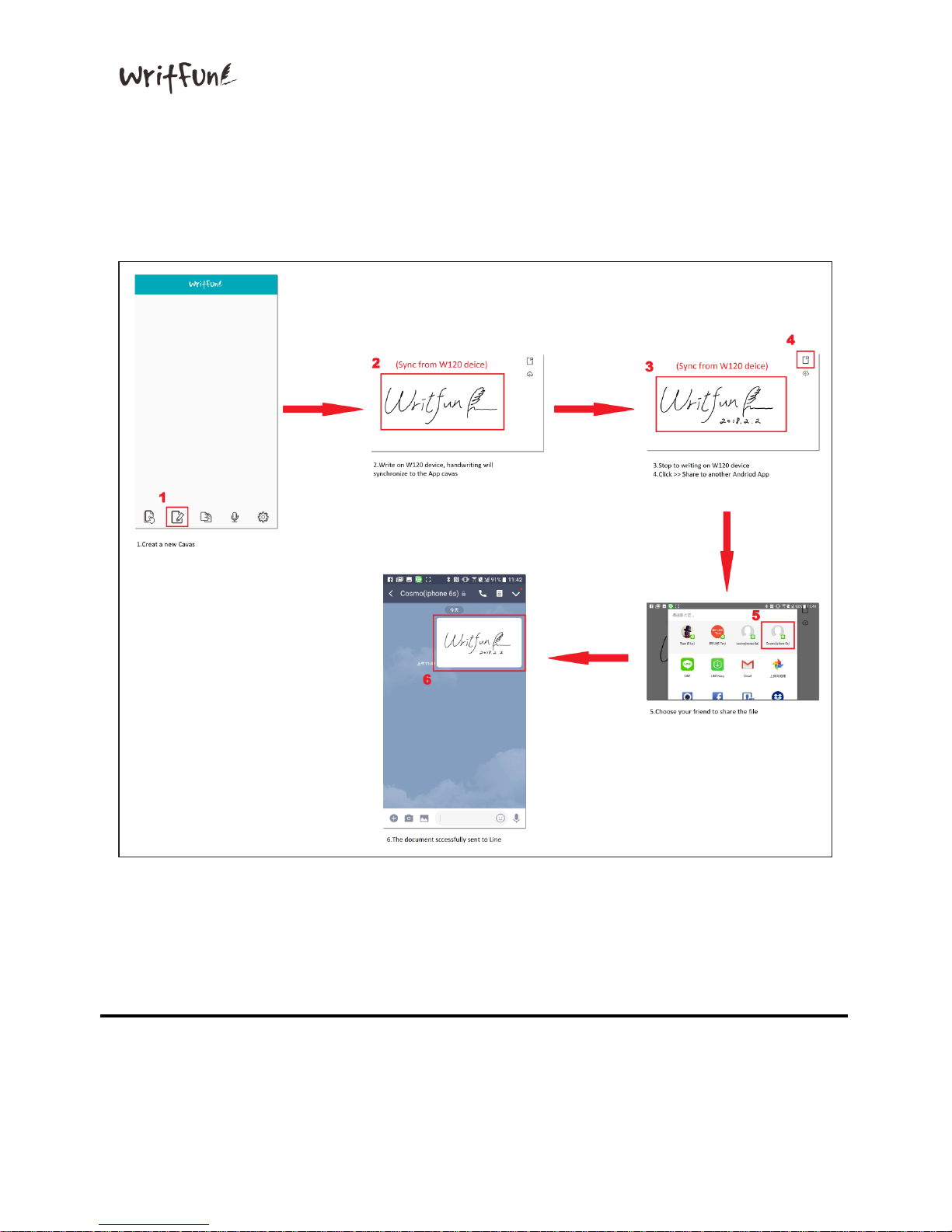
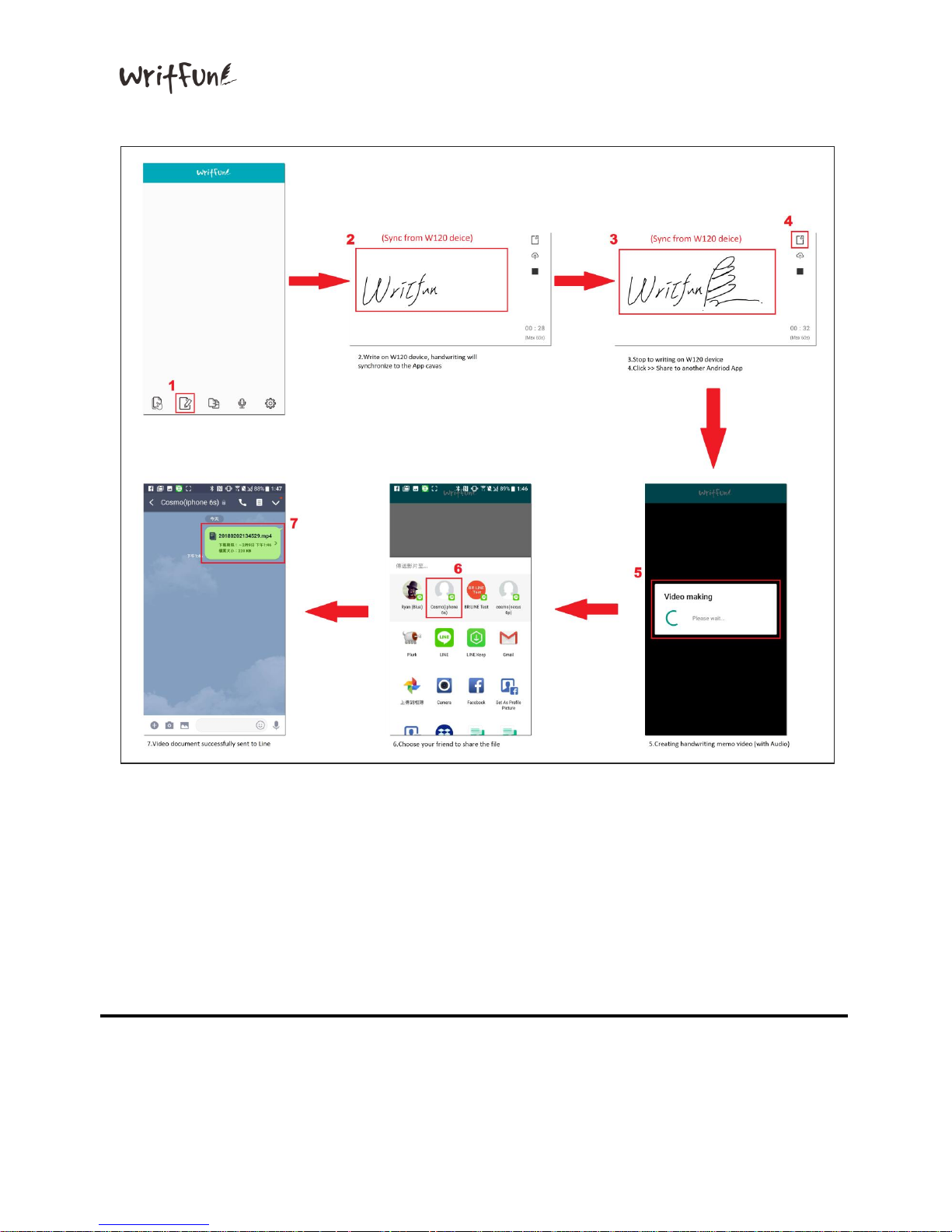
4. How to instantly share handwriting files to LINE
(or other communication softwares : What’s App / Wechat..etc):
Users may instantly share handwriting images and videos to LINE.
Please follow the instructions below:
a. Share handwriting images to LINE
Page 14
Writfun W120 User Manual
www.Writfun.com
Page: 13
b. Share drawing videos to LINE
Page 15
Writfun W120 User Manual
www.Writfun.com
Page: 14
4.2 Connect with iOS App
1.Requirement:Writfun W120 should be installed on iOS 9.0 version or above.
2.Install:
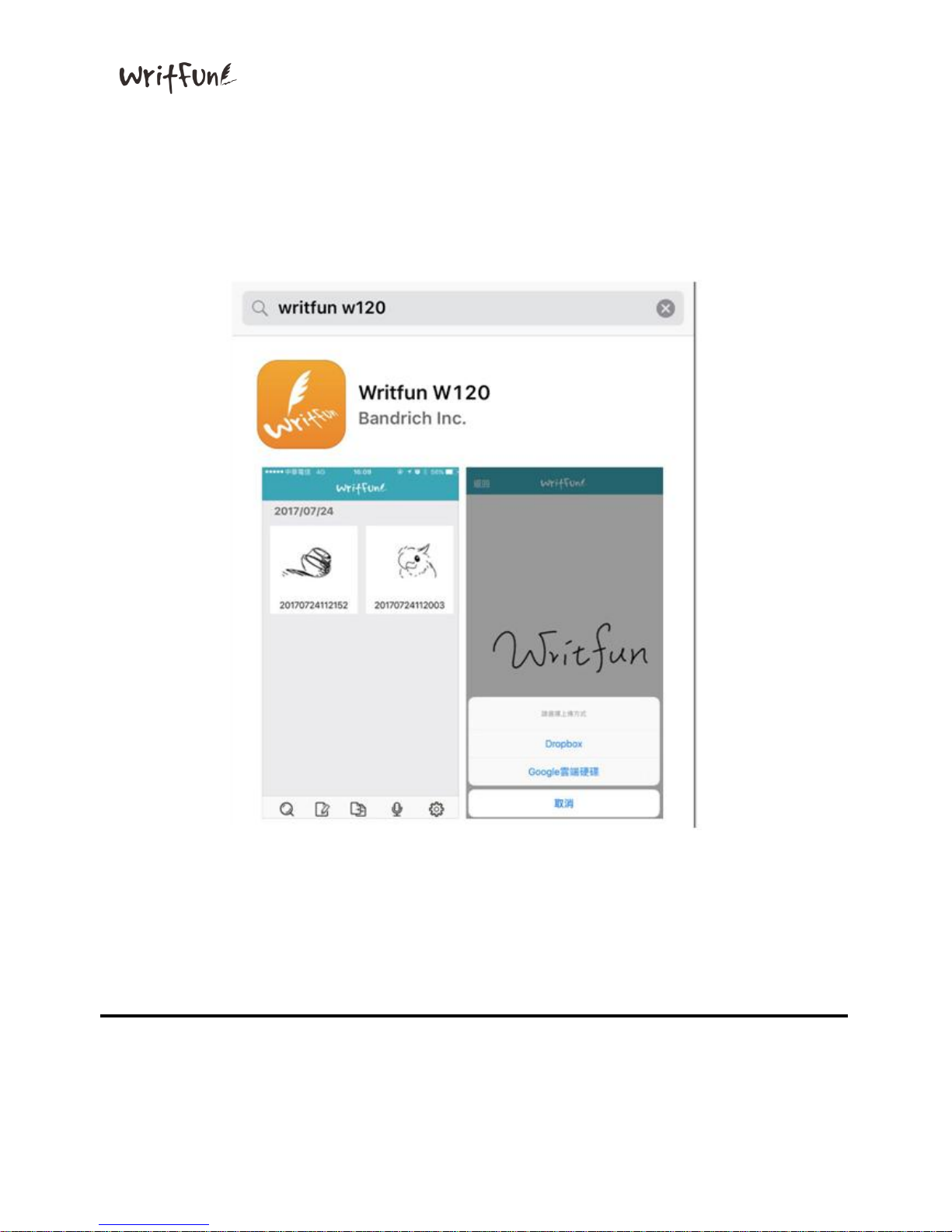
Search in App Store with keyword “W120”and install the application.
圖要改
Page 16
Writfun W120 User Manual
www.Writfun.com
Page: 15
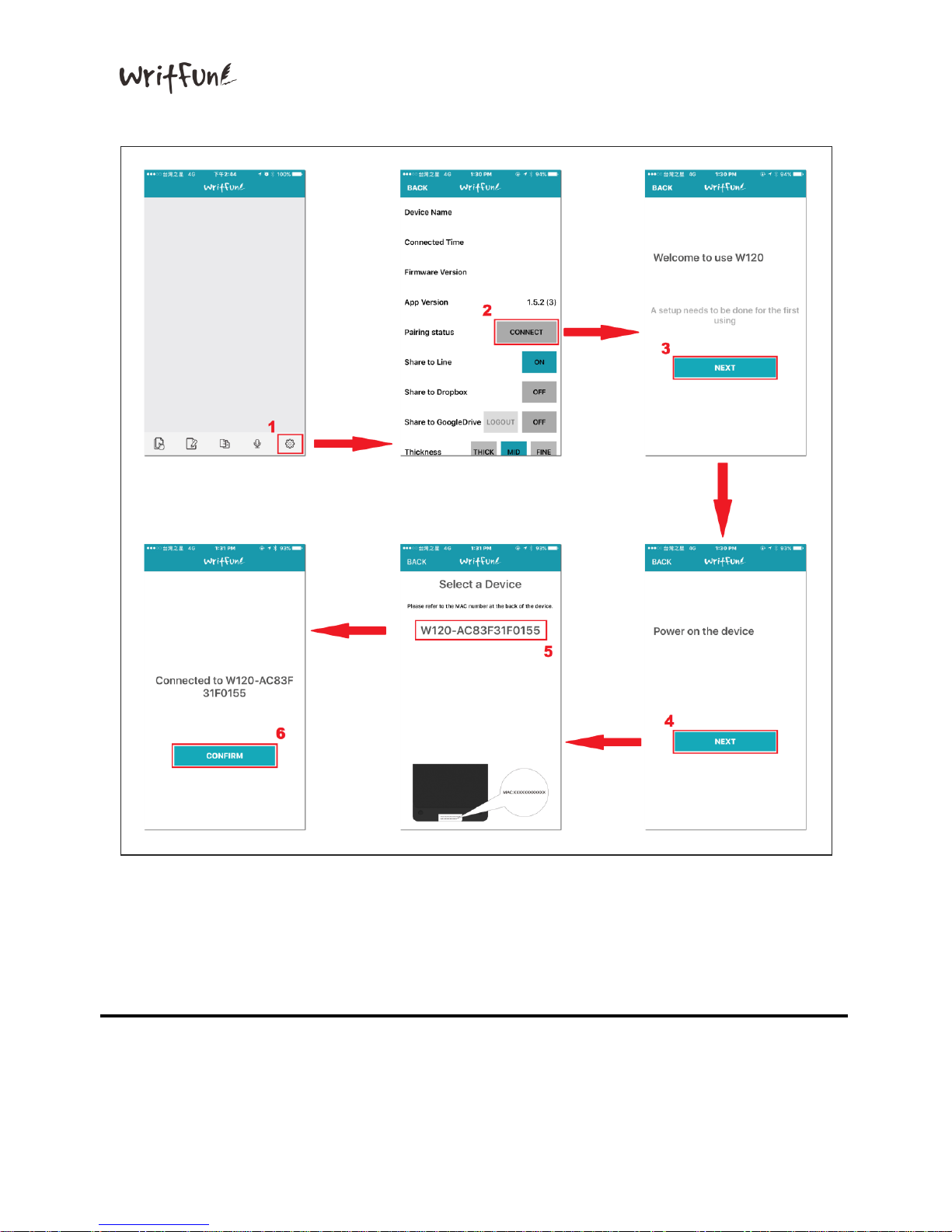
a. Follow the steps below to connect your smart phone to W120:
Page 17
Writfun W120 User Manual
www.Writfun.com
Page: 16
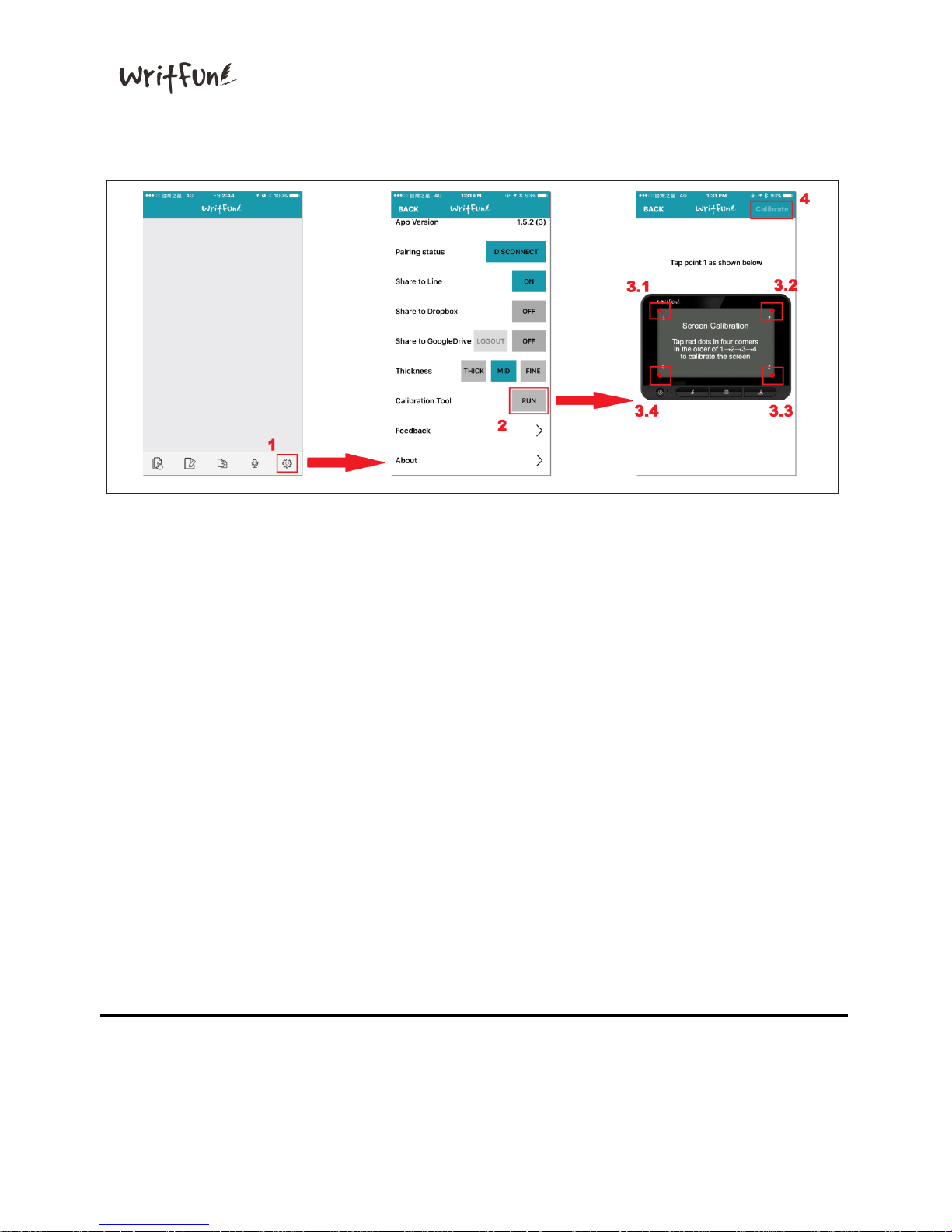
b. After Bluetooth is paired, go to the setup page to run the calibration tool.
Page 18
Writfun W120 User Manual
www.Writfun.com
Page: 17
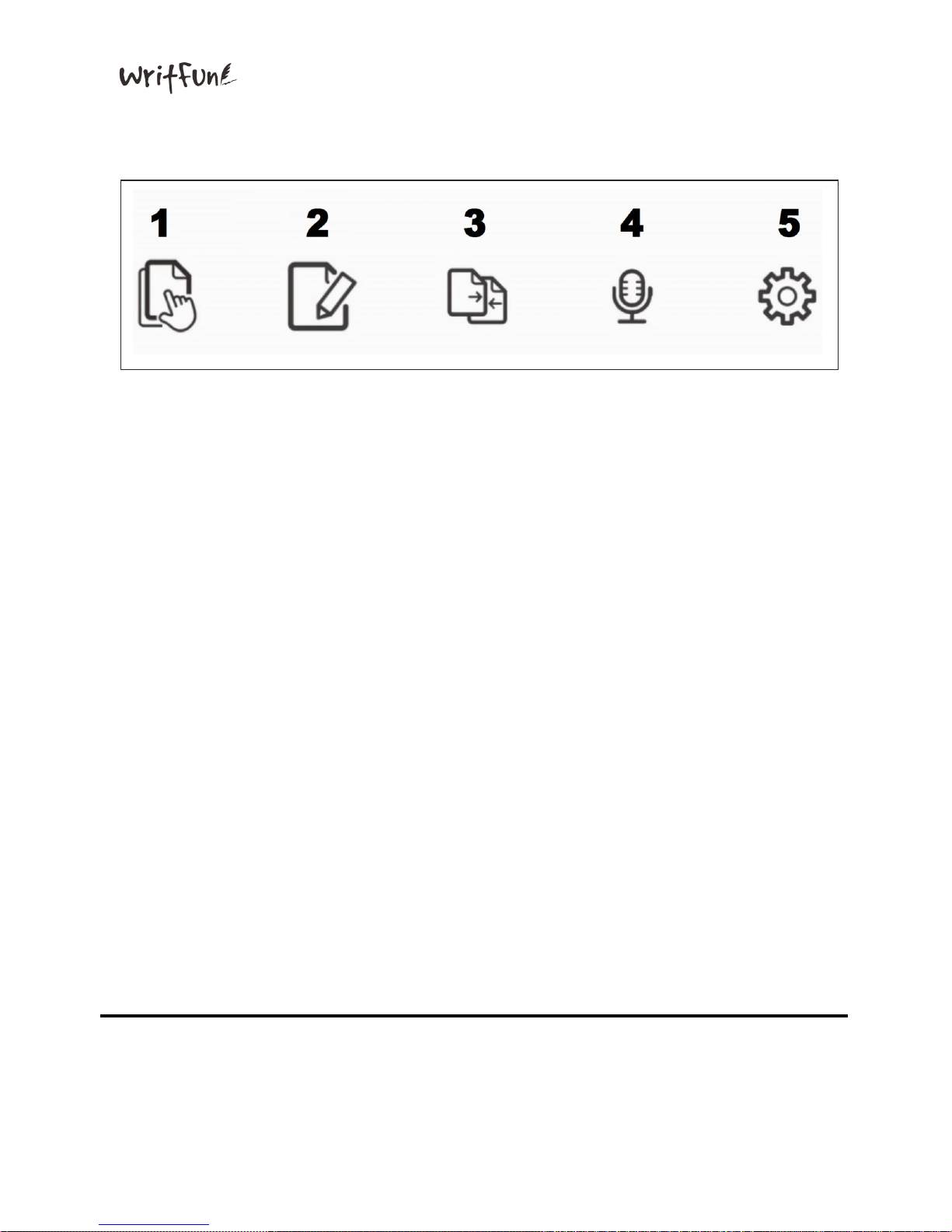
3.How to Use:
Function List:
1. Delete:Delete one or multiple files from application, or move one or
multiple files to smart phone album
2. New:Create new drawing file
3. Merge:Select any two drawing files to merge as a new image
4. Recording:Record your drawing video
5. Setup:
Function setups
Device Name:Current connected device(MAC#)
Sync:Last time Bluetooth setup on the device
Firmware version:Current version of firmware on device
App version:Current version of Writfun W120
Device connection: Connect W120 to another device via Bluetooth
Share to Line/WeChat/WhatsApp: Send image or video to only
Line/WeChat/WhatsApp directly
Share to Dropbox:Activate Dropbox cloud sharing
Share to Google Drive:Activate Google Drive cloud sharing
Pen:Change your pen thickness
Calibration Tool: Reposition touch screen max boundary
Feedback: report issue to Writfun official website
About: Information of company
Page 19
Writfun W120 User Manual
www.Writfun.com
Page: 18
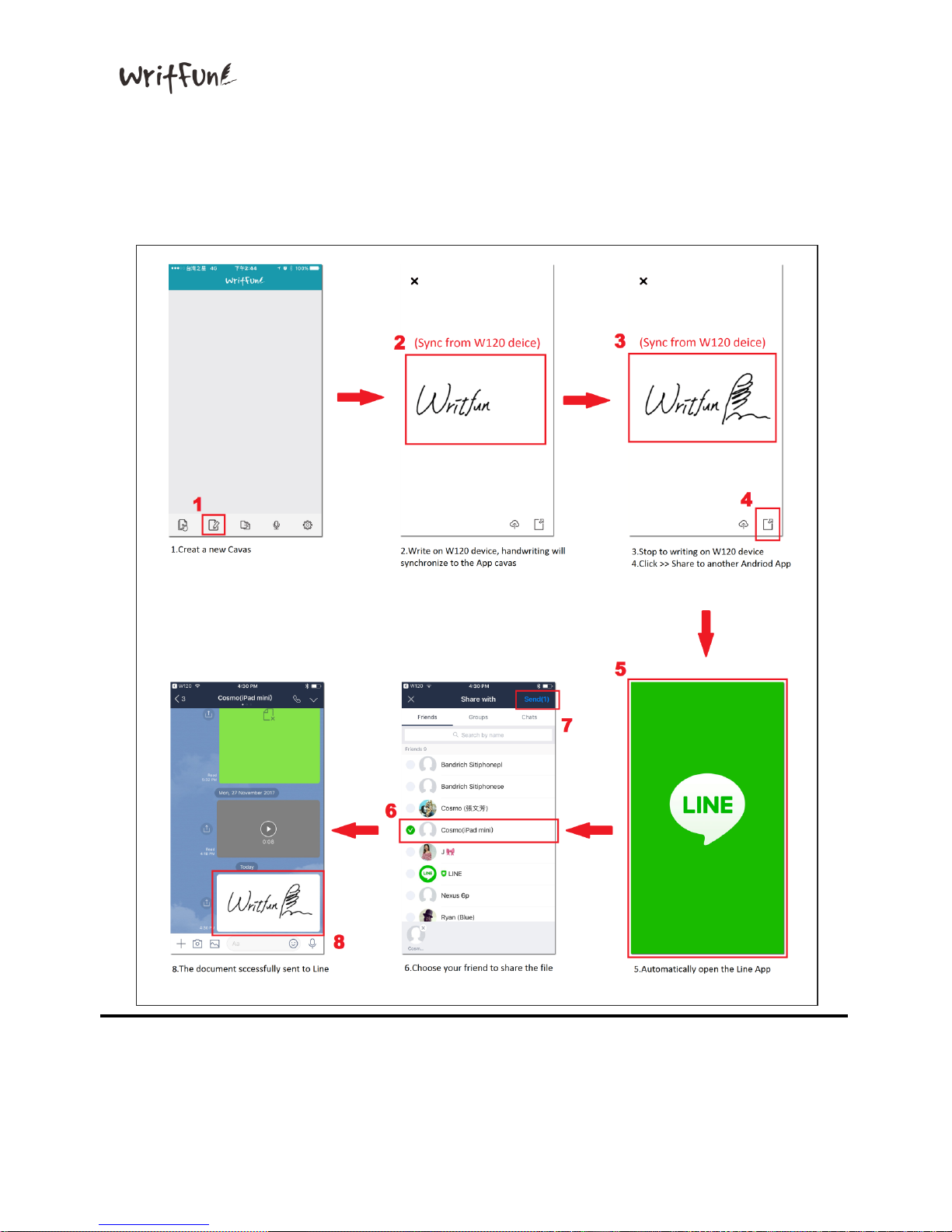
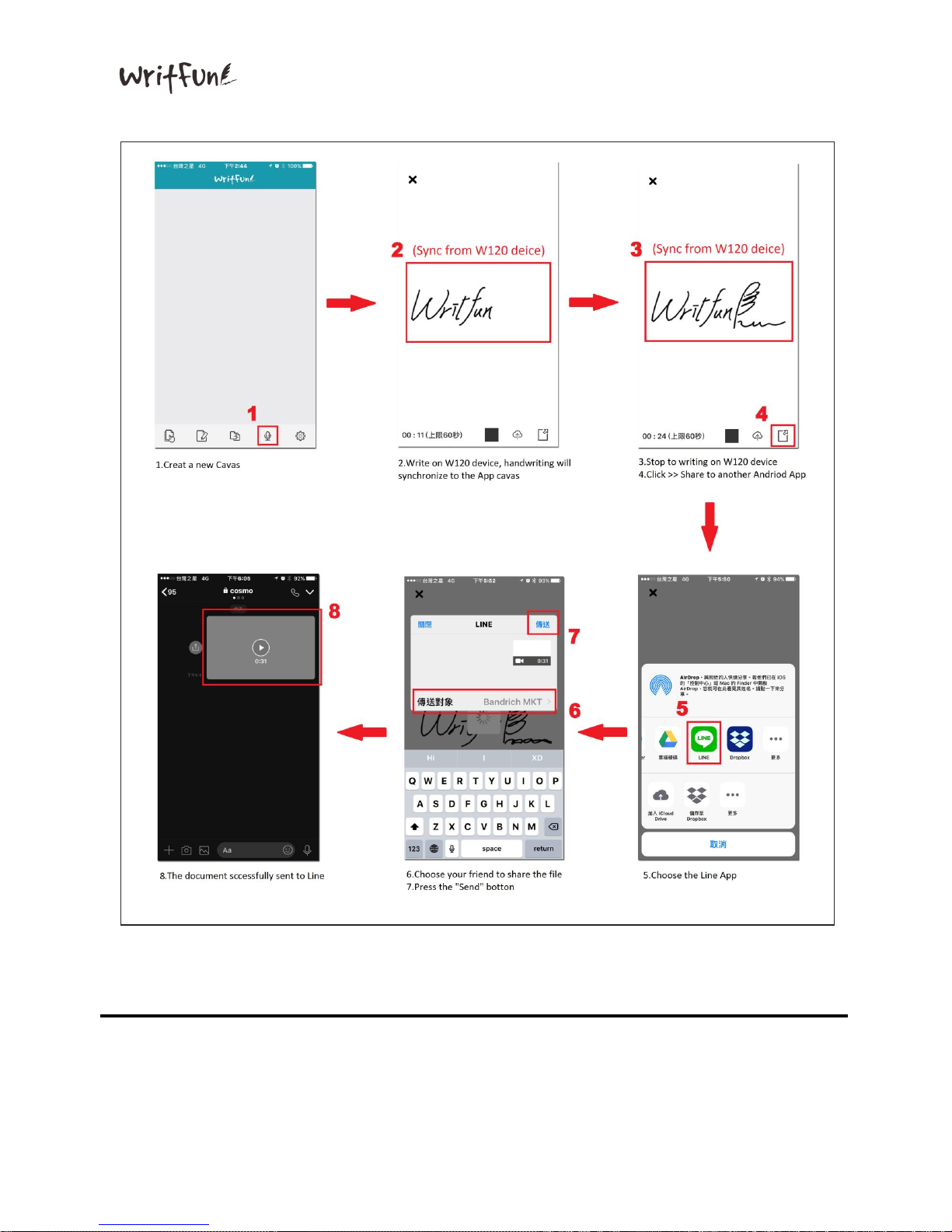
4. How to instantly share handwriting files to LINE :
(or other communication softwares : What’s App / Wechat.etc)
Users may instantly share handwriting image and video to LINE.
Please follow the instructions below:
a. Share handwriting image to LINE
Page 20
Writfun W120 User Manual
www.Writfun.com
Page: 19
b. Share drawing video to LINE
Page 21
Writfun W120 User Manual
www.Writfun.com
Page: 20
4.3 Connect with Windows
1. System Requirement: Microsoft Windows 7 or above
2. Installation:
Download W120 Windows Driver and Application from the link below:
http://writfun.com/en/sup_downloads.php?l=18
● Download and unzip files to execute “setup.msi” then follow the
instructions to finish installation.
●
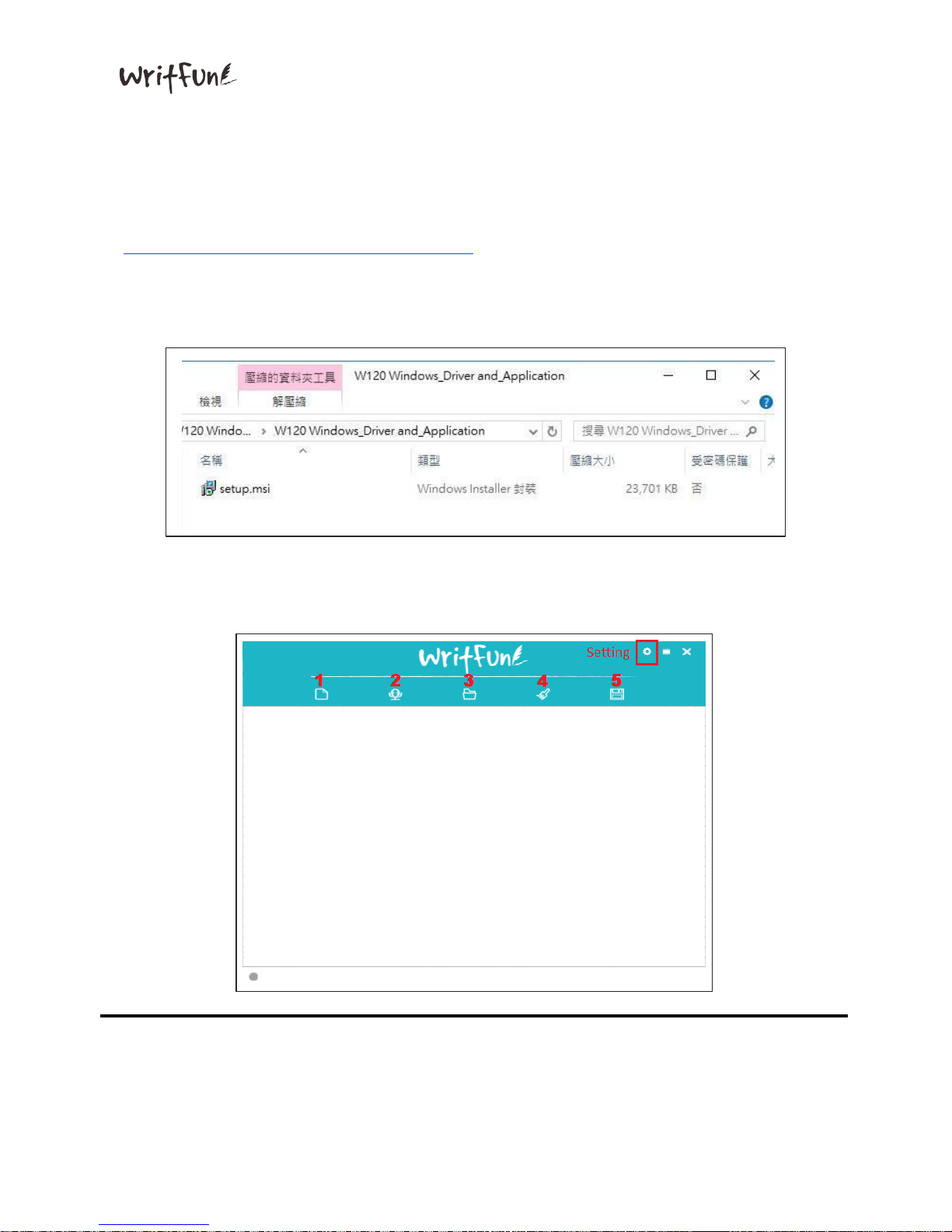
3. W120 Application Instructions
A. Main Screen
Page 22

Writfun W120 User Manual
www.Writfun.com
Page: 21
a. Right-top functions: Setup/ Minimize Tray/ Exit Application
b. Functions:
1. New Page: Create a new drawing
2. Video Recording: Record handwriting as a video file (duration is up to
60 seconds)
3. File Manager: Open folder saved handwriting files
4. Erase: Erase current display on app and device
5. Save: Save current drawing as image to PC/Laptop side
c. W120“Sending” button: Send handwriting copy to other application as
image
4. Setup:
Backup: Automatically save drawing images to PC/Laptop by clicking the
‘Send’ button on the device
Cloud Functions:
Select cloud services to upload files
■ Google Drive: Turn on the Google Drive cloud sharing switch
■ Dropbox: Turn on the Dropbox cloud sharing switch
■ OneDrive: Turn on the OneDrive cloud sharing switch
About: Application information and Writfun official website
User Manual: User manual download
Calibrate: Re-position touch screen max boundary
Exit: Back to Main screen
Page 23
Writfun W120 User Manual
www.Writfun.com
Page: 22
5、Product Specification
Size
135 x 95 x 8 (mm)
Weight
110g
Battery
Li-polymer / 3.7V 800mAh
Bluetooth
2.4GHz / 5 meters working distance
LCD
ChLCD / 4.7
USB
Micro / DC input 5V/500mA
Check the link for more information: http://www.writfun.com/
BandRich Inc.
6F-2., No.71, Zhouzi St., Neihu Dist., Taipei City 11493, Taiwan (R.O.C.).
Customer Service +886-2-2656-0136
 Loading...