

Page 1
Quick Start Guide
facebook.com/wozbox
wozboxtv.com
wozboxtv.com/contact
Page 2

2
Thank you for purchasing a WOZBOX!
This guide will take you through step-by-step how
to get your new WOZBOX up and running.
Before you start, please register your WOZBOX at
wozboxtv.com/registration
Registering will ensure you receive full support and
the latest updates for your new WOZBOX.
You can also use this registration page to sign up
for additional subscription services.
In addition to this guide you will also find tutorial
videos at
wozboxtv.com/support
Please enjoy your new WOZBOX!
Also like us on facebook for all the latest
information
facebook.com/wozbox
Page 3

3
CONTENTS
Chapter 1 Connecting Your System
1.1 Cabling Your System 4
1.2 First time setup 5
1.3 Addon Install 6
Chapter 2 Remote Controller 7
Chapter 3 Playback Window 8
Chapter 4 WOZBOX TV Guide 9
Chapter 5 WOZBOX Addons 10
Chapter 6 Support 10
Page 4
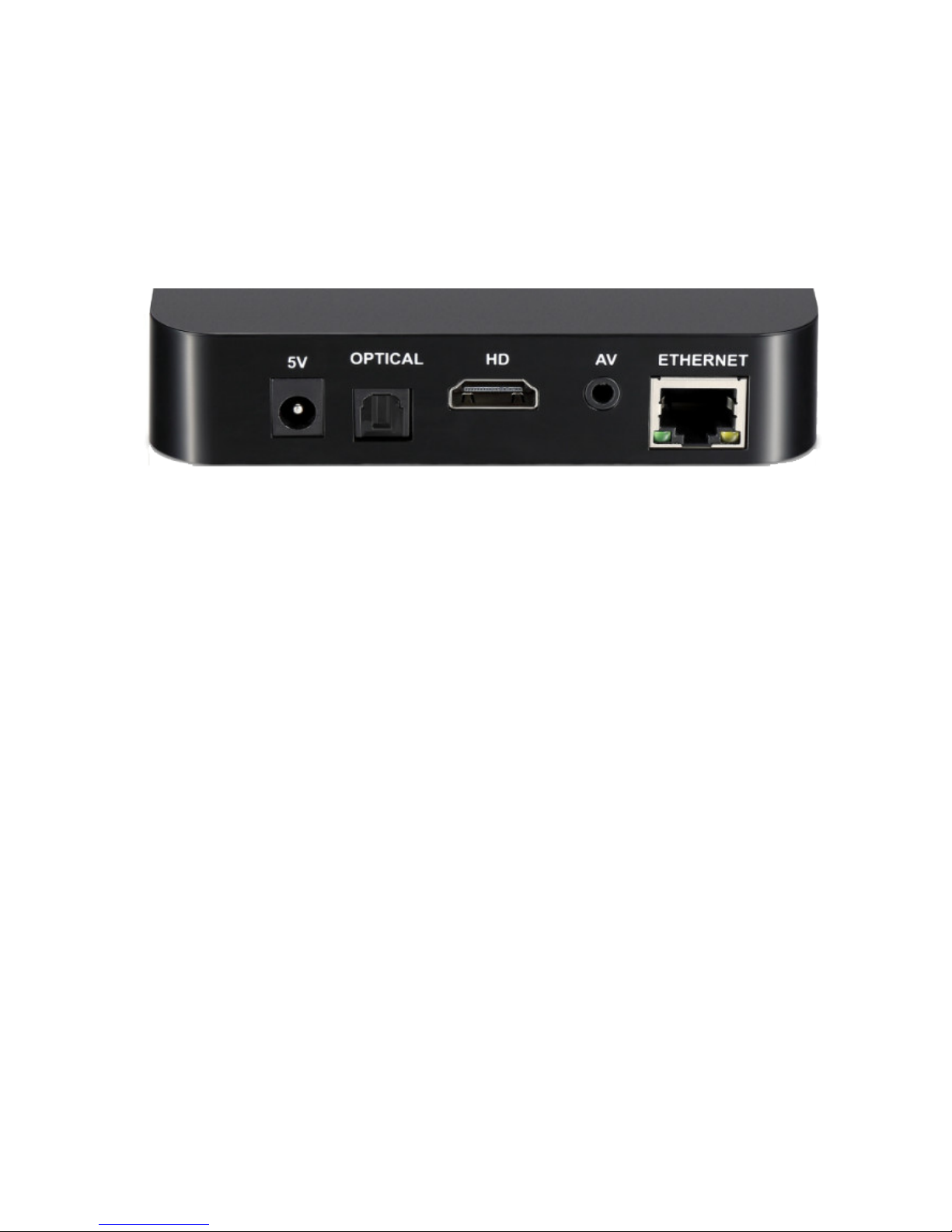
Rear View
2. Connect your Ethernet cable from the media to a free port on your
router/modem.*
3. It is highly recommended that you plug the power supply into the unit
last of all.
Chapter 1 Connecting Your System
1.1 Cabling Your System
1. Connect the HDMI cable supplied into the interface marked HDMI on
your media unit and the other end into a HDMI socket on your TV.
4
It is strongly recommended that you use an Ethernet
connection rather than a wireless connection to your router. If
the cable will not reach the location of your router, then a longer
cable can be purchased, or a powerline Ethernet adapter that
will use your household electrical wiring to establish the
connection.
Page 5
5
1.2 FIRST TIME SETUP
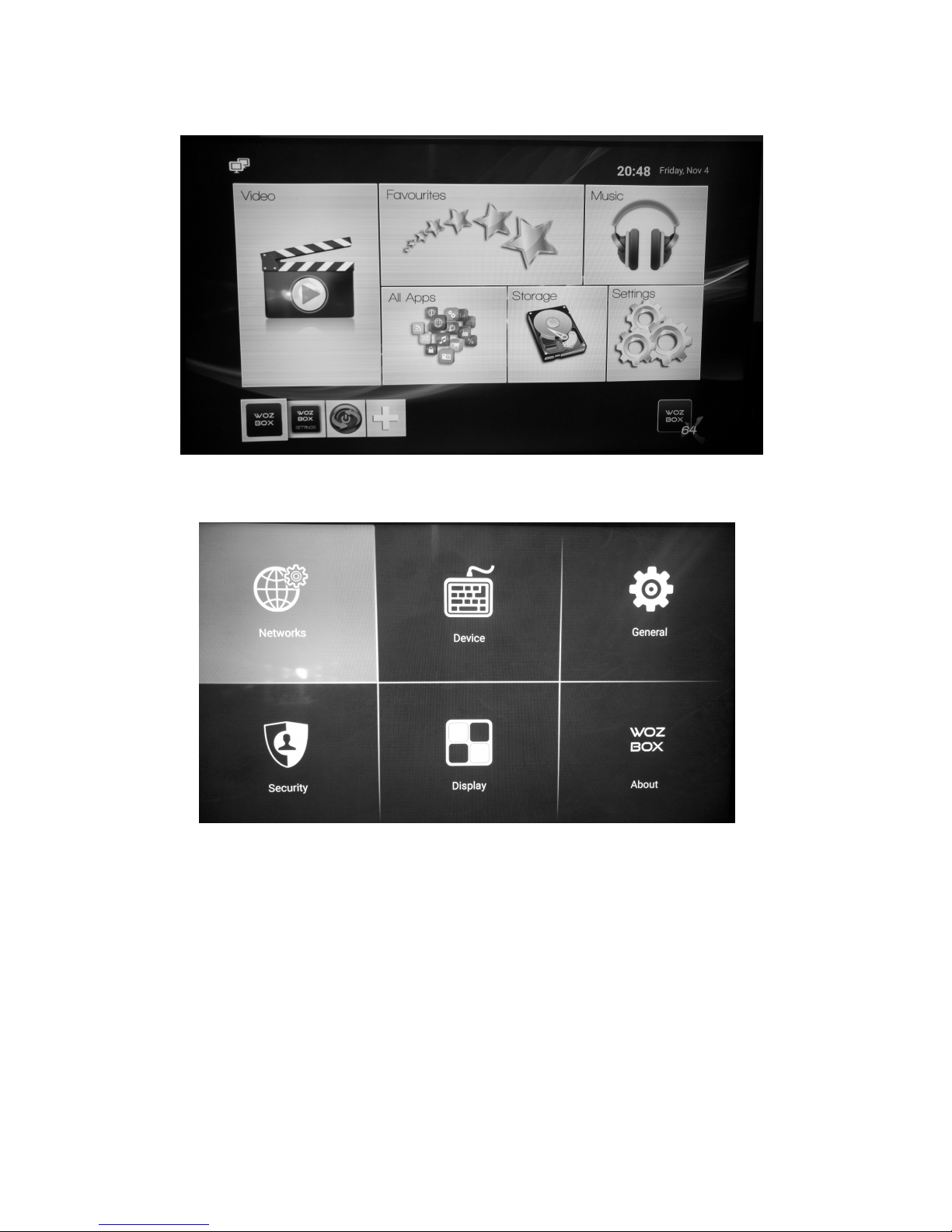
Once your WOZBOX has loaded, you will see the main HOME screen.
Along the bottom shortcut icon you will see WOZBOX SETTINGS,
select this to setup your WOZBOX.
Page 6
6
Page 7
7
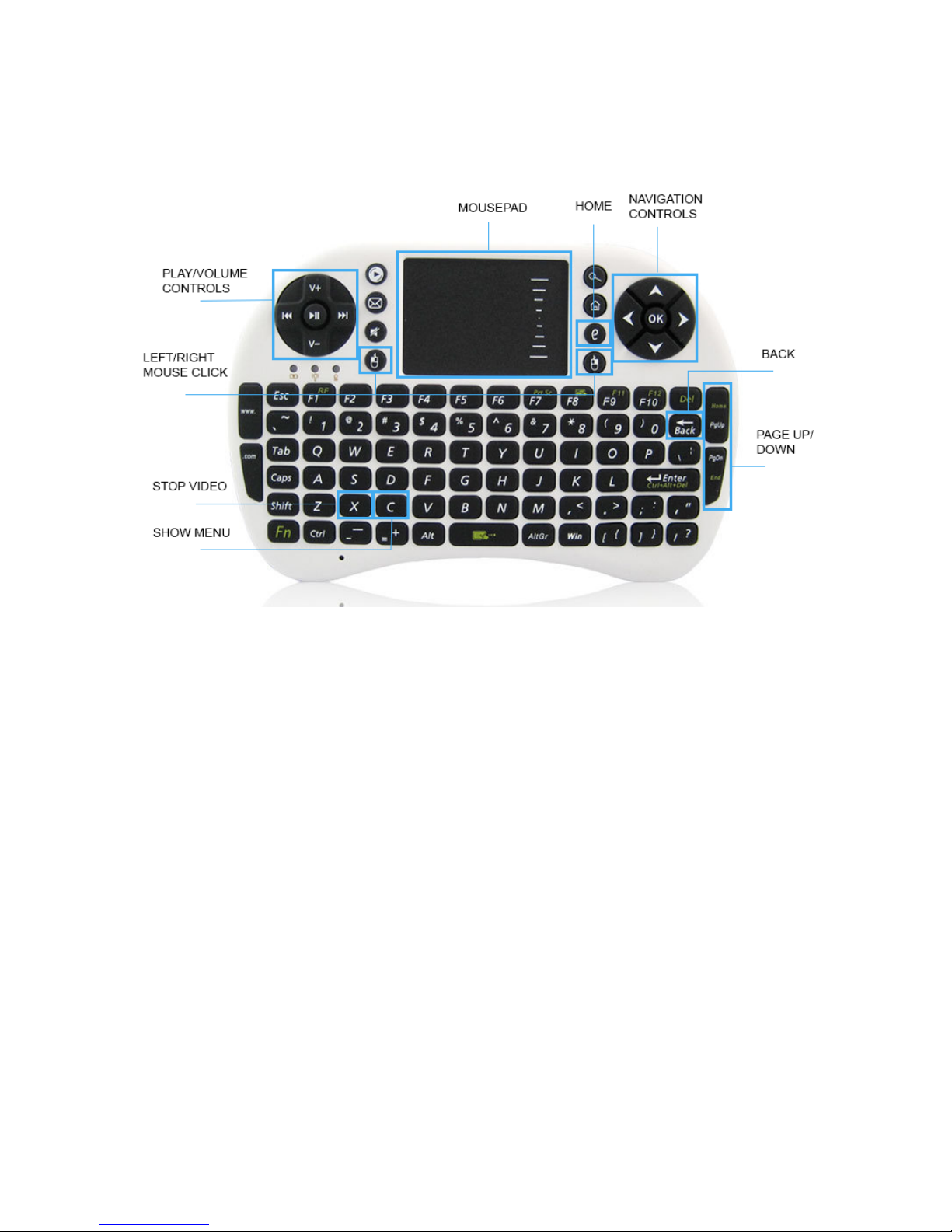
2. WOZBOX REMOTE CONTROL
BACKLIT FUNCTION - To enable the backlit keys on your keyboard press and hold
FN and then press F2.
Page 8
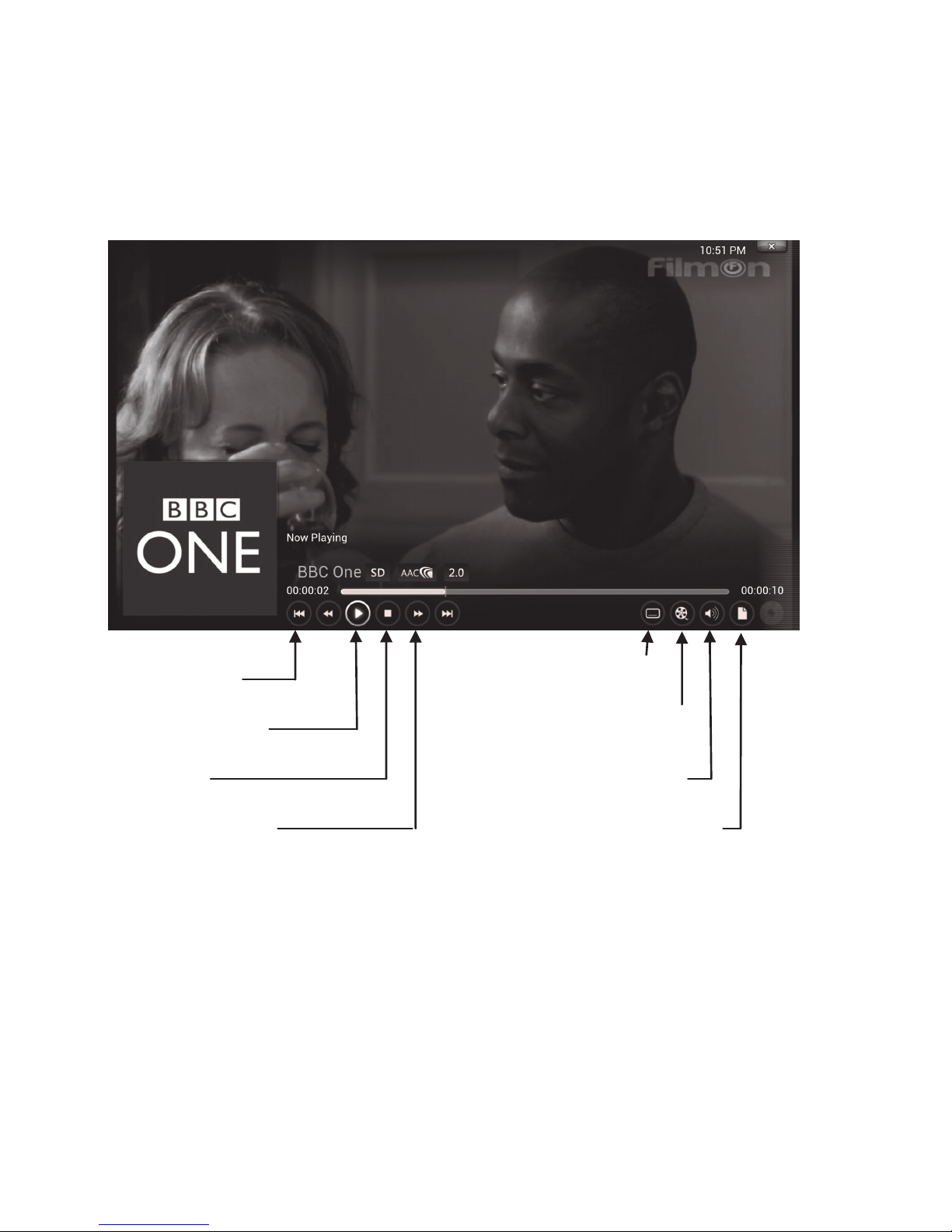
PLAY/PAUSE
STOP
SKIP TO
END/START
VIDEO OPTIONS
Aspect Ratio, Filters
AUDI OPTIONS
Audio Offset, Boost
SUBTITLES
CREATE BOOKMARK
8
3. WOZBOX PLAYBACK SCREEN
FFWD/REWIND
The main video playback screen is the same regardless of which addon
you are using. This can be accessed by pressing the OK button.
Page 9
9
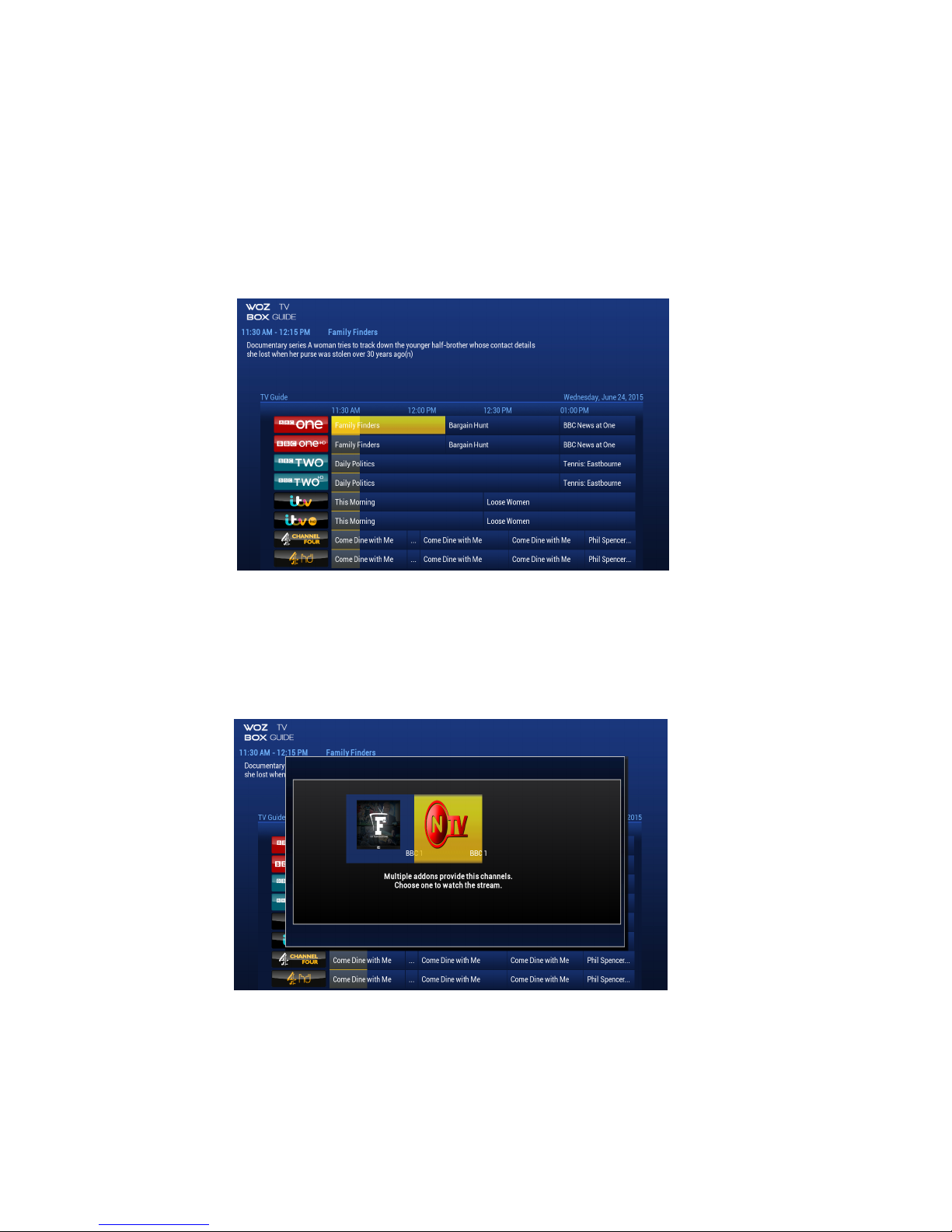
When the update has finished, exit the TV Guide. (You will only need to do this the
first time you open the TV Guide). You can then re-open the TV Guide and use as
normal.
Channels that are part of the FREEVIEW lineup when first used will pop up a box
asking you to select an addon to view. If you are a NTV subscriber simply select
NTV, if not, select the FTV addon. Next time you use that channel it will
remember the selection.
When you first open the TV Guide it will download the current TV Listings. It will
update once per day.
Page 10

10
For additional support please go to wozboxtv.com/support
Also, please make sure you register your WOZBOX to receive full support.
You can register at wozboxtv.com/registration
6. SUPPORT
5. WOZBOX ADDONS
In the Main ADDONS section in WOZBOX (Highlight WOZBOX then go
down and select ADDONS) you will find the WOZBOX and other 3rd party
ADDONS.
WOZBOX MATCHES:
This provides a list of upcomming football matches and the channels they
are available on.
WOZBOX NTV:
To sign up for and NTV account, follow the link at wozboxtv.com/registration
Once you have an account setup open WOZBOX NTV and sign-in with
your account details.
WOZBOX WIZARD:
Tools and additional ADDONS can be found here to enhance your WOZBOX.
WOZBOX has a team of developers that create exclusive addons
especially for WOZBOX.
WOZBOX TUTORIALS:
A great ADDONS that you can watch videos to help you use your new WOZBOX
You can contact us directly via email - [email protected]
 Loading...