

Page 1

User manual STB box
1 Short Instructions STB.
1. Plug in the cables.
2. Switch on STB box and turn on the TV.
3. Wait at least 2 min.
4. If the image does not appear:
a) Check that the cables are connected properly, the box is on (blue light on the left side in
front and blue flashing (unevenly) on the right. This light is steady blue when it's playback)
b) The box is in default mode YpbPr (see description of colored buttons)
The buttons at the bottom of the remote control must be selected correctly otherwise
there will be no picture. Depending on your television.
To switch between the different signal inputs, press the colored button and then play / pause
button
Coloured buttons:
Red button: PAL = yellow - red - white wire
Green button: NTSC = U.S. Standard, yellow - red - white wire
Yellow button: YPbPr = HD signal, is used on HD TV
Blue button: HDMI = when you have hdmi cable.
http://world-tvpro.com
Page 2

2 STB box Manual
For safe and effective use of STB BOX product, please read the following before use
Warning-
Do not place the product in an ambient temperature too high or too low (10-30'C is normal).
Keep the appliance indoors.
Do not place the product in the vicinity of a magnetic fields.
Do not place the product in direct sunlight.
Do not use any other power adapter.
Note
Keep the body clean, do not scratch the chassis and interfaces.
Do not place heavy objects on the product.
Do not attempt to disassemble the product.
3 Introduction
This guide introduces you systematically in the use of this product. Please read this manual
fully before use.
It is your responsibility to read this manual prior to installation.
http://world-tvpro.com
Page 3

4.
1 Short Instructions STB 1
2 STB box Manual 2
3 Introduction 2
4 Chapter 3
5 The basic functions 4
6 Parameter list 4
7 Item List 5
8 Remote Control icon 6
8.1. Key Description 6
9 Installing the remote control 7
10 Connected display devices 7
11 PAL audio and video output 7
12 YPbPr (component) video and audio output 8
13 HDMI audio and video output 9
14 Connected to the network 9
14.1 Wired network connection 9
14.1.1 Connection cable 9
15 Network settings 10
16 Boot 10
17 Select and play the channel 10
18 Stop playing 10
19 Control during channel playing 11
19.1 Directly switch Channel when another channel is playing 11
19.2 Adjust sound volume 11
20 System Set-up 11
21 Failure reference table 12
22 Frequently Asked Questions 13
http://world-tvpro.com
Page 4

5 The basic functions
Full HD decoder 720P, 1080I, 1080P (1920 * 1080);
All formats compatible with almost all support the current popular format for the market to
support the H264, VC1, MPEG 1/2/4-SP, WMV, ASF, DivX 3.X video encoding format;
support the Real format, RM, RMVB8/9/10 (1920 * 1080);
FLV mainstream network video and Flash Video Streaming Media;
supports MP3, AAC, MPEG4-AAC, MPEG4-BSAC;
support video, photos full-screen playback, support for pause, stop, fast forward, rewind;
support HDMIν 1.3, AV composite video / audio, YPbPr component output;
RJ-45 network interface;
Support SD card;
USB 2.0:ν Support U disk, mobile hard disk hot pinching pulling;
USB 1.1: Built-in support for wireless Wifi;
support large-capacity storage;
support subtitles play;
remote control, convenient;
6 Parameter list
CPU ARM11 720MHz
Linux Operating System
File system FAT/FAT32, NTFS, EXT3
Video output HDMI 1.3, CVBS, YPbPr
Analogue stereo audio output, HDMI 1.3
Video format H264, VC1, MPEG 1/2/4-SP, WMV, ASF, DivX 3.X, RM, RMVB and other
http://world-tvpro.com
Page 5

video encoding format
Audio formats MP3, AAC, MPEG4-AAC, MPEG4-BSAC
USB interface, USB Host 2.0 * 2
RJ45 LAN Interface
SD card memory card support
Working environment temperature: 10 ℃ ~ +35 ℃: Humidity: <90%
Storage temperature: -20 ℃ ~ +70 ℃: Humidity: <95%
7 Item List
1 remote control
Power Line
1 power adapter
CVBS audio and video line 1
YPbPr AV cable 1
Battery 2
Manual 1
NB. Contents may vary depending from country to country!
http://world-tvpro.com
Page 6
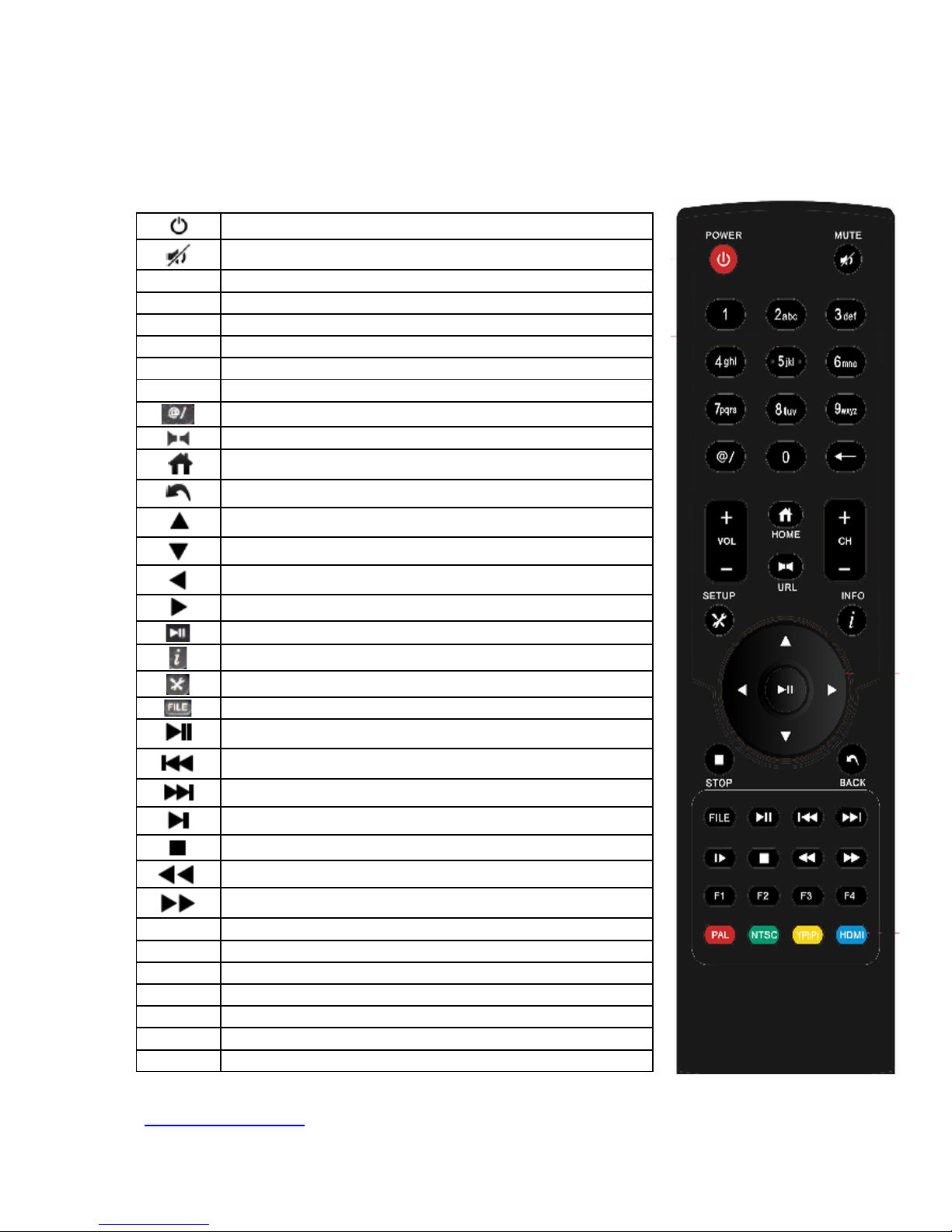
Introduction Chapter remote control
8 Remote Control icon
8.1. Key Description
Power: Off / On
Mute: on / off the sound
0-9 numeric keys: Enter numbers, alphabet, letters
← Backspace: Delete the character input
Vol + Volume up
Vol - Volume down
Previous Flip key: In the list interface, quick page up
Next Flip key: In the list interface, quick page down
@ (future)
URL button (future)
Home key: rapid return to the main interface
Back button: Returns the parent directory
Select up
Select down
Select left
Select right
OK button
Information button: video playback for movie information
Set-up button
Play film through USB input
Play, Pause
Last
Next
Slow
Stop button: Stop and exit the playback
Rewind
Fast forward
F1 Message center
F2 Free
F3 Free
F4 Recording mode
PAL Output - yellow - red - white wire
NTSC Output - U.S. standard
YPbPr Output - HD signal, is used on HD TV
http://world-tvpro.com
Page 7
HDMI Output - when you have hdmi cable.
9 Installing the remote control
Install the batteries included into the remote control correctly.
10 Connected display devices
Note: This product default by YPbPr (component) output video signal.
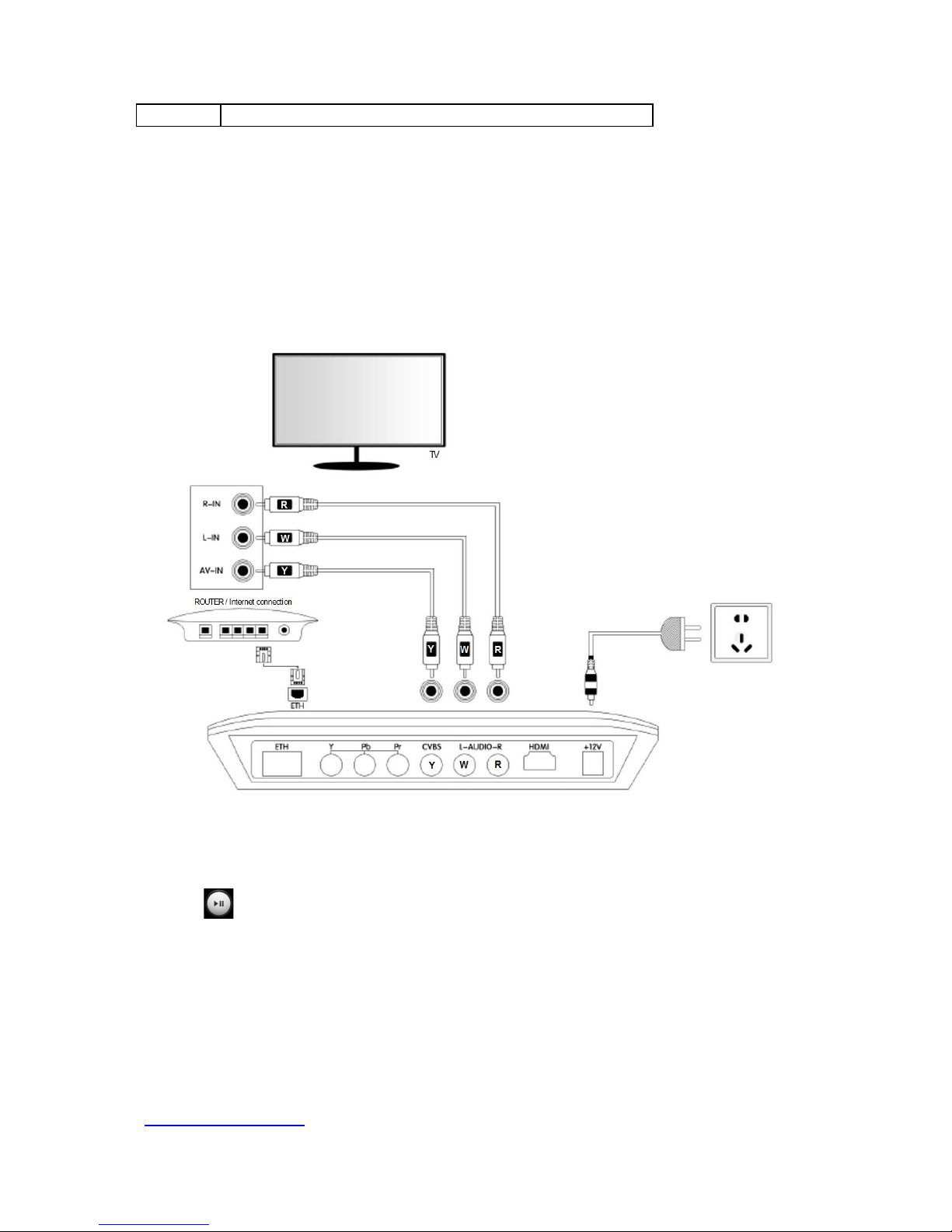
11 PAL audio and video output
To switch between the different signal inputs, press the colored button and then play / pause
button.
http://world-tvpro.com
Page 8
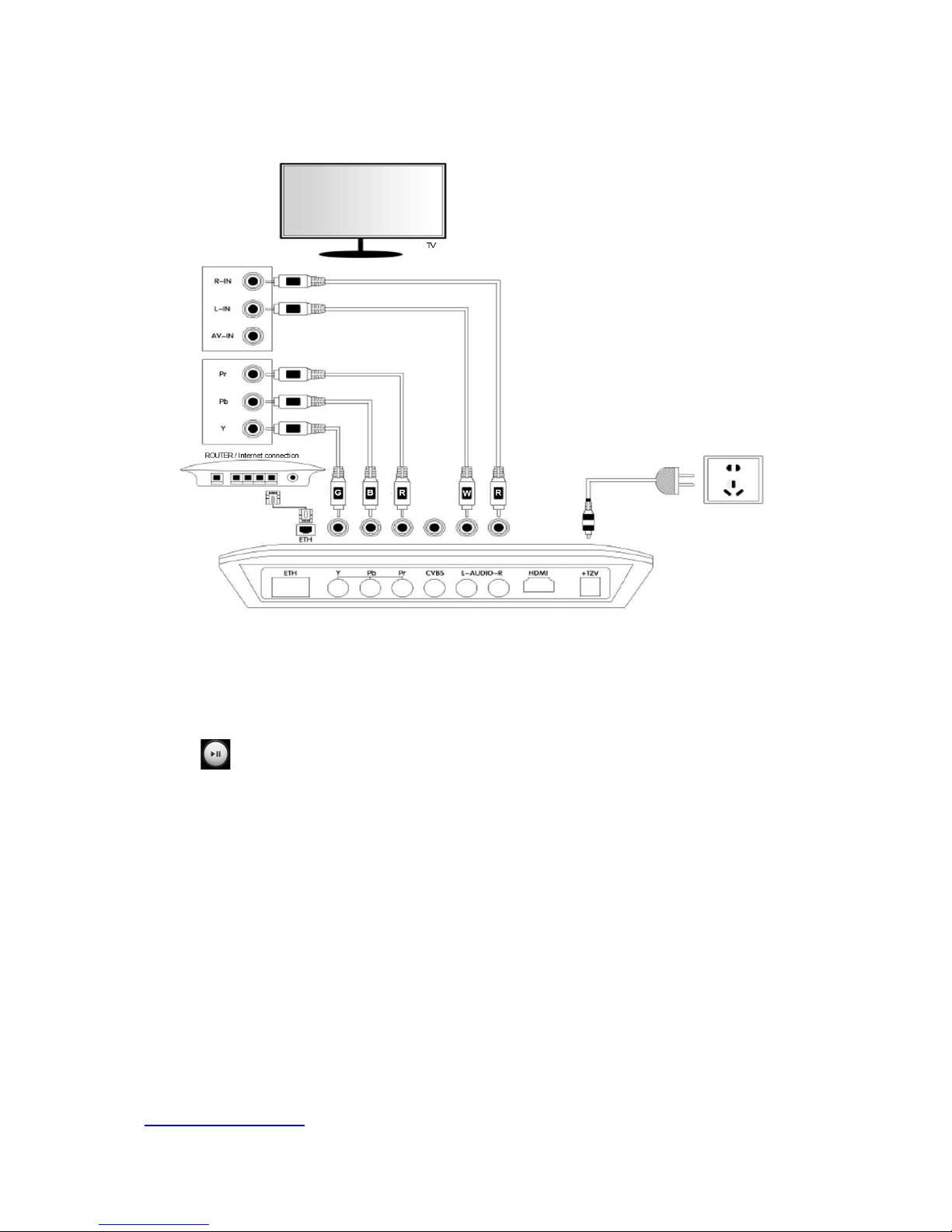
12 YPbPr (component) video and audio output
To switch between the different signal inputs, press the colored button and then play / pause
button.
http://world-tvpro.com
Page 9
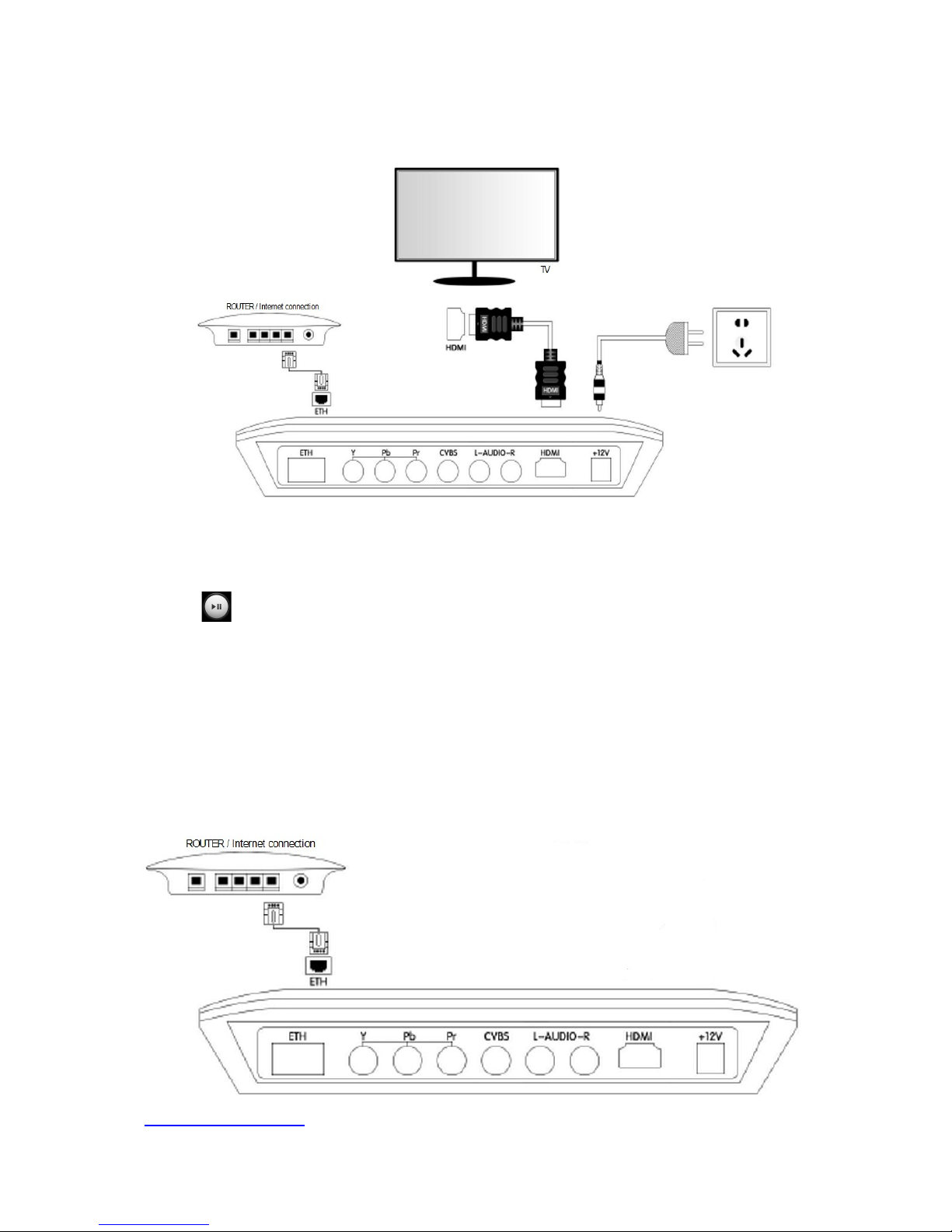
13 HDMI audio and video output
To switch between the different signal inputs, press the colored button and then play / pause
button.
14 Connected to the network
14.1 Wired network connection
14.1.1 Connection cable
http://world-tvpro.com
Page 10
15 Network settings
Connect the network cable, go to the set-top box "Settings" -> "wired network" interface,
according to the router
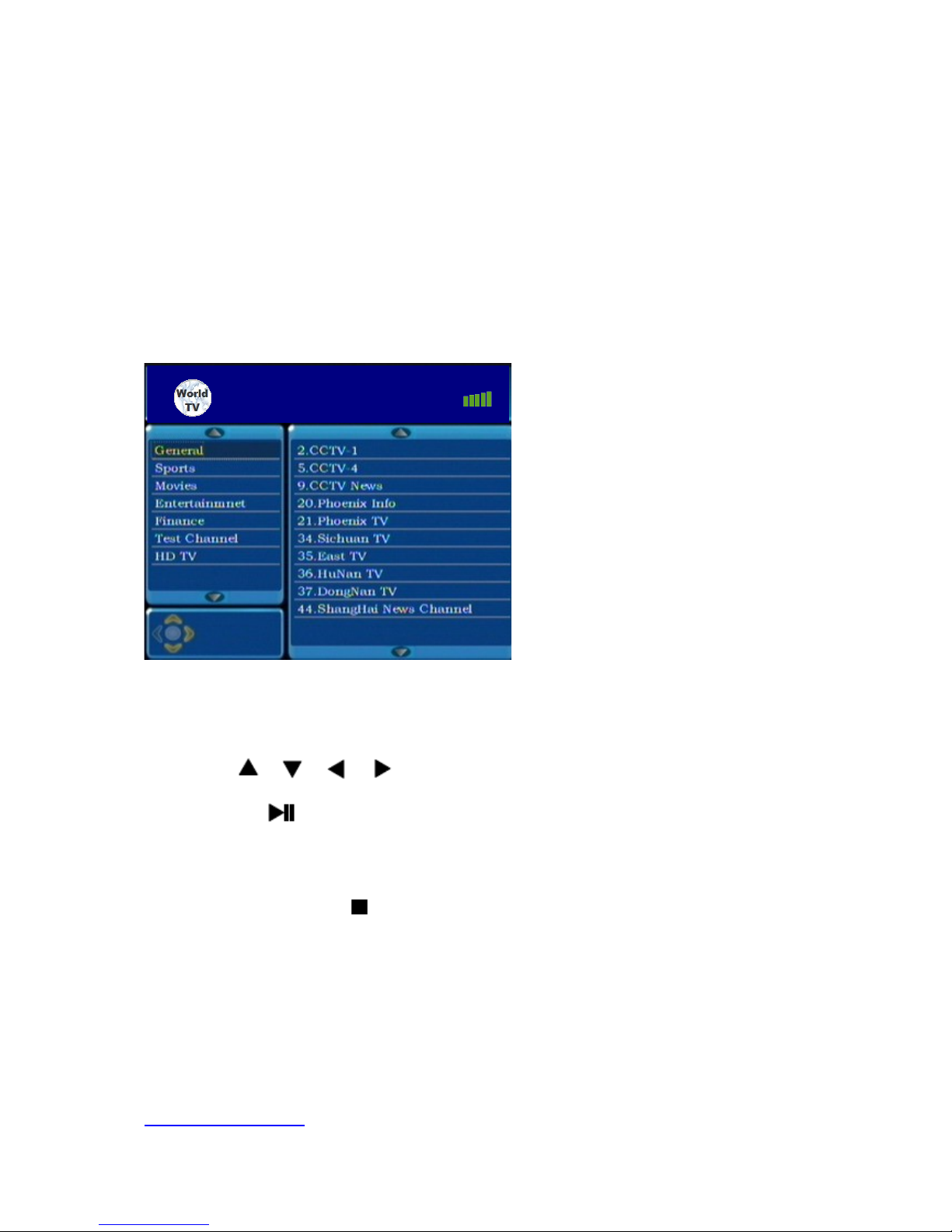
16 Boot
Turn on the TV, select the correct video input channel. Connect power to the set-top box,
click the power on/off, the set-top boxes takes about 30 seconds - the boot screen then
appears, as follows:
17 Select and play the channel
Use button on the remote control to move the cursor to select
channels, or directly press the number buttons according to the channel number on the
left, then press to start the channel.
18 Stop playing
When playing, press button on the remote control to stop channel playing and return
to channel list.
http://world-tvpro.com
World TvPro
Page 11
19 Control during channel playing
19.1 Directly switch Channel when other channel is playing
When a channel is playing, you can use or, or to select
other channels without interrupting the current playing channel.
19.2 Adjust sound volume
When playing channels, press button on remote control to adjust sound
volume.
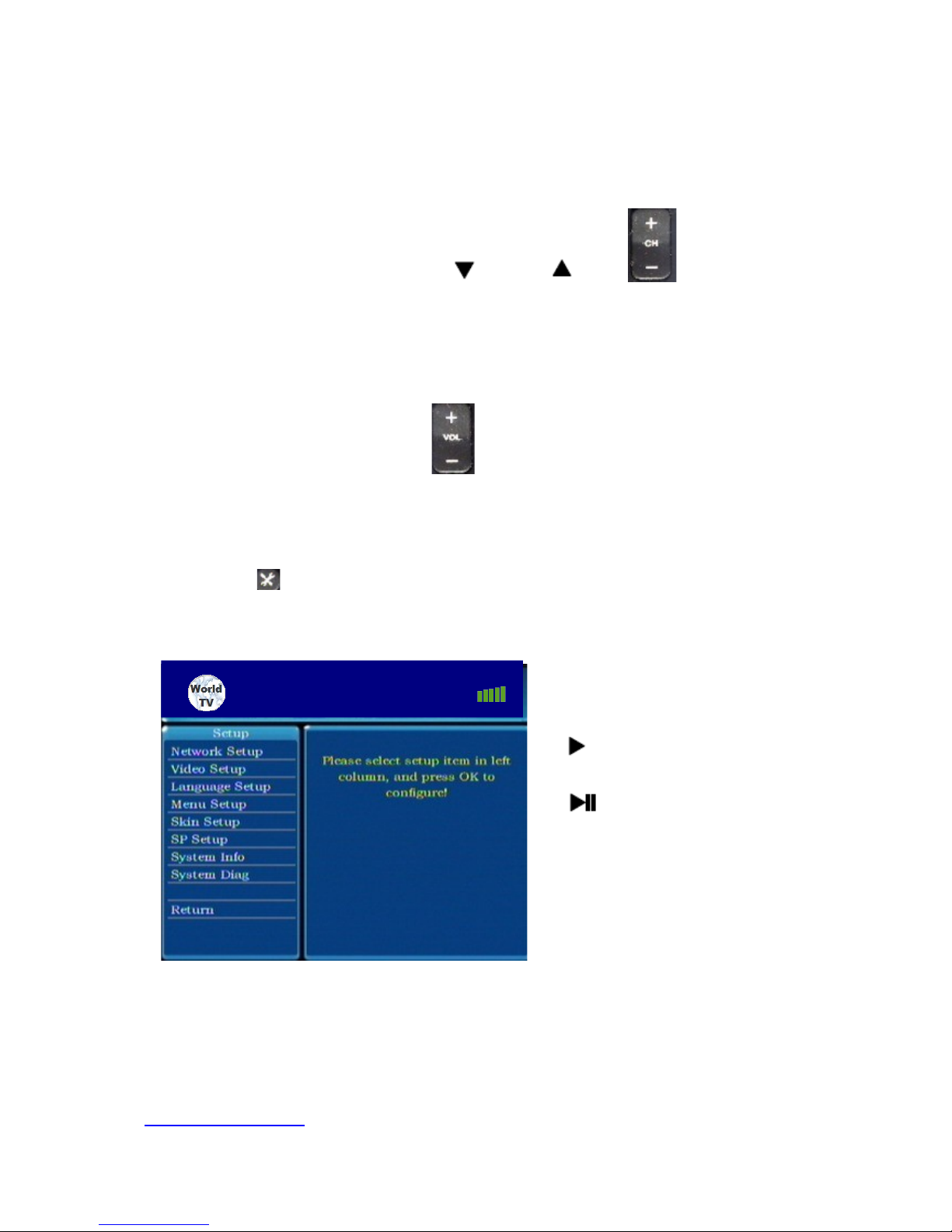
20 System Setup
Press button on the remote control when there is no channel is playing, that will
enter into System Setup interface as below:
http://world-tvpro.com
World TvPro
Page 12

21 Failure reference table
There are many factors that will affect users ability to watch the channels
smoothly, such as internet connection failed, DNS resolving failed, or firewall
limits. Users can figure out most problems according to the result of System
Diagnosis. The following failure table is a complete reference to find out the
problem.
Diagnosis Result Possible reason Solution
IP Addr: Fail The internet cable is not
properly connected
The STB booted before the
internet cable is connected
Router does not work
properly
Check your router, properly
connect the internet cable
and reboot the STB
Gateway: Fail Router does not work
properly
Reboot your router
DNS: Fail DNS server configured in
router does not work
properly
Manually configured DNS
servers is not valid
Manually configure a DNS
server in Network Setup.
DNS information is available
from your internet service
provider
TCP/UDP: Fail TCP or UDP data
transferring is limited by your
router or firewall
Check your router or firewall,
or ask your network
administrator to see whether
there are some limitation on
the network data transferring
Service: Fail Service of the network TV
system has problems
Contact with your SP to find
out the problem, or wait for a
while and retry
http://world-tvpro.com
Page 13

22 Frequently Asked Questions
No picture or can not display properly
If there is no display or the picture can not be properly shown, that maybe the STB output
format is not compatible with the TV set display format, please configure the STB out format
in the “Video Setup”, reboot your STB and have a retry.
Channel buffering time is too long
This maybe because the whole network is busy, or your internet connection bandwidth is not
enough to play the channel. If you bandwidth is less than 1M, please upgrade it. If your
bandwidth is enough and other channels is played smoothly, please wait for a while and
restart your current channel.
The channel is not smooth or pictures breaks when channel start
It is normal for internet TV system based on internet. Please wait for about 30~60 seconds to
see whether it becomes smooth. If the problem still exist? please see Failure reference
table
No signal, retry later
Sometimes for internet jam and other causes, the STB can not play the channel you wanted,
and it displays NO SIGNAL, RETRY LATER. Please select the channel again and press OK,
usually the channel will reboot. If it fails all along, perhaps the current signal for the channel
is really low; you may watch other channels instead or retry it later.
No reaction when press buttons
Please press the stop button on the remote control and wait for the signal “Channel
stopped” to disappear, then press other buttons to control. If it still does not work, you may
press the ON/OFF button to reboot the player.
All the channels fail to play
It is mostly likely the internet has not been connected. You may press the system button on
the remote control. In System Setup, choose System Diagnosis.
For questions, please contact us at: [email protected]
http://world-tvpro.com
 Loading...