

Page 1

Table Top Order System
User's manual
Table Terminal WP-D701
OST Cradle WP-C424A
OSH Cradle WP-C521A
Rev.20121206_R4
Importer: Global Network Resources, Inc.
Address: 2241 Calle de Luna, Santa Clara, CA 95054
0
Page 2
Chapter 1. Terminal switch operation
When the condition of the Terminal is not good,
it may be improved by ON/OFF of the main switch.
[Example]
• Display screen does not change when you check-in or check-out.
• There is no response to touch a button on the screen that you want to order
(It seems like “freeze”)
• Even if the "clear error" from the MIS, will not stop flashing red.
(communication error)
• Do not be started.
Note: Please do not touch except when trouble shooting as much as possible.
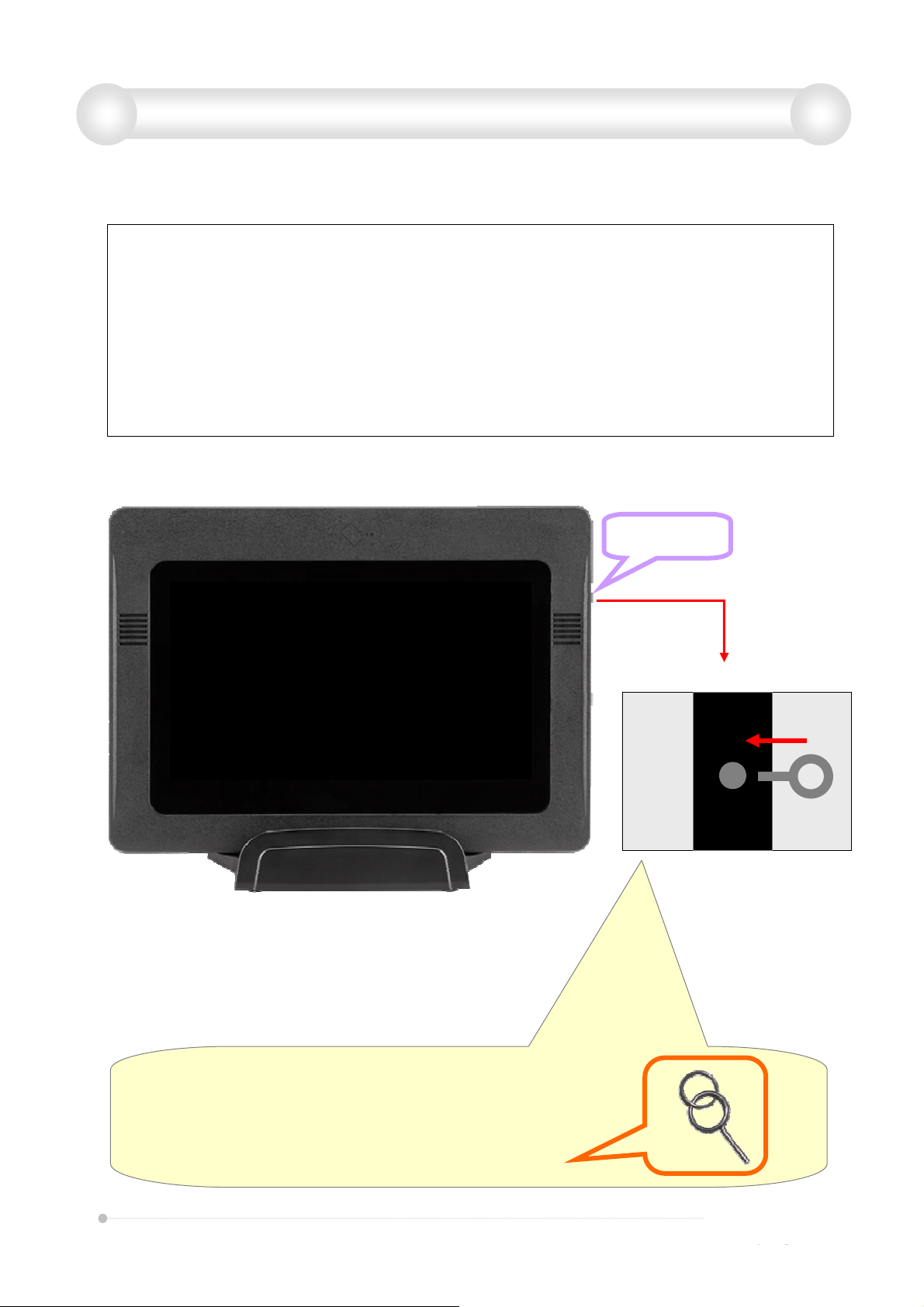
Power switch
At the top right side of the Terminal, there's a hole
0.5 ~ 1 mm, it is the power switch.
Please don’t use except when dealing with trouble.
The above switches, use the dedicated reset pin.
Enlarged view
1
Page 3
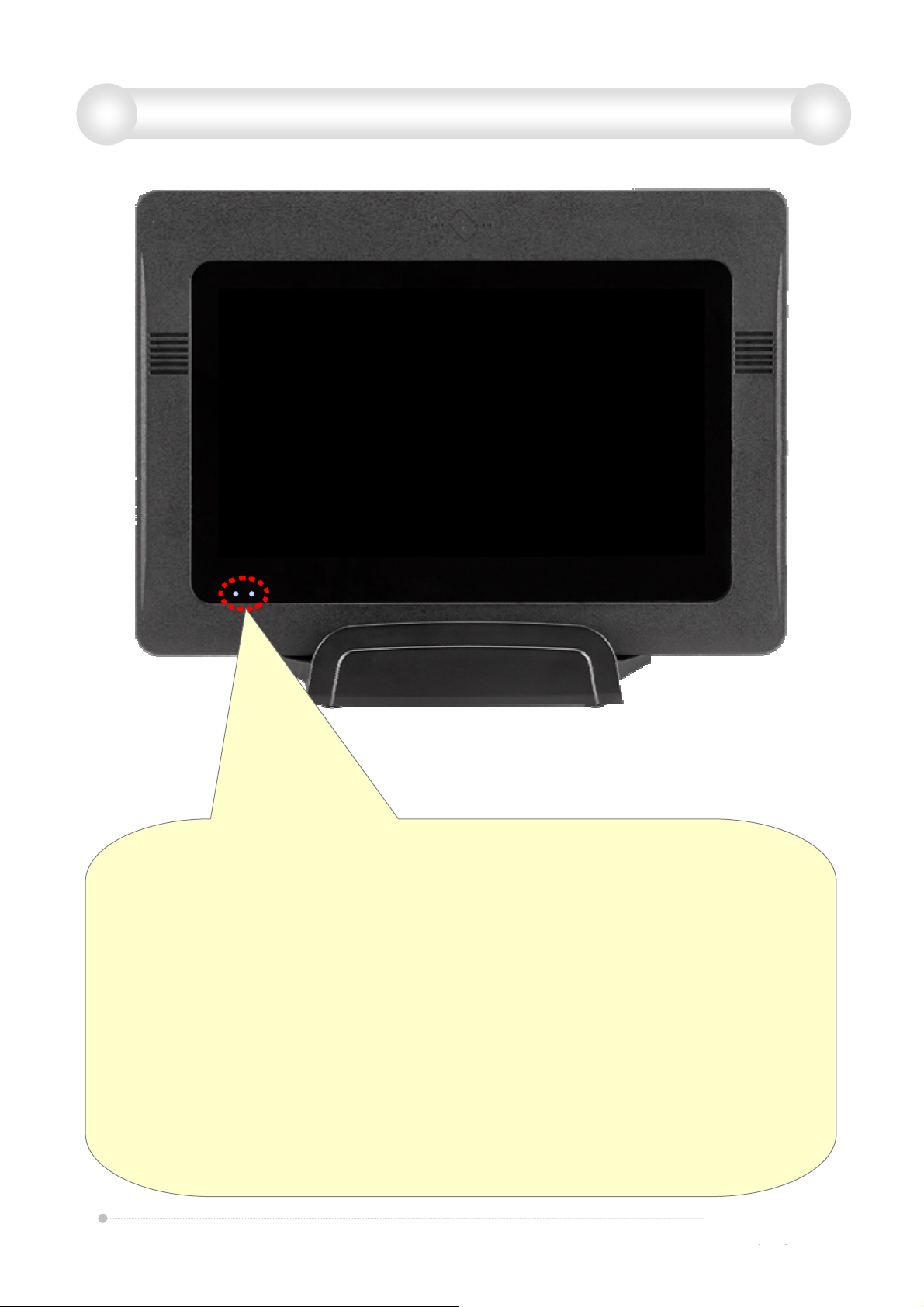
Chapter 2. Details of the front lower left side lamp
Two Power light Description (Left and Right)
(Left)
Green light …Power ON, State is placed on the cradle, Ready for communication.
Green light blink …Power ON, State is placed not on the cradle, Ready for communication.
Red light or blink…State is can not communication.
Unlitght…State is Power OFF.
Note: The wireless device is not working, until when you choose
“Operational mode” please read more information on next page.
(Right)
Orange light…Charging, State is on the cradle.
Unlitght…State is Fully charged.
2
Page 4
Chapter 3. After start-up mode selection
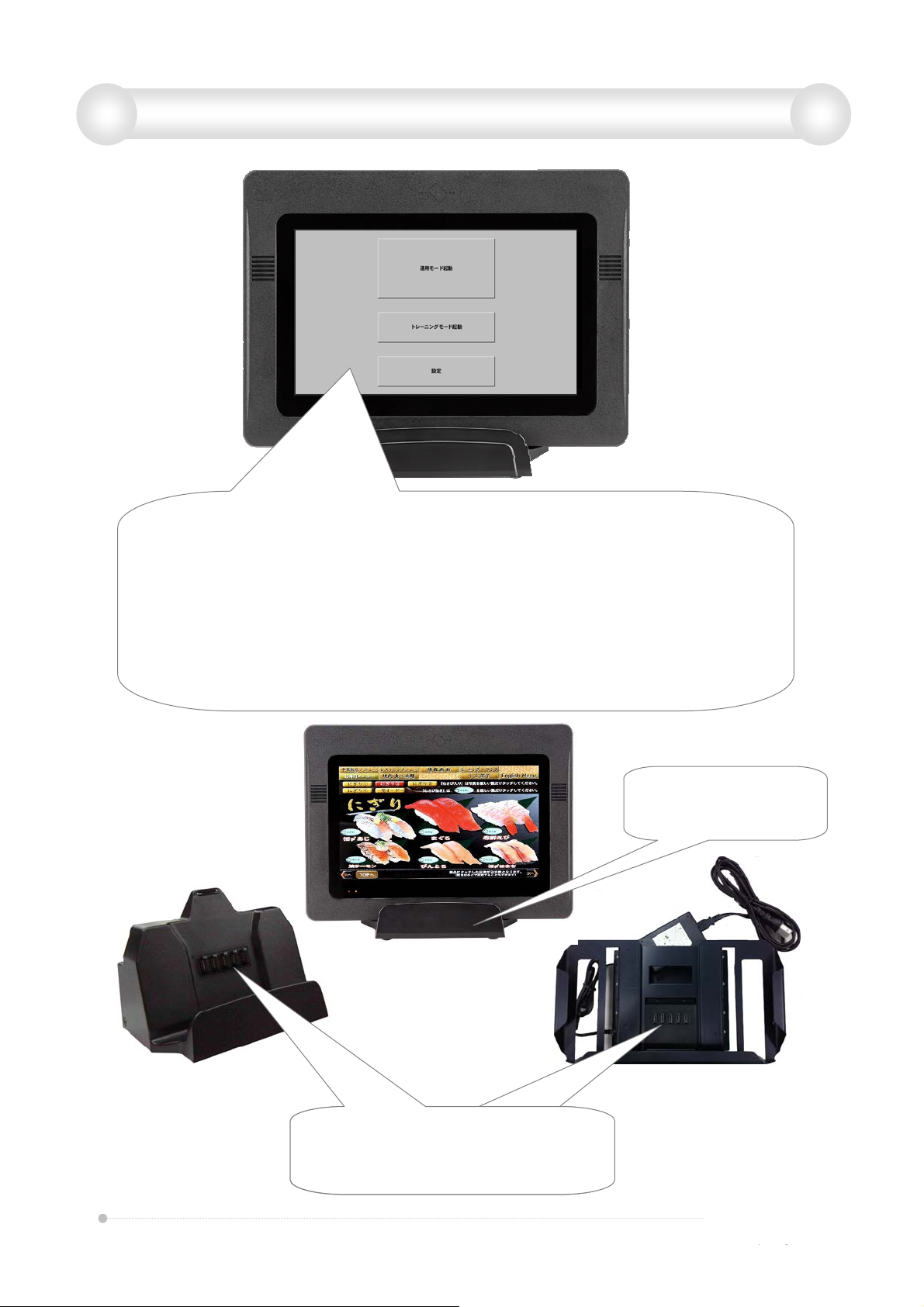
(1) Please wait until this screen appears when you turn on the power switch.
Then you can choose "Setting mode“, "Training mode" and "Operation mode".
(2) When you choose "Setting mode" can be adjusted for volume tune, brightness or other
condition of the terminal.
(3) When you choose "Training mode" the menu can be operated as a stand-alone terminal demo.
The wireless network device is not working.
(4) When you choose “Operational mode” the terminal working on actual system environment
with wireless network device.
(5) Please note that you can not start if there is no actual system environment wireless network for
"Operation mode".
Desktop type
WP-C424A
When put on the cradle,
the terminal will charge.
Cradle
Wall-mounted type
WP-C521A
This cradle designed for safety, voltage
is only output from electric pin when
the terminal state put on it .
3
Page 5

Chapter 4. Products Specifications
Table Terminal
Model: WP-D701
Dimension: 300mm(W)×219mm(H)×40mm(D)
Weight: 1.2kg, 1.4kg (Option battery Operating)
Display: 10.1 WSVGA 1024×600 (200cd/m2)
Horizontal: 45°45°
Vertical: 20°45°
WiFi : IEEE-802.11b & g
Power: DC12V, 10W or less power consumption form built-in battery
Built-in battery: 6hours, Option battery Operating 12hours
(At the lowest brightness setting)
Charging method: Charging by dedicated cradle, DC input from AC adapter.
Touch screen: Projective Capacitive(multi-touch)
OS: LINUX 2.6.32
Wireless device (Inside Table Terminal)
・Operational frequency: 2412 to 2462 MHz (5MHz step, 11 channels)
・IEEE802.11 b/g compliant Wireless LAN
・Data rate
IEEE802.11b: 1, 2, 5.5 and 11 Mbps
IEEE802.11g: 6, 9, 12, 18, 24, 36, 48 and 54 Mbps
Cradle
Model: OST Cradle (WP-C424A) and OSH Cradle(WP-C521A)
Input/Output voltage: DC 12V 2A
Battery
Model: 2UR18650-2-WRPC
Classification of the battery: Lithium Ion Battery
Rated voltage: 7.4V
Capacity: Typical 4800mA / Lowest 4600mA
Battery Type: 2UR18685F-2
Manufacturers: STANDARD ELECTRIC CO., LTD
4
Page 6

Chapter 5. Operating Considerations
(§2.1077(a)(1))
Company: Worldpicom Corporation
Model name: Table Terminal
Model number: WP-D701
FCC ID: PRTJD712
(§2.1077(a)(3), §2.909)
Subsidiary of the U.S. information: Global Network Resources, Inc.
Address: 2241 Calle de Luna, Santa Clara, CA 95054
Phone: 408.727.1900 / Fax: 408.727.1910
(§15.21)
Notice: The changes or modifications not expressly approved by the party responsible for
compliance could void the user’s authority to operate the equipment.
IMPORTANT NOTE:
To comply with the FCC RF exposure compliance requirements, no change to the antenna
or the device is permitted. Any change to the antenna or the device could result in the
device exceeding the RF exposure requirements and void user’s authority to operate the
device.
(§15.105)
FCC INFORMATION
The Federal Communication Commission Radio Frequency Interference Statement
includes the following paragraph:
NOTE: This equipment has been tested and found to comply with the limits for a Class B
digital device, pursuant to part 15 of the FCC Rules. These limits are designed to provide
reasonable protection against harmful interference in a residential installation. This
equipment generates, uses and can radiate radio frequency energy and, if not installed and
used in accordance with the instructions, may cause harmful interference to radio
communications. However, there is no guarantee that interference will not occur in a
particular installation. If this equipment does cause harmful interference to radio or
television reception, which can be determined by turning the equipment off and on, the
user is encouraged to try to correct the interference by one or more of the following
measures:
—Reorient or relocate the receiving antenna.
—Increase the separation between the equipment and receiver.
—Connect the equipment into an outlet on a circuit different from that to which the
receiver is connected.
—Consult the dealer or an experienced radio/TV technician for help.
The user should not modify or change this equipment without written approval form
Worldpicom Corporation. Modification could void authority to use this equipment.
This device complies with part 15 of the FCC Rules. Operation is subject to the following
two conditions: (1) This device may not cause harmful interference, and (2) this device
must accept any interference received, including interference that may cause undesired
operation.
5
 Loading...