

Page 1
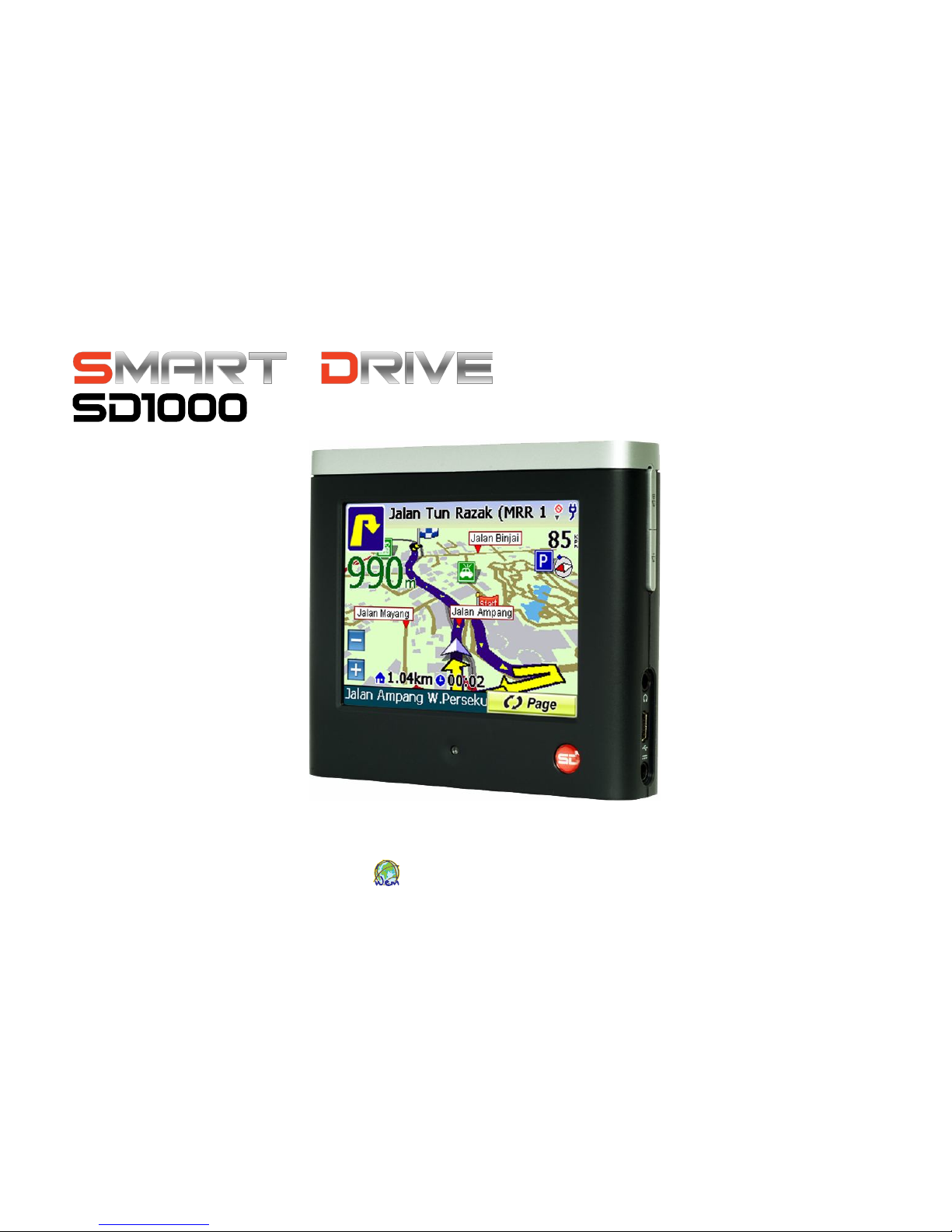
User
Manual
WORLD EXPRESS MAPPIN
G SDN. BHD.
Page 2

SmartDrive SD1000 GPS Navigator User’s Guide
1
World Express Mapping Sdn. Bhd.
Legal Notice
This user manual and the information it contains belongs exclusively to E-Mapping Solutions Sdn. Bhd.
The guide and the software products described therein are furnished under license. The software and guide
may be used only in accordance with such license. Except as permitted by such license, no part of this guide
may be reproduced, copied, stored in a retrieval system, or transmitted, in any form or by any means,
electronic, mechanical, recording, or otherwise, without the prior written permission of World Express
Mapping Sdn. Bhd.
The text and graphics are for the purpose of illustration and reference only. The information provided in
this document and the specifications of the software it describes are subject to change without notice and
World Express Mapping Sdn. Bhd. reserve the right to update, change or otherwise modify the specification,
configuration and information of its products or services, at any time. World Express Mapping Sdn. Bhd.
assume no responsibility or liability for any errors or inaccuracies that may appear in this guide.
Copyright © 2008, World Express Mapping Sdn. Bhd. All rights reserved.
Page 3

Contents
1. INTRODUCTION 1
Welcome 1
Features 2
Subscriptions 4
Specifications 5
2. GETTING STARTED 6
What is in the Box 6
Device Overview 7
Putting it all together in your vehicle 9
3. USING THE INTERFACE 11
Using the main menu screen 11
Using the main navigation menu screen 13
Using the Map View 14
15
Changing the Map View 16
4. CREATING A ROUTE 17
Search by Category 18
Reading the Route Screen 29
Using the Route Menu 31
Page 4
SmartDrive SD1000 GPS Navigator User’s Guide
1
World Express Mapping Sdn. Bhd.
5. CUSTOMIZING YOUR SMARTDRIVE SD1000 35
Customizing Your Display 35
Changing the Language and Voice Prompt 37
Safety Mode 38
Exit 38
About 38
6. GPS 39
About GPS 39
GPS Status Screen 40
7. MEDIA 41
Video Player 41
MP3 Player 42
Photo Viewer 43
Calculator 44
Setting 45
8. MAINTENANCE 46
Updating Maps and Software 46
Care of SmartDrive SD1000 46
9. FAQ & TROUBLESHOOTING 47
10. SUPPORT / WARRANTY 52
Support Contacts 52
Warranty 53
Page 5
SmartDrive SD1000 GPS Navigator User’s Guide
1
World Express Mapping Sdn. Bhd.
1. INTRODUCTION
Welcome
Congratulations on purchasing this SmartDrive SD1000
navigation device. This user manual contains important
information on guiding you to safely use your SmartDrive
SD1000 straight out of the box. Before operating the system,
please read this manual carefully to obtain the best results from
your new product. With the right care and attention, this device
will give you years of problem free operation.
World Express Mapping welcomes your feedback. Visit our
website www.wems.com.my to download updated maps, order
accessories, or get answers to any questions about your GPS
device. See support information on page 52.
Page 6

SmartDrive SD1000 GPS Navigator User’s Guide
2
World Express Mapping Sdn. Bhd.
Features
This navigation device receives signals from GPS (Global
Positioning System) Satellites. It uses these signals and the
advanced navigation software to calculate and plot a route from
your current location to your chosen destination.
The SmartDrive SD1000 offers
Fast signal acquisition
Accurate, detailed maps covering all of Peninsular Malaysia,
50 main cities and towns, and Singapore
Turn by turn guidance with true human voice technology,
with English, Mandarin, Cantonese, Malay and different
languages options.
Fast recalculation of routes
Huge amount pre-programmed points of interest
Five different navigation views (3D, 2D, 3D/Route Result,
2D/Route Result, List view)
Award Winning Design ( International Forum design
award, reddot design award)
Docking station: Contains connections to power cables;
Simple, easy, click and connect
Elegant and complete vehicle integration
Strong Windscreen Adhesive
Built in Stereo Speaker
3.5 “QVGA TFT LCD display (anti-glare)
Finger Easy - Large key and simple menu functions
Page 7
SmartDrive SD1000 GPS Navigator User’s Guide
3
World Express Mapping Sdn. Bhd.
Important Safety Information
Before using your GPS device, be sure you review and
understand the following information.
This device is not a substitute for common sense and careful
driving. Always comply with all traffic laws. Always drive
within the speed limits and traffic regulations, taking account
of the road conditions and your own abilities.
Do not allow the GPS device to be a distraction to safe
driving. What you see through your windshield is more
important than what you see on the LCD screen.
Never attempt to input locations, alter settings or reconfigure
your GPS device while you are driving. Park your car or ask a
passenger to operate the GPS device for you.
Never leave GPS device in plain sight in an unattended vehicle, it
might attract a rip-off.
Remove the device from your vehicle to avoid prolonged
exposure to extremes of temperature and moisture.
GPS receivers do not work underground, inside a building, or if
there are obstructions to the navigation device. Dense overhead
trees, tunnels, and certain types of metallic window tinting may
temporarily disrupt the connection to the satellites. The device
will reconnect when free of obstructions.
World Express Mapping Sdn. Bhd. assumes no responsibility
for any damage or injury resulting from the use of this
product.
Page 8

SmartDrive SD1000 GPS Navigator User’s Guide
4
World Express Mapping Sdn. Bhd.
Subscriptions
Your SmartDrive SD1000 Navigator comes with Peninsular
Malaysia map and Singapore Map. It is important that you
update the unit regularly.
You cannot update your SmartDrive until it has been
registered.
With constant additions to the SmartDrive map database, the
benefit of your SmartDrive SD1000 Navigator and the
protection it provides will be dramatically reduced if you fail
to maintain the database.
Without registration, we cannot resolve warranty issues, log
queries or solve problems with your SmartDrive SD1000
Navigator.
In order to access to updates, you will be asked to complete
an online registration. If you prefer, you may download our
registration form online, print it and post it to us. Current
subscription can be found at http://www.wems.com.my/
Page 9

SmartDrive SD1000 GPS Navigator User’s Guide
5
World Express Mapping Sdn. Bhd.
Specifications
Processor Freescale 350 Mhz Arm 9 Processor
OS WinCE 5.0
Display Bright 3.5” QVGA TFT colour LCD
Size 87mm x 22mm x 100mm
Weight 190g
Battery Rechargeable Li-Polymer battery 1200mAh
4 hours battery life
Memory 32MB RAM,
256 MB Flash On-Board Memory
SD/MMC Card Reader
GPS receiver SiRFstar III – 20 channels
Audio Built in 1W speaker, Stereo headphone jack
Others MP3/MP4 capable
Active Cradle (charging and audio via cradle)
Built in USB for updating via Active Sync
Page 10
SmartDrive SD1000 GPS Navigator User’s Guide
6
World Express Mapping Sdn. Bhd.
2. Getting Started
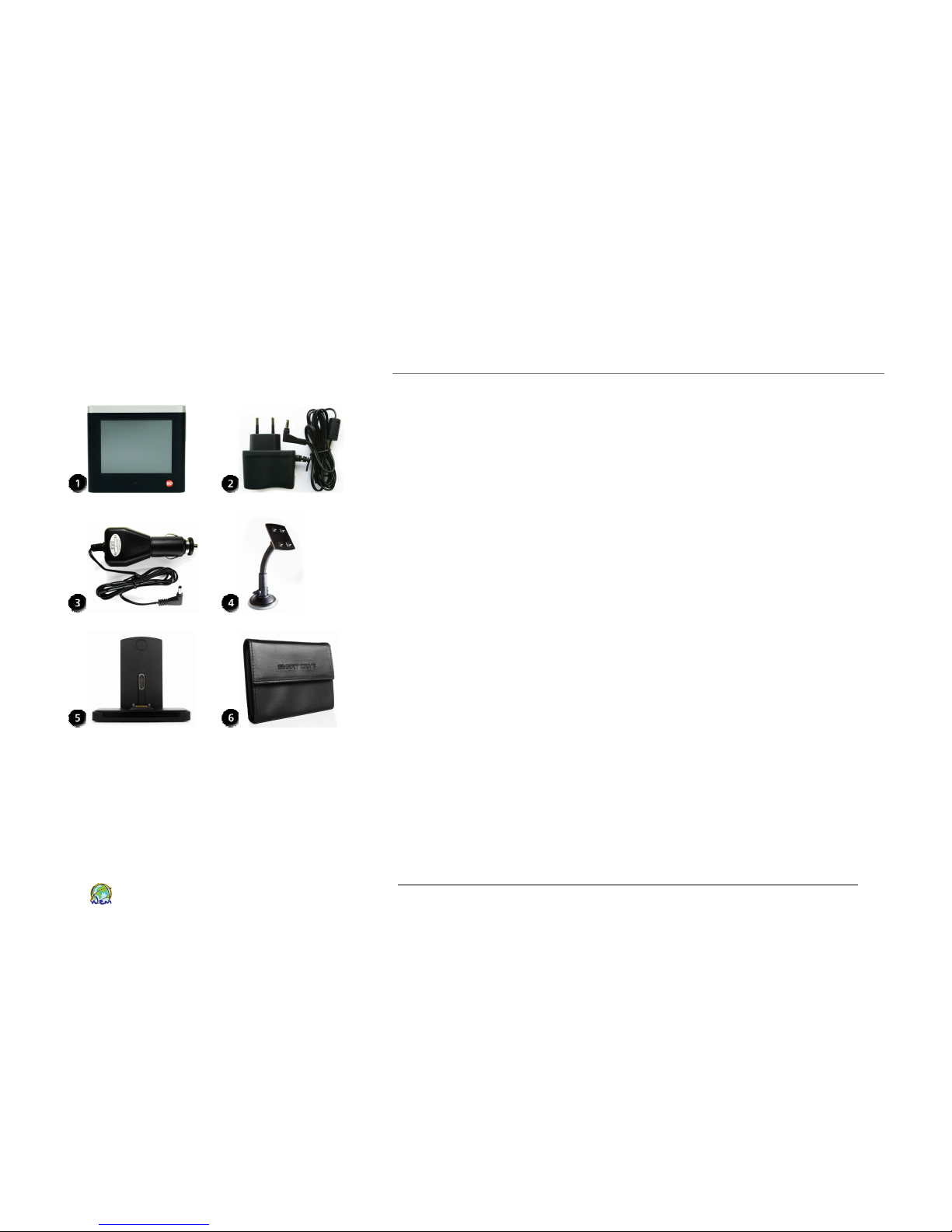
What is in the Box
Check the contents of the box and make sure you have all of the
following items. If any items are damaged or missing, please
contact our customer service department. See support
information on page 52.
1. Personal Navigation Device
2. AC - Power Cable
3. In-Vehicle Power Adaptor
4. Car Mounting Suction cup (Gooseneck Arm)
5. Magnetic holder/cradle
6. PND Leather Case
7. Documentation
User Manual
Product Warranty Card
Page 11
SmartDrive SD1000 GPS Navigator User’s Guide
7
World Express Mapping Sdn. Bhd.
Device Overview
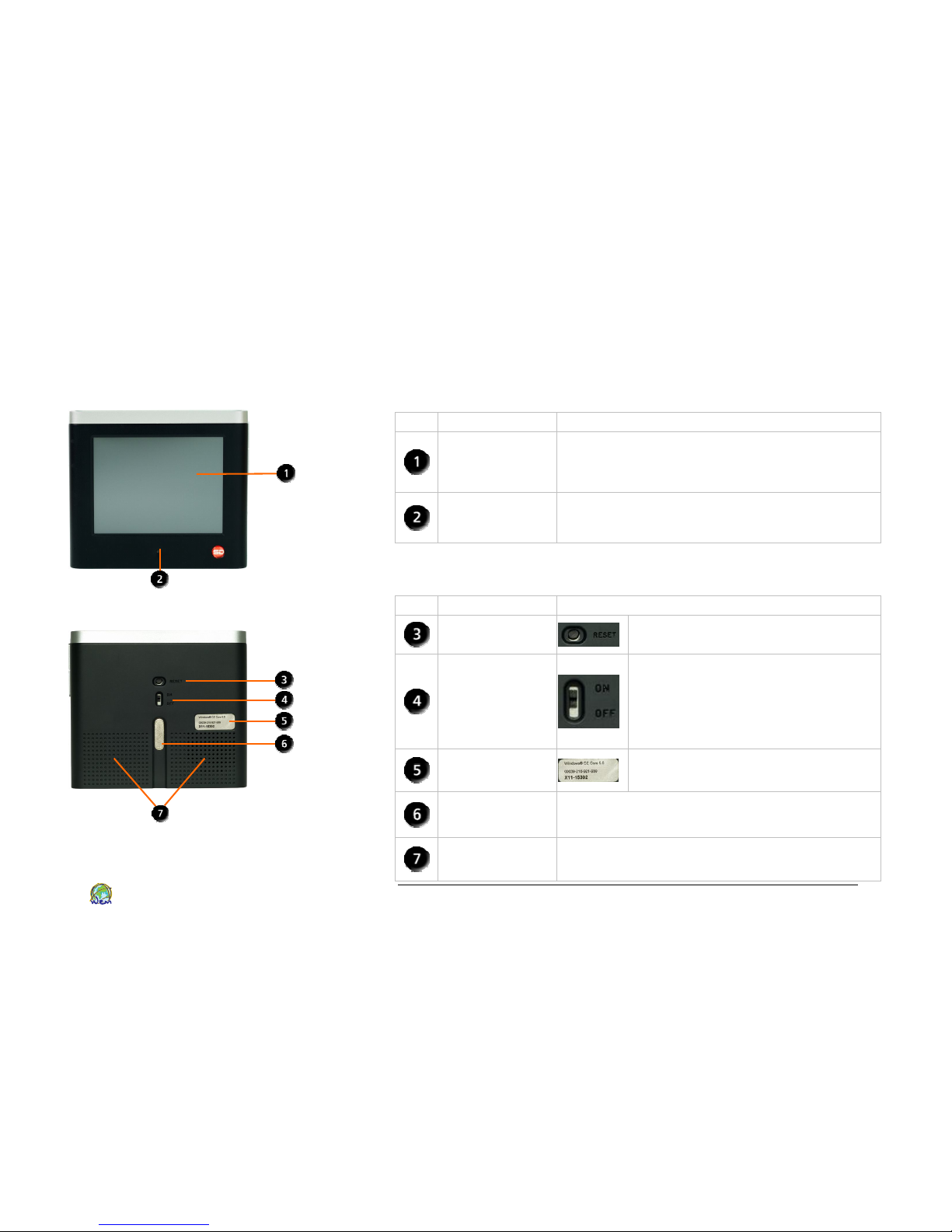
Front Components
Ref Component Description
Touch Screen
Displays maps and menu options.
Tap with the stylus or fingers to select
menu options or enter information.
Battery Charge
Indicator
Red – charging
Green – fully charged
Back Components
Ref Component Description
Reset Button
Press to reset SmartDrive
SD1000
Main Power
Switch
Always set it ON for normal
use, unless reinstall the
software. Switching to OFF will
turn the battery off, saving
battery power.
Software
License
Window CE Software License
Cradle
Connector
Magnetic Connector to connect with
Magnetic holder/cradle.
Speaker
Outputs voice commands and warnings.
Use the Volume control to adjust.
Page 12
SmartDrive SD1000 GPS Navigator User’s Guide
8
World Express Mapping Sdn. Bhd.
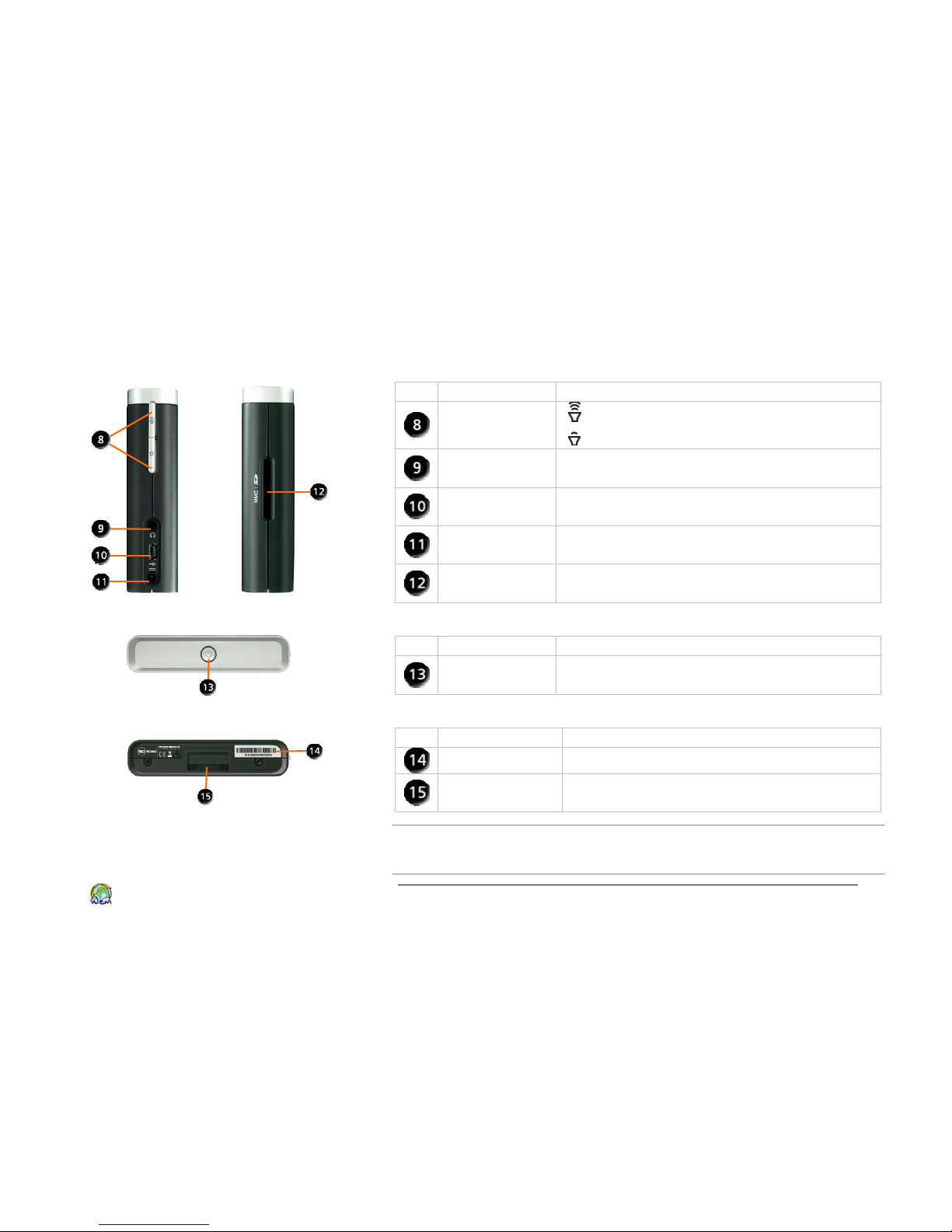
Left and Right Side Components
Ref Component Description
Volume
Control
Increase the volume
Reduce the volume
Headphone
Socket
Connection socket for standard 3.5mm
audio headphones or earphones.
USB
Connector
Connection socket for USB cable to your
computer.
Power
Adapter
Connection socket for In-Vehicle Power
Adaptor or AC Power-Cable.
SD Card Slot
Slot for memory card. Memory card must
be inserted with label facing frontward.
Top Components
Ref Component Description
Power
Button
Turn ON or OFF the Navigator.
Bottom Components
Ref Component Description
Serial Number This is the Serial Number of the Device.
Power
Connector
Power Connector to the power from
magnetic holder.
NOTE: We recommend that you record the serial number of your GPS device in
a safe, convenient place. The serial number is helpful when contacting customer
service or if the device is ever stolen, when contacting the police.
Page 13
SmartDrive SD1000 GPS Navigator User’s Guide
9
World Express Mapping Sdn. Bhd.
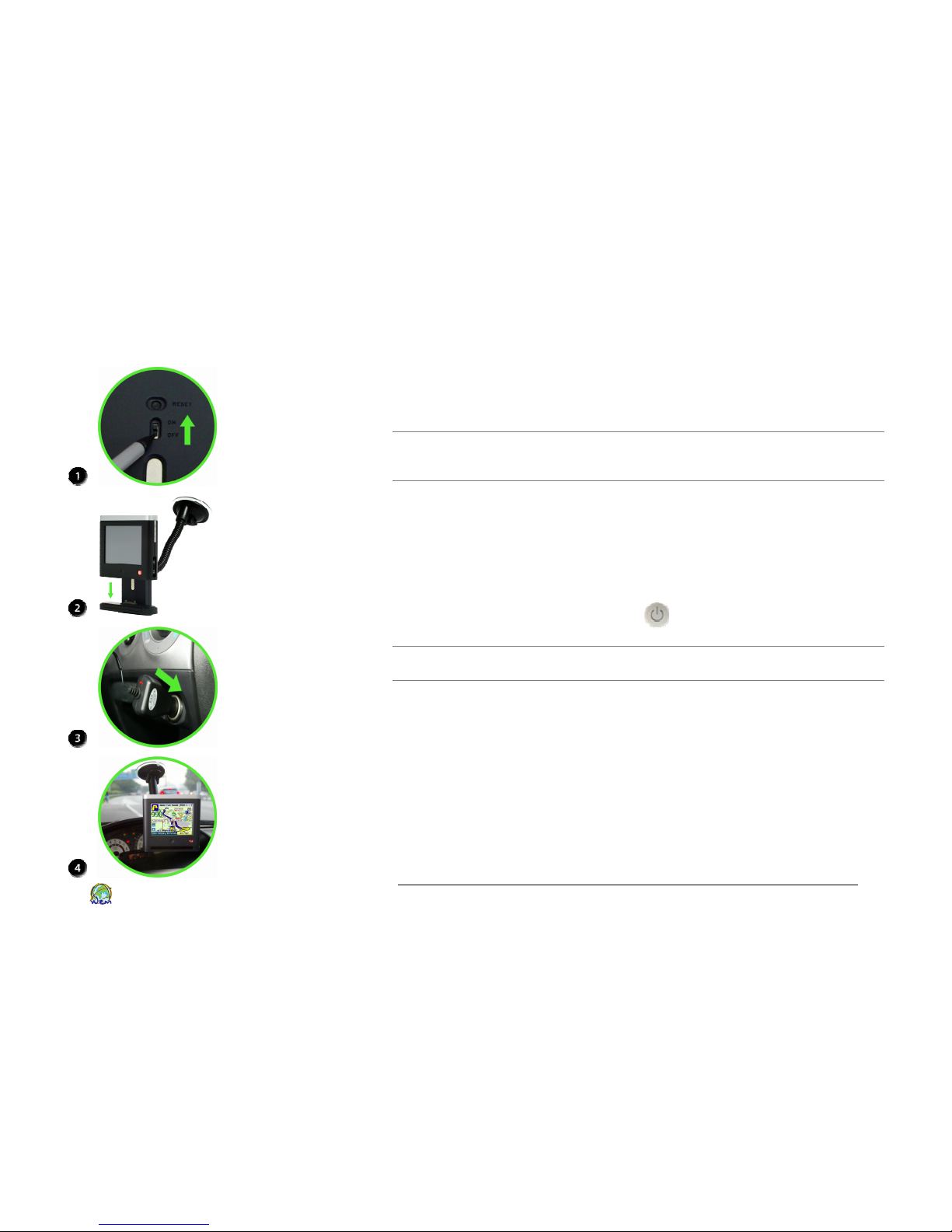
Putting it all together in your vehicle
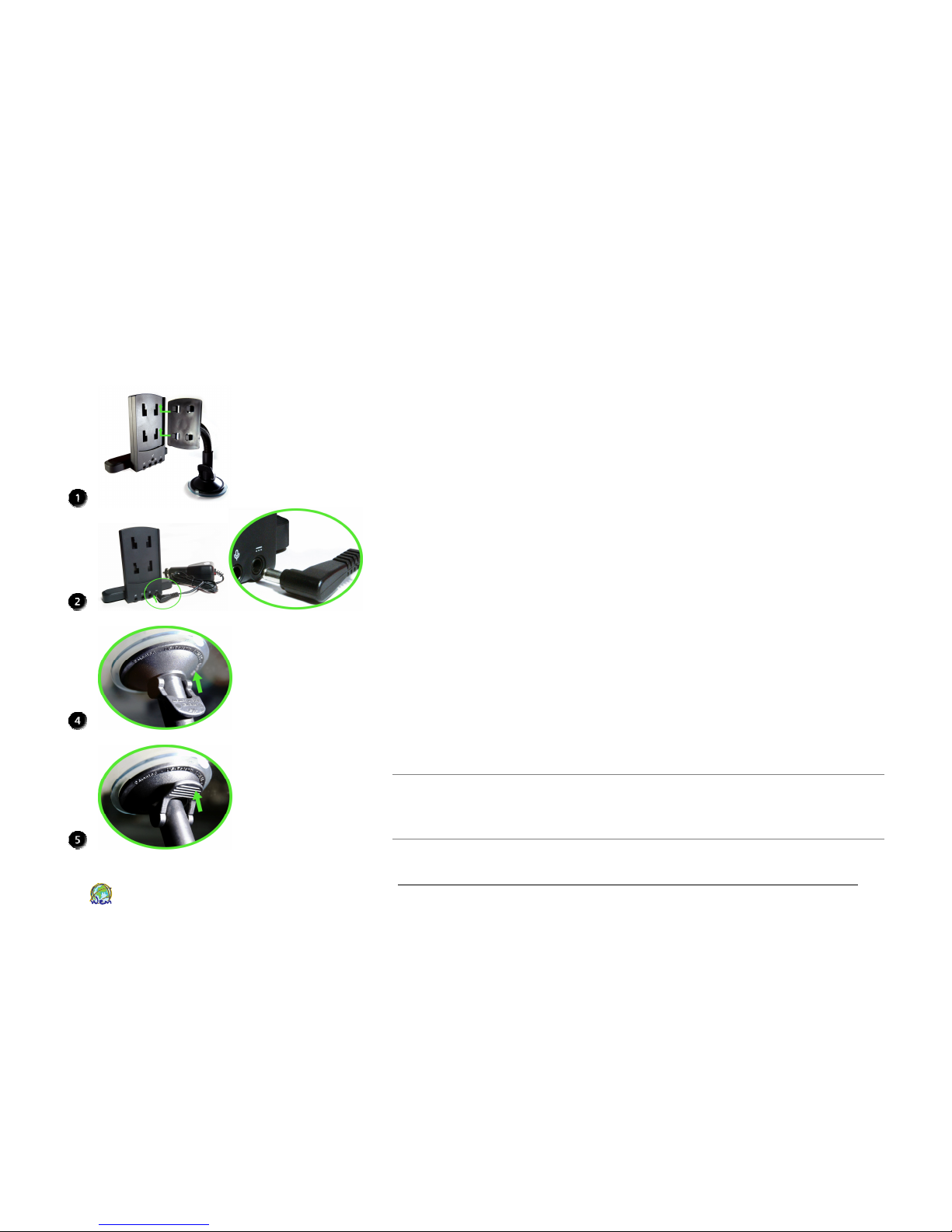
Windshield Mounting
1. Slide the magnetic cradle onto the mounting arm/bracket
assembly.
2. Take the power lead, and plug it into the socket on the rear
of the cradle. Don't connect the other end to the cigar lighter
socket yet.
3. Place the suction cup flat against the windshield, and adjust
the position so you can easily see the display screen. But
please make sure that the device does not obstruct the driver’s
view, or interfere with the operation of vehicle airbags and safety
devices. Flex the goose-neck support arm until the display is in
the right position.
4. Press the suction cup firmly against the windshield and push
the suction lock up towards the suction cup. To release the
suction cup, pull the lock back towards the support arm and
lift the plastic tab. NOTE: Be ready to support the device when
it releases from the windshield.
5. Pull the lever upwards to apply suction. For maximum
adhesion, it may help to dampen the suction cup beforehand.
NOTE: Before attaching the suction cup, clean the inside of your windshield
with a standard window cleaner and a lint-free cloth.
GPS antenna is installed at the top of SmartDrive SD1000 (i.e. next to the Power
On/Off button). Make sure that the GPS antenna has a clear view of the sky.
Page 14
SmartDrive SD1000 GPS Navigator User’s Guide
10
World Express Mapping Sdn. Bhd.
Powering On for the First Time
1. Use a stylus or a ballpoint pen to slide the Main Power Switch
at the back of the device to the ON position.
NOTE: This process needs to be done only once, prior to the initial use. After
initial start, use the power button on the top right hand side of the GPS
Navigator.
2. Place it on top of the cradle and magnetizing the device and
the cradle.
3. Route the power cable to the cigarette socket. Ensure that it
does not hamper with any of the vehicle's controls or airbag
modules. A dual adaptor is suggested if you use your cigarette
socket for any other devices.
4. You are now ready to turn on the unit for the first time.
NOTE: The software may respond slowly upon first use as some functions are
initialized. This is normal.
Page 15
SmartDrive SD1000 GPS Navigator User’s Guide
11
World Express Mapping Sdn. Bhd.
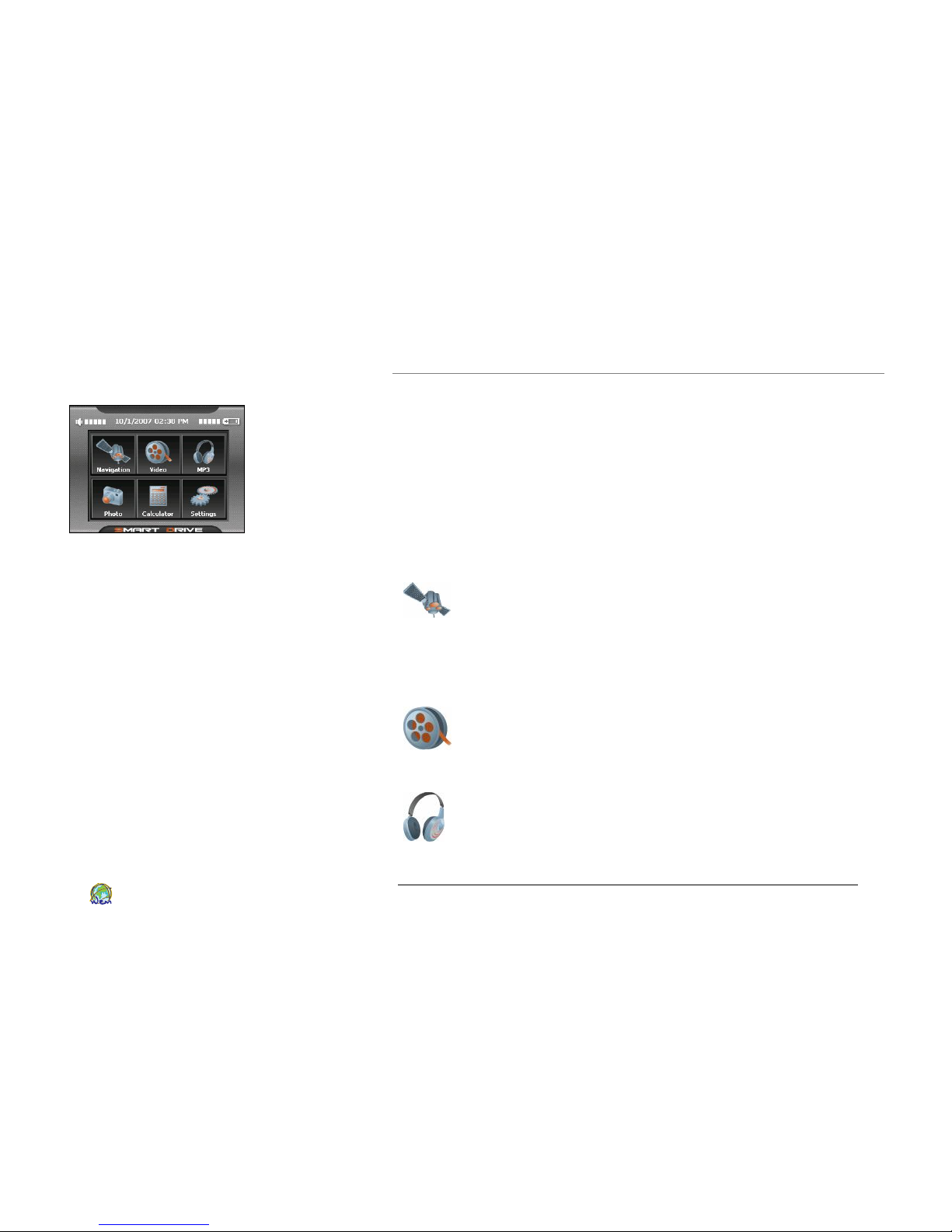
Figure 3.1 Main Menu Screen
3. Using the Interface
Using the main menu screen
When the device first powers on, it displays the main menu
screen. To select any programs, simply tap on the icon with your
finger or any stylus.
The main menu screen contains several components. Each
component links to a unique program, such as Navigator, Video
Player, MP3 Player, Photo Viewer and System Setup. Tap the
icons below to reach the corresponding programs.
Navigation
– Enter or select a destination for turn
-by-
turn voice-guided GPS navigation. Destination options
include entering an address, selecting points-ofinterest (POI), routing to a recent destination, and
going to your favorite places. Please refer to page 13
for details.
Video Player – The Video Player program turns your
SmartDrive into a Portable Media Player. It could play
all the video files in the SD card. Please refer to page
41 for details.
MP3 Player — The MP3 program turns your
SmartDrive into a MP3 player. It could play all the
audio files in the SD card. Please refer to page 42 for
details.
Page 16
SmartDrive SD1000 GPS Navigator User’s Guide
12
World Express Mapping Sdn. Bhd.
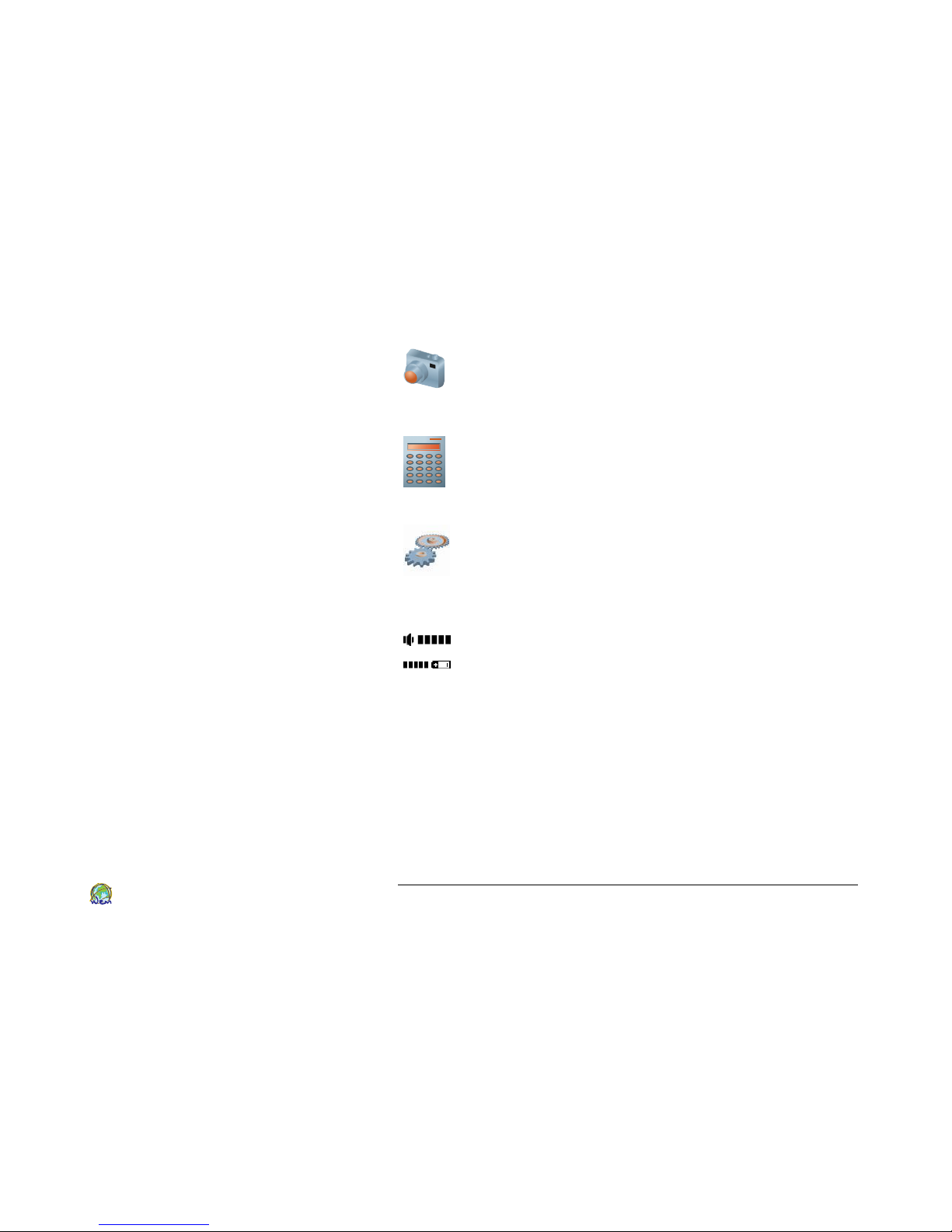
Photo Viewer
–
The Photo Viewer
program
turns your
SmartDrive into a portable photo album. You could
view all of the photo files in the SD card. Please refer
to page 43 for details.
Calculator – The Calculator program turns your device
into a calculator. The calculator is easy to use, you can
press every button with your fingertips. Please refer
to page 44 for details.
Setting – In the system setup program, it could let you
setup and modify the most useful parameters of your
SmartDrive, such as system clock, volume, power,
calibration, brightness. Please refer to page 45 for
details.
Volume Indication
Battery Indication
Page 17
SmartDrive SD1000 GPS Navigator User’s Guide
13
World Express Mapping Sdn. Bhd.
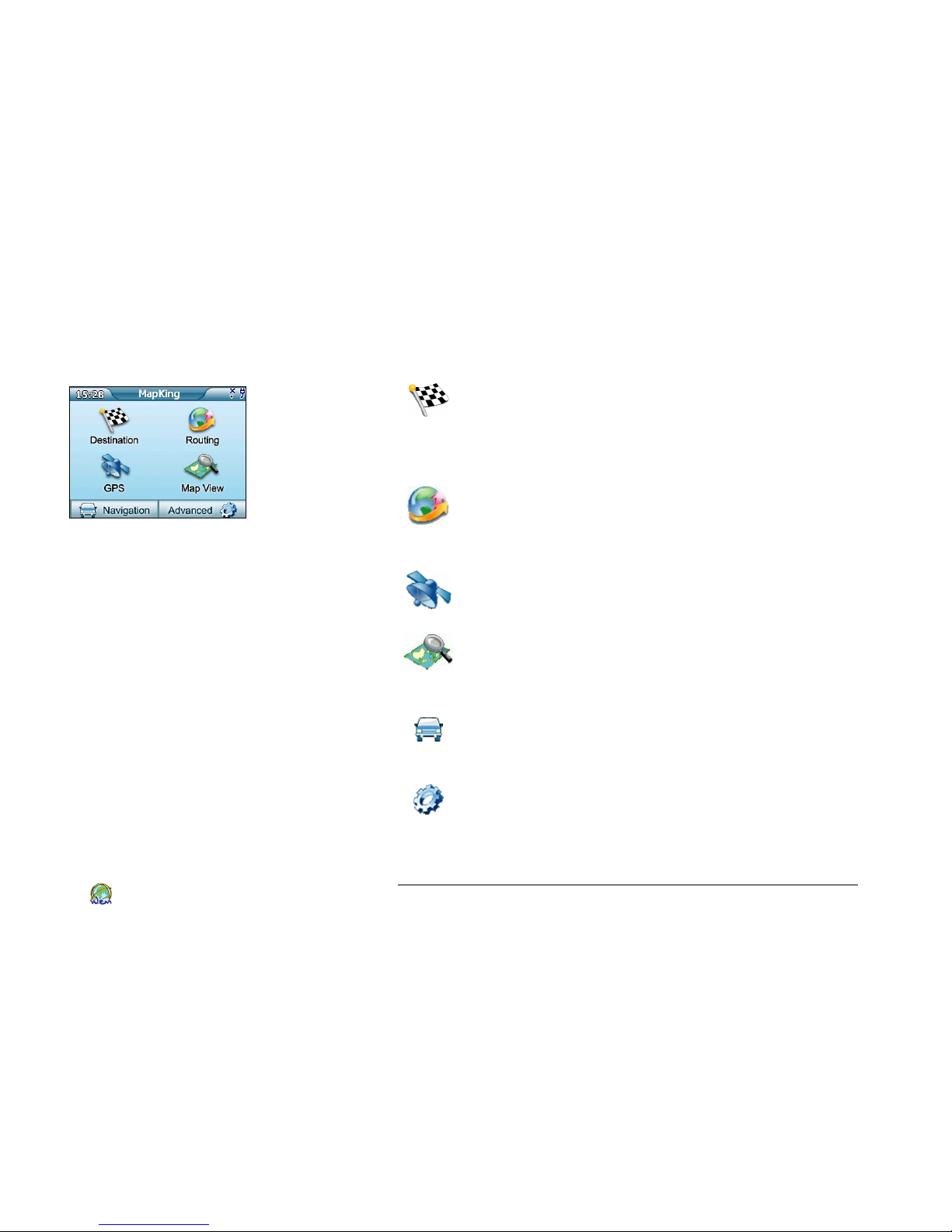
Figure 3.2 Main Navigation Menu Screen
Using the main navigation menu screen
Destination – The Destination tab allow you to select
your destination by road name, intersection, Point of
Interest (POI), Home, Favorite location, the history of
location you searched, and others icon-driven
searching options. Please refer to page 17 for details
Routing – Use Routing tab to stop navigation, run a
simulation of the route result, select your preferable
route options, re-computing the routing to your
destination. Please refer to page 17 for details.
GPS – Go to the GPS status screen, which shows the
current GPS signals status received by your navigation
device. Please refer to page 39 for details.
Map View – Select Map View tab to browse the map.
You may position your start point, end point, favorite
locations, view and edit coordinate. Please refer to
page 14 for details.
Navigation – Use Navigation tab to start navigation
after selecting a destination. Please refer to page 29
for details.
Advanced – Setting tab allow you to change Day or
Night Mode, to adjust Display Setting, Viewport
Setting, Voice, Interface, Switching Map, Selecting
Safety Mode, to exit the software and to get the about
of your SmartDrive. Please refer to page 35 for details.
Page 18
SmartDrive SD1000 GPS Navigator User’s Guide
14
World Express Mapping Sdn. Bhd.
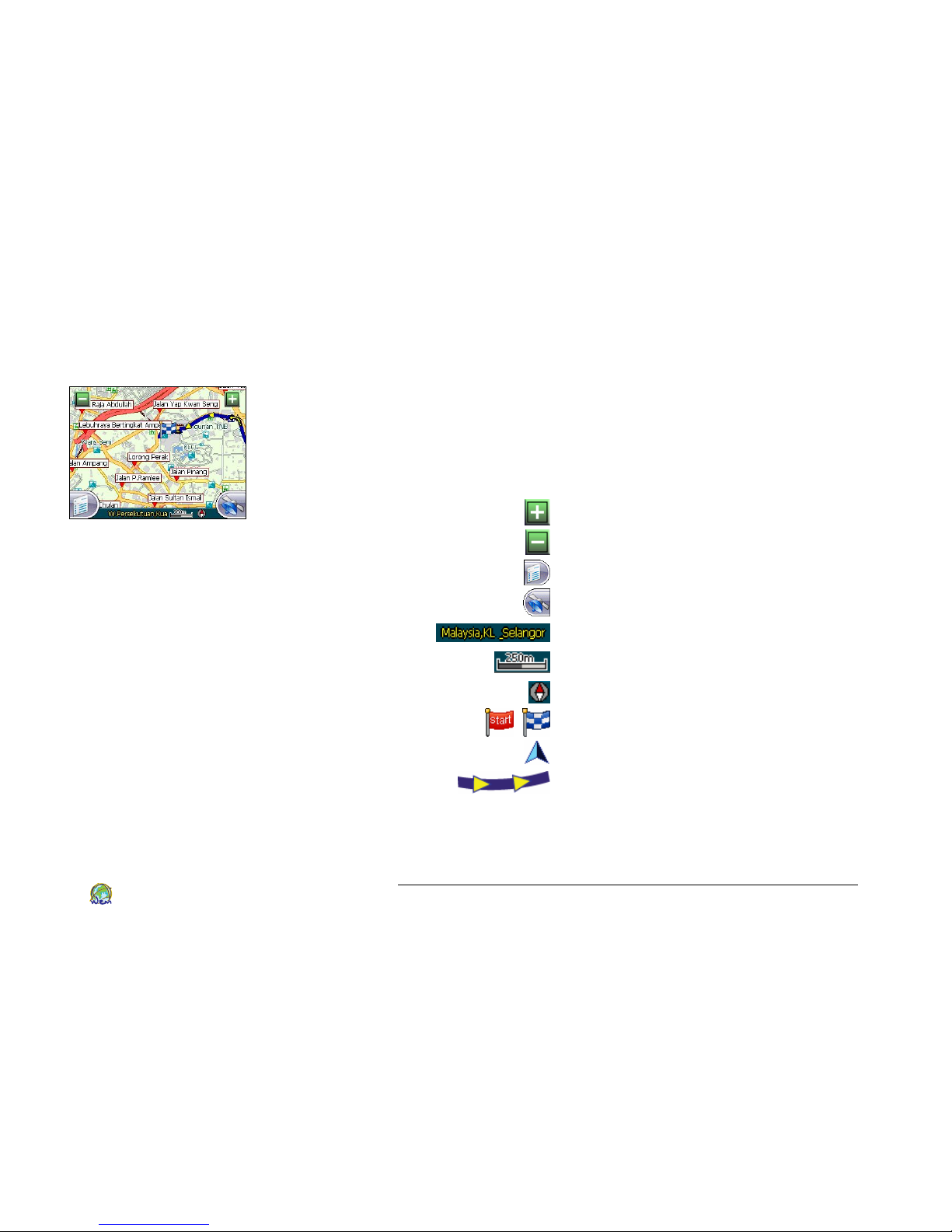
Figure 3.3 Map View Screen
Using the Map View
The Map View is the screen (Figure 3.3) you will see the most for
viewing maps, selecting location and route planning. To familiar
with its layout, icons and options, please refer to the table as
follow:
Component Description
Zoom in to the map centre
Zoom out to the map centre
Back to Main Navigation Menu
Go to Current Location
Current Locality
Scale Bar
Compass
Start Point & End Point
Current Location
Route Planning Direction
Page 19
SmartDrive SD1000 GPS Navigator User’s Guide
15
World Express Mapping Sdn. Bhd.
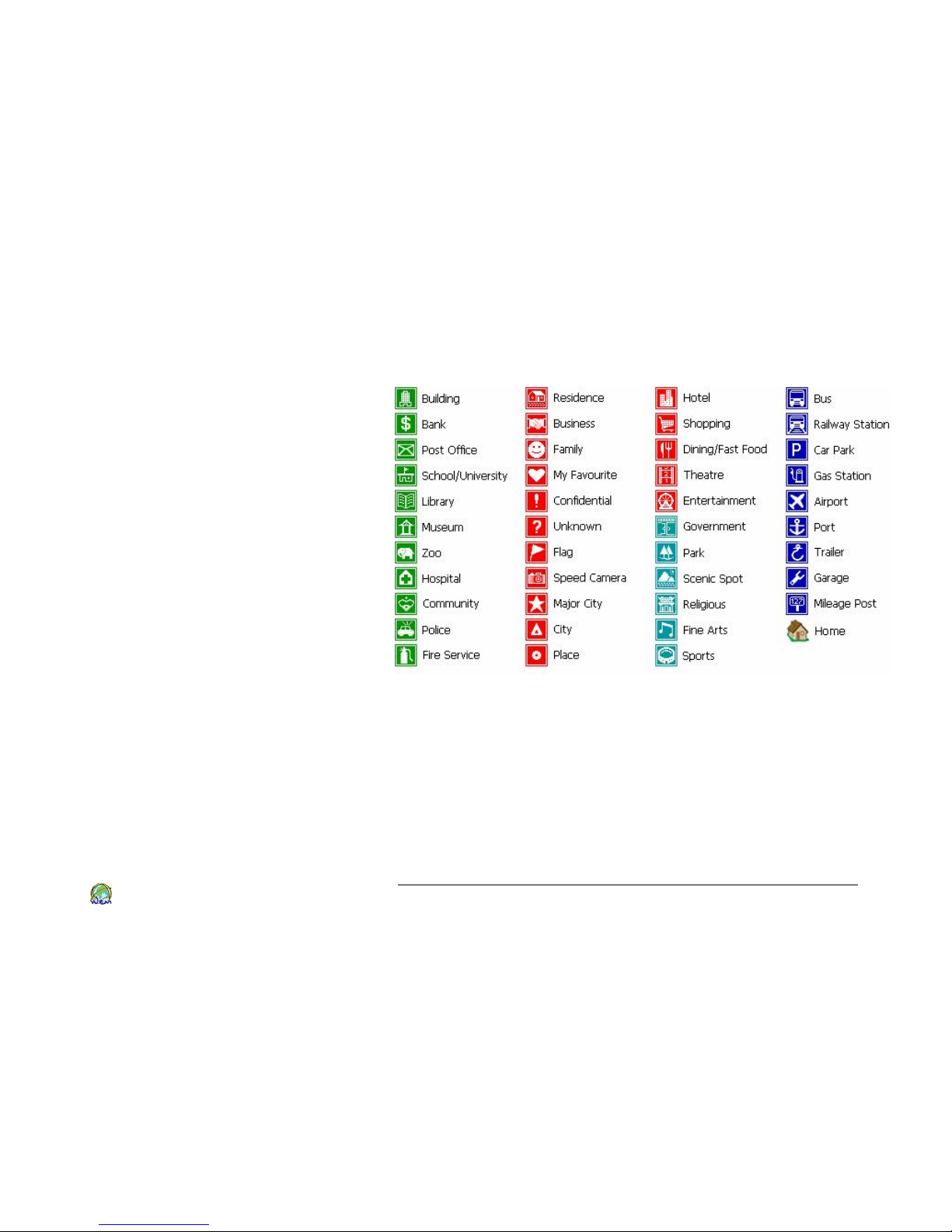
Legend
Page 20
SmartDrive SD1000 GPS Navigator User’s Guide
16
World Express Mapping Sdn. Bhd.
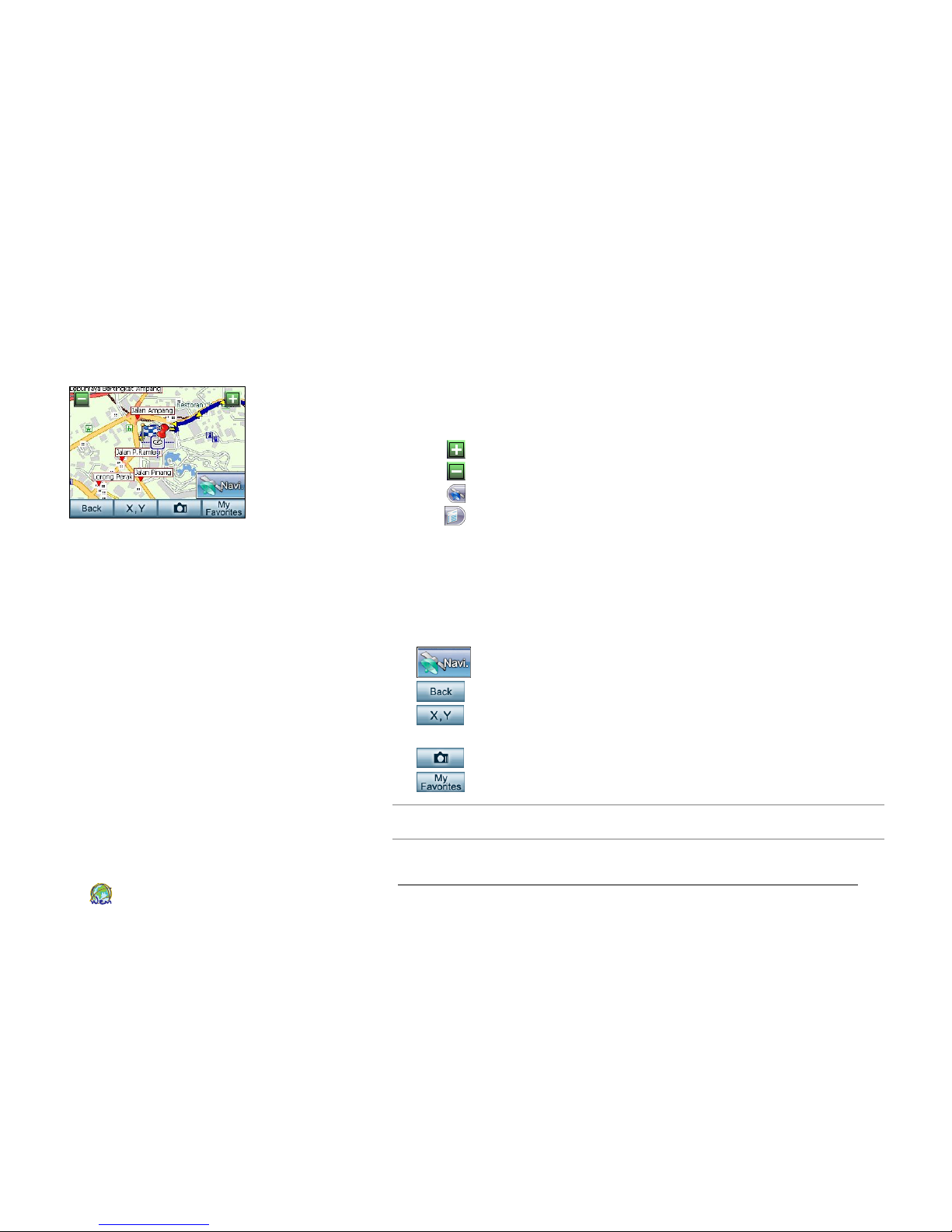
Figure 3.4 Popup menu on map view screen
Changing the Map View
The map view screen is used to display a preview of your
destination before navigating to it, saving it as a Start point, End
Point, Home, Favorite or displaying it on the 2D Map screen.
Tap to display a smaller area in greater detail.
Tap to display a larger area in less detail.
Tap to display your current location on the 2D Map screen.
Tap to go to the main navigation menu screen.
Tap, hold and move to shift to the other area.
Tap on the road to see the road name.
Tap on each Point of Interest (POI) to view the details when
your destination is a POI.
Tap and hold on the screen and a menu will popup in a
second. This popup menu included:
: Set location as one of your routing location.
: Exit the popup menu. Back to map view screen.
: Edit the longitude and latitude coordinates of the
selected location.
: Set the selected location as speed camera position.
: Add the selected location to My Favorite.
NOTE: To change the map view and display options, from the main navigation
menu screen choose Advanced. Please see page 35 for details.
Page 21
SmartDrive SD1000 GPS Navigator User’s Guide
17
World Express Mapping Sdn. Bhd.
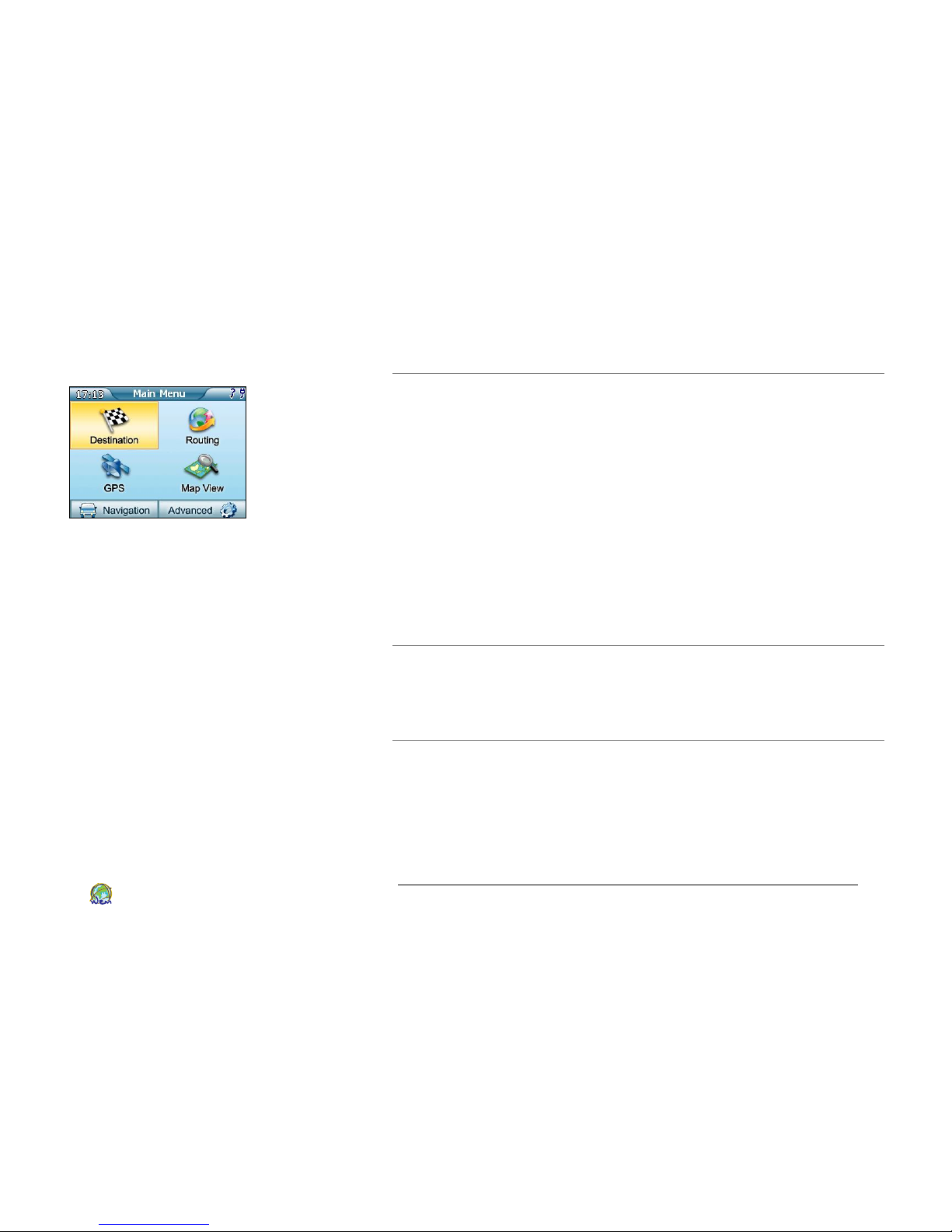
Figure 4.1 Destination tab is
selected on main navigation menu.
4. Creating a Route
The GPS Navigator provides turn-by-turn voice instruction along
with visual map guidance throughout the entire route. Before
each turn, the device both announces and displays the upcoming
maneuver. If a turn is missed, your SmartDrive SD1000 will
rapidly recalculate the route for you from your current location
and provide new instruction.
Once you have arrived at your destination, a voice prompt will
announce. You may turn off your SmartDrive SD1000 or input
your next destination.
Now, tap the Destination tab on the main navigation menu to
select your destination (Figure 4.1)!
NOTE: You may travel to some roads that are close together. For safety
purposes, please listen to the voice instructions to determine the correct way to
turn. This device also provides both the name of road that you are currently
traveling and also the name of road that you need to turn. Drivers are advised to
read it only when the vehicle is stopped. Passengers are welcome to help and
read at anytime.
Page 22
SmartDrive SD1000 GPS Navigator User’s Guide
18
World Express Mapping Sdn. Bhd.
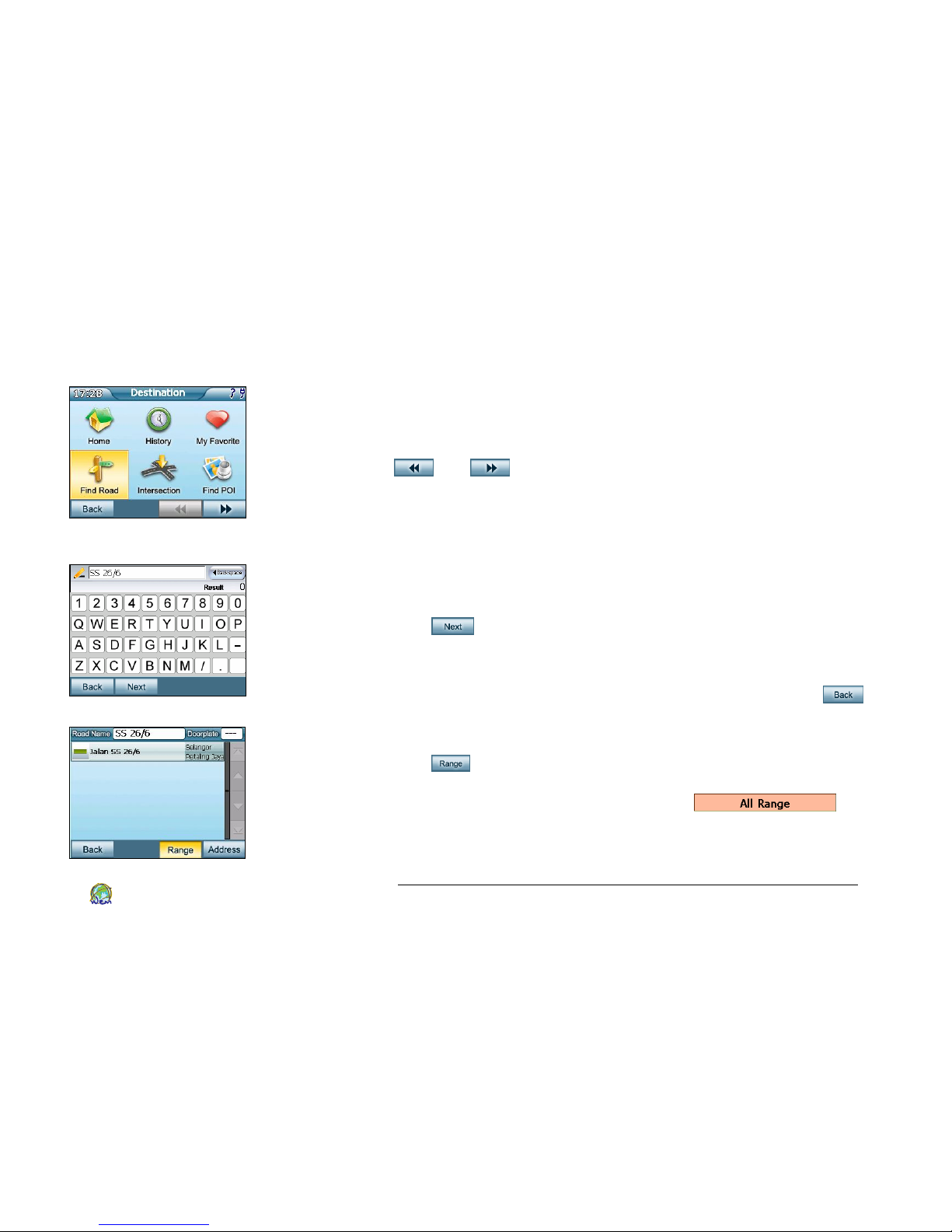
Figure 4.2 Tap Find Road from
Destination Search Menu
Figure 4.3.1 Enter a keyword
Figure 4.3.2 Select the Range
Search by Category
There are various categories can be used for searching and
choosing a destination. In the main navigation menu tap
Destination. In the Destination Search Menu, you may choose
your destination options by selecting one of the categories. Tap
and on the lower right corner on search menu to
display more search categories (Figure 4.2).
Searching Road Name as Destination
1. To search your destination by the Road Name, tap Find
Road on the Destination menu (Figure 4.2).
2. Enter a keyword, your keyword can be the full name of the
road; it can also be part of the name of the road. Click Next
to proceed to the next part (Figure 4.3.1).
3. A list contained with the keyword you enter will be shown.
Choose a record from the list (Figure 4.3.2). If the provided
list does not match your desire road name, tap Back
to step 2 and re-enter your keyword.
4. You may limit your result to a certain range. Press the Range
button, follow by selecting the state from the list (Figure
4.3.3), then selecting the district of the location. If you are not
sure the area, please select All Range
which located at the top of list.
Page 23
SmartDrive SD1000 GPS Navigator User’s Guide
19
World Express Mapping Sdn. Bhd.
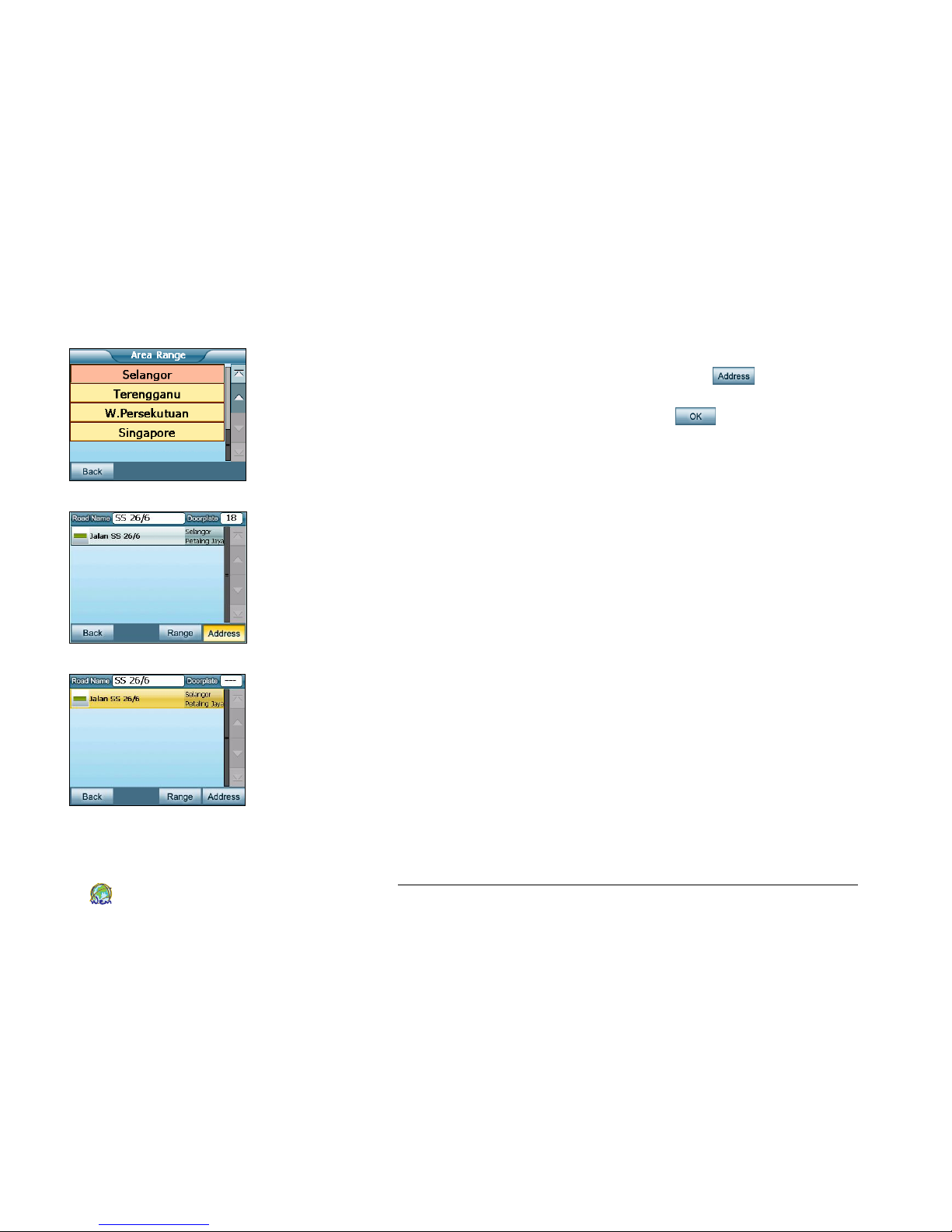
Figure 4.3.3 Select the State
Figure 4.3.4 Enter the Doorplate
Figure 4.3.5 Confirm your selection
5. Once you satisfy with the search result, you may enter the
Doorplate number. Press the Address button at the
bottom right of the screen (Figure 4.3.4). Enter the
doorplate number and press OK .
6. Tap on the address from the list to confirm your selection
(Figure 4.3.5).
7. A map will be shown with zoom to an appropriate scale
with a pin pointed on the selected record at the center.
Page 24
SmartDrive SD1000 GPS Navigator User’s Guide
20
World Express Mapping Sdn. Bhd.
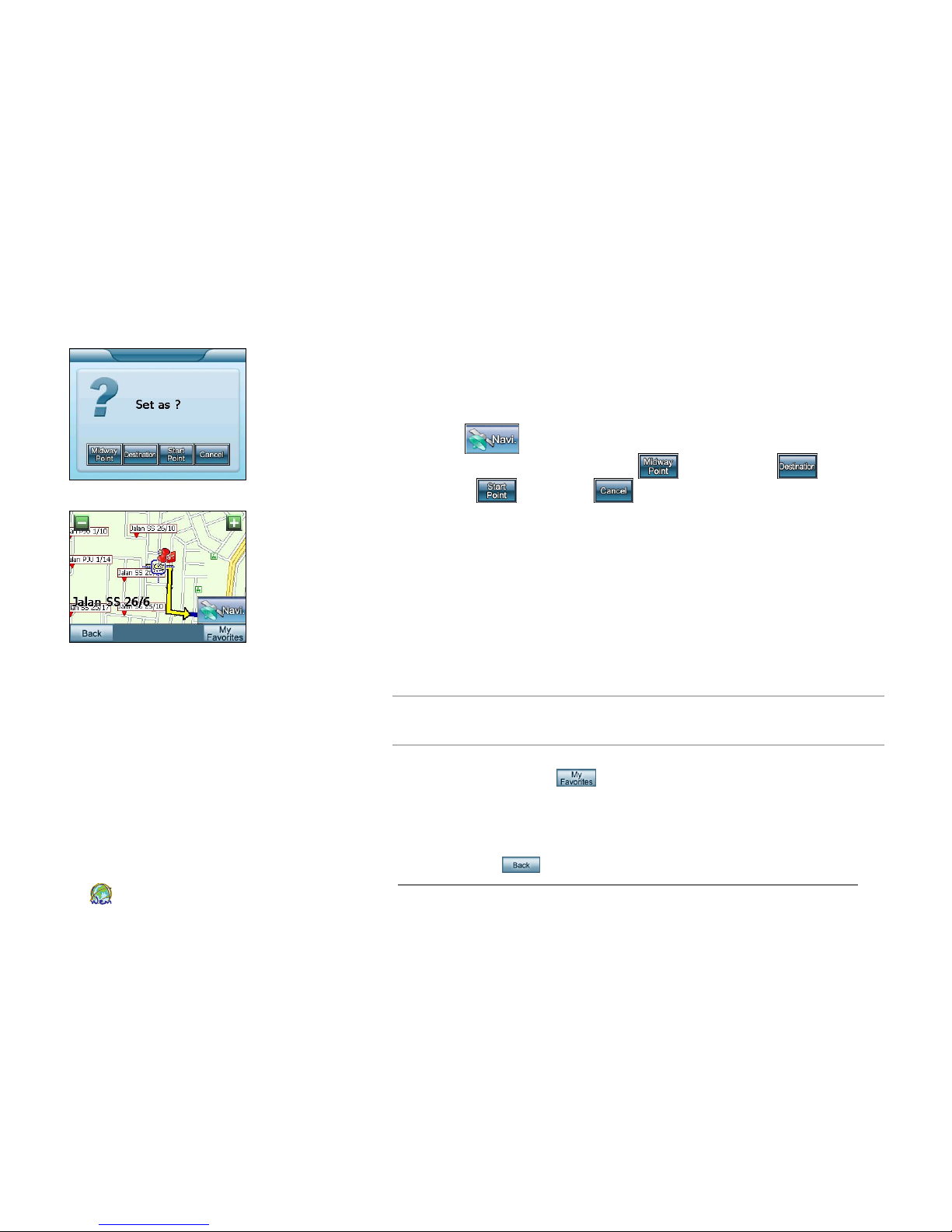
After browsing the map with the result of your searching
destination, you may:
1. Set point as?
Tap if the destination is correct. You may set the
location as a Midway Point , Destination , Start
Point or Cancel your selection by pressing
corresponding the button (Figure 4.3.6).
Once the Start Point and Destination are selected, a route
to your destination will be calculated and displayed the
most efficient route to the destination (Figure 4.3.7).
You will be leading to the navigation screen where your
turn by turn directions will begin. A progress indicator will
show the percentage of completion in calculating the
route. This should only take a few seconds to complete.
NOTE: The route calculation requires a GPS signal to locate your current
location as the start point. For GPS to receive signal, please refer to page 39 for
details.
Figure 4.3.6 Set Location
Figure 4.3.7 Map displayed to
an appropriate scale.
2. Save point as Favorite
Tap My Favorite to save the destination into your
Favorite destination. Please refer to page 24 for details of
Favorite destination.
3. Re-select your destination
Tap Back to reselect your destination from the list.
Page 25
SmartDrive SD1000 GPS Navigator User’s Guide
21
World Express Mapping Sdn. Bhd.
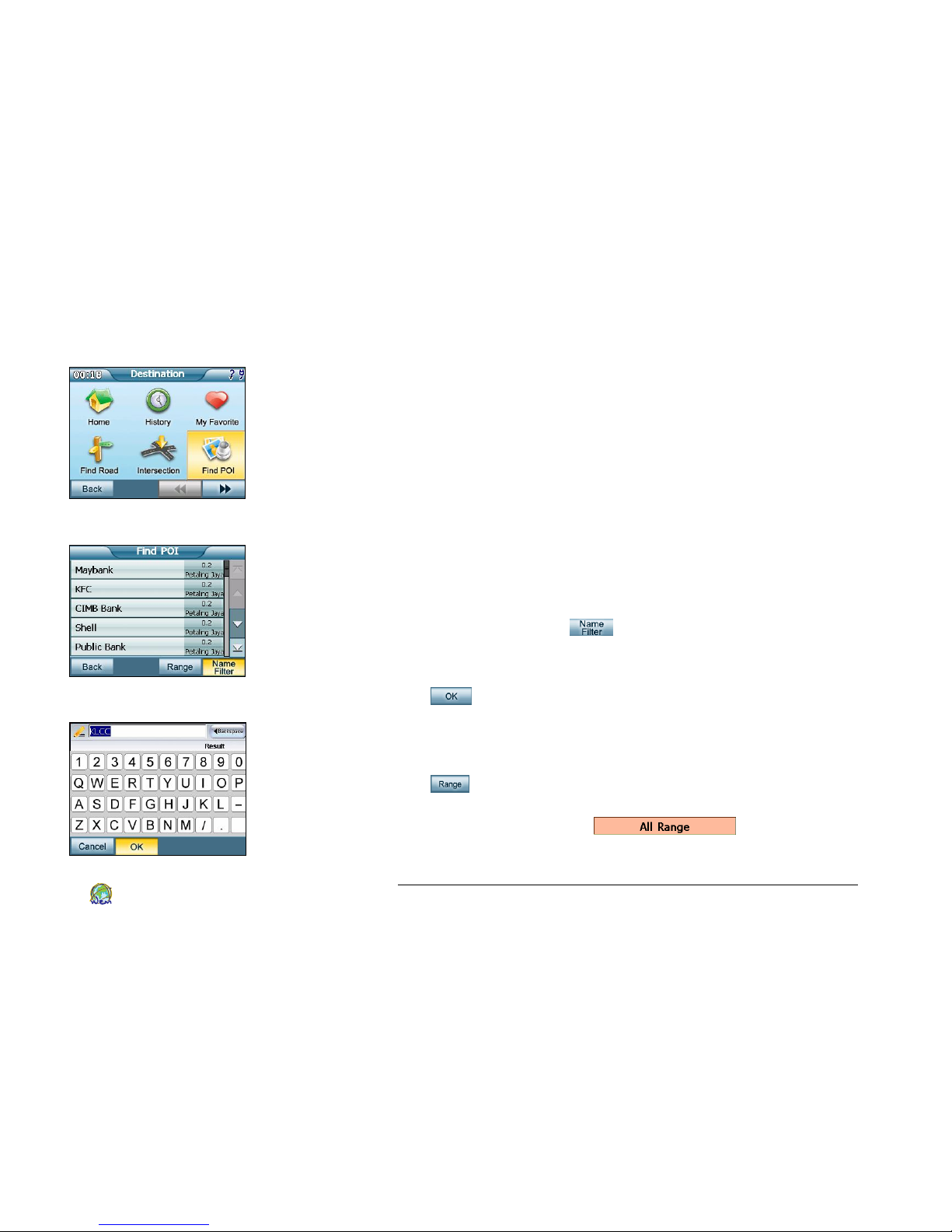
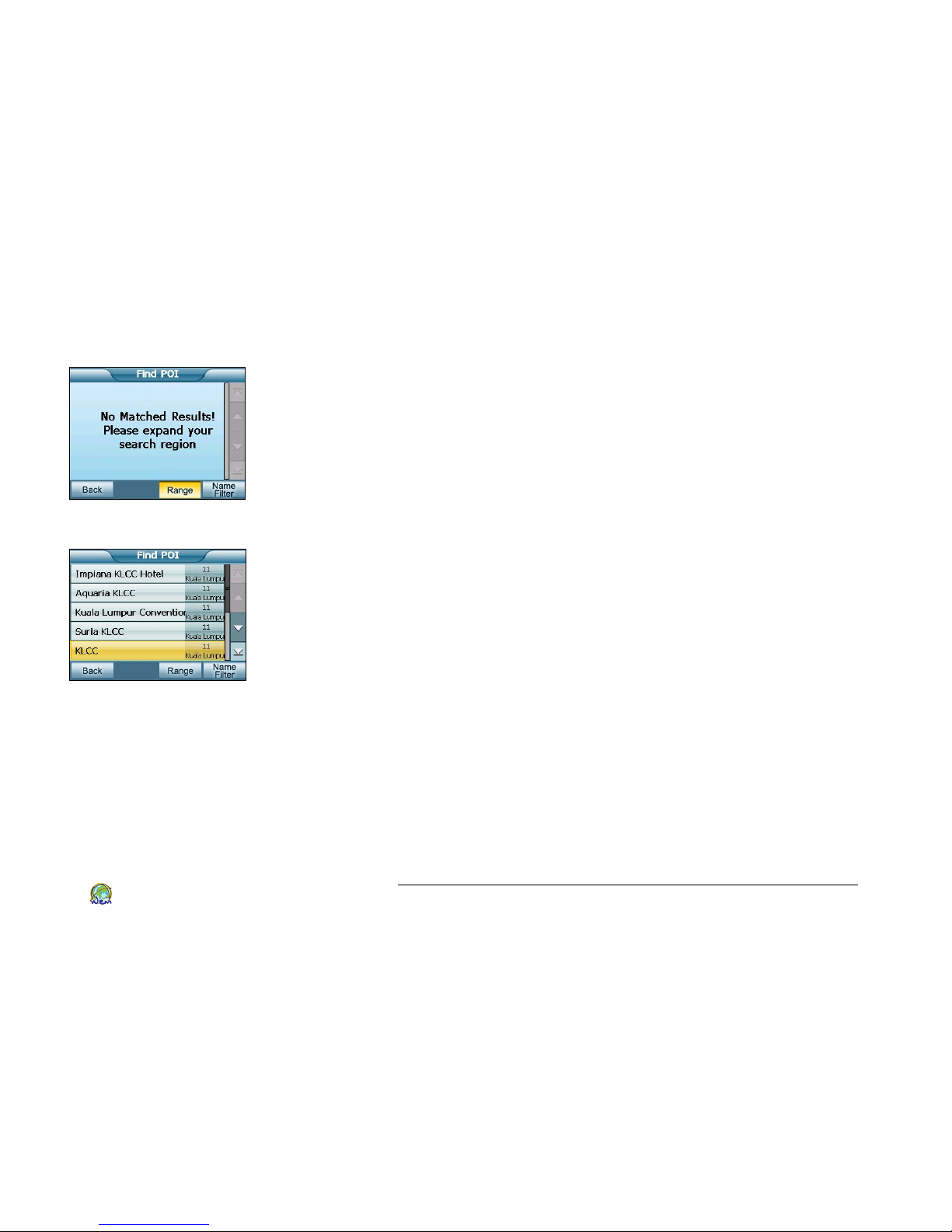
Figure 4.4.1 Tap Find POI from
Destination Search Menu.
Figure 4.4.2 A list of nearest POI, Tap on
Name Filter to search a particular POI
Figure 4.4.3 Enter Keyword
Selecting Point of Interested (POI) as the Destination
1. To search your destination by POI, tap Find POI on the
Destination menu (Figure 4.4.1).
2. The first 100 nearest POI are listed with the distance from your
current location. If you are looking for a nearest POI, tap on the
POI from the list to confirm your selection (Figure 4.4.2).
3. A map will be shown with zoom to an appropriate scale
with a pin pointed on the selected record at the center. You
may set the point as your destination or save it as your
favorite location. Please refer to page 20 for details.
4. If you are looking for any particular POI, you may search it
by the name filter (Figure 4.4.2).
5. Enter a keyword, your keyword can be the full name of the
POI; it can also be part of the name of the POI. Click OK
to proceed to the next part (Figure 4.4.3).
6. If you lead to a screen show “No Matched Results! Please
Expend your search region”, the POI you searched may not
locate in your selected range (Figure 4.4.4). Press the Range
button, follow by selecting the state from the list, then
selecting the district of the location. If you are not sure the area,
please select All Range which located at
the top of list.
Page 26
SmartDrive SD1000 GPS Navigator User’s Guide
22
World Express Mapping Sdn. Bhd.
Figure 4.4.4 No Matched Results,
Expend the search region.
Figure 4.4.5 Confirm Selection
7. Once you satisfy with the search result, please tap on the
POI from the list to confirm your selection (Figure 4.4.5).
8. A map will be shown with zoom to an appropriate scale
with a pin pointed on the selected record at the center. You
may set the point as your destination or save it as your
favorite location. Please refer to page 20 for details.
Page 27
SmartDrive SD1000 GPS Navigator User’s Guide
23
World Express Mapping Sdn. Bhd.
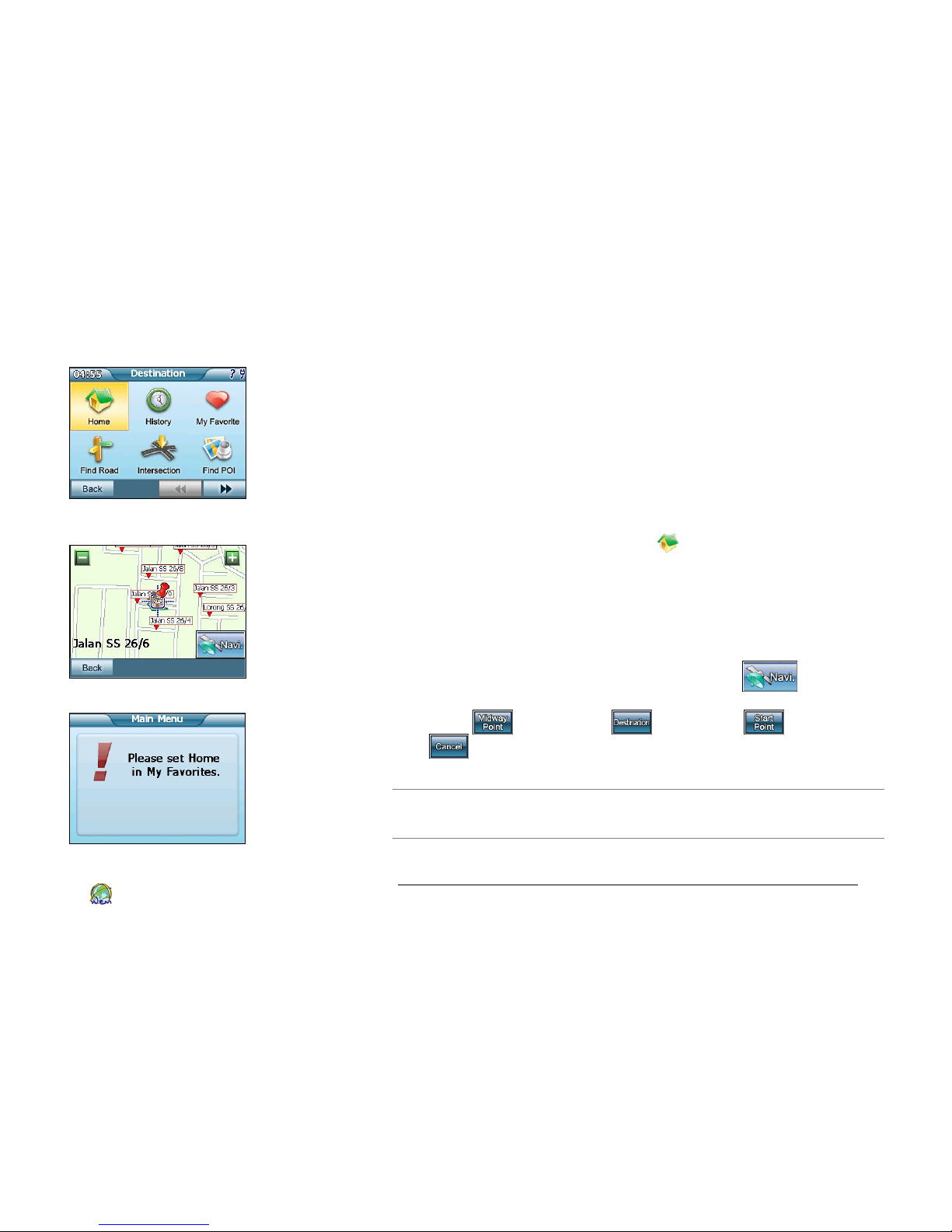
Selecting Your Home Location as the Destination
The home icon at the search category can lead you back home
from any place.
You can set a specified location as Home in My favorite (See
page 25 for details). If a home location is entered, you can easily
find your way home with just a few taps on the screen.
1. From the Main Navigation Menu screen, select Destination
and follow by choosing Home (Figure 4.5.1).
2. The device calculates the route and displays the Map View
(Figure 4.5.2). The map will zoom to an appropriate scale
with the Home at the center.
3. Browse the map and check if the Home location is correct.
4. Check if the home location is correct. Tap if the
destination is correct. You may set the location as a Midway
Point , Destination , Start Point or Cancel
your selection by pressing corresponding the button
(Figure 4.3.6). See page 20 for details.
Figure 4.5.1 Home Button from
Destination Search Menu.
Figure 4.5.2 View Home location at Map View
Figure 4.5.3 Popup “Please Set
Home in My Favorites”
NOTE: If you have not entered a home location, a popup will appear
(Figure 4.5.3) to remind you to set your home location first. See page 25 for
information on entering a home location.
Page 28
SmartDrive SD1000 GPS Navigator User’s Guide
24
World Express Mapping Sdn. Bhd.
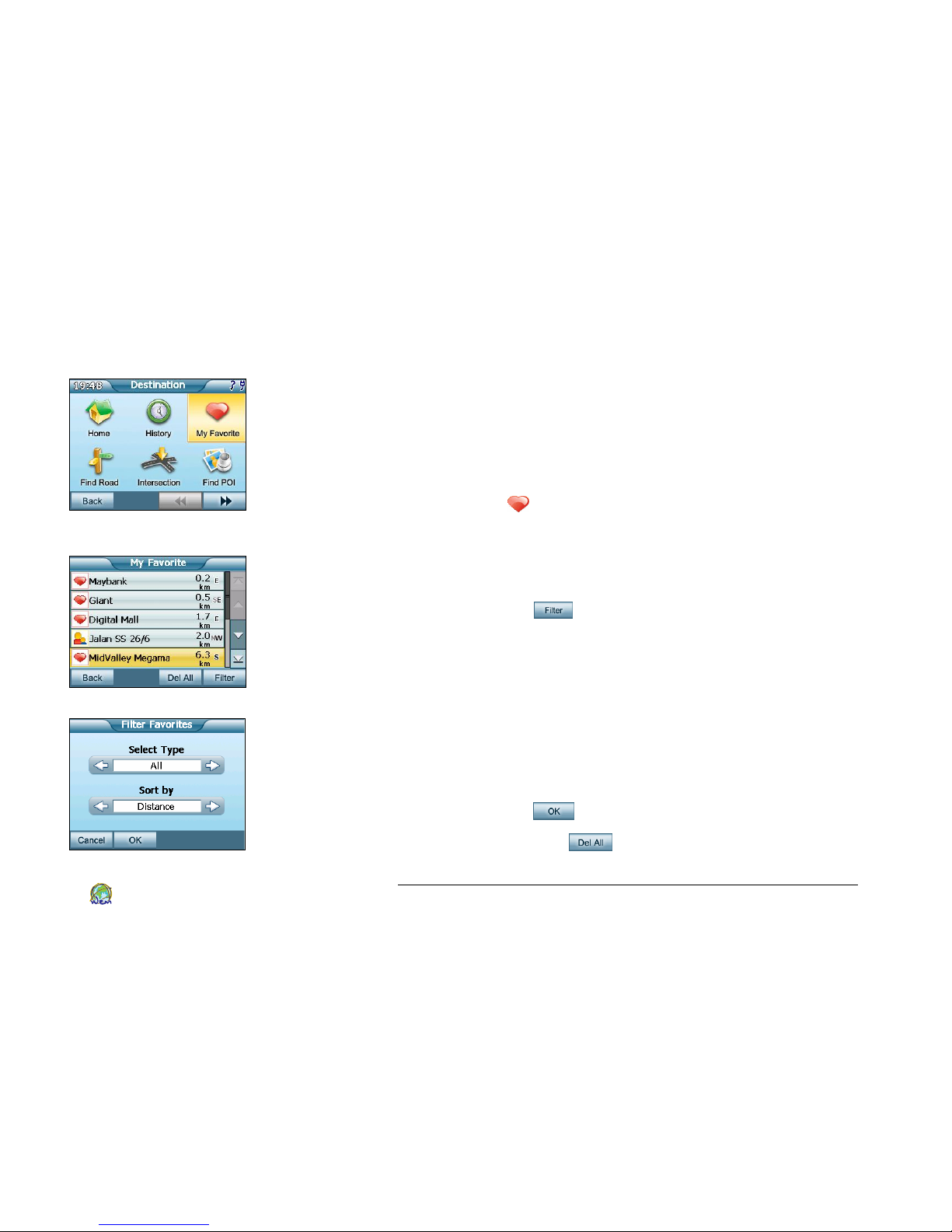
Figure 4.6.1 My Favorite at
Destination Search Menu
Figure 4.6.2 List of Favorite Destination
Figure 4.6.3 Filter Favorite Screen
Selecting a Favorite Destination
Your favorite destinations can be named and saved; you can
quickly access these favorite destinations at any time and routed
to from any location. You can add a specified point as My Favorite
in Map View (see page 16), or from search result (see page 20).
1. Select Destination tab from Main Navigation Menu follow by
My Favorite icon from the menu (Figure 4.6.1).
2. All of your favorite destination will be shown on a list. Choose
a record from the list (Figure 4.6.2).
3. In My Favorite list screen, you may:
a. Tap Filter button to sieve your favorite list, if you
have many favorite locations in your list. A Filter
Favorites screen will show (Figure 4.6.3) and you may:
i. Filter your list by Select Type. Your Select Type
included: All, Families, My Favorite, Confidential,
Unknown, Flag, Speed Camera, Others. Please
refer to page 25 for more information on how to
set your favorite type.
ii. Sort your filter list by Distance, Name or Time.
iii. Tap to confirm your filter.
b. Tap Delete All if you want to delete your entire
favorite list.
Page 29
SmartDrive SD1000 GPS Navigator User’s Guide
25
World Express Mapping Sdn. Bhd.
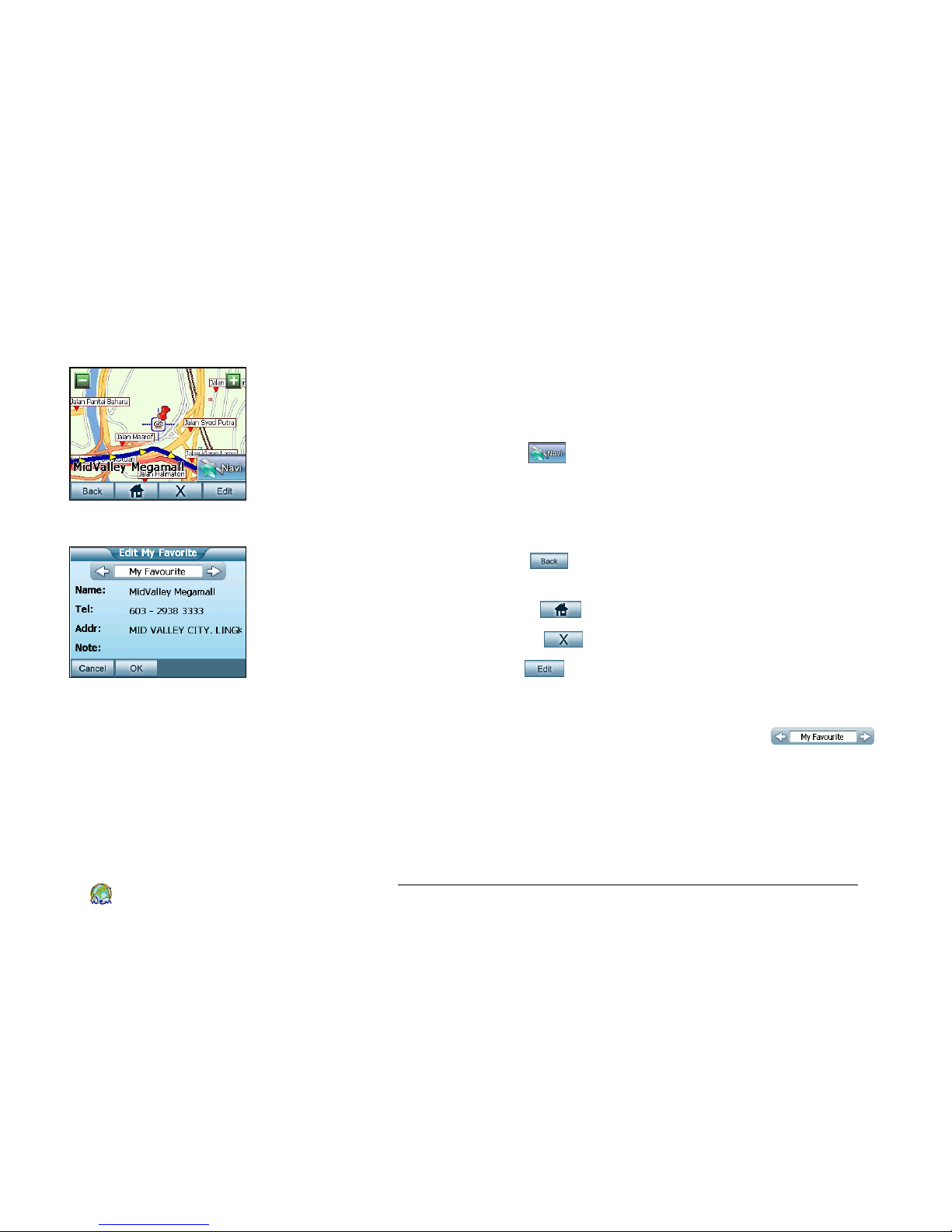
Figure 4.6.4 Map View show the
Selected Favorite Location.
Figure 4.6.5 Map View show the
Selected Favorite Location.
4. A map will be shown with zoom to an appropriate scale with
the selected record at the center (Figure 4.6.4).
5. After browsing the map with the result of your searching
destination, you may:
a. Tap Navi if your Favorite location is correct. You
may set the location as a Midway Point, Destination,
Start Point or Cancel your selection by pressing
corresponding the button. Please refer to page 20 for
details.
b. Tap Back to re-select your Favorite destination
from the list.
c. Tap Home to set the selected location as Home.
d. Tap Delete to delete the current Favorite location.
e. Tap Edit to edit the details of current Favorite
location. In the Edit My Favorite Screen, you may:
i. Set your favorite location into different type, by
tapping the left and right arrow on
(Figure 4.6.5). Select Type included: Families, My
Favorite, Confidential, Unknown, Flag, Speed
Camera and Others.
ii. Tap on the space after Name, Tel, Addr and Note
to key in the details. A screen with keyboard will
show for entering data. Tap OK to confirm entry.
Page 30
SmartDrive SD1000 GPS Navigator User’s Guide
26
World Express Mapping Sdn. Bhd.
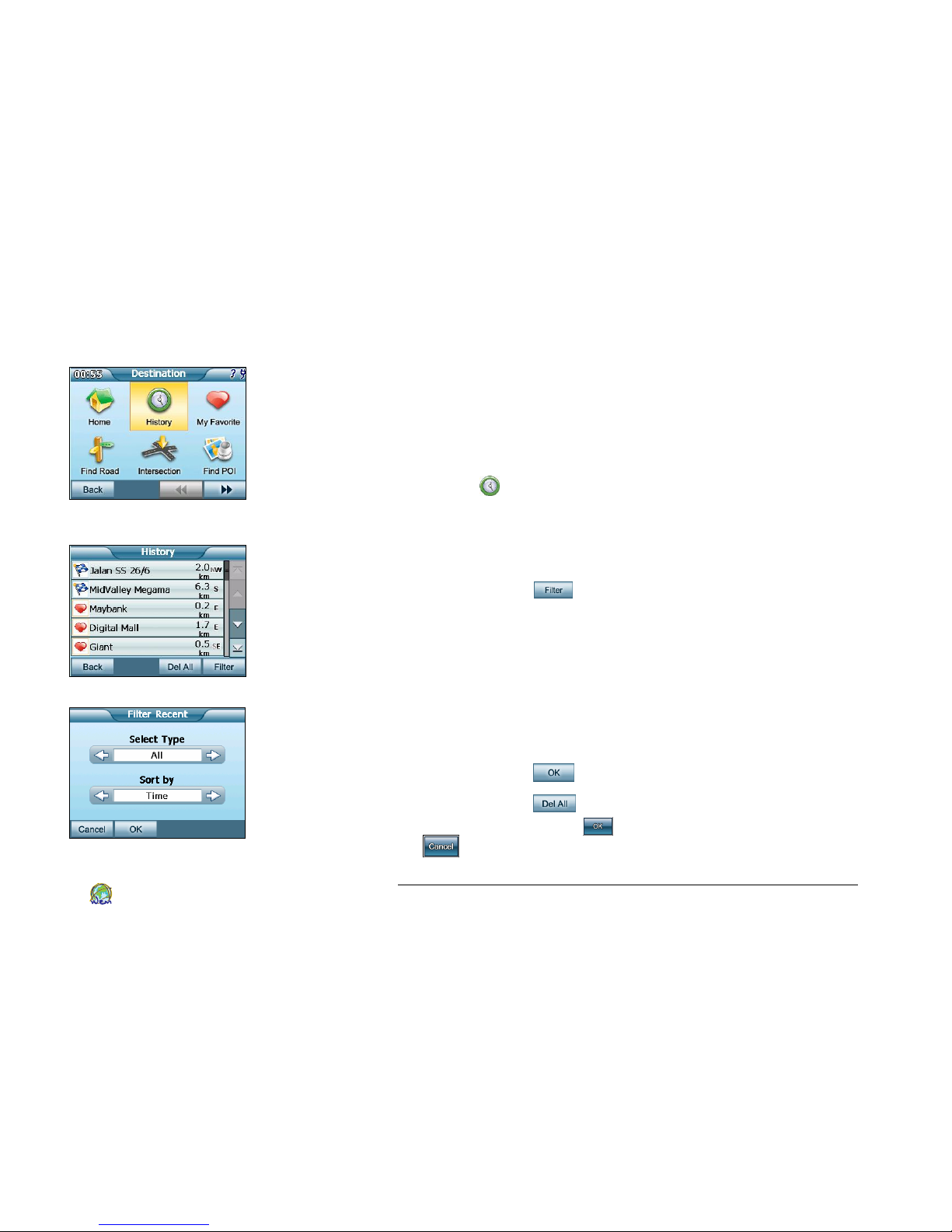
Figure 4.7.1 History at
Destination Search Menu
Figure 4.7.2 List of searched destination
Figure 4.7.3 Filter Recent Screen
Selecting a Destination from History
All destinations you have navigated to recently are listed in the
History List. Your history destination can be quickly accessed at
any time for routing.
1. Select Destination tab from Main Navigation Menu follow by
History from the destination search menu (Figure 4.7.1).
2. All of your recent searched destination will be shown on a
list. Choose a record from the list (Figure 4.7.2).
3. In My History list screen, you may:
a. Tap Filter button to sieve your searched list, if you
have many searched locations in your list. A Filter
Recent screen will show (Figure 4.7.3) and you may:
i. Filter your list by Select Type. Your Select Type
included: All, By Map View, Set Destination, and
MY POI. Tap the left and right arrow to make
your selection.
ii. Sort your filter list by Distance, Name or Time.
iii. Tap to confirm your filter.
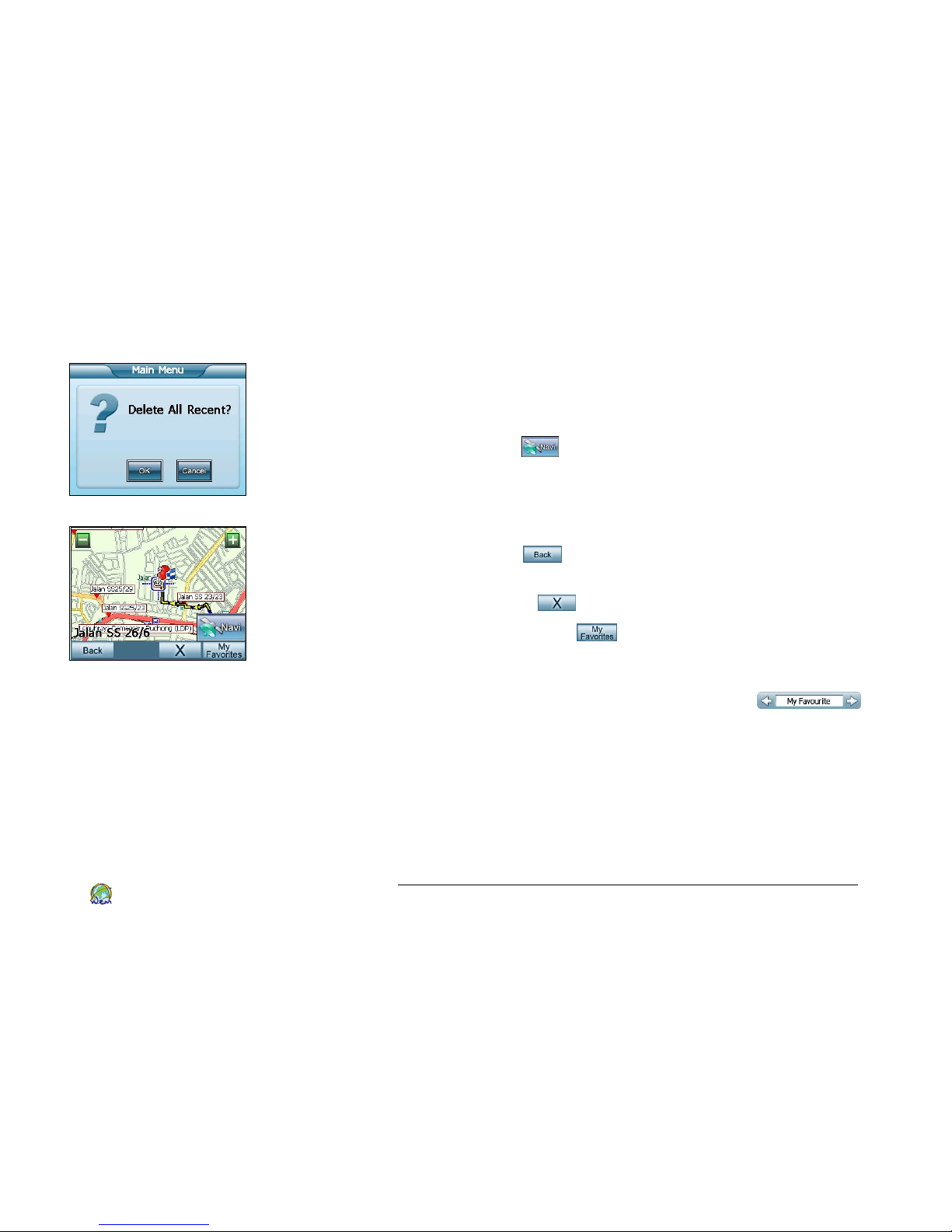
4. Tap Delete All if you want to delete your entire recent
searched list. Tap OK to confirm delete all or tap Cancel
to back to the list (Figure 4.7.4).
Page 31
SmartDrive SD1000 GPS Navigator User’s Guide
27
World Express Mapping Sdn. Bhd.
Figure 4.7.4 To Delete All Recent Search Result
Figure 4.7.5 View History at Map View
5. A map will be shown with zoom to an appropriate scale with
the selected record at the center (Figure 4.7.5).
6. After browsing the map with the result of your searching
destination, you may:
a. Tap Navi if your Favorite location is correct. You
may set the location as a Midway Point, Destination,
Start Point or Cancel your selection by pressing
corresponding the button. Please refer to page 20 for
details.
b. Tap Back to re-select your recent searched
destination from the list.
c. Tap Delete to delete the recent searched location.
d. Tap My Favorite to save the result as your Favorite
destination. In the Edit My Favorite Screen, you may:
i. Set your favorite location into different type, by
tapping the left and right arrow on .
Select Type included: Families, My Favorite,
Confidential, Unknown, Flag, Speed Camera and
Others.
ii. Tap on the space after Name, Tel, Addr and Note to
key in the details. A screen with keyboard will show
for entering data. Tap OK to confirm entry.
Page 32
SmartDrive SD1000 GPS Navigator User’s Guide
28
World Express Mapping Sdn. Bhd.
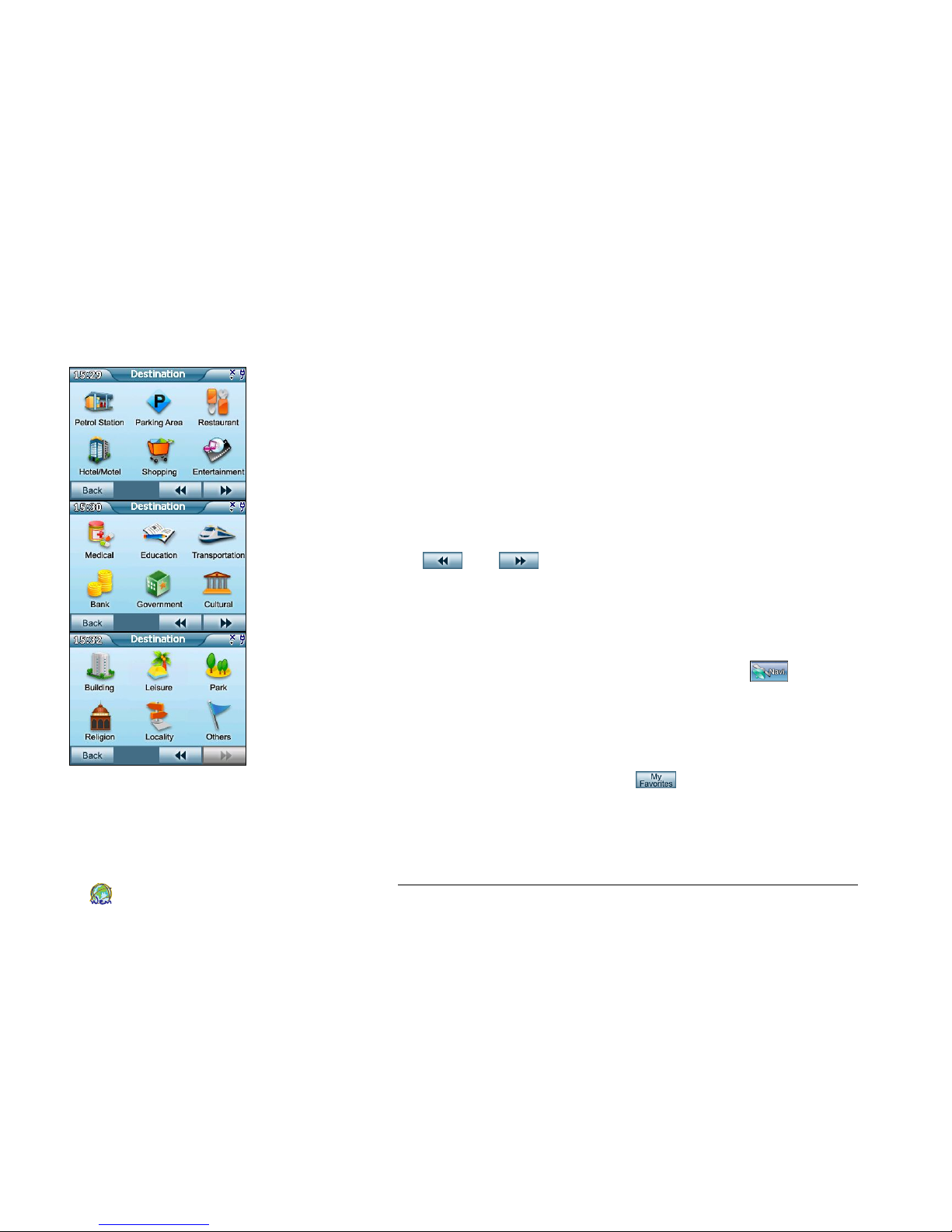
Figure 4.8. Search Categories
Selecting a Pre-Programmed Place as a Destination
SmartDrive SD1000 has pre-loaded heaps locations - including
Petrol Station, Parking Area, Restaurant, Hotel/Motel, Shopping,
Entertainment, Medical, Education, Transportation, Bank,
Government, Cultural, Building, Leisure, Park, Religion, Locality
and Others - that you can use as destinations. A simply few taps,
you can select these pre-programmed location as destination.
1. From the Main Navigation Menu, select Destination, you can
choose your interested pre-programmed place at here. Tap
and on the lower right corner on search menu to
display more search categories (Figure 4.8).
2. Choose a record from the list and a map will be shown with
zoom to an appropriate scale with the selected record at the
center.
3. Check if the destination is correct. Tap Navi if your
Favorite location is correct. You may set the location as a
Midway Point, Destination, Start Point or Cancel your
selection by pressing corresponding the button. Please refer
to page 20 for details.
4. Or you may tap My Favorite to save the result as your
Favorite destination.
Page 33
SmartDrive SD1000 GPS Navigator User’s Guide
29
World Express Mapping Sdn. Bhd.
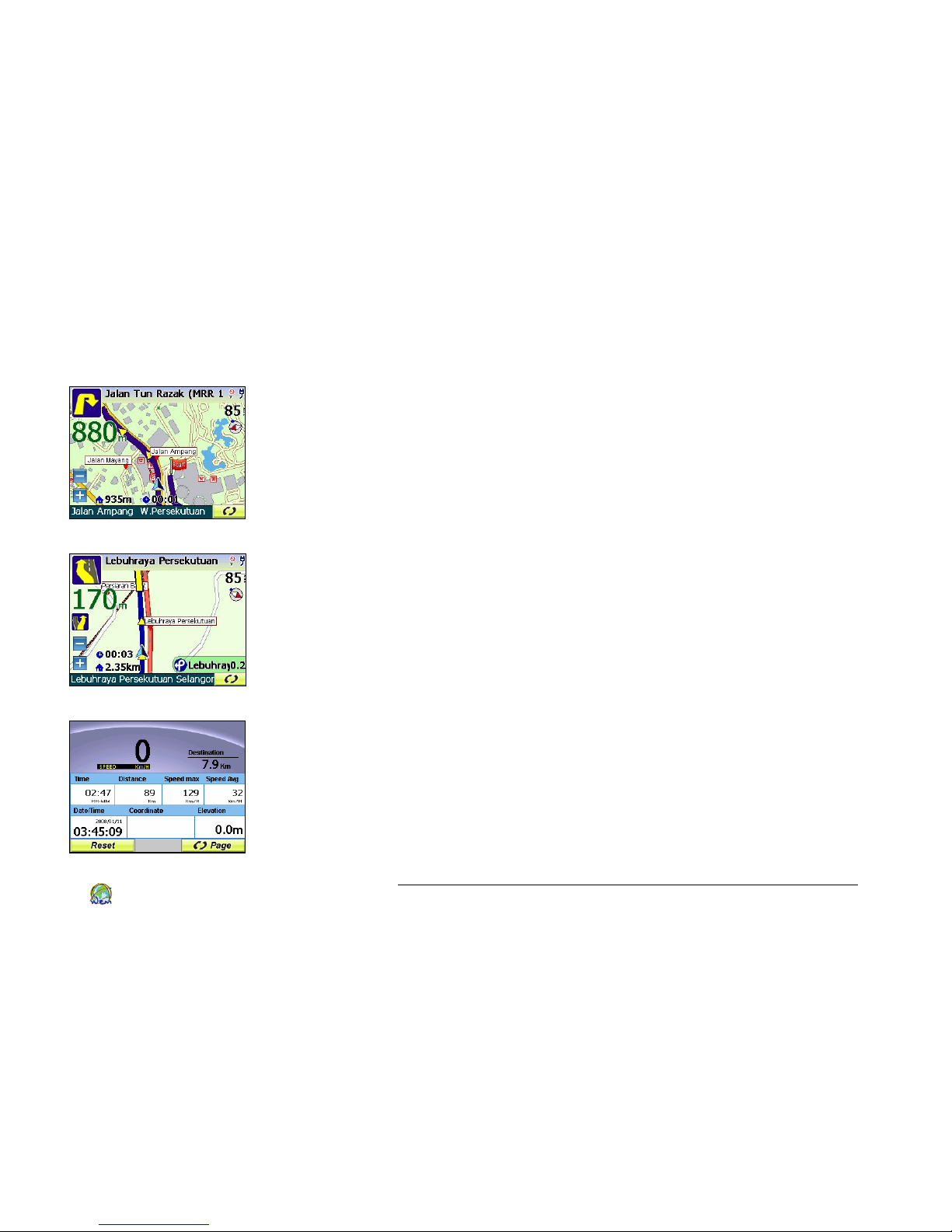
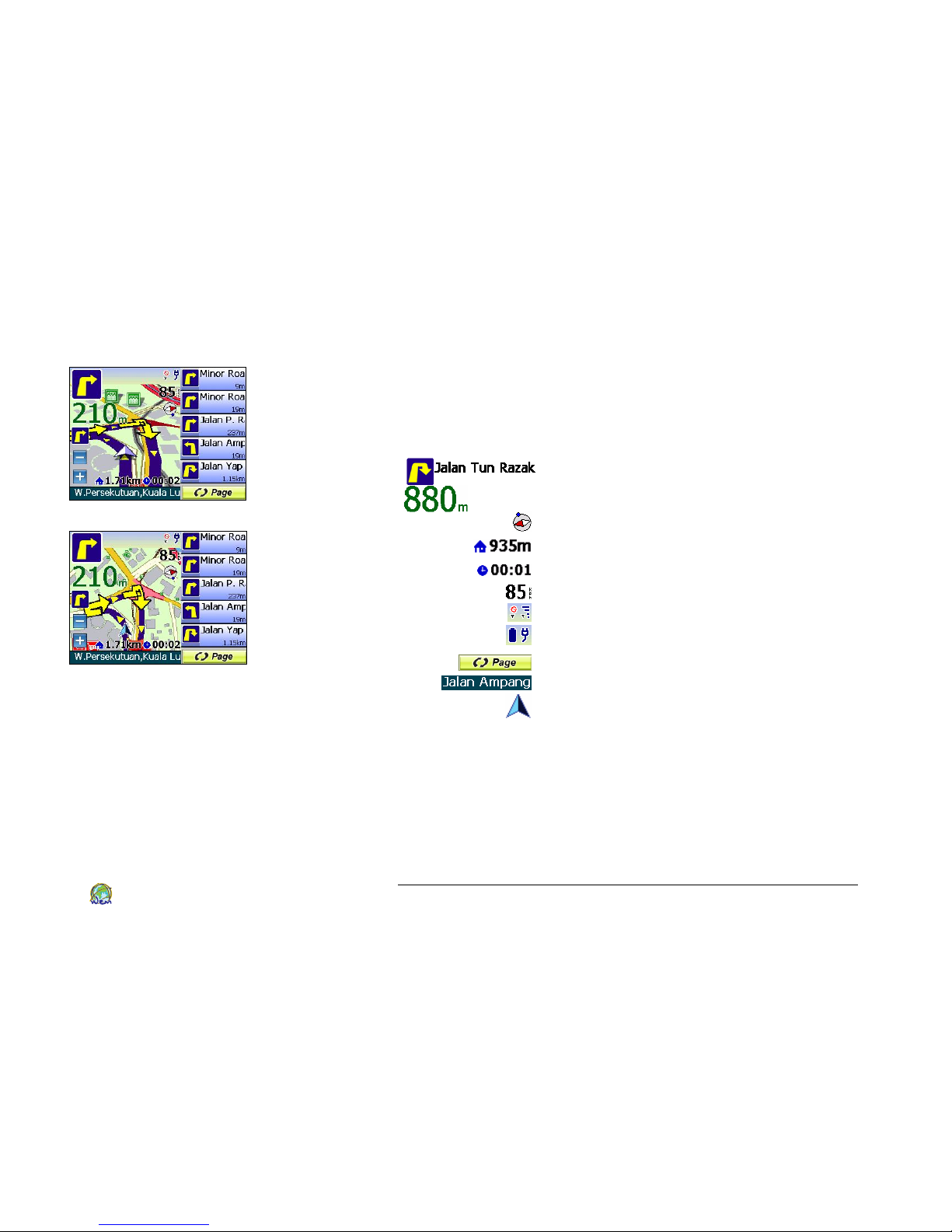
Figure 4.9.1 3D View
Figure 4.9.2 2D View
Figure 4.9.3 Trip Computer
Reading the Route Screen
Once your route is planned, the device displays the route screen.
You will always use the route screen anytime.
There are 5 view modes of routes screen:
3D View (Figure 4.9.1)
2D View (Figure 4.9.2)
Trip Computer (Figure 4.9.3)
3D View with Route Result (Figure 4.9.4)
2D View with Route Result (Figure 4.9.5)
Page 34
SmartDrive SD1000 GPS Navigator User’s Guide
30
World Express Mapping Sdn. Bhd.
Figure 4.9.4 3D View with Route Result
Figure 4.9.5 2D View with Route Result
The route screen is based on the Map Screen, with the following
additional information:
Component Description
Next turn indicator
e.g. U-turn to Jalan Tun Razak at 880m
Compass and Direction of Destination
Distance to Destination
Estimate time of arrival
Speed of vehicle
GPS status
Battery status
Change view mode
Current Location Road Name
Current position
Page 35
SmartDrive SD1000 GPS Navigator User’s Guide
31
World Express Mapping Sdn. Bhd.
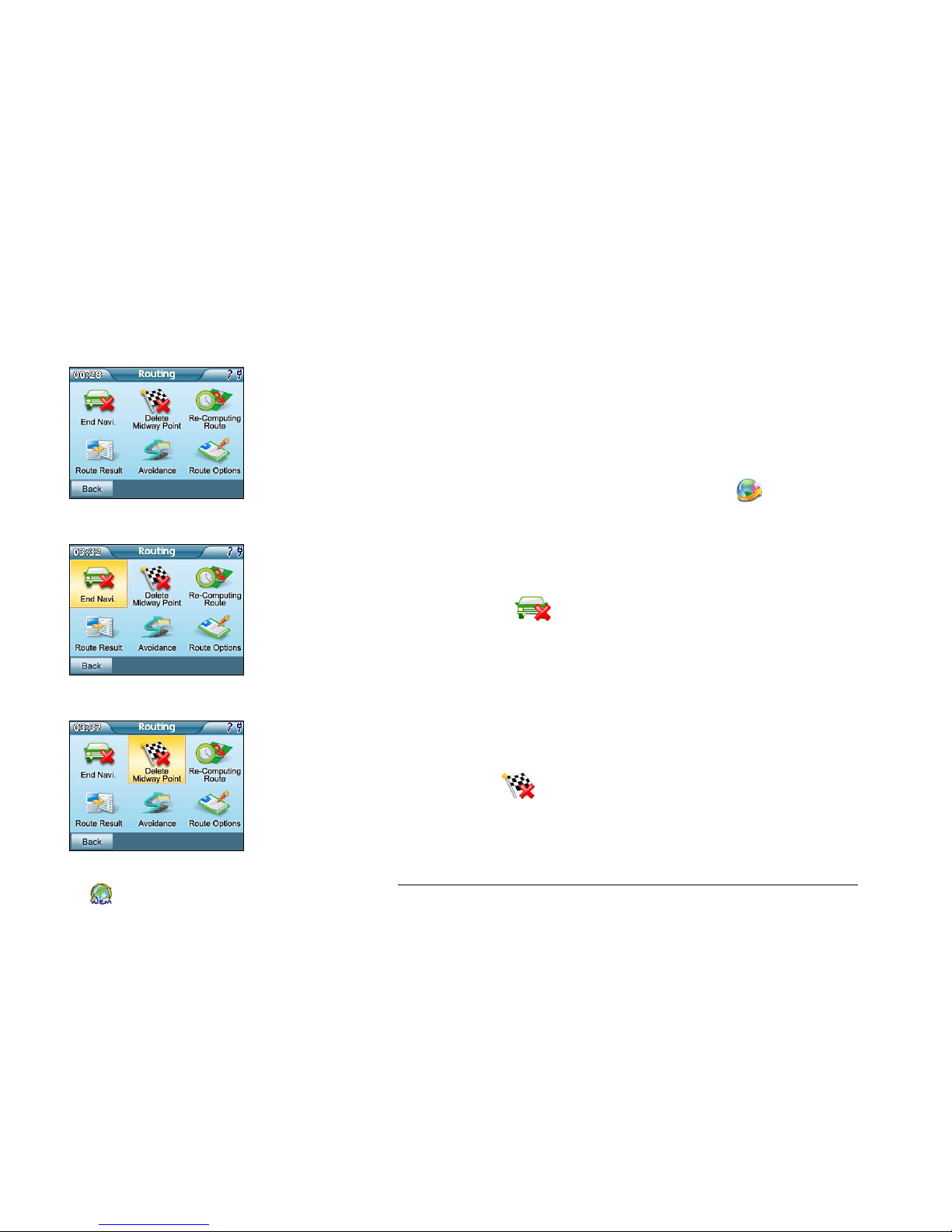
Figure 4.10.1 Routing Menu
Using the Route Menu
You may end the navigation, delete any midway point, recomputing the route, view the route result, select the avoidance
route, and selecting route options from the route menu.
Once your route is planned, tap anywhere inside the map area
to return to the main menu, and tap Routing button to use
the route menu (Figure 4.10.1).
Figure 4.10.2 End Navigation Button
Stop Navigation
If you would like to stop the navigation, from the Routing menu,
select End Navi. button at the top left (Figure 4.10.2).
This will stop the navigation and allow you to use other
functions that provided by SmartDrive SD1000.
Figure 4.10.3 Delete Midway Point
Delete Midway Point
If you have a midway point on your routing plan, and you would
like to delete it from your routing plan, you may select Delete
Midway Point button at the top middle from the Routing
menu (Figure 4.10.3).
This will delete your midway point from your routing plan, and
directly bring you to your destination.
Page 36
SmartDrive SD1000 GPS Navigator User’s Guide
32
World Express Mapping Sdn. Bhd.
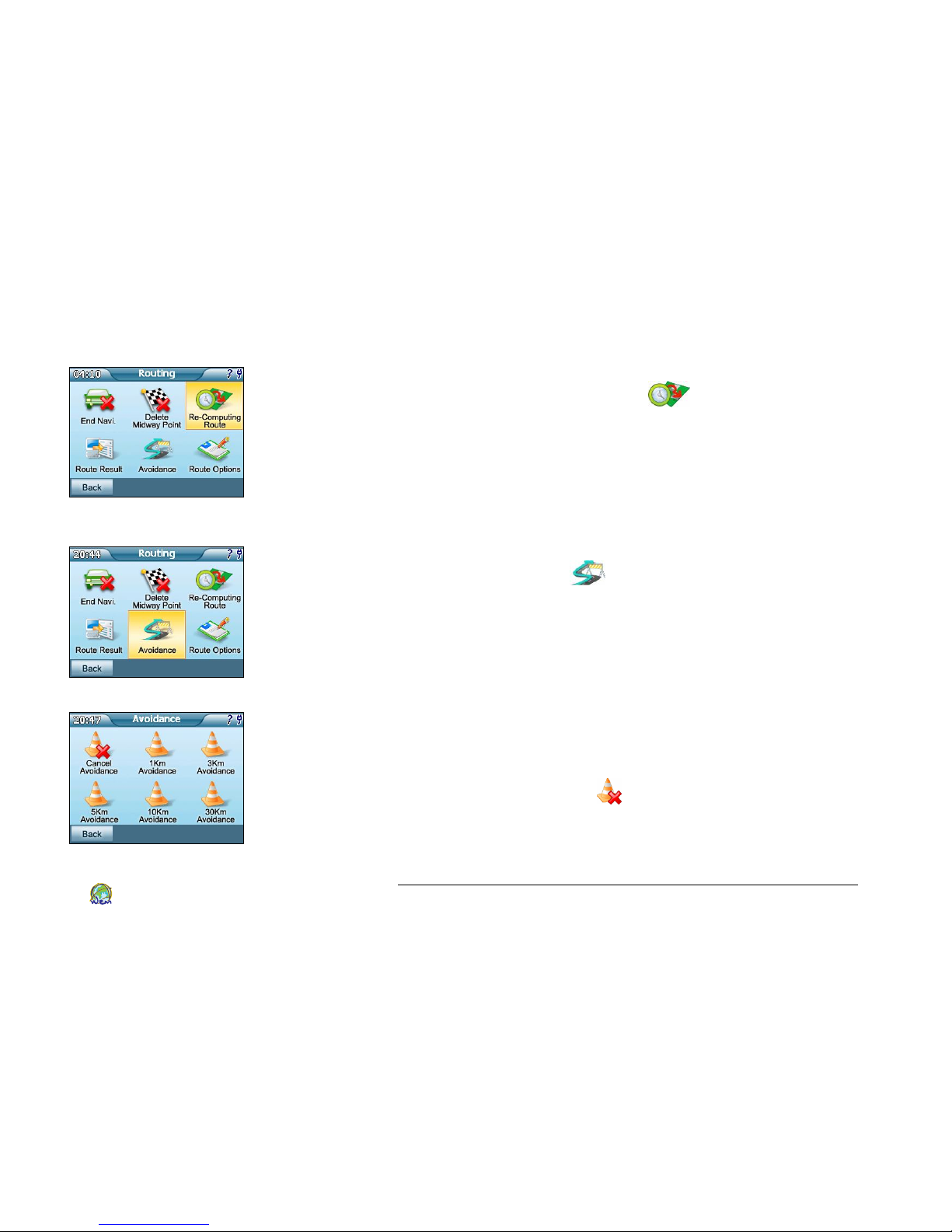
Figure 4.10.4 Re-Computing Route
Re-Computing Route
By selecting Re-Computing Route button at the top right
from the Routing menu, you may re-calculate your route plan
(Figure 4.10.4).
For example, if you drive to the wrong way and you wish to recalculate your route plan, you may use this function.
Figure 4.10.5 Avoidance
Figure 4.10.6 Avoidance Menu
Avoidance
By selecting Avoidance button at the bottom middle from
the Routing menu, you may avoid a certain distance from the
start point, and compute a second route plan from the original
route plan (Figure 4.10.5).
For example, when you select a route plan, however a section of
the route is having slow traffic, you may use this avoidance
function to avoid your preference distance from the route plan,
and use the second route to reach your destination.
Once you select route avoidance function, it can be disabled by
pressing Cancel Avoidance button at the top left from the
Avoidance menu (Figure 4.10.6).
Page 37
SmartDrive SD1000 GPS Navigator User’s Guide
33
World Express Mapping Sdn. Bhd.
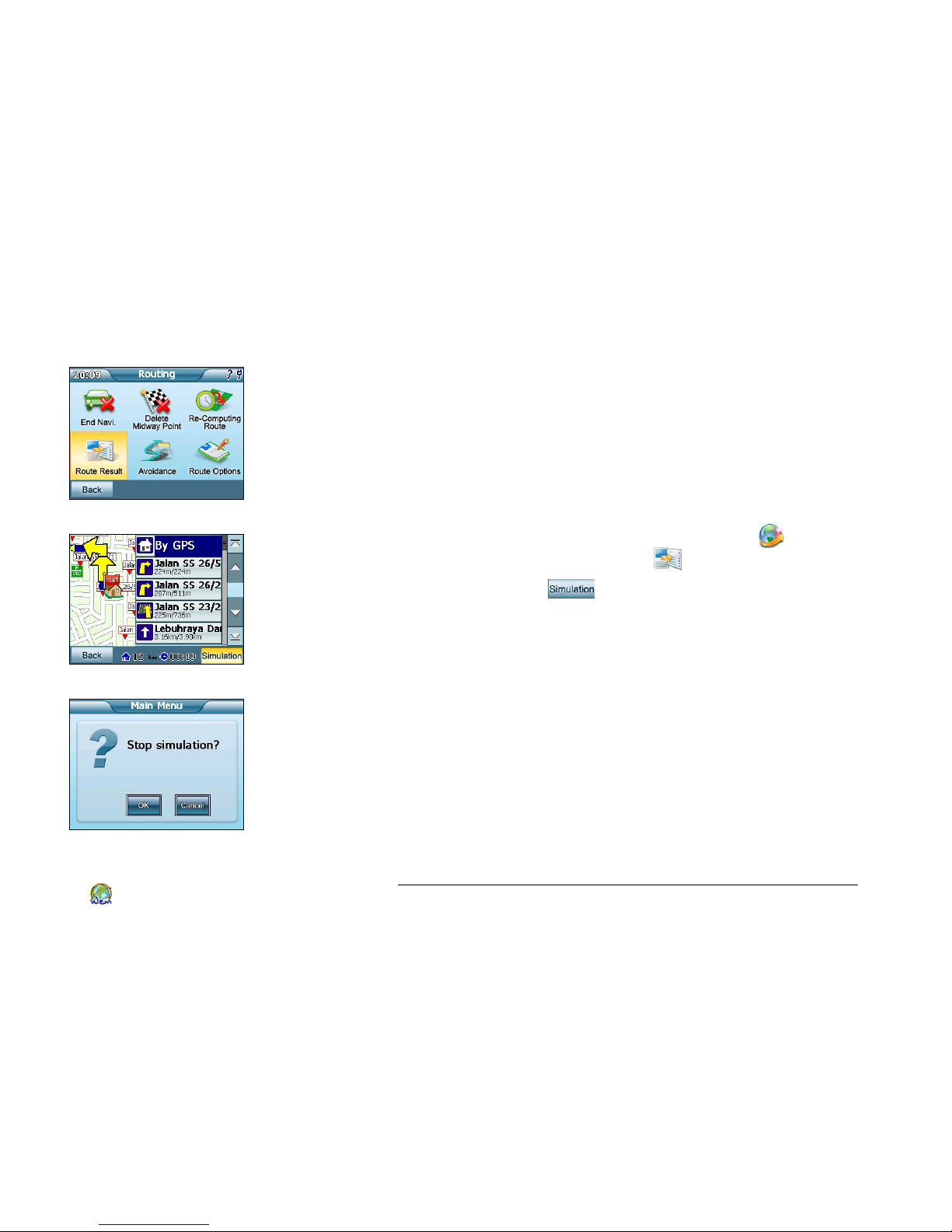
Figure 4.10.7 Routing Menu
Figure 4.10.8 2D view route screen
Figure 4.10.9 Simulation Popup
Running a Route Demo
The device can show you a simulated ‘demo run’ of the route at
a faster speed.
1. Locate your Start Point, Midway Point (if there is any) and End
Point either by searching through category or by selecting
from map view. Please refer to page 18, Search by Category,
for details.
2. From the main navigation menu, tap Routing Button.
Follow by tapping Route Result button (Figure 4.10.7).
3. Select Simulation at the bottom left of the screen. The
device will run a quick simulation of the entire route. When
it’s finished, the animation will automatically restart.
4. To stop the route demo, please tap on anywhere on the map
screen. A popup menu will let you select if you want to stop
the simulation! Select OK if you want to stop it or Cancel if
you want to continue (Figure 4.10.9).
Page 38
SmartDrive SD1000 GPS Navigator User’s Guide
34
World Express Mapping Sdn. Bhd.
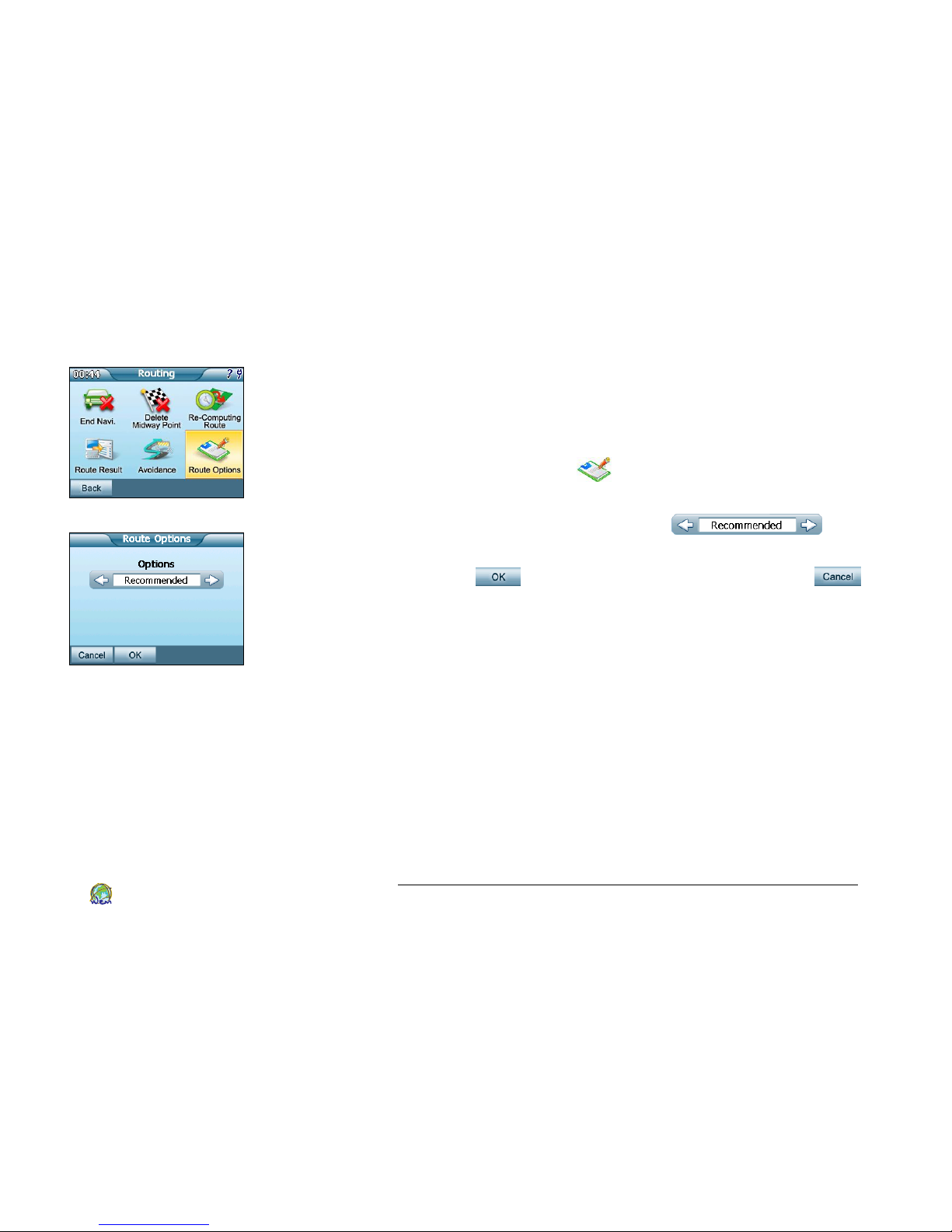
Figure 4.10.10 Routing Options
Figure 4.10.11 Routing Options
Changing the Default Route Options
When planning a route you can change your default route
option to either Recommended, Motorway Preferred, Motorway
Avoided or Shortest Route.
1. Select Route Options from the Routing menu
(Figure 4.10.10).
2. Tap the left and right arrow from to
select your preferable routing option (Figure 4.10.11).
3. Tap OK to confirm the selection; or tap Cancel
to back to the Routing Menu.
Select Route Options from the menu.
Recommended: Use recommended options to calculate route.
Motorway Preferred: Mainly for motorcyclist, motorway will
be selected to calculate route.
Motorway Avoided: Motorway would not be considered on
calculating route.
Shortest Route: Calculates route purely on length of road
segments, but this is rarely used since the shortest route in
many cases does not mean the fastest route.
Page 39
SmartDrive SD1000 GPS Navigator User’s Guide
35
World Express Mapping Sdn. Bhd.
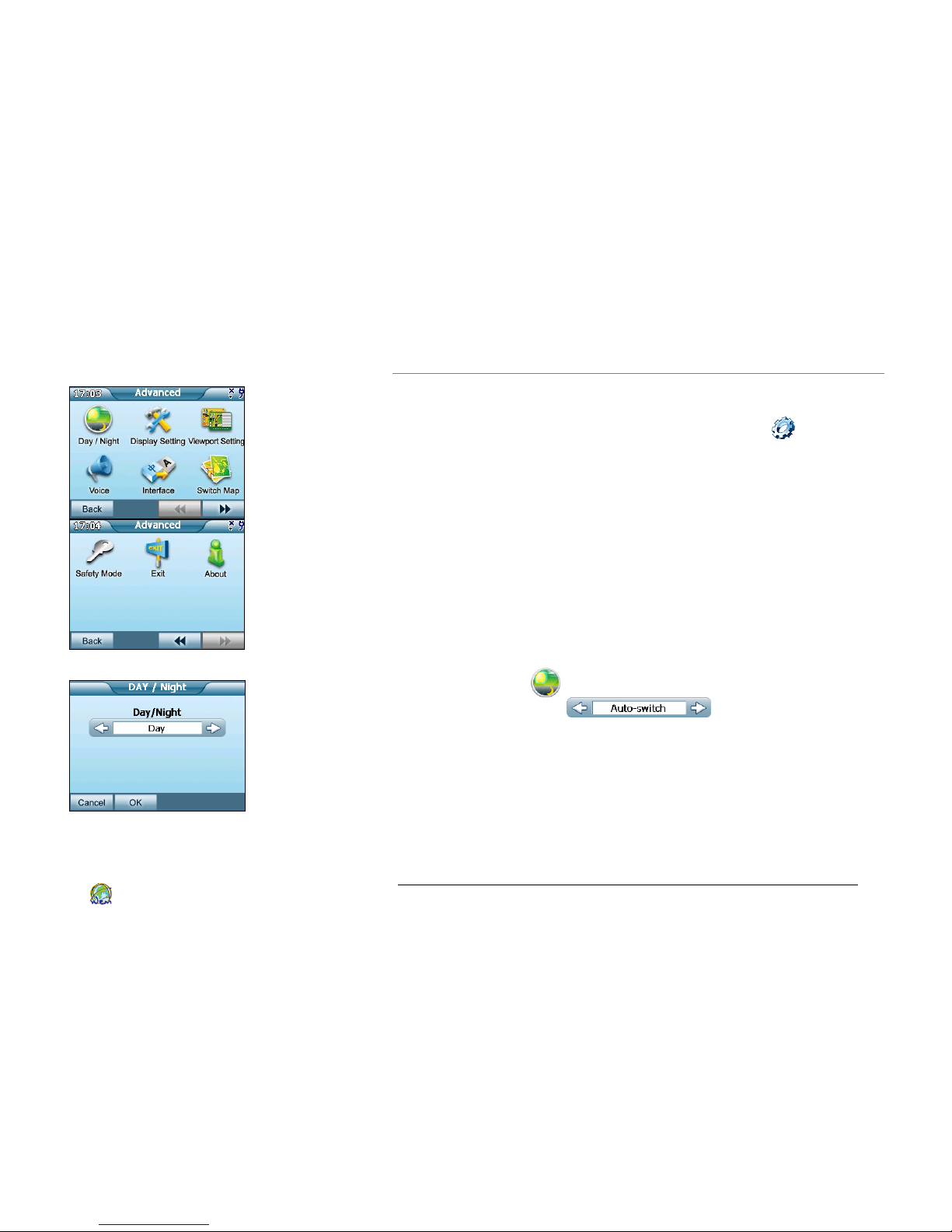
Figure 5.1 Setting Screen
Figure 5.2 Day or Night mode
5. Customizing Your SmartDrive SD1000
Your SmartDrive SD1000 can be personalized by using many
functions through various Settings options.
From the main Navigation Menu, select Advanced at the
lower right corner. You may customize the Day/Night mode, the
Display Setting, the Viewport Setting, the language of Voice
prompt, the language of Interface, Switching in between map,
Safety Mode and get to know this product (Figure 5.1).
Customizing Your Display
Map View and Navigation View display can be customized by
three categories: Day / Night, Display Setting, and Viewport
Setting. Each is described below.
Day / Night
Select Day / Night button from the Advanced Menu, tap the
left or right button on to select in between
three different modes (Figure 5.2).
Auto-switch – Day or Night view will change automatically
dependent on the time. This is the Default Setting.
Day – Using Day View all the time regardless the current
time.
Night – Using Night View all the time regardless the current
time.
Page 40
SmartDrive SD1000 GPS Navigator User’s Guide
36
World Express Mapping Sdn. Bhd.
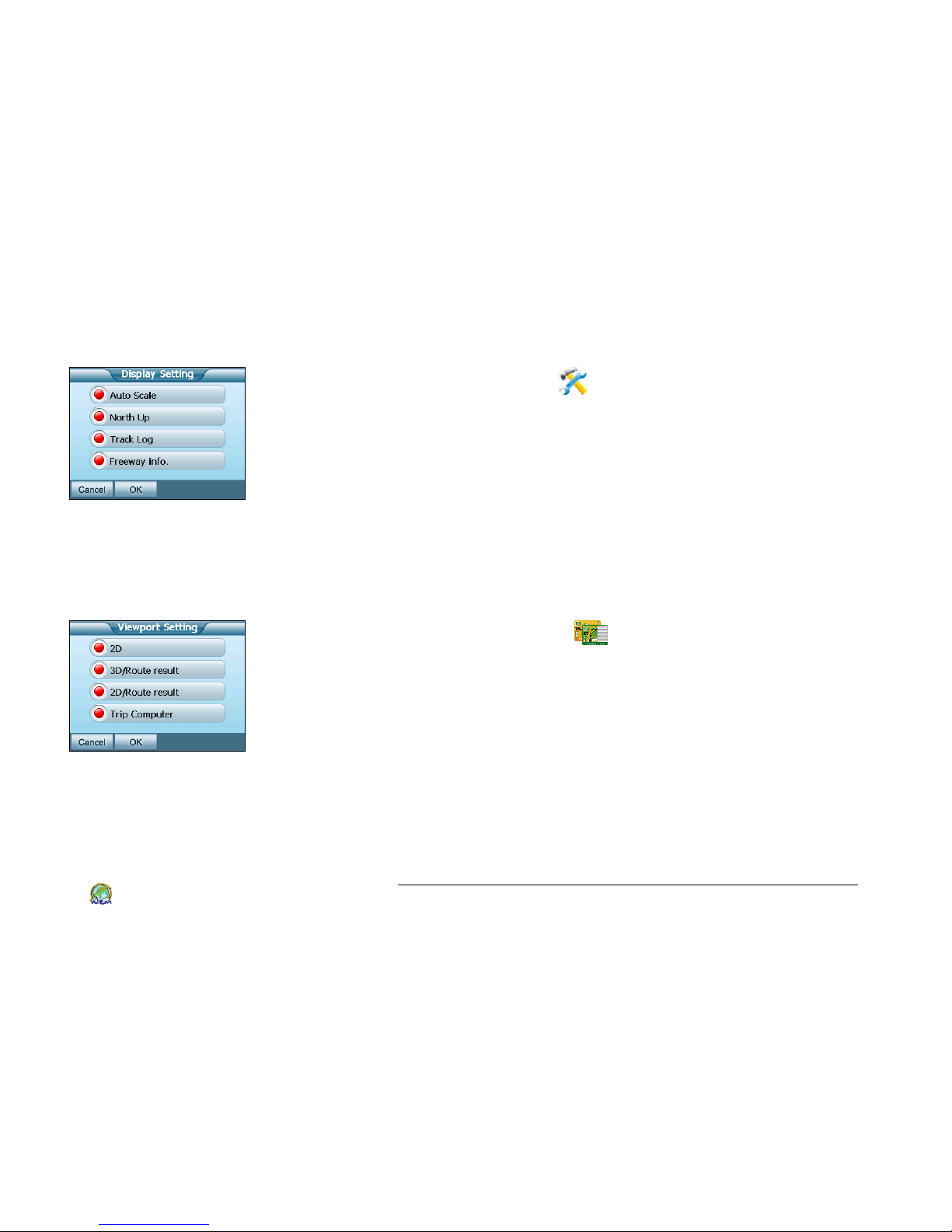
Figure 5.3 Display Setting
Display Setting
Select Display Setting button from the Advanced menu, you
may customize your navigation view by selecting different
options (Figure 5.3):
Auto Scale – Show best map scale automatically.
North Up – Always show North Up in navigation view.
Track Log – Show Track Log, the entire route you traveled
and recorded.
Freeway Info. - Show the information of the freeway.
To select, tap on the options. A red circle means it is selected.
Figure 5.4 Viewport Setting
Viewport Setting
Select Viewport Setting button from the Advanced menu,
you may select your preference navigation view modes will be
available for changing (Figure 5.4). Please refer to page 29 for
details of view modes. 3D view modes is the default and
irremovable.
To select, tap on the options. A red circle means it is selected.
Page 41
SmartDrive SD1000 GPS Navigator User’s Guide
37
World Express Mapping Sdn. Bhd.
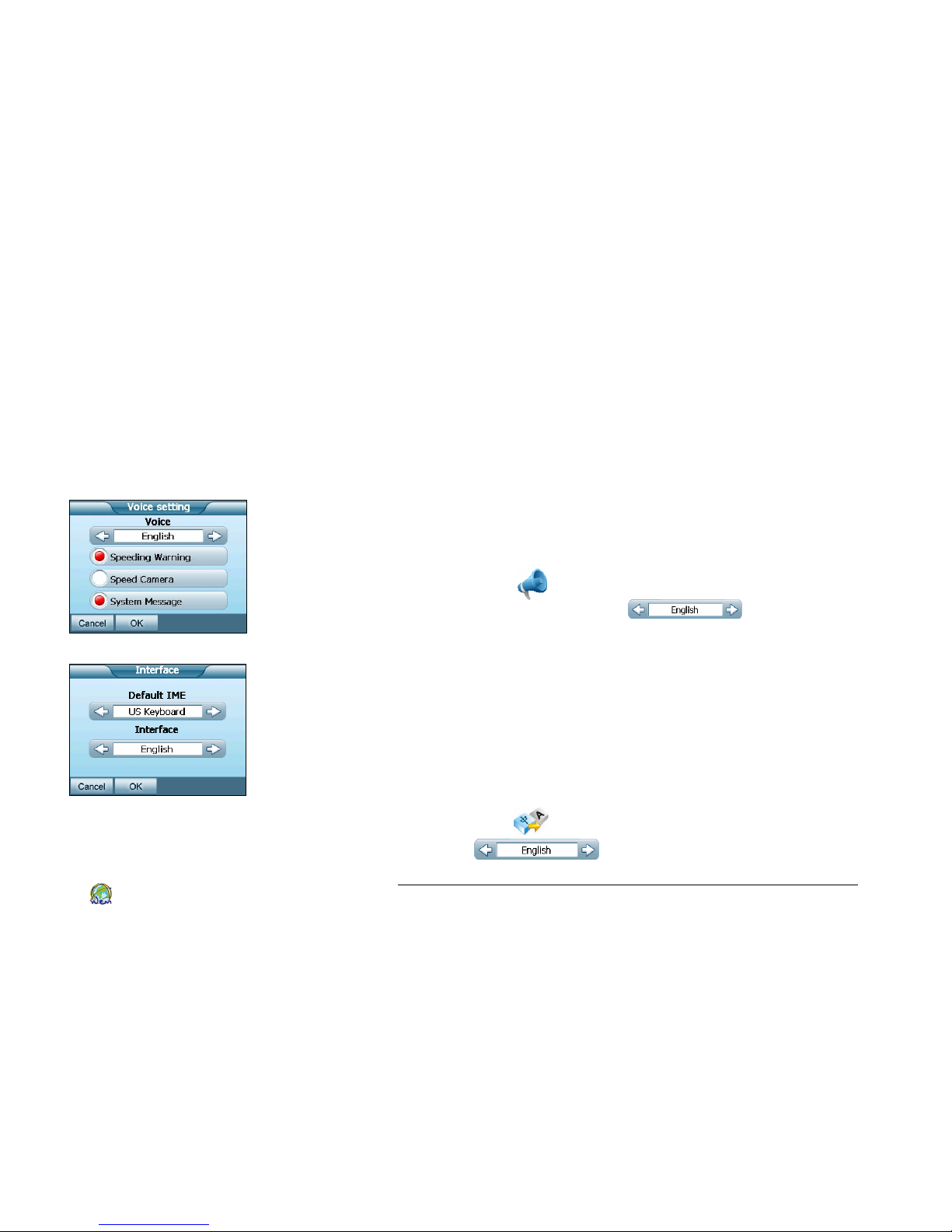
Figure 5.5 Voice Setting
Figure 5.6 Interface
Changing the Language and Voice Prompt
The interface and voice prompt languages on SmartDrive SD1000
can be altered easily as your preference. The available choices of
language are listed as follow.
Voice
SmartDrive SD1000 also supports a variety choice of languages
on the voice prompt, i.e. English, Cantonese, Mandarin, Malay,
Indonesian, Thai, North Vietnamese or turn off the voice
guidance (Figure 5.5).
1. Select Voice from Advanced menu.
2. Tap left or right button on to select your
preferable language.
3. By tapping on the options, you may also select if you like
Speeding Warning, Speed Camera or System Message to be
available on the voice prompt.
Interface
SmartDrive SD1000 uses US keyboard as Input method editor.
English and Malay display Interface are available to be selected.
Select Interface from Advanced menu, tap left or right
button on to select your preferable language.
Page 42
SmartDrive SD1000 GPS Navigator User’s Guide
38
World Express Mapping Sdn. Bhd.
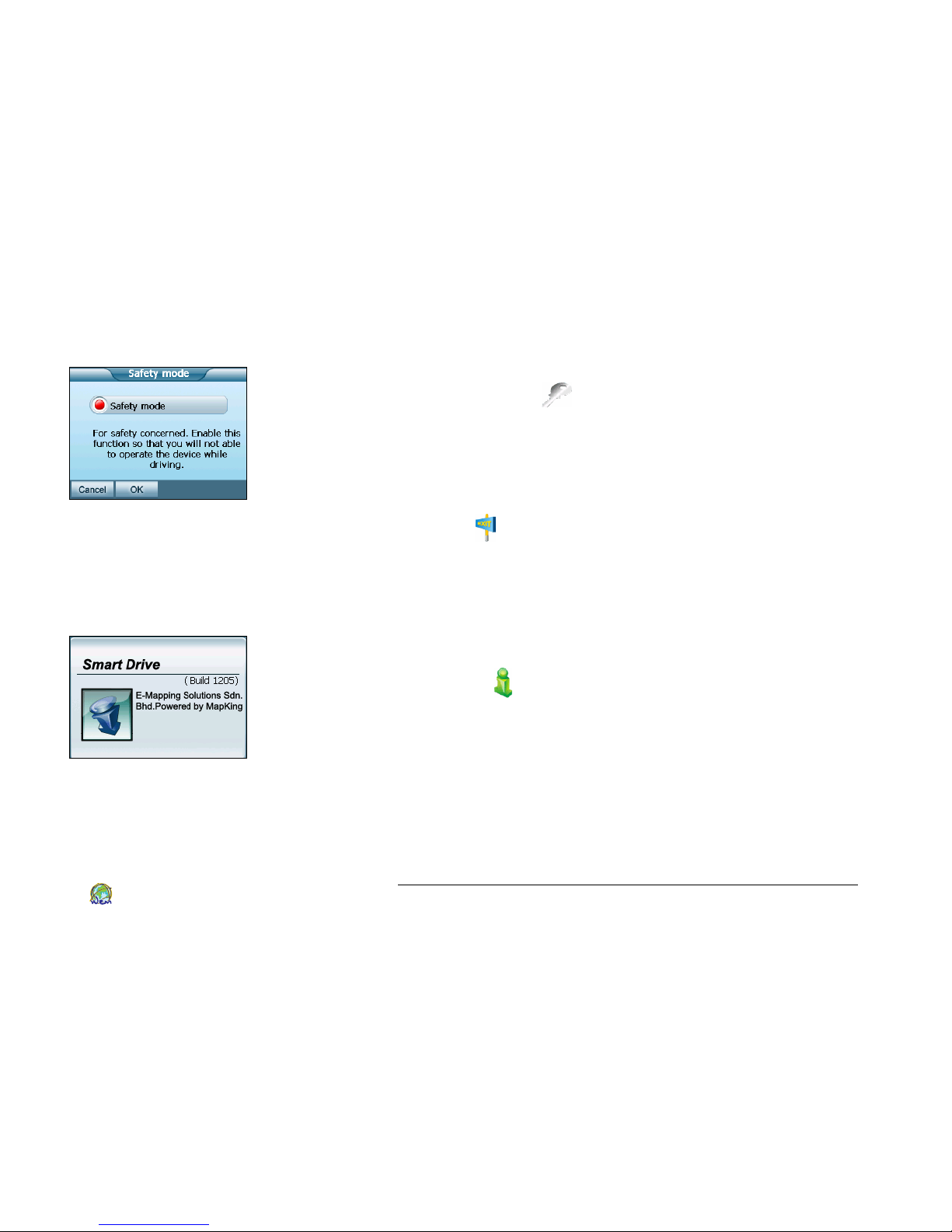
Figure 5.7 Safety Mode
Figure 5.8 About
Safety Mode
Select Safety Mode from the Advanced menu, and enable
the function to prevent you from operating the device while
driving (Figure 5.7).
Exit
Select Exit from the Advanced menu to exit to the main
menu screen for others application, e.g. MP3 Player, Video
Player, Photo Viewer, Calculator or the main setting for your
SmartDrive SD1000. Please refer to page 11 for details. .
About
Select About from the menu to view version and copyright
information (Figure 5.8).
Page 43
SmartDrive SD1000 GPS Navigator User’s Guide
39
World Express Mapping Sdn. Bhd.
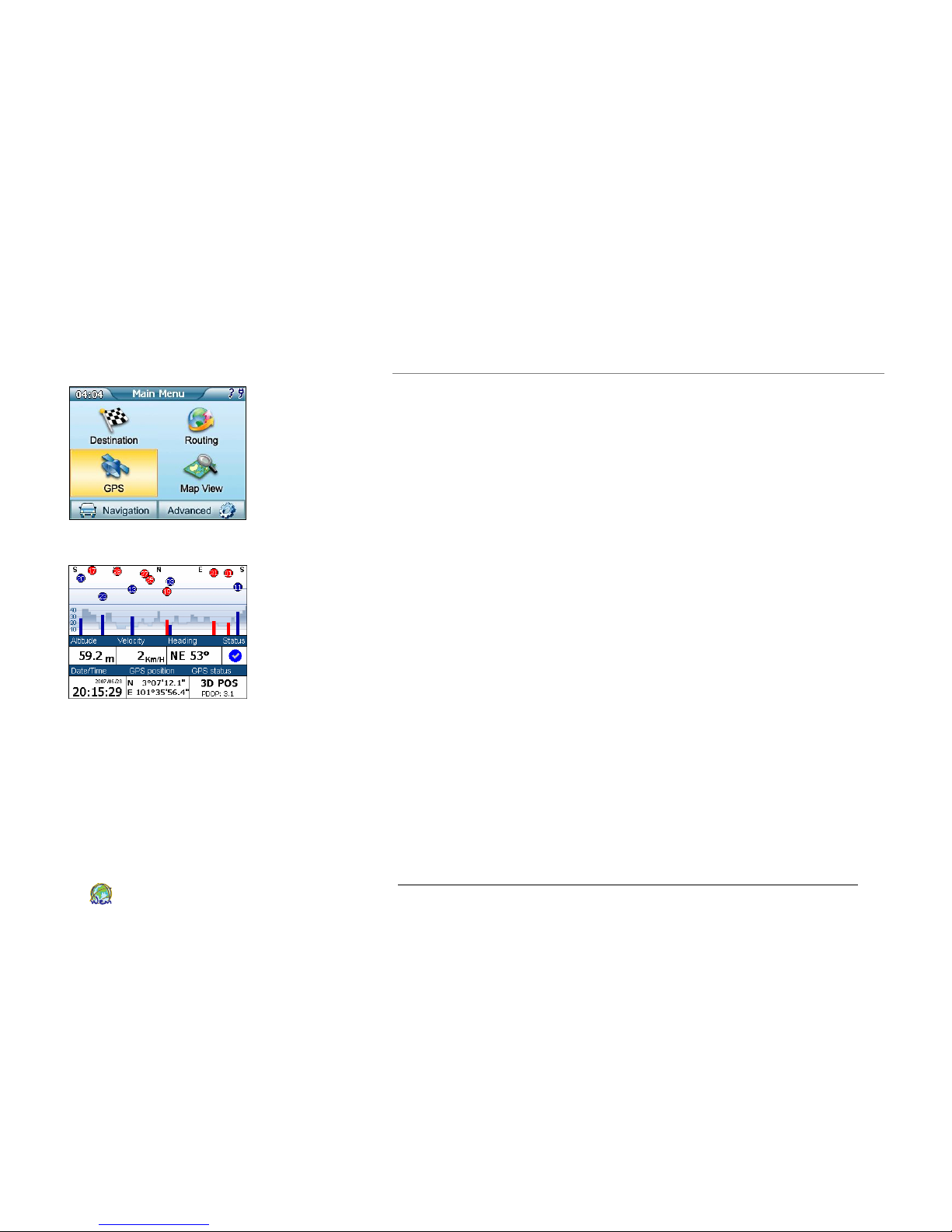
Figure 6.1 GPS from main
navigation menu.
Figure 6.2 GPS Screen
6. GPS
About GPS
The Global Positioning System (GPS) is the most
noteworthy recent advance in navigation and positioning
technology. It consists of a constellation of 24-Earth Orbiting
satellites, 24 hours provides signals at everywhere on the earth.
To position your location, at least four satellites are required to
determine the latitude and longitude.
SmartDrive SD1000 selected SiRFstar III GPS technology as the
GPS receiver. This provides rapid and deep GPS signal search
capabilities to pin point your location on the Earth. Cooperate
with the map database and the direction-sensing electronics,
your location can be displayed on the map. With SmartDrive
SD1000, you can reach your destination safely without a fear.
This device presents positional accuracy of about 2.5 meters. If
roads are close together, your current position may be placed on
the inaccurate road. Please keep driving if this happened. Your
position will be put right when the GPS get a better reception.
Time to first fix GPS may take longer time (<35 seconds) if you
remains immovability. GPS signal does not penetrate
ferroconcrete, metal and certain substances. Hence, GPS signal
may lose if you drive through tunnels, underground, bridges, tall
buildings, dense stands of trees, or adverse weather conditions.
SmartDrive SD1000 will reconnect when free of obstructions.
Page 44
SmartDrive SD1000 GPS Navigator User’s Guide
40
World Express Mapping Sdn. Bhd.
GPS Status Screen
Select GPS on from the middle left at the Main Navigation
Menu, then the GPS screen will show.
The GPS screen illustrates the information of the satellite signals
that received by your GPS receivers. This is only need to be
checked while you are having problem getting a signal lock.
Please make sure your GPS is free of obstructions. An open view
of sky and immobility is preferable for first fix.
In the GPS Screen, blue and red points represent GPS signal. Blue
points illustrate strong GPS signals, the GPS receiver has locked
onto; however, red points illustrate weak signals. The bar charts
below each signals shows the signal strength of each satellite
signals. When device is positioning your location, most signals
will be shown in red. Please be patient for fixing location.
Altitude : Your current altitude, this will be showed only
when 3D positioning fixed.
Velocity : Speed of vehicle by reading GPS.
Heading : Estimate direction heading from last position.
Status : Successful positioning GPS warming up
GPS not available
Date/Time : The clock is accurate only until positioning succeeds.
GPS position : Your current latitude and longitude.
GPS status : 2D/3D positioning. 2D positioning needs minimum
3 satellites and 3D positioning needs minimum 4 satellites.
Page 45
SmartDrive SD1000 GPS Navigator User’s Guide
41
World Express Mapping Sdn. Bhd.
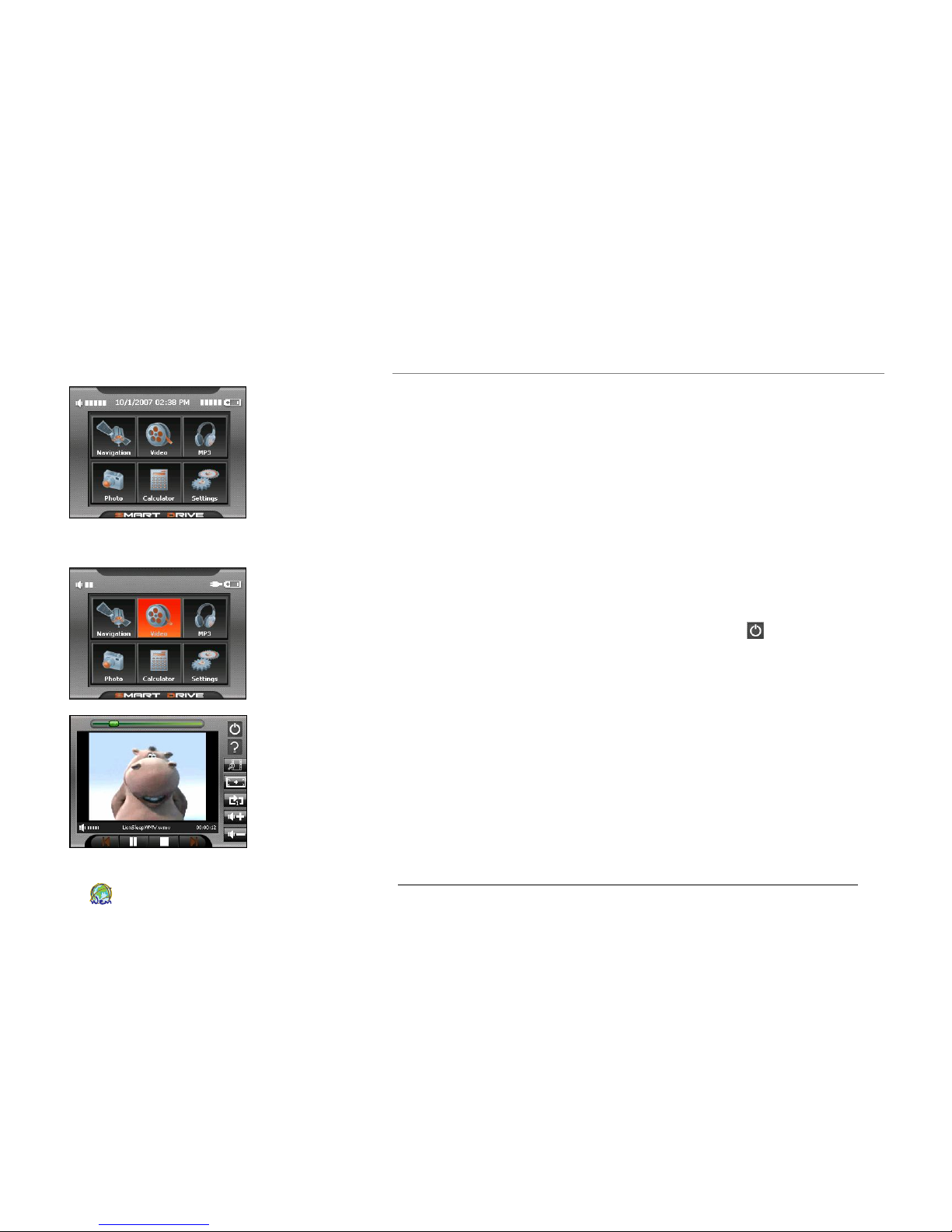
Figure 7.1 Main Menu Screen
7. Media
In addition to the navigation system, you can also play music,
play video, browse photos, use a calculator and change system
settings on this unit.
These media options can be accessed from the main menu
screen. You may select Advanced then followed by Exit from
main Navigation menu. It will lead you return to main menu
screen. Choose your favourite media from here.
MP4 Player
Video Player
Tap on the Video Player button from the main menu screen. This
program could play the video files on the SD card. To return to
the main menu screen, click on the exit button on the top
right of the screen.
Features of Video Player:
Playback of ASF, AVI, MPG and WMV files, which are
supported by WinCE.NET direct show interface.
Basic playback controls such as play, pause, stop, next and
previous Volume control
Playback includes single playback and repeat.
Play list support
Page 46
SmartDrive SD1000 GPS Navigator User’s Guide
42
World Express Mapping Sdn. Bhd.
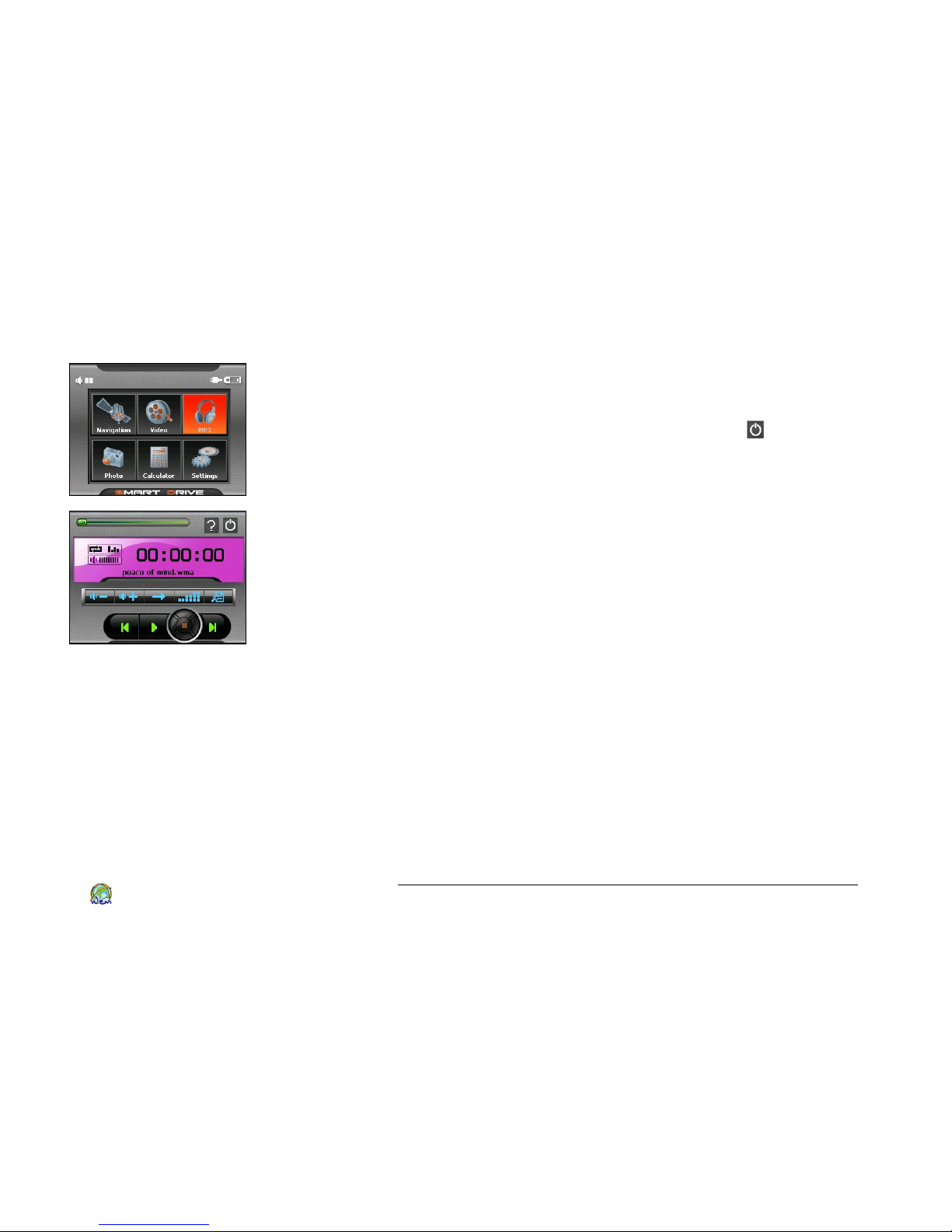
MP3 Player
MP3 Player
Tap on the MP3 Player button from the main menu screen. This
program could play the video files on the SD card. To return to
the main menu screen, click on the exit button on the top
right of the screen.
Features of MP3 Player:
Playback of MP3 and WMA files, which are supported by
WinCE.NET direct show interface.
Basic playback controls such as play, pause, stop, next and
previous Volume control
Playback includes single playback, repeat playback, normal
sequence and random sequence.
Play list support
Page 47
SmartDrive SD1000 GPS Navigator User’s Guide
43
World Express Mapping Sdn. Bhd.
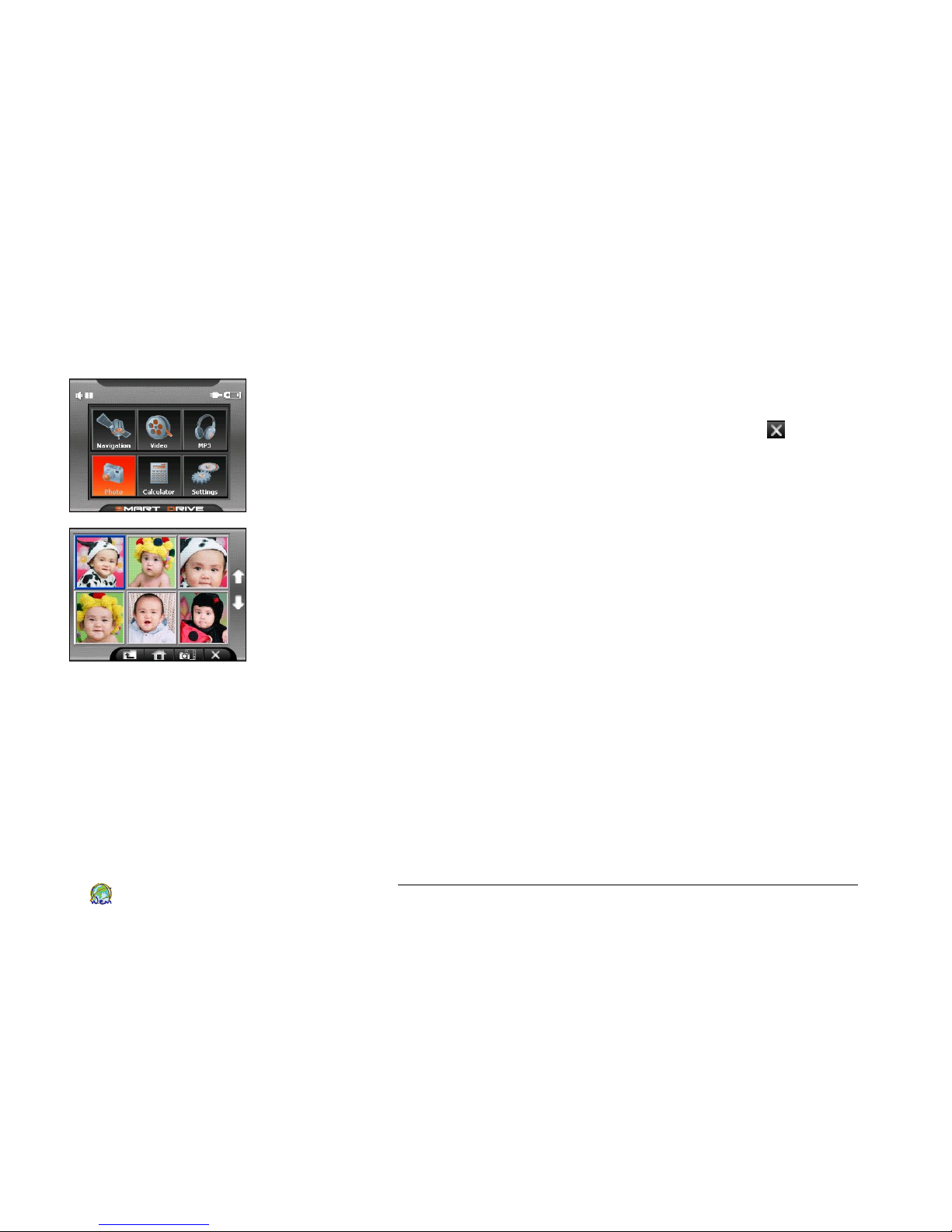
Photo Viewer
Photo Viewer
Tap on the Photo Viewer button from the main menu screen.
This program could view all image files on the SD card. To return
to the main menu screen, click on the exit button on the
bottom right of the screen.
Features of the Photo Viewer:
It supports the most popular image formats, such as BMP and
JPEG.
It supports 24-bit true color images. You can browse the
picture with zoom in/out, rotation in full screen.
You may browse through the pictures in different modes,
thumbnail mode, full screen mode and slide show mode.
High-quality image display makes your pictures much more
beautiful even in the small thumbnails.
Page 48
SmartDrive SD1000 GPS Navigator User’s Guide
44
World Express Mapping Sdn. Bhd.
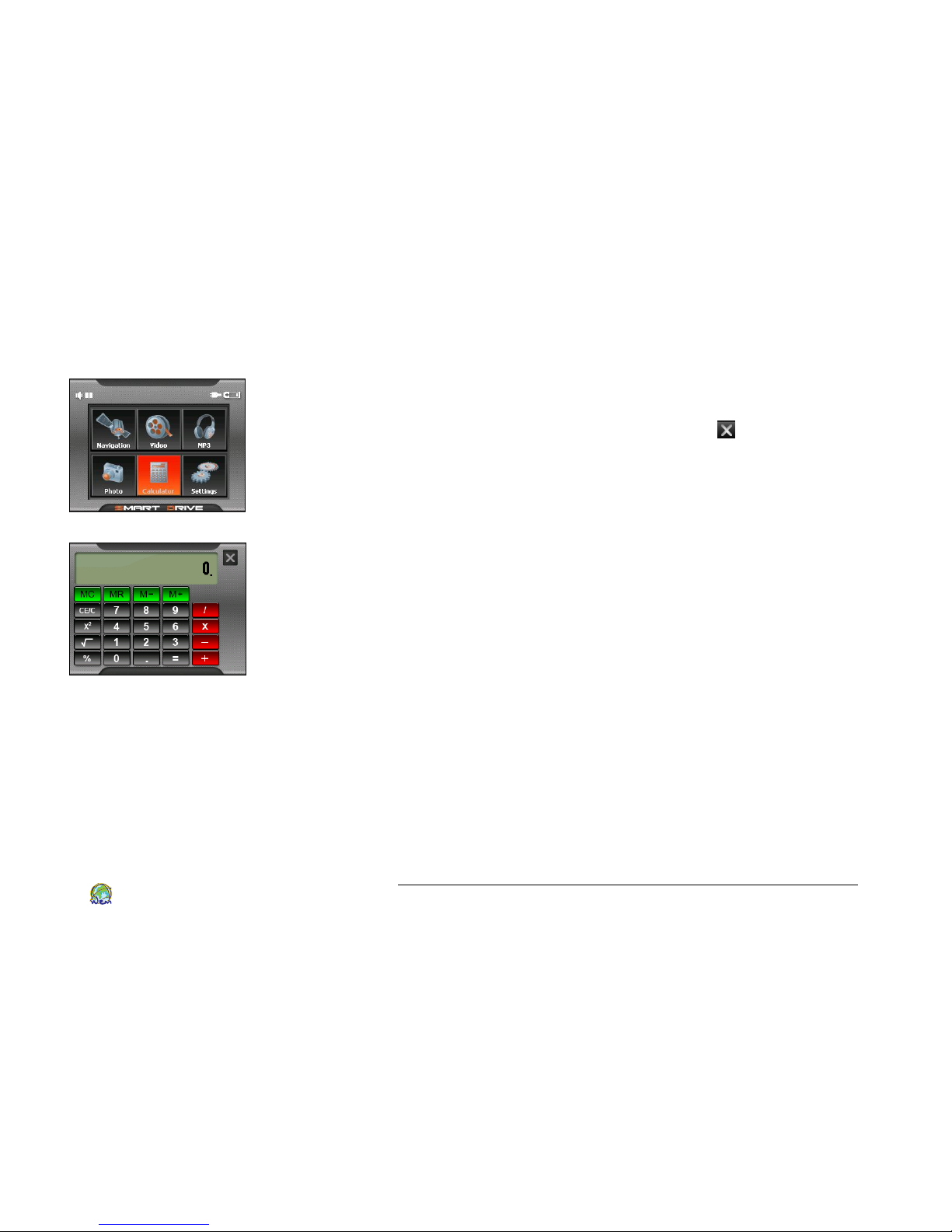
Calculator
Calculator
Tap on the Calculator button from the main menu screen. This
program turns SmartDrive into a calculator. To return to the
main menu screen, click on the exit button on the top right of
the screen.
Features of Calculator:
It supports the basic calculation operations, such as addition,
subtraction, multiplication, division, square, and square root.
It supports memory function, such as MC, MR, M+ and M-.
The maximum calculation result is 12 digits.
Page 49
SmartDrive SD1000 GPS Navigator User’s Guide
45
World Express Mapping Sdn. Bhd.
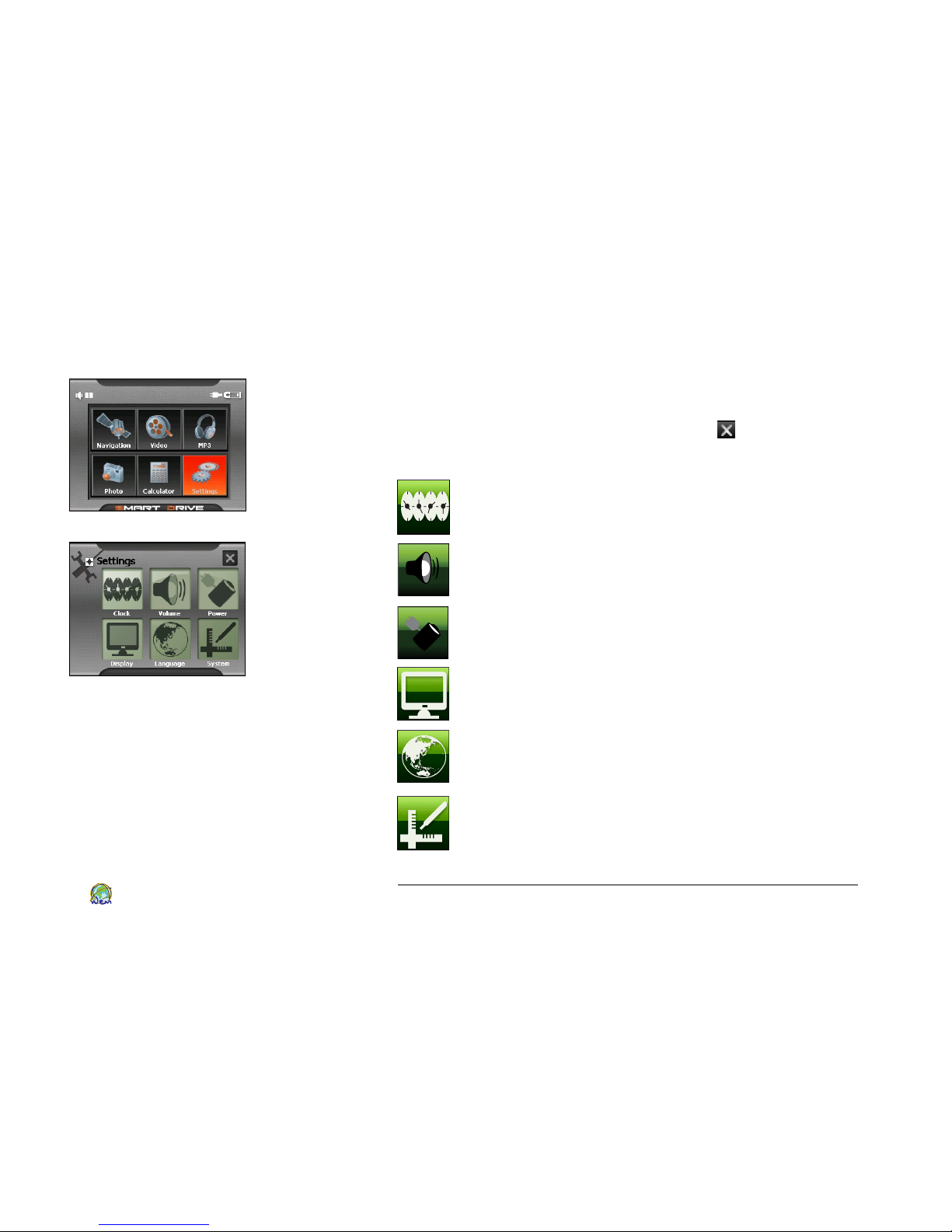
Setup
Setting
Tap on the Calculator button from the main menu screen. This
program turns SmartDrive into a calculator. To return to the
main menu screen, click on the exit button on the top right of
the screen.
System Clock setup
You can adjust system's time zone, date and time in the
Clock setup.
Volume setup
You can adjust system's speaker volume.
Power
You can check your system's battery level in Power.
Display setup
You can calibrate your touch screen.
Language setup
You can change the display language.
System Info
You could view the system info, such as hardware
version, firmware version, NAND size, RAM size and CPU
type.
Page 50

SmartDrive SD1000 GPS Navigator User’s Guide
46
World Express Mapping Sdn. Bhd.
8. Maintenance
Updating Maps and Software
Once you purchase and register with SmartDrive, you’ll be
informed while the updated maps are available. Or check out
http://www.wems.com.my regularly for our news. Instructions on
how to update the software are available at the website.
Care of
SmartDrive
SD1000
Clean the screen with soft cloth, do not use any liquid
cleaners.
Dry the unit with soft cloth, if it gets wet.
Do not open the casing of your GPS Navigator under any
circumstances.
Do not use the memory card with any device other than the
GPS Navigator. Other devices may damage the card.
Do not expose the unit to extreme high or low temperatures,
which can cause permanent damage.
Page 51

SmartDrive SD1000 GPS Navigator User’s Guide
47
World Express Mapping Sdn. Bhd.
9. FAQ & Troubleshooting
Q Why my unit does not work?
A Before turning on your unit, please make sure the unit’s
master switch is turning on. To do this, use a stylus or a ball
pen to move the switch on the back of the device to the
“On” position. Please see page 10 for details.
Q How can I change the language setting?
A Please select “Language” under “Setting” from the main
menu. You can change the device language into English or
Malay. If you would like to change the voice prompt
language, please select “Voice” under “Advanced” from the
“Navigation” program. English, Cantonese, Mandarin,
Malay, Indonesian, Thai, North Vietnamese or turn off the
voice prompt can be selected. Please see page 37 for details.
Q How long will the system take to receive the first GPS signal?
A The system can take up to approximately 10 minutes to
initialize when the unit is used for the first time, or if the unit
has not been used for a long time, or if the unit is being used
for the first time in a new city (i.e. after getting off a plane).
Q I want to test my SmartDrive inside my home but why I can't
get a GPS lock?
A That is normal. GPS signals does not penetrate the walls;
please test your SmartDrive in a location which can see a
clear sky.
Page 52

SmartDrive SD1000 GPS Navigator User’s Guide
48
World Express Mapping Sdn. Bhd.
Q Why I can’t get my GPS signal lock in my car?
A Some cars use metallic tinting on the windows which can
interfere with radio signals. If your windows are tinted, try
stepping outside the car with your GPS device or holding it
out the window. Once it achieves a signal lock, the GPS
device will usually be able to maintain the lock back inside
the vehicle.
Q How long should the unit take to “lock” into the satellite
signals?
A You get the best signal when the device has a clear, open
view of the sky. Additionally, the car should not be moving
to allow the GPS signal to lock-in accurately and quickly
within a few minutes.
Q How can I find a restaurant in a city I’m planning to visit?
A You can find a list of restaurants using the pre-programmed
Restaurant button which located under “Destination” on the
Navigation main menu. This is similar as if you want to find
shopping centre, parking area, petrol station, bank and etc.
Please see page 28 for details.
Q What accessories are available with the unit and how can I
purchase them?
A Beside the PND, a car charger, wall charger, gooseneck
suction mount, magnet holder and a leather case are come
with your SmartDrive box. If you need to purchase any
accessories, please contact our support at page 52.
Page 53

SmartDrive SD1000 GPS Navigator User’s Guide
49
World Express Mapping Sdn. Bhd.
Q Can I avoid any road while I am driving?
A You can simply turn onto a different road, especially while a
particular road is blocked or under renovation. SmartDrive
will automatically and quickly calculate a new route for you
to your selected destination.
Q Can I quick pick road type?
A Yes. Go to “Routing Option” under “Routing”. You may
select Recommended, Motorway Preferred, Motorway
Avoided or Shortest Route routing option. Please view page
34 for details.
Q Why the screen of my
SmartDrive
is blurry and hard to read?
A Dirt and oils from your fingers can stay on the touchscreen.
Periodically clean the touch screen with a lint free cloth
dampened with water only. If the screen remains dirty, try a
mild soap solution or a cleaning spray designed for
electronics. Do not use ammonia on the screen, and never
immerse the device in water.
Q The screen doesn’t respond to my commands, what can I do?
A In general, your SmartDrive should work. But if the screen
really fails to function, please simply reset the system. Firstly,
try to turn off and on your device via the on/off button at
the top of device. If this does not help, press a sharp-tipped
object into the reset port at the back of the device. If the
problem still cannot be solved, please contact our support at
page 52.
Page 54

SmartDrive SD1000 GPS Navigator User’s Guide
50
World Express Mapping Sdn. Bhd.
Q Does
SmartDrive
come with a stylus pen?
A Unfortunately, we do not provide a stylus pen in this
package. Generally, everything on SmartDrive can be
operated with your fingers.
Q Can I operate the screen with other objects than with my
fingers?
A Yes, you may operate the screen with blunt-tipped object,
e.g. a stylus pen for a PDA. Please bear in mind that does not
use any sharp objects to operate the screen, as it might
damage the screen surface.
Q The sound is too low on my
SmartDrive
, what can I do?
A Firstly, please fully charge the battery of your device. You
can charge your SmartDrive through the Docking Station
while you are driving. Second, please turn your volume to
the loudest. You can do it by pressing the volume up button
on the right top of the device; or select “Volume” under
“Setting” from the main menu, and adjust the volume to the
maximum and click OK. You may also use a 3.5mm ear phone
directly connect it to your SmartDrive.
Q Can I connect
SmartDrive
to the sound system in my car?
A Yes, with a FM transmitter and a 3.5mm audio connector
cable, you’ll be able to connect SmartDrive to the sound
system in your car.
Page 55

SmartDrive SD1000 GPS Navigator User’s Guide
51
World Express Mapping Sdn. Bhd.
Q Where and how can I update my map?
A Please check out our website (http://www.wems.com.my)
follow the instructions on the website to update your map.
Q How do I download music, movie and picture into the set?
A You may copy the music, movie and picture files into the SD
memory card. Our multimedia program will read your files
from the SD card.
Q My
SmartDrive
prompt “SD card not Found”, what can I do?
A Remove the SD card, make sure there is no obstruction,
reinsert the SD card deeper in the slot and press the reset
button at the back of the unit.
Q Can
SmartDrive
support a bigger memory?
A Yes, you can simply turn SmartDrive to a bigger memory by
changing a bigger memory SD card.
Q Can I open
SmartDrive
case myself?
A Please bear in mind, if you open the SmartDrive case, you
will no longer be entitled to our warranty. If you experience
anything wrong with SmartDrive, please contact our support
at page 52. SmartDrive can only be opened by our
professional repair centre.
Q Can I use other navigation system software on
SmartDrive
?
A No, SmartDrive may only be used with the software that is
specially designed for it.
Page 56

SmartDrive SD1000 GPS Navigator User’s Guide
52
World Express Mapping Sdn. Bhd.
10. Support / Warranty
Support Contacts
If you should have additional question or problems with your
SmartDrive SD1000, please call us +603 – 7803 2082
at 9am – 5pm Malaysia time, Monday till Fridays, except
holidays.
You are welcome to email our support at
[email protected]. Please include a detailed description of
your issue and any addition contact information for technical
support response.
Please also visit our website (http://www.wems.com.my for
access to our most recently updating of User Guide, FAQ’s, our
latest offers and other information about SmartDrive.
Email : [email protected]
Web : http://www.wems.com.my
Phone : +603 - 7803 2082
Address : 18, Jalan SS 26/6
Taman Mayang Jaya
47300 Petaling Jaya
Selangor, Malaysia
Page 57

SmartDrive SD1000 GPS Navigator User’s Guide
53
World Express Mapping Sdn. Bhd.
Warranty
1. This warranty is valid only in Malaysia, and extends only to the original
Purchaser (Customer / Owner) and it is not transferable.
2. This warranty is irreplaceable in the event of loss.
3. This warranty cover repair or replacement at World Express Mapping Sdn.
Bhd., discretion without charge to the purchaser, any parts proved to be
malfunctioning due to faulty workmanship or materials, provided that the
purchase of the equipment was made from an authorized dealer.
4. This warranty is valid for the following product and its accessory items from
the date of purchase:-
i. Transceiver - 12 months
ii. Original AC- Charger - 12 months
iii. Original Battery - 6 months
iv. Others (if any) - 3 months
5. This warranty will be rendered null and void if any of the following events:-
i. The product’s serial number or warranty seal has been removed, altered,
rendered illegible or tampered.
ii. In any term contained in this warranty has been altered or modified in
any way without the prior written assent of World Express Mapping Sdn.
Bhd.
iii. The product is damaged due to normal wear and tear, corrosion, rust or
stain, wrong usage of electrical supply / voltage.
iv. Unauthorized service repair, improper installation, adnormal operation
or handling, alteration or modification being carried out.
v. Misuse, negligence or accident howsoever caused.
vi. Rough handling or transportation.
vii. Fire, earthquake, flood, fume or water or any result of natural disaster.
viii. The warranty card is lost, damage or tampered.
6. Request for replacement or repair within the warranty period without
producing this warranty card will not be entertained.
In the event of the defects covered by this warranty arising during the
warranty period, the equipment should at the expenses of the purchaser be
sent our company. Please refer to Support at page 52 for our address.
Page 58

SmartDrive SD1000 GPS Navigator User’s Guide
54
World Express Mapping Sdn. Bhd.
For complete details on using the SmartDrive
SD1000 Navigator and latest update, refer to
our most up-to-date version of the User
Manual and FAQs located at:
http://www.wems.com.my
 Loading...