

Page 1
R
This product is not available for normal distribution.
ENGLISH
Page 2

SCB-1 Content
Table of Contents
1. OUTLINE ...................................................................................................................................1
2. TECHNICAL SPECIFICATIONS .............................................................................................1
3. DIMENSIONS............................................................................................................................2
4. PIN ASSIGNMENT....................................................................................................................3
5. FUNCTIONS ..............................................................................................................................5
5.1 ZOOM...................................................................................................................................5
5.2 FOCUS..................................................................................................................................5
5.3 IRIS.......................................................................................................................................5
Auto Iris (AI) ...........................................................................................................................6
Auto Shutter Control (ASC) ....................................................................................................6
Auto Gain Control (AGC)........................................................................................................6
Manual Iris...............................................................................................................................6
Exposure Compensation ..........................................................................................................6
5.4 White Balance.............................................................................................................................6
White balance adjustment errors..............................................................................................7
5.5 User-OSD (On Screen Display)..................................................................................................7
5.6 Image Memory............................................................................................................................7
5.7 Preset Function............................................................................................................................7
5.8 On-Screen Menu .........................................................................................................................8
Color/Contrast Setting..............................................................................................................8
Detail........................................................................................................................................8
Display Logo............................................................................................................................8
6. CONTROL METHODS..............................................................................................................9
7. INSTALLATION......................................................................................................................11
8. ECLIPSE...................................................................................................................................12
9. HANDLING PRECAUTIONS.................................................................................................13
9.1 Handling....................................................................................................................................13
9.2 Operation and storage locations ................................................................................................13
9.3 Cleaning ....................................................................................................................................13
9.4 Other..........................................................................................................................................13
9.5 Software ....................................................................................................................................13
10. COMMAND LIST............................................................................................................... .....14
10.1 Specification of SCOTI (SCB Operating & Transfer Interface)...............................................14
Overview................................................................................................................................14
Change baud rate....................................................................................................................14
Packet-Format........................................................................................................................15
Version Check........................................................................................................................16
Replies from the camera ........................................................................................................16
Commands .............................................................................................................................16
Commands of Camera, Future ...............................................................................................16
11. WolfVision Camera Control Software......................................................................................24
Software Installation..............................................................................................................24
Control of the SCB-1 .............................................................................................................25
User I/O.................................................................................................................................. 25
Image Transfer.......................................................................................................................25
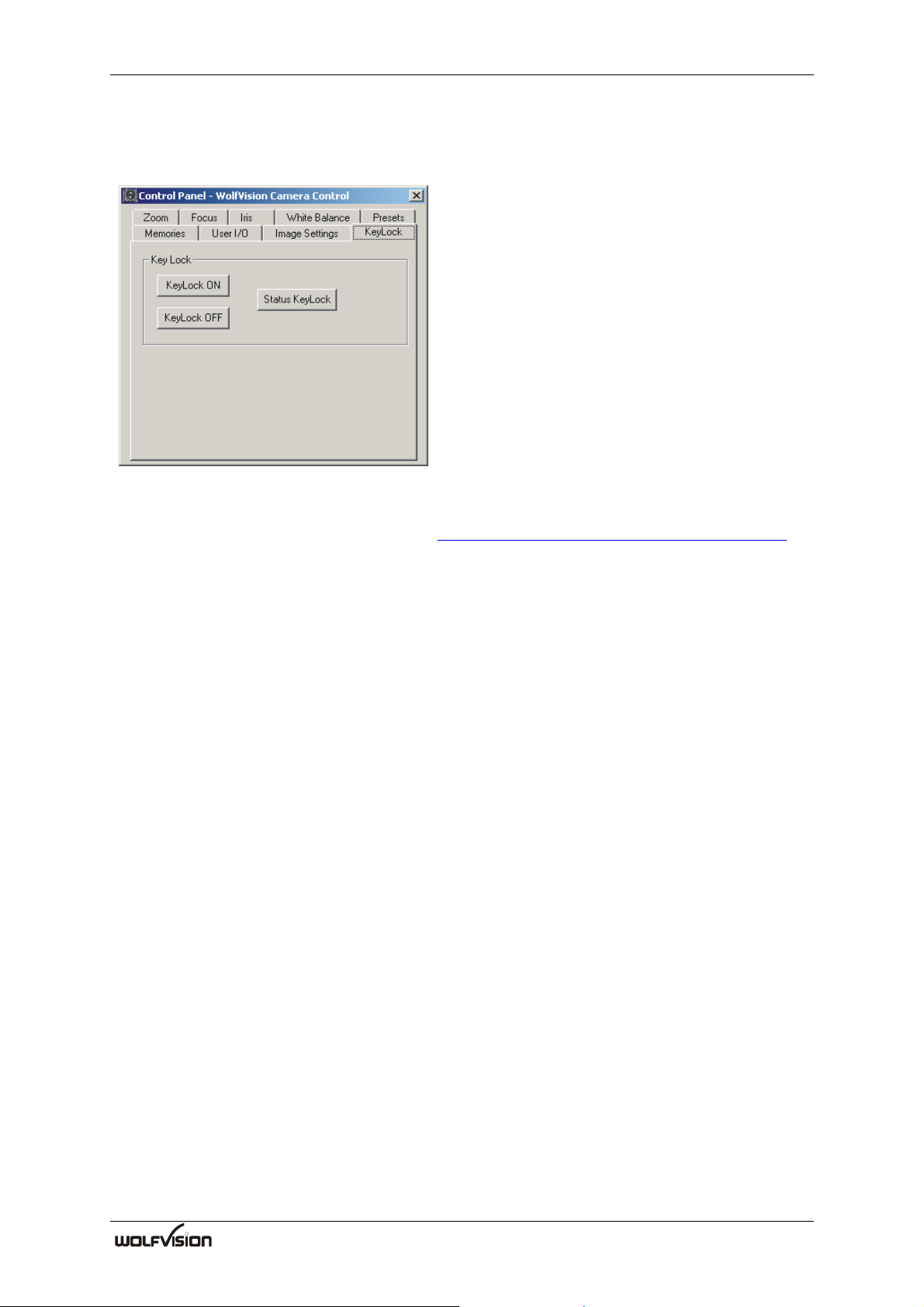
Key Lock................................................................................................................................26
Firmware update ....................................................................................................................26
Hints.......................................................................................................................................26
Note........................................................................................................................................26
12. OPTIONAL ACCESSORIES...................................................................................................27
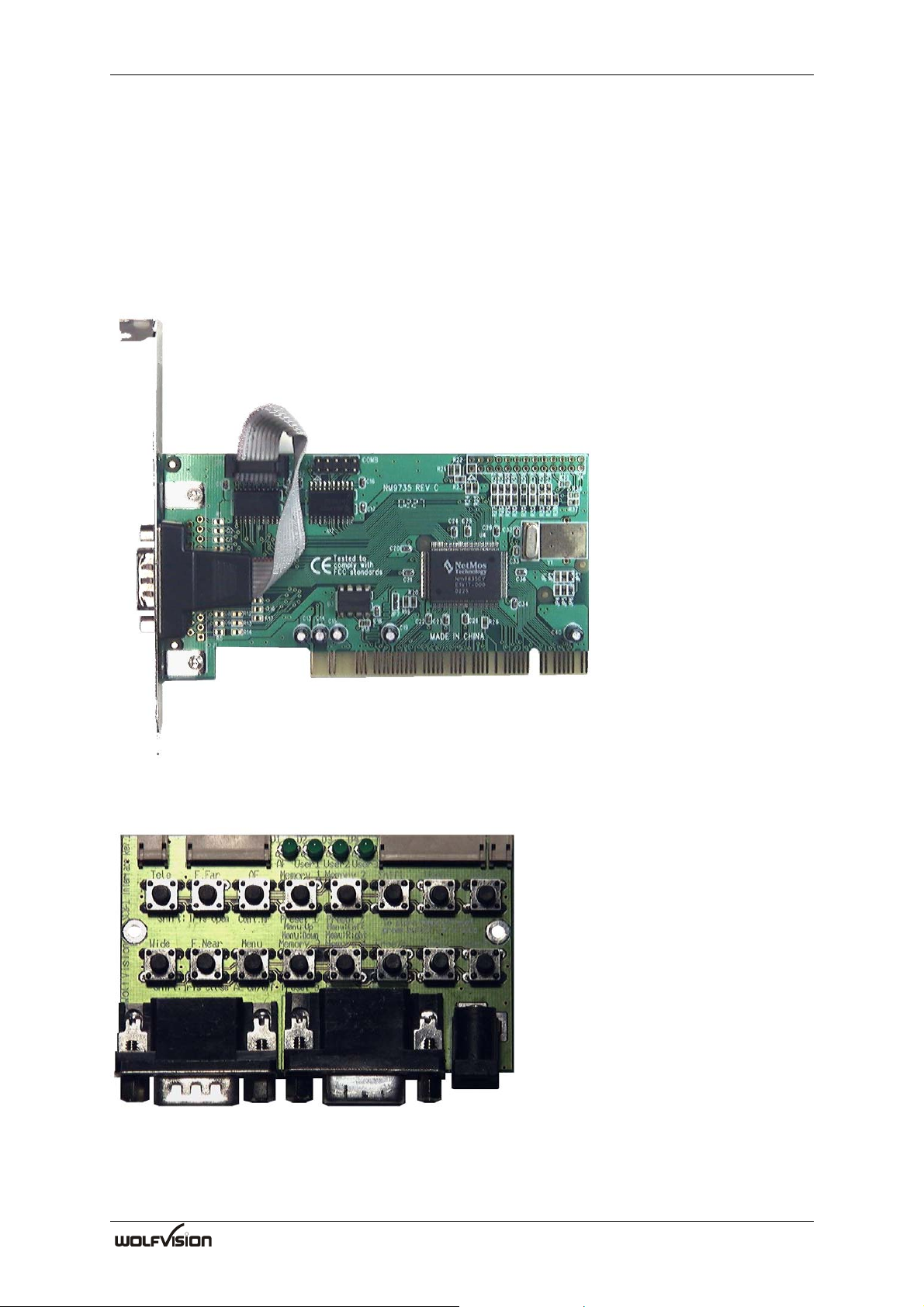
12.1 High speed RS-232 extension card ...........................................................................................27
12.2 SCB-1 Interface board...............................................................................................................27
12.3
Proxer........................................................................................................................................28
R
I
Page 3

Outline SCB-1
1. OUTLINE
The SCB-1 is an ultra-compact color-camera-module with XGA-resolution (1024x768) and
20 frames per second. With the integrated frame-rate-converter the camera is able to produce
a 60Hz or 75Hz XGA-image.
The SCB-1 has a high quality lens with 12x optical zoom and 2x digital zoom. The camera
module has an auto-focus.
There are special features like: 9 Presets (remain stored when disconnected from power),
Positive/Negative, 4 image memories plus Freeze.
The camera can be controlled by either RS-232 (SCOTI) or by an external connectable keymatrix. It is possible to transfer images via SCOTI at up to 921.600 baud.
Supply-voltage is 12VDC (+/- 10%).
A camera sample includes also the SCB-1 Interface board, a power supply, a high speed RS232 I/O extension card incl. cables.
2. TECHNICAL SPECIFICATIONS
Image sensor 1-CCD 1/3" Progressive Scan
Active Pixels 1024 (H) x 768 (V)
Pictures per second 30fps (output is frame-rate converted to 60Hz or 75Hz)
Horizontal resolution 640 TV-Lines (with perfect edge focus)
Lens / Zoom 12x Optical Zoom, f=5.8 to 69.6 mm, F=2.8 to 3.0
Digital zoom 2x (12x optical zoom + 2x digital zoom = 24x zoom)
Focus Continuous AF, One-Push AF, Manual focus
Lens structure 10 groups, 13 pieces (2 spherical)
Min. optical distance (MOD) Tele: 0.5m, Wide: 50mm (optional: proxer for shorter distance)
XGA-Output RGB HD/VD, R/G/B: 0.7 Vpp into 75 Ohm, HD/VD: 3.2 Vpp
into 2.2 kOhm, Vertical frequency: 60Hz or 75Hz
Min. Illumination 5 Lux typ.
Iris / Shutter / Gain Auto-Iris, Manual Iris / Exposure / Gain
White-Balance Continuous Auto-Tracking, One-Push-Auto, Manual
Operating temperature 0°C to +40°C
Power requirements 12 V DC (+/-10%), 0.5 A typ.
Dimensions 64mm (W) x 59mm (H) x 96mm (D)
Weight 220g
Interfacing Board (Optional)
Connectors RGBHV, 15 pin Sub HD; RS 232, 9 pin Sub D; 12V Power In
Push Buttons Tele / Wide, Focus Near / Far - Auto-Focus, Menu up / down /
left / right, Shift, Freeze, User 1 / 2 / 3 / 4
Proxer (Optional)
Close Up lens
f=477mm, 2.1 dpt. (inclusive mounting ring)
R
1
Page 4
SCB-1 Dimensions
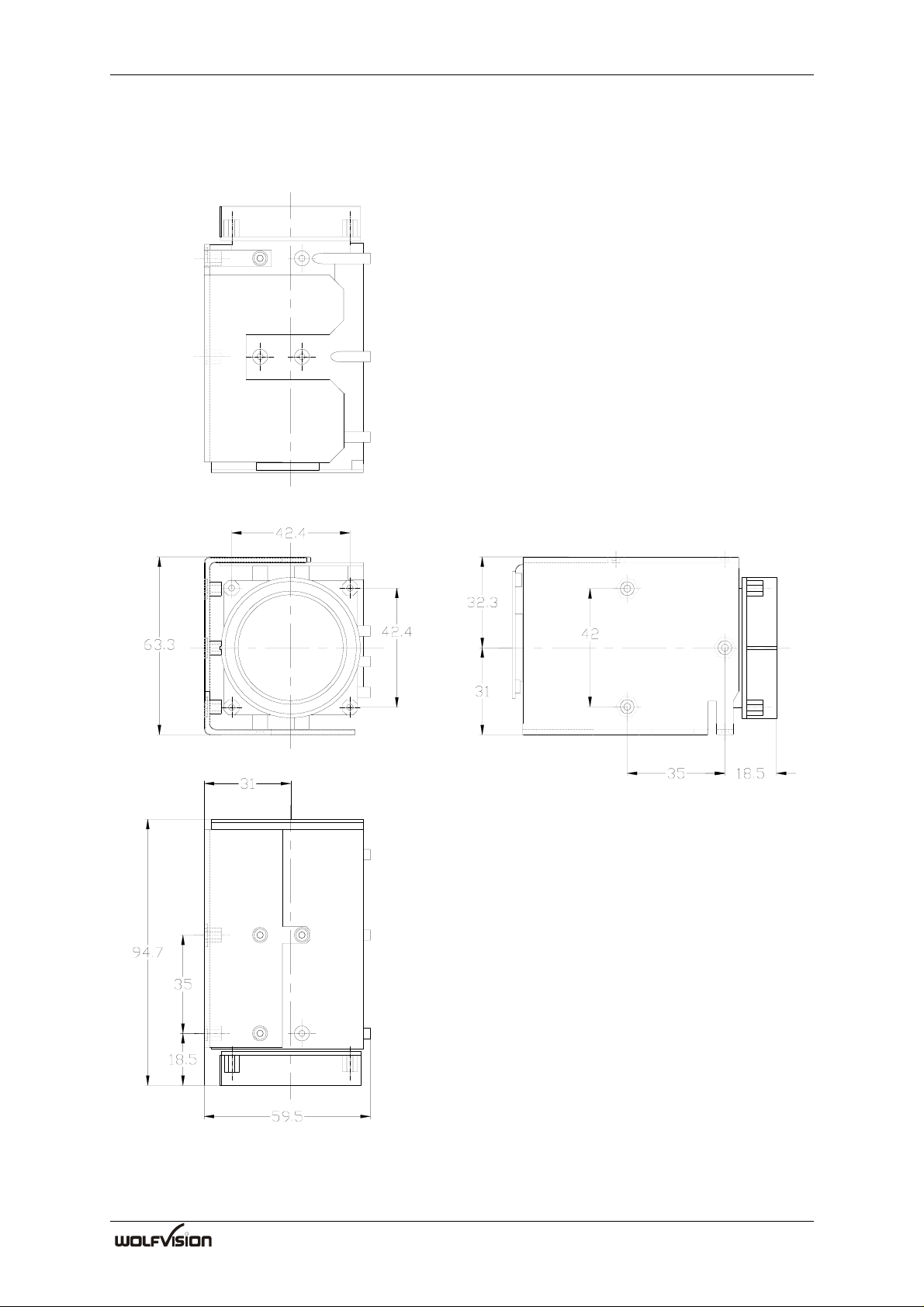
3. DIMENSIONS
all dimensions in mm
R
2
Page 5
Pin Assignment SCB-1
4. PIN ASSIGNMENT
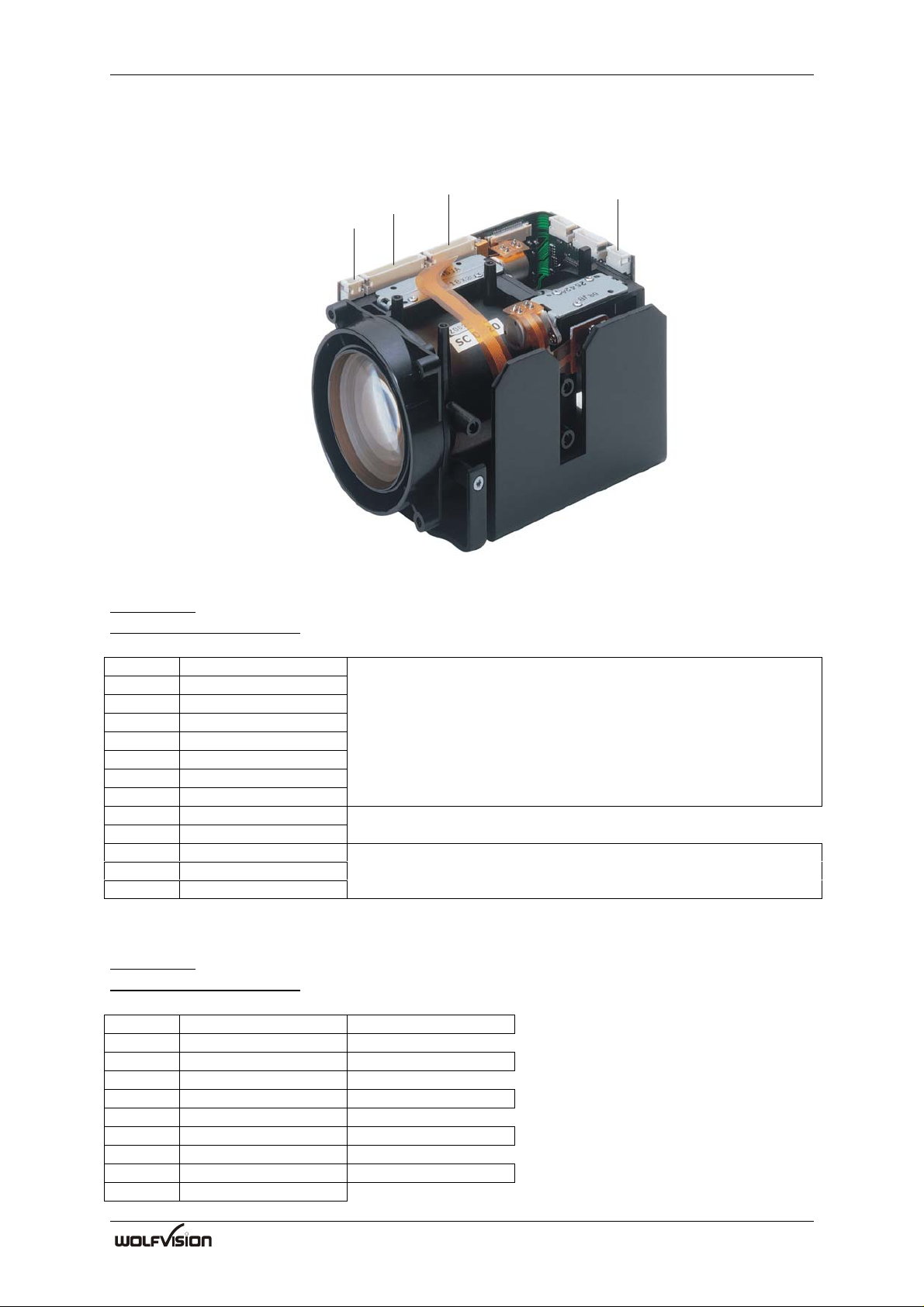
Connector position:
1
J5
10
J6
1
3
1
J18
J1
13
1
2
J1 Key Control
Board side: JST S13B-ZR
Cable connector housing: JST ZHR-13
Pin 1 Key-Matrix Row 1
Pin 2 Key-Matrix Row 2
Pin 3 Key-Matrix Row 3
Pin 4 Key-Matrix Row 4 4 keys of the matrix are reserved for the
Pin 5 Key-Matrix Column 1 user, they can be checked via SCOTI (RS-232)
Pin 6 Key-Matrix Column 2
Pin 7 Key-Matrix Column 3
Pin 8 Key-Matrix Column 4
Pin 9 GND
Pin 10 AF-LED
Pin 11 User-LED 1 User LEDs are reserved for the user and can be
Pin 12 User-LED 2 controlled via SCOTI (RS-232)
Pin 13 User-LED 3
J5 XGA-Output
Board side: JST S10B-ZR
Cable connector housing: JST ZHR-10
Pin 1 R 0.7 Vpp into 75 Ohm
Pin 2 GND
Pin 3 G 0.7 Vpp int o 75 Ohm
Pin 4 GND
Pin 5 B 0.7 Vpp into 75 Ohm
Pin 6 GND
Pin 7 HD 3.2 Vpp into 2.2k Ohm
Pin 8 GND
Pin 9 VD 3.2 Vpp into 2.2k Ohm
Pin 10 GND
R
3
Page 6

SCB-1 Pin Assignment
J6 Serial Control (RS-232)
Board side: JST S3B-ZR
Cable connector housing: JST ZHR-3
Pin 1 RxD RS-232C, 9600baud, 8, n, 1 (Data from host)
Pin 2 TxD RS-232C, 9600baud, 8, n, 1 (Data to host)
Pin 3 GND
The baud rate is changeable up to 921600 baud for image transfer.
J18 Power
Board side: JST S2B-ZR
Cable connector housing: JST ZHR-2
Pin 1 +12V DC; (0.5A typical, 0.7A max) +/- 10%
Pin 2 GND
R
4
Page 7

Functions SCB-1
5. FUNCTIONS
The SCB-1 can be controlled through a key-matrix or via RS-232 (SCOTI).
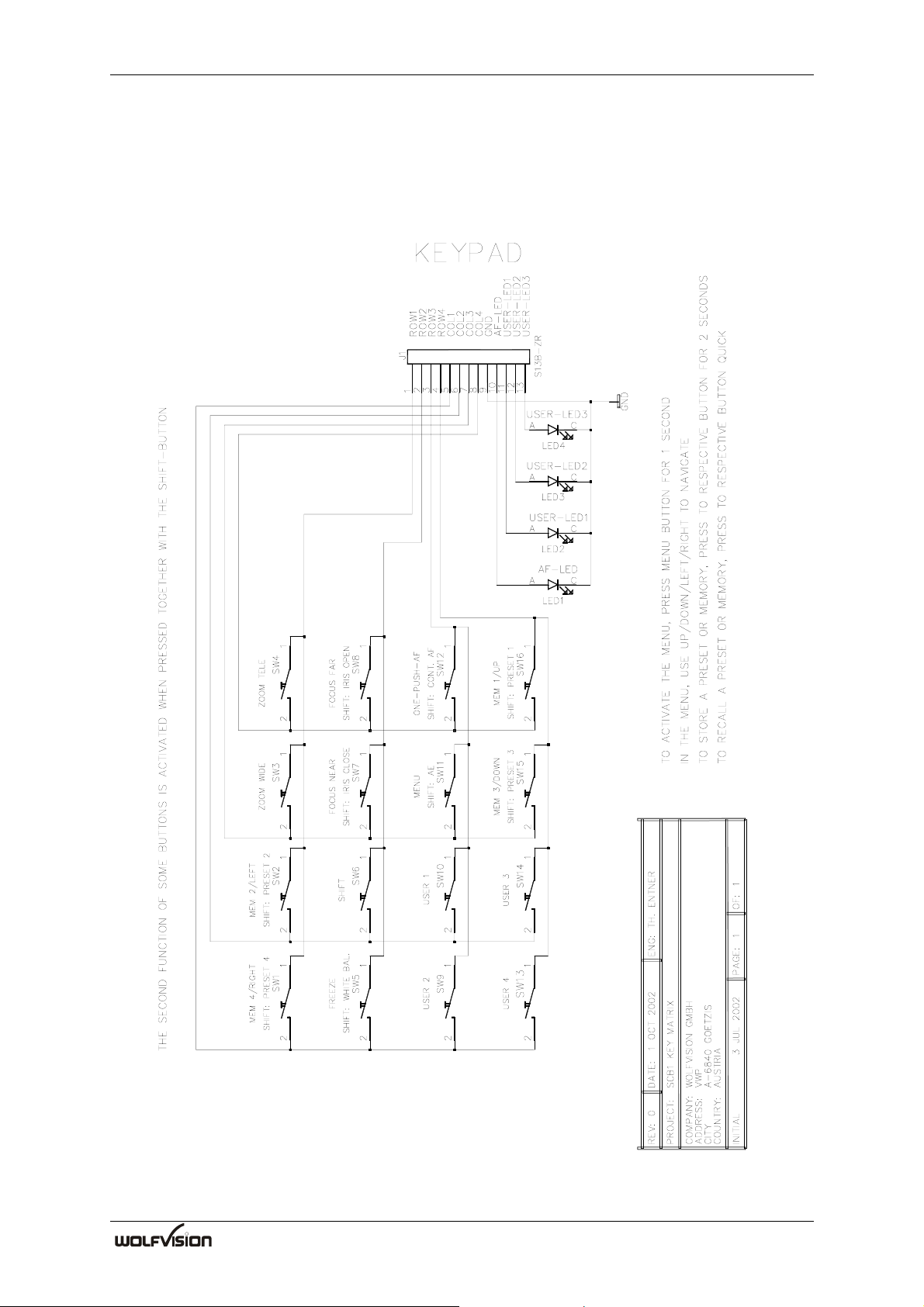
With the WolfVision SCB-1 Interface board the basic control functions can be done for
evaluation-purposes.
5.1 ZOOM
The SCB-1 uses an 12x zoom lens as well as a 2x digital zoom.
Optical 12x, f=5.8 to 69.6 mm (F=2.8 to 3.0)
The digital zoom is automatically switched ON at the tele end of 12x optical zoom range,
with progressive effect from 1 to 2, giving a total maximum 24x zoom ratio. Digital zoom
increases the picture element size and reduces the resolution.
Extended control of zoom:
• Direct zoom position
• Get current zoom position
• Zoom speed selection (15 speeds)
• Digital zoom can switched ON/OFF
• OSD-message or stop of zooming when digital-zoom is entered (selectable)
5.2 FOCUS
The minimum focus distance (MOD) is below 50mm at optical wide end and below 500mm
at optical tele end, and is independent of digital zoom. If shorter distance are necessary, a high
quality close up lens is available (see optional accessories). An Auto-Focus (AF) function is
also available (enabled by default).
Extended control of focus:
• Direct focus position
• Get current focus position
• Manual Focus speed selection (15 speeds)
• Focus can switched to Auto-Focus (permanent), One Push Auto- or Manual Focus
• Auto-Focus region can be switched between center (AF measures in the center area of
the image) and large (measure the complete image)
• Focus Priority: "Auto" - activates Auto-Focus by pressing a ZOOM-key
5.3 IRIS
After power-on AI, ASC and AGC are enabled by default.
Extended control of Iris:
• Direct Iris position
• Get current Iris position
• Manual Iris speed selection (2 speeds)
• Iris Priority: "Auto" - activates Automatic Exposure Mode by pressing a ZOOM-key
• Automatic / manual: Iris, Shutter and Gain
R
5
Page 8

SCB-1 Functions
Auto Iris (AI)
The iris changes automatically according to the brightness of the subject. If ASC and / or
AGC are enabled, they change also automatically if necessary.
Auto Shutter Control (ASC)
If enabled, the shutter virtually extends the iris-range if the iris is closed as much as possible.
If disabled, the shutter can be set from 1 (very short exposure time) to 1188 (maximum
exposure time).
Auto Gain Control (AGC)
If enabled, the gain virtually extends the iris-range if the iris is fully opened. If the AGC is
disabled, it can be set to any gain-value from 0dB to 32dB.
Manual Iris
The iris can be opened or closed manually. If ASC or AGC are enabled, they extend the
possible adjustment-range. The Iris can also be set directly between 000 to FFF (in
hexadecimal), the higher the value, the brighter the picture.
Exposure Compensation
Exposure compensation allows you to fine-adjust the image-brightness in steps from -10
(darker) to +10 (brighter) in the auto-iris-mode.
5.4 White Balance
Each time the lighting conditions change, adjust the white balance so that the optimal color
reproduction is obtained.
• ATW: Auto Tracking White Balance
The WB is automatically adjusted as the color temperature changes.
• One Push WB: One Push auto tracking White Balance (store values in Manual WB)
(OWB) Press the keys "Shift" + "Freeze" simultaneously, the message "White
Balance" appears on the screen while the white level is being
adjusted. When the adjustment is done, the message "White OK"
appears on the screen. The adjusted level is automatically stored in
the memory, even if the camera's power is turned off.
• Manual WB: Manual control of R and B gain (-120 to +120 each)
R
6
Page 9
Functions SCB-1
White balance adjustment errors
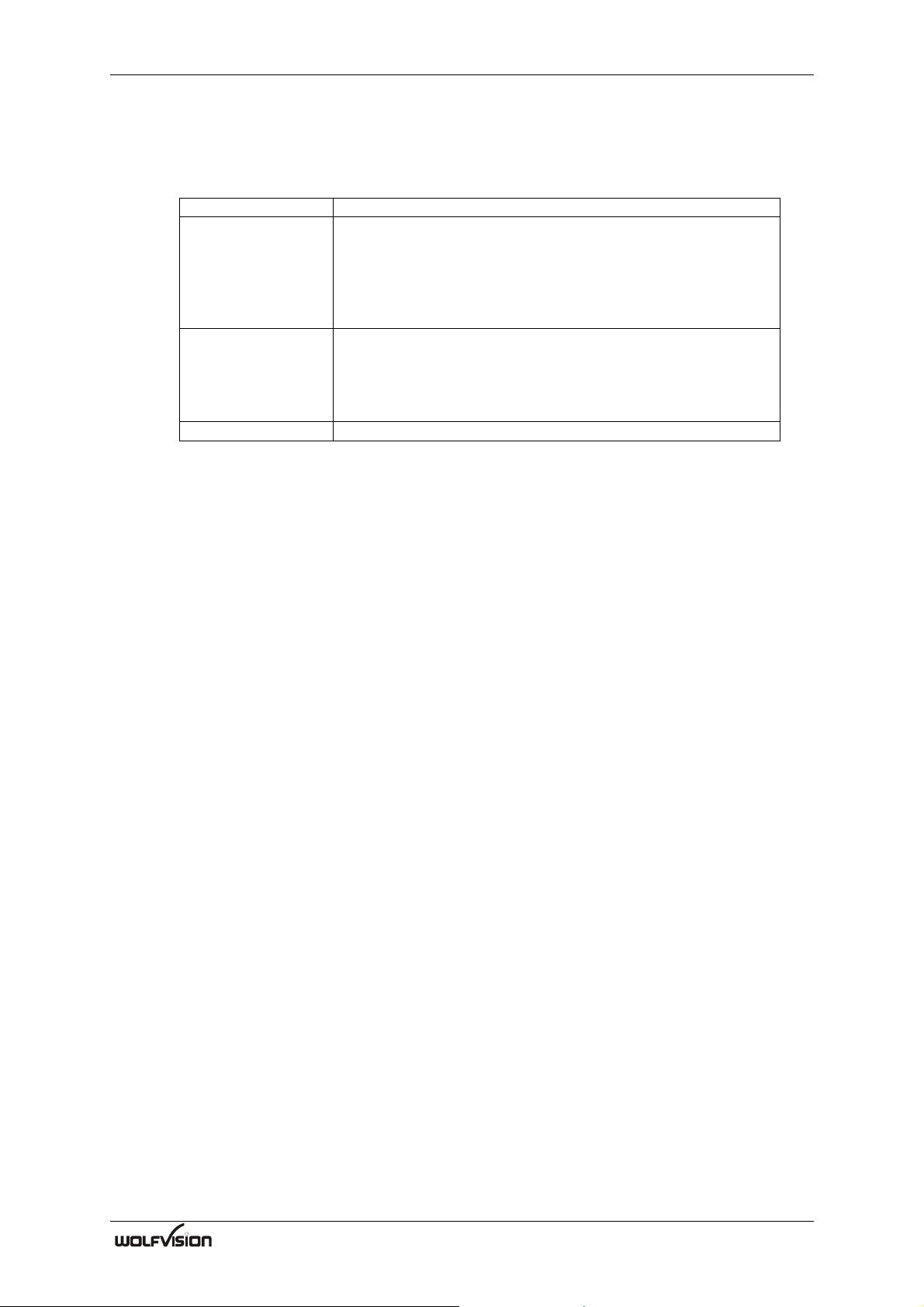
If the white balance adjustment is not successful, an error message appears on the screen. If
this happens, take the necessary measures.
Error message Description and remedy
White: Too Bright! The video signal level is too high. Take one or more of the following
measures and then perform the OWB again:
• Remove any brightly illuminated objects
• Decrease the illumination
• Close the iris opening
• Decrease the video gain
White: Too Dark! The video signal level is too low. Take one or more of the following
measures and then perform the OWB again:
• Increase the illumination
• Widen the iris opening
• Increase the video gain
White: Out of Range! Place a white sheet of paper and perform the OWB again.
5.5 User-OSD (On Screen Display)
Beside the on-screen-menu and other camera-messages the SCB-1 also allows the user to
display his own messages. If the User-OSD is enabled, the SCB-1 displays no own messages,
the menu is not selectable.
The camera can display 15 lines of up to 30 characters. The top line can be displayed in the
double character height.
Following colors can be set: black, red, green, yellow, blue, purple, cyan and white.
The color can be set for each line.
5.6 Image Memory
The SCB-1 has an image memory from which a stored image can be output as a still image.
You can store four images plus one frozen image in the memory.
Press one of the MEMORY-keys (1 - 4) for 2 seconds to store a image into memory. To recall
press the MEMORY-key quickly.
To capture the image into memory, use the FREEZE-key. The captured image is output.
5.7 Preset Function
The SCB-1 offer the possibility of programming 9 presets plus 1 power-on preset for the
functions Zoom, Focus, Iris, Positive/Negative and Black/White.
Preset 1 to 4 can be stored and recalled be the 4 PRESET-keys on the SCB-1 Interface board.
Press one of the PRESET-keys (1 - 4) for 2 seconds to store preset into memory. To recall
press the PRESET-key quickly. The presets 5 to 9 can only be controlled via SCOTI (RS-
232).
You can store the current setting as power-on-preset by selecting "Store Power-On-Preset" in
the menu. This preset is recalled when the camera is switched on.
R
7
Page 10

SCB-1 Functions
5.8 On-Screen Menu
By pressing the MENU-key for 1 second, the on-screen menu appears on the screen. To
navigate in the menu, use the UP/DOWN-keys, LEFT/RIGHT-keys. The standard settings are
in italics. The menu can not be operated via SCOTI.
SCB-1 Menu:
Color Settings
White Balance AUTO-TRACKING
ONE-PUSH
Trigger by pressing the WB-button (SHIFT+FREEZE)
MANUAL
R Gain +0 (-120 to +120)
G Gain +0 (-120 to +120)
Color/Contrast Setting 1 (0, 2)
Return
Misc Settings
Detail High (OFF, MEDIUM)
Focus Priority MANUAL (AUTO)
Iris Priority MANUAL (AUTO)
Digital Zoom ON (OFF)
Dig. Zoom Warning STOP (MESSAGE, NONE)
AF Region CENTER (LARGE)
Return
Power-On Settings
Store Power-On-Preset
Display Logo ON (OFF)
Return
Pos/Neg. Mode POSITIVE (NEGATIVE)
Color / B/W COLOR (BLACK/WHITE)
Output Frequency 75Hz (60Hz)
Reset Complete Menu Are you sure YES
NO
Exit
Note: If a setting is marked with "!", then this setting is changed with the RS-232 control
software. This is only a temporary change until the camera is disconnected from the
power. To change a setting permanently, change the setting in the on-screen menu.
Color/Contrast Setting
Default is 1. For stronger contrast set to 0, for softer color-reproduction set to 2.
Detail
Also called contrast-enhancement or aperture. Default is HIGH. MEDIUM makes the picture
look softer, OFF disables the detail-function and outputs the data as seen from the CCD.
Display Logo
Default is ON. If changed to OFF, the "WolfVision SCB-1" logo is not displayed during
power-up.
R
8
Page 11
Control Methods SCB-1
6. CONTROL METHODS
Basic camera functions can be controlled by the interface board.
R
9
Page 12

SCB-1 Control Methods
The Camera can be also controlled via RS-232.
Controller D-SUB 9pin
1. CD
2. RxD 2. TxD
3. TxD 3. GND
4. DTR
5. GND
6. DSR
7. RTS
8. CTS
9. RI
Controller D-SUB
Camera J6 JST ZHR-3
1. RxD
Camera J6 JST ZHR-3
25pin
1. FG
2. TxD 2. TxD
3. RxD 3. GND
4. RTS
5. CTS
6. DSR
7. GND
20. DTR
For more details, see the command list on page 14.
1. RxD
R
10
Page 13
Installation SCB-1
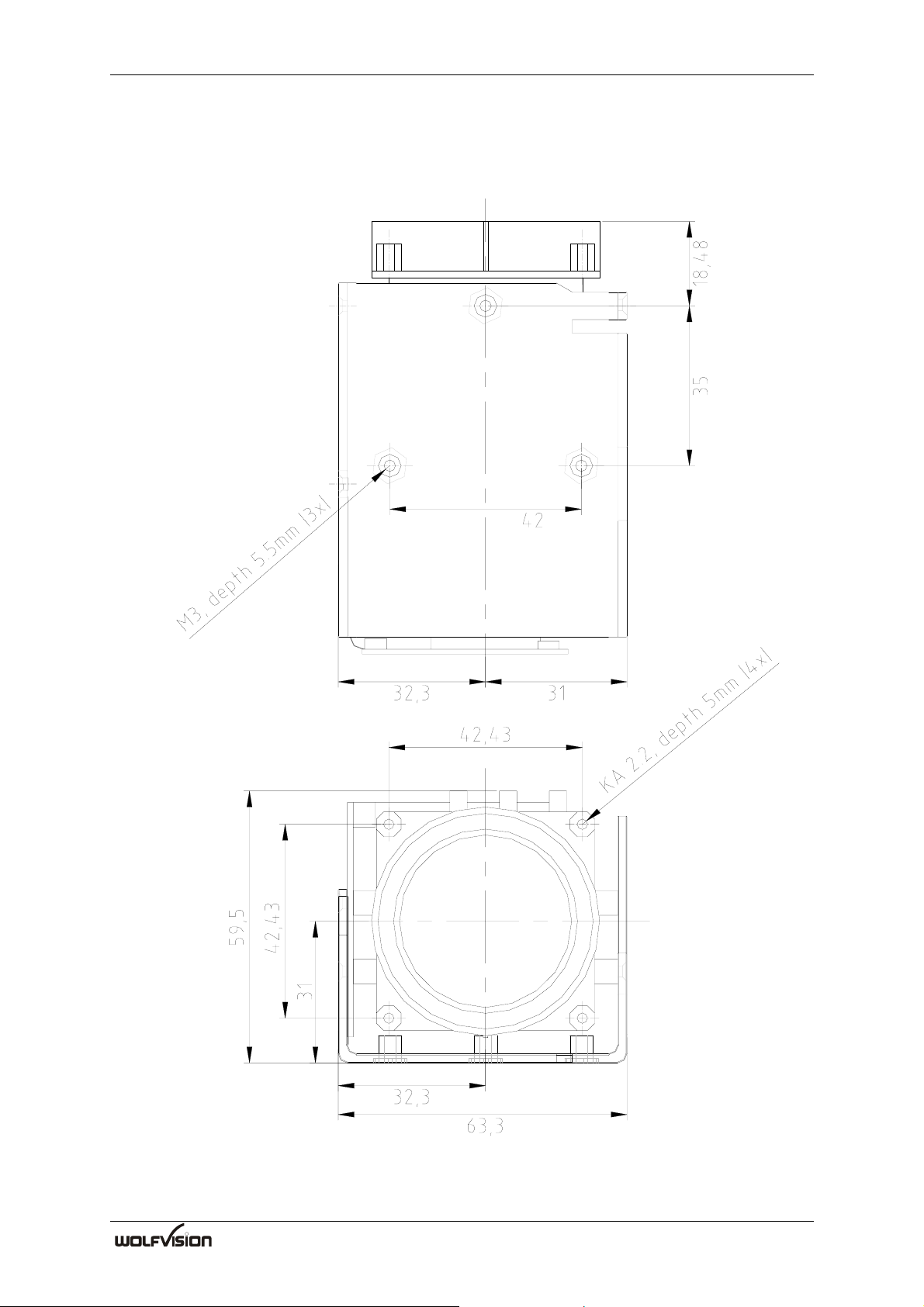
7. INSTALLATION
all dimensions in mm
R
11
Page 14
SCB-1 Eclipse
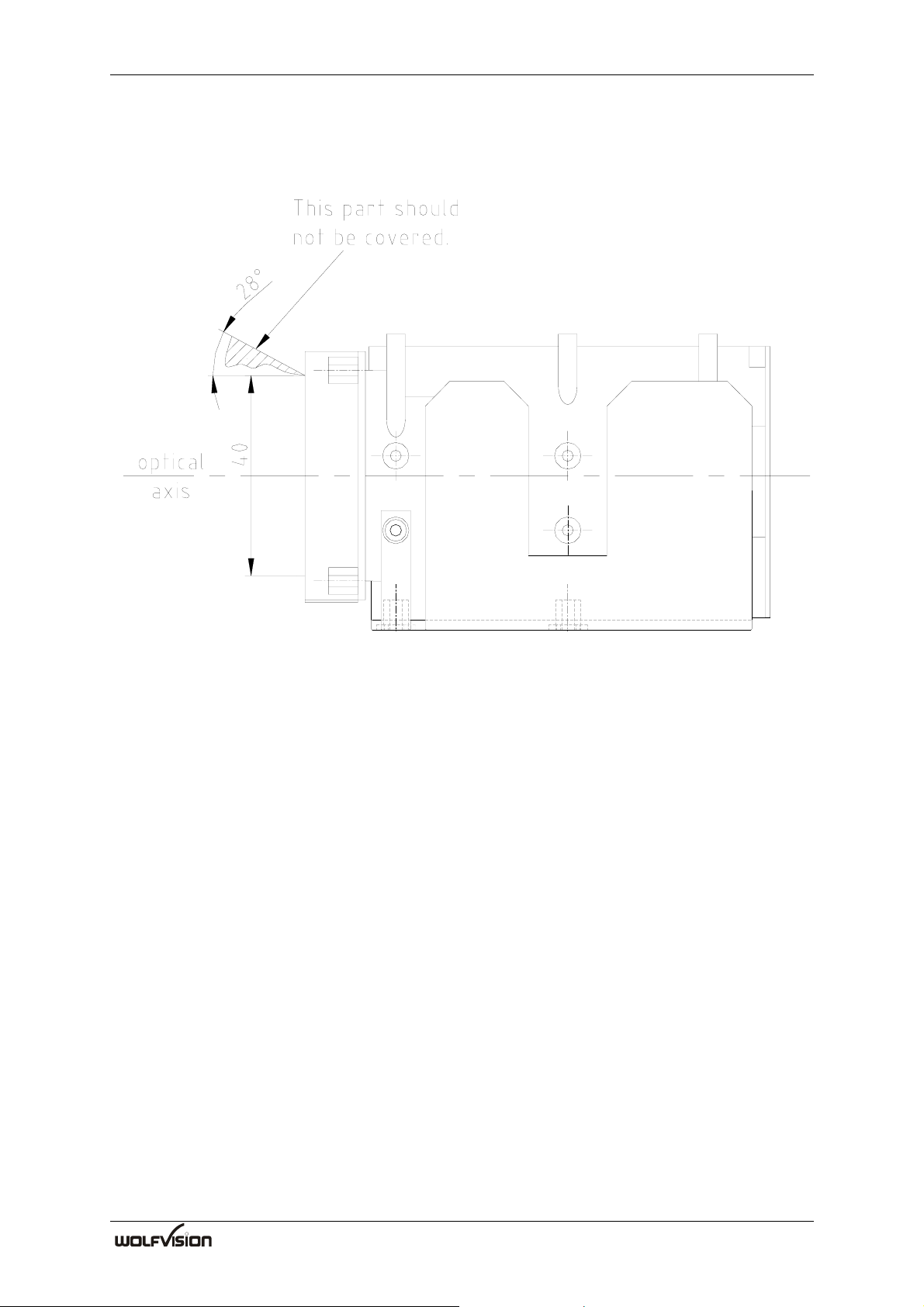
8. ECLIPSE
all dimensions in mm
R
12
Page 15

Handling and Precautions SCB-1
9. HANDLING PRECAUTIONS
9.1 Handling
Avoid spilling water or any liquids on to the camera. Do not allow metallic objects to fall
inside the body or contact the electronic boards.
9.2 Operation and storage locations
Avoid operation or storing the camera in the following locations:
• Extremely hot or cold places (operation temperature: 0°C to +40°C)
• In direct sunlight for long periods, or close to heating equipment (e.g., near heaters)
• Places subject to excessive dust or oil or gas
• Places where there are strong electromagnetic waves or magnetism, the picture could
be distorted.
• Places where there are radiation, this could damage the CCD and other components
and cause a malfunction
• Places where the camera would be subject to strong vibrations. This could damage
components and degrade the picture.
9.3 Cleaning
Remove dust or dirt on the surface of the front lens with air pressure.
9.4 Other
• Do not apply excessive force to the printed circuit boards.
• Do not apply excessive voltage, use only the specific voltage
• Prevent static electricity; wear a wrist band when touching the camera. Use a antistatic
bag to package the camera.
• Repack the camera as it was originally for transport.
• Do not block air circulation around the camera to prevent internal heat buildup.
9.5 Software
Turn on the camera first and then start the camera control software on your PC. The Camera
Control Software (for Microsoft Windows 95, 98, ME, 2000 and XP) operates the SCB-1 via
SCOTI (RS-232).
(Microsoft, Windows are trademarks of Microsoft Corporation.)
R
13
Page 16

Command List SCB-1
10. COMMAND LIST
10.1 Specification of SCOTI (SCB Operating & Transfer Interface)
Overview
The SCB-1 can be controlled via a RS-232-interface. The used protocol is called SCOTI (for
SCB operating and transfer interface).
The baud rate is set to 9600 (8, n, 1, no handshaking) out of the factory. It can be changed to
19200, 38400, 57600, 115200, 230400, 460800 or 921600. The high transfer-rates are useful
if you want to transfer images via RS-232 (not possible with 9600). Please note that baud
rates above 115200 are not supported by all PC and may require special drivers and/or
hardware. We can recommend you serial-port-cards that support 921600 baud. You can get
the latest Camera Control software (see page 15) from
http://www.wolfvision.com/wolf/camera_control.exe. This software uses the SCOTI-protocol
and demonstrates all possibilities and can be used for image-transfers.
The communication is packet-oriented: The host sends a packet and the SCB replies to it with
"OK" or an error (e.g. if the checksum was incorrect). A new packet from the host can be sent
after the reply from the previous packet was received (or a timeout occurred).
Change baud rate
To change the baud rate, start the WolfVision Camera Control software. Set the new baud rate
in the "Extras"-menu. To permanently store the new setting, select "Memorize Current Baud
rate".
If the Camera Control software is not available, use the RS-232 commands on page 23.
Following baud rates are supported since firmware v1.03a and Camera Control software v1.3:
19200 baud/s
38400 baud/s
57600 baud/s
R
14
Page 17

SCB-1 Command List
Packet-Format
Short-Packet-Format: For short packets (up to 15 Byte Data):
00hex Len+F0hex Data[1] Data[2]... Data[Len] Checksum
Long-Packet-Format: For long packets (up to 61439 Byte Data):
00hex Len H Len L Len-Checksum Data[1]... Data[Len] Data-Checksum
The long-packet-format-data can also be used for short packets (below 15 bytes of data).
(However, only one of the two possible formats will be used in this document.) The long
packet-format is mainly used for the "OSD Write Line"-command and for image transfers.
Len H and Len L are the High- and Low-Byte of the 16 bit Length. The High-Byte is not
allowed to get F0hex or higher, as this would indicate the short-packet-format. In the shortpacket-format, F0hex is added to the length, so F1hex is for 1 byte length, F2hex for 2 byte,
etc.
The checksum is the ones-complement (bit-wise NOT) of the sum of all length- and databytes (truncated to 8 bit).
The length-checksum is the ones-complement (bit-wise NOT) of the sum of both length-bytes
(truncated to 8 bit).
The data-checksum is the ones-complement (bit-wise NOT) of the sum of all data-bytes
(truncated to 8 bit).
The shortest possible packet has a length of 4 Bytes (using the short-packet-format): 1 Byte
Header, 1 Byte Length, 1 Byte Data and 1 Byte Checksum. For example, if Data is 01hex:
00hex F1hex 01hex 0Dhex
Header Length Data Checksum
(F1hex+01hex=F2hex,
Ones-Complement=0Dhex)
Following message in the long-packet-format would have the same effect:
00hex 00hex 01hex FEhex 01hex FEhex
Header Length H Length L Check Len Data Checksum Data
(00hex+01hex=01hex, (01hex=01hex,
Ones-Complement=FEhex) Ones-Complement=FEhex)
The host and the camera should both ignore all the data that they receive if a header is not
detected (however, the camera will respond to 76hex with a version-string) If the camera
detects a checksum-error, it will reply with a checksum-error-packet and the host should
resend the packet. If e.g. the header from the host is corrupted, the camera will not detect the
header and will not respond to the packet. The host should then time-out and resends the
packet. If a false header is detected (e.g. a Data-Byte is 00hex) a checksum-error will be
generated. If the camera receives the start of a packet, but not enough data, it will timeout
after 1 second and send a time-out-error-packet.
R
15
Page 18

Command List SCB-1
Version Check
A special command, which is the only command that does not use the packet-format is 76hex
(ASCII 'v'). If the camera receives this command, it will respond with "SCB-1
Vx.xxx"+CR+LF. This command can be used for easy communication-check with a terminal
program and is also included for compatibility with other WolfVision Products.
Replies from the camera
H L D C Remarks
Command OK: 00 F1 01 0D reply within max. 0.5s
Illegal Command: 00 F1 10 FE
Command failed: 00 F1 11 FD Command not possible in the moment
Parameter wrong: 00 F1 12 FC (or wrong command length)
Checksum Error: 00 F1 20 EE
Timeout Error: 00 F1 21 ED after the 00-header, the rest of the
command must be sent within 1 sec.
Command to long: 00 F1 22 EC (Receive Buffer Overflow)
Short Inquiry Reply: 00 Fx 60 R[1] R[2] ... R[x-1] C
(no Command Ok will be sent)
Long Inquiry Reply: 00 Len H Len L C 60 R[1] R[2] ... R[Len-1] C
(no Command Ok will be sent)
(all numbers are hex, C=Checksum, H=Header, L=Length, D=Data)
Commands
C=Checksum, P=Position (1 Byte), PH/PL: Position (2Byte) High/Low-Byte, Sp=Speed,
H=Header, L=Length; VL=Value
Commands of Camera, Future
The SCOTI protocols of all WolfVision cameras (stand alone) are almost the same.
Only some commands more or less are supported on other camera-types due to the different
technologies.
In the future (at higher firmware-versions) further commands may be added which are not
supported yet (listed commands are available with v1.03a).
R
16
Page 19
SCB-1 Command List
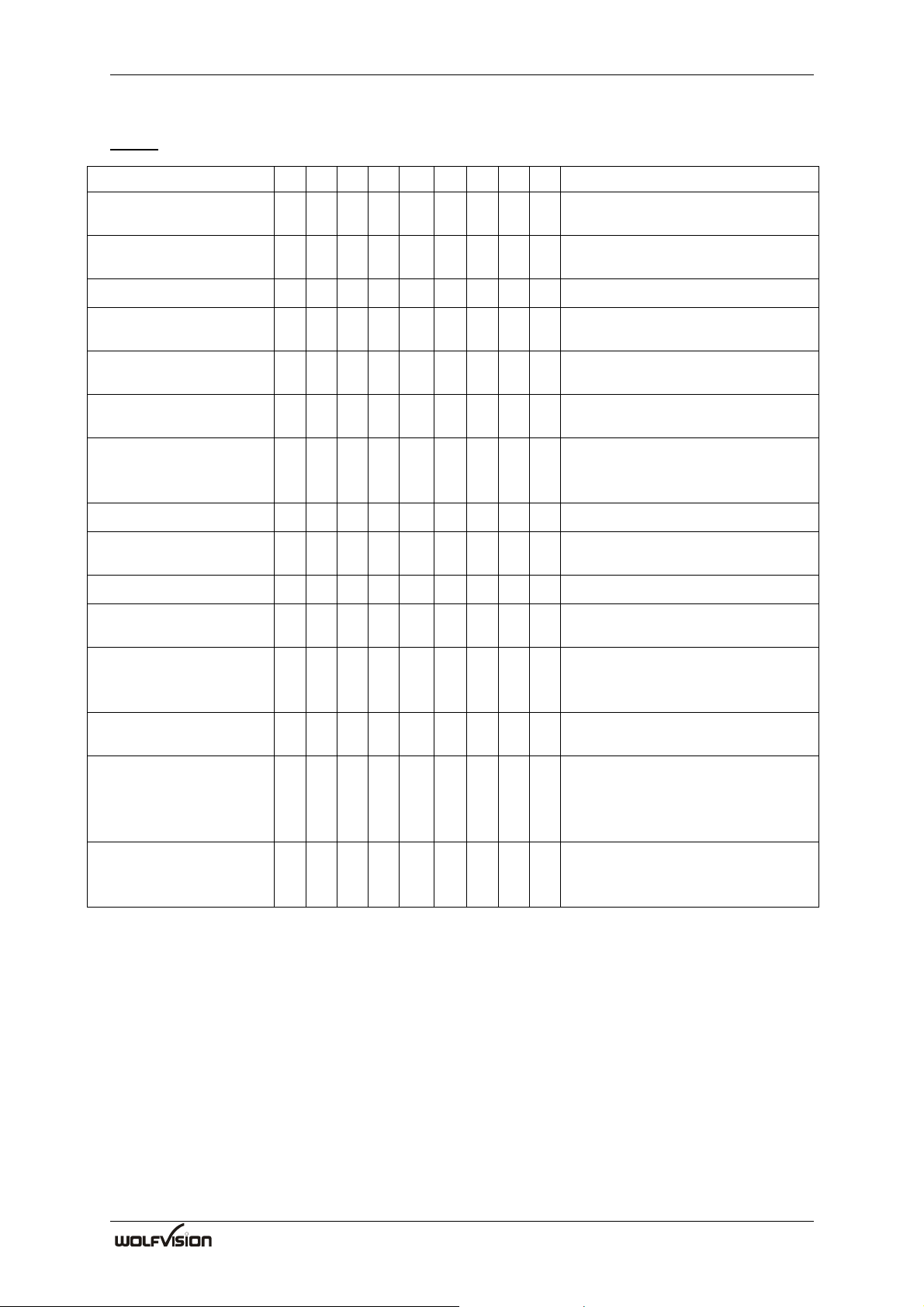
Zoom
Function H L Remarks
Zoom Tele 00 F2 01 20 C with Speedup after 1 sec,
disables freeze / memories
Zoom Wide 00 F2 01 30 C with Speedup after 1 sec,
disables freeze / memories
Zoom Stop 00 F2 01 10 C
Optical Zoom Tele w/
var. Speed
Optical Zoom Wide w/
var. Speed
Optical Zoom to
Position
Digital Zoom to
Position
00 F3 01 21 Sp C Sp=Speed from 1 (slow) to F
(fastest)
00 F3 01 31 Sp C Sp=Speed from 1 (slow) to F
(fastest)
00 F4 01 40 PH PL C PH/PL: Zoom-Position
0hex=Wide, FFFhex=Tele
00 F4 01 41 PH PL C PH/PL: Digital Zoom-Position,
0hex=Wide (1x), FFFhex=Tele
(2x)
Get Optical Zoom-Pos 00 F2 01 60 C
Reply: 00 F3 60 H L C HL=Optical Zoom-Position from
0hex (wide) to FFFhex (tele)
Get Digital Zoom-Pos 00 F2 01 61 C
Reply: 00 F3 60 H L C HL=Digital Zoom-Position from
0hex (wide) to FFFhex (tele)
Disable Digital Zoom 00 F2 01 50 C When zooming towards tele,
digital zoom will not be
automatically activated
Enable Digital Zoom 00 F2 01 51 C Digital zoom will be
automatically activated at tele
Enable Digital Zoom
w/ Stop
00 F2 01 52 C Zoom will stop at tele and a
message will appear. When
zooming is started again, digital
zoom will be activated.
Enable Digital Zoom
w/ Message
00 F2 01 53 C Digital Zoom will be
automatically activated at tele
and an info-message will appear.
R
17
Page 20
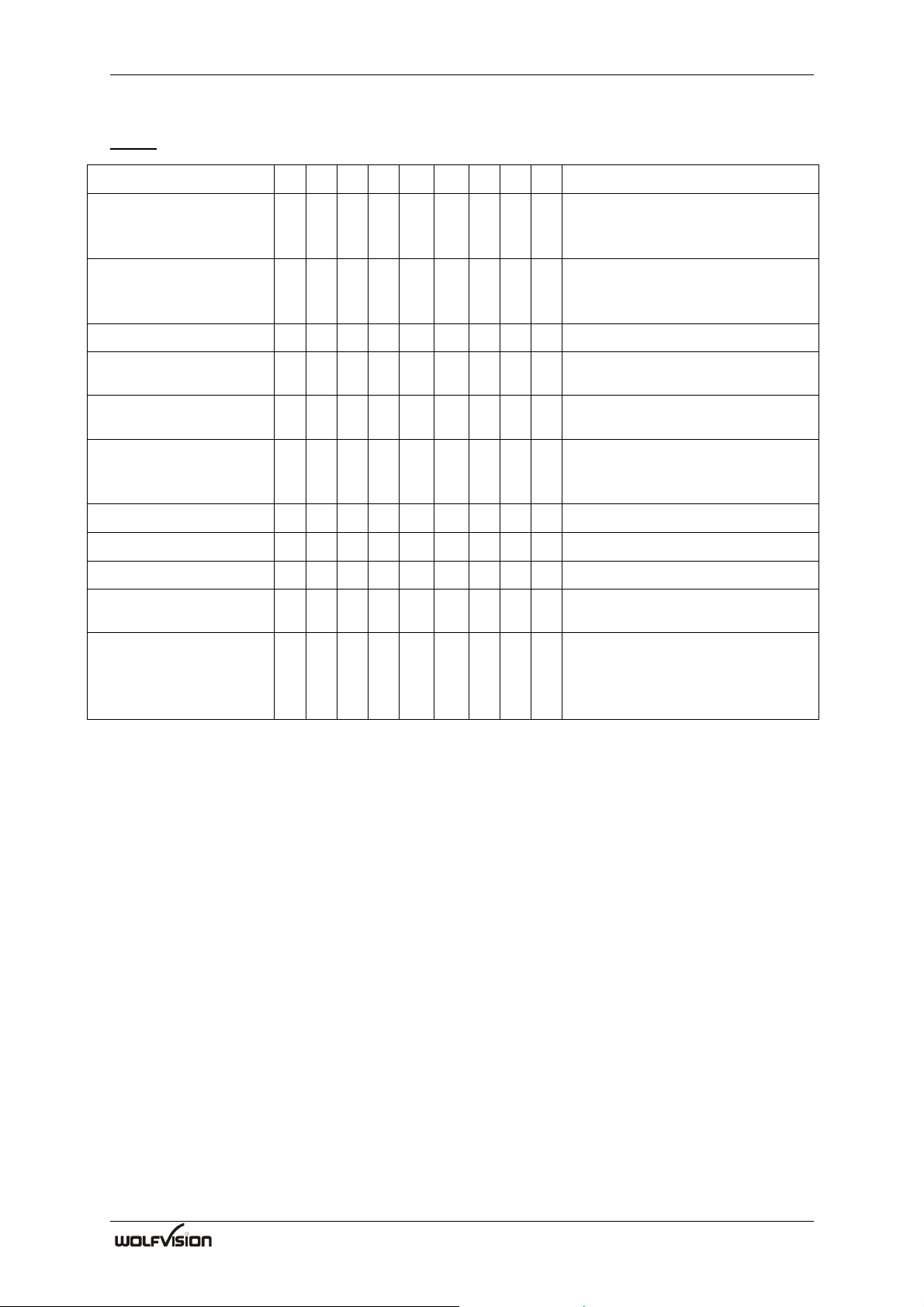
Command List SCB-1
Focus
Function H L Remarks
Focus Near 00 F2 02 20 C with Speedup after 1 sec,
switches AF off, disables freeze
/ memories
Focus Far 00 F2 02 30 C with Speedup after 1 sec,
switches AF off, disables freeze
/ memories
Focus Stop 00 F2 02 10 C
Focus Near w/ var.
Speed
Focus Far w/ var.
Speed
00 F3 02 21 Sp C Sp=Speed from 1 (slow) to F
(fastest), switches AF off
00 F3 02 31 Sp C Sp=Speed from 1 (slow) to F
(fastest), switches AF off
Focus to Position 00 F4 02 40 PH PL C PH/PL: Focus-Position
0hex=Near, FFFhex=Far,
switches AF off
AF Off 00 F2 02 50 C
Perform One Push AF 00 F2 02 51 C disables freeze / memories
Continuous AF 00 F2 02 52 C
Get Focus-Pos and AF-
00 F2 02 60 C
Setting
Reply: 00 F4 60 H L AF C HL=Optical Zoom-Position
from 0hex (near) to FFFhex
(far), AF: 0=OFF, 1=ON,
2=One-Push-AF in progress
R
18
Page 21
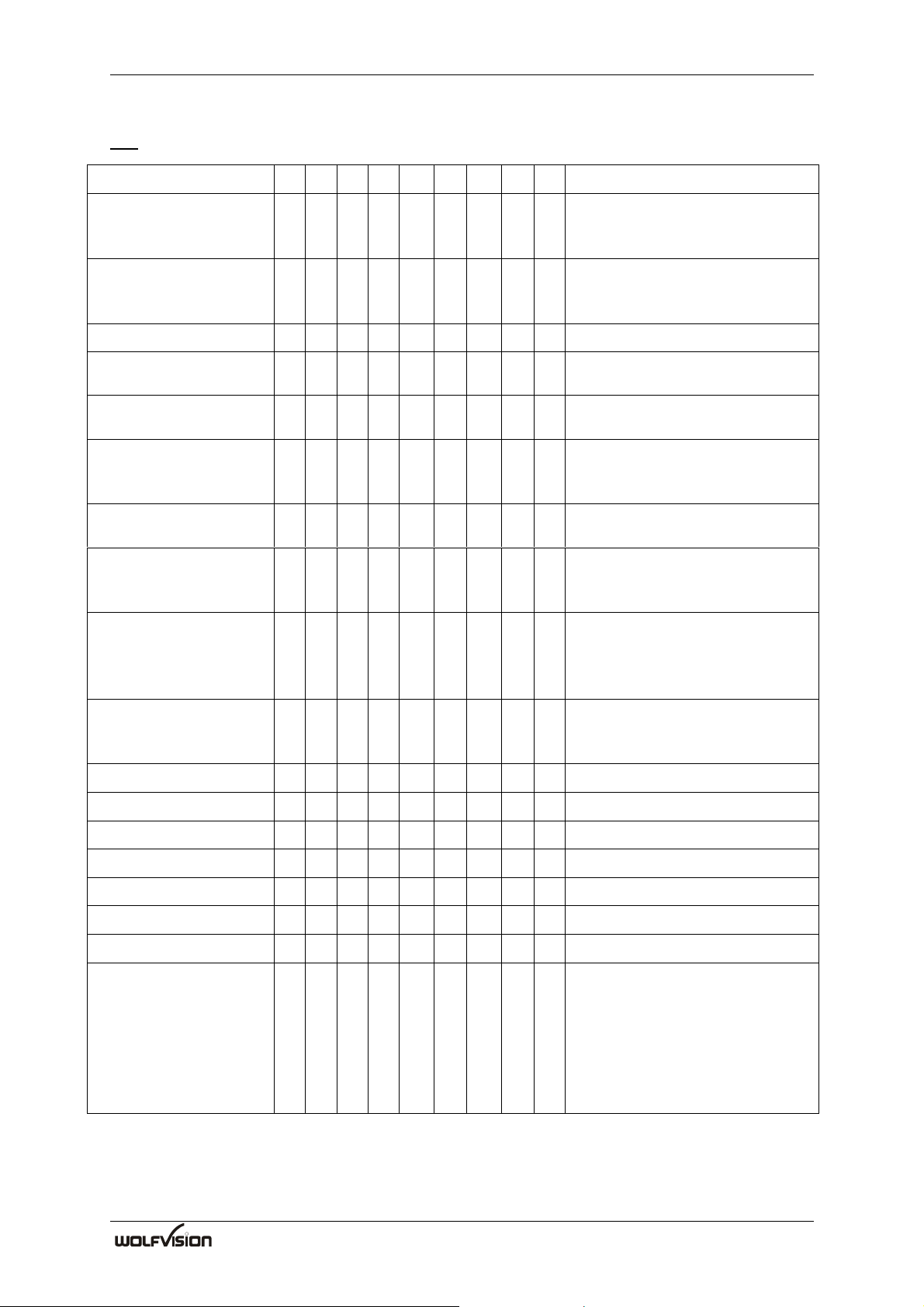
SCB-1 Command List
Iris
Function H L Remarks
Iris Open 00 F2 03 20 C with Speedup after 1 sec,
switches AI off, disables freeze
/ memories
Iris Close 00 F2 03 30 C with Speedup after 1 sec,
switches AI off, disables freeze
/ memories
Iris Stop 00 F2 03 10 C
Iris Open w/ var.
Speed
Iris Close w/ var.
Speed
00 F3 03 21 Sp C Sp=Speed 1 (slow) or 2 (fast),
switches AI off
00 F3 03 31 Sp C Sp=Speed 1 (slow) or 2 (fast),
switches AI off
Iris to Position 00 F4 03 40 PH PL C PH/PL: Iris-Position
0hex=Close, FFFhex=Open,
switches AI off
Gain to Position 00 F3 03 41 P C P: Gain in dB (from 0 to 32dec),
switches AGC off
Shutter to Position 00 F4 03 42 PH PL C PH/PL: Shutter-Position (TBD,
to be determined), switches
ASC off
Exposure
Compensation
00 F3 03 43 P C P: -10 to +10 (default=Zero),
Twos-Complement
(Brightness level
adjustment)
AI Off 00 F2 03 50 C Auto-Iris, if disabled, also AGC
and ASC will not work,
disables freeze / memories
AI On 00 F2 03 51 C disables freeze / memories
AGC Off 00 F2 03 52 C Auto-Gain-Control
AGC On 00 F2 03 53 C
ASC Off 00 F2 03 54 C Auto-Shutter-Control
ASC On 00 F2 03 55 C
Get Iris-Pos 00 F2 03 60 C
Reply: 00 F7 60 HI LI G HS LS M
C HI,LI=Optical Iris-Position
from 0hex (close) to FFFhex
(open), G=Gain in dB (0-
34dec), HS,LS=Shutter-Setting
(TBD), M(bit0):ASC, M(bit1):
AGC, M(bit2): AI (1=ON,
0=OFF)
R
19
Page 22
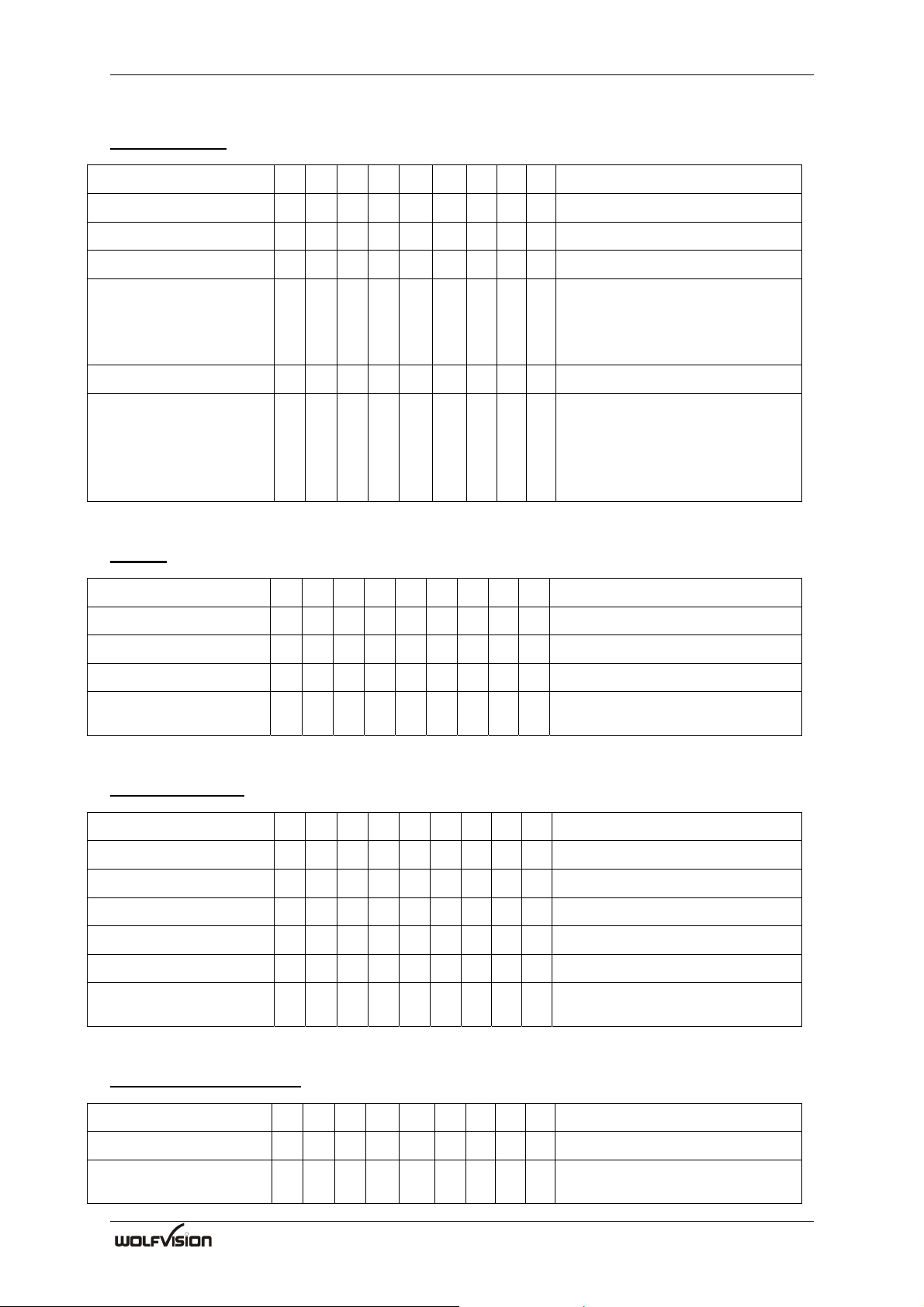
Command List SCB-1
White Balance
Function H L Remarks
Manual WB 00 F2 04 50 C
Perform One-Push-WB 00 F2 04 51 C
Auto-Tracking WB 00 F2 04 52 C
Set Manual WB 00 F4 04 40 PR PB C PR: Red gain (-120dec to
120dec)
PB: Blue gain (-120dec to
120dec) (Twos-Complements)
Get WB-Settings 00 F2 04 60 C
Reply: 00 F4 60 R B M C R: Red Gain (-120dec to
120dec)
B: Blue gain (-120dec to
120dec)
M: 0=ATW, 1=AWB, 2=Manu
Presets
Function H L Remarks
Store Preset 00 F3 05 40 P C P=Preset no. (1 to 9 )
Recall Preset 00 F3 05 41 P C P=Preset no. (1 to 9 )
Store Power-On-Preset 00 F2 05 10 C
Recall Power-On-
00 F2 05 11 C
Preset
Image Memories
Function H L Remarks
Store Memory 00 F3 06 40 P C P=Memory no. (1 to 4 )
Recall Memory 00 F3 06 41 P C P=Memory no. (1 to 4 )
Freeze, Update Freeze 00 F2 06 10 C
Unfreeze, Memory Off 00 F2 06 11 C
Get Memory-Settings 00 F2 06 60 C
Reply: 00 F2 60 M C M=0: Live, 1-4: Memory 1-4,
FFhex: Freeze On
Color / Contrast Setting
Function H L Remarks
Set Color / Contrast 00 F2 04 80 VL C VL=0, 1, 2
Get Color / Contrast -
00 F2 04 A0 C returns value "0", "1", "2"
Settings
R
20
Page 23
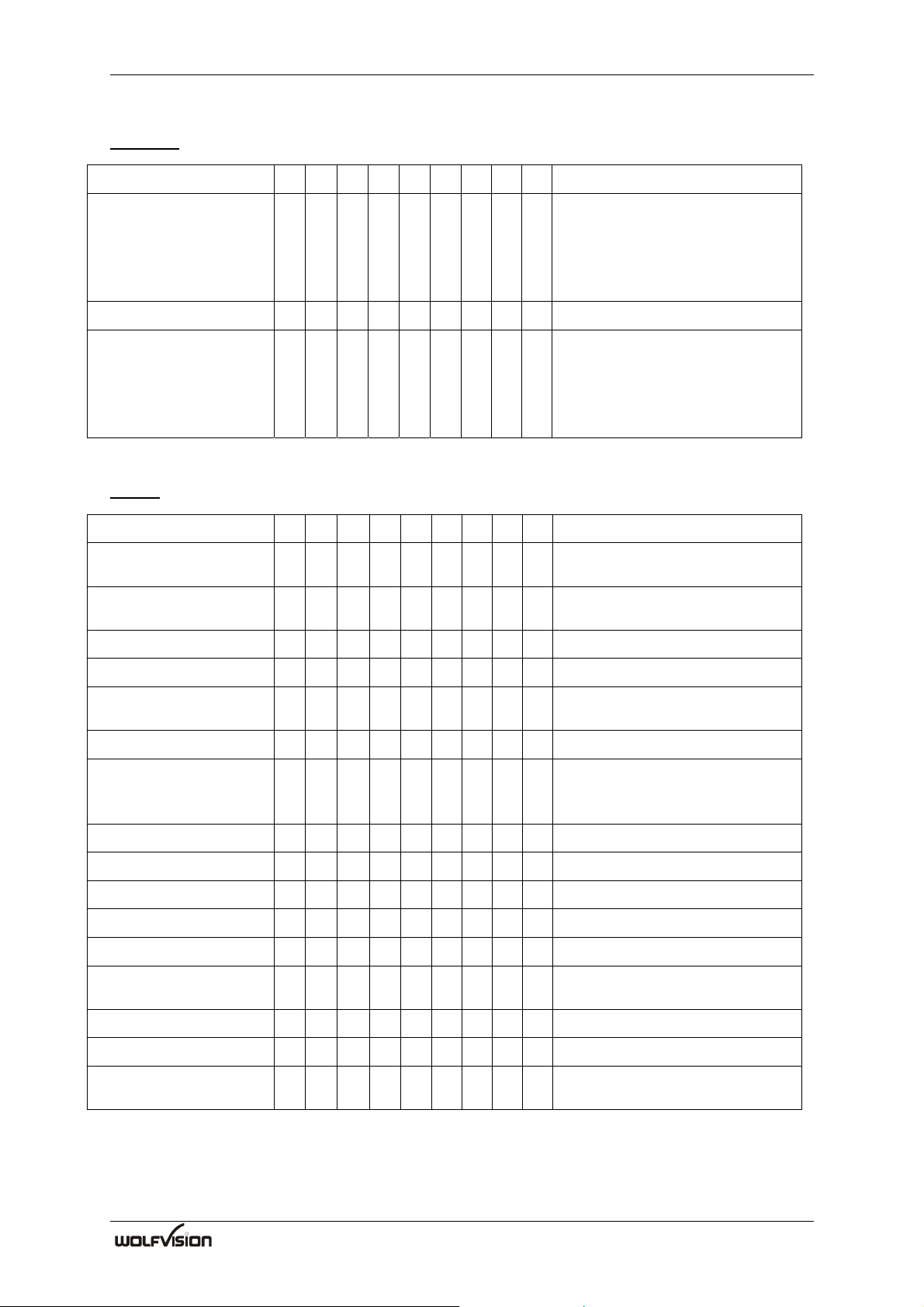
SCB-1 Command List
User I/O
Function H L Remarks
Set User LEDs 00 F3 07 40 P C P=LED-Bit-Pattern (0 to 7), if
Bit is set, LED is on.
Bit 0: User-LED 1
Bit 1: User-LED 2
Bit 2: User-LED 3
Get User Keys 00 F2 07 60 C
Reply: 00 F2 60 K C K(bit 0): Userkey 1,
K(bit 1): Userkey 2,
K(bit 2): Userkey 3,
K(bit 3): Userkey 4
(1=pressed, 0=unpressed)
Image
Function H L Remarks
Set XGA/60Hz 00 F2 08 10 C Change is memorized in
EEPROM
Set XGA/75Hz 00 F2 08 11 C Change is memorized in
EEPROM
Positive Mode 00 F2 08 12 C
Negative Mode 00 F2 08 13 C
Set Detail 00 F3 08 40 P C P=Detail: 0=OFF, 1=MED,
2=HIGH
Get Resolution 00 F2 08 60 C
Reply: 00 F3 60 10 F C 10=Color, XGA, 1CCD, F=V-
Frequency in Hz (e.g.
4Bhex=75Hz)
Get Positive/Negative 00 F2 08 61 C
Reply: 00 F2 60 N C N=0: Positive, N=1: Negative
Get Detail 00 F2 08 62 C
Reply: 00 F2 60 D C D=0: Detail off, 1:low, 2:high
Image Rotate 180° 00 F2 0C 10 C
Image orientated
normal
00 F2 0C 11 C Image not rotated and not
mirrored
Image mirrored hor. 00 F2 0C 12 C Image mirrored horizontally
Image mirrored vert. 00 F2 0C 13 C Image mirrored vertically
Store mirror/rotate
00 F2 0C 20 C
settings permanently
R
21
Page 24
Command List SCB-1
Image Transfer
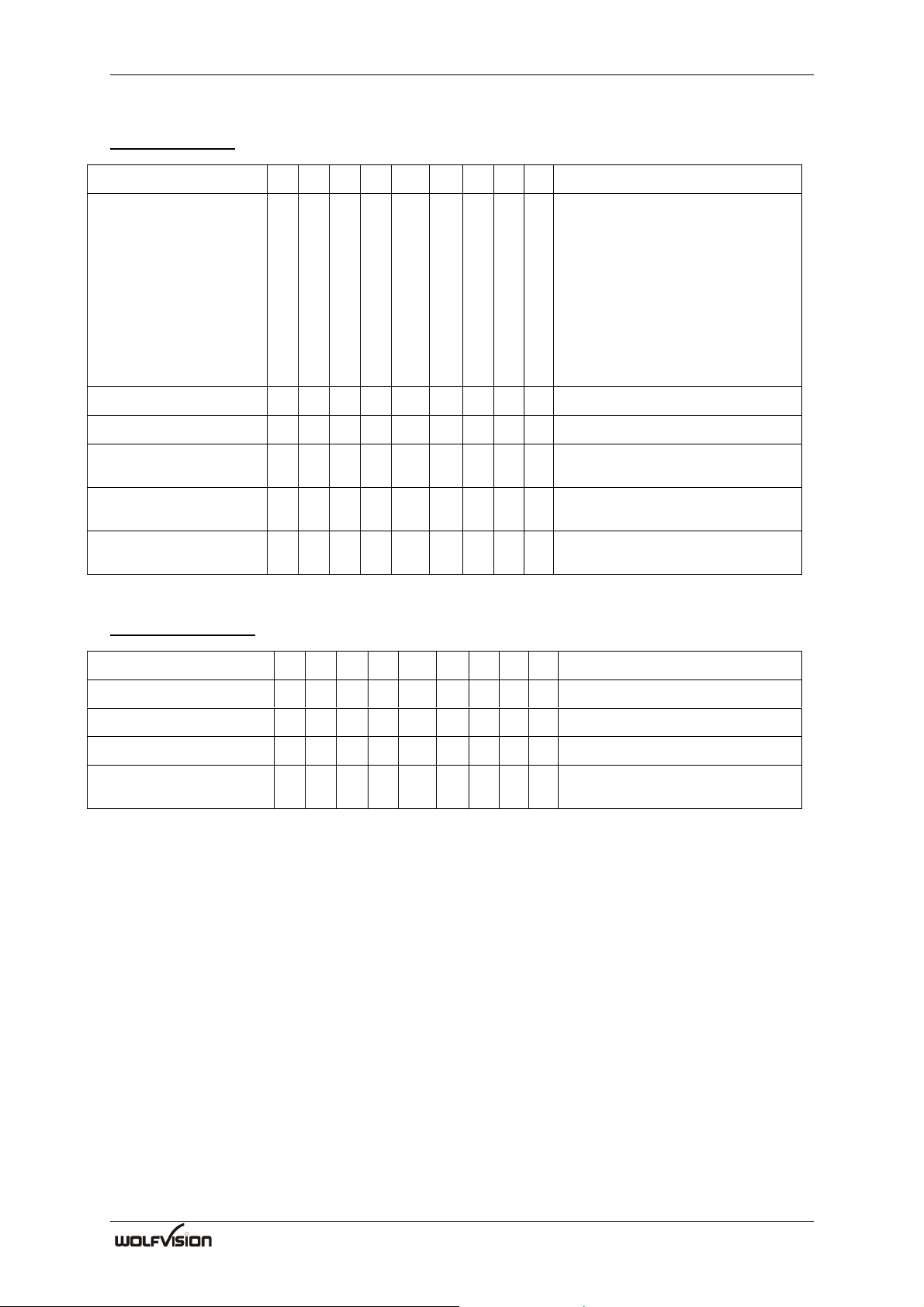
Function H L Remarks
Capture Picture 00 F4 09 10 PM PC C PM=Memory: 0=Live, 4-
7=Memory 0-3
PC=Capture Mode:
0: Full Resolution
80-8F: Updated Preview Tile
0-15
C0-CF: Not Updated Preview
Tile 0-15
Not available at 9600 baud.
Get Picture Block 4k 00 F2 09 60 C Not available at 9600 baud.
Get Picture Block 1k 00 F2 09 61 C Not available at 9600 baud.
Get Picture Block
00 F2 09 62 C Not available at 9600 baud.
256Byte
Get Picture Block
00 F2 09 63 C Not available at 9600 baud.
32Byte
Get Picture Block
00 F2 09 64 C Not available at 9600 baud.
8Byte
Key-Lock Control
Function H L Remarks
Key-Lock On 00 F2 05 60 C
Key-Lock Off 00 F2 05 61 C
Get Key-Lock 00 F2 05 62 C
Reply: 00 F2 60 D C D=1: Key-Lock not activated
D=2: Key-Lock activated
R
22
Page 25
SCB-1 Command List
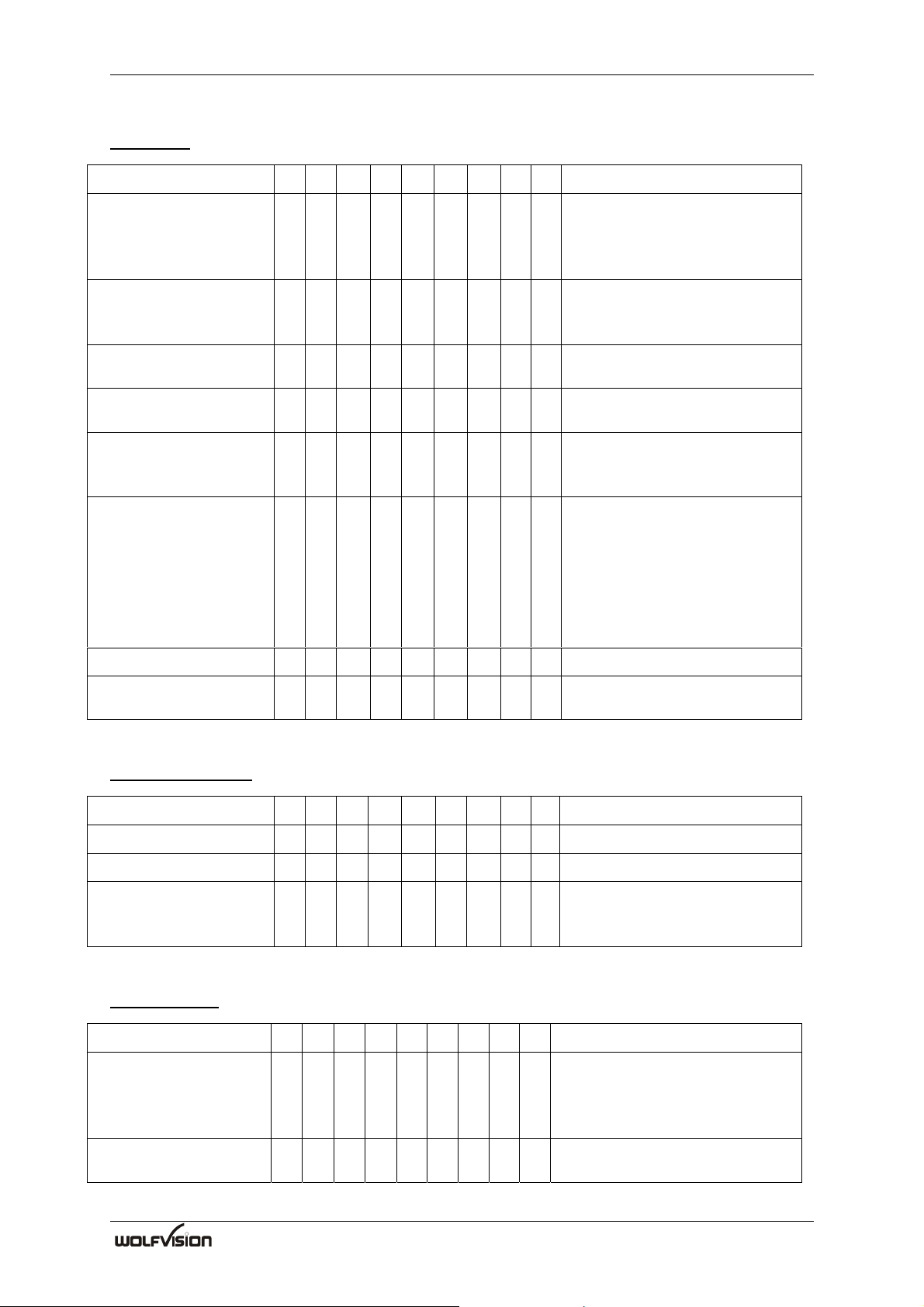
User OSD
Function H L Remarks
Activate User OSD
and Clear OSD
00 F2 0A 10 C Enables User-OSD-
Commands and resets the
OSD. SCB-1-OSD-Messages
and Menu are suppressed.
Disable User OSD 00 F2 0A 11 C Disables User-OSD-
Commands and allows Menu
and SCB-1-Messages.
First line double
00 F2 0A 12 C Default: off
Height on
First line double
00 F2 0A 13 C
Height off
Set line color 00 F4 0A 40 PL PC C PL: Line (0 to 14), PC: Color
(0 (black) to 7 (white,
default))
Write Line 00 Fx 0A 50 PL PC PT ... C PL: Line (0 to 14), PC:
Column (0 to 29), PT: ASCIICode of text (up to 30
characters per line) The
remainder of the line is not
deleted. (For longer texts you
need the long-packet-format!)
Get User OSD 00 F2 0A 60 C
Reply: 00 F2 60 D C D=0: User OSD inactive, 1:
User OSD active
Firmware Update
Function H L Remarks
Enter Bootloader 00 Fx FF 10 Px P.. C Px...=Password
Get Version 00 F2 FF 60 C
Reply: 00 F2 60 V1 V2 .. Vx C Version-String (ASCII-Codes)
in Format “SCB-1 Vx.xxx”,
e.g. „SCB-1 V1.03a“
Set Baud rate
Function H L Remarks
SetBaudrate (nonpermanent)
00 F3 FF 20 P C P = Baudrate: 0=9600,
1=115200, 2=230400,
3=460800, 4=921600, 5=19200,
6=38400, 7=57600
Memorize current
00 F2 FF 21 C
Baudrate in EEPROM
R
23
Page 26
SCB-1 SCB-Control Software
11. WolfVision Camera Control Software
The WolfVision Camera Control Software can be used to operate the SCB-1 XGA-colorcamera via SCOTI (RS-232). It is also possible to transmit images in preview- and fullresolution to the PC.
Software Installation
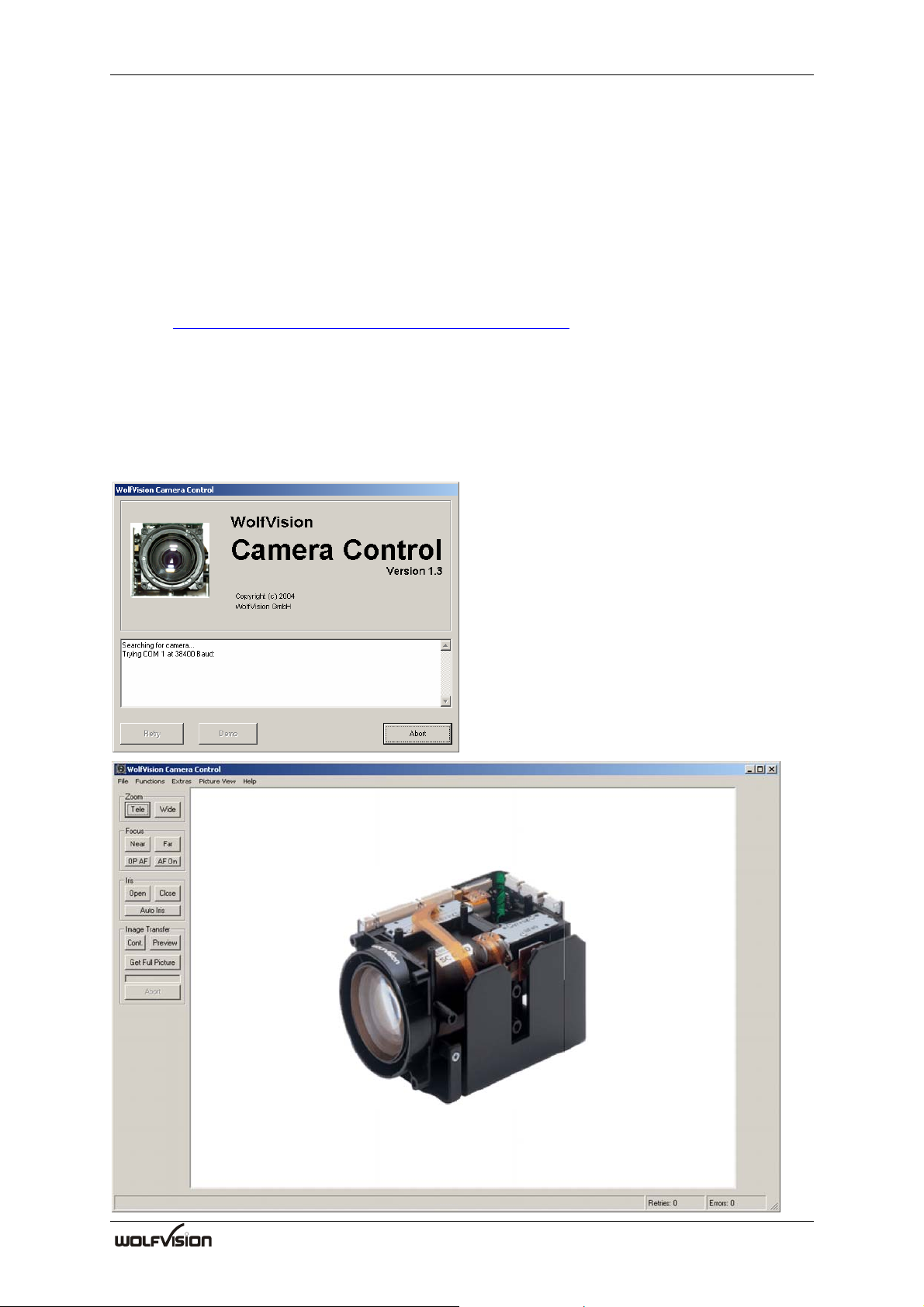
Install Camera Control software (available on supplied CD-ROM or downloadable from
Internet http://www.wolfvision.com/wolf/camera_control.exe). Connect the SCB-1 camera to
the computer via RS-232 cable and start the Camera_Control.exe. At the start, the program
automatically scans COM1 to COM4 at all possible baud rates. If a SCB-1 camera is found
the connection is established, otherwise you can either retry or operate the software in the
demo-mode without a camera.
First, turn on the camera and then start the camera control software on your PC. The camera
control software (for Microsoft Windows 95, 98, ME, 2000 and XP) operates with the
SCB-1 via SCOTI (RS-232).
SCB-1 V1.03a connected at COM 1 (230400, N, 8, 1)
R
24
Page 27
SCB-Control Software SCB-1
Control of the SCB-1
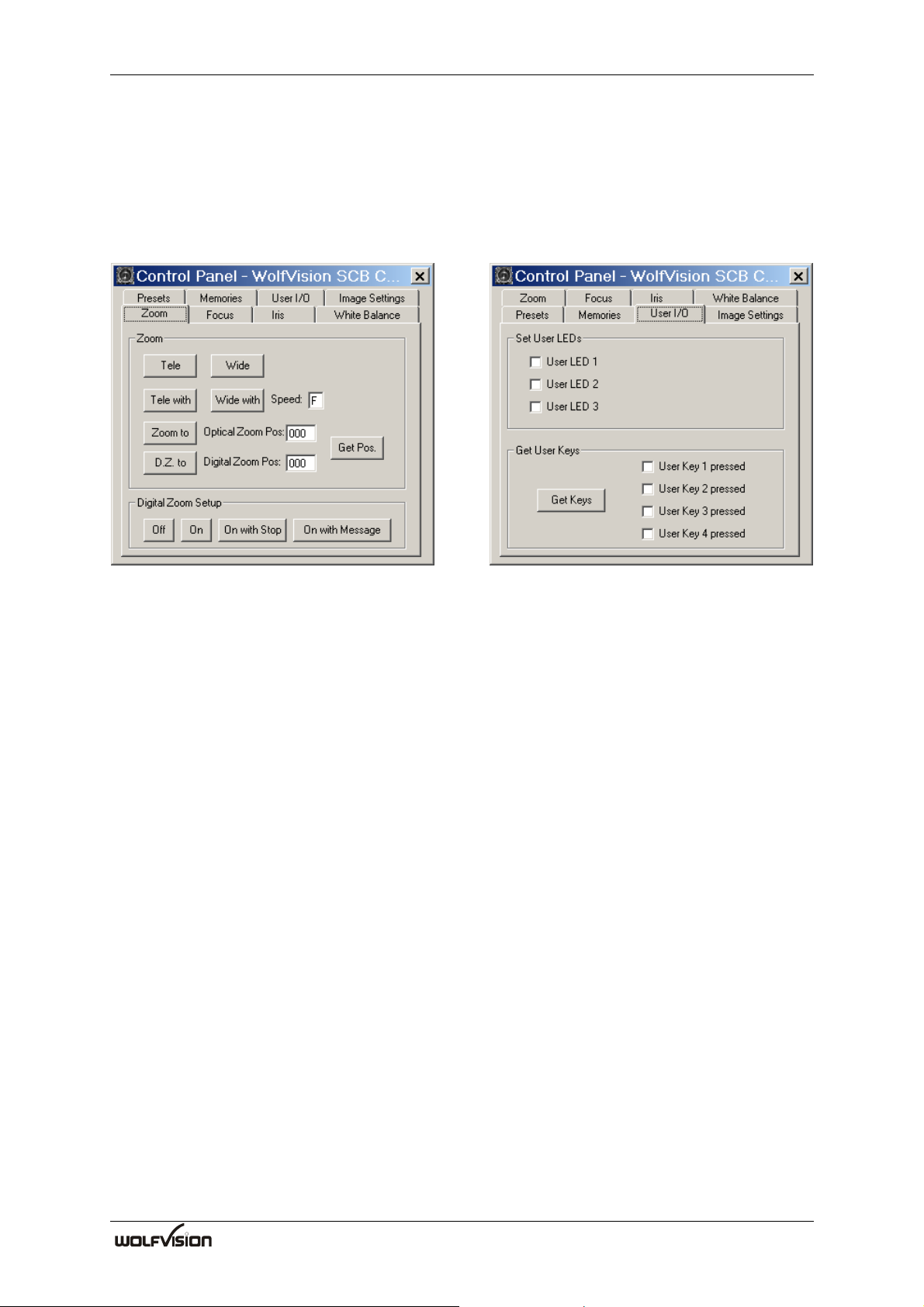
Basic functions like Zoom and Focus are accessible on the left-side of the main-screen. For
further functions use the Control Panel (SCB-1 Interface board) or the User OSD Panel in the
Functions Menu. Virtually all commands can be performed with this program (the commands
without a button can be performed by entering the code directly in the "Extras - Custom
Command"-menu).
User I/O
The User I/O can be controlled and queried via RS-232 (SCOTI) and with the Interface board.
The User keys and LEDs can be used to build an application-specific user-interface which can
be controlled via SCOTI.
Image Transfer
To start an image-transfer, press either the PREVIEW-button for a quick preview at low
resolution, the CONT.(PREVIEW)-button for an continuous live preview or the GET FULL
PICTURE-button for a full resolution snapshot. In the PICTURE VIEW menu you can select
if the transmission of the full picture is done in an interleaved or a progressive way. The
interleaved (default) way has the advantage that you get a quick overall view (at low
resolution) of the picture which is refined during the transfer. The progressive way on the
other hand has optimum sharpness on all transmitted data, which is useful if you are not sure
if the captured picture is perfectly sharp or not. All image-transfers can be aborted by pressing
the ABORT-button below the progress bar which indicates how much of the transfer is
completed. Additionally, you can select in the PICTURE VIEW menu, how often the during
the transfer the screen is updated. Short update intervals increase the total transfer time. How
much the difference is depends on the speed of your PC. After transfer, you can either store
the image as .bmp-file or print it on a printer.
R
25
Page 28
SCB-1 SCB-Control Software
Key Lock
If the camera doesn't react to a keystroke (keys on the camera itself and on the IR-remote
control), then check if the keylock is activated.
Firmware update
Download new firmware from the Internet (http://www.wolfvision.com/wolf/fware.html#c).
Hints
For the image-transfer, the serial port is the bottleneck, because a lot of data has to be
transmitted. To reduce this bottleneck, the SCB-1 support baud rates up to 921600 baud.
However, most PCs support only up to 115200 baud and require special extension cards for
higher baud rates (a high speed RS-232 extension card is optional available, see page 27).
For this high baud rates, short RS-232 cables are necessary (below 2m is recommended).
If operating commands work fine, but image transfer does not, you may try to reduce the
transmit block size in the Picture View Menu (at the cost of transfer speed). At very high baud
rates, you can also set the transmit size to 4K (default is 1K) to further optimize the speed.
To change the SCB-1 baud rate temporarily, use the commands in the Extra Menu. If the
selected baud rate works, you can store this setting permanently in the SCB-1-EEPROM by
selecting MEMORIZE CURRENT BAUDRATE.
Another option in the PICTURE VIEW Menu is to select how the image is displayed on the
screen. The NATIVE setting provides the best quality, but may be too large to fit onto the
screen. The other two settings resize the picture to fit onto the screen. They differ in quality
and in the speed of resizing (e.g. when the window size is changed). The resized image can
also be stored in a file, which is useful if you do not need the full resolution.
It is recommended to use the true-color (24bit) mode of your PC
(selectable in Properties -> Display in the Windows Start-menu) for best picture reproduction.
Note
Microsoft, Microsoft Windows are trademarks of Microsoft Corporation.
R
26
Page 29
Optional Accessories SCB-1
12. OPTIONAL ACCESSORIES
The sample kit includes a high speed RS-232 extension card and the WolfVision interface
board, all necessary cables (5 pieces) and a power supply.
The proxer (close up lens) is not supplied normally.
12.1 High speed RS-232 extension card
12.2 SCB-1 Interface board
R
27
Page 30
SCB-1 Optional Accessories
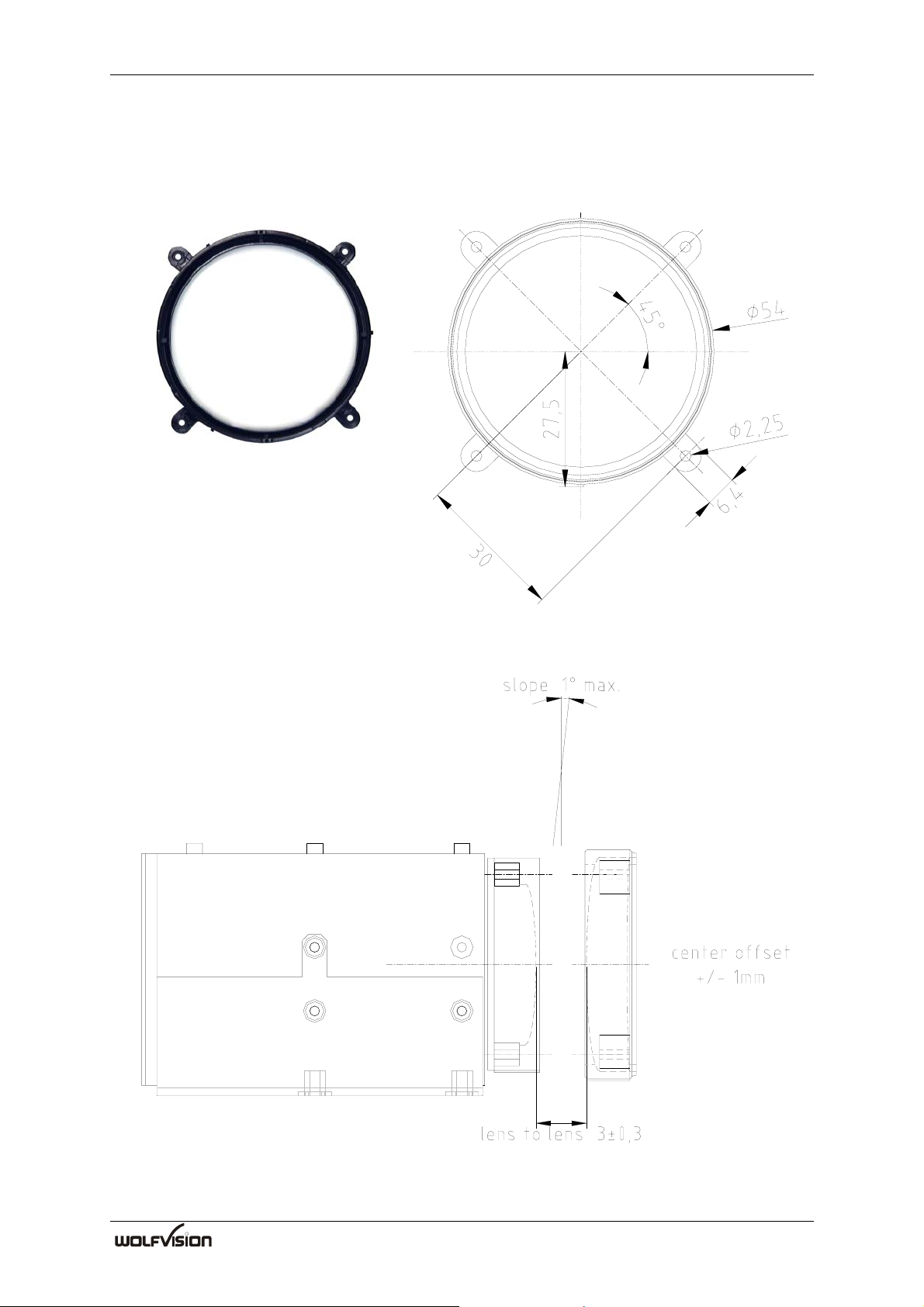
12.3 Proxer
Technical data: f=477mm, 2.1 dpt. inclusive mounting ring
all dimensions in mm
R
28
Page 31

Notes SCB-1
R
29
Page 32
SCB-1 Optional Accessories
R
CONTACTS:
Manufacturer / Worldwide distribution:
WolfVision GmbH
Tel. ++43-5523-52250, Fax. ++43-5523-52249, E-Mail: [email protected]
Ameri can dist r ib ut i on
WolfVision USA East Inc
Tel. (770) 931-6802 and 1-877-873WOLF, Fax: (770) 931-6906, E-Mail: [email protected]
Asia n dist r i b ut ion:
WolfVision Asia
Tel. ++65 - 366 9288, Fax: ++65 - 366 9280, E-mail: [email protected]
Japa n d i s t r ibution:
WolfVision Co Ltd
Tokyo 16 4- 0 003, Ja pan
Tel. (81) 3 3360 3231, Fax: (81) 3 3360 3236, E-mail: [email protected]
, Vlbg. Wirtschaftspark, A-6840 Götzis / AUSTRIA,
Internet Homepage: www.wolfvision.com
E-Mail to technical support: [email protected]
:
., 395 0 Shackleford Road , S uite 45 0, Duluth, GA 30096 / USA
, 27 Woodlands Ind. Park E1, #01-02, Hian g Kie Ind. Bldg. I V, Singapore 757718
., Nissho Hig ashi Nak ano Bl dg. 2F, 2-1-6 Higashi Naka no, Nak ano-ku ,
Design and specifiaction are subject to change!
R
30
Printed in Austria - June 2005
 Loading...