

Page 1

WMOCEAN SPEEDY+
HSDPA
User’s Manual
Page 2

SPEEDY+ HSDPA User’s Manual
WMOCEAN +420 225 371 777 http://www.wmocean.com p. 1
Congratulations!
Thank you for buying the WMOCEAN SPEEDY+ product and congratulation for your wise choice.
SPEEDY+ HSDPA has the following features:
• Voice and data interface
– simultaneous voice and high speed data transmission
- use a single mobile connection for both voice calls and data transfers, while browsing or
downloading you can still make important phone calls
• Very High Throughput
– download data rates up to 1.8 Mbps, depending upon the mobile network used
– wireless data transfers between clients up to 54 Mbps
– wired data transfers between clients up to 100 Mbps
• High Security
– stateful packet inspection firewall for Internet connection
– 128 bits encryption for wireless clients, WEP and WPA with TKIP or AES encryption
– secure HTTP (HTTPS) access to configuration pages
– secure SSH remote management
• Ease of Use
– true IP Plug-and-Play functionality*
– web based configuration interface
– embedded server for dynamic IP configuration of the clients (DHCP)
• Advanced Internet Connection Management
– automatic connection establishment on traffic detection
– automatic disconnection on lack of traffic
– the connection can be initiated remotely when required**
– complete network address translation (NAT) support
• Video Surveillance Service
– allows video monitoring using either an USB web camera or an IP camera***
– web based viewer of the video stream
– supports multiple cameras
– “wall panel” video application for Windows/Linux
• Easy Firmware Updating
– firmware updates can be downloaded for free****
– automatic update process using the web configuration interface
• Low Power Consumption (less than 10 Watts)
- the low power consumption means reduced heat dissipation, hence no cooling fans, no moving
parts, you get higher reliability and no noise
• Two USB 2.0 ports
- intended primary for web cam connection
- may be also used to connect an external 3G modem
- further developments will allow connection of peripherals, external hard disk drives, card readers,
etc. These storage devices will be shared with users from WLAN or Internet.
Page 3

SPEEDY+ HSDPA User’s Manual
WMOCEAN +420 225 371 777 http://www.wmocean.com p. 2
• Fully Mobile Internet Access Solution
- it is wireless on the LAN side due to embedded WiFi 802.11g/b Access Point
- also wireless on the WAN side due to HSDPA connection
- the remote configuration via browser means no cables at all are required, except for power!
• Multiple mobile networks and standards supported
- the embedded modem multi-mode device for HSDPA/UMTS/ GPRS/GSM
- it is also quad-band
- this way you may use any mobile network available in your area: classic GSM (2G) in the
900/1800/1900 MHz frequency band, GPRS 900/1800 (2,5G), UMTS (3G) or even HSDPA (3,5G) on
2100 MHz
• Two phone interfaces, FXO and FXS for versatility
- the FXS interface can be used for connecting to an analog trunk of the PBX or directly to a standard
phone
- the FxO interface can be used for connecting to a local extension of the PBX. This is very useful
when all the trunks of the phone exchange are already used.
* : firmware versions available with full IP PnP function, which means that new users and IP configurations
such as Private IP and Static IP or DHCP, gateway or Proxy are automatically recognized, there is no need for
users to re-configure their PCs, notebooks or PDAs. This translates into instant wireless Internet connection
for multiple local users, wireless (WiFi) or wired (10/100 Ethernet cables).
** : needs voice activation from the 3G carrier of the subscriber SIM used in the terminal
*** : USB and wireless or wired IP cameras are available on demand, features varies with different models
**** firmware update files are monthly published on our website
Page 4

SPEEDY+ HSDPA User’s Manual
WMOCEAN +420 225 371 777 http://www.wmocean.com p. 3
Table of Contents
1. INTRODUCTION................................................................................................................................................. 4
3G networks......................................................................................................................................................... 4
HSDPA................................................................................................................................................................. 4
WiFi...................................................................................................................................................................... 5
System Requirements.......................................................................................................................................... 5
2. PACKAGE CONTENT......................................................................................................................................... 6
3. What is SPEEDY+ HSDPA?............................................................................................................................... 7
4. INSTALLATION................................................................................................................................................. 10
4.1 Establishing the best location....................................................................................................................... 10
4.2 Mounting (hardware installation).................................................................................................................. 11
4.3 Identification of connectors .......................................................................................................................... 12
4.4. Connecting the cables................................................................................................................................. 13
4.5. Connecting the phone cables:..................................................................................................................... 15
4.6. Configuring and installing the SIM card....................................................................................................... 17
4.7. Connecting the external antennas .............................................................................................................. 19
4.8. Power up..................................................................................................................................................... 20
4.7 Status indicators ......................................................................................................................................... 20
5. CONFIGURATION ............................................................................................................................................ 21
5.1 Using the web interface................................................................................................................................ 21
5.2 LAN.............................................................................................................................................................. 26
5.2.1. IP Settings............................................................................................................................................ 26
5.2.2. WiFi Settings ........................................................................................................................................ 27
5.2.3. Commit................................................................................................................................................. 32
5.2.4. DHCP................................................................................................................................................... 33
5.3 WAN............................................................................................................................................................. 34
5.3.1. Settings ................................................................................................................................................ 34
5.3.2. Ethernet................................................................................................................................................ 35
5.3.3. PPPoE.................................................................................................................................................. 36
5.3.4. PPP...................................................................................................................................................... 37
5.3.5. GRE...................................................................................................................................................... 38
5.4 ROUTING .................................................................................................................................................... 39
5.4.1. Firewall................................................................................................................................................. 39
5.4.2. Static Routes........................................................................................................................................ 42
5.4.3 Dynamic routes ..................................................................................................................................... 43
5.5 SYSTEM...................................................................................................................................................... 45
5.5.1. Status................................................................................................................................................... 45
5.5.2. Logs...................................................................................................................................................... 47
5.5.3. Update.................................................................................................................................................. 47
5.5.4. Password.............................................................................................................................................. 49
5.5.5. Defaults................................................................................................................................................ 50
5.5.6 Save...................................................................................................................................................... 51
5.5.7. Load ..................................................................................................................................................... 51
5.6 SERVICES................................................................................................................................................... 52
5.6.1 DDNS.................................................................................................................................................... 52
5.6.2 NTP....................................................................................................................................................... 54
5.6.3 Webcam................................................................................................................................................ 54
5.6.4. Reset.................................................................................................................................................... 56
5.6.5 PWC compatible cameras..................................................................................................................... 57
5.7 SIM............................................................................................................................................................... 58
5.7.1. SIM Status..................................................................................................................................... 58
5.7.2. SIM Settings......................................................................................................................................... 60
5.7.3. SMS Read............................................................................................................................................ 60
5.7.4 SMS Send................................................................................................................................................. 61
5.8. VOICE......................................................................................................................................................... 62
5.8.1. Phone Connections for SPEEDY+ HSDPA......................................................................................... 62
5.8.2. VOICE Status....................................................................................................................................... 64
5.8.3. VOICE Settings........................................................................................................................................ 65
5.9 Optimizing WiFi Performances..................................................................................................................... 67
5.9.1. Network physical configuration............................................................................................................. 67
5.9.2. Range................................................................................................................................................... 67
5.10 Status Page ............................................................................................................................................... 69
6. TECHNICAL SPECIFICATIONS................................................................................................................. 70
7. OPERATING ENVIRONMENT.......................................................................................................................... 72
8. APPLICATIONS ................................................................................................................................................ 73
a) Wireless gateway/firewall/router using the HSDPA network.......................................................................... 73
b) Broadband router with wireless local connections......................................................................................... 74
c. Remote video surveillance with camera......................................................................................................... 75
Page 5

SPEEDY+ HSDPA User’s Manual
WMOCEAN +420 225 371 777 http://www.wmocean.com p. 4
9. Glossary ............................................................................................................................................................ 76
revision G, edition 2006
1. INTRODUCTION
3G networks
New research in the field of telecommunications has led to the extension of the range
of services provided to the users, especially in the mobile communications networks. Today,
3G mobile networks dominate the world market.
The WMOCEAN Group is promoting the advanced facilities provided by the CDMA or
UMTS wireless network, by manufacturing several ranges of products that including
SPEEDY+ HSDPA.
These 3G wireless devices are new electronic equipments, of compact size, which use
an updated design and are easy to mount and install. The economic benefits of WMOCEAN
user network interfaces are considerable. By using these services you can perform several
activities at the same time, such as data transmission, Internet connection, voice call,
checking of geographical coordinates by GPS.
The high data transfer speed specific to the third generation communications network
leads to an increased efficiency of information transmission, while the real time access to
data and information means important savings of time and money.
UMTS, Universal Mobile Telecommunications Service, part of the IMT-2000 initiative,
is a 3G standard supporting a theoretical data throughput of up to 2 Mbps. The UMTS
system maintains compatibility with widely used GSM/GPRS networks, but assures higher
quality and faster data transfer, thereby enabling the development and better use of services
and contents, both already developed and new ones. UMTS is based upon wideband CDMA
(WCDMA) technology. CDMA digitally encoded technology ensures connections with
exceptional security. CDMA virtually eliminates cloning and other types of fraud because of
the 4.4 trillion codes used, while the spread spectrum signal provides the greatest coverage
in the wireless industry. CDMA networks are built with standard IP packet data protocols.
The UMTS definition of 3G is 384 Kbps fully mobile and 2 Mbps low mobility/fixed
wireless. Also, unlike competitive mobile broadband technologies, it supports simultaneous
voice and data transfer.
HSDPA
HSDPA is the first step of WCDMA Evolved. In turn, WCDMA Evolved represents a
natural and fully standardized evolution of WCDMA, with the introduction of High Speed
Downlink Packet Access (HSDPA). This first step significance improve the available
downlink peak data rate up to 14 Mbit/s and more than doubled a system’s data capacity
within the current radio spectrum. It enables operators to create more advanced mobile
broadband services such as Internet and corporate access combined with unprecedented
data rates where audio, video and large files or attachments can be downloaded significantly
faster than with classic UMTS technology. The second step of WCDMA Evolved will include
features to enhance the uplink (HUSPA) together with improved coverage, higher data rates
and even reduced uplink latency.
HSDPA is a packet based data service feature of the in WCDMA standard which
provides a downlink with data transmission up to 8-10 Mbps (and 20 Mbps for MIMO
systems) over a 5MHz bandwidth in WCDMA downlink. The high speeds of HSDPA is
achieved through techniques including 16 Quadrature Amplitude Modulation, variable error
coding, and incremental redundancy.
The initial deployments is limited to 1.8 Mbit/s, it must be followed by network upgrades
and new devices capable of 3.6 Mbit/s.
HSDPA is standardized by the 3GPP in UMTS Release 5.
Page 6

SPEEDY+ HSDPA User’s Manual
WMOCEAN +420 225 371 777 http://www.wmocean.com p. 5
HSDPA ensures advantages such as:
-
Full backward compatibility with previous networks: UMTS/GPRS/GSM
-
Enhanced, improved wireless data services for the clients: shorter download times
owing to higher bit rates together with faster response time
-
Increases the overall capacity of the system without needing supplementary
frequency spectrum, so the costs for high speed mobile data services is reduced
-
Easy to implement, requires just a software upgrade of the existing WCDMA base
stations.
The embedded modem of SPEEDY+ is a HSDPA/UMTS/GPRS/GSM multi-mode
device. It measures in real-time the RF signal level strength of the mobile network and lets
the user to freely choose the 2G/3G network. Thus it provides access rates up to the
maximum possible for each network: 1.8Mbps on HSDPA, 384kbps on UMTS, and
respectively 85.6kbps on the GPRS network.
This way you may talk, download files or surf the Web without cabled connections
almost anywhere, at any time. When you are out of the coverage of high speed networks
such as HSDPA/UMTS, you can still get services on the wireless Internet with alternative
access via GPRS/GSM network in your area. The embedded multiband modem covers
almost all of the frequency bands of the world!
WiFi
Wireless LANs are complementary extensions to existing wired LANs, offering
complete mobility while maintaining continuous network connectivity to both corporate and
home Intranets. PC users stay connected to the network anywhere throughout a building
without being bound by Ethernet cables or other LAN wires. This is accomplished through
the use of Access Point functionality of SPEEDY+ HSDPA. The WMOCEAN equipment with
built-in Internet gateway capability allows your house or company to share an UMTS account
or other broadband connection, working simultaneously from different rooms, without need
for cables or wires. The embedded Access Point of the WMOCEAN Gateway complies with
wireless standards IEEE 802.11g and 802.11b. The 802.11g is as extension to 802.11b
(used in majority of wireless LANs today) that broadens 802.11b’s data rates to 54 Mbps
within the 2.4 GHz frequency band using OFDM (orthogonal frequency division multiplexing)
technology.
In order to ensure a correct installation / configuration and a good operation of the
SPEEDY+ HSDPA equipment, the manufacturer strongly recommends you to study this
manual before attempting operation.
System Requirements
To be able to use SPEEDY+ HSDPA router, you must fulfill these minimum requirements:
• Screen resolution of 1024*768
• HSDPA/UMTS Mobile Broadband Internet Account.
• An Ethernet (10Base-T or 10/100Base-TX) adapter for wired client
• At least one 802.11g (54Mbps) or one 802.11b (11Mbps) wireless adapter for the
wireless mobile clients (desktop PC’s, notebooks, peripherals)
• TCP/IP and an Internet browser installed on your computers
Page 7
SPEEDY+ HSDPA User’s Manual
WMOCEAN +420 225 371 777 http://www.wmocean.com p. 6
2. PACKAGE CONTENT
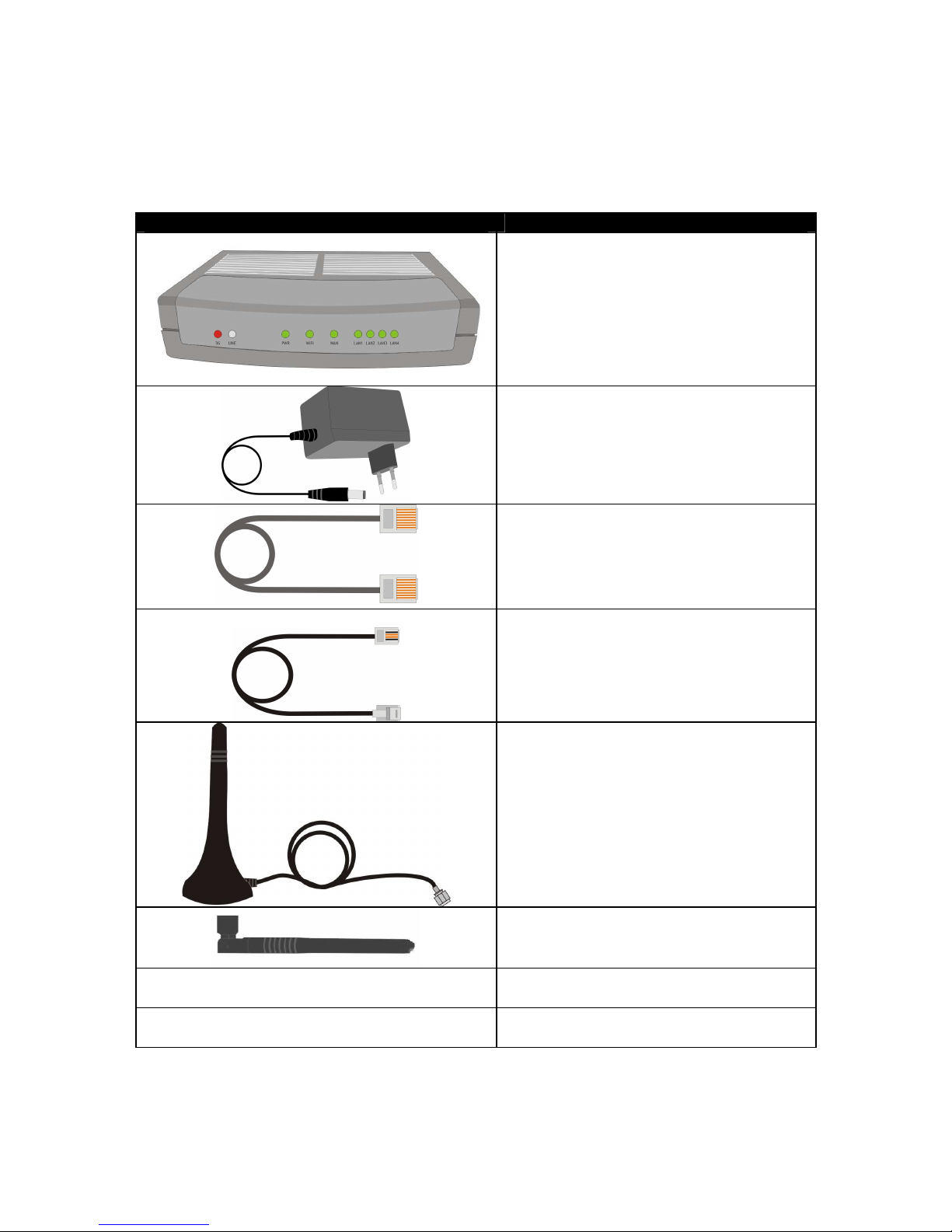
The component elements that you may identify upon opening the SPEEDY+ HSDPA
package are shown below. When you open the equipment package, please ensure, using
this list of items, that you have the full content.
Component Image Component Description
SPEEDY+ HSDPA unit in its plastic case.
It is a router and firewall for a wired and/or
wireless local computer network, which
allows secure, mobile, high-speed access
to Internet using the 3G network
Power supply: mains adapter
Input: 100-240V
A.C
Output: 12 V
D.C
. @ 2 A
Max. Power: 25 W
Ethernet cable for local network
connection
UTP straight cable, with RJ-45 connectors
Cable for PBX
Flat phone cable with RJ-11 connectors
Antenna for HDSPA
Multiband, with magnetic base and 2,5 m
long cable
Stick antenna for WiFi
- User’s Manual
- Warranty Certificate
Page 8
SPEEDY+ HSDPA User’s Manual
WMOCEAN +420 225 371 777 http://www.wmocean.com p. 7
3. What is SPEEDY+ HSDPA?
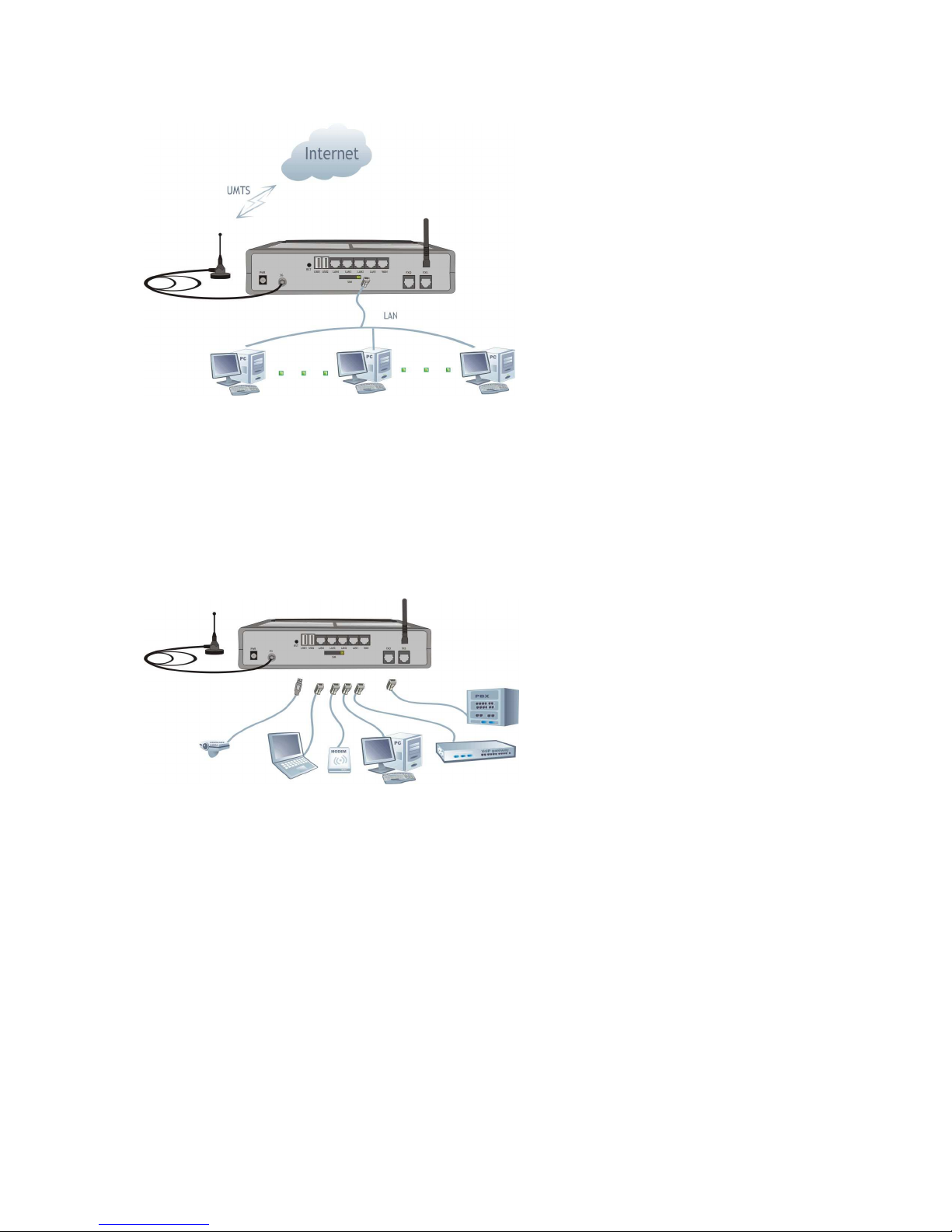
For wireless WAN connection, it uses an embedded
radio modem for the HSDPA mobile network. Its 3G
capabilities assure high speed Internet access up to
1,8 Mbps. This is fully broadband mobile Internet, at
data rates many times greater than a dial-up
connection or other networks. Still, if you are in an
area where you have only UMTS or GPRS or even
GSM coverage, you may use SPEEDY+ in
conjunction with the respective networks.
The SPEEDY+ HSDPA equipment is
versatile advanced router for wireless
broadband Internet access using 3G
technology.
At the same time, it is a voice and
data interface between a single phone
or a PBX exchange and
GSM/GPRS/HSDPA mobile network.
As data router, SPEEDY+ achieves
a direct connection, transparent for
the user, between the local network
(Ethernet and/or WiFi) and the
HSDPA/GSM/GPRS/UMTS mobile
communications network.
The parameters of the FXO and FXS interfaces are
software programmable, by means of the web
interface. This facility is very helpful when your
phone exchange has only ISDN interfaces or there
are no available analog trunks (all of them are
used).You can make calls while browsing,
performing uploads, streaming video, etc. Unlike
other devices, SPEEDY+ has full simultaneous
voice and data capabilities – you may perform at the
same time high speed data transfer and voice calls.
As a voice interface, it allows
wireless connection of the local
subscribers and decreases the cost of
fixed–to-mobile and mobile–to-fixed
calls. SPEEDY+ achieves a direct
contact between a trunk or a local
subscriber extension of a PBX over
the mobile network. This way the
fixed-to-mobile calls are converted
into mobile-to-mobile calls. Thus you
will pay only the mobile-to-mobile
cost.
Since SPEEDY+ HSDPA features
both FXO and FXS interfaces, it is
highly versatile: you may connect it
either to a trunk of the phone
exchange or to a local extension of
the same phone exchange.
Page 9
SPEEDY+ HSDPA User’s Manual
WMOCEAN +420 225 371 777 http://www.wmocean.com p. 8
By using SPEEDY+ HSDPA, you are no longer
dependent of a fixed connection, so you may
connect your LAN network to the Internet even
in remote areas where there are no fixed
connections (phone line, cable, optical fiber,
etc).
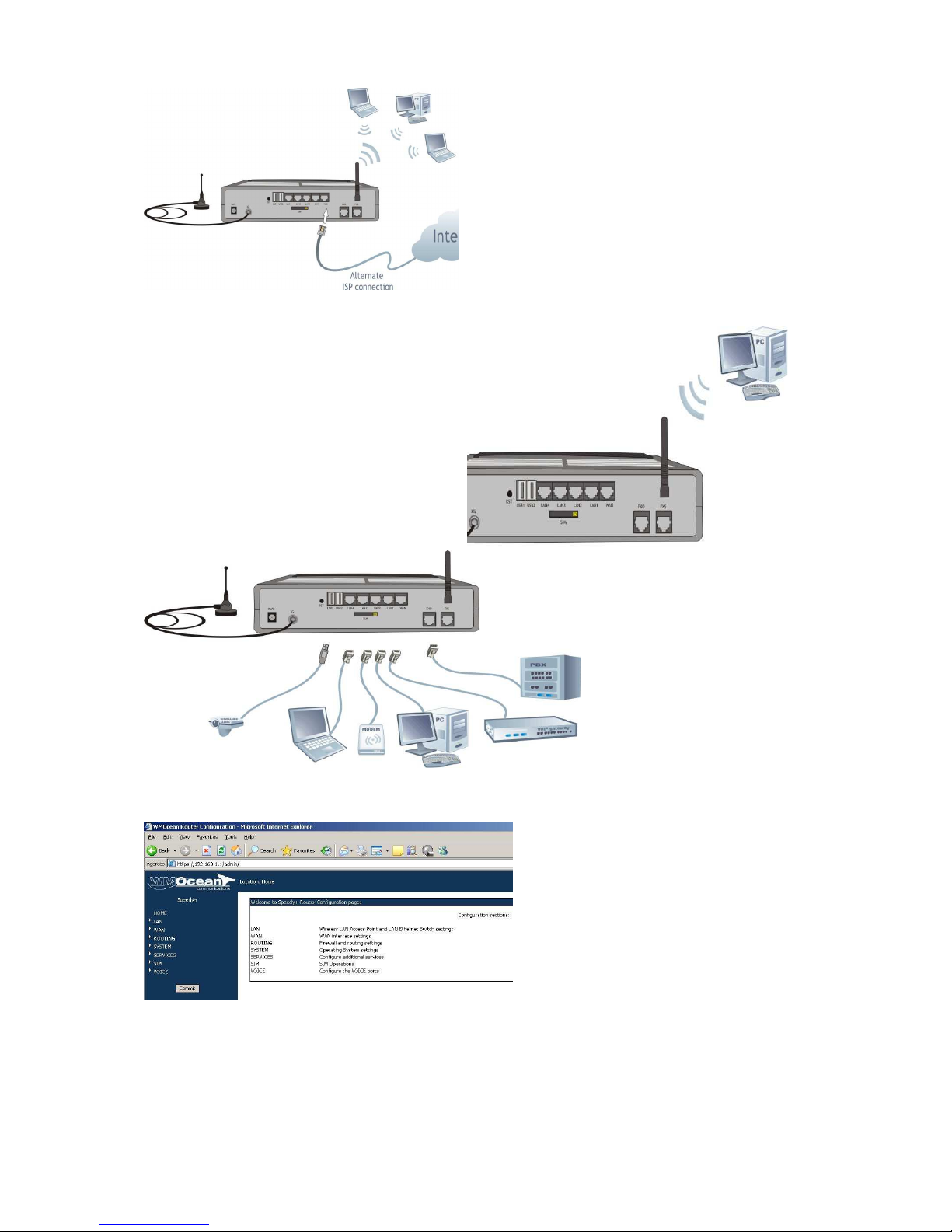
Still, If you want, you can also use the WAN
connection to interface with other Internet
providers than the HSDPA network, such as
DSL cable modems, other wireless broadband
modems.
Our product is fully wireless, since it uses
radio connections not only for LAN and
WAN, but also for configuration via Web
page.
With SPEEDY+ no cables at all are
required, except for power!
All computers on the wired or wireless local network can
access the Internet through the WMOCEAN HSDPA Router,
using only a single external IP address.
SPEEDY+ HSDPA operates
as a local server (router),
since it provides access to
an outside network and
routes the packets in the
local network. The structure
of messages is transmitted
using standard
communications protocols
(TCP/IP, PPP, etc). These
messages are fully
controlled and traceable.
You may easily change the operating
parameters of SPEEDY+ to fit your
needs by remote secure (https) access
using a web browser.
The configuration process is user –
friendly. The changes you make can
be stored in the non-volatile memory
(Flash) of the device or saved as files
on the hard disk drive.
Page 10
SPEEDY+ HSDPA User’s Manual
WMOCEAN +420 225 371 777 http://www.wmocean.com p. 9
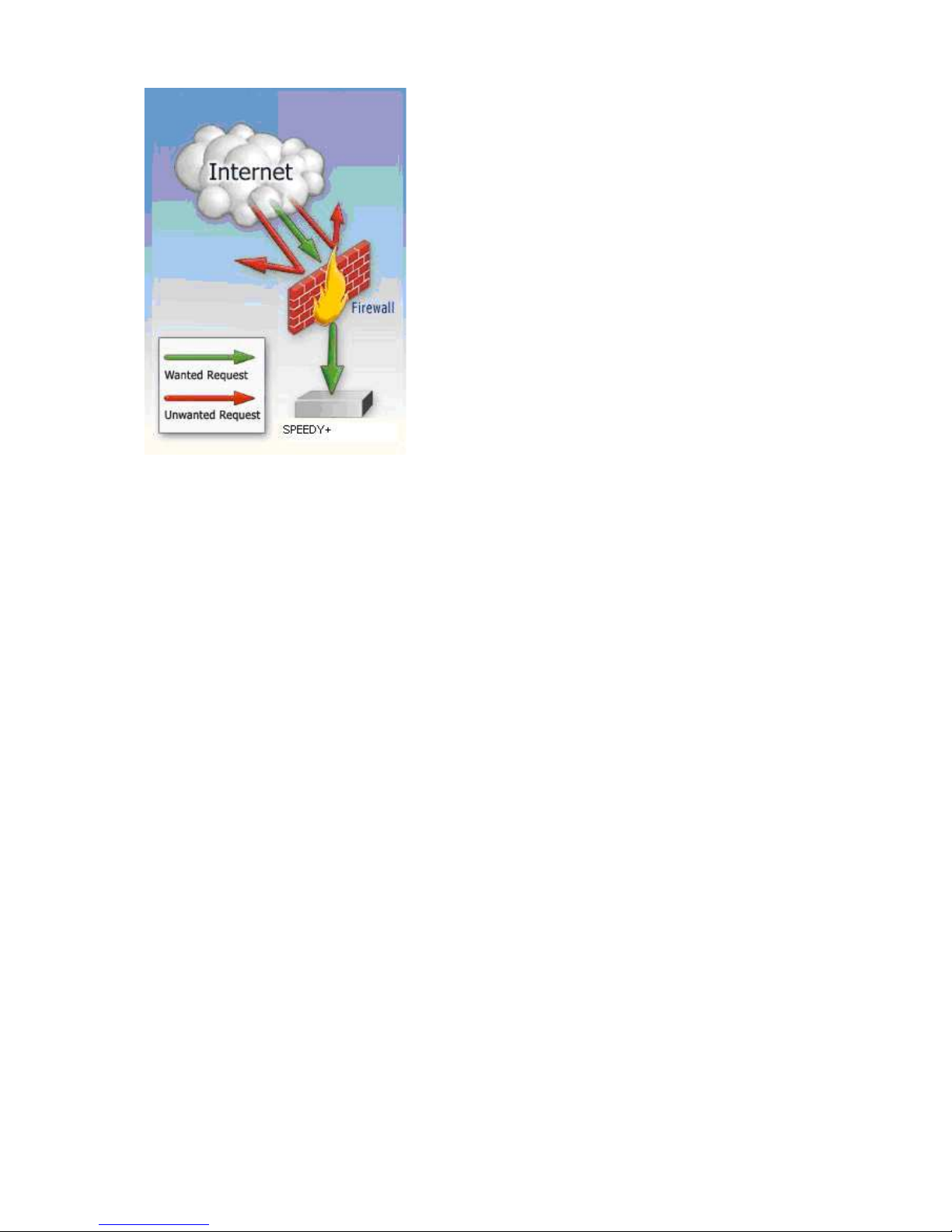
One can rest assured that the local area network
connected to our product is safe because we have
implemented a very powerful firewall and intrusion
detection system.
The WMOCEAN SPEEDY+ HSDPA Router makes
usage of NAT (Network Address Translation) and SPI
firewall to ensure protection for your local network,
wired or wireless.
The features of the firewall are identical to those
available to Linux servers throughout the world, which
are well renowned for their safety.
Because our product is on Linux based, applications to enhance SPEEDY+ HSDPA or
to customize it can be quickly designed by our software developers, according to the special
needs of various clients.
Our best technical experts are available for your technical questions around the clock,
if you sign up our technical support offer. In addition, the software upgrades can be done
remotely via Internet, and are free of charge.
SPEEDY+ HSDPA is a highly versatile solution; its embedded firmware can be easily
upgraded over the Internet.
Page 11

SPEEDY+ HSDPA User’s Manual
WMOCEAN +420 225 371 777 http://www.wmocean.com p. 10
4. INSTALLATION
In order to ensure the proper operation of the SPEEDY+ HSDPA equipment you must
follow the set-up steps shown below:
• Establish the best location
• Mounting (Hardware installation)
• Identification of connectors
• Connecting the data cables
• Connecting the phone cables
• Configuring and installing the SIM card
• Connecting the external antennas for HSDPA and WiFi
• Setting the PIN or PUK code, if required
• Power up
4.1 Establishing the best location
In order to determine the best location for the WMOCEAN router please have in mind
these considerations:
• If you use wired connections, the length of the Ethernet cables that connects the
SPEEDY+ routers the network must not exceed 100 meters.
• SPEEDY+ HSDPA should be placed on a flat, sturdy surface located as far from the
ground as possible. A high location, on the wall or on top of a desk or a shelf is best
both for the HSDPA connection and for the Access Point. Also, SPEEDY+ should be
kept clear of obstructions and away from heat sources, direct sunlight and heavy-duty
electrical equipment.
• To ensure good coverage to all of the wireless mobile devices in your area SPEEDY+
HSDPA should be installed in a central place in the building. Normally the antennas
should be in vertical position, but if reflections occur, you may get better results by
changing their orientation.
• For power supply, use only the adapter shipped with SPEEDY+. The jacks of
different power supplies may fit but the polarity, current, voltage or regulation factor
may not be compatible.
• While the device is in operation, the antennas of the SPEEDY+ HSDPA unit should
be at least 30 centimeters away from any human being.
Page 12
SPEEDY+ HSDPA User’s Manual
WMOCEAN +420 225 371 777 http://www.wmocean.com p. 11
4.2 Mounting (hardware installation)
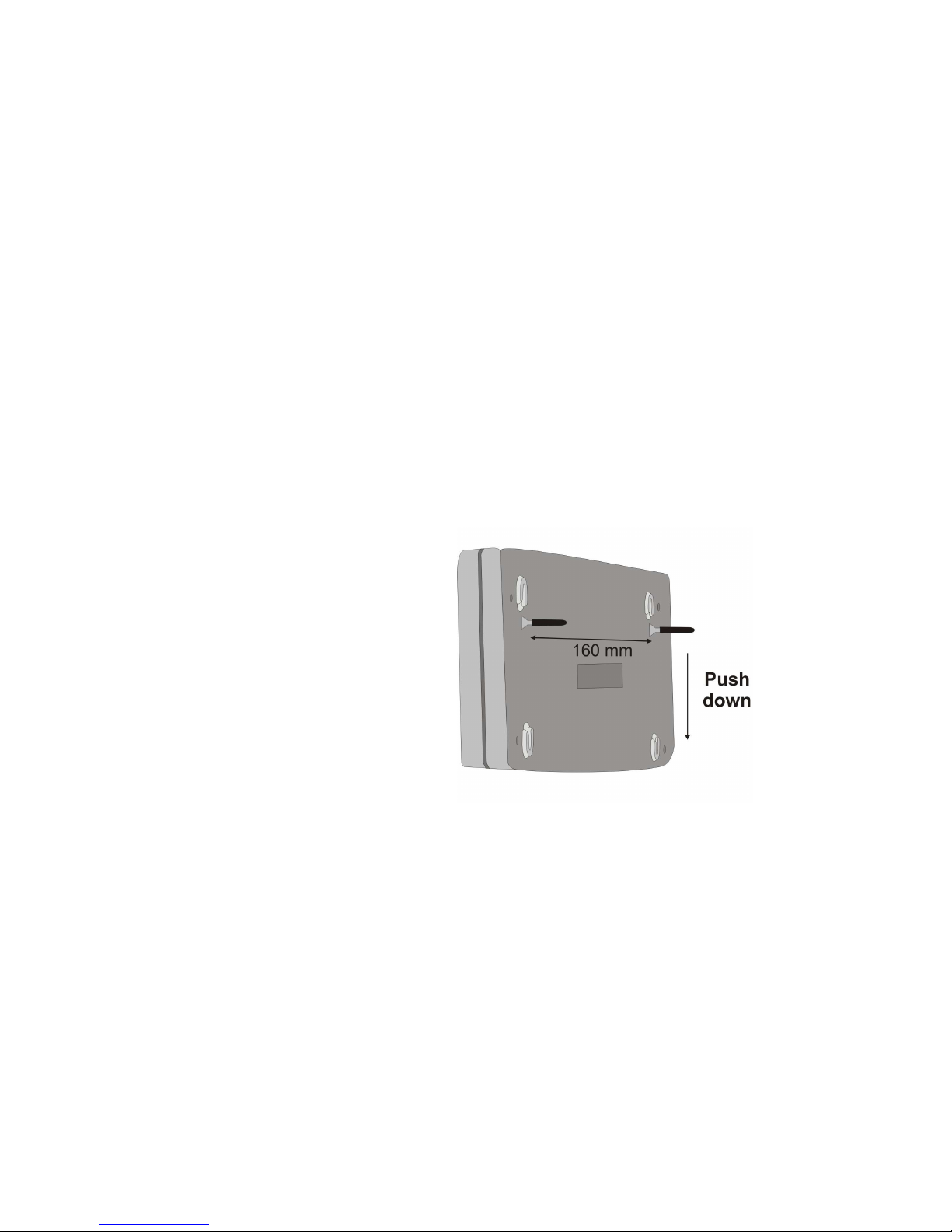
The WMOCEAN SPEEDY+ HSDPA router may be mounted either horizontally, by
means simply placing it on a flat surface, or vertically on a wall (using the mounting kit).
Horizontal mounting
The surface must be level and strong enough to hold the weight of SPEEDY+ HSDPA
together with its cables (power supply, wired LAN connections, telephone, USB etc). A desk,
table or shelf is good place for the installation of SPEEDY+ .
Wall mounting
The equipment may also be mounted on a wall, by means of the kit included in the package.
It is recommended you use a pattern to secure the device to the wall. Also, you should use
professional installation to reduce the risk of injury and damage.
For mounting SPEEDY+ HSDPA on a wall you should use the mounting kit (plastic dowels,
woodscrews, etc) provided by WMOCEAN.
On the back there are two pairs of mounting holes, 160 mm apart. The two pairs are located
100 mm one from another, allowing you to fasten SPEEDY+ to the wall either connectors up
or indicators up.
Perform the following steps:
- mark on the wall the position of a pair
of holes, spaced at 160 mm apart
- drill the holes in the wall
- forcibly insert into the holes the plastic
dowels
- thread the metallic woodscrews into
the plastic dowels leaving the end to
protrude outside for some 5 mm
- hang the case of SPEEDY+ HSDPA
in the two metallic woodscrews and
push it down a little to get it fixed
Figure 1 Mounting SPEEDY+ HSDPA on a wall
No matter if it is installed horizontally or vertically, the best location for SPEEDY+
HSDPA is in the middle of the place where you want to have wireless coverage. Installing
SPEEDY+ on a shelf higher up, with no obstructions around, ensures the best performance,
both for WiFi and for the HSDPA modem.
Take care to ensure adequate cooling of the SPEEDY+ terminal.
Page 13
SPEEDY+ HSDPA User’s Manual
WMOCEAN +420 225 371 777 http://www.wmocean.com p. 12
4.3 Identification of connectors
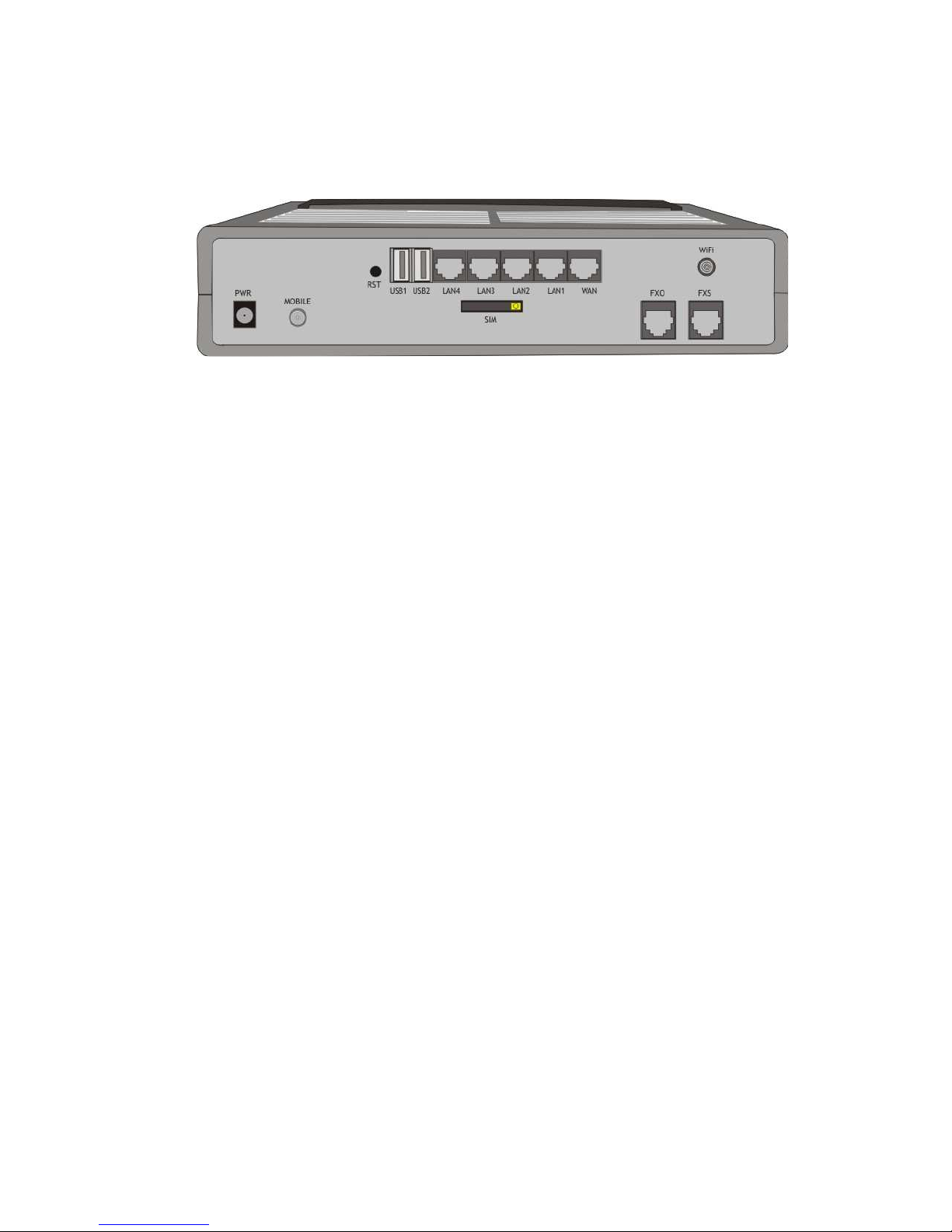
WMOCEAN SPEEDY+ HSDPA features several external connectors, as described
below.
Figure 2: Connectors of SPEEDY+ HSDPA
On the back panel of the equipment there are, from left to right:
On the first (uppermost) row:
The black Reset button (labeled RST)
two USB-A slots (labeled USB1 and USB2)
four female RJ45 connectors for the local network connections, (labeled LAN4 to
LAN1) The four LAN connectors are numbered in reverse order, as to correspond
to the LAN indicators on the opposite side.
another RJ45 connector for the external network (labeled WAN)
to the right, a male RF connector for the antenna of the 802.11 b/g wireless
access point (labeled WiFi)
On the second row (underneath the first):
one connector for the power supply jack (labeled PWR)
a second circular RF connector (female), for the HSDPA antenna (labeled
MOBILE)
in the middle, the slot for the SIM card (labeled SIM)
a RJ-11 connector for the FXO telephone interface
another RJ-11 connector for the FXS telephone interface
Page 14
SPEEDY+ HSDPA User’s Manual
WMOCEAN +420 225 371 777 http://www.wmocean.com p. 13
4.4. Connecting the cables
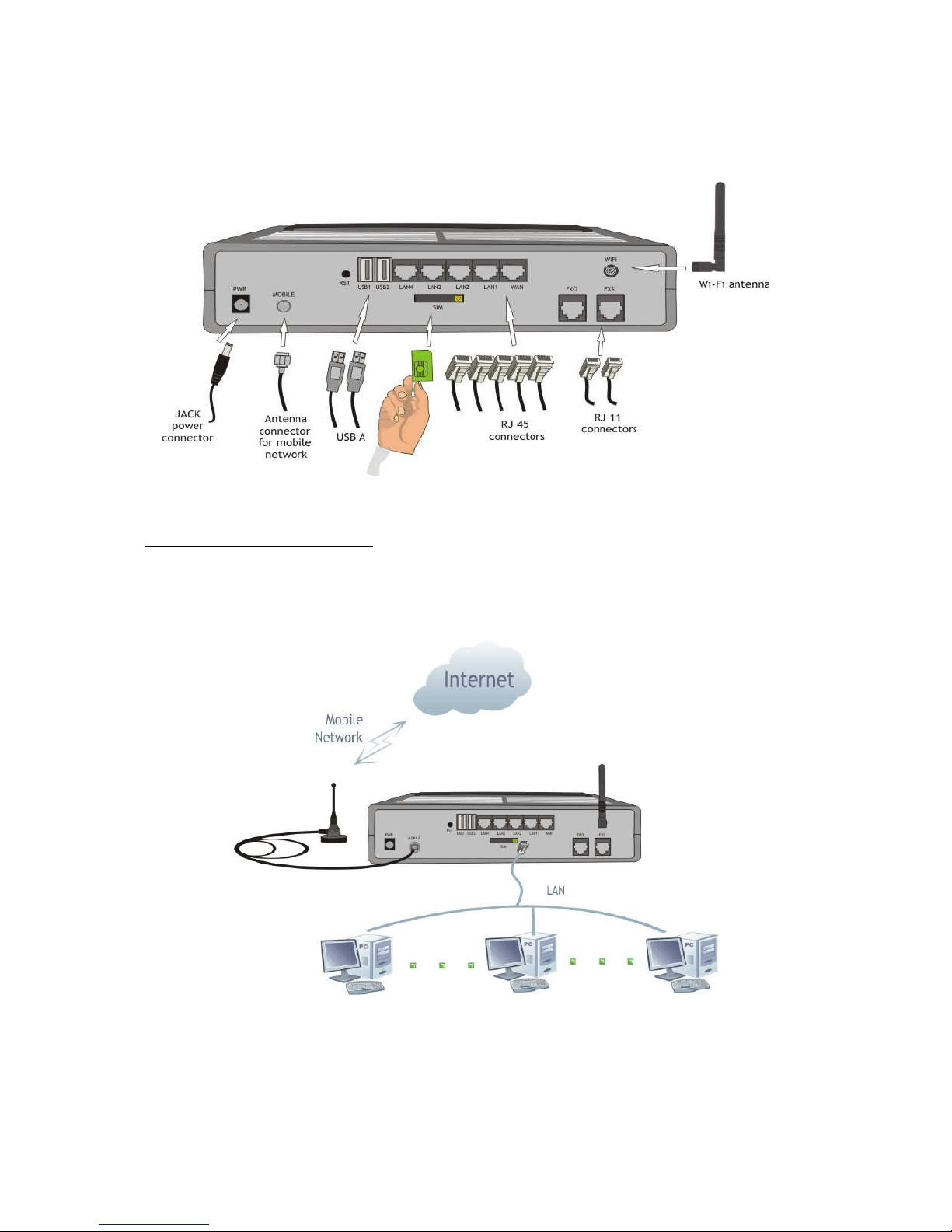
To ensure a proper functioning of the SPEEDY+ HSDPA unit, you must make the
right cable connections, as described below.
Figure 3: Connecting the cables
For local network connection:
Use standard UTP network cables (CAT 5) fitted with RJ45 connectors at both ends.
The cables can be either straight-through or crossover, since the switch of SPEEDY+
HSDPA is auto-crossover. One short length of RJ-45 cable is supplied with the WMOCEAN
SPEEDY+ Router. You may use either 10Base-T or 100Base-T connection, and both types
of Ethernet connections maybe used on the same time.
The network cables are to be inserted with one end into the RJ-45 sockets of the
SPEEDY+ HSDPA equipment labeled LAN1 to LAN4. The opposite end of the UTP cable
can be inserted directly into PCs or in switches or hubs. The corresponding LED indicators of
the front panel should light up, showing physical connection and data traffic on the respective
Ethernet interface.
Page 15
SPEEDY+ HSDPA User’s Manual
WMOCEAN +420 225 371 777 http://www.wmocean.com p. 14
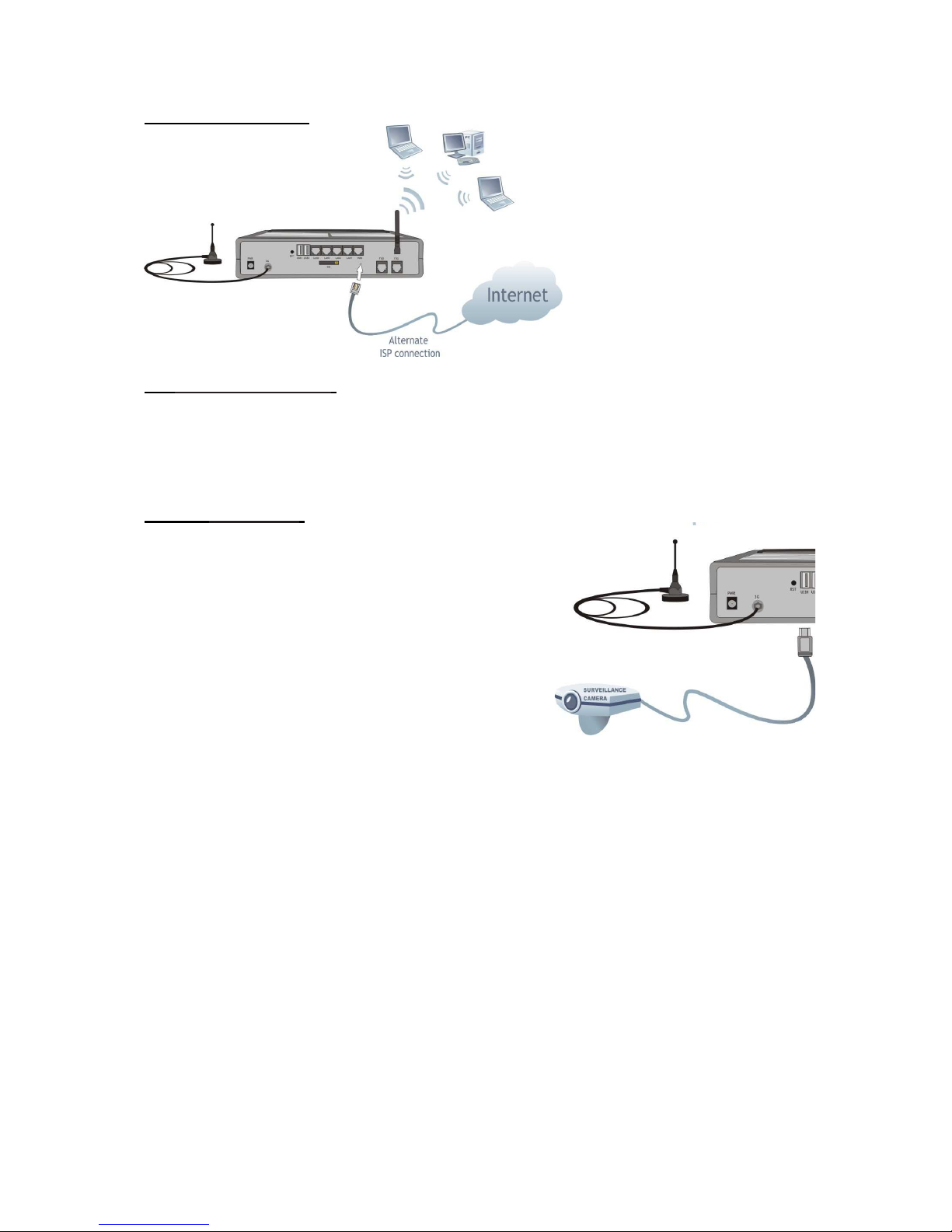
For WAN connection:
Plug one end of the
cable into the RJ45 port
labeled “ WAN” on the rear
of the WMOCEAN
SPEEDY+ HSDPA and the
other end into the Ethernet
port of the ADSL or Cable
modem.
For Wireless connection:
When a wireless device enters in the coverage area of SPEEDY+ , it will be
automatically connected. For settings, refer to the User manual of your wireless adapter for
associating with the SPEEDY+ HSDPA router. The default SSID of the WMOCEAN UMTS
router is “SPEEDY+ HSDPA”, encryption is disabled and open system authentication is
used. You can modify these default settings as you wish.
For USB connection:
Plug the USB cable of the device into one of the USBA slots of the SPEEDY+ equipment.
Currently it supports USB webcams that are
compatible with PWC Linux drivers. For details see
http://www.saillard.org/linux/pwc/.
Further development will allow also connection of
various USB devices or peripherals, such as printers,
scanners, HDD or Flash card readers for extended
storage.
Page 16
SPEEDY+ HSDPA User’s Manual
WMOCEAN +420 225 371 777 http://www.wmocean.com p. 15
4.5. Connecting the phone cables:
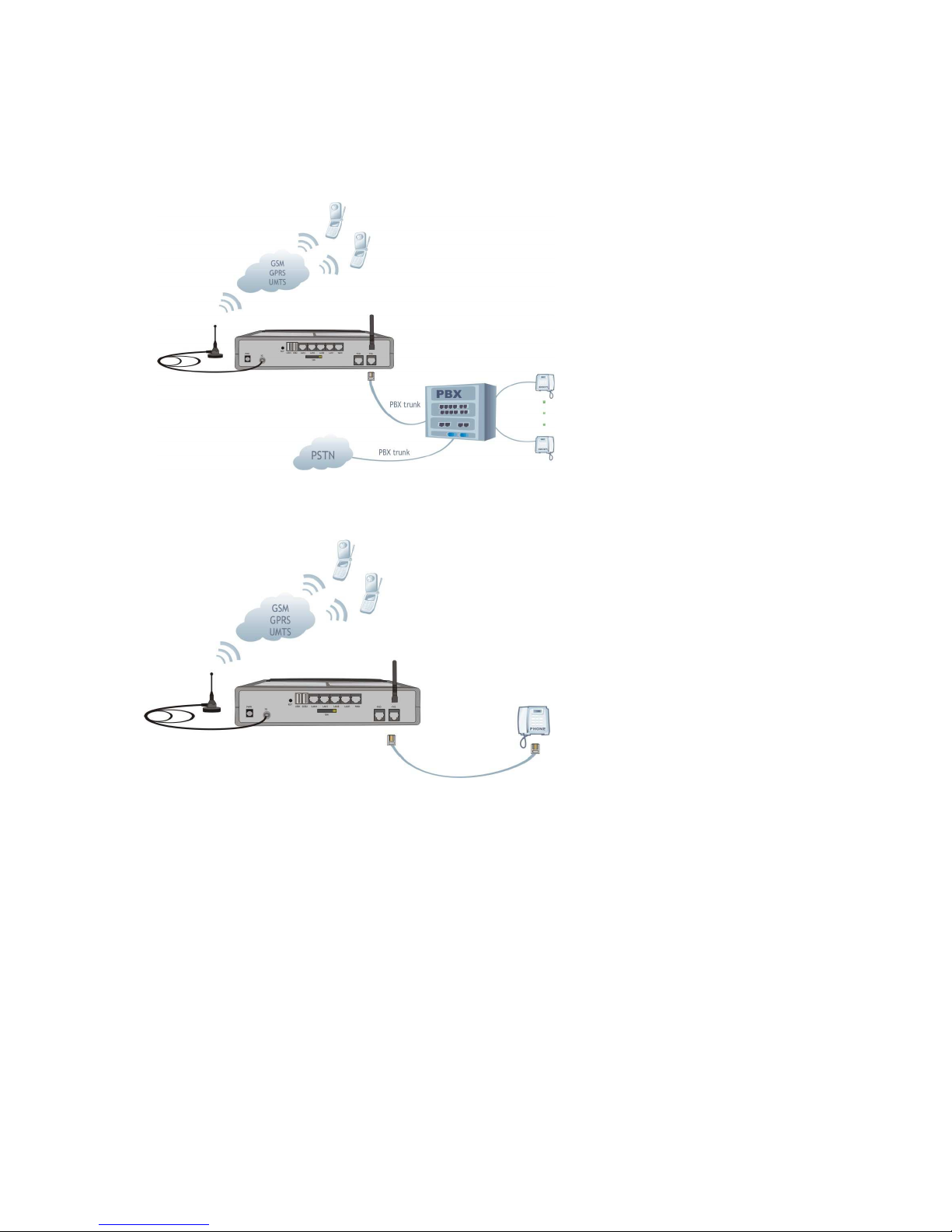
You may use one of the phone interfaces, either FXS or FXO. For connection, SPEEDY+
HSDPA is shipped with a flat telephone cable, wired on both side with male RJ11
connectors.
Connecting the telephone cable for FxS interface
Connect the telephone cable
with one of the end to the FXS
connector of SPEEDY+ and
the other end to an analog
trunk of PBX.
Should the phone exchange
have terminal trunks not
equipped with RJ11
connectors, you must connect
the two middle wires of
telephone cable directly to
internal connector of the PBX
exchange.
Alternately, you may connect
the telephone cable with one
of the end to the FXS
interface of SPEEDY+
HSDPA and the opposite
end directly to a standard
(fixed) phone.
In this case you won’t have
the routing facilities of the
phone exchange, but you still
be able to make voice calls
while transferring files or
browsing the Internet.
Note: SPEEDY+ HSDPA features analog phone interfaces, so it must not be connected
to an ISDN interface (digital trunk) of PBX exchange. For connection to an ISDN
exchange you should use wireless equipment specially designed for ISDN phones. Improper
installation of SPEEDY+ HSDPA equipment might lead to damage of SPEEDY+ or PBX. (If
you join a local subscriber line of PBX exchange to the FXS connector of SPEEDY+ then
both equipment will generate current into the connection cable, so the SPEEDY+ router and
PBX the exchange may be damaged).
Page 17
SPEEDY+ HSDPA User’s Manual
WMOCEAN +420 225 371 777 http://www.wmocean.com p. 16
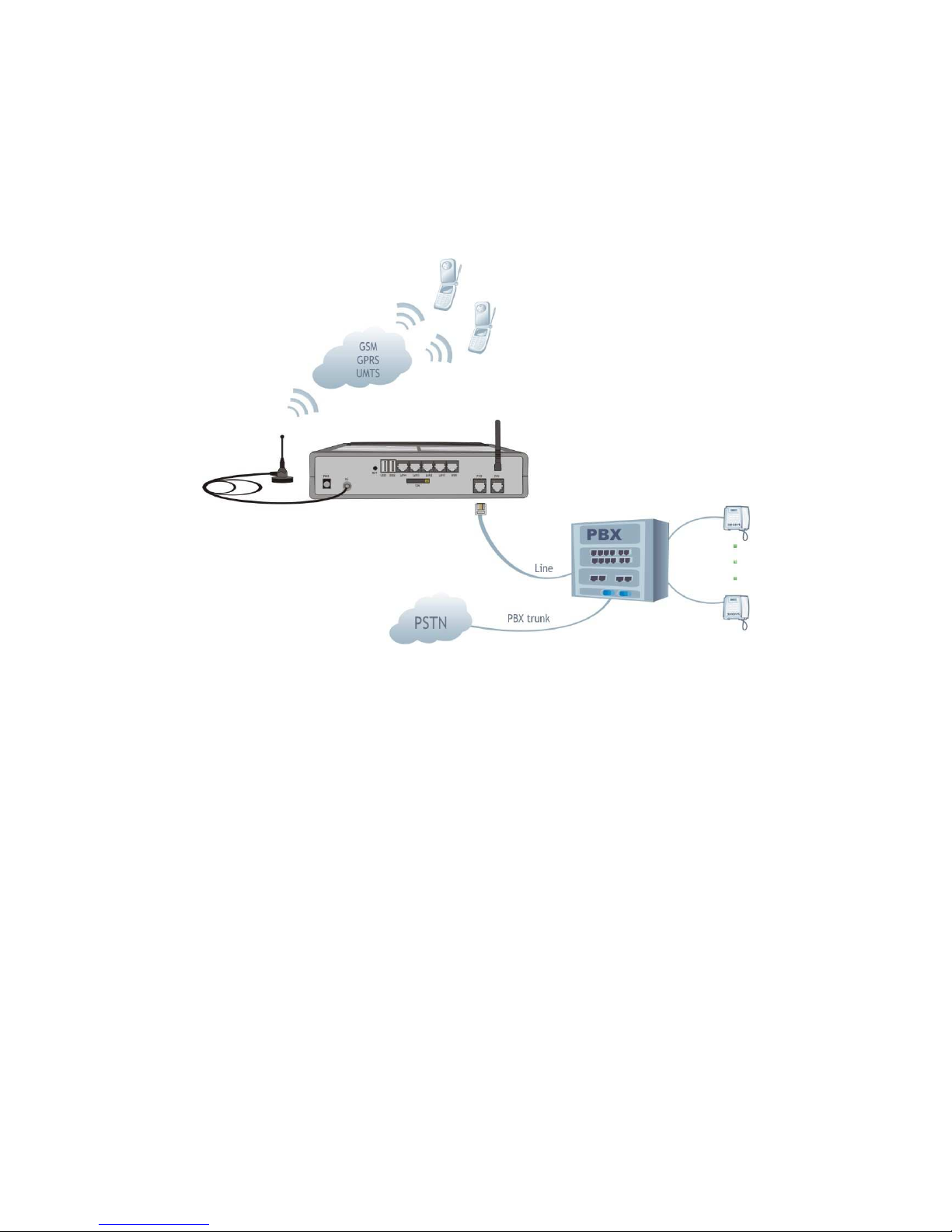
Connecting the telephone cable for FXO interface
If you use the FXO interface of SPEEDY+ HSDPA, connect the phone cable with one of the
end to the FxO connector of the equipment, and the other end to a line interface (local
extension) of your PBX.
Take care NOT to connect the FXO interface to a trunk (outgoing line) of the PBX.
Also, the FXO interface of SPEEDY+ must be properly configured (use the Web interface to
change the settings).
Figure 4: Connecting the telephone cable for FXO interface
Note: In this case, if no restrictions exist for subscriber access rights assigned for
extension where SPEEDY+ HSDPA was installed, any caller from fixed network who
rings to the SPEEDY+ number can obtain the access to outgoing trunks. So his calls
will be billed to the owner of the PBX.
For avoiding this you have the following solutions.
- either configure the phone exchange to reject the outgoing calls on the extension
where SPEEDY+ HSDPA interface is connected
- or set the SPEEDY+ HSDPA equipment so that when it receives a call from mobile
network, it will automatically direct the call to a specified extension (generally the
operator’s desk)
Page 18
SPEEDY+ HSDPA User’s Manual
WMOCEAN +420 225 371 777 http://www.wmocean.com p. 17
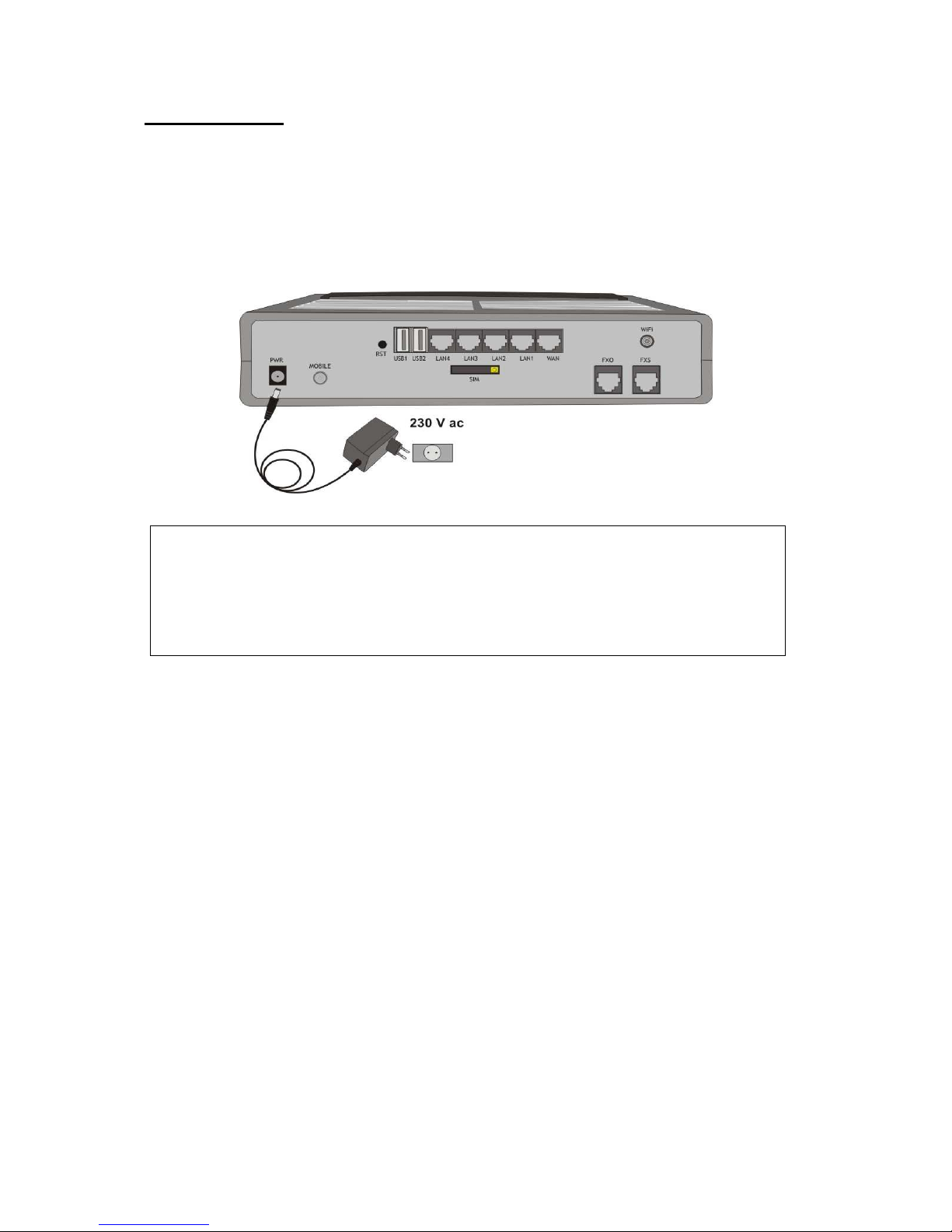
For power supply:
To power the SPEEDY+ HSDPA unit, just insert the jack of the power supply adapter
into the supply connector. Do not yet plug the adapter into the 230V
A.C.
mains outlet on the
wall. The special adapter from WMOCEAN, which is part of the SPEEDY+ HSDPA package,
supplies the voltage required to power the equipment (12V
D.C
.) It is an external power supply
adapter.
Note: The adapter is the disconnection device, the socket-outlet shall be installed near the
equipment and shall be easily accessible”.
Figure 5: Connecting the power supply
Warning !
Use only the power supply adapter shipped in the equipment package. Using of
other kinds of power supplies may cause damage to the equipment.
To avoid accidents or damage to the equipment, follow the steps described
earlier. First, connect the antennas, and then the power supply adapter.
You should avoid connecting or removing the antennas while the SPEEDY+
HSDPA equipment is powered.
4.6. Configuring and installing the SIM card
In order for the SPEEDY+ HSDPA router to work, it must have a valid SIM card with
subscription to the GSM/GPRS/UMTS/HSDPA operator where you want to connect to.
Configuring the SIM card
The SIM card that is used must be active. The SIM card must be configured before it is
inserted into the SPEEDY+ HSDPA slot. For configuring the SIM card you may use an
ordinary GSM cellphone.
The required configurations are:
PIN CODE REQUEST – if you disable (from the menu of the mobile phone) PIN CODE
REQUEST security option, then you will not be asked to enter it. Alternatively, the PIN code
can be enabled and you may enter it form the Web page used for configuration. In this case,
take care to enter the correct PIN code before inserting the SIM card, to avoid PUK locking!
Disable GSM services – GSM operators offers you different supplementary services for
calls. When you use the SPEEDY+ HSDPA interface is recommended that these options to
be disable, because they are available only with additional costs.
Page 19
SPEEDY+ HSDPA User’s Manual
WMOCEAN +420 225 371 777 http://www.wmocean.com p. 18
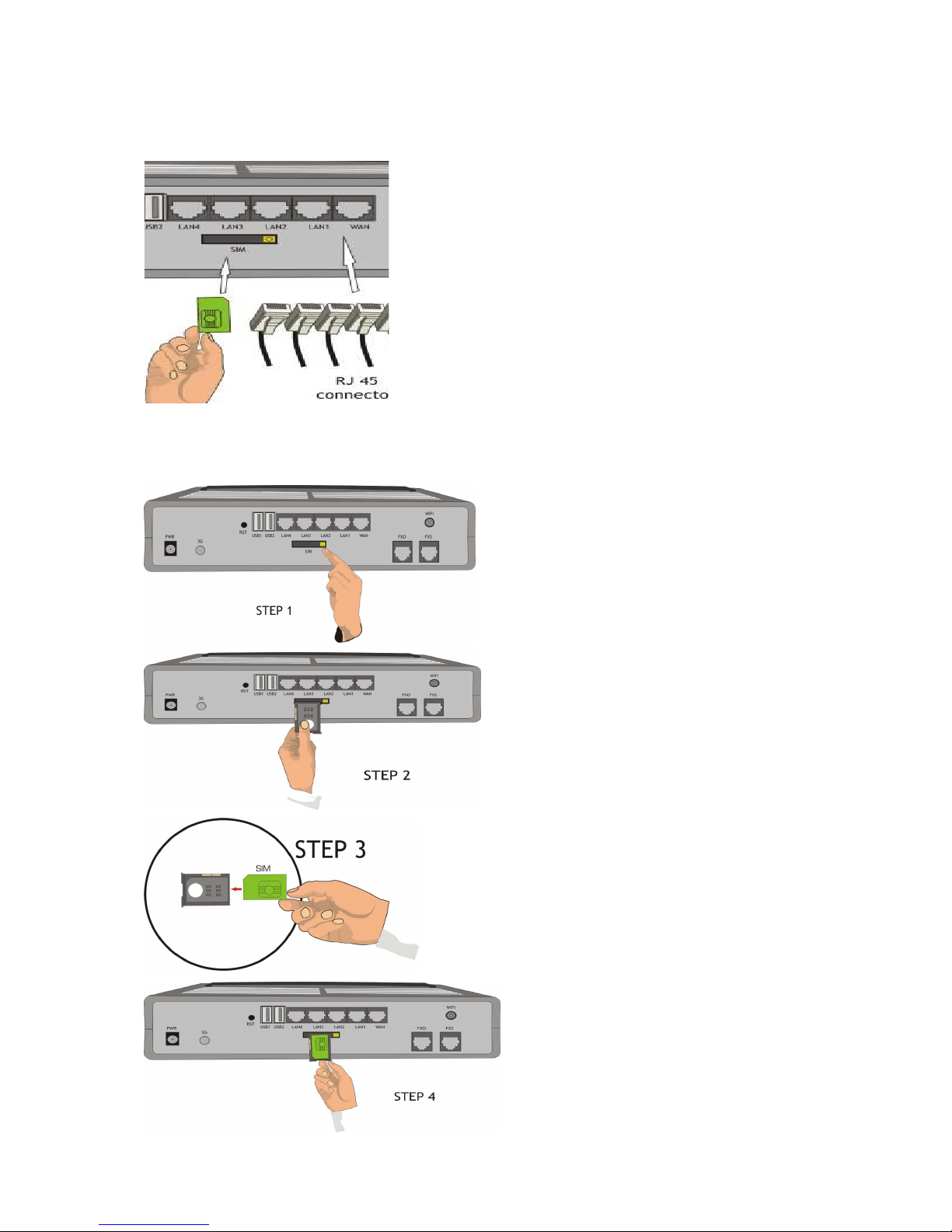
Inserting the SIM card
The SIM card must be inserted into the special slot of the WMOCEAN SPEEDY+
equipment.
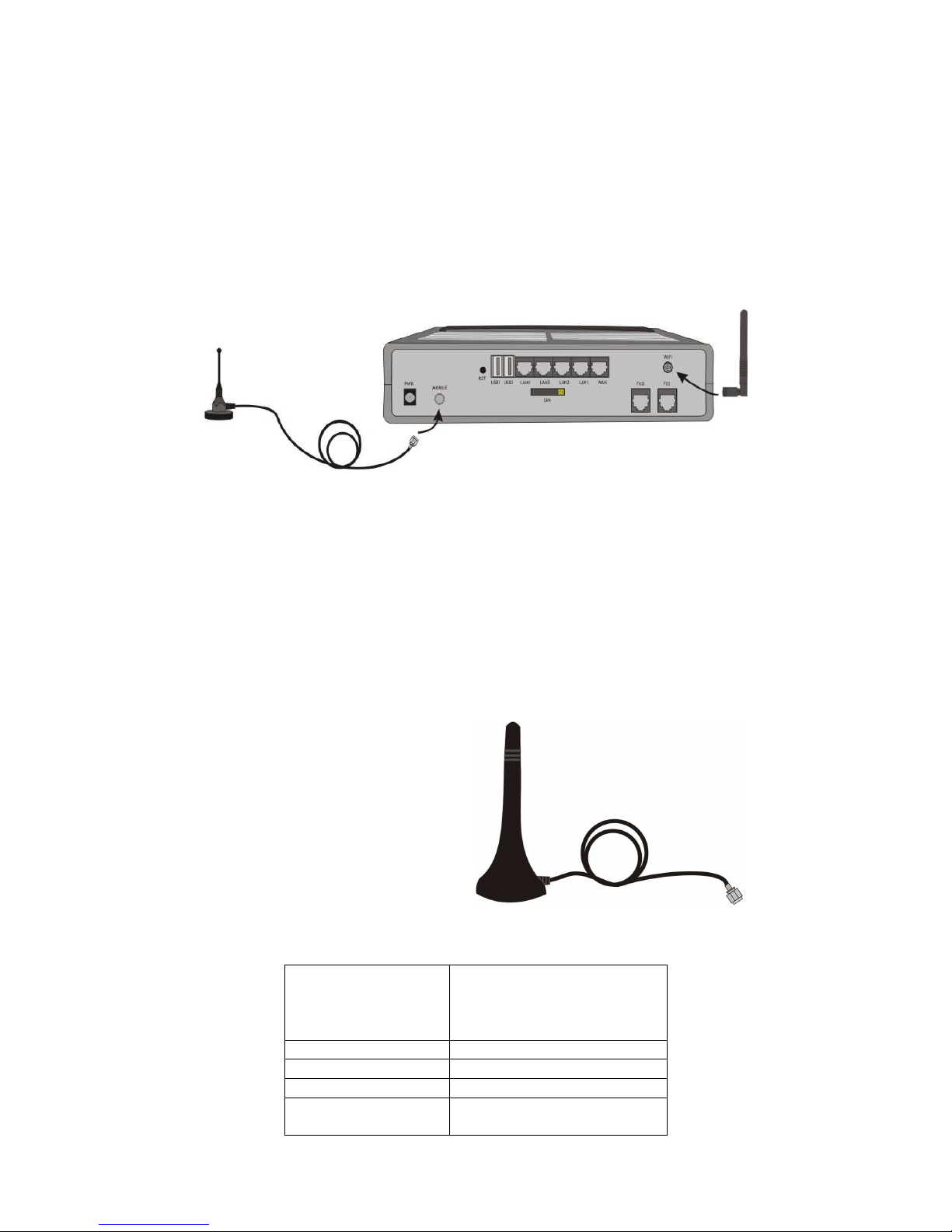
The slot for SIM cards is located on the rear panel (the
one with the connectors), in the middle, as shown in the
next image.
For inserting or extracting the SIM card use the mobile
holder (removable tray) for the SIM card.
Push the little yellow button to activate the holder.
Handle with care when inserting or extracting SIM card.
! When inserting or changing the SIM card, the equipment must be powered off.
For inserting the SIM card follow the next steps:
1. Push the little yellow button to
eject the SIM carrier.
Note: Because its small dimensions,
you can push the yellow button
using an object that has hard edge,
such as a screwdriver or a key.
2. Pull out the holder (tray)
3. Insert the SIM card into the
holder, with the cut (notched)
corner orientated upwards and
the side with contacts toward
you
4. Insert the holder with the SIM
card back into the slot and push to
close. Be careful not to drop the SIM
out of the tray, since the holder must
be inserted face downwards.
Note: The operation described here
must be performed also when you
want to replace the existing SIM
card with a new SIM.
Page 20
SPEEDY+ HSDPA User’s Manual
WMOCEAN +420 225 371 777 http://www.wmocean.com p. 19
4.7. Connecting the external antennas
To ensure a good quality of transmission and reduce radio interference use the antennas
shipped in the SPEEDY+ package. These antennas are for the respective frequency bands
(multiband for GSM/GPRS/UMTS/HSDPA network and 2,4 GHz for WiFi).
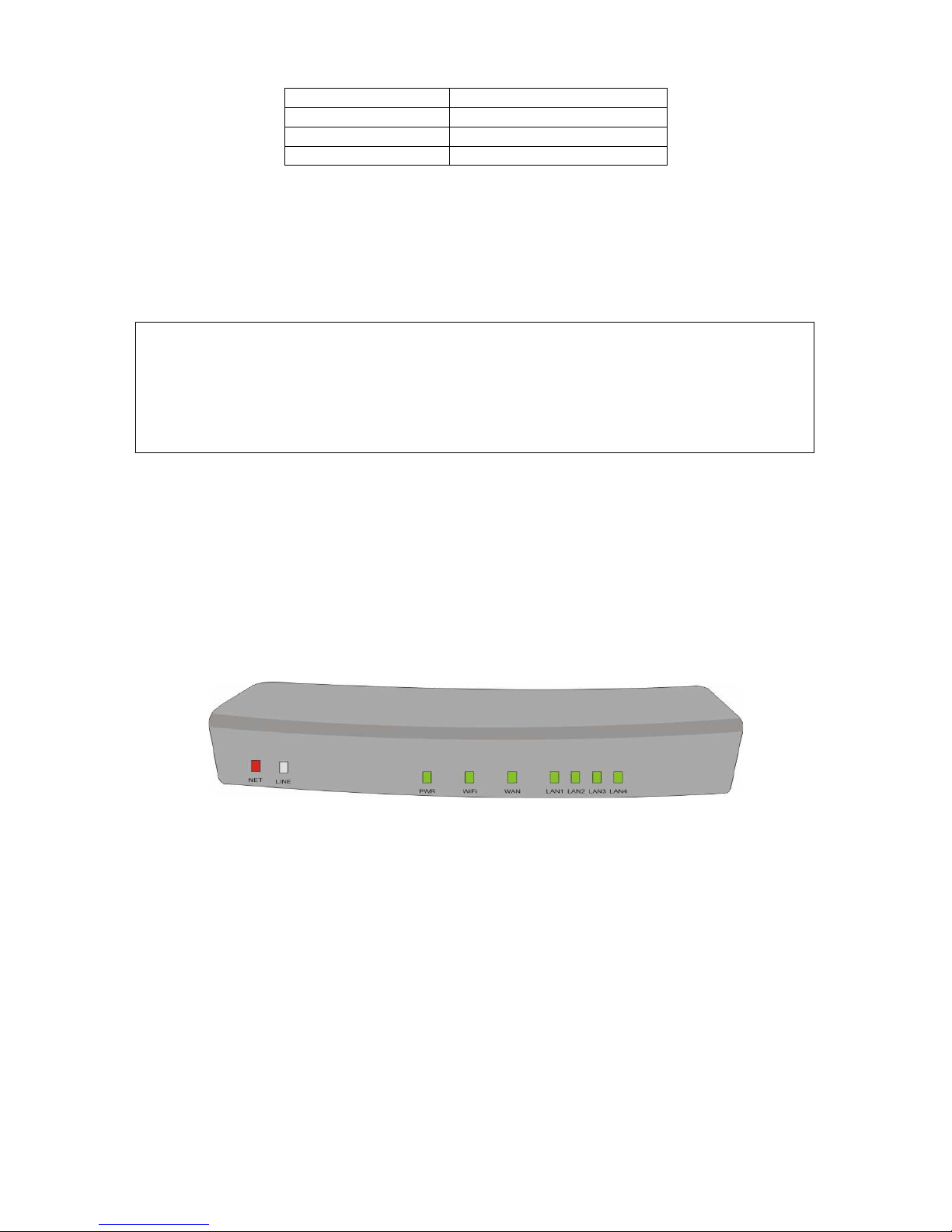
The antennas must be connected to SPEEDY+ HSDPA via the respective RF circular
connectors on the back panel of the case. The cable for HSDPA antenna must be threaded
into the circular connector of SPEEDY+ HSDPA labeled “Mobile”, while the stick antenna for
WiFi into the other RF connector (to the right) as shown in the following drawing. Note that
the connector for the Mobile network is female, while the one for WiFi is male (with
protruding pin) so there is no risk of inserting the incorrect antenna.
Figure 6: Antenna attachment
If your site has low level of 3G signal, it may not be possible to use the full HSDPA
technology without a special, high gain antenna. You should get such an antenna and install
it in a higher position (the roof of the building), directed towards the base station of the
mobile network carrier, in order to get best results.
Warning! Don’t use excessive force. Make sure the antennas are securely screwed into the
RF connectors, but do NOT use a spanner or screw key, which could damage the antenna
connectors! Tighten the flange lightly, by hand.
The antennas have vertical polarization, they should be placed in vertical or horizontal
position, depending of the local field condition.
SPEEDY+ HSDPA package
comprises a multiband antenna for
GSM/GPRS/UMTS/HSDPA mobile
network.
The antenna has a cable of 2,50 m
length and a magnetic base, so it can
be installed on any ferromagnetic
surface.
! You should fasten the antenna on a
safe (with great stability) and flat area,
even one that is not magnetic.
The following table shows the main characteristics of the multi-band stick antennas with
magnetic base (currently supplied with the SPEEDY+ HSDPA package).
Frequency bands GSM 890-960 MHz
PCN 1710-1880 MHz
PCS 1850-1990 MHz
UMTS 1920-2170 MHz
Dimensions 2 dBi
Gain 2 dBi
Polarization Vertical
Height Total 73 mm
Active stick 43 mm
Page 21
SPEEDY+ HSDPA User’s Manual
WMOCEAN +420 225 371 777 http://www.wmocean.com p. 20
Base Magnetic, diameter 2,8cm
Cable Type RG174, length 2,5 m
End Connector Nipple, male
Warning! The antennas of the SPEEDY+ interface sends out RF energy so they should
NOT be placed very close to people. Since the equipment transmits for longer periods of
time, being used for data transmissions the radiation will be accordingly higher than for an
ordinary UMTS mobile phone that used only infrequently, by a single person.
Notice:
The SPEEDY+ HSDPA unit and its antennas should be placed such as to be as far
as possible from appliances or office equipment that is sensitive to radio interference
(microwave ovens, copiers, TV sets, PC displays, and multimedia systems). For best
results, try to find for the HSDPA antenna a place of maximum signal reception.
In addition, the antenna must NOT be located near heavy-duty equipment that may
generate electromagnetic interferences, such as electric motors or heaters.
4.8. Power up
Power up SPEEDY+ HSDPA by inserting the adapter into the wall outlet.
4.7 Status indicators
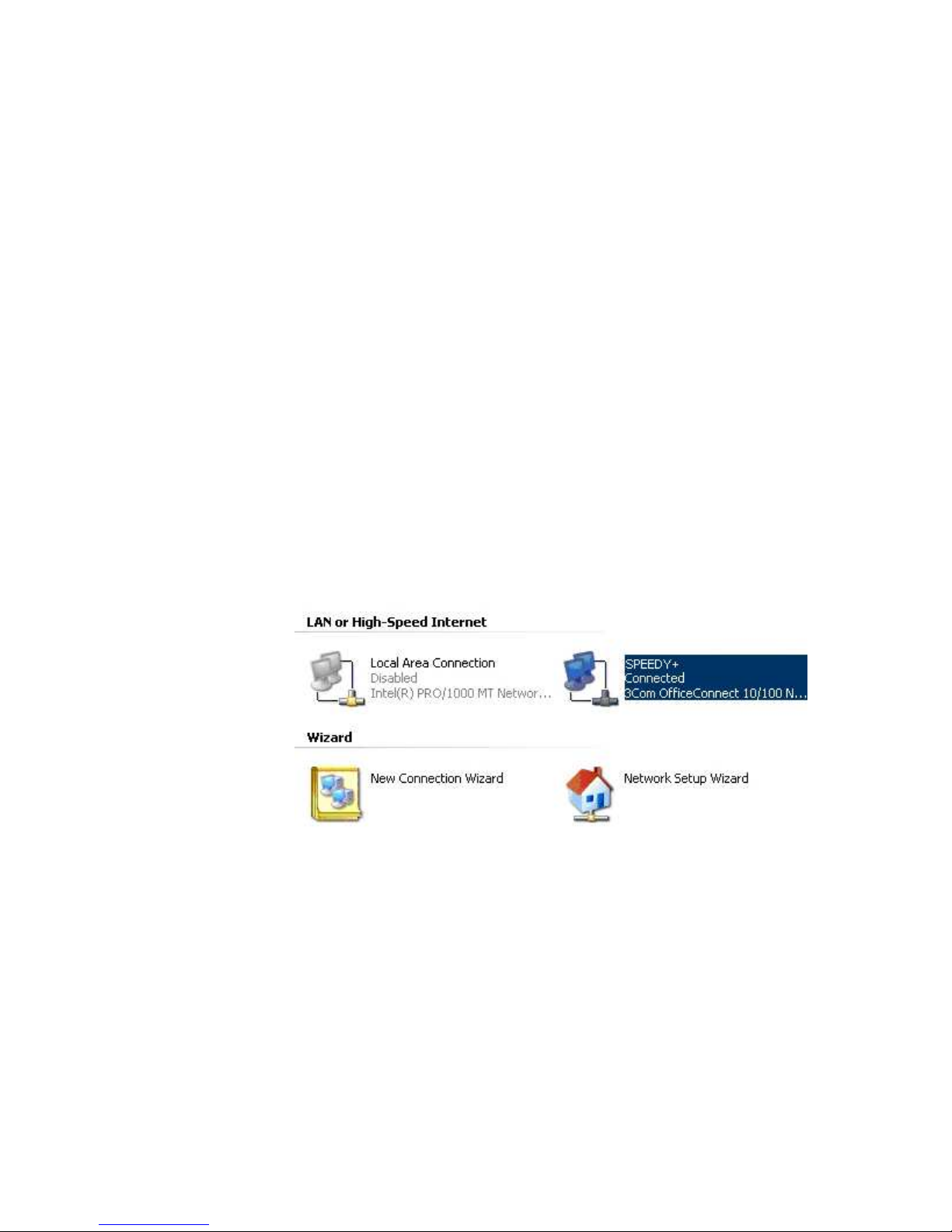
SPEEDY+ HSDPA several optical indicator (green or red LED) that shows the status
of the device. This indicator light up continuously or flash to show data traffic. In normal
operation the LAN, WAN, WiFi or respectively NET indicators must be blinking. The LINE
indicator shows the active status of the phone line.
Figure 7: LEDs location
NET – Green LED. Off indicates no mobile network connection, On = data connection
active.
LINE – Red LED. Lights up to show the phone interface is in use. When it is ON, it
indicates the phone line (FXS) or the junction (FXO) is engaged.
PWR – Green LED. Off = no power, On indicates that SPEEDY+ HSDPA is
powered
WiFi – Green LED. Off = not in operation, On = wireless system ready, blinking
indicates activity of the embedded 802.11 b/g Access Point
WAN – Green LED. Indicator for the WAN Ethernet connection. Off = no cable
connected, On = physical connection to Ethernet network (an UTP cable was connected to
the respective input), flashing = shows data traffic (send or receive) through that connector
LAN 1 … 4 – Green LED. Off = no cable connected, On = physical connection to
Ethernet network (an UTP cable was connected to the respective input), blinking = shows
data traffic (send
or receive) through that connector. Note that the four LAN indicators are
numbered in direct order, as to correspond to the LAN connectors on the opposite side.
Page 22
SPEEDY+ HSDPA User’s Manual
WMOCEAN +420 225 371 777 http://www.wmocean.com p. 21
5. CONFIGURATION
SPEEDY+ HSDPA can properly perform its functions of wireless high-speed router
with the default settings. However, it can be easily configured to meet various usage
scenarios. “Configuring” or programming the equipment means adequate setting of all the
parameters. The embedded Linux firmware allows you to configure SPEEDY+ HSDPA
without the need of additional software on the computer used for programming. You just
need a web browser as configuration terminal. This means that SPEEDY+ HSDPA may be
used on any computer platform and is not restricted to a certain operating system!
Using the web browser, the configuration can be performed remotely: the desktop PC
or notebook may be connected to the WMOCEAN Router either directly or through a hub
and the connection can be wired (Ethernet) or wireless (WiFi). In this last case, no cables at
all are required to program SPEEDY+ HSDPA, except for power!
For this wireless connection your PC or notebook must have an IEEE 802.11g/b
compatible device installed. This can be an Ethernet adapter, a PCMCIA card, an USB
device, etc. Recent notebooks already come with embedded the 802.11g/b capability. You
should also disable WEP (encryption) and set the SSID for your wireless LAN device to
“default” or to the name used by SPEEDY+ .
Prior to using this HDSPA Gateway you should check the basic settings to guarantee
it will work in your environment. When the IP Plug and play feature of SPEEDY+ is, you
don’t need to bother with TCP/IP settings enabled, you may connect directly to configure the
SPEEDY+ HSDPA equipment or to access the Internet through the wireless network.
5.1 Using the web interface
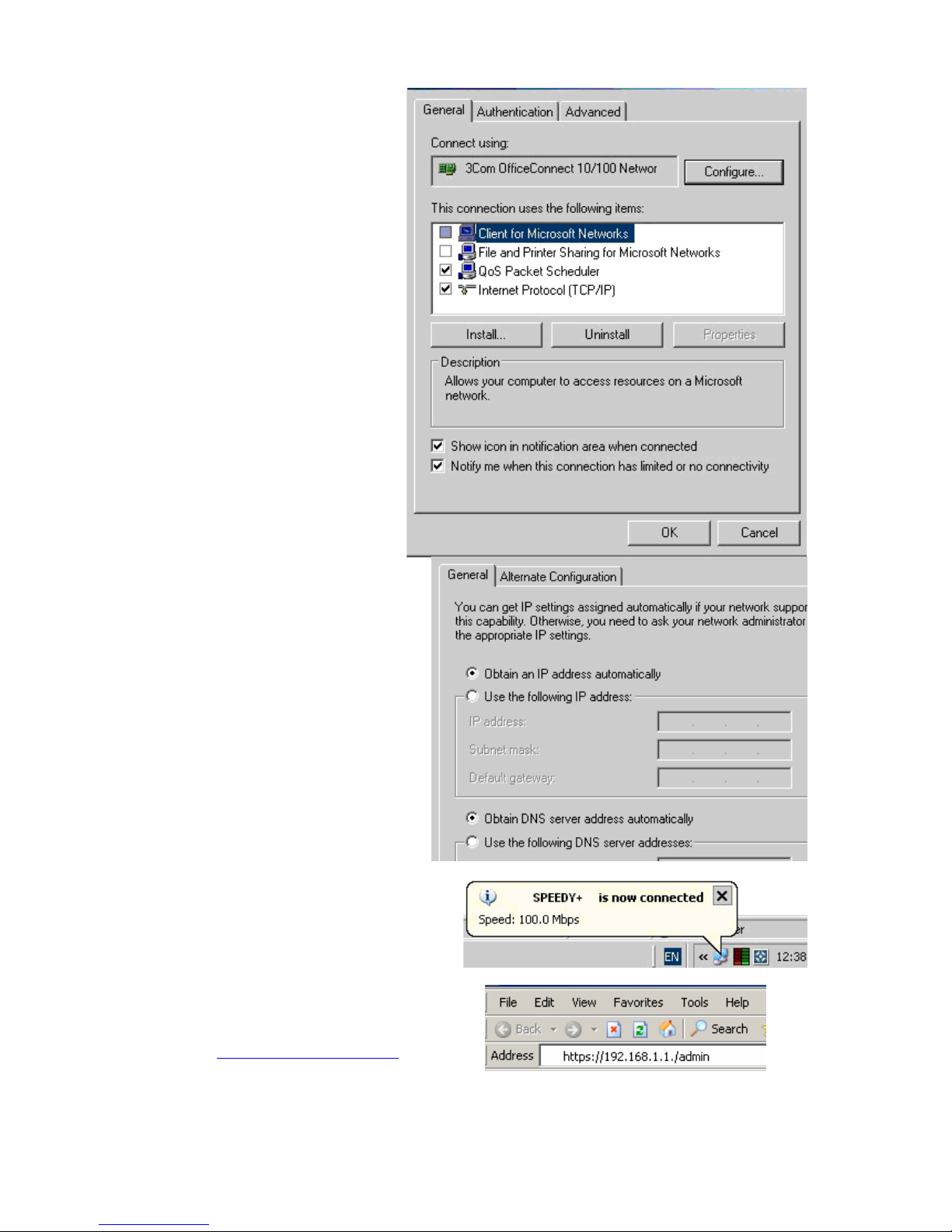
The default address of the webpage of SPEEDY+ device is 192.168.1.1.
First, you should
go to “Network
Connections” on
your computer and
define a
connection to be
used for the
SPEEDY+
HSDPA router.
You may name it
“SPEEDY+
HSDPA”
.
Page 23
SPEEDY+ HSDPA User’s Manual
WMOCEAN +420 225 371 777 http://www.wmocean.com p. 22
From the network adapters
(network cards) of your computer,
select the one which is connected
to the SPEEDY+ equipment.
In this example, it is the
network board type
”3Com OfficeConnect”.
Check the box “Internet
Protocol (TCP/IP) and click the
button “Properties” to configure
your PC.
In “Internet Protocol
Properties” you should check the
boxes:
- “Obtain an IP address
automatically”
- and respectively “Obtain
DNS server address automatically”.
This way, you won’t have to
worry anymore about your settings,
SPEEDY+ will take care of providing
you with IP addresss and DNS,
In the status bar at the bottom of the
screen you should see the link icon
blinking, and a message will show up:
“SPEEDY+ HSDPA is now connected”
To configure the SPEEDY+ product using
the web interface, just open your favorite web
browser and type the default IP address as
the URL: https://192.168.1.1/admin .
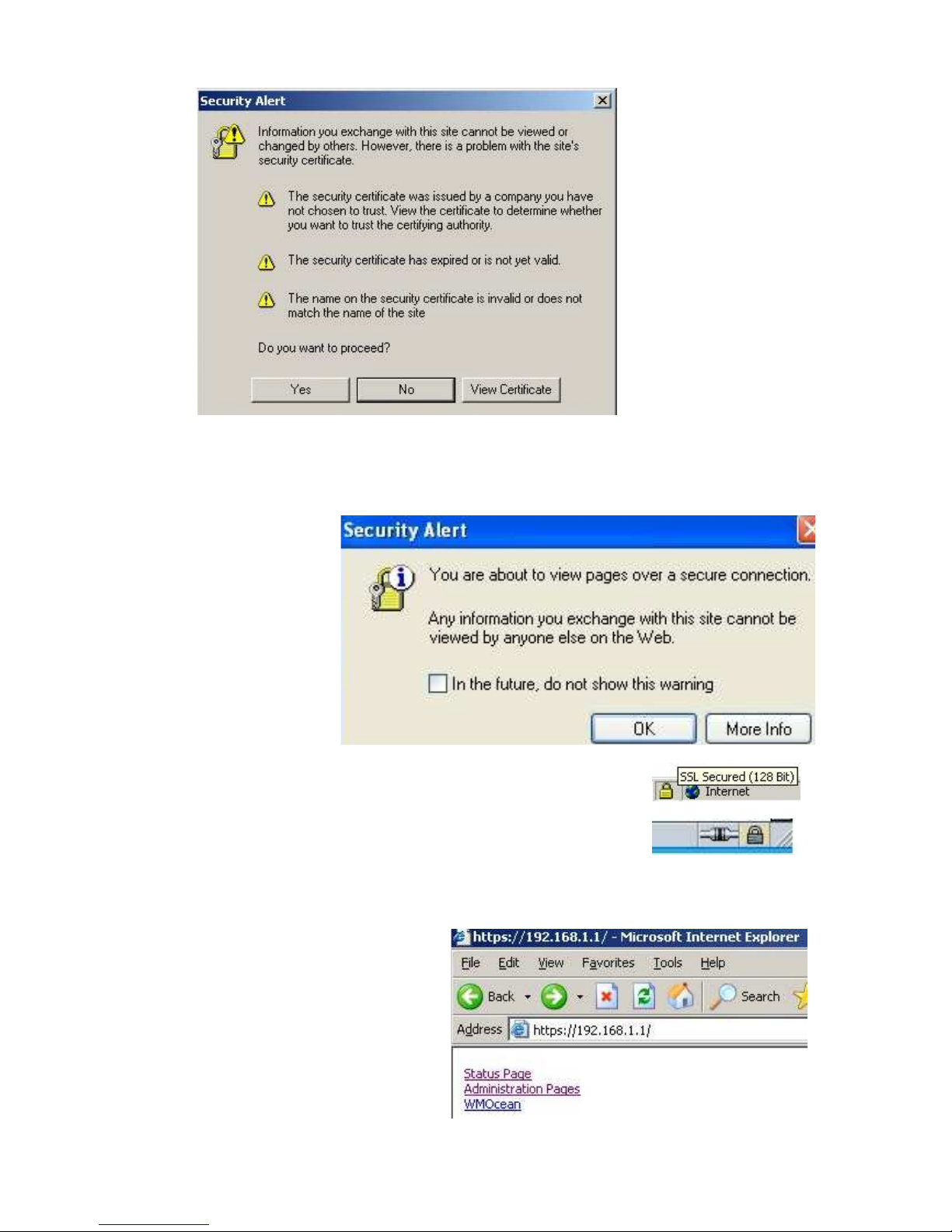
Note that SPEEDY+ uses a secure connection (https) so you may get several
warning messages like this one:
Page 24
SPEEDY+ HSDPA User’s Manual
WMOCEAN +420 225 371 777 http://www.wmocean.com p. 23
or similar warnings mentioning “Website Certified by an Unknown Authority”.
You should click „Yes”, „OK” or „Accept” to go on.
Type “OK” to accept the certificate for the SPEEDY+ website.
Other “Security Error” messages may warn you about “Domain Name Mismatch”, referring to
the security certificate. Again click “OK” to continue.
You may receive the
warning “You have
requested an encrypted
page” or “You are about
to view pages over a
secure connection”.
This is normal, it shows
that you are connected
to SPEEDY+ over a
secure, encrypted link.
The secure connections is confirmed by the “padlock” symbol that
shows up in the status bar at the bottom of the screen, indicating a
secure (encrypted) connection. SPEEDY+ uses 128-bit SSL
encryption to prevent hackers from capturing passwords and
sensitive data. The same security is used by banks and the military.
or
Internet Explorer shows the padlock icon only when everything on the entire webpage is
encrypted. But even when the browser doesn't show a padlock, the "https://" address means
your data is still encrypted
If you entered the address 192.168.1.1
page and it asks you for authorization,
type in the URL bar “admin” or click
“Administration Pages” to go to the
configuration page of SPEEDY+
HSDPA.
Page 25
SPEEDY+ HSDPA User’s Manual
WMOCEAN +420 225 371 777 http://www.wmocean.com p. 24
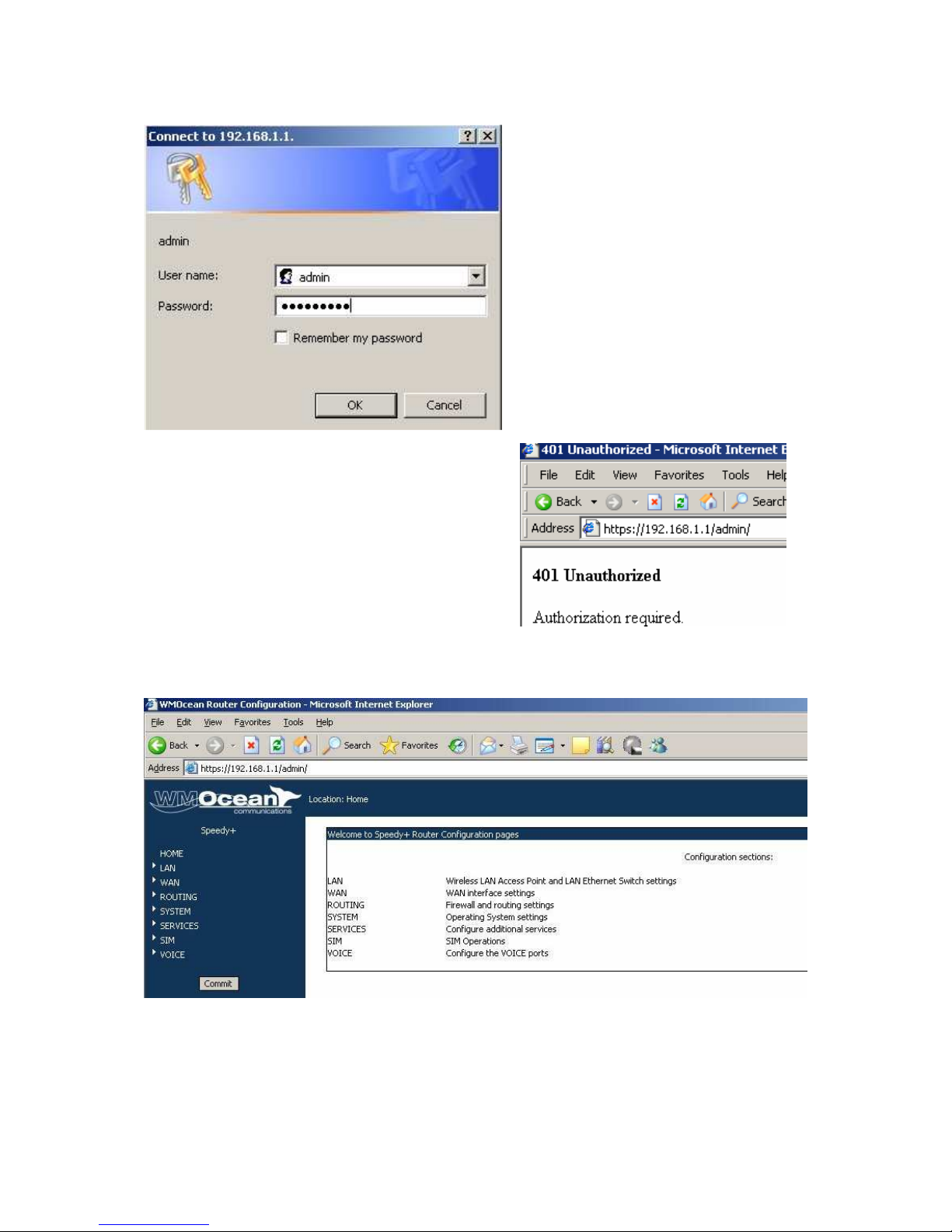
Now you will be asked to enter a user name and a password to access the configuration
page of WMOCEAN SPEEDY+ .
The default user name is admin and the
password is 99admin11.
Later, you may change this password
using the web configuration page, as
described in the paragraph about
Password.
For security reasons, it is strongly
recommended to change as soon as
possible the default password with
one of your own choice. Also, you
should NOT mark the checkbox
“Remember my password”.
If you type a different user name, or if enter an
incorrect password more than three times in a
row, you will get the error message:
“401 Unauthorized” !
Connect again and be careful to enter the correct
name and password.
Now the administration page for the WMOCEAN SPEEDY+ router should be shown on
screen.
After the configuration page is loaded, you can change any setting and then click the Save
button to save it in the current page and Commit button to make these changes permanent.
The “committed” configuration changes are valid after the restarting of the equipment.
There are several sections (Menu items) on the configuration page of SPEEDY+ HSDPA,
allowing you to modify the settings for:
- HOME: this home page for configurating the equipment.
Page 26

SPEEDY+ HSDPA User’s Manual
WMOCEAN +420 225 371 777 http://www.wmocean.com p. 25
- LAN: settings for the wireless LAN (WiFi - embedded Access Point) and for the local
wired (Ethernet) network
- WAN: parameters for Ethernet, PPP including AT commands, etc and Dynamic
DNS
- ROUTING: routing, NAT (network address translation), firewall, etc.
- SYSTEM: Shows current status and performs operating system functions (update,
change of password, logs)
- SERVICES: Allows you to configure additional services (such as DDNS, NTP or
webcam
- SIM: Shows info and change settings for the SIM card and HSDPA module, allows
viewing, sending out and receiving SMS messages
- VOICE: configuration of the telephony interfaces (FXO or FXS)
The Menu bar is located to the left, and features the button Commit at its bottom.
Above, after the WMOCEAN logo, you will see a “Location” indication, that reminds you
where you are on the Web interface (in which of the configuration pages).
Page 27
SPEEDY+ HSDPA User’s Manual
WMOCEAN +420 225 371 777 http://www.wmocean.com p. 26
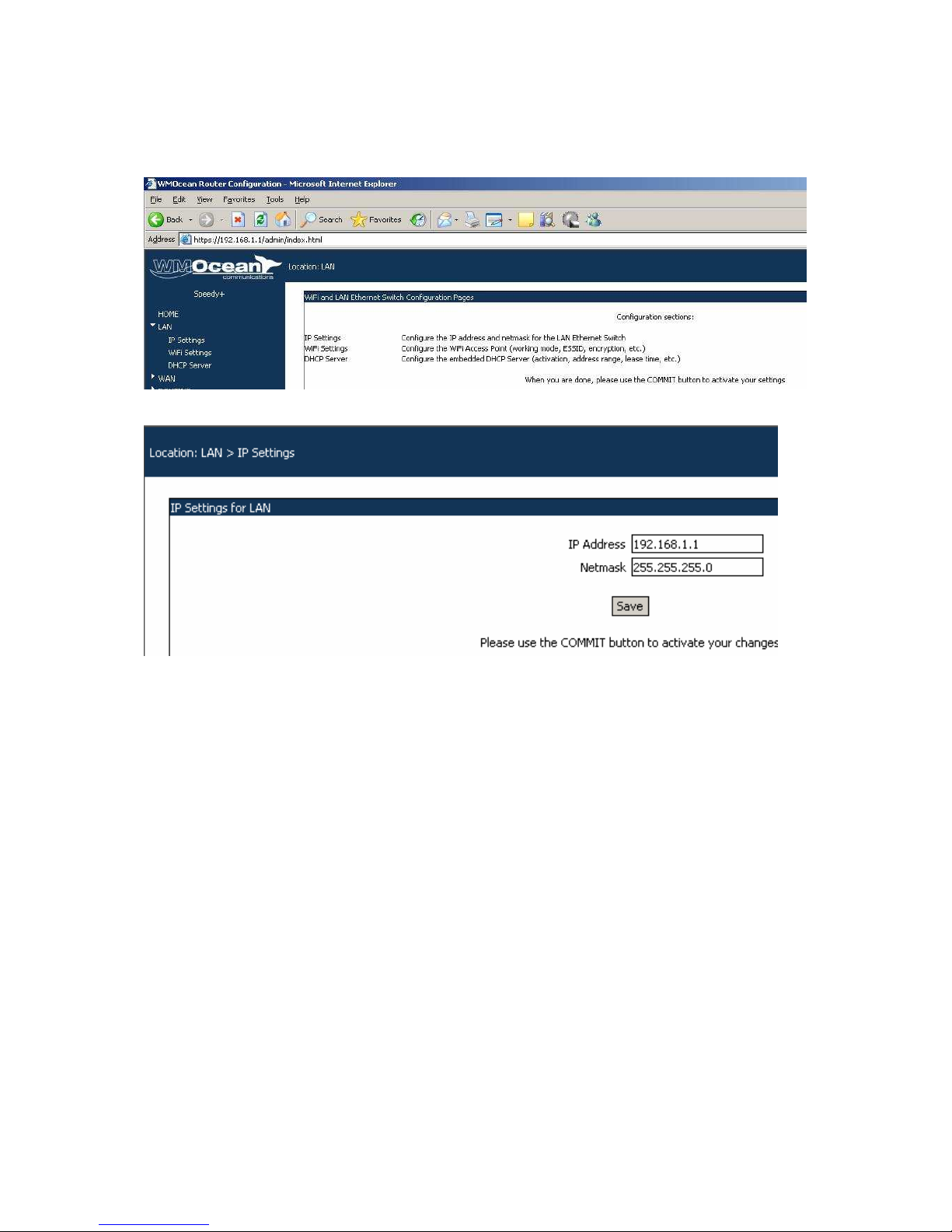
5.2 LAN
This group features three pages of settings related to the local wireless or wired network (for
IP, for the embedded WiFi access point and respectively for the DHCP server):
5.2.1. IP Settings
Settings for the LAN IP of the SPEEDY+ HSDPA router are the standard ones: IP Address
and Netmask. These settings control how the WMOCEAN equipment connects into your
local wired (Ethernet) computer network.
The default value of the address is 192.168.1.1 and the netmask is the standard one,
255.255.255.0. The network mask allows limiting the accessibility domain for the address
above.
You may change these default settings, if the configuration of your network requires this. Use
the “Save” button to save the settings, then “Commit” (down on the column to the left of the
screen) to make permanent the IP settings.
Usually the IP address allocated for SPEEDY+ HSDPA on the LAN side is a non-routable
(internal) address. If you change this IP address, you will need to reload the configuration
page by typing the new IP address in your browser, if not redirected automatically.
Page 28
SPEEDY+ HSDPA User’s Manual
WMOCEAN +420 225 371 777 http://www.wmocean.com p. 27
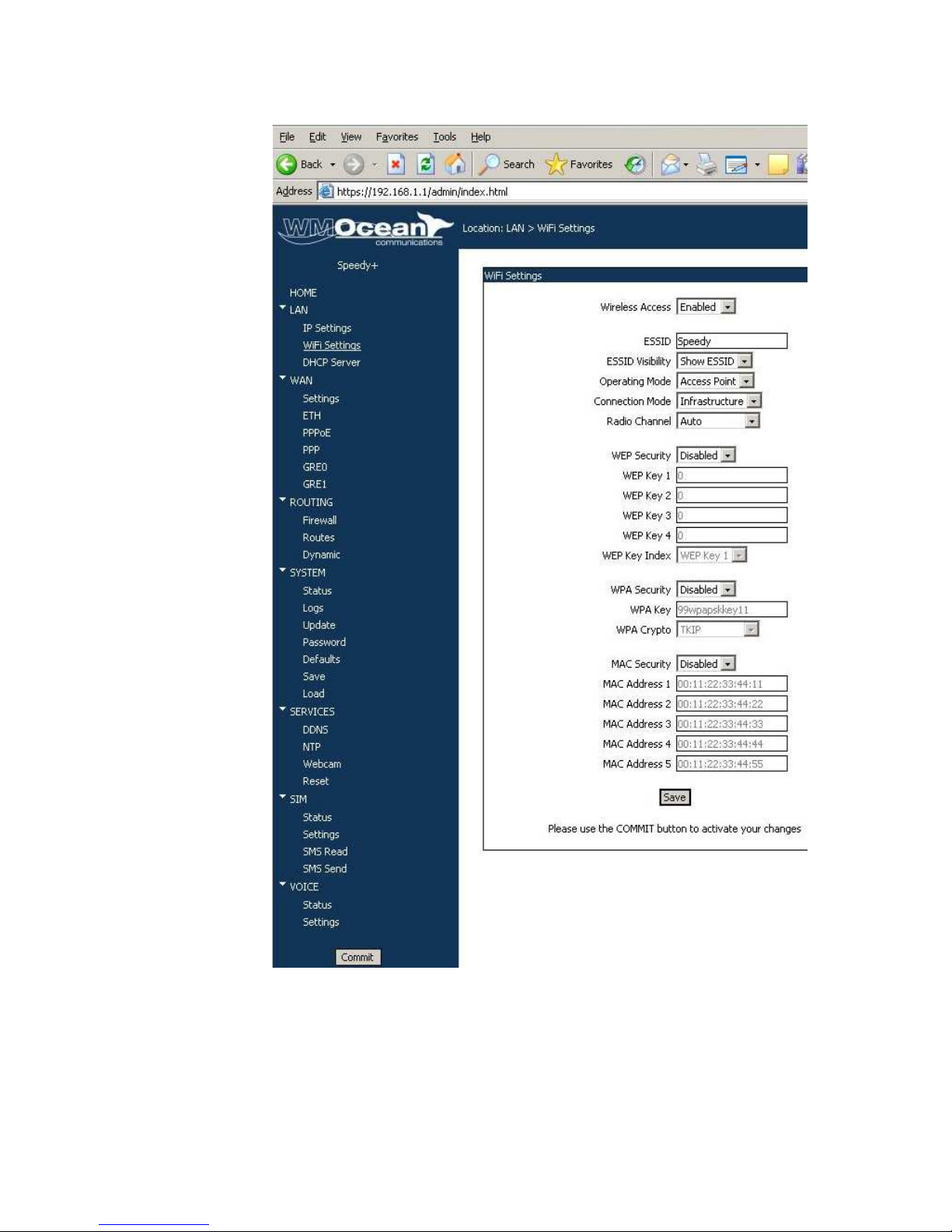
5.2.2. WiFi Settings
The settings for
the wireless
access point
These control
the 802.11b/g
embedded
Access Point
(base station)
of SPEEDY+
HSDPA.
There are
several zones
(groups of WiFi
related
settings) which
are described
further on:
Wireless access: you may enable or disable the wireless access to SPEEDY+ HSDPA.
ESSID: name of the Wireless LAN.
ESSID is a unique name, of length up to 32 keyboard characters, which identifies the
embedded wireless Access Point of SPEEDY+ in the wireless LAN. All devices in the
wireless network must have the same ESSID.
You should type in a descriptive name such as “HomeNetwokA” or “InternetCaffeDoris” to
replace the default one (which is “SPEEDY+ HSDPA”).
This name allows one wireless network to be clearly distinguishable from another.
Page 29
SPEEDY+ HSDPA User’s Manual
WMOCEAN +420 225 371 777 http://www.wmocean.com p. 28
It ensures that your SPEEDY+ wireless router can be accessed only by those access points
and wireless devices that have configured the same ESSID as you.
ESSID Visibility: Shows or hides the ID, so makes your wireless LAN router invisible to
others. Since the access point of SPEEDY+ is no longer visible, this will hinder potential
hackers from finding out that a WLAN network is active.
Only people who know the ESSID will be able to access the wireless LAN of SPEEDY+
HSDPA. By default, the ESSID is visible, meaning is it is broadcast to all WiFi devices that
operate in the near of SPEEDY+ .
This way the mobile wireless users around SPEEDY+ HSDPA will see your access point
and will be able to join (the WMOCEAN wireless router will show up in site surveys
performed by wireless mobile clients).
Warning: the hiding of the ESSID is not a foolproof solution for wireless security, hackers
may actively scan for wireless data packets and unauthorized persons can join the network
even if the ID is not broadcasted. Thus you must rely on stronger protection measures, such
as WEP and WPA.
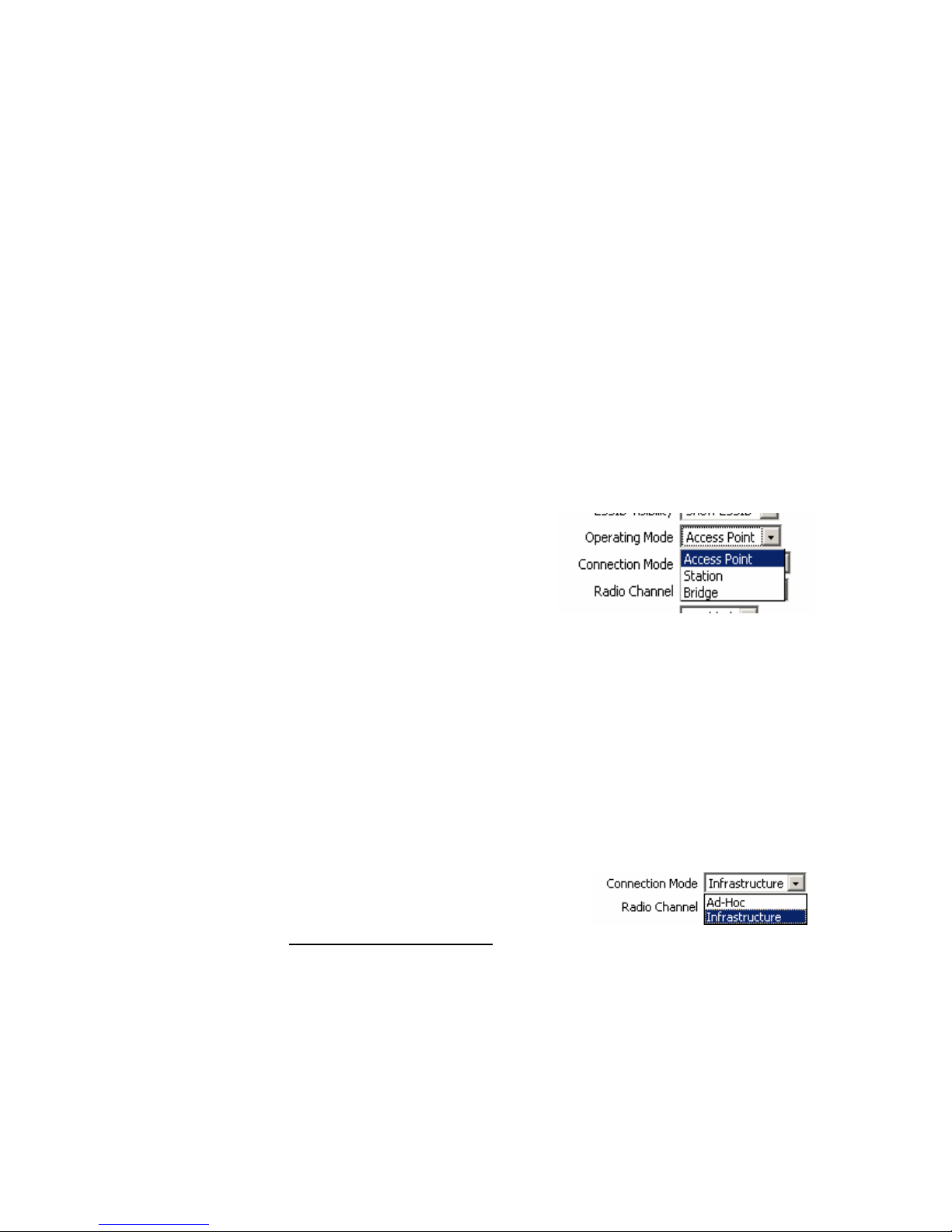
Operating Mode:
Defines the mode of operation of the embedded 802.11b/g wireless AP.
You may select Access Point (default), Station or Bridge.
In a wireless data network, an Access Point sends and receives signals to any number of
other, local wireless devices (client stations).
In general Bridging means the connection between two
parts of a network where it isn't necessary or desirable
for every computer on the network to send its traffic to
every other computer. An AP may act as a bridge
between two segments of the wireless network.
Access Point – standard mode of operation, SPEEDY+ acts as a base station for several
WiFi clients.
Station – SPEEDY+ acts as a WiFi client, it connects to an existing Access Point. For
instance, you have a company that uses 2-3 floors in a building. You have several SPEEDY+
devices, each with its own wired local network, for a room or a whole floor. But you don’t
want to run cables between offices or different floors! Then you install an AP in a central
location, and all the SPEEDY+ devices in the building wirelessly connect to that AP.
Bridge – performs as a transparent bridge between two remote Access Points. The most
obvious application is acting as a WiFi repeater located midway between two APs that are
more than 300 m distant and can’t connect directly. Of course, the “bridge” SPEEDY+
doesn’t have any more wireless clients, but it may interconnect the remote wired or WiFi
clients at the opposing ends. Also, the centrally located SPEEDY+ can provide Internet
access (via GPRS/UMTS/HSDPA) to the two remote APs.
Connection Mode: It has two options, Infrastructure and
Ad-Hoc.
Infrastructure: the standard mode of operation, which you’ll most likely use. In this mode
one or several WiFi clients connect to an AP (respectively that of SPEEDY+ HSDPA) which
acts as server.
Ad-Hoc: two wireless clients interconnect directly, without the need for an AP. In this mode
of connection, SPEEDY+ links directly to a computer with WiFi or an AP that is set to work in
Ad-Hoc mode.
This setting is related to the previous one - usually, the “Ad-Hoc” connection is used when
Operating Mode is set to “Station”.
Characteristics of the modes:
Page 30
SPEEDY+ HSDPA User’s Manual
WMOCEAN +420 225 371 777 http://www.wmocean.com p. 29
The “Ad Hoc” Mode is easier to set up, thus recommended for a very small or temporary
network. The mode “Infrastructure” may be a little more difficult to configure, but takes full
advantage of the high power of a WiFi access point to cover wide areas.
The “Ad Hoc” Mode has other disadvantages:
- the network topology in Ad Hoc Mode changes all the time because the mobile users
move around, thus some system resources are taken just to maintain connectivity;
- when Ad Hoc network layout changes, data rates and coverage (useful range) will
change also, sometimes in unanticipated ways;
- if you have a wireless network with many computers working in Ad Hoc mode, the
amount of interference for all computers will go up, since each adapter is trying to use
the same radio channel;
- in Ad Hoc mode, if your computer is not directly in range, then chains of computers
will connect to transfer your data. The routines for automatic network configuration
may send your data through several computers, thus causing significant network
delays. On the other hand, you do not have control over the path your data takes.
The embedded AP of SPEEDY+ HSDPA is fully configurable, you may select to operate it
as Access Point, bridge or station, and to work in Ad Hoc or infrastructure mode, depending
upon the actual requirements of your wireless network.
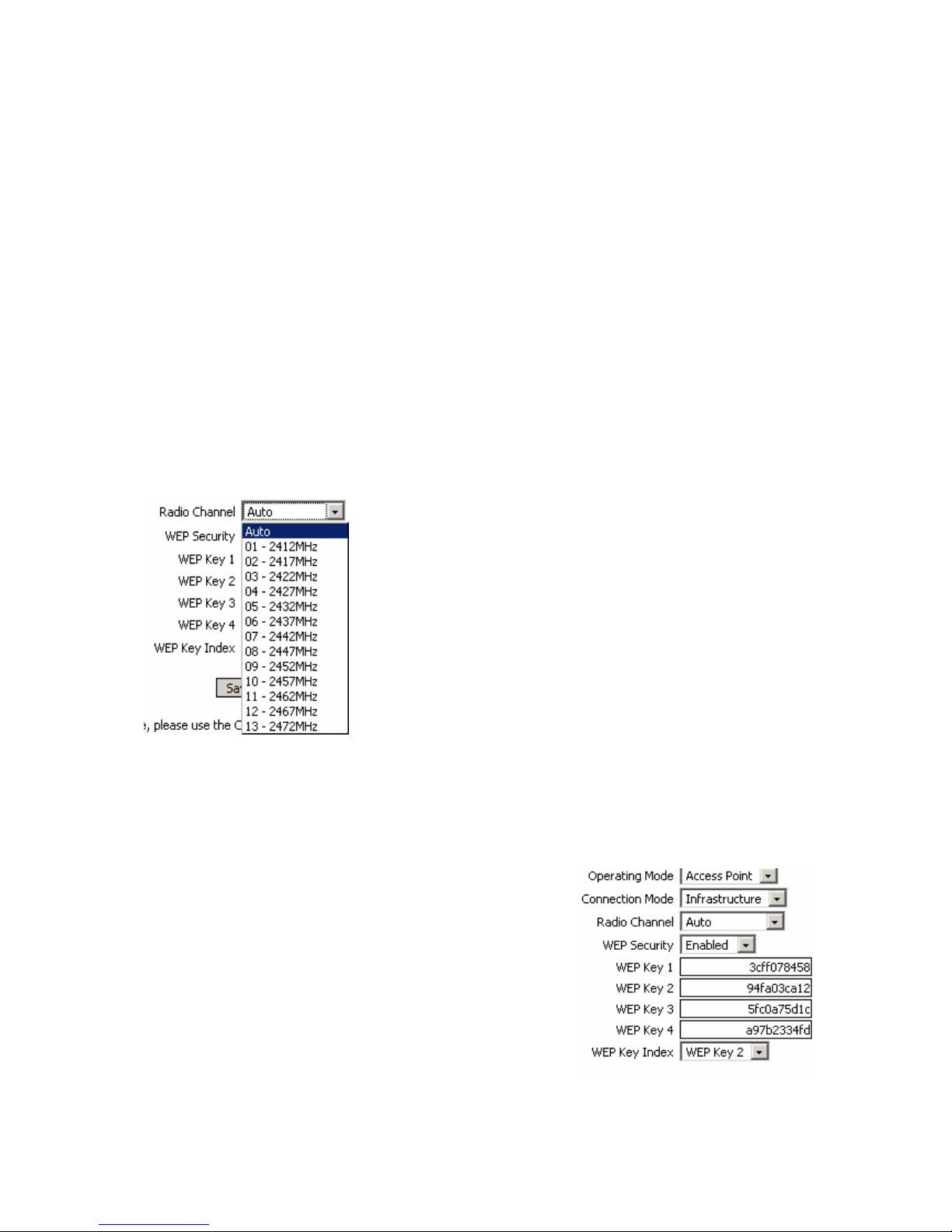
Radio Channel: Selects the WiFi channel in the 2400 MHz band.
In this band there are several channels, spaced 5 MHz apart.
You may leave it on “Auto” (default setting) and the AP will
automatically select the radio channel with the strongest signal,
or you can specify a certain channel, for instance no 9, which
uses the frequency of 2552 MHz. In order to be able to
communicate, all devices in your WiFi network must broadcast
on the same channel.
It is recommended that you don’t change this setting, unless
you experience interference with other devices operating in the
same frequency band.
If several Access Points are operating at the same location and
they overlap, you must use different channels in order to
reduce interference. Of course, the WiFi devices connected to
the AP must be set on the same channel that you selected for
SPEEDY+ HSDPA.
WEP Security: Enables or disables WEP (Wired Equivalent Privacy) encryption.
WEP encryption is used to protect data transmitted from one end point to another. WEP is a
basic encryption method and it was designed to provide a level of privacy equivalent to an
unsecured wired LAN, so you should not rely only on WEP for protection.
The encryption level (64-bit or 128-bit) is given by the
length of the WEP Key you enter.
If you enable WEP, these fields become active as shown
here:
WEP Key 1 … 4: The data keys used for
encryption/decryption. There are up to four keys, the
values for the keys must be set the same on the Access
Point of SPEEDY+ and on the wireless stations
connected to it. Enter the password in the “Key1” space.
When you want to use 64-bit WEP, the password must
have 5 characters. If you use 128-bit WEP encryption the
password must contain 10 characters.
WEP Key Index: shows which of the keys is active. You may have a list of pre-defined keys,
and the system administrator periodically changes the active key (the first week Key 3, the
Page 31
SPEEDY+ HSDPA User’s Manual
WMOCEAN +420 225 371 777 http://www.wmocean.com p. 30
next week Key 4, and so on). The selected WEP key is automatically published to the clients
of the Access Point.
WPA sec: WPA security
Wi-Fi Protected Access, a Wi-Fi standard designed to improve the security features of WEP.
It features improved data encryption through the temporal key integrity protocol (TKIP) and
user authentication, which is generally missing in WEP, through the extensible authentication
protocol (EAP). This EAP is built on a secure public-key encryption system to ensure that
only authorized network users can access the WiFi network.
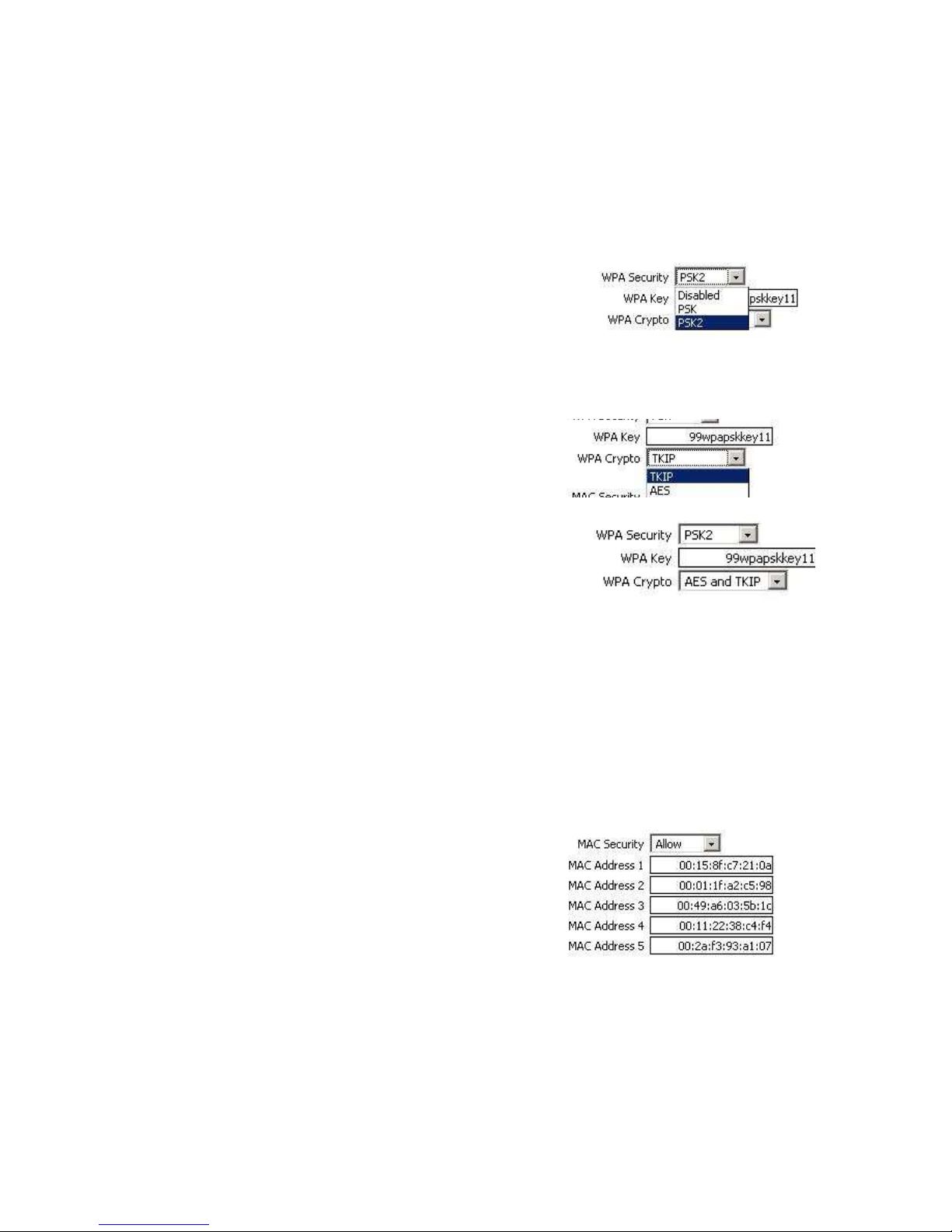
You can select to Disable the WPA security, or to use PSK
or PSK2 keys. PSK means "pre-shared keys": the keys are
public, every user is given the same passphrase.
The pre-shared key version is called WPA-Personal or WPA2-Personal, while the more
secure version using 802.1X server authentication is WPA-Enterprise or WPA2-Enterprise.
In this case you must enter the respective key in the
“WPA Key” field, the select the type of cryptography to
be used for WPA:
You can select for cryptography TKIP, AES or both.
TKIP - Temporal Key Integrity Protocol is an enhanced data
encryption technology that provides important data
encryption enhancements, including a per-packet keymixing function, a message integrity check (MIC), an
extended initialization vector (IV) with sequencing rules,
and a re-keying mechanism.
AES - Advanced Encryption Standard, which is an
encryption algorithm highly recommended to ensure privacy
of commercial transactions in the private sector. It was
initially used by U.S for securing sensitive but unclassified
material. AES cryptography is based on the Rijndael
algorithm created by Belgian cryptographers Rijmen
Vincent and Daemen Joan.
MAC Security
Controls access to the WiFi network based upon
MACs (physical addresses, 12-digit code assigned to
a unique hardwvare device) of the client devices. By
default it is Disabled, if you enable it, you may select
Allow or Deny.
You can enter up to five MAC addresses to be filtered
by this kind of physical ID security.
Allow: only the WiFi adapters (computers) with the respective MAC addresses will be
allowed to join the local wireless network.
You should enter the physical addresses of the wireless adapters of the authorized users,
and they will be the only ones that are allowed to access the radio network. Other users, with
different MACs, will not be permitted to join the network.
Deny: the adapters with the MAC addresses you have enter will be denied access to the
WiFi network.
This option is useful when you suspect that one or several of the local computers are
Page 32

SPEEDY+ HSDPA User’s Manual
WMOCEAN +420 225 371 777 http://www.wmocean.com p. 31
infected by a virus or worm: until solving the problem, the respective computer(s) will be
quarantined, they will not be allowed access to the WiFi network of SPEEDY+ .
Warning: the filtering of MAC ID’s is not a foolproof security solution, you should not rely
only on it to ensure security for the WiFi network. MAC addresses over a network could be
faked, unauthorized persons can use Identity Theft (MAC Spoofing) to simulate MAC ID’s
that are allowed to join the network.
Page 33
SPEEDY+ HSDPA User’s Manual
WMOCEAN +420 225 371 777 http://www.wmocean.com p. 32
5.2.3. Commit
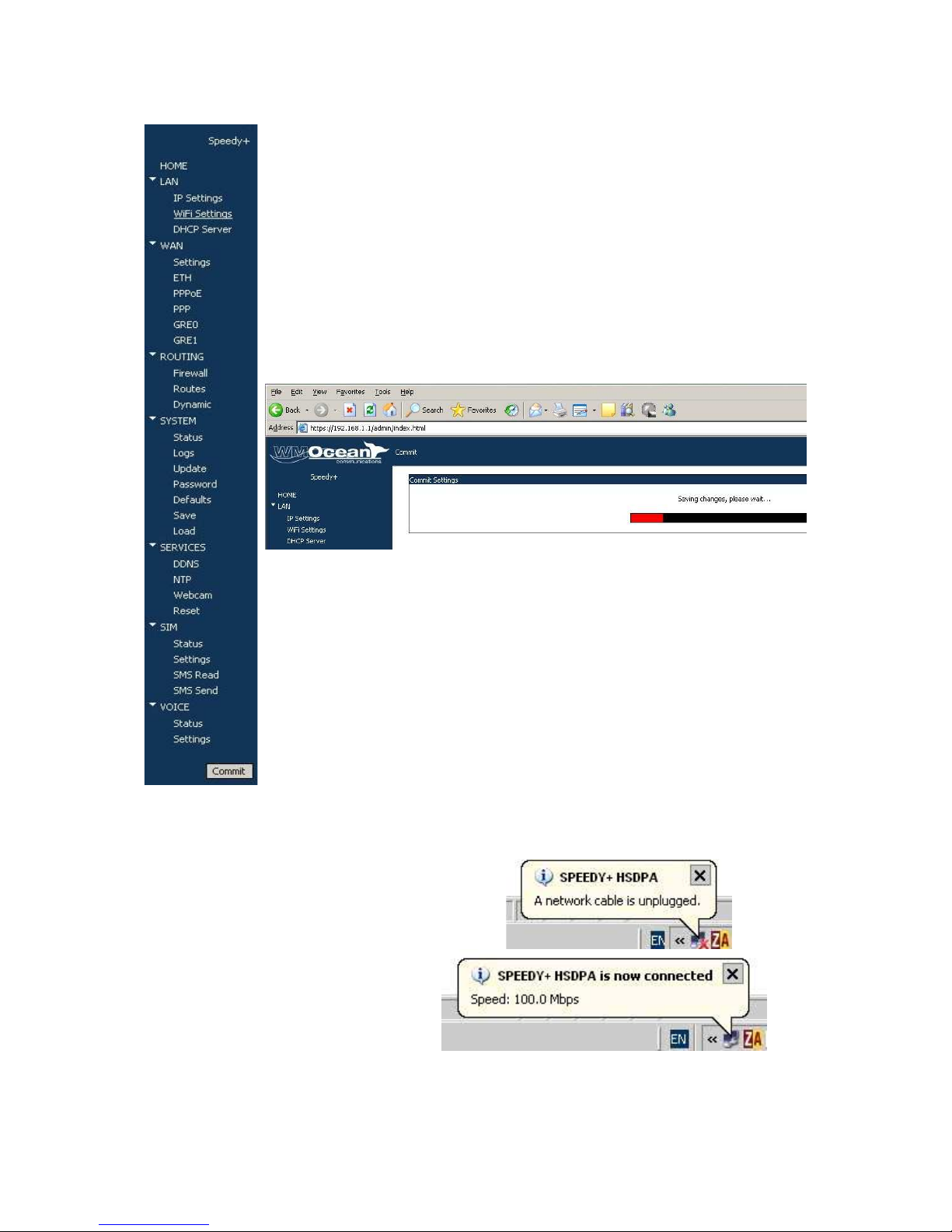
The “Commit” option described here is not specific to LAN, but rather it is a
general option for the SPEEDY+ equipment.
If you performed configuration changes, using the “Save” button is not
enough.
You should always press the “Commit” button if you want to make these
changes permanent.
This button is located at the bottom of the Menu list, to the left side of the
screen.
You will see a “Commit Settings” message and, underneath it, a ed
progress bar which says: “Saving changes, please wait …”
The message is necessary, saving will take some times, because the
changed settings are saved into permanent (Flash) memory of the
equipment.
When you use “Save” the change is instant, since it uses only the
temporary (RAM) memory, which is faster.
SPEEDY+ resets, and when it starts again, the new set of parameters will
be active.
Warning! While committing changes, when restting SPEEDY+ or while loading a new
program image, the equipment will cease operation for a few seconds. This means all
connections: data link, voice, LAN and WiFi will be interrupted, then will resume when
SPEEDY+ starts again.
For instance, the status bar at the bottom of the
screen will temporary indicate that the LAN
connection with SPEEDY+ is not available:
Then SPEEDY+ HDSPA restarts with
the new parameter, and the LAN
connection is immediately restored.
Page 34
SPEEDY+ HSDPA User’s Manual
WMOCEAN +420 225 371 777 http://www.wmocean.com p. 33
5.2.4. DHCP
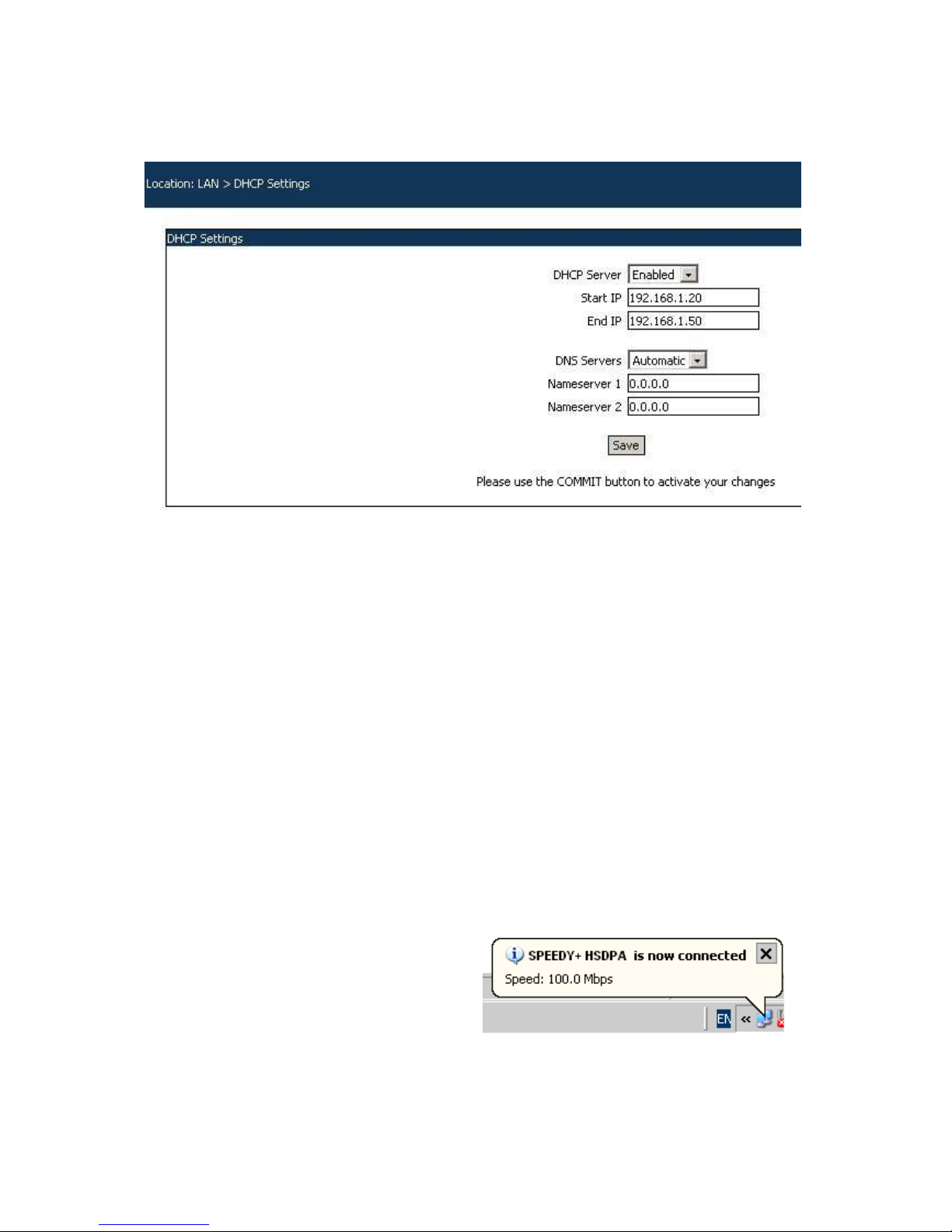
Settings related to Dynamic Host Configuration Protocol (assigning dynamic IP addresses to
the clients in the network) and DNS servers. SPEEDY+ can be used as a DHCP server for
your local network.
DHCP Server: Enabled or Disabled.
Check this to enable the DHCP server. This will allow you to use SPEEDY+ HSDPA as an
IP address provider for automatic IP configuration of your computers. It will assign
automatically temporary IP addresses for the local network, without the need for an
administrator. The SPEEDY+ HSDPA Wireless Router supports up to 254 IP addresses for
your wireless network. If the DHCP server is enabled the IP address of a local PC can be
obtained automatically from the SPEEDY+ HSDPA Router, else it must be manually
assigned by the network administrator.
Warning: If you enable the DHCP feature of SPEEDY+ , make sure that there is no other
DHCP servr in your local network!
Start IP: Starting IP Address. The DHCP server allocates IP addresses in a user specified
range (a pool of addresses). The Start option sets the starting IP address from which the
range begins.
End IP: DHCP Server End IP Address. The End option sets the end IP address, the last
address in the pool to be assigned by the DHCP server in your local network.
Note: In a local network, the first address numbers (such as 1 …9) are usually reserved for
special equipment: gateway, name servers, file server, server for e-mail, etc. Remember that
the default IP address of SPEEDY+ router is 192.168.1.1, so the Start IP must be
192.168.1.2 or greater, but smaller than 192.168.1.254. You should set for DHCP an
adequate IP range, for instance form 10 to 20 for a small network , or from 20 to 50 in case
of a larger network, with may local stations.
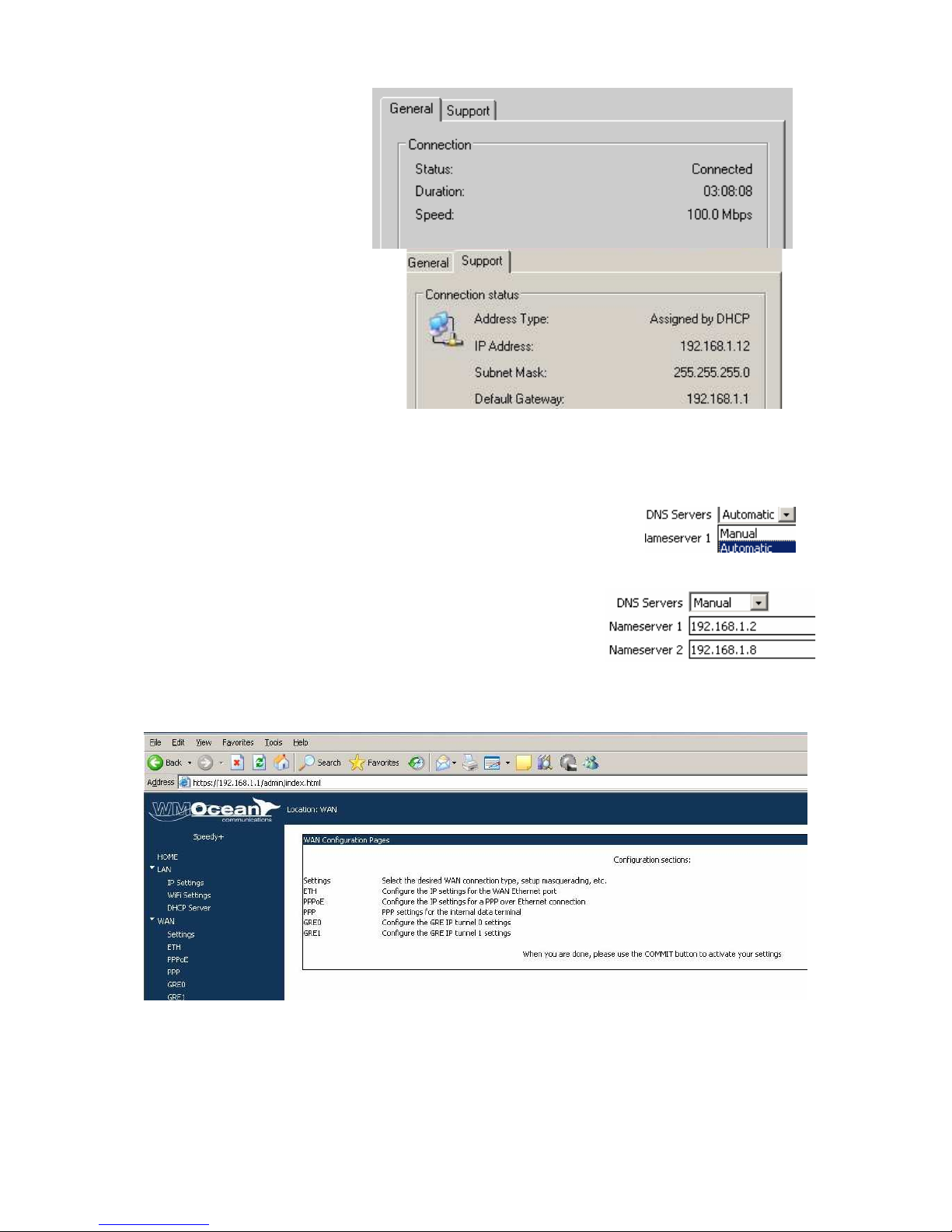
To check the correct assignment of IP
address, double click the icon corresponding
to the SPEEDY+ network connection on the
desktop of your computer.
Page 35
SPEEDY+ HSDPA User’s Manual
WMOCEAN +420 225 371 777 http://www.wmocean.com p. 34
The Status window for the
network connection will
appear, as shown.
Click on the tab “Support” to
see details about the network
connection named
“SPEEDY+ HSDPA”:
The “Support” window tells you
that the IP address has been
“Assigned by DHCP” and is in this
example 192.168.1.12 (inside the
range 10-20 that you have
specified).
You can also verify that the
default gateway is 192.168.1.1
(the SPEEDY+ device) and the
Subnet Mask is 255.255.255.0.
DNS Servers:
Select which primary and secondary servers for DNS (Domain Name Service) will be used.
Options are Automatic (default) and Manual.
If you leave the setting to the default Automatic, the equipment will look for DNS servers in
the local or remote networks.
Should you select the option “Manual”, then you must
complete the one or two IP addresses of the Nameservers
(primary and alternate).
5.3 WAN
Here are the pages for configuring the WAN (remote network) side of the SPEEDY+ router
In the WAN page you must:
- First select the type of the connection you use for WAN (Ethernet, PPPoE or PPP)
- then configure the settings for the respective section
- finally set up the GRE tunneling, if there is need.
5.3.1. Settings
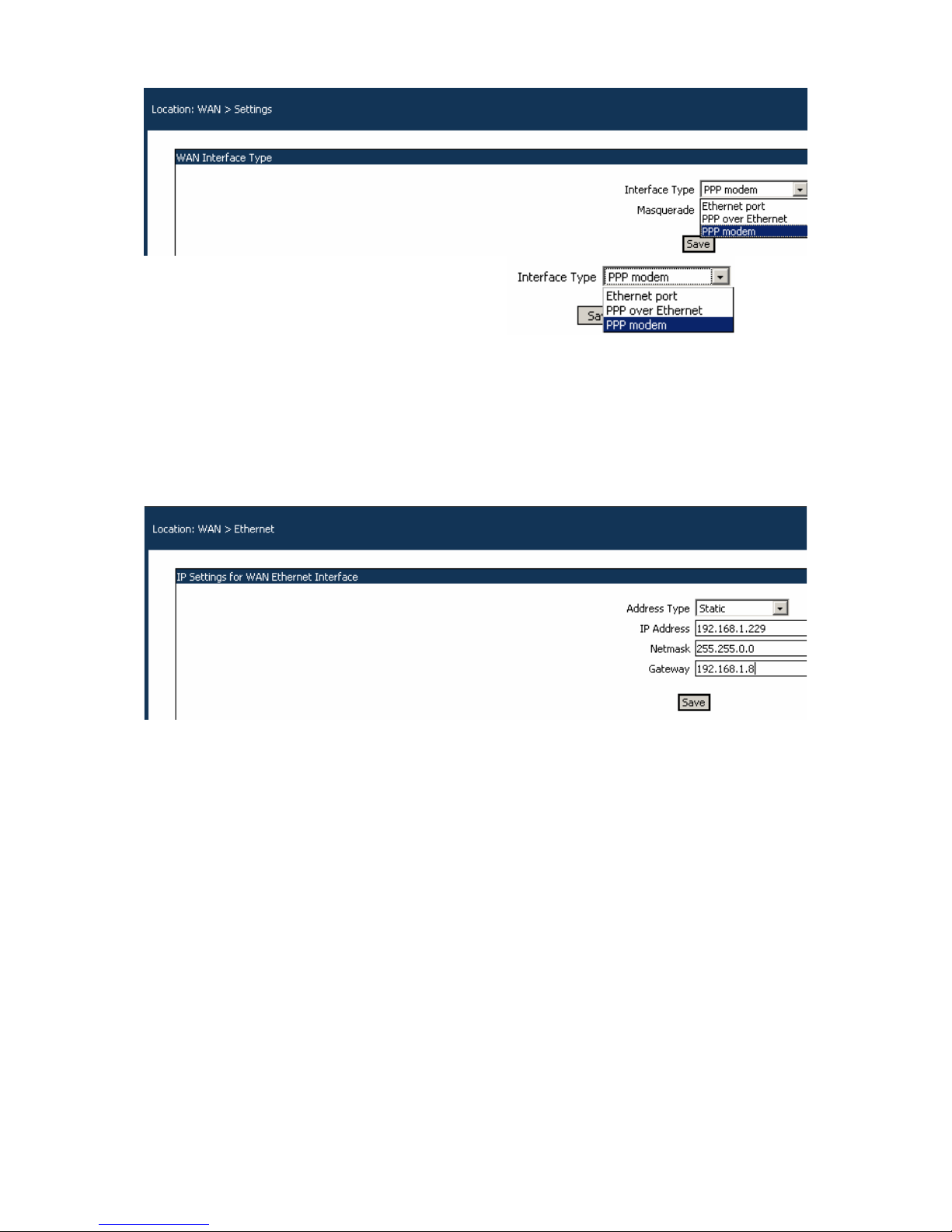
Here you select the type of the interface you use for WAN connection:
Page 36
SPEEDY+ HSDPA User’s Manual
WMOCEAN +420 225 371 777 http://www.wmocean.com p. 35
Interface Type: Select either:
- PPP modem for dial-up connection
- PPP over Ethernet (PPPoE)
- Ethernet Port
Masquerade: Enable or Disable masquerading. Performs IP Masquerading or NAT
(translation of source and destination IP addresses and port numbers upon data packets).
Usually, when you use either the PPP modem or an ETH port for WAN connection,
masquerading must be enabled.
If the Internet provider that you connect to performs the masquerading at its location, you
may leave this option Disabled.
5.3.2. Ethernet
If you use an Ethernet interface for WAN, you must fill in these settings.
Address Type: options are Static or DHCP Assigned.
If you select ”Static”, then you must also fill in the other parameters for an Ethernet address:
IP Address value on the WAN side, Netmask such as 255.255.0.0, the address of
Gateway used for routing.
To properly access the WAN via Ethernet, you must also complete adequately the values for
DNS, which are found in the “Services>DHCP” configuration page (“DHCP Assigned” or
manual, the primary and secondary servers for the domain names (Nameserver 1 and 2).
Page 37
SPEEDY+ HSDPA User’s Manual
WMOCEAN +420 225 371 777 http://www.wmocean.com p. 36
5.3.3. PPPoE
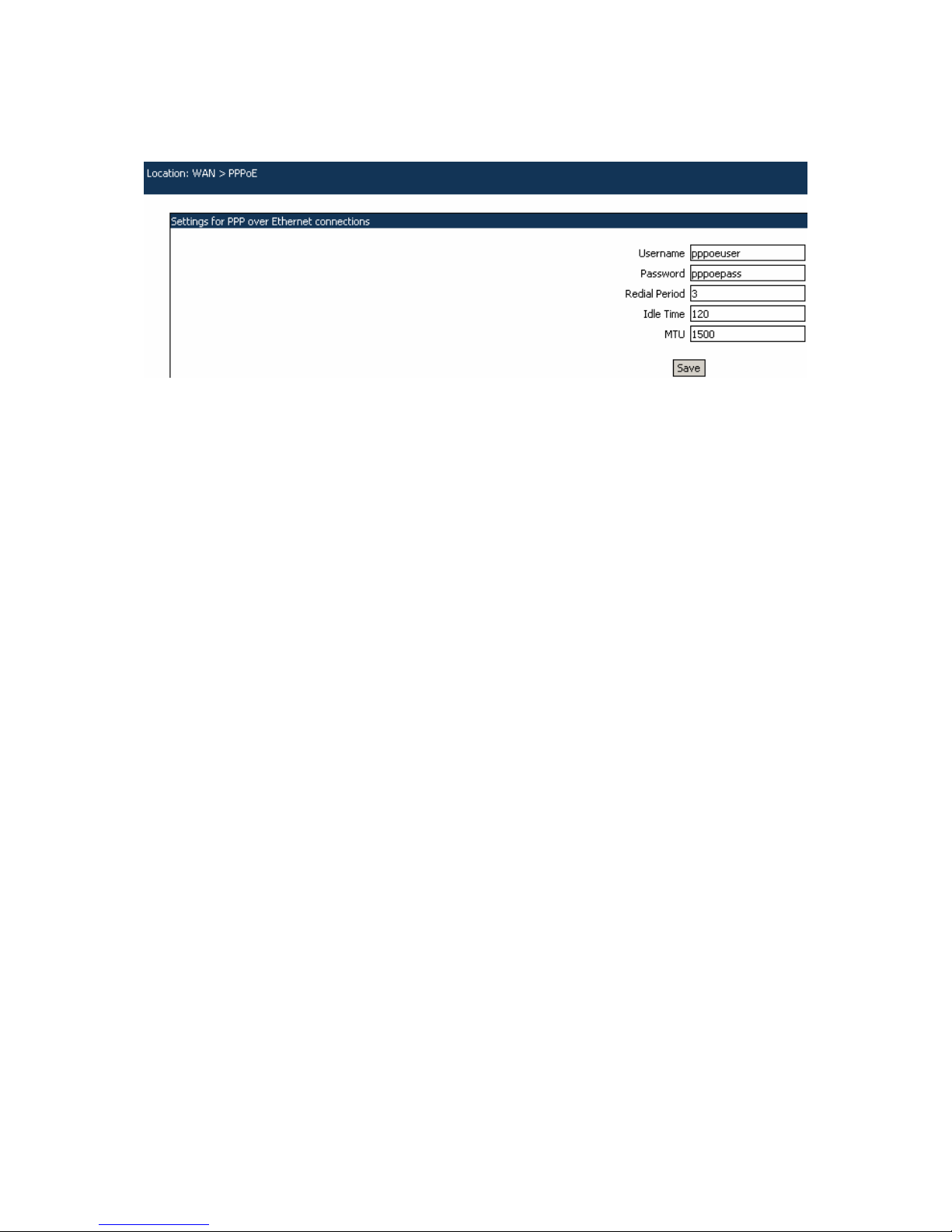
Settings for the connection using Point-to Point Protocol over the Ethernet. This may be used
for instance if you connect to the Internet via an external DSL modem instead of the
embedded HDSPA module.
Settings are the same as for “normal” PPP, except that the modem-related command strings
are missing here.
Username: The user name used for log-in to the Internet account provided by the ISP.
Password: The password used for authentication to your Internet account.
Redial Period: time in seconds until redialing a connection, if it was broken
Idle Time: SPEEDY+ can disable the connection when there is no more data traffic. If no
data packet is sent through the interface for a specified period of time, the Internet
connection will be broken. This is useful in case of connections where you pay per connected
time.
You can specify this time interval, in seconds. If the interval is too short, even a momentary
lack of activity (no data traffic) will cause the Internet connection to be interrupted.
If you set the time interval to 0 (zero), the connection will remain always on, even if there is
no data traffic on the remote interface.
MTU: value for the Maximum Transmission Unit. MTU is the largest physical packet size,
measured in bytes, which a network can transmit. Messages larger than this will be
fragmented into several packets.
Different networks have different values for MTU, which is set by the network administrator.
The default MTU size is 576 for many PPP connections, 1500 for Ethernet networks, etc.
The same applies for MRU (maximum receive unit).
Page 38
SPEEDY+ HSDPA User’s Manual
WMOCEAN +420 225 371 777 http://www.wmocean.com p. 37
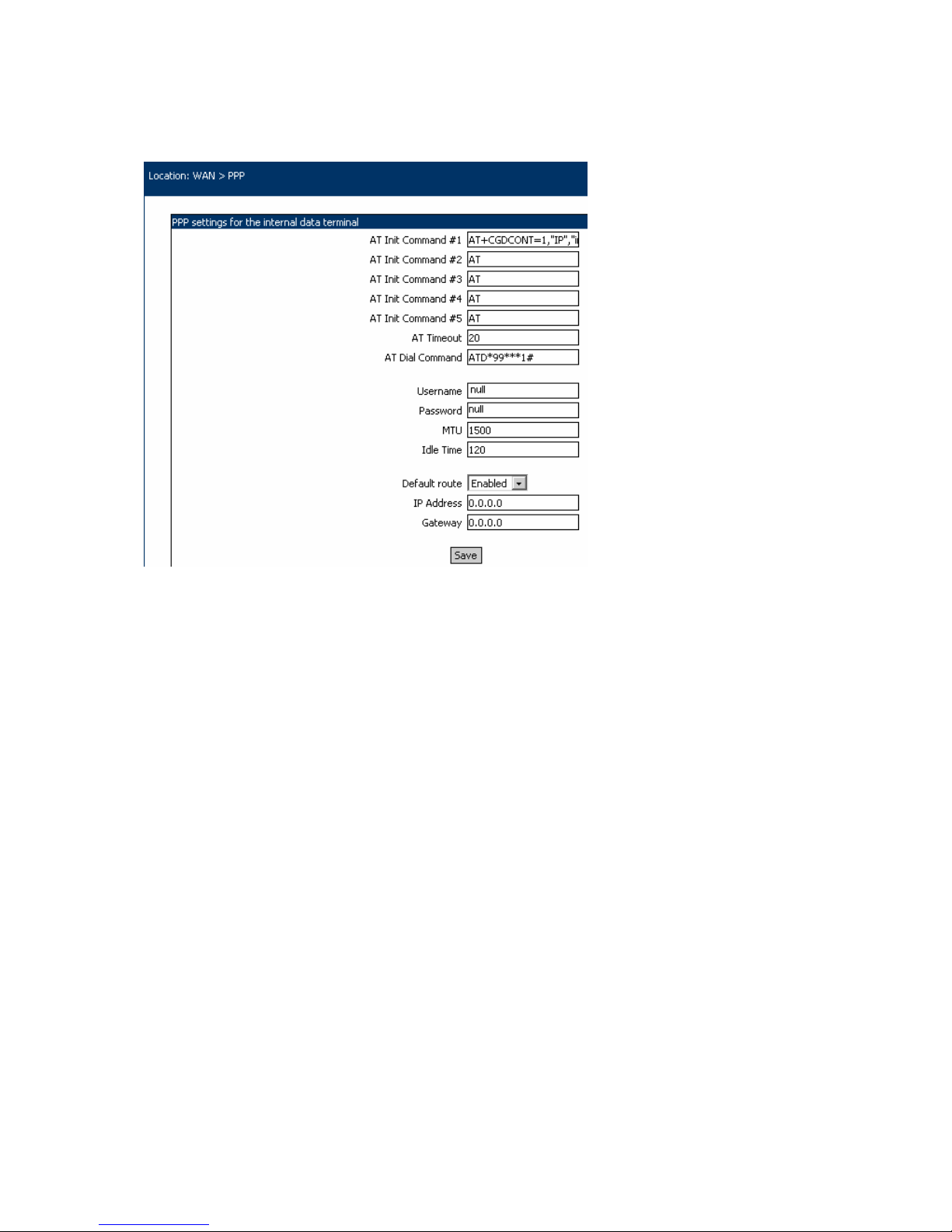
5.3.4. PPP
Settings for the PPP connections. To ensure high versatility, this page has several of
configuration: for modem, for connection and for routing:
Modem settings:
This section controls the parameters of the Point-to-Point Protocol for the serial connection,
in this case the embedded HSDPA modem. You need to change these settings when you go
to a region with different settings, if you use a different network operator or when you replace
the embedded HSDPA modem with another, external 3G modem that requires special
parameters.
AT Init Command #1, 2, 3: Enter the character strings for the AT commands used to
initialize the modem. Depending on the specifications of your 3G provider, you may need
only one AT command or several.
AT Dial Command: Dial String, the AT command used to dial to the ISP, which includes the
mobile phone number to be dialed. There are five “At Dial Command” fields, if there is no
need to use all of them, fill the remaining with “AT”. You should not leave empty fields in this
section!
Page 39
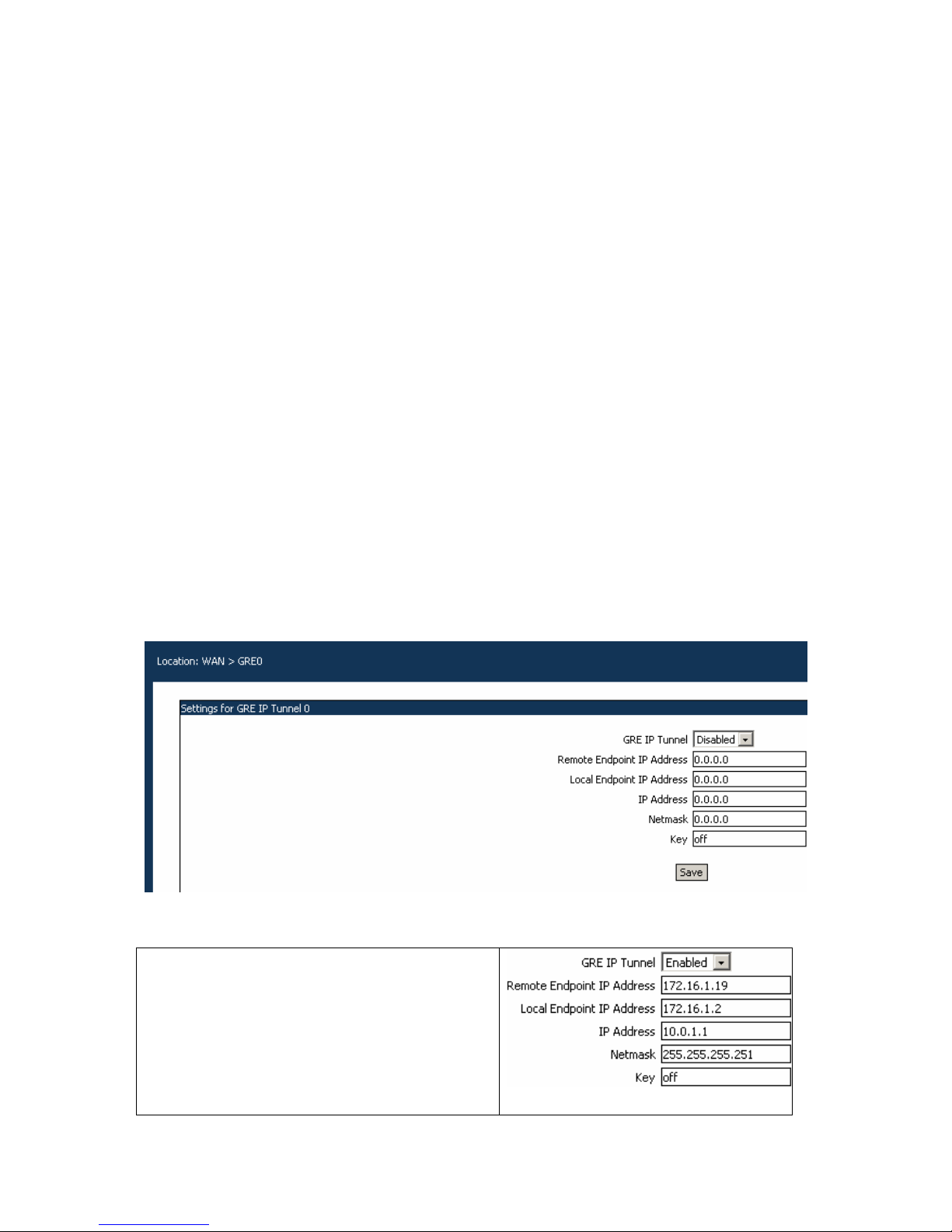
SPEEDY+ HSDPA User’s Manual
WMOCEAN +420 225 371 777 http://www.wmocean.com p. 38
Connection settings
Parameters for the connection to the mobile Internet provider.
Username: The user name used for log-in to the 3G (UMTS) wireless network
Password: The password used for authentication. Some network operators do not need
username and password, log-in is allowed or not based upon Caller ID.
MTU: value for the Maximum Transmission Unit. MTU is the largest physical packet size,
measured in bytes that a network can transmit. Messages larger than this will be fragmented
into several packets. Different networks have different values for MTU, which is set by the
network administrator. The default MTU size is 576 for many PPP connections, 1500 for
Ethernet networks, etc.
Idle Time: SPEEDY+ can disable the dial-up connection when there is no more data traffic.
If no data packet is sent through thee UMTS link, the Internet connection will be broken. You
can specify this time interval, in seconds. If you set the time interval to 0 (zero), the dial-up
connection will remain always on, even if there is no data traffic on the remote interface.
When it detects outgoing data traffic, SPEEDY+ automatically performs dial-up, in order to
connect to the Internet.
Route:
Default route: Disabled or Enabled. This is a new feature, allows you to ask the Internet
provider for a static address. Usually, the ISP assigns you the first available address each
time you connect. Now you have the options either to accept the dynamic address assigned
by DHCP or to ask for a specific static address. In this case you must fill the other
parameters too:
IP Address, Gateway, and the Name servers (primary and secondary) to be used.
5.3.5. GRE
Settings for the GRE IP Tunnel, which is used when you need to perform IP tunneling in
order to achieve a Virtual Private Network using several SPEEDY+ HSDPA devices
interconnected over the 3G mobile communications network.
GRE IP Tunnel0: select Enable or Disable.
The default is Disabled, meaning that IP tunneling is not used.
If the GRE IP tunneling is turned on (Enabled),
the fields will be displayed normally, so you can
enter or edit the corresponding values.
Remote Endpoint IP Address: the address of
the opposed (remote) end of the IP tunnel
Local Endpoint IP Address: the address of the
starting (local) end of the IP tunnel
Local IP Address: static local address (in the
LAN) and the respective Netmask
Key: the “key” code required for establishing a GRE IP tunnel.
Page 40
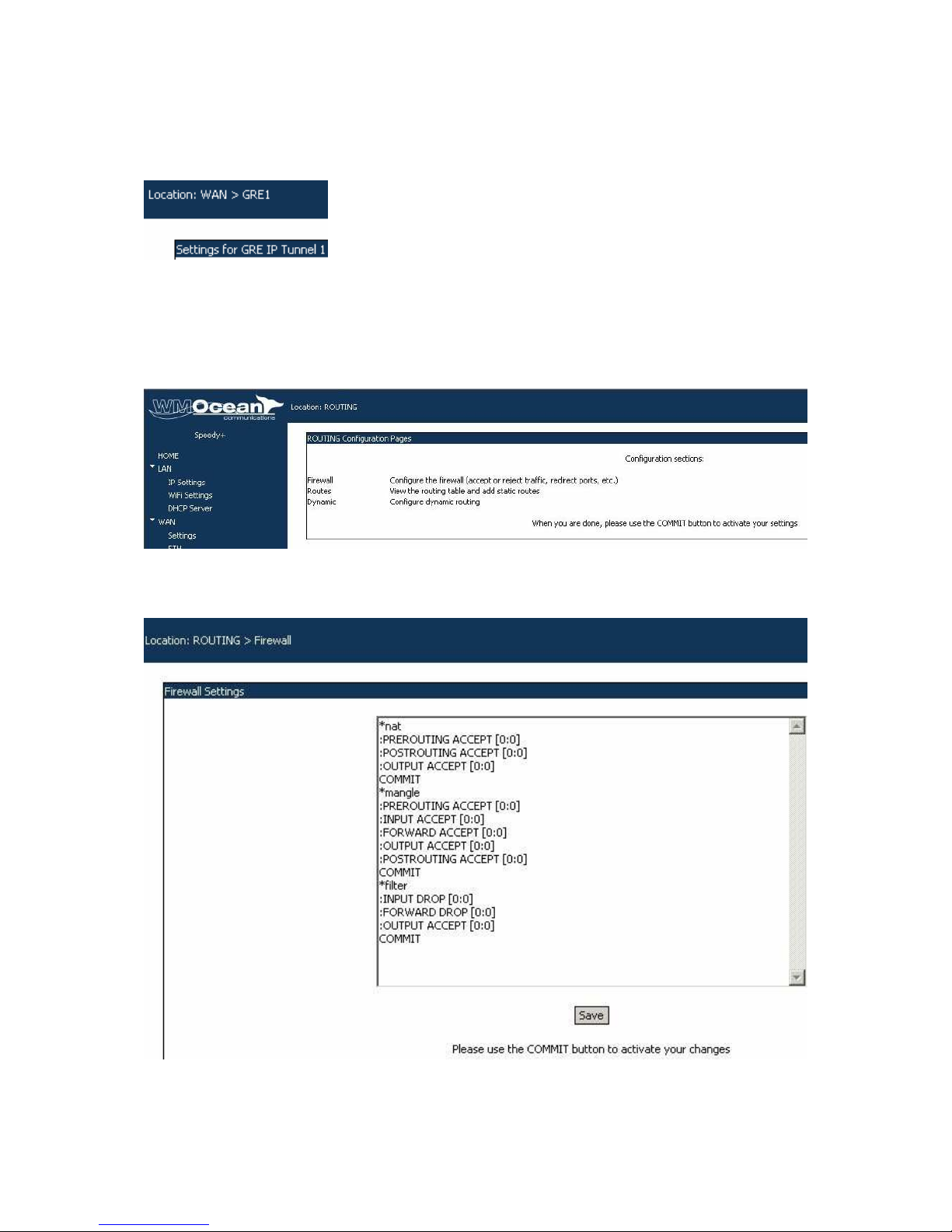
SPEEDY+ HSDPA User’s Manual
WMOCEAN +420 225 371 777 http://www.wmocean.com p. 39
This is a security feature, using a proprietary application: the remote endpoint won’t accept
tunneling connections unless it “know” their respective keys. This way, if unauthorized
persons know your GRE settings but do not have the code for the key, they won’t be able to
establish an IP tunnel.
By default the Key field has the value “off”, meaning no tunnel key is used.
Note that SPEEDY+ HDSPA features two GRE IP tunnels,
GRE0 and GRE1 respectively.
Depending upon the requirements of your application, you may
use a single GRE tunnel, both of them or none.
5.4 ROUTING
The section about “ROUTING” includes thee sub-sections: Firewall, Routes (static) and
Dynamic.
5.4.1. Firewall
The “Firewall” section includes both NAT (redirecting addresses and ports) and Firewall
(accepts or rejects data packets).
SPEEDY+ HSDPA features a SPI firewall that uses static and dynamic packet filtering. The
static packet filtering firewall examines each incoming and outgoing packet based on several
criteria such as Source IP address, Destination IP address. SPEEDY+ comes with a
default configuration for the firewall, which ensures the security of your local network. If you
want to change these default settings, you must proceed with care. The firewall and
Page 41

SPEEDY+ HSDPA User’s Manual
WMOCEAN +420 225 371 777 http://www.wmocean.com p. 40
advanced packet routing can be configured using the iptables command. For more
information, see http://www.netfilter.org.
Page 42
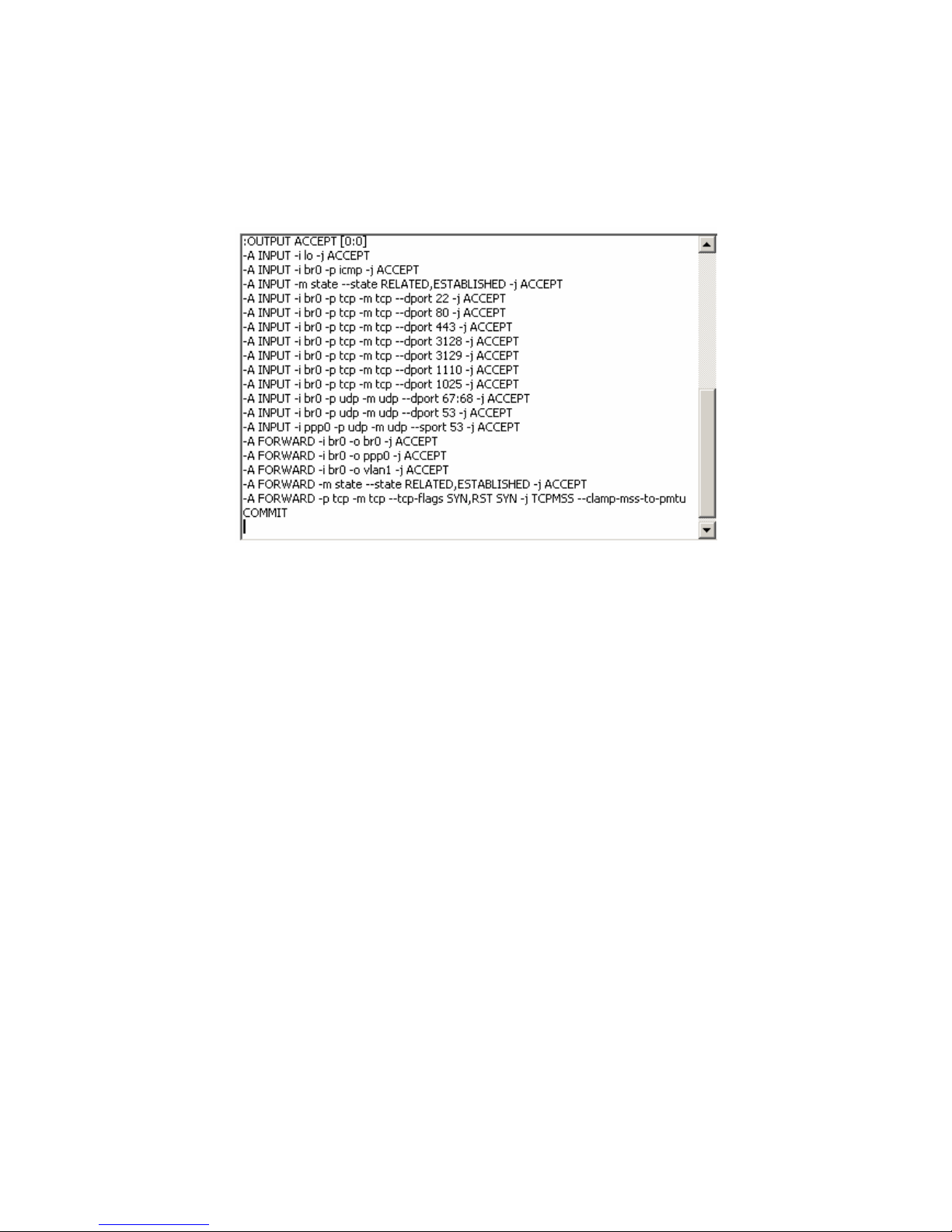
SPEEDY+ HSDPA User’s Manual
WMOCEAN +420 225 371 777 http://www.wmocean.com p. 41
The firewall has three sections, for input, output and forwarding. The syntax of the firewall
rules is “-A INPUT -p icmp -j DROP”. The argument -A INPUT argument tells the firewall to
append this rule to the INPUT chain. -p icmp argument indicates that this rule applies to the
icmp protocol, and the -j DROP shows that packets matching this rule must be dropped. To
delete the previous rule, a command like: iptables -D INPUT 1, which tells the
firewall to drop (-D) the first rule from the INPUT chain. If you have multiple rules, you may
drop any one of them without affecting the others.
The source (-s) argument tells the firewall which network or hosts from which you're
willing to accept connections, while --destination-port specifies the type of TCP connection
you're willing to accept. For instance, to block any connections from outside your local
network write: -A INPUT -s ! 198.168.0.0 -p tcp --destination-port ssh -j DROP
If you apply the same rule to the OUTPUT chain: -A OUTPUT -p tcp --destination-port telnet j DROP, then the outgoing telnet connections will be blocked. Instead of dropping the data
packets, you can reject them, with commands like -A OUTPUT -p tcp --destination-port telnet
-j REJECT
Warning! Please note that if you change the default values you may compromise
your network security by allowing untrusted access. These configuration options need an
advanced level of knowledge regarding network security and Linux kernel packet handling.
Note : As you may see, the visible settings of the NAT/firewall configuration page are very
few. This happens because the basic rules for address translation and packet filtering are
already defined, and they are not directly accessible to the user. Since they can’t be
changed, they are not visible!
What you see are the additional rules, the ones that you are allowed to modify, to
supplement or delete.
The firmware of SPEEDY+ HSDPA automatically installs the basic rules that are required.
For instance, if you enable the Webcam feature, the firmware opens the port 2000 for TCP
traffic, if you enable the NTP service it opens port 123 for UDP traffic, and so on.
Page 43
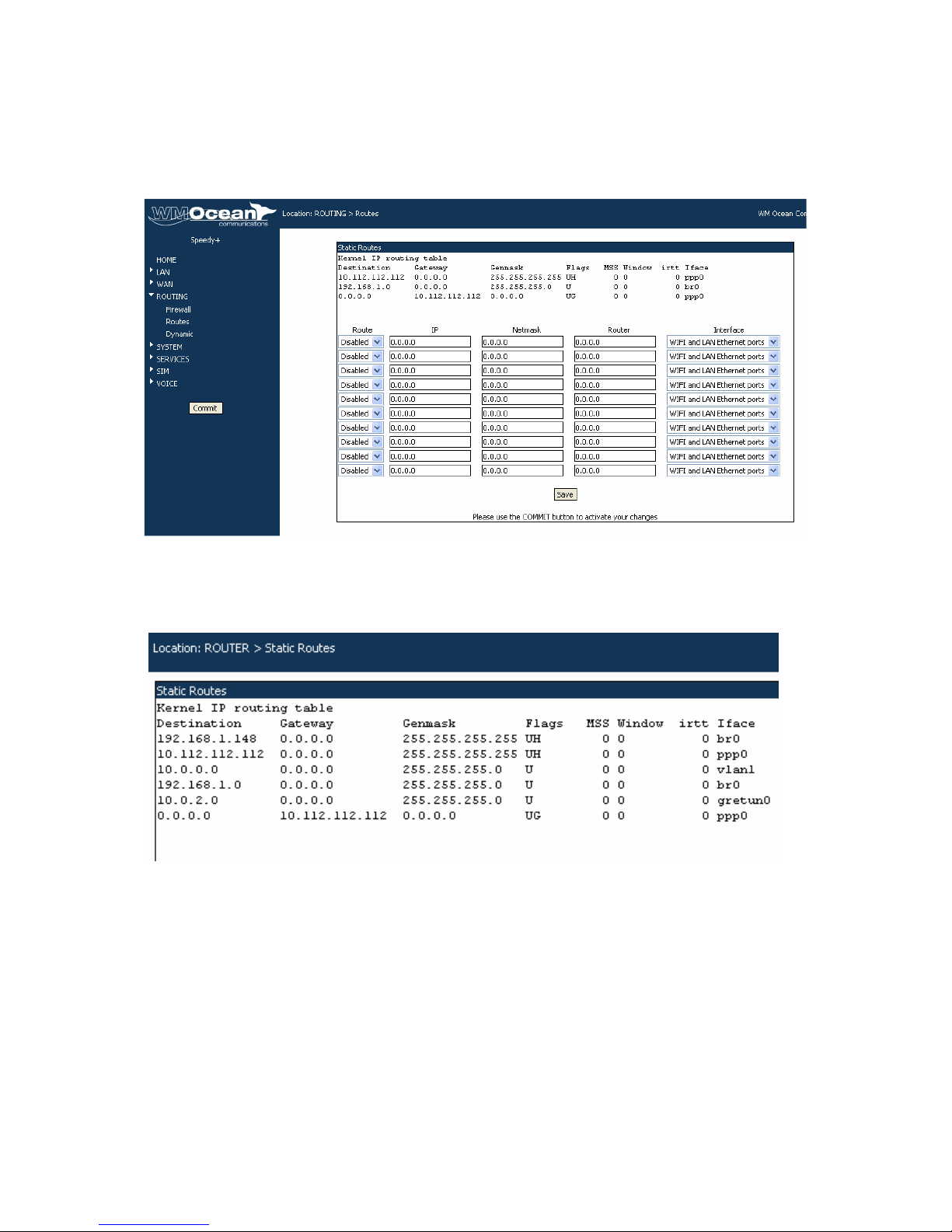
SPEEDY+ HSDPA User’s Manual
WMOCEAN +420 225 371 777 http://www.wmocean.com p. 42
5.4.2. Static Routes
Routing means determining and prescribing the path or method used for forwarding data
packets. This option page is concerned about fixed (static) routes.
It shows the current routing table for SPEEDY+ HSDPA and allows you to define up to 10
(ten) static routes.
Note that the Static Routes configuration screen has two distinct parts:
- the upper pane displays the current routing table:
Here you can only see the existing static routes for SPEEDY+ (default routes, gateway,
masquerading if used, interface used, and so on), you cannot perform changes;
- the lower pane allows you to define up to ten (10) static routes:
Page 44
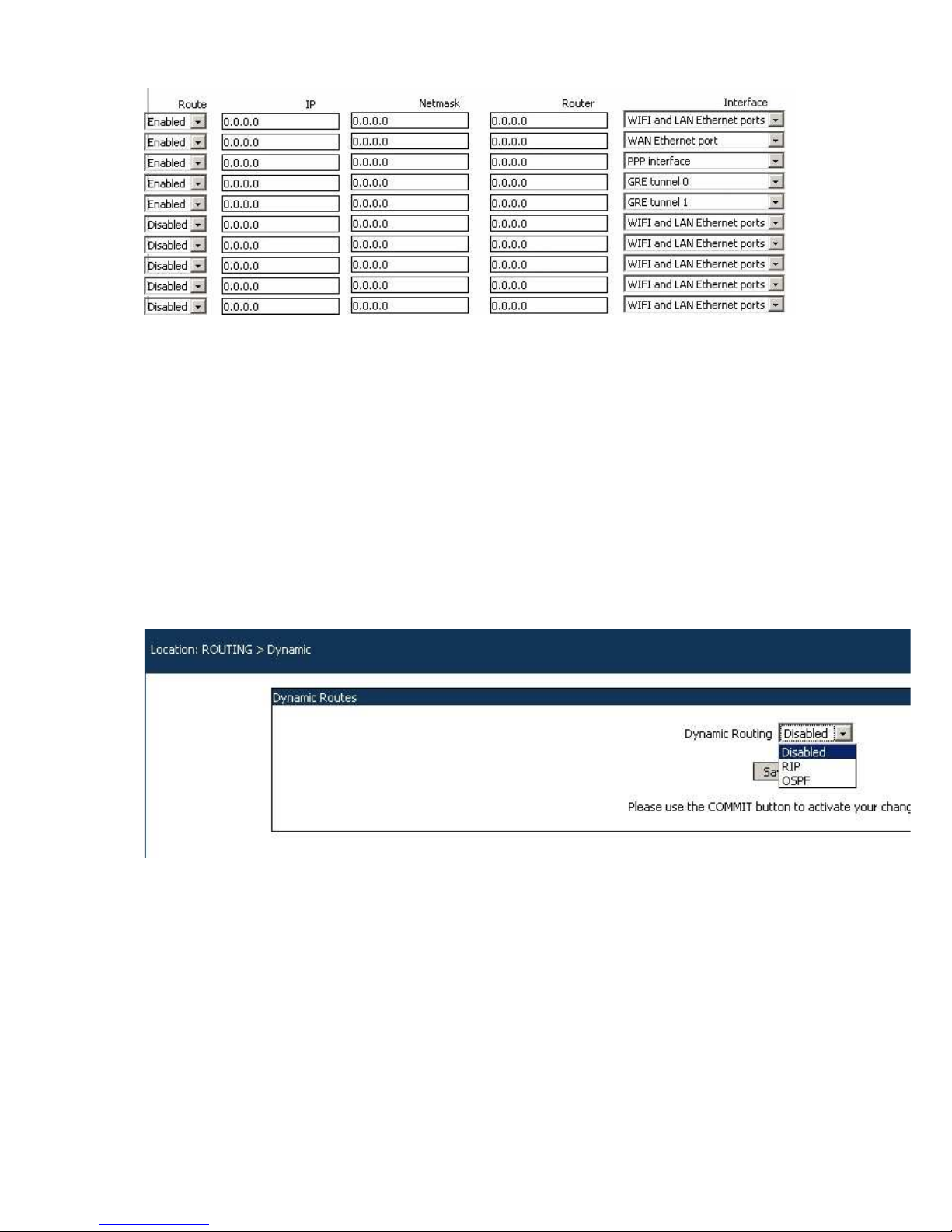
SPEEDY+ HSDPA User’s Manual
WMOCEAN +420 225 371 777 http://www.wmocean.com p. 43
For each static route you must perform these settings:
Route: Enable or Disable. By default, all ten are disabled.
IP: Address of the remote network or host to which you want to assigne a static route.
Netmask: the subnet mask determines which protion of the destination IP address is the
network part and which is the host part
Router: the gateway to be used, enter the IP address of the router which allows for contact
between SPEEDY+ and the remote host or network.
Interface: the interface to be used for the respective route. You may select one of the four
available options: local network (WIFI and LAN Ethernet ports), WAN Ethernet port, PPP
interface (HSDPA modem), GRE Tunnel 0 or 1.
5.4.3 Dynamic routes
The last configuration page in “Routing” is for dynamic routing. As an alternative to
SPEEDY+ as router for the connection to Internet of your network, you may choose
Dynamic Routing.
You may select to leave the Dynamic Routing disabled (default) or to use either RIP or
OSPF algorithm for dynamic routing. In the Dynamic mode of routing, you need not specifiy
fixed routes. Instead, the router adjusts automatically to ohysical changes in the layout of the
network and it exchanges routing tables with other routers.
RIP - Routing Information Protocol.
It was the first routing protocol implemented for dynamic routing and hence it is widely used.
RIP is a distance-vector routing protocol. The route of the data packets is determined in such
way as to have the fewest possible number of hops between the source and the destination.
OSPF - Open Shortest Path First.
It is a link state routing protocol, as opposed to distance vector protocol (RIP). It is an
Internet standard IGP defined in RFCs 1583 1793 and RFC 2328.
Page 45

SPEEDY+ HSDPA User’s Manual
WMOCEAN +420 225 371 777 http://www.wmocean.com p. 44
Runs directly over IP and interfaces with SNMP for configuration and control purposes.
As a link-state routing protocol, OSPF contrasts with RIP and IGRP, which are distance vector routing protocols
The SPF (shortest path first) algorithm used by OSPF has the advantage is that it results in
smaller more frequent updates everywhere, makes for a stable network.
Its disadvantage is that it requires for processing a lot of CPU power and memory.
SPEEDY+ HSDPA lets you choose for dynamic routing the protocol that you think is the best
for the actual condition of your applications.
Don’t forget to click the Save button and then “Commit” to make permanent the change you
performed!
Page 46
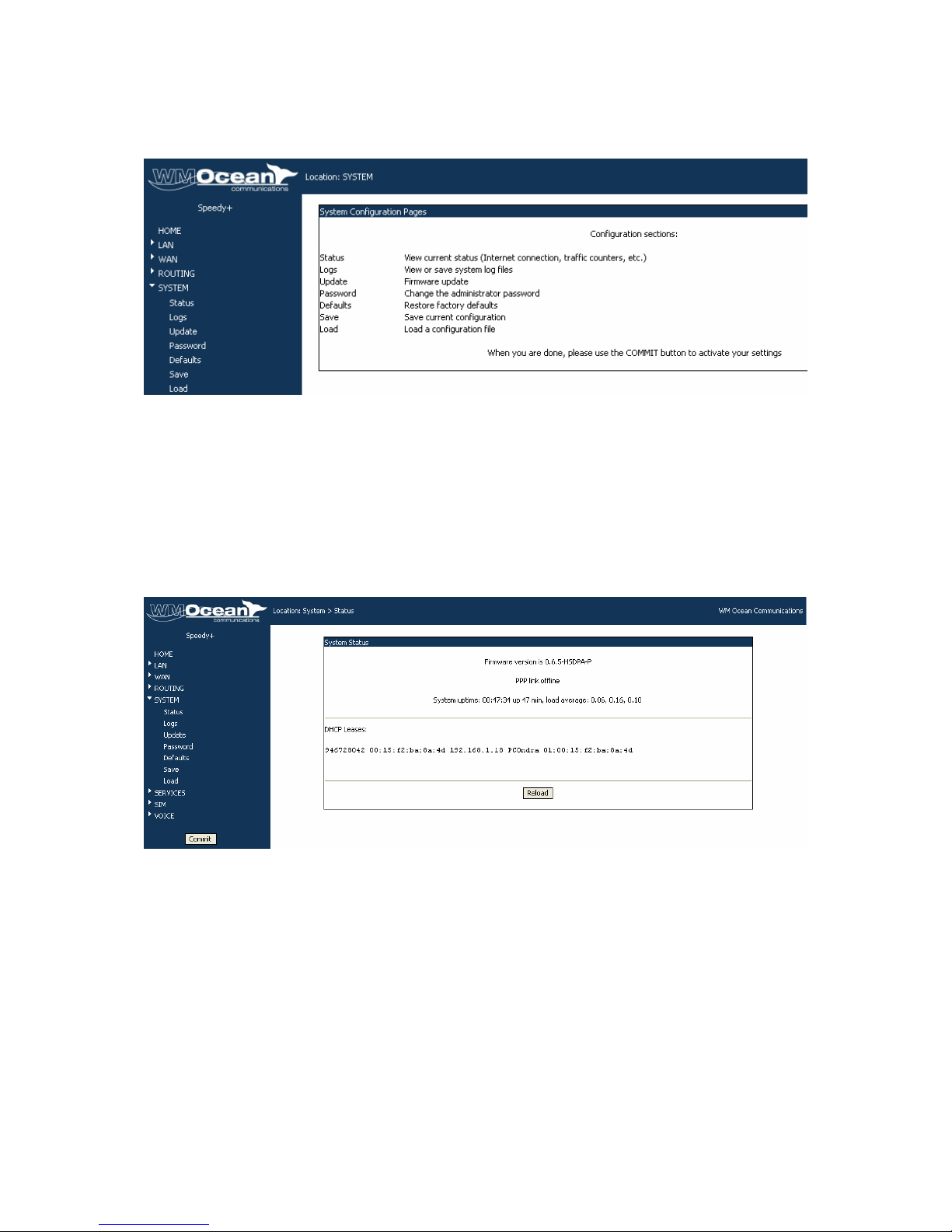
SPEEDY+ HSDPA User’s Manual
WMOCEAN +420 225 371 777 http://www.wmocean.com p. 45
5.5 SYSTEM
Shows the status and logs and allows you to perform several system-related operations.
The system configuration pages include these settings:
- Status, displays the current status of the SPEEDY+ HSDPA equipment
- Logs, shows the log file
- Update, you may perform firmware update
- Password, allows modification of the password
- Defaults, restores the factory default settings
- Save, saves the current configuration of SPEEDY+
- Load, loads a stored configuration.
5.5.1. Status
Shows the status of the SPEEDY+ HSDPA system:
This page displays information about the following items:
- version of the firmware running on SPEEDY+ : you may see “Firmware version is
0.3.7” or “0.5.6 –HSDPA-P” in the above example, and so on
- state of the HDSPA terminal (3G modem): connected or disconnected
- state of the PPP data link: online (active) or offline; if it is online, the IP allotted by
your provider will be also shown, such as “127.20.38.128” or “80.97.185.70”
- state of USB webcam: connected or not
- System uptime: time since the last restart of the SPEEDY+ equipment, both in full
format (hours:minutes:seconds) and short format (up 1 minute)
- Load average: “0.06, 0.04, 0.01” - info about system loading (maximum value /
average value / number of active processes)
- DHCP Leases: info about temporary IP address obtained from DHCP server,
including MAC, IP, name, validity period, etc – such as “946728080 00:0f:57:23:5e:2c
192.168.1.73 fane40 01:00:0e:35:22:5e:2c”.
Page 47
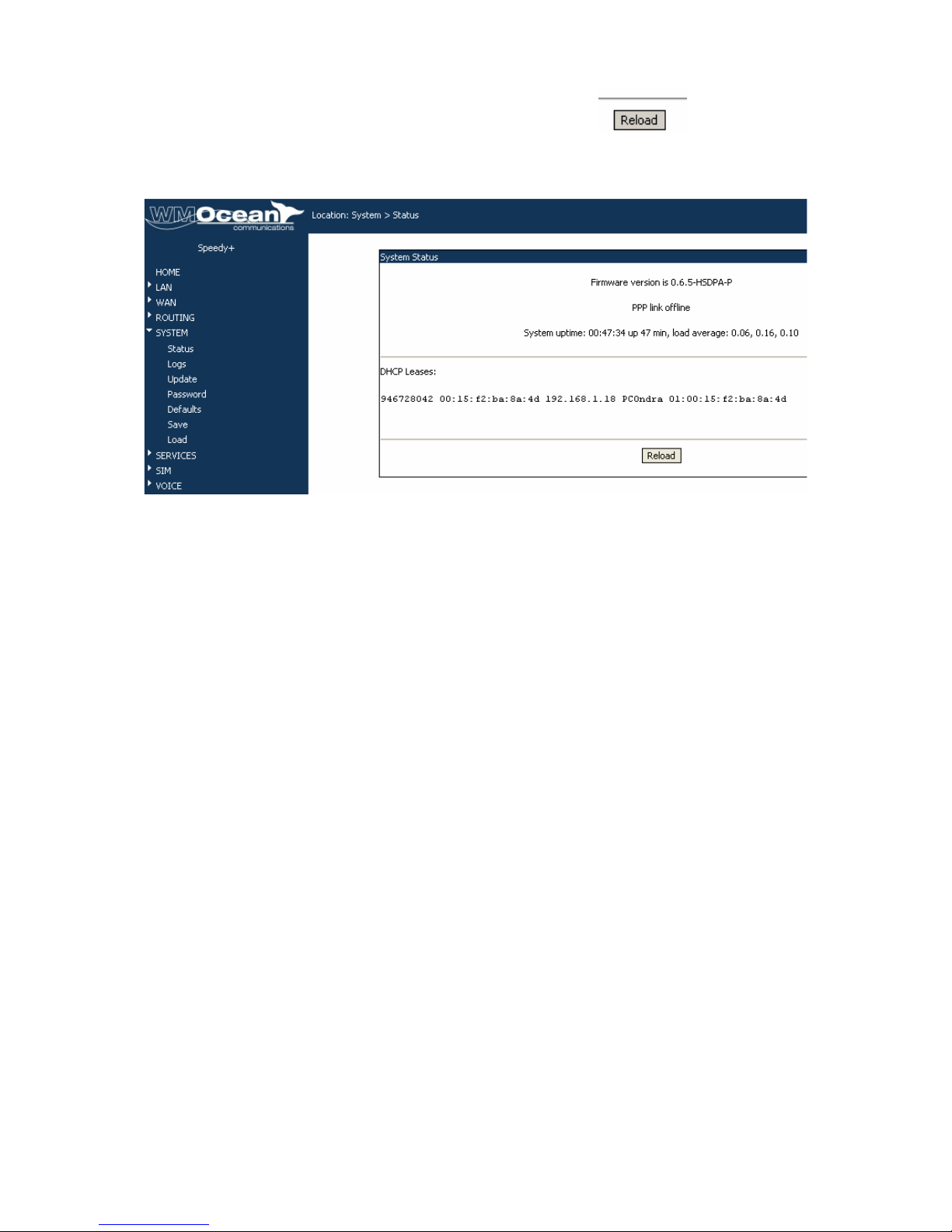
SPEEDY+ HSDPA User’s Manual
WMOCEAN +420 225 371 777 http://www.wmocean.com p. 46
The “Reload” button at the bottom makes SPEEDY+
read again these system settings. Click this button to be
sure you see the latest values
Examples:
- SPEEDY+ device with the PPP link (3G modem) online:
- SPEEDY+ with the PPP link off-line, but with two local clients (wired or wireless)
connected, has assigned them temporary IP addresses form DHCP (12 and 20):
- SPEEDY+ with two local clients (wired or wireless) connected, has assigned them
temporary IP addresses form DHCP (19 and 18), instead of PPP link it uses the Ethernet
port for WAN connection. You can also notice the uptime (time of uninterrupted operation) of
over five days:
Page 48
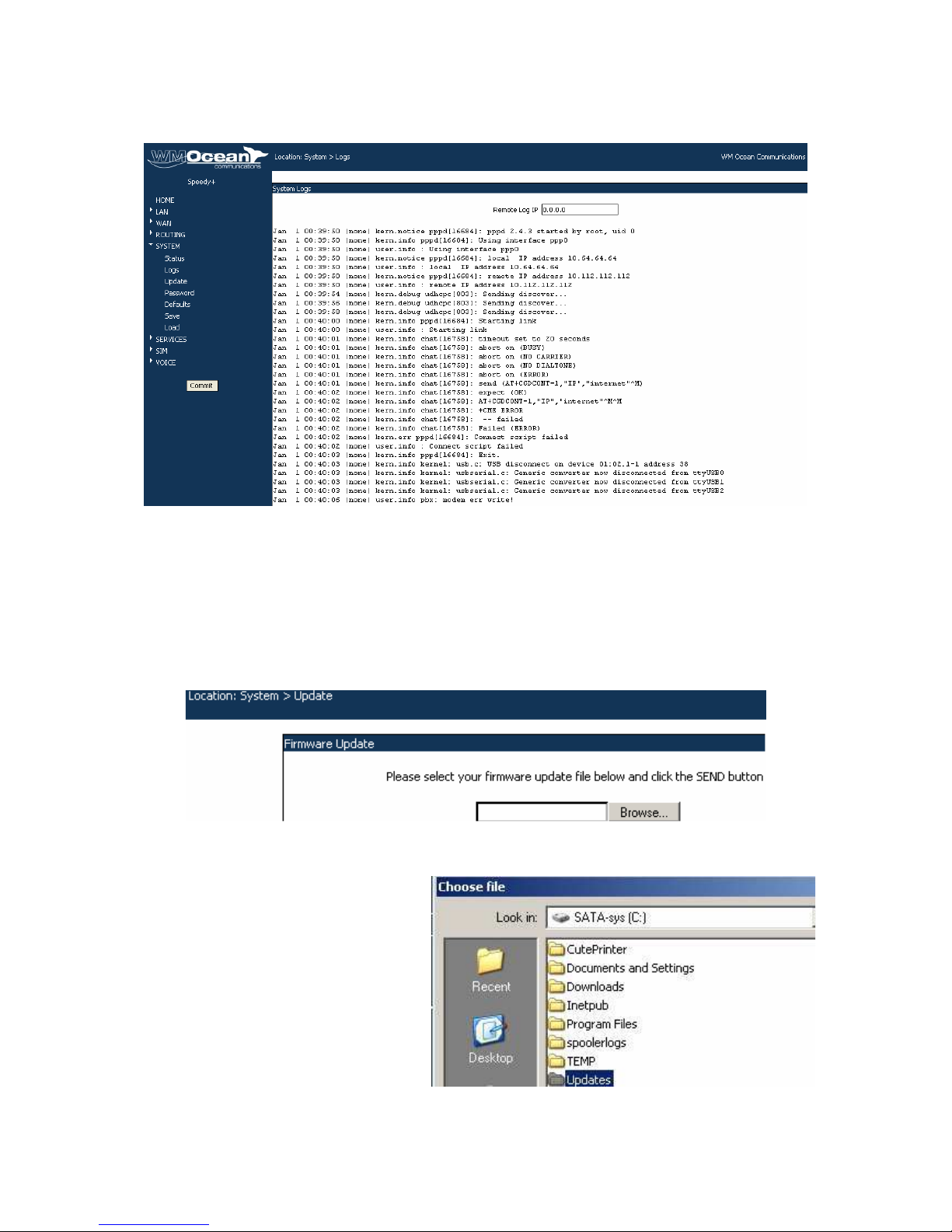
SPEEDY+ HSDPA User’s Manual
WMOCEAN +420 225 371 777 http://www.wmocean.com p. 47
5.5.2. Logs
Shows the system log
The log is a place where all the applications running on the SPEEDY+ HSDPA equipment
store their output messages: status reports, confirmation or error messages, activity, and so
on. The log may be saved on your PC (simply use “Save As” option of your browser) for
further examination, it is a very useful recording of all activities on the equipment.
Remote Log IP: address where the log will be sent if changes occur. Use this IP setting to
send the log messages to a remote location. If you leave this address “0.0.0.0” it means the
log won’t be sent.
5.5.3. Update
Allows you to perform an update or upgrade of the firmware running on SPEEDY+ HSDPA.
The update (firmware image) must be on your PC. The image files have the extension “trx”
You may download the image files form the WMOCEAN website. The update files are called
“WMOCEAN-x.y.z-HSDPA.trx”, where xyz is the version number, for instance 0.5.6.
Enter the name of the update or click
Browse to search your system for it. If
you click “Browse” a standard window
for choosing a file shows up.
Go to the folder that has the “.trx”
files. Usually, you should have a
folder on your harddisk reserved for
SPEEDY+ firmware updates and
saving of configurations. In this
example the folder located on drive C:
of the PC is called “Updates”:
Page 49
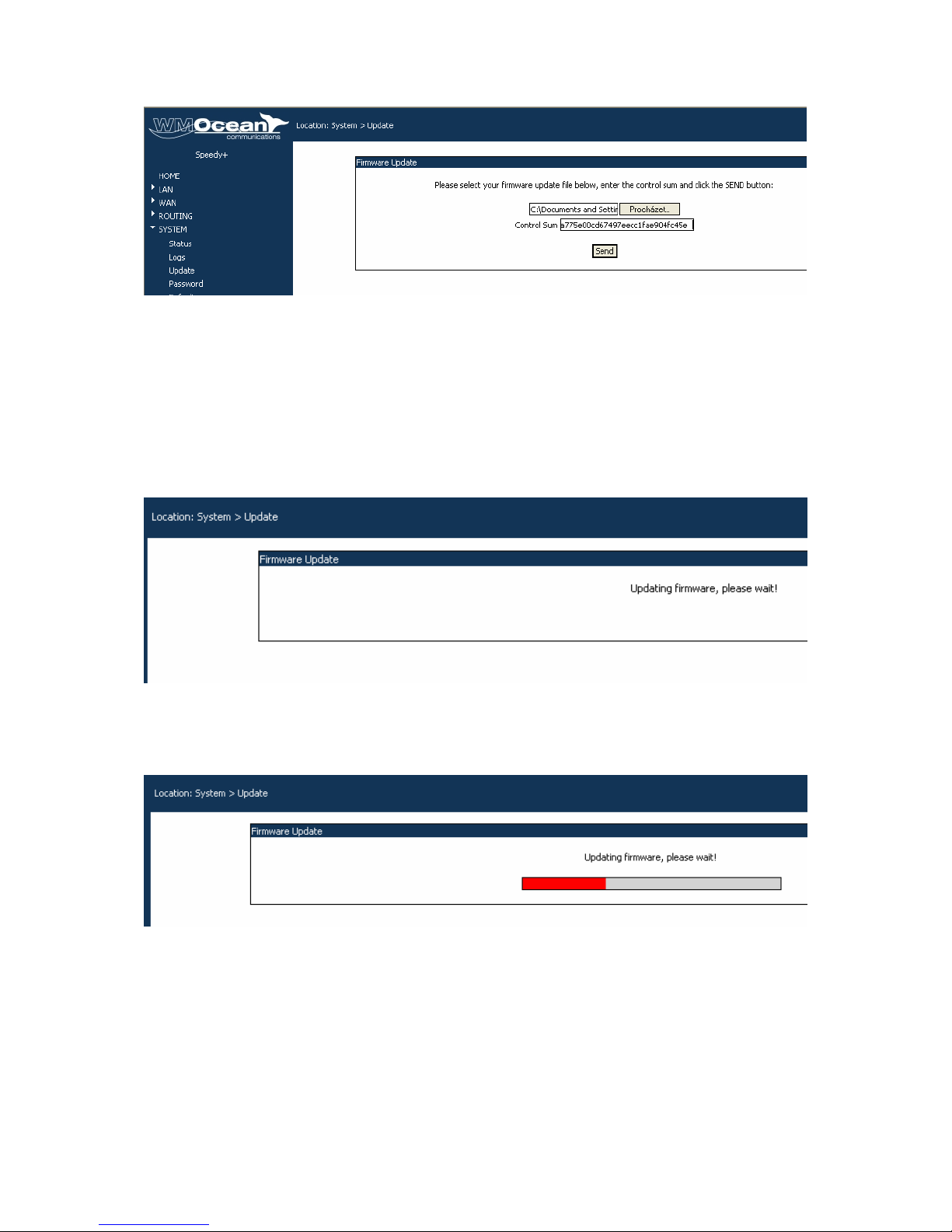
SPEEDY+ HSDPA User’s Manual
WMOCEAN +420 225 371 777 http://www.wmocean.com p. 48
Select the file you want and press Open.
Each firmware file has a Control Sum associated with it, and it won’t be loaded if the control
sum does not check out. The control sum is a string of hexadecimal figures, such as
“f2209c63972be34f55d4e69d90042d93” and it is stored in a text file with .md5 extension,
with the same name as the firmware image.
This Control Sum checking feature ensures that you will not load a image file that become
corrupted, because such a corrupted firmware could prevent operation of your SPEEDY+
equipment.
Click the “Send” button to perform the update.
A “Firmware Update” window shows up, you can see a progress indicator under the
message “Firmware is updating, please wait!”
Note that there are two distinct, successive phases of updating the firmware image: in the
first one, while the message “Updating firmware” is blinking, the equipment just checks the
program image to be loaded against its checksum.
If the result is OK, the SPEEDY+ device goes to the second phase, it really loads the new
firmware into its Flash memory. In this phase, the progress indicator is colored in red:
Warning! Do not update the firmware unless you have problems with the SPEEDY+ router
or the new firmware has a feature that you need. Remember to backup your current
configuration first. Be careful when you load an update file. If you select a wrong kind of file,
or if for different reasons firmware upgrading fails, the equipment will no longer operate
correctly. You will need to contact the manufacturer for repairs in some cases.
To avoid this, follow carefully the rules indicated here.
- use the power supply adapter from the manufacturer when upgrading the firmware
- check that the “WMOCEAN-x.y.z-HDSPA-P.trx” file you want to load is newer than
your current firmware version
Page 50
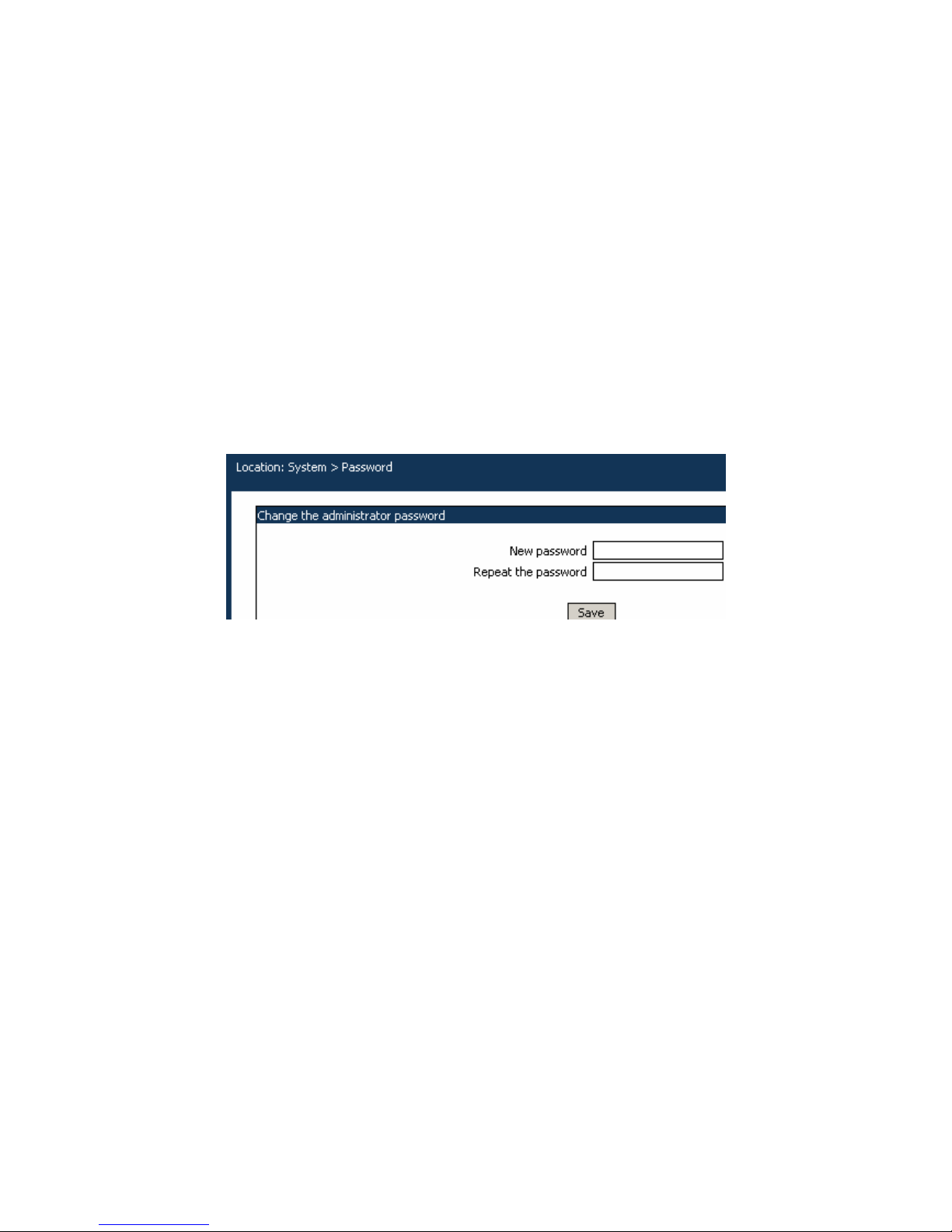
SPEEDY+ HSDPA User’s Manual
WMOCEAN +420 225 371 777 http://www.wmocean.com p. 49
- make sure that the adapter and your PC don’t turn off during update. It is better to
use an uninterruptible power supply (UPS) for this purpose
- never turn off the SPEEDY+ equipment or the computer while the firmware is being
overwritten
- be advised that the functions of the equipment are not available while a firmware
update is in progress
- after successful updating, verify the upgraded firmware
- remember that updating the firmware on the SPEEDY+ HSDPA equipment could
cause some or all of the configuration settings to be lost, depending on the degree of
change in the firmware.
Therefore it is highly recommended that you save your current configuration before
updating, then you restore it. To backup your settings, perform a Save, update the
firmware, and then Load the saved settings, after you have the equipment operating
with the updated firmware.
5.5.4. Password
Allows you to modify the administrator password.
Type the new password, then enter it again on the second row to confirm it.
“Save” saves the new password. You replace the default password with one of your own as
soon as possible. Please choose a password with minimum six characters. In order to
effectively prevent unauthorized access, the password must be long enough and include
both letters and numbers. Also, it should be easy to remember, so you don’t have to write it
down. Note that the password is case-sensitive.
Page 51
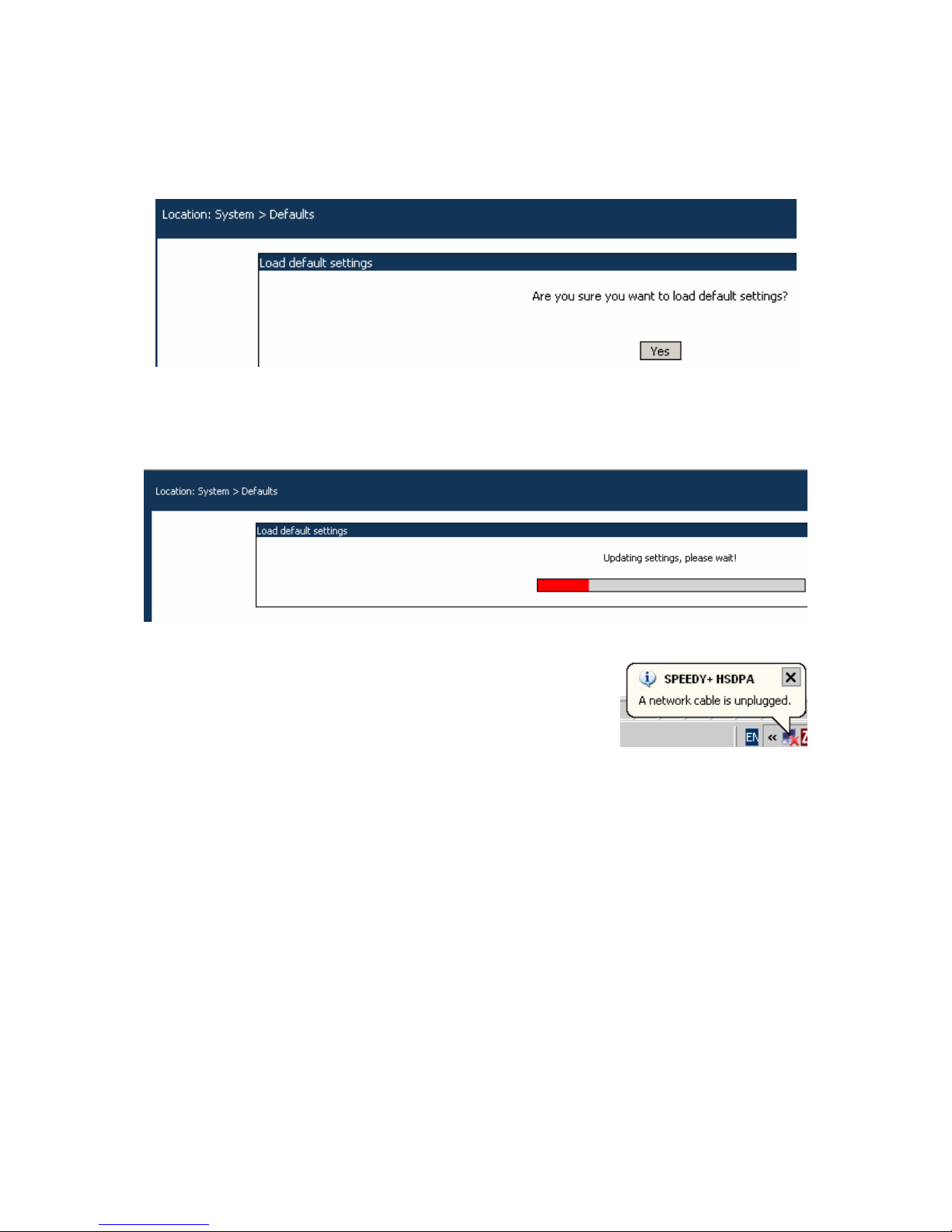
SPEEDY+ HSDPA User’s Manual
WMOCEAN +420 225 371 777 http://www.wmocean.com p. 50
5.5.5. Defaults
This option restores the default (factory) settings for all the parameters that can be
configured.
When you select “Defaults”, first a confirmation window shows up, asking you “Are you
sure?”.
If you want to proceed, click the YES button and the equipment will revert to the factory
default settings.
Following a reset, it will start operating with the factory default values for all parameters.
During the process you will see on screen the blinking message “Updating settings, please
wait!” and a red progress bar, as shown below:
CAUTION!
Use this option very carefully.
During the process, SPEEDY+ will not be available for routing
and connecting to the 3G network. For a few moments, the LAN
icon in the status bar will be barred with a red “x” and the
message “A network cable is unplugged” will show up, indicating
that SPEEDY+ HSDPA is unavailable.
Also, this option removes all configuration information, including your new password.
You will loose your current settings (the original configuration), if this configuration was not
saved or if you have not written it down.
It may be possible that the factory default settings are not suited for your connection, so
SPEEDY+ won’t perform the networking functions you expect.
Hardware factory defaults
If you want, you can also perform the “Return to Defaults” operation via hardware.
This means you do not need to use the Web interface!
For this, simply press the Reset button (located on the back panel, among the connectors)
for at least three seconds.
The SPEEDY+ HSDPA equipment will reboot and revert to the factory default settings.
This way of restoring the factory default settings is faster than using the web interface, but
you should exercise the same care.
Note: the “Return to Defaults” option is quite useful when incorrect settings have been
performed or when you have forgotten the IP of the SPEEDY+ device. If you don’t the IP
address you won’t be able to connect to the wireless router to administer it. So you should
perform a hardware “factory defaults”, and SPEEDY+ HSDPA will revert to its original
settings, including the IP address of 192.168.1.1
Page 52
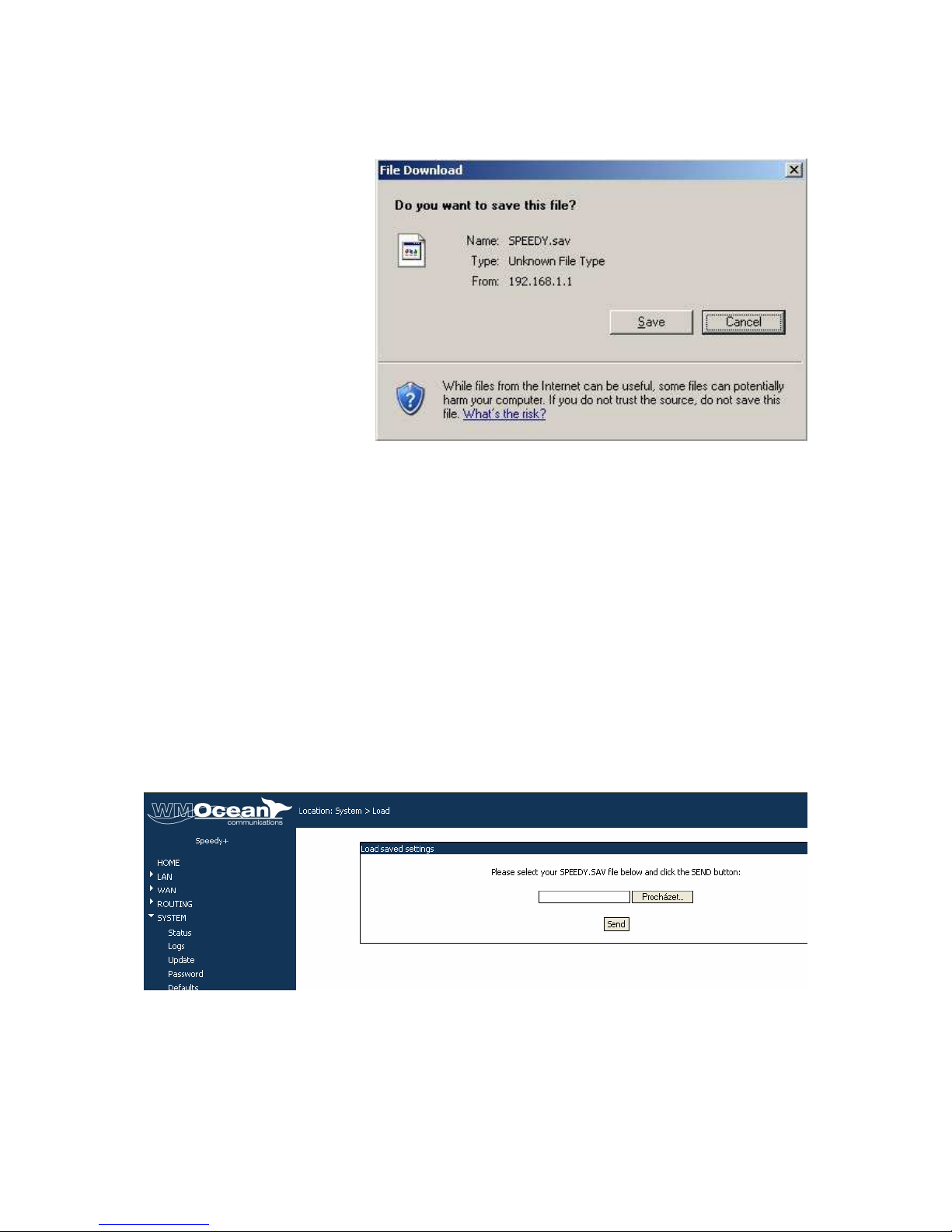
SPEEDY+ HSDPA User’s Manual
WMOCEAN +420 225 371 777 http://www.wmocean.com p. 51
5.5.6 Save
Makes a backup of the configuration, saves the current configuration (all of the settings) of
the SPEEDY+ equipment.
The configuration file is called
by default “SPEEDY+ .sav”
and the extension for these
files is “sav”.
You will see a message
similar to the one shown in
this image, a warning about
“Opening” or “File Download”.
The operating system “sees”
that SPEEDY+ wants to
download to your PC a file of
unknown type (the
configuration file “SPEEDY+
.sav”) and asks you if you
agree.
Click “Save” or select “Save it to disk” to save the file with the current configuration of
SPEEDY+ HSDPA.
You may select the folder where the configuration will be saved; also, you should change the
default name “SPEEDY+ .sav” into a name meaningful for your actual configuration, such as
“WAN ETH” if you use an Ethernet connection for WAN or “WAN PPP modem” if you use the
embedded HDSPA modem for the WAN connection.
Note: It is highly recommended that you backup your configuration from time to time,
using the “Save” option. This way you can always load the saved configuration, if there is
need. For instance, when you perform a “Restore to factory defaults”, all previous settings
are lost. If you have saved the configuration, you can load it back to perform changes.
Also, you should perform a “Save” before using “Update” to load a new software image,
since the new firmware could erase some of the settings.
5.5.7. Load
Loads a configuration (settings of the equipment) that has been saved previously or restores
a backup.
Use “Browse” to search the local hard disks or the network for the saved configuration file,
for instance
“WAN PPPmodem”:
Press Open, then click “Send” to send the file to the SPEEDY+ HSDPA equipment.
Page 53
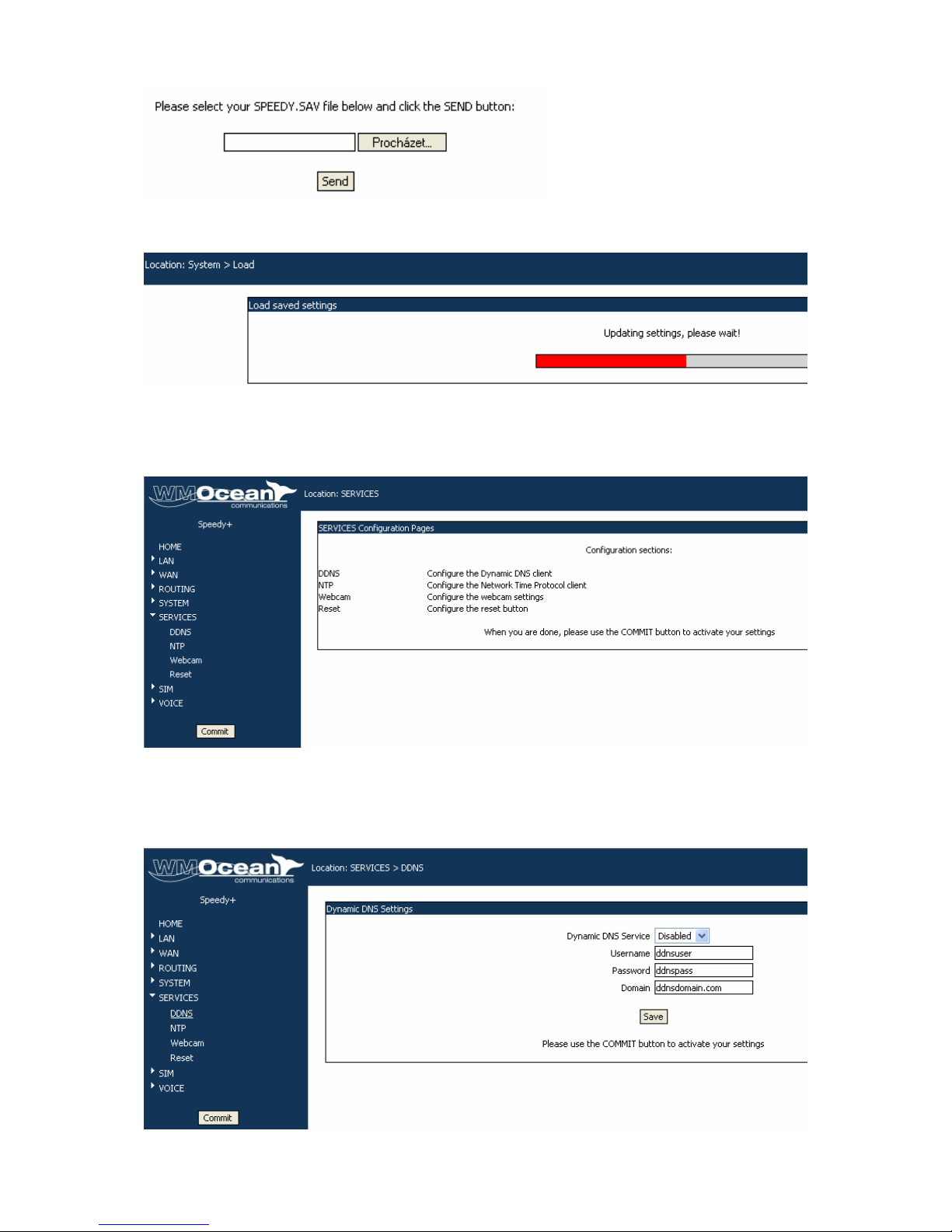
SPEEDY+ HSDPA User’s Manual
WMOCEAN +420 225 371 777 http://www.wmocean.com p. 52
A red progress bar will be displayed, and above it you will see the blinking message
“Updating settings, please wait”
5.6 SERVICES
Here you may configure settings for the “services” provided by SPEEDY+ , such as DDNS,
NTP, webcam, and function of the RST button.
5.6.1 DDNS
Settings for the server of Dynamic DNS. The DDNS feature of SPEEDY+ lets you assign a
fixed host and domain name to a dynamic Internet IP address.
Page 54

SPEEDY+ HSDPA User’s Manual
WMOCEAN +420 225 371 777 http://www.wmocean.com p. 53
Dynamic DNS Service: Enables or disables the DDNS service.
Server: The full name of the server for Dynamic DNS. Dynamic DNS is a service that
enables mapping of a dynamically assigned IP address (from the 3G provider) to a static or
permanent hostname. This allows you to be able to use applications that require a static IP
address, such as hosting your own website, FTP server or other server behind the SPEEDY+
router.
Username: User name for log-in to DDNS Server, it is not the same as the user name for the
Internet provider.
Password: Password for authentication to DDNS Server.
Domain: The domain name for Dynamic DNS. You must have membership which one of the
providers of dynamic DNS services, such as www.dyndns.org, www.cjb.net , www.TZO.com,
www.dns2go.com, www.dynamip.com, www.whyi.org, www.soliddns.com, www.ods.org etc
.
These factory default settings may not work in your area, you should change the DDNS
parameters according to the specifications of your Internet provider.
Page 55
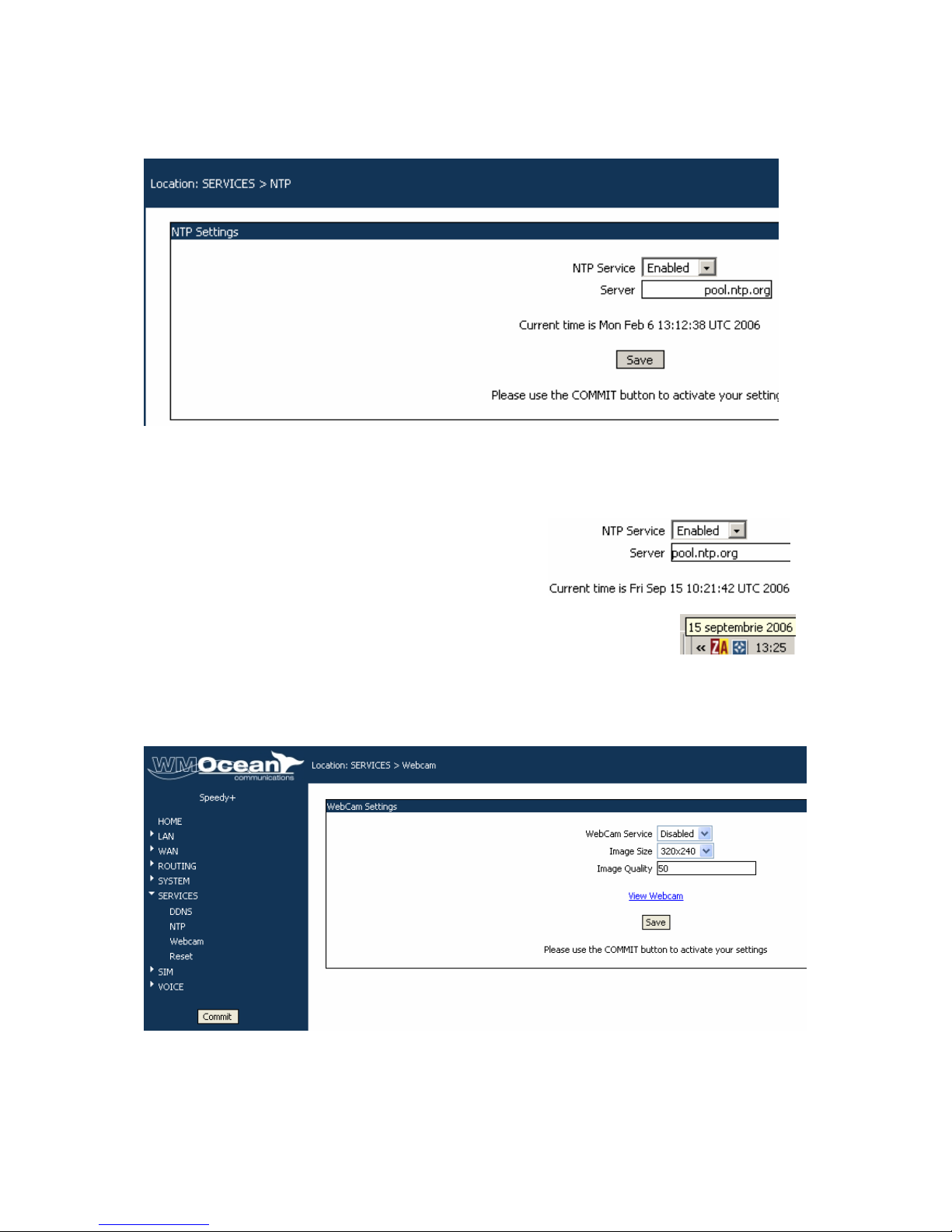
SPEEDY+ HSDPA User’s Manual
WMOCEAN +420 225 371 777 http://www.wmocean.com p. 54
5.6.2 NTP
The Network Time Protocol is used to update the real-time clock in a computer, over
Internet.
NTP Service: select Enabled or Disabled
Server: enter the full name of the NTP server you want to use, such as
“utcnist.colorado.edu” or “ro.pool.ntp.org”.
The “Current time” indicator shows the current UTC time (Coordinated Universal Time) of the
system, with millisecond precision.
If NTP server is not active, it will display the default
UTC time, which is Jan 1, 2000. But if you have
enabled it, it should display the current time (UTC) as
shown next:
This UTC time may be different from the local time of your computer!
5.6.3 Webcam
Shows and modifies settings of the web camera connected to SPEEDY+ HSDPA.
WebCam Service: select Enable to activate it. By default it is set to Disabled.
Image Size: you may select one of the three standard values: 160x120, 320x240 or 640x480
(VGA). Default value is 320x240. It is recommended that you start with the minimum value,
then increase it if it works, because some types of webcams do not support higher
resolutions.
Page 56
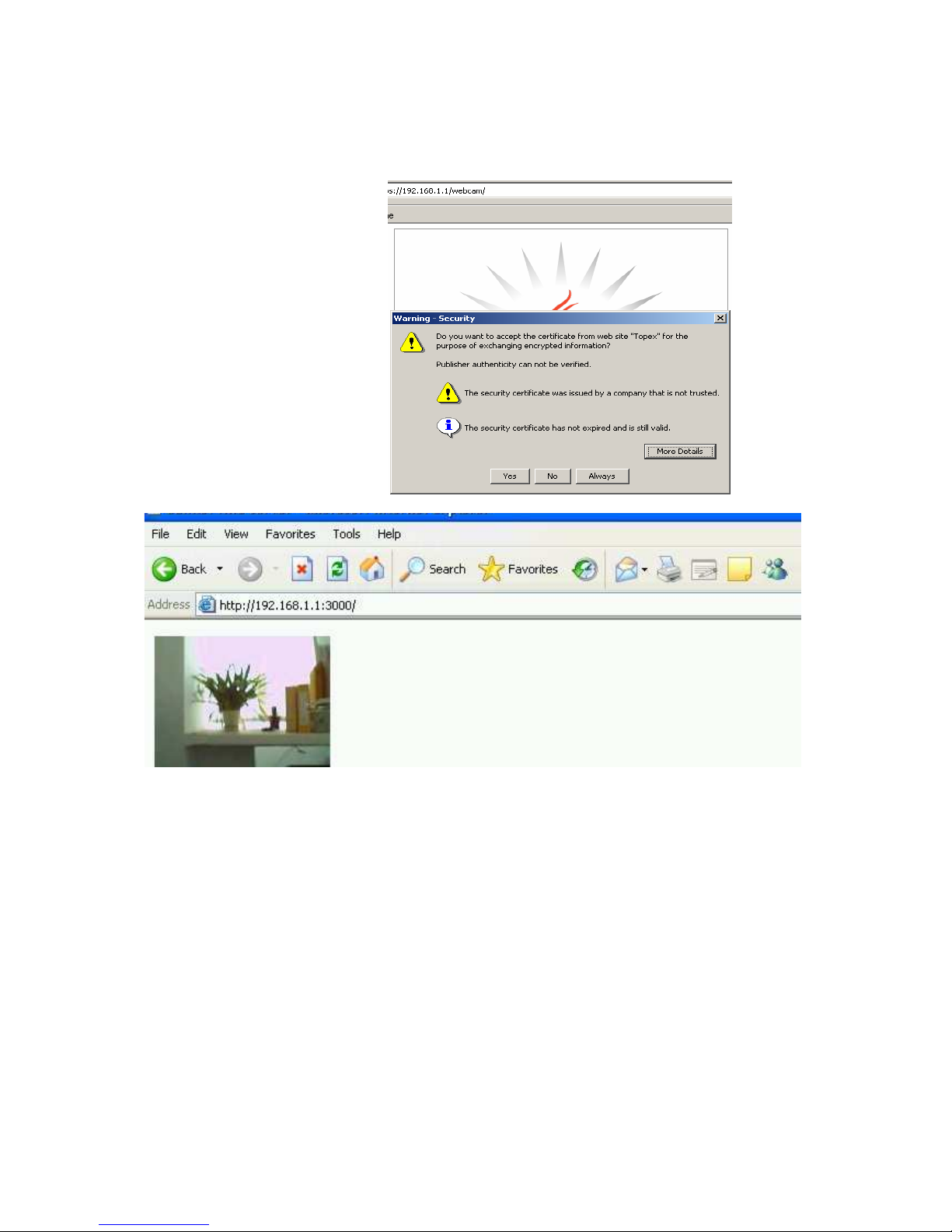
SPEEDY+ HSDPA User’s Manual
WMOCEAN +420 225 371 777 http://www.wmocean.com p. 55
Image quality: chooses the quality of the image. Range is from 100 to zero, 100 being
uncompressed and 0 maximum compression. Default value is 50, which gives a high
compression and an acceptable quality and speed. Uncompressed images have the highest
quality, but the resulting video file is large and the frame rate will be low.
Click “View Webcam” to open
a widow showing the live
images that the webcam
“sees”.
View Webcam.
Fist, you may get a warning
such as this one:
Click “Yes” to continue.
Now you should see the camera window on your screen.
Dependig on the actual type of webcam you use, you may have access to various controls.
Usually, the live video screen is an insert to the left.
Some types of cameras feature in the upper right corner there are two buttons, “Stop” and
“Control”, and a checkbox “Devices”.
Underneath the video image the current frame rate is shown – such as 5,6 frames per
second.
If you click the “Stop” button, video streaming is stopped, and the button changes to “Start”.
The total number of frames will be shown beneath, together with the respective time, such
as: “286 frames in 44,2 s”.
Page 57
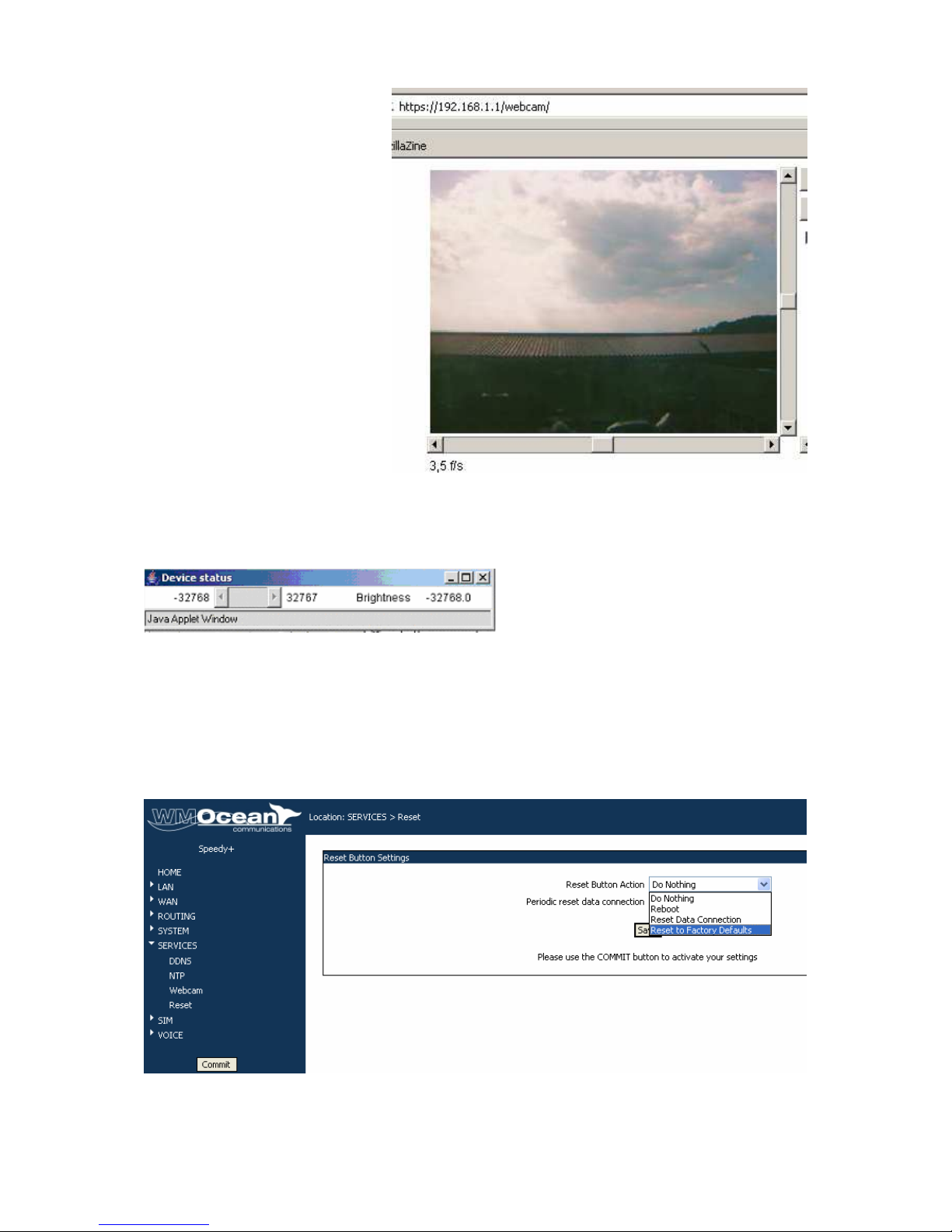
SPEEDY+ HSDPA User’s Manual
WMOCEAN +420 225 371 777 http://www.wmocean.com p. 56
If you want to change to a
higher resolution, go to “Image
Size” and select for instance
“320x240”. The image quality
will be noticeably better, you’ll
be able to see more details, but
the frame rate will go down – in
this example 3,5 frames per
second.
If you press “Control”, you can
control the zoom and pan
features of the web camera, if
the device supports such
commands. A message shows
up, “Will keep control for at least
30 s”.
Again, if you press “Stop” the
streaming of video data stops
and the number of frames is
shown beneath the picture, for
example “417 frames in 111 s
(3.6 f/s)”
To set the brightness of the video images, check the box “Devices” located under the Stop
and Control buttons. A small applet window shows up, allowing you to increase or decrease
the brightness, provided that your webcam supports this feature.
If you need full VGA resolution, select the maximum image size, “640x480”, provided that
your webcam supports this resolution.
In this case the image is better, but the frame rate is also correspondingly lower, only about
one frame per second in this example (1.1 f/s).
5.6.4. Reset
Here you can change the assignment of the Reset button:
Reset Button Settings – you choose the option you want.
The function of the Reset (RST) button, located on the back panel among the connectors,
can be changed according to your needs.
Page 58

SPEEDY+ HSDPA User’s Manual
WMOCEAN +420 225 371 777 http://www.wmocean.com p. 57
Do nothing – yes, this “do nothing” action may be useful. Even if you accidentally press
Reset, nothing happens. You can still perform Reset via software!
Reboot – it performs a full reboot (restart) of SPEEDY+ HSDPA.
Reset Data Connection – only the data connection is resetted, the equipment does not stop
operating.
Reset to Factory Defaults – full reboot, when SPEEDY+ starts again the current settings
are replaced by the factory defaults (the original parameters from the manufacturer).
This option is the one most often used.
5.6.5 PWC compatible cameras
The firmware of the SPEEDY+ equipment allows direct operation with webcams that are
compatible to the PWC Linux drivers. driver The driver is intended primary for Philips & OEM
USB webcam, and supports also several cameras from Logitech, Aiptek , Askey, Creative
Labs, Samsung, Sotec and Visionite. Decompression is supported for up to resolutions
640x480 (maximum physical resolution of the CCD sensor).
There are limits ti the maximum resolution and frame rate. Thus, VGA resolutions are limited
to 15 fps because of the bandwidth available on the USB bus. The same cameras may work
faster (up to 60 frames per second at lower resolutions).
Other cameras olnly operate at quarter VGA resolutions: QCIF (176x144) or QSIF
(160x120).
The PWC driver supports a range of widely used consumer or general purpose
webcams, such as:
- from Philips: PCA645V,C PCA646VC, PCVC675K "Vesta" PCVC680K "Vesta Pro"
PCVC690K "Vesta Scan", PCVC720K/40 "ToUCam XS", PCVC730K "ToUCam Fun",
PCVC740K "ToUCam Pro", PCVC750K “ToUCam Scan" , PCVC830K "ToUCam Fun
II", and PCVC840K "ToUCam Pro II";
- from Logitech: QuickCam 3000 Pro and 4000 Pro, QuickCam Notebook Pro,
QuickCam Zoom, QuickCam Orbit/Sphere;
- from Creative Labs: old Webcam 5, Webcam Pro Ex;
- from Samsung: MPC-C10 and MPC-C30;
- from Visionite: VCS UM100, VCS UC300;
- SPC900NC;
- Sotec Afina Eye;
- Askey VC010 .
Page 59
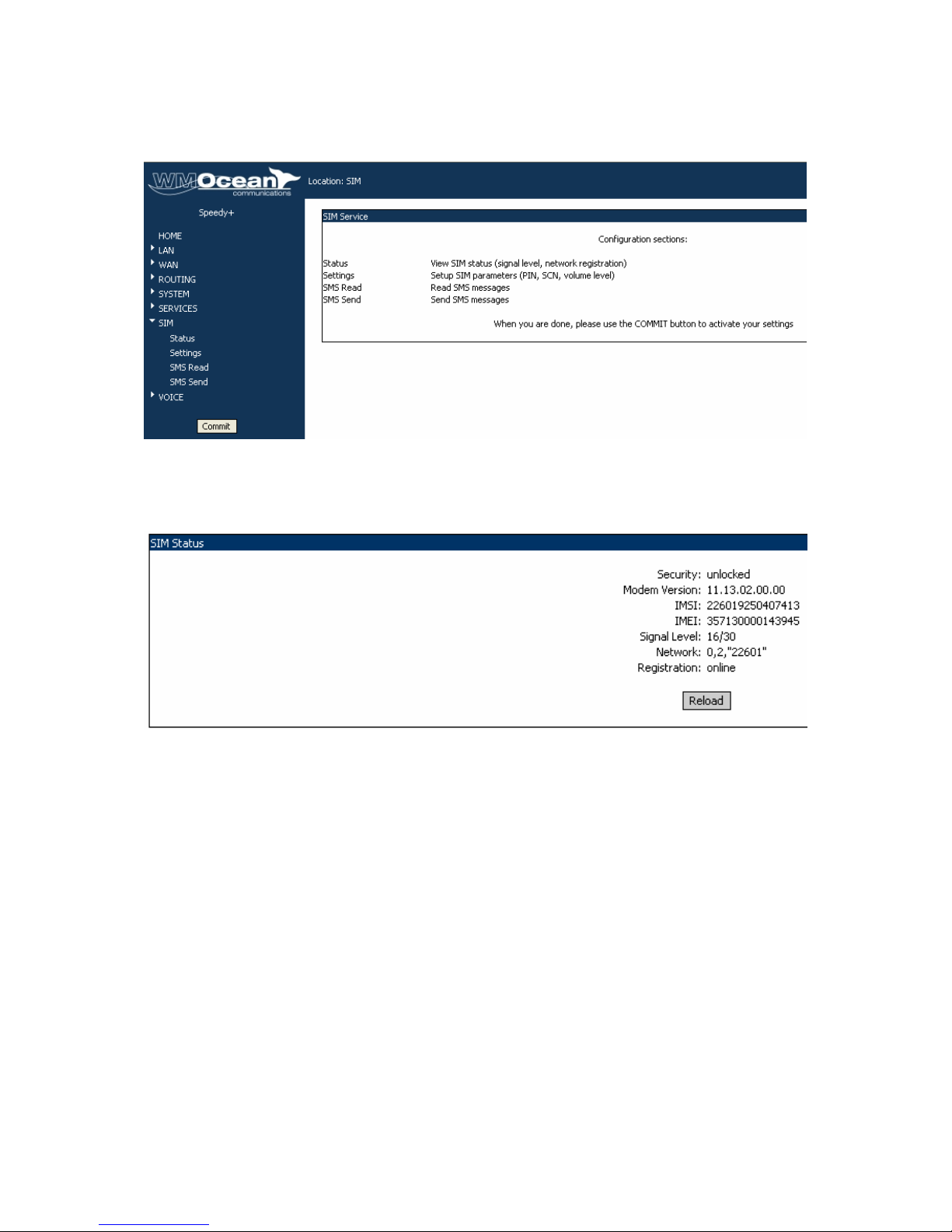
SPEEDY+ HSDPA User’s Manual
WMOCEAN +420 225 371 777 http://www.wmocean.com p. 58
5.7 SIM
Here are the configuration pages related not only to the SIM card but also to the mobile
module of the equipment. Also, from here you may send or receive SMS messages.
5.7.1. SIM Status
This page shows you the current state of the SIM card and of the GSM/GPRS/UMTS/
HSDPA module of your SPEEDY+ equipment.
The status of the HSDPA modules is automatically read every five seconds. The
following information items are displayed:
- Security: the normal state is “unlocked” or “OK”. This means the SIM is active and
you may use the equipment. If you see “locked by PIN” it means the SIM card asks for
the correct PIN code to unlock. The PIN code you have entered previously is incorrect.
You must go to the SIM settings and input the correct PIN to unlock the subscriber card.
It may also by locked by PUK if you entered a wrong PIN code three times in a row –
then it needs a PUK code to unlock.
Note: When SIM Status displays “locked by PUK2” or “locked by PIN2” this in not an
error warning, it means it is locked only for special network services (such as roaming)
that SPEEDY+ HSDPA does not require.
- Modem Version: the version of the firmware, read from the 3G modem module
- IMSI (International Mobile Subscriber Identity), identity of the subscriber (of the SIM
card). This is a unique code number (15 digits) that identifies a mobile subscriber to the
network. If the HSDPA module of SPEEDY+ detects an active SIM card, it will query
(and display) the IMSI code. Since the IMSI code is related to the SIM, when you
change the SIM card used with SPEEDY+ you will have another IMSI code.
Page 60
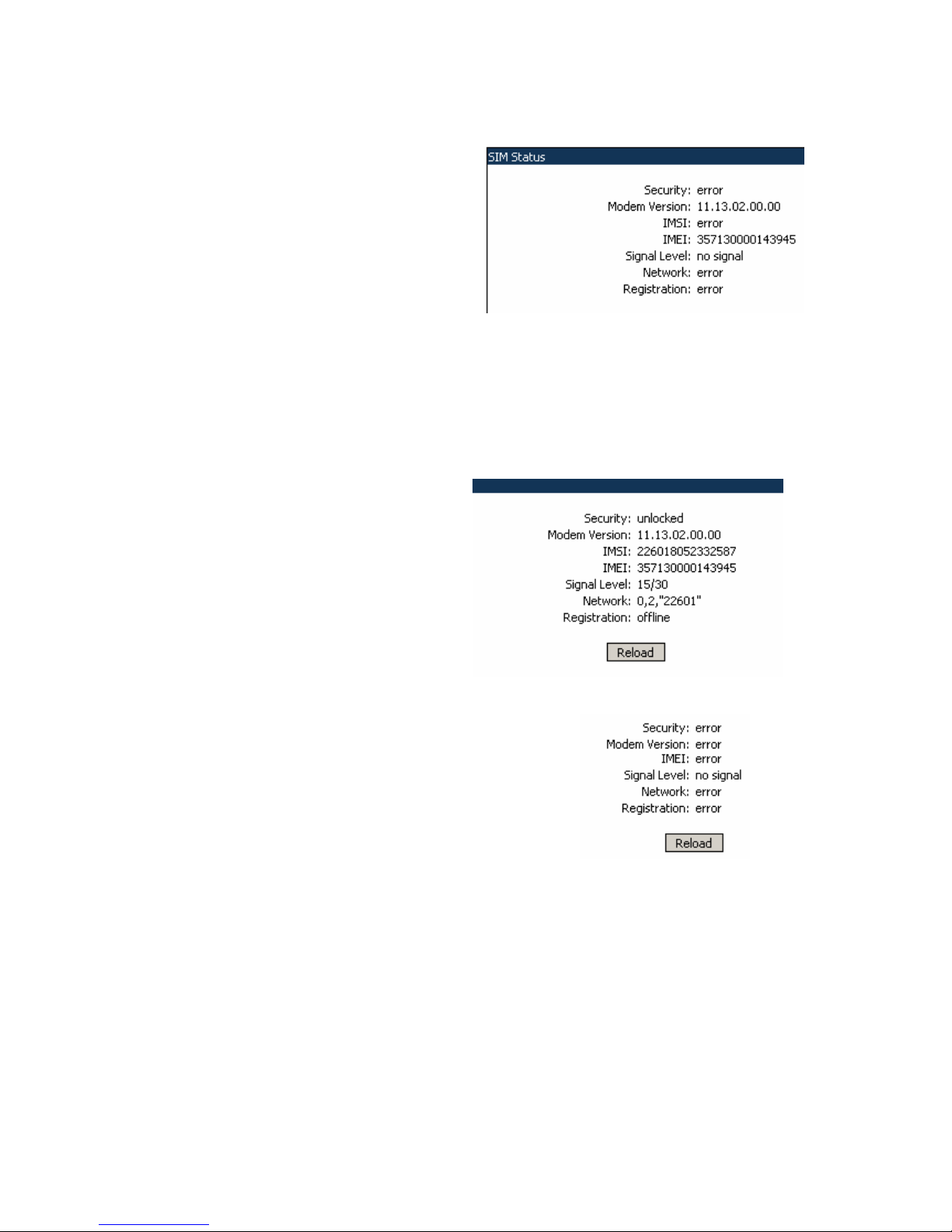
SPEEDY+ HSDPA User’s Manual
WMOCEAN +420 225 371 777 http://www.wmocean.com p. 59
- IMEI (International Mobile Equipment Identifier). 15-digit number that uniquely identifies an
individual mobile terminal wireless device. While IMSI is specific to the subscriber (SIM card),
IMEI in specific to the equipment (HDSPA modem of SPEEDY+ )
If the SIM card is missing, the SIM Status
window will show “error” in the fields
Security, IMSI, Signal Level, Network and
respectively Registration.
But you will still see the version of the 3G
modem and the IMEI code, since they are
equipment-dependent, and not related to the
SIM card.
- Signal Level, displayed as two groups of two figures such as “15/30”. The two digits
indicate the level of the RF signal for the GSM/GPRS/UMTS/HSDPA network on a scale
from zero to 30. If the SIM card is missing, as in the example above, of course no signal level
can be displayed.
- Network: the name of the mobile network where the equipment is registered, as
transmitted by the mobile carrier
- Registration status: shows if the SIM card of the equipment is registered to the mobile
network or not.
In this example the SIM is unlocked, it is
active, it has registered to the mobile
network, since it shows not only the IMSI
and the Signal level, but also the name of
the mobile carrier, but is currently offline.
Warning! When the HSDPA module is in a call, or while it is transmitting or receiving SMS, it
cannot be interrogated about its state.
So if you click “SIM Status” while in a voice call, you will
get an error message (ERR).
This does not mean something is wrong, simply try again
(click “Reload”) later, when you have finished the voice call
or the transmission of SMS messages.
Page 61
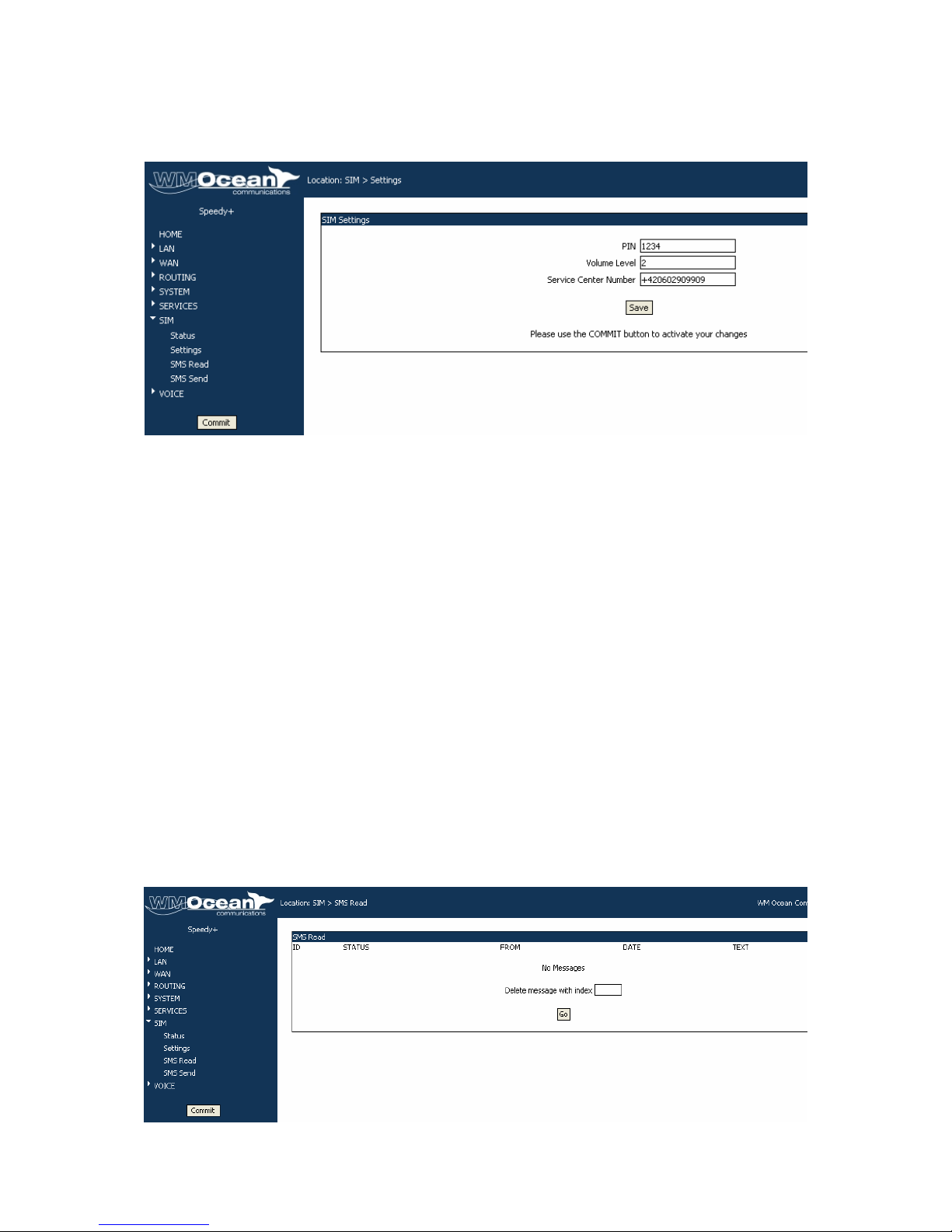
SPEEDY+ HSDPA User’s Manual
WMOCEAN +420 225 371 777 http://www.wmocean.com p. 60
5.7.2. SIM Settings
In this section you may perform several settings related to the HSDPA module and to the
SIM card.
PIN: you may enter here the PIN code for the SIM card
Volume level: you can establish the volume (sound) level.
Valid settings for the audio level are from zero to 4, where 0 means silence (the volume will
be zero, you won’t hear anything).
Click “Save” to save the modified settings and then “Commit” if you want to make the
changes permanent after a reset of the equipment.
Service Center Number: enter the full phone number.
In order for the SMS facility to operate, you must have set the correct number.
This is the center for SMS messages of the of the GSM operator, you must input the phone
number of the respective GSM carrier.
You may edit (change) the default number. Enter the number of the SMS Service carrier for
your area. To make effective the changes, press the button "Save” and then “Commit”.
Notes:
- you must enter the full (complete) phone number for the SMS center
- the number is displayed as shown above, but you must enter it inside quotes, that is
“+40722004000”
The following "SMS" options let you send or to receive SMS messages from your computer
to any GSM mobile phone user, through the HSDPA module of the SPEEDY+ equipment
cell phones.
5.7.3. SMS Read
Reads the short text messages and displays a list of SMS messages that were received
through the mobile module of the SPEEDY+ equipment.
This list for displaying received SMS messages has the following columns:
Page 62
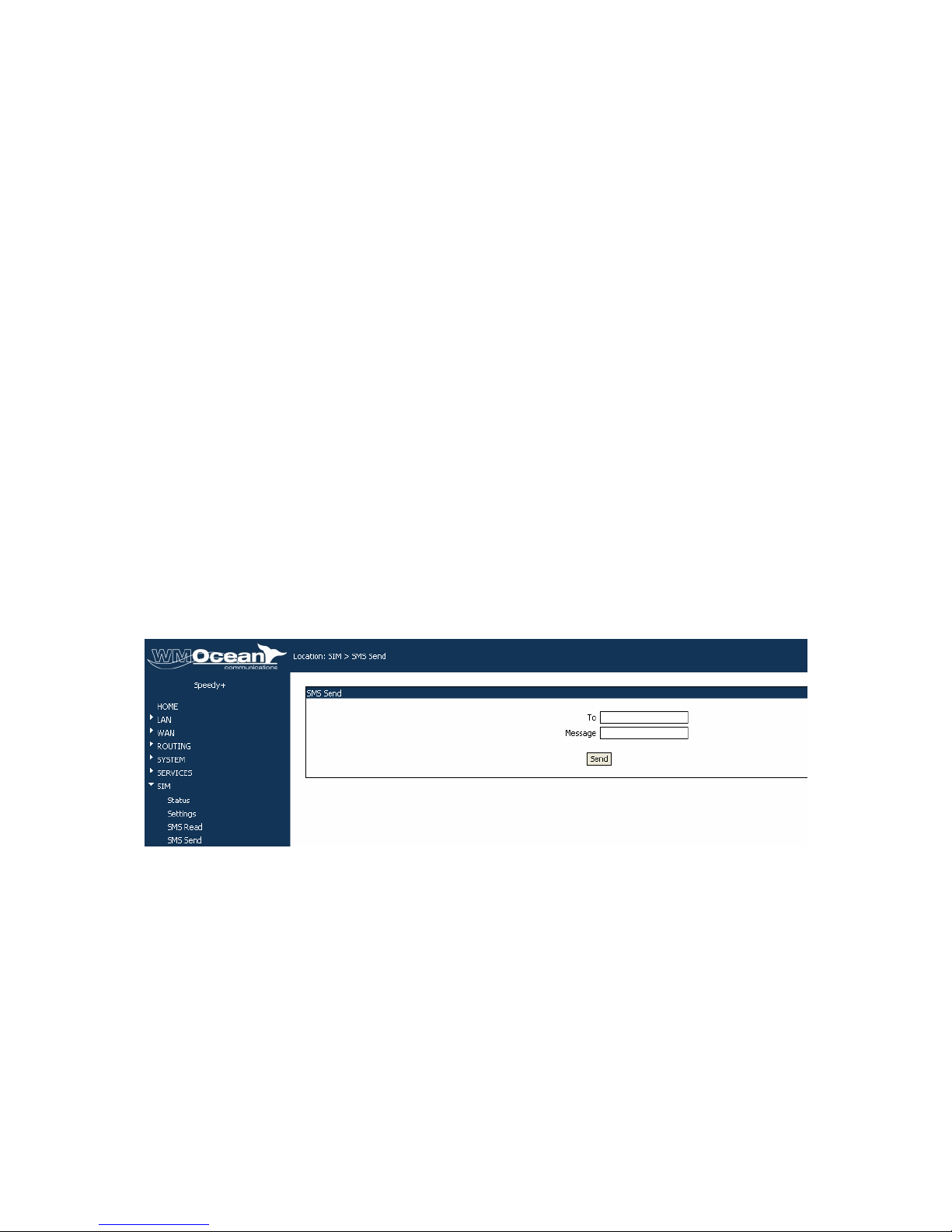
SPEEDY+ HSDPA User’s Manual
WMOCEAN +420 225 371 777 http://www.wmocean.com p. 61
- ID (reference number: 1, 2, and so on up to 14),
-
STATUS (REC for Received, READ means the message has been read, while
UNREAD means it was not read ),
-
FROM (the phone number of the sender) such as “+420602909909”,
-
DATE (date and time in normal format: two digits for year, month, date of the month,
hour, minutes, seconds and after the “+” sign the tenths of seconds),
-
and finally TEXT, where you can see the text of the message.
You may delete one or several messages by typing the index in the box at the bottom and
clicking “Go”.
Note: The maximum storage capacity is 15 messages (ID’s 0 to 14).
When you already have 15 SMS stored in memory, the SPEEDY+ equipment won’t be able
to receive newer SMS.
If you want to continue receiving messages, you must delete some of the older SMS.
Look at the “DATE” field and delete the messages that you no longer need.
After deletion, click again “SMS Read” to read messages from the server.
The new message will be displayed, at first at the bottom of the list, and upon next “Read”
command it fill be sorted upon the “ID” field and placed in its proper position.
In this example, several messages have been
erased to make place. Another SMS has been
received and displayed with the index “4”,
replacing one of the deleted messages.
Upon next Read operation, the SPEEDY+ equipment performs sorting by ID, and the newest
message is shown in the proper place with ID “4”, although its date is different from the
previous group of messages.
5.7.4 SMS Send
This option allows you to send out a SMS message through the mobile network.
Just type in the destination phone number in the field “To” and the text you want to transmit
in the field “Message”, then click the Send button.
Then wait about 40 seconds for the mobile network to perform the sending operation.
If the SMS cannot be send (network busy, congestion or other problems), an error messages
will be shown on top of the screen.
Note: if the phone number that is destination for the SMS is in the same network, you may
enter it in short form, as above. But if it is in a different mobile network, you must type it in full
format: country code, area code, number, for example “+40747999999”.
Page 63
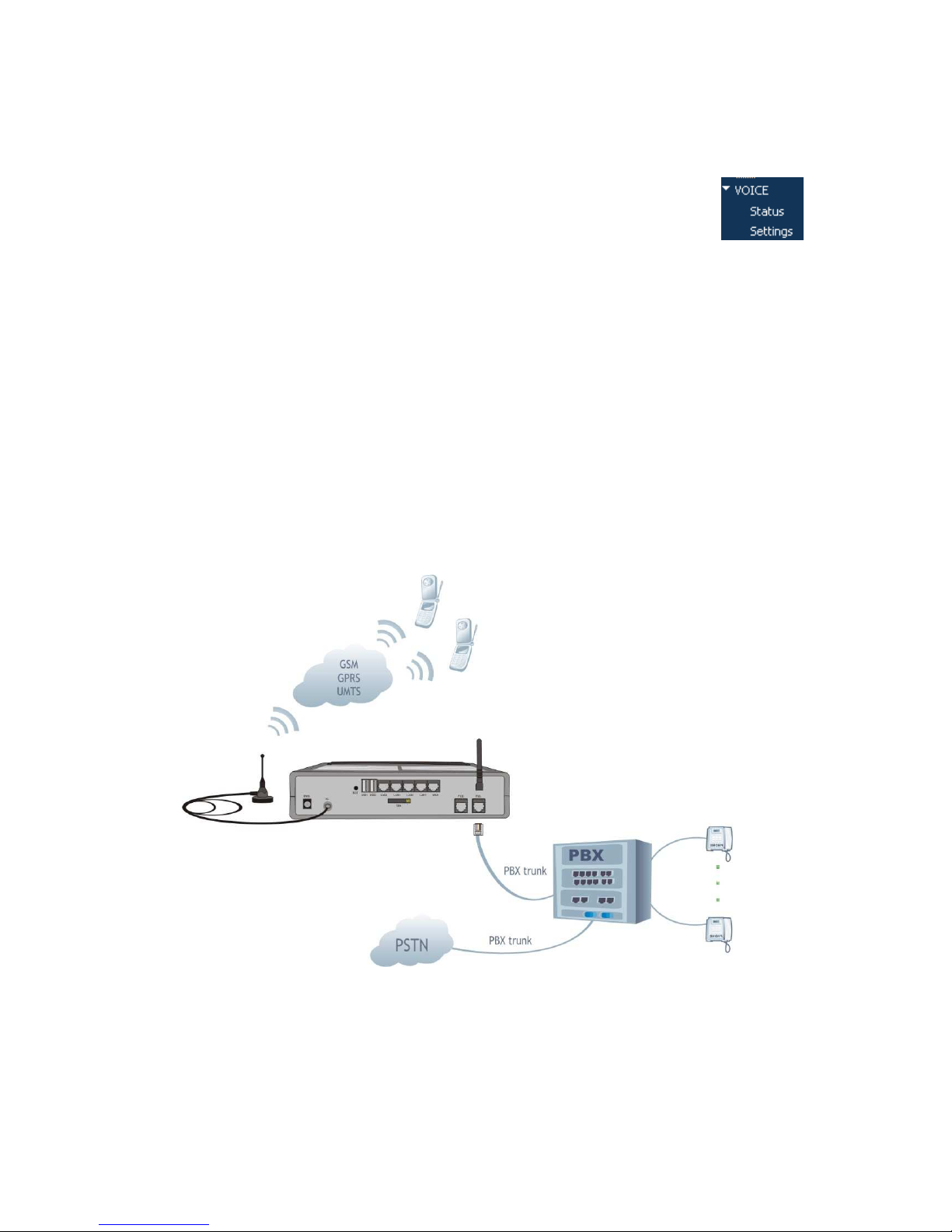
SPEEDY+ HSDPA User’s Manual
WMOCEAN +420 225 371 777 http://www.wmocean.com p. 62
5.8. VOICE
This section is about the voice part of the SPEEDY+ HSDPA equipment and allows you to
configure the phone interface and the routing of the calls.
There are two configuration page for the voice section Settings, which allows
you to select the type of the phone interface and the routing of incoming calls
and Status , which shows the current state of the voice interface of your
SPEEDY+ device.
To understand these settings, you must first review the modes of connecting SPEEDY+
to a PBX or a phone.
5.8.1. Phone Connections for SPEEDY+ HSDPA
The telephony interfaces of SPEEDY+ HSDPA can be connected in several ways:
- to an analogue trunk of a PBX exchange
- directly to an analogue phone
- to a local interface (office subscriber) of PBX exchange
For this purpose SPEEDY+ HSDPA has two interfaces with RJ11 connectors, one is
for FxO connection and the other for FxS connection.
Only one of them may be connected at any moment of time!
The selection is done through the Web interface, in the “PHONE” subsection, where
you must set the phone line interface either as FXS or as FXO.
Connecting to a PBX trunk or a telephone
Use the FXS interface of SPEEDY+ HSDPA (which must be activated from the Web
configuration page VOICE Settings), as shown in the drawing below:
Incoming call
SPEEDY+ HSDPA interface receives a call over GSM/GPRS/HSDPA network. The
equipment sends a call signal to the analogical phone that is connected or to the PBX
exchange; in the second variant the exchange switches the call a local subscriber.
Outgoing call
PBX exchange must be configured to output the calls through SPEEDY+ HSDPA. The
user simply dials the wanted number from an office telephone.
Page 64
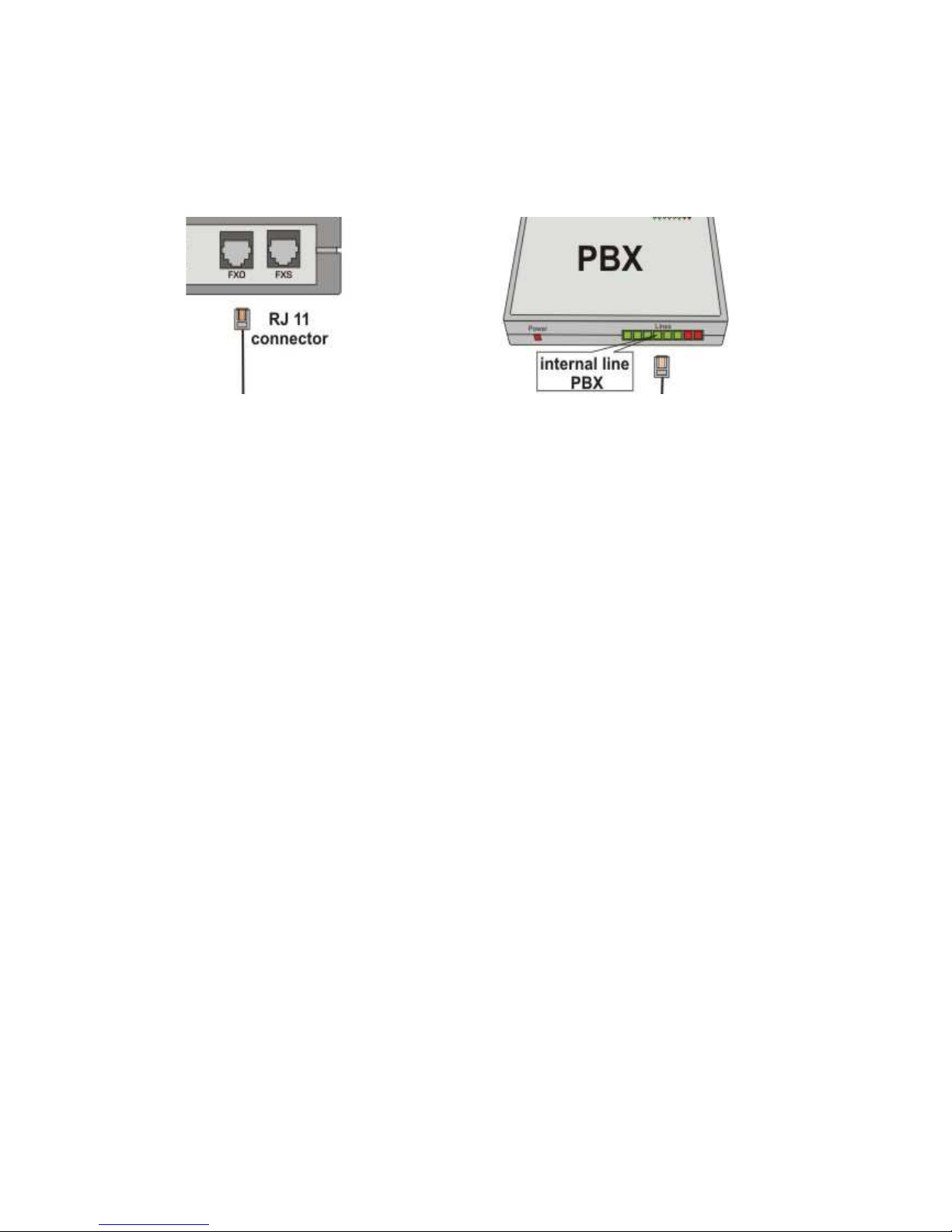
SPEEDY+ HSDPA User’s Manual
WMOCEAN +420 225 371 777 http://www.wmocean.com p. 63
PBX exchange processes the number and analyses the prefix and sends it to the
outgoing trunk where SPEEDY+ HSDPA is installed. Then SPEEDY+ HSDPA
transmits the call to the mobile network.
Connecting to an extension of PBX
For this the FxO interface of SPEEDY+ HSDPA is used, also properly enabled.
This kind of connection is very useful especially when there are no available analogue
trunks: for instance PBX exchange is entirely configured as ISDN type or it has no more
free analogue trunk (all of them are busy).
Incoming call
• with DISA (Direct Inward Service Access)
A call is received from the mobile network.
SPEEDY+ HSDPA answers and opens a local line. The PBX exchange generates a
dial tone. On this tone, the caller dials the number: a local extension or an external
number. The PBX exchange routes this call in the same way as it treats any call came
from a local subscriber.
• with automatically routing to a Target
A call is received from the mobile network.
SPEEDY+ HSDPA answers and opens a local line. The PBX generates a dial tone. On
receiving this tone, SPEEDY+ assigns it a specified local extension (programmable
Target Number). The engaged extension rings and the calli over mobile network is
established. The local extension can be, for instance, the operator panel who answers
and directs manually the incoming calls.
Outgoing call
The user dials the number of local interfaces, where SPEEDY+ HSDPA is connected.
SPEEDY+ HSDPA answers and generates dial tone. After the recovering this tone, the
caller dials the number of mobile network subscriber. SPEEDY+ HSDPA transmits the
reading and makes the link with mobile network.
Test calls
For all the configurations shown above, it is recommended that you make first some test
calls, to verify that the SPEEDY+ HSDPA equipment operates correctly.
Note: if you want to be able to use the voice phone connection, after you have
performed the required settings and pressed “Commit”, check that the
GSM/GPRS/HSDPA module is properly registered to the 3G network. Verify that the 3G
led blinks twice in quick succession to show correct registration. Otherwise you will
have no voice connection and hence no dial tone when you pick up the phone
connected to SPEEDY+ HSDPA. It is possible that you have a good data connection,
Page 65
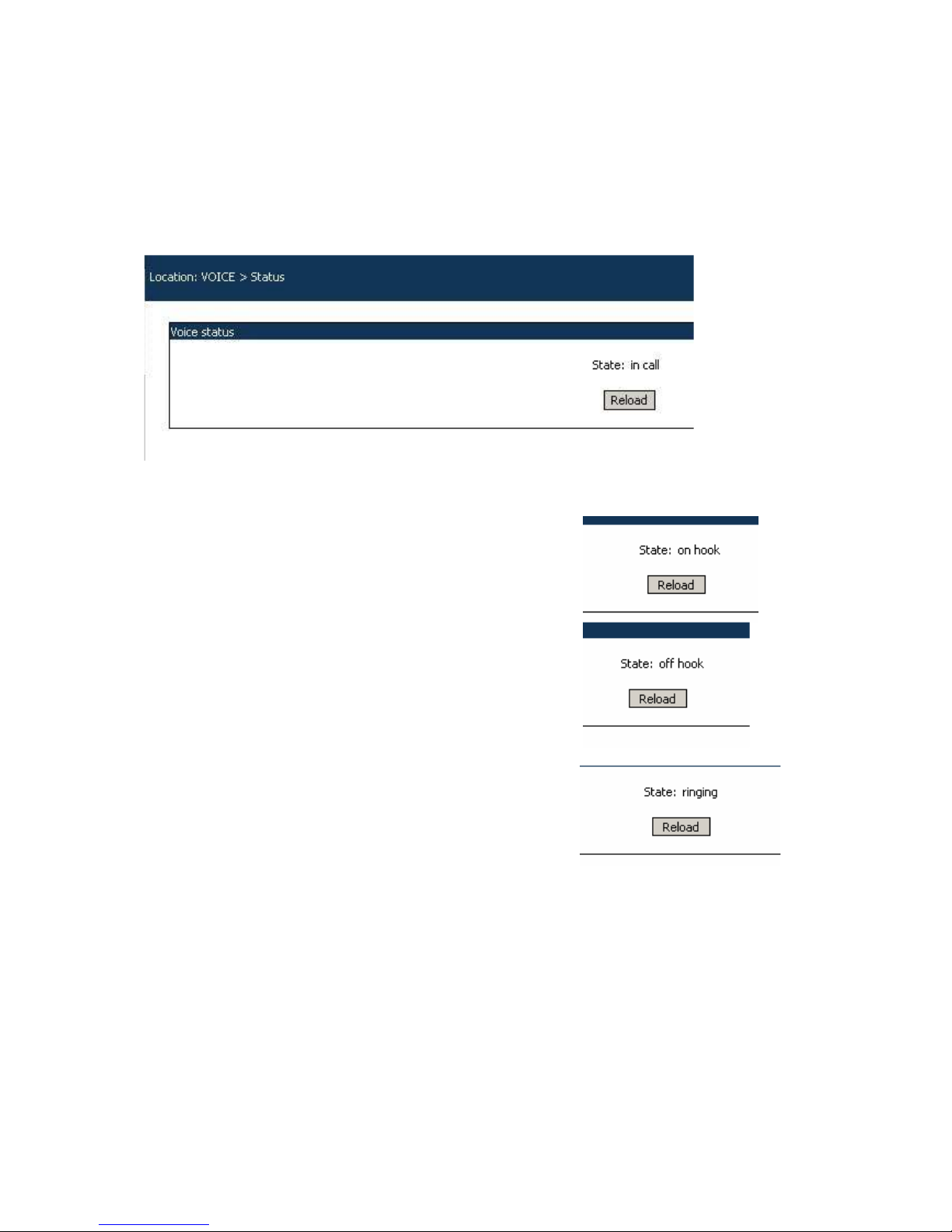
SPEEDY+ HSDPA User’s Manual
WMOCEAN +420 225 371 777 http://www.wmocean.com p. 64
and can you surf the Net or download files over the HSDPA broadband network, but the
voice service is not available for the moment!
Also, when you perform the Voice Interface settings for , take into account the warnings
and recommendations shown in the respective paragraph.
5.8.2. VOICE Status
This page shows you the current state of the voice interface of SPEEDY+ .
The example above indicates that the voice port of the SPEEDY+ equipment is in a call.
Some other possible states of the voice interface are explained below:
When you don’t use the voice connection, this should be
the normal state: the handset in put down (on hook), the
phone interface is not active.
You have picked up the handset, prior to dialing a number,
or the phone exchange has engaged the junction where
SPEEDY+ is connected. The phone line becomes active.
There is a call coming in, the phone port is in its RING
phase. You shoud pick up the handset to answer the call.
Page 66
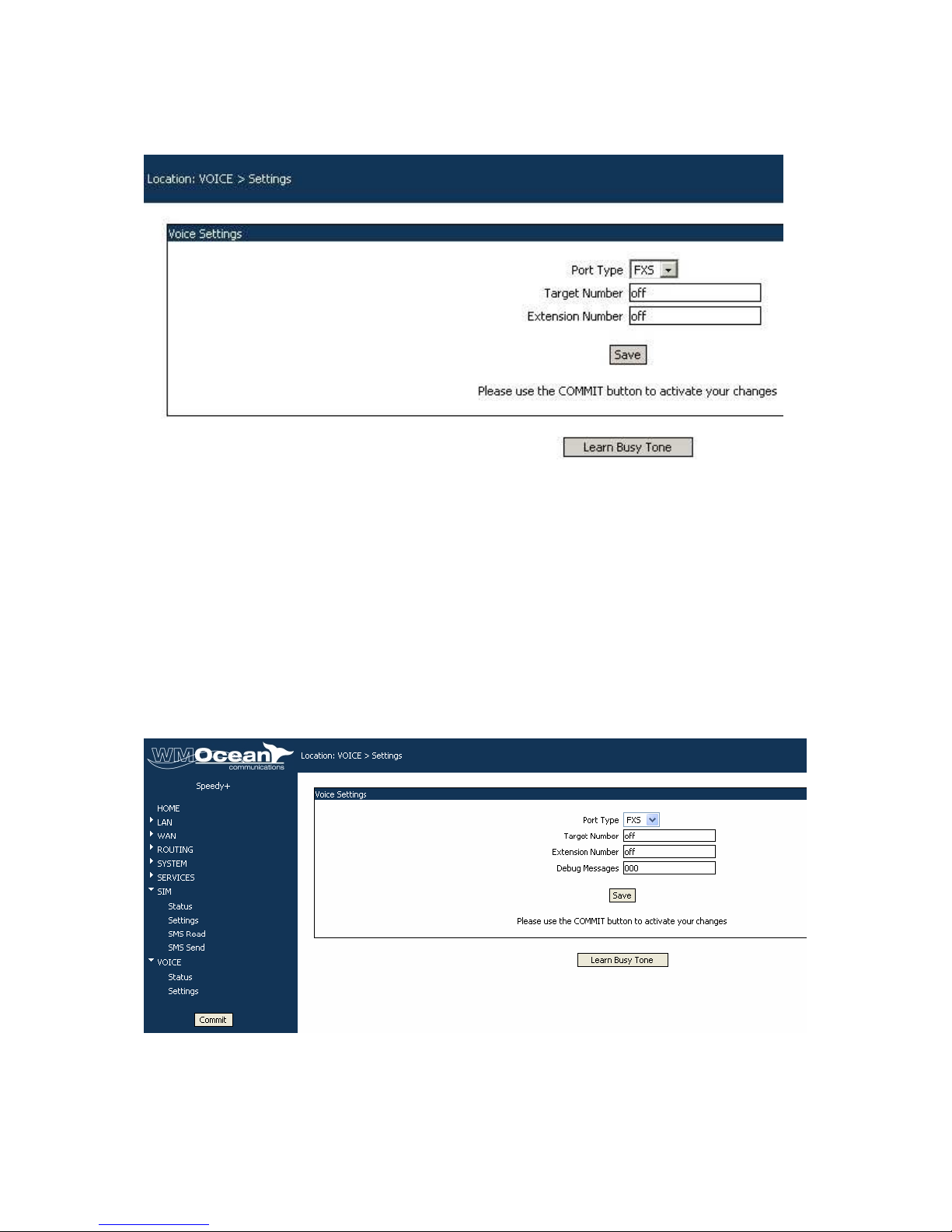
SPEEDY+ HSDPA User’s Manual
WMOCEAN +420 225 371 777 http://www.wmocean.com p. 65
5.8.3. VOICE Settings
Here are the settings for the analog phone interface (FXS or FXS) of the equipment.
Port type: first of all, you must choose the type of the phone port to use. You can select
either FXS (for connection to a trunk of the PBX or directly to an analog phone) or FXO
(when SPEEDY+ HSDPA may be connected to a local extension of the PBX, as you would
connect a standard office phone). The default is FXS,
Target Number - specifies how the incoming calls should be treated.
The default is off, or you should type a phone number (up to 4 digits).
When a call comes in through the FXO interface, you have two options: either provide the
caller with DISA tone, allowing him to dial numbers in DTMF mode, or specify a Target
number, such as 284. In the later case the DISA feature is not used, instead the incoming call
is routed directly to the local extension established in the Target Number field. For instance,
this extension may be the attendant console, so the operator will route the call manually.
Extension number – in case of configuration as FXO, the number of the local extension
where the SPEEDY+ equipment is connected.
Warning, unauthorized voice access is possible! If there are no restrictions regarding the
access rights of the extension where SPEEDY+ HSDPA is connected, anyone who calls the
mobile number of the SPEEDY+ HSDPA from a public network will get access to the outgoing
lines of the PBX. He will be able to make long distance calls that will be charged to the owner
of the phone exchange.
Page 67
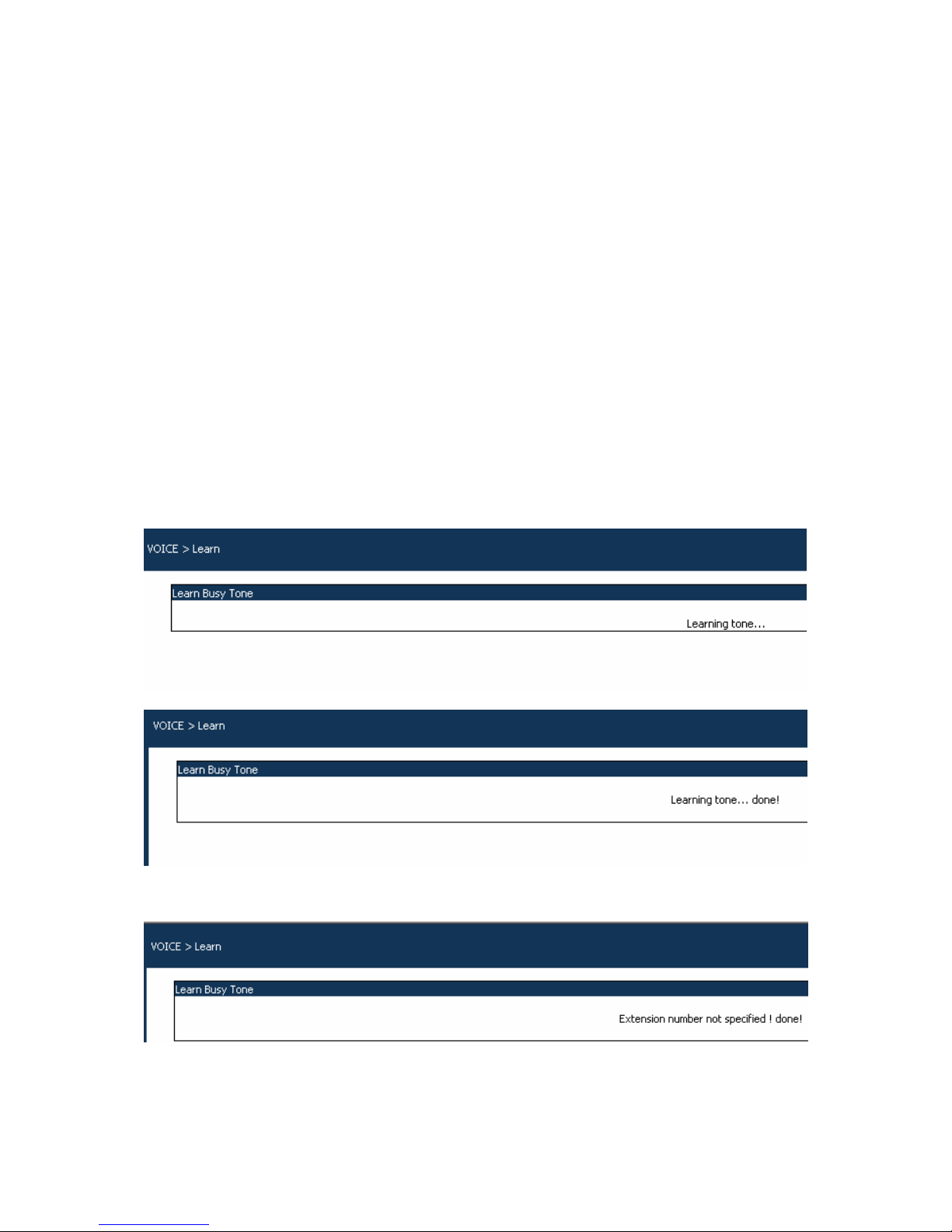
SPEEDY+ HSDPA User’s Manual
WMOCEAN +420 225 371 777 http://www.wmocean.com p. 66
To avoid this risk you have two possibilities:
1. Either configure the PBX to reject the outgoing calls that are initiated from the
extension where the SPEEDY+ HSDPA interface is connected.
2. Or, if the exchange cannot be configured in that way, then you must set the
SPEEDY+ HSDPA equipment not to offer a DISA tone when a mobile phone call
coming in. Instead, specify a “Target Number” instead of providing DISA tone. The
PBX will route the call to the operator. Instead of leaving the “Target Number” on the
default “off” value, enter the number of the operator desk.
Learn Busy Tone:
This setting refer to the requirement that the phone port of SPEEDY+ , used as FXO
interface, remembers correctly the “busy” tone of the PBX.
In order to rectmonitor the busy tone, the interface must be „told” of how to identify the busy
tone where it is connected. Here is how you must proceed:
- set the line type as FXO and connect SPEEDY+ to a local extension;
- perform a “Save”;
- make a call to the respective extension, from another local phone of the PBX where the
SPEEDY+ equipment is connected;
- SPEEDY+ will answer the call;
- than hang up the extension from where you made the call. This way a busy tone will be
generated towards the extension where the SPEEDY+ device is connected;
- the interface (junction) is released, following a time interval, by the SPEEDY+ equipment.
Check if FXO interface is released after a few seconds and click “Learn Busy Tone”;
- this tells to the SPEEDY+ HSDPA device “this is the correct busy tone”.
If yopu see the message “Done!”, it is OK, perform again a “Save”
- If SPEEDY+ does not release the interface, and you see an error message similar to this
one:
you should start over again the learning process.
Warning! It is strongly recommended that you use “Leran Busy Tone”.
Without it, the SPEEDY+ equipment cannot sense when the subscriber that called has hang
up, and the PBX has setd “busy” tone. If the called party is a human being using a cell
Page 68

SPEEDY+ HSDPA User’s Manual
WMOCEAN +420 225 371 777 http://www.wmocean.com p. 67
phone, he will hear the busy tone and should hang up. But if the correspondent is another
equipment such as SPEEDY+ , it won’t realize that the call has been ended, and the link will
remain on. Consequently, the phone bill will be huge!
To prevent this from happening, you should use the “Busy Tone Detection” option.
5.9 Optimizing WiFi Performances
This paragraph shows you a few basic rules / suggestions for improving the performance of
the wireless network of the SPEEDY+ HSDPA router.
5.9.1. Network physical configuration
As a general rule, you should try to locate the SPEEDY+ HSDPA equipment and their
wireless clients away from sources of EMI disturbances. These sources can be heavy-duty
electric motors, heaters, transformers, fluorescent lights, microwave ovens, refrigerators,
radio and TV equipment, etc.
To improve coverage, install the SPEEDY+ HSDPA Routers in open areas. If this can’t be
done or the distance between the wireless base station and its clients is too large, you
should use additional WiFi Access Points as needed, to obtain adequate signal strength
through your building. Even SPEEDY+ may be used as transparent bridge (repeater)
located midway between an AP and a remote client.
There are appliances (microwave ovens) that operate in the same frequency band as the AP
of BYTON Router. Thus your network performance may decrease when you use a
microwave in the range of the WiFi of SPEEDY+ HSDPA. This does not mean operation is
impossible, both your microwave and your the SPEEDY+ wireless Router will continue to
function.
5.9.2. Range
Before installing/setting up a SPEEDY+ HSDPA router, it is recommended to perform a site
survey. Without this it is not to determine the exact range that will be achieved and the
number of auxiliary APs required for a good coverage. Each office or home environment is
unique because of different topologies, size and shape of rooms, materials, and so on.
Please remember that:
- the specified transfer rate is the speed at which individual bits of data flow through a
channel, not necessarily the speed at which entire files are uploaded or downloaded
- these actual speed may vary, and often will be less than the maximum data rate
- wired or wireless speeds are affected by several factors including the availability of Internet
routers, the level of loading of the 3G cell, the capacity of and services offered by your
mobile network service provider, channel capacity, network traffic, computer equipment, type
of server, number of connections to server, etc.
In the frequency bands used by WiFi, radio signals may be absorbed (damped) by some
obstacles or reflect off of other obstacles, depending on their construction. The standard
specifications for 802.11b devices guarantee “up to 350 m in open space”. This is achieved
outdoors where the two devices see each other with no obstacles (they have a line of sight).
Still, the same two units may only achieve up to 100 m of range when used indoors. Heavy
concrete or metal walls may decrease this range even further.
Also, the IEEE 802.11b specification supports four data rates: 11 Mbps, 5.5 Mbps, 2 Mbps,
and 1 Mbps. Operation at 1 Mbps provides greater range than operation at 11 Mbps and so
on. The SPEEDY+ HSDPA Router will automatically adjust the data rate to maintain a
usable radio connection.
Page 69

SPEEDY+ HSDPA User’s Manual
WMOCEAN +420 225 371 777 http://www.wmocean.com p. 68
This means that a WiFi client that is close to the SPEEDY+ wireless Router may operate at
rates of 11 Mbps while a client that is on the far limit of coverage area will only operate at 1
Mbps.
If you want a very high data rate, the effective wireless range of the SPEEDY+ Router will be
reduced.
The same considerations hold true for the specification IEEE 802.11g: the maximum data
rate (54 Mbps) can be reached only if the signal strength is good enough. This means the
typical range in an office building may be just 20 m if you insist upon a 54 Mbps throughput,
but it will increase to 50 m if a transfer rate of 11 Mbps is acceptable for you.
Precisely because of their higher data rates, 802.11 g devices may be more susceptible to
interferences!
Page 70
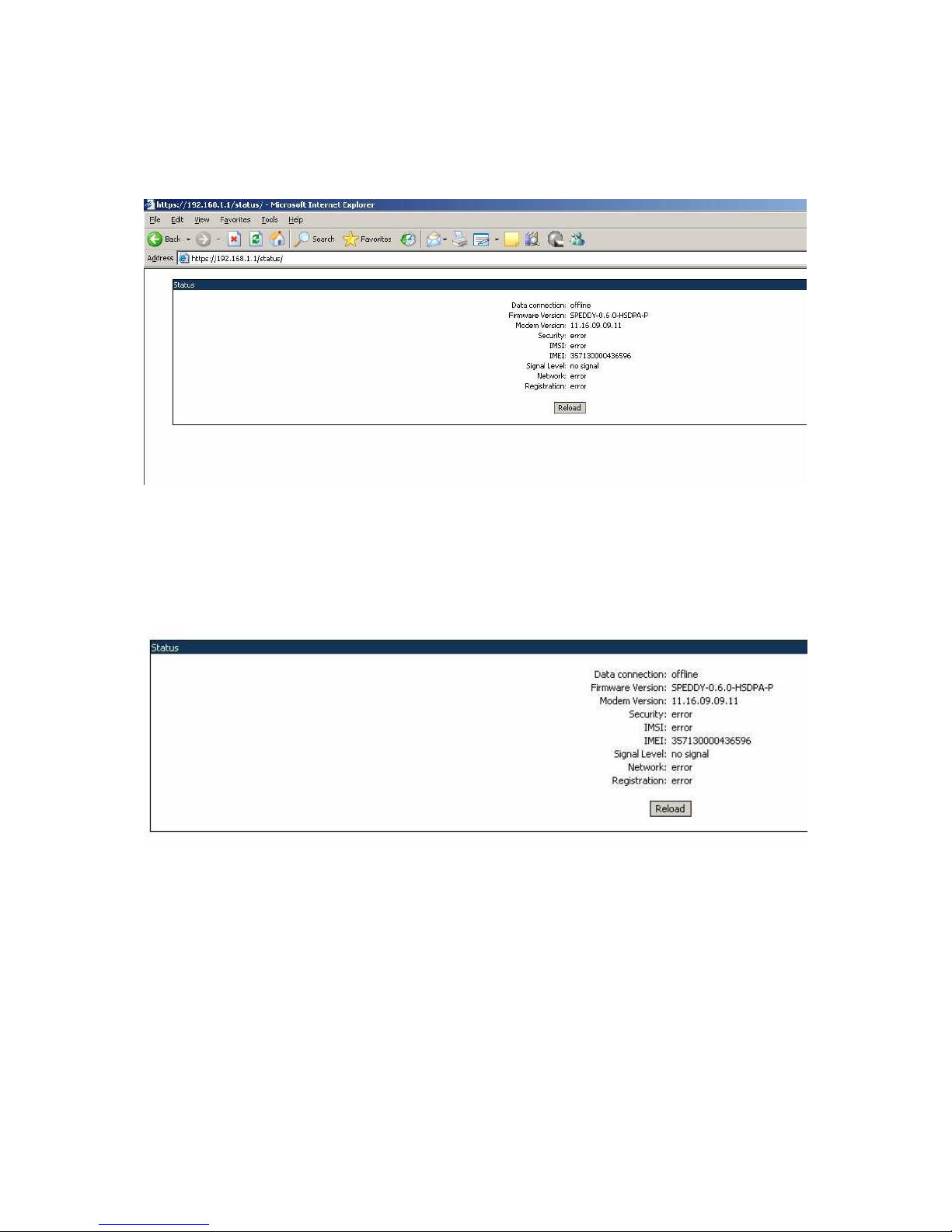
SPEEDY+ HSDPA User’s Manual
WMOCEAN +420 225 371 777 http://www.wmocean.com p. 69
5.10 Status Page
The SPEEDY+ HDSPA router features a status page, accessible for any user without need
for administrative password. Just enter in your browser the URL for the page:
““https://192.168.1.1/status” or “https://192.168.1.1/status/index.html”
While the configuration web pages shown previously are for configuring the SPEEDY+
HSDPA equipment, and are accessible only with log-in (you have access if you enter the
correct user name and password), the Status Page can be accesses by any user.
As its name suggest, this page is for displaying the current state of the SPEEDY+
router, you can see the current values but you cannot modify them (no changes are allowed).
It shows you the essential parameters of the WMOCEAN wireless router, that are available in
the web pager “SIM Status” and “System Status” described previously:
Data connection: it may be offline or online. If it is online, it also shows the current IP on the
WAN side, such as “172.20.36.180”.
Firmware version: the version of the firmware running on the WMOCEAN device, in format
“WMOCEAN-x.y.x-network” where the version number xyz may 0.4.2 or 0.5.6 and “network”
indicates the type of the mobile network for which it was designed, such as CDMA, GPRS,
UMTS, HSDPA or TDD. If you load a new firmware version on your SPEEDY+ equipment,
the status page will show the current version.
Modem Version: the version of the embedded firmware of the mobile modem of the
SPEEDY+ equipment.
Security: the state of the SIM card. Normally it should be “unlocked”, if it is “Locked by PIN”
it means you must enter the correct PIN code in order to unlock it.
- IMSI (International Mobile Subscriber Identity), identity of the subscriber
- IMEI (International Mobile Equipment Identifier). 15-digit number that uniquely identifies an
individual mobile terminal wireless device such as the HSDPA modem of SPEEDY+
- Signal Level, displayed with white figures on dark blue background. The two digits indicate
Page 71

SPEEDY+ HSDPA User’s Manual
WMOCEAN +420 225 371 777 http://www.wmocean.com p. 70
the level of the RF signal for the GSM/GPRS/UMTS/HSDPA network on a scale from zero to
30. The higher the value, the better 3G signal you have.
- Network: the name of the mobile network where the equipment is registered, as
transmitted by the mobile carrier
- Registration status: shows if the SIM card of the equipment is registered to the mobile
network (online) or not. Of course, if the SIM is not registered, the network-related
information cannot be displayed.
6. TECHNICAL SPECIFICATIONS
Title Description
Wireless
networks
GSM/GPRS/: 900/1800/1900 MHz
HSDPA/UMTS 2100MHz: 2100 MHz
Supported
protocols
TCP/IP, PPP, CHAP, PAP, ARP, UDP, RIP v.2, NTP and others
Features Full Firewall (SPI)
Router
Auto-negotiation, Auto-crossover Switch 4+1 switch
DHCP Server
Web configuration
IP Plug and Play
GRE for IP tunneling
RIP for dynamic routing
Wired Network
interfaces
Four LAN ports Ethernet 10/100 base-T
One WAN port
Connector type: female RJ45
Supports both static and dynamic IP address
Transfer speed: 10/100 Mbps
Wireless Access
Point
Supports the 802.11b/g WiFi standard
Maximum bandwidth: 54 Mbps for g, 11 Mbps for b
Frequency range: 2.4 GHz
Fully configurable via Web page
Voice interfaces Phone interfaces, either FXS or FXO
Line voltage :48Vcc ± 10%, Line current: 30 mA max.
Ring signal: 25 Hz, min. 65 V rms; Impedance: 600 ohm
Connector type: female RJ11
High speed
wireless modem
Simultaneous Voice and data
Stable and reliable concurrent service: supporting concurrency of
voice service based on UMTS and data service based on packet
switched (PS) mode;
Supporting SMS service based on GSM, GPRS or UMTS, supporting
group transmission of messages
GPRS: Multi-slot Class 10, type B, maximum: 4 slots RX, 2 slots TX, 5
slots Active, up to 85.6kbps on the GPRS network
UMTS data: PS, speed 384 Kbps Download and 128 Kbps Upload
HSDPA data: 3GPP R5 2004/06, up to 1.8Mbps
Max. transmitter
power
GSM/GPRS 900MHz: +33dBm (Power Class 4)
GSM/GPRS 1800MHz/1900MHz: +30dBm (Power Class 1)
UMTS/HSDPA 2100MHz: +24dBm (Power Class 3)
Page 72

SPEEDY+ HSDPA User’s Manual
WMOCEAN +420 225 371 777 http://www.wmocean.com p. 71
Receiver static
sensitivity
GSM/GPRS 900/1800/1900MHz:
Compliant with TS 05.05 (R99)
UMTS/HSDPA 2100MHz: Compliant with 3GPP TS 25.101(R5)
Voice service
GSM: FR, EFR, HR, AMR
UMTS: AMR(12.2kbps/10.2kbps/7.95kbps/7.4kbps/6.7kbps/5.9kbps
/5.15kbps/4.75kbps)
Detailed data
services
GSM CS: UL 9.6kbps/DL 9.6kbps
GPRS: UL 42.8kbps/DL 85.6kbps
UMTS CS: UL 64kbps/DL 64kbps
UMTS PS: UL 384kbps/DL 384kbps
UL UMTS/DL HSDPA: UL 384kbps/DL 1.8Mbps
Concurrent
service (Based
on UMTS)
1 UMTS CS voice + 1 UMTS PS data
SMS Supporting SMS based on CS domain of GSM or UMTS Supporting
SMS based on PS domain of UMTS
HSDPA antenna External quad-band antenna with magnetic base and cable
WiFi antenna External stick antenna for 2,4 GHz
Supply voltage 12 V
D.C
. (+ center wire, - external conductor)
Supply adapter
Special adapter, output : 12 V
D.C
. / 2 A
Input: from 100 to 240 V
A.C
. / 0,3 A / 50 Hz
Status indicators
LEDs, for POWER, WiFi, LINE and NET (network), plus one LED per
each LAN or WAN port.
Tem. range
Operating: 50 .... 500 C
Storage: 00.... 600 C
Dimensions
(L x W x H)
248 x 170 x 53 (mm) except protrusions
Weight 1100 g
Page 73

SPEEDY+ HSDPA User’s Manual
WMOCEAN +420 225 371 777 http://www.wmocean.com p. 72
7. OPERATING ENVIRONMENT
SPEEDY+ HSDPA was designed for indoor use only, so you should NOT operate it
outdoors.
You must install the SPEEDY+ HSDPA equipment in closed rooms or enclosures,
where the environment conditions should be:
operating temperature range: from 5 to 50 degrees C
relative humidity: from 10 to 85 %, non-condensing
You should avoid dust and prolonged exposure to sun radiation. In addition,
SPEEDY+ HSDPA must NOT be used in a flammable or explosive environment, or in
locations where toxic or flammable gases may accumulate.
The equipment must be handled with care, to avoid mechanical shocks and blows.
SPEEDY+ HSDPA should not be used in an environment with high level of EMI
(electromagnetic interferences) that is in close proximity to high power equipment such as
electric motors or heaters. In addition, it should not be placed near copiers, PC monitors, TV
sets or other audio-video appliances.
Page 74
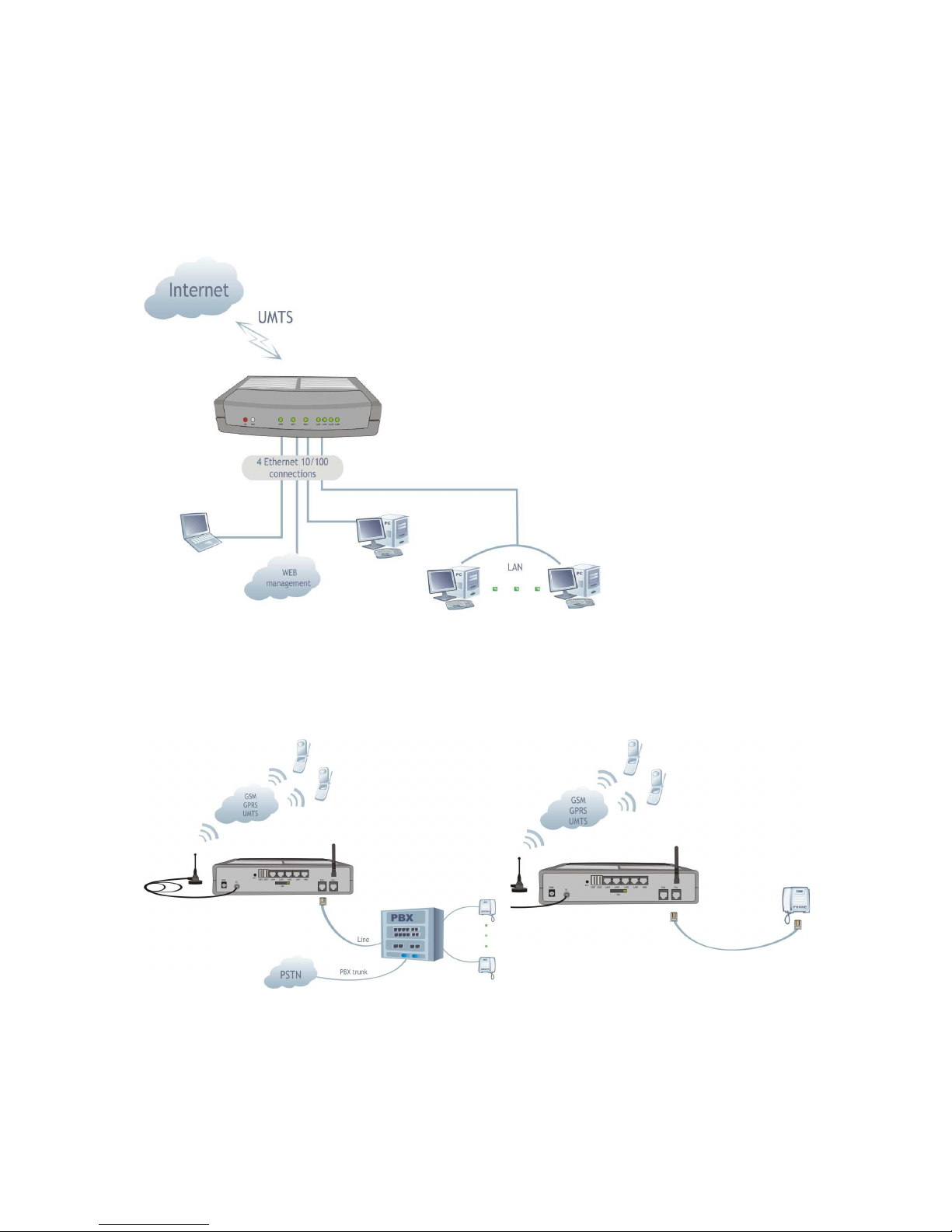
SPEEDY+ HSDPA User’s Manual
WMOCEAN +420 225 371 777 http://www.wmocean.com p. 73
8. APPLICATIONS
a) Wireless gateway/firewall/router using the HSDPA network
SPEEDY+ was designed primary for wireless use, where it connects several computer, a
local network or peripheral devices by means of its embedded HSDPA modem. SPEEDY+
acts as a powerful residential gateway, being a compact, all in one box (NAT, PAT, router,
firewall), connected to Internet via mobile broadband HSDPA technology.
You may connect to
the SPEEDY+
HSDPA equipment
both wireless clients,
via its embedded AP,
and wired (Ethernet)
clients, that is
computers and
various peripherals,
at the same time.
The access to data traffic does no longer require additional investments on equipment or
software (router, switch , software, wiring operations). SPEEDY+ HSDPA allows connection
to the local network (LAN) via four Fast Ethernet (10/100 Mbps) ports or via its AP.
These kinds of applications are especially suited for both home and small or medium
business network environment, where land connections are not readily available. With
SPEEDY+ HSDPA, you get simultaneous voice and high speed data wireless connection.
In addition, temporary events (festivals, sporting competitions, trade fairs and exhibitions)
may benefit from the use of a wireless broadband router. Even if the temporary event is
located in the heart of the city, getting a wired broadband connection for only 2-3 days
makes no economic sense.
Fields of applications may include Advertising & Marketing, Property / Estate Agencies,
Logistics, Recruitment, Travel & Hospitality, Healthcare, Media & Broadcasting , Insurance &
Finance.
Page 75
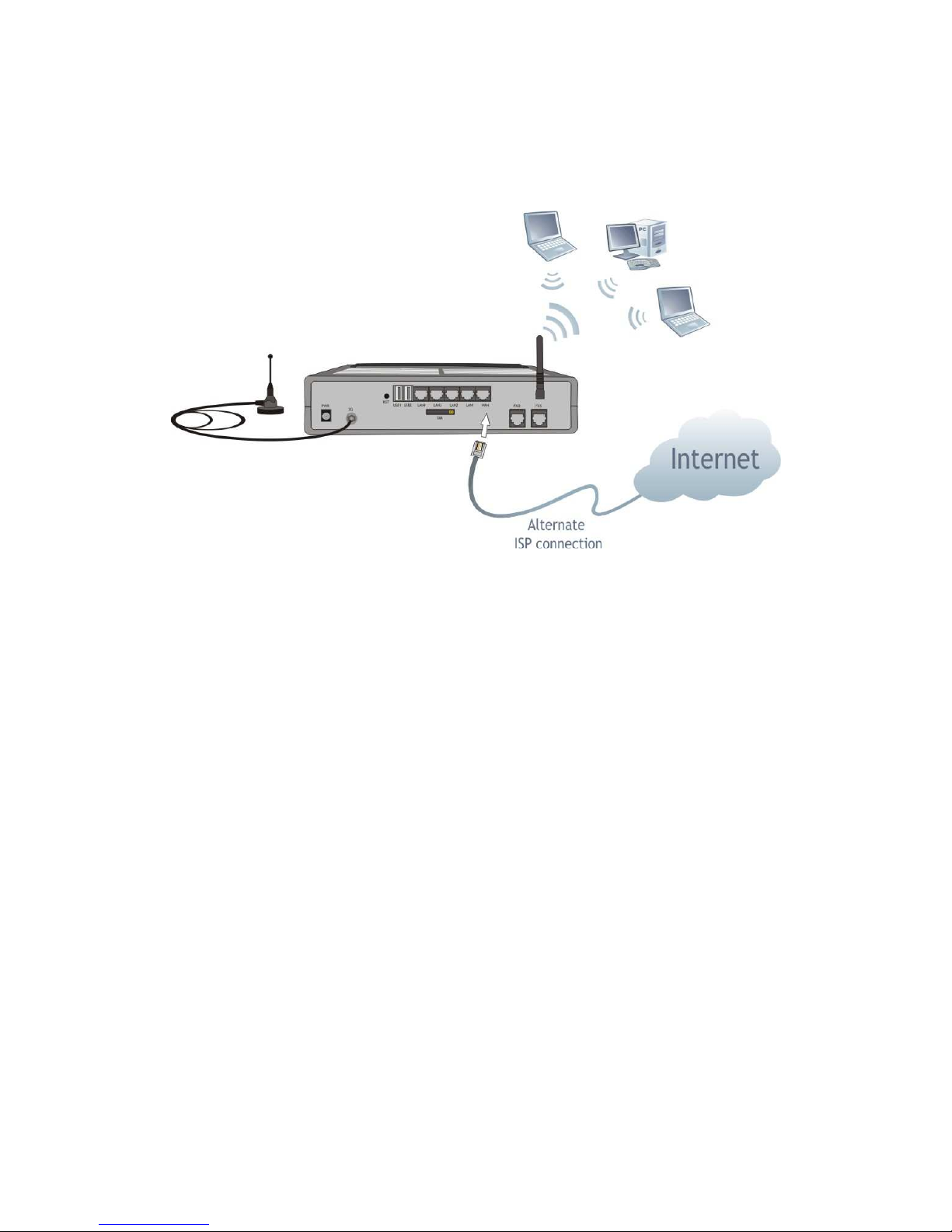
SPEEDY+ HSDPA User’s Manual
WMOCEAN +420 225 371 777 http://www.wmocean.com p. 74
b) Broadband router with wireless local connections
You may use SPEEDY+ without its HSDPA module, connecting instead a cable or DSL or
fiber modem to the WAN port of SPEEDY+ .
This way, the equipment acts a broadband router with wireless or wired local connection.
Its embedded WiFi (802.11g) Access Points allows immediate radio connection to computers
or peripheral devices (such as notebooks, PDA, printers, IP phones, surveillance cameras or
other devices equipped with WiFi interfaces).
You no longer need Ethernet cables to connect these devices and have all the advantages
provided by the Wireless Access Points!
Still, the four LAN ports are available, and you may combine in different configurations the
wired and wireless local connections.
In both home or small business environments SPEEDY+ HSDPA allows flexible, mobile
interconnection of desktop and notebook computers, printers and other peripherals such as
scanners, playstations for on-line games, and provides web surfing, playing online games,
netmeeting, video transmissions, listening to mp3 music, etc
Page 76
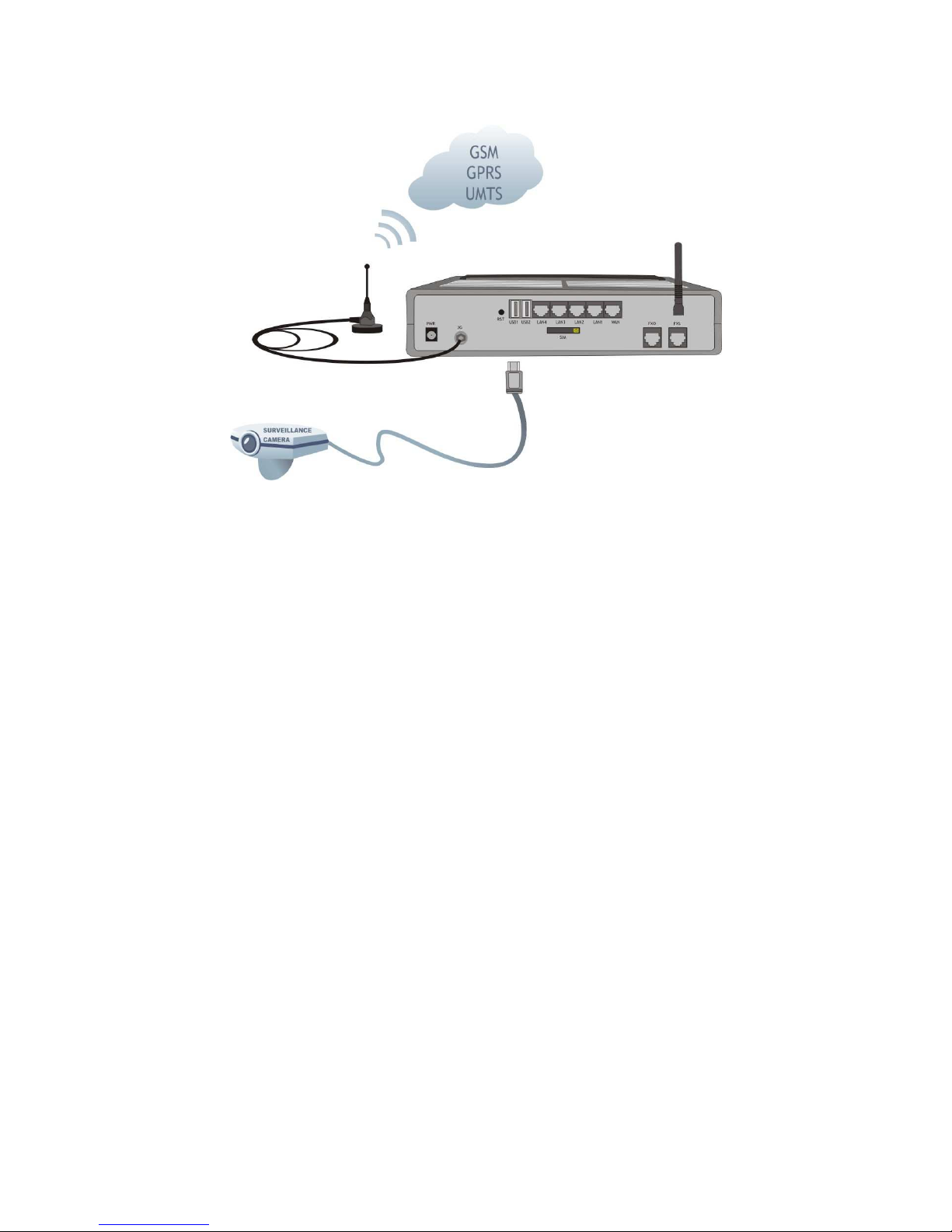
SPEEDY+ HSDPA User’s Manual
WMOCEAN +420 225 371 777 http://www.wmocean.com p. 75
c. Remote video surveillance with camera
With its built-in firmware, SPEEDY+ HSDPA allows easy connection of one or several video
surveillance cameras to a remote center, transmitting the still pictures or video stream via its
embedded HSDPA modem.
The device can take over high-speed imaging inputs from different types of cameras (with
USB, Ethernet or WiFi interfaces).
The USB webcams that are compatible with the PWC Linux driver may be connected
directly to SPEEDY+ , no additional firmware or software is required. The surveillance and
the control of the camera may be performed remotely, from any web browser.
Page 77

SPEEDY+ HSDPA User’s Manual
WMOCEAN +420 225 371 777 http://www.wmocean.com p. 76
9. Glossary
Access Point - The network hub device or “base station” for a wireless network. An access
point (AP) is a device that allows wireless clients to connect to other wireless clients and it
acts as a bridge between several local wireless clients and a another network, such as 3G
mobile broadband network or wired Ethernet. SPEEDY+ HSDPA acts as an AP and can be
server to as many as 32 WiFi clients (notebooks, desktop PCs with wireless cards or USB
adapters, PDAs, wireless peripherals and so on)
Broadband - A type of data transmission in which a single medium (radio, cable or fiber
optics) carries several channels of data at once. Broadband is also associated with high
transfer speed (at least 300 Kbps). HSDPA technology fully qualifies for mobile broadband
connection!
CDMA – Acronym for Code Division Multiple Access. Advanced communications technology
that is a driving force behind 3G wireless networks around the globe. CDMA ensures
excellent quality of voice signal, without noise or interferences, high rate of data transmission
and permits a uniform distribution of energy in the emitted bandwidth. UMTS makes use of
the W-CDMA technology, wideband CDMA.
Client – wireless clients are the “mobile terminals” connected to your local WiFi network.
These WiFi clients may be notebooks, desktop computers, PDAs, IP phones or other
wireless devices.
CLIP - Acronym for Calling Line Identity Presentation. This feature allows the ID (phone
number) of the caller to be displayed during the call. It is a service of the phone network. For
end-users, this service is handy in order to screen incoming calls, prepare the specific
response, greeting the caller by name or looking up for missed or unanswered phone calls.
SPEEDY+ HSDPA can use the CLIP facility to identify the subscribers who called and
route the incoming calls according to their Caller ID.
CLIR - Acronym for Calling Line Identification Restriction. Feature that restrict the
identification of your caller ID to the other party. This hides your identity from callers with
Caller ID feature. You may activate this function on the SPEEDY+ equipment , thus
disabling the sending out of Caller ID.
DISA – Acronym for Direct Inward System Access. This function allows an outside caller
to directly access a local subscriber of the phone exchange by using DTMF codes.
The typical application is when you call directly a local subscriber without need for a human
operator at the phone exchange.
The SPEEDY+ HSDPA equipment makes use of DISA-like routing to manage both
incoming and outgoing calls without need for a human operator. For example a local
subscriber may dial (using DTMF codes) a mobile number via the SPEEDY+ HSDPA
equipment.
DTMF - Acronym for Dual Tone Multi Frequency, also known as "touch tone". Advanced
method for dialing a number, instead of the older Pulse mode. When you press a key on the
keypad a combination of two audio frequencies is sent on the line. DTMF capability is
important because it allows access to a wide range of interactive voice applications. The
SPEEDY+ equipment uses DTMF dialing to transmit the numbering from local subscribers to
the mobile networks. Also, it uses dialing in DTMF mode to ensure phone connections
without need for an operator at the PBX.
Device name - Also known as DHCP client ID or network name. Some ISP provide the
customers with such device names, when using DHCP to assign addresses.
DHCP (Dynamic Host Configuration Protocol) - This protocol allows a computer (or many
computers on your network) to be automatically assigned a single IP address from a DHCP
server. DHCP is available on SPEEDY+ HSDPA.
DNS – Acronym for Domain Name System (or Service), an Internet service that translates
domain names into IP addresses. This allows the Internet hosts to use both addresses type
domain name (such as WMOCEAN.com or linux.org), and addresses type IP numbers (for
instance 192.17.3.4). The domain name addresses are intended for human users and are
automatically converted into IP (numeric) addresses. Because domain names are alphabetic,
they are much easier to remember. The Internet however, is really based on IP addresses.
Page 78

SPEEDY+ HSDPA User’s Manual
WMOCEAN +420 225 371 777 http://www.wmocean.com p. 77
Every time you use a domain name, therefore, a DNS service must translate the name into the
corresponding IP address.
DNS Server – computer able to answer to the interrogations in a DNS system. The DNS
server maintains a database that includes the host computers with their domain names and
the corresponding IP addresses. For instance, if you ask the DNS server for the domain
name apex.com, it will return the IP address of the hypothetical company called Apex. DNS
servers are linked in their network, so if one DNS server doesn't know how to translate a
particular domain name, it asks another one, and so on, until the correct IP address is found.
When a user enters a domain name into the Internet browser, the user is sent by the DNS
Server to the proper IP address. The DNS server address used by the computers on your
home network is the location of the DNS
DNS Server Address (Domain Name System) - DNS allows Internet host computers to have
a domain name and one or more IP addresses. A DNS server keeps a database of host
computers and their respective domain names and IP addresses, so that server your ISP has
assigned.
Dynamic DNS - service that allows clients connecting to the Internet with a dynamic IP
address to be able to use applications that require a static IP address. The Internet Service
Provider changes the IP address of the users, but there are applications that work only with
static (fixed) IP addresses. Dynamic DNS makes it possible for sites on the Internet to
establish connections to you computer without need for tracking the IP address themselves.
DDNS is useful both for wired or wireless (such as UMTS) dialup connection where at each
connection a new address is assigned, and for DSL services where the address is changed
occasionally by the ISP.
Domain Name Resolution - The resolving of a domain name. Internet applications don’t
communicate with domain names such as google.com or WMOCEAN.com, instead they use
IP addresses (for example 193.226.61.95 or 216.239.39.99). Domain Name Resolution is the
process (transparent for the user) of converting domain names into corresponding IP
addresses. Every operating system has routines that deal with resolution of domain names.
Encryption - This provides wireless data transmissions with a level of security.
ESSID - Acronym for Extended Service Set ID. ESSID is one type of SSID (the other being
BSSID). The ESSID is the identifying name of a wireless network. You can use a name that
describes the network, such as „PurchasingnetworkA”, „SPEEDY+ _UMTS” or
„InternetCafeDoris”. This allows one wireless network to be clearly distinguishable from
another. Also, this will ensure that only the users that have configured the same ESSID may
access your WiFi network - you must have the same ESSID entered into the gateway and
each of its wireless clients.
You can also hide ESSID, to ensure that your Access Point is not visible to others. This
increase the security – since the Wireless LAN network is invisible from outside, it will be
more difficult for potential hackers to find out that there is a WiFi network available.
Ethernet - Standard for wired computer networks. Ethernet networks are connected by
cables and hubs, and move data around. For wired connections, SPEEDY+ HSDPA
provides Ethernet 10/100 ports, four for the local LAN and one for WAN.
Firewall - System designed to prevent unauthorized access to or from a private network.
The firewall determines which information passes in and out of and prevents anyone outside
of your network from accessing your computer without authorization and possibly damaging
or viewing your files. Any company with an intranet that allows its workers access to the
wider Internet must use a software or hardware firewall to prevent outsiders from accessing
its own private data resources and for controlling what outside resources its own users have
access to.
Here the firewall is software a set of related programs (residing on the gateway server) that
protect the resources of the local (internal) network.
The firewall works together with a router program and examines every incoming or outgoing
data packet to determine whether to forward it toward its destination or reject it. The firewall
is installed in a specially designated computer (in this case the SPEEDY+ HSDPA unit)
separated from the rest of the network so that no incoming request can get directly at the
resources of the local network.
Page 79

SPEEDY+ HSDPA User’s Manual
WMOCEAN +420 225 371 777 http://www.wmocean.com p. 78
FXS - Acronym for Foreign Exchange Station. The FXS phone interface supplies ring,
voltage, and dial tone for a “Station”, that may be an analog phone, a modem, a fax machine,
or any analog device of the final user. The FxS interface of the SPEEDY+ HSDPA
equipment may be used for connection either to an analog trunk of the PBX or directly to a
standard fixed phone.
FXO - Acronym for Foreign Exchange Office. The Office phone interface connects to the
public phone exchange (central office - CO), or a FxS board of the PBX. The FXO device
gets power supply from the central battery and disk tone services. The FxO interface of the
SPEEDY+ equipment is used to connect the device to a local extension line (local
subscriber) of the PBX. Both FxS and FxO interfaces use two wires.
Gateway - A network point that manages all the data traffic of your network, as well as to the
Internet and connects one network to another. SPEEDY+ is also gateway, since it interfaces
between the local networks (wired or wireless) and the HSDPA mobile network or another
broadband connection.
GRE – Acronym for Generic Routing Encapsulation. GRE is used as a tunneling protocol,
which can encapsulate a wide variety of protocol packet types inside IP tunnels. IP tunneling
using GRE protocol allows easy creation and expansion of a Virtual Private Network using
the 3G mobile network.
Idle Time: time value for disconnecting the UMTS dial-up link when there is no more data
traffic. If during the specified time interval no data packet is sent on the PPP dial-up
connection, then this connection is broken by SPEEDY+ .
If you set the time interval to 0 (zero), the dial-up connection will remain always on, even if
there is no data traffic.
IMEI - Acronym for International Mobile Equipment Identifier. 15-digit number that uniquely
identifies an individual mobile terminal wireless device. The device may be a phone, a data
terminal, a modem module (like the one inside SPEEDY+ ) etc. The IMEI code consists of
TAC (Type Approval Code) that describes the type of the mobile device, FAC (Final
Assembly Code) related to final assembly, SNR (Serial Number) which is unique, and a
spare digit.
Note that while IMSI is subscriber-related, the IMEI is equipment-related. IMEI is world-wide
specific for a certain mobile terminal (phone or modem).
IMSI – Acronym for International Mobile Subscriber Identity. Unique code number (for all the
world) that identifies a mobile subscriber (its SIM card) to the network. 15 digit code, contains
information about the module code for the country, the network, identification number for the
mobile station (subscriber). Linked to the user account information at the network operator.
IMSI resides in the SIM card. While IMEI is related to the mobile phone GSM/HSDPA
module, the IMSI code is related to the SIM, if you change the SIM card used by SPEEDY+
you will have another IMSI code. If the HSDPA module of SPEEDY+ detects an active SIM
card, it will query (and display) the IMSI code.
ISP (Internet Service Provider) - An ISP is a business that allows individuals or businesses to
connect to the Internet. Users log on to the Internet using an account with an ISP or Internet
Service Provider. ISPs
can serve IP addresses dynamically, or assign static (fixed) IP addresses to individual
computers. In this case, the Internet provider is the operator of the 3G mobile network.
MTU - Acronym for Maximum Transmission Unit. Generally, the size of the largest
datagram that can be passed by a layer of a communications protocol (that can be
transmitted or received through a logical interface). All messages larger than the MTU will be
divided into smaller packets before being sent. In our case MTU is the largest physical
packet size, measured in bytes that a network can transmit. The size includes the IP header
but does not include the size of any Link Layer headers or framing.
Different networks have different values for MTU, which is set by the network administrator.
Most networking technologies have a default MTU size: this is 576 for many PPP
connections, 1500 for Ethernet networks, 65K for HYPER channel, etc.
Page 80

SPEEDY+ HSDPA User’s Manual
WMOCEAN +420 225 371 777 http://www.wmocean.com p. 79
NAT - Network Address Translation. NAT is an Internet standard that enables a local-area
network (LAN) to use one set of IP addresses for internal traffic and another set of addresses
for external traffic. On the gateway, NAT software performs all necessary translations of the
IP addresses. There are several purposes for NAT usage:
Provides a type of natural firewall by hiding all the internal IP addresses from the Internet.
Only the single IP assigned to the router is visible from the Internet.
Several computers on the local network to use one IP address, enabling access to the
Internet from any computer network without the need to get more IP addresses from the ISP
local computers are not directly reachable from the Internet, making them more secure
the company can use several internal IP addresses. Since they're used only internally, there
is no possibility of conflict with IP addresses used by other companies or organizations.
NTP - Acronym for Network Time Protocol. Internet standard protocol used to update the
real-time clock in a computer. It assures accurate synchronization to the millisecond of
computer clock times in a network of computers.
NTP is very useful in packet-switched, variable-latency data networks. In case of SPEEDY+ ,
if you want to measure the performances of the network, you need accurate, universal timestamps for the data packets.
NTP runs as a continuous background client program on a computer and it sends periodic
time requests to servers, obtaining server time stamps and using them to adjust the client's
clock. NTP uses UDP port 123 as its transport layer. It is designed particularly to resist the
effects of variable latency. There are numerous primary and secondary servers in the
Internet that are synchronized to the Coordinated Universal Time (UTC) via radio, satellite or
modem. For more information, visit www.ntp.org.
PBX - Acronym for Private Branch eXchange. The PBX is a small, enterprise version of the
larger central switching office of the phone company. A PBX is a private telephone switch. It
is connected to groups of trunks (junctions) from one or more central offices and to all of the
telephones at the location (subscribers, local extensions) served by the PBX. Current
exchanges are in fact PABX, automated PBX, which don’t require a human operator to route
the calls. The SPEEDY+ HSDPA equipment was designed to work together with a PABX
with analog trunks to route the calls. SPEEDY+ may be connected to the PBX either on a
trunk line or on a subscriber line (local extension).
PSTN - Acronym for Public Switched Telephone Network (s).
This is the classic international fixed telephony system based on copper wires that carry
voice and data. Analog (mostly) or digital technology is used to provide voice grade services
for the users that access that network via an analog interface. The SPEEDY+ device
connects to a PBX that has trunks going to the PSTN, so the equipment performs as an
interface between the mobile network (GSM/GPRS/UMTS) and the PSTN.
PPP - Acronym for Point-to-Point Protocol. Network protocol widely used to connect
computers to the Internet. Works on the data link layer of the OSI model. PPP sends the
TCP/IP packets of the gateway to a server that puts them onto the Internet. It is more stable
than the older SLIP protocol and provides error-checking features.
PPP is the Internet standard for dial-up modem connections, no matter if they are phone line
modems of high-speed UMTS wireless devices such as the embedded HSDPA modem of
SPEEDY+ .
PPPoE - Acronym for Point-to-Point Protocol over Ethernet. A method of secure data
transmission, PPPoE using Ethernet to connect to an ISP. The PPP traffic is sent over
Ethernet to the Internet through a common broadband medium. The users have the
appearance of "dialing" the Internet, but their computers are in fact always connected.
PPPoE supports a broad range of existing applications and services, from authentication,
accounting and secure access to configuration management. SPEEDY+ supports on the
WAN side either PPP or PPPoE connection.
Page 81

SPEEDY+ HSDPA User’s Manual
WMOCEAN +420 225 371 777 http://www.wmocean.com p. 80
RIP - Acronym for Routing Information Protocol. RIP for IP is a distance-vector routing
protocol, which is the main dynamic routing protocol used in small or medium-sized IP
internetworks.For dynamic routing, SPEEDY+ HSDPA supports protocols RIP v2 and OSPF.
Routing -The process of determining and prescribing the path or method to be used for
establishing connections and forwarding data packets. In a network, a 'routing switch' is a
device that combines the functions of a switch, which forwards data by looking at a physical
device address, and a router, which forwards packets by locating a next hop address. Each
host with a router in the network uses the routing table information to determine the next host
to route a packet to for a specified destination.
SPEEDY+ performs as a router for the wired or wireless local network where it is connected.
It can perfom both static routing (with fixed, pre-defined routes) and dynamic routing.
Dynamic routing is more complex than static routing, but it provides several benefits. It
ensures scalability and adaptability. The routes are dynamic, interactive, permanently
updated. Routers learn about the network topology by communicating with other routers so it
may select a better route, optimized for each time period. The SPEEDY+ equipment
supports different protocols for dynamic routing, such as RIP v 2 for distance vector routing
and and OSPF for link state routing.
S-HTTP - Acronym for SECURE HYPERTEXT TRANSFER PROTOCOL. A secure way of
transferring information over the Web, by using an application-level encryption scheme. SHTTP is an extension of the normal HTTP with security enhancements for WWW-based
commerce. Web pages that use S-HTTP have a URL starting with https://. Typically HTTP
data is sent over TCP/IP port 80, but HTTPS data is sent over port 443. The standard was
developed for secure transactions, and uses 40-bit encryption ("weak" encryption) or 128-bit
("strong" encryption). The HTTPS standard supports certificates and allows encryption,
digital signatures, authentication, or any combination of these.
The S-HTTP type of transaction security is more secure than a user ID and password, thus it
is mostly used by financial institutions (for example for credit-card purchases over the Web).
Since SPEEDY+ provides ensures S-HTTP, this means a higher degree of security for you.
SMS - Acronym for Short Message Service; means the transmission of short text
messages to and from cellular phones. The messages must be text only (no images or
graphics) and not longer than 160 alpha-numeric characters. Operators of Mobile Phone
Networks use a spare data channel to send SMS messages. You may send SMS messages
to another mobile subscriber, the mobile operator can send you phone settings over-the-air
or commercial companies may send dedicated content to your mobile terminal. The
embedded firmware allows SPEEDY+ equipment to send and receive SMS (via mobile
network) from the computer connected to it.
Static packet filter - One of the simplest and least expensive forms of firewall protection is
known as static packet filtering. With static packet filtering, each packet entering or leaving
the network is checked and either passed or rejected depending on a set of user-defined
rules. Dealing with each individual packet, the firewall applies its rule set to determine which
packet to allow or disallow. The static packet filtering firewall examines each packet based
on the following criteria:
* Source IP address
* Destination IP address
* TCP/UDP source port
* TCP/UDP destination port
Static packet filtering is easy to implement and configure and does not use a lot of resources,
but its efficiency is limited. Basic packet filtering firewalls are susceptible to IP spoofing,
where an intruder tries to gain unauthorized access to computers by sending messages to a
computer with an IP address indicating that the message is coming from a trusted host.
Another shortcoming is that this form of firewall rarely provides sufficient logging or reporting
capabilities.
Page 82

SPEEDY+ HSDPA User’s Manual
WMOCEAN +420 225 371 777 http://www.wmocean.com p. 81
SPI - Acronym for Stateful packet inspection. The embedded SPEEDY+ firewall also
performs stateful packet inspection. This approach examines the contents of packets rather
than just filtering them. It takes into account not only the addresses of the data packets but
also the contents and the state of the connection. Stateful means they take into account the
state of the connections they handle so that, for example, a legitimate incoming packet can
be matched with the outbound request for that packet and allowed in. In addition, an
incoming packet masquerading as a response can be blocked if the firewall knows that the
outbound request is in fact nonexistent. Rather than controlling the individual data packets.
SPI uses smart rules, thus enhancing the filtering process and controlling the network
session. Static packet filtering cannot stop DOS attacks But SPI closes ports until legitimate
users request them opened so it prevents certain kinds of Denial of Service attacks. Since
SPI firewalls compare packets to previous packets, the packets that violate the rules can be
dropped.
SSID - Service set identifier, the name of a wireless local area network (WLAN). A code
attached to all data packets on a wireless network for identification purposes. Besides
identifying each packet, SSID serves also to identify a group of wireless network devices
used in a given "Service Set". This ID allows multiple wireless Ethernet networks to be active
at the same time in the same location. You may allow or disable the “public SSID”, which is
set on the access point and broadcast to all wireless devices in range. If you disable the
automatic broadcasting of SSID feature the security of the network is increased, people who
don’t know this ID cannot connect to the WiFi LAN.
WEP - Acronym for Wired Equivalent Privacy, encryption protocol for WiFi networks. As its
name says, WEP was designed to provide for WLAN a level of privacy equivalent to that of
an unsecured wired LAN. WEP is used at the two lowest layers, the data link and physical
layer. To read a WEP encryption on file you need a secret key or password to decrypt it.
There are two main types of WEP encryption, symmetric and respectively asymmetric WEP
(public key WEP encryption). and WEP encryption. WEP encryption standard employs 40-bit
encryption and a 128-bit WEP encryption option. Remember that only when using the 128-bit
keys WEP encryption it ensures the same level of security as the unencrypted wired
Ethernet. WEP is NOT an industrial strength security algorithm. It is vulnerable because of
relatively short IVs and keys that remain static.
Page 83

SPEEDY+ HSDPA User’s Manual
WMOCEAN +420 225 371 777 http://www.wmocean.com p. 82
The manufacturer reserves the right to modify the product and manual for the
purpose of technical improvement without prior notice. The manufacturer guarantees
the good functioning of the product provided that it has been correctly installed and
the directives for storage and usage have been respected. The warranty implies
exclusively repairing or replacing the defective unit. The warranty does not include
any indirect losses or loss of profit. The manufacturer is not liable for any damage,
whether direct, indirect, special, incidental, or consequential, as a result of using
WMOCEAN SPEEDY+ HSDPA.
No part of this manual may be reproduced, stored in a retrieval system, or
transmitted, in any form or by any means, electronic, mechanical, recording, or
otherwise, without the prior written permission of the company WMOCEAN S.A.
It is certified hereby that the WMOCEAN SPEEDY+ HSDPA unit is
manufactured in concordance with the legal provisions concerning responsibility
towards the quality of delivered products, fulfills the quality parameters specified in its
“User’s manual” and is fit for the purpose for which it has been designed. It also
warrants that the equipment will perform substantially in accordance with the
accompanying documentation.
Any comments, suggestions and proposals of yours concerning our products
are welcome and we are gladly waiting for your feedback:
WMOCEAN s.r.o.
Pod Vinicí 2028/20
143 01 Praha 4
Czech Republic
Tel: +420 225 371 777
Fax: +420 225 371 779
E-mail: wmocean@ wmocean.com
Web: http://www.wmocean.com
 Loading...