

Page 1
Mini Portable Modular Mobile DVR USER MANUAL
- 1 -
ON-BK6 series
USER MANUAL
Page 2

Mini Portable Modular Mobile DVR USER MANUAL
- 2 -
Tips about safety instruction & direction
Introduction
Please read this
Before installing
and using .
please keep this
manual for future
reference.
Before installing and using please read the
following warning carefully.
The recorder uses DC power supply, input DC range is 8V-36V, Please
pay attention to VDD and GND when connecting the power, DO NOT
make DVR short-circuit.
After DVR connect camera, the initial power must be over 30W (Specific
power consumption will vary depending on the external
equipment),Power Supply must be provided over 30W.
From the power supply to DVR all power cables must ensure that the
diameter is thick enough to withstand more than 60Watts. For example,
when the vehicle power supply output voltage is 12V , the source line
must be able to withstand 5Amps or more;
Install the equipment in the dry environment, avoid damp, drip, water
spray,etc.
To extend the life of the equipment, please install the equipment
in the weak vibration part of the vehicle;
The equipment should be installed in the vehicle interior
ventilation, do not install in the closeness environment;
Ensure that equipment away from the heat source in the vehicle, the
equipment can not have sundries piled up;
As far as possible from the electromagnetic environment, away from
the strong interference environment;
Ensure that passengers or drivers can not interfere and damage any
component of the equipment.
The installation and all materials must bear the fuselage weight.
It is recommended that the power cord wear heat resistance,
waterproof and oil proof casing which can prevent the short circuit
or break up due to the long time vibration in the vehicle.;
In the absence of professional guidance, please do not open or remove
the equipment.
Page 3

Mini Portable Modular Mobile DVR USER MANUAL
- 3 -
Introduction
The manual is about the features and specifications of one kind of car DVR, it is an
integration of “4CH monitoring and recording ”, “ Megapixels Digital & Analog mixed car DVR”,
“wireless data transmission ”.
In the manual it describes the functions and considerations of the modules ,the connector
signal definitions in the back panel, the interface definition and user’s operations. More details,
please check following directory.
State:
This manual may exist any technical describe inaccurate or misprint, also the contents will be update
unscheduled without notice, new contents will be added in next version;
We’re subject to improve or update product description or program, If any difference, all depend on real
goods, please understand.
Page 4

Mini Portable Modular Mobile DVR USER MANUAL
- 4 -
Contents
1. System Introduction .......................................................................................................................................- 6 -
1.1.Product features........................................................................................................................................- 6 -
1.2.Appearance............................................................................................................................................... - 8 -
1.3 Remote Controller.....................................................................................................................................- 9 -
1.4 Panel Definition......................................................................................................................................- 10 -
1.5 Product Introduction .............................................................................................................................. - 11 -
2. Main Functions .................................................................................................................................................- 11 -
3. Parameter Sheet...............................................................................................................................................- 12 -
4. Real-time video interface description..............................................................................................................- 16 -
4.1 Real-time monitoring interface:............................................................................................................- 16 -
4.2 Various signal status icons as follows:...................................................................................................- 16 -
5. Operation Interface Setup................................................................................................................................- 17 -
5.1 User Loading...........................................................................................................................................- 17 -
5.2 System Main Menu .................................................................................................................................- 19 -
5.3 Search......................................................................................................................................................- 19 -
5.3.1 Video Search ................................................................................................................................- 20 -
5.3.2 Picture Search.............................................................................................................................. - 21 -
5.3.3 Log Query.....................................................................................................................................- 21 -
5.3.4 Dispatch .......................................................................................................................................- 23 -
5.3.5 Call Records..................................................................................................................................- 23 -
5.4 System Setup........................................................................................................................................... - 23 -
5.4.1Power Management .....................................................................................................................- 24 -
5.4.2 Time Set .......................................................................................................................................- 25 -
5.4.3 User Management .......................................................................................................................- 25 -
5.4.4 Terminal Setup ............................................................................................................................- 26 -
5.5 REC Setup................................................................................................................................................ - 26 -
5.5.1 Basic Setup ...................................................................................................................................- 27 -
5.5.2 Mirror Record ..............................................................................................................................- 27 -
5.5.3 Main Stream.................................................................................................................................- 28 -
5.5.4 Sub-stream...................................................................................................................................- 29 -
5.5.5 Time Record Setup ......................................................................................................................- 29 -
5.6 Network Set ............................................................................................................................................- 30 -
5.6.1 Center Setup ................................................................................................................................- 31 -
5.6.2 Local Network Setup ...................................................................................................................- 32 -
5.6.3 3G/4G Setup.................................................................................................................................- 33 -
5.6.4 WIFI Setup ................................................................................................................................... - 33 -
5.6.6 FTP Setup .....................................................................................................................................- 34 -
5.7 Alarm Setup.............................................................................................................................................- 34 -
Page 5

Mini Portable Modular Mobile DVR USER MANUAL
- 5 -
5.7.1 IO Alarm .......................................................................................................................................- 35 -
5.7.2 Speed Alarm.................................................................................................................................- 36 -
5.7.3 Temperature Alarm .....................................................................................................................- 36 -
5.7.4 G-sensor.......................................................................................................................................- 37 -
5.7.5 Voltage Alarm ...............................................................................................................................- 37 -
5.7.6 Motion Detection.........................................................................................................................- 38 -
5.8 Peripheral Set.........................................................................................................................................- 38 -
5.8.1 PTZ ...............................................................................................................................................- 39 -
5.8.2 Oil .................................................................................................................................................- 39 -
5.8.3 Speaker Set ...................................................................................................................................- 40 -
5.8.4 Serial Port Set..............................................................................................................................- 40 -
5.9 Tools ........................................................................................................................................................- 41 -
5.9.1 Call................................................................................................................................................ - 41 -
5.9.2 FORMAT.......................................................................................................................................- 41 -
5.9.3 Parameters Management............................................................................................................- 43 -
5.9.4 Tel Set ...........................................................................................................................................- 43 -
5.10 System Info ...........................................................................................................................................- 44 -
6. Device Installation ............................................................................................................................................- 45 -
6.1 Power Cable Connection ........................................................................................................................- 45 -
6.2 Audio/Video Interface Definition ..........................................................................................................- 46 -
6.3 Alarm Input/Output Connection Mode ................................................................................................. - 48 -
6.4. Disk pre-allocated technology instructions ........................................................................................- 48 -
7. FAQ ....................................................................................................................................................................- 50 -
7.1 GPS related FAQ ......................................................................................................................................- 50 -
7.2 3G Wireless Module related FAQ ............................................................................................................- 51 -
7.3 Client Software FAQ................................................................................................................................- 51 -
7.4 Other related questions..........................................................................................................................- 52 -
Page 6

Mini Portable Modular Mobile DVR USER MANUAL
- 6 -
H.264 Compression Mode, Support 4CH 1080P AHD High Definition camera input;
Exclusive Pre-allocate DVR Special File System Technology,Solving repeatedly wipe
cause file fragmentation, solving SD card file system collapse, data loss and cannot
find SD card and file garbled, ensure the integrity of the data. 8-36V Adaptive Wide
Voltage input, Super Low Power Consumption Design;Dual SD card storage
(maximum support 128GB SD card. ) It can be completely resist car Vibration,Dust
and others cause data corruption; Support GPS/BD/G-SENSOR ; High Reliability
Aviation Connectors,High Cost Performance with reliable stability,simple and clear
operation menu .
1.
System Introduction
1.1 Product features
Features Details:
Real-time HD Video Recording, 1080P/720P/D1/HD1/CIF for Optional, Adjustable Frame Rate
Quality.
HIS Solution, H.264 Compression Mode, Many stream recording, Maximum support 4CH 2MP High
Definition Monitoring/Recording /Playback (4CH real-time 1080P megapixel high definition input),
support million pixels HD video resolution.
Professional Power Design f or all kinds of Vehicles, 8-36V DC; Wide Voltage, Over-load,
Over-voltage, Short Circuit, Reverse Protection, Suitable for all kinds of vehicles.
Support DC 12V output, it can offer power for cameras, mini monitor and some peripheral device.
Dual SD card Data record storage (maximum support 128GB SD card ) It can be completely resist
car Vibration, Dust and others cause data corruption;
Watchdog Abnormal will trigger Restart Protection Function . It can better protect Device and Video.
Exclusive Pre-Allocate DVR Special File System Technology, Solving repeatedly wipe cause file
fragmentation, and ensure the integrity of the data.
By accidents power-off protection function. Unique UPS Technology ensures the integrality of
record when power failure occurs, even can for 8-11s.
Flame out Time-lapse Video Recording Function ( Highest support long delay time 24 hours.)
Auto Recording, Time Recording, Alarming Recording Modes for Different Request.
Page 7

Mini Portable Modular Mobile DVR USER MANUAL
- 7 -
Display vehicle traffic status, Vehicle numbers ,Route, Super-low speed vehicle Information, Convenient
management.
Support GPS and G-sensor Modules Extension. 3G/4G SIM CARD Module and WIFI Module,
Wireless AP Module.
3channel-RS232 and 2channel-RS485.
Support 3.7V/600mAh Build-in Backup Battery (Update to 1200mAh Optional).
Support Video & Audio monitoring, 2-way Intercom, PTZ control, manually Alarm, Over-speed, Geo
Fence etc through remote control platform.
1 channel I/O alarm inputs (Doors, lights, steering, braking, reversing and all types can be
configured), Can support kinds of response linkages.
Fluent system interface is intuitive and perfect.
Gorgeous powerful client program, providing real-time monitoring, listening intercom, playback, video,
high-definition screenshots and other functions;
Support SD card Remote Software Upgrade/OTA remote upgrade automatically, partition backup
technology upgrade don't crash.
Support mobile phone remote monitoring, and 3G call function
Support TTS Voice Function
Bulk Functions can be customized according to Customers’ requirement
Work Temperature: -30°C to 70°C (-20 °C to + 70 °C with printer and battery)
Page 8
Mini Portable Modular Mobile DVR USER MANUAL
- 8 -
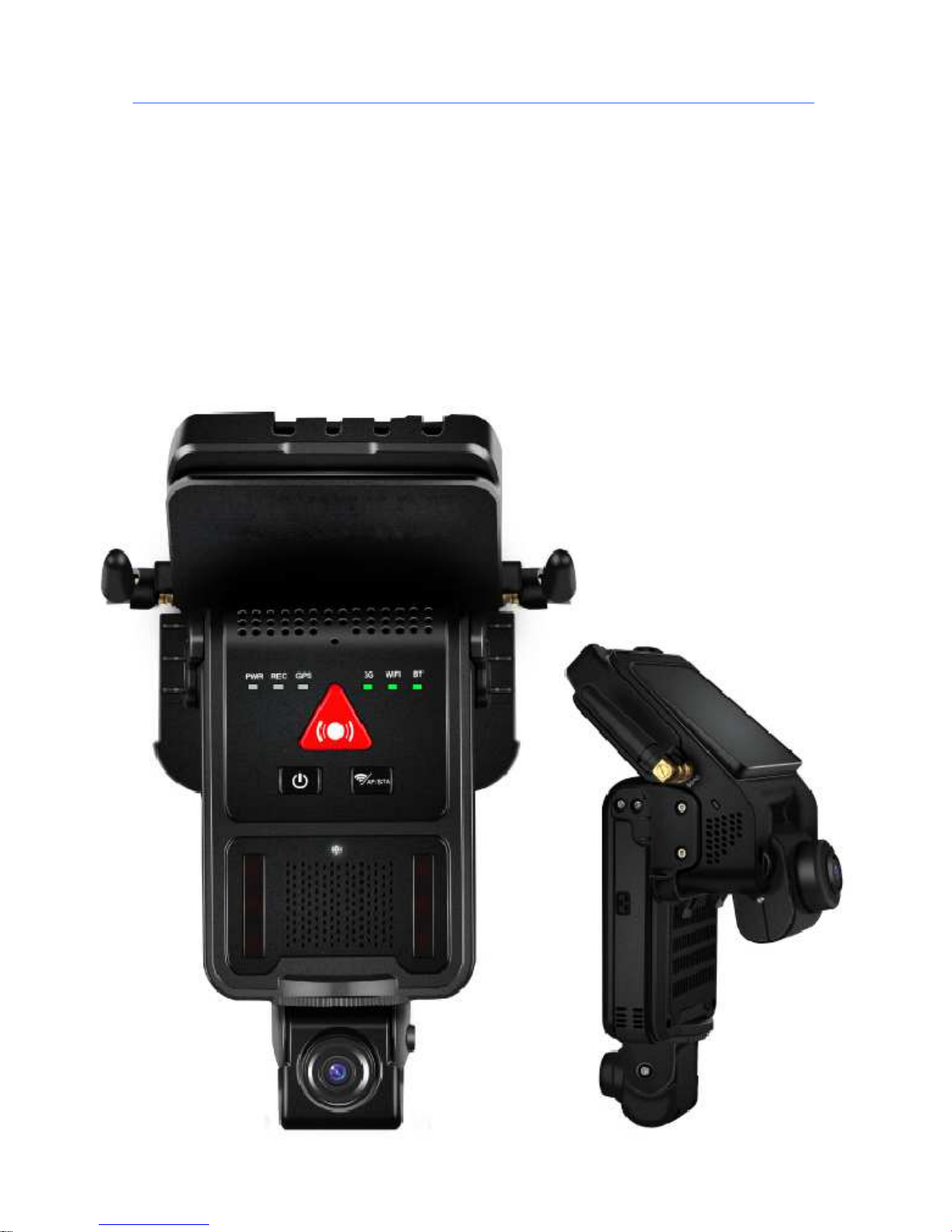
1.2 Appearance
Product appearance pictures are displayed as follows:
Page 9
Mini Portable Modular Mobile DVR USER MANUAL
- 9 -
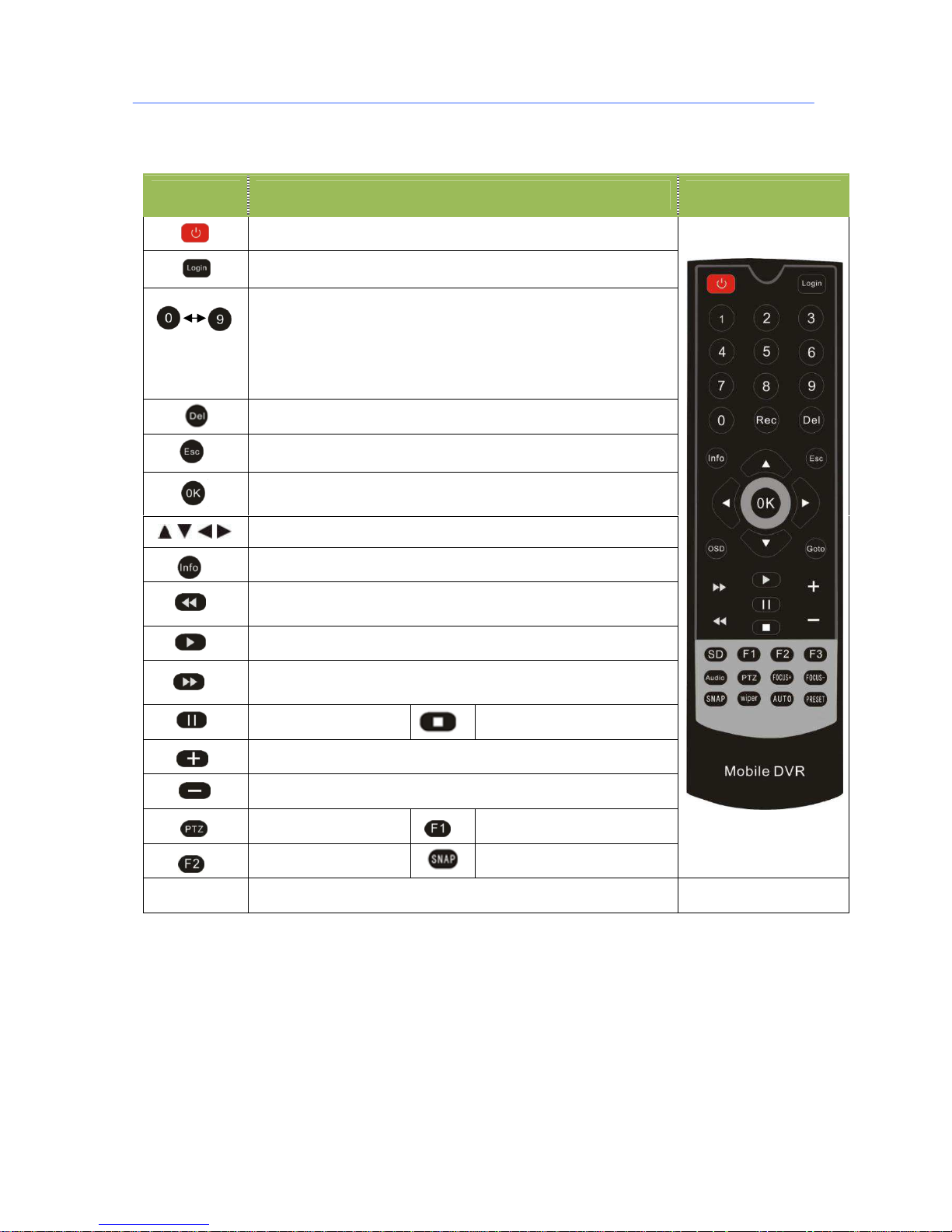
1.3 Remote Controller
Key Function Picture
Power and Standby Button,Reserved
To enter system settings.
[0-9] key:In the setting mode, 0-9 is used to select the number
of menu items. In playback mode, the key 1-8 to select 1-8 single
channel,
ESC Button is used to switch back to the original preview
interface .
Delete Button
Return to the preview picture or previous menu
Enter button: button for setting system parameter,
selecting,,switching and playing.
Direction Key:up, down, left, right
Display system info under monitoring mode
Rewind button. In play mode, press REW button to
select 2/4/8/16/,Press play button return to normal
Play Button
Forward button. In play mode, press this button to select
2/4/8/16/,Press play button for return normal
Pause button
Stop button
Playback Page\Forward to del param\Aperture larger Key
Playback Page\Back del param\Aperture reduce key
PTZ Function key
Calling Shortcut
Quickly setup
Snap pictures
[Others] Reserved
Page 10
Mini Portable Modular Mobile DVR USER MANUAL
- 10 -
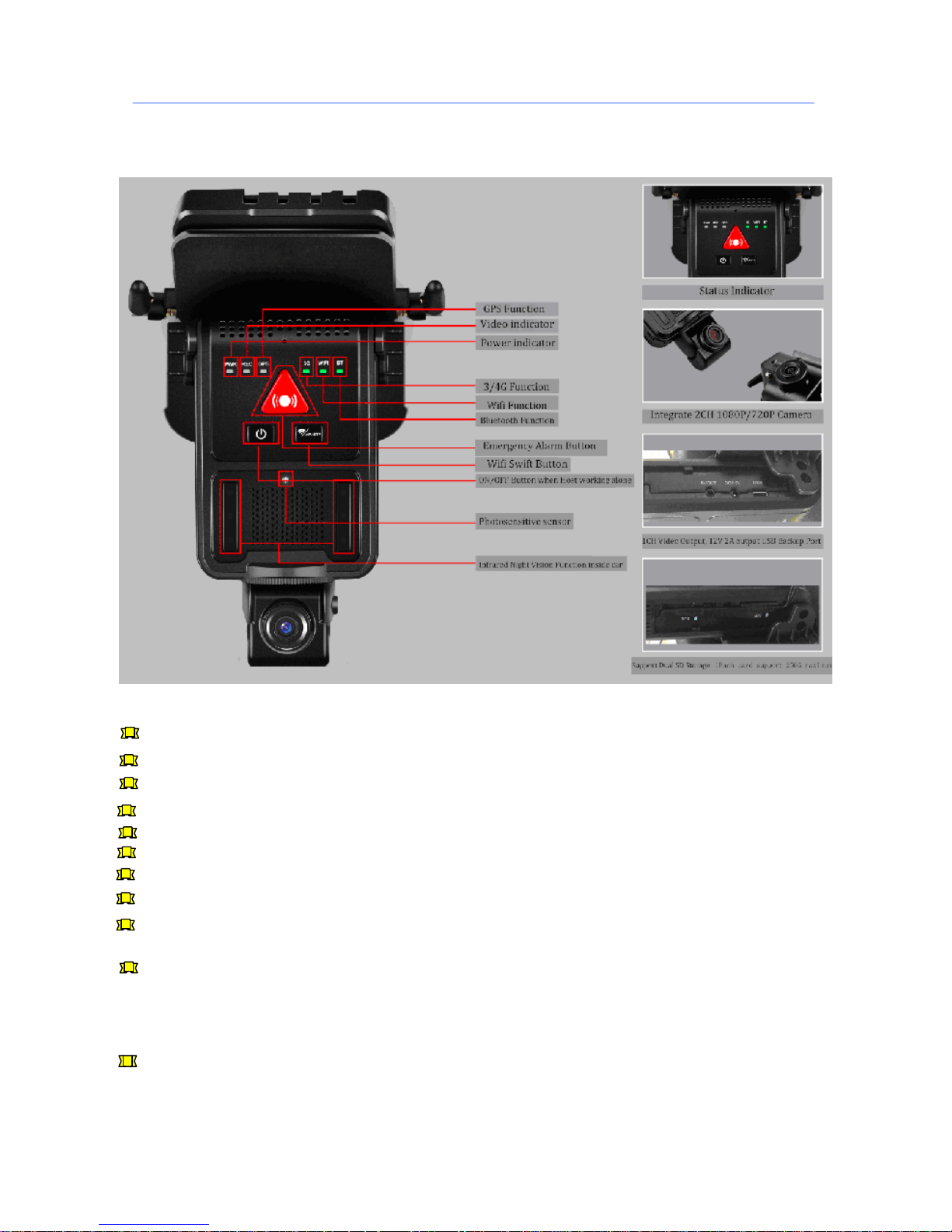
1.4 Panel Definition
“GPS Function”: GPS is working when the light is on .
“Video Indicator’’: Video is recording when the light is on
“Power Indicator”: When device connect to DC power , this light will be on .
“3G/4G Function”: When you use communication card , the light will be on .
“Wifi Function’’: When wifi connected , the light will be on
“ Bluetooth Function” : Bluetooth work when the light is on
“ Emergency Alarm Button “ :If emergency accidents happens , please push the alarm button
“Wifi Swift Button” : “Wifi “ &” AP “ Swift
“ON/OFF Button When Host working alone” : When this device is split into host & stent. When Host is
working alone after split off , the light will be on
“ Photosensitive Sensor “ :The sensor is a detection device that can feel the information to be measured
and can transform the sensed information into electrical information or other necessary information output
according to certain rules to meet the information transmission, processing, storage and display , Recording
and control requirements.
“Infrared Night Vision Function Inside Car “ : This function is help device work in low illumination
environment.
Page 11

Mini Portable Modular Mobile DVR USER MANUAL
- 11 -
1.5 Product Introduction
Before use,Please make sure that you have read this before installing and using .
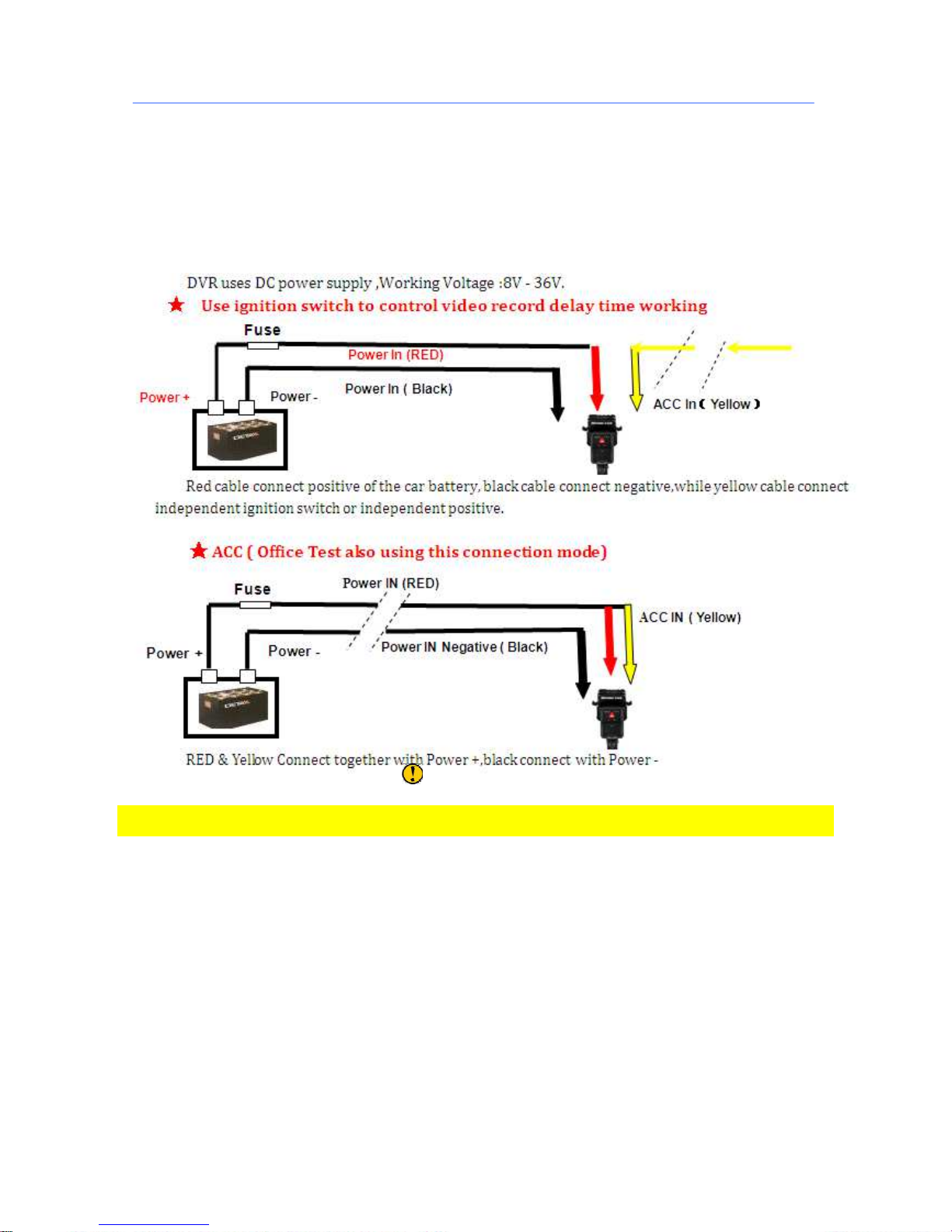
Device Power Connection:
Just only connect DVR with power supply, the power of cameras and monitors are all supplied by DVR,
aviation connectors is built-in DC 12V output.
★
Use ignition switch to control video record delay time working★
Red cable connect positive of the car storage battery, black cable connect negative, while yellow cable
connect independent ignition switch or independent positive;
★
switch connection(Indoor test usually use this way)★
Red cable and yellow cable together connect power positive of the car storage battery, while black
cable connect negative;
Camera connect AV IN, monitor connect BNC connector in AV out of PANEL.
If it’s not standard aviation connector, please use the aviation conversion line mentioned in the
addenda, Black side is DC 12V output, White side is Audio output, Yellow side is Video output;
Attention:
If the camera type and host Settings mode do not match(4
*720P、4*1080P
), the input will be no
image display.
In order to get better damping effect for HDD DVR, please horizontally install DVR .
Tips:
In the video preview interface, you can undertake the following actions :
Press F2 to enter Quick Setting, you can change the device number, server IP and port information;
Press LOGIN to enter the menu, direct input password: Administrator: 666666, User: 000000;
Press INFO to display the signal strength, dial-up connection status, hardware and software
versions, storage capacity, etc.;
Press 1.2.3.4 to enlarge the corresponding channel video, press 9 or ESC to return to four preview
videos.
Press the playback key Directly start the video playback;
Device No. and Phone number must be the same , they are all Platform device ID
Page 12
Mini Portable Modular Mobile DVR USER MANUAL
- 12 -
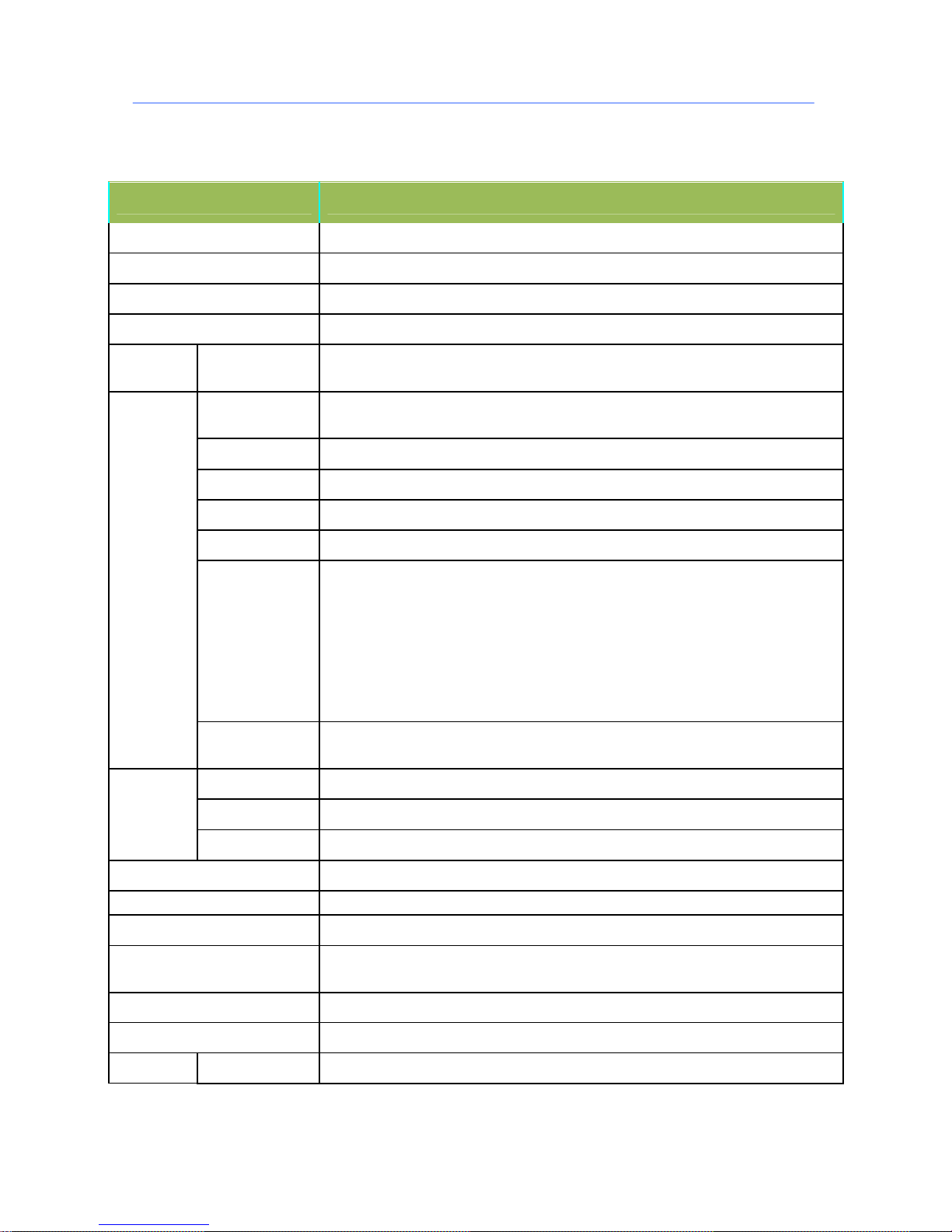
Parameter Sheet
*** Above parameters any changes, please refer to actual product ****
Item Parameter
OS Linux
Language Chinese/English/Others (can be customized)
Video Compression H.264 Compression Mode
OSD Overlays information such as date time and vehicle ID
GUI
Graphical User
Interface
Can connect to external LED screen. Setup system parameters with the remote
control.
Video Input
4 channel,2 channels built-in , 2 channels expansion; 1080P AHD HD / SD / Mixed
Video Input
Video Output 1 composite video output
Preview
Support 1/2/4 channels full screen preview
Resolution Support 1080P/720P/D1/CIF, MAX:4channels 1080P
Video Quality 0-7 levels, 0 is the highest level, 7 is the lowest level.
Video Standard
PAL: 100f/s , CCIR625 line,50field;
NTSC: 120f/s, CCIR525 line,60field;
CIF: 256Kbps ~ 1.5Mbps, multi levels video quality optional;
HD1: 600Kbps ~ 2.5Mbps, multi levels video quality optional;
D1: 800Kbps ~ 3Mbps, multi levels video quality optional;
720P : 1Mbps~4Mbps, multi levels video quality optional;
1080P: multi levels video quality optional;
Video
Record
System
Record Mode
The default setting is auto recording after power on. Timed recording, alarm
trigger recording and manual recording are supported.
Audio Input 3CH ,1 channels built-in , 2 channels expansion
Audio Output 1 channel
Audio
Compression G.711a compression
Alarm Input
1CH level Alarm Input
Alarm Output 1CH level Signal Output
Communication Interface 1CH RS232 &1 channel RS485
Wireless transfer
Support Built-in 3G network, WCDMA,CDMA2000,TD-SCDMA compatible with
GPRS,EDGE; Support Built-in 4G network, TTD-LTE, FDD-LTE
Position Support Built GPS/BD Module, can make playback analysis of vehicle routing
G-Sensor Support G-sensor
Video
Storage Max support 2X256GB SD Card
Page 13

Mini Portable Modular Mobile DVR USER MANUAL
- 13 -
Upgrade
Support USB flash disk updating, SD card upgrade , OTA remote upgrade
automatically
File Format .264
File System Special Car system File System
Storage
USB
Support Two USB Port: 2.0 - Front panel supports USB port, support USB flash
disk upgrade to backup; hard disk box USB port, can back up video data
Video Search Search video by Record Time/Record Type etc
Max support 4CH Replay /Stop/Fast Forward/Fast Reverse at same time
Video
Playback
Playback
Support x 2,x4,x8,x16. fast forward or fast backward play
Safety Management User/Admin 2 Levels Different Passwords , support screen lock
TTS Voice Broadcasting Support TTS voice broadcasting
Power
Management
Adaptive wide power input, with overload, under voltage, short circuit, reverse
connection and other protection functions; Support the timer switch machine,
delay shutdown function.
Voltage Input DC:+8V ~ +36V
Voltage Output
12V @1.2A 4 channels, with IR
12V @0.9A 2 channels, with IR
Power-off
Protection
UPS Technology, All video information can be saved automatically when the power
is cut off, and make sure that all the files can not be damaged.
Voltage &
Power
Consumpti
on
Power
Consumption
Normal Working <10W, Standby state <0.5W
Temperature -40 to +70℃ ℃
Working
Environme
nt
Humidity 20% to 80%
Size 125mm*130mm*150mm
others
Net Weight 0.5Kg
***** Above parameters any changes, please refer to actual product *****
Page 14
Mini Portable Modular Mobile DVR USER MANUAL
- 14 -
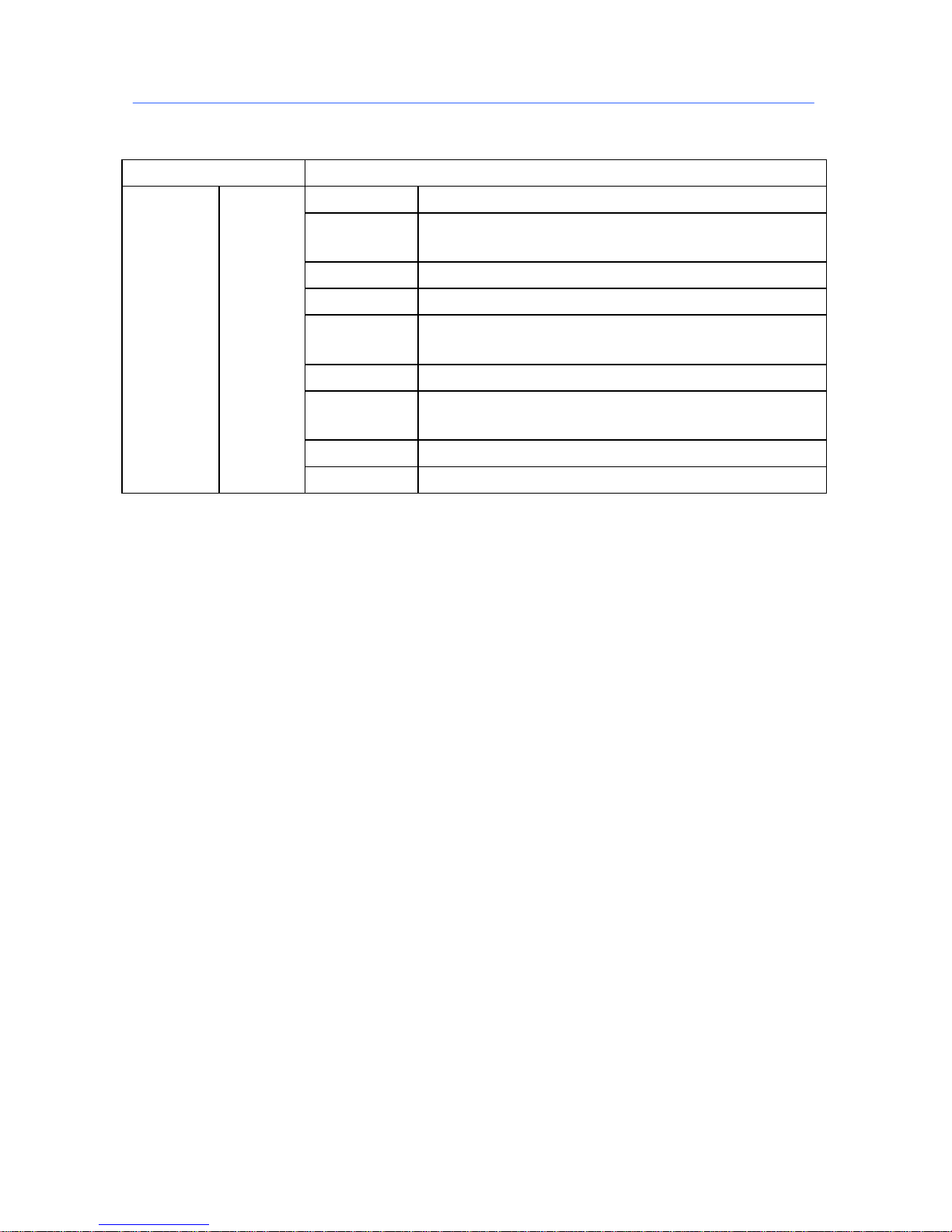
Parameter Sheet
*** Above parameters any changes, please refer to actual product ****
Type Camera
Imaging Device 1/3 SONY323
Imaging
Resolution
1945(H)*1097(V)
Effective Pixels 2.13 M pixels
Signal System 50HZ/60HZ
Low illumination
0.01Lux(color illumination)
0.05 Lux(black&white illumination)
Video output AHD
Day&night
switch
None
System format PAL/NTSC(OSD Swift)
Camera
Parameters
Against car
outside
camera
BLC AUTO
Page 15

Mini Portable Modular Mobile DVR USER MANUAL
- 15 -
*** Above parameters any changes, please refer to actual product ****
S/N ≥41db
AES AUTO/ 1/50(1/60)-1/50,000sec
IR Distance none
Imaging Device 1/3 SONY323
Imaging
Resolution
1945(H)*1097(V)
Effective Pixels 2.13 M pixels
Signal System 50HZ/60HZ
Low illumination
0.05Lux(color illumination)
0.01Lux(night vision fill light)
AES AUTO/ 1/50(1/60)-1/50,000sec
Day&night
switch
Day&night swift ,IR-Cut
AWB AUTO
Day&night Swift
Control Voltage
OFF(DC 0V) / ON:DC 3V-8V
S/N ≥41db
BLC AUTO
Infrared Distance
IR
>3m
Camera
Parameters
Against car
inside
camera
Day&night Swift
IR-Cut
support
Aperture Fixed Aperture
Lens
2.0mm(against car inside camera)
2.8mm(against car outside camera)
Video
Compression
H.264
Compression
output Bit Rate
1080P 256KPBS~8MKPBS
Compression Standard
Audio
compression
G.726
Page 16
Mini Portable Modular Mobile DVR USER MANUAL
- 16 -
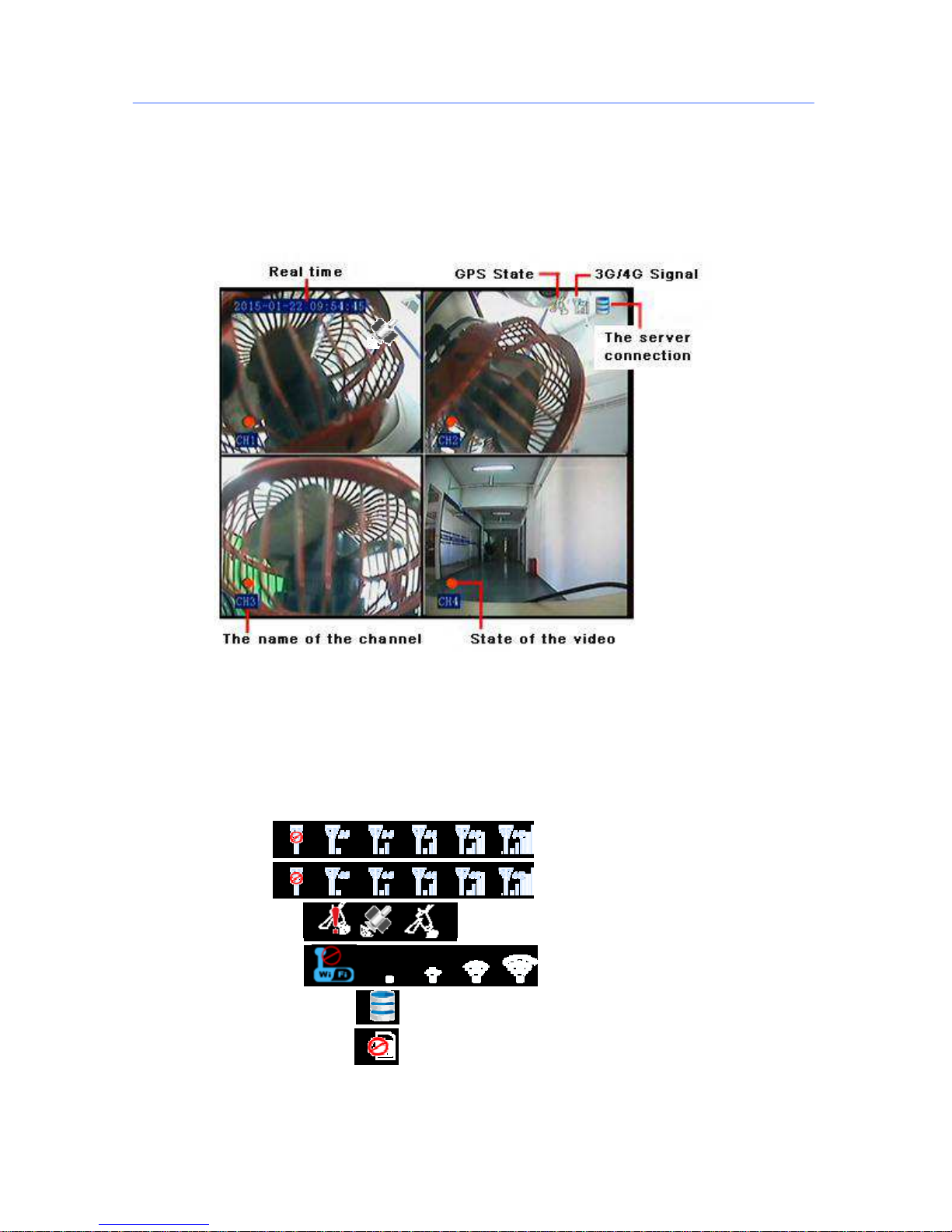
4. Real-time video interface description
4.1 Real-time monitoring interface:
Real-time monitoring interface status icons are displayed as follows :
4.2 Various signal status icons as follows:
3
G Signal status:
4G Signal status:
GPS Signal status:
WIFI Signal status:
Center connect succeed status:
SIM card Not Exit Status:
Page 17
Mini Portable Modular Mobile DVR USER MANUAL
- 17 -
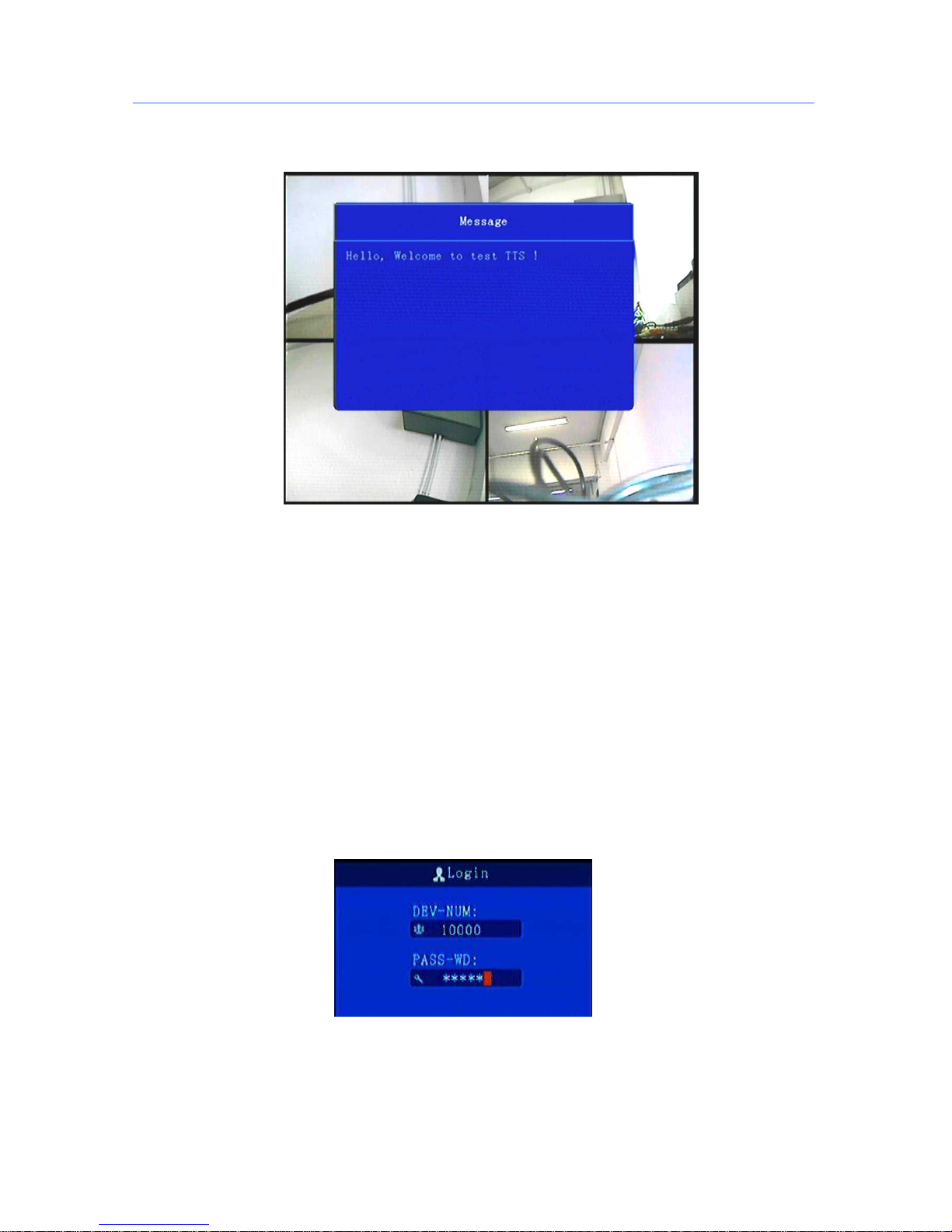
Text scheduling real-time interface displays :
*******************************************************************************************
Preview screen, press the remote control - on - next - right, will lock remote control, there will be an underscore
prompts between the date and time;
Press the remote control - on - next - left to unlock. Video loss or reboot the device will unlock;
*******************************************************************************************
5. Operation Interface Setup
5.1 User Loading
When the password switch is set to “Off”: The host start and press [OK] key, will direct access to the
main menu..
When the password switch is set to “On”: Move the cursor to "landing" column, Press [OK] key, then
can enter the main menu.
**********************************************************************************
The administrator default password is 666666 (or device number –before changed the password available);
User default password is 000000, only have query permissions;
Page 18

Mini Portable Modular Mobile DVR USER MANUAL
- 18 -
**********************************************************************************
Page 19
Mini Portable Modular Mobile DVR USER MANUAL
- 19 -
5.2 System Main Menu
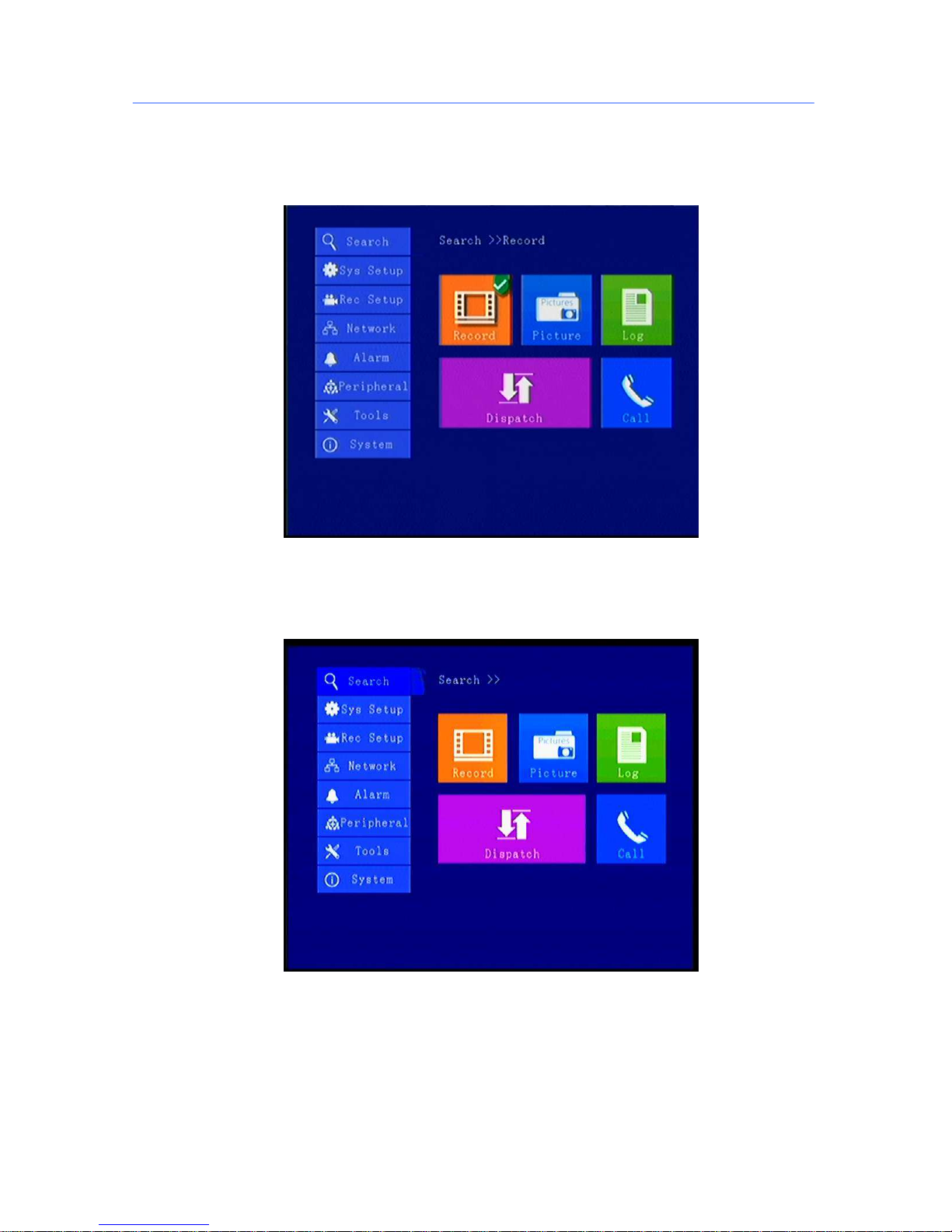
The main menu includes: Search, System setup, Rec setup, Network setup, Alarm setup,
Peripheral setup, System Tools, System Information, as below:
5.3 Search
Query menu includes: Record, Picture, Log, Dispatch, call records
Page 20
Mini Portable Modular Mobile DVR USER MANUAL
- 20 -
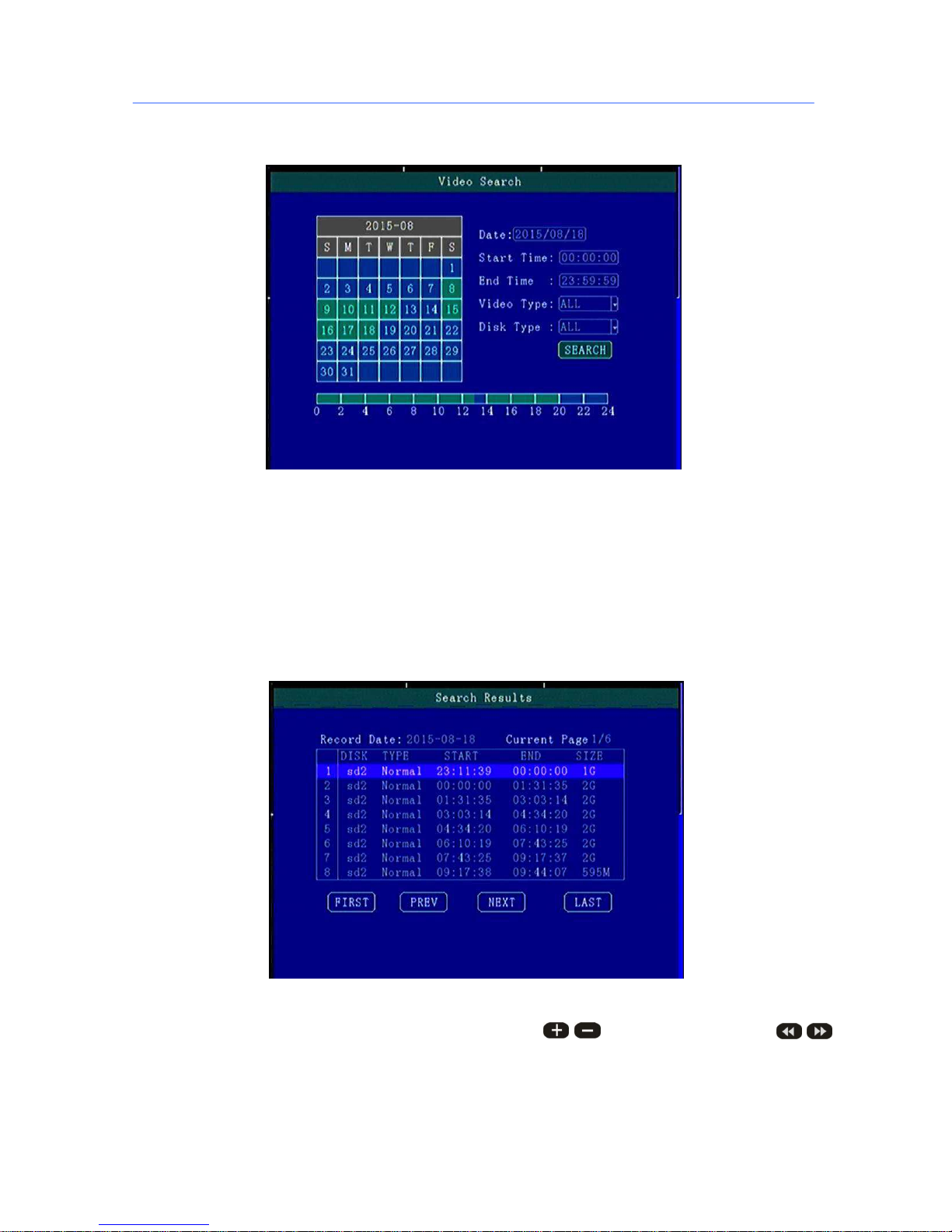
5.3.1 Video Search
**** Green color display indicates current day and time exist video file ****
“Search Date”: Press the number key to enter date, default is current date.
“Start Time”: Press the number key to enter date, default is 00:00.
“End Time”: Press the number key to enter date, default is 23:59.
“Record Type”: Press the [OK] button to select the query type: All videos \Alarm recording. Default is All
videos.
“Storage Media”: Press the [OK] button to select: all disks, disk 1, disk 2.
“Search”:Move the cursor to "Search" button, press the [OK] key to enter the search results interface.
Press the arrow keys to select the video you want, press the keys to quickly flip, press
to turn to first page or last page, press the play button to play the video, press [ESC] key to return to the
previous menu。
Page 21
Mini Portable Modular Mobile DVR USER MANUAL
- 21 -
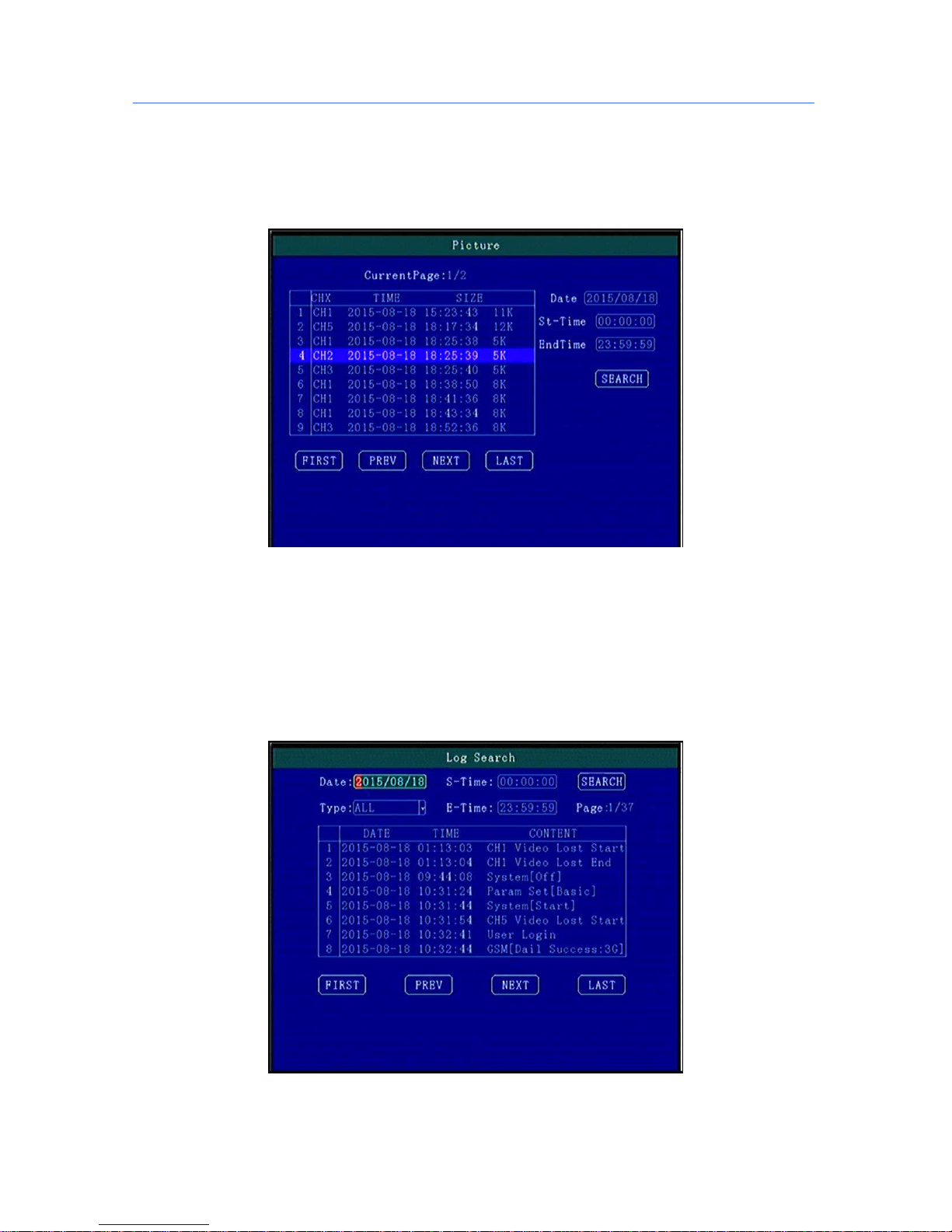
Press the arrow keys to select "Home", "Previous", "Next", "Last" and press [OK] button to display the
next page information.
5.3.2 Picture Search
This menu is mainly for searching the screenshot pictures.
Zoom up single full screen will auto screen capture by default , it will be triggered by the alarm linkage or
manually operate.
**** Pictures and device log all save in the second partition ****
5.3.3 Log Query
This menu is to query device operation and working log , you can choose the same type log via log categories.
Page 22

Mini Portable Modular Mobile DVR USER MANUAL
- 22 -
When select a single log, press the keys to quickly flip over, and press to turn to
first page or last page .
Page 23
Mini Portable Modular Mobile DVR USER MANUAL
- 23 -
5.3.4 Dispatch
This menu is to query the device scheduling information, text messages, etc.
5.3.5 Call Records
This menu is to query log of device voice calls recording.
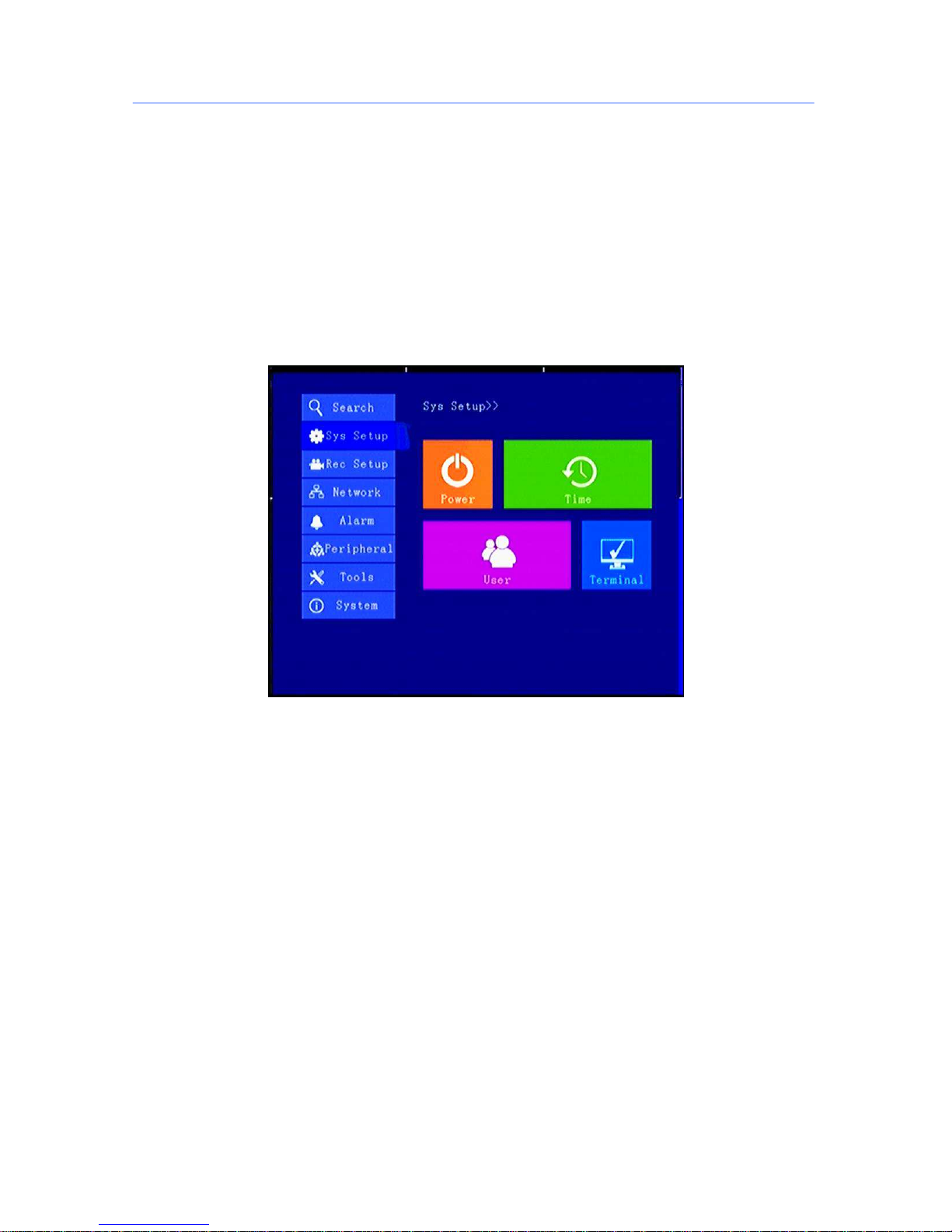
5.4 System Setup
Under System Setup menu includes: Power, time setup, user setup, terminal setup (menu setup and
modifying need to choose save to take effect)
Page 24
Mini Portable Modular Mobile DVR USER MANUAL
- 24 -
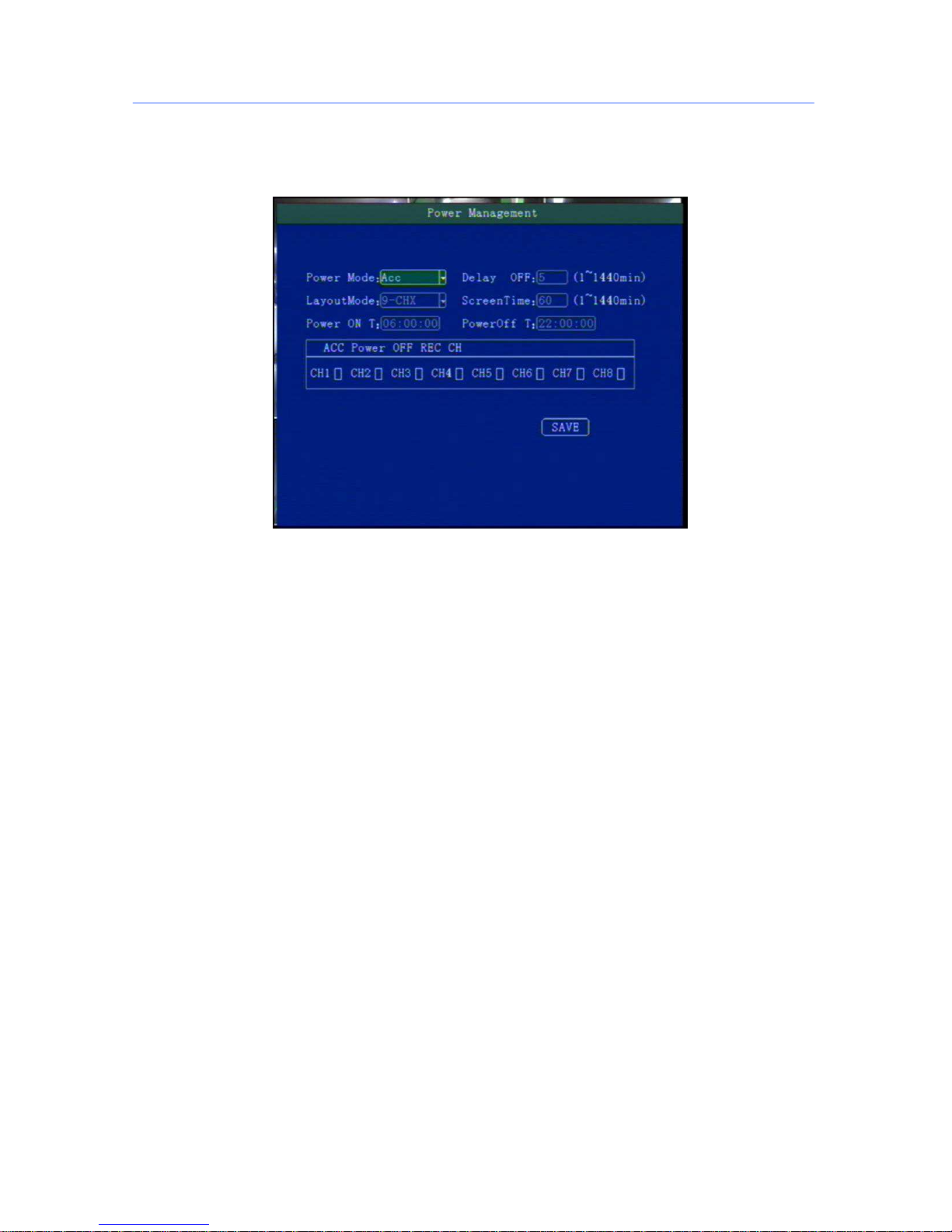
5.4.1Power Management
This menu is to setup Power management modes and power distribution.
"Power mode":press the number keys to select the type, the default is ignition mode.
"Delay Off": Press the number keys to enter the time, the default is 5 minutes, can be set to 1440 minutes
"Screen time”: Press the number keys to enter the time, the default is 60 minutes, can be set to 0-1440
minutes
"Power On": Press the number key to enter time, setup the timer start time
"Power Off": Press the number key to enter time, setup the timer off time
" Layout": optional: Support to select default displaylay out when switch on, single channel zoom,
multi-channels and so on
Page 25
Mini Portable Modular Mobile DVR USER MANUAL
- 25 -
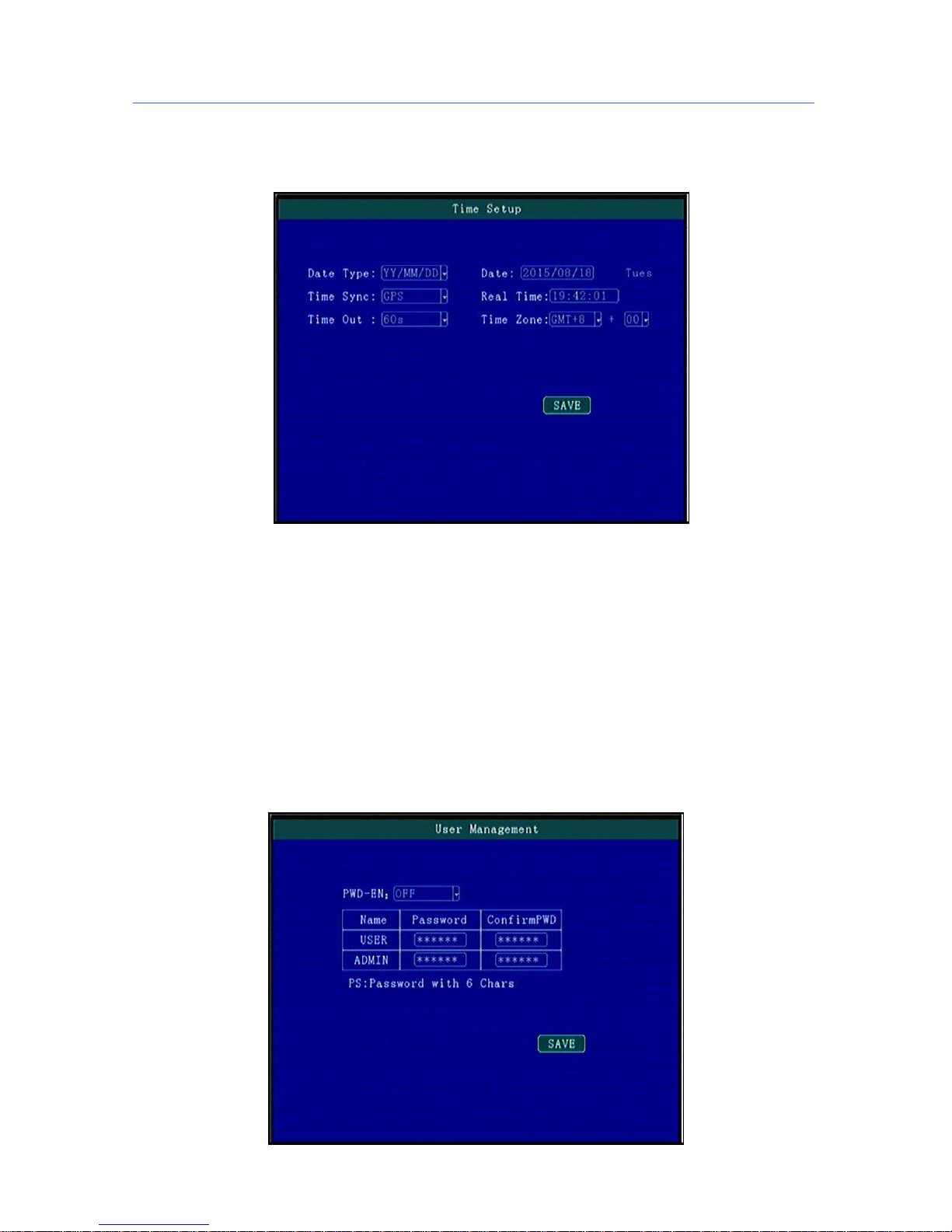
5.4.2 Time Set
This menu is to setup device parameters, such as date and time, etc.
"Date Type": Different date format for choosing.
"Date": Press the number keys to enter current date.
”Time Synchronization": calibration mode: GPS, NTP and other school models available.
Time Zone": Setup the time zone of the location of the device
"Timeout": optional remote control does not operate the exit time
“Real Time": Press the number key to enter the current time
After opening GPS time revision function, device will automatically collate the time based on corresponding
time zone when device starts every time.
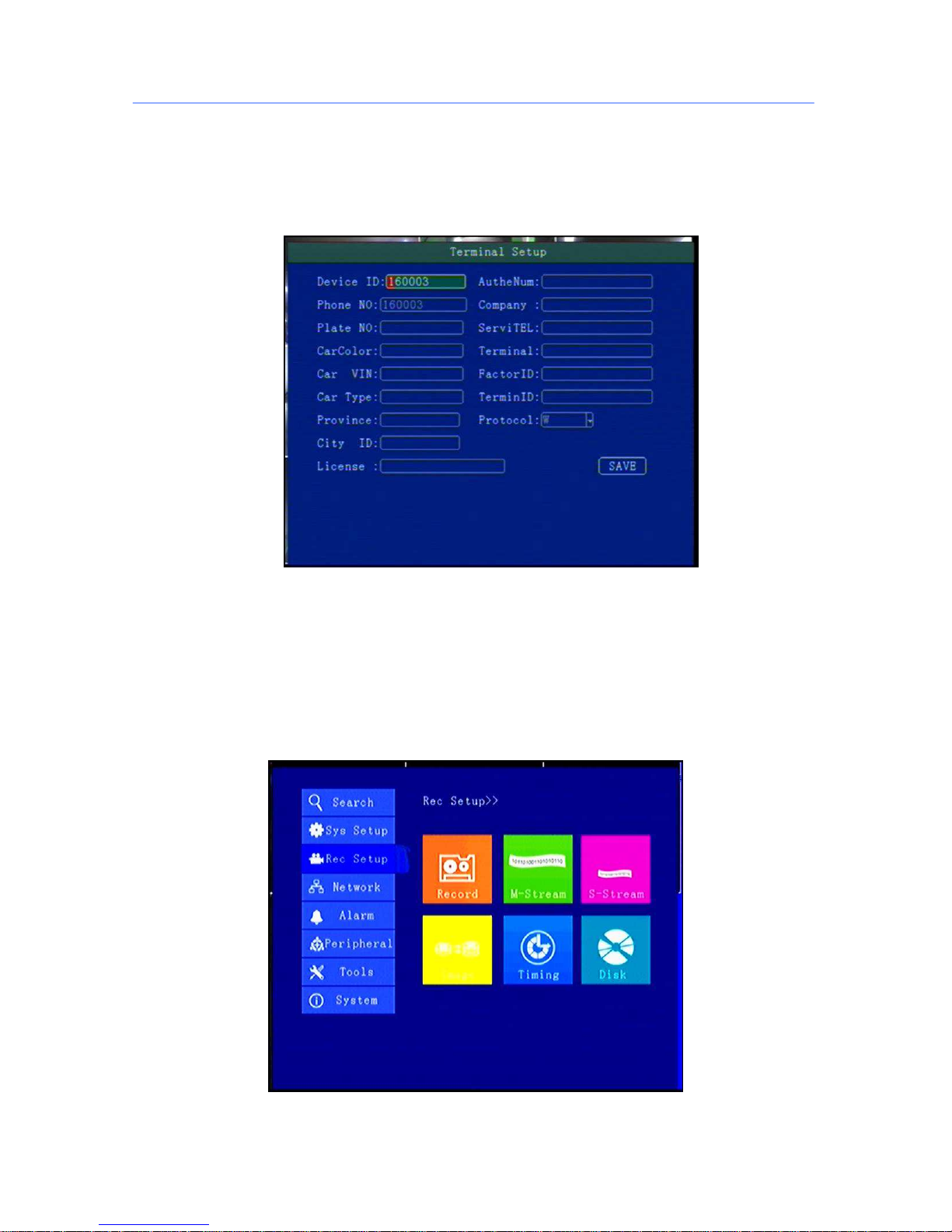
5.4.3 User Management
Page 26
Mini Portable Modular Mobile DVR USER MANUAL
- 26 -
"Password Enable": You can enable or disable password authentication to access the menu.
Modify or setup password of users and the administrator by remote control.
**** ADMIN Pass : 666666, USER Pass : 000000 ****
5.4.4 Terminal Setup
By remote control input settings: device number, phone number, license plate number, license plate color,
chassis number, vehicle type, the provincial domain ID, the City ID, driver's license number, authorization code,
company name, telephone service, terminal type, manufacturer ID, terminal ID, the device management (data
in accordance with the Department of standards, Chinese input can use the soft keyboard input)
5.5 REC Setup
Recording setup menu includes: basic setup, Main stream, Sub stream, mirror Recording, time recording,
disk management(configuration and modification must select Save to take effect)
Page 27
Mini Portable Modular Mobile DVR USER MANUAL
- 27 -
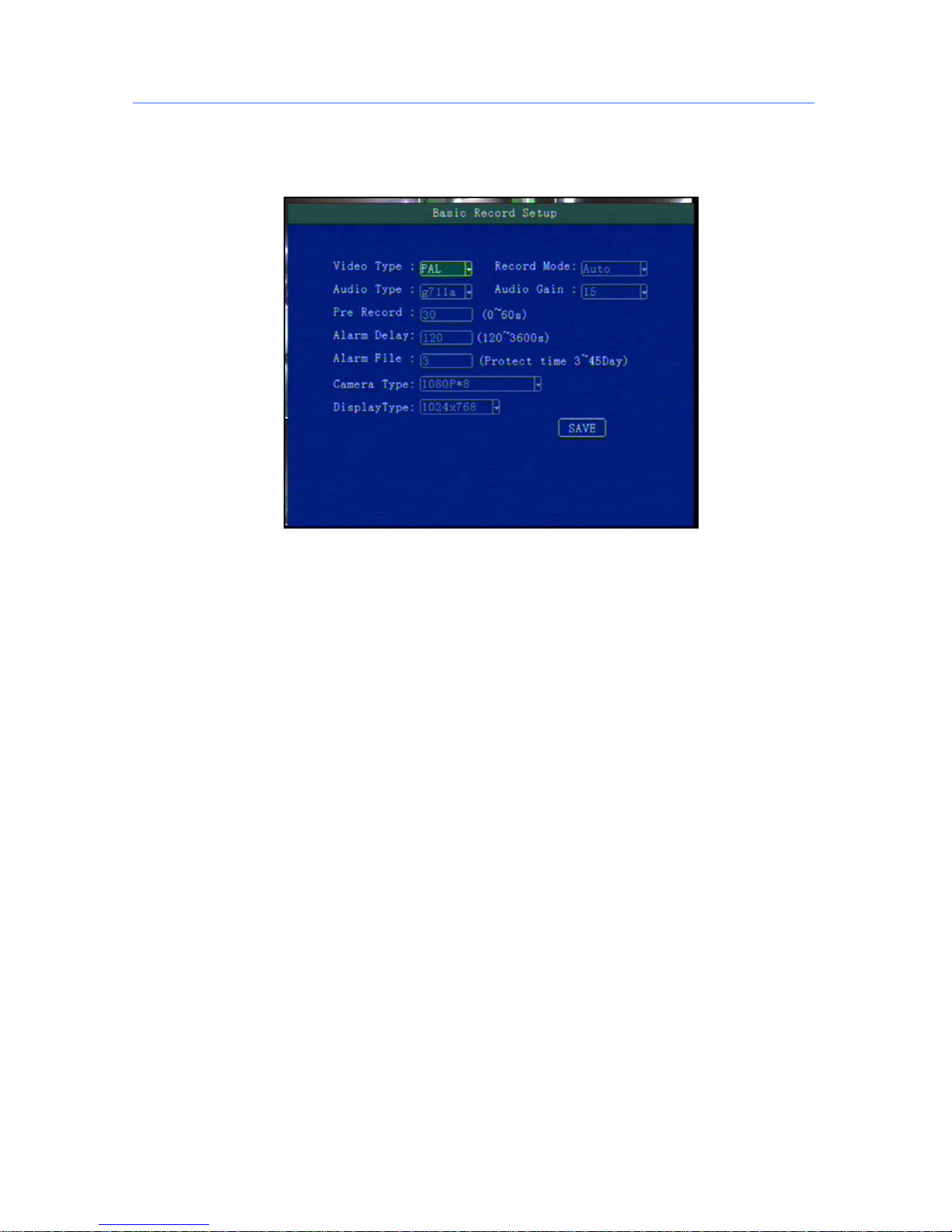
5.5.1 Basic Setup
This menu is to setup the basic video, audio and video parameters and can change into standard
definition, AHD high definition and mixed mode.
"Video Type": PAL / NTSC, press [OK] key to select.
"Record Mode": Auto / timer / alarm recording, press [OK] key to select.
"Audio Type": G711a audio format.
"Audio Gain": 1-20 gain level to select (Reserved).
"Alarm pre-recorded": pre-recorded alarm recording time of 0-60 seconds to setup, press number keys to
setup.
"Alarm delay": alarm delay recording time, 120-300 seconds to set up, press number keys to setup.
"Camera Type ": Can switch into AHD720P or AHD1080P camera input.
**** If the camera type and host channel Settings mode do not match , the input will be no image display.
1080P mode cant connect to 720P camera****
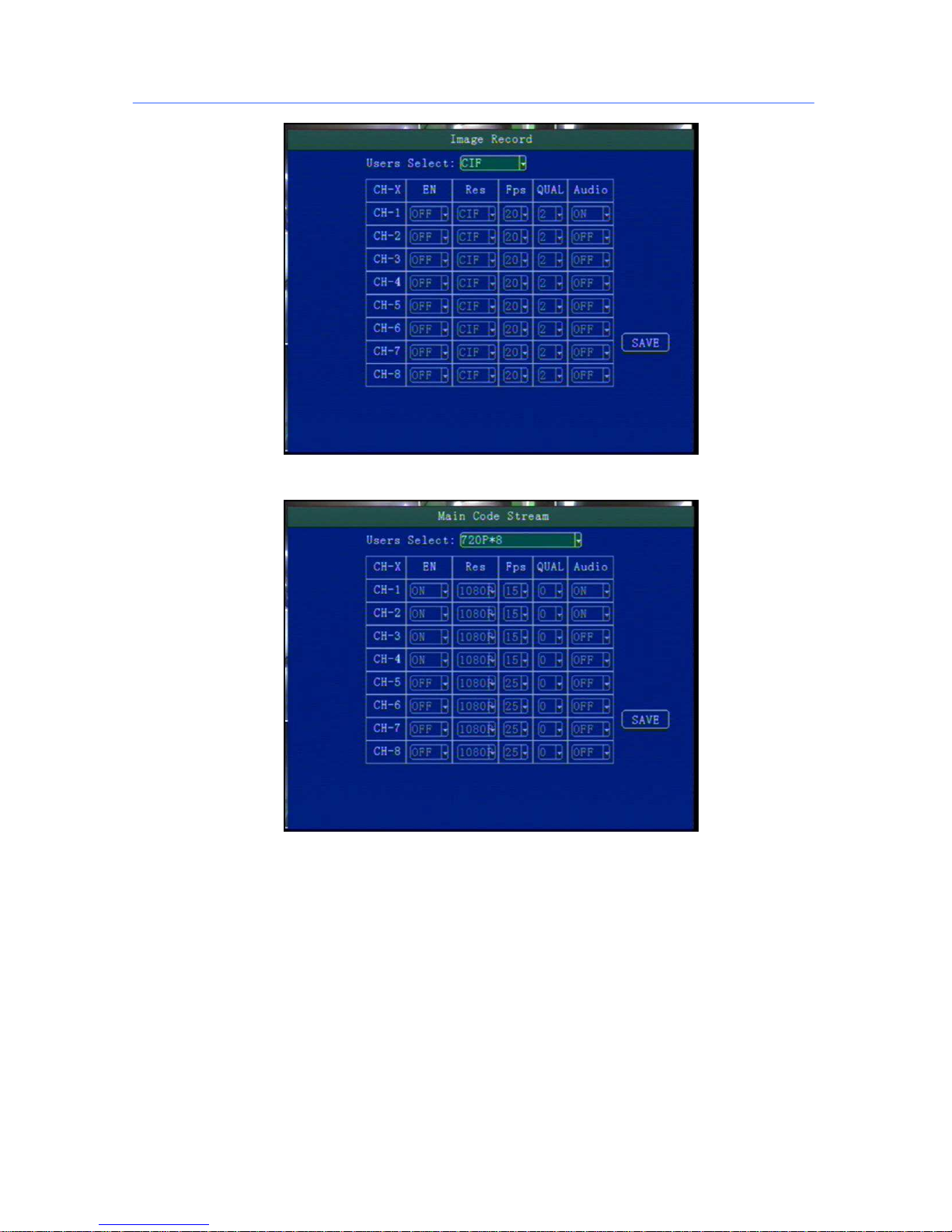
5.5.2 Mirror Record
When there is dual storage in device, you can choose one as a mirrored video memory. And setup the
recording parameters.
Page 28
Mini Portable Modular Mobile DVR USER MANUAL
- 28 -
5.5.3 Main Stream
his manual is to setup the code stream and definition of video channel.
"Enable": open or close the channel of pre-recording function, press [OK] key to select.
"Resolution": CIF, HD1, D1 ,720P,1080P resolution for choosing, press [OK] key to select.
"FPS": 1-25 frame (P standard), 1-30 frame (N standard) channel recording frame rate for choosing.
"Image quality" setup video quality under different resolution, 0-7 levels adjustable,
0 is the highest level,
7 is the lowest level.
"Audio" setup the audio recording on or off.
**** According to the storage space and quality requirements, the resolution of each channel and stream can
be configured individually ****
Page 29
Mini Portable Modular Mobile DVR USER MANUAL
- 29 -
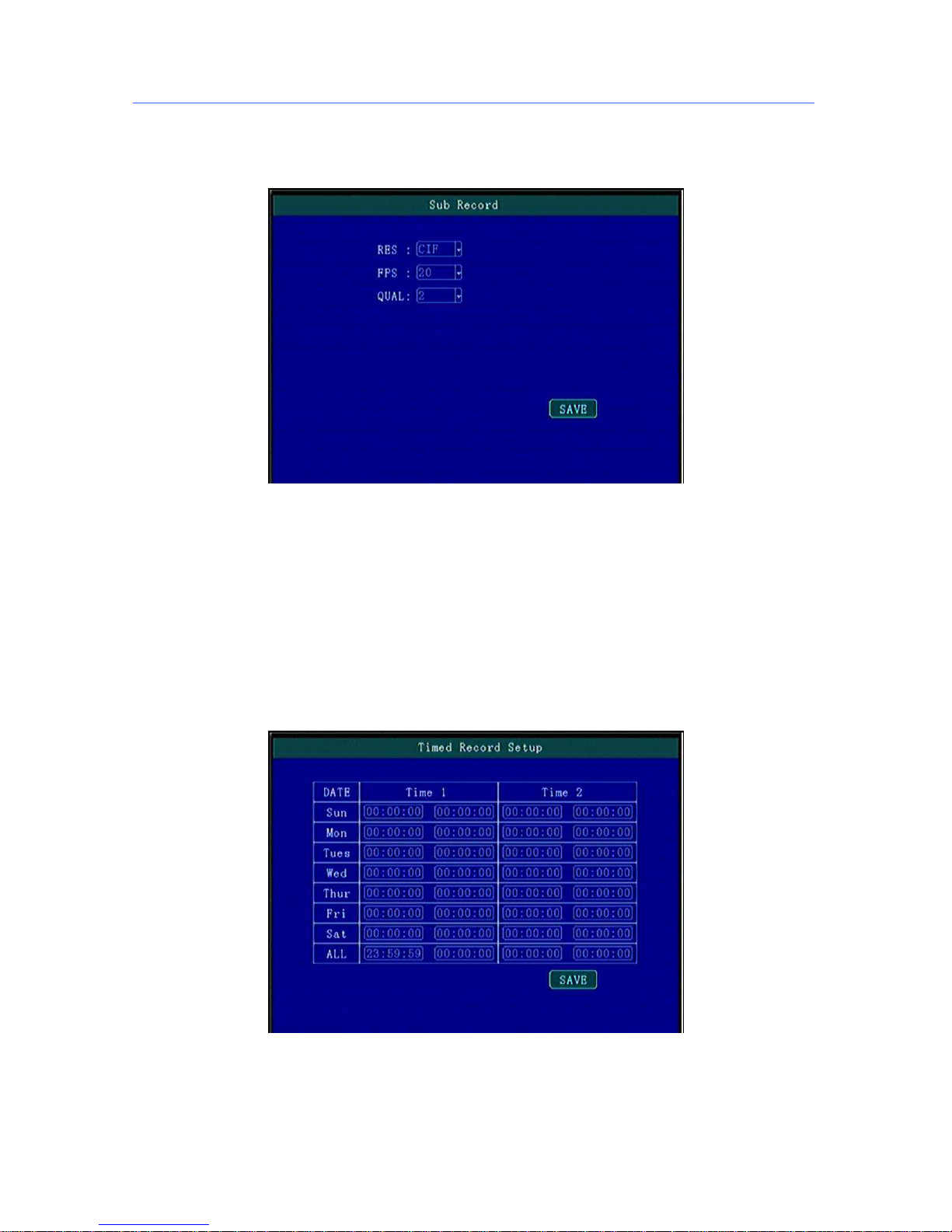
5.5.4 Sub-stream
This menu is used to set the parameters of the transmission stream.
"Resolution" Setup the transmission resolution, press [OK] key to enter.
"FPS" Setup the transmission time frames, press [OK] key to enter.
"Image quality" setup transmission quality grade, press [OK] key to enter. 0-7 adjustable, 0 is the highest
**** Sub-stream is the code stream which device upload via 3G/4G, high definition main code stream can
be chose in the client-side platform ****
5.5.5 Time Record Setup
Setup the timer recording time periods, everyday can be set to two periods.
Move the cursor to "Timing Recording" and press [OK] button to set up the following timing list.
**** Timer recording start time is before the end time. ****
Page 30
Mini Portable Modular Mobile DVR USER MANUAL
- 30 -
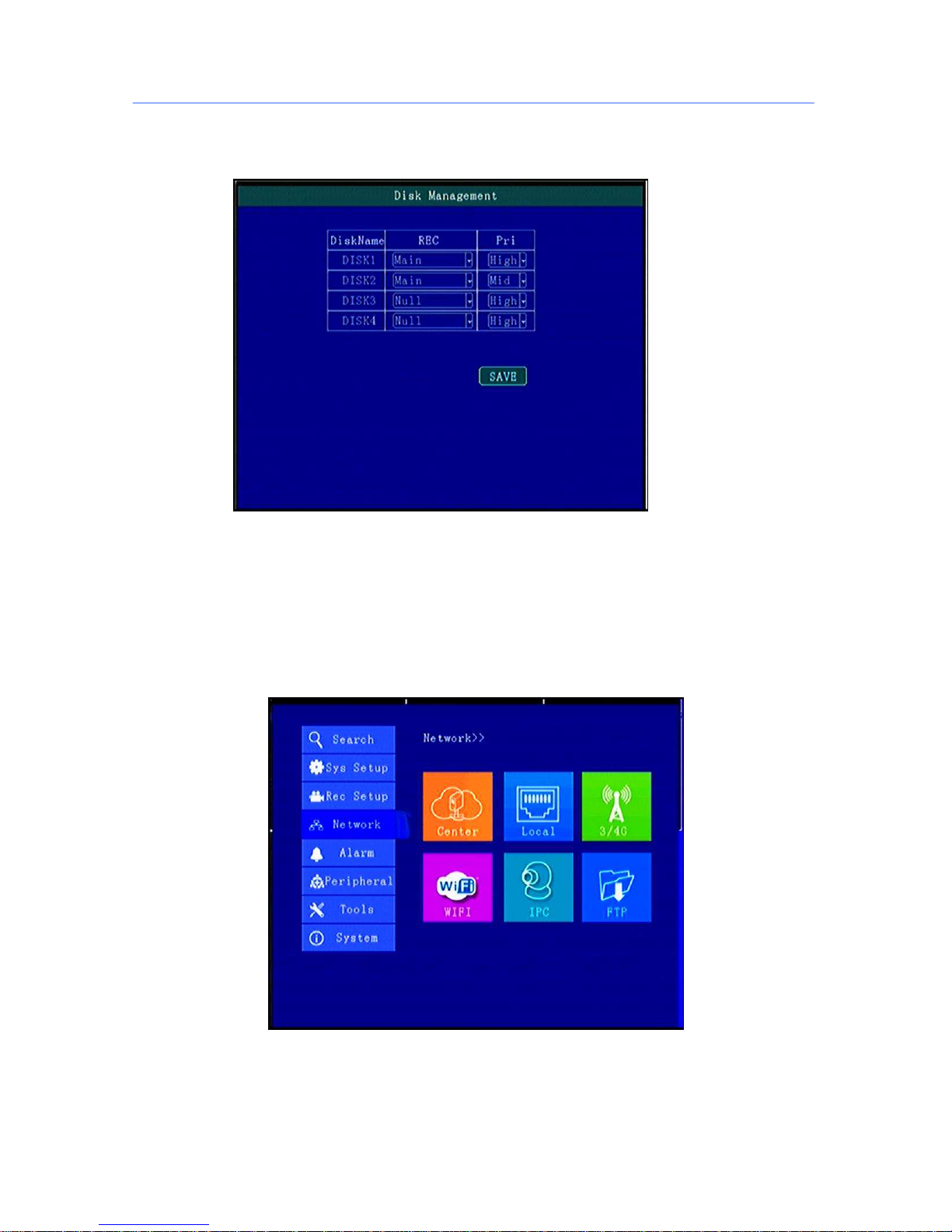
5.5.6 Disk Management
When there are multiple disks, they can be set up recording parameters and priority grade.
"REC": Setup main video or sub video in disk.
"Pri": Setup the priority of different memory, enabling loop recording, function missing video recording.
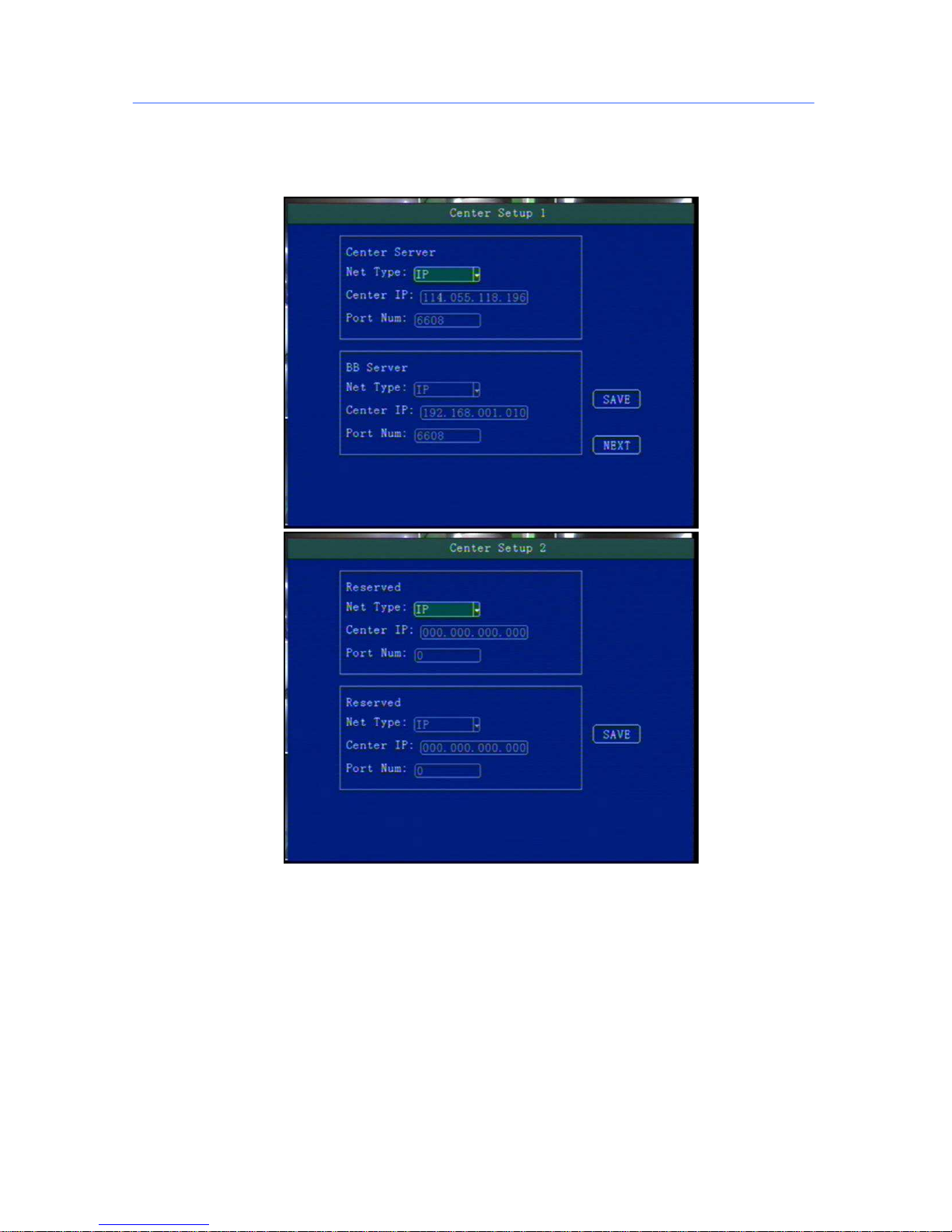
5.6 Network Set
Including: Center setup,Local Network ,3G setup ,WIFI setup ,FTP setup and IPC setup.
Page 31
Mini Portable Modular Mobile DVR USER MANUAL
- 31 -
5.6.1 Center Setup
Set Server IP and Port ;
“Monitoring Center”:Set 3G /4G Video Center IP or domain,port information etc,
“Network Type”:Set 3G network type, IP address/Domain optional;
“Center IP”:3G Server IP/Domain setup. Press right key to enter keyboard interface,input the numbers
via remote controller,then press [OK] for setting,;
“Port”:Communication port between 3G device and Server,must be same with server configuration;
“Group2 Center”:BD Server IP/Domain/Port Setup,make device can hang on BD server;(Chinese
Government Server)
“Network Type”:BD Server network type,IP/Domain type optional;
“Center IP”:BD server IP/Domain setup,Press [OK] for setting;
“Port”:Communication Port of Device and server,port setting must be same with server configuration;
Group3 and Group4 are kept for reserve.
Page 32
Mini Portable Modular Mobile DVR USER MANUAL
- 32 -
In “ Info ” interface, W connected : it means device connected server already; B connected : it means
device connected ministerial standard platform already, Connected : it means two platforms both connected
device successfully.
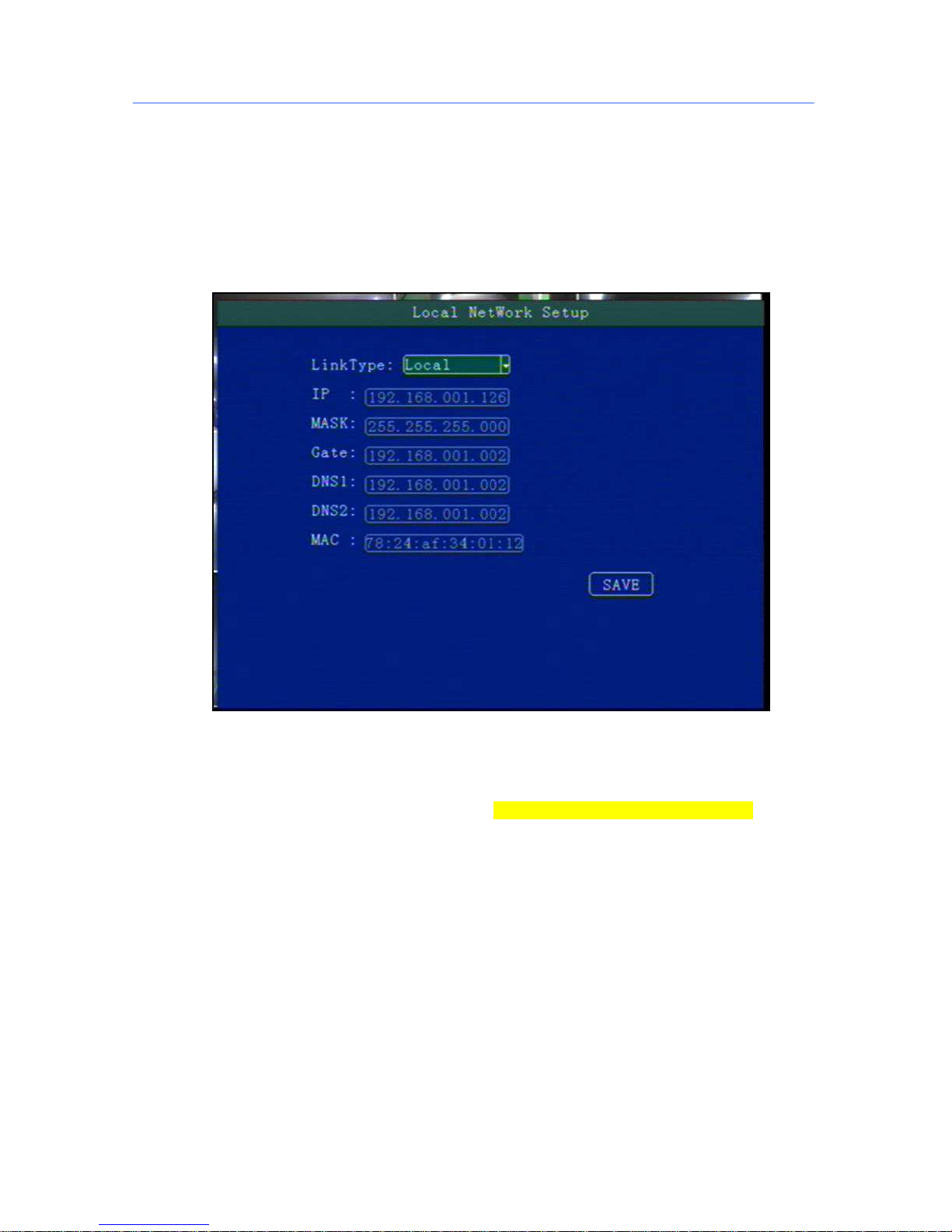
5.6.2 Local Network Setup
Device Local Network setup
“IP”\“Mask”\“Gateway”\ “DNS1” \“DNS2”\“MAC”:IP,Mask,Gateway,MAC setting for LAN network testing.
Attention:
When net cable directly connect to the device, only can use 4PIN definition net cable (please see
more definition in the addenda), otherwise it will lead device dead.
Page 33
Mini Portable Modular Mobile DVR USER MANUAL
- 33 -
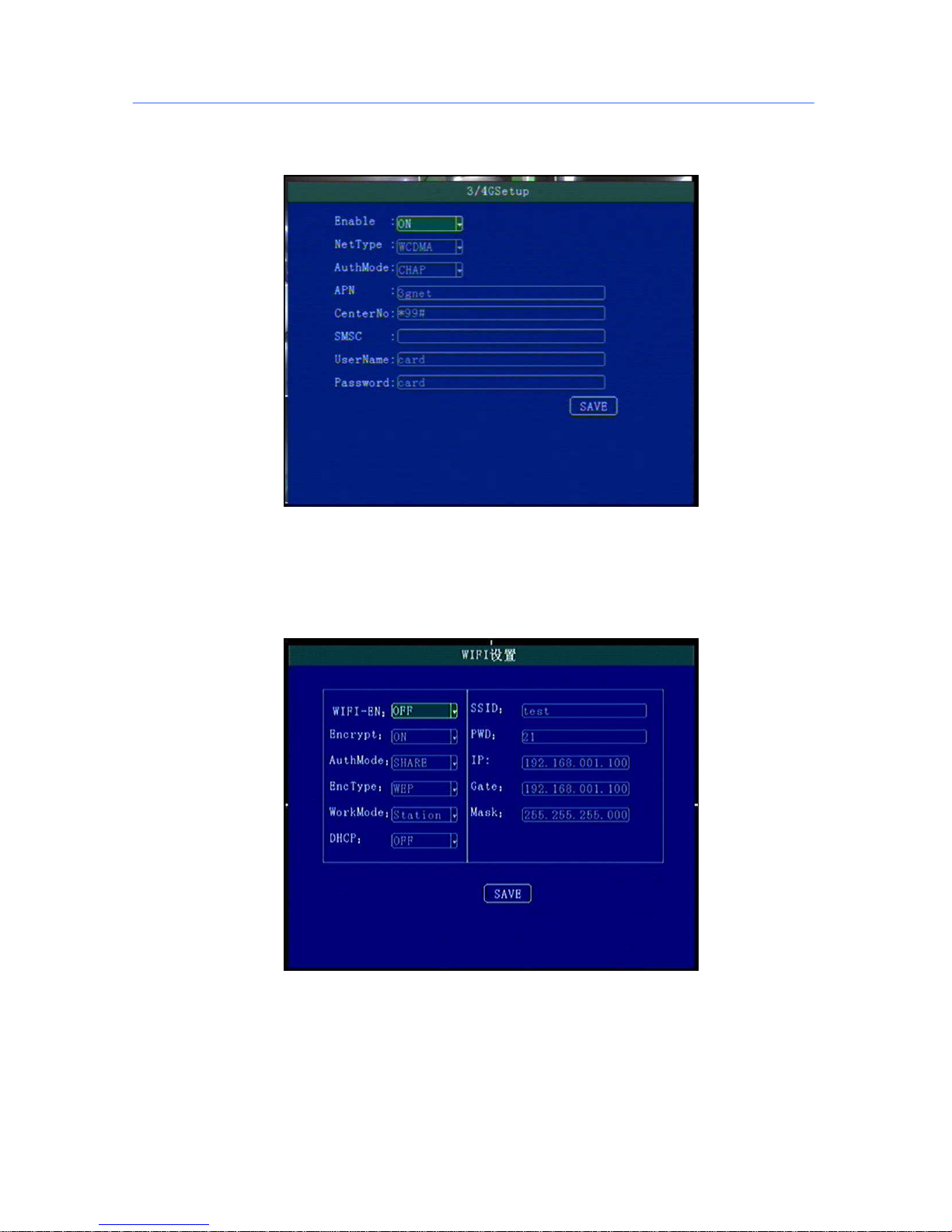
5.6.3 3G/4G Setup
3G/4G Network Configuration
“Enable”:3G/4G On/Off Setting,Press [OK] for choosing;
“Type”:3G/4G Type setting,WCDMA\EVDO\TD-SCDMA\TD-LTE , FDD-LTE, press [OK] for choosing,
“APN”:Set 3G/4G APN,Press [OK] Input, enter into input page to set the information
“User”, “Password”:SIM Card Network Operation User and Password, Press [OK] for setting ;
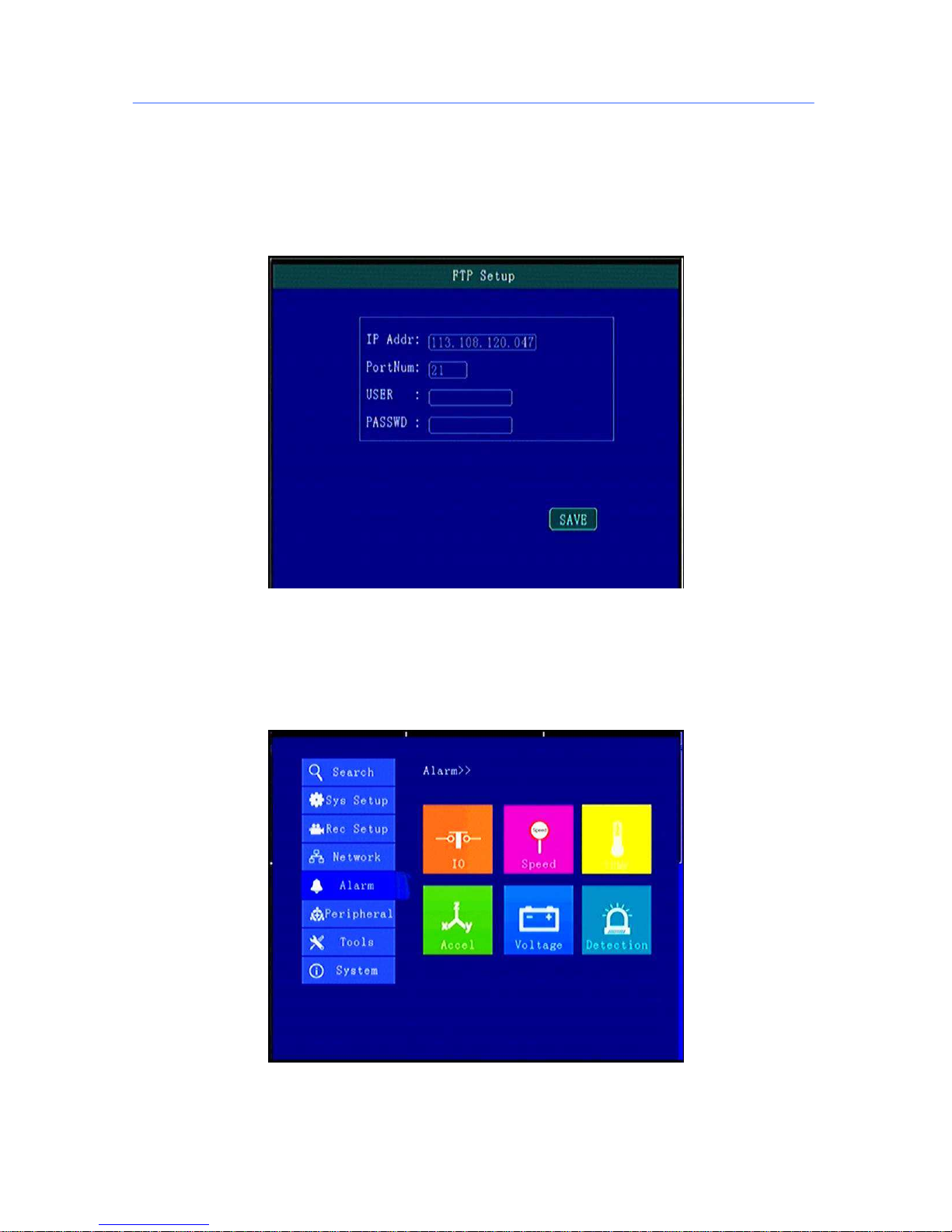
5.6.4 WIFI Setup
“WIFI-EN”:WIFI On/Off Setting,Press [OK] for choosing;
“Encr-EN”: WIFI encryption ON/Off Setting,press [OK] for choosing;
“Au-Mode”: WIFI Authentication mode setting,Please choose same one with your router,
“Enc-Type”: WIFI Encryption type setting,Please choose the one same with your router,
“IP”\“Mask”\“Gateway”:WIFI IP/Mask/Gateway setting
“SSID”: Input Your WIFI SSID,
“PWD”: Same with your WIFI password,
Page 34
Mini Portable Modular Mobile DVR USER MANUAL
- 34 -
**** According to the specific configuration of WIFI network environment, please pay attention to
check the accuracy of the characters and the IP address ****
**** IP address set by WIFI and local network can not be in the same network segment ****
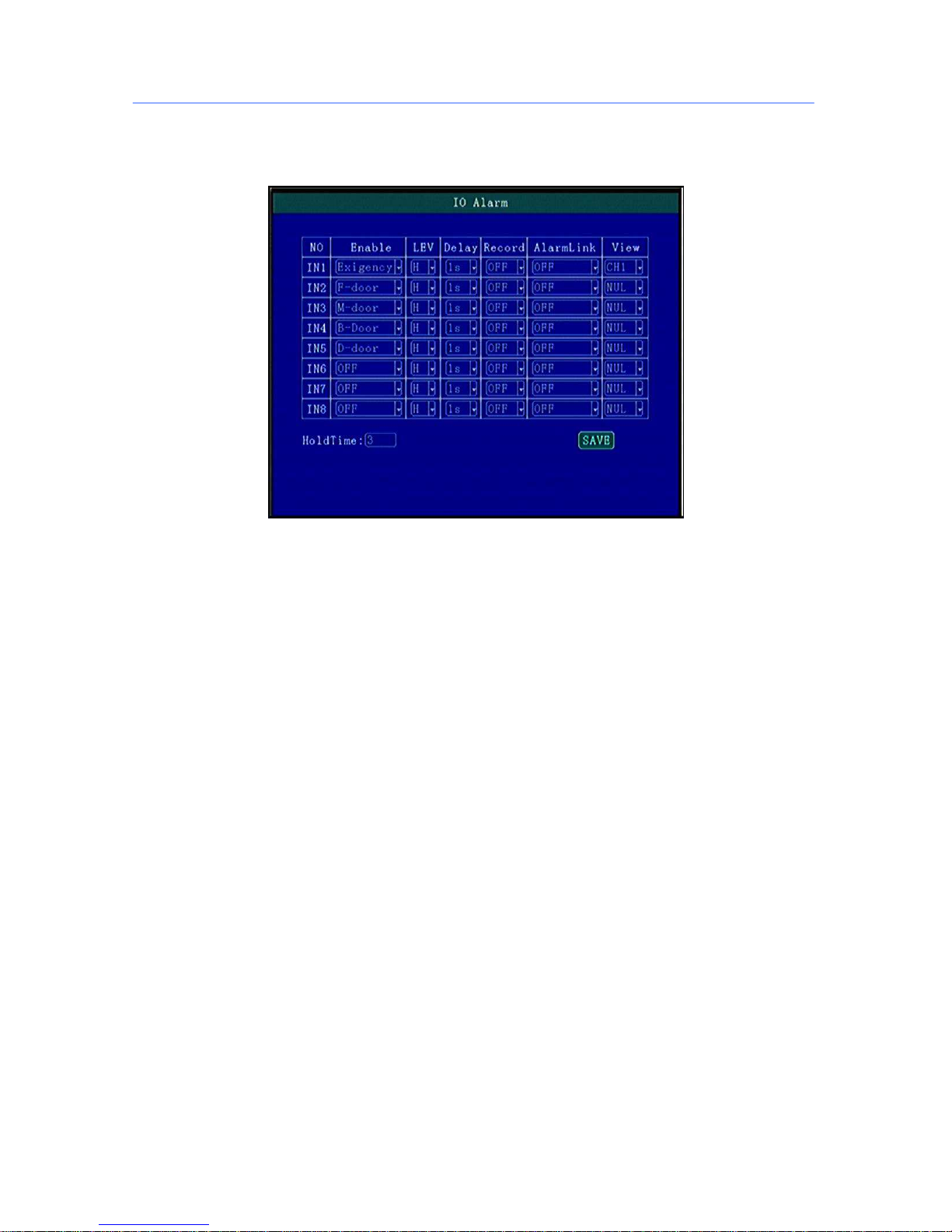
5.6.6 FTP Setup
FTP Server setup for OTA Automatically downloading when new firmware upgrading in FTP Server;
.
“IP Address” “Port” “ User ” “ Password”: Please do configuration of IP Add, port,user,password according
FTP Server Setup.
5.7 Alarm Setup
Including: IO/Speed/Temperature/Accel/Voltage/Output/Motion Detection
Page 35
Mini Portable Modular Mobile DVR USER MANUAL
- 35 -
5.7.1 IO Alarm
Each channel alarm enable/level/time delay/Linkage information setting;
“Enable”:Alarm Trigger enable on/off and alarm type, press [OK] for changing;
“Level”:Choose Alarm trigger level,High/Low Level optional,press [OK] for optional;
“ Delay”:When alarm trigger,if need delay alarm trigger,time can be set to reduce error alarm, press [OK]
for changing;
“ Record”:Record set when alarm trigger, press [OK] for changing;
“ Linkage”:Linkage set when alarm trigger, press[OK] for changing;
“ Preview”:when alarm trigger the Channel will be full screen for preview,can realize Car Reversing,Door
open alarm etc, Press [OK] for changing;
“Alarm keeping”:Set the alarm triggering time delay, which can be used to reduce misinformation.
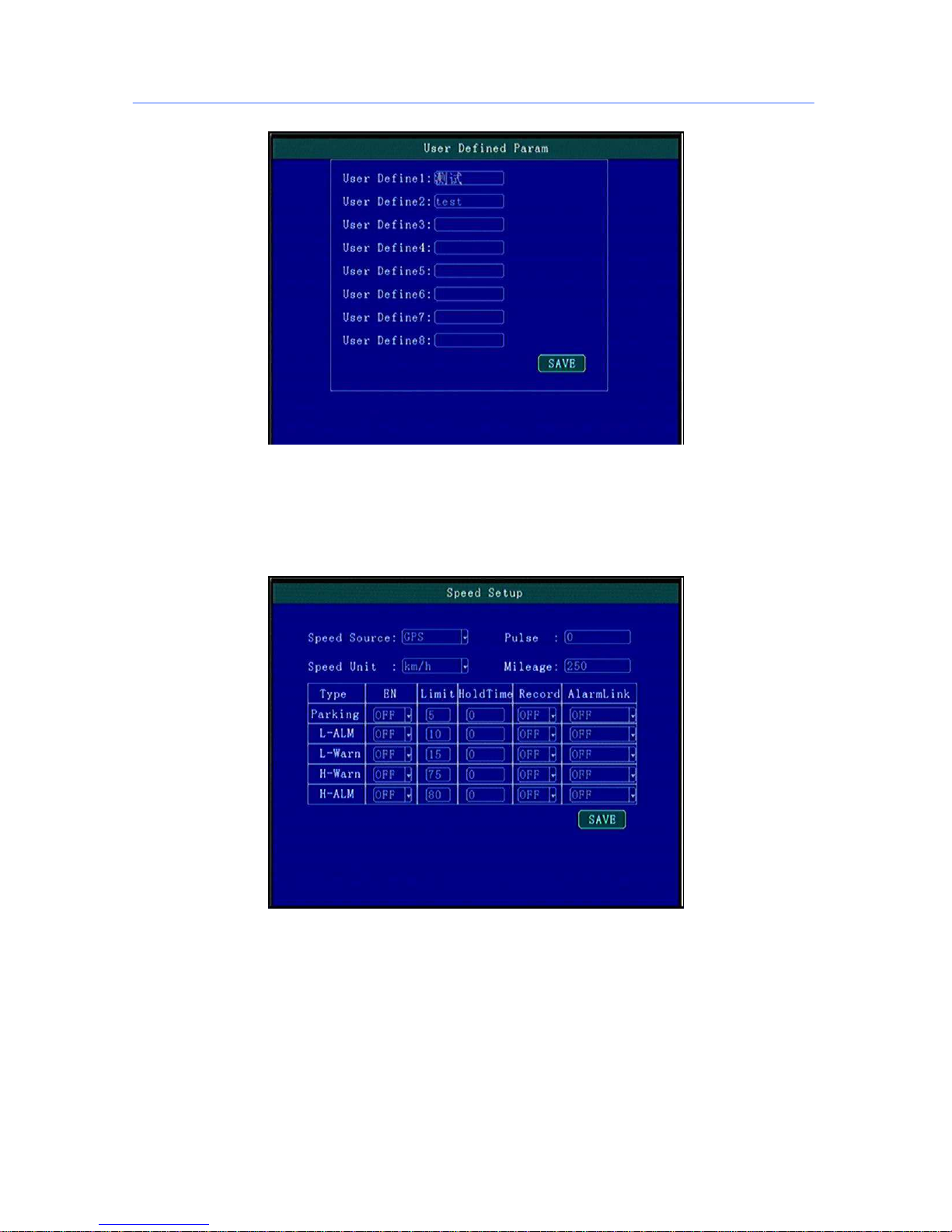
If there isn’t the specific function option you wanna display, you can choose the custom function, press
“INFO” to modify the display name by custom.
Page 36
Mini Portable Modular Mobile DVR USER MANUAL
- 36 -
Attention:
“Enable” function cannot be repeated, otherwise it will lead to abnormal alarm report.
5.7.2 Speed Alarm
High/Low Speed or illegal driving alarm can be set.
.
“ Speed Source”: The method to get speed, GPS/Pulse Signal Optional, Press [OK] for changing;
“ Pulse Number”:Must set Pulse factor for the standard if using Pulse to get car speed information,press
Numbers for changing,can search vehicle data or constant speed by several times setting for a certain number
“ Unit”: Driving Speed Unit,Press [OK] For Changing Setting
“Timeout Parking”\“Low Speed Alarm” \“Low Speed Warning”\“High Speed Warning” :by Enable to
open or close alarm function,Level setting for alarm trigger response speed and time; Delay: alarm
time ;Record: if recording when alarm appear;Linkage: When alarm occurs if linkage with alarm output;
5.7.3 Temperature Alarm
Page 37
Mini Portable Modular Mobile DVR USER MANUAL
- 37 -
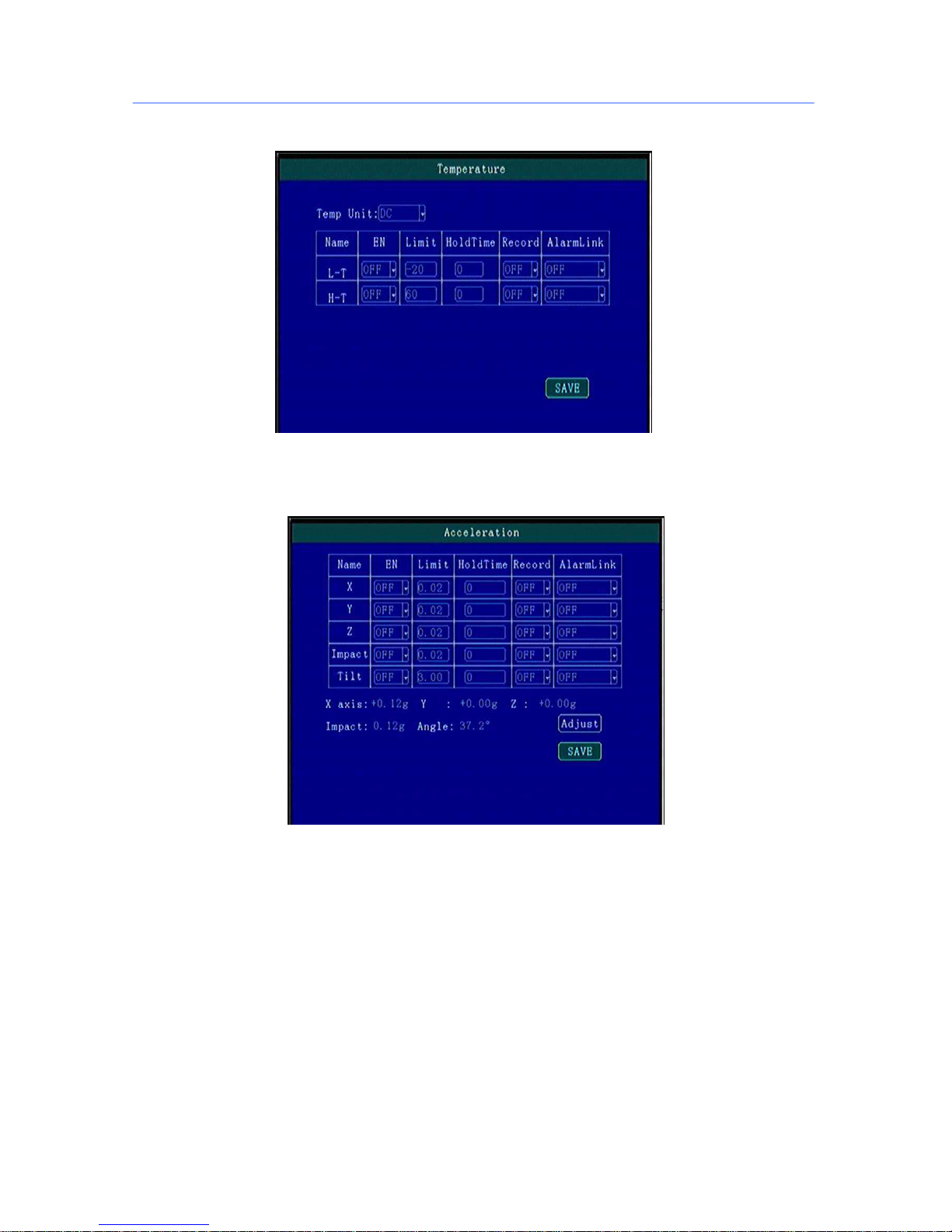
Low/High Temperature Parameter Setting.
5.7.4 G-sensor
SET G-sensor information of alarm threshold and linkage actions.
Before configuration, need to calibrate the current state first, then modify the alarm threshold.
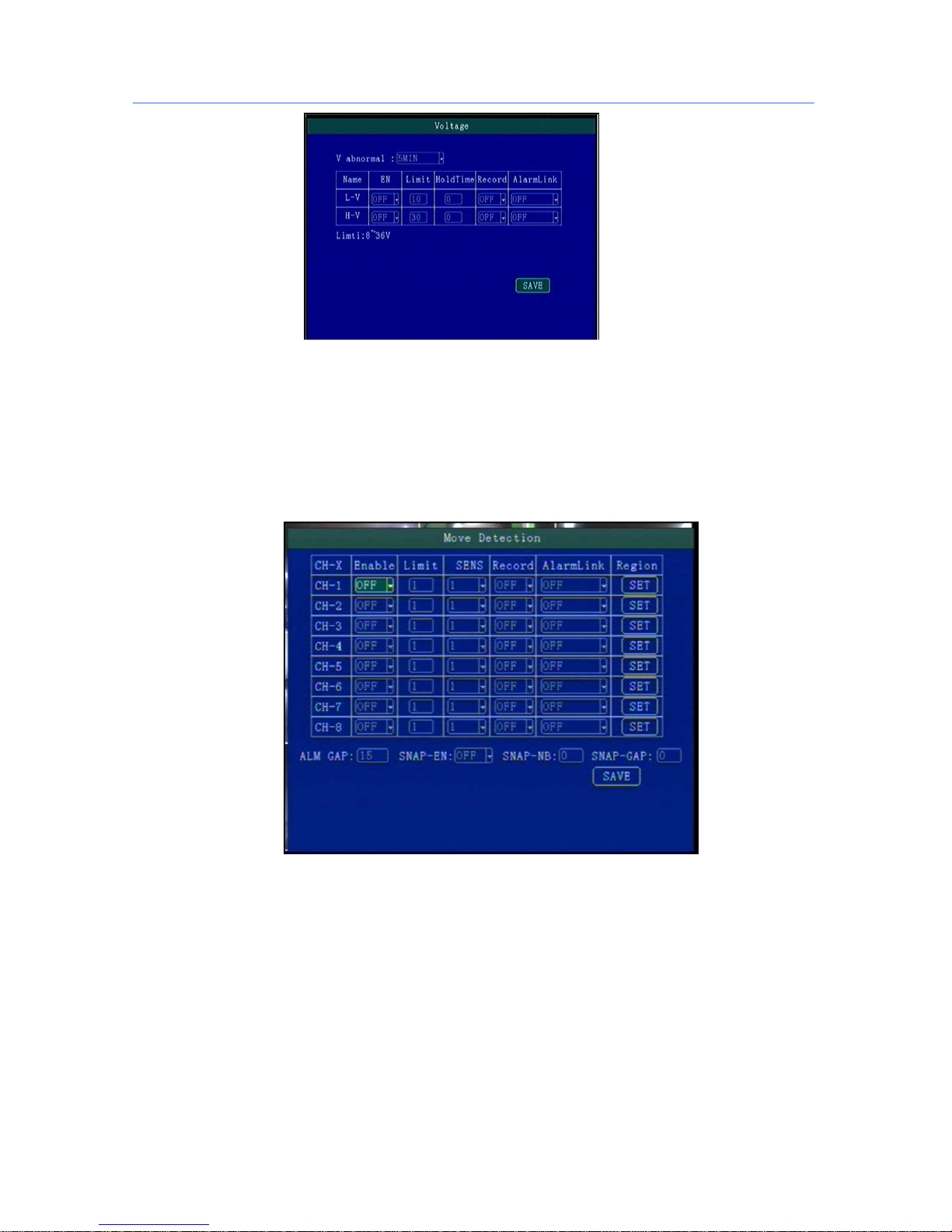
5.7.5 Voltage Alarm
Low/High Voltage alarm.
Page 38
Mini Portable Modular Mobile DVR USER MANUAL
- 38 -
Voltage abnormal delay shutdown: it means the voltage is kept below 6V, automatic shutdown time, this
can effectively protect the battery, to avoid abnormal conditions caused by the battery voltage shortage,
prolong the service life of the battery.
5.7.6 Motion Detection
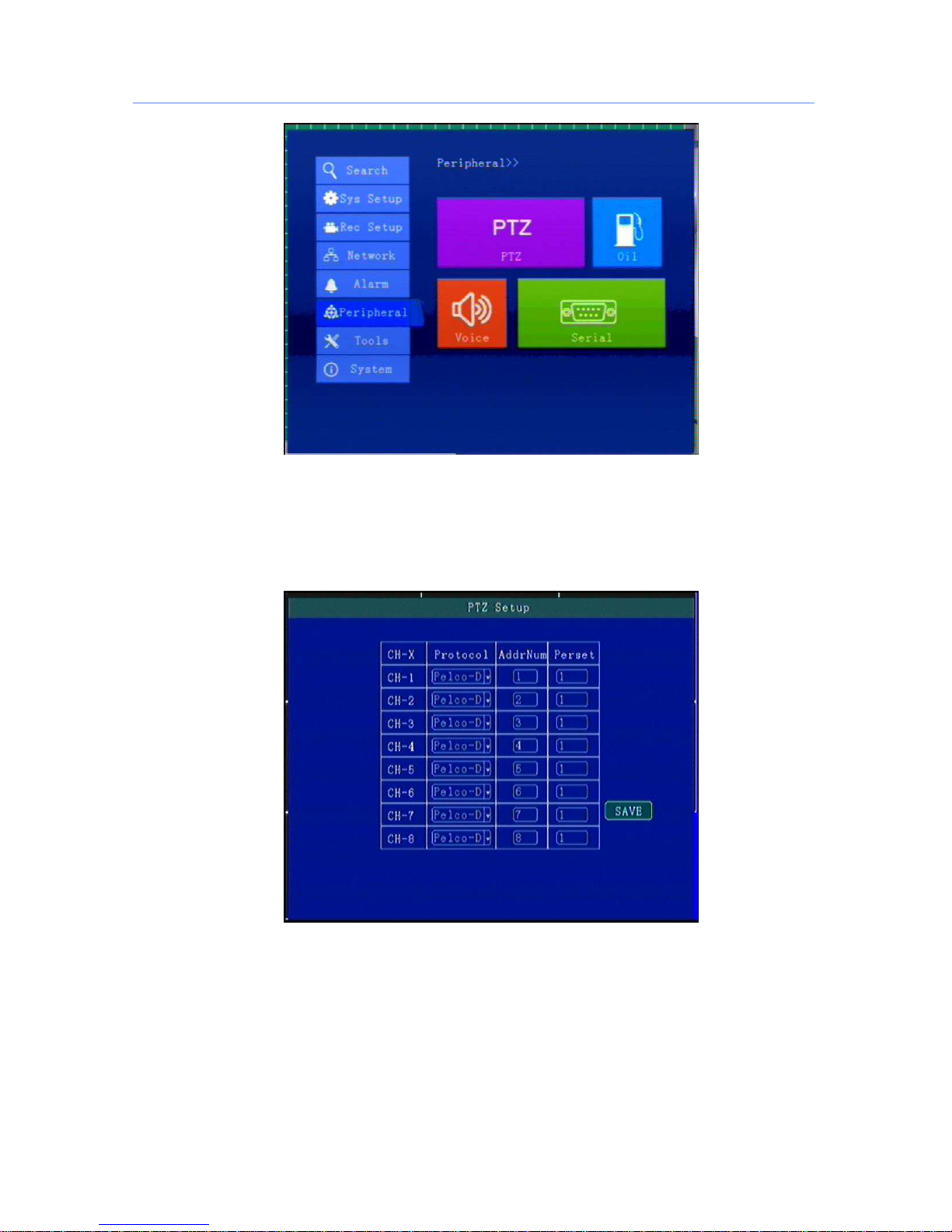
This menu is to set the image changes and the parameters of the object in the video pictures.
“Threshold ”: Main is area alarm percentage, generally set 1 or 2, representing 1% or 2% area change
images move,it will trigger motion detection alarm.
“Sensitivity”:
0-7 levels, 0 is the highest level, 7 is the lowest level. Generally suggest to set 1, the big
ger
number you choose ,the lower the sensitivity will be, then it’s not easy to alarm as well.
Specific configuration parameters can depend on actual situation of the scene, such as illumination,
detection area range and so on, to achieve the optimal effect.
5.8 Peripheral Set
PTZ/OIL/LED etc Serial Setting
Page 39
Mini Portable Modular Mobile DVR USER MANUAL
- 39 -
5.8.1 PTZ
PTZ Camera parameter configuration
“ Protocol Type”:The Protocol of PTZ Camera support option,Press [OK] for changing;
“ ADD Code”:choose PTZ Camera Address code,press Number for changing;
“ Preset”:Choose PTZ Camera Preset code,press number for changing;
** When using remote controller to control PTZ, after configuring parameters, need to zoom in single
screen first, then press PTZ ,then use the direction keyboard to control **
5.8.2 Oil
Page 40
Mini Portable Modular Mobile DVR USER MANUAL
- 40 -
Reserved oil set menu, can be set on the serial port currently
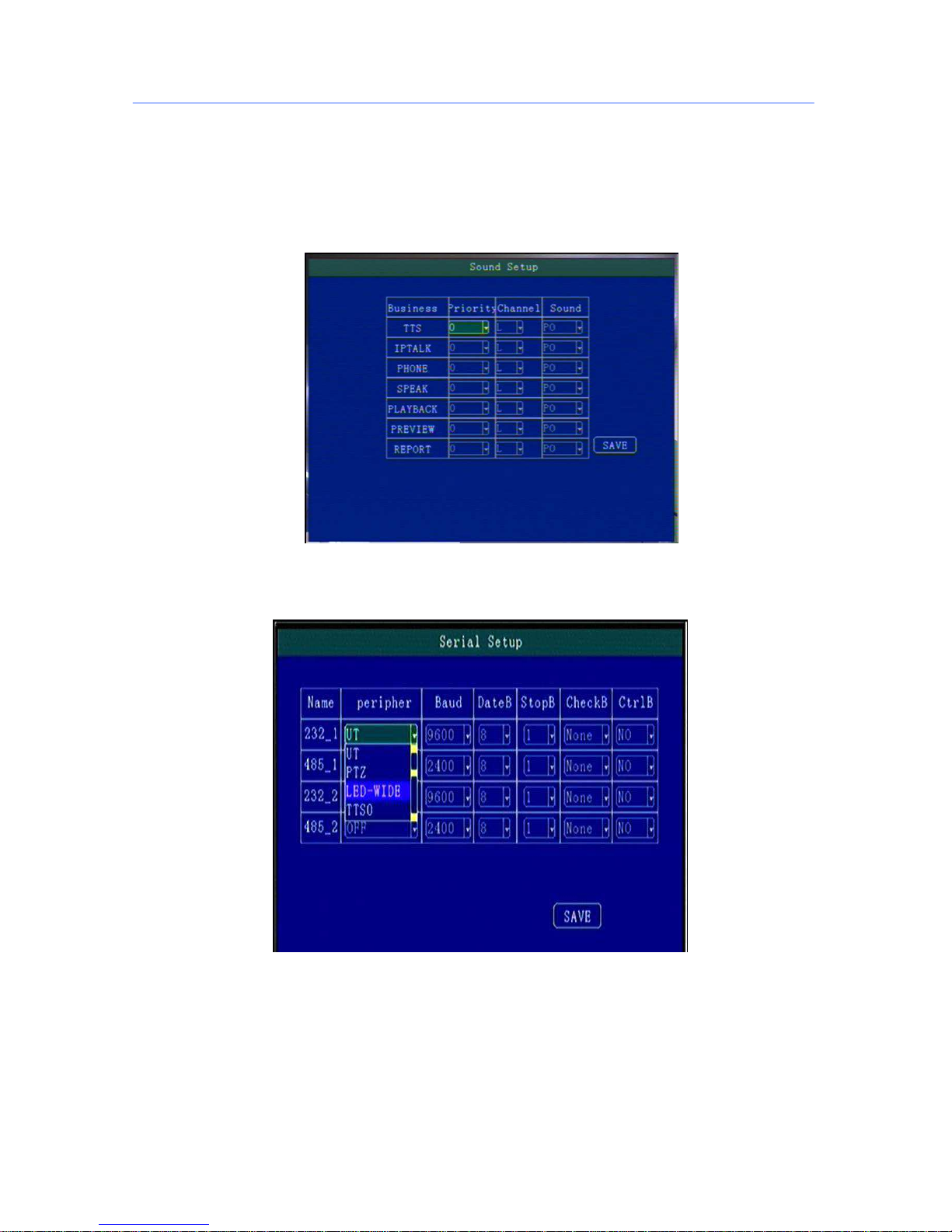
5.8.3 Speaker Setup.
Support TTS voice broadcast, telephone call, IP intercom, voice report bus stops,playback audio output and other
functions.
5.8.4 Serial Port Set
External Device parameter setting, can connect LED Advertisement/TTS/Oil/Sensor/POS etc ;
“ Peripheral”:The external device type option,press [OK] For Changing;
“ Baud Rate”:Choose Baud Rate of external device,press [OK] for changing;
“ Data Bit”: Choose the Data bit of external device, press [OK] for changing;
“ Stop Bit”:Choose the Stop bit of external device, press [OK] for changing;
“ Check Bit”:Choose the Check bit of external device, press [OK] for changing;
“Control Bit”: Choose Control bit of external device, press [OK] for changing;
Page 41
Mini Portable Modular Mobile DVR USER MANUAL
- 41 -
**** Just need to choose function and modify the baud rate, other options can keep default *
***
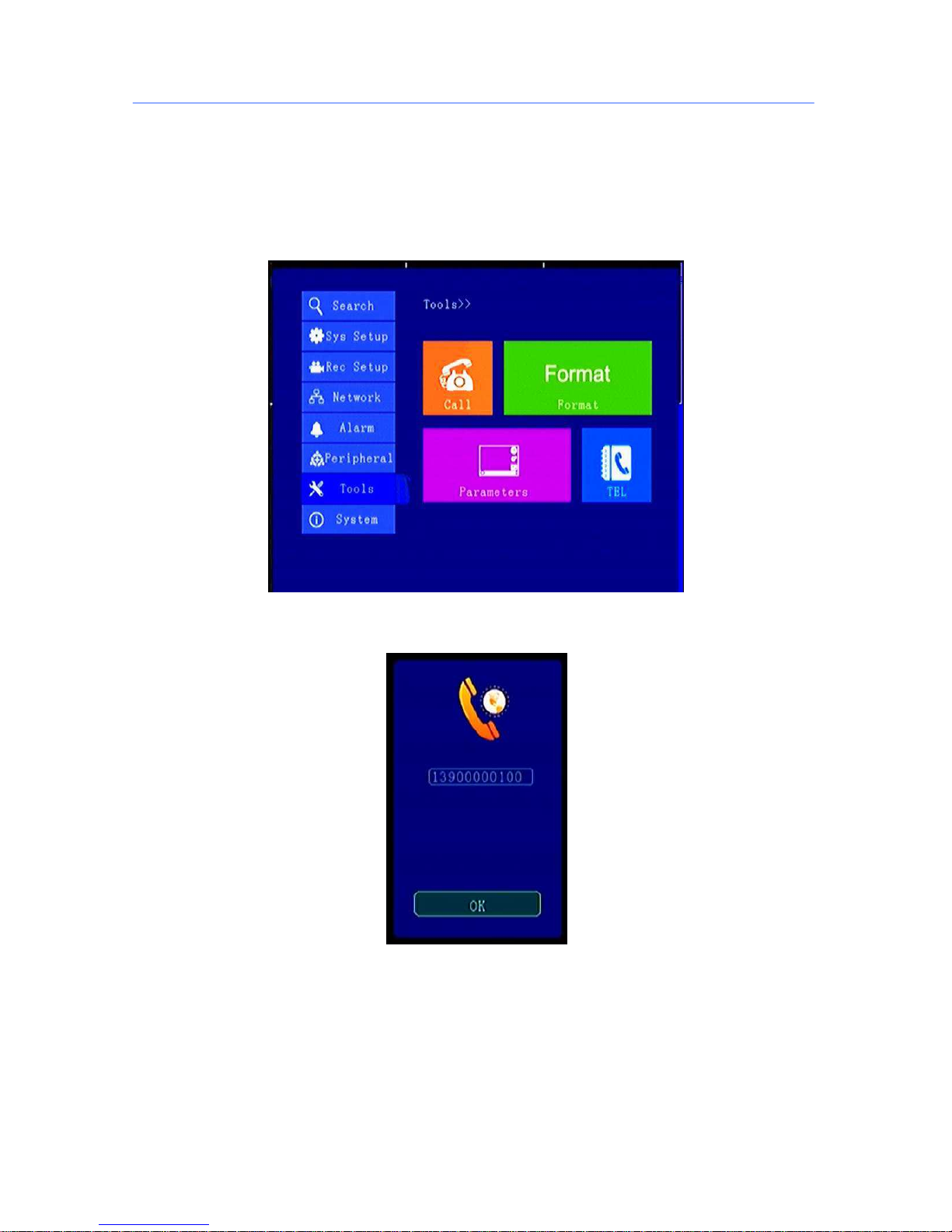
5.9 Tools
Including: Phone Call,Format,Parameter/Tel Book
5.9.1 Call
Call Phone Number ( SIM Card must support Phone Calling function) , press [OK] to enter Dialing
interface
5.9.2 FORMAT
Format Disk choice, device will reboot disk after confirming, log and pictures and other related info will
be reserved.
Page 42

Mini Portable Modular Mobile DVR USER MANUAL
- 42 -
Attention:
Device will format automatically when it starts, new HDD or SD card, can be formatted on the computer,
in general, it doesn’t need format disk in DVR by manual.
Page 43
Mini Portable Modular Mobile DVR USER MANUAL
- 43 -
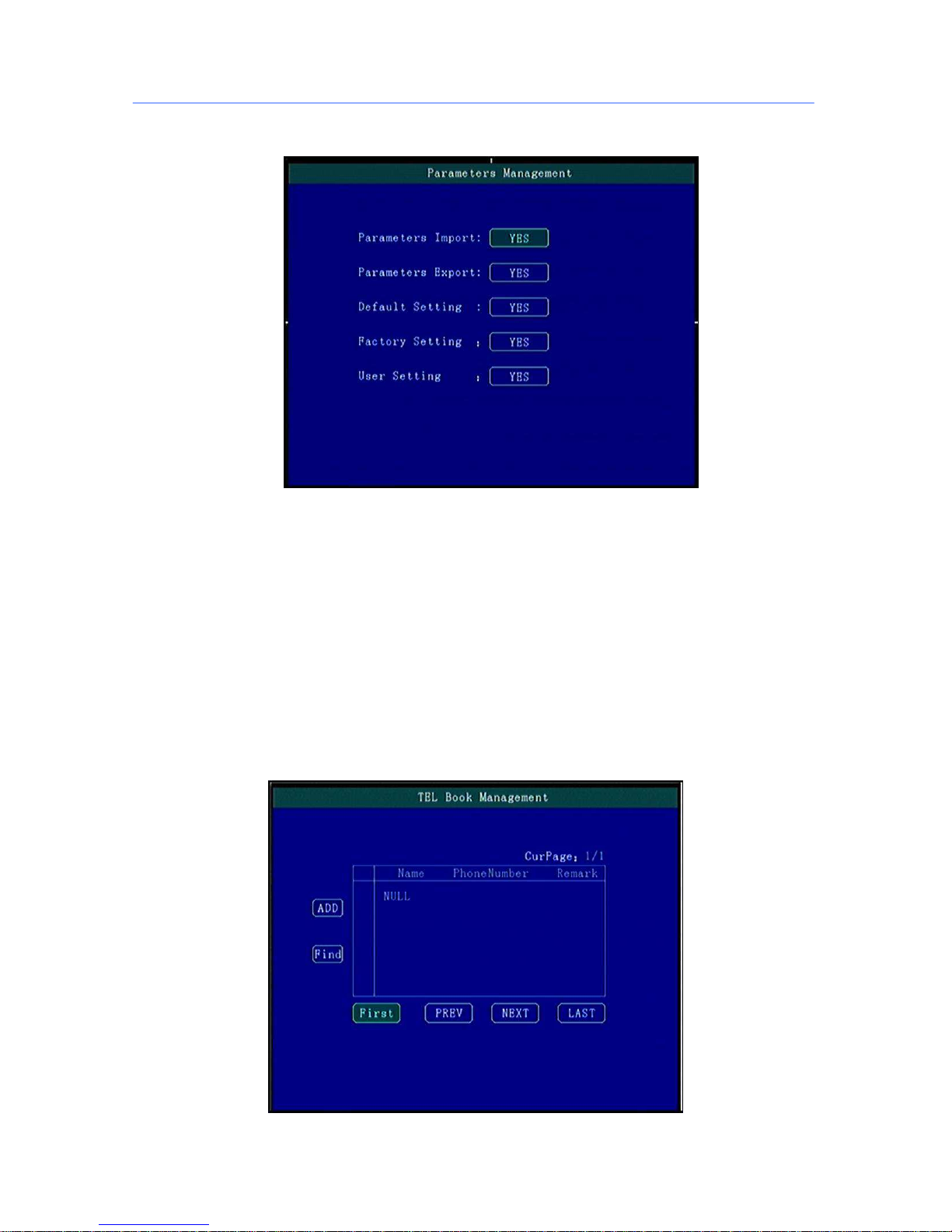
5.9.3 Parameters Management
“Import”:Import parameters from HDD or SD Card to current device.Import the system configuration
parameters which has set up and restore the factory settings to the factory states
“Export”:Export current device parameters to HDD or SD Card;
“Default”:Default to factory setting; This operation will clear all the setting on the device.
If quantity Devices with same setting,please using Parameter Export/Import for configuration,
after setting one device, export these parameters to HDD or SD Card then import to other rest devices
to be fast setting.
5.9.4 Tel Set
Can input detail phone number and query
Page 44
Mini Portable Modular Mobile DVR USER MANUAL
- 44 -
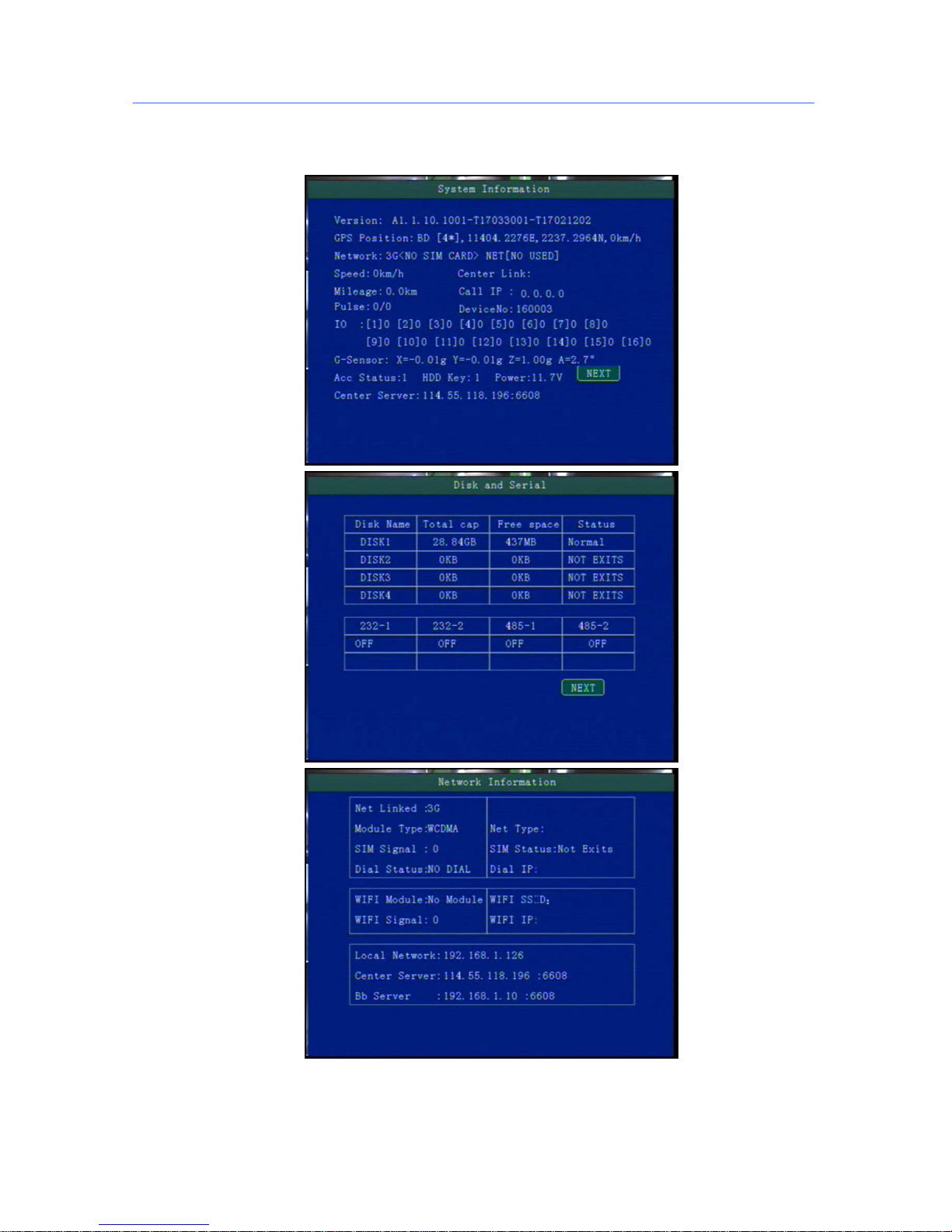
5.10 System Info
System Info have 3 parts for detail information;can view by menu or Press INFO:
Page 45
Mini Portable Modular Mobile DVR USER MANUAL
- 45 -
6. Device Installation
6.1 Power Cable Connection
Attention
1. The recorder is DC power supply; please attention the positive and negative polar.
2. The voltage is 8V~36V.Do not insert voltage that beyond this range. Under low voltage the recorder
doesn’t work, under high voltage will be harm to the recorder.
3. Please make sure the recorder is connect with the car power directly. Do not connect with the generator,
the instantaneous voltage will harm to the recorder.
4. The initial power will beyond 30W when the DVR connect with the Camera (the consumed power is
different due to the connect with different device, the power supply must beyond 30W.
5. The power cables must can stand beyond 60W.(For example, when
the output voltage of car is 12V,the power cables must can bear 5A or more.
6. Please put the cover on the cables, the cover must be wear-resistant, heat-resistant, water-proof,
grease-proof, in case of short circuit and open circuit.
7. Please install a 10A fuse box near the battery output positive polar for fear of the short circuit will damage
Page 46
Mini Portable Modular Mobile DVR USER MANUAL
- 46 -
the power supply.
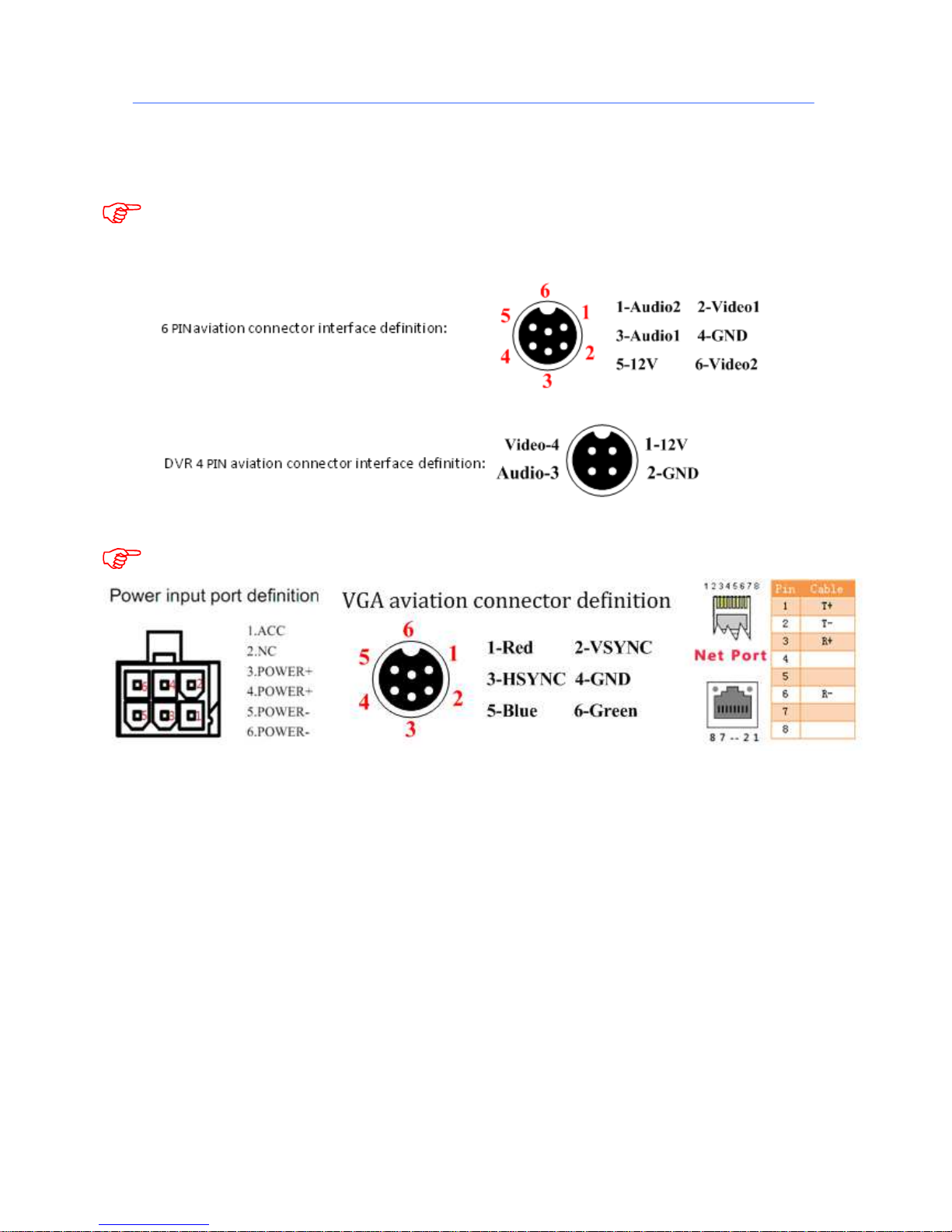
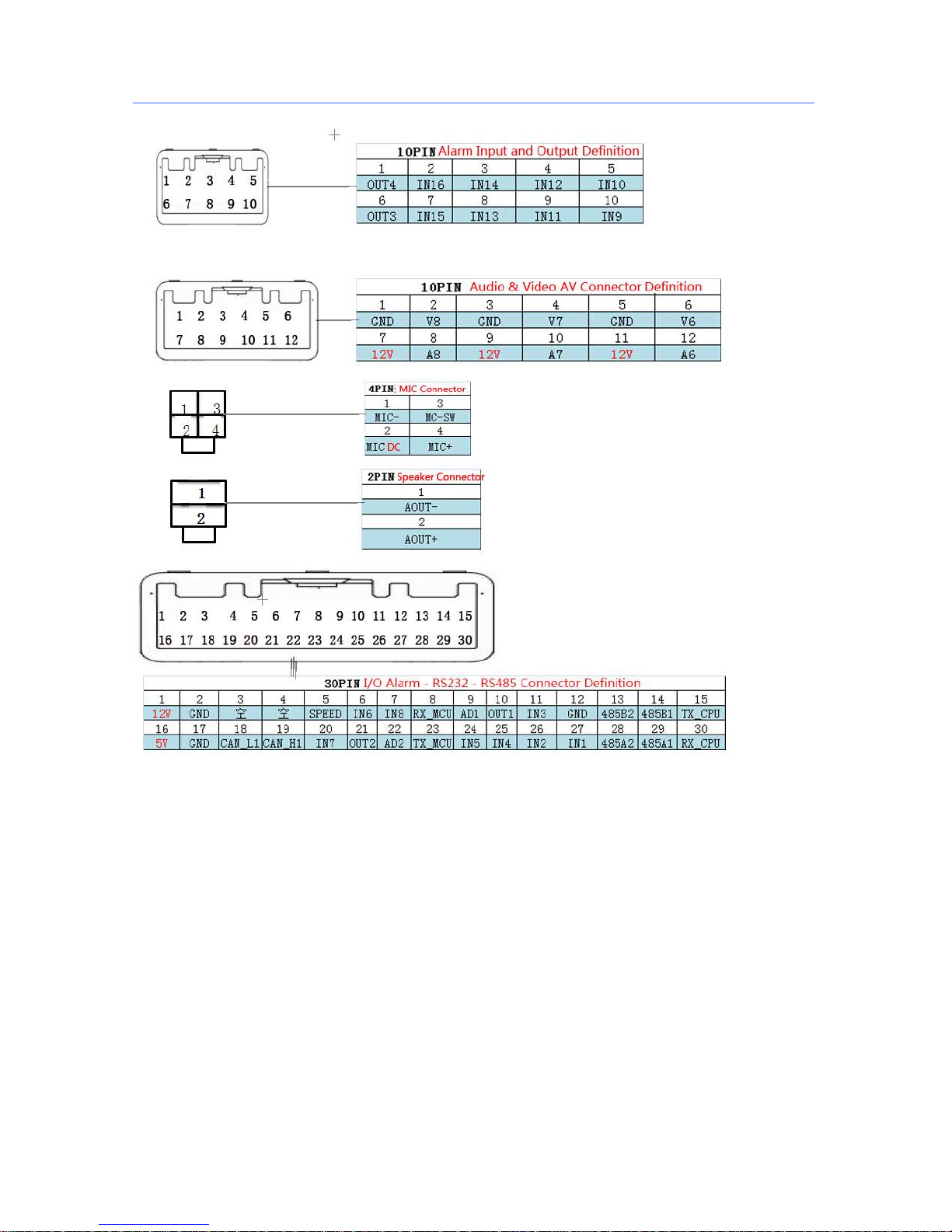
6.2 Audio/Video Interface Definition
The device support channel AV1~ AV4.The aviation joint can adapt severe environment in
the vehicles;
The power in the rear panel, IO and other PIN of the interface below:
Expansion interface PIN order is based on the direction of facing to the rear panel,please
refer to Figure 24PIN, 30PIN and 12PIN and 10PIN,4PIN, 2PIN detailed definitions are as below:.
Page 47
Mini Portable Modular Mobile DVR USER MANUAL
- 47 -
Page 48
Mini Portable Modular Mobile DVR USER MANUAL
- 48 -
6.3 Alarm Input/Output Connection Mode
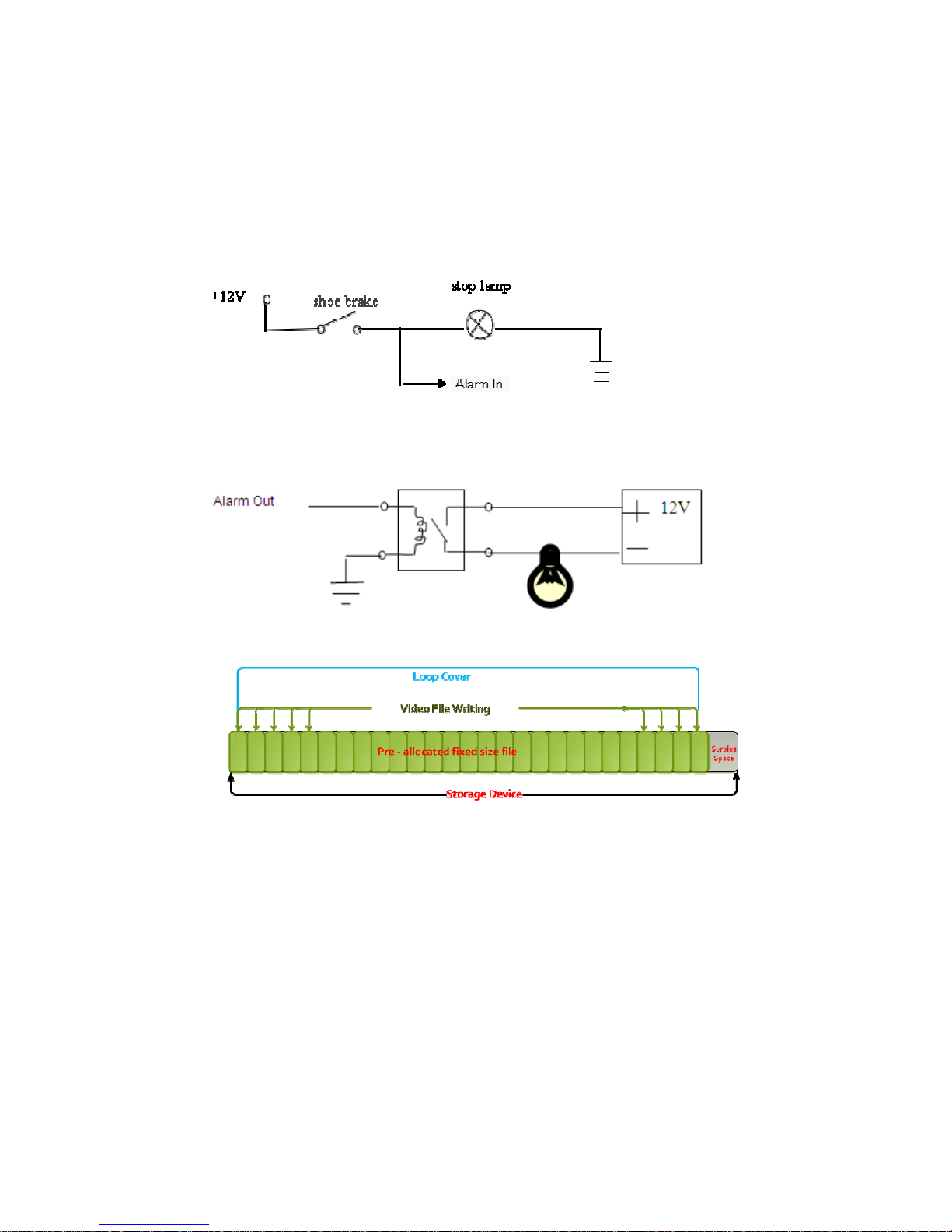
Device have 8CH Alarm Input Interface, 24 PIN I/O Interface Definition is IN1 - IN8 .
Alarm input usually using High Level to trigger, connect SOS button,Kinds of vehicle driving status such as:
Braking,Turning,Door open etc;
The following is the brake detection diagram. When the braking vane is down, the device can detect the
high level or the low level.
Alarm Output is Relay Switch output,can connect Acousto-Optic alarm,Remote Oil/Power cut off etc, if for
high power device need connect external relay
The alarm output diagrams are as following
6.4. Disk pre-allocated technology instructions
Hard Disk pre-allocated technology means, the multiple channel videos will only write in a single
video file. Features: 1. it avoids repeatedly wipe cause file fragmentation; 2. Avoid long distance
repeatedly reading and writing to the hard disk magnetic read; 3.Protect FAT table and catalogue area,
reduce the disk failure.Through the technology above can ensure the reliability and stability of the
disk, prolong the life of the SD card / hard disk, video data security;
Hard disk drive will be automatically created two partitions, respectively, used to store system logs
and video files, including rec_dir,means video disc, multiple channels video only create into a video file.
Attention :
After new hard disk insert into DVR, when start in the first time, DVR will automatically format
storage device to pre-allocate the storage space.The loading time of storage device status display
normal need 2-3 minutes, the capacity of a single video file and disk is fixed;
Page 49

Mini Portable Modular Mobile DVR USER MANUAL
- 49 -
Page 50

Mini Portable Modular Mobile DVR USER MANUAL
- 50 -
7. FAQ
Q:When Device issue appear,you are confused on how to solve it.
A:Check Device Item No & Firmware Version,sent back to us with detail description of issue.Our
Technical Team will handle it.
More detail you described,easier for us to solve it quickly.
Q:Video Output Lost
A:1.Check situation of DVR:Device Input Power;Power Cable Connection;GND Connect to
battery;fuse;RED & Yellow Cable of Power must connect together;
2.Check the Screen Power or Check if the Screen change to related AV Channel;
3.Check the connection of Video Output & Screen Cable;
Q:Device keep Rebooting
A:1)Check working power,if low power device will keep rebooting;
2) HDD/SD Card error, remove storage device and turn on device checking;
Q: If the video input interface of the device and camera is different.
A:The DVR is using 4PIN type port, the camera is BNC port or Aviation, if it is different, please use
the X-over to connect, or connect according to the DVR Line sequence definition
Q:Device on with HDD but not recording;
A:1)Check SD/HDD if format;if not please enter Main GUI--System Set--Format,format HDD/SD
Card;
2)If close Recording ,or set Timed Recording mode, if yes it won’t recording if not the time set
3)If the HDD is connect well, if the HDD/SD light is on.
Q: Video files lost, or there is no video files at a certain period time.
A: 1. Analysis the lost video and ensure the lost time period.
2. Confirm if the DVR was opened at that time, such as crashed midway park, loading and unloading
ect. And the device didn’t set the delay recording
Q: Can not control the Car PTZ, can not rotate to all direction.
A: If the agreement and Baud rate of the PTZ is setting right,if the address code is corresponding, if
the video channel is setting to max when control the PTZ. Like if is control the first channel, then must set
the first channel image to be max.
7.1 GPS related FAQ
Q: With GPS but no GPS coordinate Information
A:1)Check if GPS module exist;
2)Check GPS Antenna connection,suggest install on the outside place with strong signal;
3)If testing in office, suggest put GPS Antenna out of window;
4)If working environment not good will related to no GPS Information or wrong information;
Page 51

Mini Portable Modular Mobile DVR USER MANUAL
- 51 -
Q:Deviation of GPS Location on Map?
A:The signal is effective if the GPS module has been positioning, there are so many reasons caused
bias, government restriction, permissible error, GPS signal break off, The actual satellite map error
occurred for the security, GPS Correction can solve the problem.
7.2 3G Wireless Module related FAQ
Q:If using 3G ,what should we concern?
A:1)Choose inside wireless module WCDMA,EVDO,TD-SCDMA, relative module setting is different
then SIM Card is different, please make sure the module is corresponding with the SIM Card.
2)If Server IP & Port set correct,if 3G signal strong for dialing;3G dialing successfully or not;
3)Check 3G Antenna connection,dialing will be failed if 3G signal too weak;
4)Check SIM Card 3G Flow
Q:When meet device offline or no video,what should be done first?
A:1)Press INFO key to enter the system Info page,check if SIM Card exist,3G signal and dialing
status,Antenna connection,Check SIM Card 3G Flow,change to a new SIM Card check again;
2)3G Signal strong but dialing fail,check if center IP & Port set correct;
3)Check if Device ID already be occupied;
Q:3G Signal is intermittent, video get stuck ?
A:At present, signal coverage of the WCDMA and EVDO is very wide, but still there are some
mountain area signal is weak, this will influence. Then check if the frame rate in Sub-stream setting is too
high.
Q:WIFI Signal 60/100,connect failure;
A:General condition, connection is no problem when the signal intensity up to 60/100 if WIFI setup
are right. If the device can not be found in LAN, then you should check if setting SSID and password, IP
Address, besides, check the Encryption Type and authentication mode if setting according to
requirements.
7.3 Client Software FAQ
Q:Device working but can not see Vehicle and video on client software
A: 1)Check if Center Server running and device Number if using;
2)Check Server IP and Port parameter setting;
3)Check is using 3G or WIFI for connecting, if 3G check the 3G Model WCDMA or EVDO and related
SIM card,3G antenna connect normally/APN setting/Center No. setting;
If it still can not work,please offer the most detailed information to us for technical support
Q:Device Online but can not see video
Page 52

Mini Portable Modular Mobile DVR USER MANUAL
- 52 -
A:1)Please set Low Sub-stream,when sub-stream set high it will effect the transmission because of
the network;
2)Network environment not good;
Q: Device works well in the Client, but cannot see the video a period time later.
A:1.Check if connect to server successfully on device, if dialing probably SIM Card no 3G
Flow,change another SIM card for testing;
2.Check if Device Number be changed,if yes,need add device to server again;
3.If still can not view video after previous 2 steps,please check if 3G module error;
7.4 Other related questions
Q: Video Lost in certain channel?
A: Possible reasons are as follows
1. This channel has no video input
2.The camera of this channel breaks down or work abnormality
3.If the camera takes an electricity power from the equipment directly, may be the
equipment’s electric voltage isn't enough to make camera work as usual;
d) The cable that links this channel has problem
Q: Can’t playback files on PC successfully?
A: Possible reason is as follows:
1.Have never chosen a record file or document path; please choose the path that records file first
before playback.
Q: Remote control not works?
A: Probably of the reasons are as follows:
1.The remote control didn't pack battery;
2.2.The remote control damages;
3.Device damages.
Q: During playback, the map doesn't show?
A: Possible reasons are as follows: Net cable did not connect to PC; Net works, but the computer
can not get to the Internet;
Q: When SD card and HDD records, How is the record coverage?
A: SD card and HDD will record circularly for each other. When they are full, they will delete the
original video records respectively.
 Loading...