

Page 1

oCam-1MGN-U USER MANUAL Verion 1.0
Oct. 2017
www.withrobot.com Page 0
WITHROBOT Inc.
USER MANUAL
oCam-1MGN-U
Version 1.0
July 2017
www.withrobot.com
Copyright(c) 2017 WITHROBOT Inc. All rights reserved.
Page 2

oCam-1MGN-U USER MANUAL Verion 1.0
Oct. 2017
www.withrobot.com Page 1
Document version history
Date
Document version
Description
Oct. 2017
1.0
Initial release
Page 3

oCam-1MGN-U USER MANUAL Verion 1.0
Oct. 2017
www.withrobot.com Page 2
TABLE OF CONTENTS
DOCUMENT VERSION HISTORY .......................................................................................................................... 1
1. INTRODUCTION .............................................................................................................................................. 4
1.1. Specifications .................................................................................................................................................................. 4
1.2. Applications..................................................................................................................................................................... 4
1.3. Technical resource........................................................................................................................................................ 5
2. SPECIFICATIONS ............................................................................................................................................. 6
2.1. PCB dimensions ............................................................................................................................................................. 6
2.2. External look ................................................................................................................................................................... 6
2.3. Electrical specifications ............................................................................................................................................... 7
2.4. Camera specifications ................................................................................................................................................. 7
3. HOW TO CONNECT OCAM-1MGN-U TO WINDOWS HOST ................................................................. 8
3.1. Connection of oCam-1MGN-U to host computer ......................................................................................... 8
3.2. oCam-Viewer installation .......................................................................................................................................... 8
3.3. Run the oCam-Viewer ................................................................................................................................................ 9
4. HOW TO CONNECT OCAM-1MGN-U TO LINUX HOST ...................................................................... 12
4.1. oCam-Viewer download & build ........................................................................................................................ 12
4.2. Connection of oCam-1MGN-U to host computer ...................................................................................... 12
4.3. Run the oCam-Viewer ............................................................................................................................................. 13
5. FIRMWARE UPDATE.................................................................................................................................... 15
6. RECOMMENDATIONS ................................................................................................................................. 16
7. FAQS ............................................................................................................................................................... 17
7.1. Guvcview ....................................................................................................................................................................... 17
7.2. DIY Fixture .................................................................................................................................................................... 17
7.3. Technical support ...................................................................................................................................................... 17
Page 4

oCam-1MGN-U USER MANUAL Verion 1.0
Oct. 2017
www.withrobot.com Page 3
APPENDIX .............................................................................................................................................................. 18
1. DEFAULT M12 LENS SPECIFICATIONS .................................................................................................... 18
2. M12 LENS HOLDER DIMENSIONS ........................................................................................................... 20
3. TRIPOD MOUNT: OCAM-TM .................................................................................................................... 21
Page 5

oCam-1MGN-U USER MANUAL Verion 1.0
Oct. 2017
www.withrobot.com Page 4
1. Introduction
The oCam-1MGN-U is a Global Shutter, 1 Mega pixel, Mono, UVC compliant, USB3.0 SuperSpeed
camera from WITHROBOT Inc. It uses AR0134 of On Semiconductor as the image sensor and
provides the image through USB3.0 interface to be easily connected to hosts with USB3.0 ports.
The camera is backward compatible with USB2.0 interface, so for the hosts with USB2.0 ports, the
connection is automatically adjusted to High Speed interface.
As the camera supports UVC1.0 specifications, the images of various resolutions of 1280 x
960(45FPS), 1280 x 720(60FPS), 640 x 480(80FPS), 320 x 240(160FPS) are readily available to
hosts of Linux or Windows operating systems without any special drivers. The electronic global
shutter mechanism of the camera provides clear images with less blur. The oCam-1MGN-U with
M12 lens holder allows various M12 lenses to be interchangeably used on the camera to suit to
various applications.
1.1. Specifications
Sensor: OnSemi AR0134 CMOS image sensor
Sensor Size: 1/3 inch
Interface: USB 3.0 SuperSpeed
Power: USB bus power
Operating temperature: 0°C~70°C
Rating: DC5V/180mA
Shutter: electric global shutter
Field of View (FOV): 65°
Camera Control: Exposure, Brightness, Auto-Exposure
Weight: 33.5 g
PCB Size: 39 x 39 mm
Case Size: 42 x 42 x 17 mm
Lens: M12 type lens
1.2. Applications
Computer vision
Web cam
Embedded camera
Visual servo for face tracking
Page 6
oCam-1MGN-U USER MANUAL Verion 1.0
Oct. 2017
www.withrobot.com Page 5
Smart camera
1.3. Technical resource
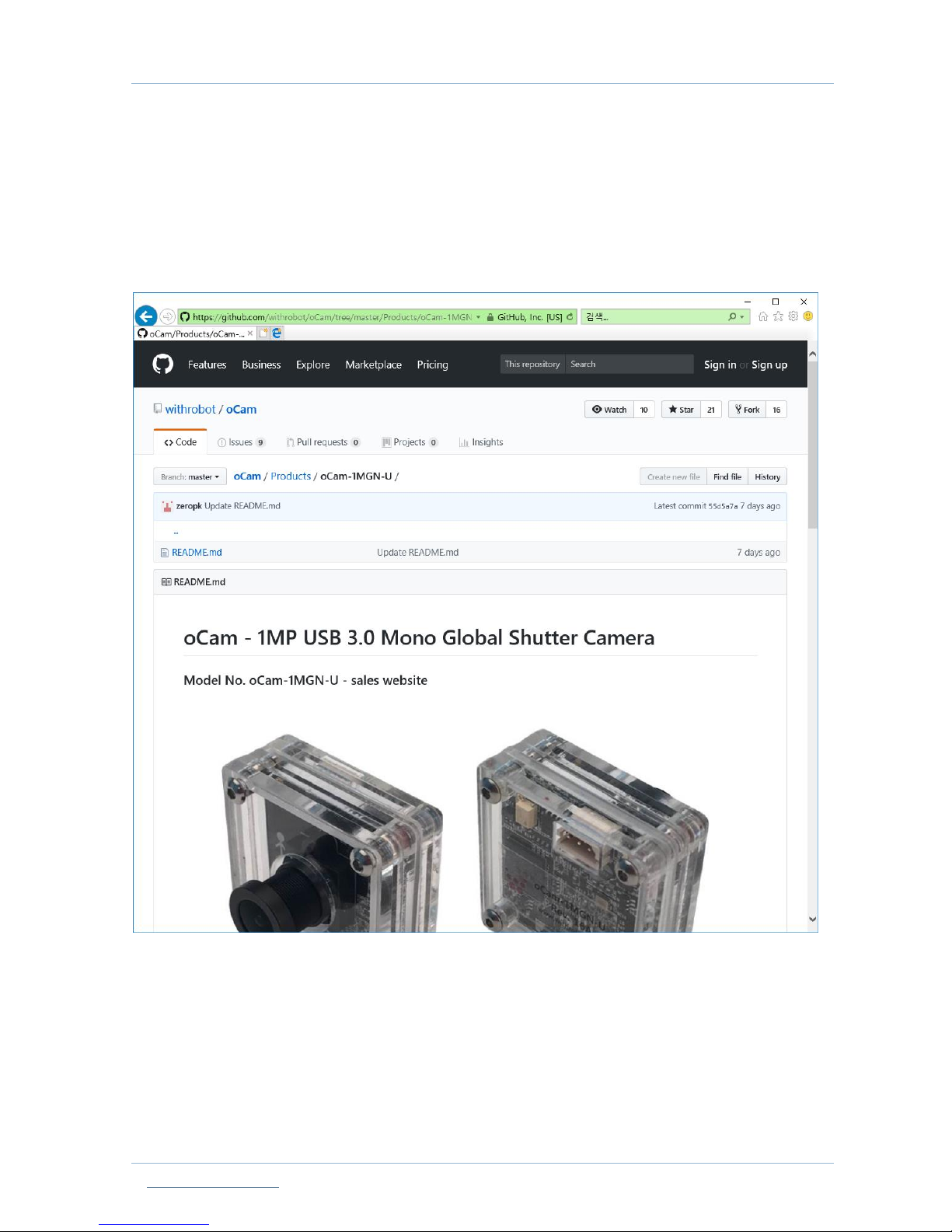
Latest updates of the related firmware and software are available at
https://github.com/withrobot/oCam/tree/master/Products/oCam-1MGN-U.
Figure 1. Online technical resource repository.
Page 7
oCam-1MGN-U USER MANUAL Verion 1.0
Oct. 2017
www.withrobot.com Page 6
2. Specifications
2.1. PCB dimensions
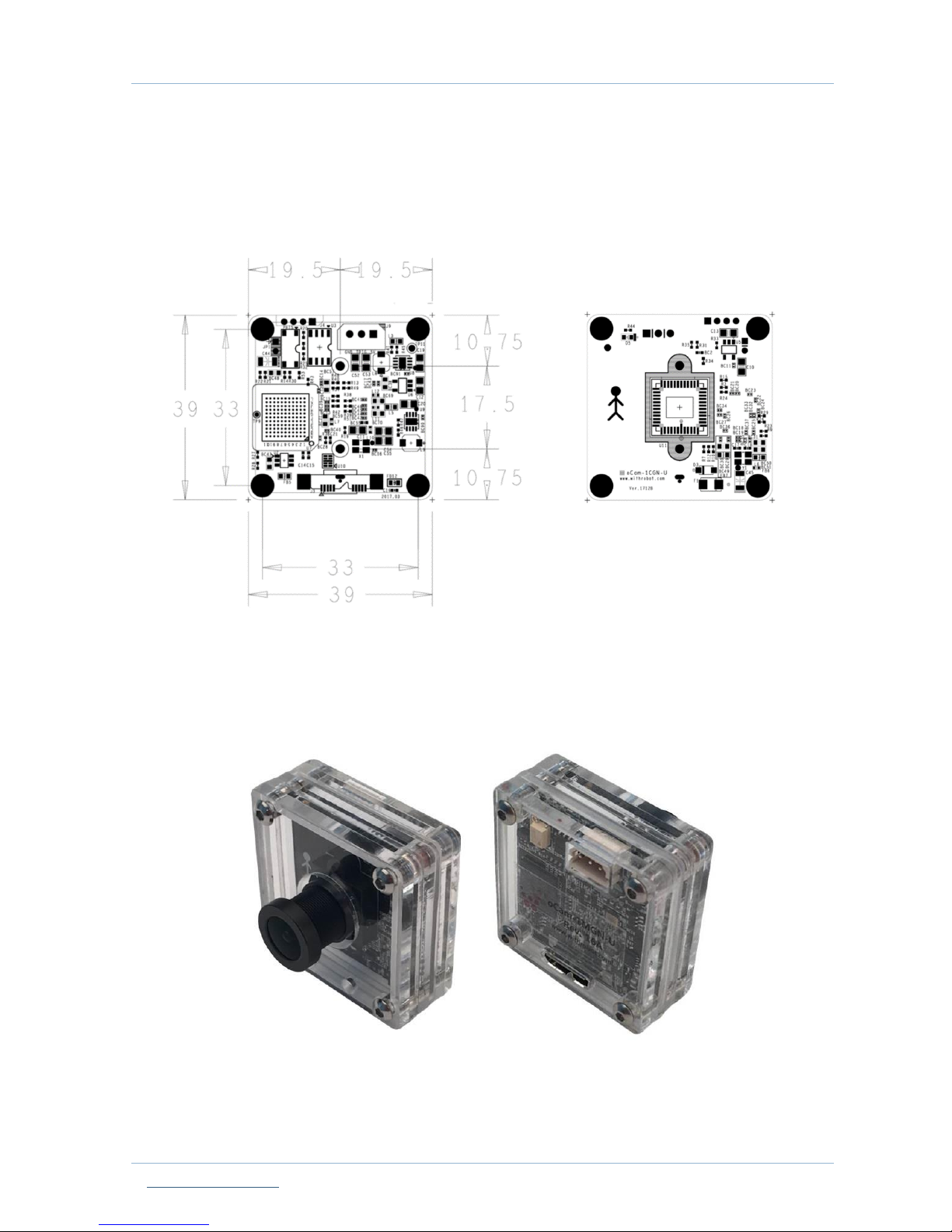
Figure 2. PCB dimensions (in mm)
2.2. External look
Figure 3. External look (42 x 42 x 17mm)
Page 8

oCam-1MGN-U USER MANUAL Verion 1.0
Oct. 2017
www.withrobot.com Page 7
2.3. Electrical specifications
Item
Min
Max
Unit
Source Voltage, VDD
5.0 V Current
180
mA
Operating Temperature
-40
85
℃
Table 1. Electrical specifications
2.4. Camera specifications
Item
Specification
Notes
Image type
Monochrome
Image resolutions
Horizontal x Vertical (FPS)
1280 x 960(45fps)
1280 x 720(60fps)
640 x 480(80fps)
320 x 240(160fps)
Shutter
Global Shutter
Camera control
Brightness
Exposure (Absolute)
Auto Exposure
Supported
Auto White Balance
Not supported
External Trigger
Not supported
Lens Correction
Not supported
White Balance Auto Setup
Not supported
Table 2. Camera specifications
Page 9
oCam-1MGN-U USER MANUAL Verion 1.0
Oct. 2017
www.withrobot.com Page 8
3. How to connect oCam-1MGN-U to Windows host
3.1. Connection of oCam-1MGN-U to host computer
Insert USB3.0 cable to oCam-1MGN-U.
Connect USB3.0 cable to USB3.0 port of the host computer.
Wait about 1 minute until the message window appears.
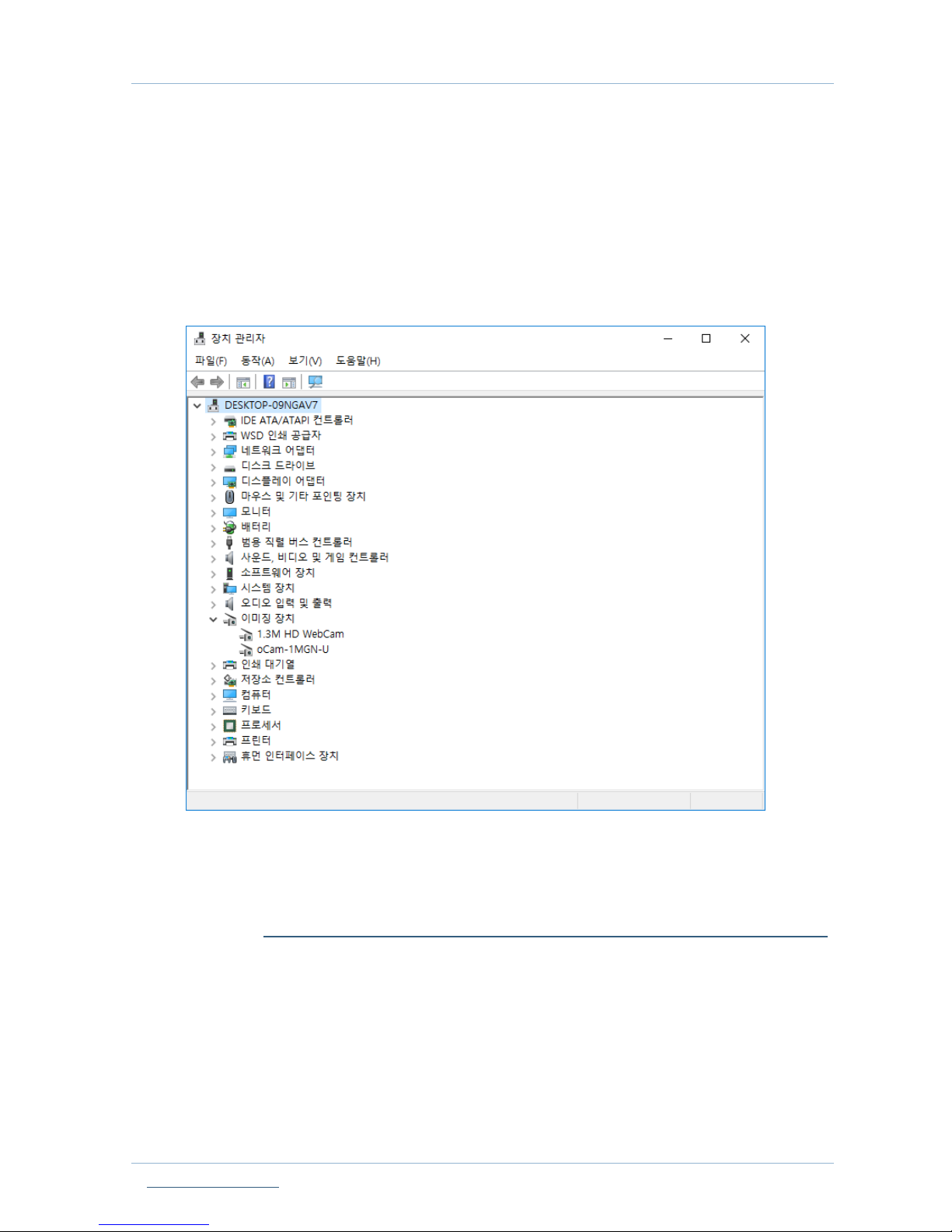
The oCam-1MGN-U should appear on the device list in the Device Manager
Figure 4 . Connection success messsage window
3.2. oCam-Viewer installation
Open the site https://github.com/withrobot/oCam/tree/master/Software/oCam-viewer_Win/bin.
Download the oCam-Viewer:
For 64bit system, download “libCamCap-amd64.dll” and “oCam-Viewer-amd64.exe”.
For 32bit system, download “libCamCap.dll” and “oCam-Viewer.exe”.
Page 10
oCam-1MGN-U USER MANUAL Verion 1.0
Oct. 2017
www.withrobot.com Page 9
3.3. Run the oCam-Viewer
Start oCam-Viewer.
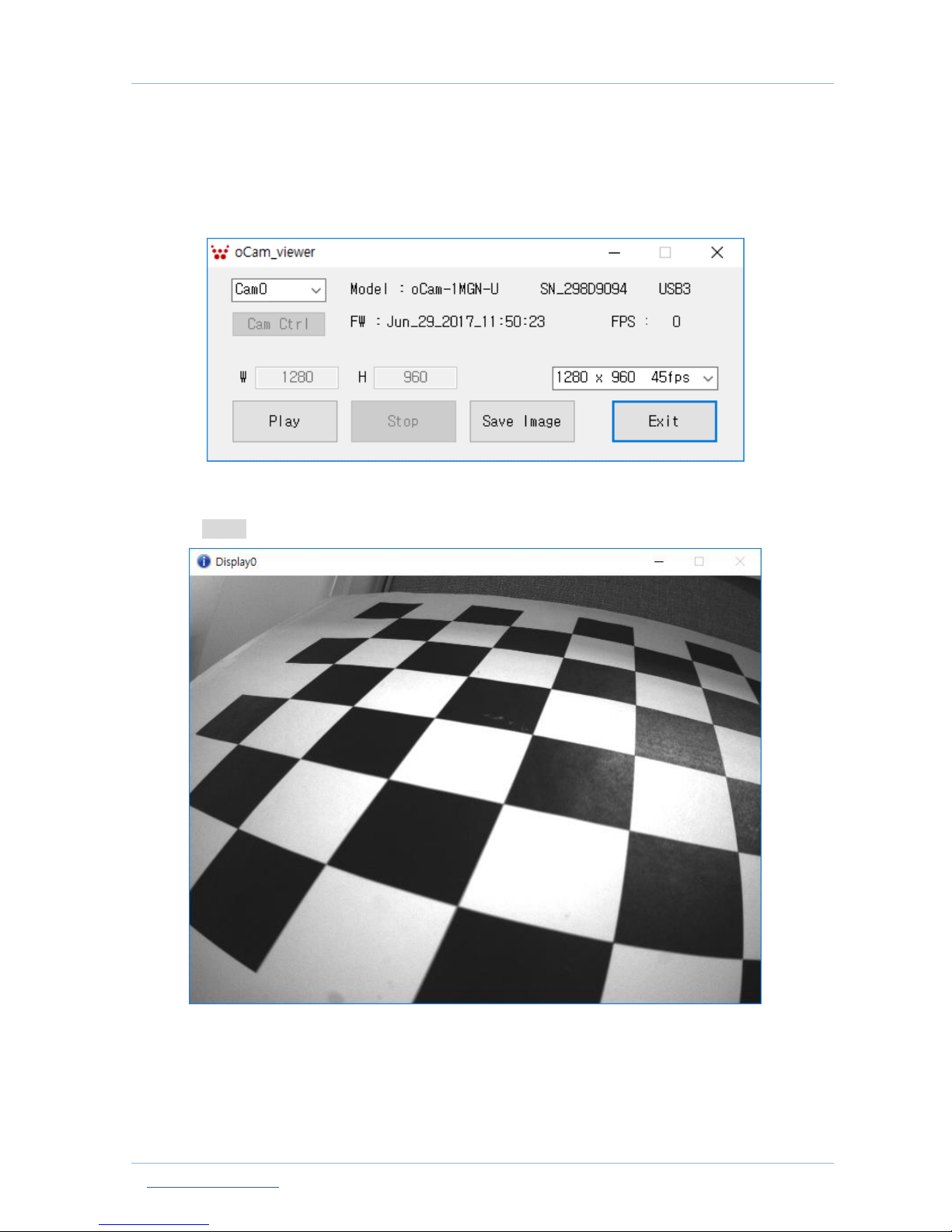
Once the oCam-1MGN-U is connected successfully, the viewer main window will appear as
follows.
Figure 5. oCam-Viewer main window
Click [Play] to show the image window.
Figure 6. Camera image view window
Page 11
oCam-1MGN-U USER MANUAL Verion 1.0
Oct. 2017
www.withrobot.com Page 10
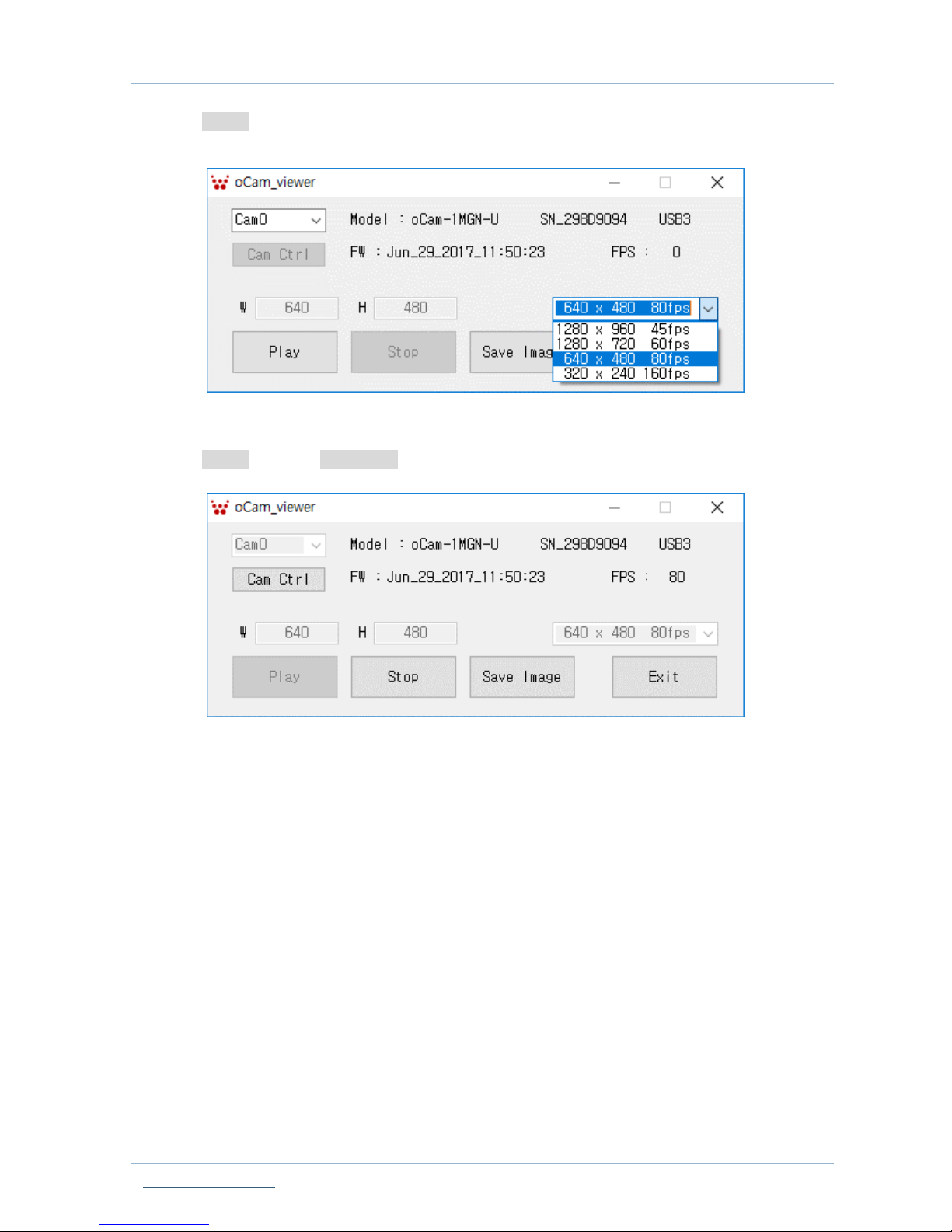
Click [Stop] and click the dropdown arrow to open the list of resolutions supported by the
connected camera.
Figure 7. Image resolution list
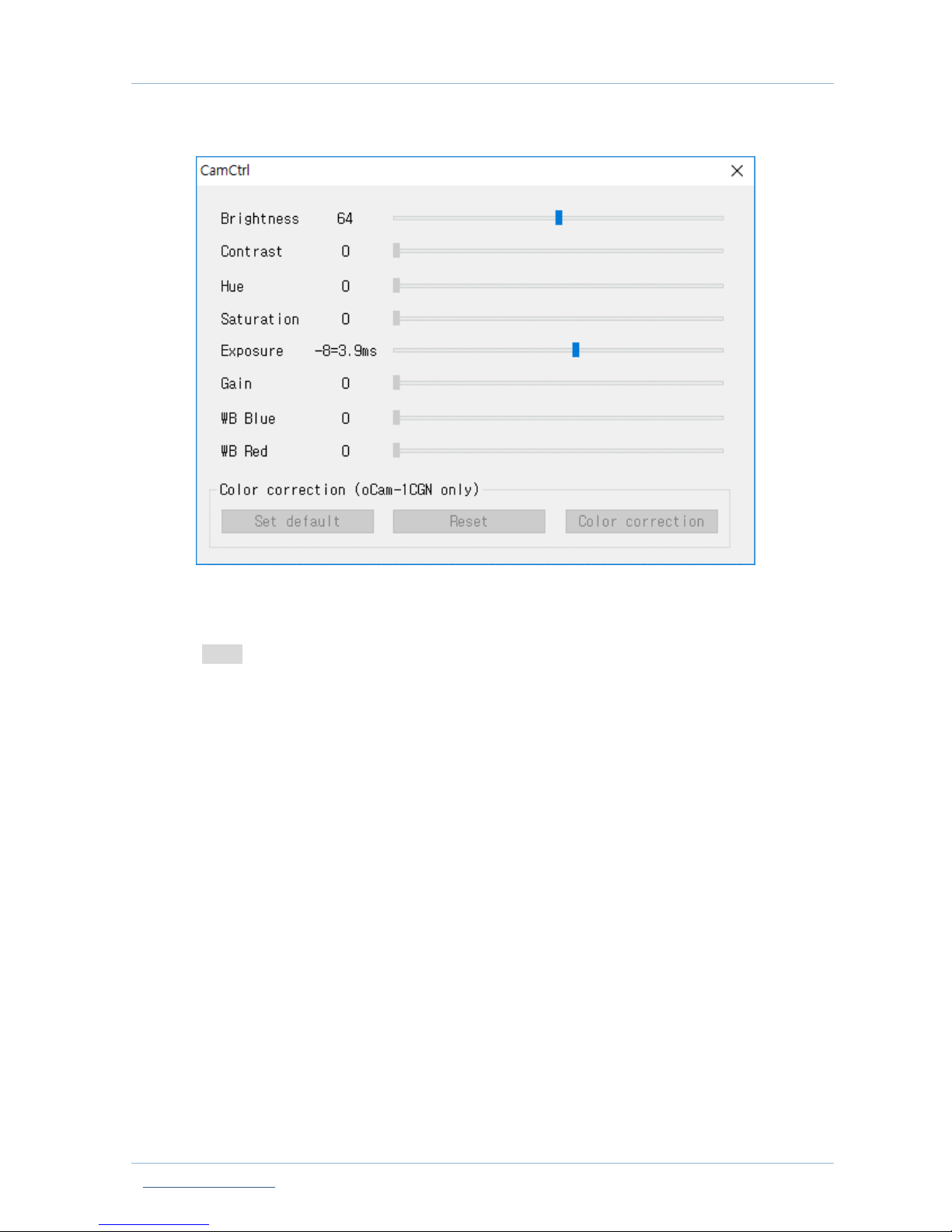
Click [Stop] and click [Cam Ctrl] to open the camera control window.
Page 12
oCam-1MGN-U USER MANUAL Verion 1.0
Oct. 2017
www.withrobot.com Page 11
Figure 8. Camera control window
Click [Exit] to terminate the program.
Page 13
oCam-1MGN-U USER MANUAL Verion 1.0
Oct. 2017
www.withrobot.com Page 12
4. How to connect oCam-1MGN-U to Linux host
4.1. oCam-Viewer download & build
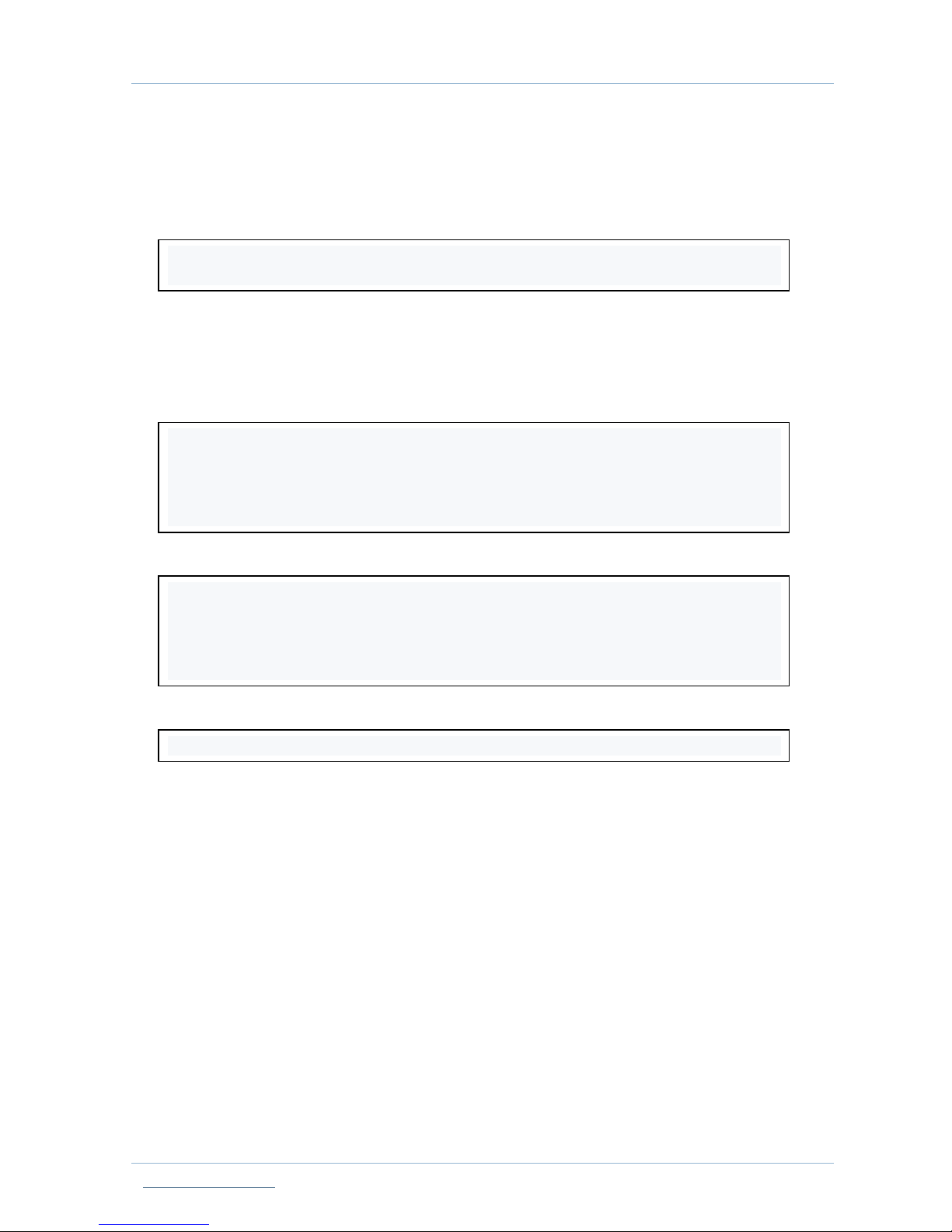
Install the packages using the following commands.
Create a working directory and download the source code into the working directory.
Here, the YOUR_WORKING_DIRECTORY should be set as the directory name that
you choose.
The name of the source code can be different from the shown below as it is updated.
Build the code using the following commands.
Run the viewer using the following command.
4.2. Connection of oCam-1MGN-U to host computer
Insert USB3.0 cable into the oCam-1MGN-U.
Connect USB3.0 cable to USB3.0 port of the host computer.
Run “lsusb” to check the connection status.
“Cypress Semiconductor Corp” should appear as Cypress FX3 is used in the oCam-
1MGN-U.
On successful connection of USB3.0, ID appears as “04b4:00f9”.
If the connection is made as USB2.0, ID appears as “04b4:00f8”.
$ sudo apt-get update
$ sudo apt-get install qt4-default libv4l-dev libudev-dev
$ mkdir YOUR_WORKING_DIRECTORY
$ cd YOUR_WORKING_DIRECTORY
$ svn export
https://github.com/withrobot/oCam/trunk/Software/oCam_viewer_Linu
x_1705
$ cd oCam_viwer_Linux_1705
$ mkdir build
$ cd ./build
$ qmake ..
$ make release
$ ./oCam-viewer
Page 14
oCam-1MGN-U USER MANUAL Verion 1.0
Oct. 2017
www.withrobot.com Page 13
4.3. Run the oCam-Viewer
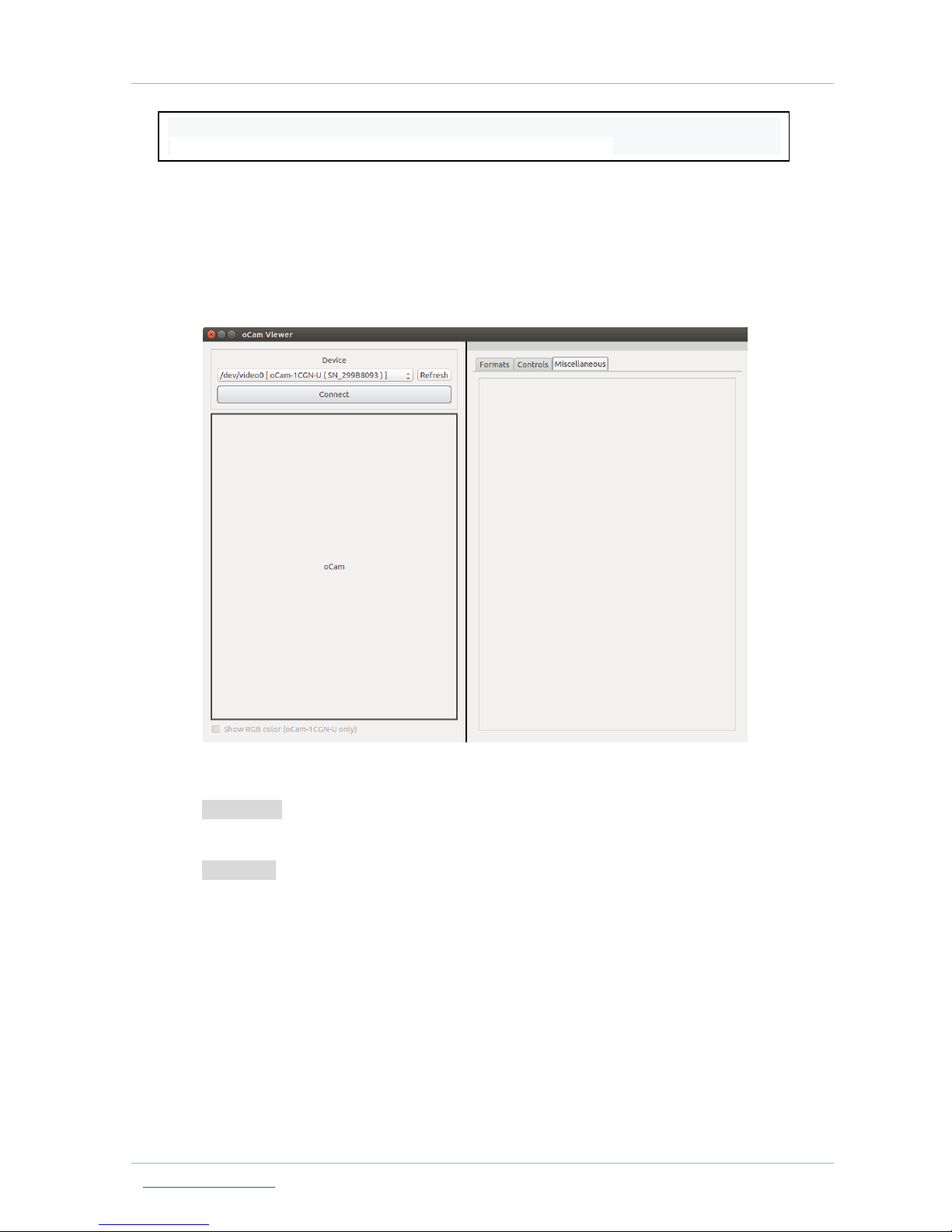
If the oCam-1MGN-U is connected successfully, the following window should appear on the
execution of the oCam-Viewer.
The device name and the serial number should appear correctly.
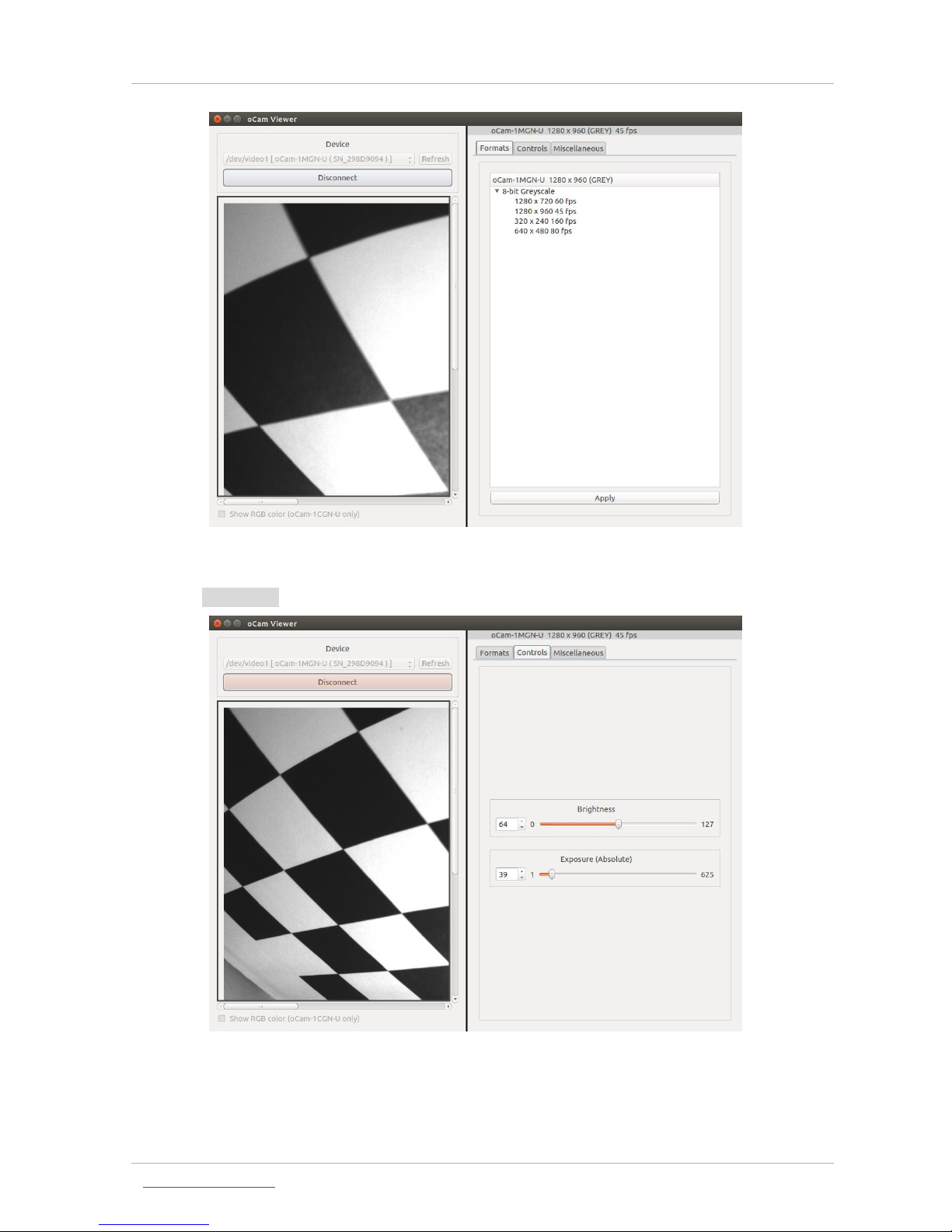
Figure 9. oCam-Viewer window on Linux host
Click [Connect] to open the image window.
Select tabs on the right.
[Formats] shows the image formats.
$ lsusb
Bus 004 Device 026: ID 04b4:00f9 Cypress Semiconductor Corp.
Page 15
oCam-1MGN-U USER MANUAL Verion 1.0
Oct. 2017
www.withrobot.com Page 14
Figure 10. Image formats
[Controls] shows the control parameters.
Figure 11. Image control parameters.
Page 16

oCam-1MGN-U USER MANUAL Verion 1.0
Oct. 2017
www.withrobot.com Page 15
5. Firmware update
You can find the latest firmware at https://github.com/withrobot/oCam/tree/master/Firmware .
Correct file for the oCam-1MGN-U should be selected for the firmware update.
You can find the firmware writing program at
https://github.com/withrobot/oCam/tree/master/Firmware .
Uncompress the downloaded “UpdateFW.ZIP”.
Follow the instruction described at
https://github.com/withrobot/oCam/tree/master/Firmware.
Page 17

oCam-1MGN-U USER MANUAL Verion 1.0
Oct. 2017
www.withrobot.com Page 16
6. Recommendations
The oCam-1MGN-U supports interchangeable M12 lens. Accordingly, the lens can be rotated
under vibration. It is recommended to fix the lens in vibrating environment with glue.
On the resolution of 320 x 240, the image is cropped from the full resolution. Therefore, the
field of view will be reduced accordingly.
The exposure time affects the image rate. With higher exposure, the FPS will drop as the
camera uses longer time for acquiring the image. For higher FPS, the exposure time should
be reduced.
There are differences on the sensitivity of pixels in an image sensor with the global shutter
mechanism. For high gain, the output of those pixels with higher sensitivity will be saturated,
providing noises as a consequence. It is recommended to use low gain for less noisy image.
Page 18

oCam-1MGN-U USER MANUAL Verion 1.0
Oct. 2017
www.withrobot.com Page 17
7. FAQs
7.1. Guvcview
On Linux host, you can use guvcview to view the image of the oCam-1MGN-U.
Download the guvcview using the following commands.
7.2. DIY Fixture
As a DIY fixture for oCam-1MGN-U, the 3D printable files are available at
https://github.com/withrobot/oCam/tree/master/DIY_Fixture.
7.3. Technical support
E-mail technical support is available at [email protected].
$ sudo apt-get install guvcview
$ guvcview -d /dev/video0
Page 19
oCam-1MGN-U USER MANUAL Verion 1.0
Oct. 2017
www.withrobot.com Page 18
APPENDIX
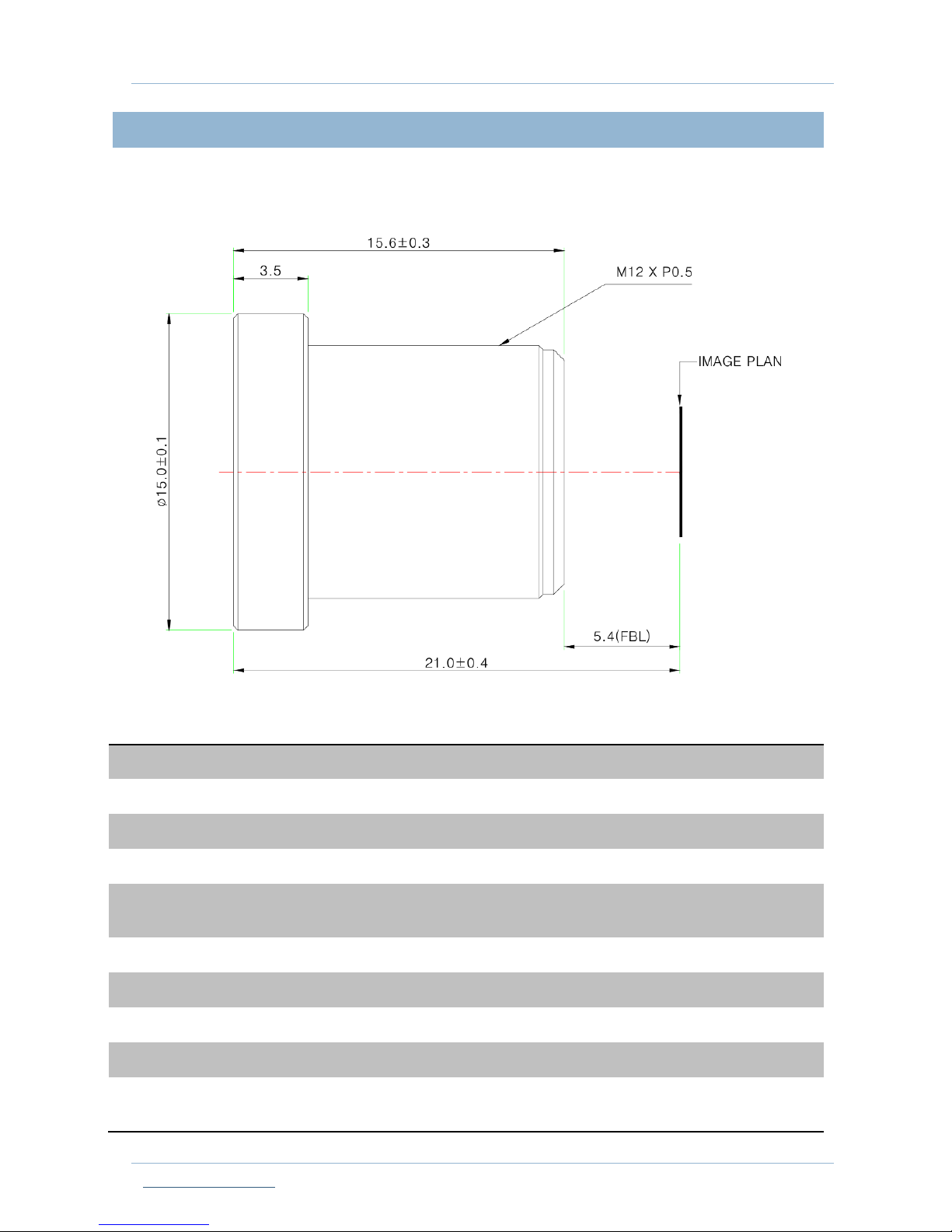
1. Default M12 lens specifications
Item
Description
Focal Length
3.6mm ±5%
Relative Aperture
2.0
Image Size
1/2.9'', 1/2.7”
Angle Of View
1/2.9'' : 50˚(V) X 92.8˚(H) X 110˚(D)
1/2.7” : 59˚(V) X 103˚(H) X 125˚(D)
Back Focal Length
6.17mm ±5%
Flange Back Length
5.4mm ±0.2mm
Lens Length
15.6mm ±0.3mm
TTL
21.0mm ±0.4mm
MTF on-axis(at 50 lp/mm)
0.7F (at 50 lp/mm)
87.5% 86.2%(R), 78.4%(T)
Page 20

oCam-1MGN-U USER MANUAL Verion 1.0
Oct. 2017
www.withrobot.com Page 19
Relative Illumination
44.5%(Full image circle)
Flange Type
M12 * P0.5
Head Size
¢15.0
Operating Temperature Range
-20℃ ~ +70℃, Under RH 90%
Storage Temperature Range
-25℃ ~ +85℃ , Under RH 99%
Lens Construction
4G [All Glass] With IR Cut Filter(650nm)
Page 21
oCam-1MGN-U USER MANUAL Verion 1.0
Oct. 2017
www.withrobot.com Page 20
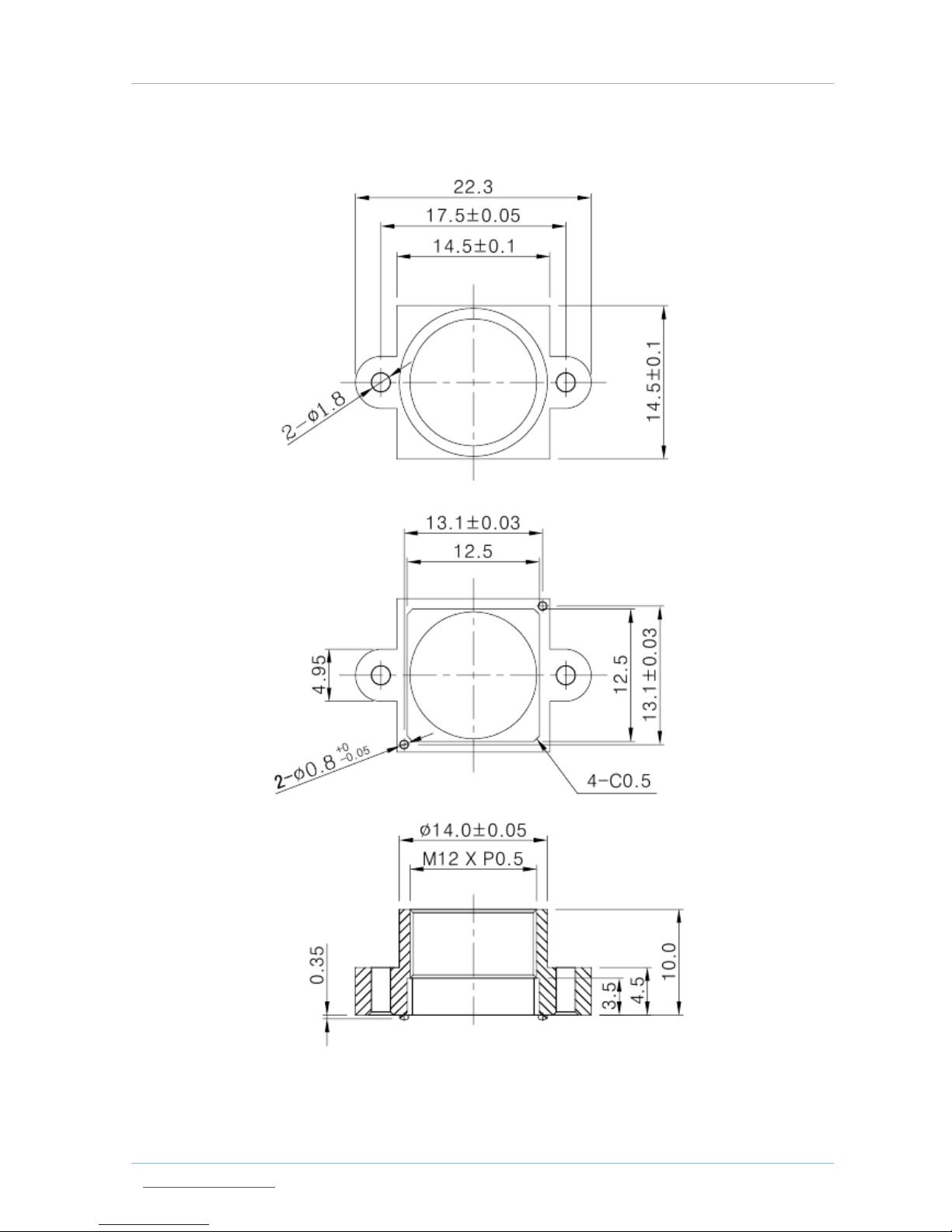
2. M12 lens holder dimensions
Page 22
oCam-1MGN-U USER MANUAL Verion 1.0
Oct. 2017
www.withrobot.com Page 21
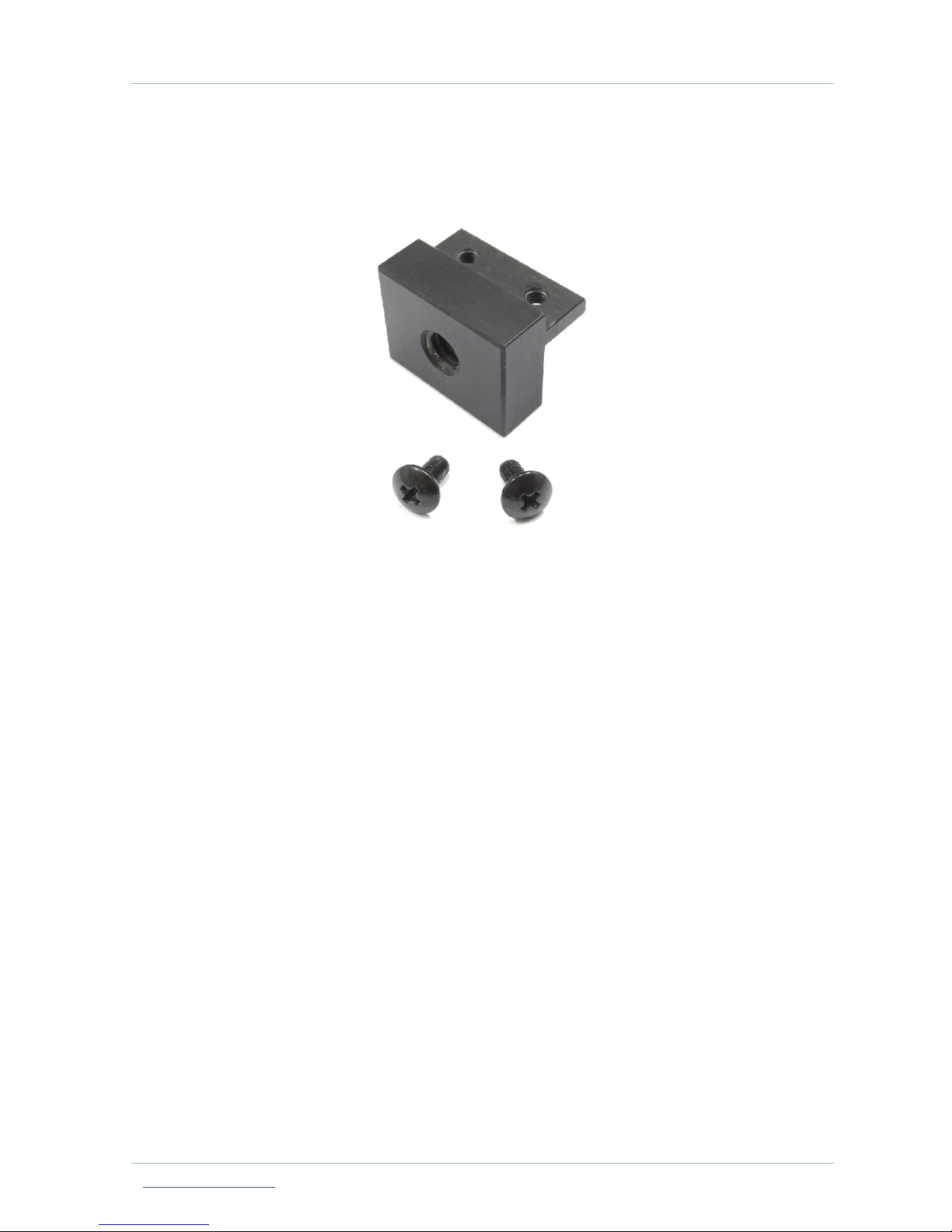
3. Tripod mount: oCam-TM
Optionally available sold separately
.
 Loading...