

Page 1
DW LINK 2003/05/01
Wireless Access Point
User’s manual
Model: PL9510 -WAP
FCC STATEMENT
This product has been tested and complied with the specification for a class B digital
device, pursuant to part 15 of the FCC rules. These limits are designed to provide
reasonable protection against harmful interference in a residential installation.
This device complies with part 15 of the FCC Rules operation is subject to the
following two conditions (1) This device may not cause harmful interference, and (2)
This device must accept any interference received, including interference that may
cause undesired operation.
If this device does cause harmful interference to radio or television, which is found by
Page 2

tuning the equipment off and on, the user is encouraged to try to correct the
interference by one or more of the following measures;
•Reorient or relocate the receiving antenna.
•Increase the separation between and equipment or device.
•Connect the equipment to and outlet oth er than the receivers
•Consult a dealer or an experienced radio/TV technician for assistance.
FCC Radiation Exposure Statement
This equipment complies with FCC radiation limits set forth for an uncontrolled
environment. This equipment should be installed and operate with minimum distance 20
cm between radiator and your body.
Instruction
Step into the digital age and network your home or office the easy way Combining
two revolutionary networking technologies developed as part of computing world’s
most recent renaissance, Powerline and WiFi, the WireLink PL Wireless Access Point
PL9510-WAP allows you to extend your Powerline network into a Wireless as well.
Instantaneously, you can broaden your Powerline network beyond just the inside of
your home or office and increase your wireless network from a mere 100feet to over
3,300 feet!
The WireLink PL Wireless Access Point offers a convenient way to create a simple
network through the existing electrical wiring of a home or office with the additional
ability to provide you with access to your network without wires. Offering two levels
of security, the WireLink PL Wireless Access Point is built with 128-bit WEP
encryption for the wireless pass-through and 56-bit DES encryption for the Powerline
pass-through so your data will always be secured- guaranteed.
Features:
◆ Up to 11 Mbps of Data Transmission
◆ Interoperable with IEEE 802.11b (DSSS)
◆ Capable of up to 128-bit WEP Encryption
◆ Easy Set-up and Installation
◆ Equipped with HomePlug® 1.0
◆ Built-in Quality of Service (QoS) and Data Error Detection and Correction
Technologies
◆ Power, WLAN Tx, WLAN Rx, PL Act
◆ Operate Range Supports 150m(Indoor)
Cabling Type
Page 3

◆ Standard AC Plug
◆ Phone line
Environmental:
Dimensions (LxWxH)
◆ 3.9”Lx5”Wx1”H
◆ Weight 0.69 lbs
Power Input :110V AC
◆ Safety & EMI :TBA
Operating Temperature
◆ 32°F to 131°F (0°C to 55°C)
Storage Temperature
◆ -4°F to 131°F (-20°C to 70°C)
Operating Humidity
◆ 10% to 85% Non-condensing
Storage Humidity
◆ 5% to 90% Non-condensing
Package Contents:
•One WireLink PL Wireless Access Point user manual
•One AC adapter( AD75)
•Two Detachable Antennae
•one setup CD—ROM
•One Wireless card ( optional)
• One hook up kits package
. One PA50 phone adaptor
System Requirements
•A Note book with Wireless Card(IEEE 802.11b).
•A PC with support Ethernet connection
•Window 98, 2000, ME, XP
•One WireLink PL product
•A 10 Mbps Category 3 or Better network RJ-45 connection.
The WireLink PL Wireless Access Point Rear Panel
Page 4
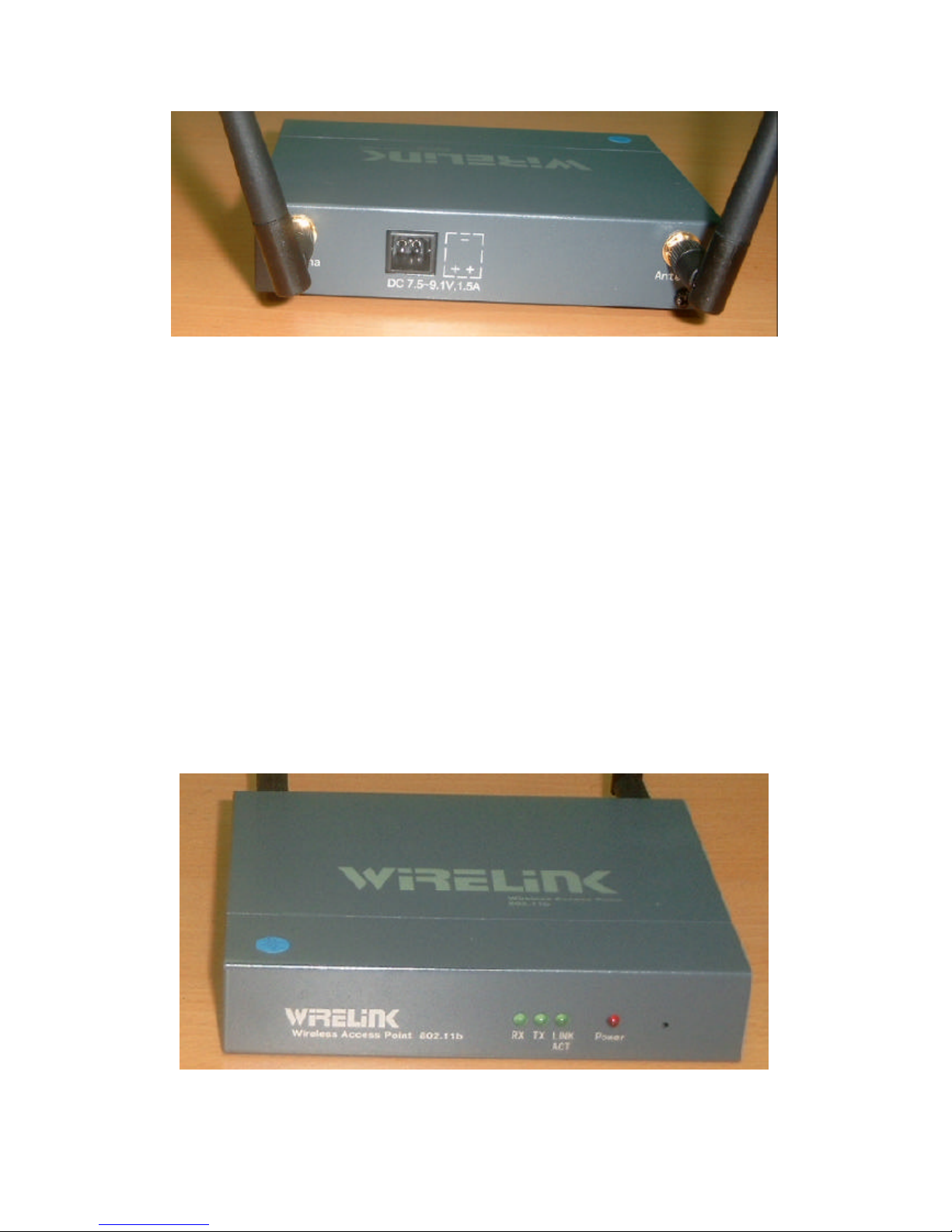
The WireLink PL Wireless Access Point’s Ports
Dipole Antenna Connectors:
The Two round connectors( SMA F) are where the antenna are connected to the
Access Point
This antenna connector ( SMA-F) is “ unique” which is SMA- Female socket inside,
male pin, it is different from normal one which is SMA-Female socket..
It has to install the original one shipping with package.
AD75 Power connector
The DC power connector are 3 pins, where the Power line signal are connected to unit.
This is adapter includes coupler which is designed by WireLink company, it can’t
replace with any AC/DC adapter.
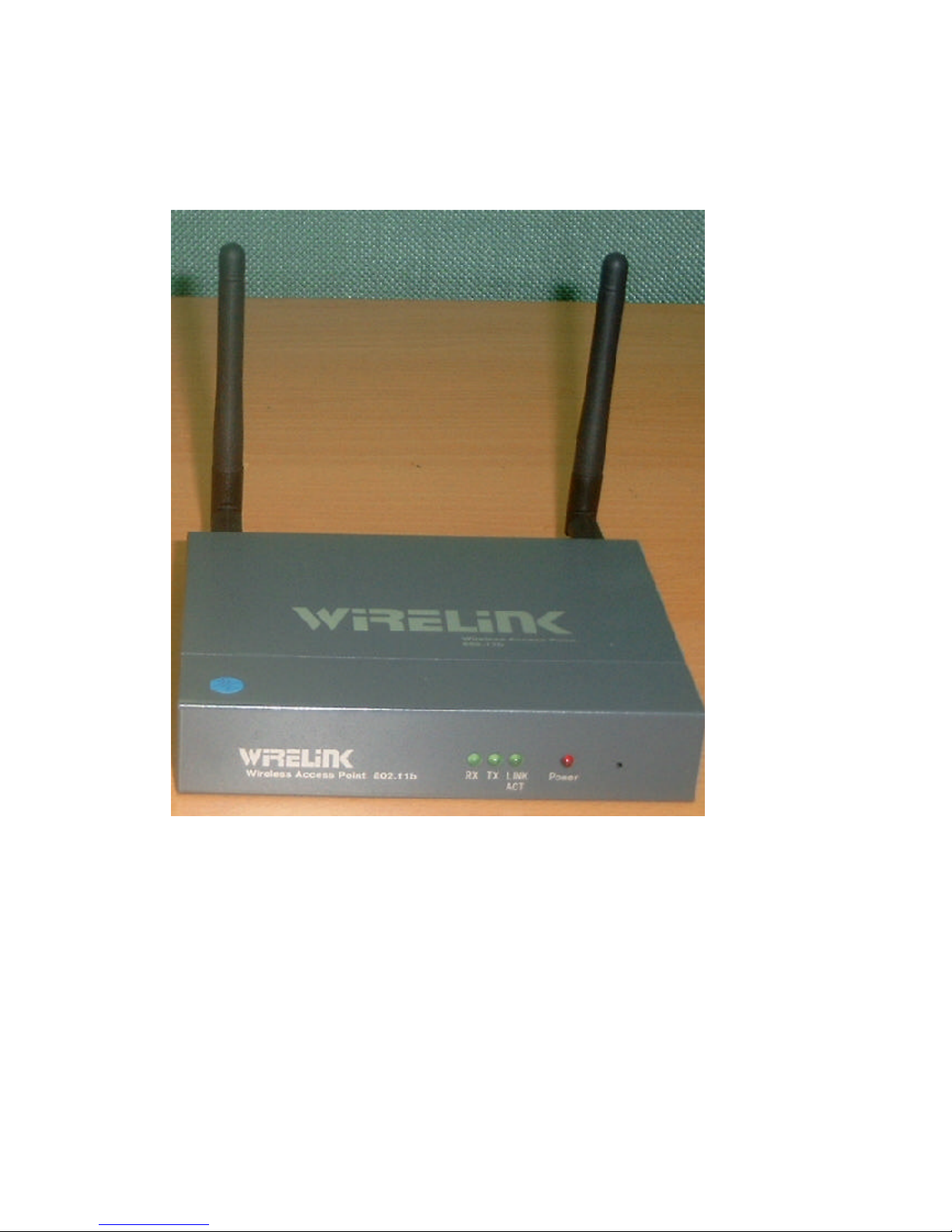
WireLink PL Wireless Access Point Front Panel
Power LED
Page 5
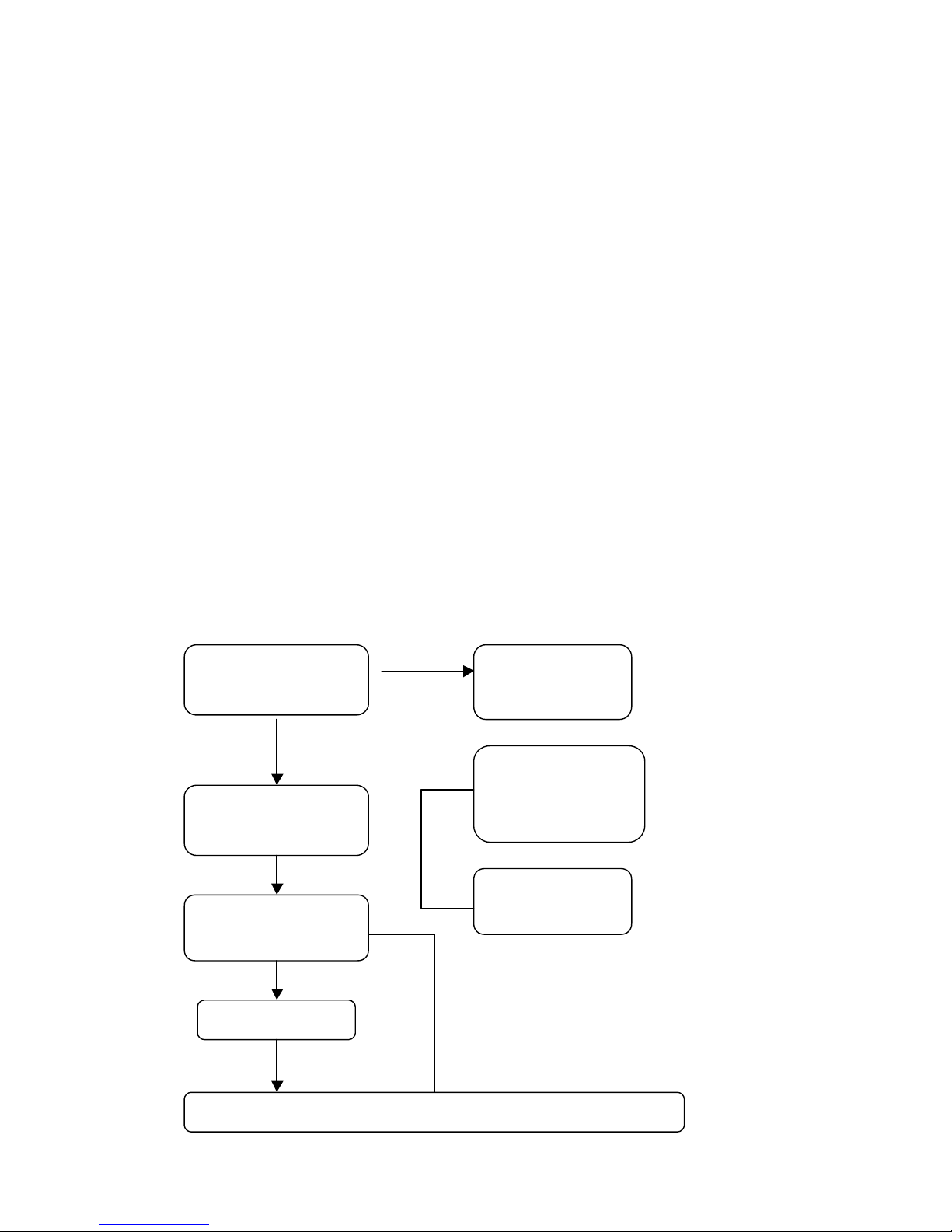
It indicates the unit works, the adapter supplies power to unit.
Link Act
Powerline is working, communicates with other WireLink PL unit.
TX
Unit is transmitting data through air. Interoperable with IEEE 802.11b (DSSS)
RX
Unit is receiving data through air. Interoperable with IEEE 802.11b (DSSS)
Connecting and Setting up the WireLink PL Wireless Access Point
1.Locate an optimum location for the WireLink PL Wireless Access Poi nt.
The best place for your WireLink PL Wireless Access Point is usually at the center
of your wireless network, with line of signal to all your mobile stations.
2. Fix the direction of the antenna. Try to replace it in a position which can best cover
you’re wireless network. Normally, the higher you place the antenna, the better the
performance will be. The antenna’s position enhances the receiving sensitivity.
3. Connect the AD-75 Adapter to the WireLink PL units.
Only use adapter supplied with the WireLink PL Wireless Access Point . You could
connect WireLink PL units. Use of a different adapter may cause product damage.
Now that the hardware installation is completed, proceed to set up the configuration.
HRADWARE
REQUIREMENT
PRERPARE
HARDWARE
H/W INSTALL
STEPS
INSTALL
WIRELESS
802.11
CONNECT TO
ADSL
POWER PACKAGE
SETTING
IP SETTING
READY TO SURF WEB
Page 6
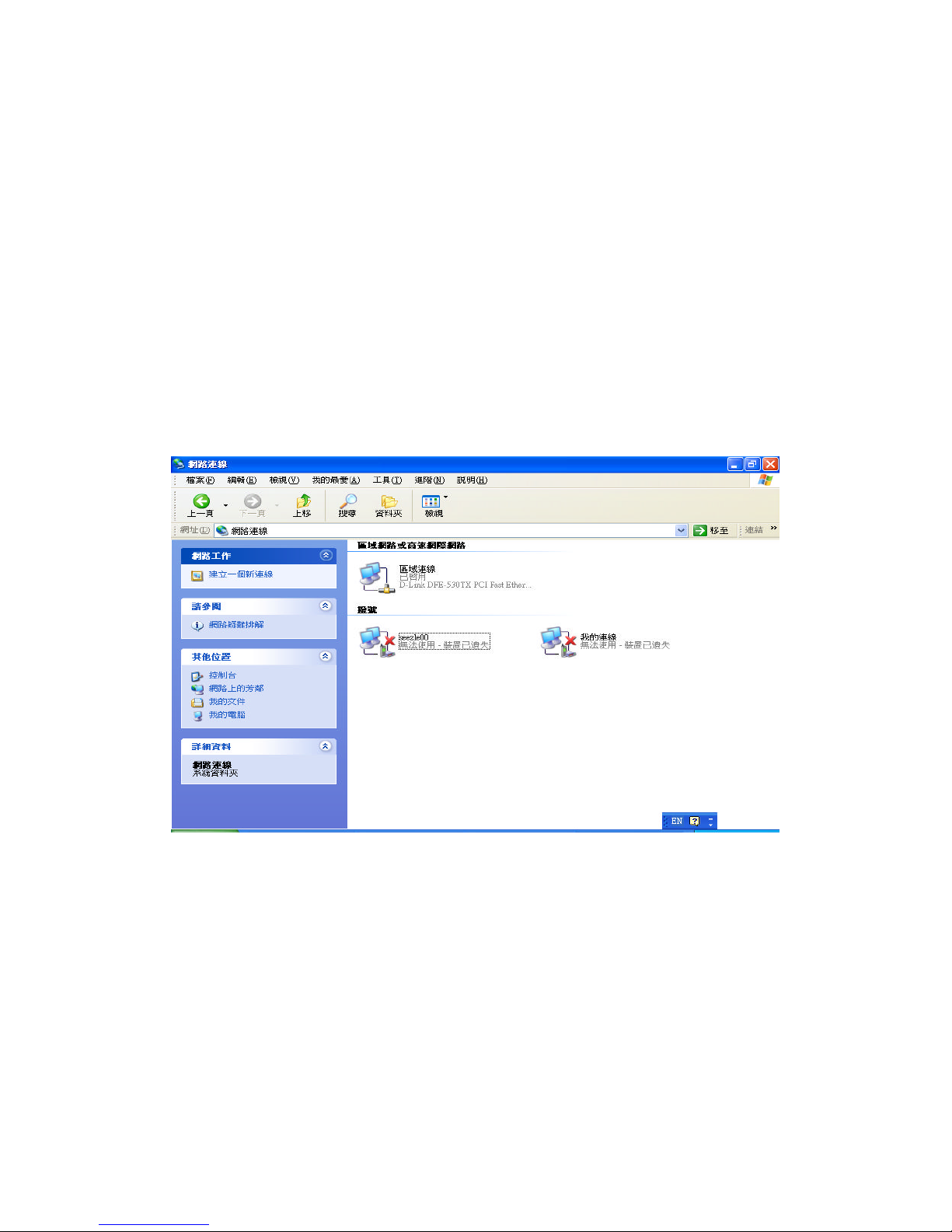
WireLink PL Wireless Access Point Configuration setup process.
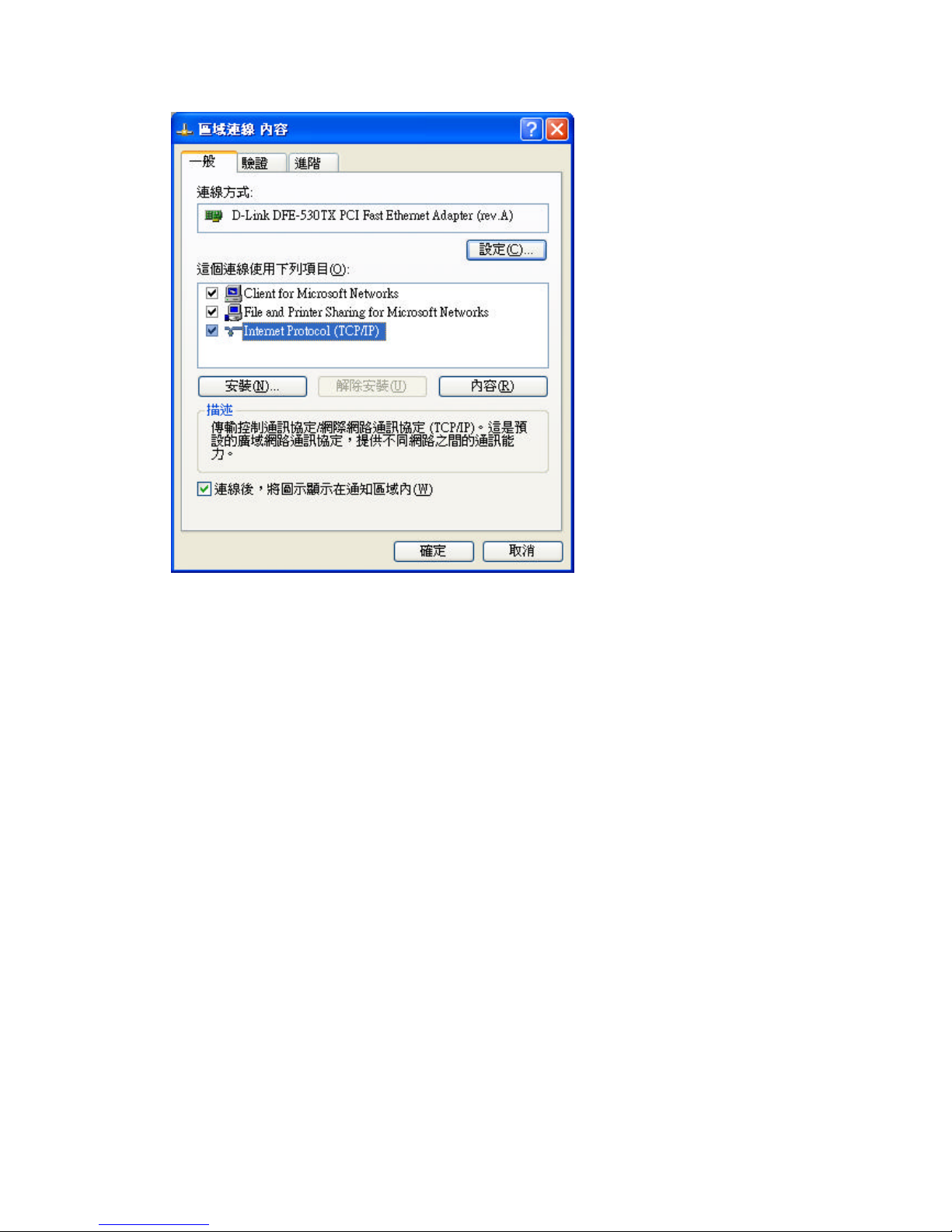
1. Network neighbor
◇ Network Connecting content
Client for Microsoft Networks
Files and Printer Sharing for Microsoft Networks
Internet Protocol (TCP/IP)
◇ To select the TCP/IP item to begin
Page 7
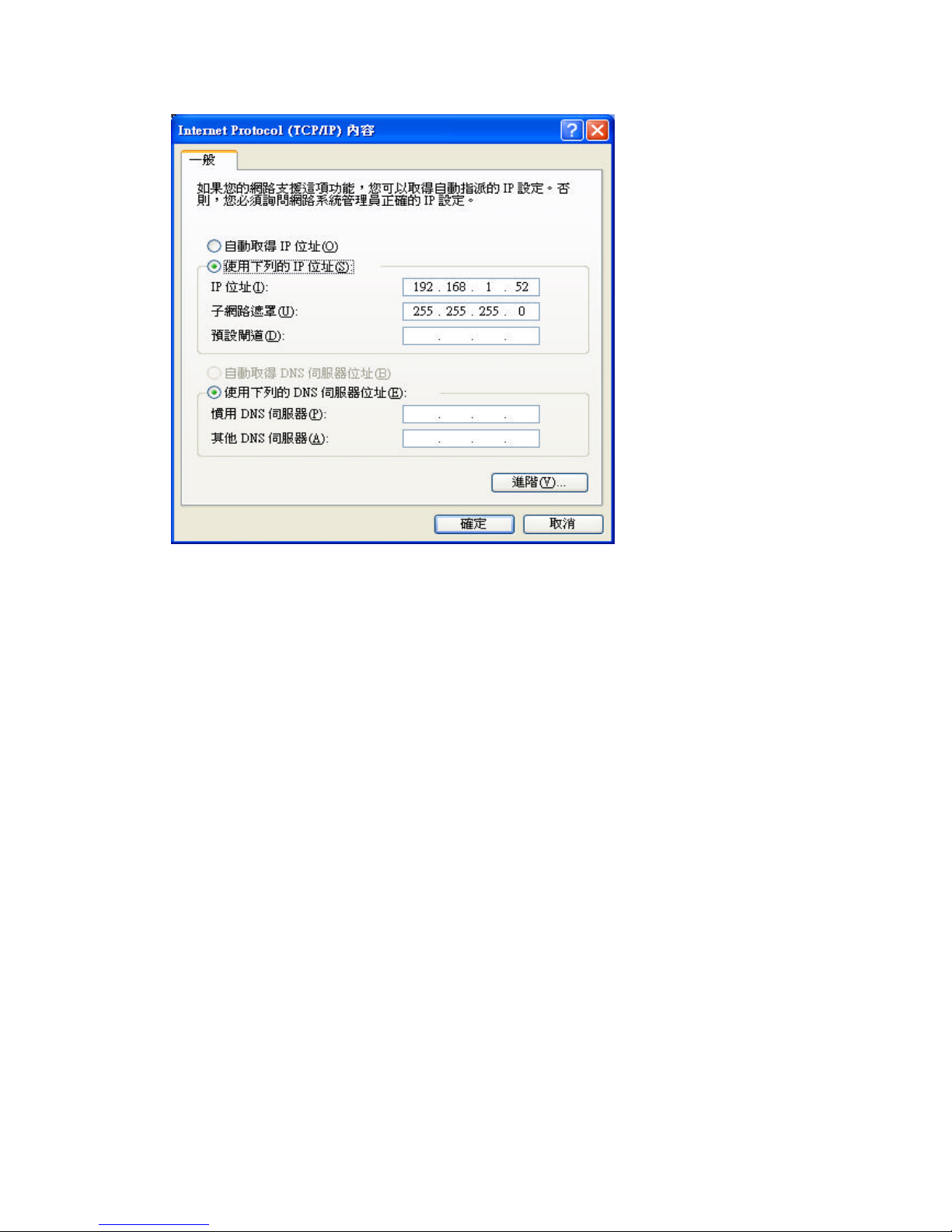
Internet Protocol ( TCP/IP) set up
◇Select manual to enter IP address
◇ Protocol content IP: 192.168.1.5X ( except , “0”)
◇ Mask: 255.255.255.0
◇ Enter
Page 8
To setup Wireless configuration
1. Set web site at:
http://192.168.1.50/
Page 9
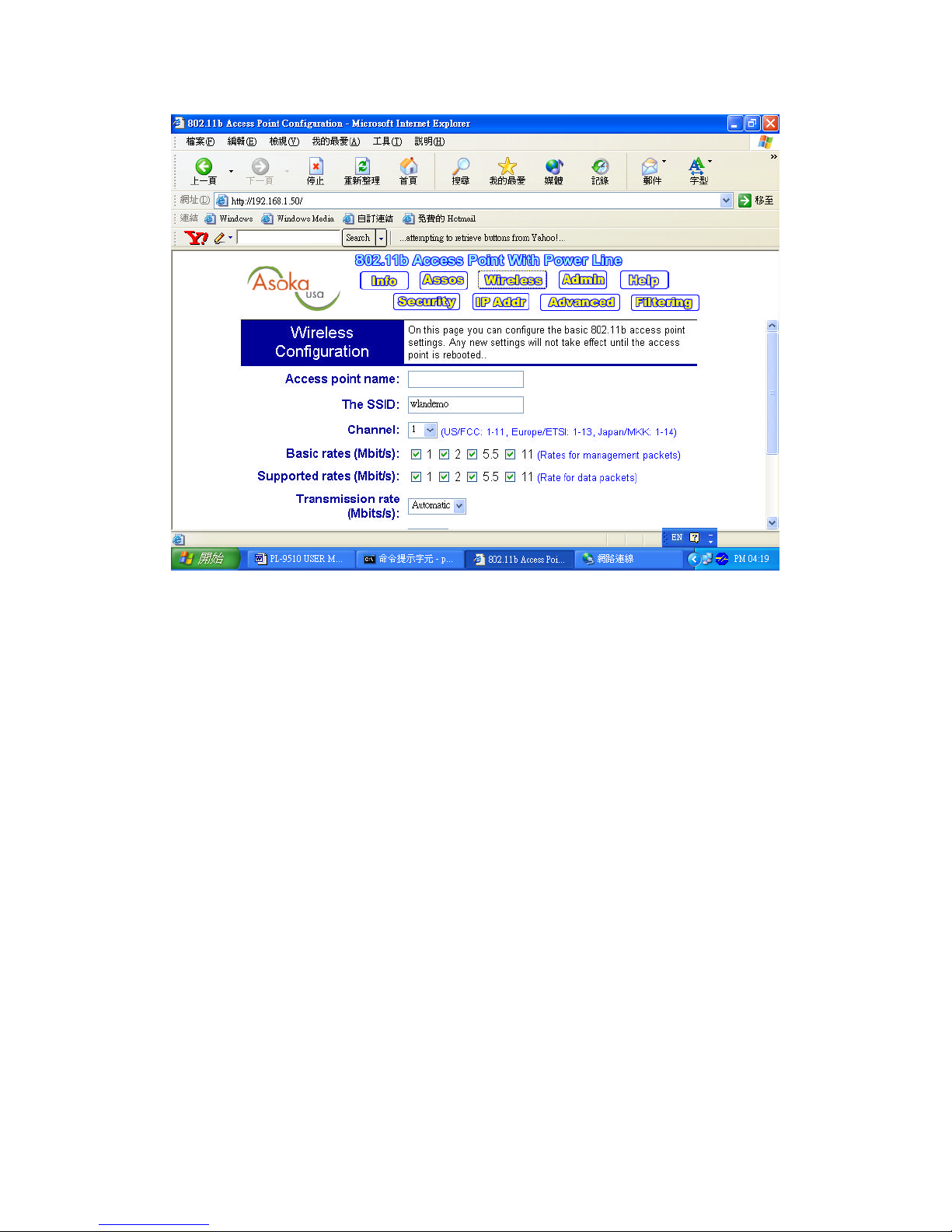
2. Change SSID: Default is wlandemo, if you have to change it in order to have the
same name.
3. Info: to view its MAC of AP
4. Admin:
Write user name and password to protect any intruders.
Page 10
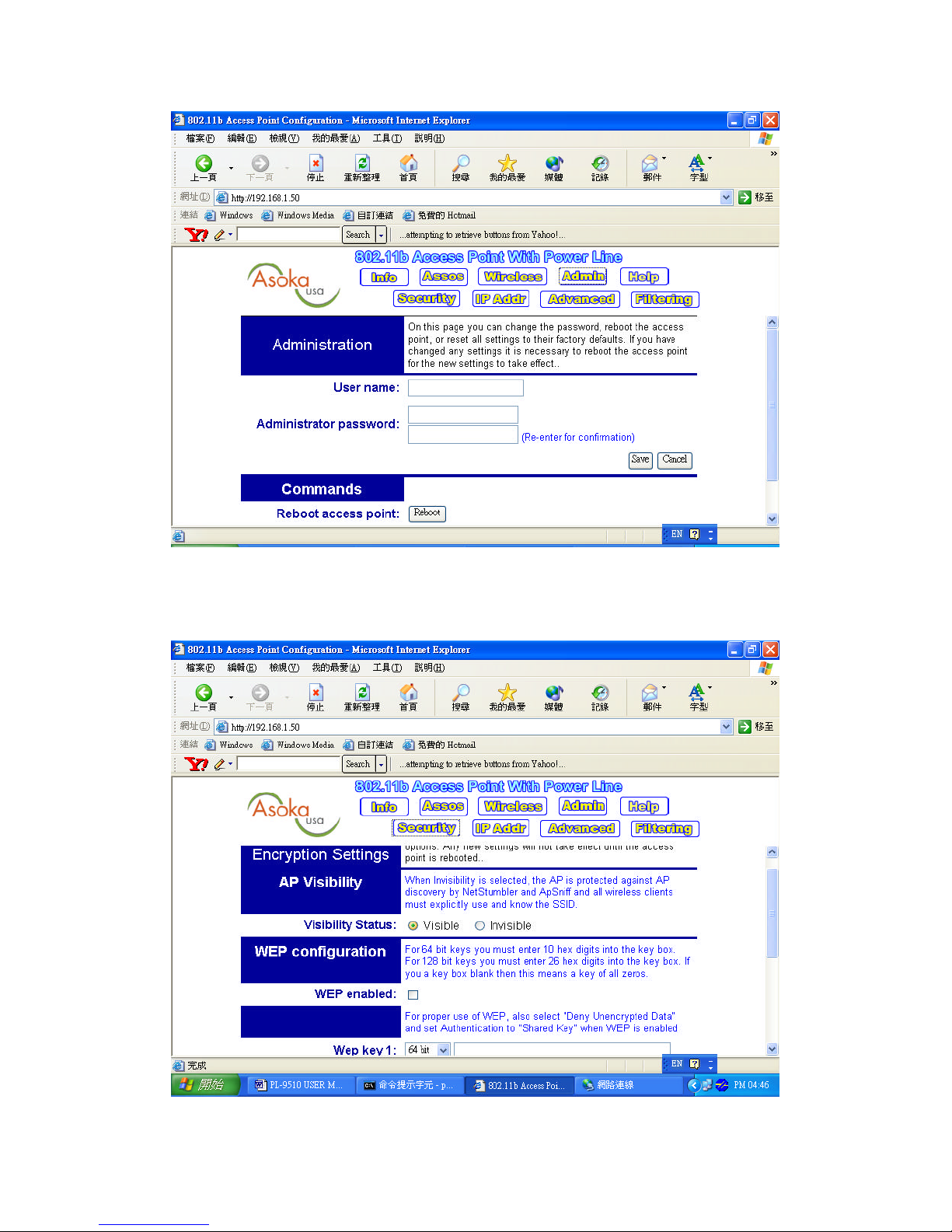
Security:
Page 11
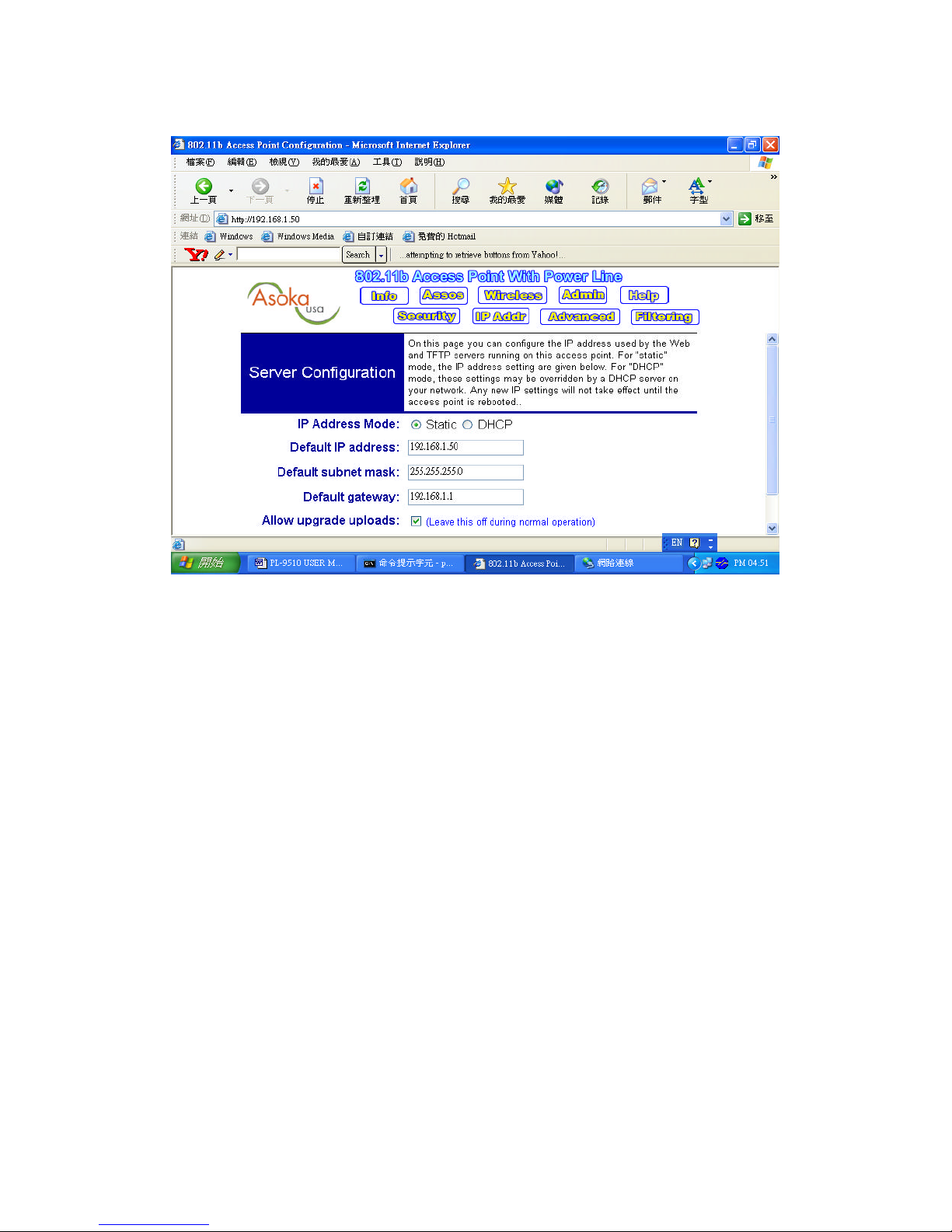
Info:
Part (II)
Install Power Packet CD
Device
Check Power line product
Page 12
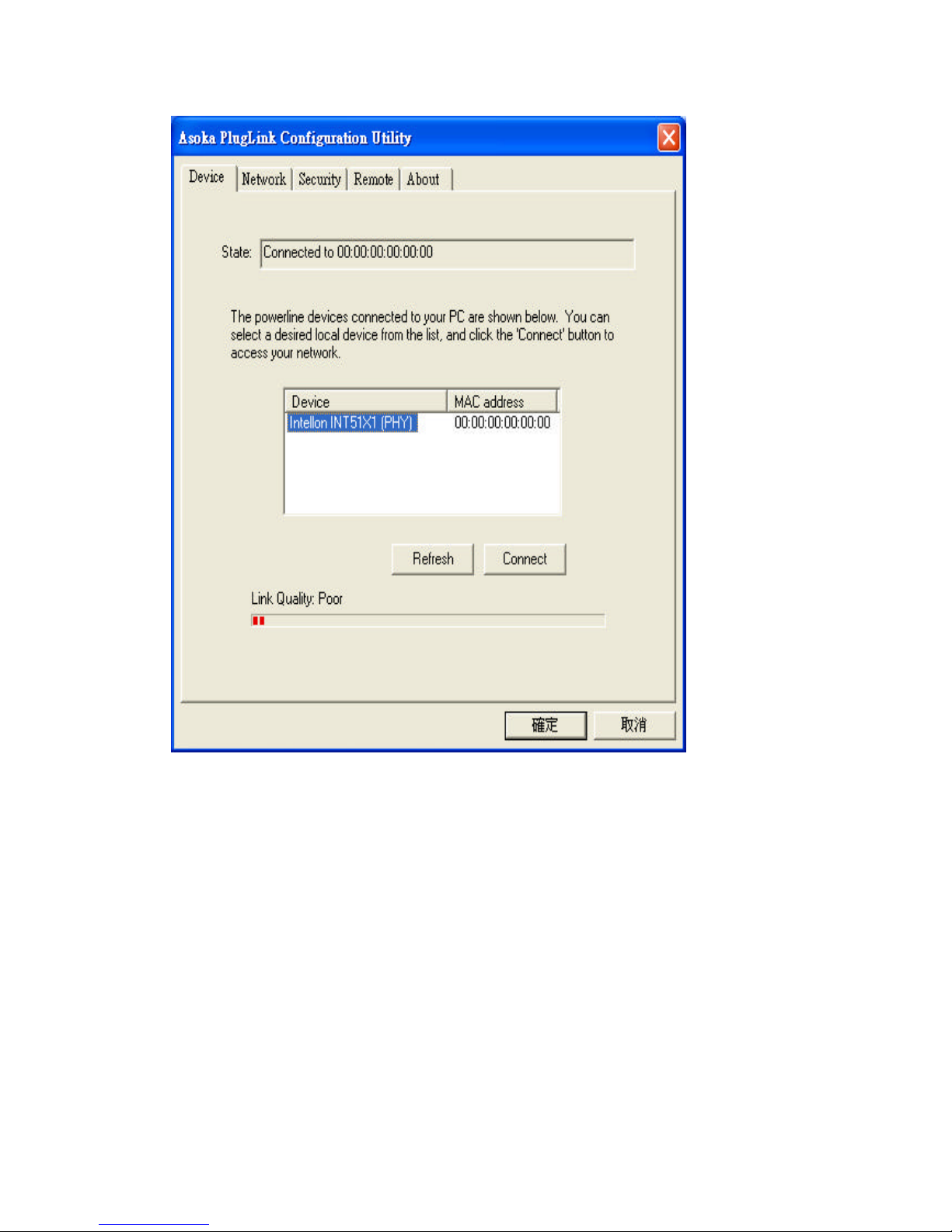
connecti ng
Network: Check PL-9510 MAC for its connection.
Remote terminal unit password
Page 13
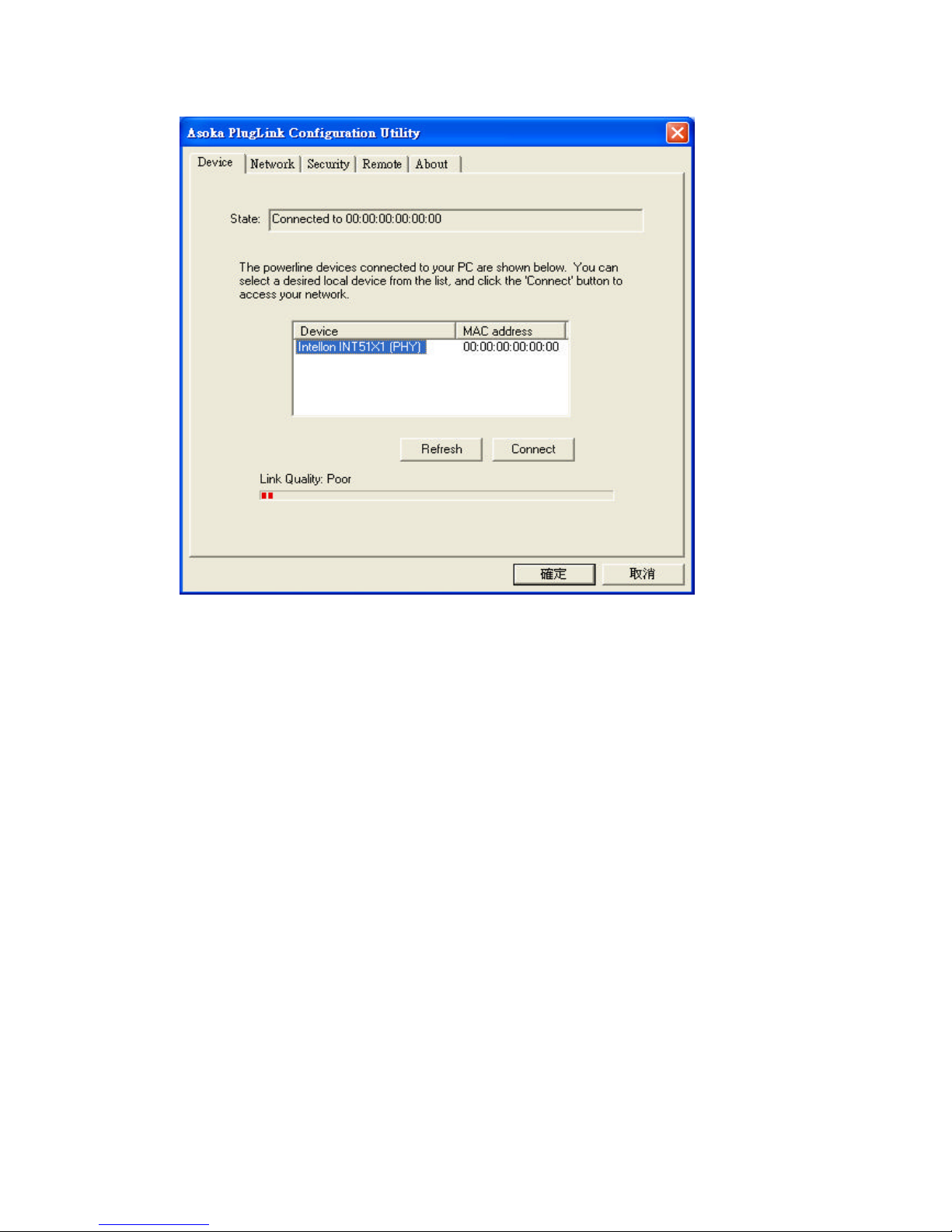
 Loading...