

Page 1
Sub-1GHz to Internet
P-900 IoT Gateway.
Operation Manual
[Version 4.1]
Connect POCSAG to Internet by WIFI and receive by smart phone.
Page 2

1
Table of Contents
1. Introduction ............................................................................................................... 2
2.. Apparent of P-900 IoT station .................................................................................... 5
3. Top case view and LED's function ............................................................................. 6
4. Bottom case view and serial account number ........................................................... 7
5. Rear case view .......................................................................................................... 8
6. Installation IoTStations APP for your system ........................................................... 9
7. Connect to internet .................................................................................................. 12
8. Addition the new IoT stations on line ....................................................................... 13
9. Addition alarm devices on line ................................................................................. 15
10. Reading alarm message, and aleart sound setting…. ............................................ 18
11. System reset…. ...................................................................................................... 19
12. Specification …. ..................................................................................................... 20
Page 3
2
1. Introduction
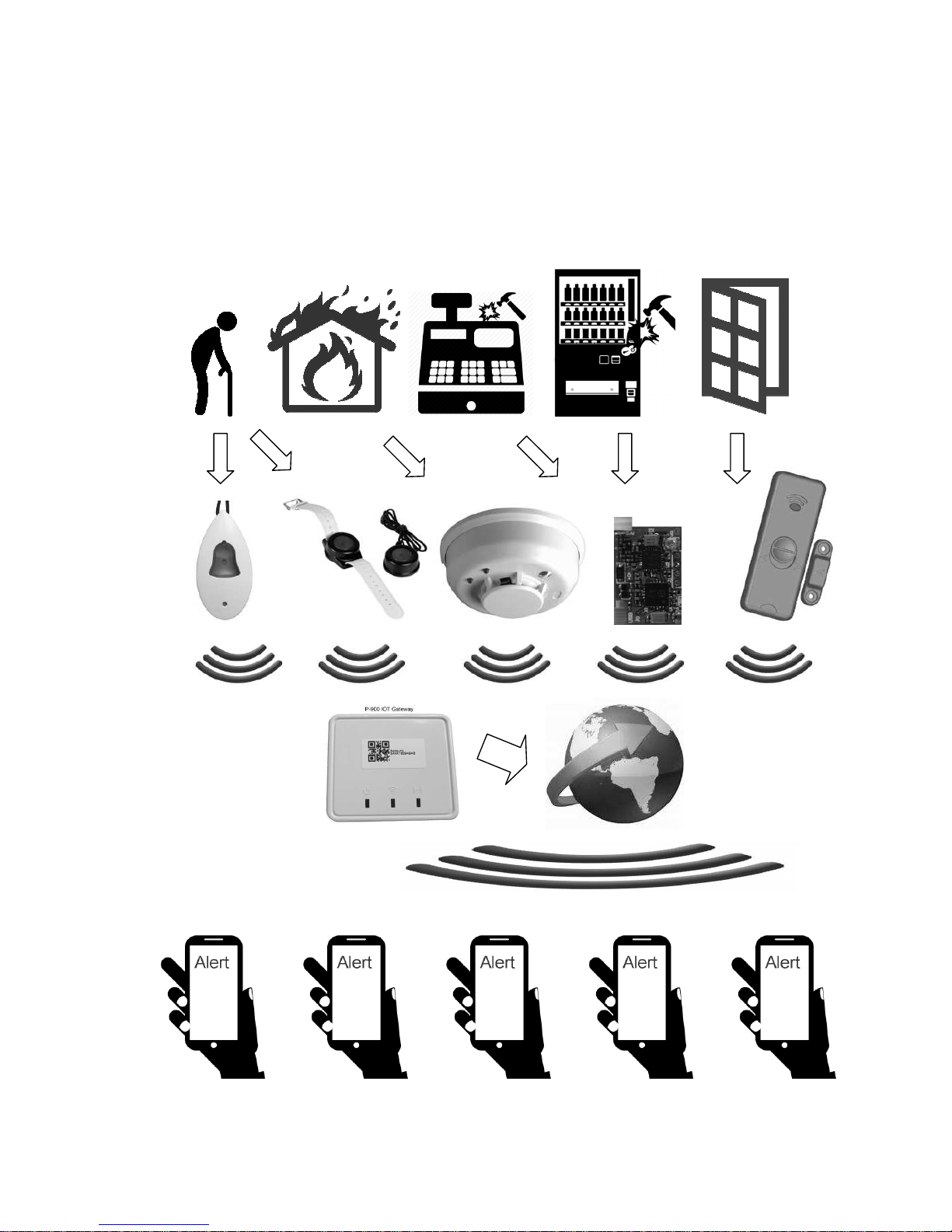
The Take care system, Fire alarm, Security system, food service calling….
can be directly sending urgent message to own smartphones….
Via IOT Gateway
Into the internet
Page 4
3
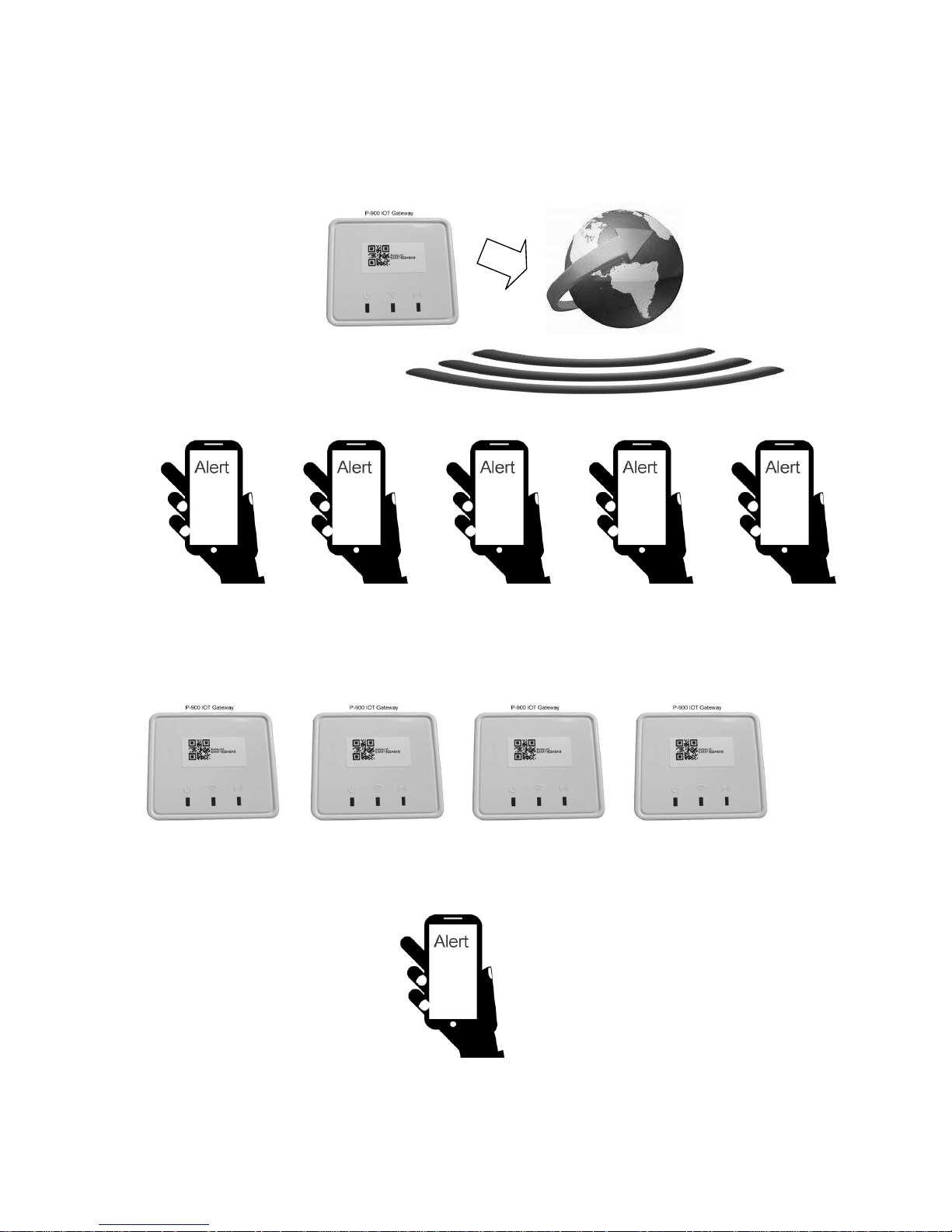
1-1 One Gateway P-900 can be connected to many smartphones….
Up to 256 smart phones can received from 1 P-900 IoT Gateway
1-2 One smart phones can received message from many P-900 IoT Gateways
... … … ………
Via IOT Gateway
Into the internet
Page 5
4
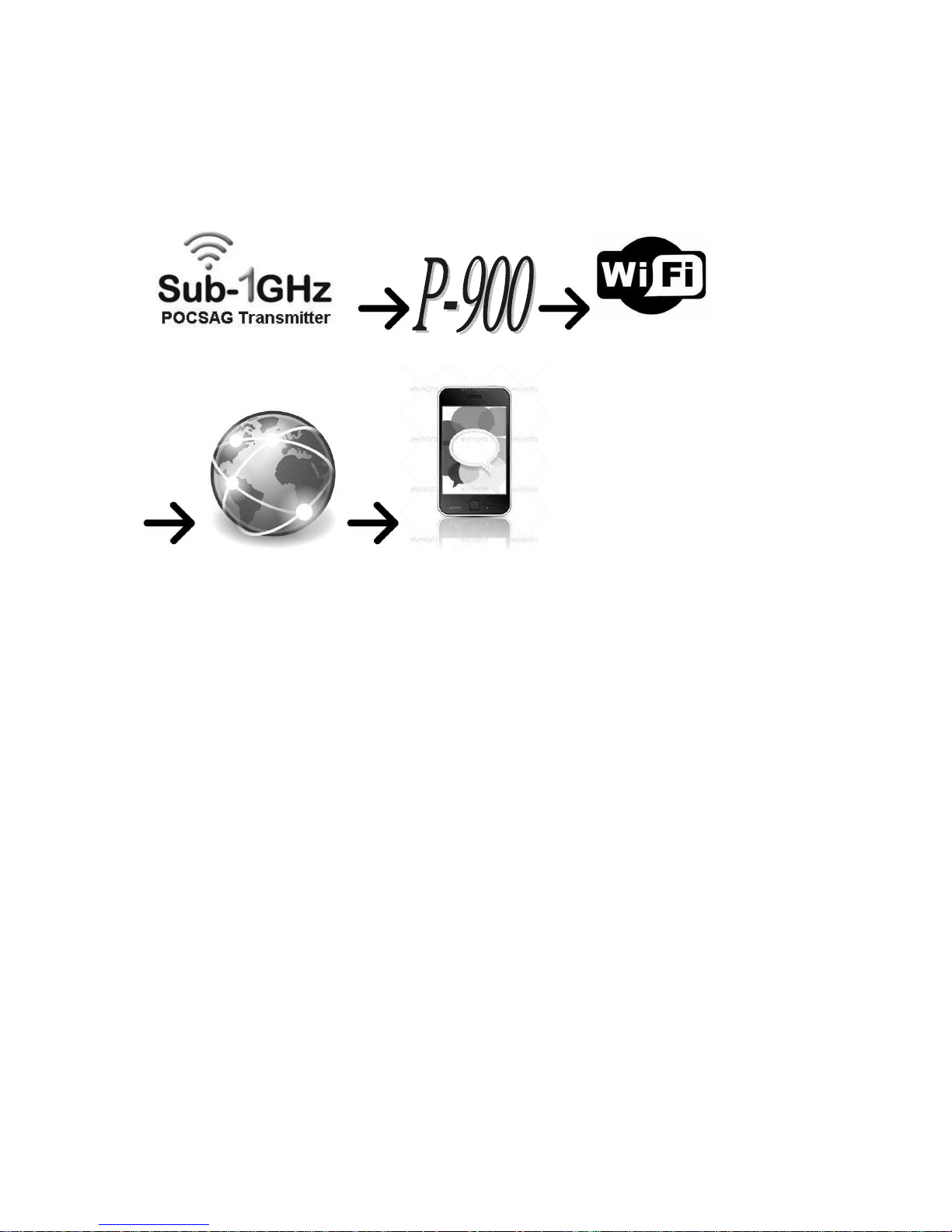
How it works? The P-900
IoT
system !
a. Sub-1GHz POCSAG transmitter (148,315,433,426,457,868,915...MHz)
such as our products Pendant TX, Watch TX, Alarm TX, Nurse call systems
POCSAG Transmitter modules..etc.
(Like Items from WDIT :M-810,M-820,M-840,WD2,M-838,M-909K,M-916,
NP-14, EM-898,w009 modules.....)
b. P-900 IoT gateway: When receives the POCSAG code, which will be
transferred to internet through the Wi-Fi AP.
c. Via Wi-Fi AP connect to Internet.
e. Via internet by Wi-Fi or by GSM, 3G,4G, LTE, global mobile phone
system….sending the alarm message to your smart phones...
Page 6
5
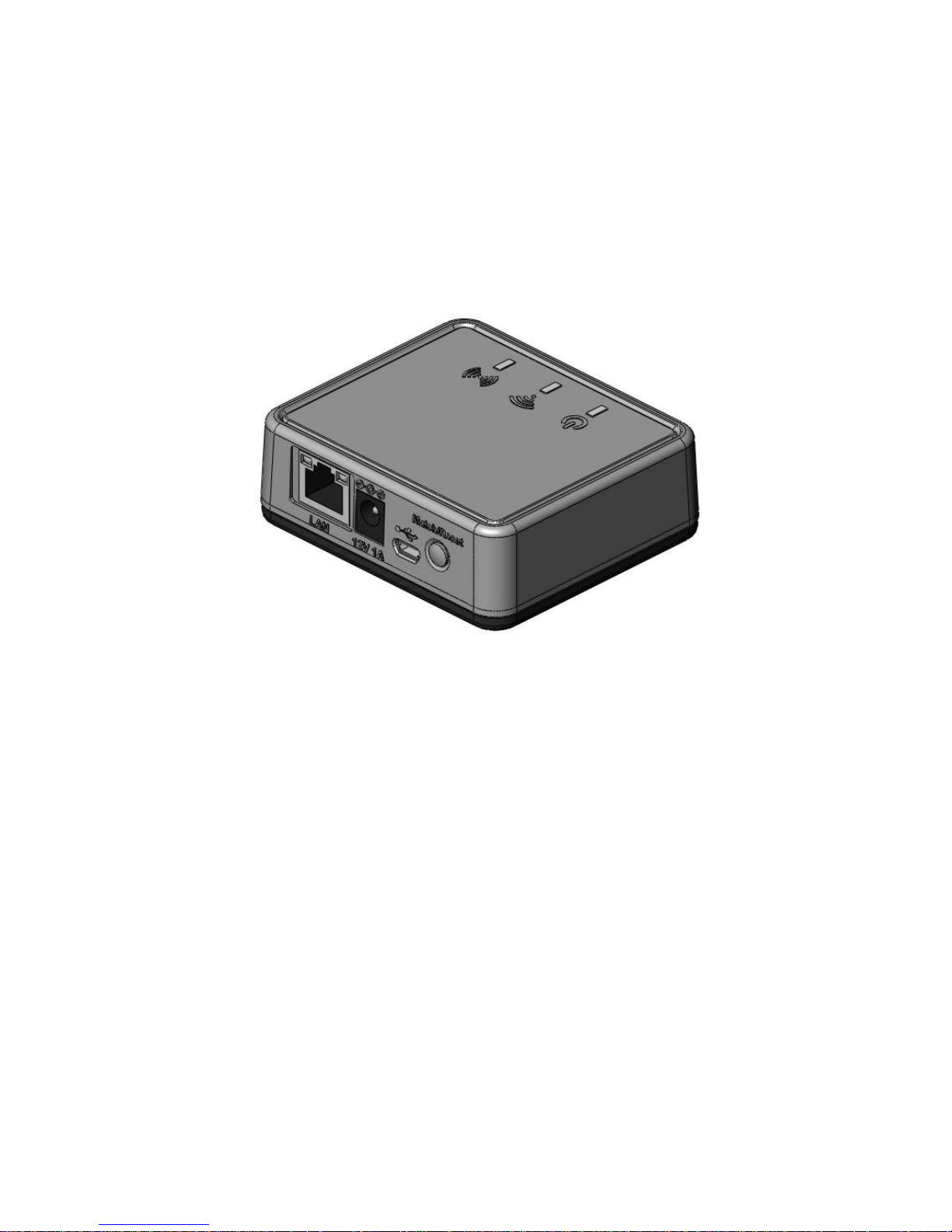
2. Appearance of the P-900 IoTStation.
Page 7
6
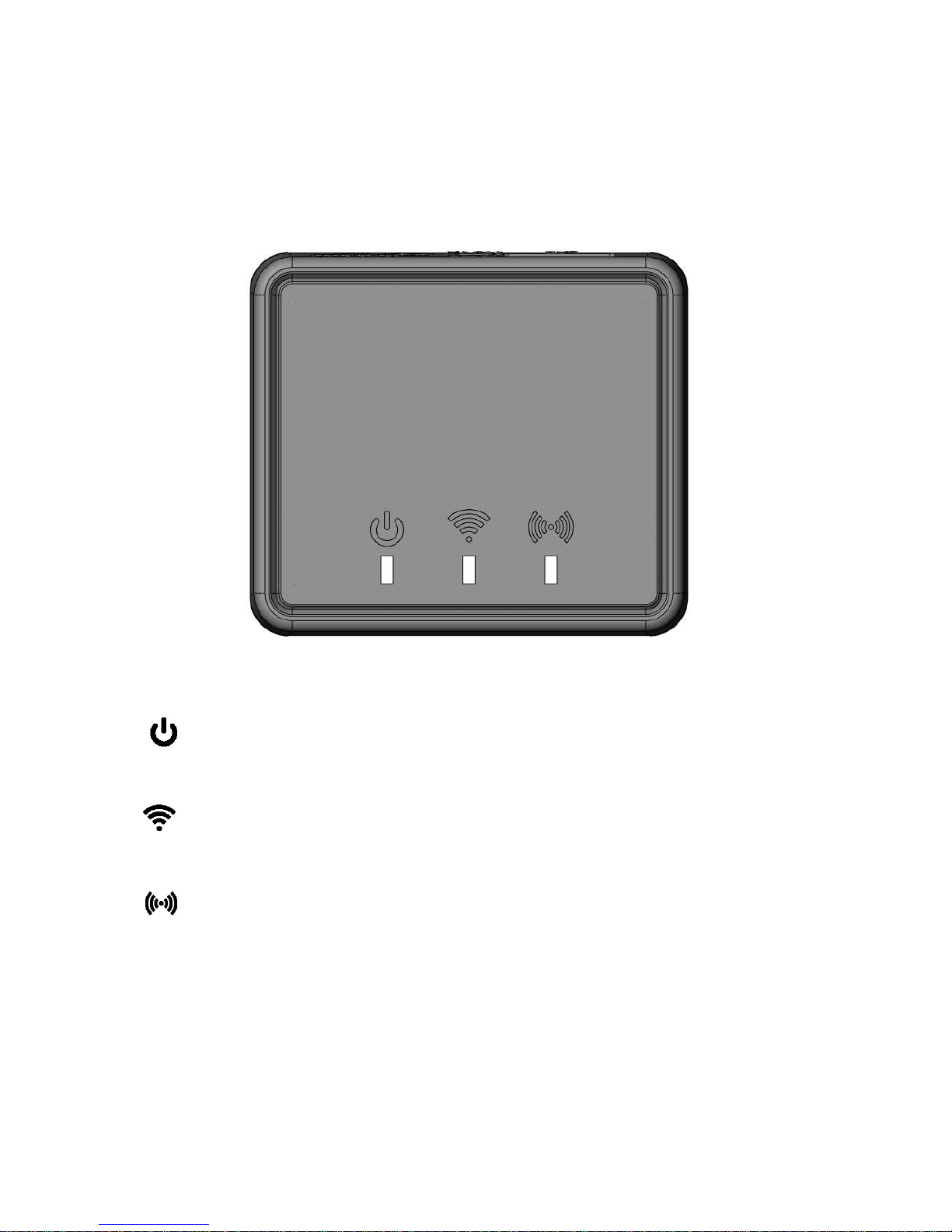
3. Top view of the case and LED functions.
Power ON Indication
Indicate the power status: light would be on when power is on.
ON the Internet Indication
Indicate the Wi-Fi status: light would be on when connected to a Wi-Fi.
Wireless Communication indication
Indicate the sub-1GHz contact and system reset status:
Fast flash means the ready to make the system pairing; light for pairing mode.
Page 8
7
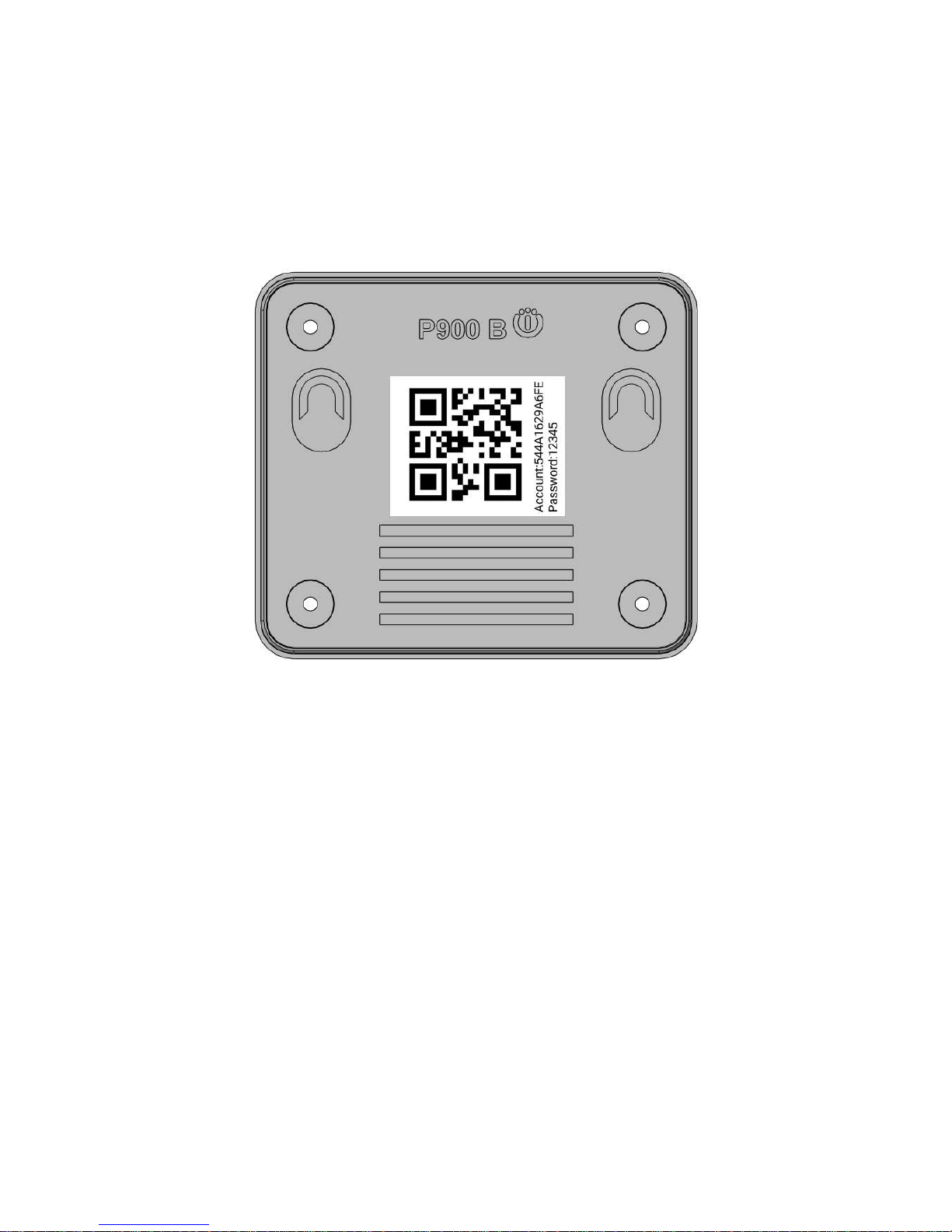
4. Bottom view of the case and serial number etc…
QR code icon
The QR code stickers on the rear case shows the account number for system registration
Plus more and more smart phone into the system.
Just take this QR code by the phones.
Page 9
8
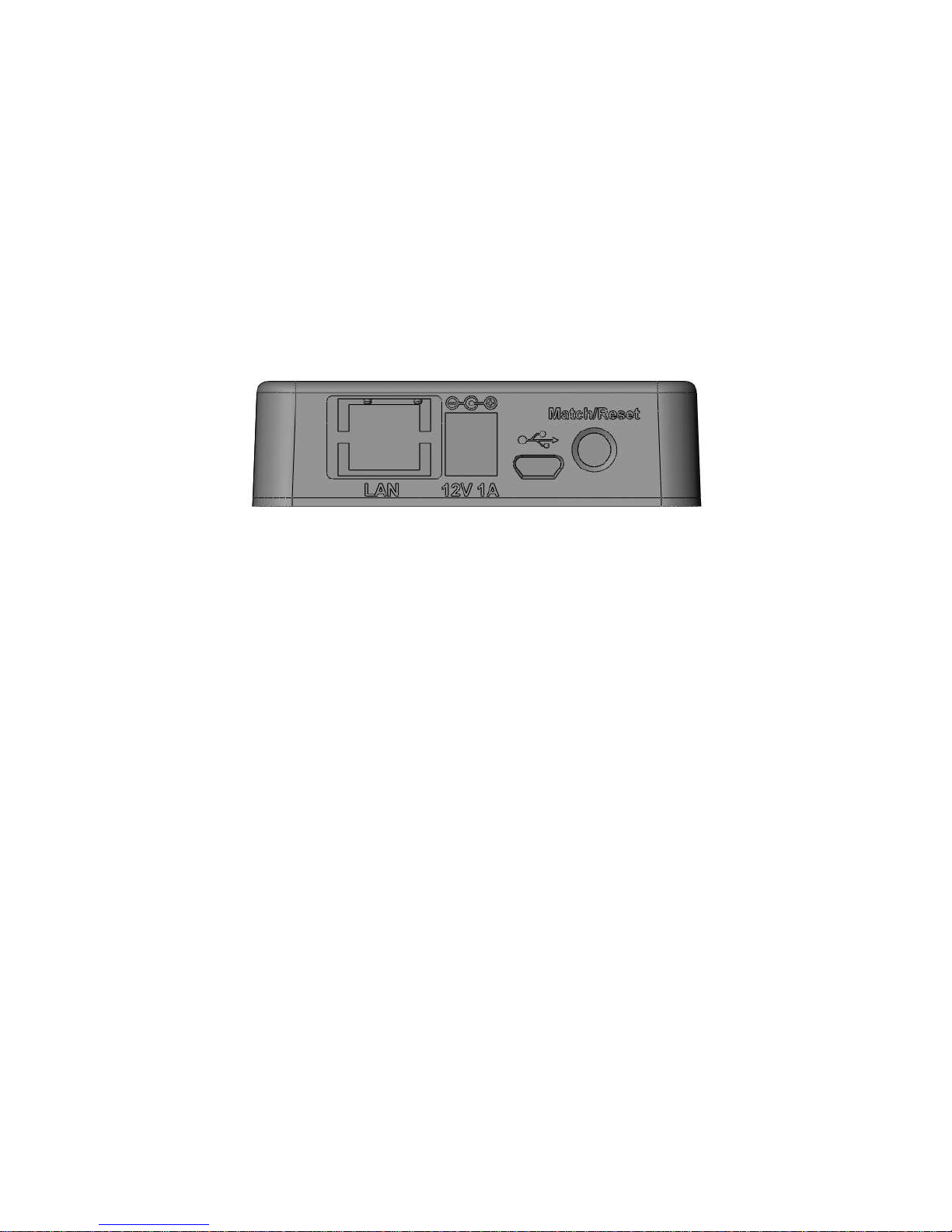
5. Rear side view of the case:
12V1A
The system power supply DC in connection: DC12V >0.5A
Micro USB Jack
For the firmware upgrade purpose and also for the dealers software programming.
Match/Reset button
To match the assigned transmitter devices pairing and for the system reset.
Page 10
9
6. Installation of IoTStations App for Android system
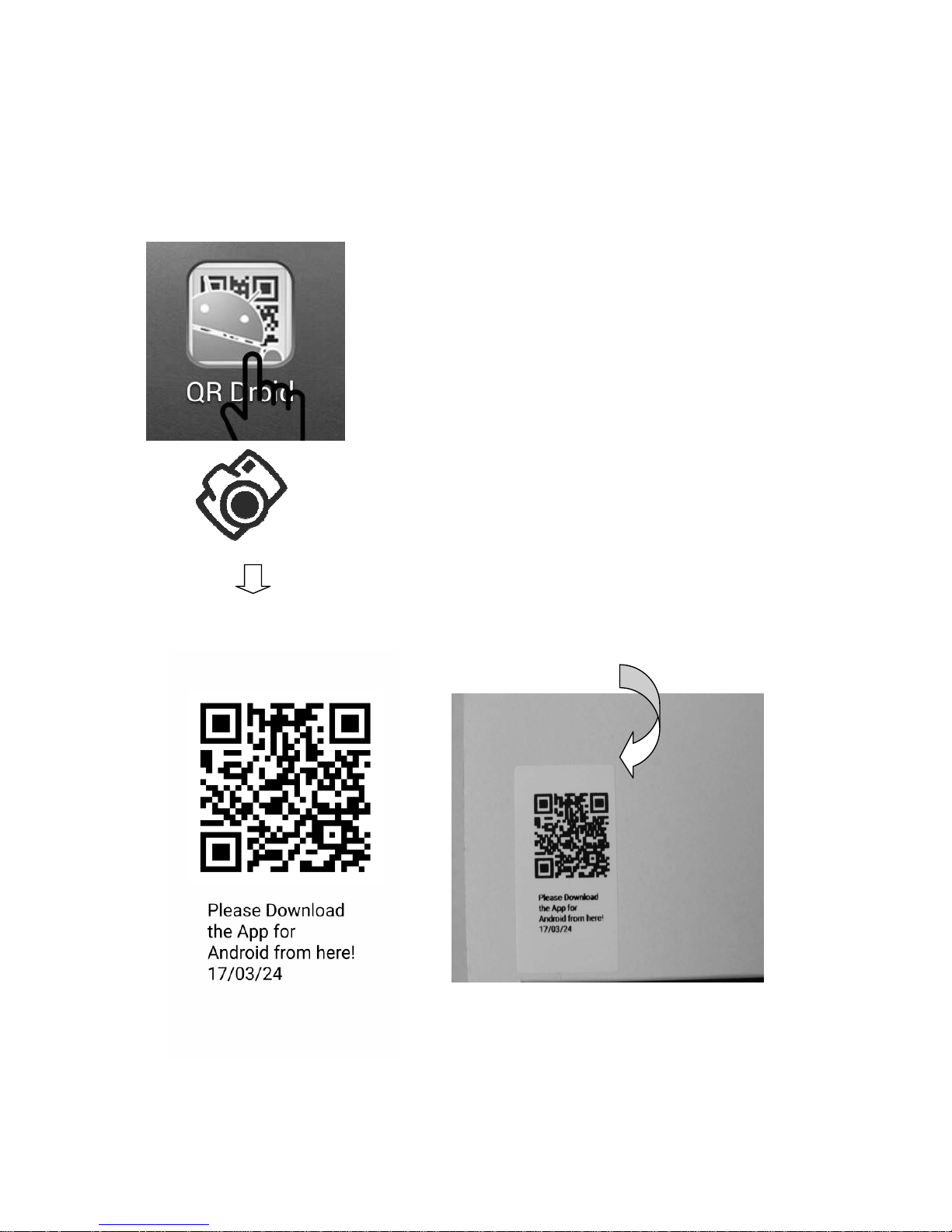
6-1 Step1: Download APP by QR code
Use QR code reader to scan the QR code of the following via your smart phones
Usually the latest APP QR
code will sticker on the top of
packing box
Page 11
10
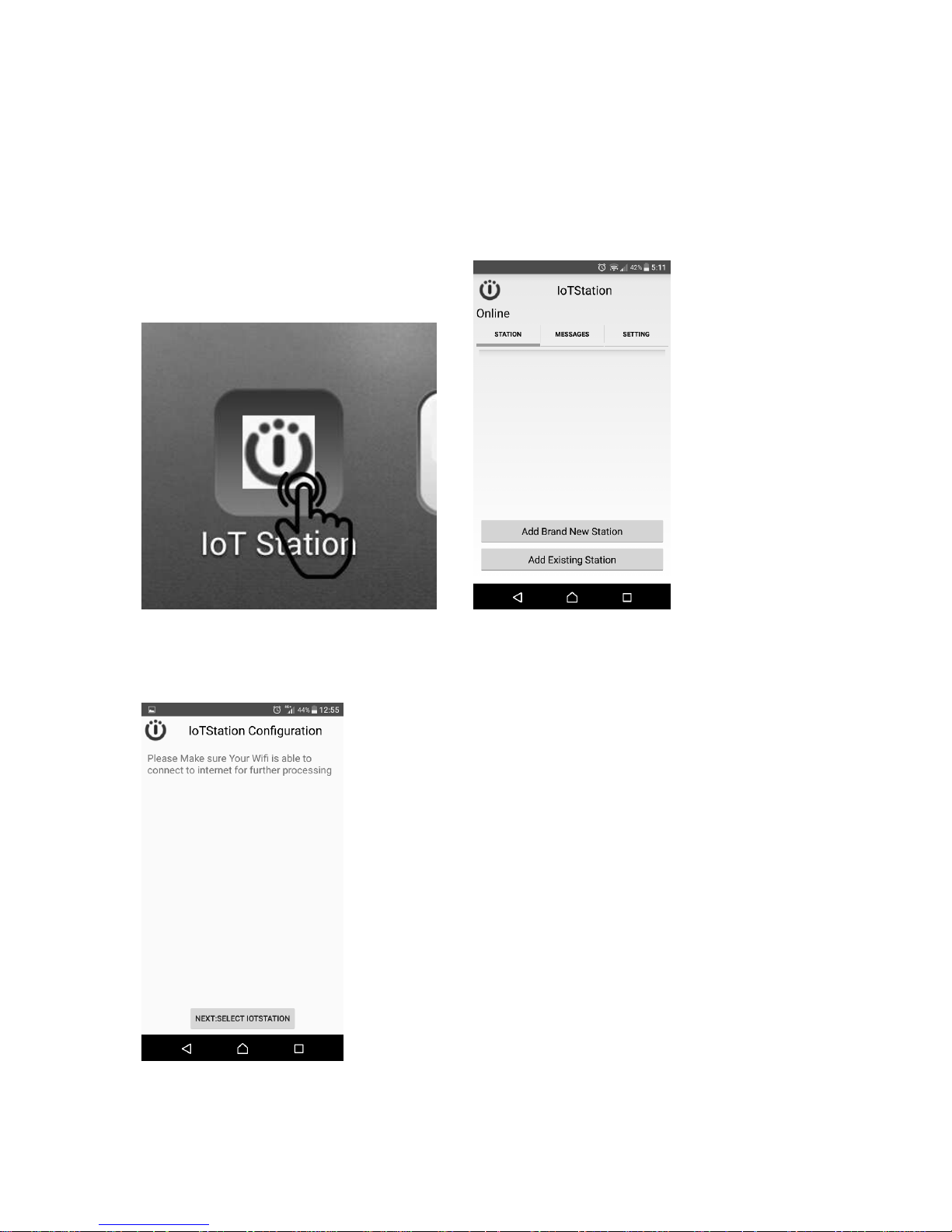
6-2. Step2: After completing download IoTStations APP. Then install the IoTStation app.
6-3. Step3: Open the IoTstation App and click on "Add Brand New Station"
(1st time to set-up must click Add brand New…..)
Also plug new one and more one click Add Existing ststion(s).
Please make sure your mobile device is connected to a WiFi, the same WiFi will be used
to connect to IoTstation.
6-4. Step4: Click on "NEXT:SELECT IOTSTATION"
Page 12
11
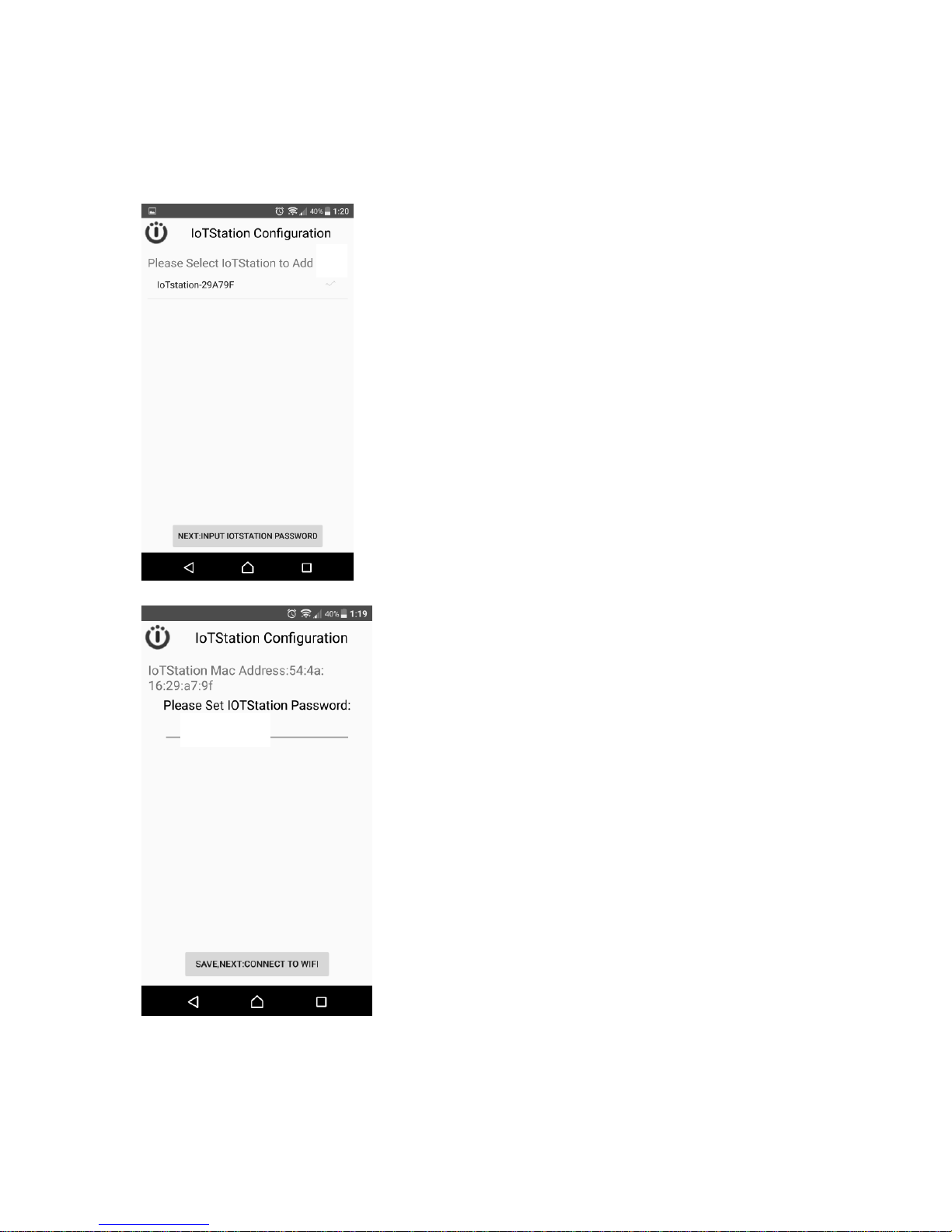
6-5. Step5: Select √ the IoTStation to add, and click on "NEXT:INPUT IOTSTATION
PASSWORD"
6-5. Step6: Please Set the Password for the IoTStation
Password can be set within 4-7 digits English and Number.
12345
√
Page 13
12
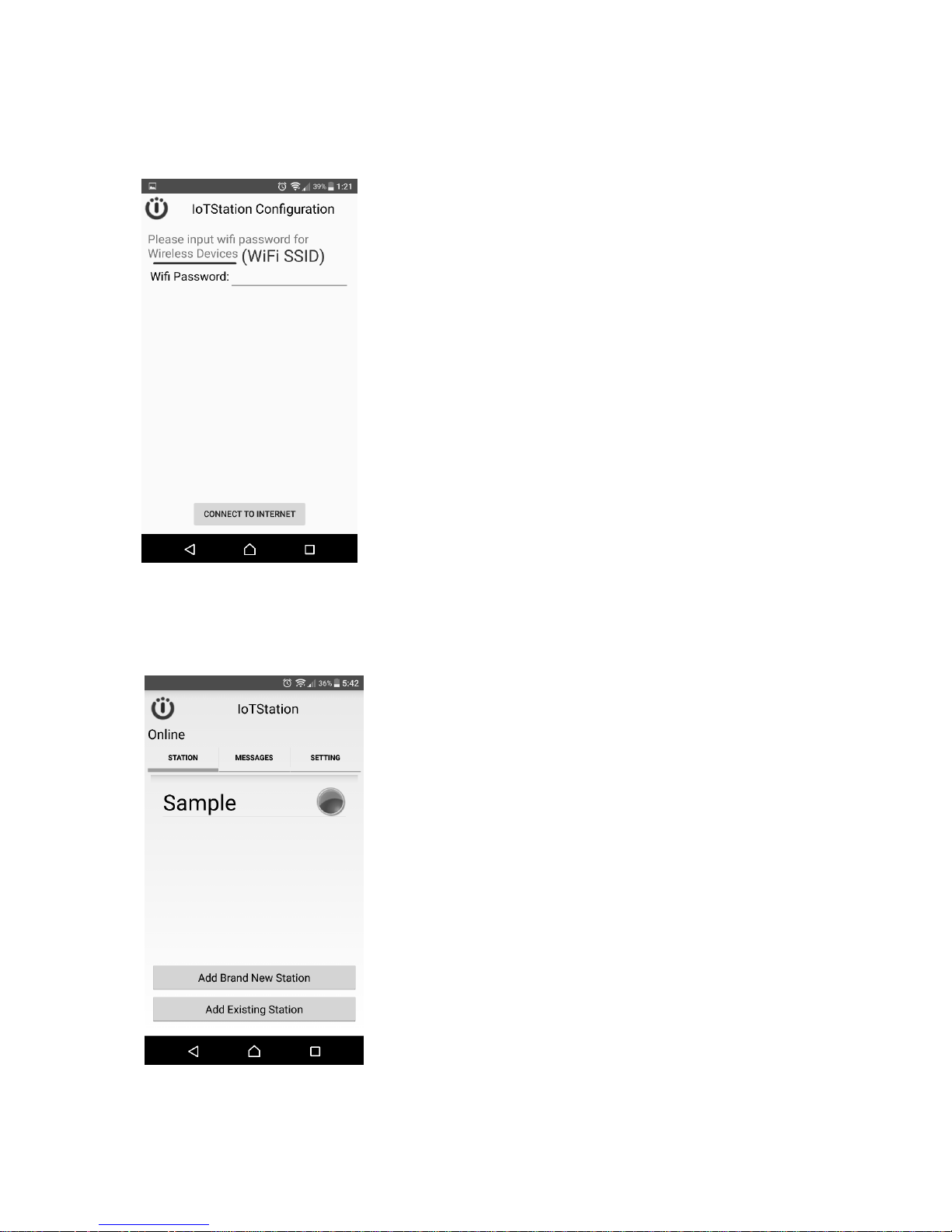
Then click on the "SAVE,NEXT:CONNECT TO WIFI".
6-6. Step7:Please Enter the Password for your Wi-Fi.
See your Wi-Fi password. Then key-in that. and click [Connect to internet].
If the Wi-Fi A/P no need password just click [Connect to internet].
After successfully setting the IoTStation, you should see a new IoTStation added here.
Page 14
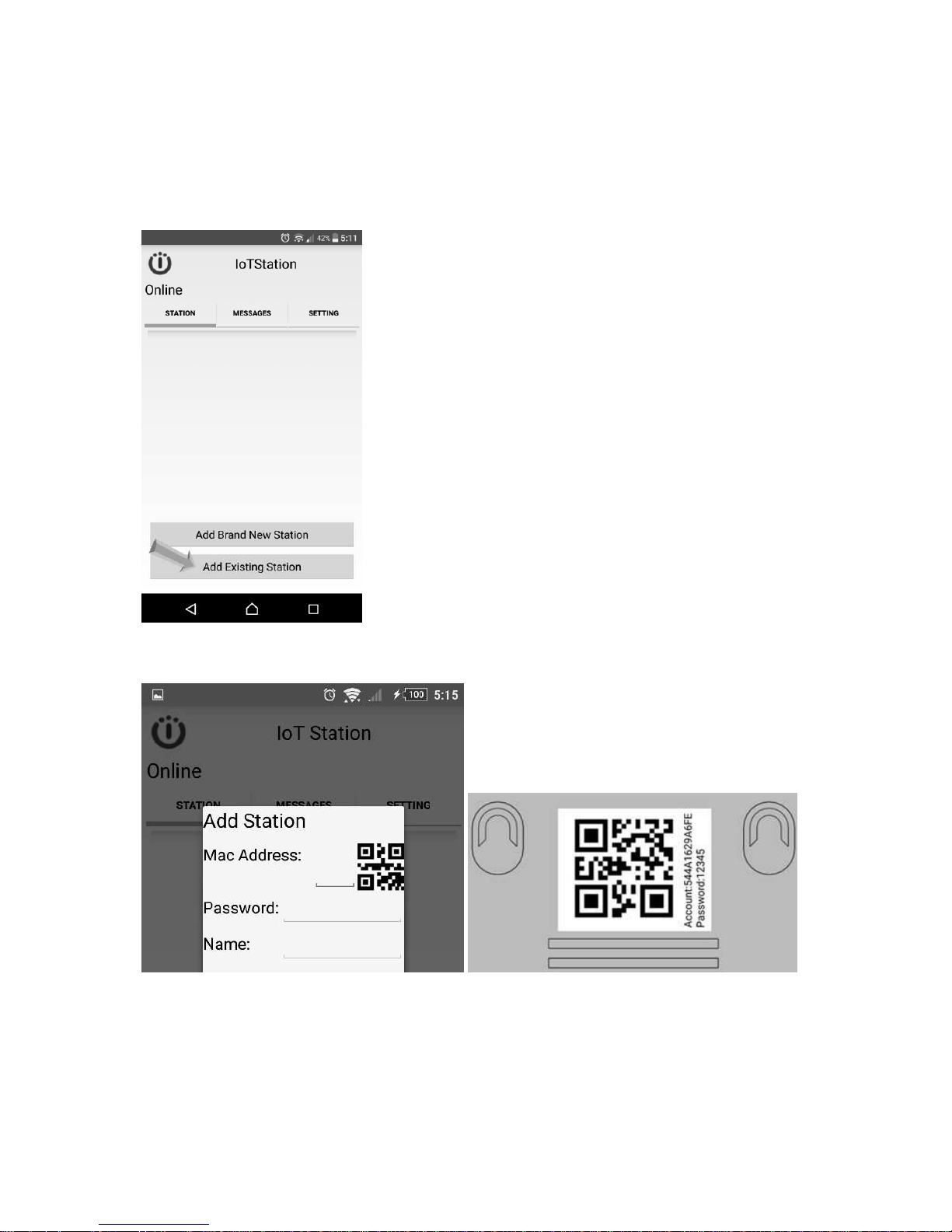
13
7. Add more smartphone on your IoTStation.
7-1. Click on “Add Existing Station”
7-2. Use your smart phone to scan the QR code on the bottom side of IoTStation.
7-3. key-in the password into your screen...
This password must same with Item 6-5 (page 11) your set-up before.
Page 15
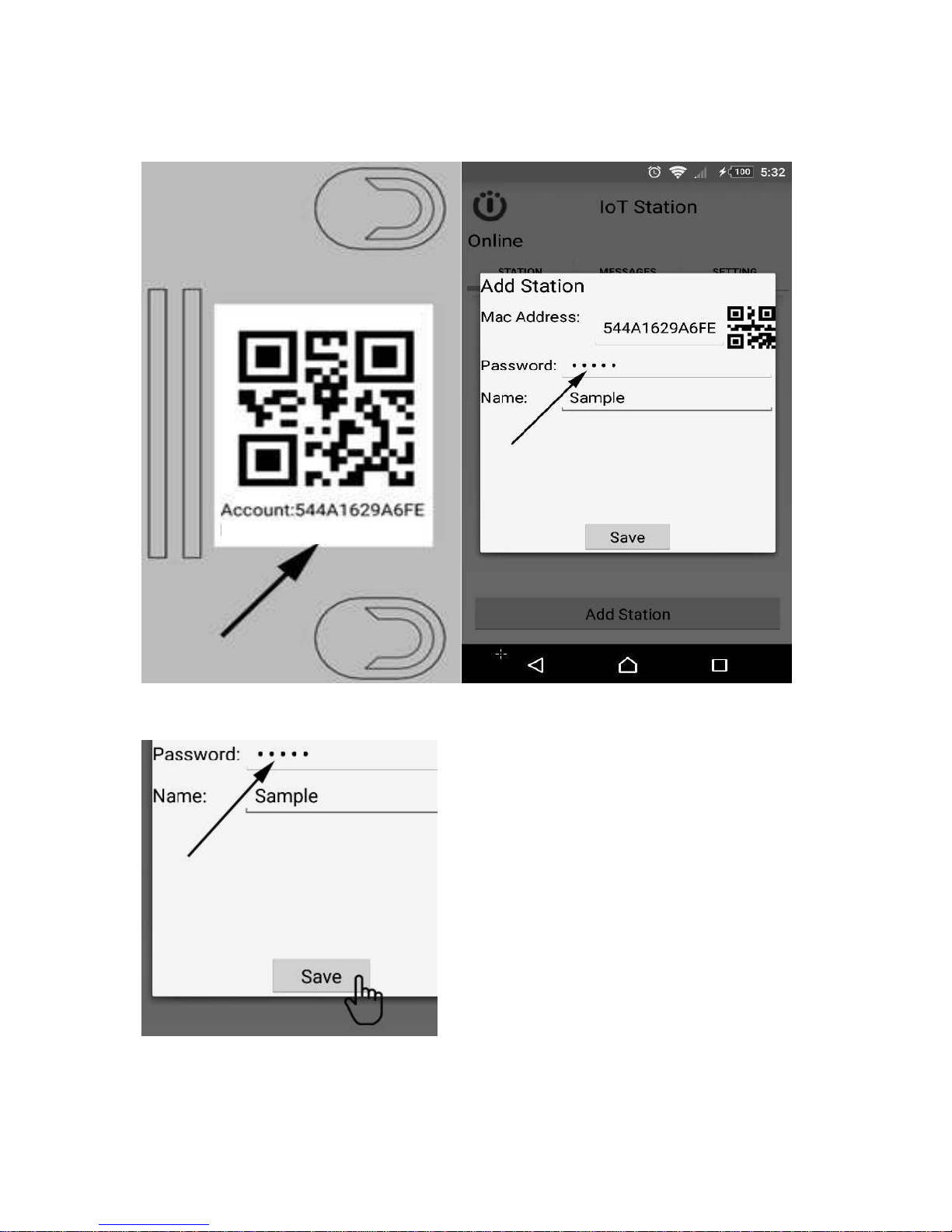
14
7-4. click [Save]..
Success fully added the new smartphone on your IoT station.
Page 16
15
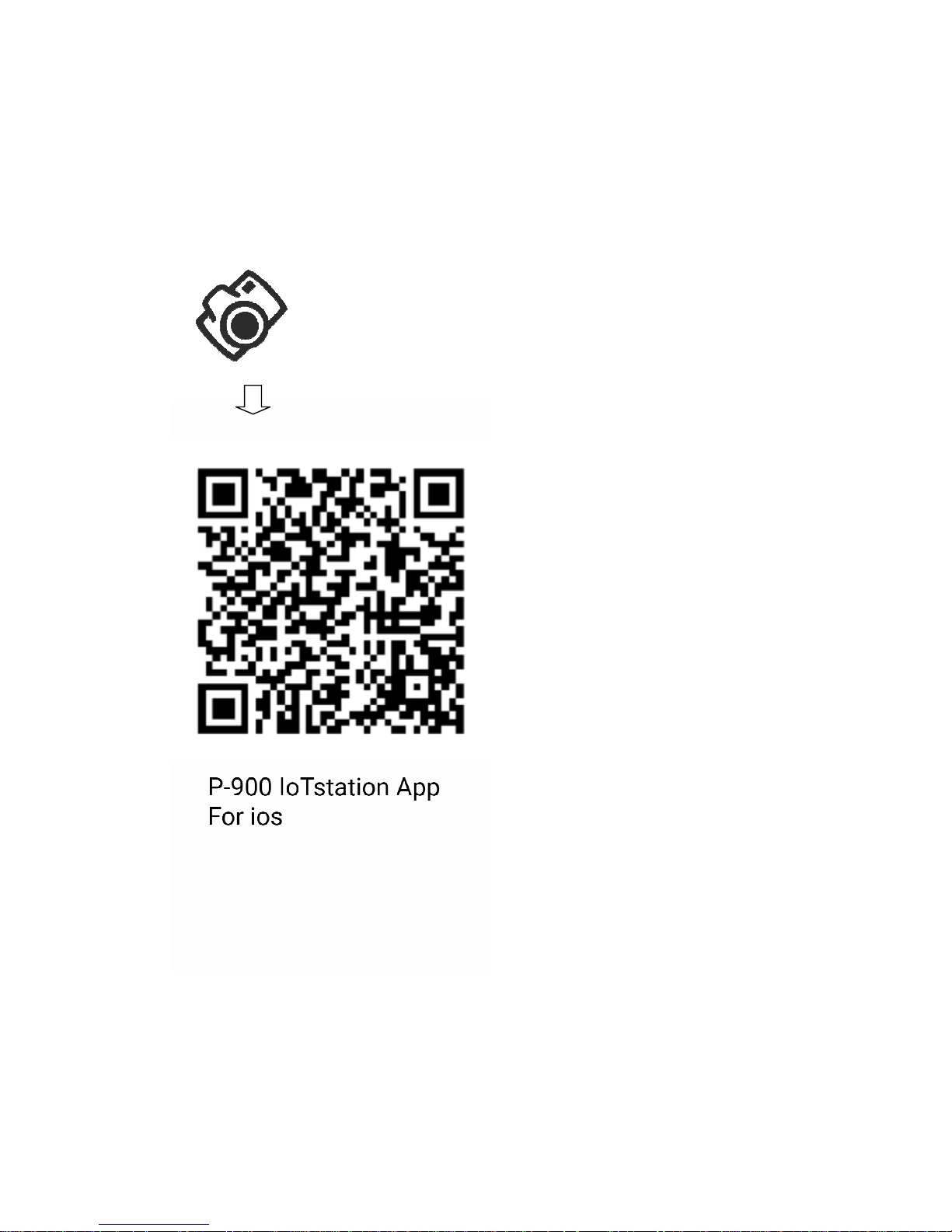
8. Installation of IoTStations App for IoS (iphone) system
8-1 Step1: Download IOS (i-phone) APP by QR code
Use QR code reader to scan the QR code of the following via your smart phones
Usually the latest APP QR
code will sticker on the top of
packing box
Page 17
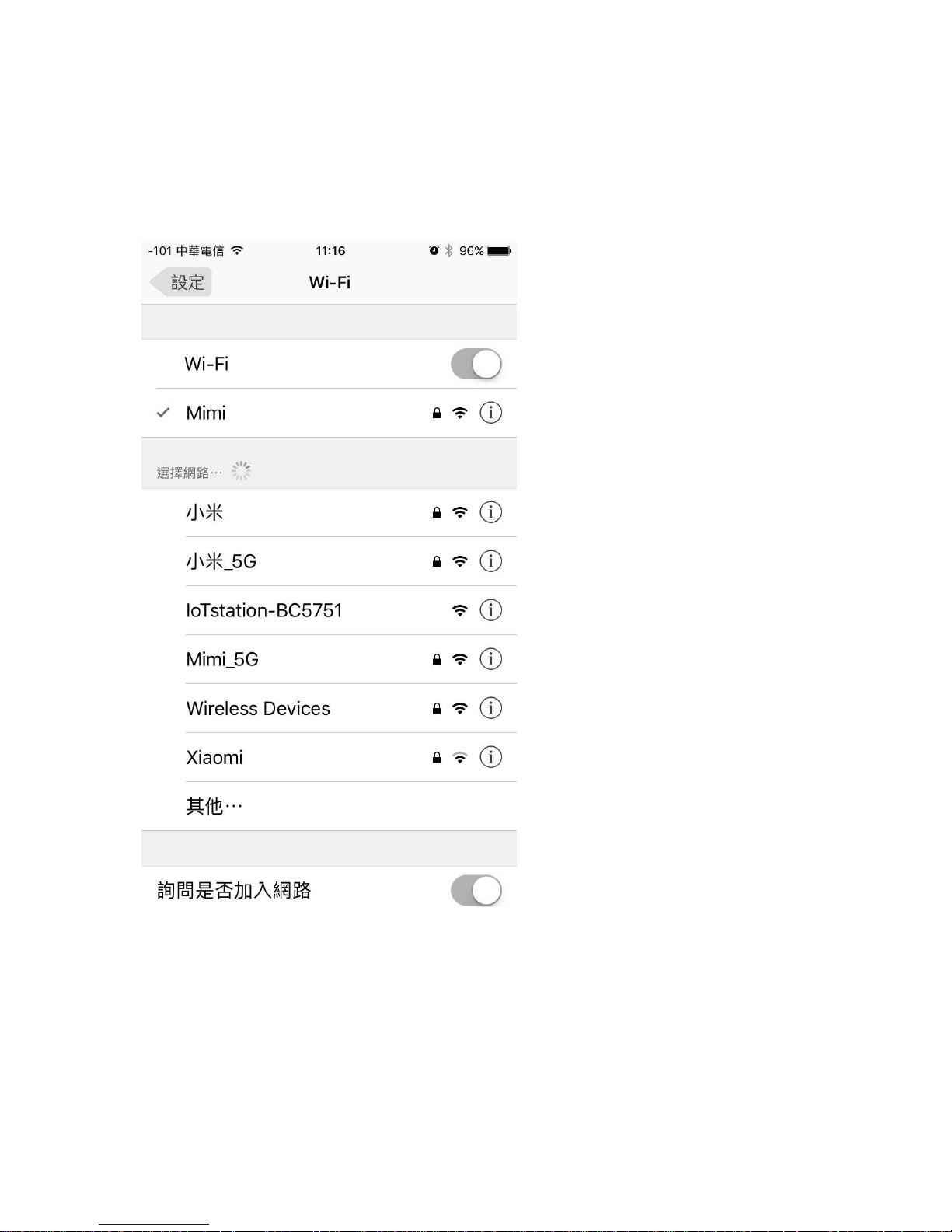
16
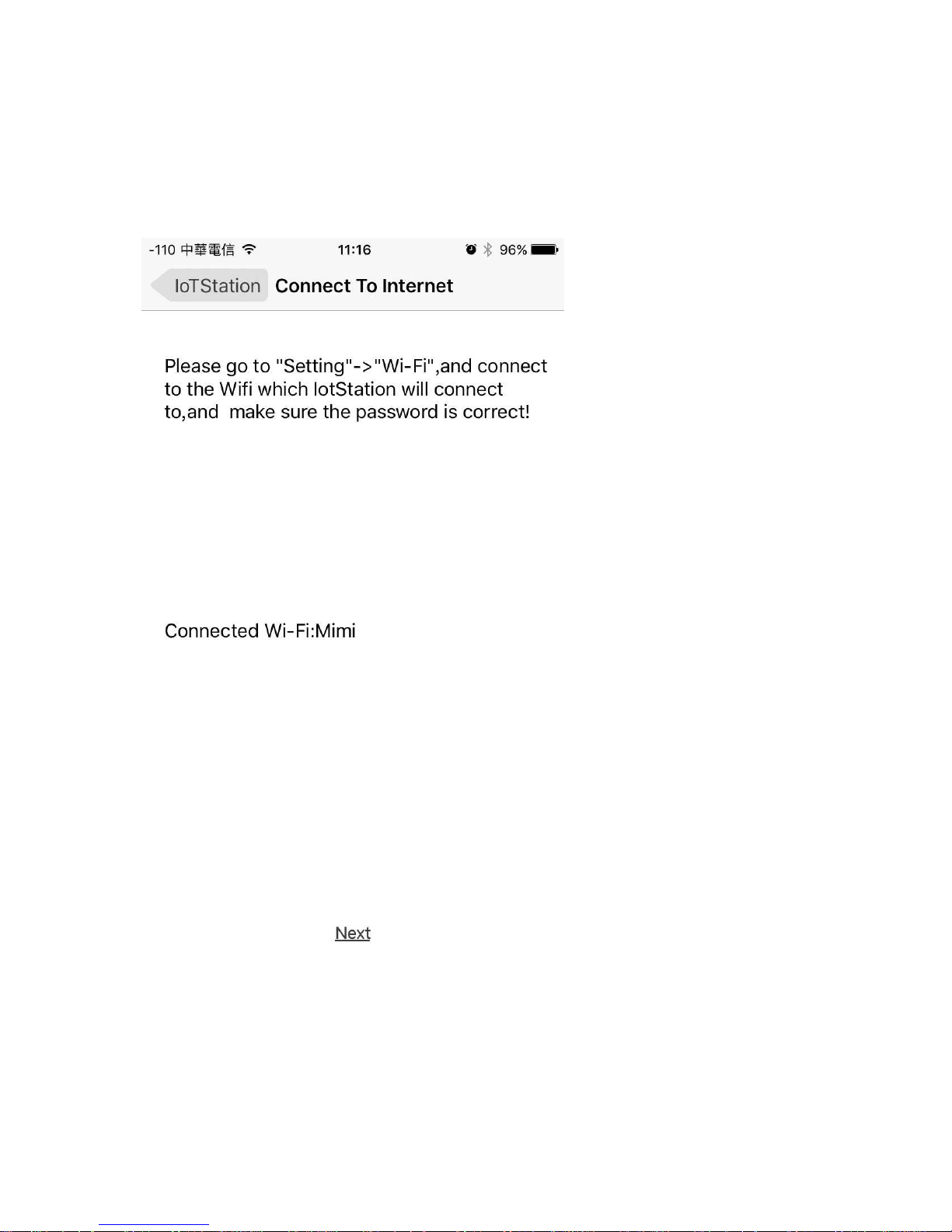
8-2. Select AP at home (also office)
自宅で AP を選択する(オフィスも同様)
Page 18
17
8-3. click Next...
次へをクリックします。
Page 19
18
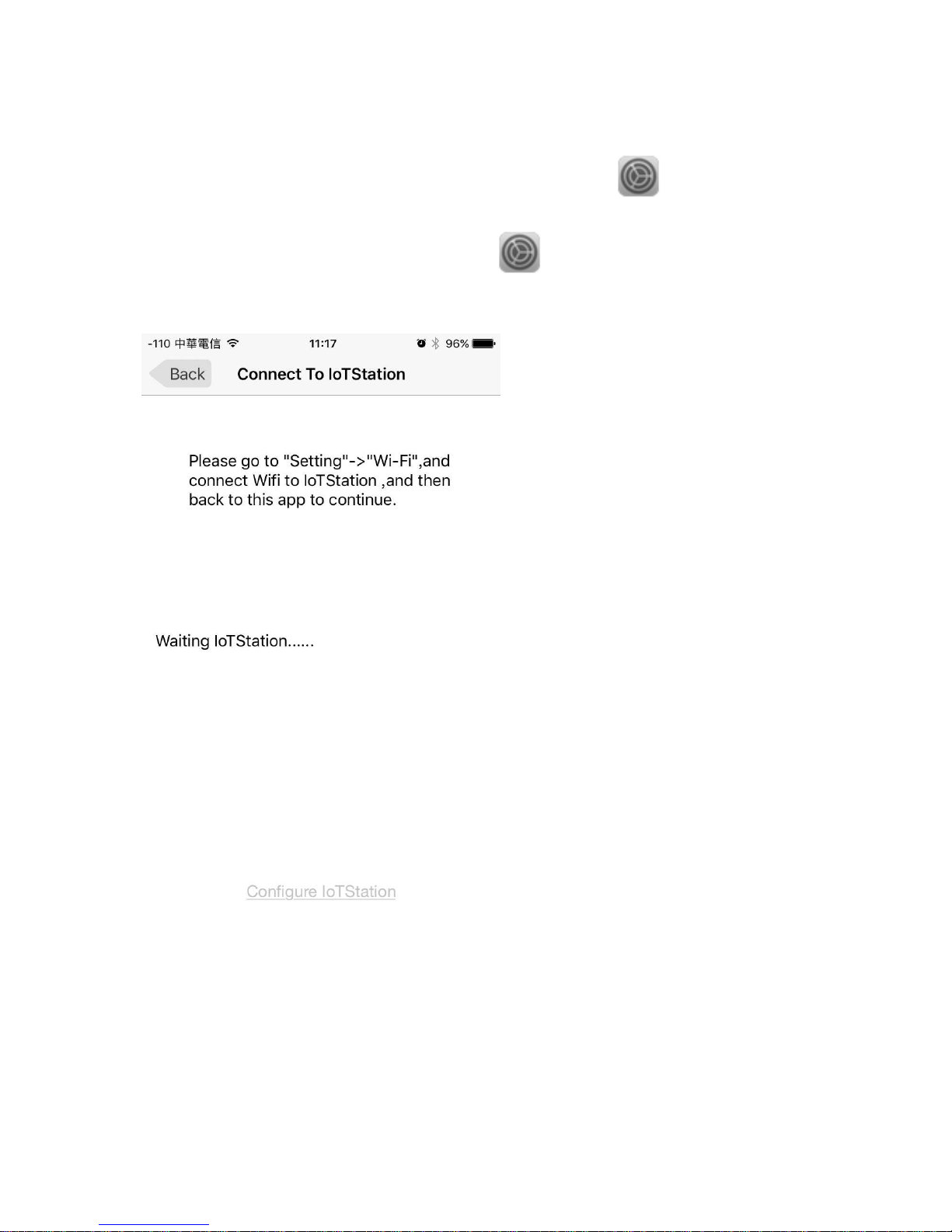
8-4. Now ! Please cilck [Home key] back to Main screen then click → set-up
今すぐ! [ホームキー]をメイン画面に戻し、→ をクリックしてください。
Page 20
19
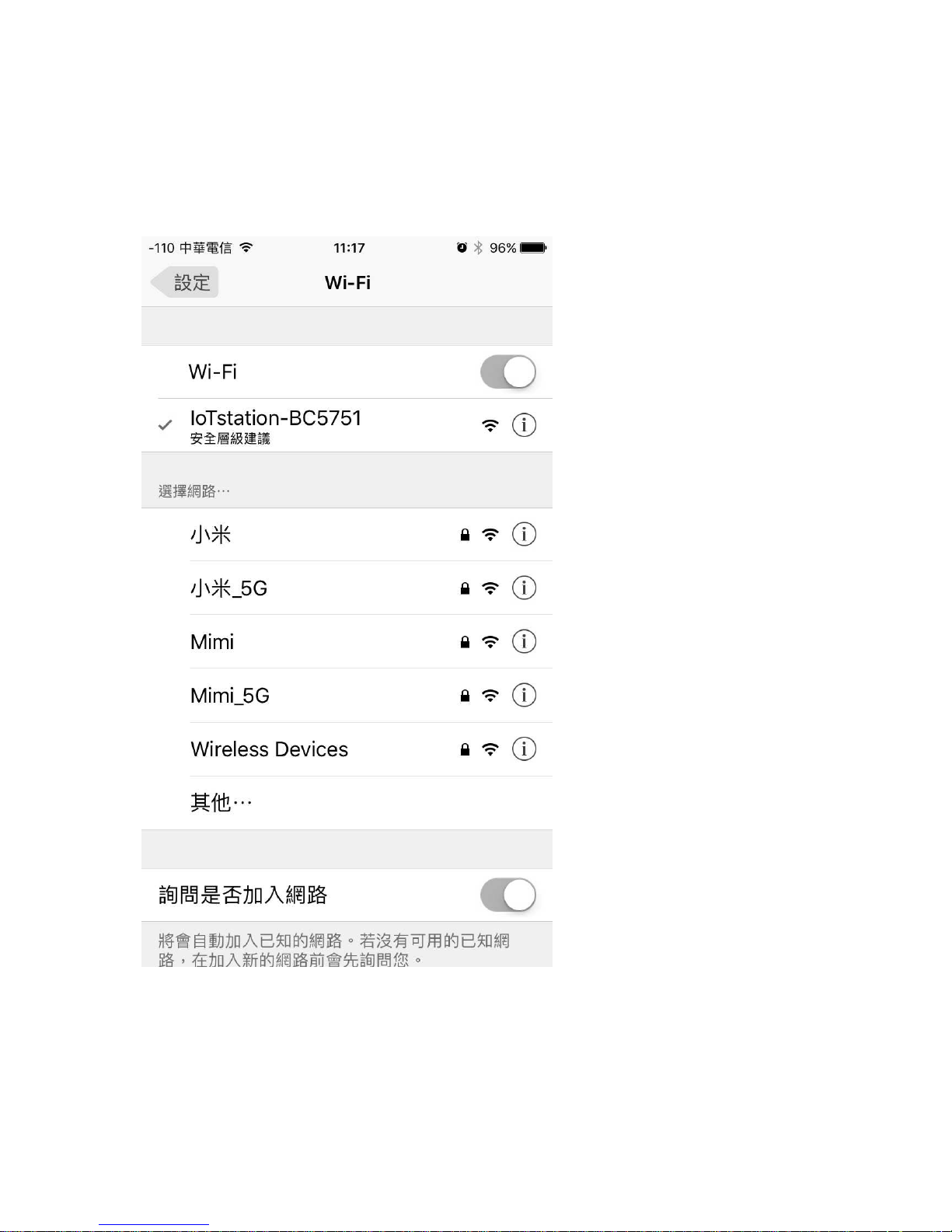
8-5. Select Iot station
Iot ステーションを選択
Page 21
20
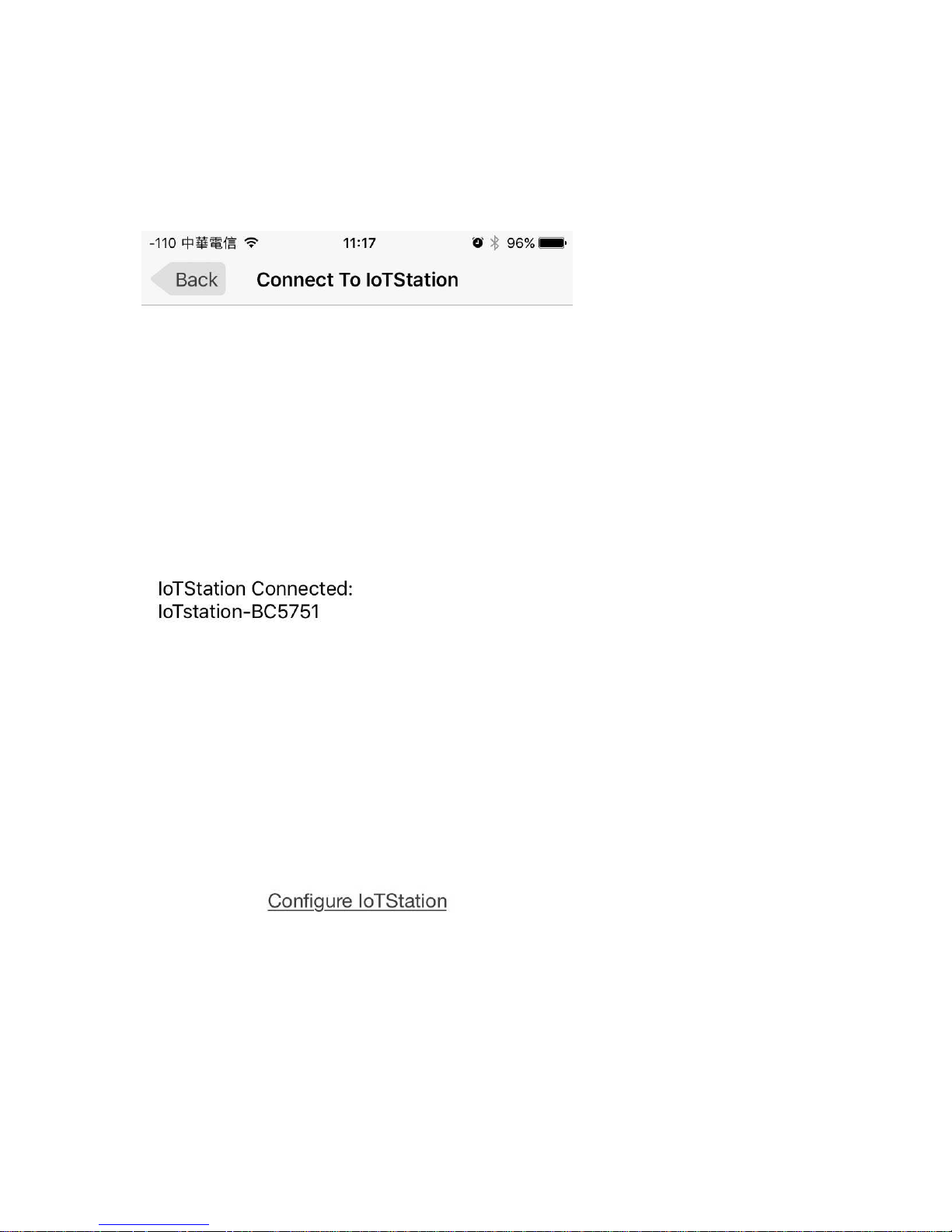
8-6. click configure IoTStation..
IoTStation を構成]をクリックします。
Page 22
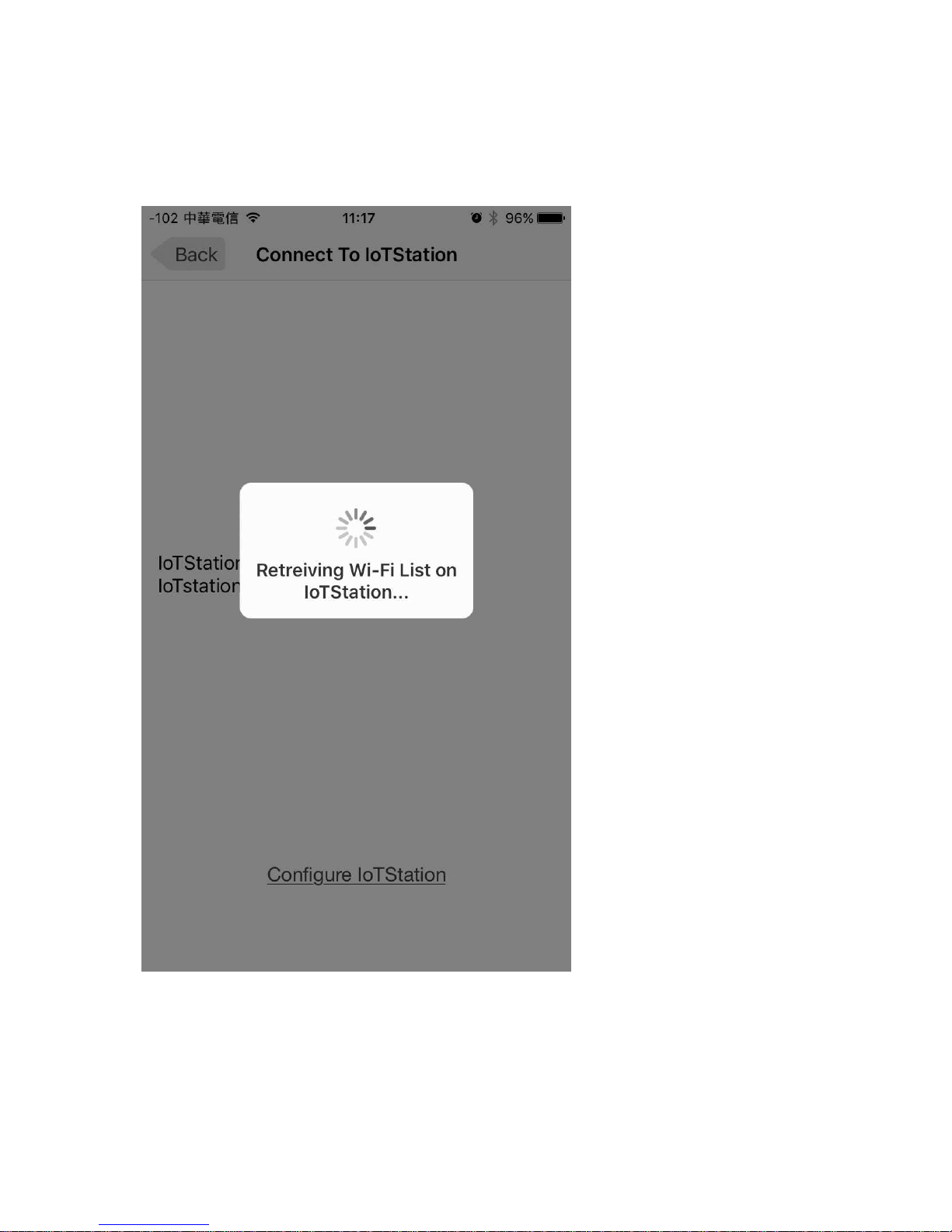
21
8-7. waiting....
待っている....
Page 23
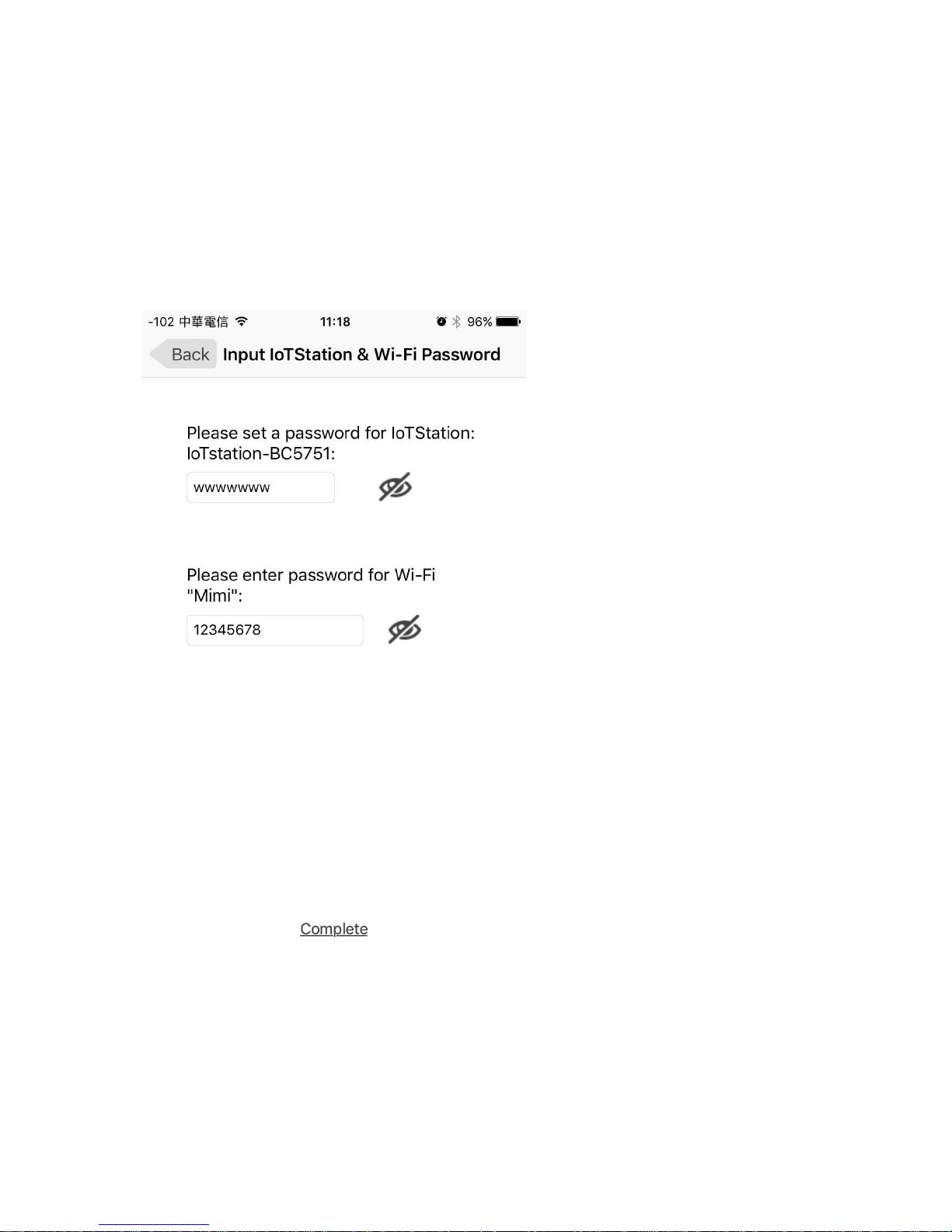
22
8-8. Key in your password into IoTstation
and your Wifi password on your home wifi AP (also office)
(see your Wifi AP password)
パスワードを IoTstation に入力してください
あなたの家の無線 LAN の AP(オフィスも含む)の Wifi パスワード
(Wi-Fi AP のパスワードを参照)
Page 24
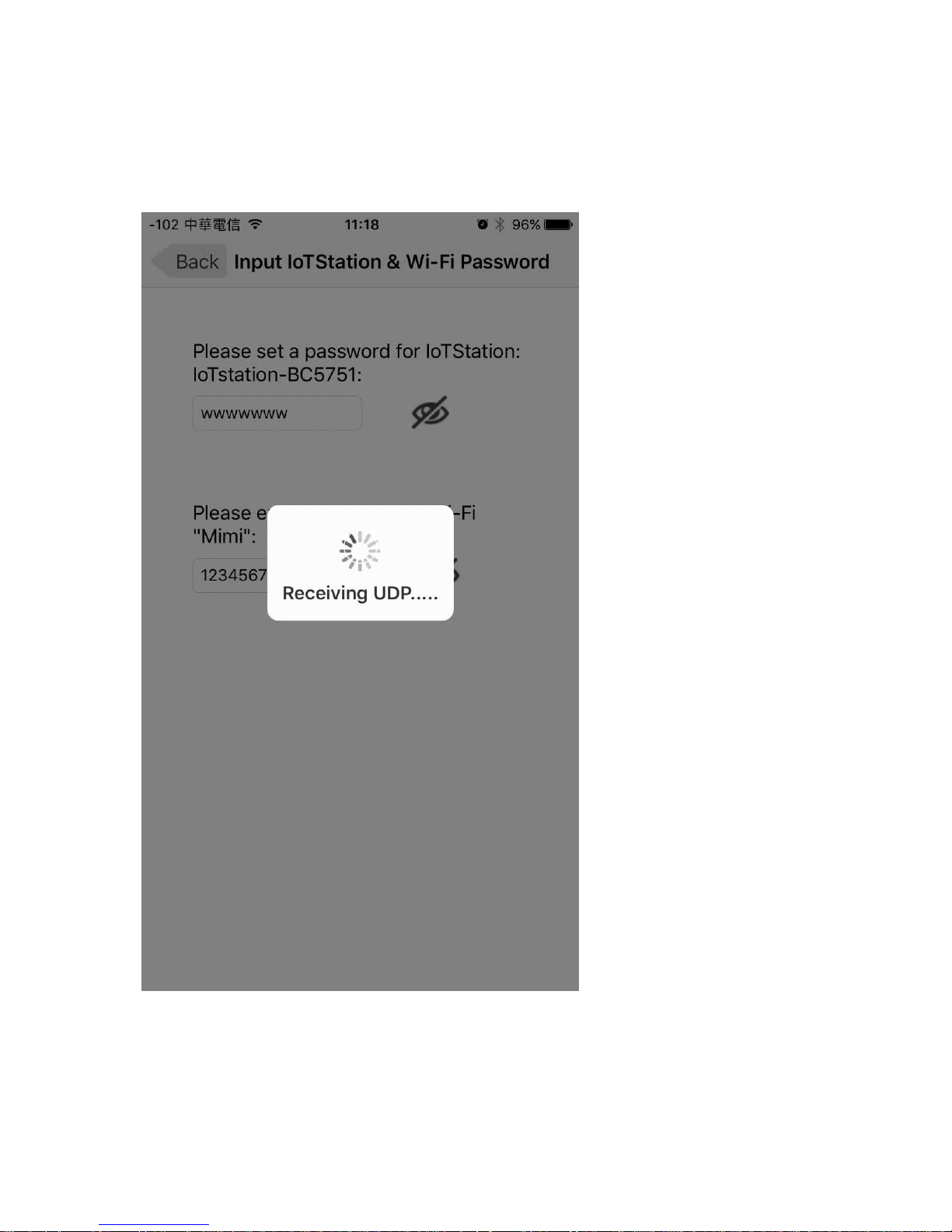
23
8-9. wait....
待つ
Page 25
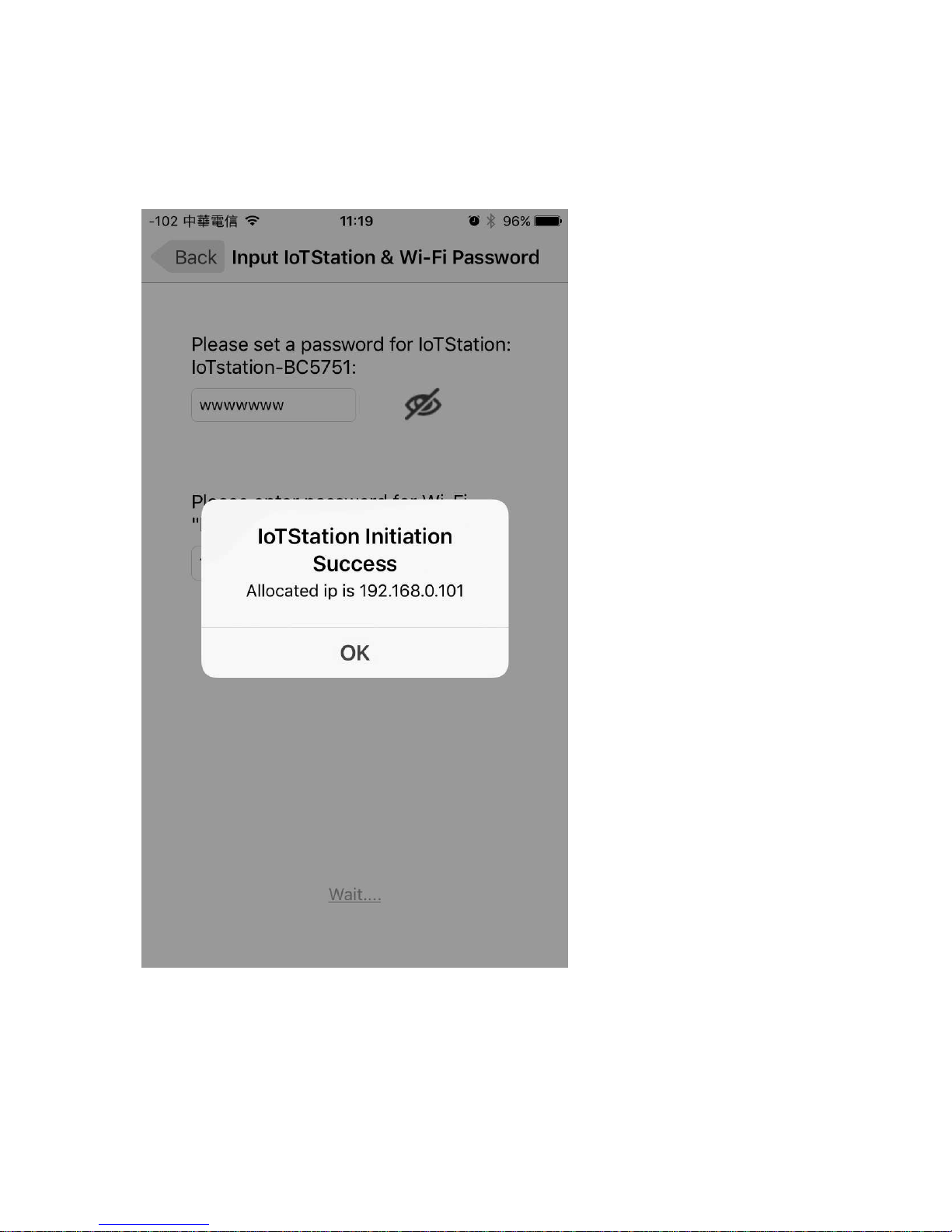
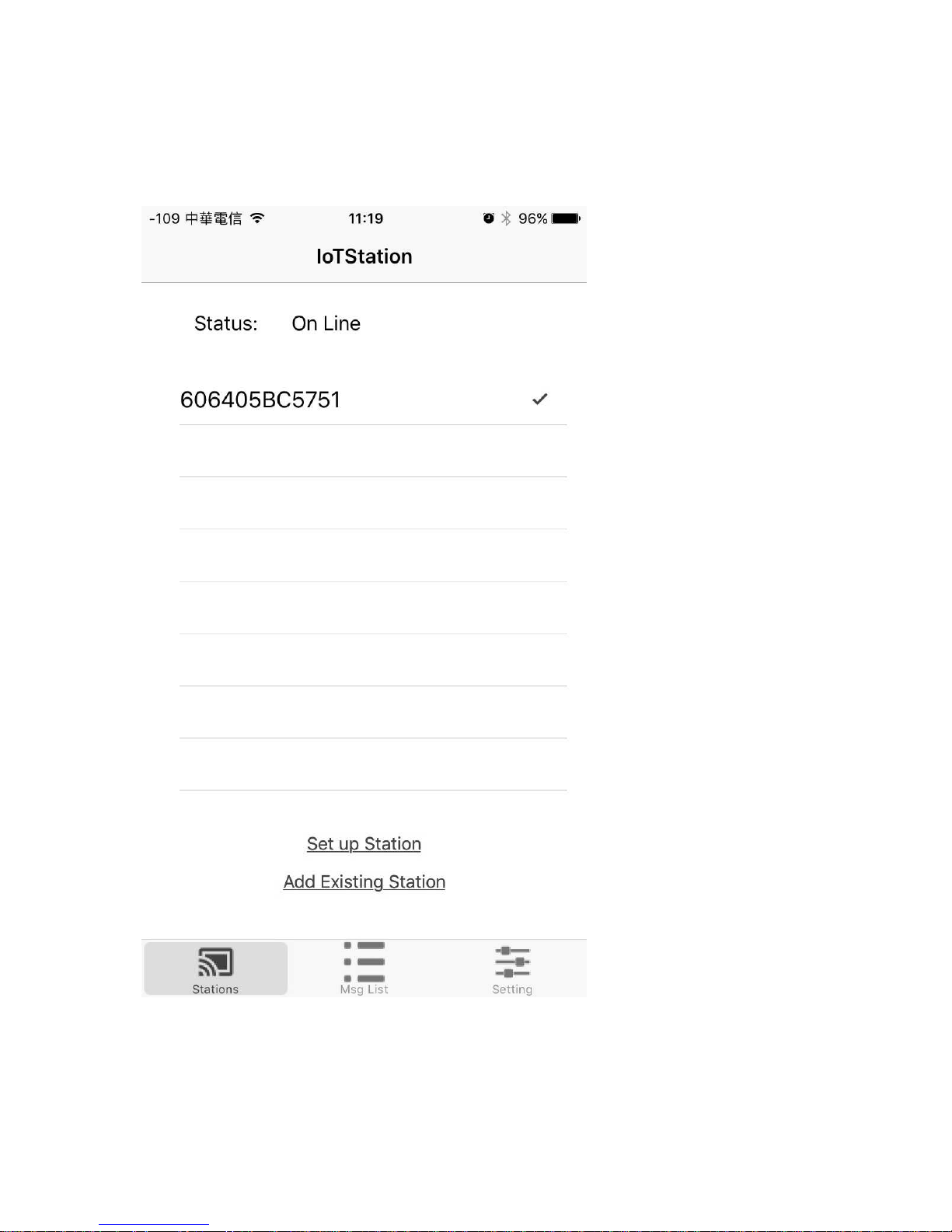
24
8-10. Take a IP number then click [OK]
IP 番号を入力し、[OK]をクリックします。
Page 26
25
8-11. OK IoT is ready ...
OK IoT が準備完了です
Page 27
26
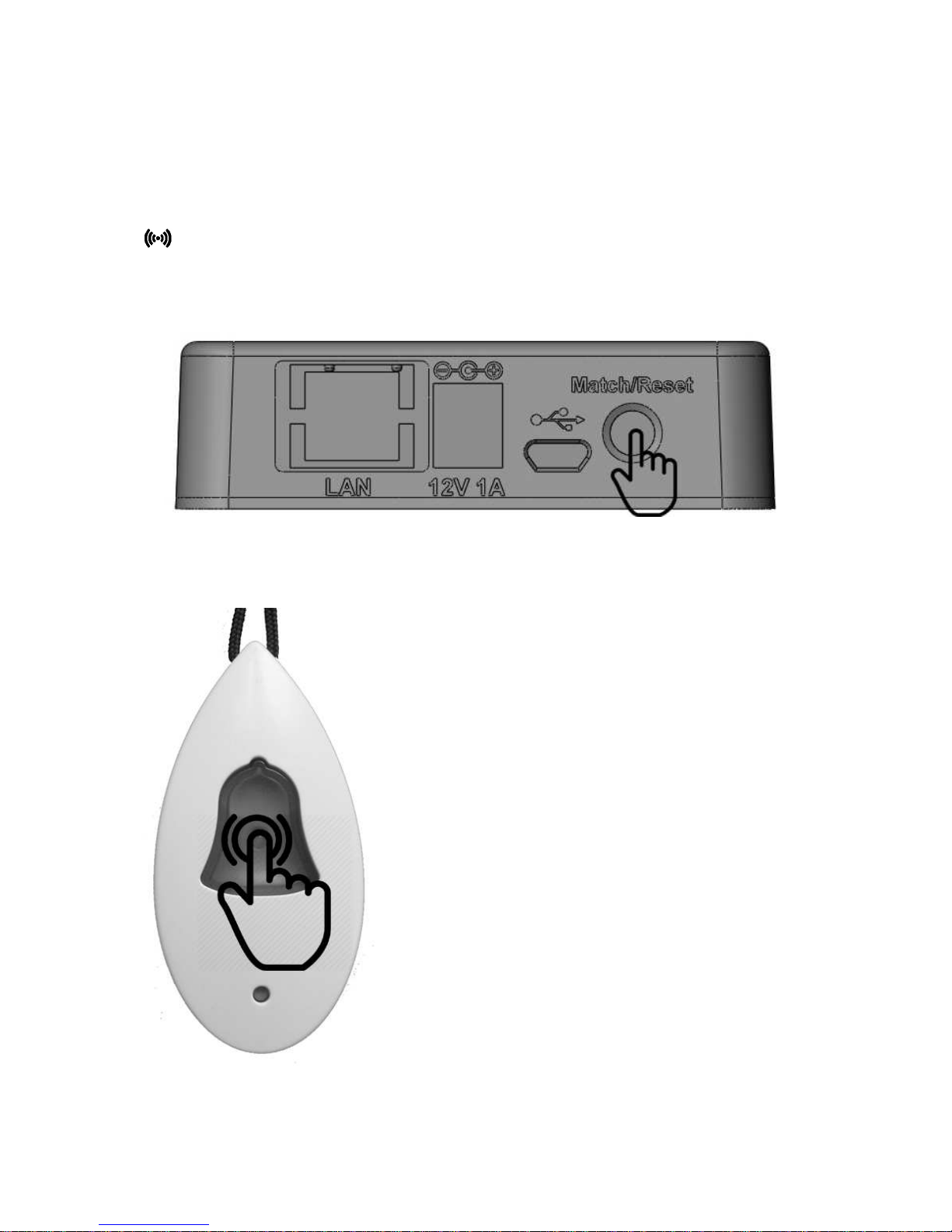
9. Pairing alarm devices to the IoTStation.
9-1. Press the Match/Reset button on the side of IoTStation for one second, and the
Sub-1Ghz led light will be blinking.
(Maximum limited 999 PCS alarm devices can be set-up into 1 IoTStstion)
9-2. Press the transmitter's TX button and make transmitter devices an activity within 10
sec. If added successfully, the led light blinking will be stop.
If need to increase more alarm
devices into your IoTStation
Please repeater again by item 8-1
Page 28
27
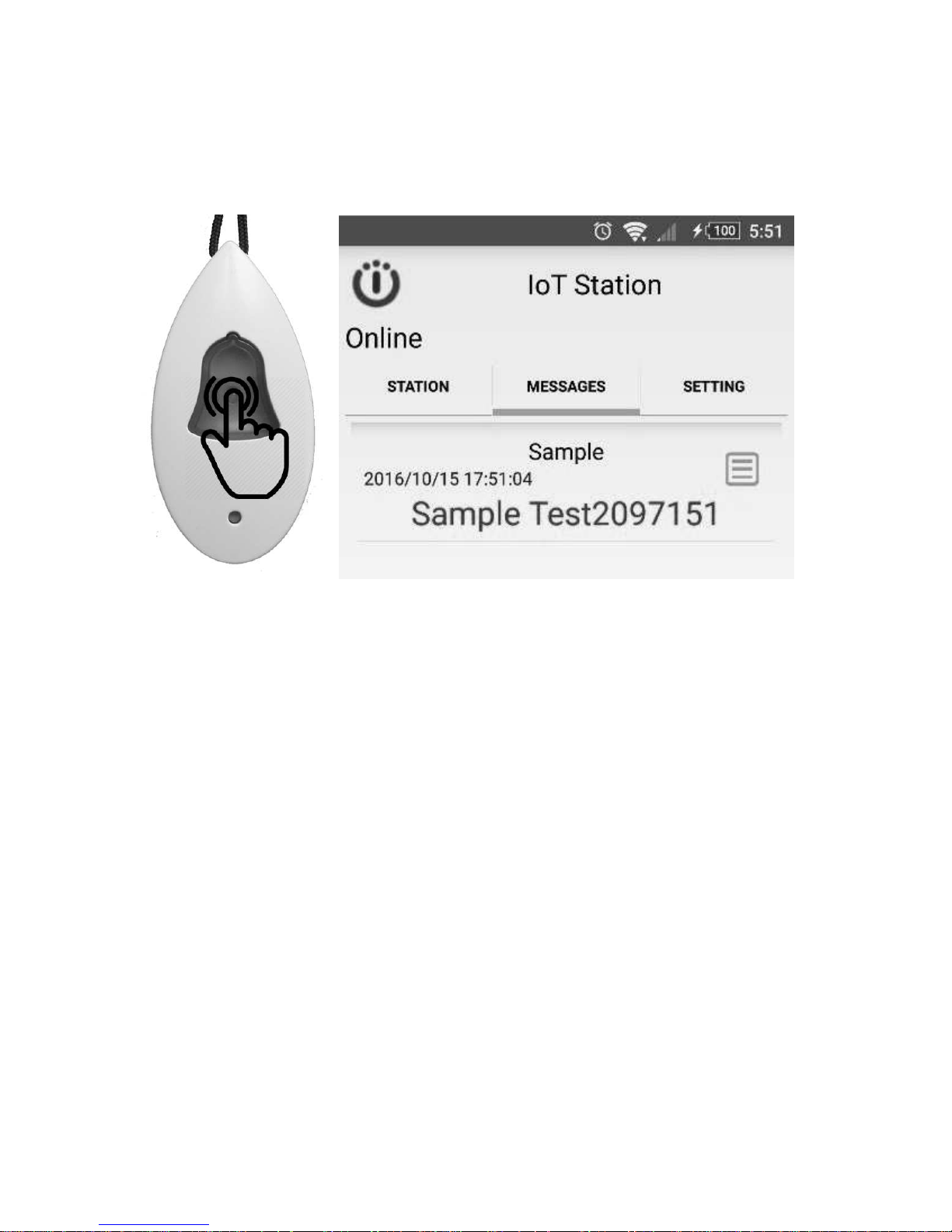
9-3. For test. Press active alarm devices again. If added successfully, the mobile device should be
getting a message.
Page 29
28
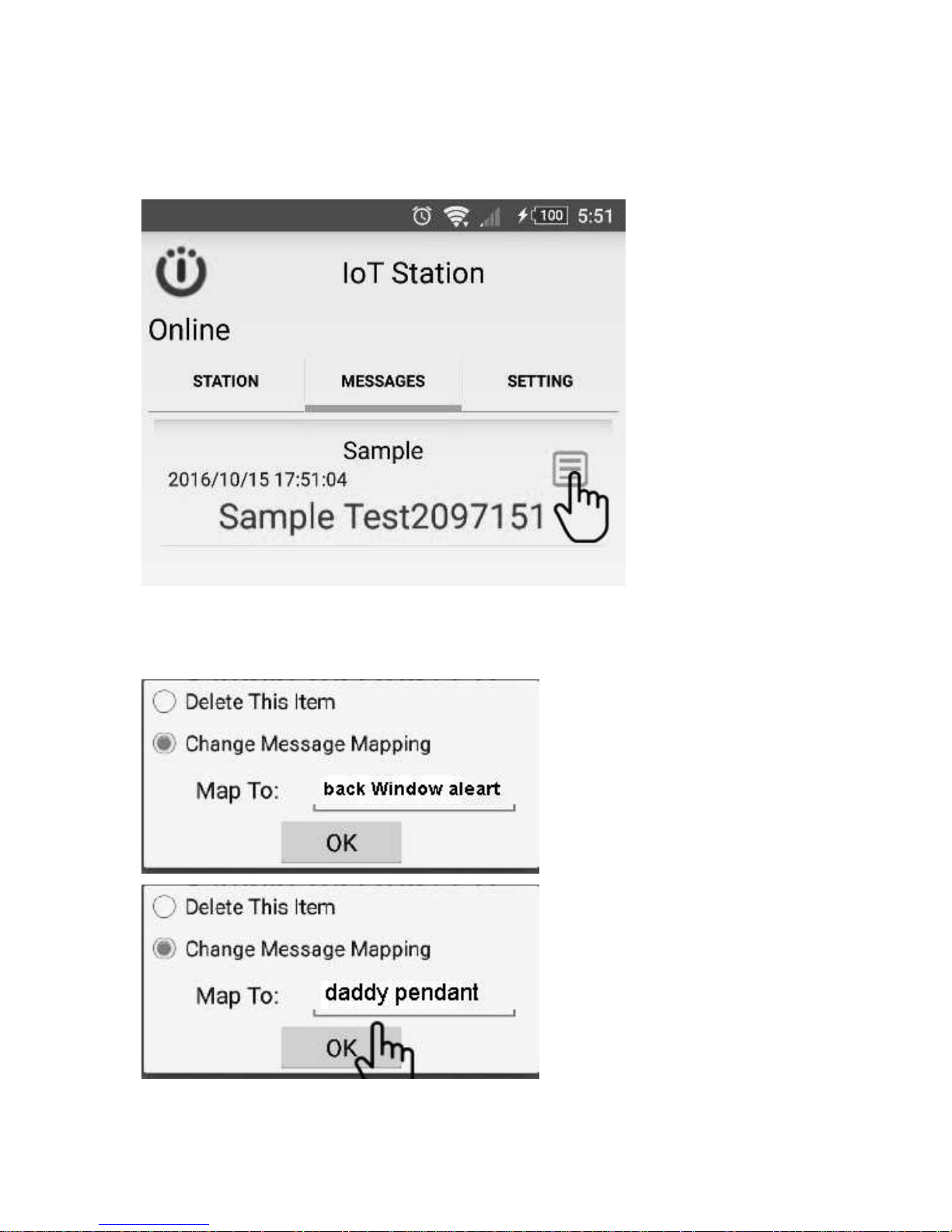
9-4. Rename the alarm devices, click on rename icon.
9-5. key-in the name of alarm devices and then click [OK]
examples: [Case Box alarm],[Door is open],[Daddy calling]….
Page 30
29
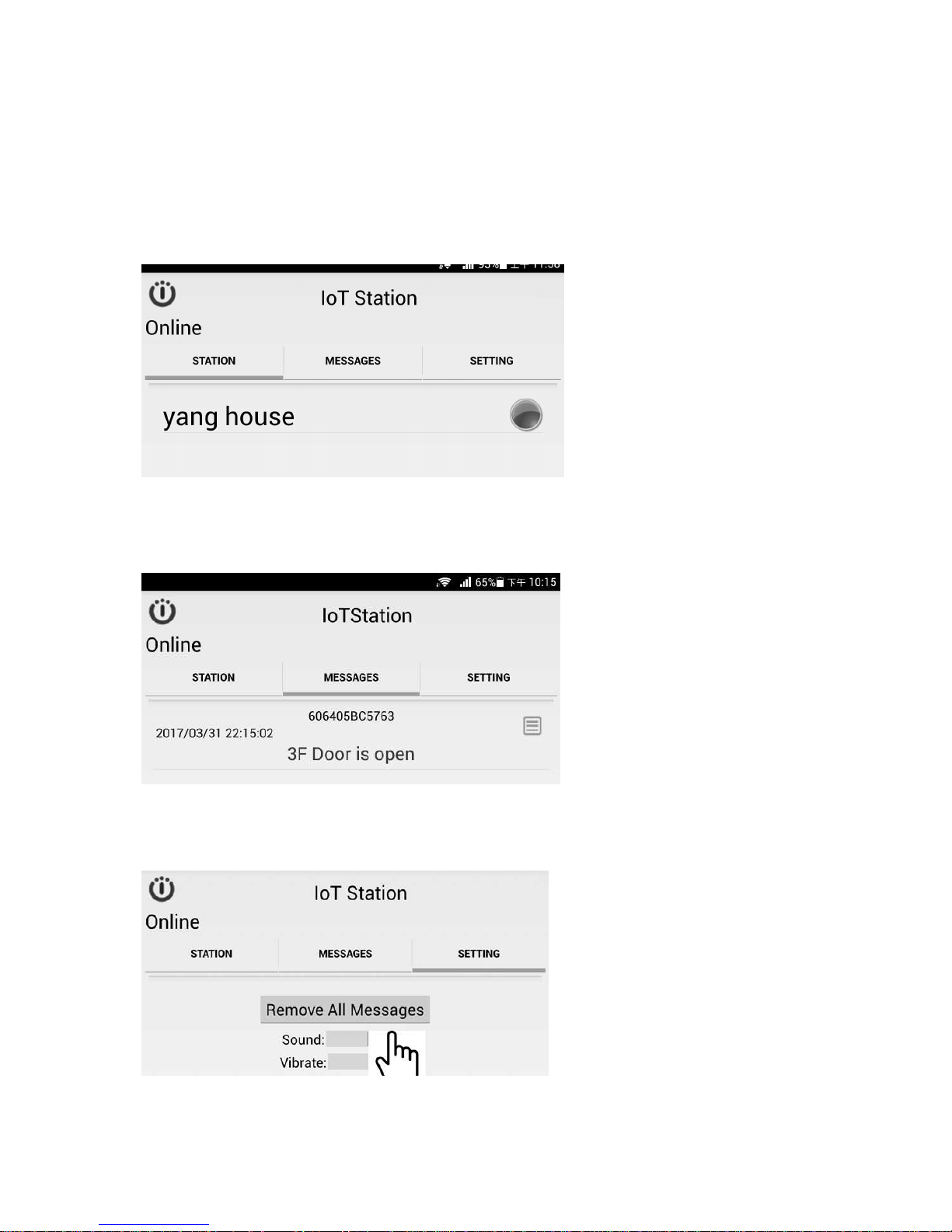
10. smart phone side setting
10-1. Click STATION for select your IoTStation,
Example: [My house],[Office],[warehouse],[daddy at home]...
10-2. Click Message to view all alarm messages....
10-3. Click SETTING to set alarm Sound or/and Vibration...
Page 31
30
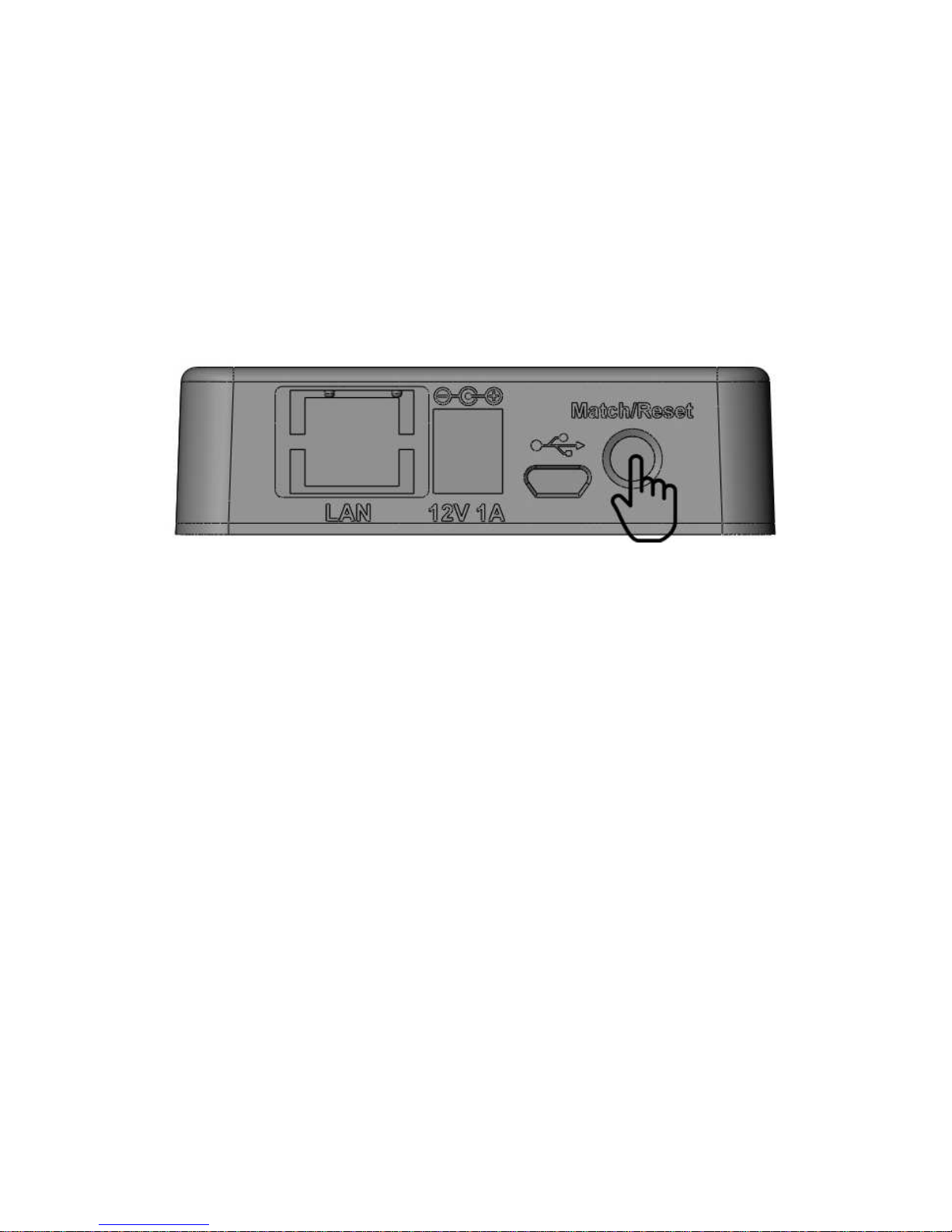
11. System reset.
11-1: When you are confused or missing of the system setup,
You can press Match/Reset button over 15 Seconds until the beep sound to release
the buttonto reset the factory setting, and try again.
(When reset is activated, IoTStation would go back to default setting)
Page 32

31
P-900 IoT Stations Specification
General
Operation temperature -25°C ~ 70°C
Power Supply DC 12V 0.5-2A
Case size: 80(L) x 70(W) 27(H) mm
Weight: 220g without AC adapter.
Wi-Fi Section
Wi-Fi Standard 802.11 b/g/n
Network Mode AP / Station
Transmission Rate
802.11b: 11Mbps
802.11g: 54Mbps
802.11n: 54Mbps
Transmitter Power
17.0 dbm @ 1 DSSS
17.25 dbm @ 11CCK
13.5 dbm @ 54 OFDM
Receiver Sensitivity
-94 dbm @ 1DSSS
-87 dbm@ 11 CCK
-73 dbm @ 54 OFDM
Frequency 2.412 - 2.484 GHz
Security Mechanism
Security: WEP-A/WPA-PSK/WPA2-PSK
Encryption:WEP64/WEP128/TKIP/AES
Antenna Internal on-board antenna
Sub 1 GHz POCSAG Section
Data Format POCSAG CCIR #1
Frequency
138-174MHz
430-470MHz
868-915MHz
Modulation 2FSK NRZ
Data Rate 512 bps/1200bps/2400bps
Receiver Sensitivity
-115dbm via loop antenna at 138-174MHz
-113dbm via loop antenna at 430-450MHz
-105dbm via loop antenna at 868-915MHz
Antenna Internal Loop antenna
Document Number:WP900MN172931EJ
Release Date:July.19.2017
 Loading...