

Page 1

Exhibit I: Users Manual
Wireless Computing
RF-150 Hanheld Mouse
Page 2
HANDHELD
g
MOUSE
RF-150
INSTRUCTIONS
1. Install Battery. Insert one AA alkaline
battery (included) in the handheld’s battery
compartment.
2. Connect Receiver. Plug the black receiver
into your computer’s USB port. If you see a
series of dialog boxes about USB drivers,
press Enter repeatedly to accept the
standard USB drivers in Windows.
Tip: Do not place receiver in an equipment
cabinet or near other strong EMI sources.
3. Set Address. Press and release the
address button on the bottom of the
receiver. While the green LED blinks,
simultaneously press the handheld’s left
and right buttons. Repeat until the green
LED on the handheld blinks. This matches
the address in the handheld to the address
in the receiver.
OPERATION
The RF-150 will operate PowerPoint
slideshows and other mouse-controllable
computer applications. When you press the
mousedisk or click a button, both the handheld
and receiver’s green LEDs should blink.
The RF-150 is designed to transmit reliably at
a distance of 100 feet (31 meters). Operating
.
range will vary depending on receiver and
handheld positioning, nearby sources of
interference, and other factors.
To protect the battery from accidental discharge,
the handheld stops transmitting if a mouse button,
or the mousedisk, is held down for more than 60
seconds.
TO USE MORE THAN ONE HANDHELD OR
KEYBOARD ON A COMPUTER
If desired, you can set multiple RF-150s and RF250 Wireless Keyboards to operate the same
computer.
1. Connect one receiver to the computer.
2. Press and release the address button on the
bottom of the receiver.
3. While the green LED on the receiver blinks, on
every RF-150, simultaneously press the left and
right mouse buttons to set their addresses.
Next, press the Addr key
on each RF-250 to set its
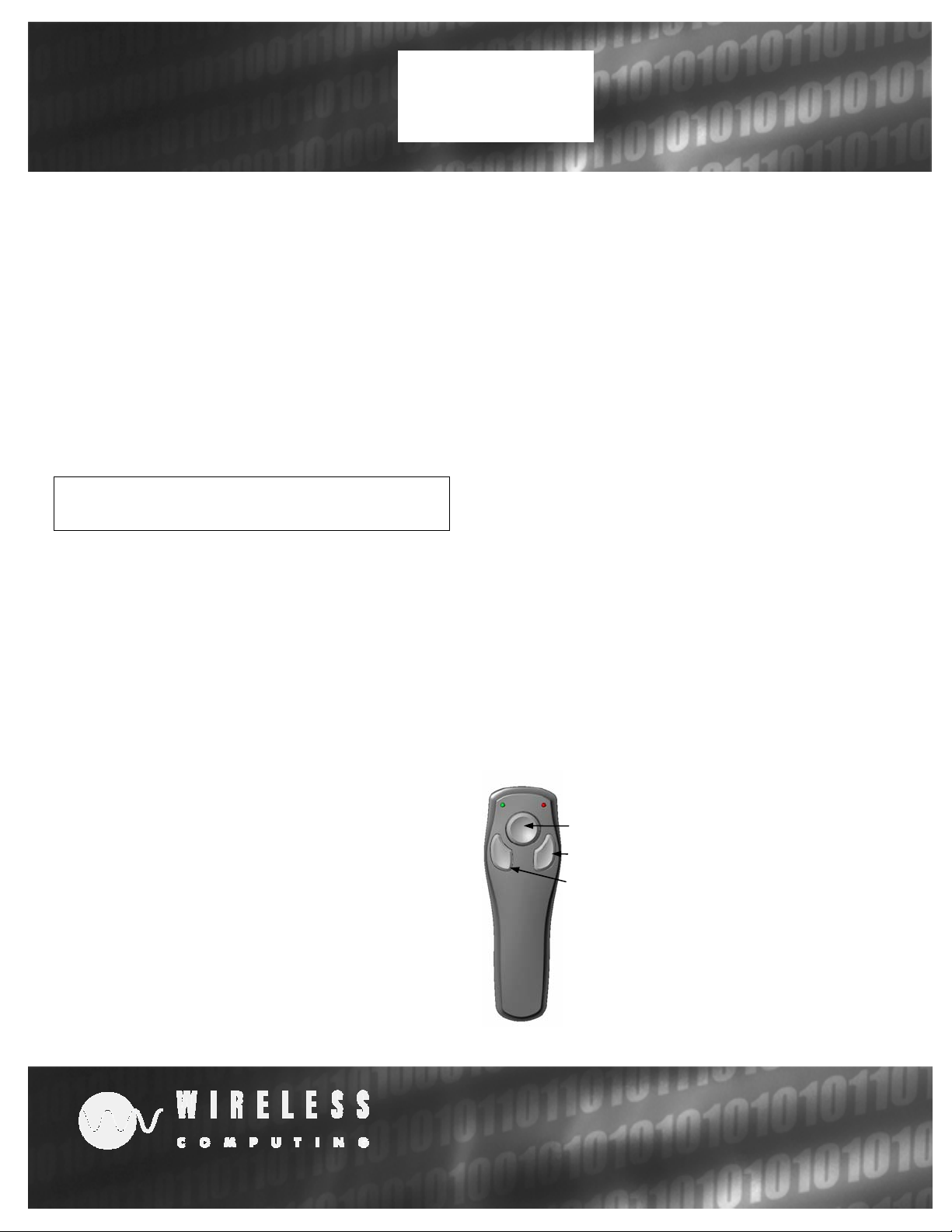
Mousedisk
Ri
ht Click
Left Click
address. After a
handheld or keyboard
retrieves an address, the
receiver LED continues
blinking for another 30
seconds.
TM
www.wireless-computing.com
Page 3

TROUBLESHOOTING
FCC INFORMATION
Green LED on receiver is not lit
• Ensure computer is powered on and
receiver’s USB cable is connected to USB
port.
• Unplug the receiver’s USB cable and plug it
into the computer again.
Button presses don’t get through
• If neither the green nor red LED on the
handheld flashes when you press a button,
replace the battery.
• If the red LED flashes when you press a
button, reposition the receiver and check that
the handheld and receiver are within 100 feet
of each other. If the problem persists, reset
the address.
• If the green LED flashes on the handheld,
and yet the mouse cursor doesn’t move,
unplug the receiver from the computer and
plug it in again.
Cursor moves by itself, or keystrokes appear
“from nowhere”
• The address of your receiver may be the
same as the address of another RF-150
Handheld Mouse or RF-250 Wireless
Keyboard within radio range. Reset your
receiver’s address.
This equipment has been tested and found to comply with
the limits for a class B digital device, pursuant to Part 15
of the FCC rules. These limits are designed to provide
reasonable protection against harmful interference in a
residential installation. This equipment generates, uses
and can radiate radio frequency energy and, if not installed
and used in accordance with the instructions, may cause
harmful interference to radio communications. However,
there is no guarantee that interference will not occur in a
particular installation. If this equipment does cause harmful
interference to radio or television reception, which can be
determined by turning the equipment off and on, the user
is encouraged to try to correct the interference by one or
more of the following measures:
Reorient or relocate the receiving antenna.
Increase the separation between the equipment and
receiver.
Consult the dealer or a Wireless Computing technician for
help.
The radio module has been evaluated under FCC bulletin
OET 65C and found compliant to the requirements as set
forth in CFR 47 sections 2.1049, 15.203, 15.209 and
15.249 addressing RF exposure from radio frequency
devices.
Tested to comply with FCC standards.
FCC ID: L7MR150 RF-150 Handheld Mouse
L7MR015 RF-015 Compact Receiver
FOR FURTHER ASSISTANCE
ADDITIONAL INFORMATION
Please visit our online customer support page:
For use with UL Listed, CSA approved personal
www.wireless-computing.com/support
Or call customer support at 512.858.4400
between 8:30-5:30 Central Time.
computers. Not intended for use in machinery,
medical or industrial applications. Do not use in
aircraft or hazardous locations.
Caution: Any changes or modifications not expressly approved by Wireless Computing could void your
authority to operate this device. No user serviceable parts.
Copyright 2003 Wireless Computing, Inc. All Rights Reserved. Wireless Computing is a trademark of Wireless Computing, Inc., Austin, TX.
Windows and PowerPoint are registered trademarks of Microsoft Corp. Macintosh is a registered trademark of Apple Computer.
 Loading...