

Page 1

User Manual
WINYCAM Vehicle Drive Recorder
www.winycam-eng.com
Page 2

1
WINYCAM Winner
1. Safety Precautions
2. Before use
2-1. Product Feature
2-2. Package
2-3. Product Parts
3. How to use
3-1. Front Camera Installation
3-2. Rear Camera Installation
3-3. GPS / TV-OUT Cable Installation
3-4. How to record
3-5. LED Operation
3-6. Voice Guide
3-7. LCD Configuration
3-8. PC Original Viewer Program Installation
3-9. PC Original Viewer – Screen Configuration
3-10. PC Original Viewer – Viewer Configuration
3-11. PC Original Viewer – Configuration
3-12. Configuration Default Setting
3-13. Playback (Vehicle Drive Recorder)
3-14. Playback (General video player)
3-15. Playback (PC original viewer)
3-16. Playback (TV / Vehicle Navigation)
3-17. How to display Front / Rear screen
3-18. To save video file on your PC
3-19. How to separate video
3-20. Firmware Upgrade
3-21. SD Card Format & Set breaking voltage
3-22. REC Time
3-23. Specification
4. FAQ
Warranty
2
4
5
6
7
8
8
9
11
12
13
14
15
16
19
21
23
27
28
29
30
31
32
33
34
35
36
37
38
39
40
Contents
Page 3

2
WINYCAM Winner
How to use
1. Safety Precautions
Safety Precautions
Caution on Operation and Storage
Do not operate the product during driving. It may cause
accident.
The product must be installed at a point which would not
obstruct the driver’s view.
Do not allow unauthorized disassembly or alteration to the
product. It may cause malfunction, and the consequent
product damage will not be covered under the warranty.
If the product is damaged or power is cut off by a serious
accident, the product may not be able to record such event
Always keep the windshield clean to enable normal recording.
Since the product is purpose to record video data during
driving, video quality may be deteriorated when in/out the
tunnel, and at night or by contrast and backlight.
Contaminated camera lens may deteriorate the video quality.
Keep the lens clean.
Do not place the product under direct sunlight or inside the
closed vehicle as it may cause malfunction.
Do not use chemicals or detergent to clean the product. Clean
gently with soft cloth.
Use of the product at temperature below -20℃ or above 70℃
may cause malfunction or breakdown. (This caution should
be applied when product is unused.)
Do not use the product in places in high temperature/humidity.
Do not exert excessive force to the product (especially to LCD
buttons and to bracket) as it may cause breakdown.
Operate the product for 3-5 minutes to check for correct
recording, before each use.
Prolonged exposure to sunlight and high temperature in the
summer may cause malfunction.
Do not turn off power, or remove the SD card during firmware
upgrading as it may cause malfunction.
Do not touch a cigar lighter cable with wet hand as it may
cause electric shock.
Do not use a damaged cigar lighter cable as it may cause
electric shock or fire.
Do not place the cigar lighter cable in near heating devices.
Do not leave the product connected to the cigar lighter
without using for a long period of time. Remove the cable
from the product.
Insert the cigar lighter securely.
Do not bend or pull the cigar lighter cable by excessive force,
or place heavy objects on the cable.
(It may damage the cord and as a result it may cause electric
shock or fire.)
Do not touch the LCD excessive force as it may cause
malfunction.
Page 4

3
WINYCAM Winner
How to use
Caution on SD Card
Because an SD card is consumables, if it is used for a long
time, you may lose the data or may not record due to an
error, so please check it periodically.
When the product is in recording or the power is on, do
not eject the SD card forcibly. It may cause a failure of the
SD card and data loss.
If temperature gets too high in the vehicle, data storing
may be disabled, or data may be damaged. Park your
vehicle in the shade in the summer.
When identify the car's accident or damage, please keep
the SD card separately. Due to overwrite, important data
may be deleted.
When turn off the power of the body and remove the SD
card before LED is turned off, the last recording file may not
be saved, so please be careful.
When turn off the power of the body and remove the SD
card before LED is turned off, the last recording file may not
be saved, so please be careful.
When driving a vehicle, do not remove the SD card. Make
sure to remove it safely when a vehicle is in parking or stop.
After turning on the power, make sure that it is in normal
operation.
Please note that the warranty period of an SD card is
six (6) months, and replace it at the time of more than
six (6) months. Please purchase and use SD Card that
manufacture recommended specification.
The SD card randomly purchased other than the one we
provide, shall be excluded from the warranty, and we shall
not take any responsibility for loss and damage of the data
recorded in the SD card in any case.
Safety Precautions
Page 5

4
WINYCAM Winner
How to use
Thank you for purchasing Winner
This User Manual contains important information
about the proper use and cautions in use of the
product. Please read carefully before use.
Winner is an auxiliary product to alert users for
safe driving and prevent accidents, by recording
video during driving. Also purpose for evidence
of an accident.
Winner does not however guarantee that all
accidents are recorded. Minor shock may not
detect sensor to record.
WinyTechnology shall not be liable for any loss or
damage to data or to the product which may be
caused by accident or impact.
All rights vested in the design and software of
Winner are the property of Winy Technology
Co., Ltd. and protected by the Copyright Law.
Winner may change without notice for further
function improvement.
This User Manual is published based on the
current state of the product, and may contain
typographical errors or omissions.
Contents of this User Manual may be modified,
changed or supplemented without notice for
further improvement.
2. Before Use
Before use
Page 6

5
WINYCAM Winner
How to use
High Quality Lens and High Image Quality
Resolution support
Front 5 Mega Pixel / Rear 2 Mega Pixel image sensor
Wide mega lens
FHD(1920×1080) High Image Quality Resolution
and total 50fps(Front 20 + Rear 30).
Various Recording Function and Video
Data Acknowledgement
Touch LCD display apply, recording image and recorded
image can be confirmed on LCD
Constant(Normal), Manual, Event, Motion and auto change
to Parking recording mode
Driving records can be stored with GPS data. (optional)
G sensor built-in Automatic parking recording mode change
and event recording mode.
External video output. (Real-time video image can be checked
on another monitor)
Configuration setting is available on LCD menu.
PC viewer program are provided to change various setting
values and map data can be checked when using GPS. (In the
general video player (e.g. Windows media player), recorded
video can be played)
SD card can be formatted as the product itself, without
connecting to a PC.
Each capacity of a constant(normal)/ event/ motion folder
can be set in PC Viewer
High Quality Voice Record and Voice
Guidance
Operating instructions service by voice guidance
Voice recording On/Off function and speaker output On/Off
function
High performance microphone built-in
Back-up battery and vehicle constant
power discharge protection function
Stored recorded image safety by built-in high-capacity
capacitor when power is off
Vehicle constant power discharge protection function
(Selectable ON/OFF on viewer, Not required another
equipment for this function)
Consume less than 2.5mA when power shutdown (Based
on 12V)
When using vehicle constant power discharge protection
functions, If user vehicle voltage is 12V and the voltage of
less than 11.8V is maintained for more than 5 minutes the
product power will be shuts-off (Note: Shutdown time
depend on the Type of vehicle and condition.)
Other
Soft look and emotional design. (easy removable body)
Security LED light are built-in front body (LED Lighting
function On/Off can be set in PC viewer / LCD menu)
2-1. Product Feature
Before use
Page 7
6
WINYCAM Winner
How to use
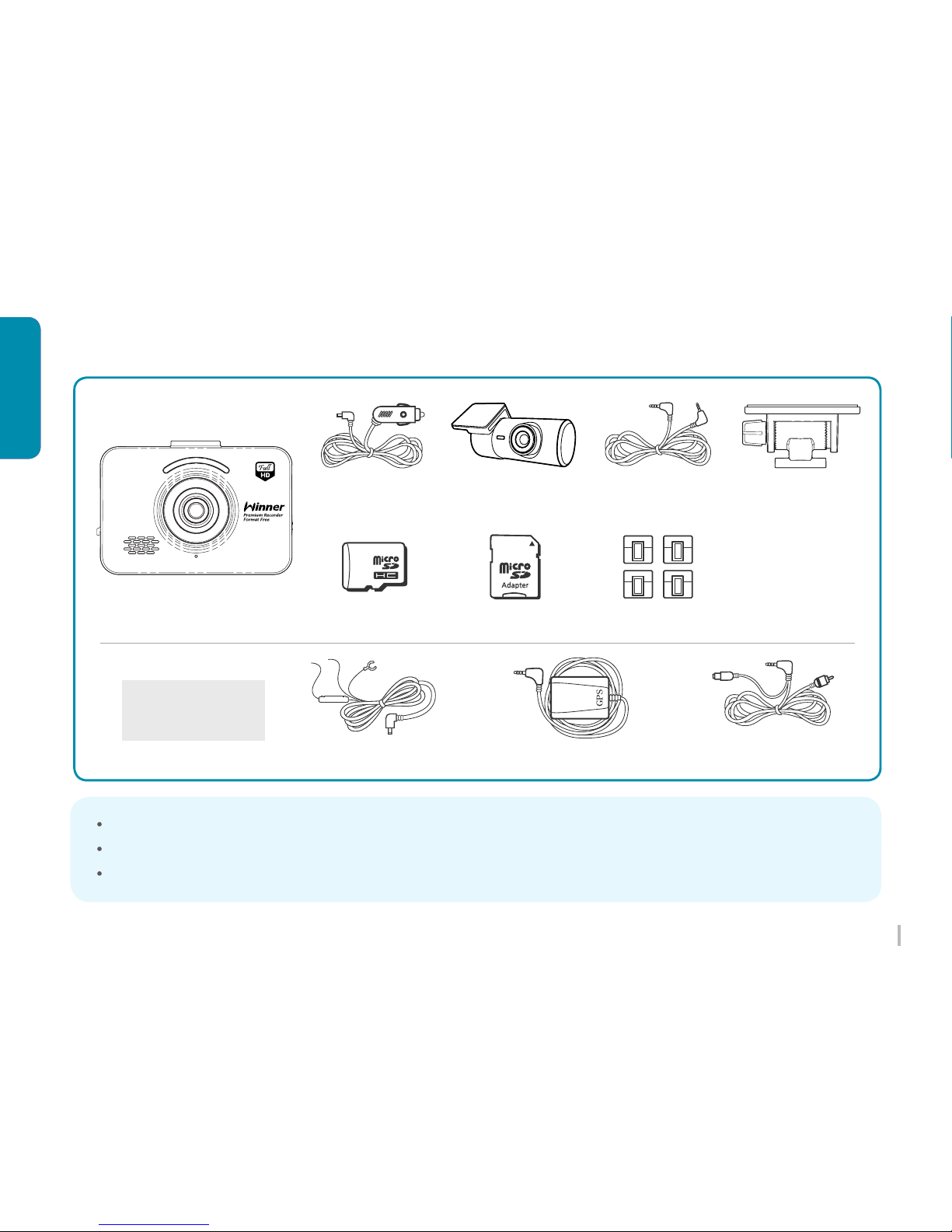
Option
Accessories
Standard Package
Winner Body
Cigar Lighter
Cable Clip
Fuse Cable GPS Module
Video Splitter Cable
(Y-Type)
Bracket
The packaged product picture of the user manual may differ from the actual product.
The video cable can be purchased separately and used after verifying the PLUG Pin specification of Navigation AV IN.
Video input type is different and check the user manual of monitor.
Micro SD card SD card Adaptor
Rear Camera
Rear Camera
Video Cable
2-2. Package
Before use
Page 8
7
WINYCAM Winner
How to use
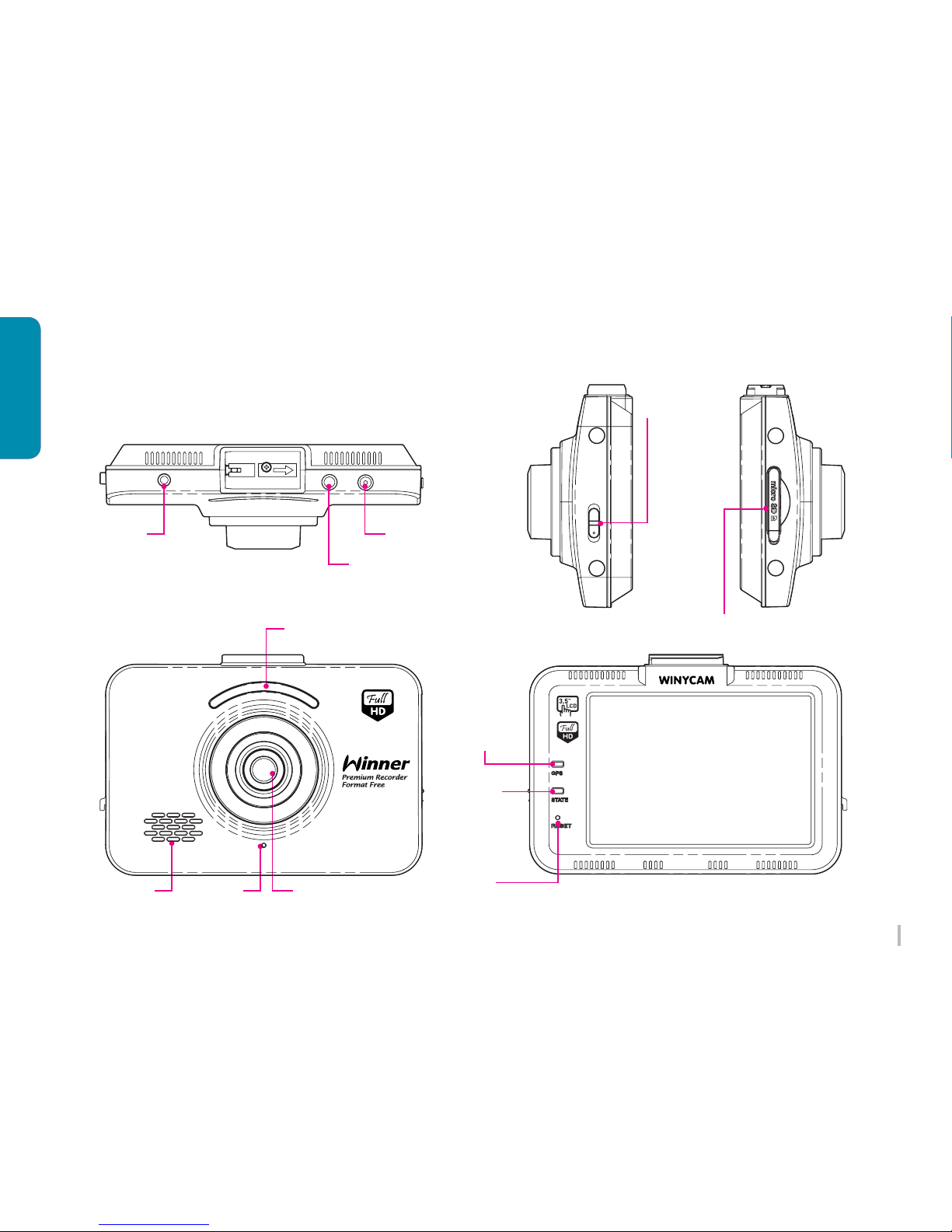
Front Camera
GPS LED
REC LED
Speaker
Reset
Security LED
2-3. Product Parts
Before use
DC-IN R-CAM
GPS
DC-IN R-CAM
GPS
Mic
SD Card Slot
Power Button
GPS
Connection
Power Connection
Rear Camera Connection
(TV-OUT)
OFF ON
Page 9
8
WINYCAM Winner
How to use
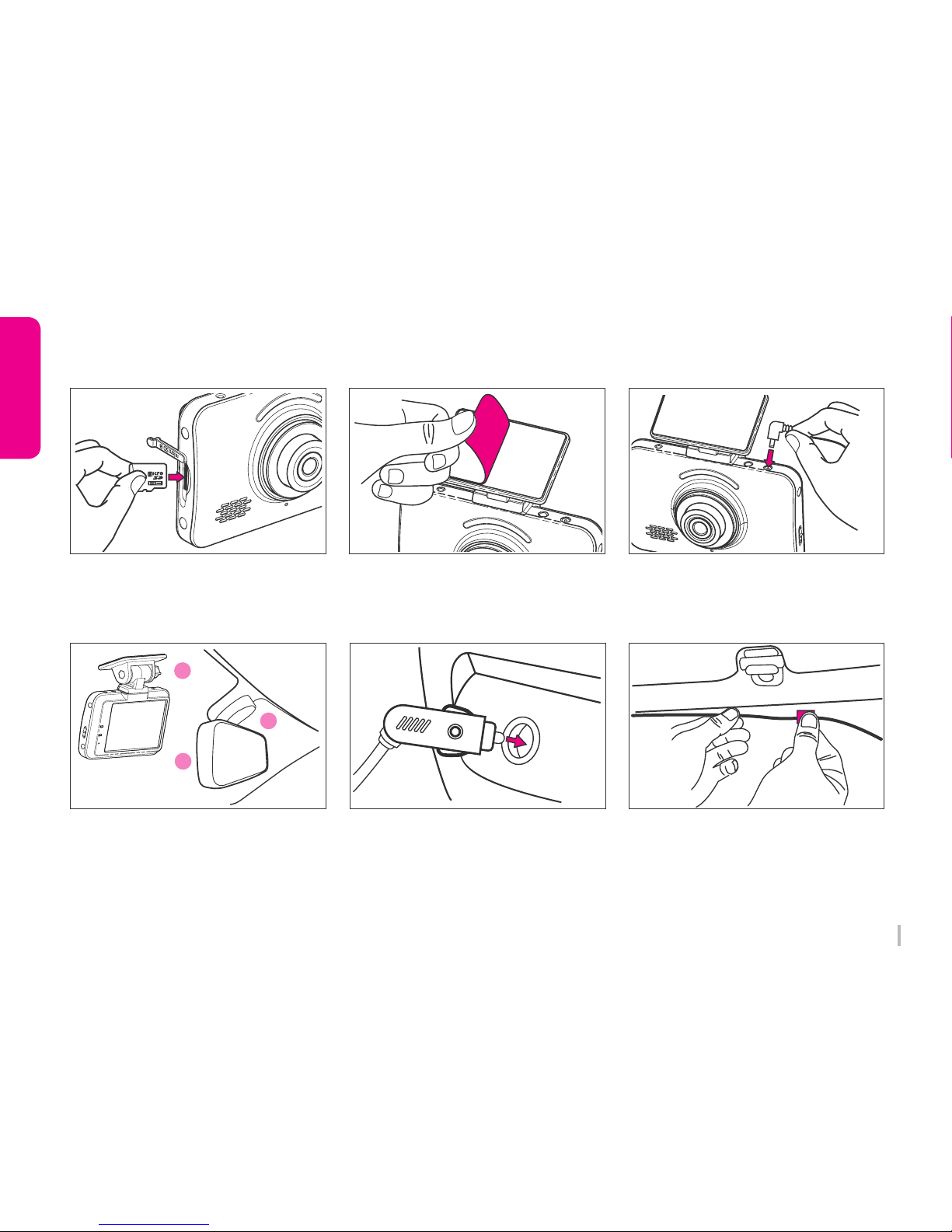
1. Insert Micro SD card to Winner
SD card slot.
(Check the SD card direction)
6. Arrange a power cable.
2. Remove the protect sticker.
4. Attach the Winner in place on the
top of front windshield or middle o left
and right of the mirror.
3. Connect Cigar lighter cable to Power
connection of product.
5. Connect cigar lighter to a cigar
socket.
3-1. Front Camera Installation
Page 10
9
WINYCAM Winner
How to use
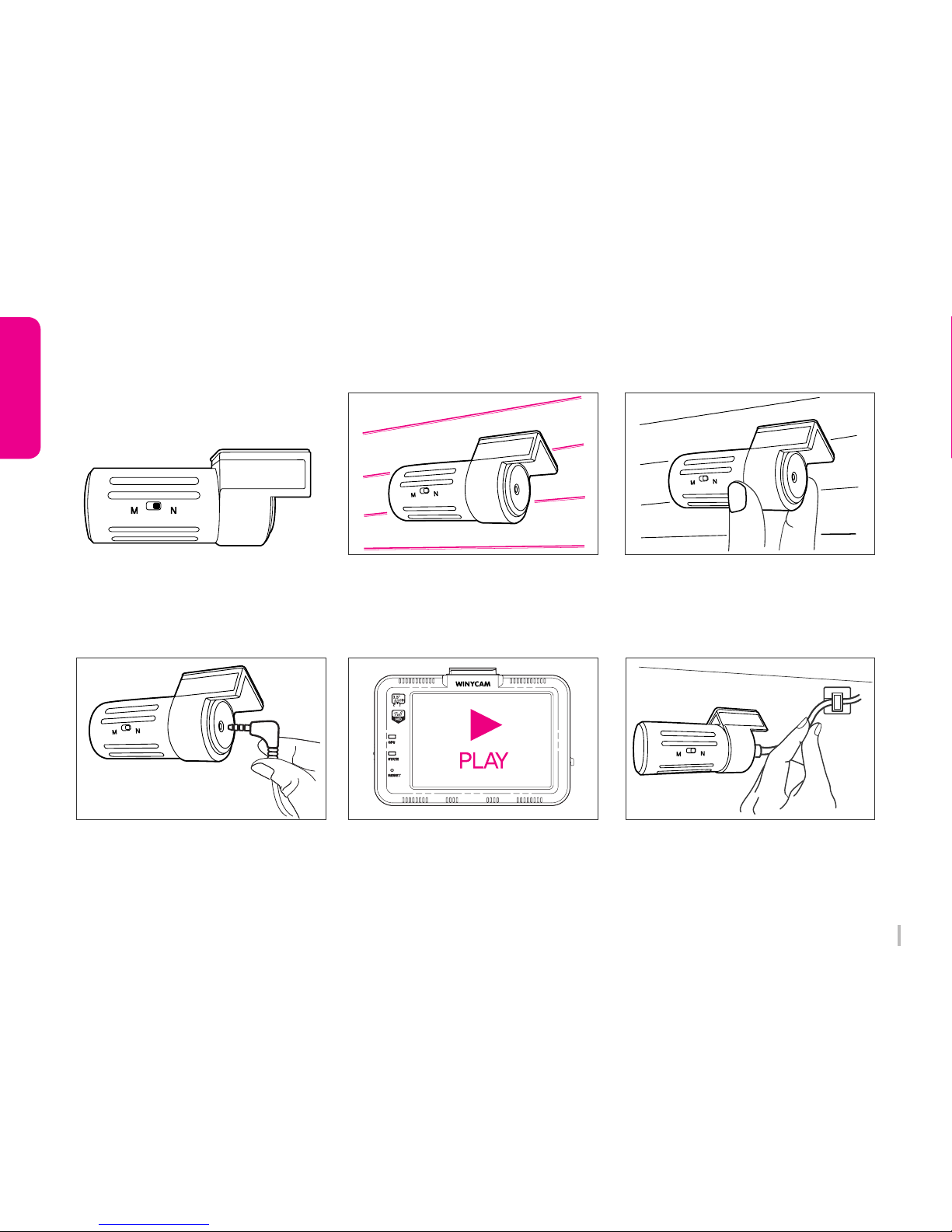
The default is N(Normal).
Please power off Winner When flip on
switch.
N(Normal), M(Reverse of Left, Right)
1. Please power off a vehicle
and Winner before installation.
4. Connect video cable
2. Install a rear camera
5. Check an operation
3. Adjust a rear camera angle
6. Arrange a front/rear camera cable
After checking recording operation, wellarrange a cable.
If you embed cable to vehicle wall, please
check cable connection. Also after embedded
double-check if Winner can record properly.
Remove a protect sticker and attach a rear
camera in proper location in windshield.
Connect a rear camera cable to rear camera
connection slot and to connect the R-CAM
terminal on the main body.
Adjust a camera angle and fix it. To adjust
the angle, the horizon is seen above the
right center of the screen.
Power on Winner and check to playback a
REC video correctly.
3-2. Rear Camera Installation
Page 11
10
WINYCAM Winner
How to use
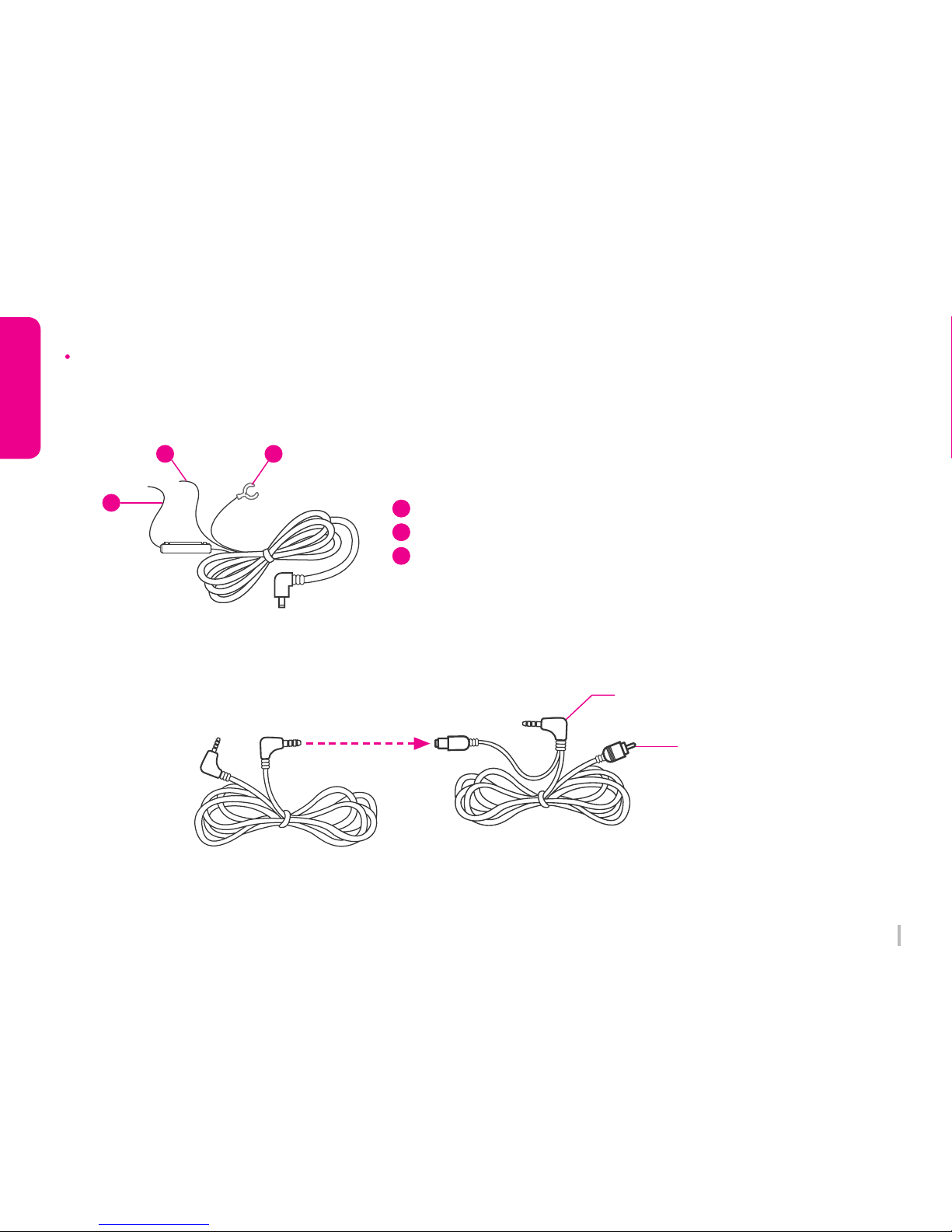
Fuse cable has 3 lines.
(When use constant power discharge protection function)
Battery Line : Connect to Emergency light
ACC Line : Connect to Fuse Power
Ground Line : GND
1. How to install a Fuse Cable
2. How to connect Video Splitter & Rear camera Cable (TV-OUT)
3
1
1
2
3
2
Fuse Cable Installation
Video Splitter Cable
(Y-Type)
Connect TV-Out terminal
TV-Out signal line
Rear camera connection cable
Page 12
11
WINYCAM Winner
How to use
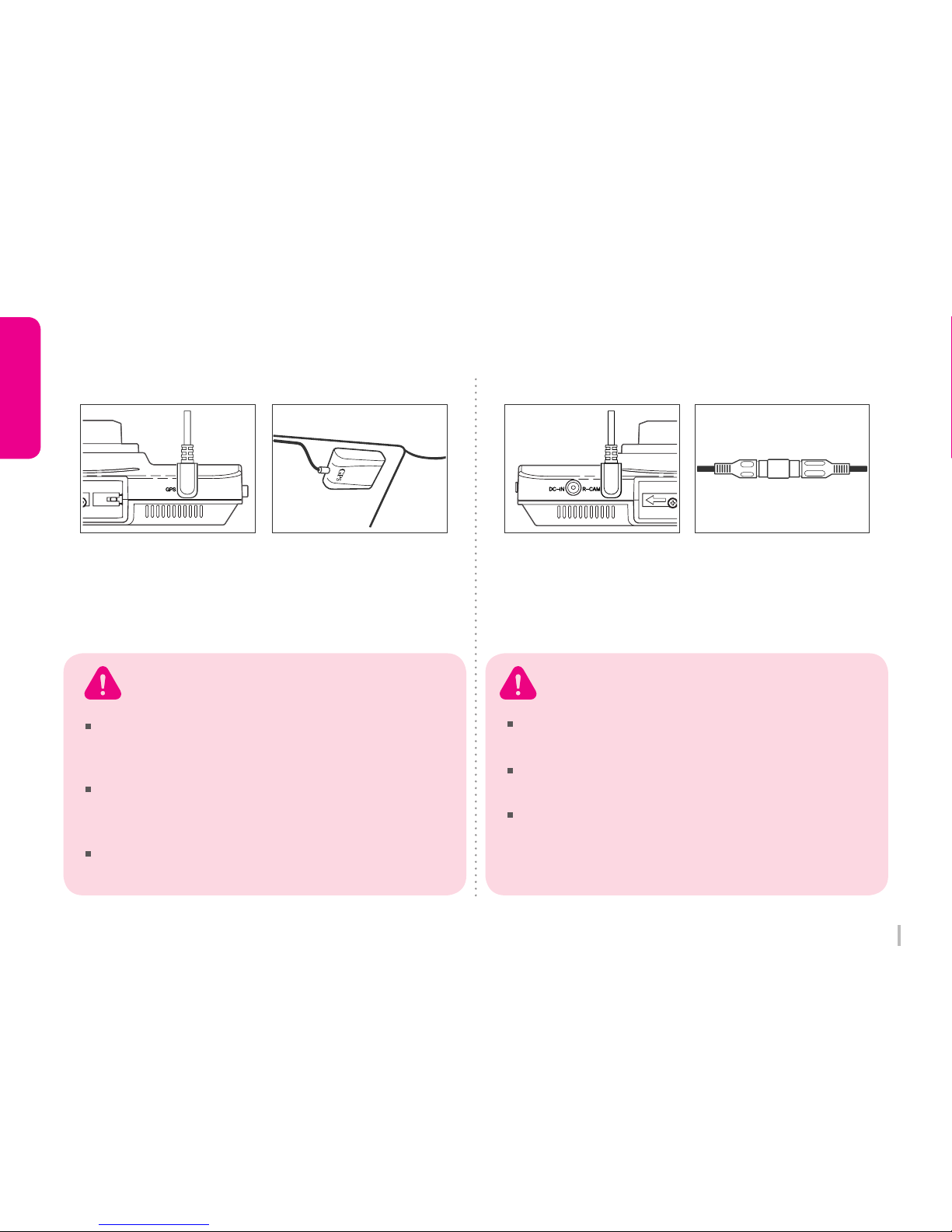
Connect External GPS
to GPS connection on
Winner body.
Connect a TV-Out
cable to the Video
splitter cable(Y-Type)
on a Winner body.
(Please refer 10P)
Attach GPS module
at well visual place
and tidy up a cable.
Connect a TV-Out
cable to AV-IN jack your
vehicle navigation.
▶ External GPS Installation ▶ TV OUT Cable Installation
3-3. GPS / TV-OUT Cable Installation
When connecting to your vehicle navigation, you need an
applied vehicle navigation video cable.
With a specific vehicle navigation, installation may be
restricted, and/or extra service charge may be incurred.
Connect to body after checking the location of each
connection. Wrong connection may cause malfunction,
and the consequent product damage will not be covered
under the warranty.
Caution on GPS Installation Caution on TV-OUT Connection
GPS module may be affected by main body or by other
electronic devices if it is too close each other. Keep a
distance as much as possible.
The receiving signal may become poor depending
on the climate, satellite status and geography in the
neighborhood.
The receiving signal may become poor if the windshield is
heavy sun-coated or fixed with metallic materials.
Page 13

12
WINYCAM Winner
How to use
1. Record : Winner is automatically boot at power on, and a constant(normal) recording starts as an initial recording mode.
2. Recording Mode : it is classified into driving recording mode and parking (motion) recording mode.
3. Recording Method : it is classified into a Constant(normal) recording, event recording, motion recording.
※ For automatic recording and manual recording methods, please refer the below table.
※ After changed to Parking mode, LCD will be on for 30sec nevertheless you set screen saving time
as 30se/60sec/always.
※ When turned to “Parking Mode” G-sensor sensitivity will be more sensitive than driving mode.
REC Mode
Driving
Mode
Parking
(Motion)
Mode
REC Method
Constant(normal)
REC
-
Memory save
Event REC In G-sensor detect shock
Motion REC
-
Including before 10 sec
Event/Motion detect
Event REC In G-sensor detect shock
Auto REC Mode REC Time
3-4. How to record
Page 14

13
WINYCAM Winner
How to use
※ GPS Icon : GPS Icon : w/o GPS : Grey, w/ GPS : white
3-5. LED Operation
OFF
Item CH Front LED
Rear LED
GPS LED
GPS Connection
GPS ON GPS OFF
REC LED
Normal
(NO GPS)
Booting -
-
1CH
1CH
1CH
1CH
2CH
2CH
2CH
2CH
-
ON
ON
Red ON
Red ON
Red ON 0.5 / OFF 2.5 sec
Red ON 0.5 / OFF 0.5 sec
Green ON 0.5 / OFF 2.5 sec
Green ON 0.5 / OFF 0.5 sec
Red/Green flashing
interval at 0.5 sec
Red/Green flashing
interval at 1.5 sec
Red ON
Red ON
Green ON
Orange On
(Green/Red)
FW update
1sec ON /
1sec OFF
0.5sec ON /
0.5sec OFF
0.25sec ON /
0.25sec OFF
5 LED flashing interval
0.5 sec to right and left
OFF OFF
Continuous / Event REC
Standby (N)
In detect a Shock (E)
Parking REC (P)
Parking REC
standby
No micro SD Card
(including an error)
Page 15

14
WINYCAM Winner
How to use
Situation Voice Guide
Remove SD card / SD card Error “ Please check your SD card. ”
Firmware Update Start “ The firmware update is starting. ”
Firmware Update Completed “ The firmware update has been completed. ”
Constant (Normal) Recording Start (In booting) “ Constant Recording will start. ”
* Event Recording Start (In booting) “ Event Recording will start. ”
Parking Recording start “ Parking Recording will start. ”
Recording end “ The Recording will end. ”
Alarm tone in a Rear Camera disconnect
(the error for 2CH REC)
“ Ding-Dong ”
※ Only when event REC mode is set in the configuration, the voice guiding "event recording will start"
will announce
3-6. Voice Guide
Page 16
15
WINYCAM Winner
How to use
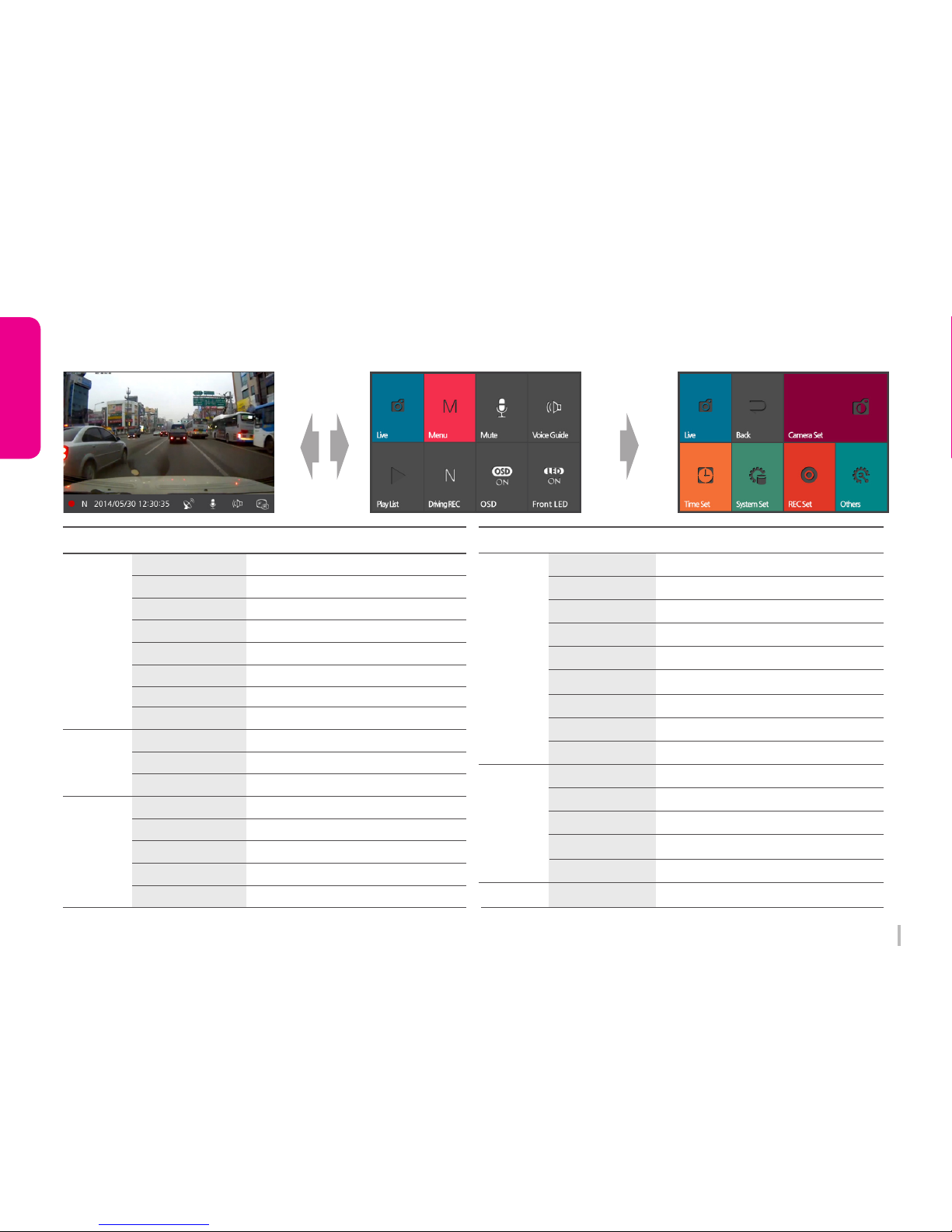
3-7. LCD Configuration
All configuration cab be set in LCD menu.
Driving/Event REC
Menu
Menu
Function
Function
Live
Live Image
Quick Menu
Time Set
System Set
Menu
Setting Menu
Mute
Voice REC ON/OFF
Voice Guide
Speaker ON/OFF
Time Set
Set Time on Winner
Play List
Driving/Parking REC
Playback List
N(Driving), P(Parking) REC
Standard Time Set
Set Standard Time
Summer Time
Set Summer Time
OSD
OSD On/Off
Cut Off Voltage
Set voltage for car constant power discharge
Front LED
LED On/Off
Auto LCD Off
Normally off after 30sec / on 60sec
TV-OUT
Set TV our format (OFF/NTSC)
High Temp Cutoff
Speaker Volume
Set High Temperature Cut off
Set Speaker Volume
REC Set
Others
REC CH
Memory Adjustment
Camera SetCamera Set
Set REC Mode
Adjust REC Folder Capacity Rate
Adjust Brightness, Contrast, Chroma on Camera
Set REC Channel
Front Video Quality Set Front Video Quality
Rear Video Quality Set Rear Video Quality
Drive REC Time Memory Capacity Saving
Mic Volume Set REC Volume
Shock Level(N) Set Shock Sensor Level (Driving)
Shock Level(P) Set Shock Sensor Level (Parking)
Motion Level Set Motion Sensor Level
System Info Display System Information
SD Card Format Format Micro SD Card
Touch Calibration Calibrate Touch Screen
Factory Init Initialize Configuration
Page 17

16
WINYCAM Winner
How to use
3-8. PC Original Viewer Program Installation
1. System Requirements
2. Install
Windows XP(32bit), Windows Vista(32bit), Windows7(32/64bit), Windows8(32/64bit)
Pentium4 2.8GHz & RAM over 1GB.
Display monitor resolution: 1024 X 768
DirectX Support (WPF)
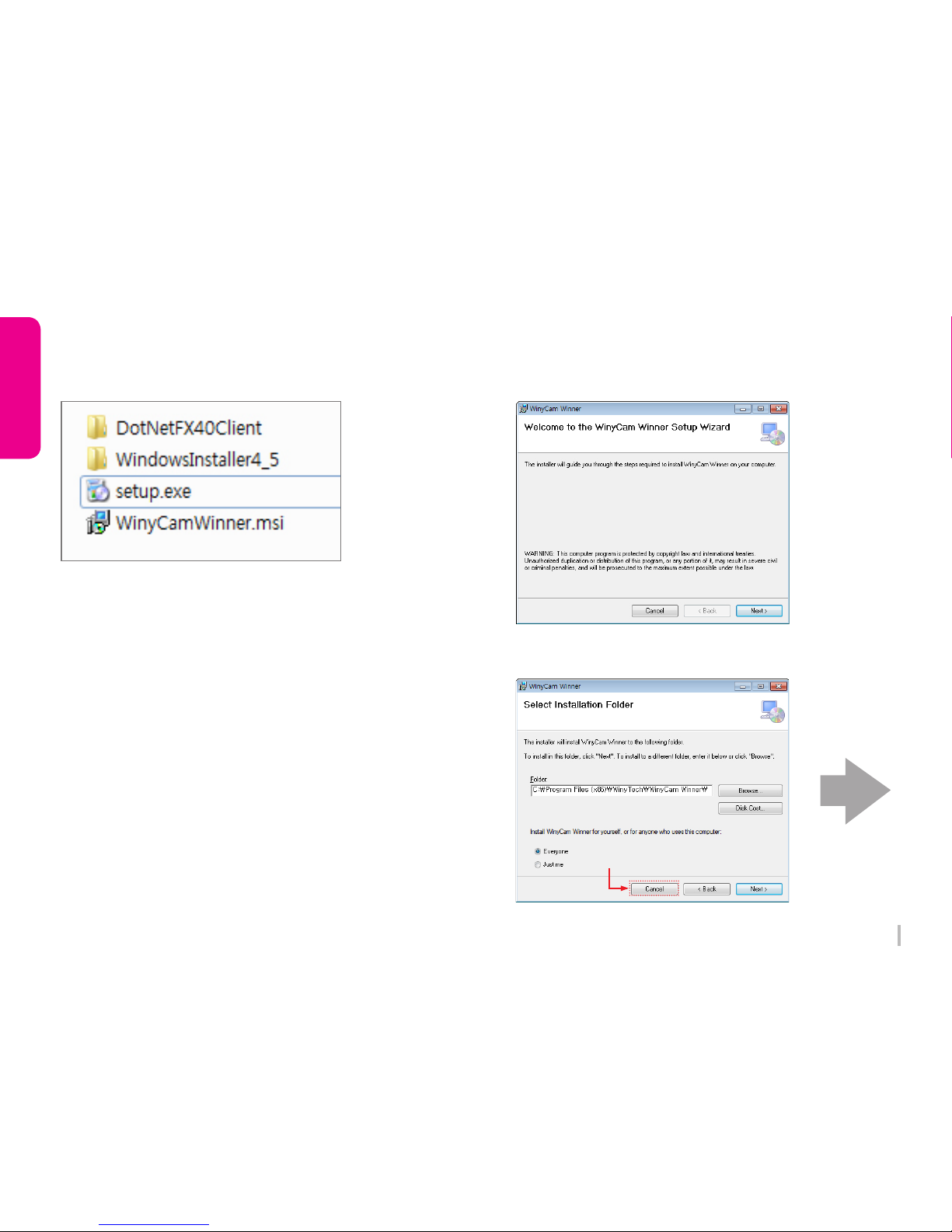
Download the latest Winy BB Viewer from our website (http://www.winycam-eng.com)
If you run “setup.exe”, Winy BB Viewer will be installed
And then, installation will be continued according to the installation sequence of setup dialog box.
Page 18
17
WINYCAM Winner
How to use
2.
Select file location and click “Next”
Please click “Cancel” if you
need to stop installation.
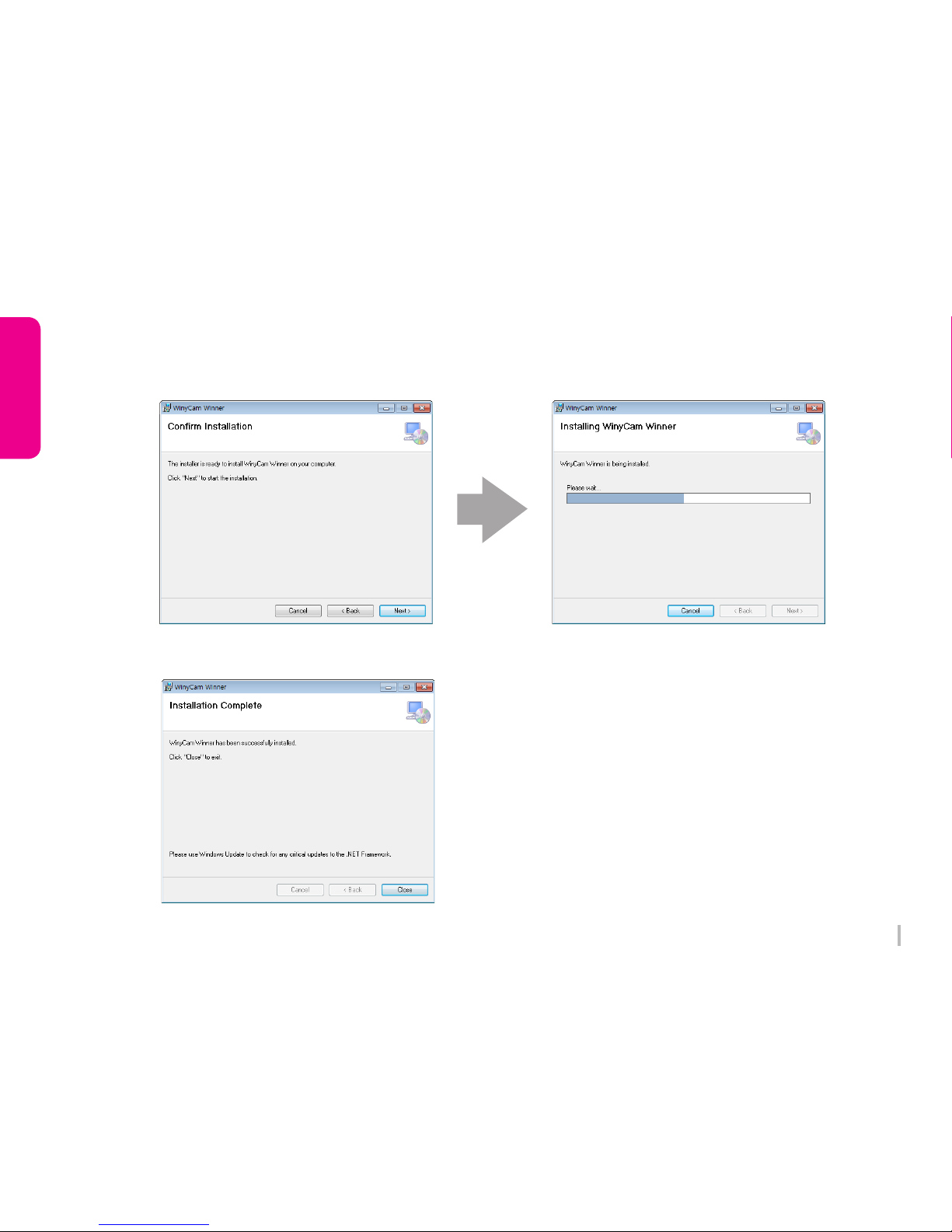
1.
NEXT
※ Installation may tale long depend
on PC Usage environment.
Page 19
18
WINYCAM Winner
How to use
4.
Installing
5.
Complete installation
3.
NEXT
Page 20
19
WINYCAM Winner
How to use
2 3 4 5 6 7
28
8
9
1
10
11
13 14 15 16 17 18 19 20 21 22
23 24 25 26 27
12
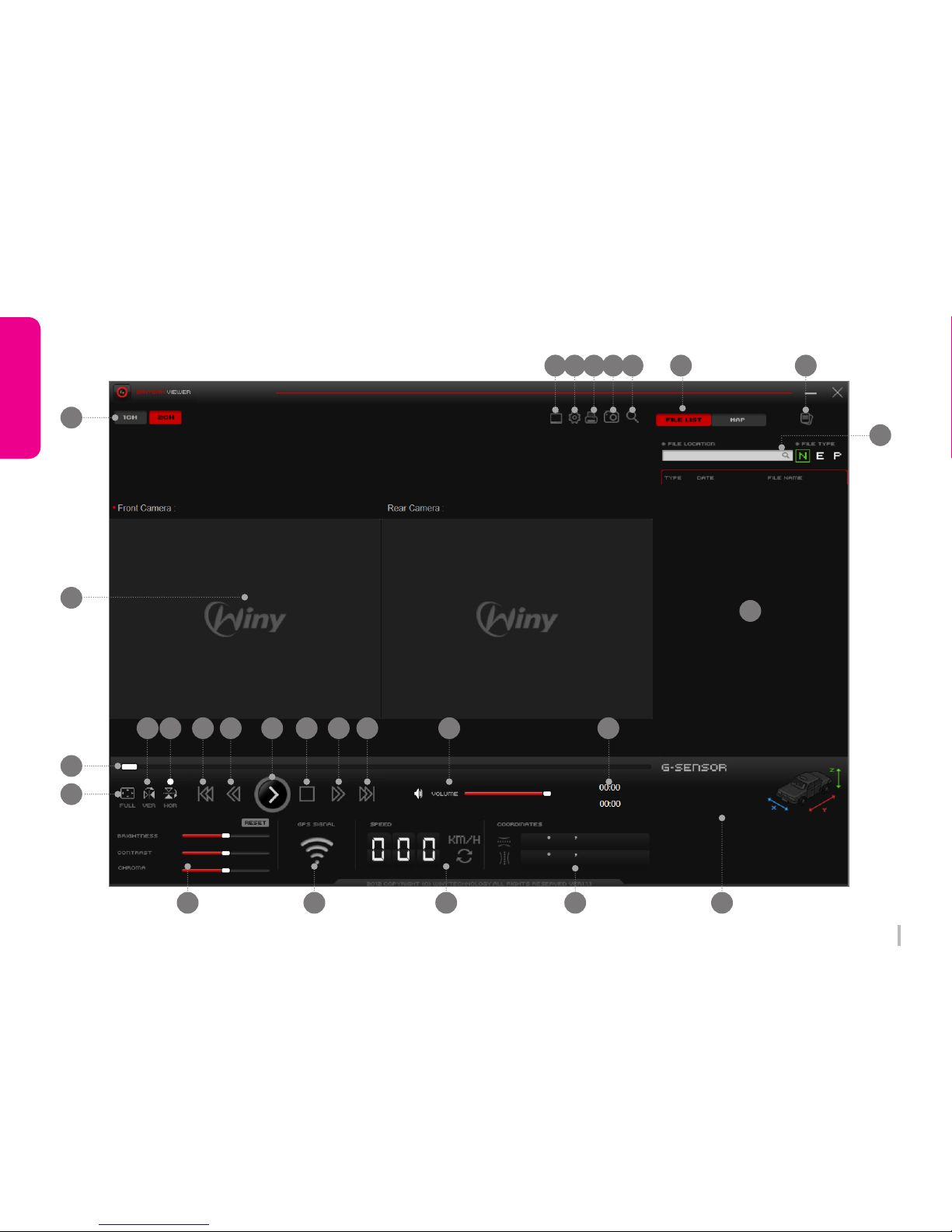
3-9. PC Original Viewer – Screen Configuration
Page 21
20
WINYCAM Winner
How to use
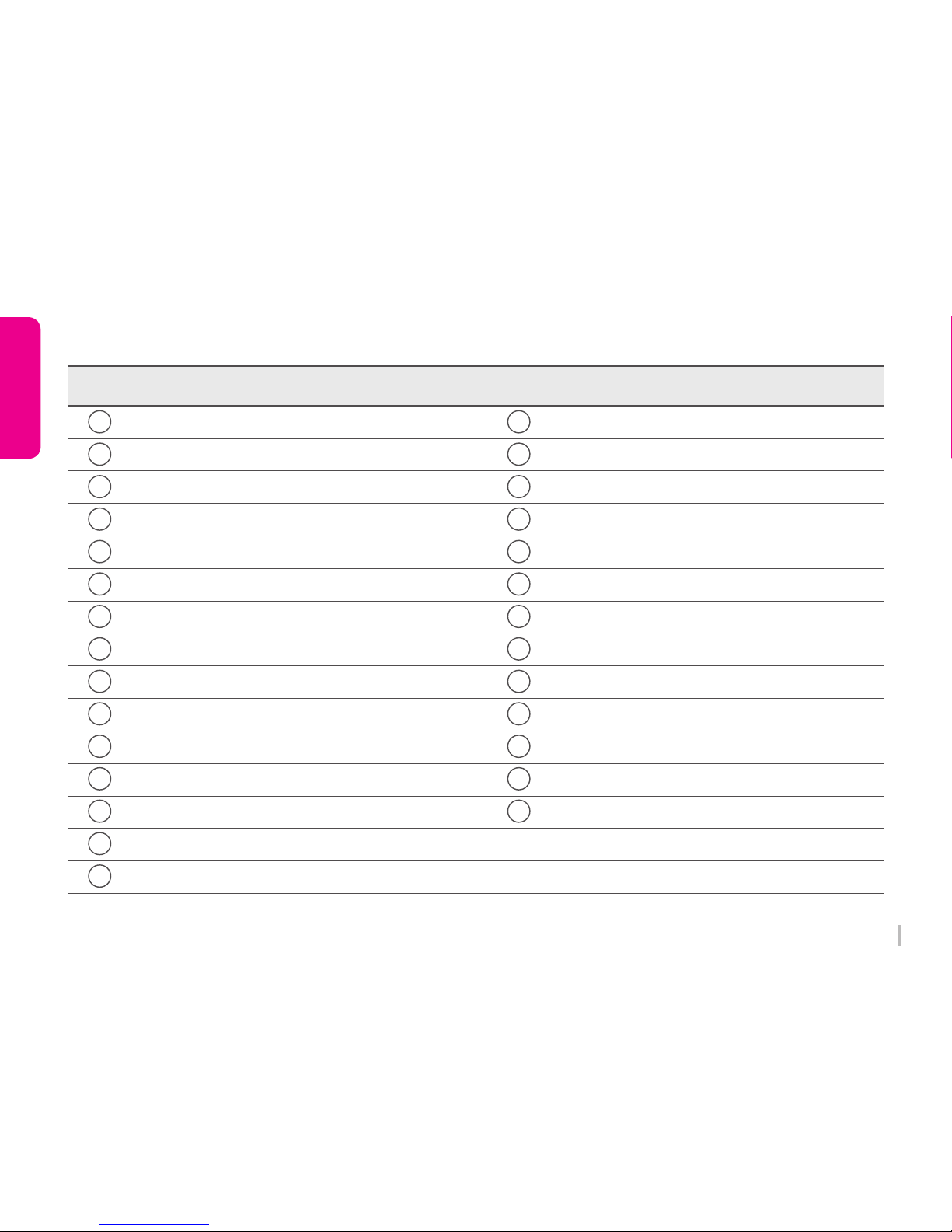
Item ItemFunction Function
1CH / 2CH select screen Fast-Rewind
Viewer Configuration Playback or Pause
System Configuration Stop
Print Fast-Forward
Screen Capture File Skip
Zoom Control Volume
Play List / Map Button Total File Time / Playback Time
Playback File Location Brightness / Contrast
REC file list / Map Display GPS signal condition
Playback Video Image Driving Speed
Playback Control Latitude / Longitude
Full Screen G-sensor Information
Flip Horizontal Split Image
Flip Vertical
File Skip Back
1
16
2
17
3
18
4
19
5
20
6
21
7
22
8
23
9
24
10 25
11 26
12 27
13 28
14
15
Page 22
21
WINYCAM Winner
How to use
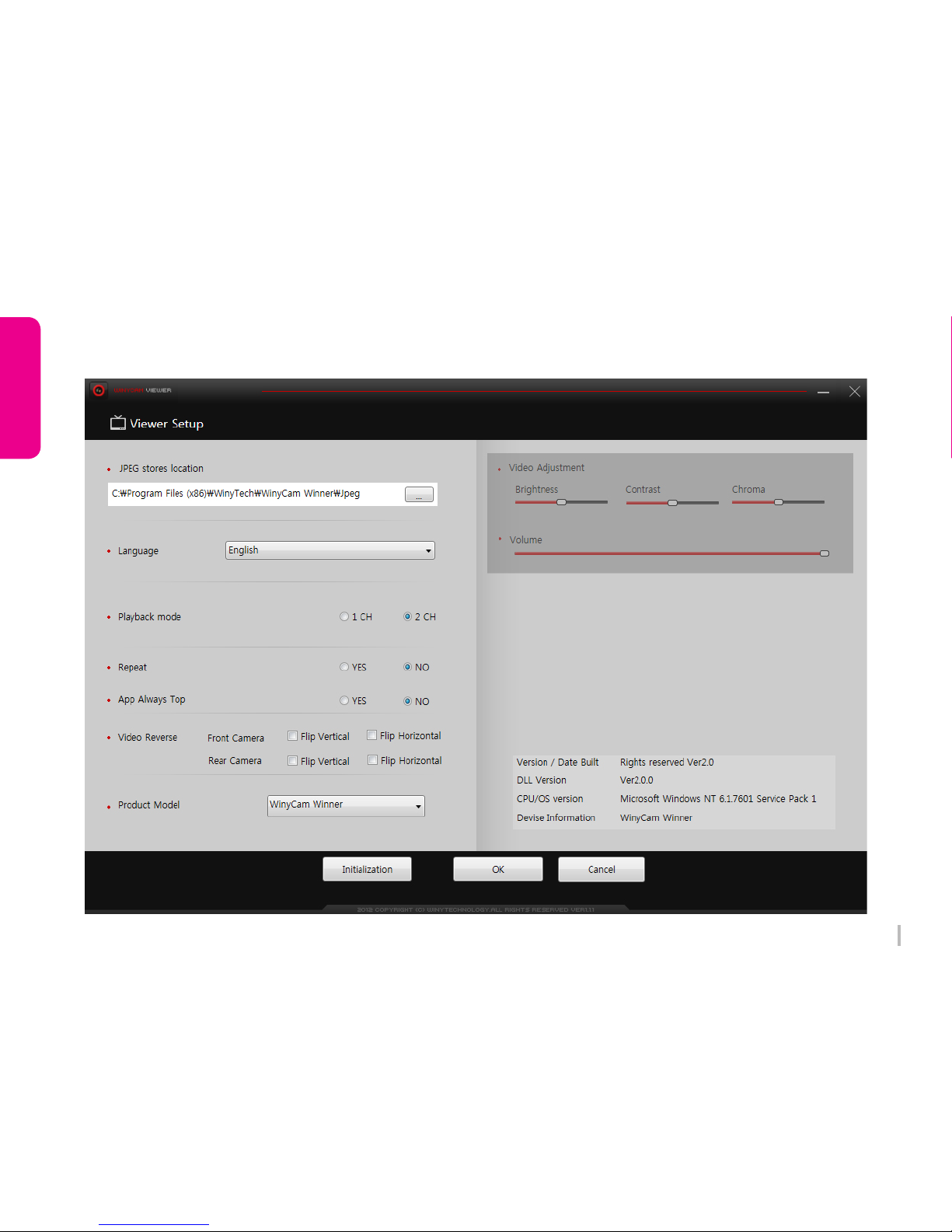
3-10. PC Original Viewer – Viewer Configuration
Page 23

22
WINYCAM Winner
How to use
Select language.
Select display channel.
Item Function
JPEG stores location
Language
Playback Mode
Repeat
App Always Top
Video Reverse
Product Model
Video Adjustment
Volume
Set location for captured JPEG image.
Select repeated playback.
Video can reverse from side to side and up and down
Select the model.
Select App is always the top of another window.
Control playback speed
Control recording volume level
Page 24
23
WINYCAM Winner
How to use
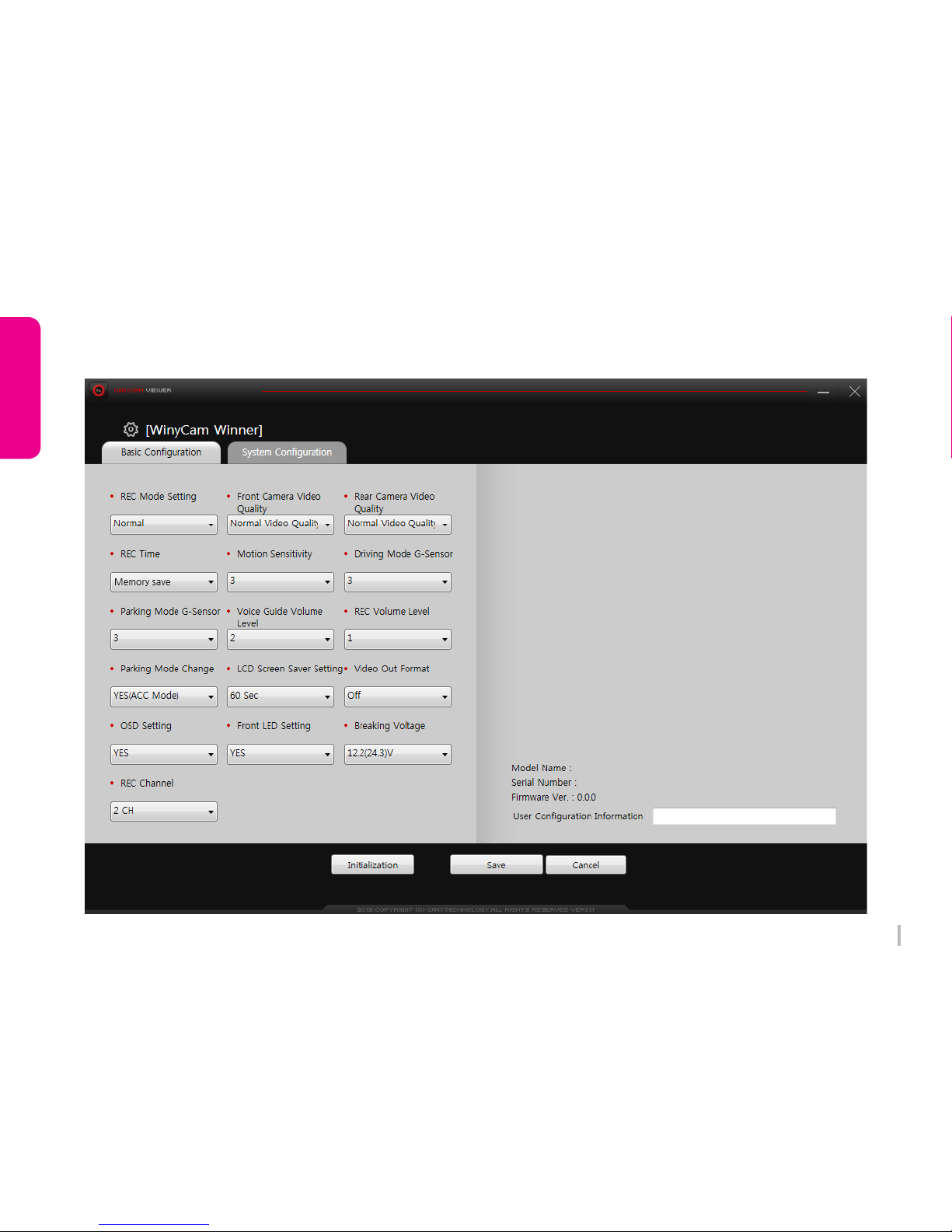
3-11. PC Original Viewer – Configuration 1
Page 25

24
WINYCAM Winner
How to use
Select video quality in a front camera
Select video quality in a rear camera
Item Function
REC Mode Setting
Front Camera Video Quality
Rear Camera Video Quality
REC Time
Motion Sensitivity
Driving Mode G-Sensor
Parking Mode G-Sensor
Voice Guide Volume Level
REC Volume Level
Parking Mode Change
LCD Screen Saver Setting
Video-Out Format
OSD Setting
Front LED Setting
REC Channel
Breaking Voltage
Select the recording mode
Select recording time for each file
Select a shock sensor sensitivity level on normal mode
Select a shock sensor sensitivity level on parking mode
Select a motion sensitivity level during parking mode (Level 1 is the most sensitive)
Select voice guide volume level
Select a recording auto level
Select a parking mode auto-change function
Select LCD screen saver function
Select TV-Out format
Select OSD out on LCD
Select front security LED function
Select a recording channel
Select a breaking voltage for a constant power discharge production function
Page 26
25
WINYCAM Winner
How to use
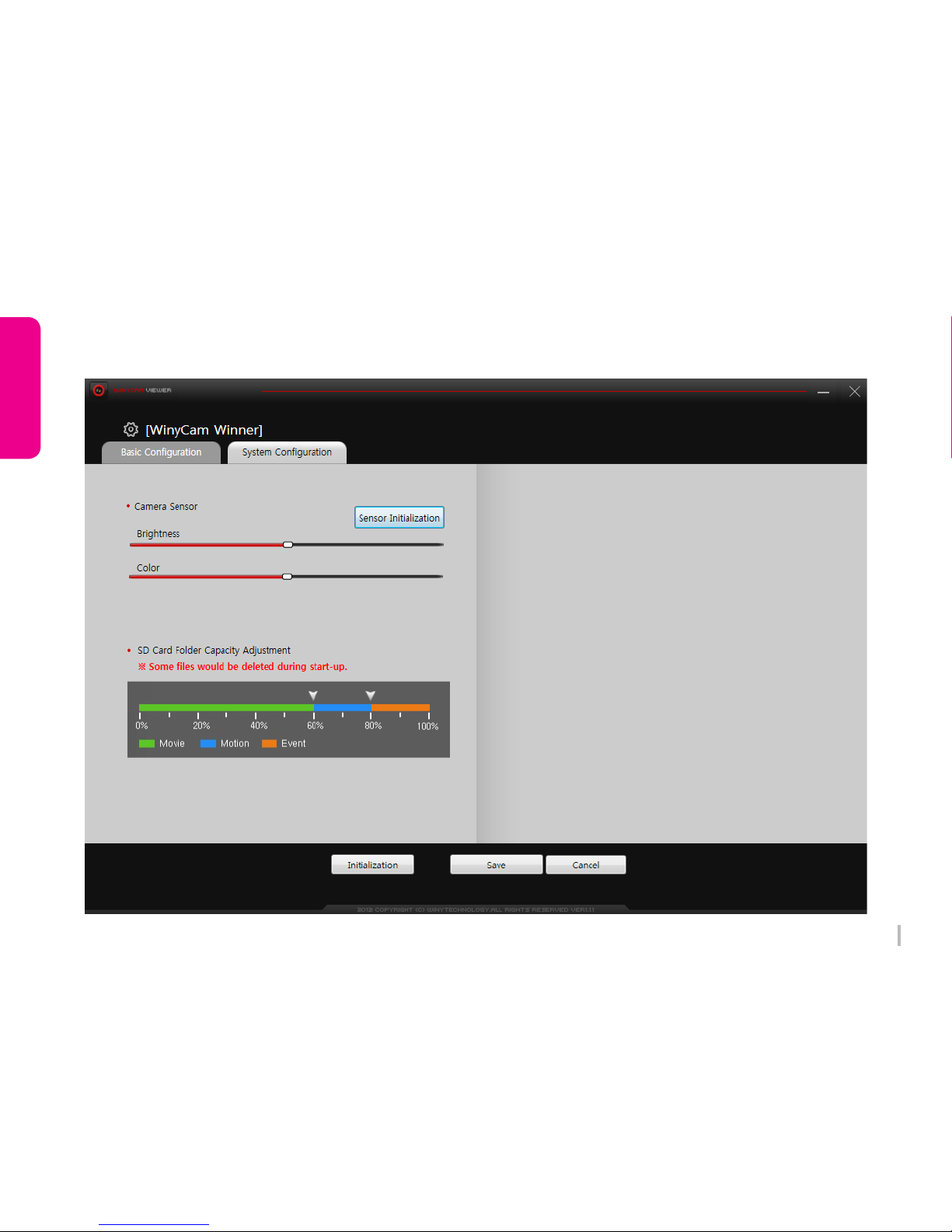
3-11. PC Original Viewer – Configuration 2
Page 27

26
WINYCAM Winner
How to use
Item Function
Camera Sensor
SD Card Folder
Capacity Adjustment
Select Brightness, Chroma. Back to default value after click sensor initialization
Select the capacity of each recording mode in SD card
Page 28

27
WINYCAM Winner
How to use
3-12. Configuration Default Setting
LCD Screen Saver
ManualParking Mode Change
30 sec
Voice Guide Volume Level
Audio REC Volume
2
1
Parking Mode G-sensor
Driving Mode G-sensor
3
3
3Motion Sensitive level
REC Time (each file) Memory save
Rear Camera Video Quality
Normal Video QualityFront Camera Video Quality
Normal Video Quality
Item ItemSetting Value Setting Value
REC Mode
Camera
Sensor
TV-Out Format
Front LED Output
SD Card Folder
Capacity
Adjustment(%)
Normal REC
Color 60
20
OFF
20Motion
Constant(normal)
YES
30
2CH
Event
Breaking Voltage
OSD Out
22.2(24.3)V
YES
Record Channel
Brightness Middle
Page 29
28
WINYCAM Winner
How to use
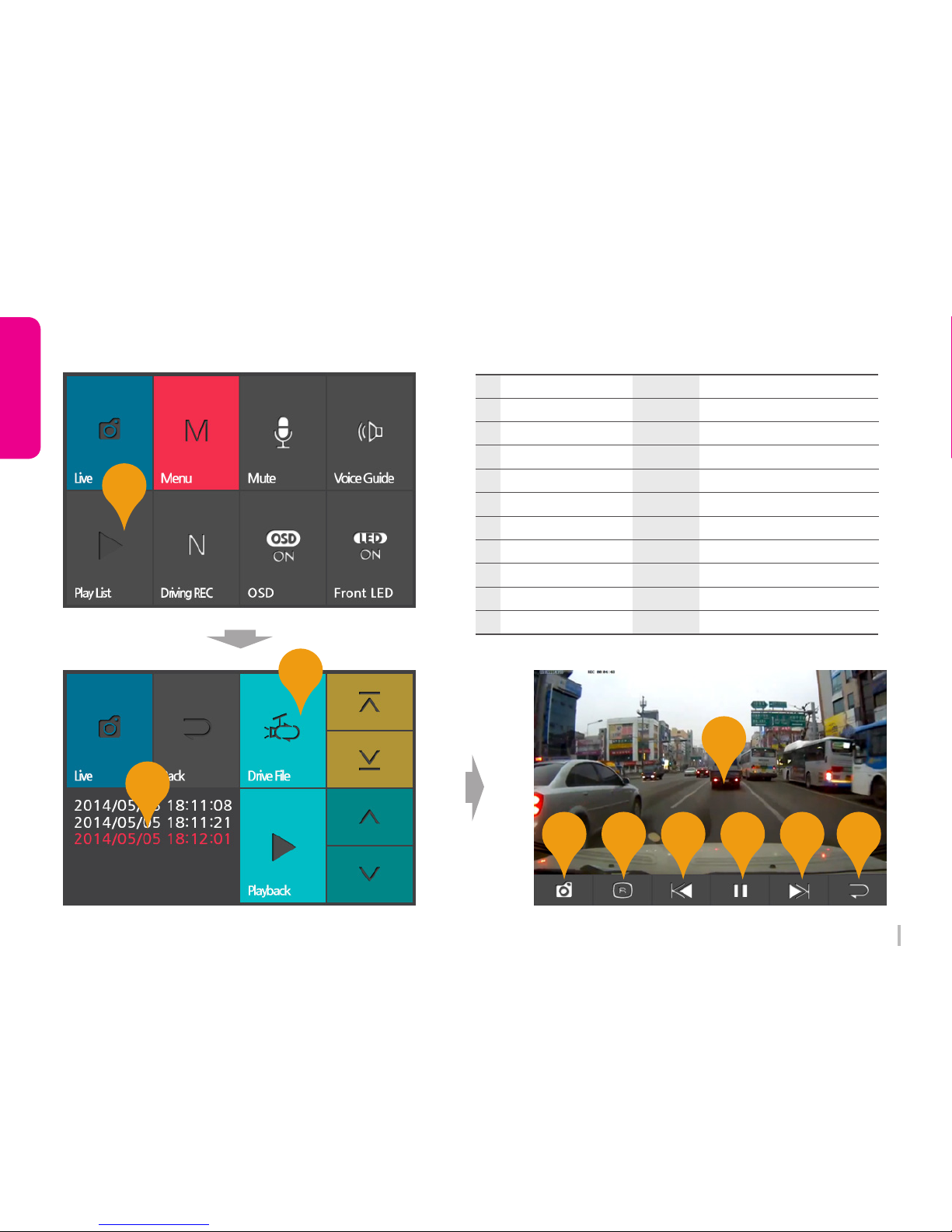
3-13. Playback (Vehicle Drive Recorder)
5
2
4
7
8
9
6
1
3
10
NO. Item Display Description
Back Button Back to list tab10
LIVE Button Back to list5
Front / Rear Button Toggle Front / Rear video diplay6
Former File Button Playback Former file7
Playback Button Playback REC file8
Next File Button Playback Next file9
Normal / Event / Motion Tab Each REC file list display tab2
Playback Icon Display REC List1
REC File list List REC File list that is selected tab3
Playback REC Window REC video playback window4
Page 30
29
WINYCAM Winner
How to use
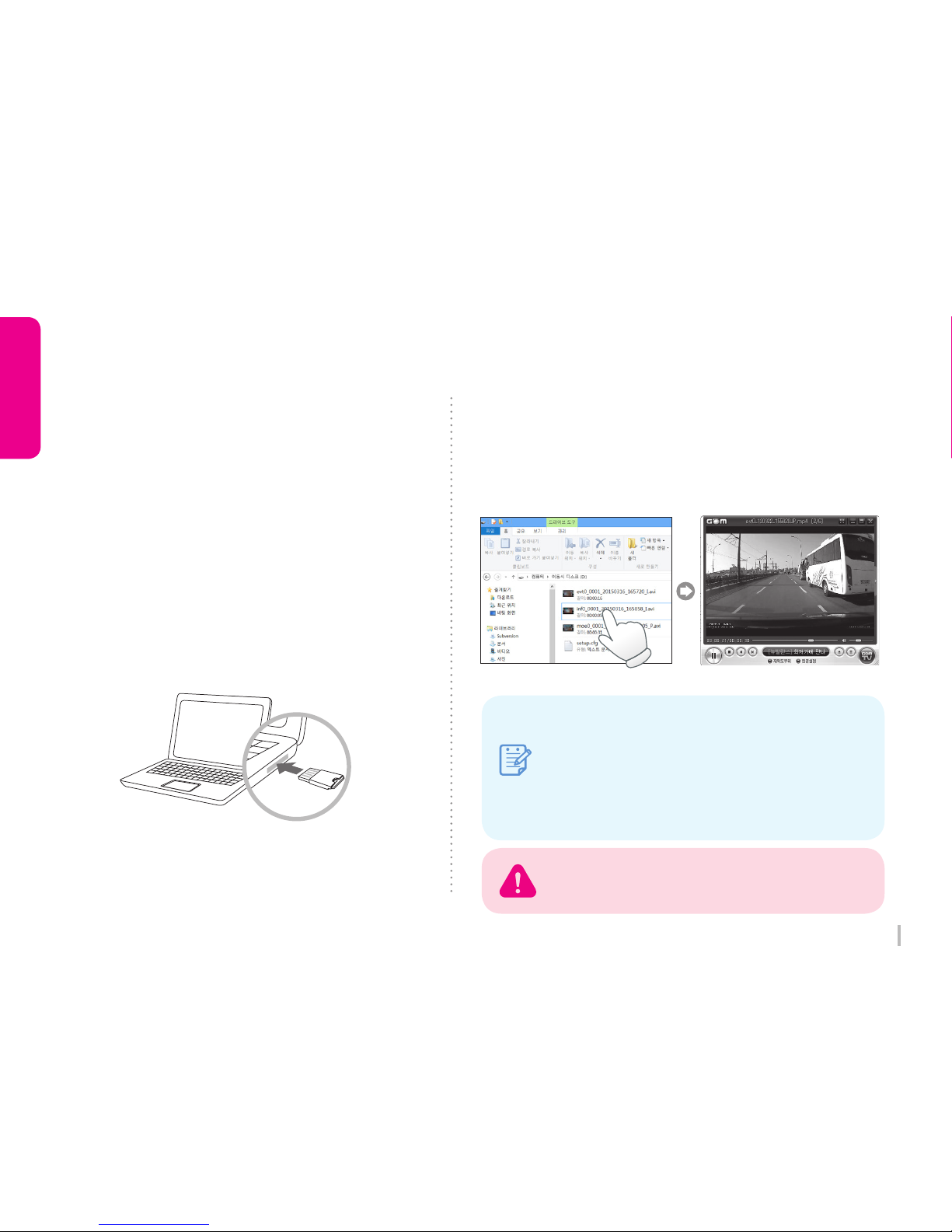
1) Remove a SD Card from Winner
Open a SD Card slot cover and press softly,
then a SD Card can be removed easily.
3) Playback
Open a removal disc, you can see each folders.
And click files to playback which is stored in
each folders.
2) Connect a SD Card to PC
Insert a SD card to SD Card Reader or to
adapter, and connect it to PC.
You can check only front REC when playing
by standard video player.
infxx
moexx
evtxx
GPS Information is displayed in the original viewer.
Note
: Constant(normal) record
: Motion record which is detected by
motion detection sensor. (Parking mode)
: Event record which is detected a shock
by shock sensor.
3-14. Playback (General video player)
Page 31
30
WINYCAM Winner
How to use
1~2) Same method to playback as a
general video player.
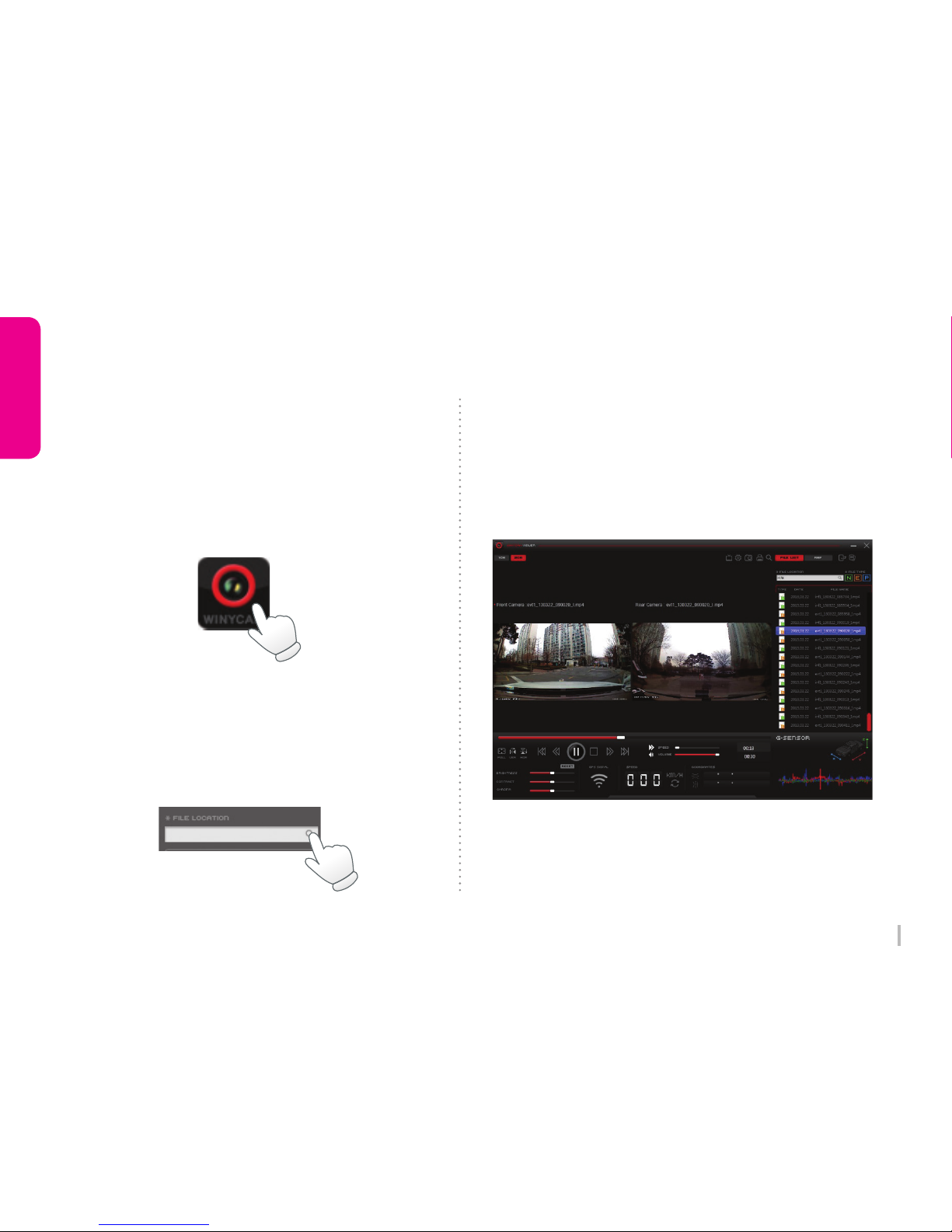
5) Playback
※ Click
N : Constant(normal) REC file list
E : Event REC file list
P : Parking REC file list
3) Original Viewer Program
Click icon for the original viewer
4) Find a REC file location
Click “FILE LOCATION” in original viewer
on upper right. Choose file location,
video file list will be shown
3-15. Playback (PC original viewer)
Page 32
31
WINYCAM Winner
How to use
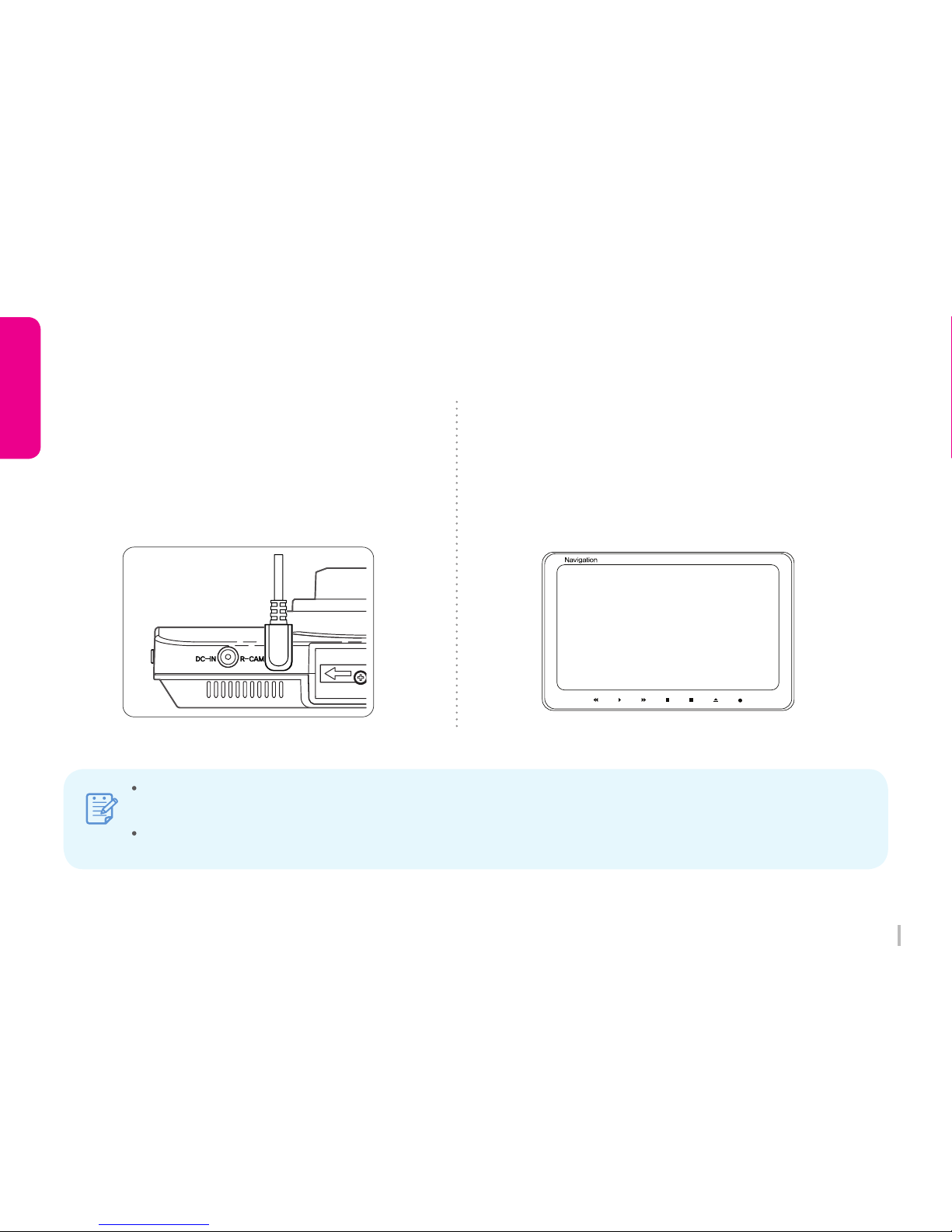
1) Connect TV Out cable
Connect TV Out cable to TV-OUT terminal
on the product.
Connect TV Out cable to video input terminal
on the TV / Vehicle navigation.
(TV Out cable : Option)
2) Set the video input mode
Set the video input mode on TV / Vehicle navigation
first and playback video for real-time monitoring.
Real-time recording image ONLY.
AV1(external input mode)
3-16. Playback (TV / Vehicle Navigation)
Note
Available only TV / Vehicle navigation has external input terminal.
Please check the TV / Vehicle navigation supplier for an external monitor cable.
Mode change method is different for each modes, please refer user manual of TV / Vehicle navigation.
If remove or insert TV Out cable during recording, recording will end and start reboot.
Page 33
32
WINYCAM Winner
How to use
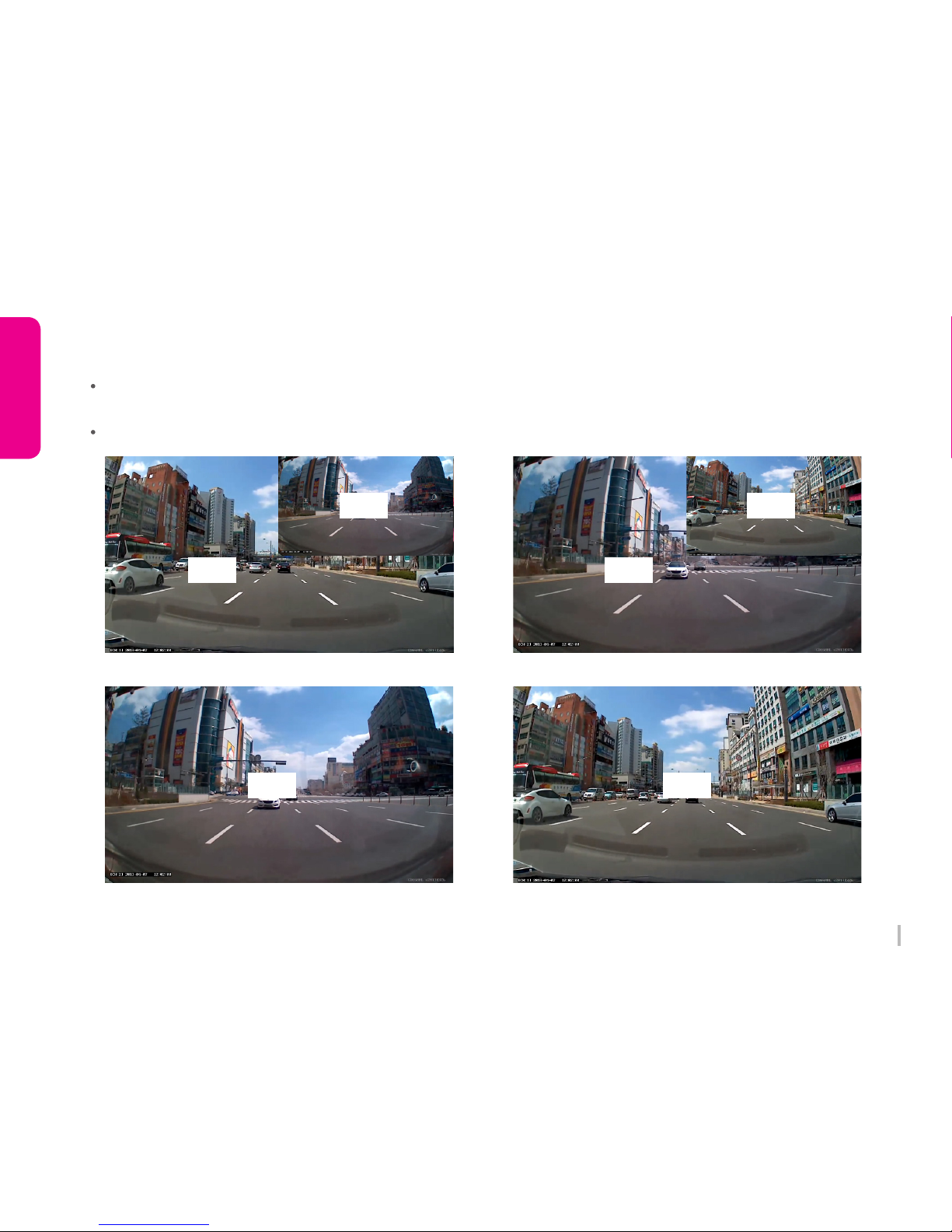
3-17. How to display Front / Rear screen
When 2CH is setting, if you touch right upper screen (¼ of whole screen), LCD screen will be changed
automatically Front/Rear, Rear/Front, only Font, only Rear.
Only LCD Screen looks different, 2CH images will be recorded when rear camera is connected.
Front/Rear LCD Screen Rear/Front LCD Screen
Rear LCD Screen Front LCD Screen
Rear
Rear Front
Front
Front Rear
Page 34
33
WINYCAM Winner
How to use
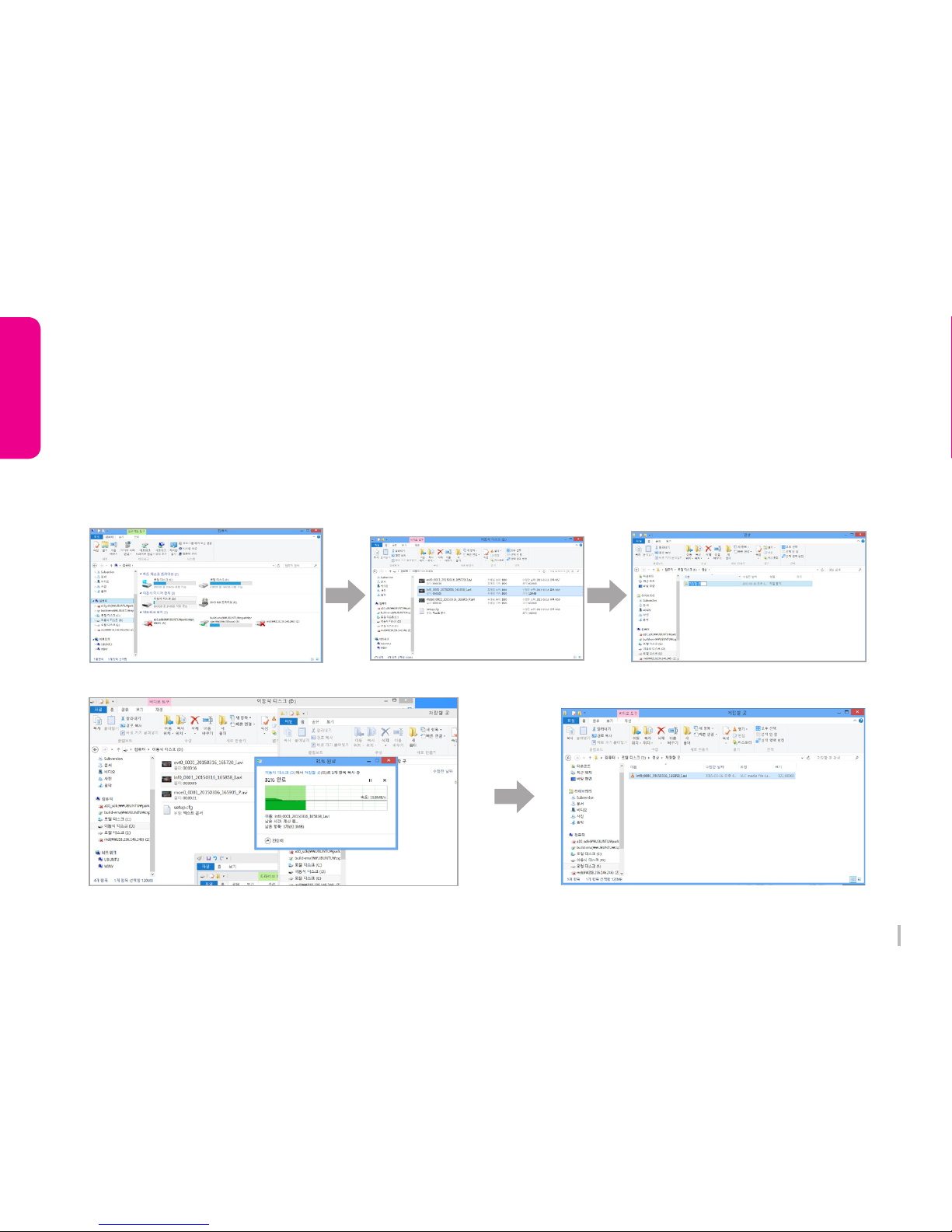
1) Enter to removal disc after insert SD card to your PC.
2) Go to the folder where recorded video files are stored.
3) Create the new folder in same location.
4) Drag the particular file to the new file to copy.
(If you drag a folder, the whole folder will be copied.)
3-18. To save video file on your PC
Page 35
34
WINYCAM Winner
How to use
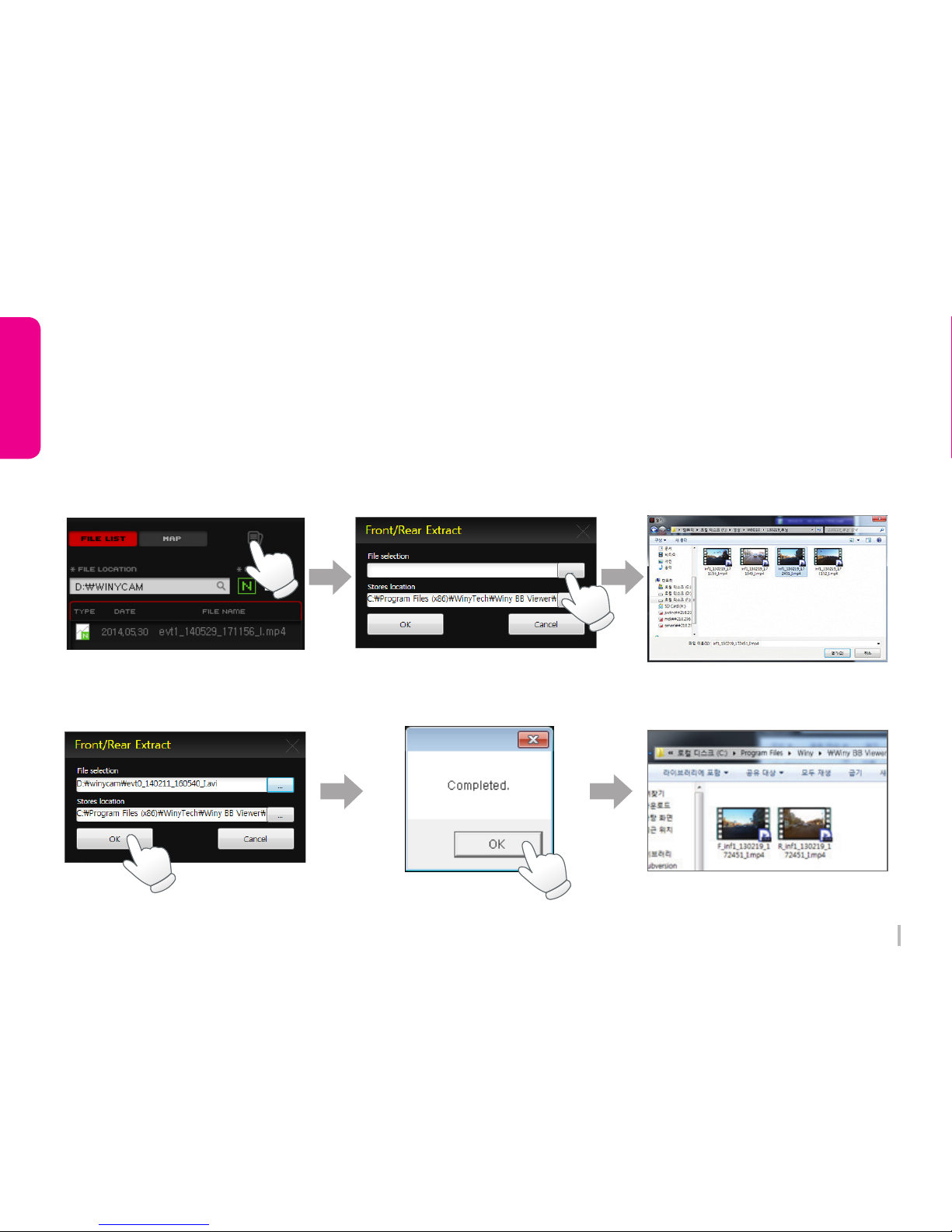
3-19. How to separate video
1. Press “Front & Rear Extract” button on the original PC viewer program.
2. Select a video file to separate and click “OK” button.
3. Stored separated file in “C:\Program Files\BlackBoxViewer\BlackBoxViewer\Video”
1.
4. 5 6.
2. 3.
Page 36

35
WINYCAM Winner
How to use
3-20. Firmware Upgrade
Auto Firmware Upgrade
1) Remove the SD card from Winner after turning off the power completely.
2) Backup all files that are stored in the files to your PC.
3) Download the latest firmware from our website (http://www.winycam-eng.com) and copy to a SD card.
4) Insert the SD card to Winner. After power ON then firmware will be updated automatically.
5) During firmware updating, a voice guide will be announced and updating massage will be displayed ion LCD.
6) When the firmware update is completed, Winner will be initialized and a voice guide will be announced
Page 37

36
WINYCAM Winner
How to use
3-21. SD card format & Set breaking voltage
Format a Micro SD Card on the device. (Menu > Others > SD Card Format)
The setting value will last when SD Card Format menu is used.
1. SD Card format
2. How to install Constant power discharge protection function
This device has the built-in vehicle constant power discharge protection function, and therefore does not
require an extra device to cut off constant power. Set a breaking voltage value on Winner or PC viewer.
(Please note to set value based on a type of vehicle or An age of vehicle.)
2) PC Viewer Program
Configuration > Breaking Voltage
There are some differences depend on a type of vehicle and vehicle age.
(Cut off Voltage :
11.4(23.1) / 11.6 (23.4) / 11.8(23.7) / 12.0(24.0) / 12.2(24.3) / Off)
※ If vehicle detect lower voltage than your set voltage, the power will
not cut off soon. (When cat detect set voltage around for 5min to
5min 30sec, voltage will be cut off.
1) Configuration
Menu > System Set > Cut Off Voltage
Page 38
37
WINYCAM Winner
How to use
▶ Default set
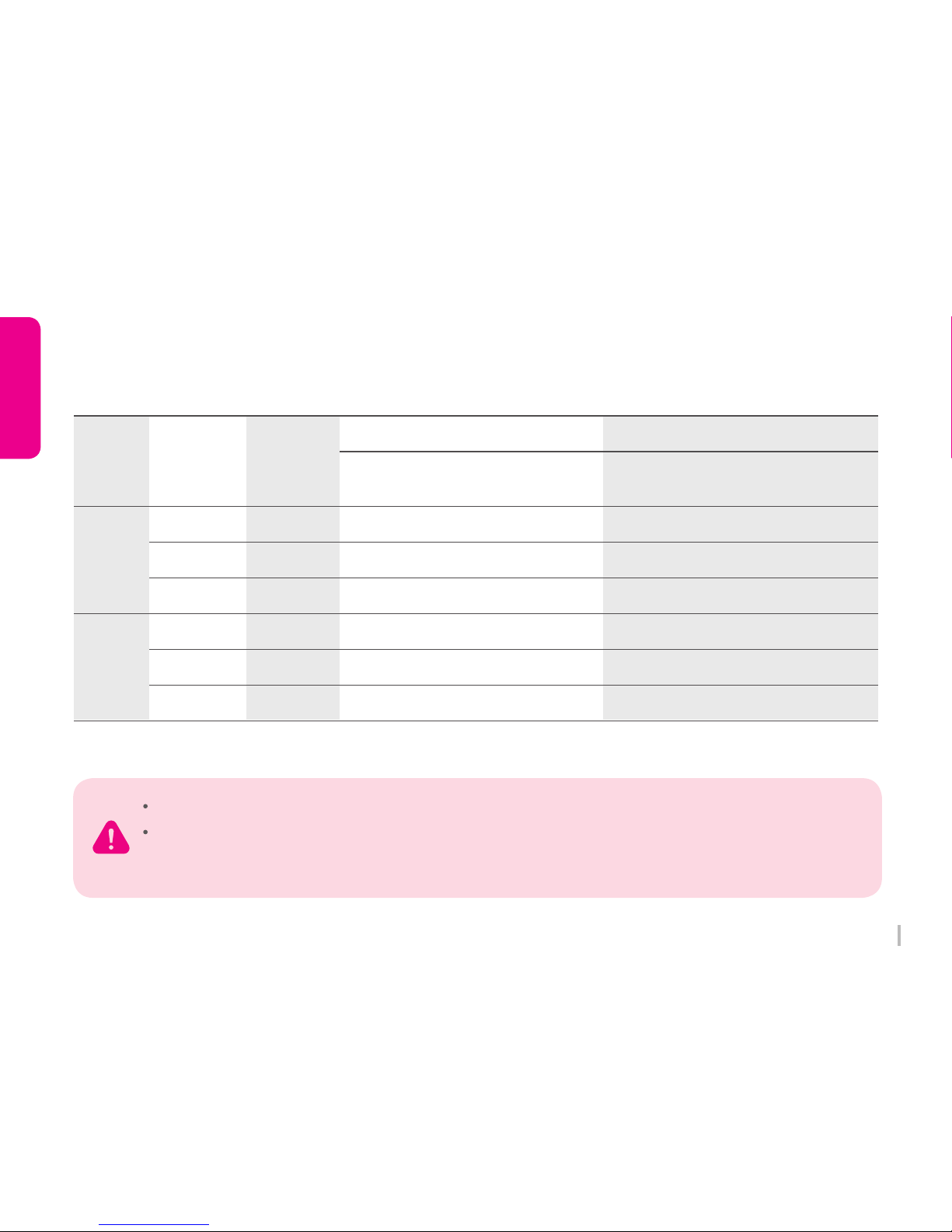
By time : When the SD card is full, the oldest file will be automatically deleted.
By mode : Total record files are stored by your setting rate on “SD card Folder Capacity Adjustment”.
When memory is full on a particular recording mode, the oldest file will be automatically deleted on particular
recording mode. Stored file may also be deleted.
CH
1CH
2CH
Video
Quality
Camera
16GB 32GB
Super High Front
High Front
Normal Front
Super High Front/Rear
High Front/Rear
Normal Front/Rear
Normal
(60%)
Normal
(60%)
Motion
(20%)
Motion
(20%)
Event
(20%)
Event
(20%)
(Unit : Minute)
3-22. REC Time
96 19639 7858 117
118 23947 9671 143
151 30761 12391 184
62 12725 5137 76
76 15430 6145 92
96 19639 7858 117
Page 39

38
WINYCAM Winner
How to use
3-23. Specification
Item Item
CPU
Flash Memory
RAM
Recording Channel
Camera
Image Quality
FPS
GPS
View angel
Power Input
Display (LCD)
Battery
G-Sensor
Video Format
Video Output
Voice Recording
Voice Guidance
Video Compression
Memory
High Temperature
Cut-off
Operating Temperature
Breaking Voltage
Storage Temperature
Specification Specification
ARM Cortex A8 core
128MByte NAND Flash
256MByte DDR3 (128Mbyte x 2)
2 Channel
Front : 5M Pixel / Rear : 2M Pixel
COMS image sensor
Front : FHD (1920 x 1080)
Rear : HD (1280 x 720)
20 FPS / 30 FPS
External GPS Module (Option)
Front : 92(H) x 67(V) x 120(D)
Rear : 103(H) x 60(V) x 130(D)
DC 12V~24V
3.5" TFT LCD with TSP
(320 x 480)
Super Capacitor
3D Shock Sensor
AVI
NTSC / PAL
Built-in high sensitive microphone
Built-in speaker
H.264 / AVC
microSD Card
(up to 64GB opt.)
Yes
-20℃ ~+70℃
(Option) : Disable, 11.4V(23.1),
11.6V(23.4), 11.8V(23.7),
12.0V(24.0), 12.2V(24.3)
-20℃ ~+85℃
Page 40

39
WINYCAM Winner
How to useFAQ
4. FAQ
Precaution before use
1. Please check for any defect on the product before installation.
The Company shall not take responsibility for any cost or
expense incurred as a result of the failure to check before
installation.
2. If installation was held at a service center other than those
designated by the Company, the Company shall not take a
responsibility for cost or expense charged at such center.
3. If the constant power protect function is set ‘OFF’, monitoring
during parking will be performed only for a certain period of time.
If the vehicle battery voltage is lowered for self-protection, power
to the device may be disconnected even in the Parking Mode
disabling the recording.
4. The Micro SD card is a consumable. Use of an aged SD card may
cause error. Please replace on a regular basis.
5. When a vehicle accident occurred, turn off power of the product
immediately, remove the SD card and save the accident file on your
PC. If the file is erased due to the times away, the Company shall
not take responsible.
Note
1. Power is not turned on.
※ Check once again if the power cable is properly connected. If the problem is not solved, please contact manufacture.
2. The map is not shown when a video is played on a PC original viewer program.
※ Check your Internet connection. Check if your Internet Explorer is v7.0 or higher.
3. Power is connected, but LED is not lightning.
※ Check if the power cable is connected properly. Then if still LED dose not lightning, the product or the SD card may be
defective. Please contact manufacture.
4. GPS signal dose not recognize. (GPS is sold separately.)
※ GPS signal reception may be interrupted temporarily depending on the environment and locations. Drive your vehicle
to other location where GPS signal reception is abled. Please wait 3-5 minutes in the GPS signal reception area.
If the signal still dose not recognized, please contact manufacture
5. The product does not recognize the SD card.
※ Remove the SD card from Winner after power OFF, and check for any foreign material or abnormality around the
connecting terminal. Format the SD card and try again. If the SD card is old, please replace to a new one.
Page 41
40
WINYCAM Winner
Warranty
1. The products are manufactured through the strict quality control and inspection process.
2. The defect occurring in normal use of user within the warranty period will be repaired free of charge.
3. If the warranty period has passed, we will repair by paid charge.
4. Please take this “Warrantee” when you request repair.
5. Please keep this “Warrantee” because we will not be able to re-issue this warrantee note.
Warranty Details (Conditions)
1. Free Service
Product : 1 Year from purchase date.
Micro SD Card : 6 months from purchase date
(if purchase date is not confirmed, it should be counted from manufacture date of SD card.)
2. Paid Service
1) If the warranty period has passed.
2) If a failures caused by carelessness using (drop, flooding, shock, breakage, excessive operation)
3) If failures caused by natural disasters (fire, lightning, flood damage, etc.
4) Failures caused by the malfunction of power in use and connected equipment.
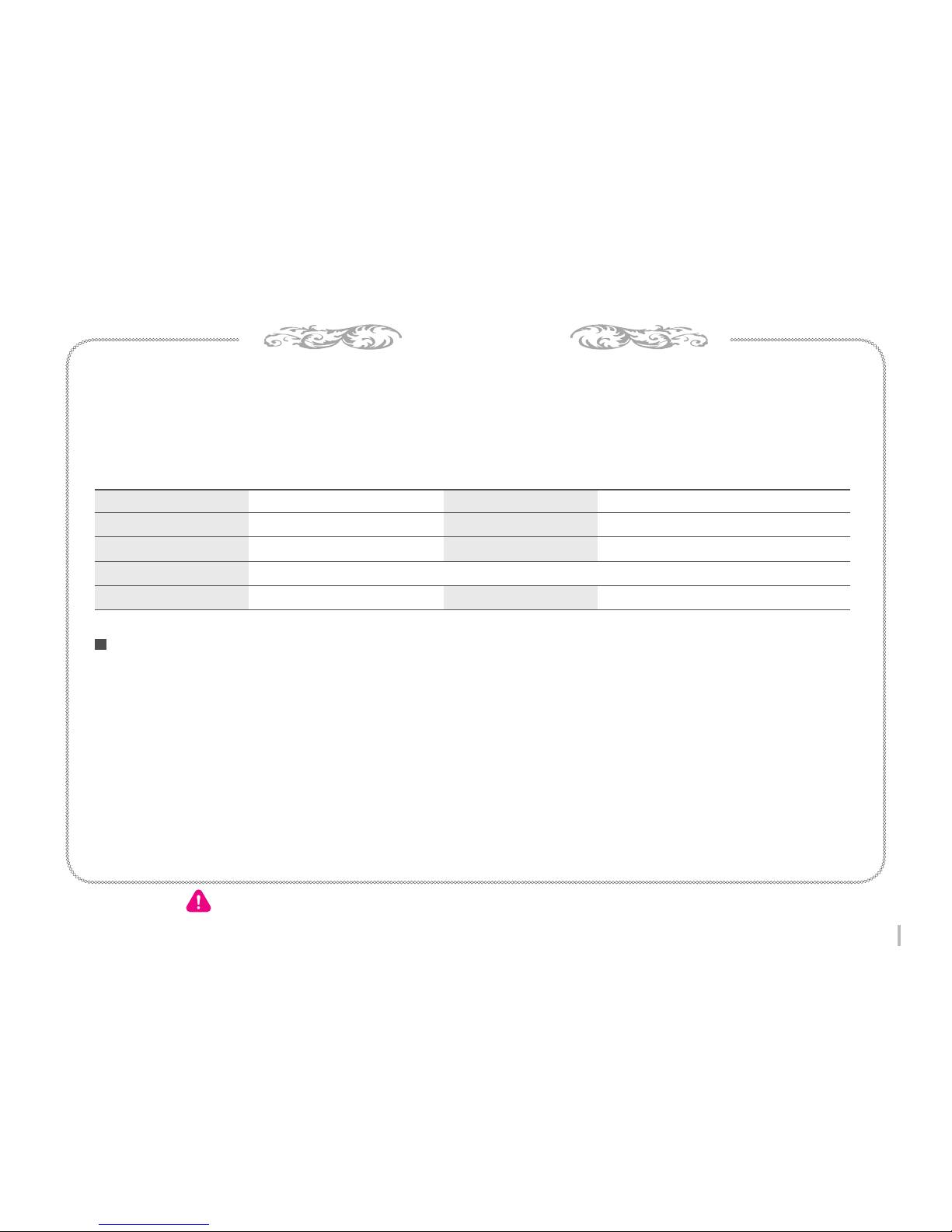
Model Name Product
Serial No Purchase date
Customer TEL
Address
Purchase from TEL
Winner Vehicle Drive Recorder / Rear Camera
YY MM DD
Please keep this “Warrantee” because we will not be able to re-issue this warrantee note.
Page 42

WinyTechnology Co., Ltd.
www.winycam-eng.com
 Loading...