

Page 1
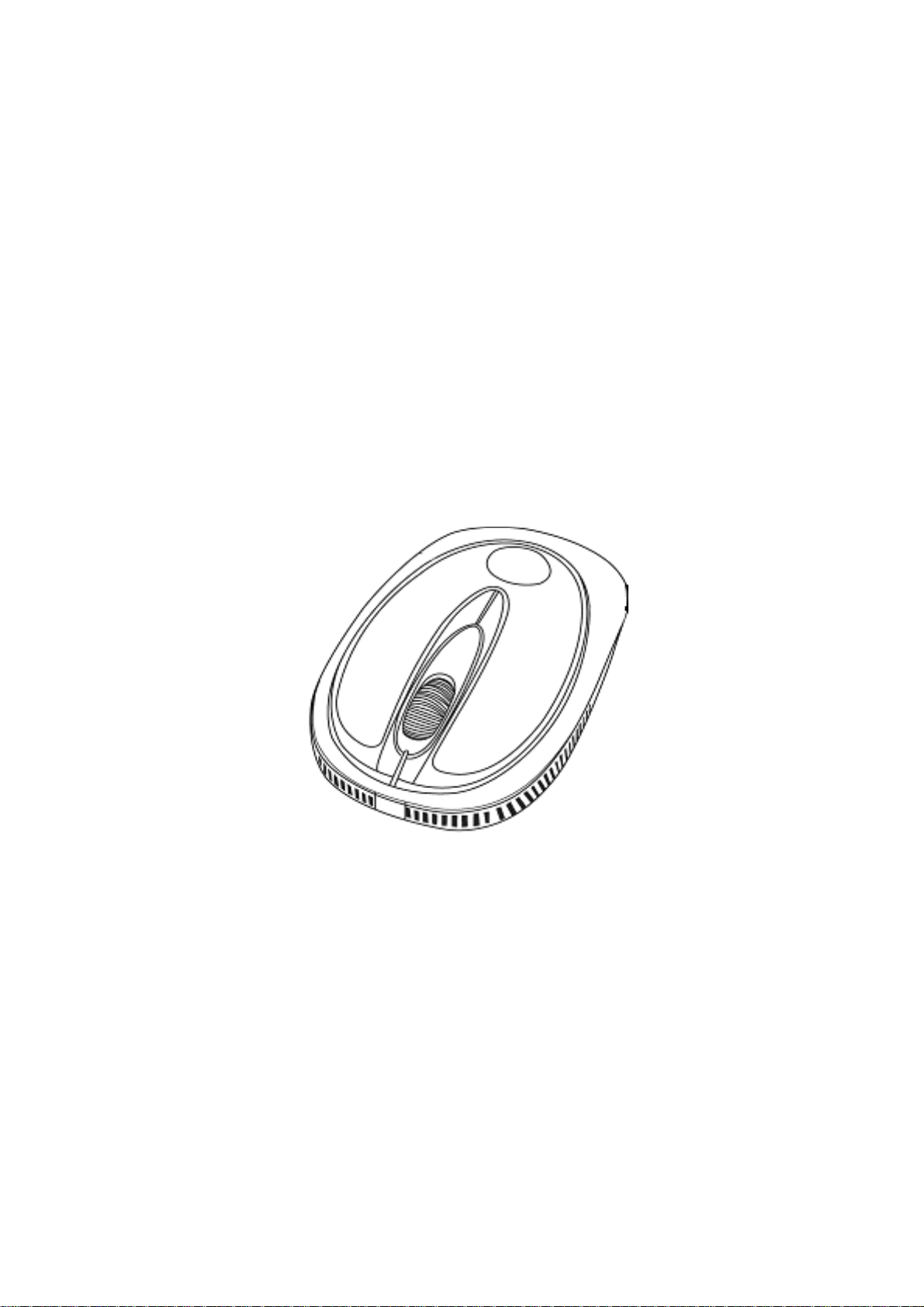
Optical 2.4GHz
Wireless Nano Mouse
Model #: WM-710
User’s Manu
Page 2

All brand name and trademarks are the property of their respective companies
Mac and Mac OS X are registered trademarks of Apple Inc
Windows, Windows XP, Windows Vista, Windows 7 and Windows 8 are registered
trademarks of Microsoft Corporation in the United States and /or other countries.
;
USER’S RECORD:
To provide quality customer service and technical support, it is suggested that you keep the
following information as well as your store receipt and this user’s manual.
Date of Purchase: ________________________________
Model Number: ________________________________
Serial Number: ________________________________
Product Rev Number (located below the UPC on the package): ____________________
FCC RADIATION NORM:
FCC
This equipment has been tested and found to comply with limits for Class B digital device pursuant
to Part 15 of Federal Communications Commission (FCC) rules.
This device complies with Part 15 of the FCC Rules. Operation is subject to the following
two conditions:
(1) This device may not cause harmful interference, and
(2) This device must accept any interference received, including interference that may
cause undesired operation.
Warning: Changes or modifications not expressl
compliance could void the user's authority to operate the equipment.
y approved by the party responsible for
FCC Compliance Statement
These limits are designed to provide reasonable protection against frequency interference in
residential installation. This equipment generates, uses, and can radiate radio frequency energy,
and if not installed or used in accordance with the instructions, may cause harmful interference to
radio communication. However, there is no guarantee that interference will not occur in television
reception, which can be determined by turning the equipment off and on. The user is encouraged
to try and correct the interference by one or more of the following measures:
Reorient or relocate the receiving antenna.
Increase the separation between the equipment and the receiver.
Connect the equipment into an outlet on a circuit different from that to which the receiver is
connected.
Consult the dealer or an experienced radio/TV technician for help.
CAUTION!
The Federal Communications Commission warns the user that changes or modifications to the
unit not expressly approved by the party responsible for compliance could void the user’s authority
to operate the equipment.
2
Page 3

PACKAGE CONTENTS:
Your new Wireless Optical Mouse will ship with the following items.
- Wireless Optical Nano Mouse
- Nano Receiver
- 2 AAA Batteries
- User’s Manual
- Warranty Information
SYSTEM REQUIREMENTS:
Please be sure that you meet all of the system requirements below to avoid difficulties during
installation
PC & Mac®Computer Compatible works with:
- Windows®XP, Windows®Vista , Windows®7 and Windows®8 operating systems
-MacOSX®10.3 and Above
- An Available USB Port
SPECIFICATIONS:
Your new Wireless Optical Mouse complies with the following specifications.
- USB Interface
3
Page 4
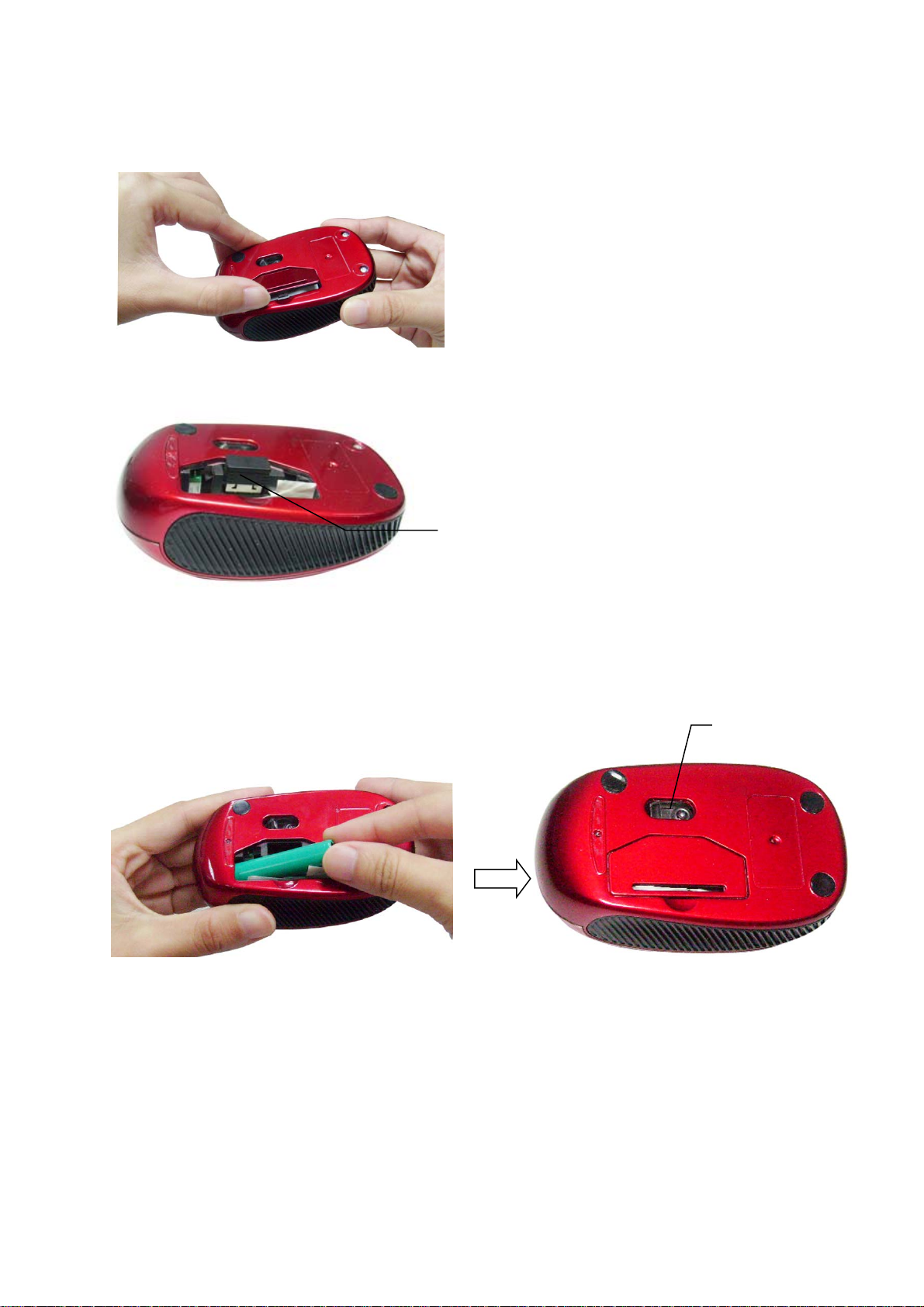
INSTALLING BATTERIES:
A
AA
To properly install batteries into your Mouse, please follow the instructions below:
1. Pull the Battery Compartment Release Latch at the bottom of yourMouse and remove the
Battery Compartment Cover from your Mouse.
Note: Remove the Battery Compartment Cover from your Mouse gently, otherwise the
Nano Receiver stowed inside the battery bay will pop out.
Nano Receiver
2. Install two
Batteries intoyourMouse followingthe batteryorientationguide in the
battery bay, make sure the guide is under the batteries so that you can remove the
batteries out of the battery bay easily, then replace the Battery Compartment Cover back
onto your Mouse until it securely locks.
LED
Note: The LED at the bottom of your mouse will flash one time after Batteries have been
installed into your Mouse properly, the LED will remain on when the Nano Receiver is
connected to your computer.
4
Page 5
INSTALLATION:
For All Operating Systems
1. Make sure you have successfully installed the Batteries into your Mouse, refer to the
Installing Batteries section in this manual if necessary.
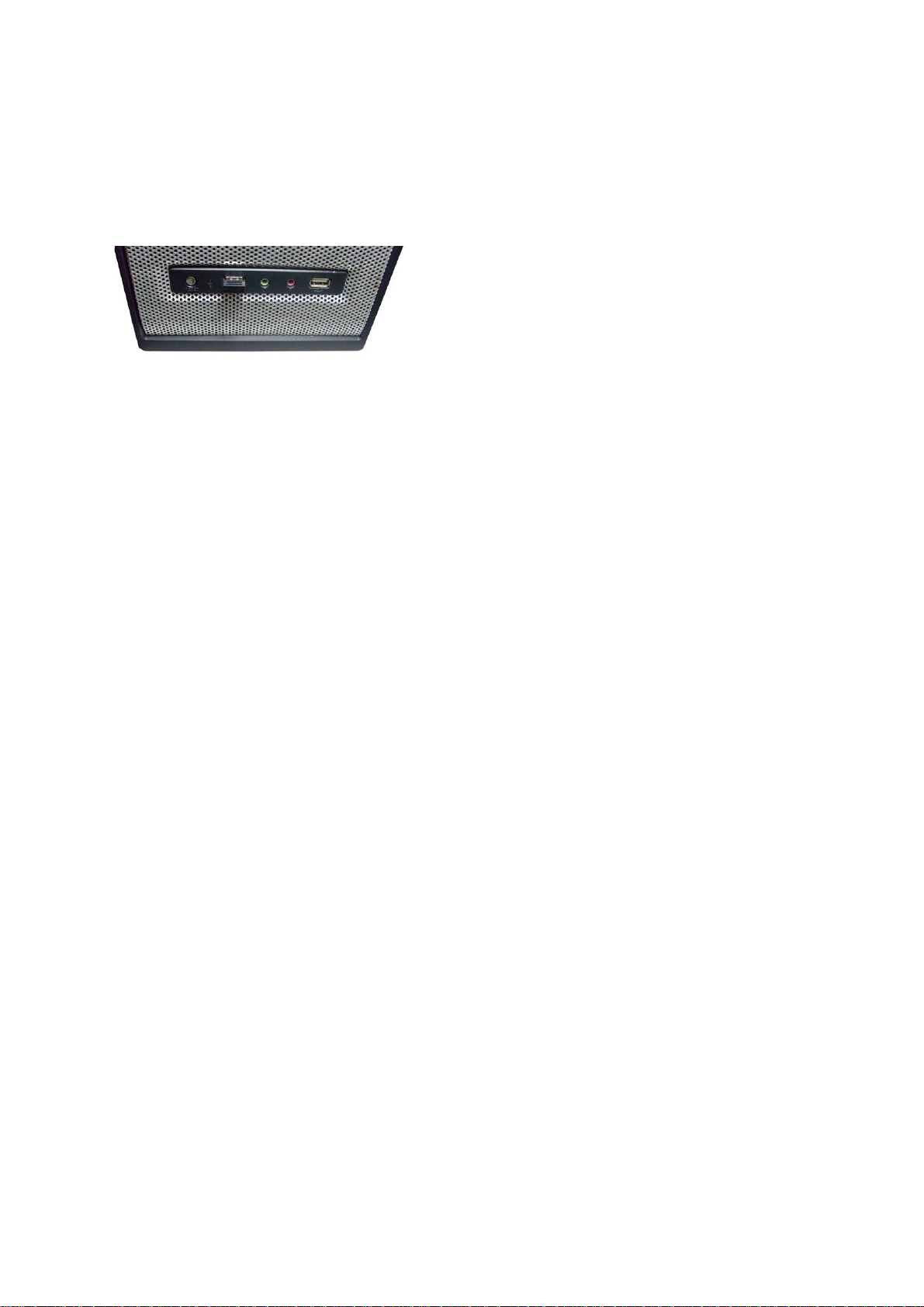
2. Turn on yourcomputer, plug the enclosed Nano Receiverinto an available USB port on
your computer. (TIP: If you are not able to find an available USB port on your computer,
please refer to the user’s manual of your computer for more detail.
Your wireless optical mouse is now ready to be used.
3.
5
Page 6
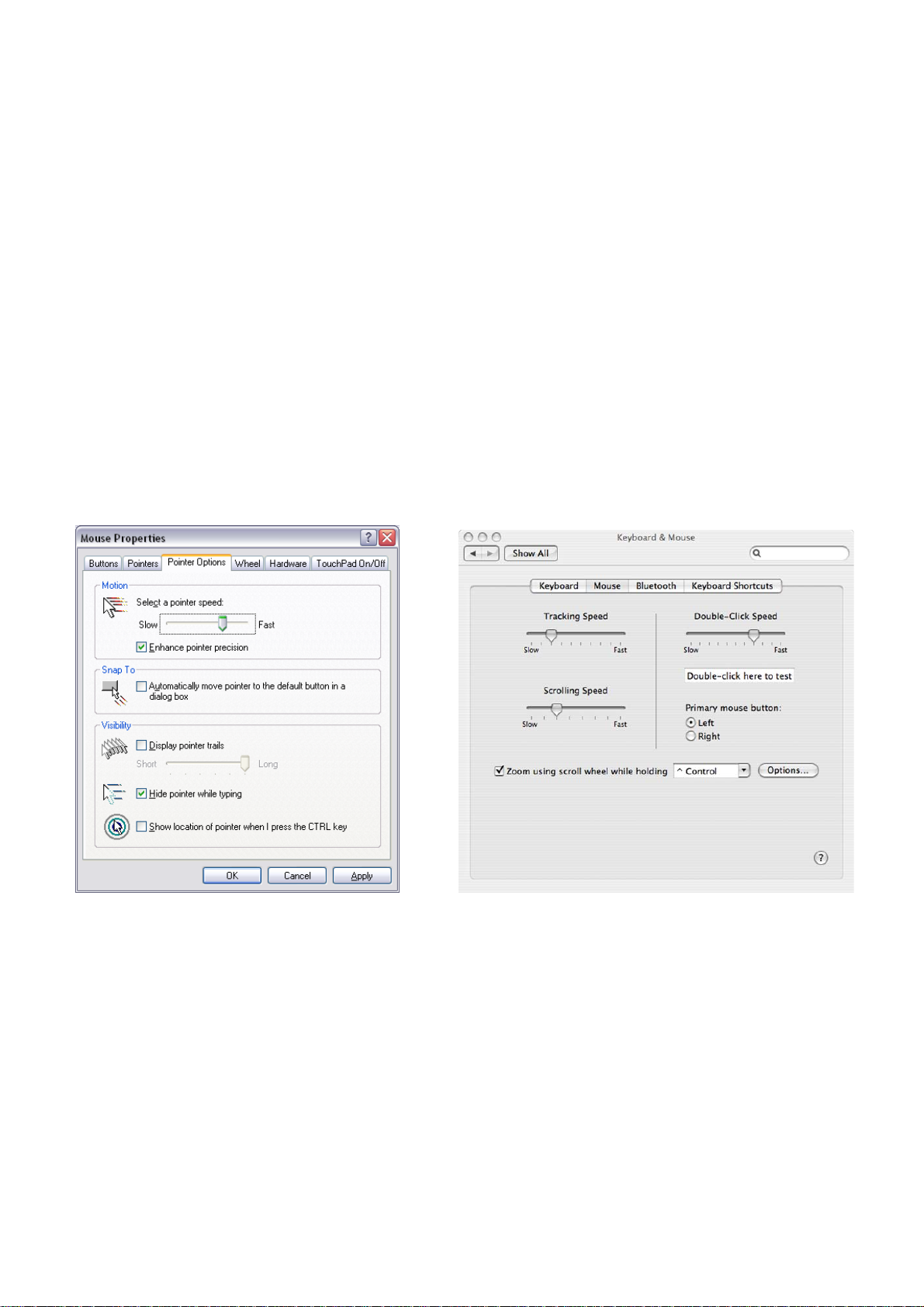
CHANGING THE SPEED OF YOUR MOUSE:
To adjust the speed of the cursor or the scroll button features on your computer, please follow the
instructions below:
NOTE: The screenshots show in this section are for demonstration only and your screen may look
slightly different but with similar options.
For Windows®operating systems
Open the “Control Panel”, and double-click the “Mouse” icon to open the mouse properties
screen, and then select the “Pointer Options”. After you have made your changes; select “Apply”,
and then “OK”.
For MacOS X®10.3 and Above
Open the “System Preferences”. At the System Preferences screen, click the “Keyboard &
Mouse”icontoopentheKeyboard & Mouse screen, and then select the “Mouse” tab and make
your changes.
-Windows®operating systems MacOS X®10.3 and Above
6
 Loading...