

Page 1

Smart Phone & PC Keyboard/Video/Mouse Switch
KVM-BT250
Thank you for your choice of this product. Most people had tough operating
experience due to Smart Phone small screen size and inconvenient software
keyboard. By this product, you can easily share your current computer peripheral
equipment (like computer LCD screen, USB keyboard and mouse) at home or
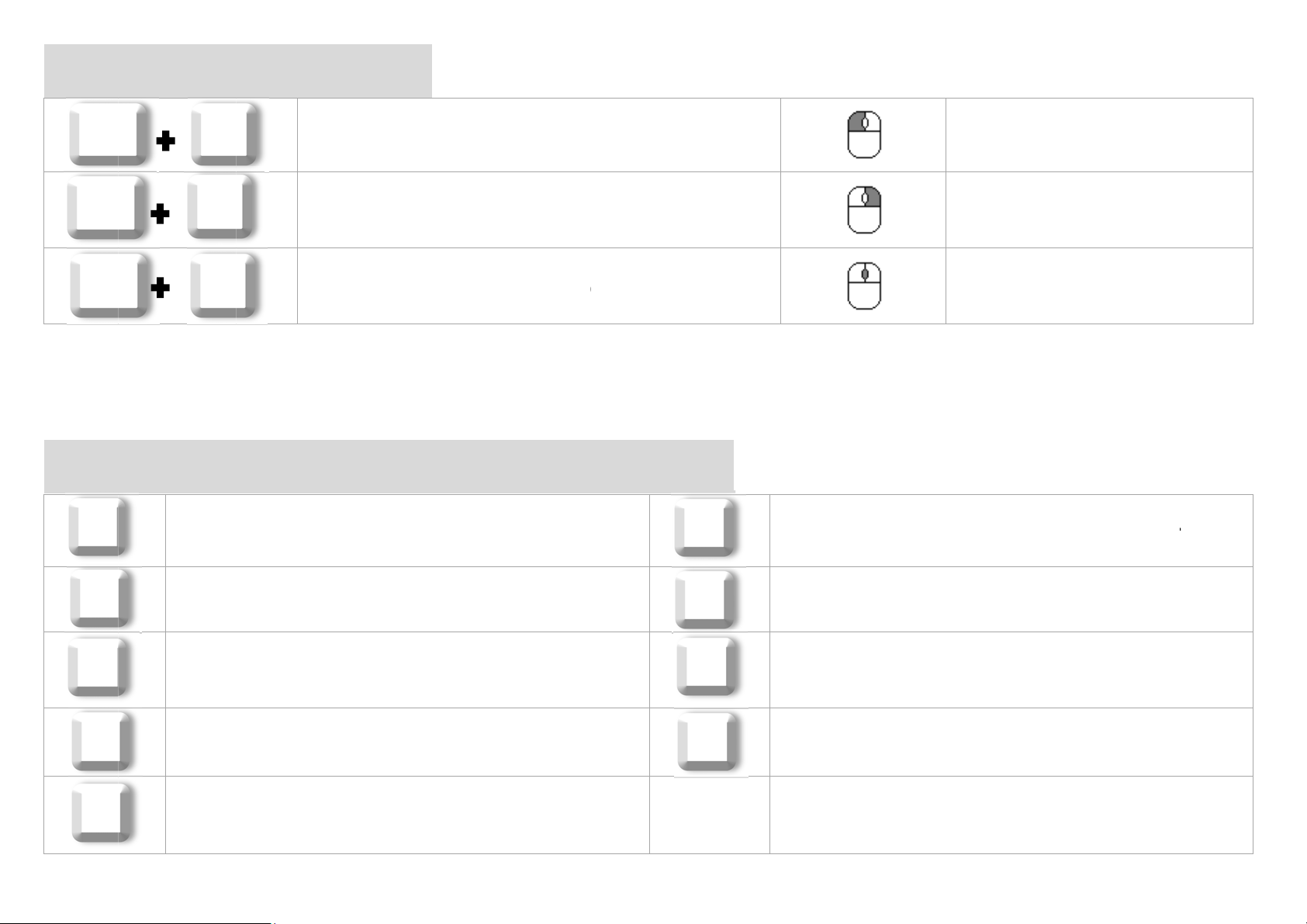
office with your Smart Phone/Tablet devices. Just one touch (Alt+F2) on USB
keyboard to switch Smart Phone screen to LCD, and the same one USB keyboard
and mouse can be used by Smart Phone. Then, just 1 touch (Alt+F1) to switch PC
screen back to LCD, and the same one Keyboard and Mouse can be used by PC.
1
Page 2
Specifications
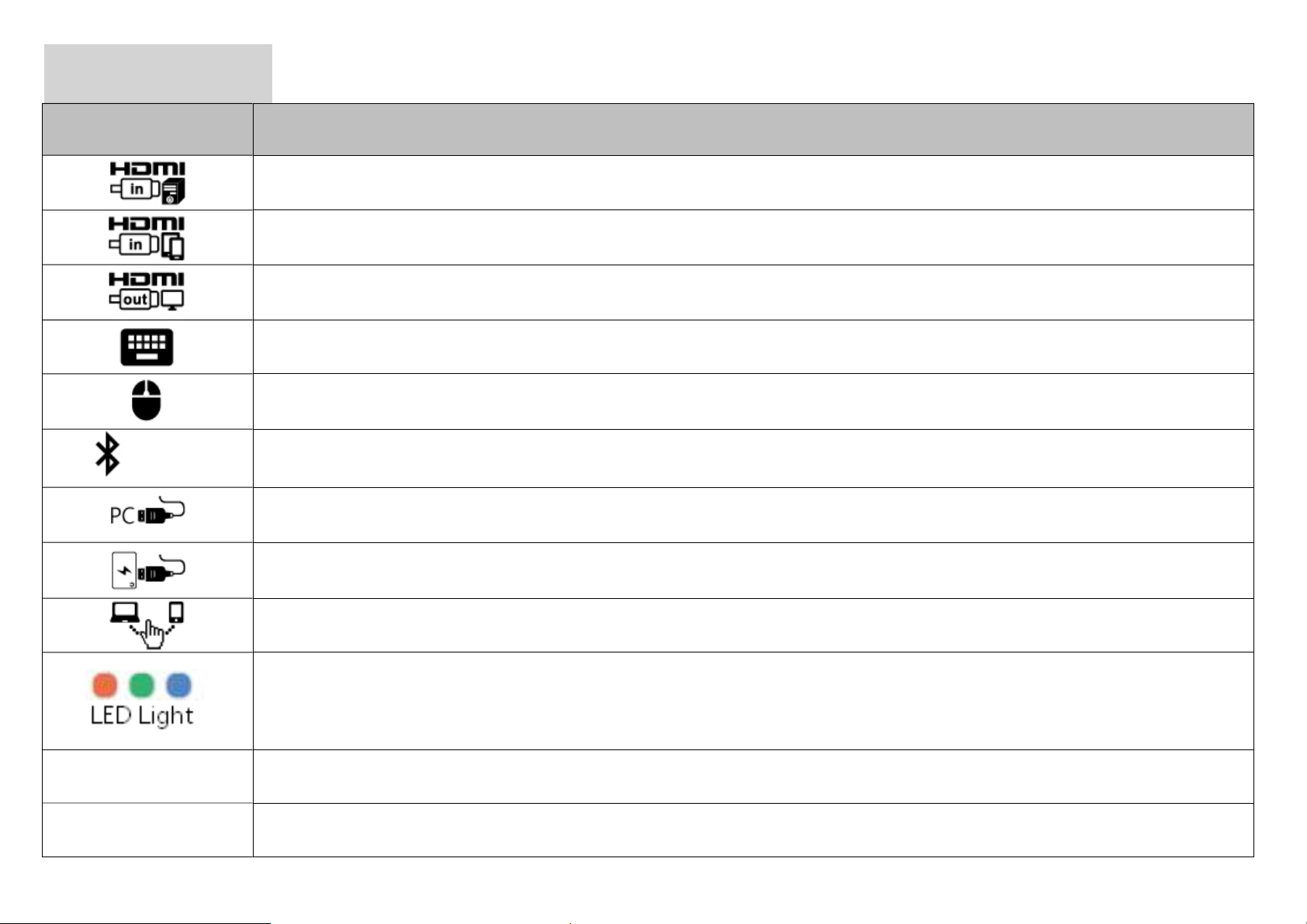
Icon Description
BT 4.2
Input HDMI video from PC or Notebook
Input HDMI video from Smart Phone or Pad
Output HDMI video to LCD monitor or TV
Connect USB Keyboard
Connect USB mouse (Current iOS version didn’t support mouse)
Convert USB KB/Mouse (at least 8ms response time) to BT KB/Mouse
Connect to PC USB port and become USB Keyboard and Mouse
Connect to 5V power bank and become BT Keyboard and Mouse
Easily switch between PC and Smart Phone by hot key
Red - Switched to PC; Green - Switched to Smart Phone/Pad;
Blue - Shows BT Status (Please check the LED Light Status in next page)
Dimension 85mmx85mmx45mm
Weight 200g
2
Page 3
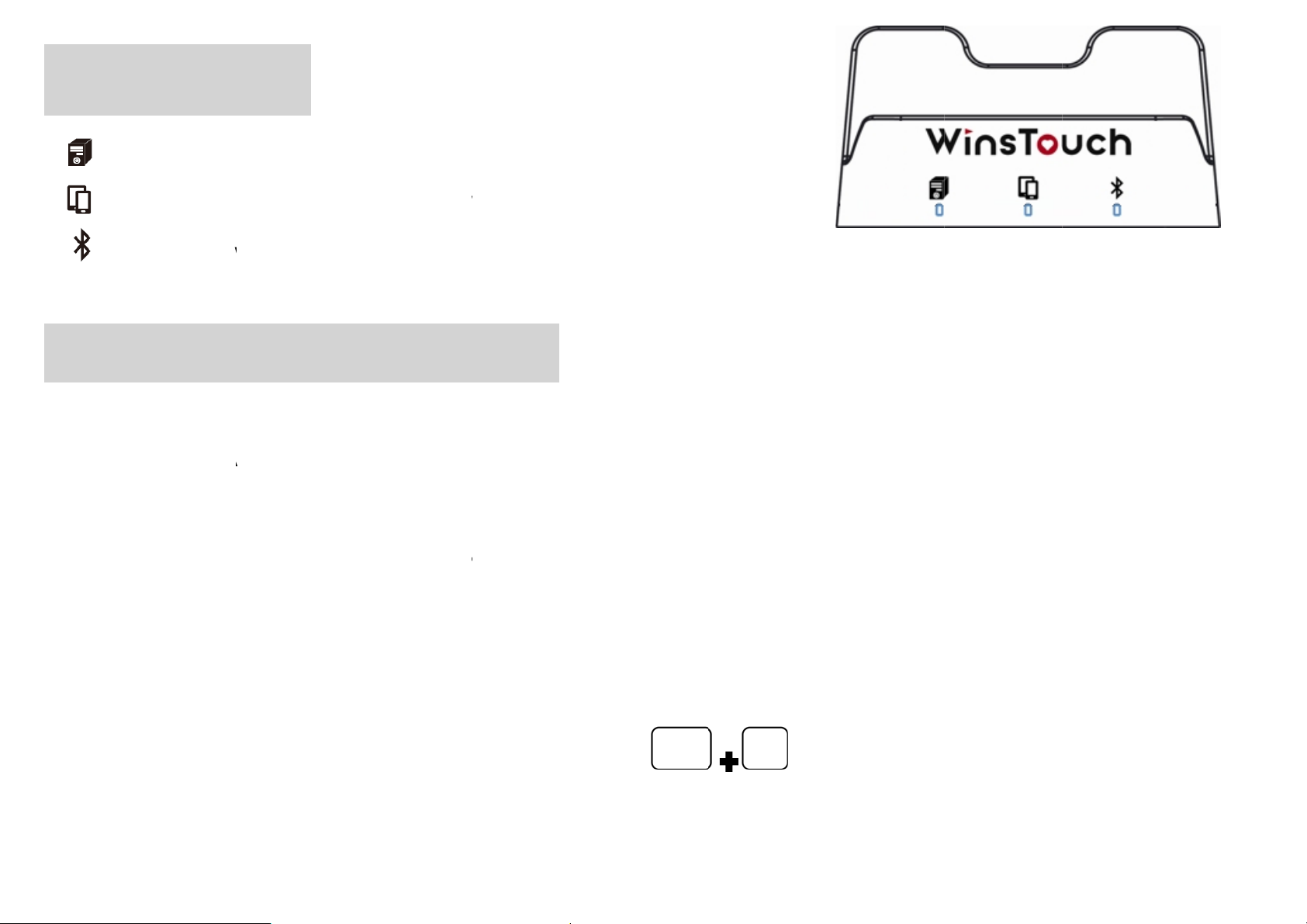
LED
eGr
k
t
e
f
.
c
h
m
l
a
t
t
w
t
wing
i
o
A
r
t
e
e
o
o
t
n
s
a
w
e
t
e
u
w
f
e
o
n
a
,
o
m
h
m
i
i
n
o
p
S
t
T
e
a
n
o
p
n
t
g
c
b
t
n
o
f
t
w
o
c
e
e
h
w
t
d
t
a
P
t
t
c
e
t
u
o
l
l
Light S
atus
R
B
ma
Blue
Th
fast
light
dete
not
d light
een ligh
lue light
BT d
ooth F
Blueto
lashes.
This p
ts Smar
ave to r
ill be on
will be
ill be c
sconnec
unctio
th statu
fter well
oduct h
Phone
connect
after swi
n after s
nstant o
ion, and
Descri
for the
connect
s Blueto
hich has
Bluetoot
tching t
itching
n when
will flas
ption
irst time
d with S
th mem
been pa
h every t
PC
to Smar
aking B
fast wh
use is w
art Pho
ory for li
red bef
me.
Phone
connec
n puttin
iting for
ne, the b
king ba
re, it will
ion, will
BT into
pairing s
lue light
k functi
reconne
lash slo
pairing s
atus, an
ill beco
n. Once
t autom
ly when
atus.
the blu
me cons
he prod
tically.Y
light
ant
ct
u do
(I
put B
a sm
is fas
portant!
uetooth
ll hole b
flashing
)Befor
into wai
hind th
, and yo
you wa
ing for p
product
can use
t to con
iring m
or just
another
ect this
de agai
Alt
ress
mart Ph
3
roduct
. You jus
F12
o
one to c
anoth
use a p
keyboa
nnect t
r Smart
n point
rd; now,
is produ
hone, p
o gently
he blue
t.
ease
press
ight
Page 4
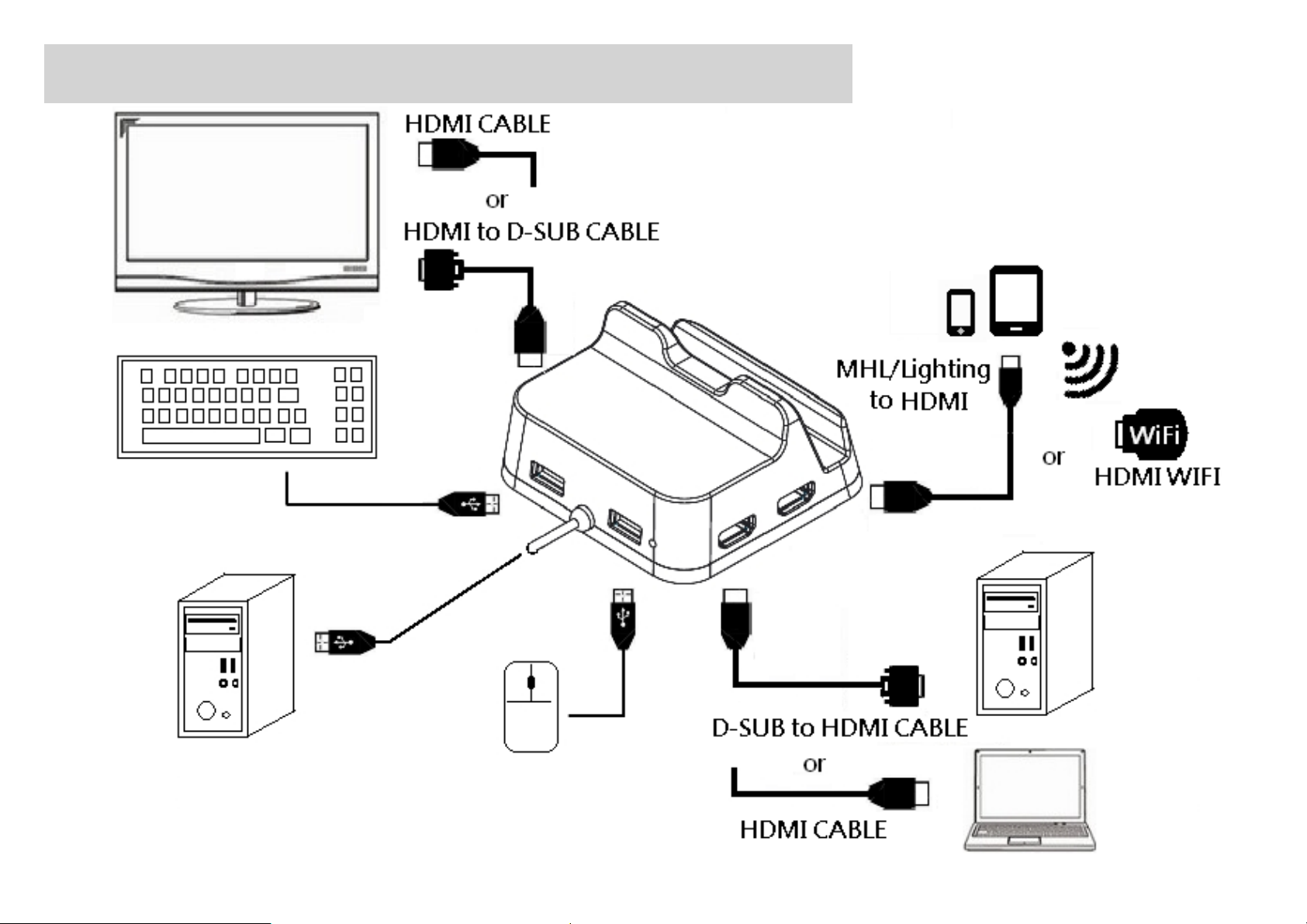
Demonstration of Production Environment Setup
4
Page 5
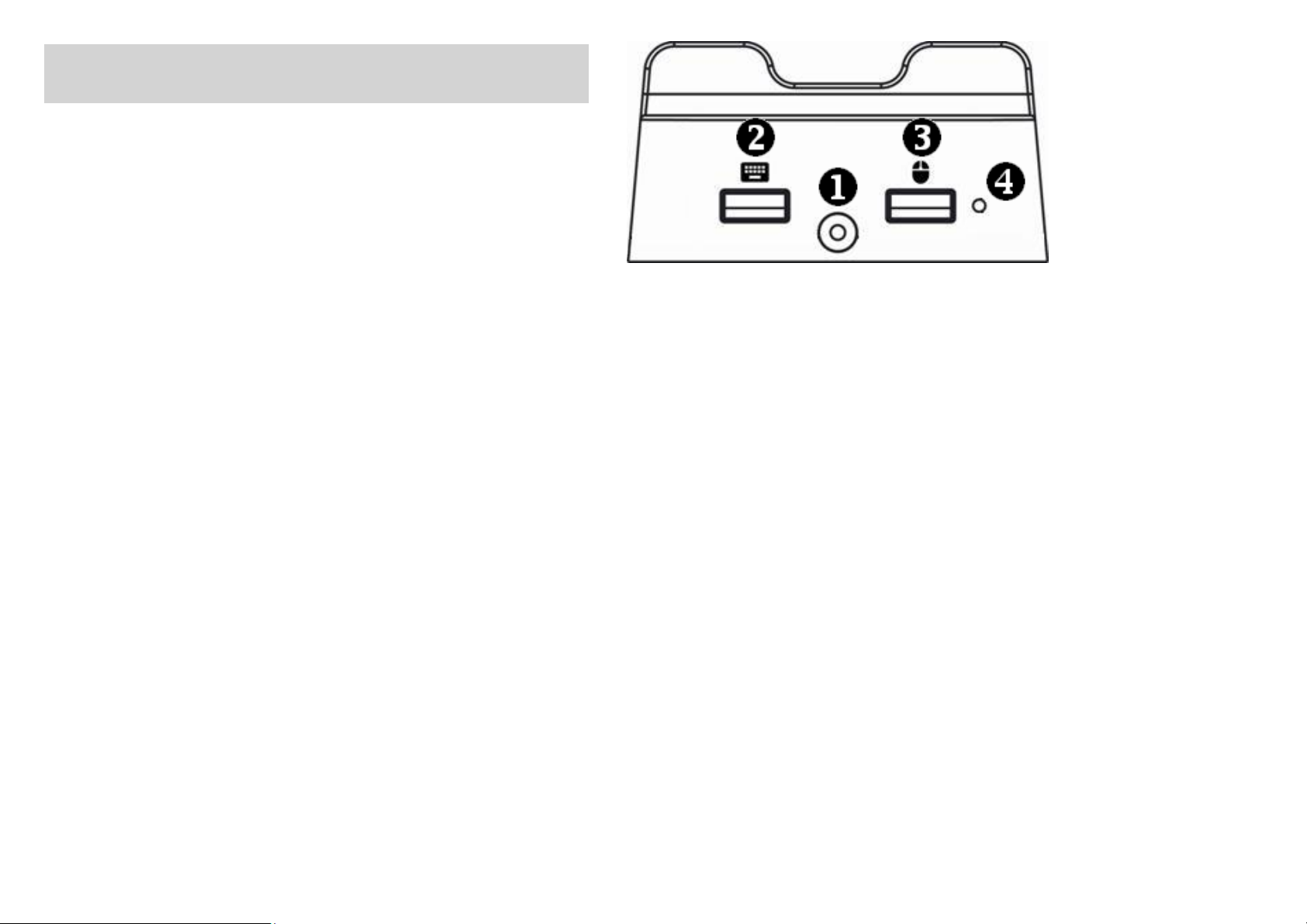
Product Connection Description
1. X could connect to PC’s USB port and becomes PC’s USB Keyboard and Mouse; or it
also could connect to a power bank, then let your USB Keyboard and Mouse can operate
smart phone by this product’s Bluetooth conversion.
2. Plug in USB keyboard to the USB port Y of this product and let you operate PC or
Smart Phonewith USB keyboard.
3. Plug in USB mouse to the USB port Z of this product and let you operate PC or Smart
Phone with USB mouse. (Important! Current iOS didn’t support mouse function)
4. When a stylus presses the hole
product’s Bluetooth will be put into waiting pairing status with blue light fast flashing,
and you can use another Smart Phone to connect this product.
When a stylus quickly presses the hole
Keyboard and Mouse access switches between PC and Smart Phone.
[ in the back of this product about 1 second, this
[ in the back of this product 2 times, the
5
Page 6
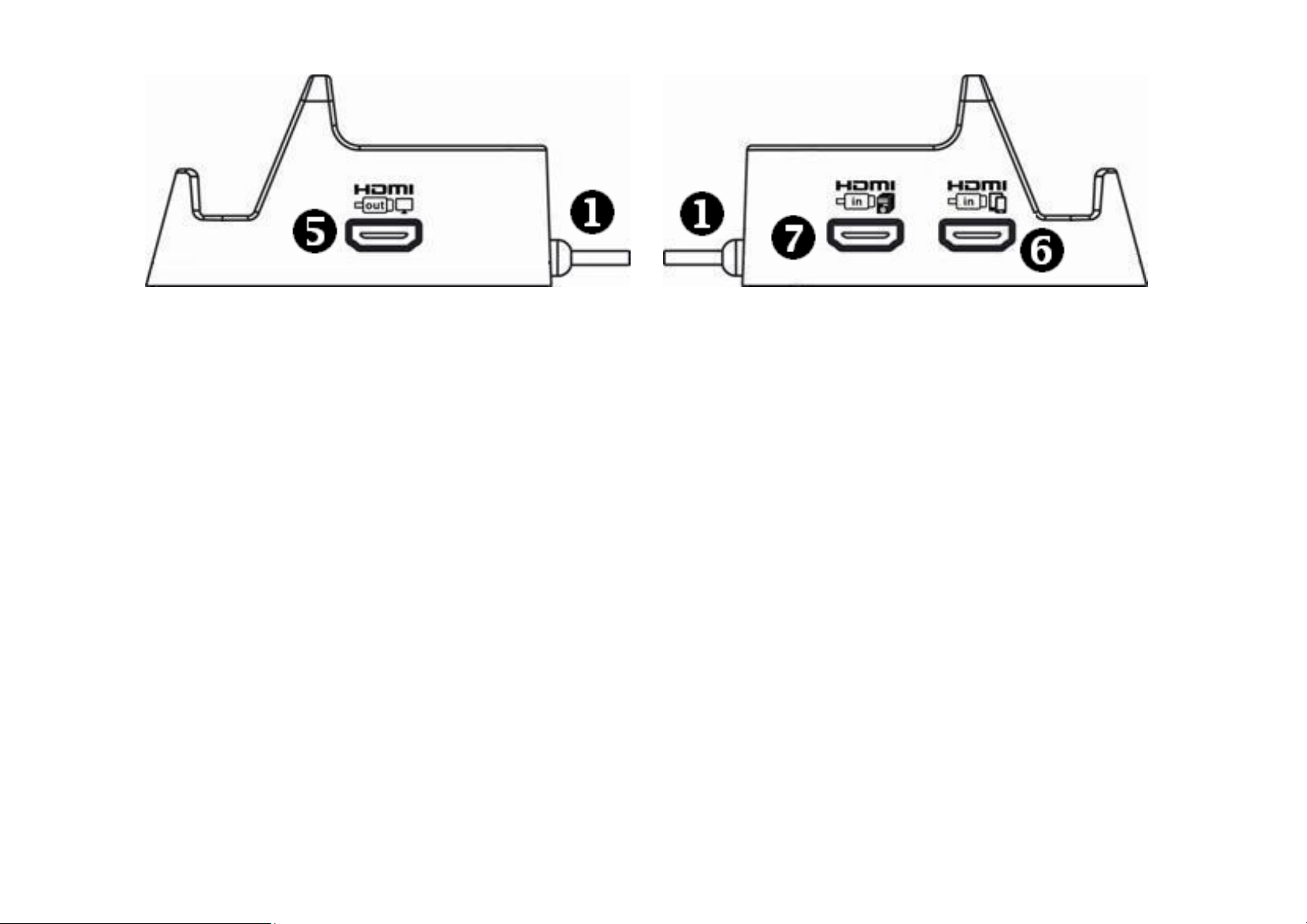
5. HDMI port \ connects to LCD monitor or LCD TV’s HDMI port. ( Note! If your LCD
monitor only has VGA port, you just use a HDMI to VGA converter)
6. Connect Smart Phone’s HDMI outputting video to this product HDMI port ].
(Note 1! iPhone and iPad have HDMI video outputting accessory)
(Note 2! Some Android Smart Phone can use MHL to HDMI cable to output HDMI video,
but some can’t, please check your device on http://www.mhltech.org/devices.aspx)
(Note3! iOS /Android Smart Phone can use Wi-Fi HDMI transmitter which support
Airplay/Miracast function to transmit wireless video)
7. Connect PC/Laptop’s HDMI outputting video to this product HDMI port ^.
(Note! If your PC only has VGA port, you just use a VGA to HDMI converter)
6
Page 7
Keyb
m
tAltAlt
o
n
s
o
m
c
n
i
t
2
o
i
i
t
v
o
d
P
C
m
w
u
y
p
n
p
/
P
o
o
d
9F1F1F1
t
u
l
y
d
w
(
c
P
r
Al
oard/M
F1
F1
F2
use H
Sw
Sw
Pu
t Key
tch to P
tch to S
BT into
/Laptop
art Pho
aiting
e /Pad
airing m
de
Enter
Back
Home
*For S
variou
Keyb
Esc
F3
F6
F7
F8
art Pho
s brand’s
oard H
Ho
Sear
Lau
Rew
Star
e/Pad de
pecificati
t Key fo
e Page
h
ch keyb
nd
(Nee
/Pause
ice, the f
on.
r Smart
ard
APP sup
lay
(onl
nction of
Phone
iOS supp
ort)
mouse’s r
ad Mo
F
rt)
ght/midd
e
0
1
2
Fas
Mu
Vol
Vo
le key ma
Forwar
te
me do
ume up
differ ac
(Need A
n (-)
+)
ording to
P suppo
t)
7
Page 8
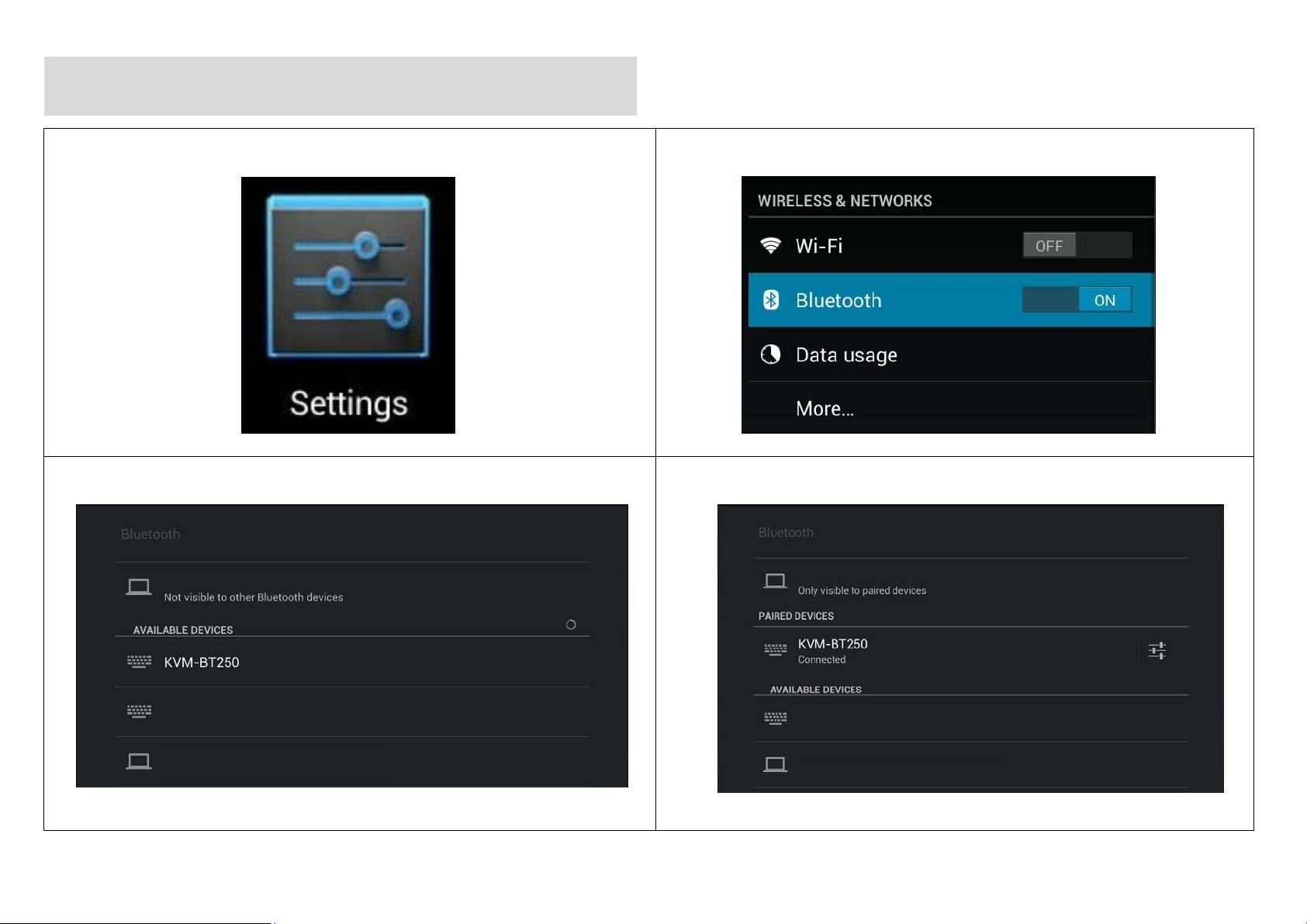
Bluetooth Setting in Android Device
1. Launch setting menu
3. Select this product to make connection
2. Turn on Bluetooth function
4. Bluetooth connection done
8
Page 9
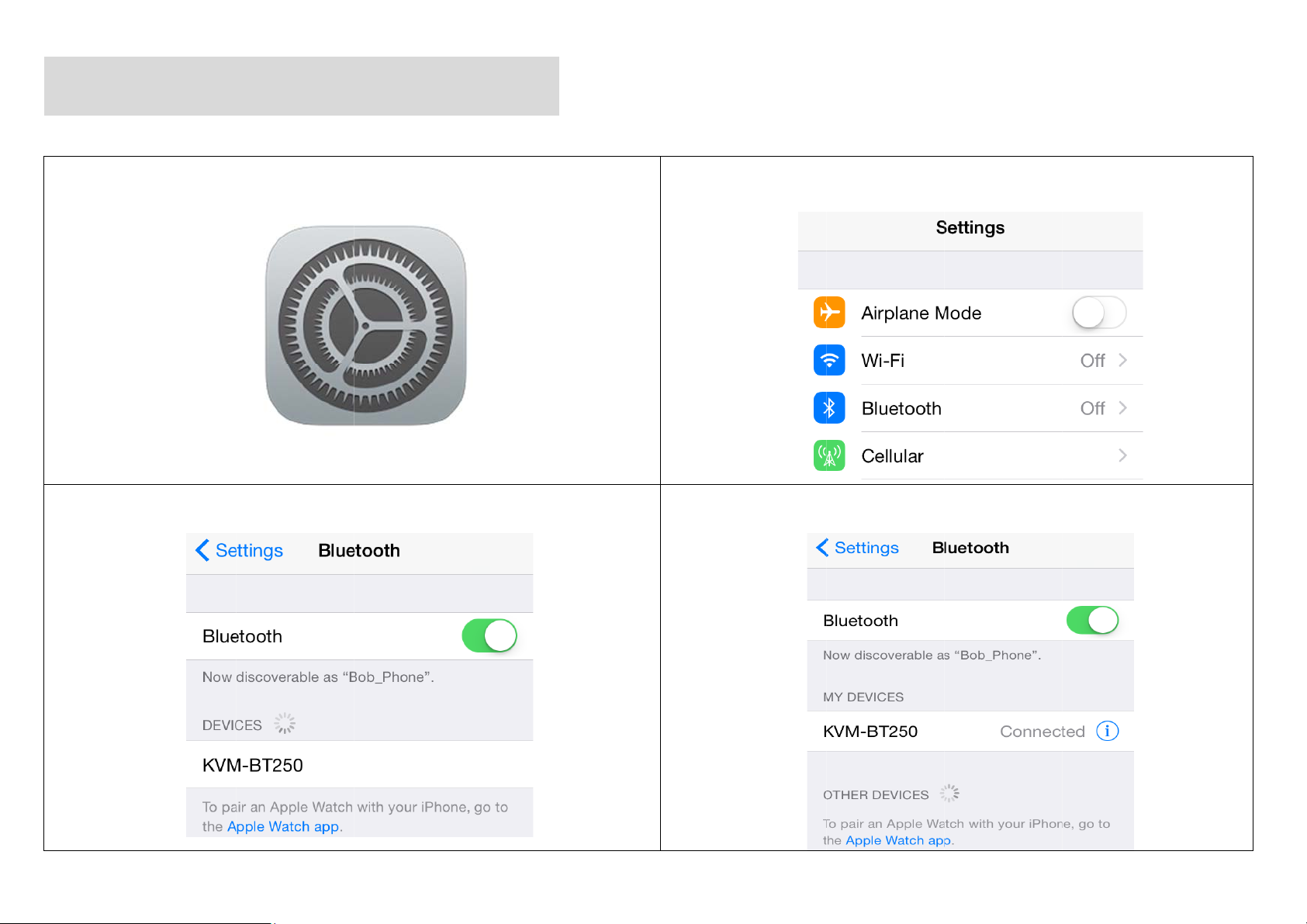
Blue
t
L
s
e
D
i
r
u
e
o
u
3. S
ooth S
1.
elect thi
etting i
aunch s
product
n iOS
tting me
to make
evice
nu
connect
on
2. Tu
4. Bl
n on Blu
etooth c
tooth f
nnectio
nction
n done
9
Page 10
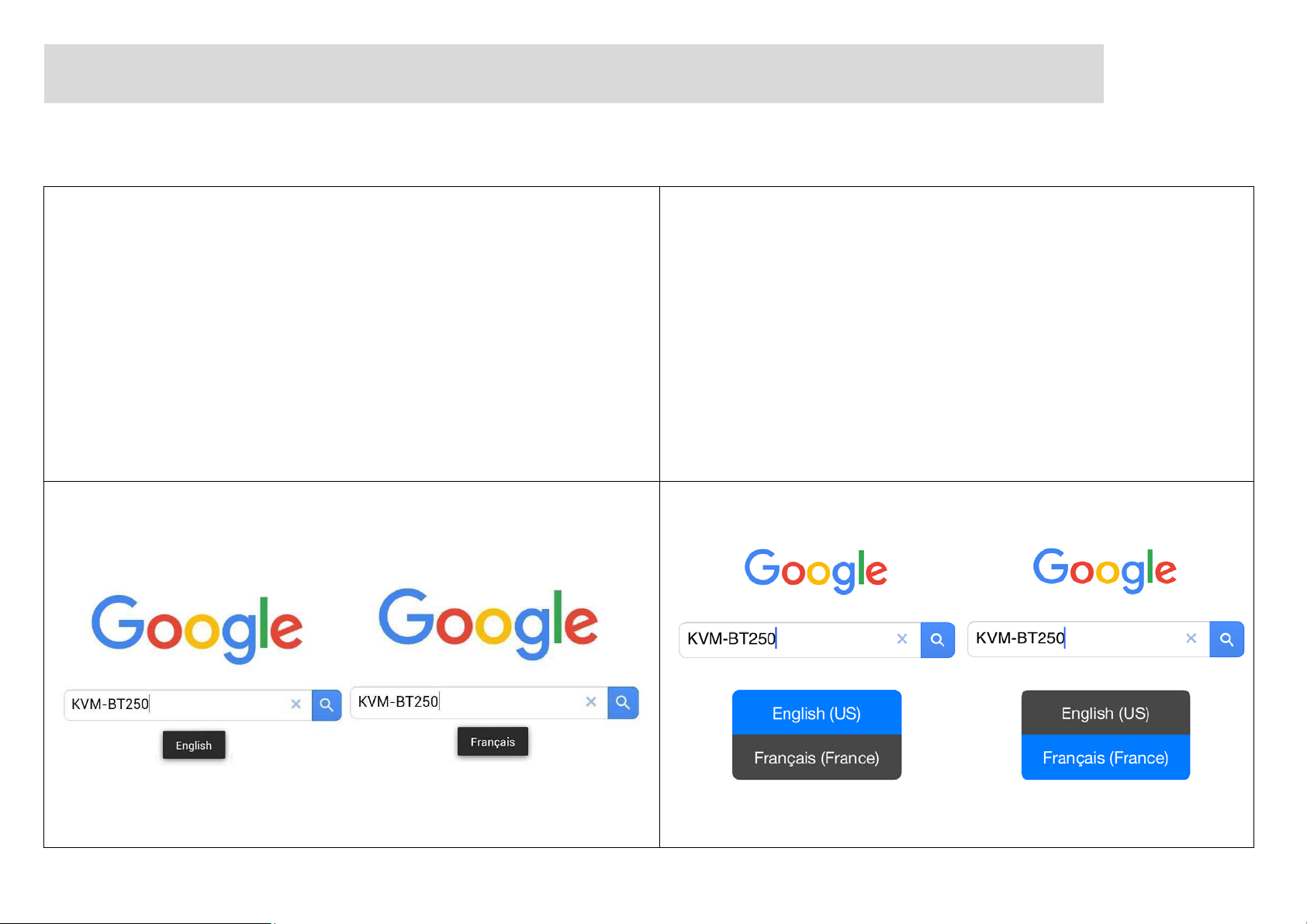
Smart Phone/Pad Hot Key For Changing language Input Method
(Android Operation System) (iOS Operation System )
1. For Sony device, press “Shift” to switch
input method
2. For Samsung device, press “Shift+Space”
Press “Caps Lock” to switch input method
to switch input method
3. *Each brand’s andorid device have
different way to change input method.
IM
10
Page 11

IMPORTANT NOTE:
FCC Radiation Exposure Statement:
This equipment complies with FCC radiation exposure limits set forth for an uncontrolled
environment. End users must follow the specific operating instructions for satisfying RF
exposure compliance.
This transmitter must not be co-located or operating in conjunction with any other antenna
or transmitter.
IM
11
 Loading...