

Page 1

Network Player Series MSS500/550 User Manual V1.8
Page 1
User Manual
MSS500/550 Network Player
Multimedia Digital Signage Platform
Box & LCD Integrated Solution
Multi-HD Play Engine (Multi-High Definition)
Multiple Zone Layout Support
DVI / Video Output
LAN & WLAN optional
Very Compact Design
Media Processor for Fanless operation
CF storage for Long Lifetime
USER MANUAL Revision 1.8
Page 2

Network Player Series MSS500/550 User Manual V1.8
Page 2
FCC Statement
THIS DEVICE COMPLIES WITH PART 15 FCC RULES.
OPERATION IS SUBJECT TO THE FOLLOWING TWO
CONDITIONS:
THIS DEVICE MAY NOT CAUSE HARMFUL INTERFERENCE.
THIS DEVICE MUST ACCEPT ANY INTERFERENCE RECEIVED
INCLUDING INTERFERENCE THAT MAY CAUSE UNDESIRED
PERATION.
THIS EQUIPMENT HAS BEEN TESTED AND FOUND TO COMPLY WITH
THE LIMITS FOR A CLASS “A” DIGITAL DEVICE, PURSUANT TO PART
15 OF THE FCC RULES. THESE LIMITS ARE DESIGNED TO PROVIDE
REASONABLE PROTECTION AGAINTST HARMFUL INTERFERENCE
WHEN THE EQUIPMENT IS OPERATED IN A COMMERCIAL
ENVIRONMENT. THIS EQUIPMENT GENERATES, USES, AND CAN
RADIATE RADIO FREQUENCY ENERGY AND, IF NOT INSTATLLED
AND USED IN ACCORDANCE WITH THE INSTRUCTION MANUAL, MAY
CAUSE HARMFUL INTERFERENCE TO RADIO COMMUNICATIONS.
OPERATION OF THIS EQUIPMENT IN A RESIDENTIAL AREA IS LIKELY
TO CAUSE HARMFUL INTERFERENCE IN WHICH CASE THE USER
WILL BE REQUIRED TO CORRECT THE INTERFERENCE AT HIS OWN
EXPENSE.
Page 3

Network Player Series MSS500/550 User Manual V1.8
Page 3
Safety and Warranty
Safety
Please read these safety instructions carefully.
Please keep this user manual for later reference.
Please disconnect this equipment from any AC outlet before cleaning. Do
not use liquid or spray detergents for cleaning. Use a damp cloth.
For pluggable equipment, the power outlet must be installed near the
equipment and must be easily accessible.
Keep this equipment away from humidity.
Put this equipment on a reliable surface during installation. Dropping it or
letting it fall could cause damage.
The openings on the enclosure are for air convection. Protect the equipment
from overheating. DO NOT COVER THE OPENINGS.
Make sure the voltage of the power source is correct before connecting the
equipment to the power outlet.
Position the power cord so that people cannot step on it. Do not place
anything over the power cord.
All cautions and warnings on the equipment should be noted.
If the equipment is not used for a long time, disconnect it from the power
source to avoid damage by transient over-voltage.
Never pour any liquid into an opening. This could cause fire or electrical
shock.
Never open the equipment. For safety reasons, only qualified service
personnel should open the equipment.
If any of the following situations arises, get the equipment checked by
service personnel:
The power cord or plug is damaged.
Liquid has penetrated into the equipment.
The equipment has been exposed to moisture.
The equipment does not work well, or you cannot get it to work according to
the user manual.
The equipment has been dropped and damaged.
The equipment has obvious signs of breakage.
DO NOT LEAVE THIS EQUIPMENT IN AN UNCONTROLLED
ENVIRONMENT WHERE THE STORAGE TEMPERATURE IS BELOW 0°C (-32°F) OR ABOVE 50° C (122° F). IT MAY DAMAGE THE
EQUIPMENT.
Page 4

Network Player Series MSS500/550 User Manual V1.8
Page 4
Warranty
Winmate warrants that each of its products will be free from material
and workmanship defects for a period of one year from the invoice
date. If the customer discovers a defect, Winmate will, at its option,
repair or replace the defective product at no charge to the customer,
provided it is returned during the warranty period of one year, with
transportation charges prepaid. The returned product must be
properly packaged in it’s original packaging to obtain warranty service.
If the serial number and the product shipping data differ by over 30
days, the in-warranty service will be made according to the shipping
date. In the serial numbers the third and fourth two digits give the
year of manufacture, and the fifth digit means the month (e. g., with A
for October, B for November and C for December).
For example, the serial number 1W07Axxxxxxxx means October of
year 2007.
Page 5

Network Player Series MSS500/550 User Manual V1.8
Page 5
Revision History
Rev
Date
Note
Author
1.0
Jun 27, 2007
1. Initial draft
Bruce
1.2
Aug 8, 2007
1. Modify HD definition
Bruce
1.3
Oct 17, 2007
1, Add description on DVI-d cable
usage in 1920x1080 output
resolution.
2. Modify scrolling message
converted format
Nelson
1.4
Nov 16, 2007
1. Modify remote control
Nelson
1.5
Mar 18, 2008
1. Add WMV9 support
Nelson
1.6
May 12, 2009
1. Add a notice about power switch
Miranda
1.7
Apr 26, 2010
1. Add a notice of disabling
Hardware Handshaking while using
MSS550T RS232 touch interface
Miranda
Page 6

Network Player Series MSS500/550 User Manual V1.8
Page 6
Index
Chapter 1 Introduction ............................................................... 7
1.1 About the Product ................................................................ 8
1.2 Summarized Product Features ............................................ 9
Chapter 2 Specification ........................................................... 10
2.1 Hardware Specification ...................................................... 11
2.2 Media Format Supported ................................................... 12
Chapter 3 Starting Setup ......................................................... 16
3.1 Connecting Cable .............................................................. 17
Chapter 4 Remote Control (Optional) ..................................... 19
4.1 Install Battery in the Remote Control. ................................ 20
4.2 Remote Control Key Define* ............................................. 21
Chapter 5 Troubleshooting ..................................................... 22
5.1 Troubleshooting Step 1: Ping your client ........................... 23
5.2 ISSUE: How to set Windows XP firewall exception ........... 26
Chapter 6 Update Firmware using USB Drive ....................... 30
Page 7

Network Player Series MSS500/550 User Manual V1.8
Page 7
Chapter 1 Introduction
About the Product
Summarized Product Features
C H A P T E R
1
Page 8
Network Player Series MSS500/550 User Manual V1.8
Page 8
1.1 About the Product
Network Player is the powerful engine that drives revenue generating Digital
Signage solution. Equipped to handle high quality media of Video, Graphics,
and the scrollable Texts; it is ideal for delivering the content according to a
predefined playlist through network input. It features a better solution for
easy installation and an easy-to-use network management software.
The multiple zones and layouts make this product capable of fulfilling the
needs of your application. The Networking configuration can be used as a
fixed IP or a DHCP Device. The robust player is following the most reliable
and stable Standards of Media Files and provides so the most possible
reliable playing.
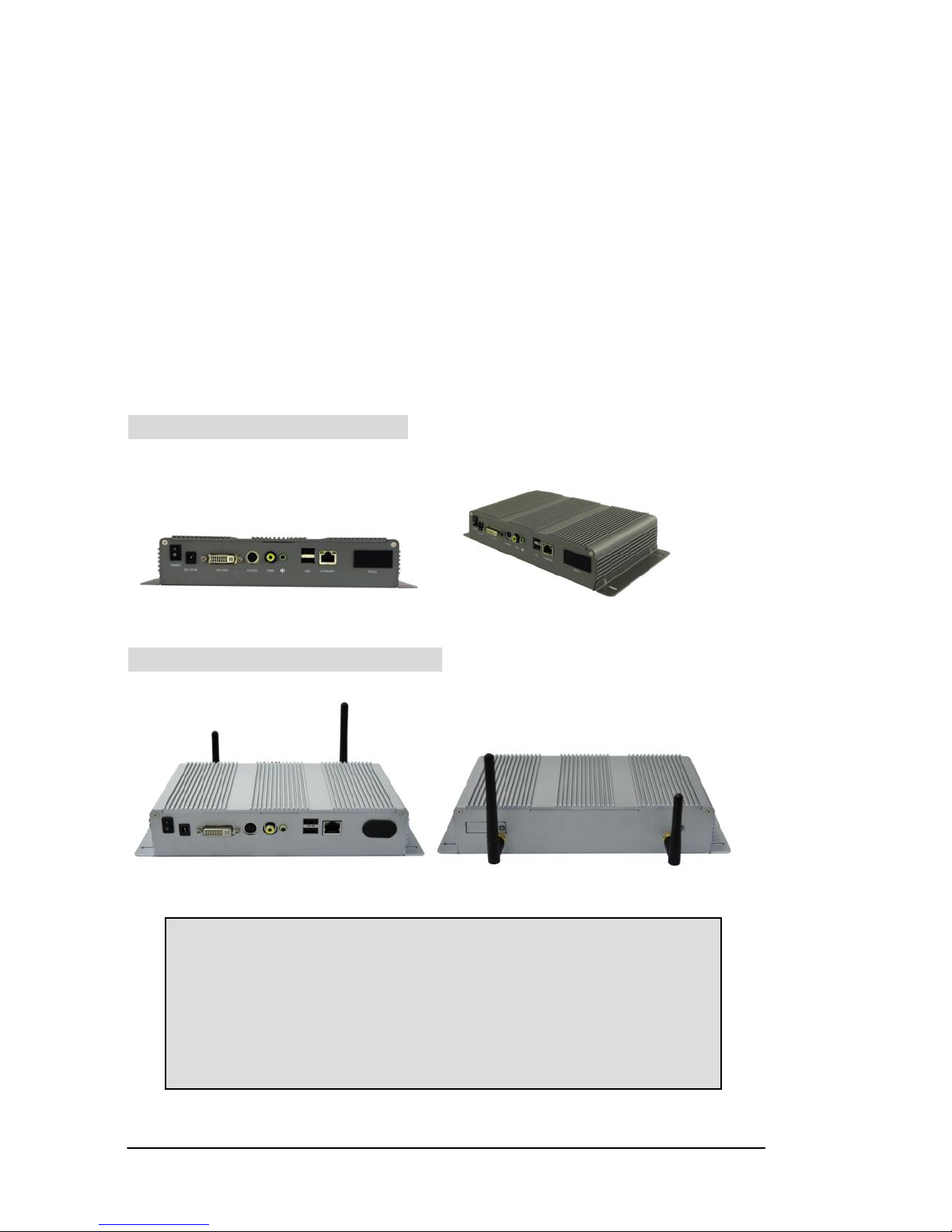
Network Player MSS550 Box
Network Player MSS550-3G Box
Tips: To protect the internal storage, Winmate has added a
power switch to Network Player as well as a power button
to the OSD (On Screen Display) of built-in Network Player.
Using a power switch/button to shut down system will
prevent the internal storage of Network Player from being
damaged.
Page 9

Network Player Series MSS500/550 User Manual V1.8
Page 9
1.2 Summarized Product Features
Authentication/Authorization Double Protection
Auto Media Update
Auto Time Sync.
CF storage for Long Lifetime
Client IP setup
DVI / VGA / Video Output
File transferring
LAN & WLAN optional
Media Processor for Fanless operation
5 Zones Layout Support
Output resolution setting
Output selection (DVI, S-video)
Picture rotation
Scrollable text message
HD Play Engine (Multi-High Definition)
Very Compact Design
Page 10

Network Player Series MSS500/550 User Manual V1.8
Page 10
Chapter 2 Specification
Hardware Specification
Software Specification
Media Format Supported
Media Content Transferring
C HA P T E R
2
Page 11

Network Player Series MSS500/550 User Manual V1.8
Page 11
2.1 Hardware Specification
Benefit List
Only 5W power consumption
Fanless
5 ~ 10 years Lifetime
Network Player BOX / Integrated Display
Core Processor
RISC based media processor
Media Decoding
H/W MPEG decoding Engine
Internal Storage
Compact Flash 512MB (Optional large capacity)
USB Port
USB 2.0 port for Flash Drive storage device
RS232 Port
Optional RS232 for touch interface1/ GPS receiver/
Trigger
Operating Temp
0 to 50°C, Humidity 5-85% @ 50°C
Network
10/100 Base T Ethernet (RJ-45)
802.11b/g mini-PCI for wireless LAN (optional)
Video Outputs
Network Player BOX
DVI-D
S-Video
Composite
Audio
Network Player BOX
Stereo Phone Jack
Power Supply
12V DC input
Power
Consumption
Approx. 5W
1
Before connecting your touch with MSS550 RS232 connector, if the
touch controller supports Handshaking, please make sure the
function is disabled. To disable the HW handshaking of touch
controller, please check the user’s manual of your touch controller.
Page 12

Network Player Series MSS500/550 User Manual V1.8
Page 12
2.2 Media Format Supported
Text message/Picture Format
Type
Support Format
File extension
Graphics/
Pictures
JPEG file
24bit-Bitmap file
.jpg
.bmp
Message/
Text*2
ASCII Text file
(Converted to .png)
.txt
.jpg
.png
Video*3
Type
Support Format
File extension
Video
(16:9
&4:3)
MPEG1 (VCD file)
Support Format
Video
Data
rate*4
Up to 10.0 Mbps
Audio
codec
Max. audio data rate: 384 Kbps
MPEG1-Audio-Layers II and III(mp3)
*PCM not supported
.mpg
.dat
2
Depends on the size of font, the number of characters can be
displayed in scrollable text area may vary. However, the message
length should be less than 8000 pixels.
3
Please refer to Appendix A for all supported video formats
4
If data rate is higher than limitation, lag might happen when playing
video
Page 13

Network Player Series MSS500/550 User Manual V1.8
Page 13
MPEG2 MP@HL
Multi-frames: Max. 480p or 576p
Support Format
Video
Data rate
Up to 6.0 Mbps
Audio
codec
Max. audio data rate: 384 Kbps
MPEG1-Audio-Layers II and III(mp3)
*PCM not supported
.vob
.mpg
.mpeg
.m2p
Video
(16:9 &
4:3)
MPEG4
Multi-frames: Max. 480p or 576p
Support Format*5
Video
Data rate
Up to 6.0 Mbps
Audio
codec
Max. audio data rate: 384 Kbps
MPEG1-Audio-Layers II and III(mp3)
*PCM not supported
DivX 3.11/4.x/5.x
.mpg
.avi
.divx
.xvid
Video
(16:9 &
4:3)
WMV9
Multi-frames: Max. 1080i60 or 1080p24
Support Format
Video
Data rate
Up to 10 Mbps
Audio
codec
Max. audio data rate: 384 Kbps
MPEG1-Audio-Layers II and III(mp3)
*PCM not supported
.wmv
5
It does not support the codec of RealMedia (.rm, .rmvb) or Apple
QuickTime (.mov)
Page 14
Network Player Series MSS500/550 User Manual V1.8
Page 14
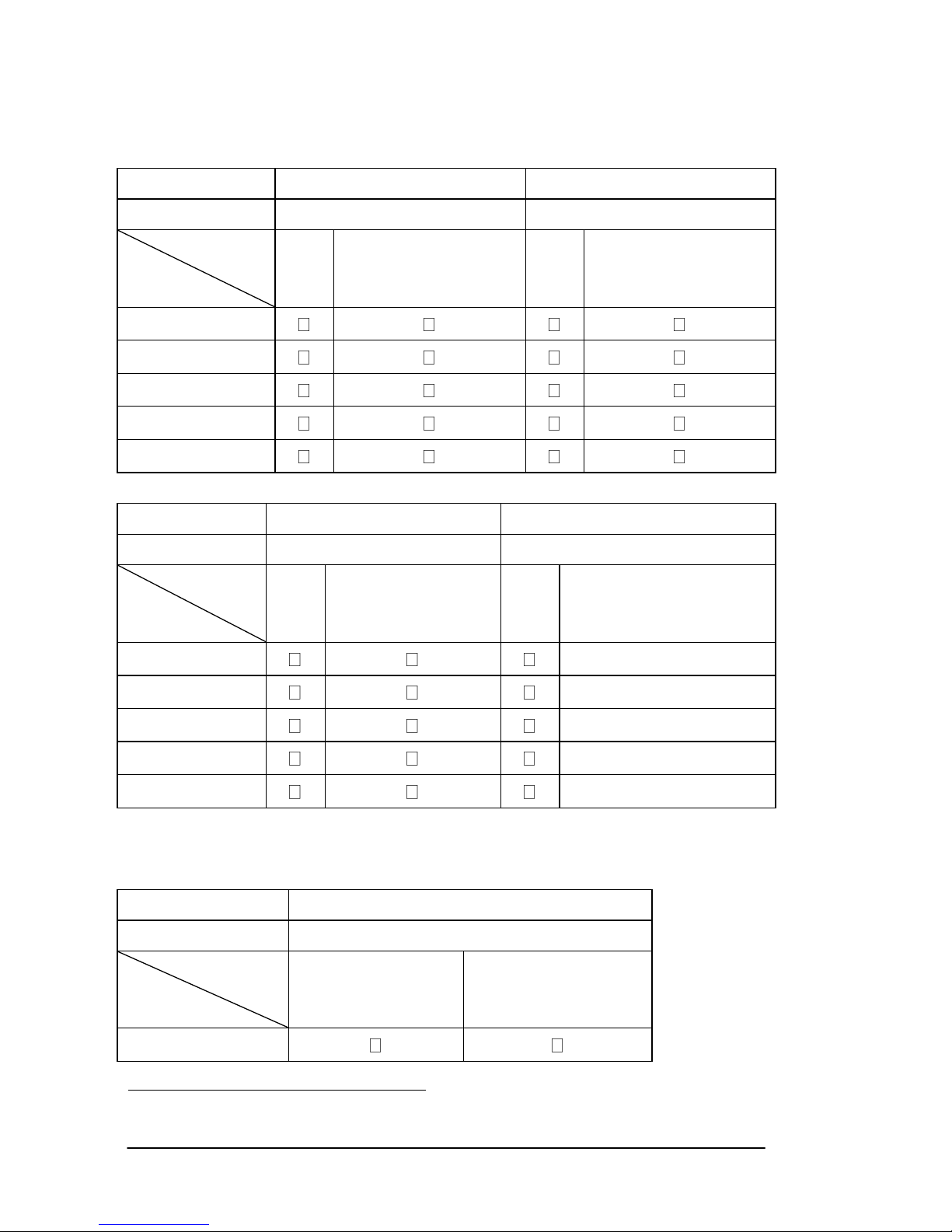
Single Zone
Video Format
480p(720x480)/10mbps
720p(1280x720)/8mbps
Storage
80xCF
80xCF
Output
Resolution
Play
Media Playback
While Transferring
Play
Media Playback
While Transferring
1024x 768/60
1280x1024/60
1366x768/60
1600x1200/60
1920x1080/60*6
Video Format
1080p/8mbps
1080p1920x1080/10mbps
Storage
80xCF
80xCF
Output
Resolution
Play
Media Playback
While Transferring
Play
Media Playback While
Transferring
1024x 768/60
F1
1280x1024/60
F1
1366x768/60
F1
1600x1200/60
F1
1920x1080/60
F1
Multiple Zone
Video Format
480p(720x480)/10mbps
Storage
80xCF
Output
Resolution
Play
Media Playback
While Transferring
1024x 768/60
6
For output resolution 1920x1080, you must use DVI-d cable connecting to
monitor. Otherwise distorted picture and green screen might happen.
Page 15
Network Player Series MSS500/550 User Manual V1.8
Page 15
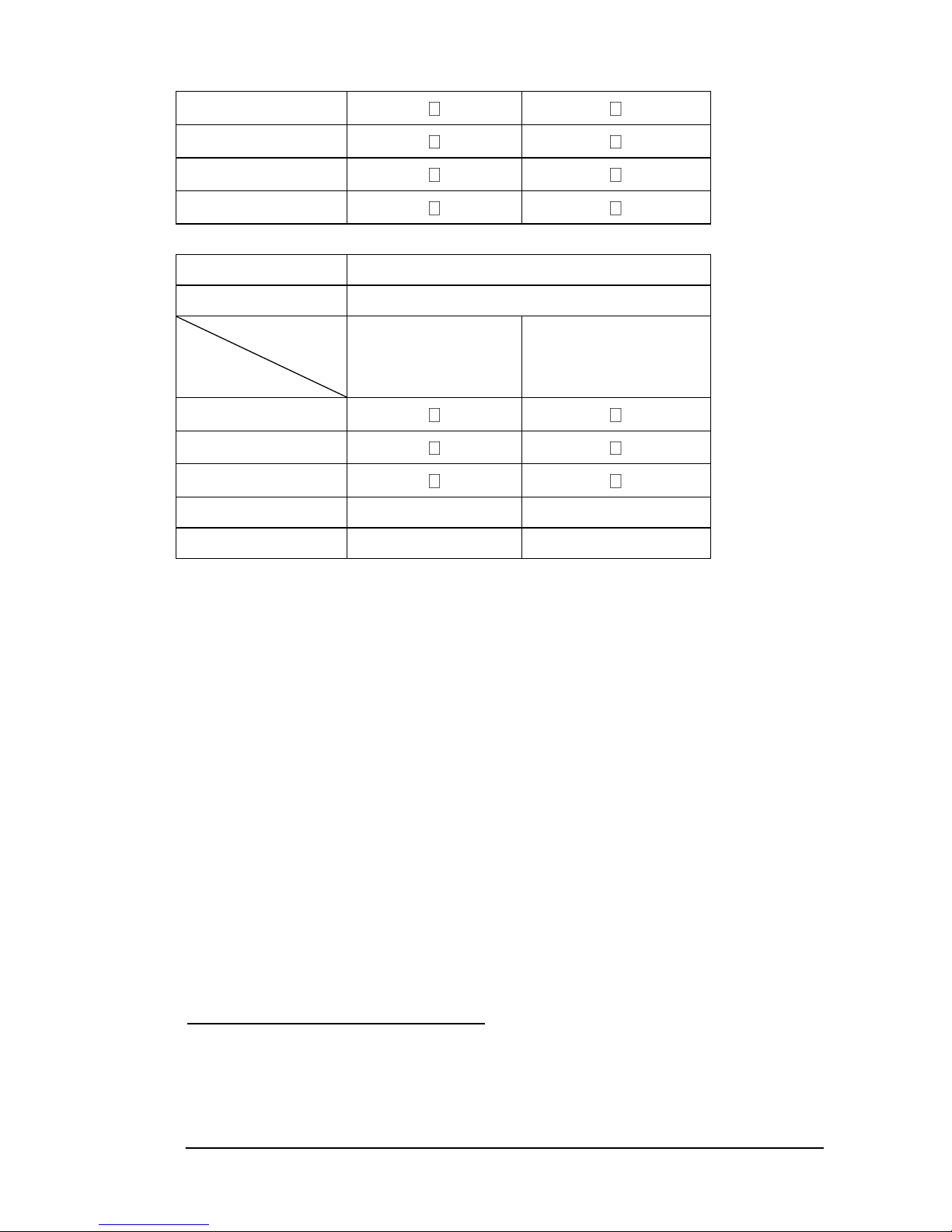
1280x1024/60
1366x768/60
1600x1200/60
1920x1080/60
Video Format
720p(1280x720)/8mbps
Storage
80xCF
Output
Resolution
Play
Media Playback
While Transferring
1024x 768/60
1280x1024/60
1366x768/60
1600x1200/60
F2
F2
1920x1080/60
F2
F2
Failed 1(F1): Video Playback is not smooth
Failed 2(F2): If output resolution is higher than this, noise may happen in the
output image
For Single Zone Playback
- The max. video file resolution that player can ingest is 1920x
1080/10Mbps*7
- The max. player output resolution is 1920 x 1080/ 60Hz.
For Multiple Zone Playback (with Scrollable message or Picture
playback)
- The max. video file resolution that player can ingest is 1280x
720/8Mbps (720p)
- The max. player output resolution is 1366x 768/ 60Hz.
*8*9
7
If file is transferred while media playback, the video playback will not be smooth or
loosing frame
8
If output resolution is higher than this, noise may happen in the output image.
9
If Hard Disk is used as storage device, the output display resolution may go up to
1920 x 1080/ 60Hz.
Page 16

Network Player Series MSS500/550 User Manual V1.8
Page 16
Chapter 3 Starting Setup
Connecting Cable
Check Boot Screen
Configuration
Default Setting
C H A P T E R
3
Page 17
Network Player Series MSS500/550 User Manual V1.8
Page 17
3.1 Connecting Cable
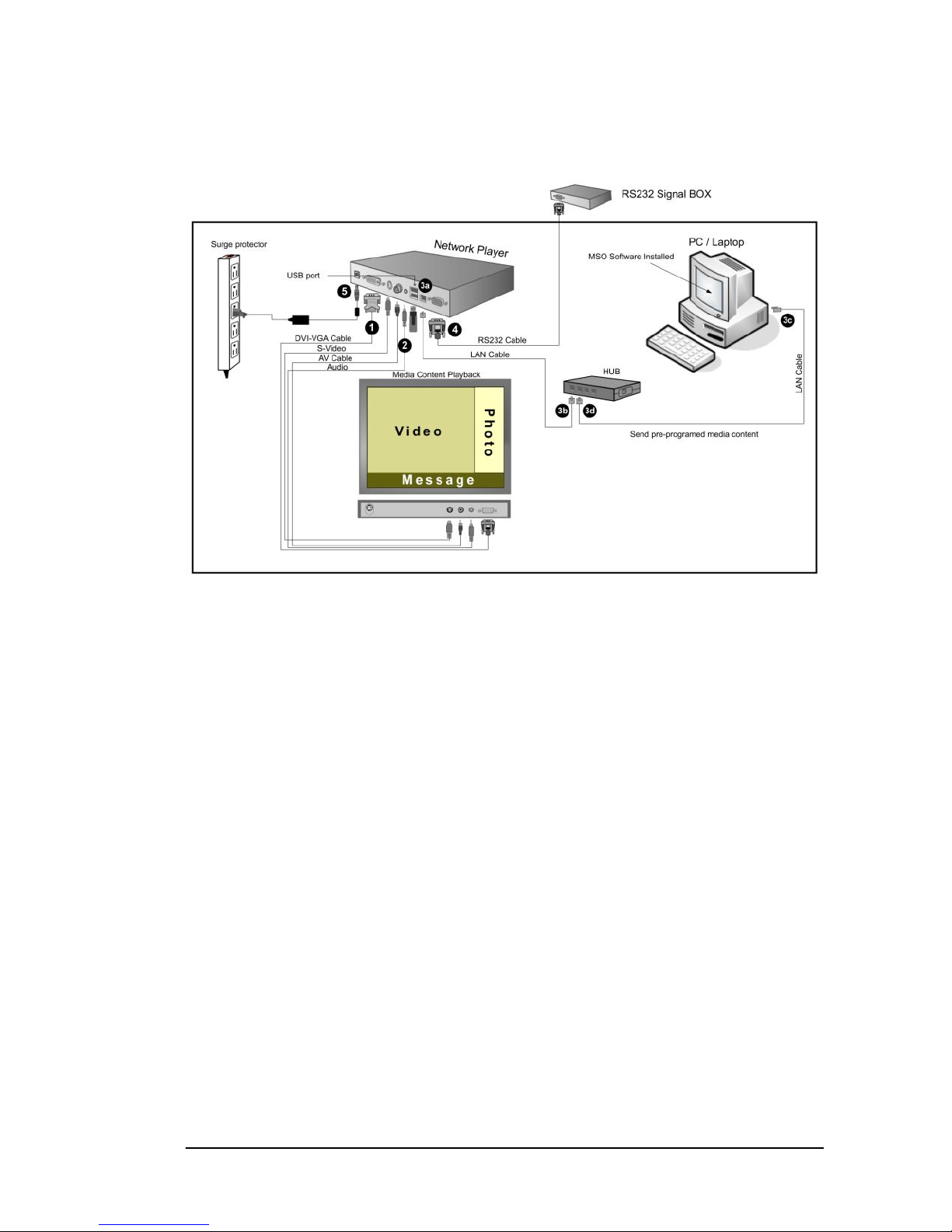
Network Player BOX
Check Boot Screen
1. Choose the video output (DVI/S-video/Composite) you would like to use
and connect the cable. Connect another end of the cable to your monitor.
2. Connect audio cable (optional).
3. Configure network (optional)
a. Connect Ethernet cable to Network Player Plus LAN port
b. Connect another end of Ethernet cable to a hub
c. Connect Ethernet cable to your computer with MSO installed
d. Connect another end of Ethernet cable to the hub
4. Connect RS232 cable (optional).
5. Plug the DC end of the power adapter into the power connector of the
Network Player Plus unit; then, plug the AC end to an electrical outlet.
The Network Player Plus is powered up immediately.
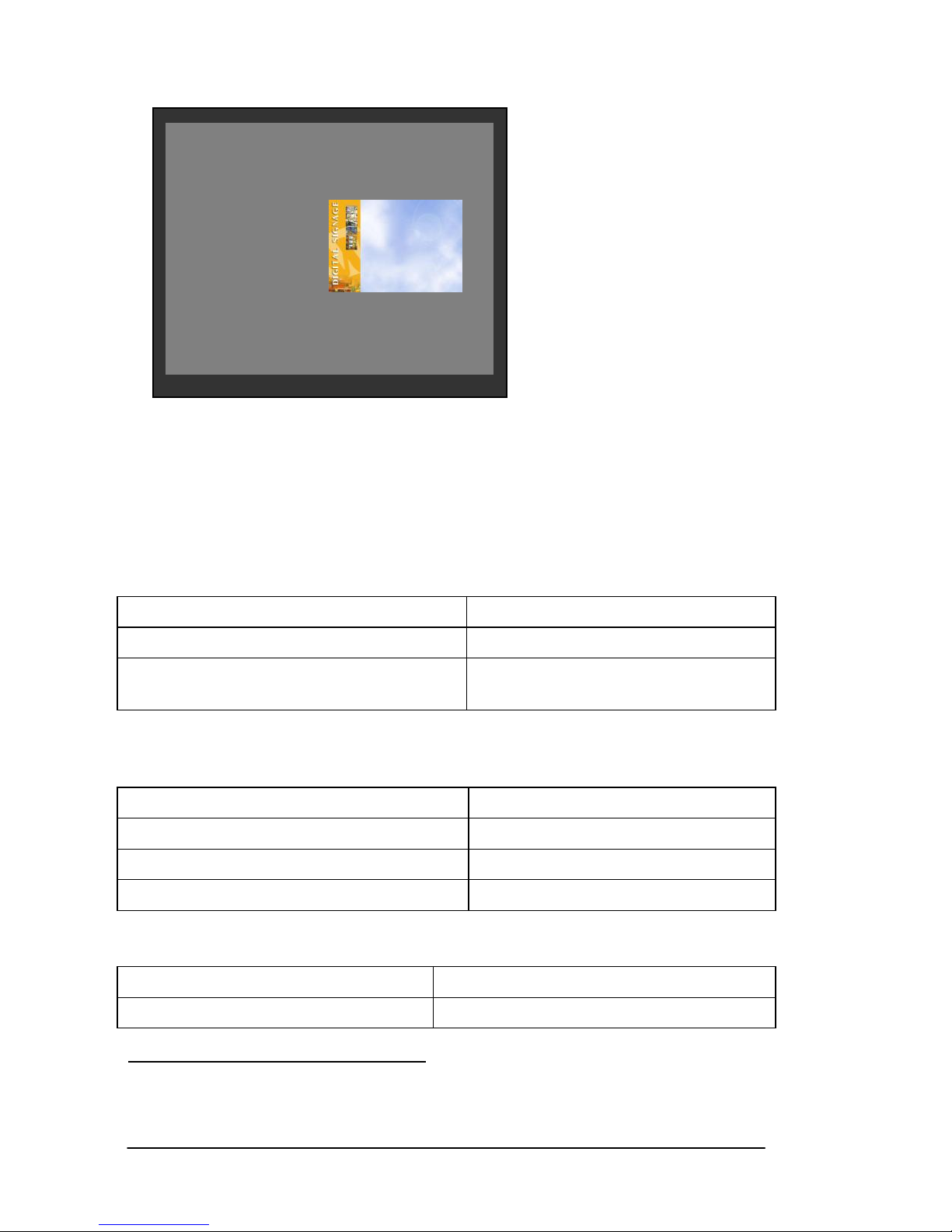
6. You can check the firmware version, client LAN IP, system mode (active
mode), and server IP in the beginning of system boot-up.
Page 18
Network Player Series MSS500/550 User Manual V1.8
Page 18
Integrated Display
Please do step 3 to step 5 above accordingly.
Default Settings
The factory setting for every Network Player Series is listed below.
Factory LAN Setting
IP mode
DHCP
IP port
8001,8002,8003*10
Server IP (the IP that NP Plus connects
to automatically)
192.168.0.188
The default IP mode is DHCP and it will automatically switch to Fixed mode if
no IP is assigned to Network Player unit.
IP mode
Fixed
LAN IP
192.168.0.128
LAN Subnet Mask
255.255.255.0
LAN Gateway
192.168.0.1
Factory Wireless LAN Setting
WLAN IP
192.168.252.249
WLAN Subnet Mask
255.255.0.0
10
If your PC is behind a firewall, please make sure port 8001, 8002,
8003 are open. Please refer to the Troubleshooting section in this
manual for detail on setting firewall exceptions.
Active Mode Network Player
Server IP: 192.168.0.188
LAN
IP: 192.168.0.128
MAC: 00:00:00:01:01:01
IP Mode: Fixed
Mask: 255.255.255.0
WLAN
IP: N/A
MAC: N/A
IP Mode: N/A
Mask: N/A
WEP: Off
Default gateway
192.168.0.1
HW
Storage: 488 MB
FW version: 111IW
Page 19

Network Player Series MSS500/550 User Manual V1.8
Page 19
Chapter 4 Remote Control
(Optional)
C H A P T E R
4
Page 20

Network Player Series MSS500/550 User Manual V1.8
Page 20
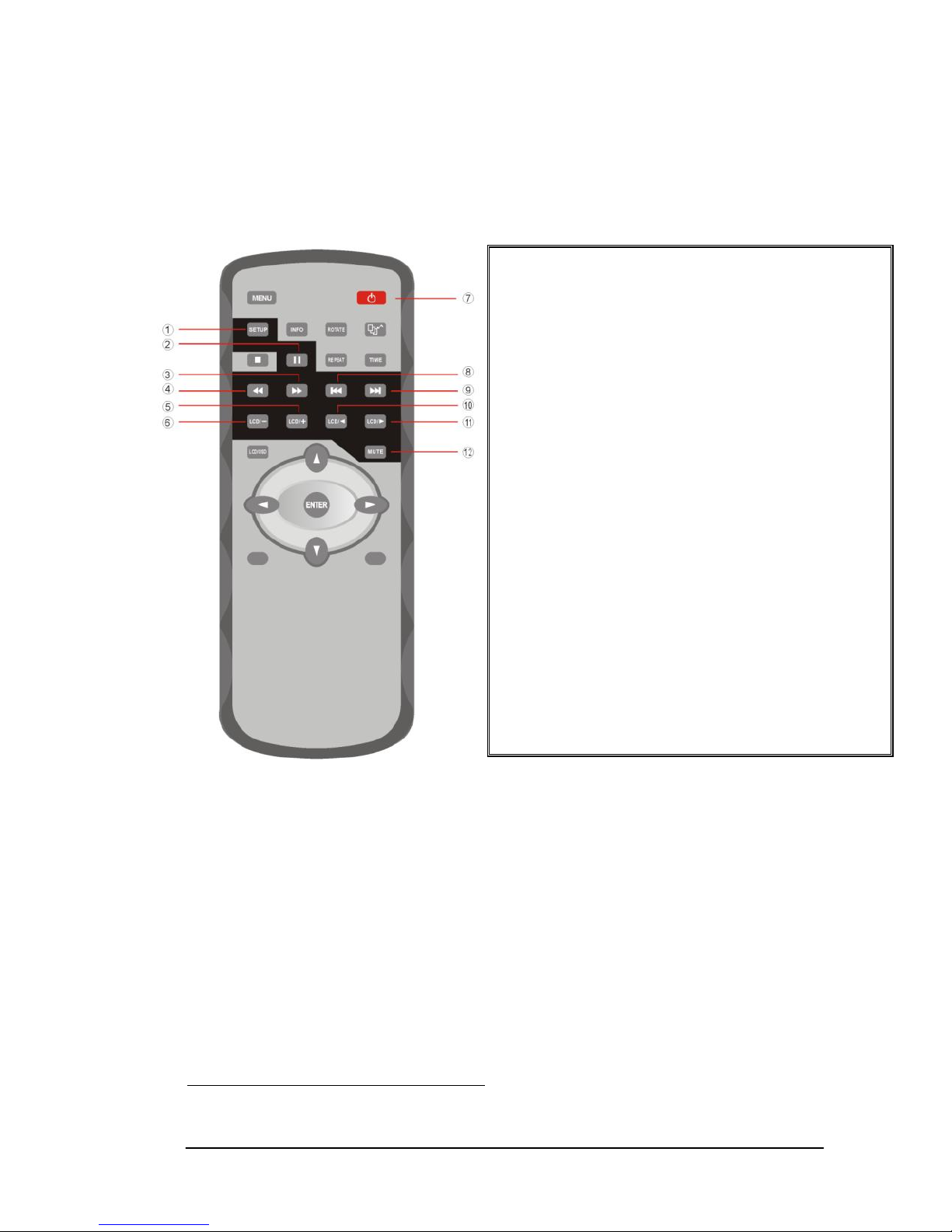
The remote control is only available when Network Player with display
(does not work with Network Player BOX). With remote control, you will be
able to power on/off display, adjust volume, adjust display backlight, and
other functions.
4.1 Install Battery in the Remote Control.
Insert 2 AAA battery and match the (+) and (-) on battery to the marks inside
the battery compartment.
Service life of battery:
1. The battery normally last for about one year although this depends on
how often and for what operations the remote control is used.
2. If the remote control unit fails to work even then it’s operated near the
player, please replace the battery.
3. Use 2 AAA 1.5V battery.
Page 21
Network Player Series MSS500/550 User Manual V1.8
Page 21
4.2 Remote Control Key Define*11
11
Currently only 12 keys are programmed and ready to be used,
other keys are reserved for future usage.
1
SETUP
To clean up all media
files in internal storage
2
PAUSE
To pause the playback
3
F.FWD
Video Zone Fast
Forward
4
F.BWD
Video Zone Fast
Backward
5
VOL. UP
Volume Up
6
VOL. DOWN
Volume Down
7
POWER
ON/OFF
Switch on/off player
8
PREVIOUS
Video Zone previous
item
9
NEXT
Video Zone next item
10
BRIGHTNESS
DOWN
Decrease the
brightness of display
11
BRIGHTNESS
UP
Increase the
brightness of display
12
MUTE
Mute while playback
Page 22

Network Player Series MSS500/550 User Manual V1.8
Page 22
Chapter 5 Troubleshooting
C H A P T E R
5
Page 23
Network Player Series MSS500/550 User Manual V1.8
Page 23
This guide is only a reference of quick self-examination. If you cannot find
description similar to the problem you are encountering, please contact our
technical support for further assistance.
5.1 Troubleshooting Step 1: Ping your client
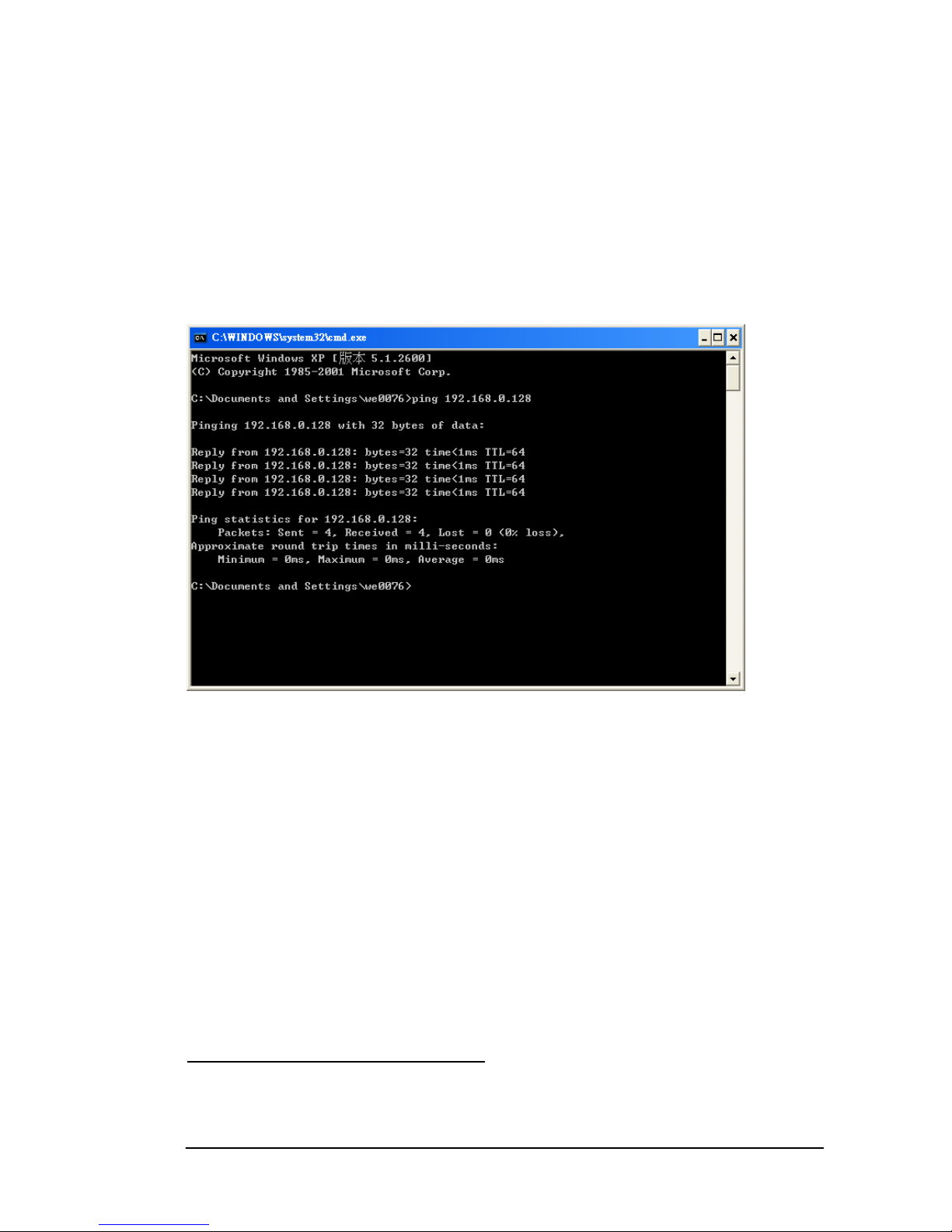
1. Try to “ping” your client unit to ensure the network status between you
host PC and client unit. Open the “DOS prompt”, then type “ping
192.168.0.128*12”.
<Connection is established>
12
“192.168.0.128” is the default factory IP of client. If you have
changed the IP, you should type the current IP of Client. You can
always find the client IP information when client unit boot up.
Page 24
Network Player Series MSS500/550 User Manual V1.8
Page 24
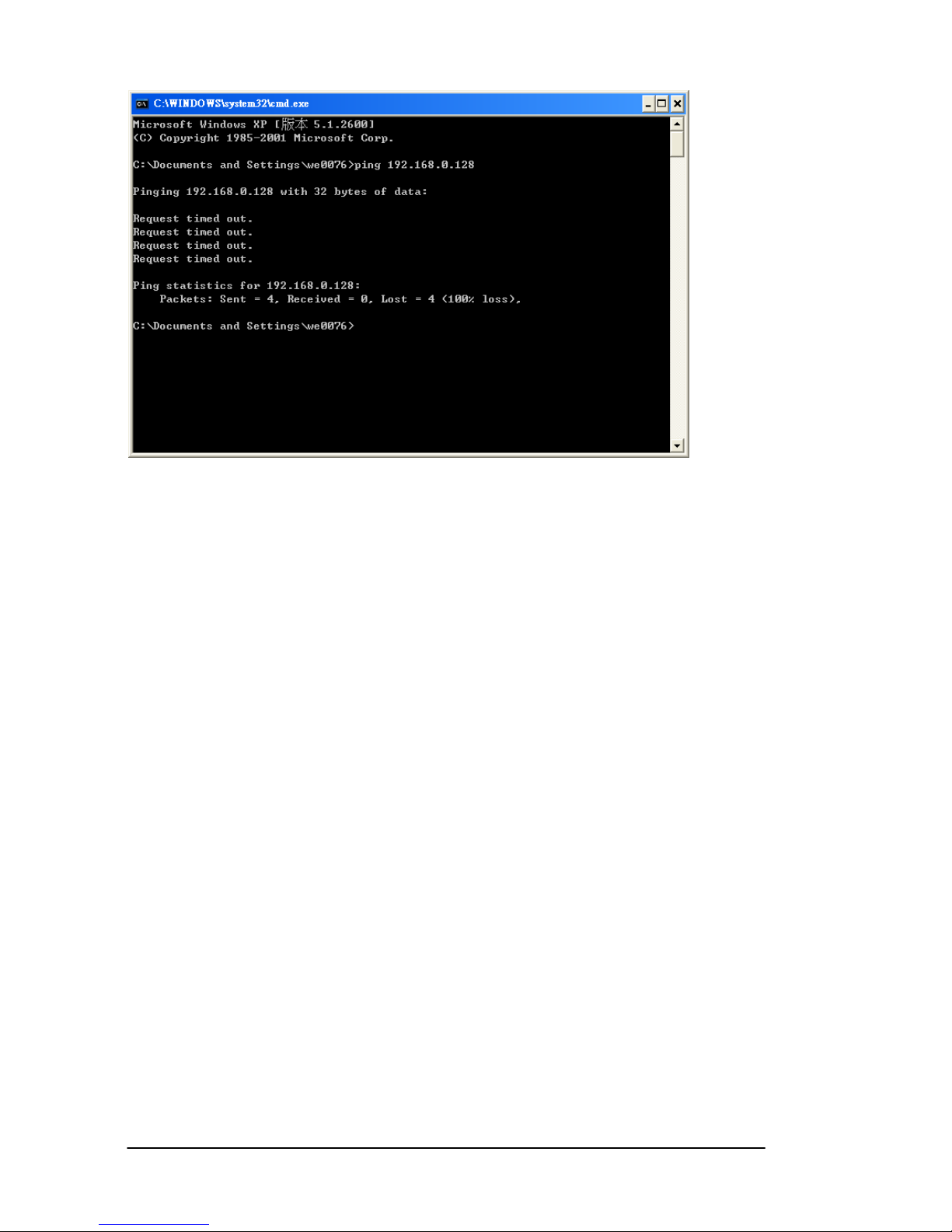
<Connection is not established>
Troubleshooting Step 2: Delete ARP table
What is ARP?
Address Resolution Protocol (ARP) is a network protocol, which map the
MAC address to IP address. It is used to resolve IP address to the
corresponding MAC address. For more detail information, please refer to
RFC 826.
If you have more than one Network Player device, before you connect to the
second unit with the same IP (192.168.0.128). Please try to delete the record
in the arp table.
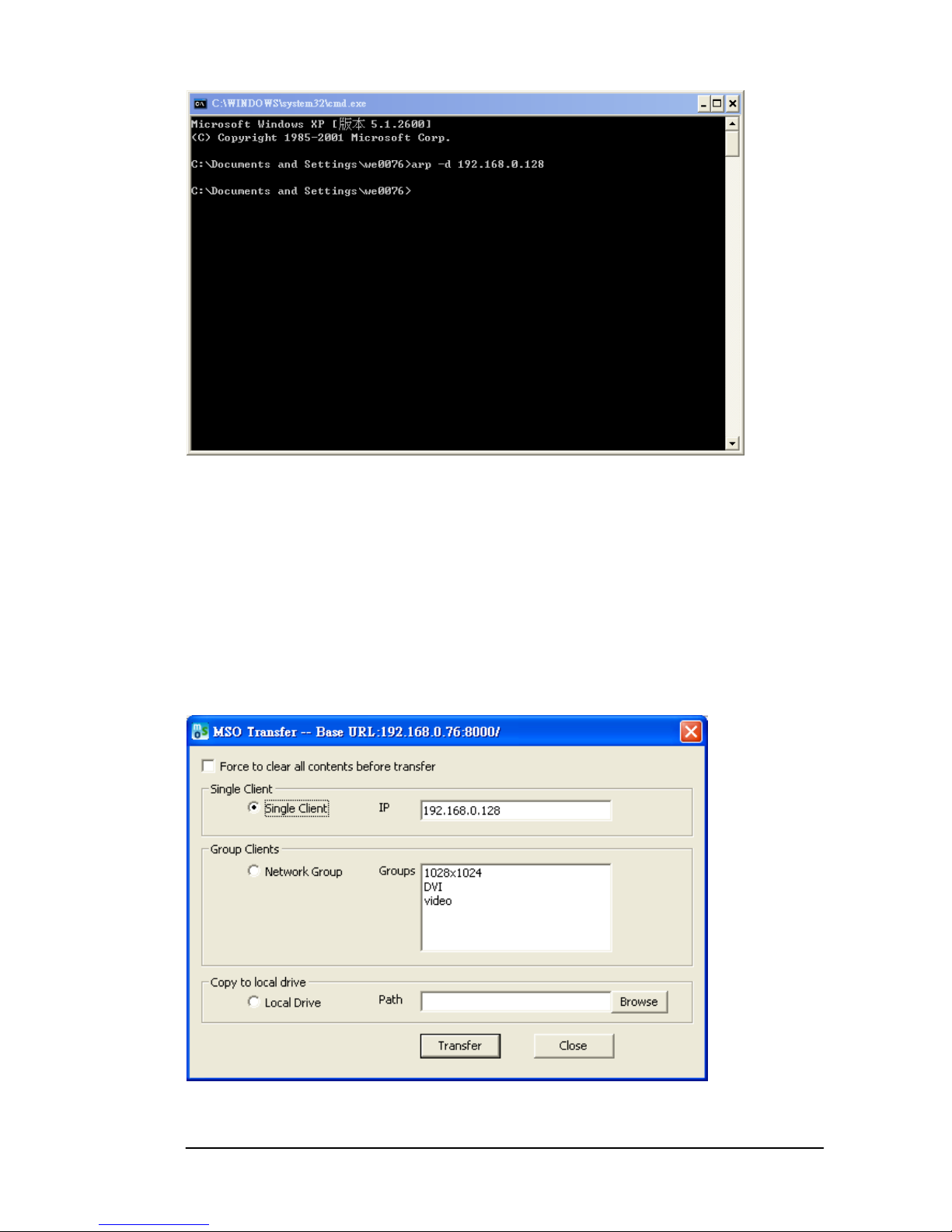
Open the “DOS prompt”, then type “arp -d 192.168.0.128”. This will delete
the previous arp record.
Page 25
Network Player Series MSS500/550 User Manual V1.8
Page 25
Troubleshooting Step 3: Disable another wireless/wire network card
If the connection is established, but you still can not update the play list. In
this case, chances are there are more than one network adaptor cards in you
PC host.
Try to disable the others, only enable the one that is connected to the client
unit, then ping the client unit again to be sure that the connection is
established. The update service should bind to only one network card (IP).
You could get the information (Base URL) from MSO windows title. Make
sure the Base URL and client IP can connect to each other.
Page 26
Network Player Series MSS500/550 User Manual V1.8
Page 26
5.2 ISSUE: How to set Windows XP firewall exception
Windows XP comes with build-in firewall software that is turned on by default
when you create a network connection. Firewalls are designed to protect you
computer by closing unnecessary network openings, or services, on your
system that viruses or hackers might use to enter your system. However,
some applications like MSO need to use these openings in order to work
properly.
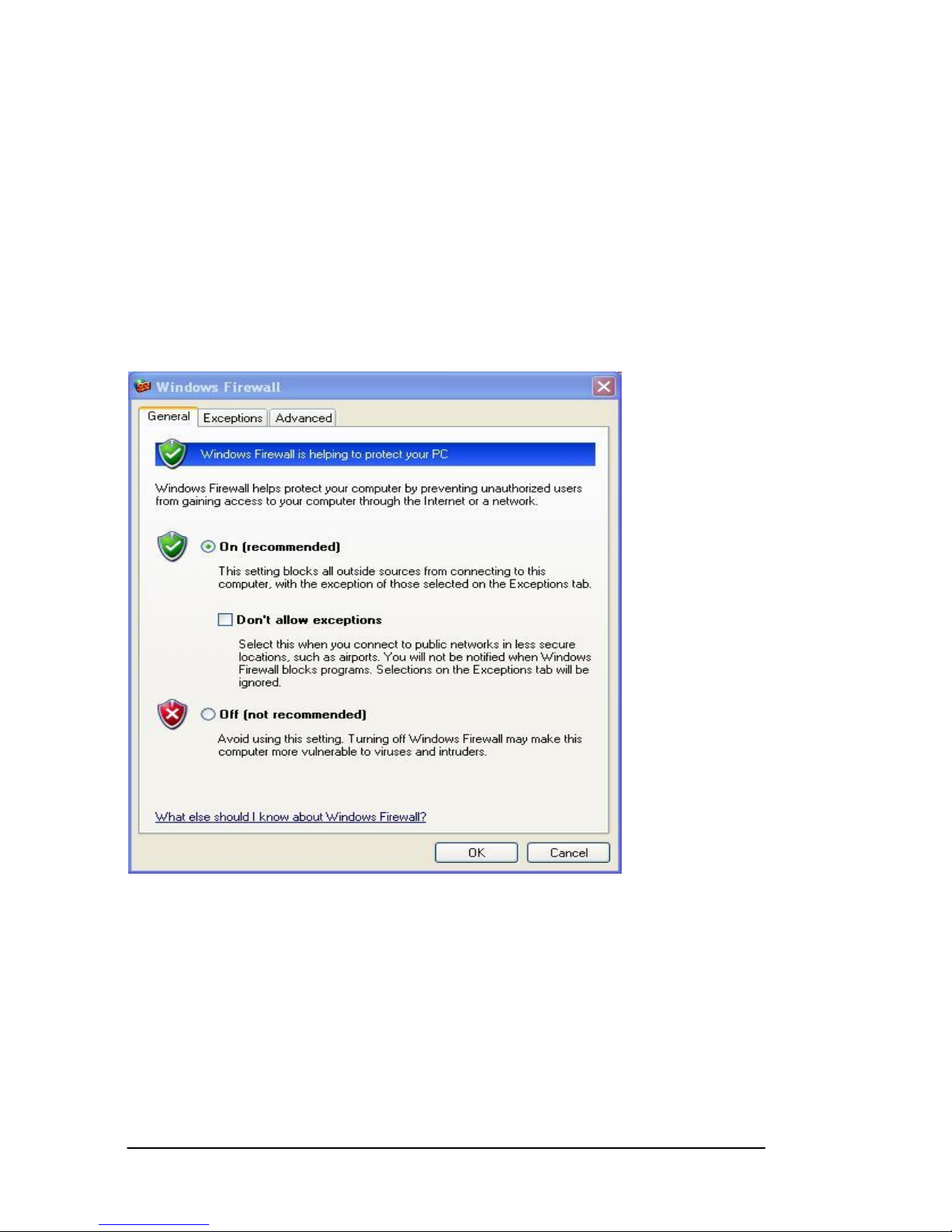
To enable the openings for MSO, do the following steps:
1. Click Start-> Control Panel-> Network and Internet Connection->
Windows Firewall.
2. In the General tab, check “On (recommended)”, and uncheck “Don’t
allow exceptions”.
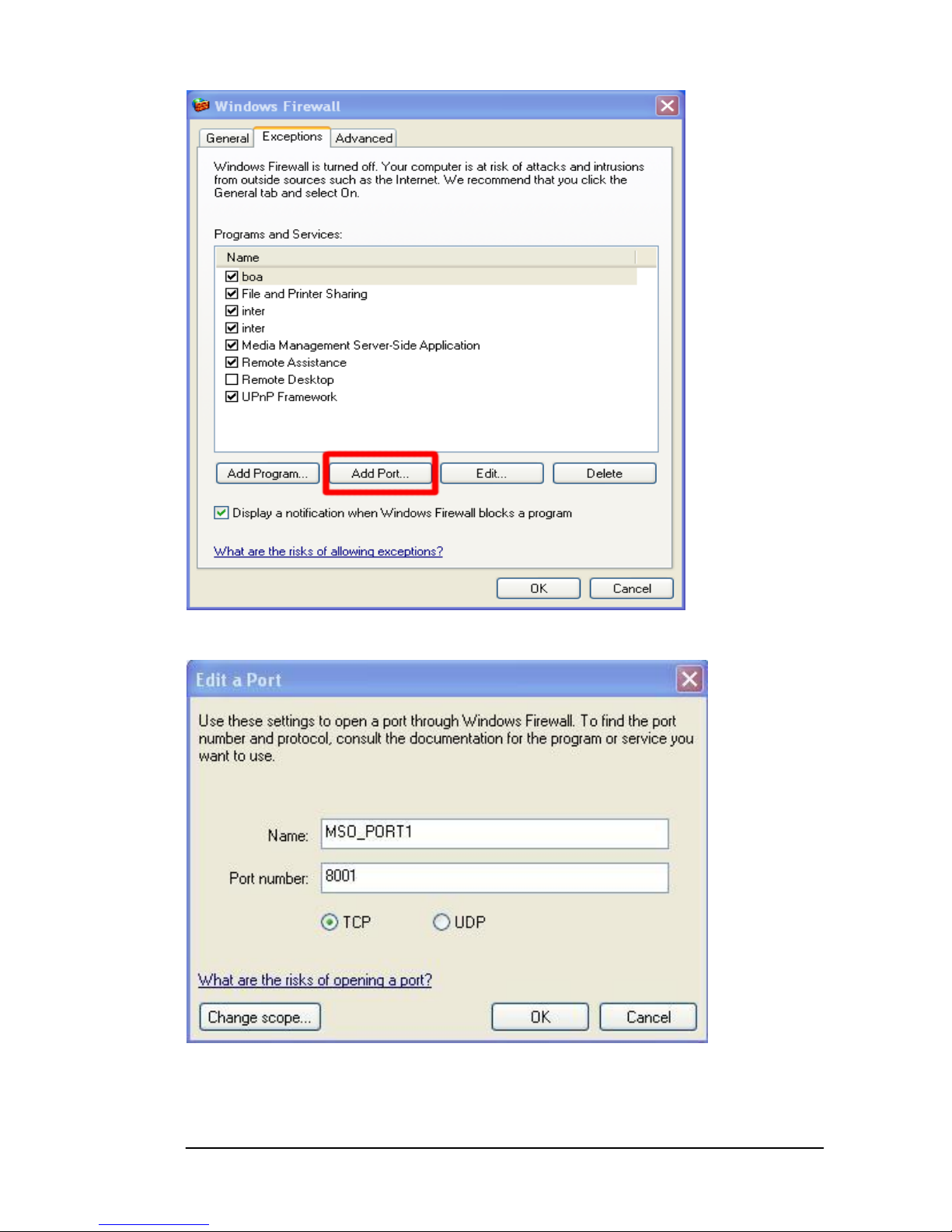
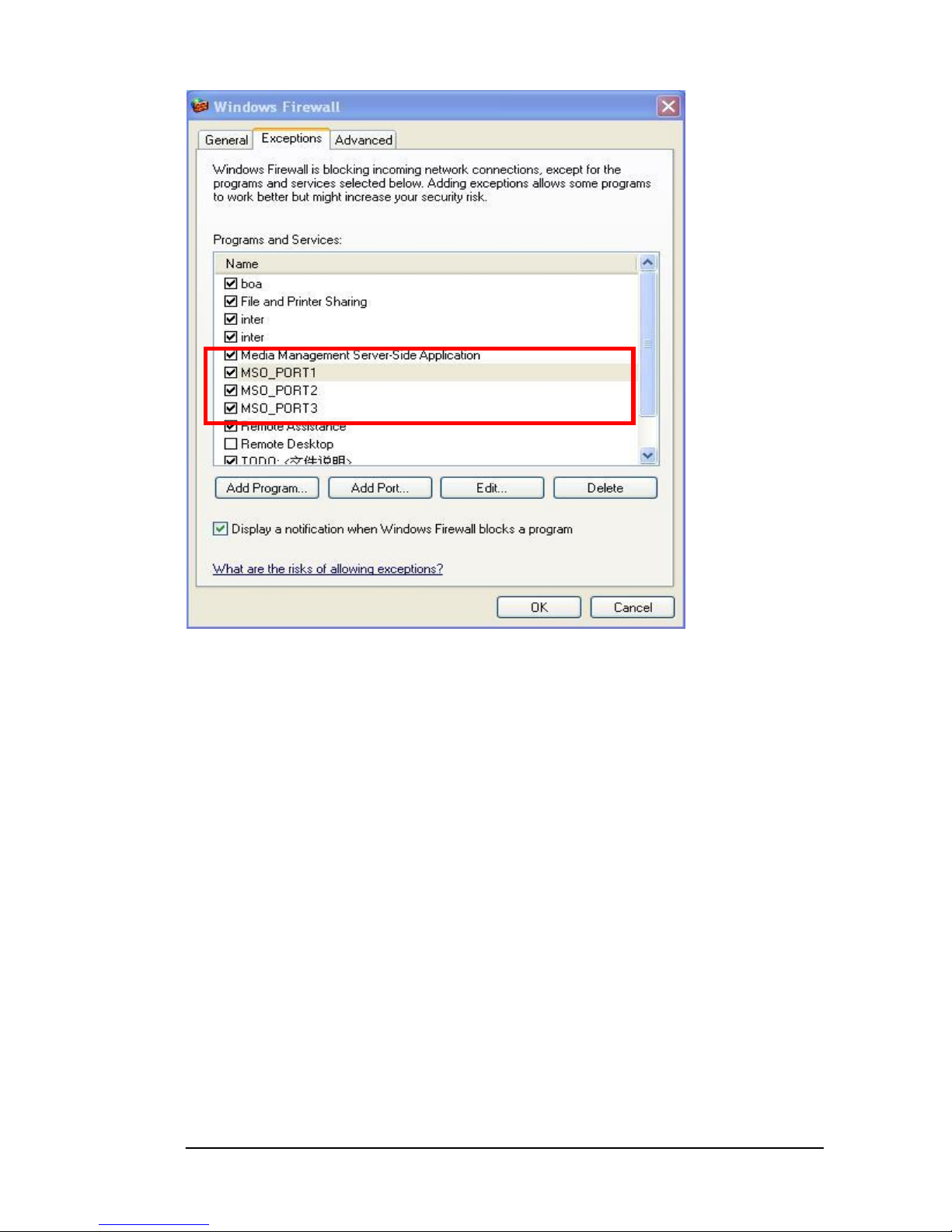
3. In “Exceptions” tab, click “Add Port” button.
Page 27
Network Player Series MSS500/550 User Manual V1.8
Page 27
4. In the “Add a Port” window, type MSO_PORT1 in Name text edit, 8001
in Port number. Click OK button to accept the value.
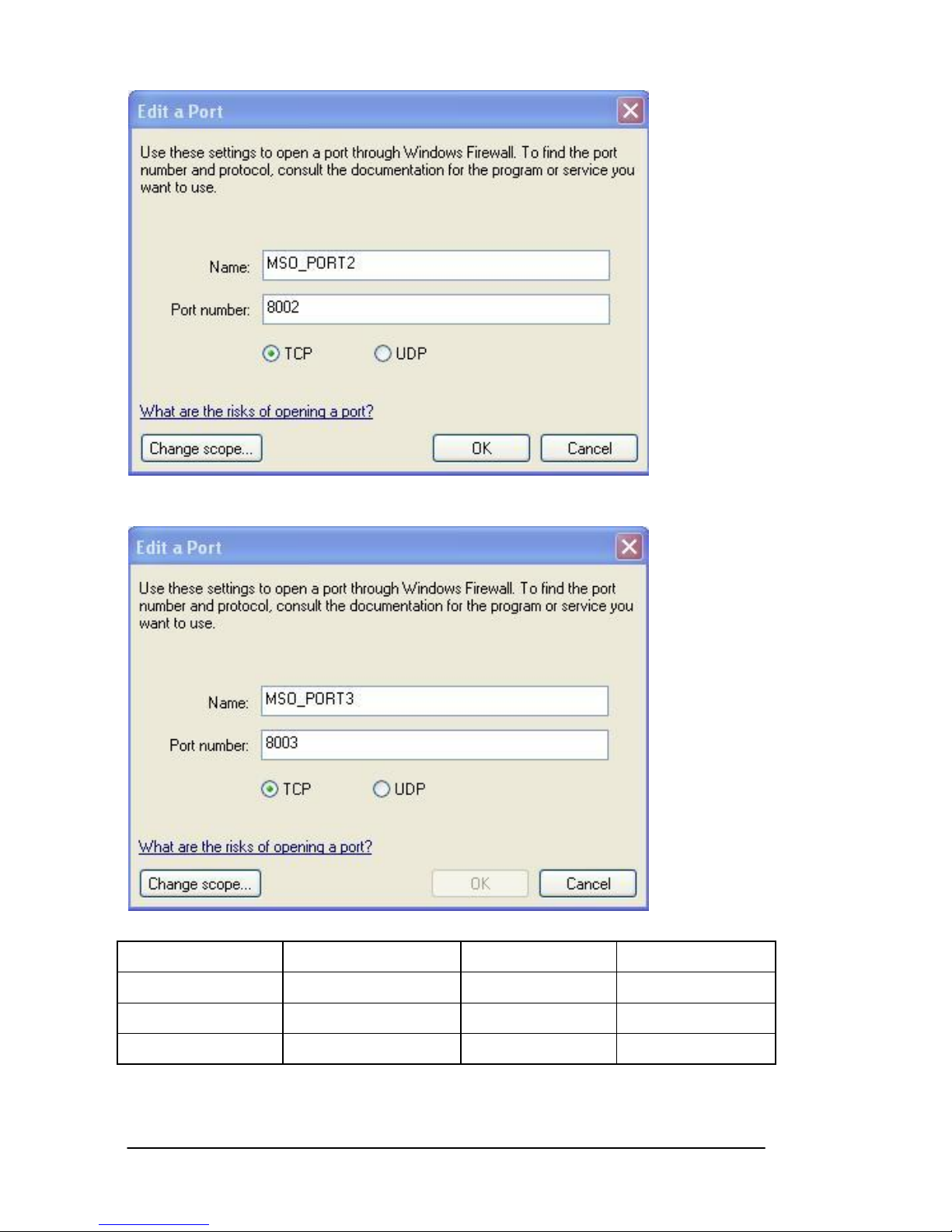
5. Click “Add Port” again in “Exceptions” tab, enter the following value in
“Add a Port”, then Click OK.
Page 28
Network Player Series MSS500/550 User Manual V1.8
Page 28
6. Click “Add Port” again in “Exceptions” tab, enter the following value in
“Add a Port”, then Click OK.
Exception
Name
Port number
Protocol
1
MSO_PORT1
8001
TCP
2
MSO_PORT2
8002
TCP
3
MSO_PORT3
8003
TCP
6. Click on the “Exception” tab to ensure the two exceptions are added.
Page 29
Network Player Series MSS500/550 User Manual V1.8
Page 29
7. Click OK to confirm the firewall setting.
Page 30

Network Player Series MSS500/550 User Manual V1.8
Page 30
Chapter 6 Update Firmware
using USB Drive
C H A P T E R
6
Page 31
Network Player Series MSS500/550 User Manual V1.8
Page 31
Prerequisites
A USB 2.0 flash drive bigger than 32MB
Things to Know Before You Update
All media contents will be deleted if update firmware via USB. Choose
LAN as the update option if you would like to keep media contents.
Firmware differs between Network Player models. Make sure you
download the appropriate firmware for your Network Player.
As a measure of protection, ensure that critical files on your USB flash
drive are backed up.
Each version of firmware is only compatible with the same version of
Media Signage Organizer (MSO).
Check Firmware Version
You will be able to check the firmware version of Network Player in the
beginning of system boot up.
Environment Setup
Network Player BOX Firmware Update
Integrated Display Firmware Update (above 7”)
Active Mode Network Player
Server IP: 192.168.0.188
LAN
IP: 192.168.0.128
MAC: 00:00:00:01:01:01
IP Mode: Fixed
Mask: 255.255.255.0
WLAN
IP: N/A
MAC: N/A
IP Mode: N/A
Mask: N/A
WEP: Off
Default gateway
192.168.0.1
HW
Storage: 488 MB
FW version: 111IW
Firmware
Version
Page 32
Network Player Series MSS500/550 User Manual V1.8
Page 32
Firmware Update Process
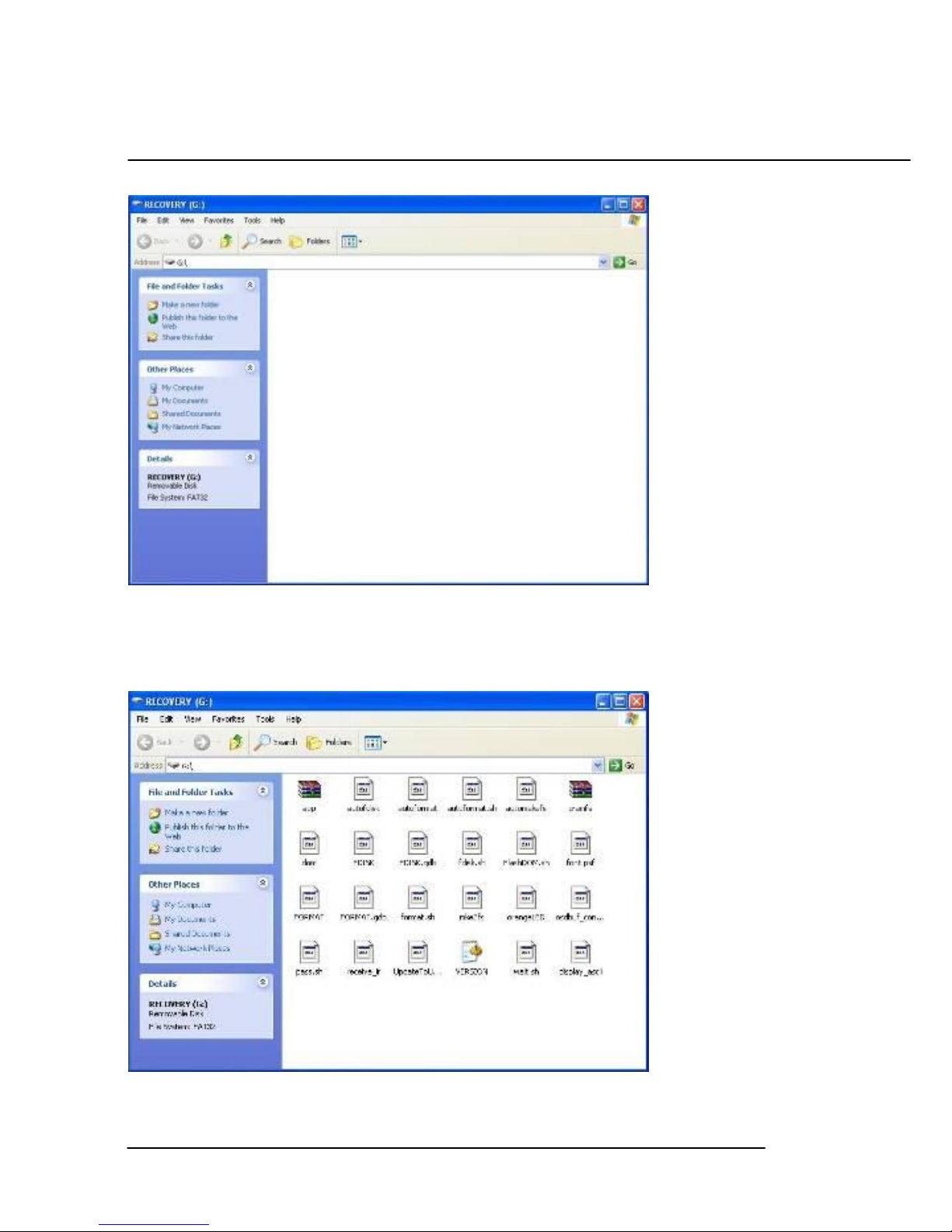
Step1. Clear all data from your USB Flash drive.
Step2. Extract the updateall_xxx.rar into the root directory of USB flash drive.
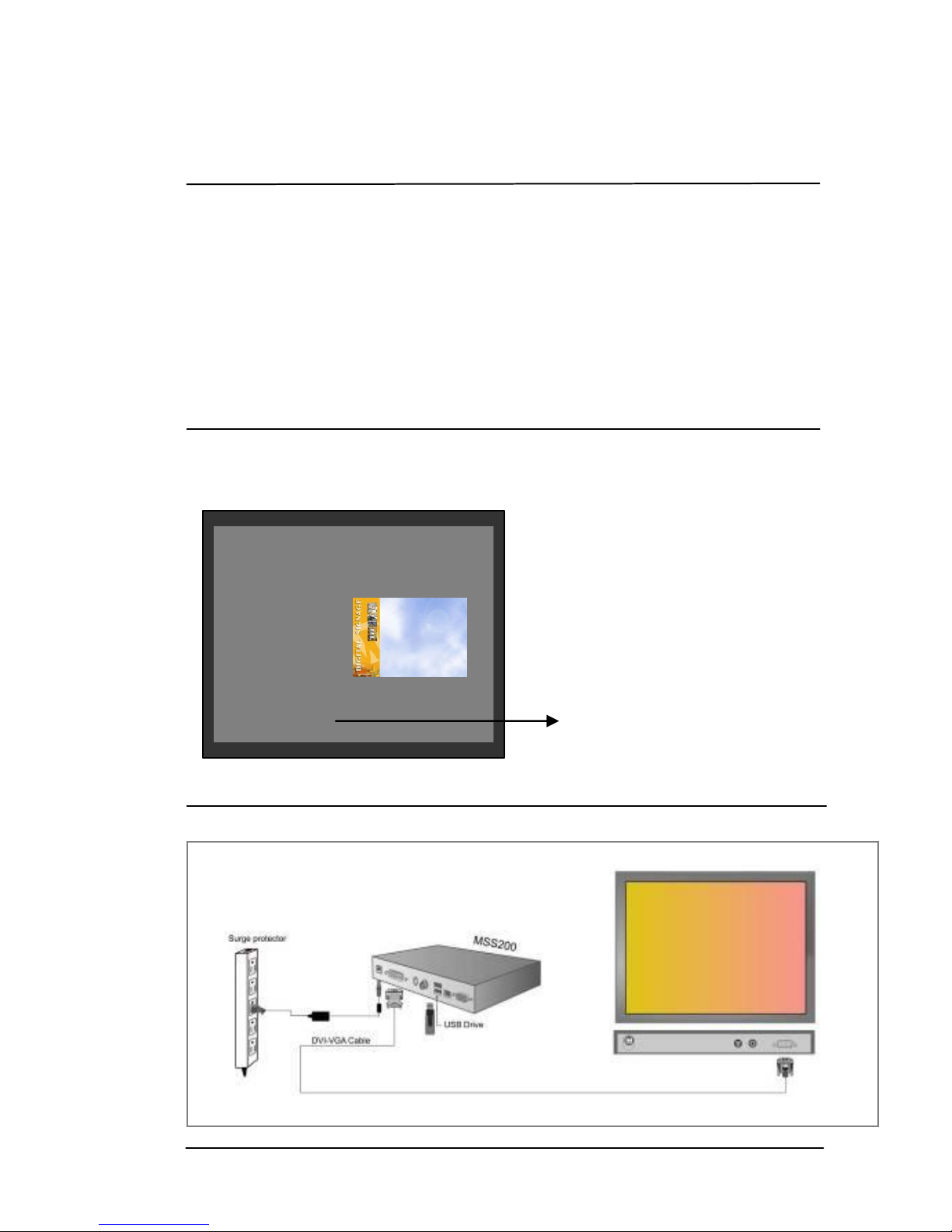
Step3. Insert the USB flash drive and DVI/VGA cable to Network Player then
power on.
Page 33

Network Player Series MSS500/550 User Manual V1.8
Page 33
Please Wait For 2 Mins ……
There will be nothing in screen ….
Screen is turned off during
process …..
Update complete !
Please Plug out USB storage and
reboot ….
Step4. You will see a message on monitor after a few seconds when the
system is preparing for update.
Step5. Updating*13
Step6. When the update is done, unplug USB and power on again.
13
If you encounter any problem such as power lost and abort the
update process abnormally, you only need to start the update
process over again and it will resume from where the update process
is corrupted.
Page 34

Network Player Series MSS500/550 User Manual V1.8
Page 34
Step7. Check the firmware version again to be sure the update is successful.
Active Mode Network Player
Server IP: 192.168.0.188
LAN
IP: 192.168.0.128
MAC: 00:00:00:01:01:01
IP Mode: Fixed
Mask: 255.255.255.0
WLAN
IP: N/A
MAC: N/A
IP Mode: N/A
Mask: N/A
WEP: Off
Default gateway
192.168.0.1
HW
Storage: 488 MB
FW version: 111IW
Firmware
Version
Page 35

Network Player Series MSS500/550 User Manual V1.8
Page 35
Appendix A Supported Video Format Table
Appendix B
A P E N D I X
A
Page 36

Network Player Series MSS500/550 User Manual V1.8
Page 36
Note that this table lists all video formats supported by Network Player Plus
unit; other formats not in the list are not guaranteed to have the best
playback result.
Video
Resolution
Type
BitRate
Framerate
Audio
720*576
avi
4M
30fps(Interlace)
MP3 320kBit/s
48000Hz ,Stereo
720*576
avi
4M
30fps(NonInterlace)
MP3 320kBit/s
48000Hz ,Stereo
720*576
avi
4M
25fps(Interlace)
MP3 128kBit/s
44100Hz ,Stereo
720*576
avi
4M
25fps(NonInterlace)
MP3 128kBit/s
44100Hz ,Stereo
720*480
avi
4M
23.97fps(NonInterlace)
MP3 128kBit/s
44100Hz ,Stereo
720*480
avi
4M
29.97fps(NonInterlace)
MP3 128kBit/s
44100Hz ,Stereo
720*480
avi
4M
29.97fps(Interlace)
MP3 128kBit/s
44100Hz ,Stereo
720*480
avi
4M
25fps(NonInterlace)
MP3 128kBit/s
44100Hz ,Stereo
720*480
avi
4M
25fps(Interlace)
MP3 128kBit/s
44100Hz ,Stereo
720*480
avi
4M
30fps(NonInterlace)
MP3 320kBit/s
48000Hz ,Stereo
720*480
avi
4M
30fps(Interlace)
MP3 320kBit/s
48000Hz ,Stereo
720*480
avi
4M
24fps(NonInterlace)
MP3 128kBit/s
48000Hz ,Stereo
640*480
avi
4M
30fps(Interlace)
MP3 128kBit/s
44100Hz ,Stereo
640*480
avi
4M
30fps(NonInterlace)
MP3 128kBit/s
44100Hz ,Stereo
640*480
avi
4M
29.97fps(Interlace)
MP3 128kBit/s
44100Hz ,Stereo
640*480
avi
4M
29.97fps(NonInterlace)
MP3 128kBit/s
44100Hz ,Stereo
640*480
avi
2M
24fps(NonInterlace)
MP3 128kBit/s
48000Hz ,Stereo
Page 37

Network Player Series MSS500/550 User Manual V1.8
Page 37
640*480
avi
4M
25fps(Interlace)
MP3 128kBit/s
44100Hz ,Stereo
640*480
avi
4M
25fps(NonInterlace)
MP3 128kBit/s
44100Hz ,Stereo
640*480
avi
4M
23.97fps(NonInterlace)
MP3 128kBit/s
44100Hz ,Stereo
640*480
avi
4M
30fps(Interlace)
MP3 320kBit/s
48000Hz ,Stereo
640*480
avi
4M
30fps(NonInterlace)
MP3 320kBit/s
48000Hz ,Stereo
640*480
mpeg1
4M
30fps(1:1)
MP2 384kBit/s
48000Hz ,Stereo
640*480
mpeg1
4M
24fps(1:1)
MP2 384kBit/s
48000Hz ,Stereo
640*480
mpeg1
4M
23.97fps(1:1)
MP2 384kBit/s
48000Hz ,Stereo
640*480
mpeg1
8M
30fps(1:1)
MP2 384kBit/s
48000Hz ,Stereo
352*240
mpeg1
4M
30fps(1:1)
MP2 384kBit/s
48000Hz ,Stereo
352*240
mpeg1
4M
24fps(1:1)
MP2 384kBit/s
48000Hz ,Stereo
352*240
mpeg1
4M
23.97fps(1:1)
MP2 384kBit/s
48000Hz ,Stereo
352*288
mpeg1
4M
30fps(1:1)
MP2 384kBit/s
48000Hz ,Stereo
352*288
mpeg1
4M
24fps(1:1)
MP2 384kBit/s
48000Hz ,Stereo
352*288
mpeg1
4M
23.97fps(1:1)
MP2 384kBit/s
48000Hz ,Stereo
352*288
mpeg1
4M
30fps(4:3 NTSC)
MP2 384kBit/s
48000Hz ,Stereo
352*288
mpeg1
4M
30fps(4:3 PAL)
MP2 384kBit/s
48000Hz ,Stereo
352*288
mpeg1
4M
30fps(16:9 NTSC)
MP2 384kBit/s
48000Hz ,Stereo
352*288
mpeg1
4M
30fps(16:9 PAL)
MP2 384kBit/s
48000Hz ,Stereo
720*576
mpeg2
4M
23.97fps(NonInterlace)
MP2 384kBit/s
48000Hz ,Stereo
Page 38

Network Player Series MSS500/550 User Manual V1.8
Page 38
720*576
mpeg2
4M
23.97fps(Interlace)
MP2 384kBit/s
48000Hz ,Stereo
720*576
mpeg2
4M
24fps(NonInterlace)
MP2 384kBit/s
48000Hz ,Stereo
720*576
mpeg2
4M
24fps(Interlace)
MP2 384kBit/s
48000Hz ,Stereo
720*576
mpeg2
4M
25fps(NonInterlace)
MP2 384kBit/s
48000Hz ,Stereo
720*576
mpeg2
4M
25fps(Interlace)
MP2 384kBit/s
48000Hz ,Stereo
720*480
mpeg2
4M
23.97fps(NonInterlace)
MP2 384kBit/s
48000Hz ,Stereo
720*480
mpeg2
4M
23.97fps(Interlace)
MP2 384kBit/s
48000Hz ,Stereo
720*480
mpeg2
4M
24fps(Interlace)
MP2 384kBit/s
48000Hz ,Stereo
720*480
mpeg2
4M
24fps(NonInterlace)
MP2 384kBit/s
48000Hz ,Stereo
720*480
mpeg2
4M
25fps(Interlace)
MP2 384kBit/s
48000Hz ,Stereo
720*480
mpeg2
4M
25fps(NonInterlace)
MP2 384kBit/s
48000Hz ,Stereo
720*480
mpeg2
4M
2997fps(Interlace)
MP2 384kBit/s
48000Hz ,Stereo
720*480
mpeg2
4M
2997fps(NonInterlace)
MP2 384kBit/s
48000Hz ,Stereo
720*480
mpeg2
4M
30fps(Interlace)
MP2 384kBit/s
48000Hz ,Stereo
720*480
mpeg2
4M
30fps(NonInterlace)
MP2 384kBit/s
48000Hz ,Stereo
720*480
mpeg2
8M
30fps(Interlace)
MP2 384kBit/s
48000Hz ,Stereo
720*480
mpeg2
8M
30fps(NonInterlace)
MP2 384kBit/s
48000Hz ,Stereo
 Loading...