

Page 1

V32FCBB-U21/M21 2005/3/30 下午 01:15
1
Table of contents
1. General Information ......................................................................................................... 3
2. Safety Precautions............................................................................................................. 5
3. Features .............................................................................................................................. 7
5. Dimensions ......................................................................................................................... 8
6. Ports.................................................................................................................................... 9
7. Control Buttons ................................................................................................................. 11
8. Accessories ......................................................................................................................... 12
9. Remote Control ................................................................................................................. 13
10. Summary of Remote Control Functions ......................................................................... 14
11. Controls & Adjustments
A. General Adjustments......................................................................................................... 15
Turning the LCD TV On and Off ..................................................................................... 15
Viewing the Menus and On-Screen Displays ................................................................... 15
Switching between PC/Composite/S-Video/TV/Component Modes ............................... 16
Switching Language Modes.............................................................................................. 16
Setting the Sleep Timer..................................................................................................... 17
Auto Power Off................................................................................................................. 17
Adjusting the Volume....................................................................................................... 17
B. PC mode Adjustments....................................................................................................... 18
Adjusting Contrast and Brightness Settings ..................................................................... 18
Adjusting PC Settings....................................................................................................... 18
Adjusting Audio Settings.................................................................................................. 20
Viewing Picture-in-Picture (PIP) Settings........................................................................ 22
C. TV mode Adjustment........................................................................................................ 23
Adjusting the TV Settings................................................................................................. 23
Sound Options................................................................................................................... 24
Adjusting Picture Settings ................................................................................................ 24
Memorizing Channels....................................................................................................... 25
Changing Channels ........................................................................................................... 28
Using Parental Controls .................................................................................................... 28
Setting Up Your Personal ID Number (PIN).................................................................... 29
How to Set up Restrictions Using the "Block Passward" option...................................... 31
How to Set up Restrictions Using the "Block Movie" option .......................................... 33
Viewing Closed Captions ................................................................................................. 35
Page 2

V32FCBB-U21/M21 2005/3/30 下午 01:15
2
D. Other Functions ............................................................................................................... 36
12. Troubleshooting................................................................................................................. 37
13. PC Input Preset Timing Table ........................................................................................ 40
14. Specifications ..................................................................................................................... 42
Page 3

V32FCBB-U21/M21 2005/3/30 下午 01:15
3
General Information
This 32” wide active matrix TFT (thin film transistor) liquid crystal monitor is designed for use as
a stand alone TV as well as a display device for video electronics appliances and personal
computers.
Important Information
Warning: To reduce the risk of fire or electric shock, do not expose this product to rain or
moisture.
Caution: To reduce the risk of electric shock, do not attempt to disassemble or modify this
device. There are no user-serviceable parts inside. Refer any service issues to
qualified service personnel.
Caution: FCC/ CSA regulations state that any unauthorized changes or modifications to this
equipment may void the user's authority to operate it.
Important: One Federal Court has held that unauthorized recording of copyrighted TV programs is
an infringement of U.S. copyright laws. Certain Canadian programs may also be copyrighted and
any unauthorized recording in whole or in part may be in violation of these rights.
WARNING:
Do not leave stationary images, patterns, PIP windows, or letterbox images on the screen for
prolonged periods of time as this may result in permanent damage to the LCD panel. This
type of damage is not covered under warranty. The following are examples of, but not
limited to, potentially hazardous display output: side bar images, video game patterns, closed
captioning, channel logos and letterbox black bars. To prevent this type of damage, it is
recommended to display constantly moving images that fill the screen as often as possible.
According to industrial standards for LCD display technology; there are a certain number of
allowable defective pixels. Although we produce panels with more than 99.9% active cells,
there still may be some cells that do not produce light or remain constantly lit. For further
information, please contact sales or technical support.
CAUTION
Risk of electric
shock. Do not open.
Page 4

V32FCBB-U21/M21 2005/3/30 下午 01:15
4
Thank You for Choosing This Product
Your new LCD TV was built utilizing the latest advancements in television technology. We are
proud to offer you a product that will provide convenient, dependable service and enjoyment for
years to come.
Page 5
V32FCBB-U21/M21 2005/3/30 下午 01:15
5
Safety Precautions
1. Cleaning: Unplug the power cord from the AC outlet before cleaning the product. Use a damp
cloth to clean the product. Do not use liquid cleaners or aerosol cleaners.
2. Water and moisture: Do not use the product near water or areas of high moisture content such
as swimming pools, bathtubs or wet basements.
3. Heat sources: Keep the product away from heat sources such as radiators, heaters, stoves and
other heat-generating products (including amplifiers).
4. For added protection during a lightning storm or for extended periods of non-use, unplug the
power cord from the wall outlet and disconnect the antenna (if used). This will prevent damage
to the product due to power line surges.
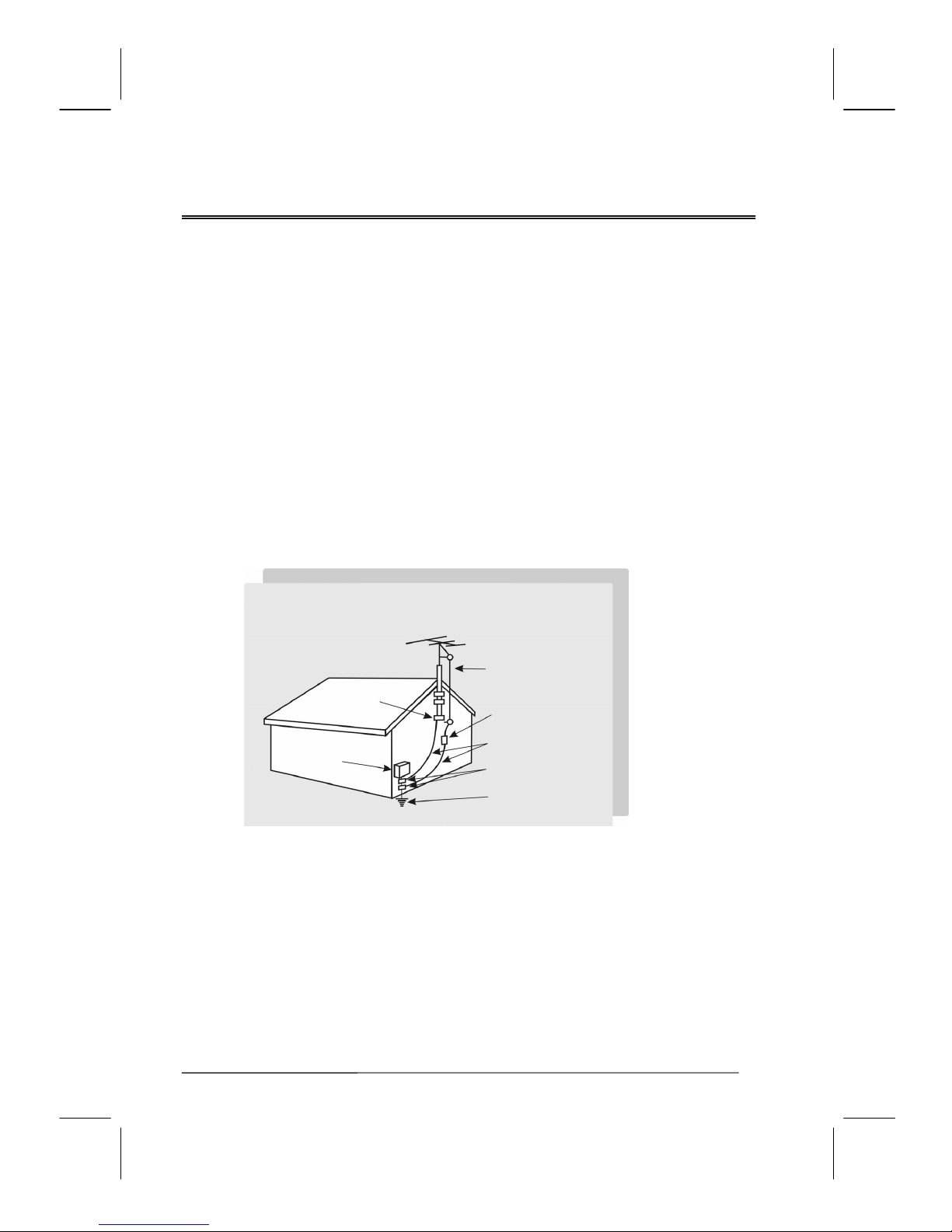
5. If an outside antenna is connected to the product, make sure the antenna is properly grounded
so as to provide some protection against voltage surges.
Example of antenna grounding
As per national electrical code
Antenna lead in wire
Antenna discharge
unit
Grounding conductors
Ground clamps
Power service
grounding
Electrode system
Ground clamp
Electric service
equipment
Page 6
V32FCBB-U21/M21 2005/3/30 下午 01:15
6
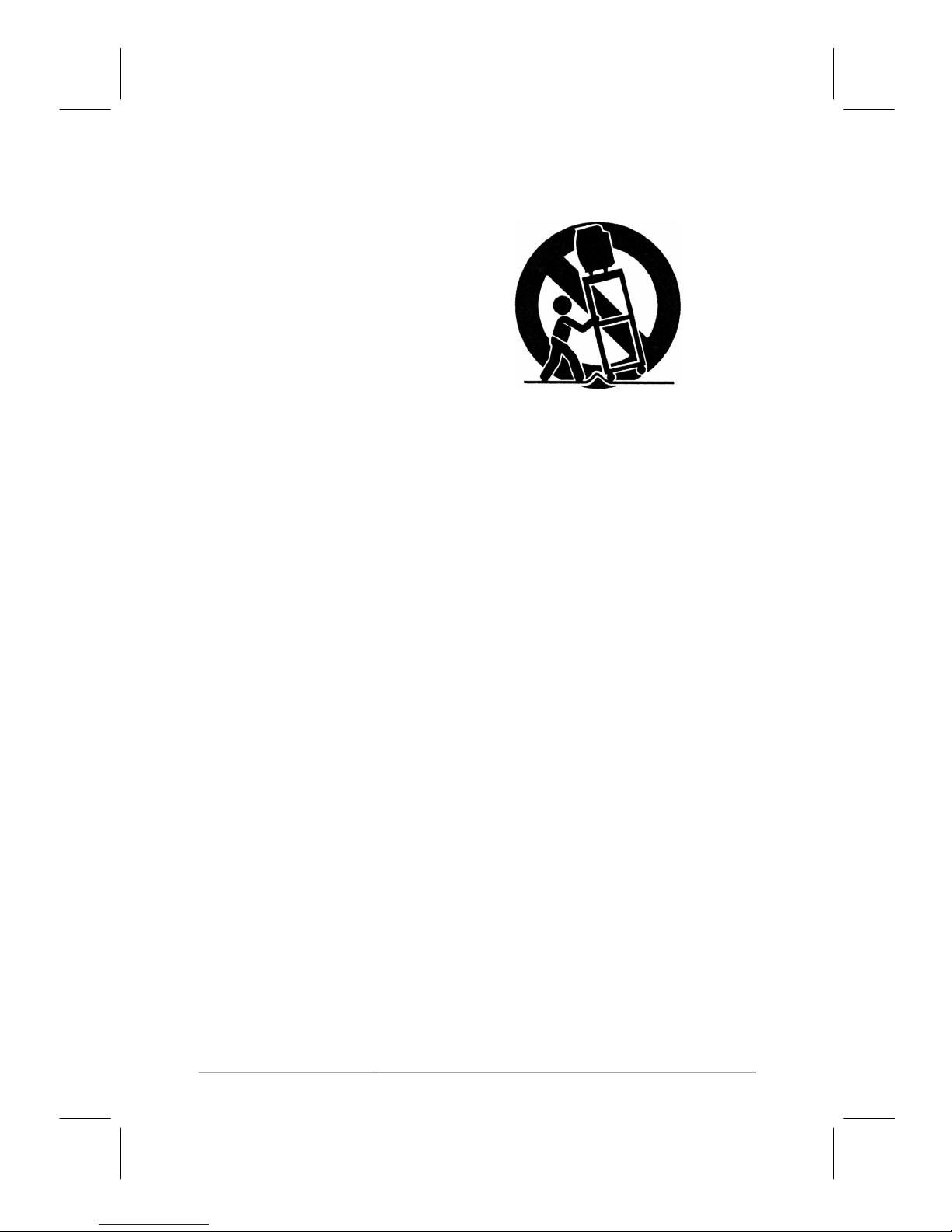
6. Stand: Do not place the product on an unstable
cart, stand, tripod or table. Placing the product
on an unstable base can cause the product to
fall, resulting in serious personal injuries as
well as damage to the product. Use only a cart,
stand, tripod, bracket or table recommended by
the manufacturer or sold with the product. Use
only mounting hardware recommended by the
manufacturer.
7. Use care when moving the product on a rolling cart. Sudden stops, excessive force and uneven
floor surface can cause the product to fall from the cart.
8. Ventilation: The vents and other openings in the cabinet are designed for ventilation. Do not
cover or block these vents and openings as insufficient ventilation can cause overheating
and/or shorten the life of the product. Do not place the product on a bed, sofa, rug or other
similar surfaces since they can block ventilation openings. This product was not designed to
operate in an enclosed environment. Don't place the product in an enclosed space such as a
bookcase or rack, unless proper ventilation is provided or the manufacturer's instructions are
followed.
9. The LCD panel used in this product is made of glass. Therefore, it can break if the product is
dropped or struck.
10. During the LCD panel lifespan it is normal for a few pixels to become defective. Non-active
pixels may appear on the screen as fixed points of red, blue or green. Refer pixel policy
questions to the reseller for further clarification on acceptable loss.
11. An outside antenna system should not be located in the vicinity of overhead power lines or
other electrical conduits. When installing an outside antenna, use extreme caution to prevent
the antenna from coming into contact with said items, as contact with them may be fatal.
Page 7

V32FCBB-U21/M21 2005/3/30 下午 01:15
7
Features
List of Features
Your TV is designed with the latest technology and is a high-performance unit that includes the
following special features:
¾ Multiple input sources including Antenna terminal, DVI connector, Composite, S-Video, and
Component ports.
¾ Easy-to-use remote control and on-screen-display (OSD) menu system.
¾ PIP (picture in picture) mode for displaying multiple sources at the same time on the same
screen.
¾ Built-in 10W dual channel speakers plus a headphone out jack for private listening.
¾ Fine-tuning control for the sharpest picture possible. (OTA TV viewing only).
¾ Built-in multi-channel sound decoder for stereo and bilingual broadcasts.
¾ Automatic channel program for up to 125 channels.
¾ Automatic sleep timer control from 10 to 120 minutes in 10-minute increments.
¾ Automatic Power Off feature after 10 minutes without a signal.
¾ Adjustable picture and sound settings that are stored in the TV's memory.
¾ Component video input for high definition TV programming (HDTV ready), resolution up to
720p, 1080i.
¾ Automatic Picture Control (APC) and Aspect Ratio Control (ARC) functions for end user
customization of viewing preferences.
¾ Built-in 3D comb filter and 3D de-interlacing for best possible picture quality.
Page 8
V32FCBB-U21/M21 2005/3/30 下午 01:15
8
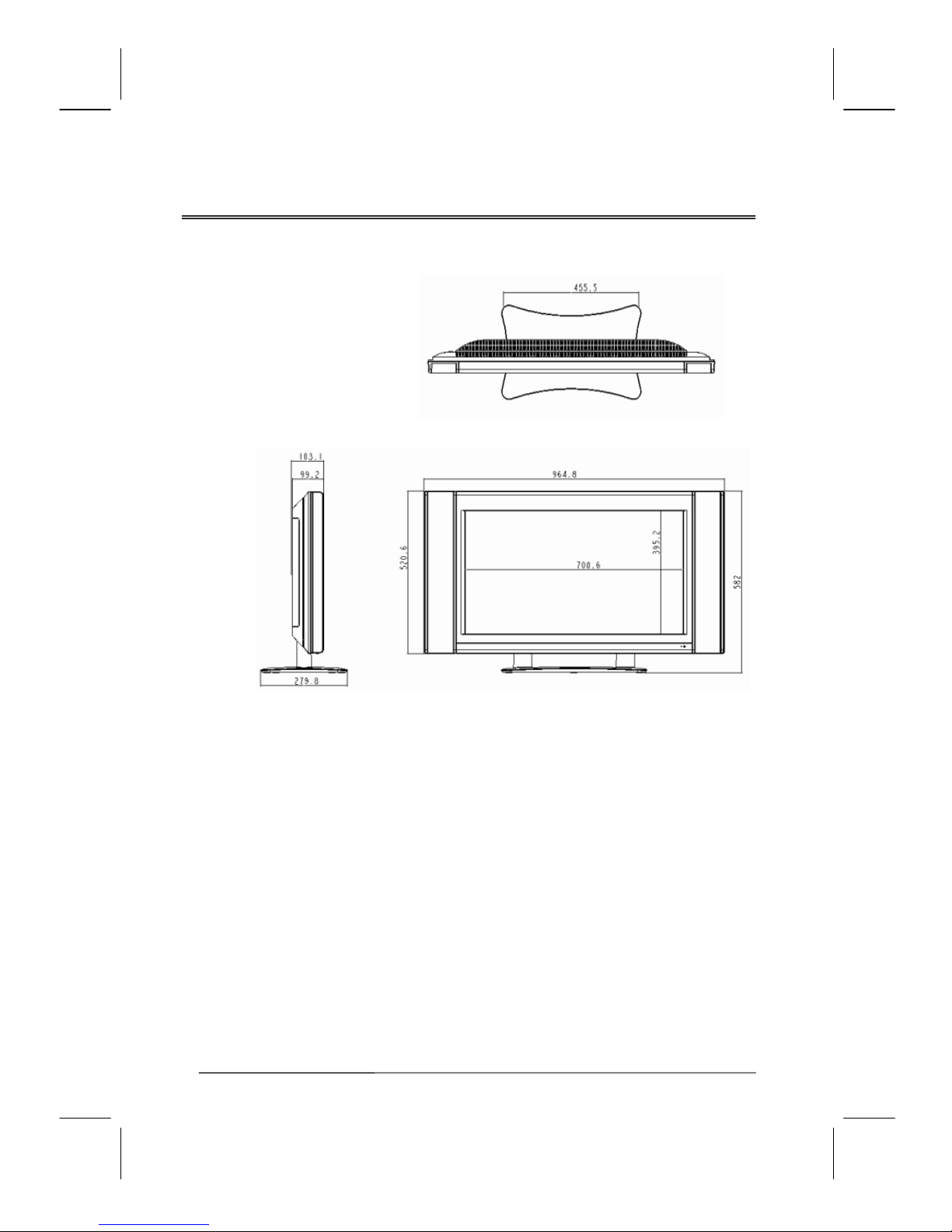
Dimension
Unit: mm
Page 9
V32FCBB-U21/M21 2005/3/30 下午 01:15
9
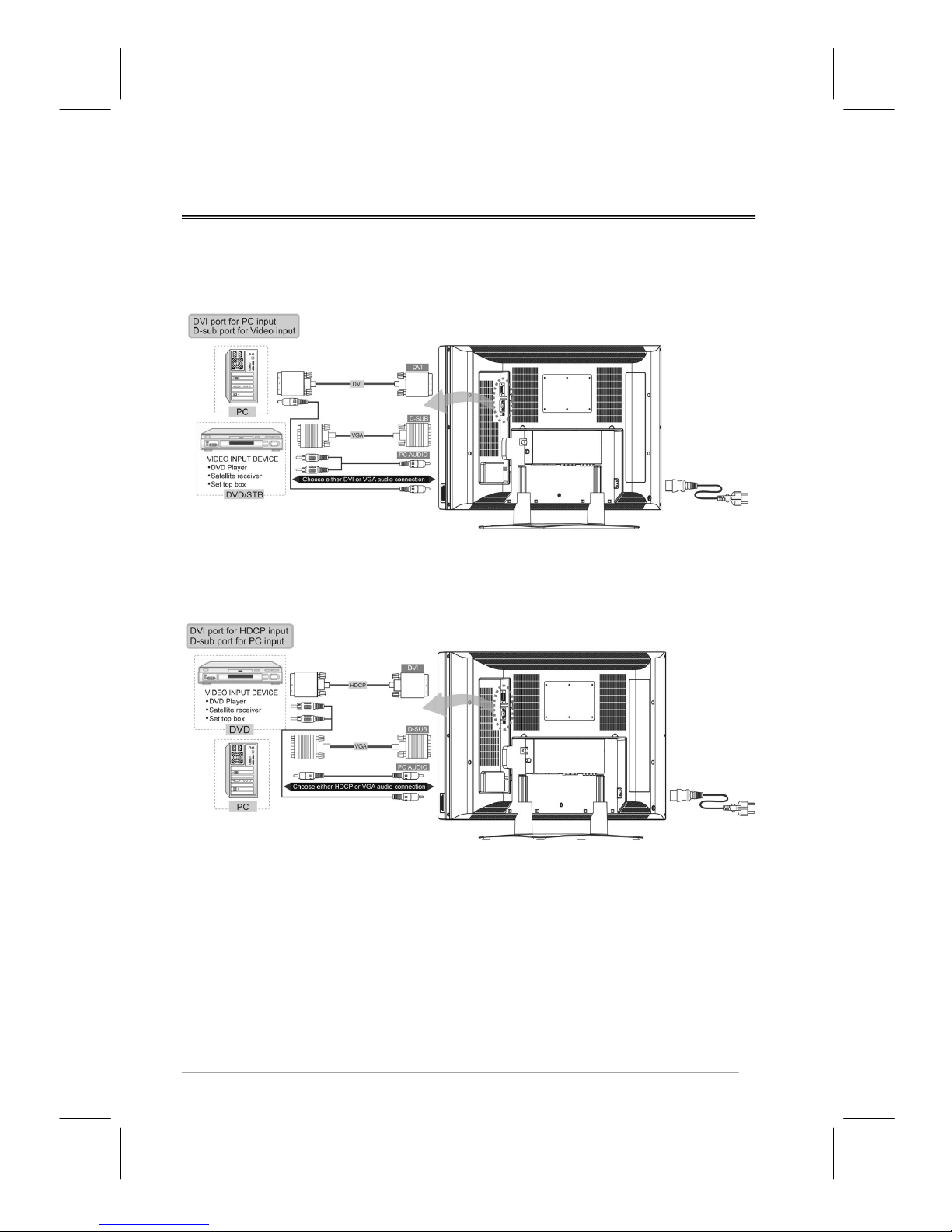
Ports
Page 10

V32FCBB-U21/M21 2005/3/30 下午 01:15
10
Antenna Set Top Box
Vid eo
Device VCR
Subwoofer
Amplifier
Page 11
V32FCBB-U21/M21 2005/3/30 下午 01:15
11
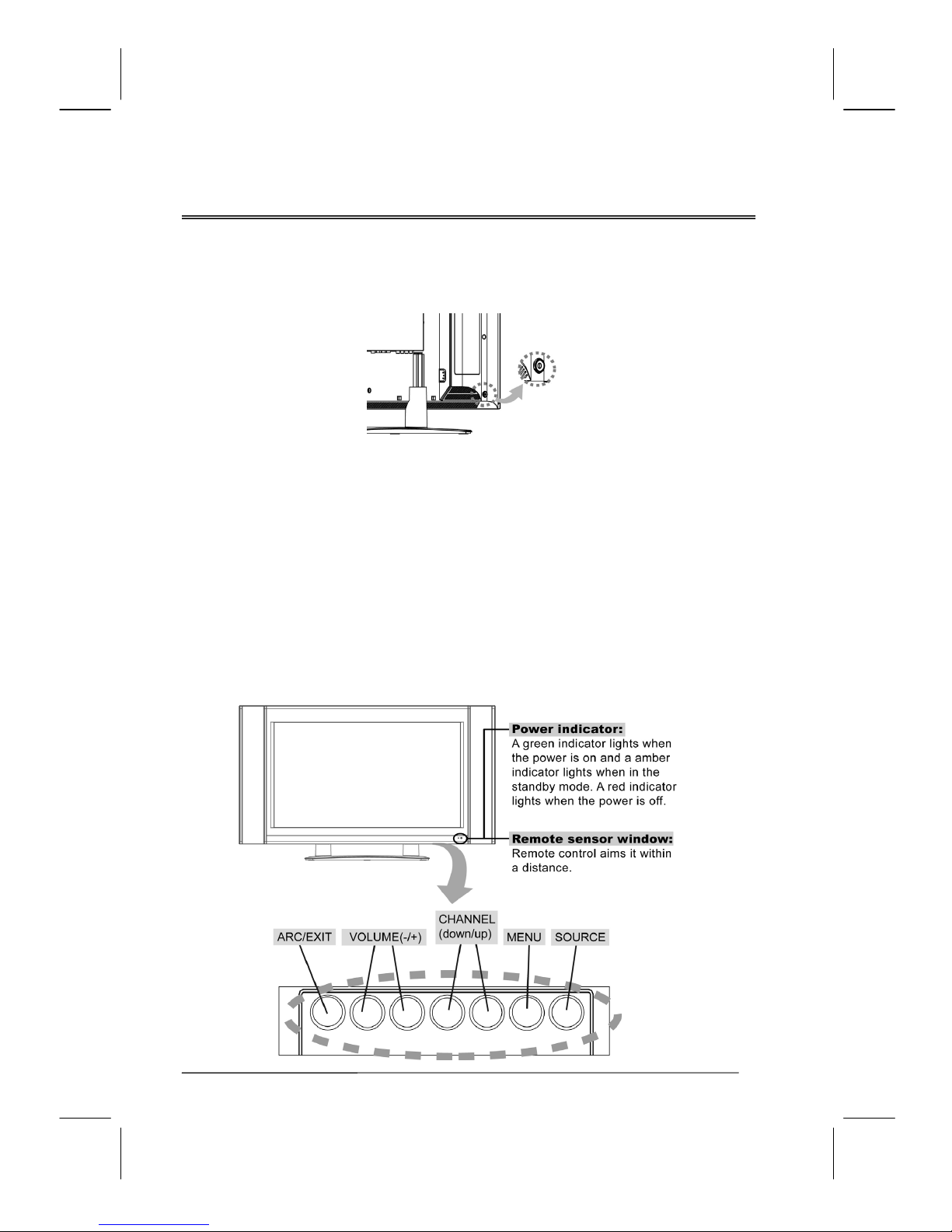
Control Buttons
Main Power Switch
Before operating the LCD display or remote control, users must press MAIN POWER switch to
ON. The MAIN POWER switch is located at the bottom-left back of the LCD display (near by
Power Inlet).
Function Key
These buttons control your TV’s basic features, including the on-screen mean. To use advanced
features, you must use the remote control.
POWER: turn the LCD-TV on or off.
SOURCE: select the input source ( PC, AV, SV, TV, CV ).
MENU: display the main menu.
CHANNEL (
down or up): change the channel.
VOLUME (+/-): increase or decrease the volume.
ARC/ EXIT:
select the display output mode (TV source: Panoramic, Normal, Full, Zoom, Subtitle.
PC source: Full, Fill aspect, One to one).
Page 12
V32FCBB-U21/M21 2005/3/30 下午 01:15
12
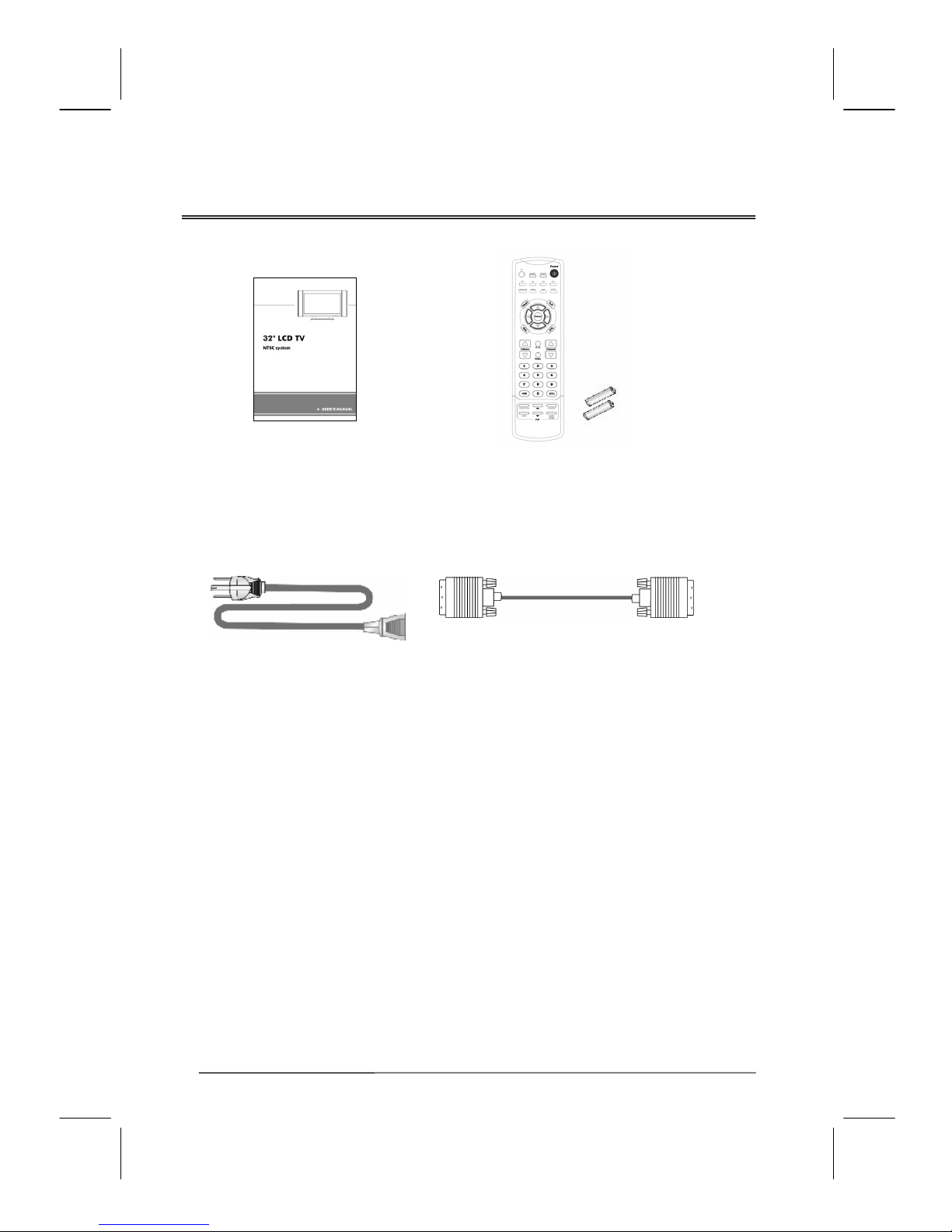
Accessories
User’s manual
Remote control & Batteries (AAA x2)
Power Cord
DVI-D Cable
Page 13

V32FCBB-U21/M21 2005/3/30 下午 01:15
13
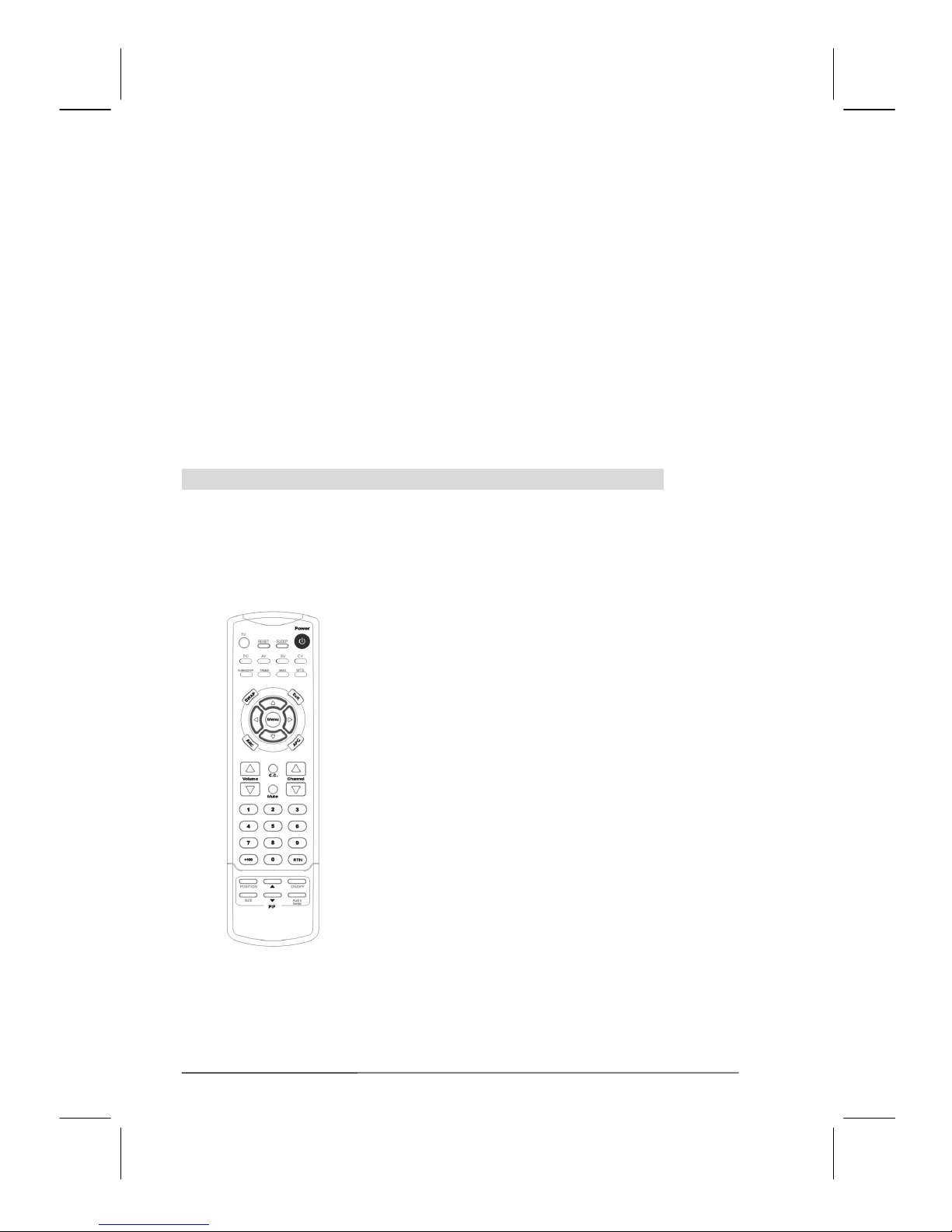
Remote Control
Page 14

V32FCBB-U21/M21 2005/3/30 下午 01:15
14
Summary of Control Button
PPoowweerr ccoonnttrrooll
POWER button Turn the TV on or off
Selecting the primary signal source
TV button Switch to TV mode
AV button Switch to AV (composite mode)
SV button Switch to S-Video mode
CV button Switch to CV (component) mode (Y/Pb/Pr)
PC button Switch to PC mode (DVI or D-sub)
Menu Settings
MENU/ENTER button Display the on-screen menu or enter a sub-menu
EXIT/(Title) button Display the current channel; Display the current primary
signal source; Exit a menu or sub-menu
UP/DOWN/LEFT/RIGHT
Access menu items
TV Changing Channels
UP button Press Up to change the channel
DOWN button Press Down to change the channel
0~9 ; +100 button To manually select channels
RETURN button Return to the previous viewed channel
Sound Control
VOL+ button Increase volume level
VOL- button Decrease volume level
MUTE button Temporarily turn off audio
MTS button
Cycle through stereo, mono or separate audio program
(SAP) multi-channel sound services
AUDIO button
Toggle audio source between the primary display and
the PiP window
TREBLE button Adjust treble level
BASS button
SUBWOOFER button
Adjust bass level
Enable/Disable the subwoofer
PIP Control
ON/OFF button Enable/Disable PiP viewing window
Press again to make the sub display disappear
△/▽ button
Select PiP input source: TV→AV1 →SV1→AV 2 →SV2
SIZE button
Toggle PiP window size: 10%→20%…………90%→
100%
POSITION button Move the PiP window position
Other Function
SWAP button
Make the PiP windows the main display and vice versa
RESET button Return to the original factory settings.
ARC button (Aspect Ratio Control) In PC mode:Set the picture mode to Full, Fill aspect,
One to one.
In Video mode:Toggle the picture mode between normal
→Zoom→Full→Panoramic→Subtitle.
APC button (Automatic Picture Control) Toggle screen luminosity between Normal, Clear, Dark,
and Theater modes.
SLEEP button Select a pre-set time for automatic power down.
C.C. button Enable/Disabled closed captioning.
Page 15
V32FCBB-U21/M21 2005/3/30 下午 01:15
15
Controls & Adjustment
A. General Adjustment
Turning the LCD TV On and Off
Plug the power cable into the AC-in socket located on the left rear of the LCD TV. Plug the other
end into an electrical socket. Press the main
POWER button located on the back of the left speaker.
Once the main power button is engaged, press the power button on the remote control or use the
power button located within the control buttons panel on underside of the TV to turn the TV on.
The power status light found in the lower right hand corner of the TV indicates the following:
Power On (TV, Video mode) --- Green light。
Power off --- Red light。
PC mode --- Green light。
Power Saving (TV mode)
--- Amber light。
Note: The TV will automatically power off if no signal is detected for 10 minutes.
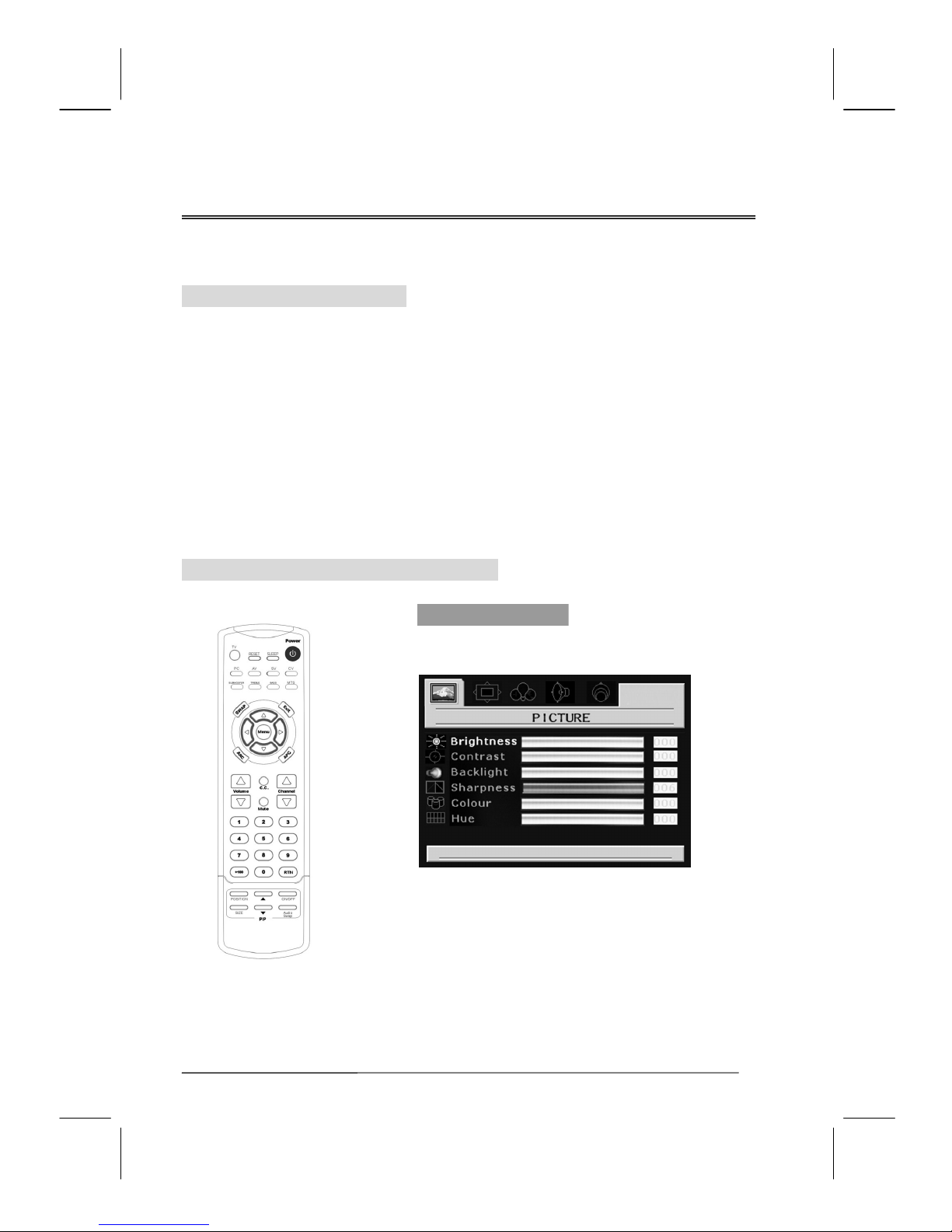
Viewing the Menus and On-Screen Displays
Viewing the Menus
1. With the power on, press the MENU Button.
The main menu appears on the screen.
2. Press the ◁
or ▷ button to select one of the menu
options. Then press the △ or ▽ button to access the
sub-menu.
3. Press the ◁
or ▷ button to make adjustments.
4. Press the
EXIT button to exit from the menu or to
return to the previous screen.
Page 16

V32FCBB-U21/M21 2005/3/30 下午 01:15
16
Switching PC/Video/S-Video/TV/Component Modes
1. Turn on the power.
2. Select an input source as described below:
TV button to switch to TV mode.
PC button to switch to PC mode (Analog or Digital).
AV button to switch to AV mode. (Composite)
SV button to switch to S-Video mode.
CV button to switch to CV mode (Component).
Switching Language Modes
1. Press the MENU button to display the main menu.
2. Press the ▷ button to enter OPTION. Press the
▽ button to select the Language sub-menu.
4. Press the◁or▷ button to select the desired
language mode
5. Press the
EXIT button to exit from the OSD.
Page 17
V32FCBB-U21/M21 2005/3/30 下午 01:15
17
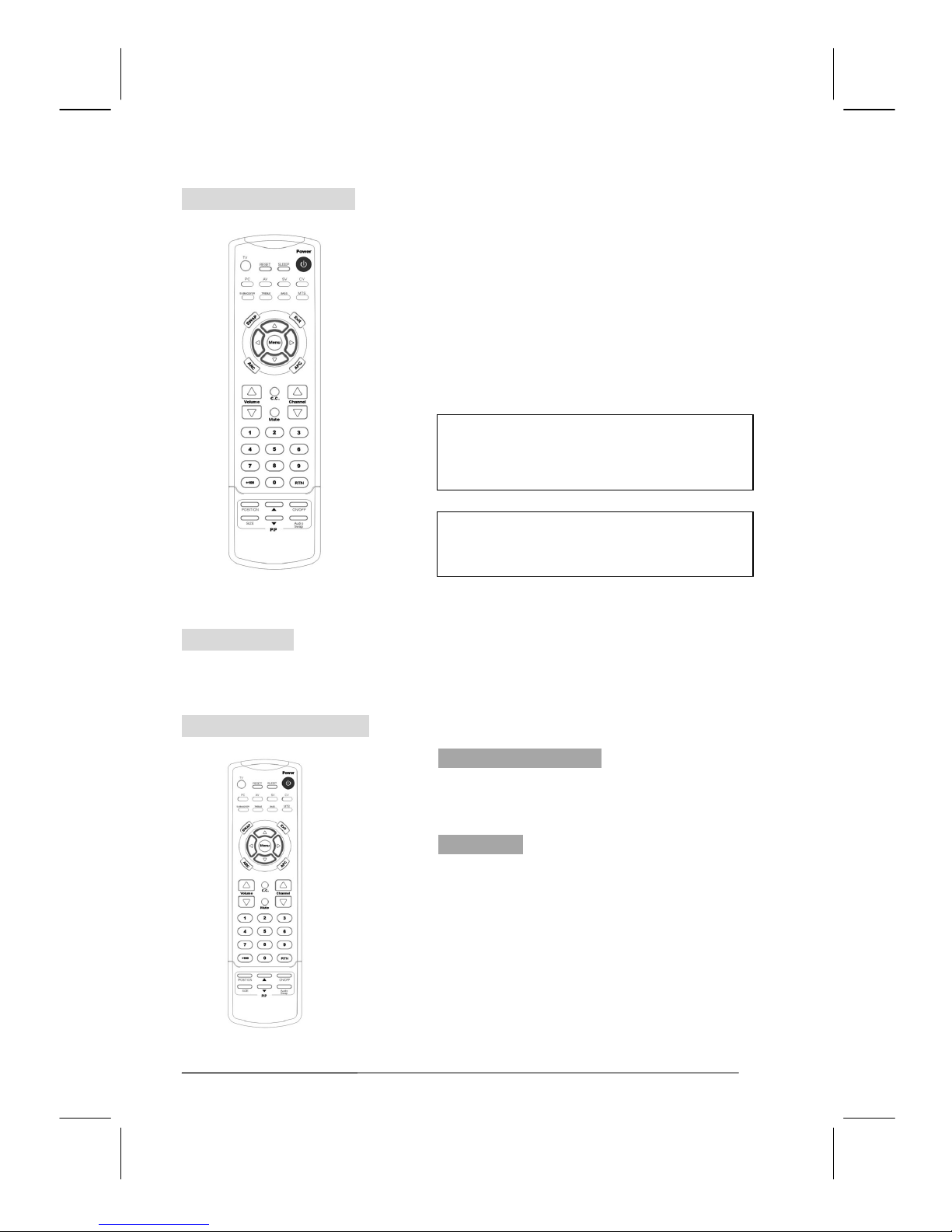
Setting the Sleep Timer
You can set the Sleep Timer to automatically turn off
the LCD TV.
1. Press the
SLEEP button to display the Sleep Timer
screen.
2. Press the
SLEEP button to set the sleep timer (in 10
minute increments).
Auto Power Off
The TV will automatically power off if no signal is detected for 10 minutes.
Adjusting the Volume
Using Volume Control
Press the △ or ▽ button to increase or decrease the
volume level.
Using Mute
At any time, you can temporarily turn off the sound
using the Mute button.
1. Press the
MUTE button and the sound turns off. A
speaker icon with a red ‘X’ will appear on the screen
denoting the sound is muted.
2. Press
MUTE again or the VOL (+) / VOL (-) button to
return audio back to the previous level.
10 min →20 min →30 min →40 min→50 min
→60 min →70 min →80 min →90 min →100 min
→110 min→120 min →OFF
Note:
The Sleep Timer screen automatically disappears in
4 seconds.
Page 18
V32FCBB-U21/M21 2005/3/30 下午 01:15
18
B. PC Mode Adjustment
Adjusting the Contrast & Brightness Settings
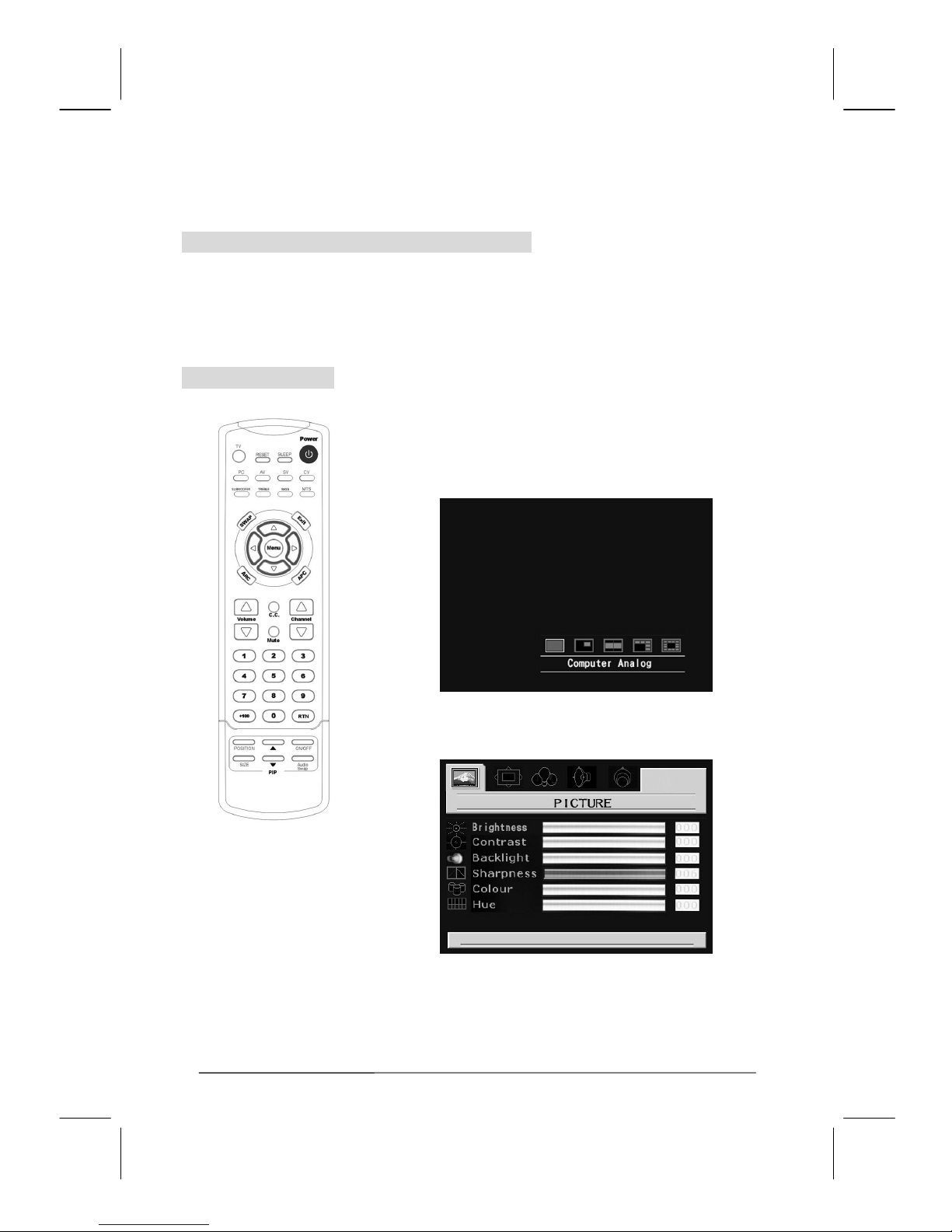
Each viewing mode supports separate adjustments for brightness and contrast levels. PC mode is
best viewed with lower brightness and contrast levels as compared to other modes.
Adjusting PC Settings
ANALOG INPUT
1. Press the PC button to set the main display to PC
Analog mode. Press the Menu button to access PC
settings options.
2. Press the ◁ or ▷ button to select Picture or
Window sub-menus for adjustment.
Page 19
V32FCBB-U21/M21 2005/3/30 下午 01:15
19
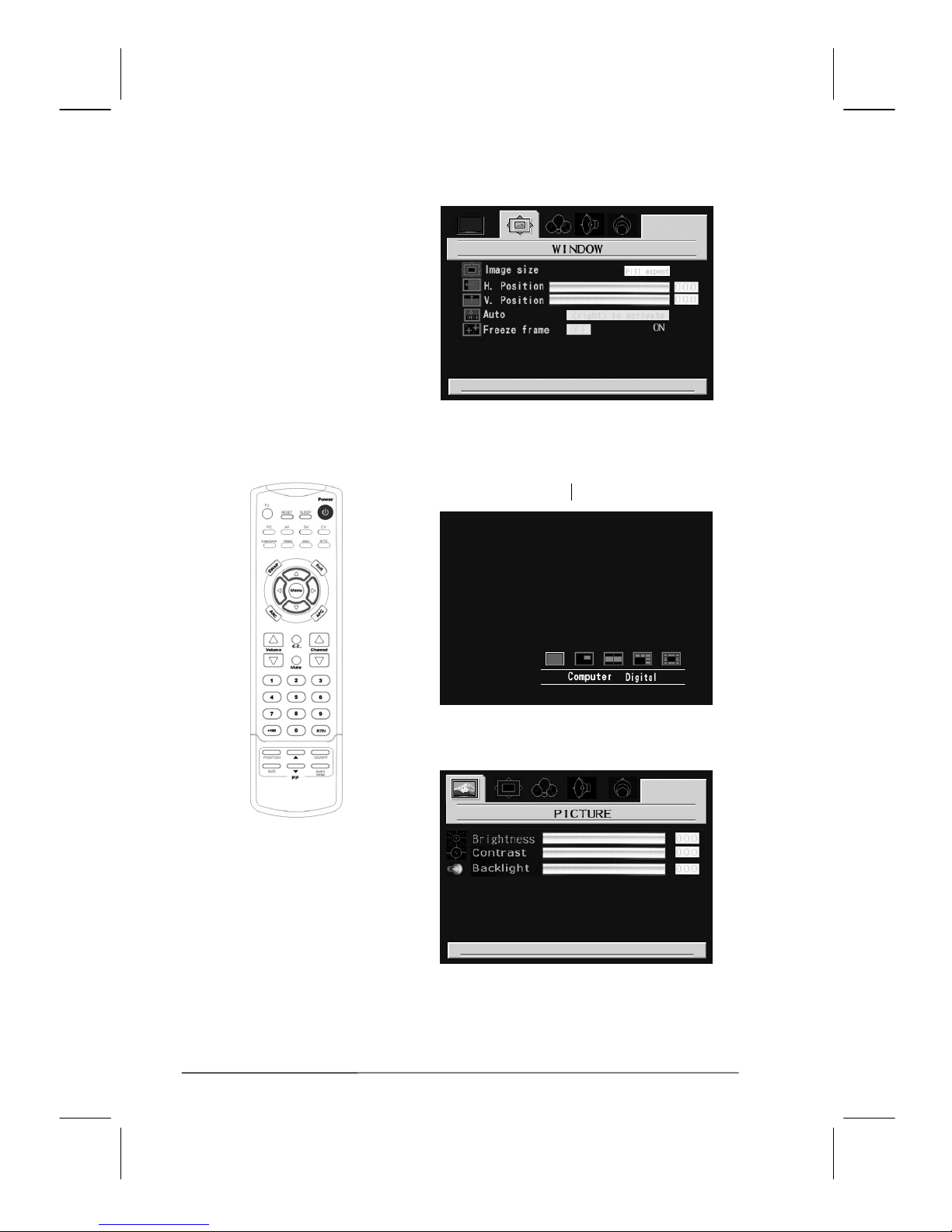
DIGITAL INPUT
1. Press the PC button twice to set the main display
to PC Digital mode.
2. Press the ◁ or ▷ button to select Picture or
Window sub-menus for adjustment.
Page 20
V32FCBB-U21/M21 2005/3/30 下午 01:15
20
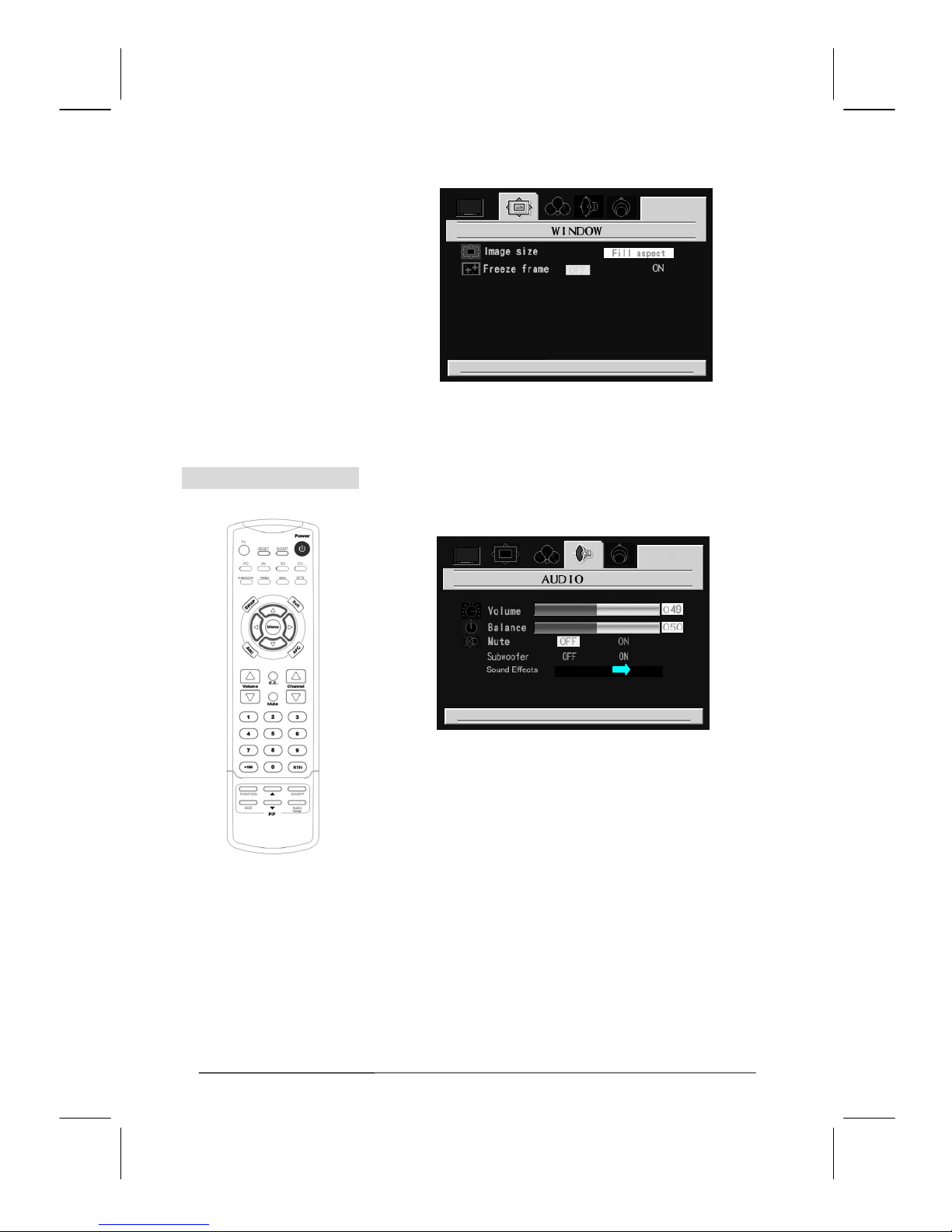
Adjusting Audio Settings
1. Press the
MENU button to display the main menu.
2. Press the ◁ or ▷
button to move the cursor to
the Audio sub-menu.
3. Audio quality can be further adjusted within the
Sound Effects sub-menu.
4. Press the △ or ▽ button to select the Sound
Effects sub-menu, then press the ◁ or ▷ button
to select Tone or Equalizer.
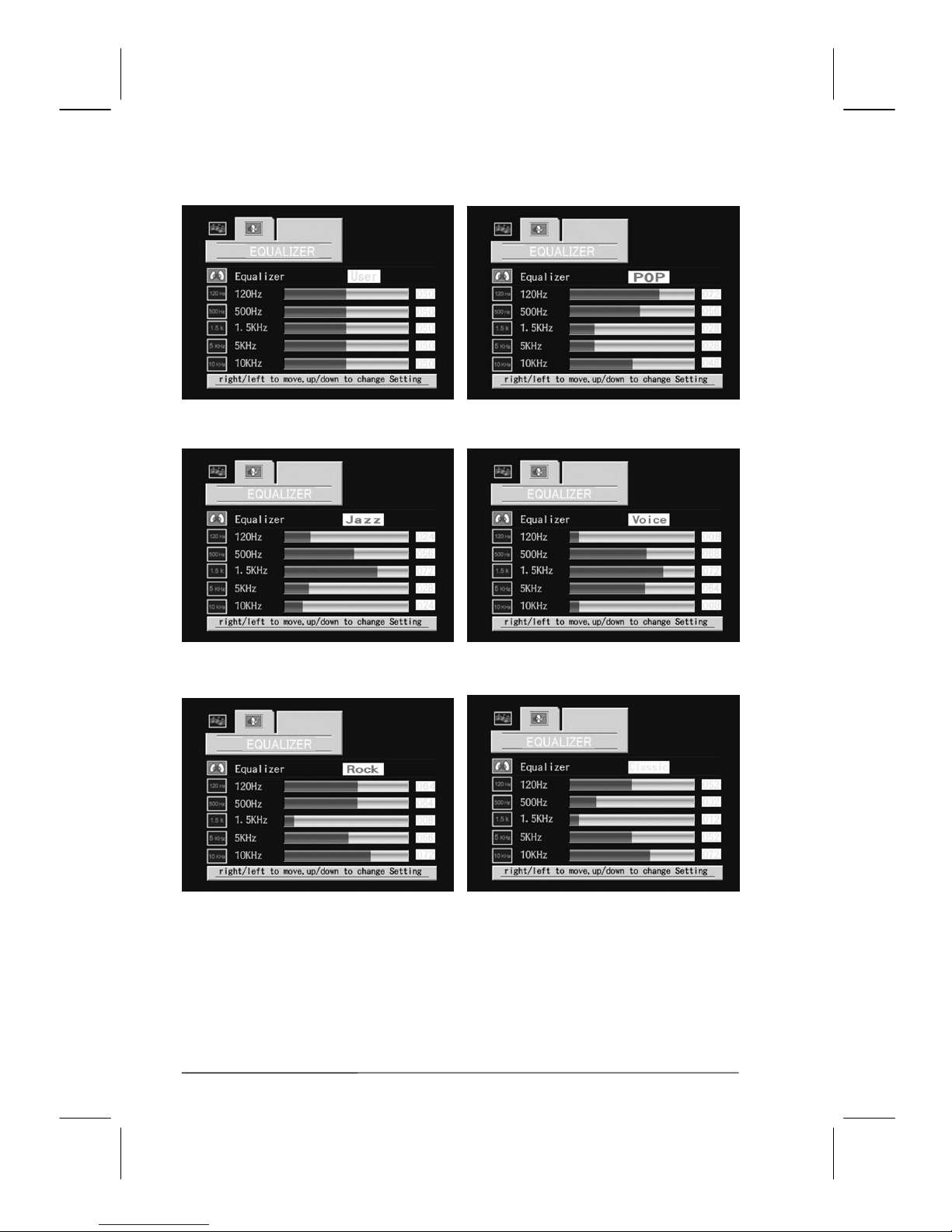
Note: The EQUALIZER sub-menu allows you to select
pre-set frequency responses based upon listening
categories.
Page 21
V32FCBB-U21/M21 2005/3/30 下午 01:15
21
USER: POP:
JAZZ: VOICE:
ROCK: CLASSIC:
5. Selecting the USER pre-set allows you to
manually adjust the frequency response.
Page 22

V32FCBB-U21/M21 2005/3/30 下午 01:15
22
Viewing Picture-in-Picture ( PiP)
PiP: While viewing content on the main display, you have the option to select a secondary signal
as a sub-display in a picture in picture window. This feature allows you to watch two video
sources simultaneously.
Activating Picture-in-Picture
1. Press the PIP ON/OFF button.
2. Press the △ or ▽ button to select the PiP source.
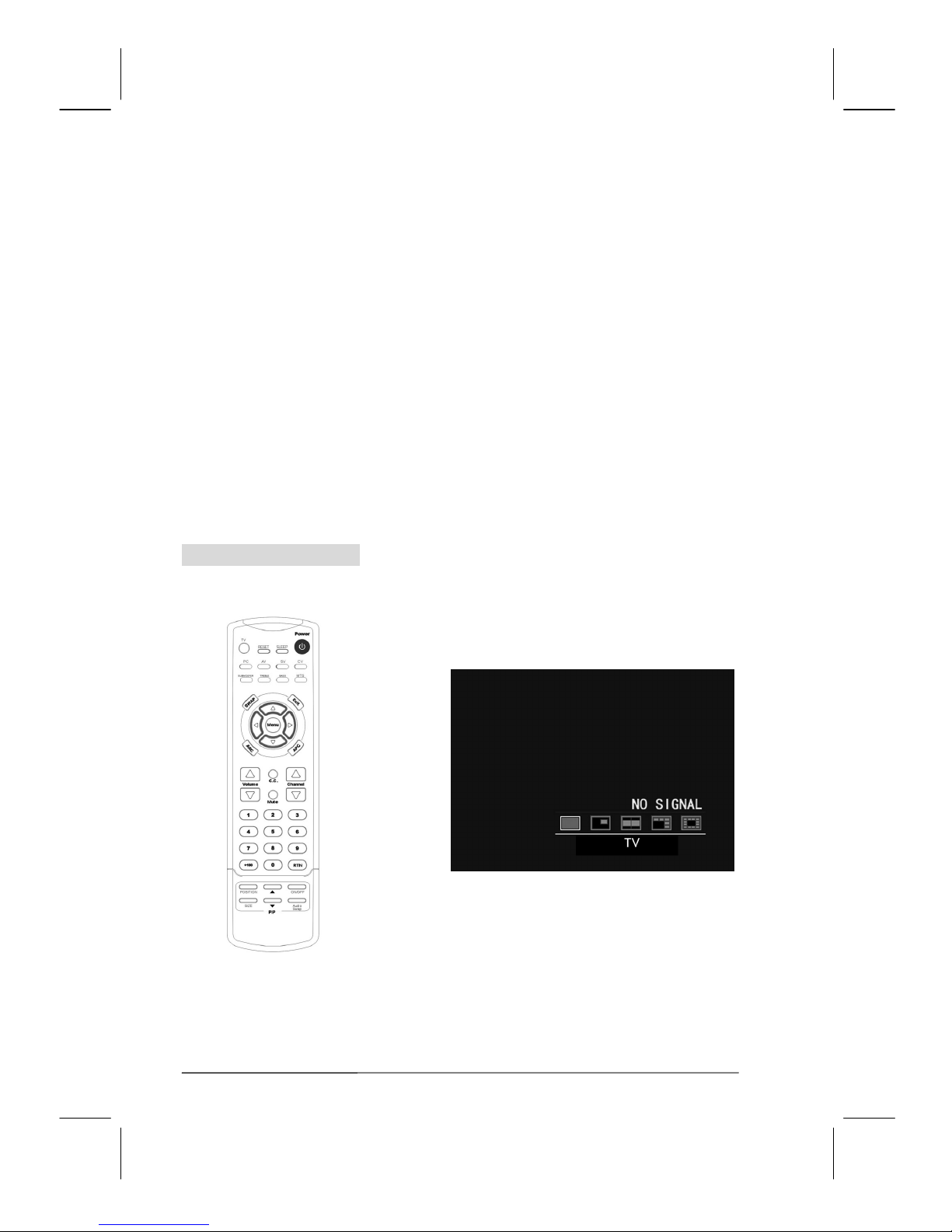
Select between Normal – PIP – POP1 – POP2 POP3
z Normal: Only show the primary source (No PiP).
z PIP: Show PiP in a window.
z POP1: Show PiP side by side with the main source.
z POP2: Show 5 sub-windows in the right hand
corner of the display.
Page 23
V32FCBB-U21/M21 2005/3/30 下午 01:15
23
z POP3: Show 12 sub-windows around the main
window.
Note: POP2 & POP3
(a) Sub-windows can only be TV – AV1 – SV1 –
AV2 – SV2
(b) It may take a few seconds for the PiP selection to
register. If you get a black screen after selecting a
PiP source, wait a moment for the display to
update.
Note: D-Sub and DVI sources cannot be displayed at
the same time.
C. TV Mode Adjustment
Adjusting the TV settings
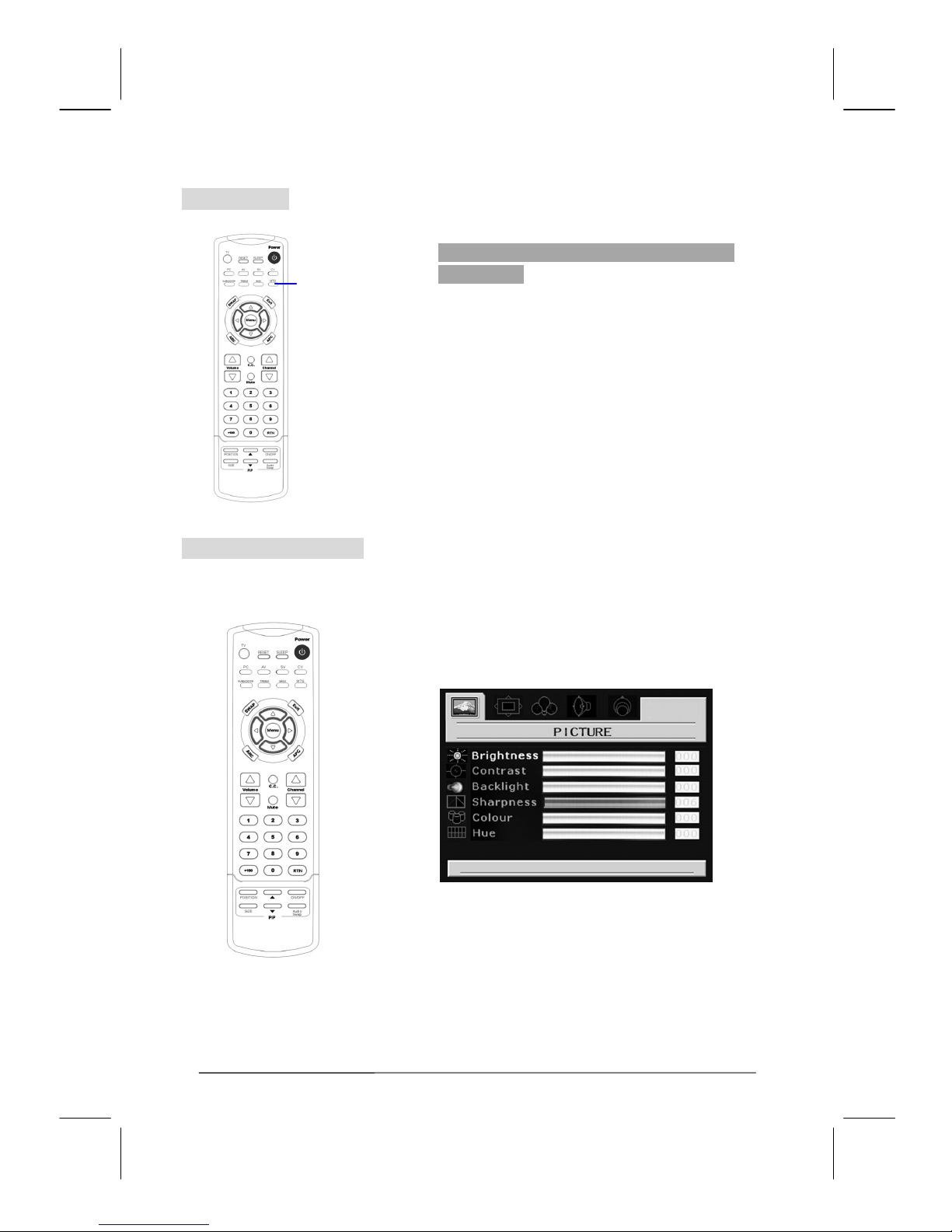
1. Press the TV button to set the main display to TV
mode. Press the Menu button to access TV settings
options.
Page 24
V32FCBB-U21/M21 2005/3/30 下午 01:15
24
Sound Options
Choosing a Multi-Channel Sound (MTS)
Soundtrack
Depending on the particular program being broadcast,
you can listen to Stereo, Mono, or a Separate Audio
Program. (SAP audio is usually a foreign-language
translation).
Adjusting Picture Settings
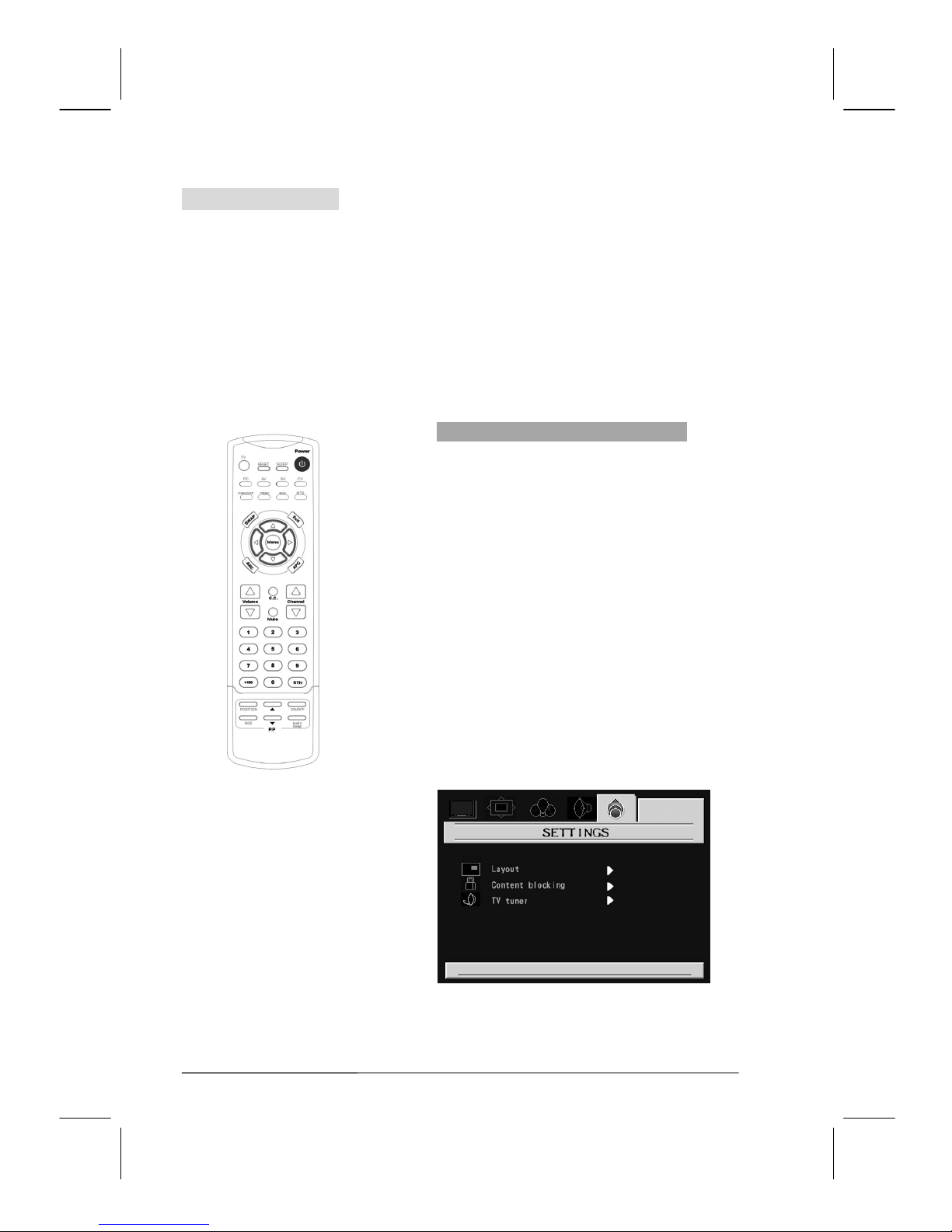
1. Press the TV button to set the main display to TV
mode. Press the Menu button to access TV settings
options.
2. Press the ◁ or ▷ button to select the Picture
sub-menu for adjustment.
3. Press the ▽ or ▽ button to select the desired
item. Then press the ◁ or ▷
button to adjust
ranges from 0~100.
4. Press the
MENU button to return to the previous
screen or exit from the sub-menu.
.
MTS
Page 25
V32FCBB-U21/M21 2005/3/30 下午 01:15
25
Memorizing Channels
Your TV can memorize and store all of the available channels for both standard broadcast (antenna)
and cable channels. After the available channels are memorized press the △
or ▽ button to
view stored channels. You can also view any channel (even non-memorized) by directly entering
the channel digits via the remote control.
There are three steps to memorizing channels:
1. Selecting a video signal source
2. Memorizing the available channels (automatically)
3. Adding/Deleting channels (manually)
Selecting the Video Signal Source
Before your television can begin to memorize
available channels, you must specify the type of signal
source that is connected to the TV (i.e., an antenna or
a cable system).
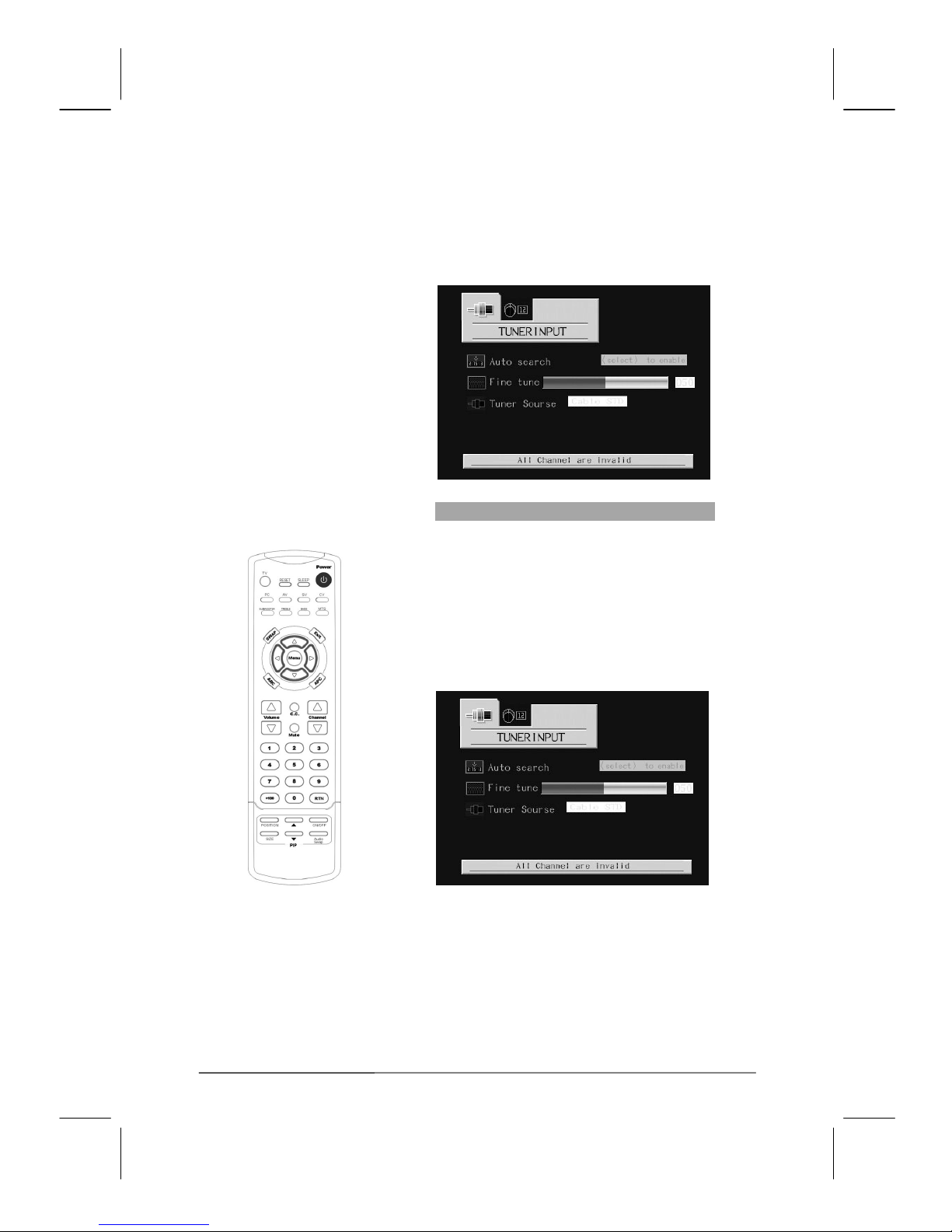
1. Press the TV button to set the main display to TV
mode. Press the Menu button to access TV settings
options.
2. Press the ◁ or ▷ button to select the Settings
sub-menu for adjustment.
3. Press the △ or ▽ button to select the TV tuner
menu option.
Page 26
V32FCBB-U21/M21 2005/3/30 下午 01:15
26
4. Press the ◁ or ▷ button to select between
Antenna, Cable_STD, Cable_HRC, or Cable_IRC
source signals.
Storing Channels (Automatic Method)
1. From the tuner input sub-menu, press the △ or
▽ button to select Auto search.
2. Press the ▷ button to run through all of the
available channels and store them in memory.
It may take a few minutes to acquire the available
channels.
Page 27
V32FCBB-U21/M21 2005/3/30 下午 01:15
27
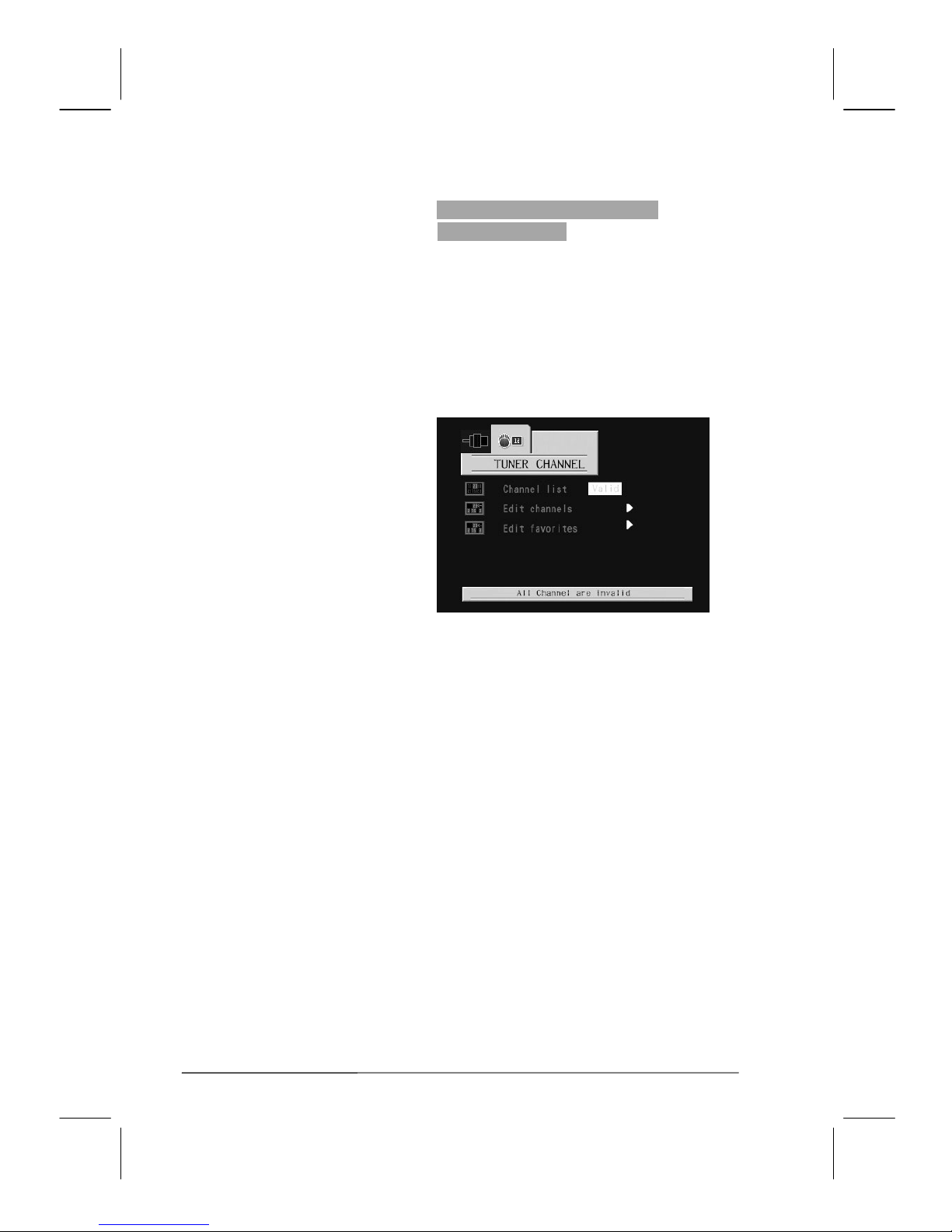
Adding and Erasing Channels
(Manual Method)
1. From the tuner input sub-menu, press the △ or
▽ button to select Tuner Source.
2. Press the ◁ or ▷
button to select the TUNER
CHANNEL.
3. Press the ▽ button to select Edit channels or Edit
favorites; then press the ▷
button to select
Add/Delete.
Page 28
V32FCBB-U21/M21 2005/3/30 下午 01:15
28
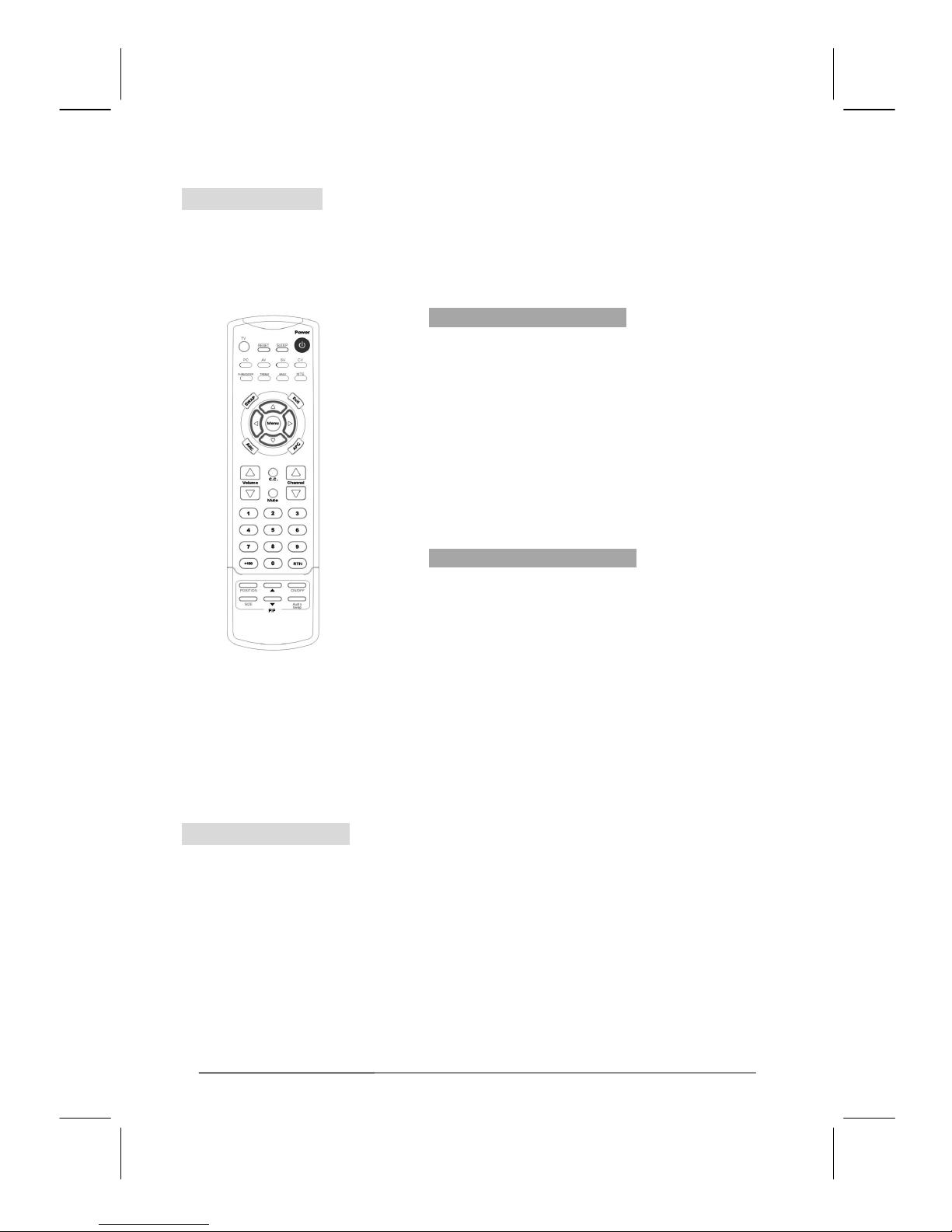
Changing Channels
This LCD TV turner provides the ability to display up to 125 channels (1 to 125).
To select a channel, enter the channel number using 1 to 3 digit numbers.
Using the Channel Buttons
1. Press the channel △ or channel ▽ button to
change channels.
When you press the channel △ or channel ▽
button, the channels move up or down in sequence.
You will see all the channels that have been
memorized, (the channels must be memorized). You
will not see channels that were either erased or not
memorized.
Directly Accessing Channels
Enter the channel number using the numeric buttons to
go directly to the channel desired.
For example, to go to channel 27, press “
2”then “7”.
The TV will change to channel 27.
Using the direct access method you can access any
available channel including non-memorized and erased
channels. To select a channel over 100, press the +100
button. (For example, to go to channel 122, press
“
+100”, then “2”, and then “2”).
Using Parental Controls
The Parental Control feature allows you to block channels from being viewed unless an unlock
PIN code is correctly entered.
Before Parental Control restrictions can be utilized, you must first create a PIN number.
Page 29
V32FCBB-U21/M21 2005/3/30 下午 01:15
29
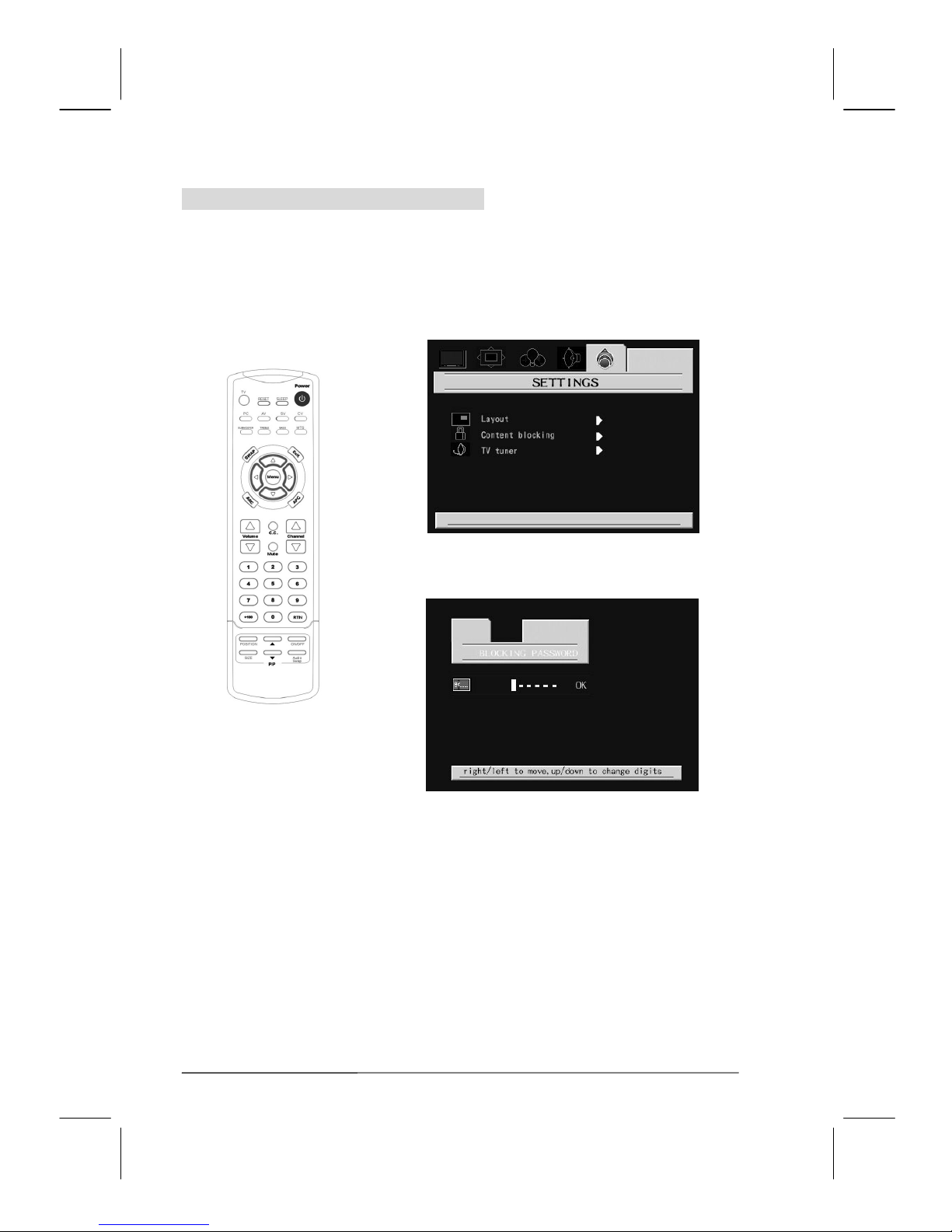
Setting Up Your Personal ID Number (PIN)
1. Press the
TV button .
2. Press the
MENU button to display the main menu.
3. Press the ▷
button to select the SETTINGS sub-menu; then Press the ▽ button to select
Content blocking.
4. Press the ▷ button to enter the BLOCKING
PASSWORD menu.
5. “Please Enter Pin:” will appear on the screen. Enter
your 6-digit PIN by pressing the △ or ▽ button to
increase or decrease numbers. Press the ◁ or ▷
button to move forward or backwards. Select ‘OK’
when you have finished entering the PIN. Press the
MENU button to confirm the entered PIN.
NOTE: The factory default PIN code is 000000.
Page 30
V32FCBB-U21/M21 2005/3/30 下午 01:15
30
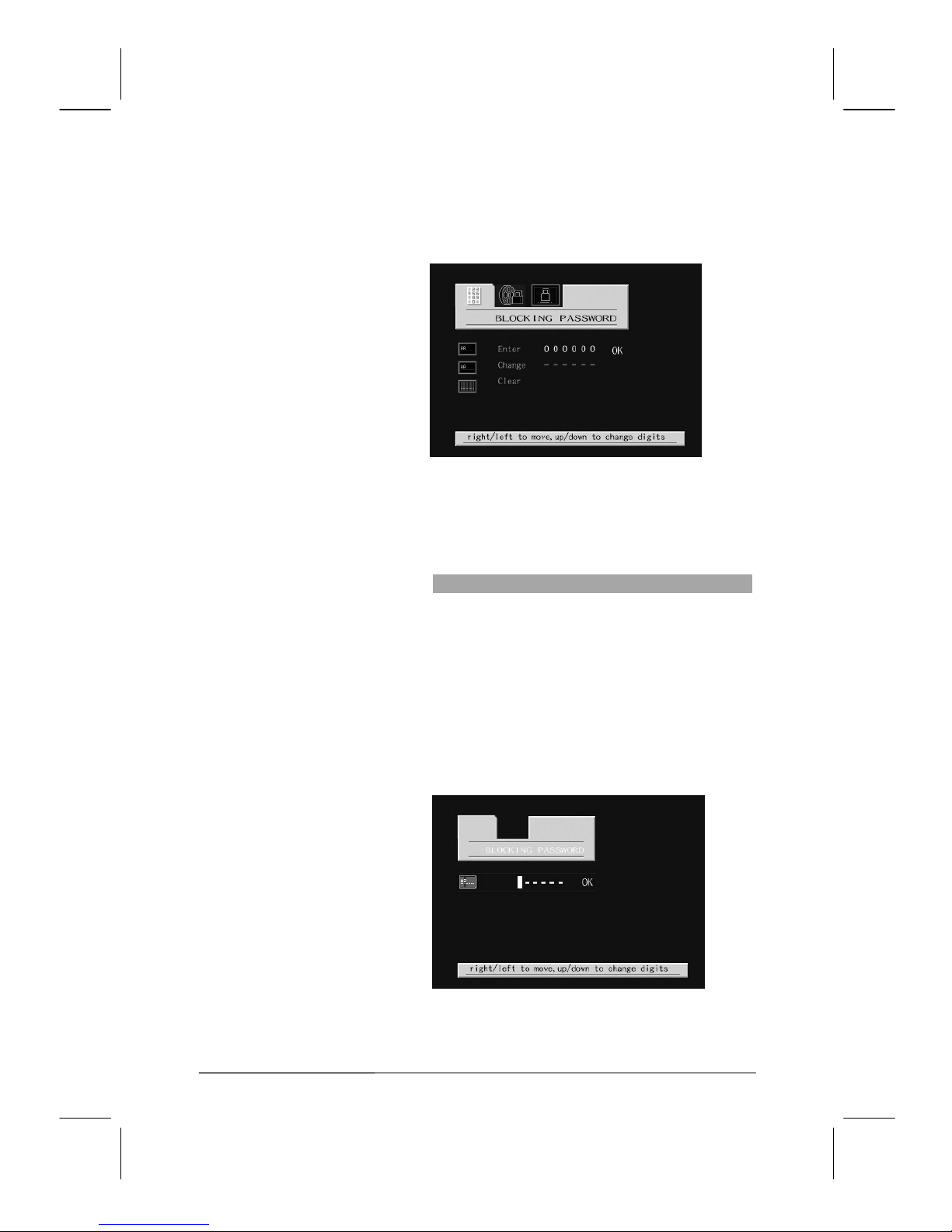
6. After entering a valid PIN number, the Parent
Control screen will appear. Press the △ or ▽
button to select the “Change” option.
7. Press the △ and ▽ buttons to enter a 6 digit PIN.
8. Press the EXIT button to exit the menu.
How to Enable / Disable Parental Controls
1. Press the TV button to set the main display to TV
mode. Press the Menu button to access TV settings
options.
2. Press the ▷
button to select the SETTINGS
sub-menu; then Press the ▽ button to select
Content blocking.
3. Press the ▷ button to enter the BLOCKING
PASSWORD sub-menu.
Page 31
V32FCBB-U21/M21 2005/3/30 下午 01:15
31
4. The “Please Enter Pin” screen will appear. Enter
your 6 digit PIN number.
5. Press the ▷ button to select BLOCKING
MOVIE or BLOCKING TV; then press the ▽
button to choose the lock function .The
“BLOCKING MOVIE” and ” BLOCKING TV”
options will lock out any channels that you don’t
want viewed.
6. If you want to disable the Parental Controls, set the
“BLOCKING TV” and “BLOCKING MOVIES”
options to off. All locked channels will be released
automatically.
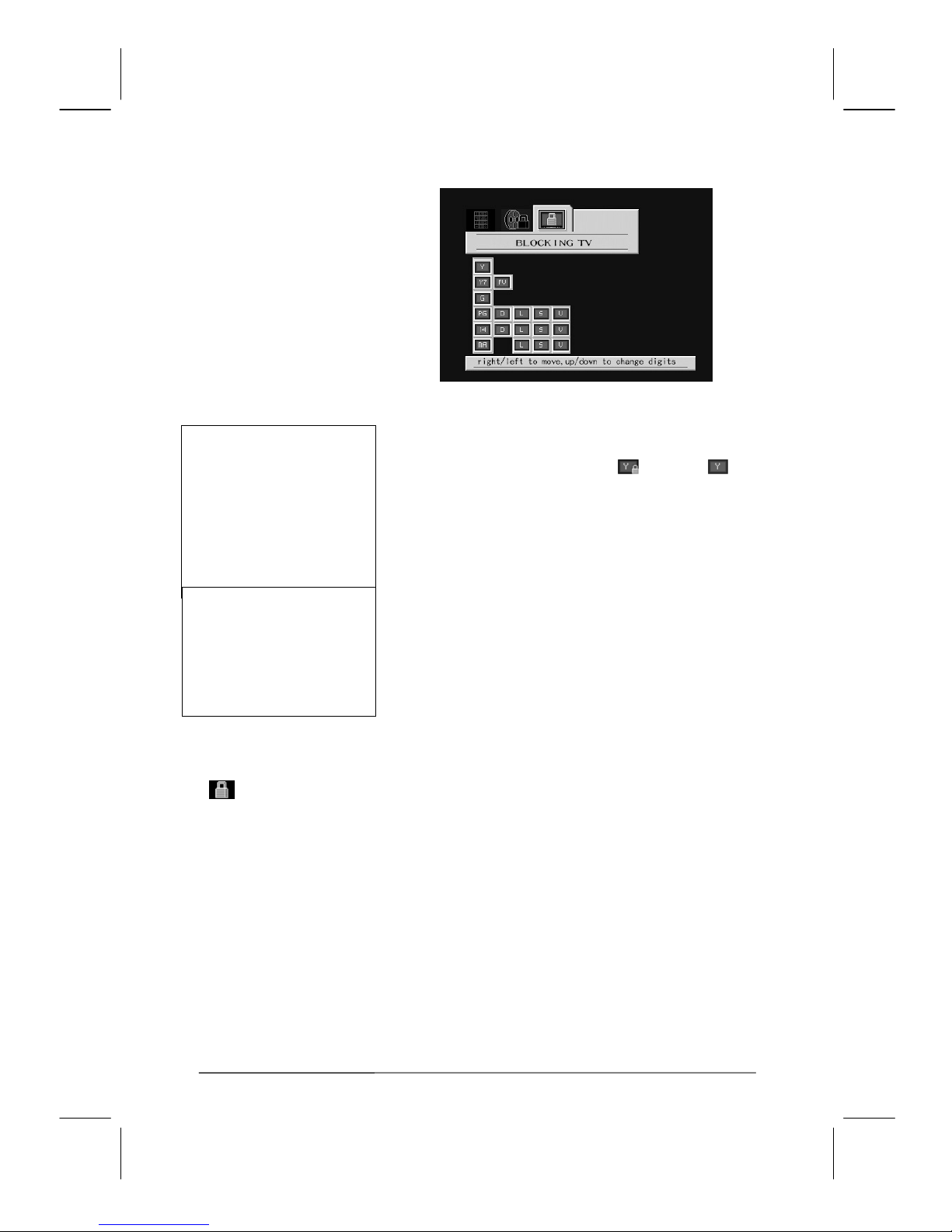
Setting up restrictions using the “BLOCKING PASSWORD” function.
The BLOCKING PASSWORD option utilizes the Television ratings system for determining
blocked programming. When the parental control lock is enabled, the TV will automatically block
any programs that are coded with objectionable ratings.
1. Press the TV button to set the main display to TV
mode.
2. Press the Menu button to access TV settings
options.
3. Press the ▷
button to select the SETTINGS
option; then Press the ▽ button to select Content
Blocking.
4. Press the ▷ button to select BLOCKING
PASSWORD.
5. Press the ▽ button to select the Enter sub-menu.
Enter your 6-digit PIN number by pressing the △
and ▽ button.
6. After entering a valid PIN number, the
BLOCKING PASSWORD screen will appear.
Press the ◁ or ▷ button to select the
“BLOCKING TV” option.
Page 32
V32FCBB-U21/M21 2005/3/30 下午 01:15
32
7. Under the “BLOCKING TV” screen, press the △
or ▽ button to select a TV category. Press the
MENU button to select “lock
or unlock” .
If the channel is set to a restricted channel, the parental controls will automatically block it, and
the “
” icon will appear:
TV-Y Young children
TV-Y7 Children 7 and over
--------------------------------------
TV-G General audience
TV-PG Parental guidance
TV-14 Viewers 14 and over
TV-MA Mature audience
FV : Fantasy violence
D
: Sexual suggestive dialog
L
: Adult language
S
: Sexual situation
V
: Violence
Page 33
V32FCBB-U21/M21 2005/3/30 下午 01:15
33
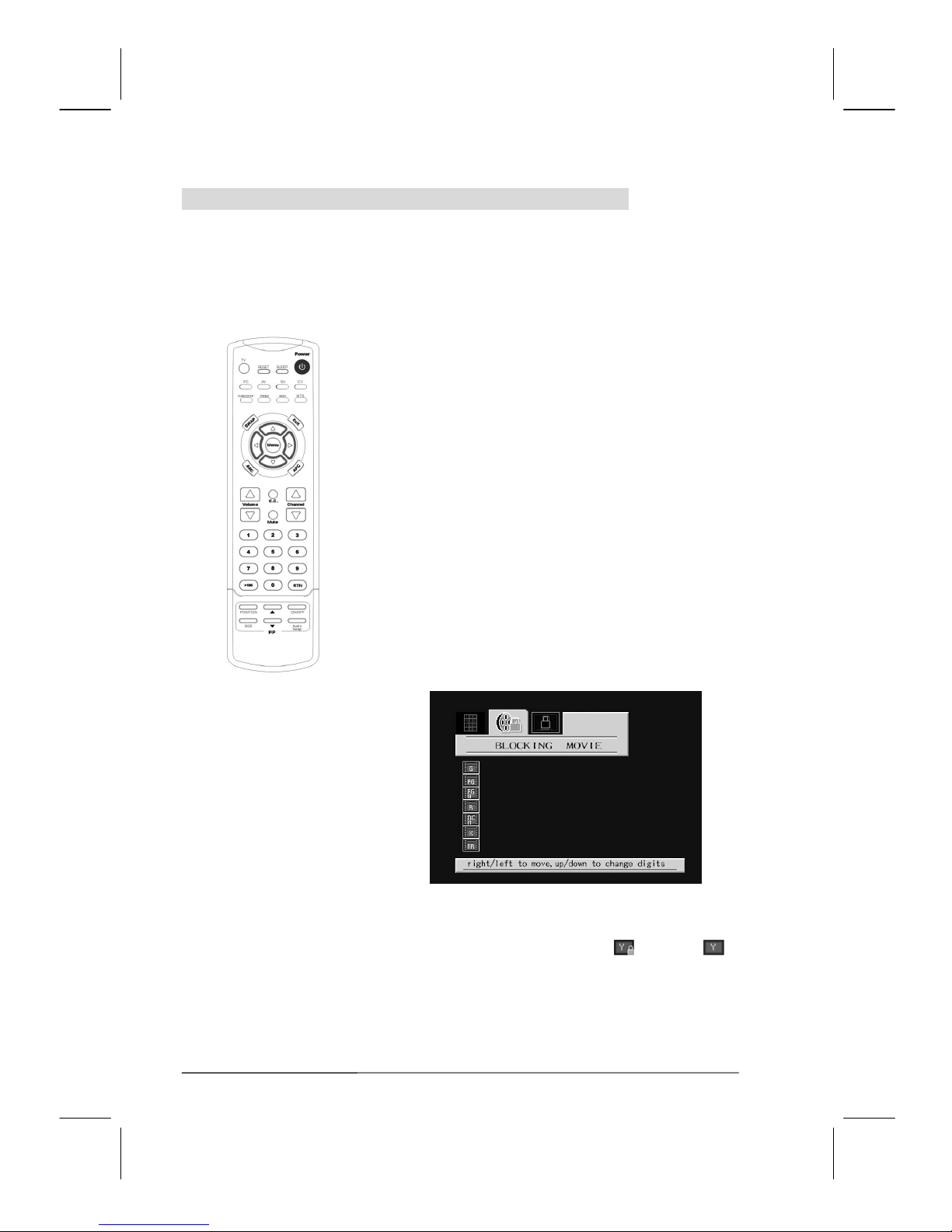
Setting up restrictions using the “BLOCKING MOVIE” function.
The BLOCKING MOVIE option utilizes the Motion Picture Association of America (MPAA)
ratings system for determining blocked programming. When the parental control lock is enabled,
the TV will automatically block any programs that are coded with objectionable ratings.
1. Press the TV button to set the main display to TV
mode.
2. Press the Menu button to access TV settings options.
3. Press the ▷
button to select the SETTINGS option;
then Press the ▽ button to select Content Blocking.
4. Press the ▷ button to select BLOCKING
PASSWORD.
5. Press the ▽ button to select the Enter sub-menu.
Enter your 6-digit PIN number by pressing the △
and ▽ button.
6. After entering a valid PIN number, the
BLOCKING PASSWORD screen will appear. Press
the ◁ or ▷ button to select the “BLOCKING
MOVIE” option.
7. Under the “BLOCKING MOVIE” screen, press the
△ or ▽ button to select a MPAA rating. Press the
MENU button to select “lock
or unlock” .
Page 34
V32FCBB-U21/M21 2005/3/30 下午 01:15
34
G : General audience (no restrictions).
PG
: Parental guidance suggested.
PG13
: Parents strongly cautioned.
R
: Restricted. Children under 17 should be accompanied
by an adult.
NC17
: No Children
X
: Adults only under 17.
If the channel is set to a restricted channel, the parental controls will automatically
block it, and the “
” icon will appear:
Page 35
V32FCBB-U21/M21 2005/3/30 下午 01:15
35
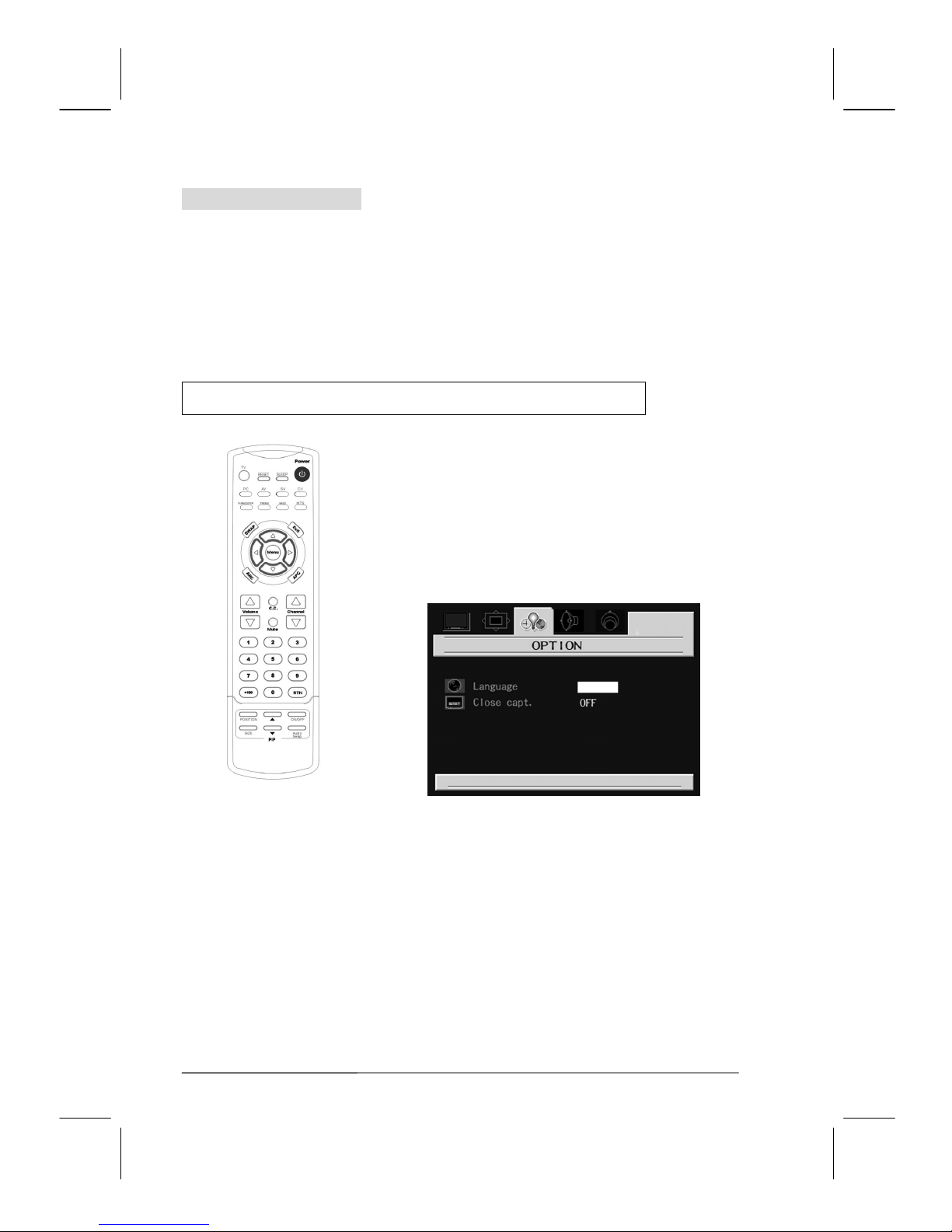
Viewing Closed Captions
This LCD TV has the ability to decode and display closed caption content if supported by the
program. These captions are usually used for the hearing impaired or for foreign language
translations. Most VCR's can record the closed caption signal from television programs. Most
pre-recorded commercial videotapes also provide closed captioning as well. Refer to the closed
caption symbol within your television programming guide and on the videotape packaging in
order to properly configure the closed captioning function:
1. Press the TV button to set the main display to TV
mode. Press the MENU button to access TV Settings
options.
2. Press the ▷
button to select the OPTION
sub-menu.
3. Press the ▽ button to select Close Capt.
4. Press the ◁ or ▷ button to select between closed
captioning modes CC1, CC2, CC3, CC4, TT1, TT2,
TT3, and TT4. If you don’t want to display captions,
set the caption mode to “Off”.
Note: The Caption feature does not work with DVD’s.
Page 36

V32FCBB-U21/M21 2005/3/30 下午 01:15
36
D. Other Functions
1.
Channel △▽:
Under TV mode,
Channel △▽ keys are for changing channels.
2.
Vo l um e △▽:
Under any display mode, “
Vo l u m e △▽” are for adjusting sound volume.
3.
ARC (Aspect Ratio Control):
In PC Mode:
˙Full’ Fills the entire 16:9 screen.
˙Fill aspect’ Expands the width of 4:3 video sources evenly to fill the 16:9 screen. There will be
distortion as the image is stretched horizontally.
˙One to One’ The source signal determines the type of image displayed on the screen.
In Video/TV source:
˙Normal’ Sets the aspect ratio to 4:3. There will be black bars to the left and right sides of the
image.
˙Zoom: Extends the image height to fill the screen by stretching the image vertically.
˙Full: Expands 4:3 video sources both vertically and horizontally to fill the entire screen
while keeping the original aspect ratio..
˙Panoramic: This mode expands the width of 4:3 video sources evenly to fill the 16:9 screen.
There will be distortion as all four edges of the image are stretched, creating less distortion at
the center of the screen.
4.
APC (Automatic Picture Control):
Automatic Picture Control allows you to easily set the screen luminosity based upon your
environment. If in a well lit viewing area it may be necessary to turn up the screen intensity via
the APC "Clear" setting to make the image viewable. Likewise if in a dark viewing area it may
be necessary to turn down the screen intensity via the APC "Dark" setting. Toggle the APC
button to scroll through the four APC modes to select the mode that best suits your situation.
5.
MTS (Multi-Television-Sound):
˙There are three supported MTS modes: “Mono”, “Stereo” or “SAP” (Secondary Audio
Program).
˙This LCD TV has the ability to decode stereo or SAP broadcasts.
6. RESET:
˙Under Under PC mode, the reset button restores the following settings to factory values:
(Brightness, Contrast, Color, Temp, Volume, Treble, Bass, and Balance)
˙Under Video mode, the reset button restores the following settings to factory values:
(Brightness, Contrast, Hue, Saturation, Sharpness, Volume, Treble, Bass, and Balance)
Page 37
V32FCBB-U21/M21 2005/3/30 下午 01:15
37
Troubleshooting
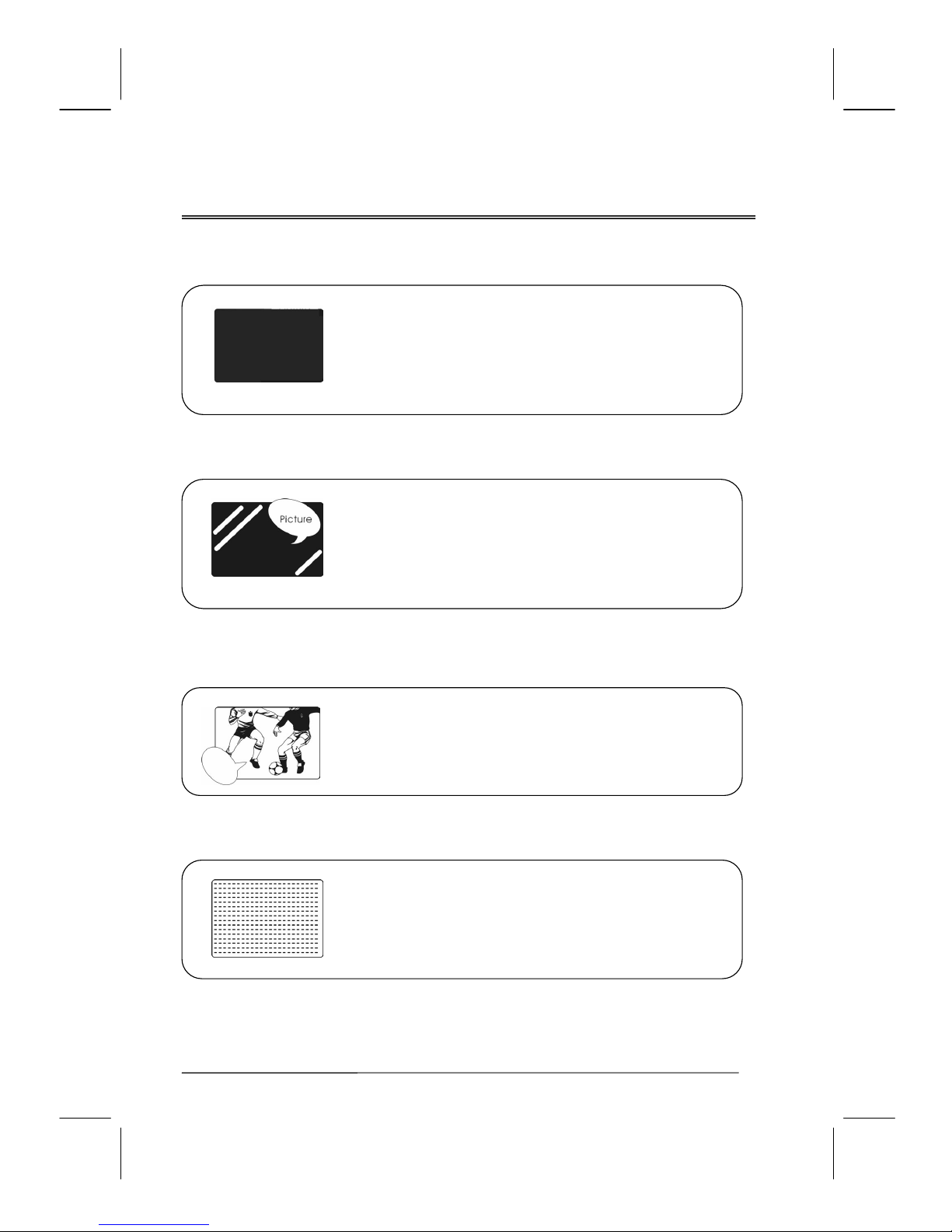
There is no picture or sound.
• Make sure the AC adapter is connected.
• Verify that there is a valid source signal.
• Make sure the correct input mode is selected.
• Make sure the master power switch has been turned on.
There is no picture from AV.
• Make sure the BRIGHTNESS is properly adjusted.
• The florescent lamp may have reached the end of its life.
Contact an authorized service center.
• Make sure the video source is plugged into the composite
video-in port.
There is no sound.
• Make sure the volume is not set to minimum.
• Make sure the sound is not muted
• Make sure that headphones are not connected
.
There is no picture or sound, just noise.
• The source signal may be weak.
• Your provider may be experiencing difficulties.
• Check your input connections.
Page 38

V32FCBB-U21/M21 2005/3/30 下午 01:15
38
Picture is not clear.
• The source signal may be weak.
• The provider may be experiencing difficulties.
• Check input connections.
Picture is light or improperly tinted.
• Check the Hue, Saturation and Color adjustments.
• Reset the TV to the factory default settings.
The picture is too dark.
• Select a different APC mode.
• Check the PICTURE and BRIGHTNESS adjustments.
• The fluorescent lamp may have reached the end of its life.
Contact an authorized service center.
Remote control does not work.
• Install new batteries.
• Make sure the remote sensor window isn’t blocked.
The picture is not sharp.
• The signal source may be weak.
• The provider may be experiencing difficulties.
• Check input connections.
Page 39
V32FCBB-U21/M21 2005/3/30 下午 01:15
39
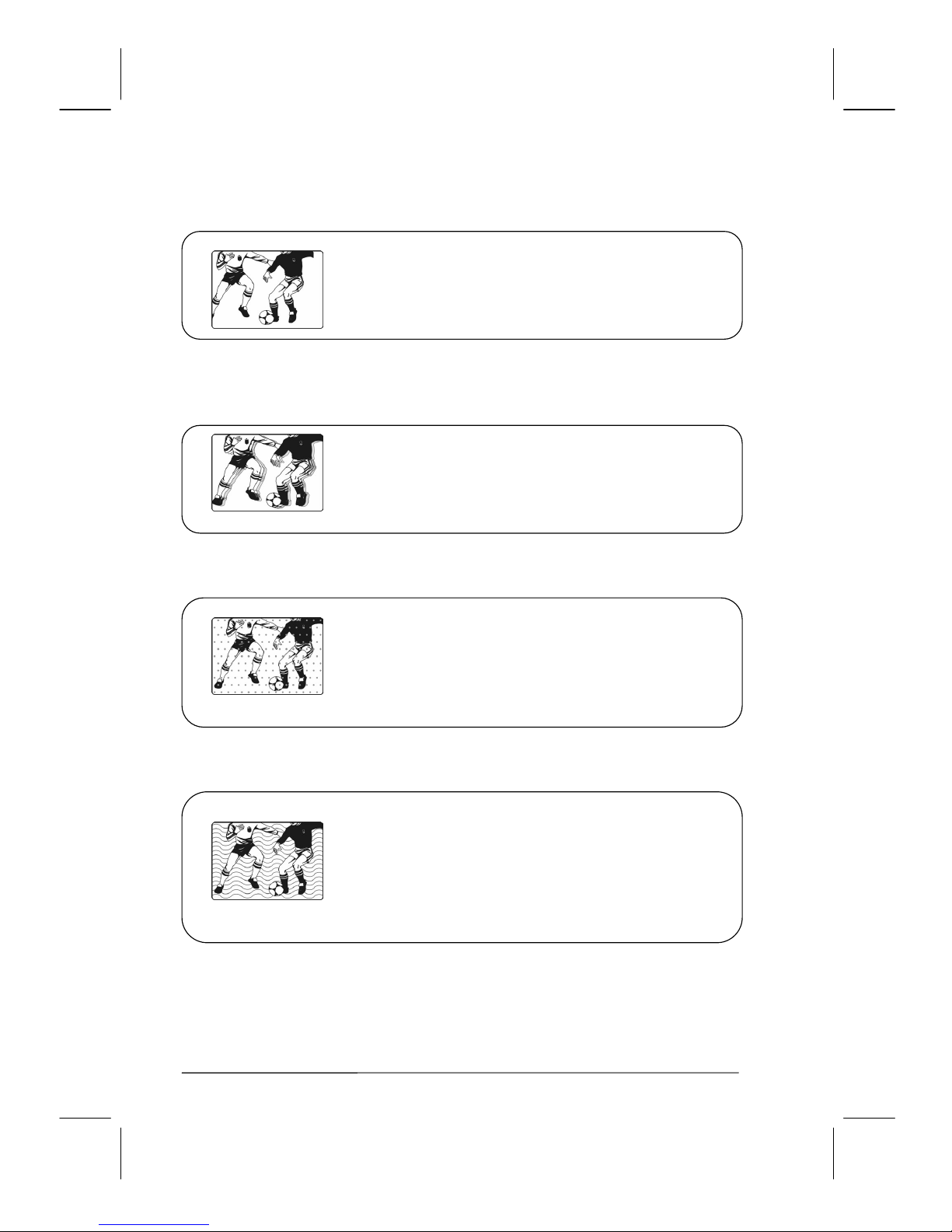
The picture moves.
• The source signal may be weak.
• The provider may be experiencing difficulties.
• Check input connections.
The picture is doubled or tripled.
• The source signal may be weak.
• Check input connections.
The picture is spotted.
• There may be interference from other appliances nearby or
around the LCD TV.
There may be interference between the source cable and the
power cable. Make sure they don’t touch.
There are stripes on the screen or colors fade.
• There may be interference from other appliances.
• There may be interference between the video source cable and
the power cable. Make sure the power and video cables are not
touching.
• Check the Hue, Saturation and Color adjustments.
Page 40
V32FCBB-U21/M21 2005/3/30 下午 01:15
40
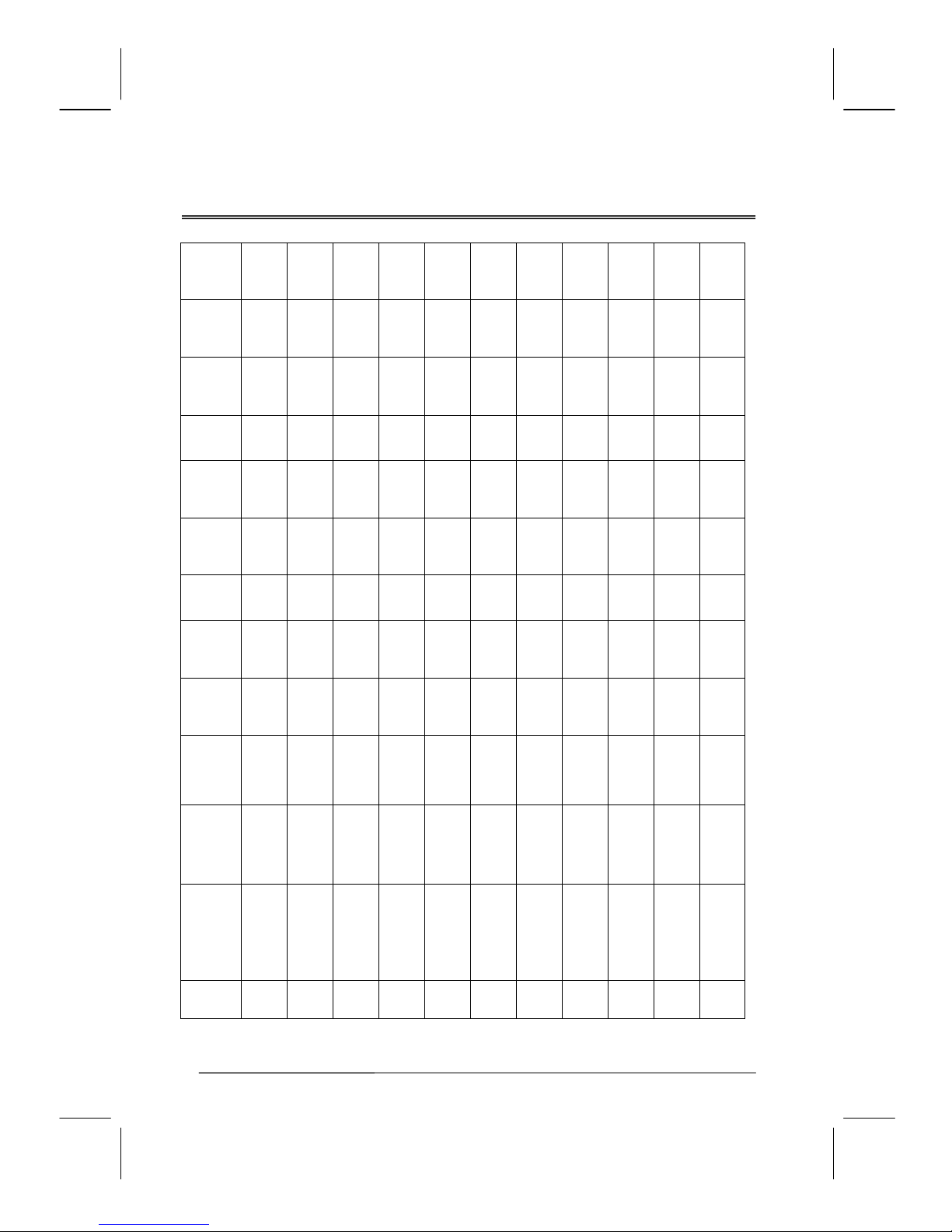
PC Input Preset Timing Table
Ver.Sync
Width
2
3
3
2
13
4
3
6
6
3
6
V.Back
Porch
33
39
16
35
29
23
21
29
29
23
18
Ver.
Display
480
480
480
400
576
600
600
768
768
768
768
Ver.
Total
525
525
500
449
625
628
625
806
806
795
795
Hor.
Sync
Width
96
64
64
108
32
128
80
136
136
136
112
H.Back
Porch
48
96
120
54
124
88
160
160
144
198
256
Hor.
Displa
y
640
640
640
720
768
800
800
1024
1024
280
1360
Hor.
Total
800
864
840
900
952
1056
1056
1344
1328
1676
1792
Pixel
CLK(MH
Z)
25.175
30.24
31.5
28.322
29.75
40.0
49.5
65.0
75.0
80
85
H.Polarity
V. Pol ar it y
-
-
-
-
-
-
-
+
-
-
+
+
+
+
-
-
-
-
-
-
+
+
H.Freq(KHZ)
V. Fre q( HZ )
31.469
59.941
35.000
66.667
37.5
75.0
31.469
70.087
31.250
50
37.897
60.317
46.875
75.0
48.363
60.004
56.476
70.069
47.708
60
47.712
60.000
Mode Name
Resolution
VGA 60HZ
640*480
MAC VGA
640*480
VGA 75HZ
640*480
US TEXT
720*400
STB
768*576
SVGA
60HZ
800
*
600
SVGA
75HZ
800
*
600
XGA 60HZ
1024*768
XGA 70HZ
1024*768
WSGA
1280*768
WXGA
1360*768
Mod
e
No.
1
2
3
4
5
6
7
8
9
10
11
Page 41
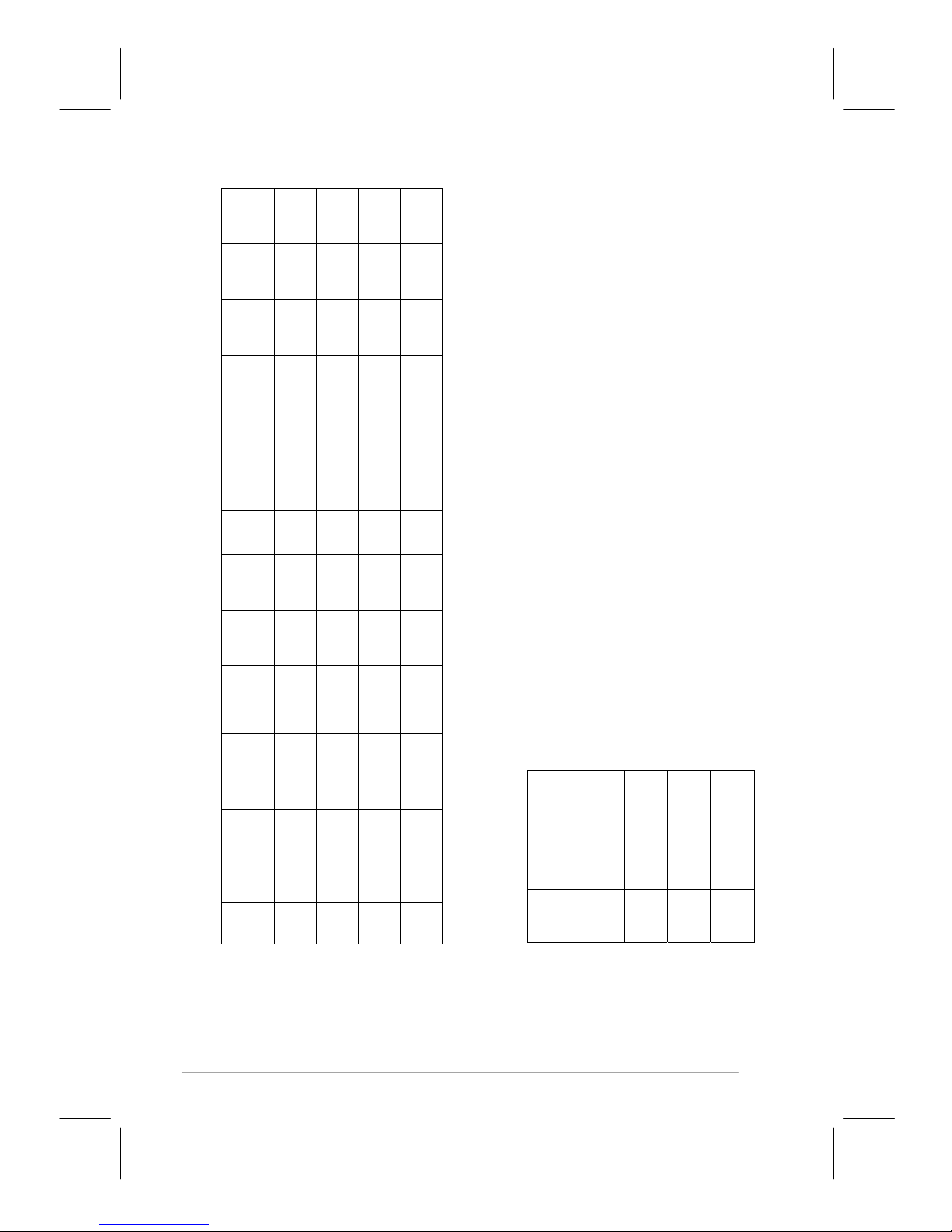
V32FCBB-U21/M21 2005/3/30 下午 01:15
41
Ver.Syn
c Width
2
4
6
2
V.Back
Porch
33
23
29
35
Ver.
Display
480
600
768
400
Ver.
Total
525
628
806
449
Hor.
Sync
Width
96
128
136
108
H.Back
Porch
48
88
160
54
Hor.
Displ
ay
640
800
1024
720
Hor.
Total
800
1056
1344
900
Pixel
CLK(MH
Z)
25.175
DVI
40.0
DVI
65.0
DVI
28.320
DVI
H.Polarity
V. Pol ari t y
-
-
+
+
-
-
+
+
H.Freq(KHZ)
V.Fr eq (H Z)
31.469
59.941
37.879
60.317
48.363
60.004
31.469
70.087
Mode Name
Resolution
VGA 60HZ
640*480
SVGA 60 HZ
800*600
XGA 60HZ
1024*768
US TEXT
720*400
Mod
e
No.
1
2
3
4
Mode Name
Resolution
480i_HDCP
480p_HDCP
720p_HDCP
1080i_HDCP
Mode
No.
1
2
3
4
HDCP Timing
DVI Timing
Page 42
V32FCBB-U21/M21 2005/3/30 下午 01:15
42
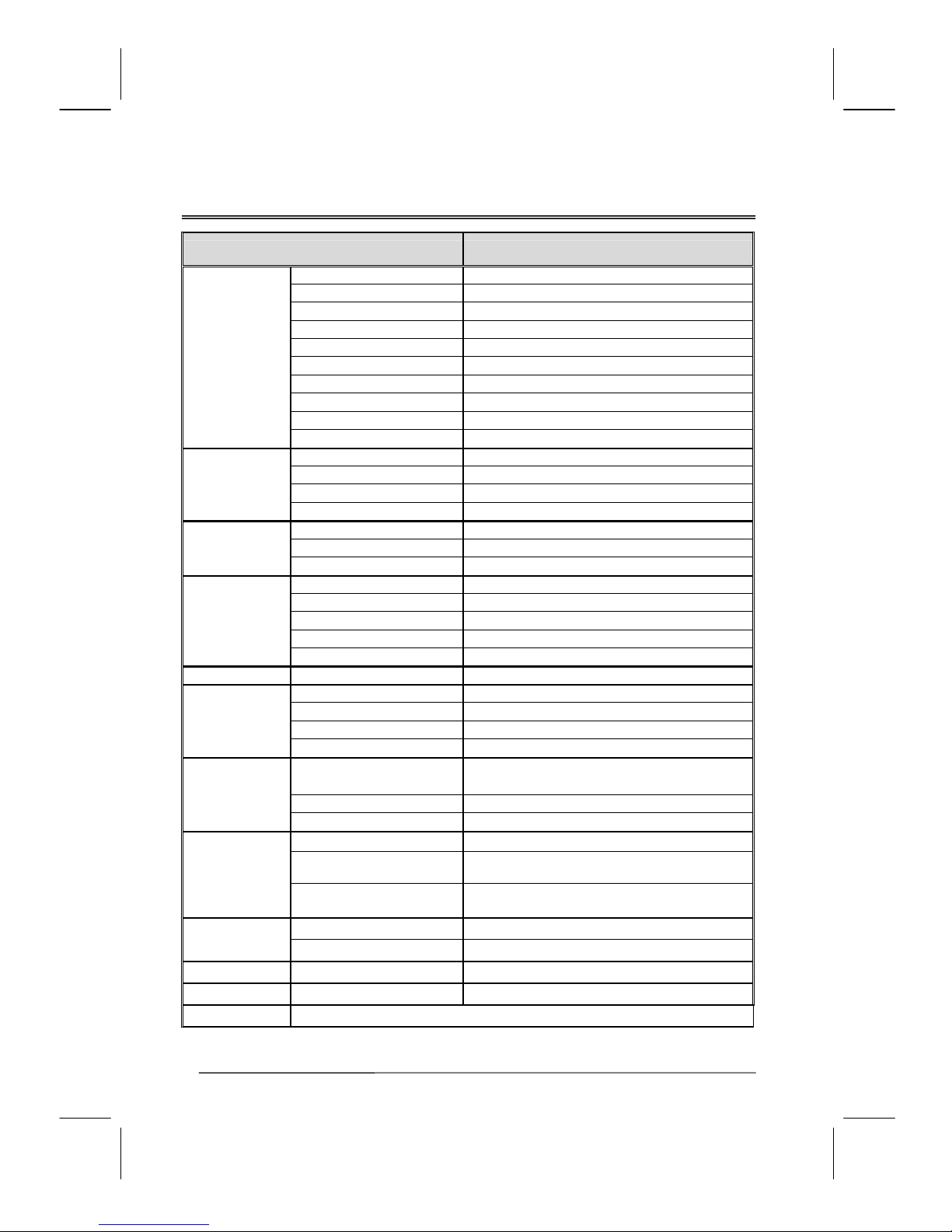
Specifications
ITEMS SPECIFICATION
Screen Size 32” TFT-LCD Panel
Aspec Ratio
16:9
Resolution 1366 x 768 (WXGA)
Display Area (opening) H x V 697.68 mm x 392.25 mm
Pixel Pitch 0.511 mm x 0.511 mm
Display colors
16,777,216 colors
Contrast Ratio 550 : 1 (typ.)
Brightness 500 cd / m2 (typ.)
Viewing Angle 170o Hor. / 170o Ver. (typ.)
Panel
Res pon se Time (GTG ) 10 ms (typ. )
Broadcasting System NTSC
Receiving Channel PLL 181Ch. CATV 125Ch.
Sound System MTS + SAP
TV Function
Data Broadcasting Close Caption , V - Chip
CV Y Pb Pr (720P/1080i, HDTV ready) x 2
SV S – Video x 2
Video Input
AV CVBS (Composite ) x 2
Signal Connection D-Sub 15 pin
PnP Compatibility DDC / 2B
Scanning Frequency fH = 31.5 ~ 60KHz / fV = 56 ~ 75Hz
Recommended 1280x 768 ( 60Hz)
PC Input
(analog)
HDTV Ready (via D-Sub 15Pin) 720P , 1080i
Digital Input
DVI/HDCP DVI 1.0 / HDCP 1.0
Audio 1 Component x 2
Audio 2 S-Video x 2
Audio 3 Composite x 2
Audio Input
Audio 4 PC x 1
Speaker ( build-in )
10W +10W (rms) @THD<10%
(7W+7W @THD<1%))
Line Out RCA -Jack (L / R)
Audio Output
Subwoofer Out RCA -Jack
OSD Language
English, French, Chinese, Spanish, German
Function Keys
Power, Source, Menu, Up/Down (Channel) , +/-(Volume) ,
APC/EXIT.
Feature
Others
PIP, VOV, 3D De-interlace, 3D Comb filter, Equalizer, Sleep
timer, Auto power off.
Power Supply AC 100V ~ 240V, 50 / 60Hz
Power
Power Consumption < 180 W
Dimension
W x H x D 964.8mm * 582 mm * 279.8mm
Weight (net)
Without Accessories 22.2 kg
Accessories
Remote controller, Batteries, AC power cord.
Page 43

V32FCBB-U21/M21 2005/3/30 下午 01:15
43
Page 44

V32FCBB-U21/M21 2005/3/30 下午 01:15
44
 Loading...