

Page 1
WHS, WP490EXT, WPEHS - Quick Start Guide - English
Jul 01, 2019 03:36
WHS, WP490EXT, WPEHS - Quick Start Guide - English
WHS – Wildix Headsets
WHS-MONO / WHS-DUO
Connection
WHS-BT
Quick Start Guide
WP490EXT – Extension module
Quick Installation Guide
WPEHS – Wireless Headset Adapter
Connection
Firmware Upgrade (WP490EXT and WPEHS)
WP490EXT
WPEHS
WHS – Wildix Headsets
WHS-MONO (one ear)
WHS-DUO (two ears)
WHS-BT (bluetooth, one ear)
Third party headsets integrated with Wildix phones: https://confluence.wildix.com/x/DASIAQ
WHS-MONO / WHS-DUO
Compatibility
WP4X0 2015 / WP4X0G
WP600A/ACG / Vision
WP old series
W-AIR 70/100/150
Compatible with iPhone and Android phones
Compatible with Apple Mac and Windows PC
Connection
In this Quick Start Guide you can find information on how to Connection WHS headsets (WHSMONO, WHS-DUO, WHS-BT), WP490EXT – keypad extension module for WP490 2015/WP490G,
WPEHS – Wireless Headset Adapter for WP490 2015/WP490/WP480G.
Updated: March 2018
Permalink: https://confluence.wildix.com/x/Ygo8AQ
WHS, WP490EXT, WPEHS - Quick Start Guide - English
Page 1 of 7
Page 2
WHS, WP490EXT, WPEHS - Quick Start Guide - English
Use RJ9 cable for WP4X0 / WP4X0G and WP old series
Use 3,5 mm cable for WP600A/ACG, W-AIR 70 / W-AIR 100 / W-AIR 150
Use USB cord for call answer / hangup and volume control from Collaboration (Apple Mac and
Windows PC) and Vision
WHS-BT
Compatibility
WP600A/WP600ACG, Vision
W-AIR 150
Compatible with iPhone, Android phones, Apple Mac and many Windows PC models
Features
Bluetooth version: V4.0
Noise canceling
Wideband Audio
Monaural (One Ear)
Flex, 360°
Talk time: 12 hours
Standby Time: 200 hours
Working range: up to 20 meters
Rechargeable time 3 hours
Ergonomic design and adjustable headband for maximum comfort
Light weight
Answer / hangup / volume control on WP600AXX / Vision / W-AIR150 / iOS app
it works on Android app, only if “ ” feature is enabled; it works only on
Native call support beta
“pure” Android devices from Google
it works on Collaboration on Mac OS / Windows only with USB dongle from Jabra / Plantronics
/ Sennheiser (e.g. Jabra 360 Link)
Packing list
1 x monaural Bluetooth headset
1 x USB charging cable
Quick Start Guide
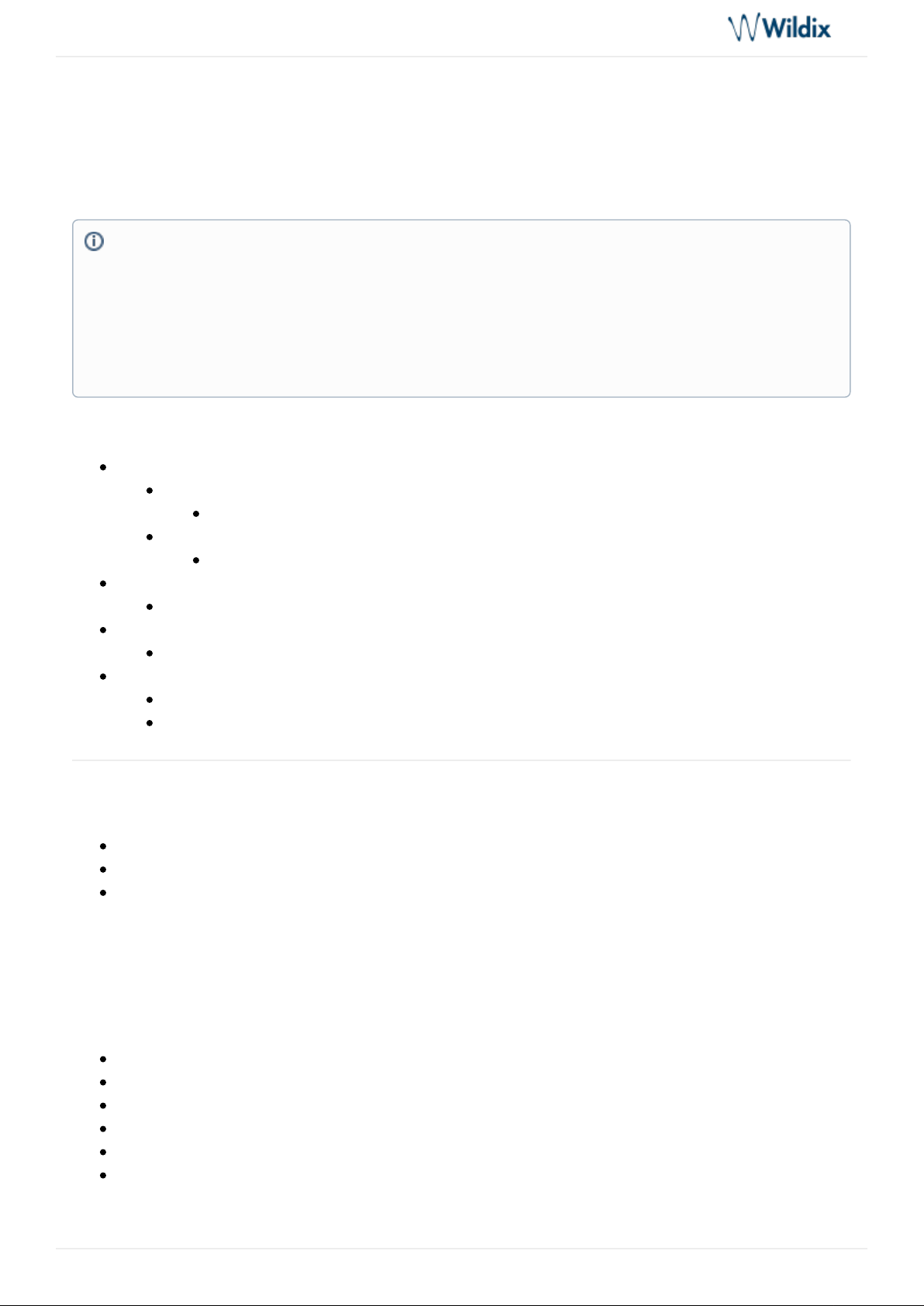
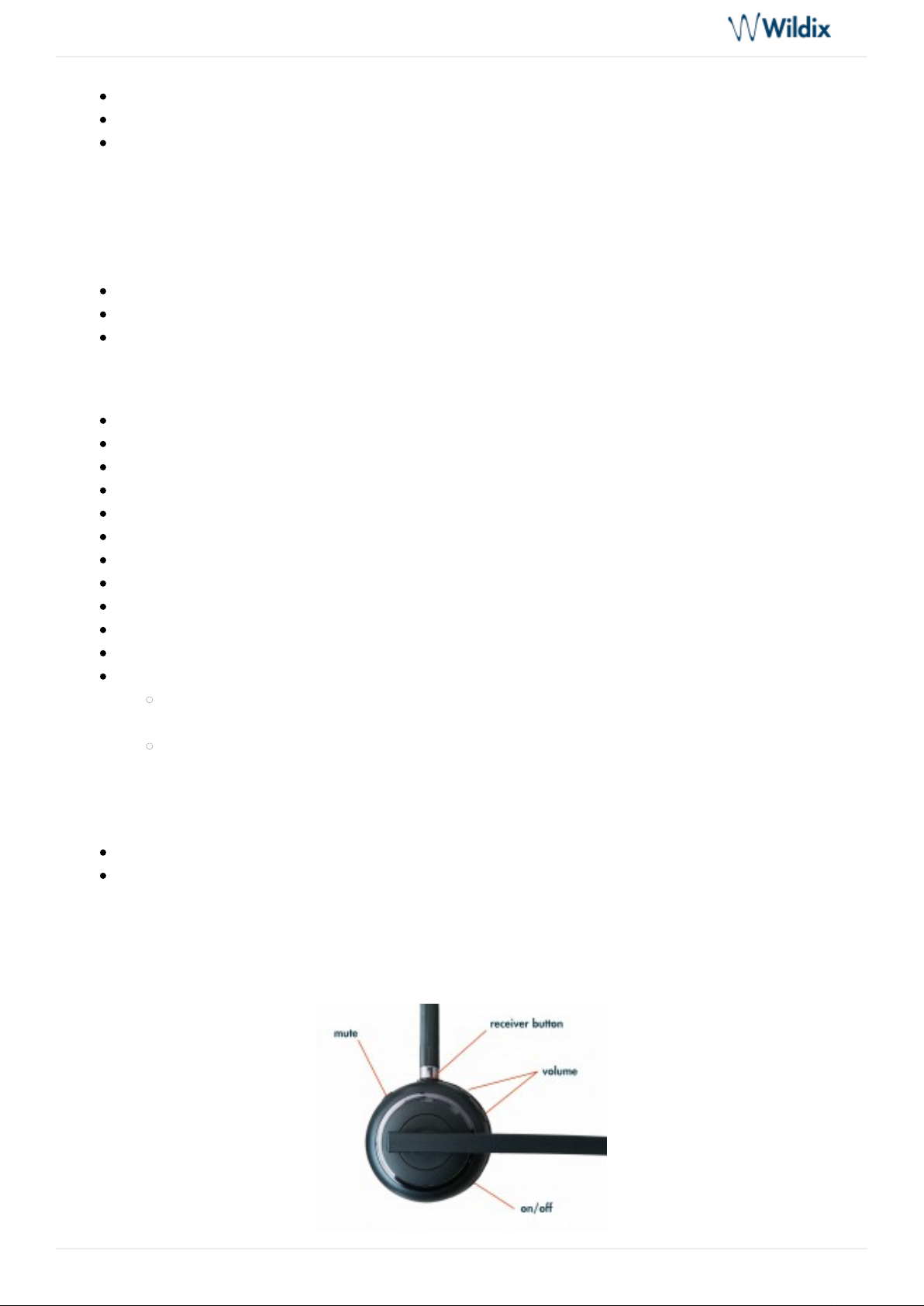
Description of buttons:
WHS, WP490EXT, WPEHS - Quick Start Guide - English
Page 2 of 7
Page 3

WHS, WP490EXT, WPEHS - Quick Start Guide - English
Charging
Use the USB cable provided to charge the headset:
When charging, the red LED is on
When approaching the full battery level, the red LED goes down and the green LED turns on
When charging is complete, the LED goes down
Turn on
Proceed as follows:
Move the switch to the position
1
The blue and green LEDs flash several times
Turn off
Move the switch to the position
0
Connection to WP600A/ACG, Vision
Make sure the headset is switched on, then proceed as follows:
Press and hold the receiver button , until the blue LED starts flashing
Go to the Wildix WP phone’s and move the
Settings menu -> Wireless & Networks > Bluetooth
switch to the position
ON
Select WHS-BT from the list of
AVAILABLE DEVICES
When connected, the headset’s blue and green LEDs turn on for several seconds and a voice prompt says "
Connected".
Connection to W-AIR 150
Make sure the headset is switched on:
Press and hold the receiver button , until the blue LED starts flashing
Go to the Wildix W-AIR 150 handset’s
Settings menu -> Bluetooth
and select "
Enable Bluetooth"
Select
Search for devices
Select
Wildix WHS-BT headset
(the chipset number is shown) from the list of available bluetooth
devices and select
Pair
Enter the PIN: 0000
When connected, the headset’s blue and green LEDs turn on for several seconds and a voice prompt says "
Connected".
WHS, WP490EXT, WPEHS - Quick Start Guide - English
Page 3 of 7
Page 4

WHS, WP490EXT, WPEHS - Quick Start Guide - English
Answer / End a call
Proceed as follows:
To answer or to end a call, press the receiver button on the headset
The blue and green LEDs flash twice
During the conversation the LED is off
WP490EXT – Extension module
Compatibility
WP490 2015 / WP490G
Features
WP490EXT 2017: 40 Programmable BLF keys, 4.3” 272*480 COLOR Display
WP490EXT pre 2017: 20 Programmable BLF keys; 4.3” 272*480 Graphical LCD with Backlight
Powered by Wildix phone
Up to 3 Modules Daisy-chain
Packing list
1 x Extension module
1 x RJ12 cable
Port description
2 RJ12 ports for data in and out
AC Power Adapter jack: Input: AC 100-240V; Output: DC 5V/1A
Quick Installation Guide
Connection
Connect the EXT IN port of the extension module to the EXT port of the Wildix phone using RJ12 cable.
To connect another WP490EXT in chain, connect the EXT OUT port of the first extension module to the
EXT IN port of the second extension module.
You can connect up to 3 extension modules in chain. In case you connect three modules, it’s necessary to
connect the power adapter to the 3rd extension module (available on demand, code: PS-5V2A; also
compatible with older version, code: PS-WP4X0G). Also in case you connect two modules + 1 WPEHS, it’s
necessary to connect the power adapter to the 2nd extension module.
Configuration
Note: The backlight settings of synced with WP490EXT extension module are WP490G 2016-2017.
WHS, WP490EXT, WPEHS - Quick Start Guide - English
Page 4 of 7
Page 5
WHS, WP490EXT, WPEHS - Quick Start Guide - English
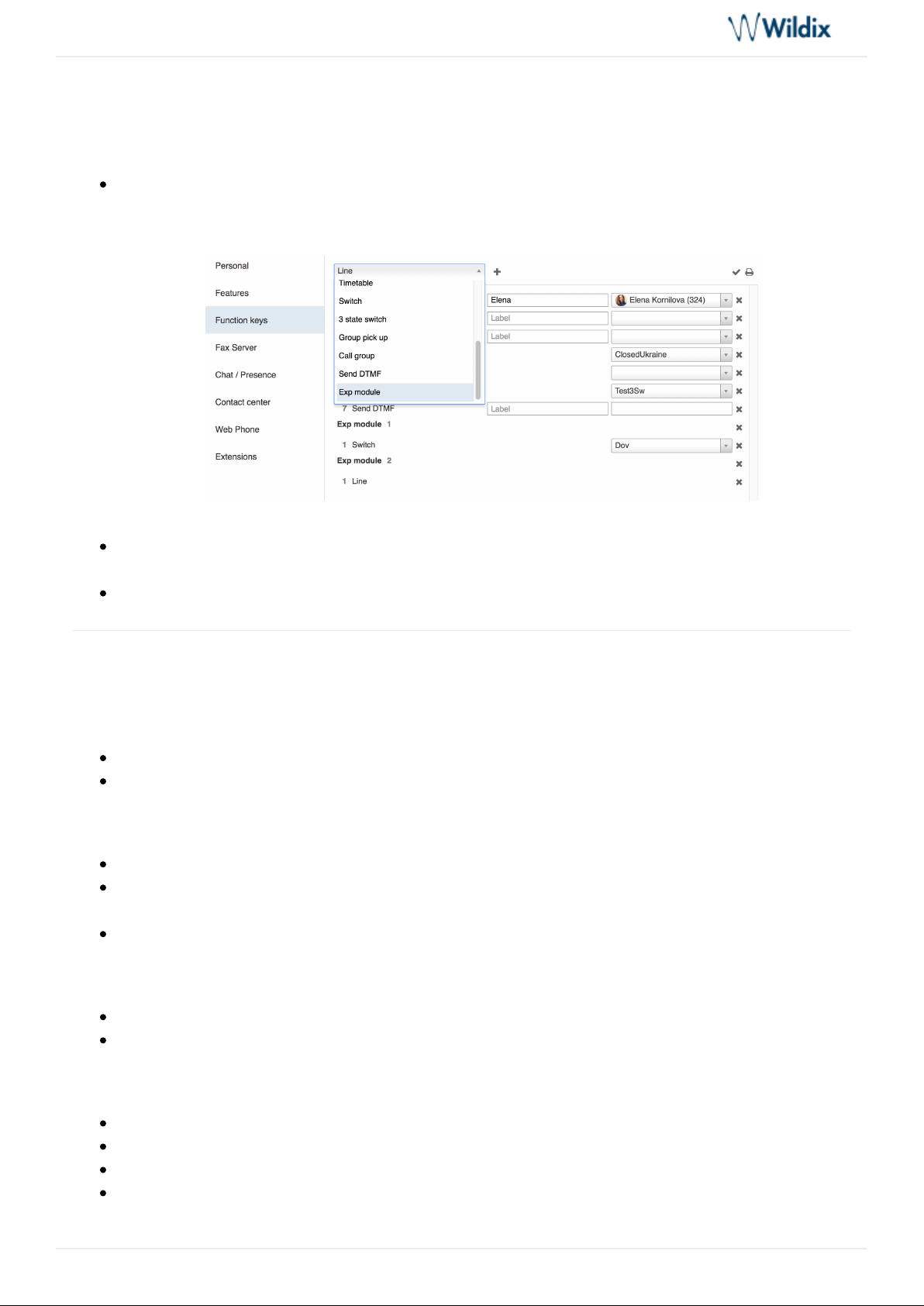
Configure the BLF keys via
Wildix Collaboration Settings -> Function keys
After having configured the Feature / BLF keys and Memory / BLF keys, proceed as follows:
Click to add one or several extension modules (Add several Exp modules in case you Exp module
have more than one extension modules connected in chain):
Add Feature Keys to be monitored via the expansion module and move them under the desired
section (under )
Exp module 1 / Exp module 2 / Exp module 3…
Click Save
WPEHS – Wireless Headset Adapter
Compatibility
Compatible with WP490 2015/ WP490G/ WP480G
Compatible with Jabra, Plantronics and Sennheiser wireless headsets
Compatible models:
Jabra: PRO 9450, GN 9350e, GN 9330e, GN 9125
Plantronics: Savi 700 Series (710, 720, 730, 740, 745), CS500 Series (510, 520, 530, 540), Voyager
Legend CS
Sennheiser: DW Office (running firmware version 96 or later), SD Office
Features
Answer and hangup calls remotely
Powered by Wildix phone
Packing list
1 x EHS Adapter
1 x RJ45 cable
1 x RJ12 cable
1 x RJ9 spiral cord
WHS, WP490EXT, WPEHS - Quick Start Guide - English
Page 5 of 7
Page 6
WHS, WP490EXT, WPEHS - Quick Start Guide - English
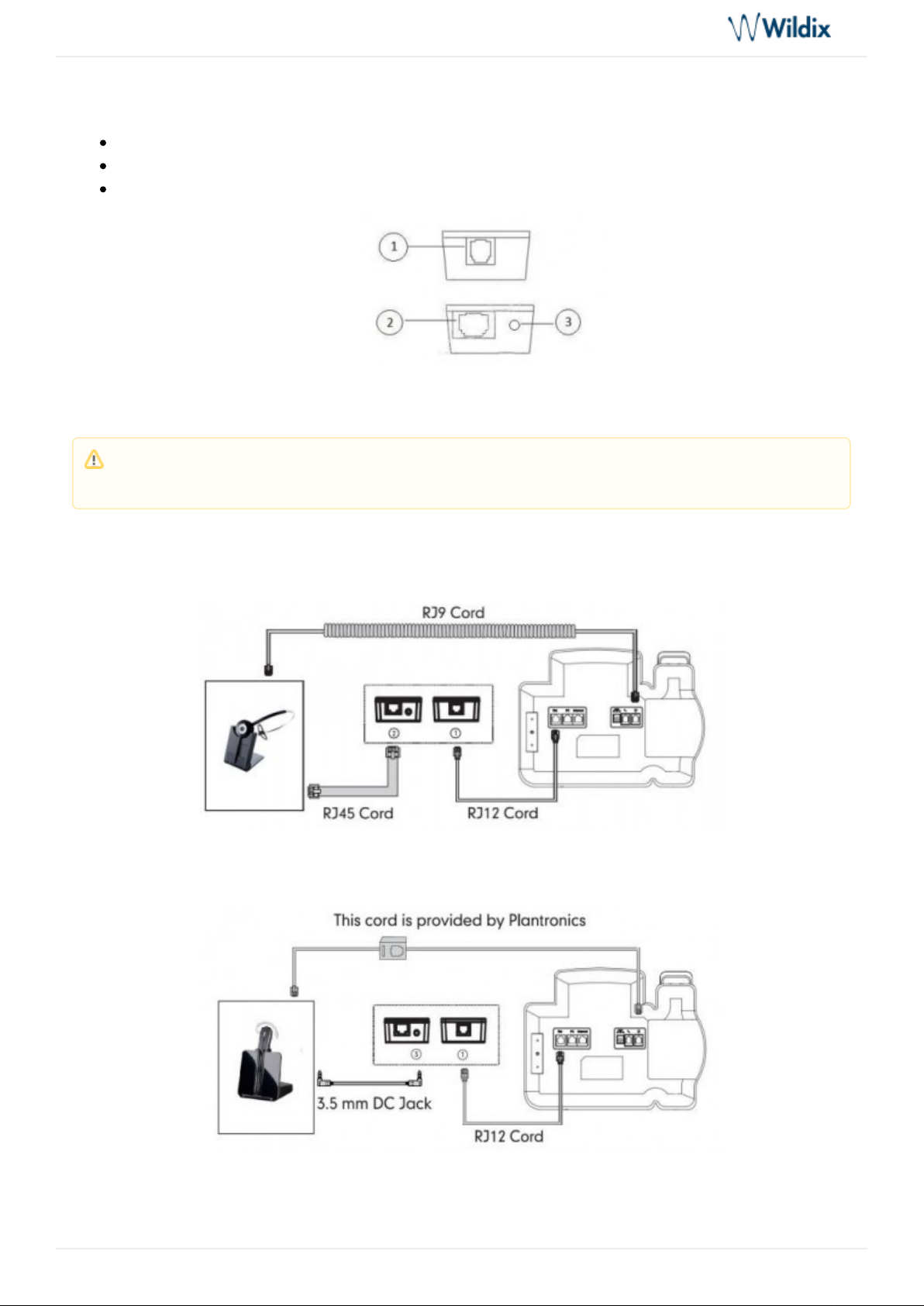
Port description
1 x RJ12 port (port 1 on the picture) to connect to Wildix phone
1 x RJ45 port (port 2 on the picture) to connect to Jabra headsets
1 x 3.5 mm Jack (port 3 on the picture) to connect to Plantronics headsets
Connection
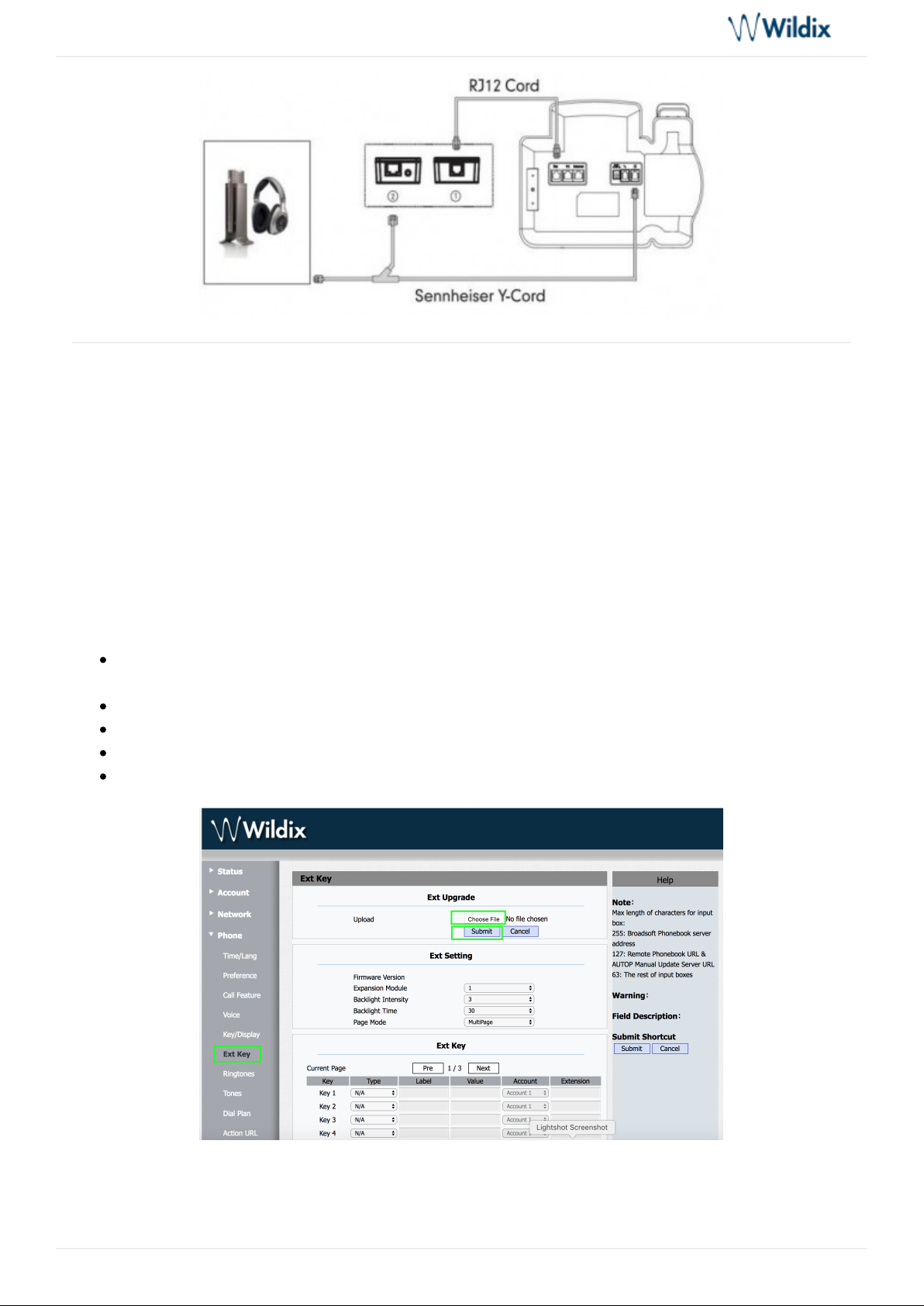
Jabra (GN Netcom):
Plantronics:
Sennheiser:
Note: In case you connect two extension modules + 1 WPEHS, it’s necessary to connect the power
adapter to the 2nd extension module.
WHS, WP490EXT, WPEHS - Quick Start Guide - English
Page 6 of 7
Page 7
WHS, WP490EXT, WPEHS - Quick Start Guide - English
Firmware Upgrade (WP490EXT and WPEHS)
WP490EXT
Starting from WMS version 3.86.36206.30, Firmware update is included into provisioning and there is no
need to do it manually.
WPEHS
WHEPS firmware upgrade is performed via WP web interface.
Proceed as follows:
Download the firmware file from the corresponding folder : (file with extension *.rom) https://drive.
(file with *.rom extension)google.com/open?id=0B4EVs-56WfKZOV9NMmlVdmJiQlk
Access the WP web interface
Go to the menu -> choose the firmware file
Phone -> Ext key, Exp upgrade, Upload
Click Submit
Click to confirmOk
WHS, WP490EXT, WPEHS - Quick Start Guide - English
Page 7 of 7
 Loading...