

Page 1

Quick Guide
Wildix WP490
Page 2
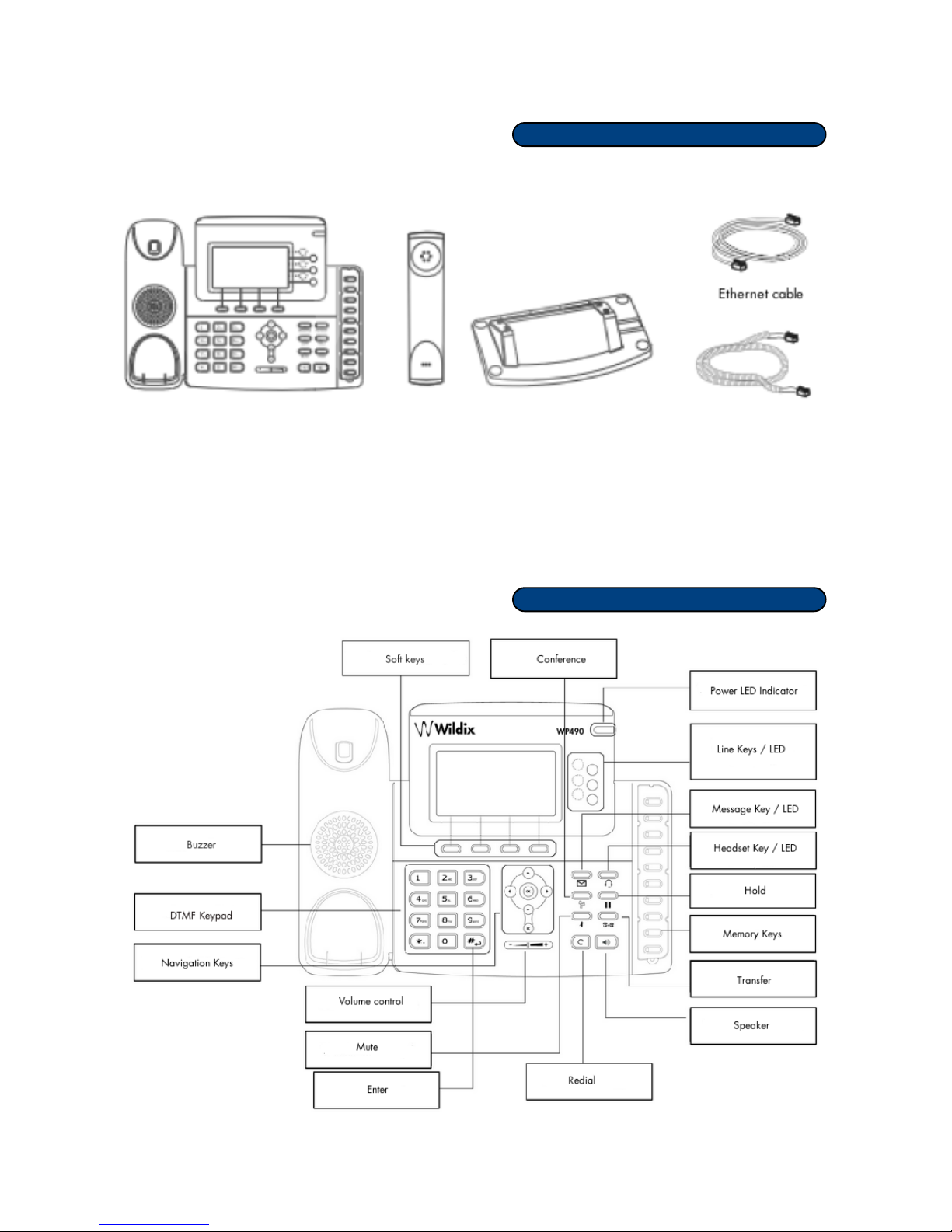
Packing list
Keypad Instruction
WILDIX - DISCOVER NEW WAYS TO COMMUNICATE
Quick Guide Wildix WP490!
VoIP Phone
WP490
Handset Support base
Handset cord
Page 3
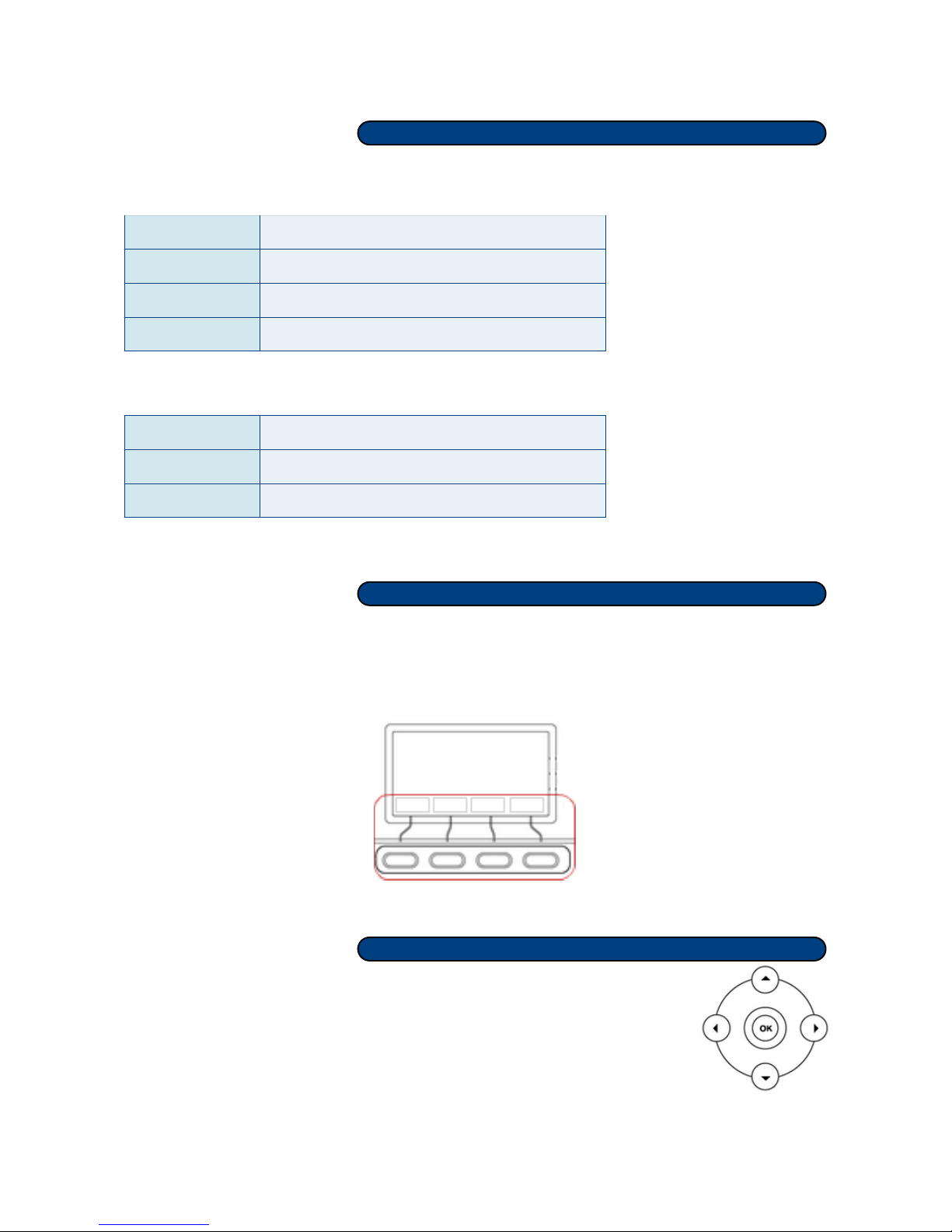
LED indications
Memory Keys
LED status
DESCRIPTION
Solid green
Account is active
Flashing green
Incoming call
Off
Account is not active
Power LED
LED status
DESCRIPTION
Solid green
Phone is on
Off
Phone is off
Soft Keys
4 Soft Keys can be used for different operations. Available operations corresponding to the buttons
are always indicated in the lower part of the display. All the operations relative to the Soft Keys are
indicated in this quick guide with capital italic letters, i.e.: SEND.
Navigation Keys
Use the Navigation Keys to select and confirm different options of the menus.
WILDIX - DISCOVER NEW WAYS TO COMMUNICATE
Quick Guide Wildix WP490!
Page 4

Basic Operations
Make a call
•
Select the way to make a call:
−
lift the receiver
−
press the SPEAKER button
−
press the Headset Key / LED to use the monaural headphones WHS32
•
Dial the phone number:
−
Manually: enter the phone number, using the DTMF keypad → press SEND or the key
situated in the center of the Navigation Keys
−
From the call history: press HISTORY → use the Navigation Keys to select the contact →
press SEND From the phonebook*: press PHONEB → use the Navigation Keys to select
the contact → press SEND or the key situated in the center of the Navigation Keys
* To search for a contact in the phonebook: press SEARCH in the menu PHONEB → enter the
contact using the keypad
−
Redial the last called number: press twice the REDIAL button
To switch between the handset and the speaker during a call, press the SPEAKER
button or lift the handset.
Answer a call
−
Lift the receiver to answer a call
−
Press the SPEAKER button to answer a call in a speaker mode
−
Press the HEADSET key / LED to answer a all using the monaural headphones
WHS32 (article on demand, not included)
Press REJECT to deny an incoming call
Press SILENCE to mute the ringer without reply
Mute the microphone during a call
To mute the microphone during a call, press the MUTE button
Adjust the volume of the speaker
To adjust the volume of the speaker, use the Volume control buttons
Press the keys during a call to adjust the voice volume.
Press the keys when you are not talking on the phone, to adjust the ringer volume
WILDIX - DISCOVER NEW WAYS TO COMMUNICATE
Quick Guide Wildix WP490!
Page 5

Put a call on hold
To put a call on hold, press HOLD or the HOLD button
To resume the call, press RESUME or the HOLD button
Press SWAP to switch between an active call and a call on hold
If you have several calls on hold: use the Navigation Keys to select the needed call → press RESUME
Transfer a call
Blind transfer
Call transfer without notifying the person who receives the call
−
Press TRAN or TRANSFER button during the call
−
The current call is put on hold. Dial the number (internal or external) for the transfer
−
Hang up to complete the transfer
Blind transfer via BLF keys
−
Press the BLF key configured as “Contact” during a call*
−
The current call is put on hold, the number for a transfer appears on the screen
−
Hang up or press TRAN to complete the transfer
* You can configure a BLF key as “Contact” in WMS > Users: select a user and press “Edit
preferences” → “Settings” > “Function Keys” !or in CTIconnect > Settings > Phone
Attended transfer
You have a private conversation with the person prior to transferring the call to him
−
Press TRAN or TRANSFER button during a call
−
The current call is put on hold. Dial the number (internal or external) for the transfer
−
Wait till the person answers. Now you can have a private conversation with him
−
Hang up to complete the transfer
Attended transfer via BLF keys
−
Press the BLF key configured as “Contact” during a call #
−
The current call is put on hold, the number for a transfer appears on the screen
−
Wait till the person answers. Now you can have a private conversation with him before
transferring the call
−
Hang up or press TRAN to complete the transfer
Listen to your Voicemail messages
If the LED of the MESSAGE key is on, it indicates the presence of the new voicemail
Press the key to listen to the message
WILDIX - DISCOVER NEW WAYS TO COMMUNICATE
Quick Guide Wildix WP490!
Page 6

Conference
−
Press CONF or the CONFERENCE button during a call
−
The current call is put on hold. Dial the number of the person to add him to the conference →
press SEND
−
When the third person responds, press CONF or the CONFERENCE button again
−
Hang up to end the conference
Settings
Press MENU to enter the main menu and adjust your settings
Main menu
•
Status: select it to view IP address, MAC, FW version, More...
−
Select “More” for additional information about Network, Phone and Accounts
•
Ring Tones: use the Navigation Keys to select and confirm the ring tone which you want to
use
•
Phone Volume: use the Navigation Keys to select and confirm Handset, Speaker, Headset,
Ring volume
•
Advanced Settings: enter the password set on the phone to access the Advanced Settings
−
Select “Network” for the Network settings
−
Select “Reset to factory” to reset to factory defaults
−
Select “Auto-Provisioning” to edit the information for auto-provisioning
Call Features
Press FEATUR. to enable/disable the options for:
−
Do Not Disturb: select the feature and press MODIFY to enable/disable the option. When
the feature is enabled you do not receive incoming calls.
−
Busy call forward: select the feature and press MODIFY to enable/disable the option →
enter the Number. When the feature is enabled: in case you are busy, the calls are
forwarded to the specified number.
−
Unavailable call forward: select the feature and press MODIFY to enable/disable the option
→ enter the Number. When the feature is enabled: in case you are unavailable, the calls
are forwarded to the specified number.
−
Force call forward: select the feature and press MODIFY to enable/disable the option →
enter the Number. When the feature is enabled, all incoming calls are forwarded to the
specified number.
−
Call waiting: select the feature and press MODIFY to enable/disable the option. When the
feature is enabled, you can receive several calls at the same time.
−
Mobility: select the feature and press MODIFY to enable/disable the option. When the
feature is enabled, you can receive incoming calls also to the mobile number indicated in
CTIconnect > Settings > Personal > Mobile number and WMS > Users > “Mobility” field.
WILDIX - DISCOVER NEW WAYS TO COMMUNICATE
Quick Guide Wildix WP490!
Page 7

Contacts
Wildix sarl
6, rue de la Grande Ourse
95000 Cergy Pontoise - France
T. + 33 176 747 980
WILDIX - DISCOVER NEW WAYS TO COMMUNICATE
Quick Guide Wildix WP490!
 Loading...