

Page 1
W-AIR DECT Handset - User Guide
Sep 10, 2019 03:48
W-AIR DECT Handset – W-AIR Basic/ W-AIR 100 (End Of Life)/ W-AIR
LifeSaver/ W-AIR Med/ W-AIR Office
Before using the handset
Unboxing
Safety information
Put into operation
Phone Overview
W-AIR Basic
W-AIR 100 (End Of Life)
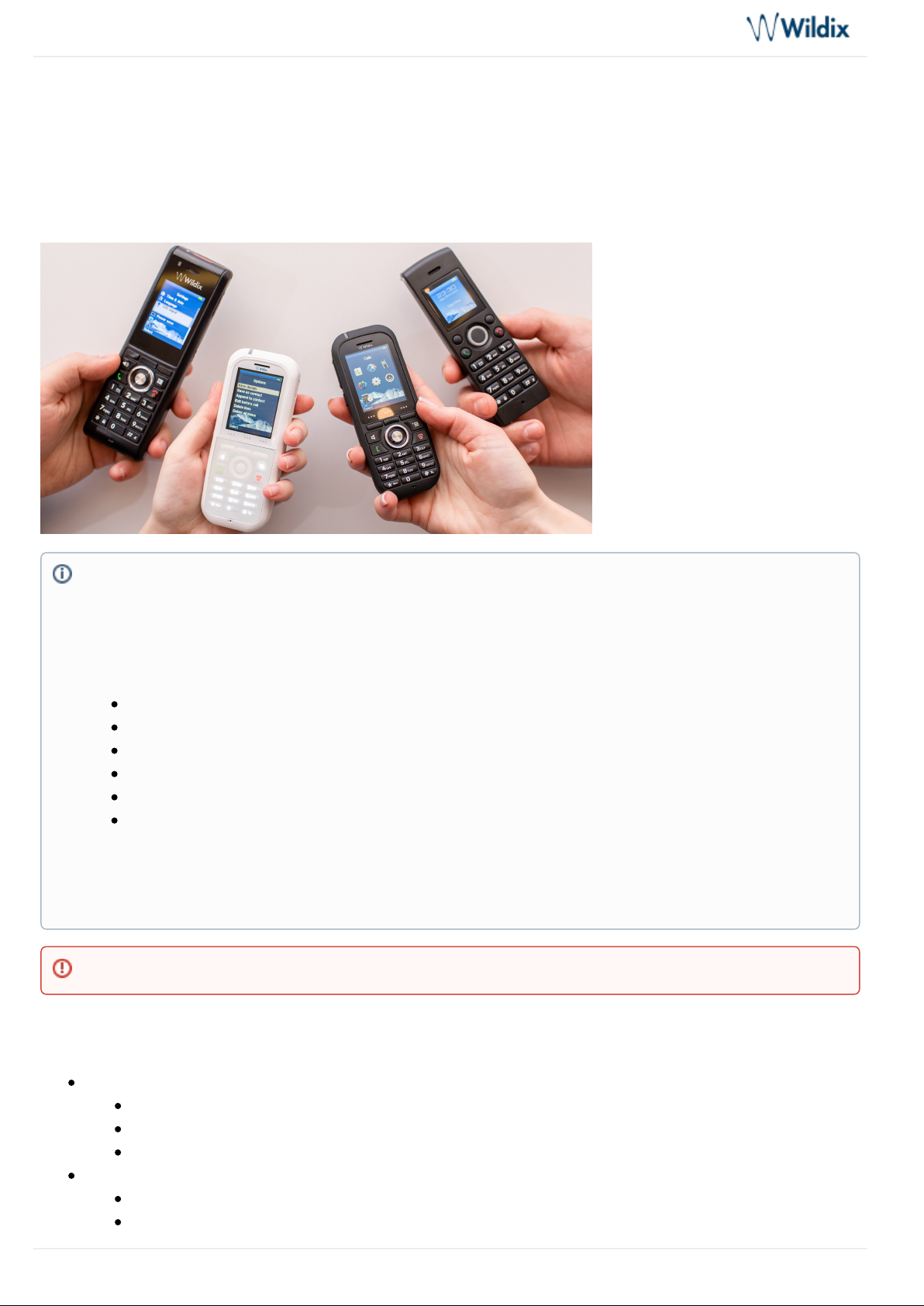
The manual provides you with the necessary information about your DECT handset W-AIR basic (ex WAIR 70)/ W-AIR 100 (End Of Life) / W-AIR LifeSaver (ex W-AIR 150) / W-AIR Med / W-AIR Office. Please
read this guide to ensure the proper installation and operation of the DECT handset.
Useful links:
W-AIR Headset - User Guide
W-AIR Network Admin Guide - Sync over the air
W-AIR Network Admin Guide - Sync over LAN
W-AIR Small Business Admin Guide
W-AIR System Datasheet
W-AIR - End User Brochures
Updated: July 2019
Permalink: https://confluence.wildix.com/x/jQSIAQ
Important: W-AIR 100 is End Of Life.
W-AIR DECT Handset - User Guide
Page 1 of 23
Page 2

W-AIR DECT Handset - User Guide
W-AIR LifeSaver
W-AIR Med
W-AIR Office
Main Menu
Register a handset
Multi registration (W-AIR 100 (End Of Life) / W-AIR LifeSaver / W-AIR Med / W-AIR Office)
Login (Assign to user)
Local contacts
Assign a Speed Dial number to a local contact
Call list
Call Control
Incoming call
Answer a call
Reject / mute an incoming call
Place a call
Manually
Redial
Call a Speed Dial number
Call from shared PBX phonebook
Call from local contacts
Call from history
Hold / Second call
Hold
Place a second call
Swap
Call Transfer
Attended Call Transfer
Blind Call Transfer
Record a call
Pick up / Intercom / Call intrusion
Listen to Voicemail messages
Adjust volume during a call
Mute the microphone during a call
Speaker mode
End a call
General Settings
Time & date
Language
LED signal
Power save
Security (Auto keylock)
Handset name
Reset settings
Status
Auto Answer
Silent Charging
Bluetooth (W-AIR LifeSaver / W-AIR Med / W-AIR Office)
Push To Talk (W-AIR 100 (End Of Life) / W-AIR LifeSaver / W-AIR Med / W-AIR Office)
Audio Settings
Silent mode
W-AIR DECT Handset - User Guide
Page 2 of 23
Page 3

W-AIR DECT Handset - User Guide
Ring Volume
Ring Melody (for each Call Class)
Alert Volume and Alert Tone (W-AIR 100 (End Of Life) / W-AIR LifeSaver / W-AIR Med / W-AIR
Office)
Vibrator (W-AIR 100 (End Of Life) / W-AIR LifeSaver / W-AIR Med / W-AIR Office
Key Sound
Confirmation Sound
Coverage Warning
Charger Warning
Noise Reduction (W-AIR LifeSaver / W-AIR Med / W-AIR Office)
Alarm clock setting (W-AIR 100 (End Of Life) / W-AIR LifeSaver / W-AIR Med / W-AIR Office)
Emergency alarms setting (W-AIR LifeSaver / W-AIR Med / W-AIR Office)
Alarms triggering
Before using the handset
Unboxing
Examine the package for evidence of physical damage prior to opening. If there is a proof of mishandling, report
it to your certified Wildix Partner.
Make sure that all the components are present in the shipping package/box:
W-AIR Basic:
1 x Handset Unit
1 x Charger with A/C adapter
2 x Battery, AAA
1 x Battery cover
Optional case with belt clip on demand, code: WAIR-Basic-8PC (a bundle of 8 pieces)
W-AIR 100 (End Of Life):
1 x Handset Unit with li-lion battery
1 x A/C Adapter
1 x Charger
1 x Belt Clip
Optional case on demand, code: WAIR100-PC
W-AIR LifeSaver:
1 x Handset Unit
1 x A/C adapter
1 x Charger
1 x Battery
1 x Belt Clip Cover
1 x Pull Cord Cover
1 x Belt Clip
1 x Svirvel for belt clip
W-AIR Med:
W-AIR DECT Handset - User Guide
Page 3 of 23
Page 4

W-AIR DECT Handset - User Guide
1.
2.
3.
1.
2.
1 x Handset with Lithium-Ion battery
1 x charger
1 x A/C adapter
1 x belt clip and belt clip cover
W-AIR Office:
1 x Handset with Lithium-Ion battery
1 x charger
1 x A/C adapter
1 x belt clip and belt clip cover
Compatible headsets:
Wildix headsets: .http://www.wildix.com/voip-phones-and-headset/#headsets
Third party headsets integrated with Wildix: Wildix Compatible Headsets – Jabra, Plantronics, Sennheiser, JPL,
.Axtel
Safety information
Using the battery
Never dispose of the battery in fire, otherwise it could explode
Never replace the battery in potentially explosive environments, for example close to inflammable liquids
/gases
Use ONLY approved batteries and chargers from the vendor or the operator
Do not disassemble, open or damage the battery, use it carefully to avoid a short circuit
Using the Charger
Input Voltage: 110-240VAC; Output Voltage 5.5VDC / 600mA.
For the best performance, charge the handset for at least 10 hours the first time.
When charging, make sure that the room temperature is between 0°C and 25°C / 32°F and 77°F.
Do not leave the handset in direct sunlight when charging. The battery has a built-in heat sensor that stops the
charging when the temperature is too high.
There is a charging status indicator on the phone display.
Before using the phone, carefully read the safety information: https://www.wildix.com/safety-information/
Put into operation
W-AIR Basic:
Open the battery compartment by pressing the battery cover and sliding it
Remove the battery cover, insert the batteries and close the battery compartment
Place the phone into the charger and fully charge the battery; for the best performance, charge the
handset for at least 10 hours the first time (charging status is indicated on the display)
W-AIR 100 (End Of Life):
Open the battery compartment by pulling the latch
Lift the battery cover and remove the battery
W-AIR DECT Handset - User Guide
Page 4 of 23
Page 5
W-AIR DECT Handset - User Guide
3.
4.
5.
6.
Remove the protective foil from the battery contacts
Reinsert the battery and close the battery compartment (make sure the latch is fully locked)
Connect the A/C adapter to the charger
Place the phone into the charger and fully charge the battery (this may take up to 5 hours)
The blue LED of the charger is on when the phone is properly placed into the charger and charging
W-AIR LifeSaver:
Open the battery compartment by turning the lock lever
Lift the battery cover and remove the battery
Remove the protective foil from the battery contacts
Reinsert the battery and close the battery compartment
Connect the A/C adapter to the charger
Place the phone into the charger and fully charge the battery (this may take up to 6 hours)
The blue LED of the charger is on when the phone is properly placed into the charger and charging.
W-AIR Med:
Open the battery compartment by turning the lock lever
Lift the battery cover and remove the battery
Remove the protective foil from the battery contacts
Reinsert the battery and close the battery compartment
Connect the A/C adapter to the charger
Place the phone into the charger and fully charge the battery (this may take up to 10 hours)
The blue LED of the charger is on when the phone is properly placed into the charger and charging.
W-AIR Office:
Open the battery compartment by turning the lock lever
Lift the battery cover and remove the battery
Remove the protective foil from the battery contacts
Reinsert the battery and close the battery compartment
Connect the A/C adapter to the charger
Place the phone into the charger and fully charge the battery (this may take up to 10 hours)
The blue LED of the charger is on when the phone is properly placed into the charger and charging.
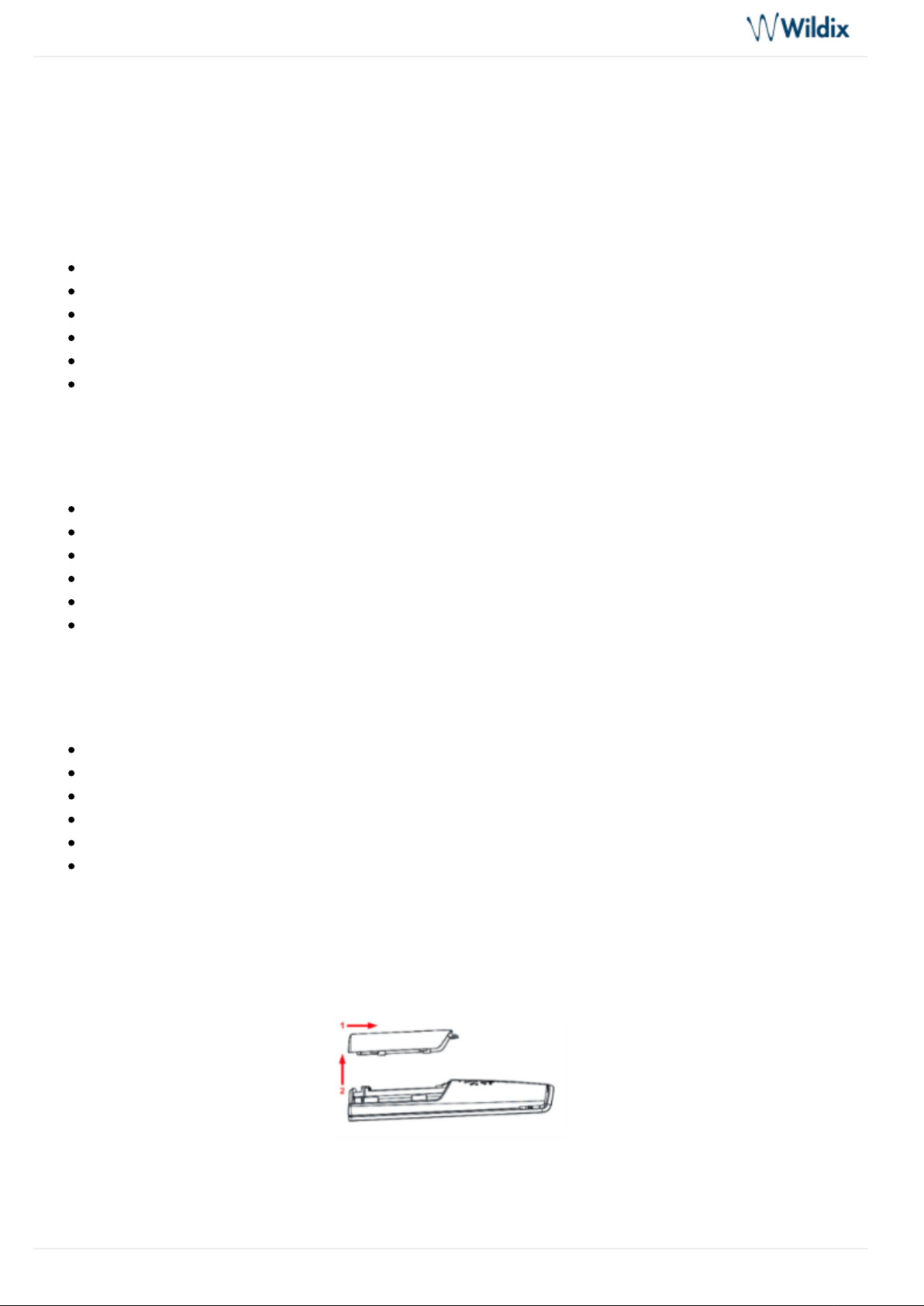
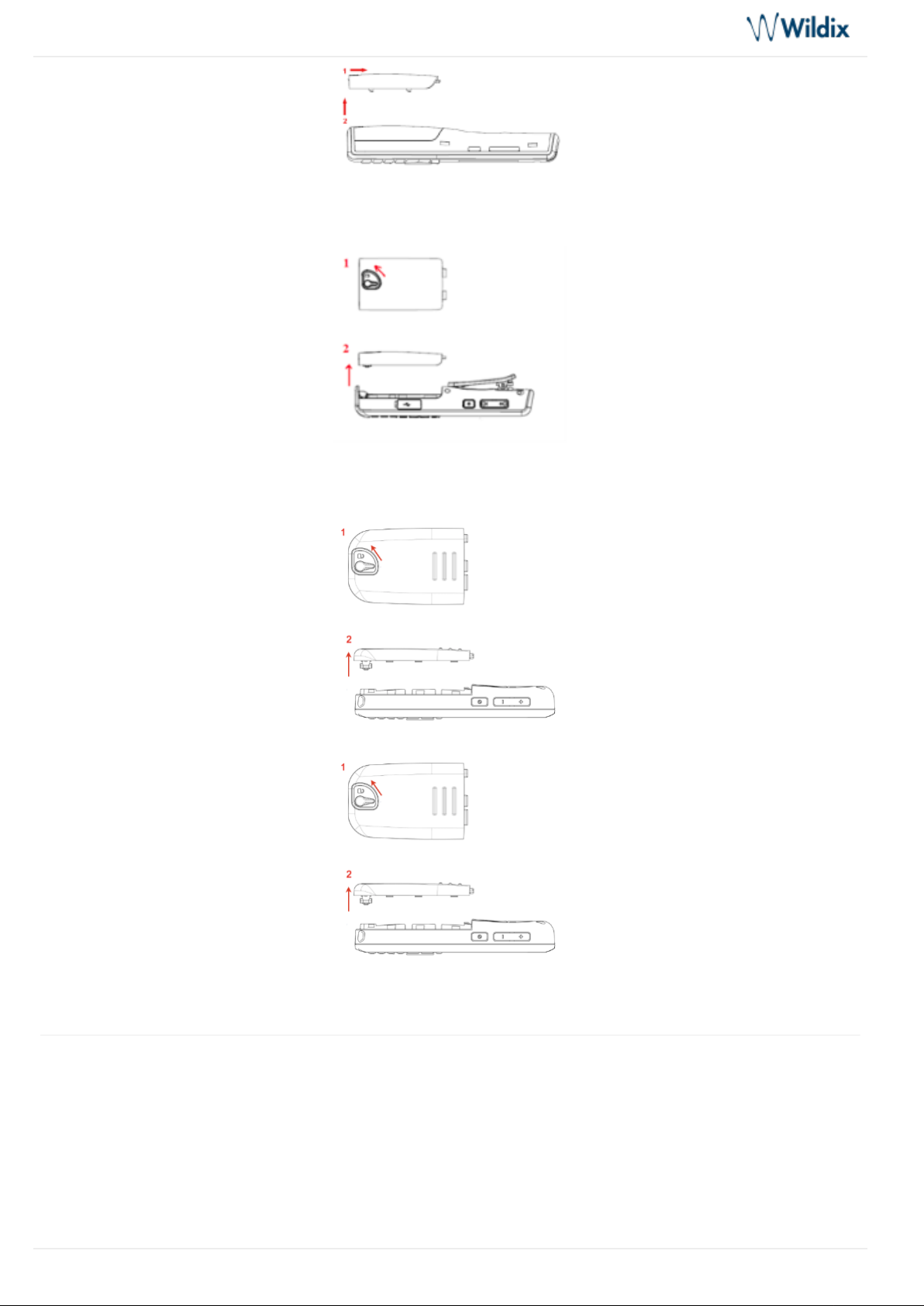
How to open the back cover:
W-AIR Basic
W-AIR 100
W-AIR DECT Handset - User Guide
Page 5 of 23
Page 6
W-AIR DECT Handset - User Guide
W-AIR LifeSaver
W-AIR Med
W-AIR Office
The serial number and IPUI number of each handset is situated either on a label behind the battery, or on the
package label.
Phone Overview
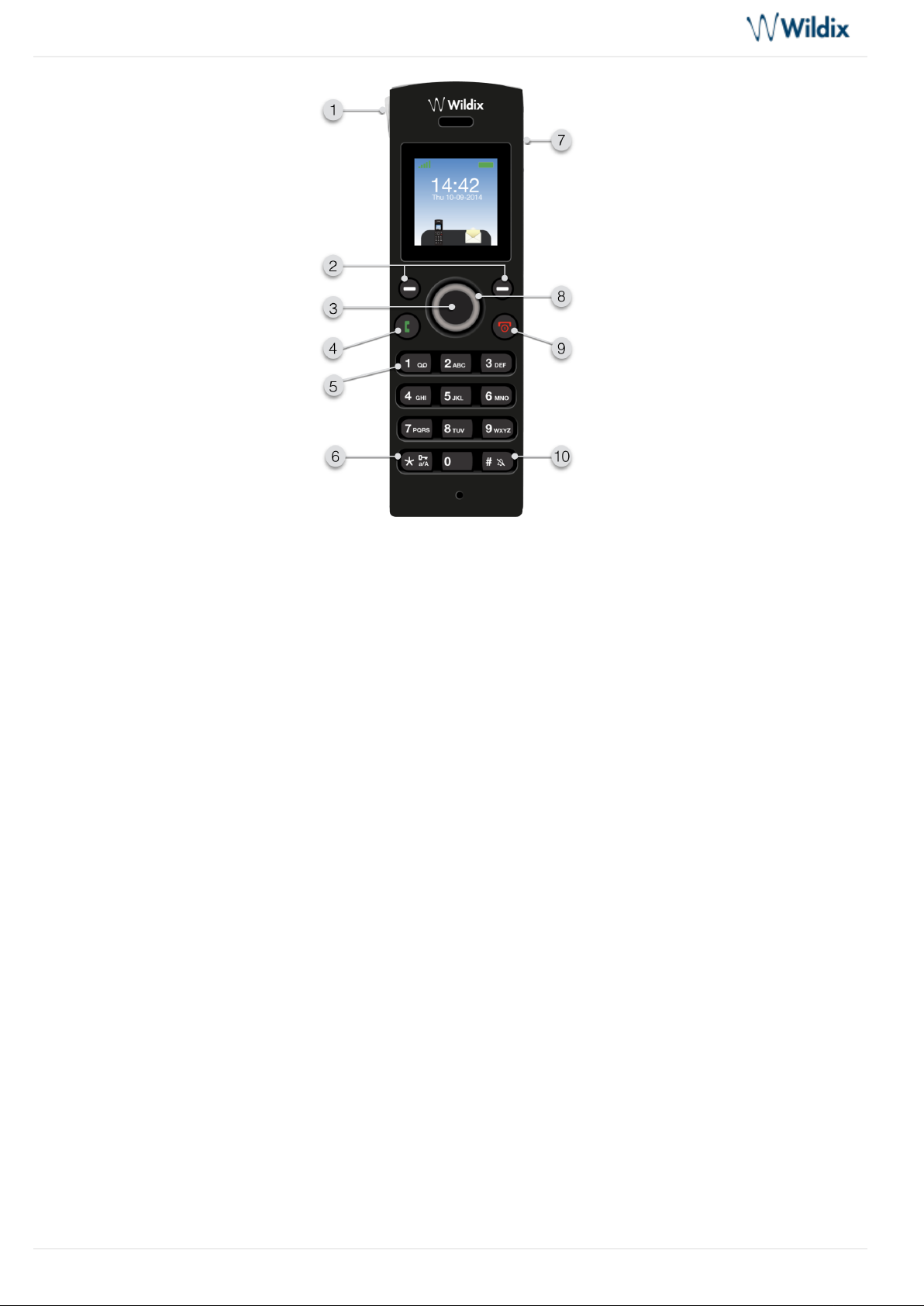
W-AIR Basic
W-AIR DECT Handset - User Guide
Page 6 of 23
Page 7
W-AIR DECT Handset - User Guide
1- LED indicator
Indicates Missed call / New Voicemail / Low battery. LED behavior can be configured in Settings.
2- 2 Soft keys
Select different options indicated in the lower part of the screen. From the idle used to access
Contacts / Central
menu.
directory
3- Menu / Confirmation / Selection key
4- Off-hook / answer key
Press during a call to activate the speaker mode.
5- Voicemail key (long press)
6- Key lock (long press)
7- Headset jack (3.5 mm)
8- Navigation keys
to adjust the volume.Press Up / Down Navigation keys during a call
to mute/unmute the microphone.Press Left Navigation key during a call
9- On-hook / hangup key / back key
10- Silent mode key (long press)
When enabled, no sounds are played on the handset.
W-AIR DECT Handset - User Guide
Page 7 of 23
Page 8
W-AIR DECT Handset - User Guide
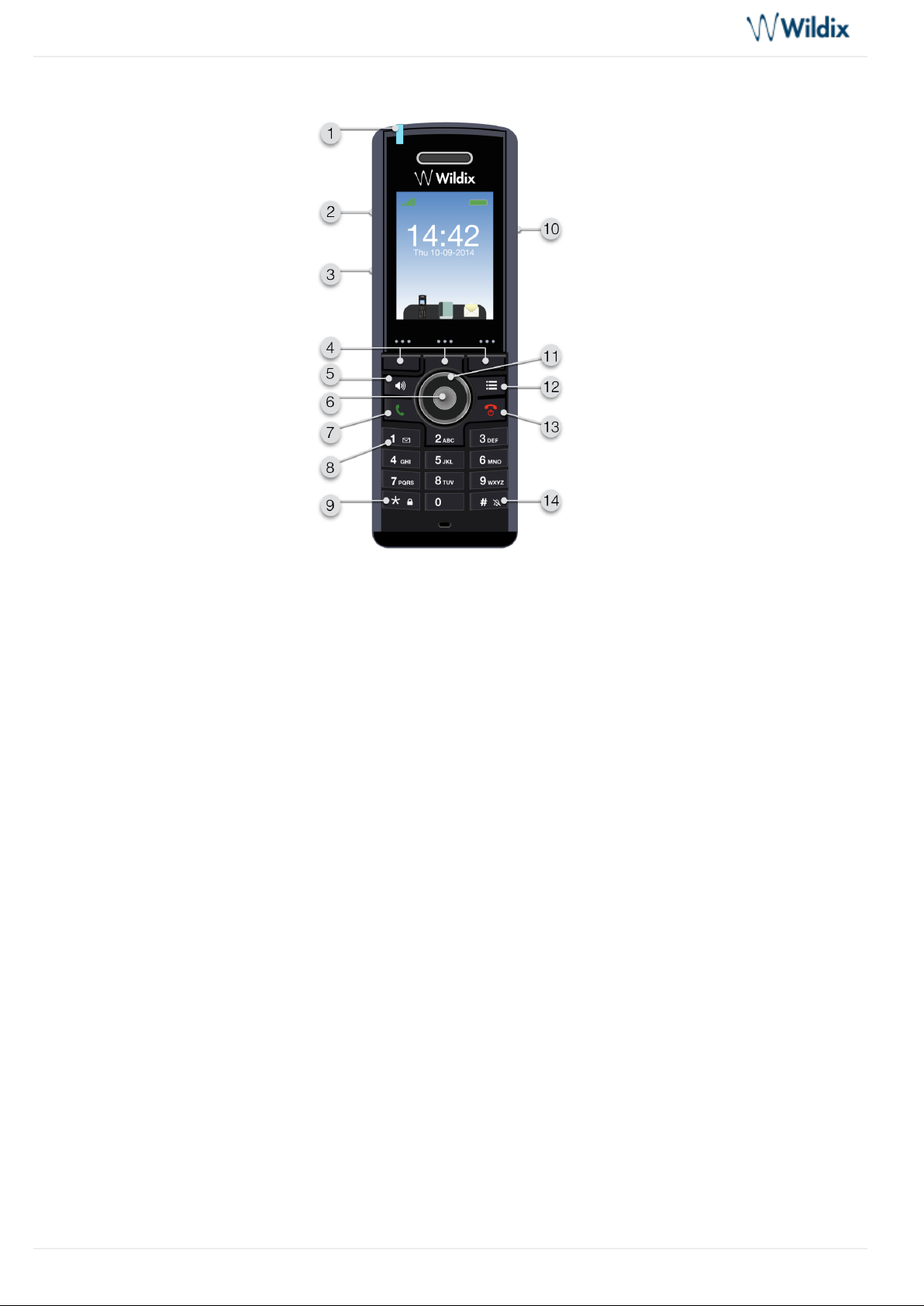
W-AIR 100 (End Of Life)
1- LED indicator
LED behavior can be configured in Missed call / New Voicemail / Low battery. Settings.
2- Volume Up / Down key (on the side panel)
3- Mute key (on the side panel)
4- 3 Soft keys
Select different options indicated in the lower part of the screen. From the idle used to access
Contacts / Central
menu.
directory / Calls
5- Speaker Key
6- Confirmation / Selection key
7- Off-hook / answer key
8- Voicemail key (long press)
9- Key lock (long press)
10- Headset jack (3.5 mm) (on the side panel)
11- Navigation keys
12- Menu key
13- On-hook / hangup key / back key
14- Silent mode key (long press)
W-AIR DECT Handset - User Guide
Page 8 of 23
Page 9
W-AIR DECT Handset - User Guide
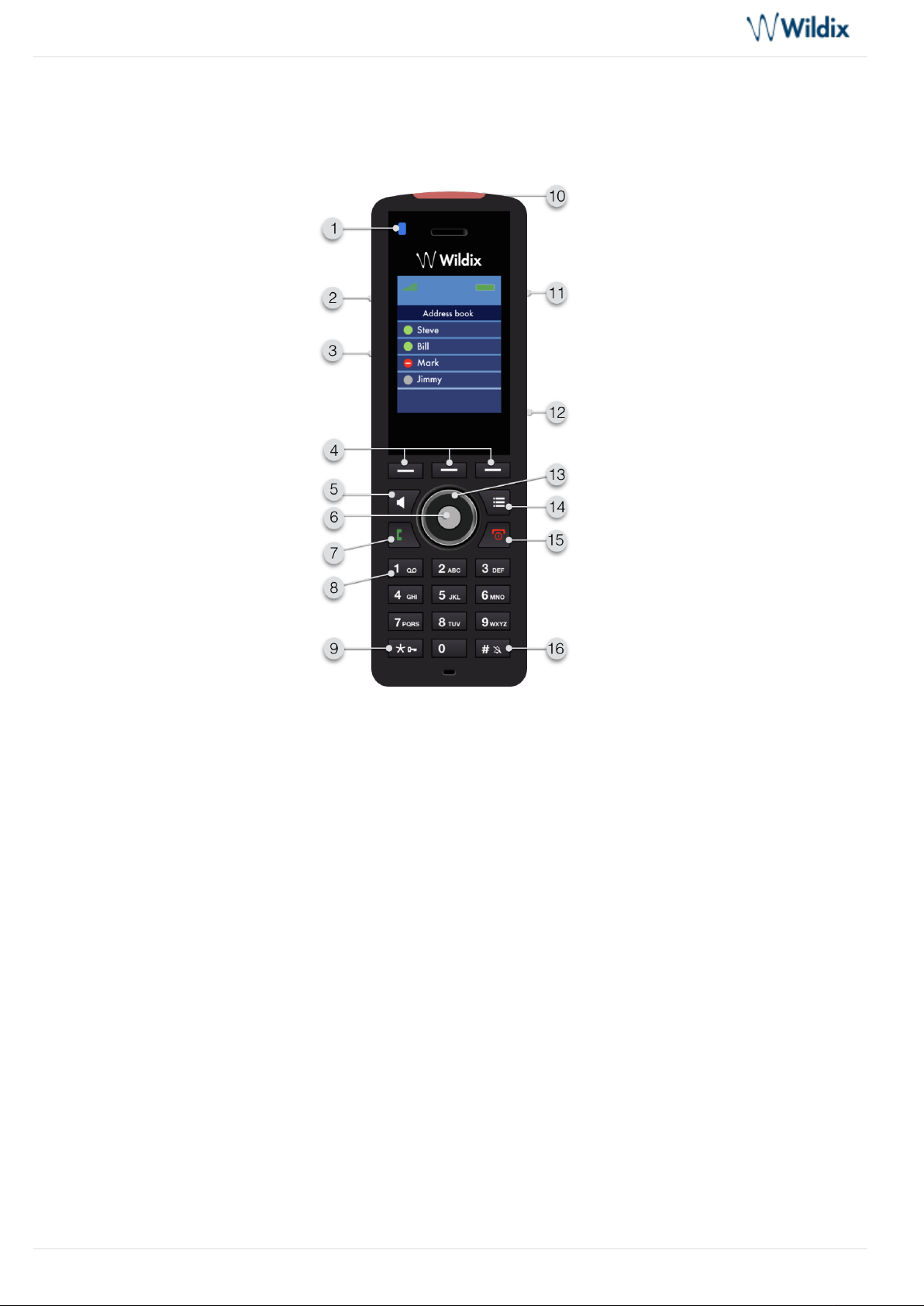
are played on the handset.When enabled, no sounds
W-AIR LifeSaver
1- LED indicator
LED behavior can be configured inMissed call / New Voicemail / Low battery. .Settings
2- Volume Up / Down key (on the side panel)
3- Mute key (on the side panel)
4- 3 Soft keys
Select different options indicated in the lower part of the screen. From the idle used to access
Contacts / Central
menu.
directory / Calls
5- Speaker key
6- Confirmation / Selection key
7- Off-hook / answer key
8- Voicemail key (long press)
9- Key lock (long press)
10- Emergency button
W-AIR DECT Handset - User Guide
Page 9 of 23
Page 10
W-AIR DECT Handset - User Guide
11- Headset jack (3.5 mm) (on the side panel)
12-Pull cord jack (on the side panel)
13- Navigation keys
14- Menu key
15- On-hook / hangup key / back key
16- Silent mode key (long press)
When enabled, no sounds are played on the handset.
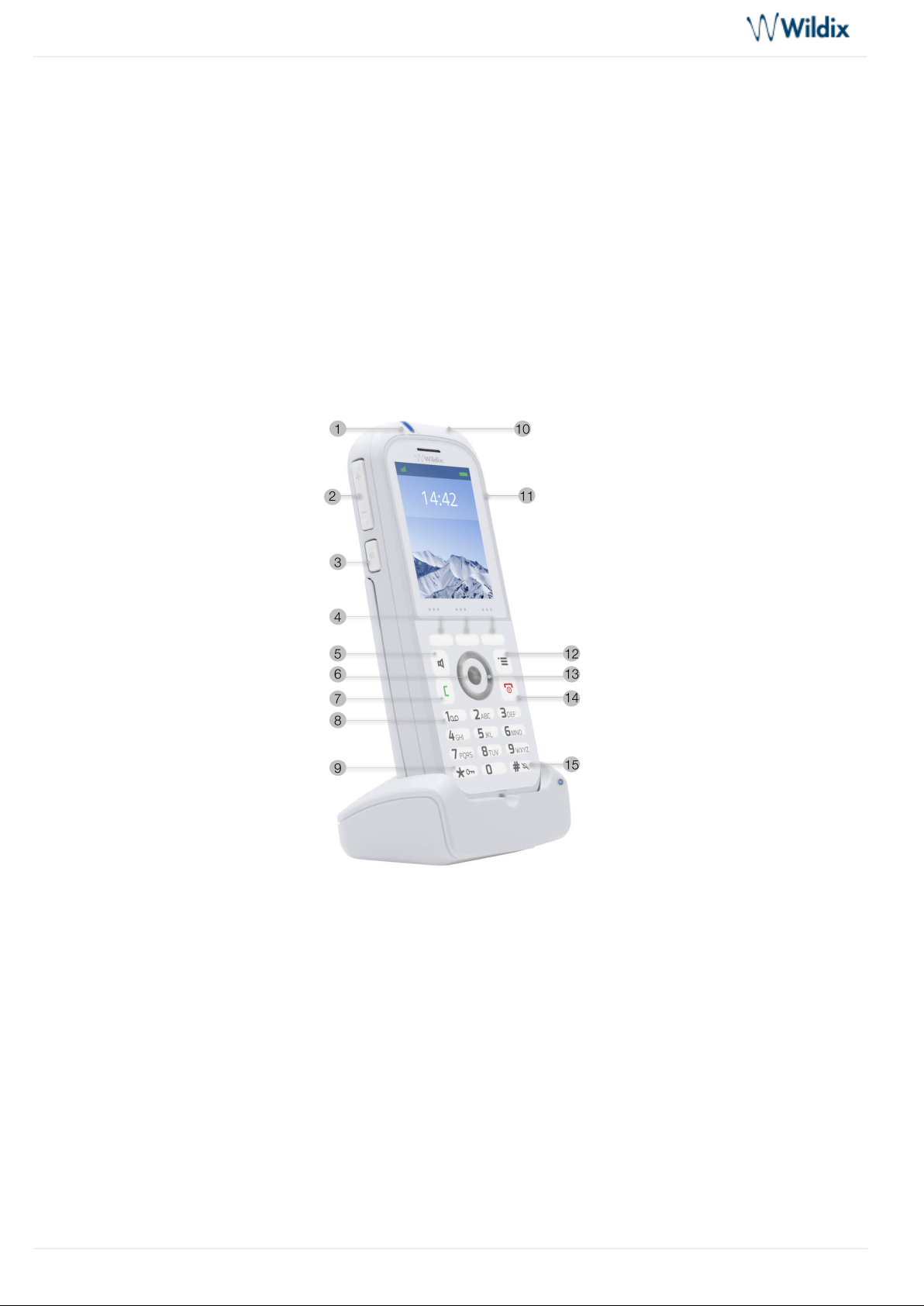
W-AIR Med
1- LED indicator
LED behavior can be configured inMissed call / New Voicemail / Low battery. .Settings
2- Volume Up / Down key (on the side panel)
3- Mute key (on the side panel)
4- 3 Soft keys
Select different options indicated in the lower part of the screen. From the idle used to access
Contacts / Central
menu.
directory / Calls
5- Speaker key
6- Confirmation / Selection key
W-AIR DECT Handset - User Guide
Page 10 of 23
Page 11
W-AIR DECT Handset - User Guide
7- Off-hook / answer key
8- Voicemail key (long press)
9- Key lock (long press)
10- Emergency button
11- Headset jack (3.5 mm) (on the side panel)
12- Menu key
13 - Navigation keys
14- On-hook / hangup key / back key
15- Silent mode key (long press)
When enabled, no sounds are played on the handset.
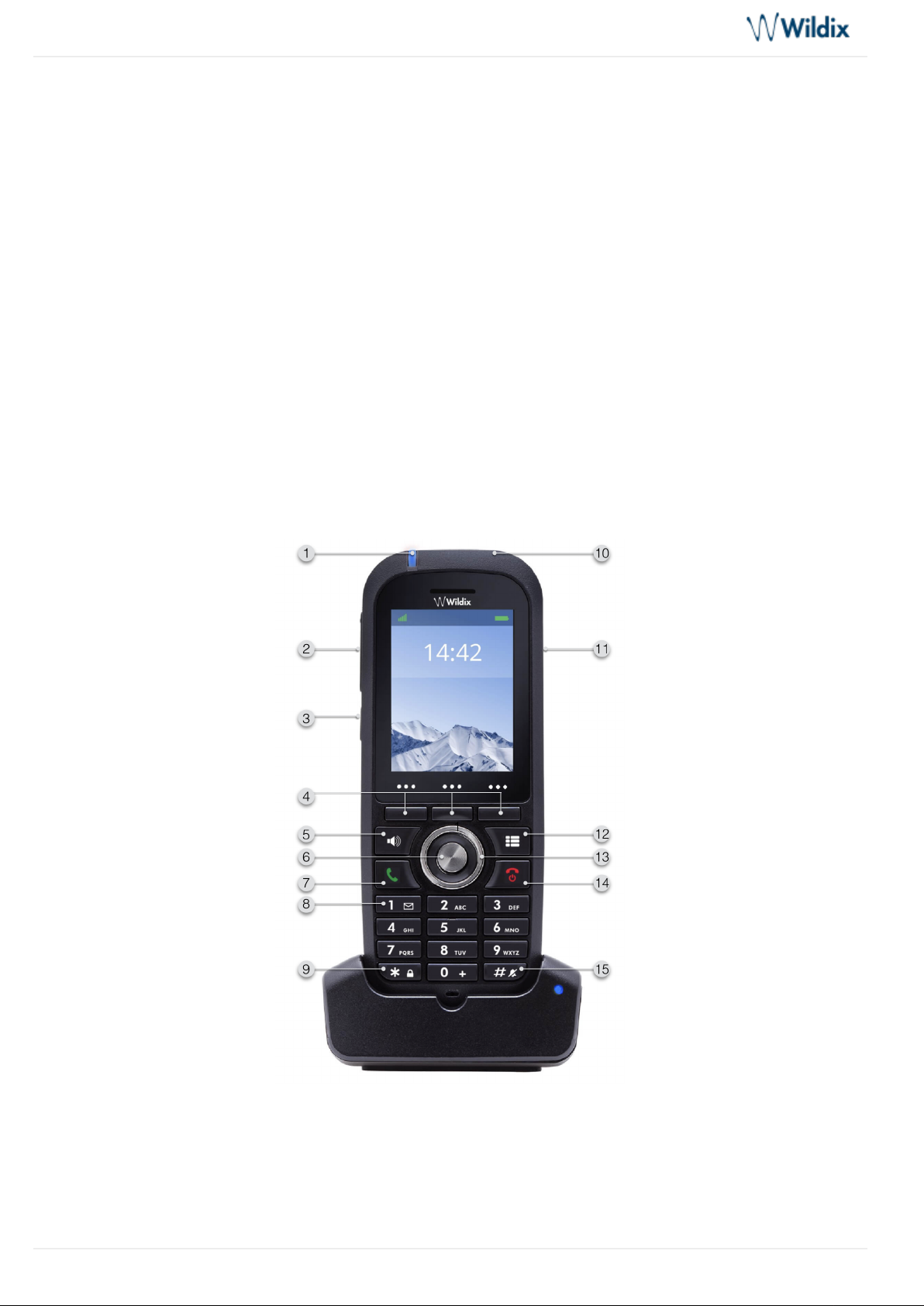
W-AIR Office
1- LED indicator
LED behavior can be configured inMissed call / New Voicemail / Low battery. .Settings
2- Volume Up / Down key (on the side panel)
3- Mute key (on the side panel)
W-AIR DECT Handset - User Guide
Page 11 of 23
Page 12
W-AIR DECT Handset - User Guide
4- 3 Soft keys
Select different options indicated in the lower part of the screen. From the idle used to access
Contacts / Central
menu.
directory / Calls
5- Speaker key
6- Confirmation / Selection key
7- Off-hook / answer key
8- Voicemail key (long press)
9- Key lock (long press)
10- Emergency button
11- Headset jack (3.5 mm) (on the side panel)
12- Menu key
13 - Navigation keys
14- On-hook / hangup key / back key
15- Silent mode key (long press)
When enabled, no sounds are played on the handset.
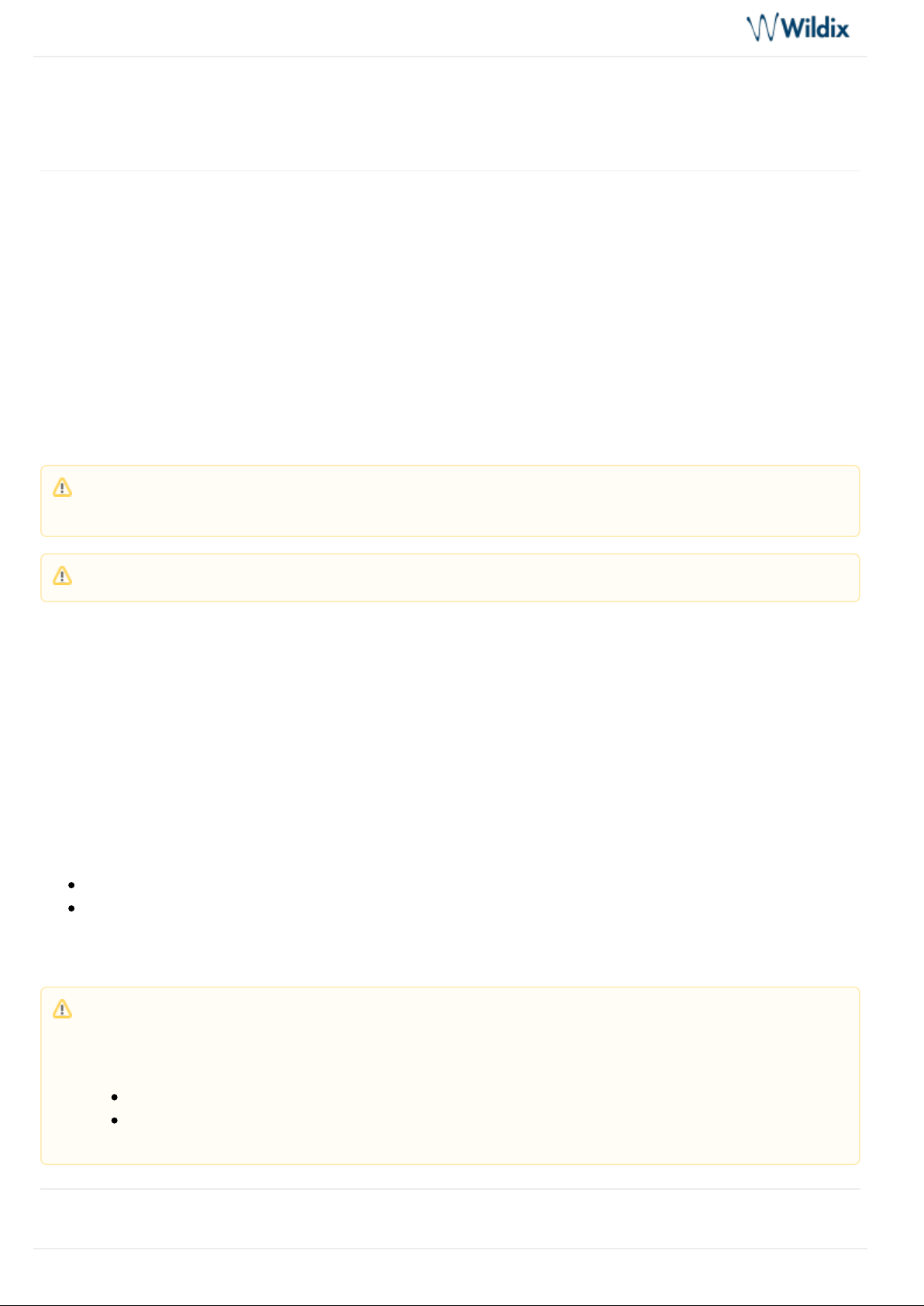
Main Menu
1 – Contacts: local phonebook
2 – Central directory: online access to the shared PBX phonebooks
3 – Calls: call list
4 – Connectivity: register / deregister the handset
5 – Settings: personal handset settings
W-AIR DECT Handset - User Guide
Page 12 of 23
Page 13
W-AIR DECT Handset - User Guide
1.
2.
3.
4.
1.
2.
6 – Audio settings
7 – Alarms: alarm clock / wake up call setting (W-AIR 100 / W-AIR LifeSaver / W-AIR Med / W-AIR Office)
Register a handset
Go to menu.
Connectivity
Register a handset to the base station
Select Register
(W-AIR 100 / W-AIR LifeSaver / W-AIR Med / W-AIR Office) Select an empty slot
Enter the PIN (by default, 0000)
Press OK
Deregister a handset from the base station
Select Deregister
Enter the Access code and confirm by pressing Yes
Multi registration (W-AIR 100 (End Of Life) / W-AIR LifeSaver / W-AIR Med / W-AIR Office)
W-AIR 100, W-AIR LifeSaver, W-AIR Med and W-AIR support multi registration, which means a handset is able
to remember up to 10 accounts it had been previously registered to:
Go to menu
Connectivity
Up to ten previous registrations appear on this list, select one and confirm the operation, the handset will
automatically register to it
Note: The Access code is “0000” by default and cannot be changed via the handset. For more
information, please contact your system administrator.
Note: To assign a handset to a user, please follow the steps described in the chapter .Login
Note: It is also possible to create Multisite W-AIR Network in WMS ( -> ) that can
Devices W-AIR Networks
be distributed over several locations/ sites of the company. Follow the online Guides to get detailed
information:
W-AIR Network Admin Guide - Sync over the air
W-AIR Network Admin Guide - Sync over LAN
W-AIR DECT Handset - User Guide
Page 13 of 23
Page 14
W-AIR DECT Handset - User Guide
1.
2.
3.
4.
5.
1.
2.
3.
4.
1.
2.
3.
4.
1.
Login (Assign to user)
Press the Key to switch on the phonered On-hook
Wait till the signal is found and the phone screen displays “login_x”, “unkown_x”
Dial 99 and press the Keygreen Off-hook
Follow the audio instructions to enter your extension number and your password
Press 1 when prompted to use this phone
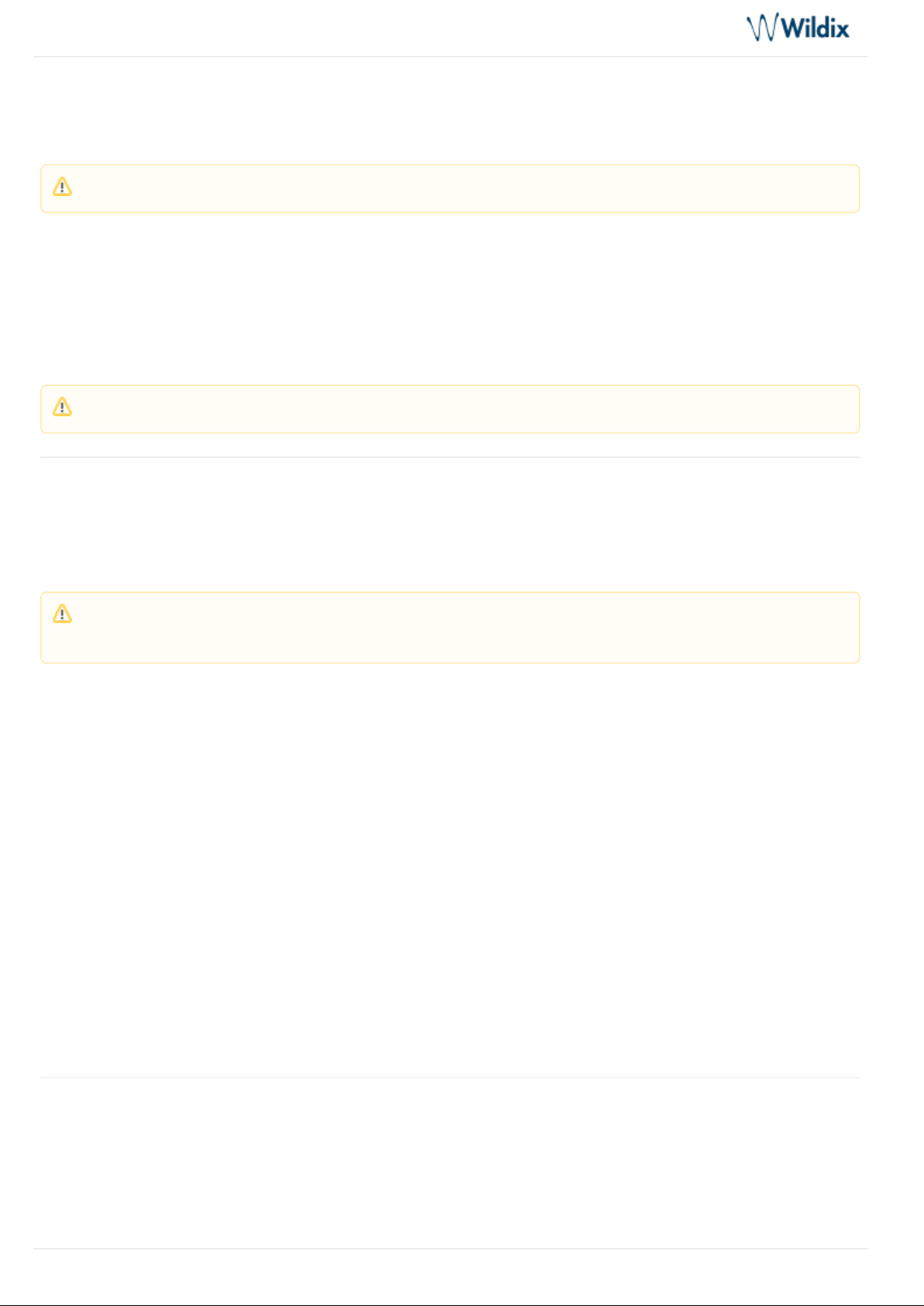
Example:
Password: 4Ag7$
Enter: 4247*
Local contacts
Go to menu.
Contacts
Add contact
Press the Soft key and select More Add contact
Fill in the fields: it is possible to add the name, Work, Mobile, Home or Other phone numbers, select a
ringtone to be used for this contact.
When ready, press Save
Confirm by pressing Yes
Edit contact
Select a contact
Press to edit the contactEdit
Press when readySave
Confirm by pressing Yes
Delete contacts
Select a contact and press More
Note: To enter your password, follow these simple rules:
Instead of letters, press corresponding digits on the phone’s keypad (e.g. if you need to enter A or
B, press “2”)
No difference between uppercase and lowercase letters (press “2” to enter A or a)
Press * instead of all the special characters (to enter such symbols as $, %, &, press “*”)
Press the button just once to enter any option corresponding to this button (for example, if you
need to enter 2, A, B or C, press the button “2” just once, not twice, not three times)
W-AIR DECT Handset - User Guide
Page 14 of 23
Page 15
W-AIR DECT Handset - User Guide
2.
3.
1.
2.
3.
1.
2.
1.
2.
3.
1.
2.
3.
Select to delete the selected contact or to delete all the contacts Delete contact Delete all contacts
Confirm by pressing Yes
Assign a Speed Dial number to a local contact
Select a contact that you wish to assign a speed dial number to
Press and select More Speed dial
Select a speed dial number (from “2” to “9”) that you wish to assign to the selected contact and press Add
Call list
Go to menu. On W-AIR 100 / W-AIR LifeSaver / W-AIR Med / W-AIR Office you can select to access the
Calls
list of .
All / Answered / Dialed / Missed calls
View call details
Select a call from the list
Press to view the following information about the call: number, status (answered, dialed, missed), View
duration, time and date
Save a number to Contacts
Select a call
Press and select More Save as contact
Confirm by pressing Yes
Delete calls
Select a call and press More
Select to delete this call or select to clear the calls list Delete item Delete all items
Confirm by pressing Yes
Call Control
Incoming call
The handset displays an alerting screen when there is an incoming call.
Prerequisite: There must be at least one contact in the Contacts list.
Note: “0” is used to start a normal dial with “+”; “1” is used for Voicemail access.
Note: When there is a missed call, the icon is displayed in the Status bar until the entry has been viewed
in the menu.
Calls
W-AIR DECT Handset - User Guide
Page 15 of 23
Page 16
W-AIR DECT Handset - User Guide
1.
2.
1.
2.
3.
4.
5.
The caller number and name (in case the contact is present in the phonebook) are displayed on the screen.
Answer a call
Press the key to answer or press the Speaker Key to respond in the speaker mode (on W-green Off-hook
AIR Basic press the key twice to answer in Speaker mode).green Off-hook
Reject / mute an incoming call
To reject an incoming call, press when receiving an incoming call or press the KeyReject red On-hook
To silence an incoming call, press when receiving an incoming callSilent
Place a call
Manually
Enter a number
Press the keygreen Off-hook
Redial
To dial the last called number
Press the key twice from the idle green Off-hook
Call a Speed Dial number
It is possible to call a speed dial number, if you have previously assigned at least one Speed Dial number to one
of the contacts.
Make a long press (>2 seconds) from the idle on one of the speed dial keys (from “2” to “9”) assigned to a
contact
Call from shared PBX phonebook
Press Menu key and select / press the Soft Key Central directory Central Directory
Press the Soft key Search
Enter the number or the name and press Search key
Select a contact that you wish to call (in case a contact has several phone numbers, a green arrow in
displayed near the contact; use Navigation keys to select the phone number)
Press the green Off-hook key or soft keyCall
Note: Make sure you enter a prefix if needed when calling the outside line.
Shared company phonebooks must be set up by user via Collaboration or by the PBX administrator.
Colleagues are displayed in the list with their actual presence and activity status (synchronised with
Wildix Collaboration): available / offline / do not disturb / away / talking / incoming call.
W-AIR DECT Handset - User Guide
Page 16 of 23
Page 17
W-AIR DECT Handset - User Guide
1.
2.
3.
1.
2.
3.
1.
2.
3.
4.
1.
Call from local contacts
Press Menu key and select / press the Soft key Contacts Contacts
Select a contact
Press to call the contactCall
Call from history
Press Menu key and select Call list
Select a call from the list
Press the green Off-hook key
Hold / Second call
Hold
Press Soft key to put a call on holdHold
Press Soft key to retrieve the callRetrieve
When you have a call on hold, you can make another call, transfer a call, swap, make a conference.
Place a second call
Put the current call on hold
Enter a number to call or press key (W-AIR Basic)/ key (W-AIR 100/ W-AIR LifeSaver/ W-Selection Menu
AIR Med/ W-AIR Office) to access the or and find the needed contact
Contacts Central Directory
Press the Key green Off-hook
Swap
When you have one active call and one call on hold, you can swap (toggle) between the two calls:
Press (W-AIR 100 / W-AIR LifeSaver / W-AIR Med / W-AIR Office) / Press the Swap Right Navigation key
(W-AIR Basic)
Call Transfer
Attended Call Transfer
Transfer with notification to the person who receives the transfer.
During a call press Soft key or Soft key(the current call is put on hold)Transfer Hold
Enter the number or press Selection key (W-AIR Basic)/ key (W-AIR 100/ W-AIR LifeSaver/ W-AIR Menu
Med/ W-AIR Office) to search in or
Contacts Central directory
Press the Key to place a callgreen Off-hook
To complete the transfer after the third party has answered the call, press Soft key Transfer
Blind Call Transfer
Transfer without notification to the person who receives the transfer.
During a call press Soft key (the current call is put on hold)Transfer
W-AIR handsets support up to 2 active channels / calls.
W-AIR DECT Handset - User Guide
Page 17 of 23
Page 18
W-AIR DECT Handset - User Guide
2.
3.
1.
2.
3.
4.
Enter the number or press Selection key (W-AIR Basic)/ key (W-AIR 100/ W-AIR LifeSaver/ W-AIR Menu
to search in or Med/ W-AIR Office)
Contacts Central directory
Press Soft keyTransfer
Establish a conference call between three parties:
During a call press Soft key (on W-AIR Basic, press Soft key (the current call is put on hold)Conf. Hold
Enter the number or press Selection key (W-AIR Basic)/ key (W-AIR 100/ W-AIR LifeSaver/ W-AIR Menu
to search in or Med/ W-AIR Office)
Contacts Central directory
Press the Key to place a callgreen Off-hook
When the third party answers, press Soft key Conf. to start a three-way conference call (“Conference” is
displayed on the screen and thereby all the three parties are participating in the conference call)
Terminate a conference call
The user who has started the conference call must press the Keyred On-hook
Record a call
Press during a call to start / stop call recording*1
Pick up / Intercom / Call intrusion
Use the corresponding Feature codes to perform call pick up / intercom / call intrusion from W-AIR
handsets. Check Feature Codes Admin Guide for more information
Listen to Voicemail messages
Press and hold for several seconds key (key 1) to access the Voicemail menu and follow the Voicemail
audio prompts
Note: As W-AIR Handsets support only 2 calls/ channels, it is impossible to transfer a call to third party
since one more channel couldn't be opened. For this purpose, you can use in-call Feature codes (it
doesn't require opening a new channel): #8 for attended transfer and #9 for blind transfer. Consult
for detailed information.Feature Codes and Pre answer Services Guide
Note: Each of the called participants can hang up to leave the conference call (in this situation the
conference call continues between the remaining participants).
Note: Only users with certain permissions can record calls; check ACL permissions
"Can use" - "Personal
Documentation:
recording" (WMS -> Users -> Groups).
.ACL rules and Call classes management Guide
Note: Only users with certain permissions perform call pick up / intercom / call intrusion; check ACL
permissions Documentation:
"Can" - "Call Pickup" / "Intercom" / "Intrusion" (WMS -> Users -> Groups).
ACL rules and Call classes management Guide.
W-AIR DECT Handset - User Guide
Page 18 of 23
Page 19

W-AIR DECT Handset - User Guide
Refer to for detailed information.Feature Codes Admin Guide
Adjust volume during a call
Press Volume Up / Down keys (W-AIR 100 / W-AIR LifeSaver / W-AIR Med / W-AIR Office)
Press Up / Down Navigation keys (W-AIR Basic)
Mute the microphone during a call
Press Mute key (side key) to mute / unmute the microphone (W-AIR 100 / W-AIR LifeSaver / W-AIR Med /
W-AIR Office)
Press Left Navigation key to mute / unmute the microphone (W-AIR Basic)
Speaker mode
Answer a ringing call in Speaker mode /
Press key Speaker (W-AIR 100 / W-AIR LifeSaver / W-AIR Med / W-AIR Office)
Press the green Off-hook key twice (W-AIR Basic)
Turn on / turn off Speaker mode during a call:
Press key Speaker (W-AIR 100 / W-AIR LifeSaver / W-AIR Med / W-AIR Office)
Press the green Off-hook key (W-AIR Basic)
End a call
To end an active call:
Press the key to end a callred On-hook
If one call is active and another one is on hold:
Press the key to end the active call and to resume the call on holdred On-hook
Press the key again to terminate the second callred On-hook
General Settings
Go to menu.
Settings
Time & date
Adjust time and date and change a time / date format.
Language
Select the language of the phone interface.
LED signal
Select under which condition LED signal of the handset must blink:
W-AIR DECT Handset - User Guide
Page 19 of 23
Page 20

W-AIR DECT Handset - User Guide
missed call
new Voicemail
low battery
Otherwise it is possible to disable the LED signal.
Power save
Set up the the display to go out after timeout to save the battery (from 5 up to 60 seconds).
Security (Auto keylock)
Enable / disable auto key lock after timeout (from 15 seconds up to 5 minutes).
Change PIN option allows changing the security PIN (used when settings are reset, default PIN - 0000).
Handset name
Enter the name to be displayed at the home screen.
Reset settings
Reset the handset to default settings.
Status
Information about the base station the handset is registered to and the handset status.
Base station information: SW version, HW version, IP address, Mac address, System name
Handset status: SW version, HW version, DECT band, Battery level, Model, IPEI, Bluetooth (W-AIR
LifeSaver / W-AIR Med / W-AIR Office)
Auto Answer
Normal: press the green Off-hook Key to answer an incoming call
Any key: press any key on the keypad (except the red On-hook Key and the two Soft keys) to answer an
incoming call
Automatic: incoming call is answered automatically after five seconds
Silent Charging
Disable / mute ringtone when the handset is charging:
Off: audio alert is present and incoming call screen is displayed
Silent: no audio alert, but the incoming call screen is displayed
Bluetooth (W-AIR LifeSaver / W-AIR Med / W-AIR Office)
When BT headset is connected, the audio is routed to the headset during a call.
Incoming call alert tone is played back both to the handset and the paired bluetooth headset.
The icon is displayed in the Status bar when the option is enabled and the handset is paired to BT.
Pair and connect a headset to a bluetooth headset:
W-AIR DECT Handset - User Guide
Page 20 of 23
Page 21
W-AIR DECT Handset - User Guide
Select and confirm by pressing Enable Bluetooth Yes
Select to view the list of available bluetooth headsetsSearch for devices
Select the device from the list and press Pair
Select to view the list of devices, select one and press Paired devices Connect
Delete a bluetooth headset from the list of paired devices:
Select , select the device that you wish to unpair and pressPaired devices More
Select to delete this device or select to delete all the paired devicesDelete Delete all
Use Wildix Bluetooth headset WHS-BT: WHS, WelcomeConsole-EXT, WPEHS - Quick Start Guide - Phones
.Accessories
Third party headsets integrated with Wildix: Wildix Compatible Headsets – Jabra, Plantronics, Sennheiser, JPL,
.Axtel
Push To Talk (W-AIR 100 (End Of Life) / W-AIR LifeSaver / W-AIR Med / W-AIR Office)
Push to talk (PTT) feature allows transmitting an audio message to other handsets in the network.
Select to enable the featureOn
Press and hold the button and say your messageMute
Your message is transmitted to other handsets over the network (W-AIR 100 / W-AIR LifeSaver / W-AIR Med /
W-AIR Office).
Audio Settings
Go to menu.
Audio settings
Silent mode
When enabled, no sounds are played on the handset.
When enabled, no other audio settings can be changed in the Audio Settings menu.
Ring Volume
Use the Navigation keys to adjust the ring volume.
Note: The handset can be paired with up to four different bluetooth headsets.
Important: enabling this feature reduces the number of available channels on each base station to 6.
Limitation: The feature does not work over Repeater.
W-AIR DECT Handset - User Guide
Page 21 of 23
Page 22

W-AIR DECT Handset - User Guide
When the ring volume is set to mute, the “Sound off” icon is displayed in the Status bar and no sound is heard
when receiving an incoming call.
Ring Melody (for each Call Class)
Select the ringtone for each call class (external/ internal/ whitelist/ blacklist/
Alert Volume and Alert Tone (W-AIR 100 (End Of Life) / W-AIR LifeSaver / W-AIR Med / W-AIR Office)
Select the Volume and the Ringtone for the alarm clock.
Vibrator (W-AIR 100 (End Of Life) / W-AIR LifeSaver / W-AIR Med / W-AIR Office
Enable / disable vibration.
Key Sound
Select the sound to be played when the keys are pressed on the handset (“Click” / “Tone”) or disable the key
sound ("Silent").
Confirmation Sound
When enabled, an audible confirmation sound is played back when any action succeeds or fails.
Coverage Warning
When enabled, an audible notification is played back to the earpiece during the call when the user is close to the
maximum range of the nearest base station in the system.
Charger Warning
When enabled, an audible notification is played back when the handset is placed into the charger.
Noise Reduction (W-AIR LifeSaver / W-AIR Med / W-AIR Office)
Enable / disable noise reduction.
Alarm clock setting (W-AIR 100 (End Of Life) / W-AIR LifeSaver /
W-AIR Med / W-AIR Office)
Go to menu.
Alarms
Select or (it will be repeated every day at the stated time)Alarm Recurrent alarm
Use the Navigation Keys or the numeric keypad to set up the time for the alarm
Press Save
W-AIR DECT Handset - User Guide
Page 22 of 23
Page 23

W-AIR DECT Handset - User Guide
Emergency alarms setting (W-AIR LifeSaver / W-AIR Med / WAIR Office)
Alarm is sent in the form of an outgoing call to the emergency number preconfigured on the base station’s
interface for this extension.
For more information about configuring emergency settings, please refer to W-AIR Network Guides: W-AIR
and .Network Admin Guide - Sync over the air W-AIR Network Admin Guide - Sync over LAN
Alarms triggering
Alarm Button: Long-press (3 seconds) the red button on top of the handset
Pull Cord Alarm: Pull a cord from the pull cord hole on the right side of the handset
Running Alarm: Shake up and down the handset for several seconds
Man Down Alarm: Put the handset in the position with an angle over 60 degrees with respect to the
horizontal. The time for the handset to be still before the alarm is triggered can be set on base station web
interface
No Movement Alarm: Do not move the handset. The timeout after which No Movement alarm is triggered
is set on the base station web interface
Note: When the alarm starts ringing, press to disable it, or to repeat the alarm after the Dismiss Snooze
selected timeout.
To set up snooze timeout: select and select the timeout.Snooze time
Note: Emergency settings are defined and controlled from the web interface of the base station.
W-AIR DECT Handset - User Guide
Page 23 of 23
 Loading...