

Page 1

1
QUICK START GUIDE
wikipad
Page 2

1
WELCOME TO WIKIPAD.
To start using your Wikipad, first turn it on by pressing and holding the On/O button for a few seconds.
Then follow the onscreen instructions to set up your
Wikipad.
Learn more.
Learn more about Wikipad features at wikipad.com.
Contact Support.
For the Wikipad User Guide and other important
information, visit us at wikipad.com/support.
WE LCOME
Page 3
2 3
PROCESSOR
NVIDIA® Tegra® 3 mobile
processor with quad-core CPU
and 5th battery-saver core
High-performance 12-core
NVIDIA GPU
OPERATING
SYSTEM
Android 4.1 (Jelly Bean)
DISPLAY
7” (diagonal) IPS (1280x800)
16:10 ratio wide-view panel
Capacitive multi-touch screen
(supports 5-point gesture)
Scratch-resistant
military-grade glass screen
WIRELESS
Dual-band WiFi
(802.11 a/b/g/n)
Bluetooth®
STORAGE
Internal Memory: 1GB DDR3
Flash Memory: 16GB
Micro SD slot:
supports up to 32GB
CAMERA
Front: 2-megapixel
SENSORS
3-axis accelerometer
e-Compass
GPS (including GLONASS)
INPUT / OUT
PUT
3.5mm stereo headphone and
mic minijack
Built-in stereo speakers (2)
Built-in microphone
Micro-USB data and power
Micro-HDMI output
BATTERY* /
POWER
Built-in 4100mAH rechargable
lithium-polymer battery
Universal AC Adapter (5V, 2A)
USER
INTERFACE
Volume up/down buttons
Power button
Charging indicator LED
DIMENSIONS
195.6 x 125.7 x 10.64mm
With Controller:
286.0 x 145.0 x 65.3mm
*CAUTION: The battery should only be replaced by a
manufacturer approved service facility. Any attempt to
remove or replace your battery may damage the product.
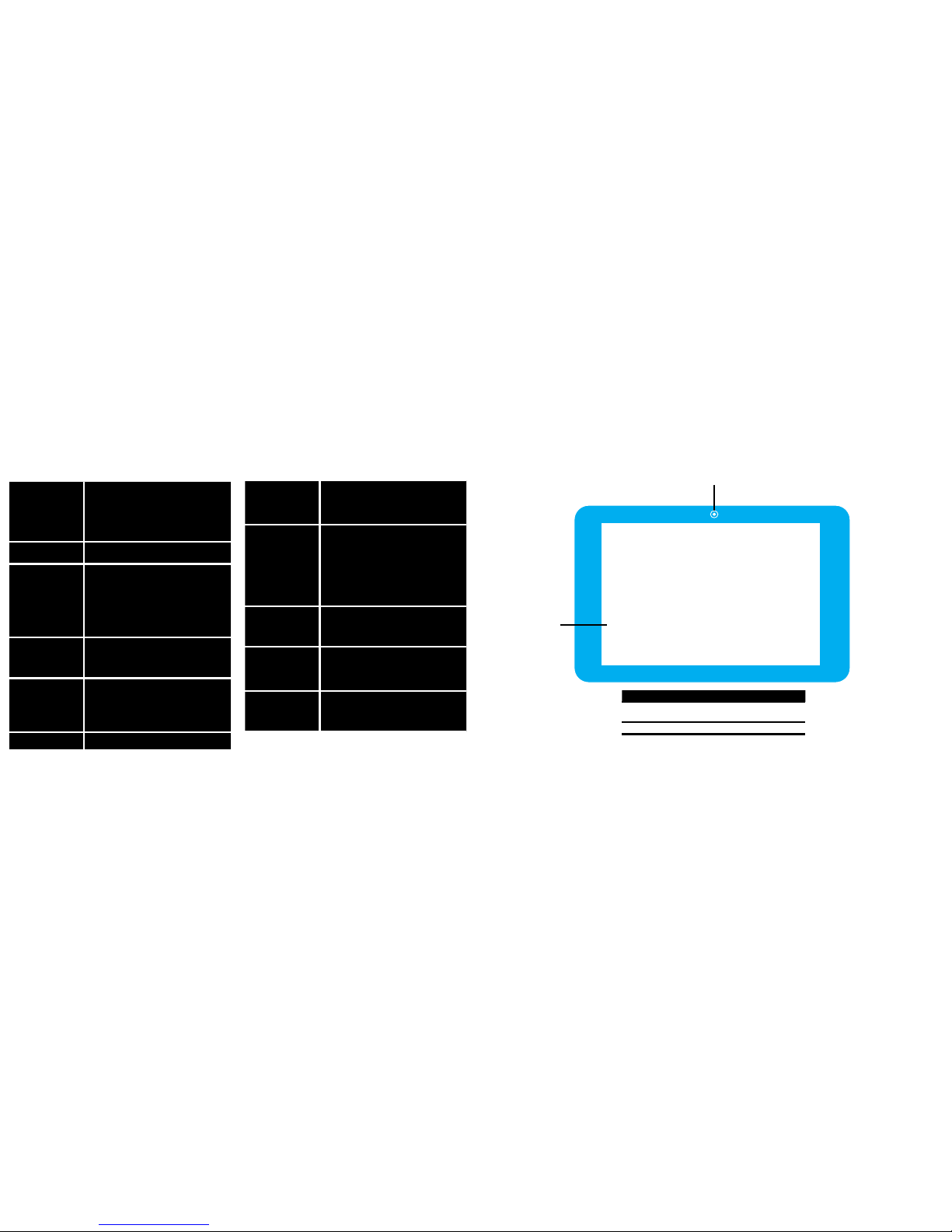
# FEATURE
1 7” LCD MULTITOUCH SCREEN
2 FRONTFACING CAMERA
2
1
fROnT vIEWPRODUCT SPECIfICATIOnS
Page 4
4 5
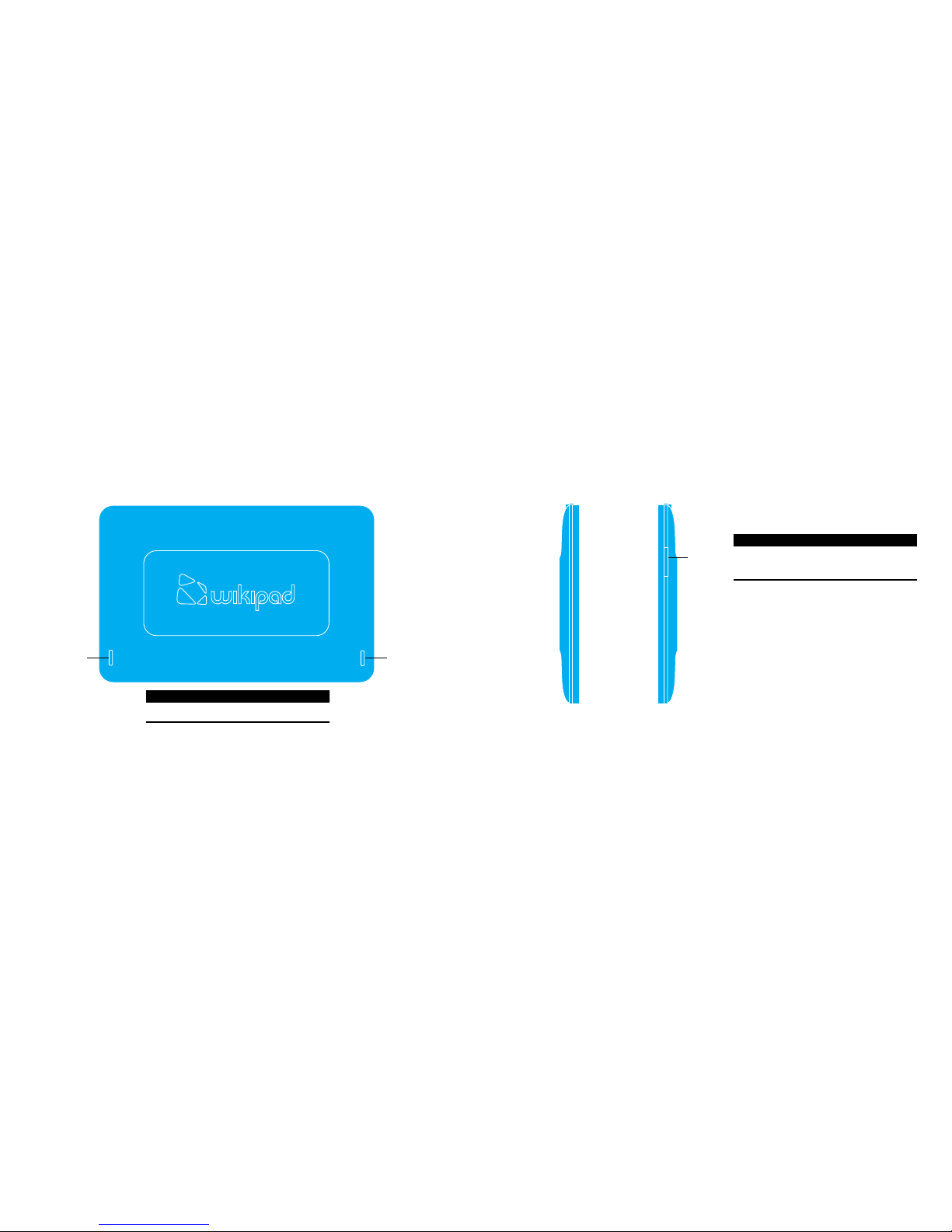
REAR vIEW
# FEATURE
1 STEREO SPEAKERS
1 1
SIDE vIEWS
# FEATURE
1 MEMORY CARD COMPARTMENT
MICRO SD
1
LEFT SIDE RIGHT SIDE
Page 5
6 7
GETTInG STARTED
CHARGING YOUR TABLET
WARNING: The battery comes partially charged. You must
completely charge the battery before using your tablet for
the first time. After the first charge you may use your device
while charging.
CAUTION: When charging your tablet, make sure to use
only the charger that came with your tablet.
1. Plug the micro-USB to USB cable into the
power adapter.
2. Plug the other end of the micro-USB to
USB cable into the micro-USB port at the
bottom of your tablet.
3. Plug the charger into an electrical outlet to
start charging the battery.
LED INDICATOR
The LED Indicator located on the front side
of your tablet will notify you of the status of
your tablet’s battery.
LED STATE BATTERY LEVEL (%)
GREEN
(when connected to charger)
approx. 100%
RED
(when connected to charger)
0% to under 100%
INSTALLING A MEMORY CARD
Your tablet includes an expandable microSD
card slot that allows you to add extra storage.
To insert a Memory Card:
1. Open the memory card slot cover.
2. Insert the memory card into the memory
card slot. Press the memory card in until it
is fully inserted.
3. Close the memory card slot cover.
If you need to remove the SD card:
1. Open the memory card slot cover.
2. Gently press the SD card in and then
release. The card will pop out of the slot.
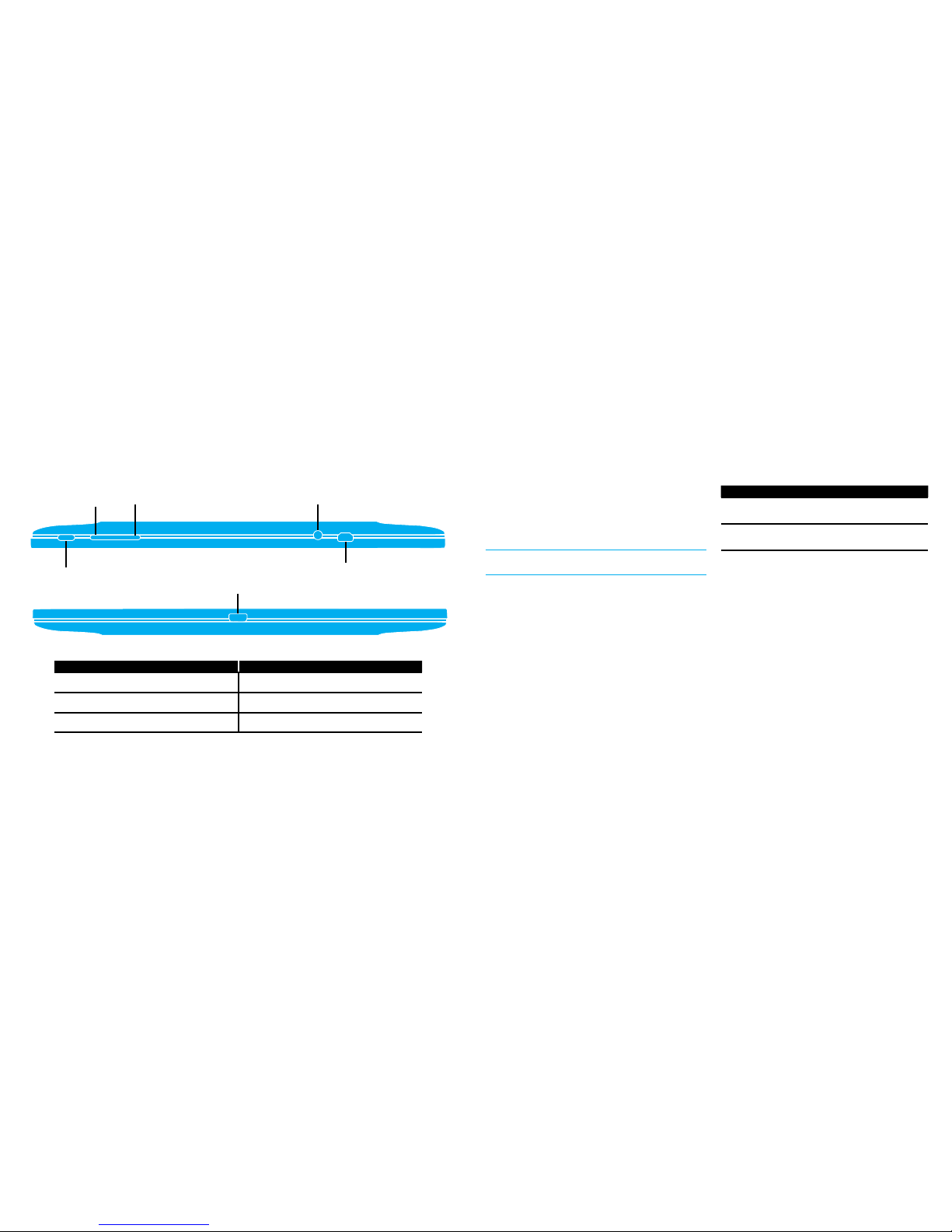
SIDE vIEWS
# FEATURE
1 POWER BUTTON
2 VOLUME DOWN
3 VOLUME UP
TOP SIDE
BOTTOM SIDE
1
2
3
4
5
6
# FEATURE
4 3.5MM HEADPHONE/MIC JACK
5 HDMI OUTPUT
6 MICROUSB CHARGING PORT
Page 6

8 9
TROUBLESHOOTInG
FORCED REBOOT
In the event that your tablet becomes
unresponsive, you may try a forced reboot.
To force your tablet to reboot:
1. Press and hold the power button for 10
seconds (until the tablet turns o).
2. Press and hold the power button until the
tablet turns on.
GETTInG STARTED
POWERING ON
1. Press and hold the Power key on the top
side of your tablet to turn it on.
POWERING OFF
1. Press and hold the Power key on the top
side of your tablet for several seconds
2. Use the touchscreen to confirm that you
want to Power o your tablet.
COnnECTIOnS
BLUETOOTH® WIRELESS
Bluetooth wireless technology allows you to
connect your tablet to other Bluetooth
enabled devices such as Bluetooth stereo
headsets, or Bluetooth keyboards for quick
and easy text entry.
USB CONNECTION
A Micro USB connection allows you to
transfer HD video, music, pictures, photos
and other media content between your tablet
and a computer. Use the USB cable that came
with your tablet to make the connection and
do the following:
Microsoft™ Windows™ XP, Windows
Vista, Windows 7, and Windows 8 - On
your computer, click Start, and select My
Computer. Then drag and drop files from
your computer to your tablet.
Apple™ Macintosh™ - Use Android
File Transfer. (You can download it from
http://www.android. com/filetransfer.)
HDMI CONNECTION
A Micro-HDMI connection allows you to
connect your tablet to any HDMI-ready
monitor or television.
Page 7
10 11
GAME COnTROLLER
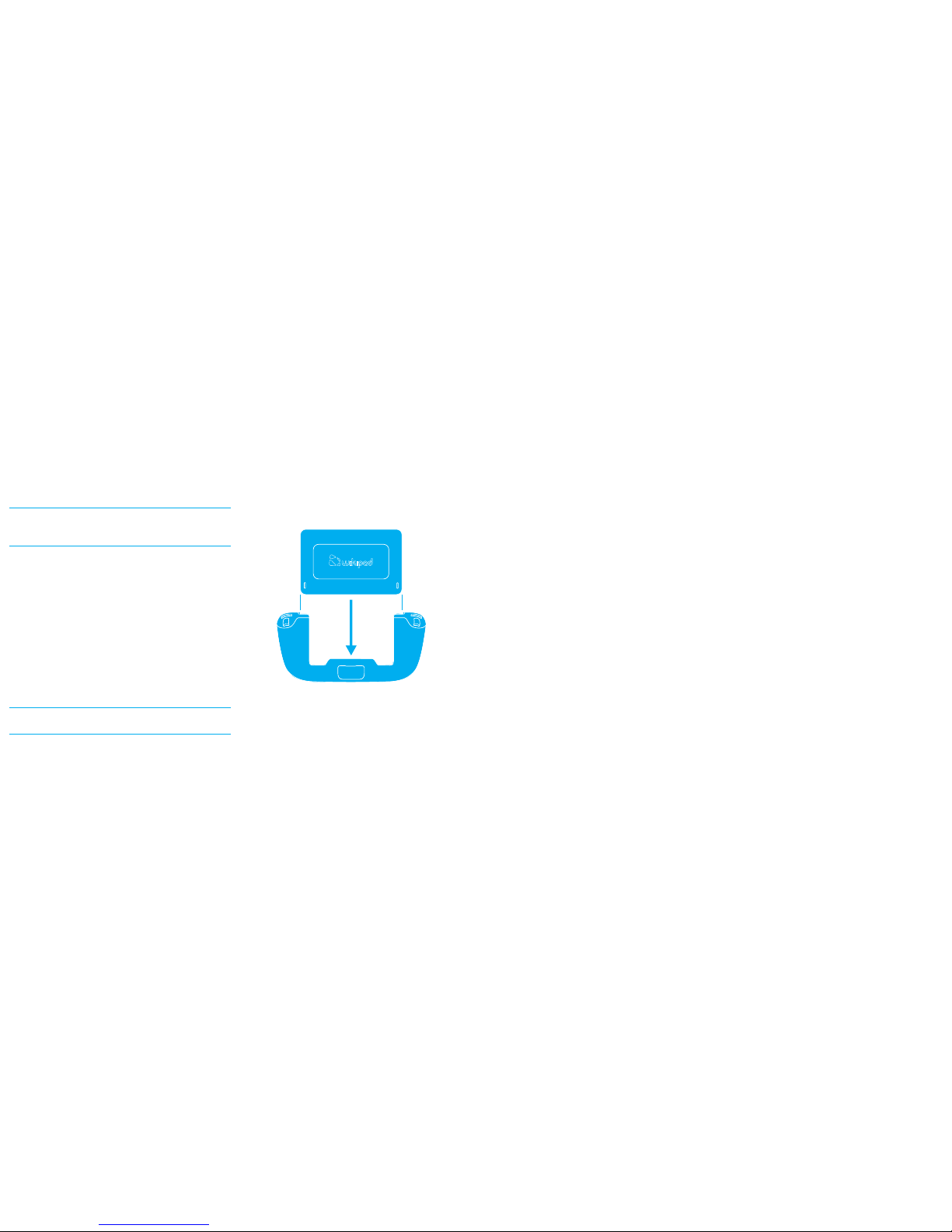
CONNECTING YOUR GAME CONTROLLER
CAUTION: Be sure to insert the tablet gently but
rmly into the game controller to prevent damage
to the connectors.
1. Slide the tablet into the slot at the top of
the controller with the docking port at the
bottom.
2. To confirm a positive connection, turn
your tablet on by holding down the on/
o button for several seconds and then
releasing.
3. When the tablet is powered on and the
controller is connected properly, the LED
at the bottom center of the controller will
glow BLUE.
NOTE: The game controller may not function with
all applications.
IMPORTAnT HEALTH WARnInGS ABOUT PLAyInG vIDEO GAMES
Photosensitive Seizures
A very small percentage of people may experience a seizure when
exposed to certain visual images, including flashing lights or patterns
that may appear in video games. Even people who have no history
of seizures or epilepsy may have an undiagnosed condition that
can cause these “photosensitive epileptic seizures” while watching
video games.
These seizures may have a variety of symptoms, including lightheadedness, altered vision, eye or face twitching, jerking or shaking of
arms or legs, disorientation, confusion, or momentary loss of awareness. Seizures may also cause loss of consciousness or convulsions
that can lead to injury from falling down or striking nearby objects.
Immediately stop playing and consult a doctor if you experience any
of these symptoms. Parents should watch for or ask their children
about the above symptoms—children and teenagers are more likely
than adults to experience these seizures. The risk of photosensitive epileptic seizures may be reduced by taking the following
precautions:
• Sit farther from the TV screen.
• Use a smaller TV screen.
• Play in a well-lit room.
• Do not play when you are drowsy or fatigued.
If you or any of your relatives have a history of seizures or epilepsy,
consult a doctor before playing.
Musculoskeletal Disorders
Use of game controllers, keyboards, mice, or other electronic input
devices may be linked to serious injuries or disorders.
When playing video games, as with many activities, you may experience occasional discomfort in your hands, arms, shoulders, neck, or
other parts of your body. However, if you experience symptoms such
as persistent or recurring discomfort, pain, throbbing, aching, tingling, numbness, burning sensation, or stiness, DO NOT IGNORE
THESE WARNING SIGNS. PROMPTLY SEE A QUALIFIED HEALTH
PROFESSIONAL, even if symptoms occur when you are not playing
a video game. Symptoms such as these can be associated with
painful and sometimes permanently disabling injuries or disorders
of the nerves, muscles, tendons, blood vessels, and other parts of
the body. These musculoskeletal disorders (MSDs) include carpal
tunnel syndrome, tendonitis, tenosynovitis, vibration syndromes,
and other conditions.
While researchers are not yet able to answer many questions about
MSDs, there is general agreement that many factors may be linked to
their occurrence, including medical and physical conditions, stress
and how one copes with it, overall health, and how a person positions and uses their body during work and other activities (including
playing a video game). Some studies suggest that the amount of time
a person performs an activity may also be a factor.
Some items that may help you work and play more comfortably and
possibly reduce your risk of experiencing an MSD include:
• Positioning yourself to use comfortable, not awkward, postures.
• Keeping your hands, ngers, and other body parts relaxed.
• Taking breaks.
• Developing a healthy lifestyle.
If you have questions about how your own lifestyle, activities, or
medical or physical condition may be related to MSDs, see a qualified
health professional.
Page 8

level measured for this device was 1.48 W/kg.
12 13
DECLARATIOnS
Copyright Information
No part of this manual, including the products and software
described in it, may be reproduced, transmitted, transcribed, stored
in a retrieval system, or translated into any language in any form
or by any means, except documentation kept by the purchaser for
backup purposes, without the express written permission of Wikipad,
Inc. (”WIKIPAD”). Wikipad, the Wikipad logo and Cloud Gaming
Optimized are trademarks and/or registered trademarks of Wikipad,
Inc. Other company and product names may be trademarks of the
respective companies with with they are associated.
Limitation of Liability
Circumstances may arise where because of a default on WIKIPAD’s
part or other liability, you are entitled to recover damages from WIKI-
PAD. In each such instance, regardless of the basis on which you are
entitled to claim damages from WIKIPAD, WIKIPAD is liable for no
more than damages for bodily injury (including death) and damage
to real property and tangible personal property; or any other actual
and direct damages resulted from omission or failure of performing
legal duties under this Warranty Statement, up to the listed contract
price of each product. WIKIPAD will only be responsible for or
indemnify you for loss, damages or claims based in contract, tort or
infringement under this Warranty Statement. This limit also applies
to WIKIPAD’s suppliers and its reseller. It is the maximum for which
WIKIPAD, its suppliers, and your reseller are collectively responsible.
UNDER NO CIRCUMSTANCES IS WIKIPAD LIABLE FOR ANY OF
THE FOLLOWING: (1) THIRD-PARTY CLAIMS AGAINST YOU FOR
DAMAGES; (2) LOSS OF, OR DAMAGE TO, YOUR RECORDS OR DATA;
OR (3) SPECIAL, INCIDENTAL, OR INDIRECT DAMAGES OR FOR
ANY ECONOMIC CONSEQUENTIAL DAMAGES (INCLUDING LOST
PROFITS OR SAVINGS), EVEN IF WIKIPAD, ITS SUPPLIERS OR YOUR
RESELLER IS INFORMED OF THEIR POSSIBILITY.
Federal Communications Commission Statement
This device complies with part 15 of the FCC Rules. Operation is
subject to the following two conditions: (1) This device may not cause
harmful interference, and (2) this device must accept any interference received, including interference that may cause undesired
operation.
This device has been tested and found to comply with the limits for
a Class B digital device, pursuant to Part 15 of the FCC Rules. These
limits are designed to provide reasonable protection against harmful
interference in a residential installation. This equipment generates,
uses and can radiate radio frequency energy and, if not installed
and used in accordance with the instructions, may cause harmful
interference to radio communications. However, there is no guarantee that inteference will not occur in a particular installation. If this
equipment does not cause harmful interference to radio or television
reception, which can be determined by turning the equipment o
and on, the user is encouraged to try to correct the interference by
one or more of the following measures:
• Reorient or relocate the receiving antenna.
• Increase the separation between the equipment and receiver.
• Connect the equipment into an outlet on a circuit dierent from
that to which the receiver is connected.
• Consult the dealer or an experienced radio/TV technician for help.
Changes or modifications not expressly approved by the party
responsible for compliance could void the user’s authority to operate
the equipment. The antenna(s) used for this transmitter must not
be co-located or operating in conjunction with any other antenna
or transmitter.
Manufacturer
Address
City, State, Country
WIKIPAD, INC.
1801 CENTURY PARK EAST, SUITE 2400
LOS ANGELES, CALIFORNIA, USA
FCC RF Radiation Exposure and SAR Statements SAR Statement The Tablet has been tested
for body-worn Specific Absorption Rate (SAR) compliance. The FCC has established
detailed SAR requirements and has established that these requirements. RF Exposure
Information The radio module has been evaluated under FCC Bulletin OET 65C (01-01) and
found to be compliant to the requirements as set forth in CFR 47 Sections, 2.1093, and 15.247
(b) (4) addressing RF Exposure from radio frequency devices. This model meets the
applicable government requirements for exposure to radio frequency waves. The highest SAR
Page 9

14
 Loading...