

Page 1

USER GUIDE
MB210 / MB220
Page 2

Regulatory Information
FCC Compliance Statement
This device complies with part 15 of the FCC Rules. Operation is subject to the following
two conditions: (1) This device may not cause harmful interference, and (2) this device must
accept any interference received, including interference that may cause undesired
operation.
Radio and Television Interference
This equipment has been tested and found to comply with the limits for a Class B digital
device, pursuant to part 15 of the FCC Rules. These limits are designed to provide
reasonable protection against harmful interference in a residential installation. This
equipment generates, uses and can radiate radio frequency energy and, if not installed and
used in accordance with the instructions, may cause harmful interference to radio
communications. However, there is no guarantee that interference will not occur in a
particular installation. If this equipment does cause harmful interference to radio or
television reception, which can be determined by turning the equipment off and on, the user
is encouraged to try to correct the interference by one or more of the following measures:
- Reorient or relocate the receiving antenna
- Increase the separation between the equipment and receiver.
- Connect the equipment into an outlet on a circuit different from that to which the receiver is
connected.
- Consult the dealer or an experienced radio/TV technician for help.
IMPORTANT: Changes or modifications not expressly approved by Wi-Gear Inc. could void
the user's authority to operate the equipment.
IC Compliance Statement
The term "IC": before the certification/registration number only signifies that the Industry
Canada technical specifications were met.
Contents
Introduction 1
What's included in this package? 2
Product Features 3
Getting Started 5
Playing Music 6
Bluetooth phone operation 8
Troubleshooting 10
Specifications 11
Regulatory Information 13
Page 3

Introduction
Cut the cord today!
Congratulations on purchasing iMuffs wireless
headphones for your iPhone™ or your iPod
®
AND
Bluetooth enabled phone!
Soon you'll be enjoying these benefits:
Wireless Freedom - Throw your iPod in your backpack
and listen to your music wirelessly! No more cords to
untangle or snag. Enjoy crystal clear sound up to
40' (12m) away thanks to the Advanced Audio
Distribution Profile (A2DP) and Bluetooth 2.0.
Never Miss a Call - While listening to your music and
a call comes in, you will hear the ring through your
headphones, and let you talk through the integrated
microphone.
Versatile - Listen to music from your laptop or
desktop
1
, or MP3 smartphone.
2
Talk on the phone
or over iChat or Skype.
Ergonomic Controls - Intuitive controls let you pause,
change volume, and skip tracks right from the
headphones.
1
Currently, Mac OS X v10.5 and up (Leopard) and Windows XP / Vista only
2
Must support Bluetooth Stereo using A2DP.
112
and requires a Bluetooth adapter with A2DP support (Bluetooth Stereo)
Page 4
Specifications
Wireless Range
g
9 - 40 feet (3 - 12 meters)
g
Actual range depends on environmental factors:
orientation of devices relative to each other,
obstructions and enclosures, radio frequency noise,
and interference.
Bluetooth
g
Bluetooth 2.0
g
Advanced Audio Distribution Profile (A2DP)
g
Audio Video Remote Control Profile (AVRCP)
g
Headset Profile (HSP)
g
Hands free Profile (HFP)
Audio Format
g
Codec Encoder/Decoder Type: Sub-band Codec (SBC)
g
Bit Rate: 328 kb/s (High Quality)
Audio Output
g
Near CD-quality (44.1 KHz, 16-bit)
g
Frequency response: 20Hz-20KHz
t
g
Apple iPod Dock Connector Line Out
g
Built-in unidirectional microphone
What's Included in this Package?
g
iMuffs Wireless Headphones
g
iMuffs Dock Adapter for iPod / iPhone (see below)
g
Travel charger / adapter
g
USB cable
g
User Guide
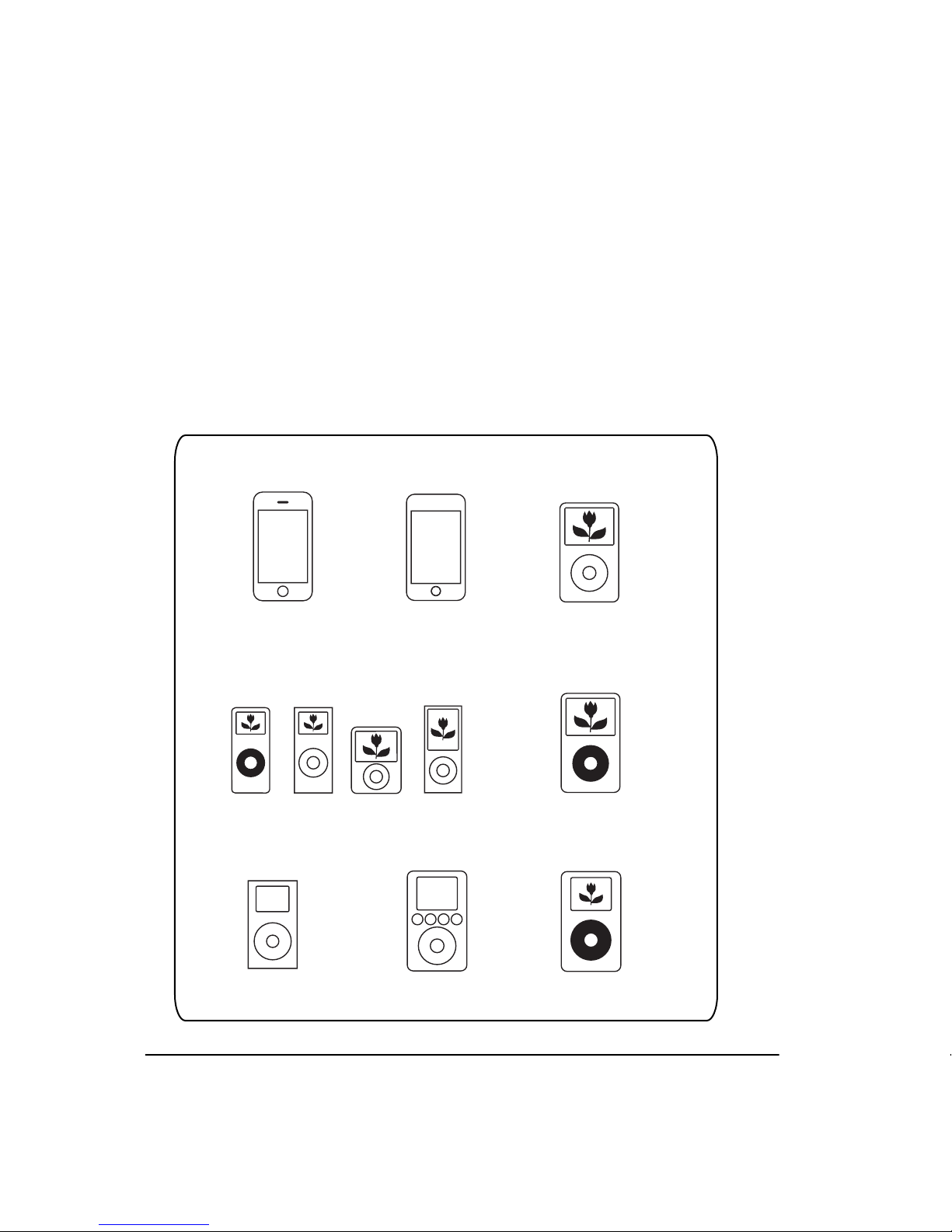
Compatible with these models:
iPod photo
iPod mini
iPod video
iPod click wheel
iPod nano (all models)
iPod classic
iPhone
iPod touch
(all models)
(all models)
Page 5
3
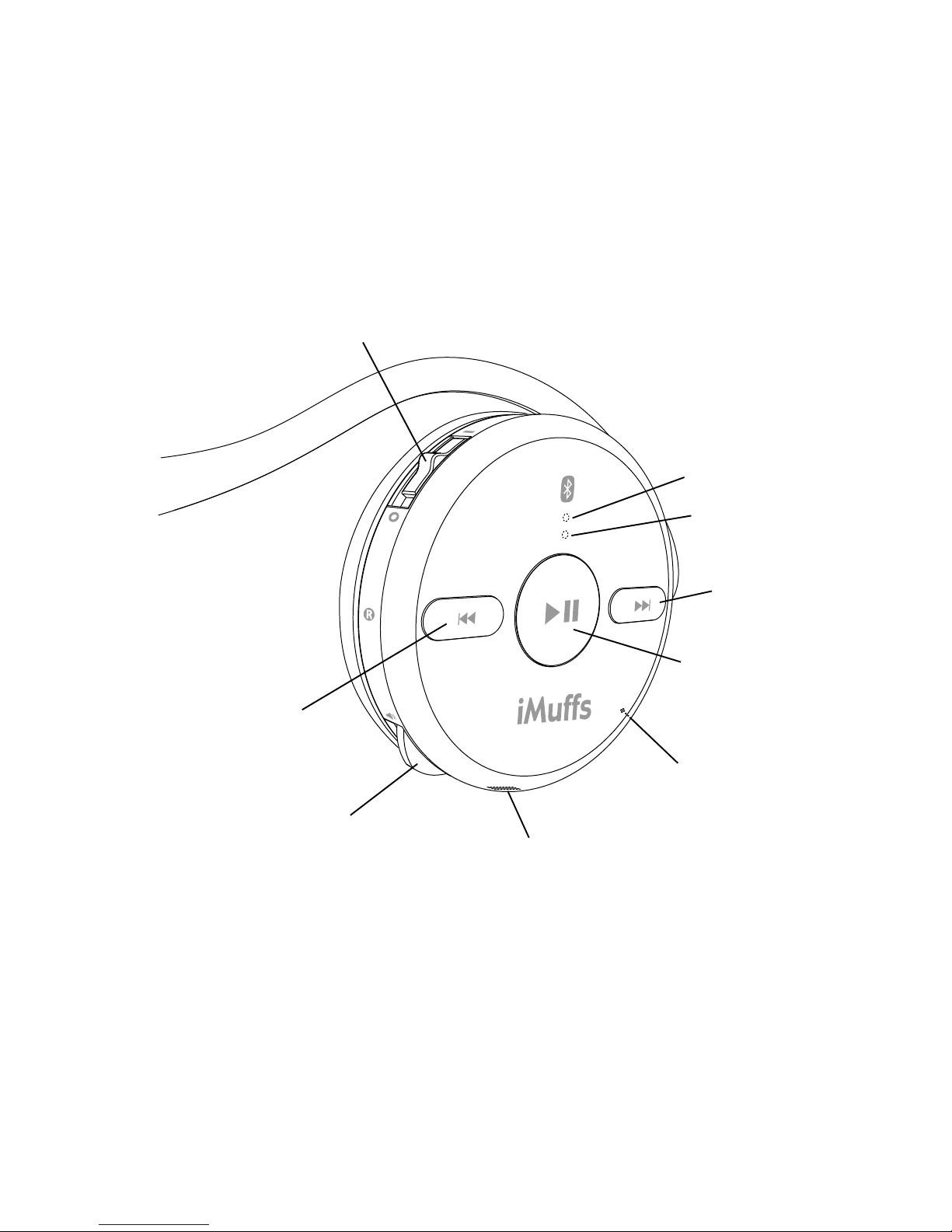
Headphone Features
Familiarize yourself with all of the controls located on the
right side of your iMuffs headphones. Please note that
the two LEDs are visible only when lit.
View of controls (right side)
Blue LED
Orange LED
Next/FF
button
Previous/Rewind
button
Power
switch
USB charging
port
Volume control/
button
Microphone
Play/Pause/
Phone button
Page 6
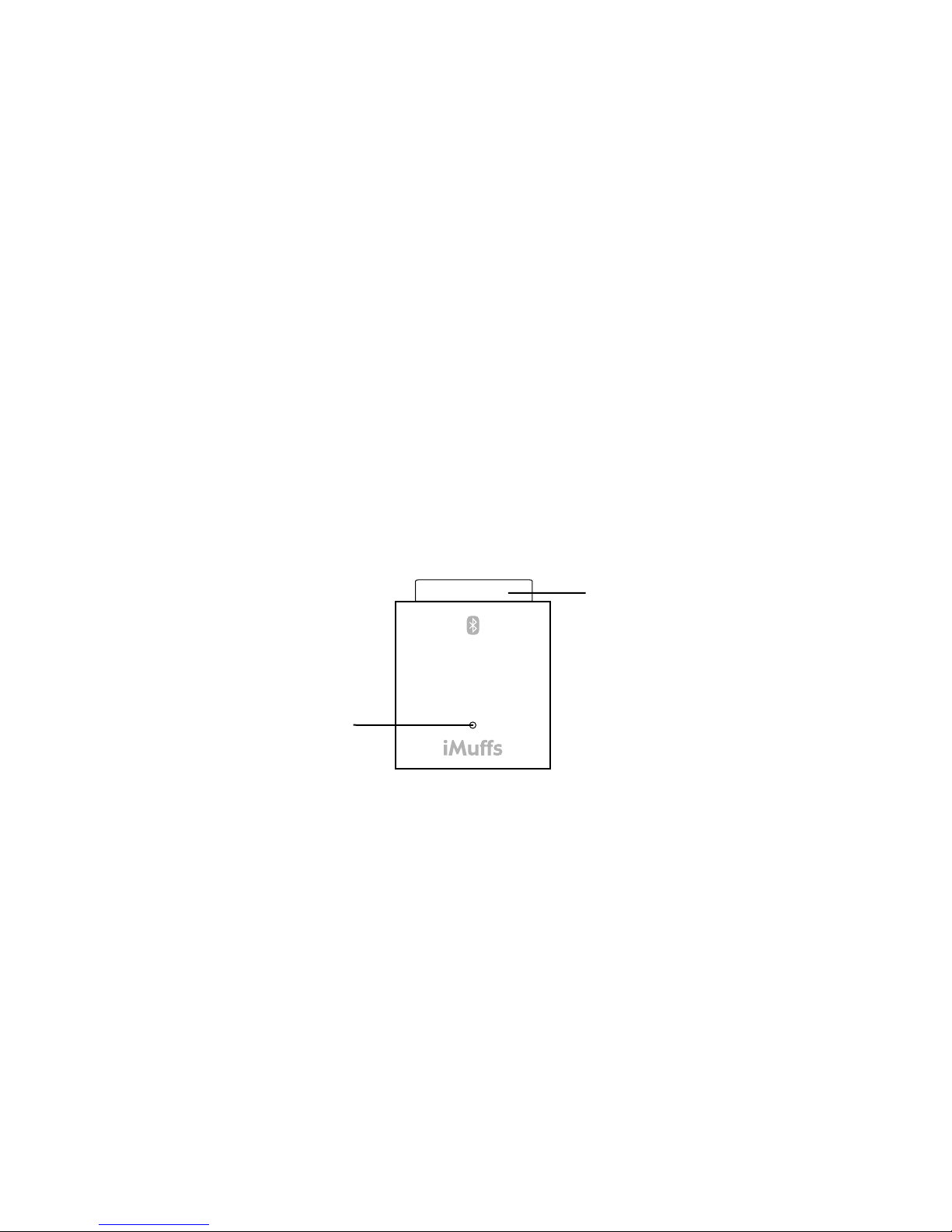
The iMuffs Adapter is powered directly by the iPod / iPhone.
Plug the adapter into the appropriate port of your compatible
iPod. See page 2 regarding iMuffs Adapter compatibility
to your iPod / iPhone.
Connecting iMuffs Dock Adapter for your iPod / iPhone
Plug the iMuffs Dock Adapter for iPod into the dock
connector port located below the iPod / iPhone
iMuff Dock Adapter for iPod
Using with a paired Bluetooth phone
When the phone rings (you will hear an audio tone in the
speakers), answer the call by pressing the
Play/Pause/Phone button.
When the phone rings, reject the call by pressing and
holding the Play/Pause/Phone button for 2 seconds.
To end a call, press and hold the Play/Pause/Phone
button for 2 seconds.
To activate voice dialing (if supported by your phone),
press and hold the volume button in for 2 seconds.
To activate redial (if supported by your phone), press
and hold both the Rewind and FF buttons together for 2
seconds.
To re-establish the Bluetooth connection after the first
time, for example after turning off either device, push in
and hold the volume button on the headphones for
2 seconds.
iPod
Dock Connector
Blue
LED
Adapter Features
Page 7
58
Getting Started
Your iMuffs headphones are powered by a built-in
rechargeable battery. Before using your iMuffs for the first
time, you should fully charge the battery.
Charging
1. Plug the smaller end of the USB cable into the USB
charging port located at the bottom of the right ear cup
of the headphones.
2. Plug the other end of the USB cable into an open USB
port on your computer or into the travel charger and
then plug the travel charger into an outlet.
3. The orange LED indicator lights up while the
headphones are charging.
4. The orange LED indicator will turn off when the battery
is fully charged.
5. Unplug the USB cable from the headphones.
When the battery is low, the orange LED will flash, and
an alert will sound in the speakers indicating that you
need to recharge the headphones.
Page 8

Playing Music
The iMuffs Dock Adapter for iPod / iPhone enables
the iPod / iPhone to transmit a stereo audio signal
wirelessly to your iMuffs Stereo Bluetooth
Headphones, with a range of 40 feet (12 meters).
1. Turn your iMuffs headphones on with the power
switch.
2. Plug the Bluetooth adapter into the dock connector
port located on the bottom of your iPod or iPhone.
For iPhone users:
A message will appear on the screen (see below).
Select “No”. The adapter will work perfectly fine
without going into Airplane Mode.
3. If your iPod is paused or asleep, press the
menu or center button on the iPod to resume operation.
4. Your iMuffs headphones and adapter will automatically
connect. The blue LEDs on the headphones and
adapter will flash while they seek a connection. When
the connection is successful, the LEDs will stay on for
3 seconds, and music will begin playing.
5. To pause music, you may press play on the
headphones or on the iPod / iPhone itself. Pressing
either button again restarts the music where it left off.
6. To access the next track, press the Next button. To
access the previous track, press the Previous button.
7. To fast-forward, press and hold the Next button. To
rewind, press and hold the Previous button.
8. To increase the volume, rock the volume control up. To
decrease the volume, rock the volume control down.
The blue LED on the headphones will flash once
whenever a button is pressed in indicate that a
Bluetooth signal has been transmitted. Accordingly, the
LED on the adapter will flash whenever a Bluetooth
signal is received.
6
Page 9

3. If your iPod is paused or asleep, press the
menu or center button on the iPod to resume operation.
4. Your iMuffs headphones and adapter will automatically
connect. The blue LEDs on the headphones and
adapter will flash while they seek a connection. When
the connection is successful, the LEDs will stay on for
3 seconds, and music will begin playing.
5. To pause music, you may press play on the
headphones or on the iPod / iPhone itself. Pressing
either button again restarts the music where it left off.
6. To access the next track, press the Next button. To
access the previous track, press the Previous button.
7. To fast-forward, press and hold the Next button. To
rewind, press and hold the Previous button.
8. To increase the volume, rock the volume control up. To
decrease the volume, rock the volume control down.
The blue LED on the headphones will flash once
whenever a button is pressed in indicate that a
Bluetooth signal has been transmitted. Accordingly, the
LED on the adapter will flash whenever a Bluetooth
signal is received.
7
Page 10

Bluetooth Phone Operation
Your iMuffs headphones work with Bluetooth-enabled
phones. However, you will first need to pair the
headphones with your Bluetooth phone before they work.
Initial Pairing with a Bluetooth phone
1. Make sure the adapter is UNPLUGGED from your iPod /
iPhone and your iMuffs headphones are powered off.
Make sure that your iPhone or Bluetooth phone is nearby.
2. Initiate "Discover" mode in your Bluetooth-enabled
Phone according to your phone’s manual.
For iPhone users:
Tap on the “Settings” icon and then tap on “General”.
Next tap on “Bluetooth” and then tap “On” to activate
the Bluetooth.
3. On the headphones, press and hold the volume button
in while switching the power on. This will initiate the
"Discoverable" mode in the headphones. The blue
LED will begin double-flashing.
4. Select the iMuffs from your phone’s menu.
4. If asked for a PIN, enter "0000" (four zeros).
5. If the pairing process is successful, the blue LED on
the headphones will stop flashing and stay on for 3
seconds.
Getting Started
Your iMuffs headphones are powered by a built-in
rechargeable battery. Before using your iMuffs for the first
time, you should fully charge the battery.
Charging
1. Plug the smaller end of the USB cable into the USB
charging port located at the bottom of the right ear cup
of the headphones.
2. Plug the other end of the USB cable into an open USB
port on your computer or into the travel charger and
then plug the travel charger into an outlet.
3. The orange LED indicator lights up while the
headphones are charging.
4. The orange LED indicator will turn off when the battery
is fully charged.
5. Unplug the USB cable from the headphones.
When the battery is low, the orange LED will flash, and
an alert will sound in the speakers indicating that you
need to recharge the headphones.
Page 11

94
Using with a paired Bluetooth phone
When the phone rings (you will hear an audio tone in the
speakers), answer the call by pressing the
Play/Pause/Phone button.
When the phone rings, reject the call by pressing and
holding the Play/Pause/Phone button for 2 seconds.
To end a call, press and hold the Play/Pause/Phone
button for 2 seconds.
To activate voice dialing (if supported by your phone),
press and hold the volume button in for 2 seconds.
To activate redial (if supported by your phone), press
and hold both the Rewind and FF buttons together for 2
seconds.
To re-establish the Bluetooth connection after the first
time, for example after turning off either device, push in
and hold the volume button on the headphones for 2 -
seconds.
Page 12

Troubleshooting
If you have problems using the iMuffs Stereo Bluetooth
Headphones, this section may help. For further assistance,
please visit www.wi-gear.com.
Most problems can be resolved with a simple reset.
Switch the headphones off, and then on. Unplug the
adapter from the iPod, plug it back in.
You hear no sound.
Ensure the headphones are switched on and the adapter
for iPod is plugged into a compatible iPod. If the iPod
screen is blank, the iPod may have gone to sleep mode.
Press Menu on the iPod to turn it on.
Verify that the devices are within the recommended
range of approximate 40 feet (12 meters).
The headphone does not power on.
The battery charge may be too low. In this case, the
orange LED may flash and be accompanied by alerts.
The music or connection is not reliable
For optimal reception place your iPod with the connected
adapter on the right side of the headphones as this is
where the receiving antenna is located in the headphones.
Overall relibility may be effected if used near microwave
appliances and/or certain radio emitting devices.
10
Headphone Features
Familiarize yourself with all of the controls located on the
right side of your iMuffs headphones. Please note that
the two LEDs are visible only when lit.
Previous/Rewind
button
Page 13

Specifications
Wireless Range
9 - 40 feet (3 - 12 meters)
Actual range depends on environmental factors:
orientation of devices relative to each other,
obstructions and enclosures, radio frequency noise,
and interference.
Bluetooth
Bluetooth 2.0
Advanced Audio Distribution Profile (A2DP)
Audio Video Remote Control Profile (AVRCP)
Headset Profile (HSP)
Hands free Profile (HFP)
Audio Format
Codec Encoder/Decoder Type: Sub-band Codec (SBC)
Bit Rate: 328 kb/s (High Quality)
Audio Output
Near CD-quality (44.1 KHz, 16-bit)
Frequency response: 20Hz-20KHz
Apple iPod Dock Connector Line Out
Built-in unidirectional microphone
112
Page 14

Introduction
Cut the cord today!
Congratulations on purchasing iMuffs wireless
headphones for your iPhone™ or your iPod
Bluetooth enabled phone!
Soon you'll be enjoying these benefits:
Wireless Freedom - Throw your iPod in your backpack
and listen to your music wirelessly! No more cords to
untangle or snag. Enjoy crystal clear sound up to
40' (12m) away thanks to the Advanced Audio
Distribution Profile (A2DP) and Bluetooth 2.0.
Never Miss a Call - While listening to your music and
a call comes in, you will hear the ring through your
headphones, and let you talk through the integrated
microphone.
Versatile - Listen to music from your laptop or
desktop
or over iChat or Skype.
Ergonomic Controls - Intuitive controls let you pause,
change volume, and skip tracks right from the
headphones.
1
Currently, Mac OS X v10.5 and up (Leopard) and Windows XP / Vista only
2
Must support Bluetooth Stereo using A2DP.
Battery
g
Battery Type: Lithium-Polymer 550mAh
(built-in, not user-serviceable)
g
Charge Time: Quick charge, 80% in 2 hours /
Full charge in 5 hours
g
Up to 20 hours of continuous operation of the
headphones depending on usage pattern, distance
from adapterttery age. iMuffs Adapter is
dependent on iPod or iPhone’s actual battery capacity.
Power Input
g
Standard USB voltage input (mini-USB, 5-pin) or
provided AC-DC
g
USB Power Adapter (110-240V)
Temperature
g
Operating: 0°-35° C (32°-95° F)
g
Storage: -20-50° C (-68°- 122° F)
Weight
g
2.2 oz (headphones)
g
0.4 oz (adapter)
1
1
New headphones may have a slightly greater charge time of more than
5 hours for the first few charge cycles.
and requires a Bluetooth adapter with A2DP support (Bluetooth Stereo)
Page 15

Regulatory Information
FCC Compliance Statement
This device complies with part 15 of the FCC Rules. Operation is subject to the following
two conditions: (1) This device may not cause harmful interference, and (2) this device must
accept any interference received, including interference that may cause undesired
operation.
Radio and Television Interference
This equipment has been tested and found to comply with the limits for a Class B digital
device, pursuant to part 15 of the FCC Rules. These limits are designed to provide
reasonable protection against harmful interference in a residential installation. This
equipment generates, uses and can radiate radio frequency energy and, if not installed and
used in accordance with the instructions, may cause harmful interference to radio
communications. However, there is no guarantee that interference will not occur in a
particular installation. If this equipment does cause harmful interference to radio or
television reception, which can be determined by turning the equipment off and on, the user
is encouraged to try to correct the interference by one or more of the following measures:
- Reorient or relocate the receiving antenna
- Increase the separation between the equipment and receiver.
- Connect the equipment into an outlet on a circuit different from that to which the receiver is
connected.
- Consult the dealer or an experienced radio/TV technician for help.
IMPORTANT: Changes or modifications not expressly approved by Wi-Gear Inc. could void
the user's authority to operate the equipment.
IC Compliance Statement
The term "IC": before the certification/registration number only signifies that the Industry
Canada technical specifications were met.
13
Page 16

1313
© 2005-2008 Wi-Gear Inc. All rights reserved. iMuffs, Wi-Gear, and the Wi-Gear logo are trademarks of
Wi-Gear Inc. The Bluetooth word mark and logo are owned by the Bluetooth SIG, Inc. and any use of such
marks by Wi-Gear Inc. is under license. iPod and iPhone are trademarks of Apple Inc., registered in the U.S.
and other countries. All other products and services may be marks of their respective owners. Printed in
China.
www.wi-gear.com
 Loading...