

Page 1

Wifire Remote User Guide
!
!
!
1!
The WiFireRemote Web Site
The Information contained in this user manual is also available on our web site
www.wifireremote.com.
WiFire Remote
The WiFire Remote is a web based universal dry contact millivolt/low-volt DC remote
control. The WiFire Remote will allow millivolt-controlled appliances, such as gas
fireplaces and gas stoves, to be operated with a computer or smart device that has an
internet or cell connection.
Gas fireplaces and stoves are generally standing pilot millivolt/low-volt DC appliances
that are typically controlled by either a rocker switch, a thermostat which requires a 20'
to 30' low voltage wire to be connected directly to the fireplace, or a coffee table remote
control, which limits control to less than 50 feet. The WiFire Remote is a temperature
sensing switch that eliminates these boundaries allowing the user to monitor and control
their fireplace and its features (depending on the WiFire Remote model and fireplace
features) from anywhere an internet or cell phone connection is available.
The ability to control a gas fireplace or heating appliance from literally anywhere
requires that it have the ability to communicate with your smart device or computer
utilizing an internet connection. The WiFire Remote will be wired to your gas fireplace or
heating appliance in order to provide this means of communication.
During the WiFire Remote 'Installation' process, the WiFire Remote will establish a
connection with the Wi-Fi Router in your home (appliance location) providing access to
the internet, and in turn, to the WiFire Cloud. Once this connection is properly
established and the remainder of the installation process is complete the user will be able
to access his fireplace controls from any internet connected smart device or computer.
(Please see Installation Page for complete installation instructions)
WiFire Remote Features
• WiFire Remote provides the ability to monitor and control gas fireplaces with any
smartphone, tablet or computer that has access to the internet.
• WiFire Remote is a temperature sensing fireplace control that allows you to set and maintain
desired room temperatures.
• Fireplaces controls are accessible from any popular browser.
• WiFire Remote accounts are password protected.
• Multiple fireplaces can be set up to be monitored and controlled from one convenient
internet location providing convenience and flexibility for both residential and commercial
applications.
• Multiple users can be set up with control permissions.
• WiFire Remote is a temperature sensing switch that should not be installed with any other
control device(s) enabled (e.g. on/off rocker switch, thermostat, or remote control receiver).
When installing the WiFire Remote into the fireplace, remove the batteries from any preexisting remote control devices and store such devices to avoid inadvertent activation.
Page 2

Wifire Remote User Guide
!
!
!
2!
Safety Features
• WiFire Remote is tested and listed to C22.2 NO. 3-M1988 (R2014) Standards.
§ UL 372 Equivalent
• Conforms to EMC testing.
§ FCC Part 15:2010
§ ICES-003, Issue5, August 2012
• Other safety features include:
§ Overtemp sensor causing device to shut down if threat of overheating
§ Primary User maintains other user permissions
§ Device is password protected
Safety Precautions
• The existing appliance must be in safe operating condition before attempting to operate from
a remote source.
• Alpine Research recommends that the WiFire Remote be used exclusively on heating
appliances.
Purchasing a WiFire Remote
The WiFire Remote can be purchased at:
• shop.wifireremote.com
• Directly from Alpine Research at 800-494-3473
• Through your local Hearth Dealer
When purchasing a WiFire Remote you will be asked to set up a User Name and Password
at checkout.
• Setting up a User Name & Password during the purchase process allows you to track your
purchases, review your order history, simplify future orders and gives you the opportunity to
stay informed of any future WiFire Remote improvements.
• This User Name & Password chosen by the user in the purchase process is not the information
that will ultimately be used to access your fireplace controls (unless, of course, the user
choses to enter the same information during the installation process).
Installing The WiFire Remote
Once you have received your order, you will find complete installation instructions on
our Installation Page. During the installation process you will be asked for the Primary
User's email address and to choose a password. The information entered in this step will
be your sign in information at www.wifireremote.comonce you have completed the
installation process, giving you access to your fireplace controls from any browser. It is
not necessary for you to use the same information entered during the purchasing process.
We recommend you that you review each of the 3 installation steps before you begin to
become acquainted with the process. If, for any reason, you would prefer the WiFire
Remote be installed by a Hearth Professional, please contact your local Hearth Dealer.
Instructional Video
Page 3

Wifire Remote User Guide
!
!
!
3!
For a brief tutorial on using the WiFire Remote, please watch the 'How to Use Your WiFire
Remote' video.
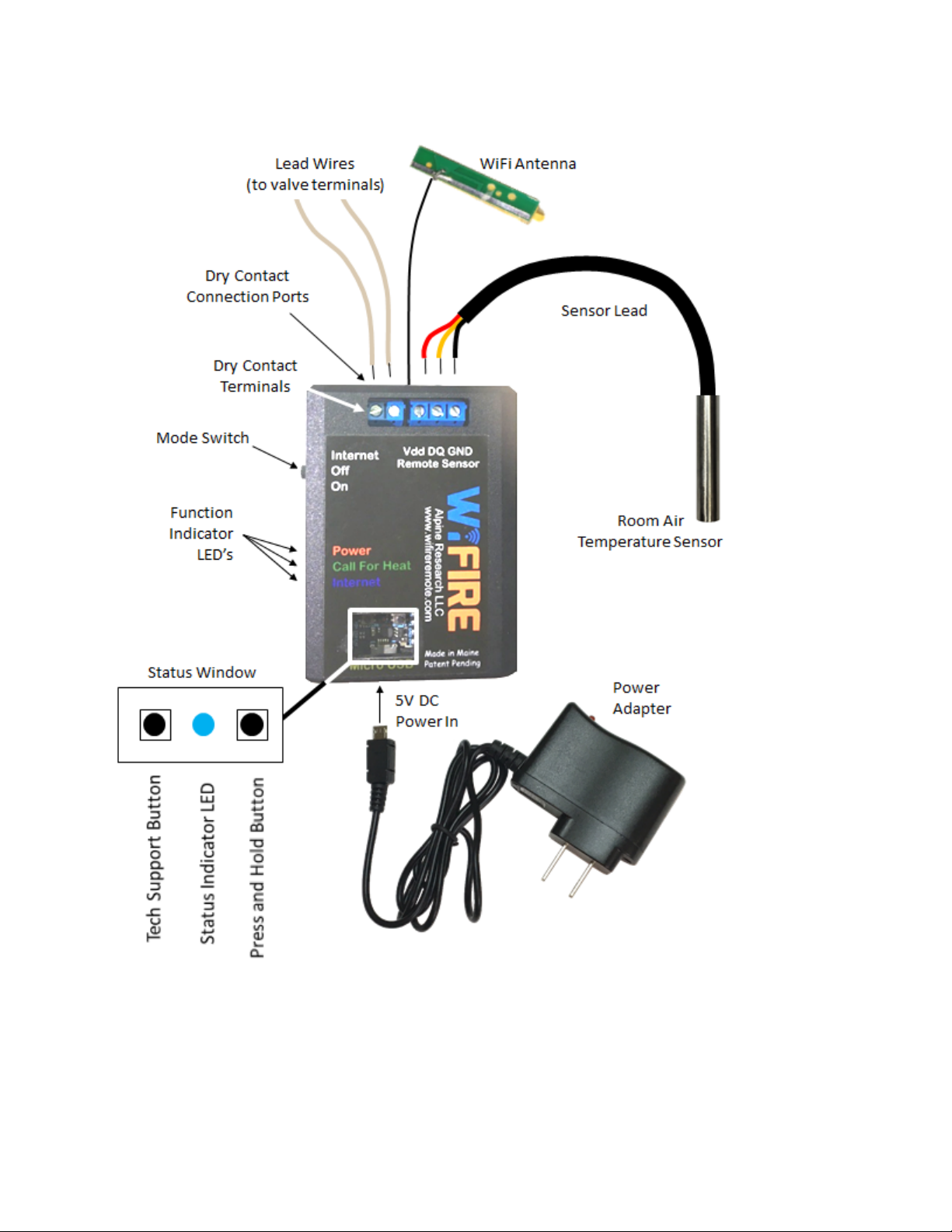
Your WiFire Remote will come complete with the following:
Power Adapter
36", 110 VAC to 5 VDC power supply. If more length is required, a simple household
extension cord may be used.
Room Air Temperature Sensor
Room temperature is reported to the WiFire Remote by the Temperature Sensor. The
WiFire Remote then uses this information to decide when to turn the appliance on and off
in order to maintain the desired temperature of the room. The Sensor should be located
in a spot that reliably indicates the temperature of the room without being influenced or
"tricked" by direct sunlight, by the flames in the fireplace, or by a cold-drafty window.
The WiFire Remote comes with a standard gauge 1 meter sensor lead (3.28'). Longer
sensor leads are also available; a standard gauge, 3 meter long lead (9.84'), and a 10
meter long lead (32.8') that is a much thinner (26 Gauge) 2 conductor lead that is ideal
for tucking into a carpet seam or routing in grout lines during new construction or when
possible.
Wi-Fi Antenna
The external Wi-Fi Antenna ensures optimum communication with your local area
network. It is best located in the front of the fireplace cavity and comes with an adhesive
back if you prefer to affix it to a flat surface.
Dry Contact Lead Wire
Approximately 18" of 2 conductor lead wire will also be supplied with your WiFire
Remote. As described in the instructions, you may choose to disconnect the lead wire
from the existing fireplace control (wall switch, thermostat or remote) and reconnect
such wire to your new control – the WiFire Remote. This lead wire is being supplied in
case you wish to disconnect the existing control from the valve all together and attach
the WiFire Remote to the valve with a fresh connection.
Page 4
Wifire Remote User Guide
!
!
!
4!
WiFire Remote Features:
Dry Contact Terminals
The two set screws on the upper left side of the WiFire Remote face are used to open the
Dry Contact Terminals. These two set screws will be loosened completely to open the Dry
Page 5

Wifire Remote User Guide
!
!
!
5!
Contact Connection Ports when attaching the Dry Contact Lead Wire to the WiFire
Remote.
Dry Contact Connection Ports
The Dry Contact Connection Ports provide access where the dry contact lead wires will be
inserted. One end of the dry contact lead wire will be attached to the WiFire Remote by
inserting one of the two conductors into one of the two Dry Contact Connection Ports and
retightening the corresponding set screw. Repeat; place the second conductor in the
second Dry Contact Connection Port and re-tighten the corresponding set screw. (The dry
contact conductor wires are interchangeable, therefore, it does not matter which
conductor wire is inserted into which Dry Contact Connection Port.)
Mode Switch
When the WiFire Remote's Mode Switch is in the 'Off' position, the burner on your
fireplace will remain off.
When the Mode Switch is in the 'On' position, the burner on your fireplace should ignite
and will remain on until a different mode is chosen. This allows the fireplace to be
controlled manually in the fireplace location if desired.
With the Mode Switch in the 'Internet' position, the fireplace can be controlled through
the router with the WiFire Remote user interface by
accessing www.wifireremote.com from any browser with your mobile device, tablet,
Android or computer. Once signed in, the fireplace(s) that you have set up to be
controlled with WiFire Remote(s) will appear for selection, giving you the opportunity to
set the desired room temperature for each.
Function Indicator LED's
The 'Power' Function LED will illuminate red when the WiFire Remote has adequate
power.
The 'Internet' Function LED will illuminate blue when the WiFire Remote is connected the
WiFire Remote Cloud and is fully functional.
The 'Call For Heat' Function LED will illuminate yellow when the user has set the desired
room temperature higher than is currently being detected, requesting a 'Call For Heat'.
Status Window
Tech Support Button - The Tech Support Button will not be used by the user unless
instructed to do so by the WiFire Remote Help Desk.
Status Indicator LED - The Status Indicator LED indicates when the WiFire Remote is in
'Listening Mode' or 'Breathing Mode'.
Page 6
Wifire Remote User Guide
!
!
!
6!
• When in Listening Mode, the Status Indicator LED will be flashing blue, indicating that it is
broadcasting its network name so that the computer being used to provide the WiFire Remote
with internet access can find it during the installation phase.
• When in Breathing Mode, the Status Indicator LED will turn a blue/green color that slowly
pulsates or 'breathes', indicating that the WiFire Remote is successfully communicating with
the WiFire Remote Cloud utilizing the local router.
Press and Hold Button - The Press and Hold Button will only be used when the WiFIre
Remote does not automatically power-up in Listening Mode (as instructed in Step 1 of the
installation instructions) or if needed by the WiFire Remote Help Desk.
Installation
Installing the WiFire Remote gives you control of your gas fireplace from anywhere with
an internet connection. It can be controlled with any smart device (iPhone, iPad,
Android) or internet connected computer (PC, Mac). There must be a wireless network
(Wi-Fi) available at the fireplace location.
There are three main steps required in setting up your WiFire Remote. The links below
outline each in detail and must be completed in order:
Note: we recommend that you review each of the following steps before you begin to become
acquainted with the process. If, for any reason, you would prefer the WiFire Remote be installed by a
Hearth Professional, please contact your local Hearth Dealer.
Step 1 - Connect the WiFire Remote to the Internet
Step 2 - Register Primary User's First WiFire Remote
Step 3 - Install the WiFire Remote
Register First WiFire Remote Register Additional WiFire Remote Set-Up Wi-Fi
 Loading...