

Page 1
USERMANUAL
Page 2
Turningon/offtheWiFicandy
• Press and hold the power button until the screen lights up.
• Press and hold the power button to turn it off.
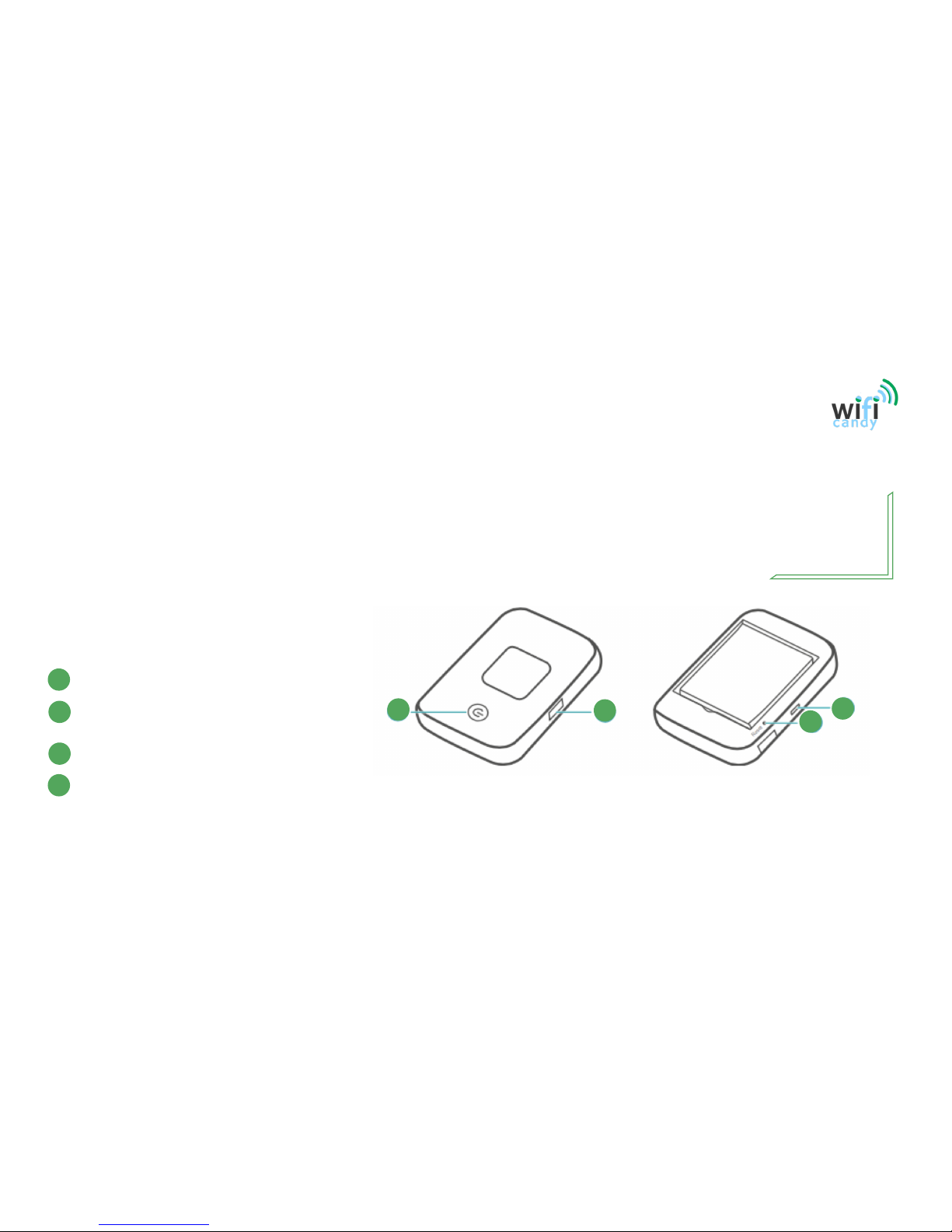
Appearance
1
2
3
4
1
Power button
2 MENU button
Press to display the menu
3
Micro USB port
4
Reset button
Advising not to be used unless if password or SSID have been forgotten. To access the SSID (network operator) and password select ‘Device Info’
in the MENU options
Use the menu and
power button to select
or confirm an option.
TIP
Page 3
WiFiConnection
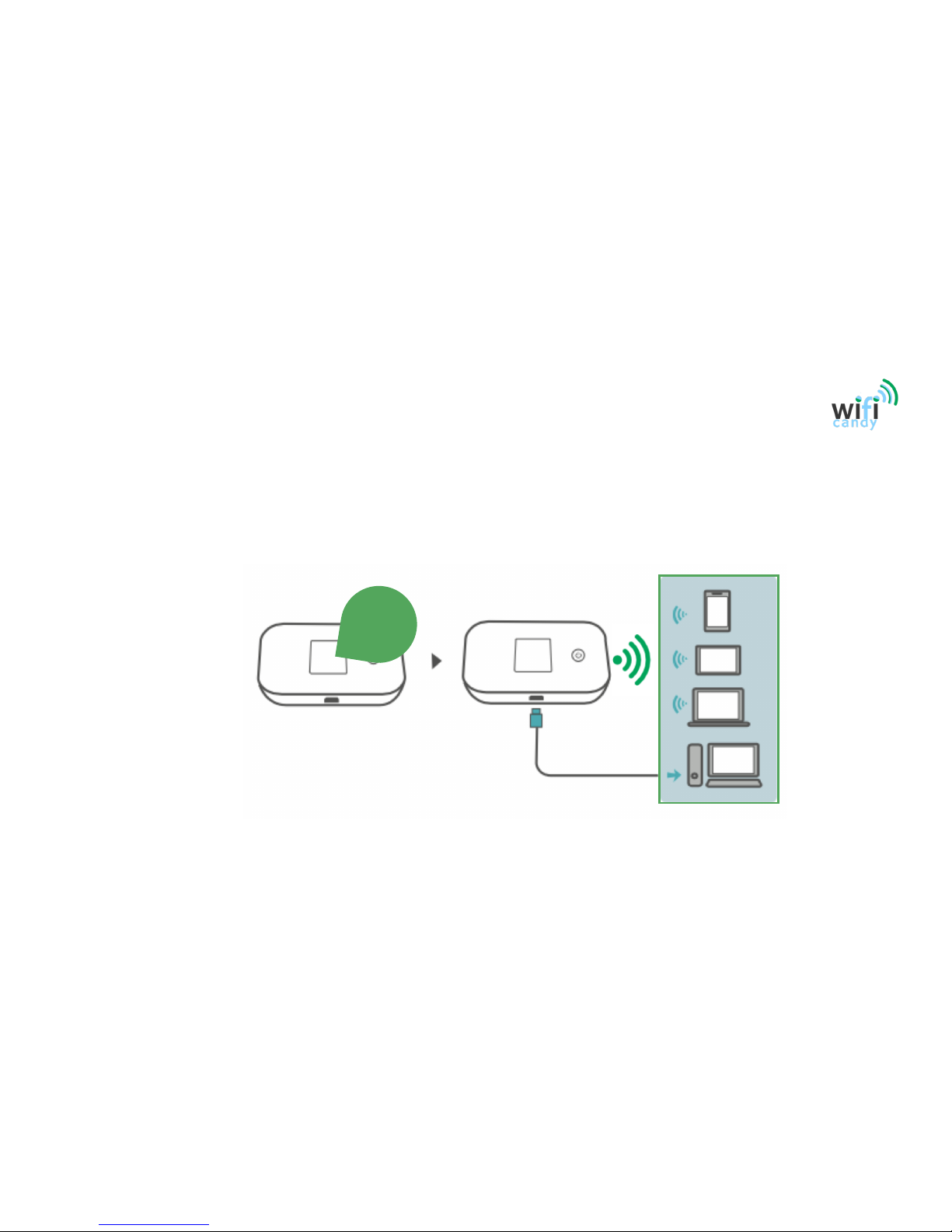
• You can view the current SSID (network name) and network password on the screen by selecting Device Info
in the MENU list
SSID: XXXX
PASSWORD: XXX
Page 4
Charging
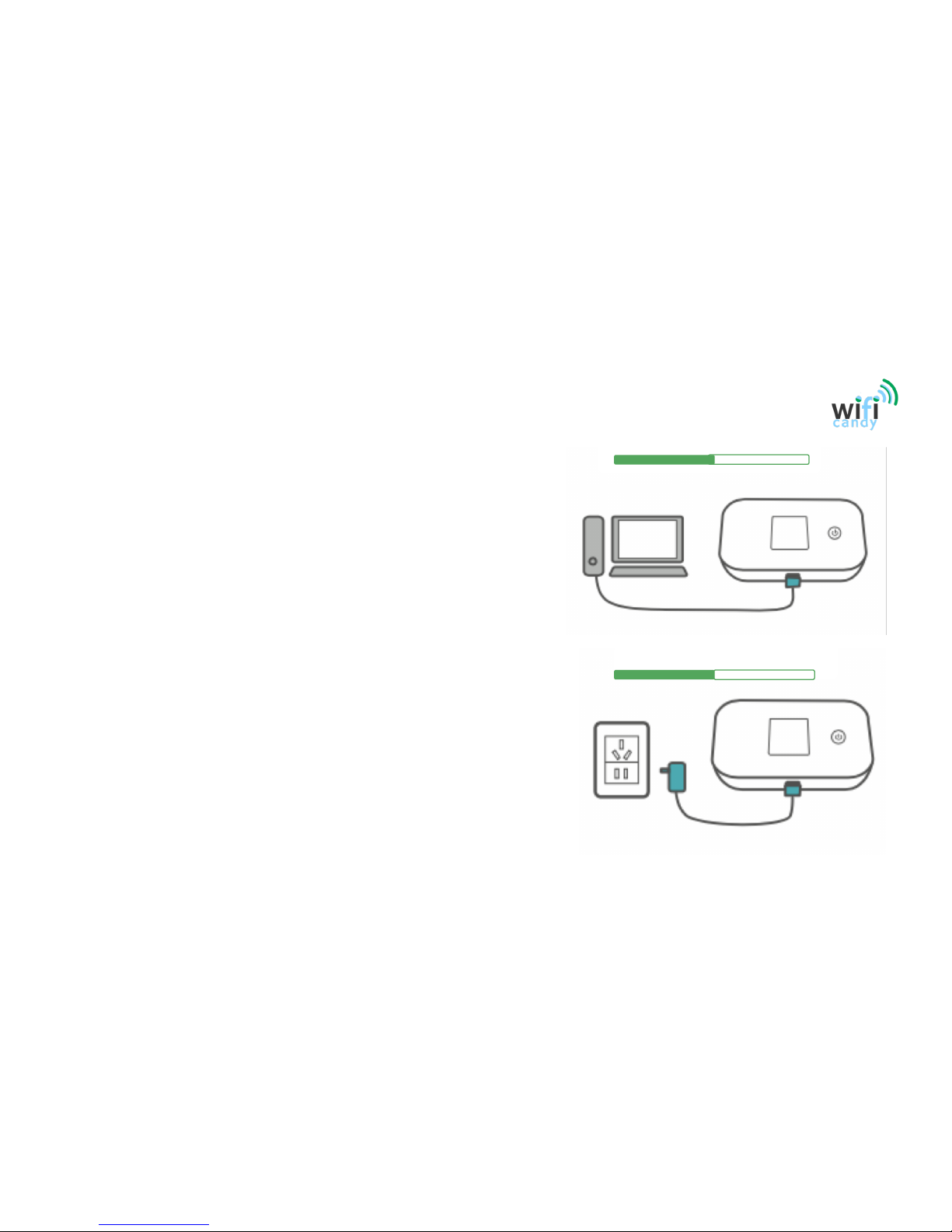
• Please only use the data cable provided by WiFicandy.
• Use of an incompatible charger or one from an unknown
manufacturer may cause the WiFicandy device to
malfunction, fail, or could even cause a fire.
BatterySavingMode
• If the WiFicandy has been inactive for some time, it
enters the standby mode and all the indicators are off.
Pressing the power button causes the indicators to
light up.
0%
0%
100%
100%
Page 5
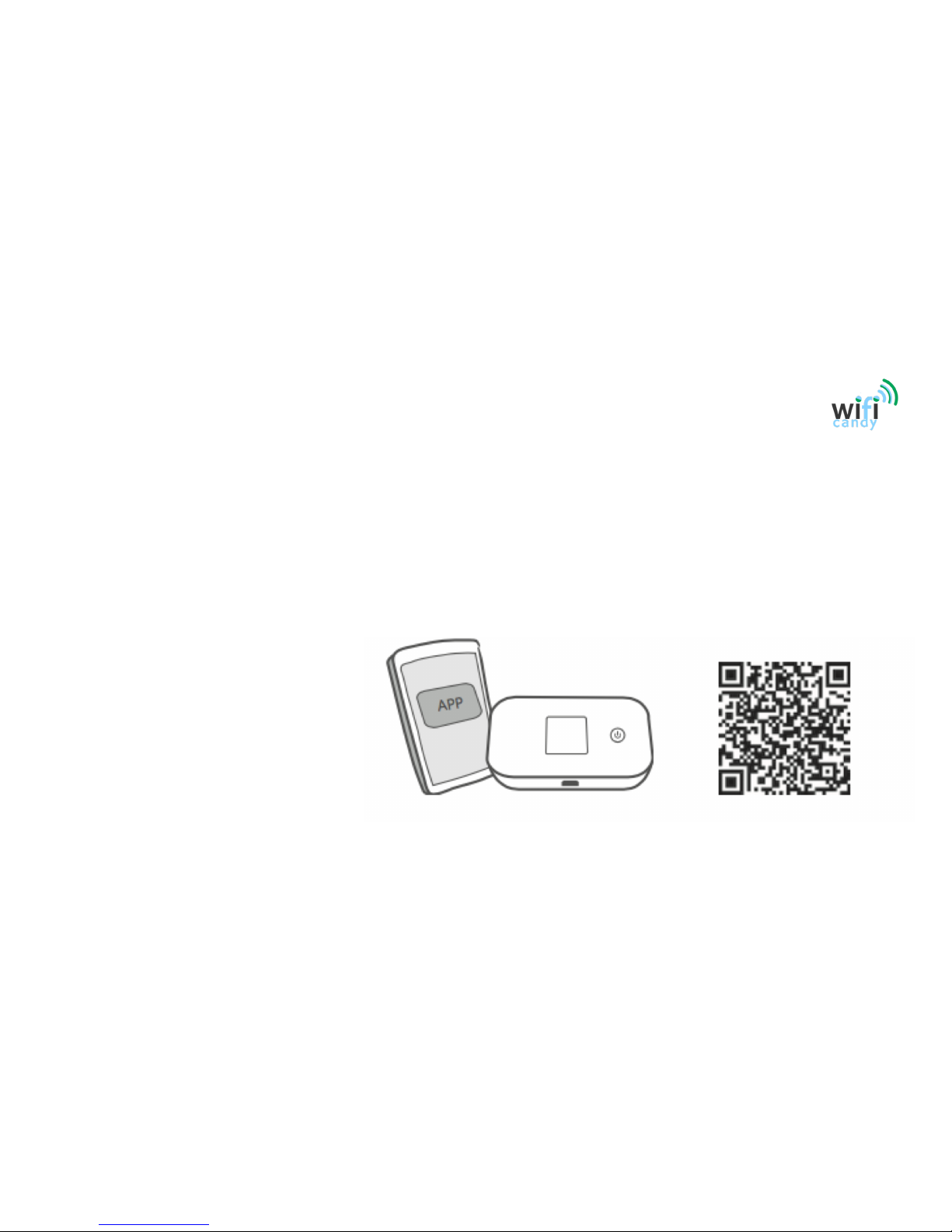
HiLink App ‒ AndroidDevicesOnly
• Download the
HUAWEI HiLink App
to manage your Mobile WiFi more easily.
• Change the SSID and Wi-Fi network key.
• Check data traffic and SMS messages.
• Check roaming state and signal strength.
• Select Barcode option in the Menu list to download the App.
Page 6
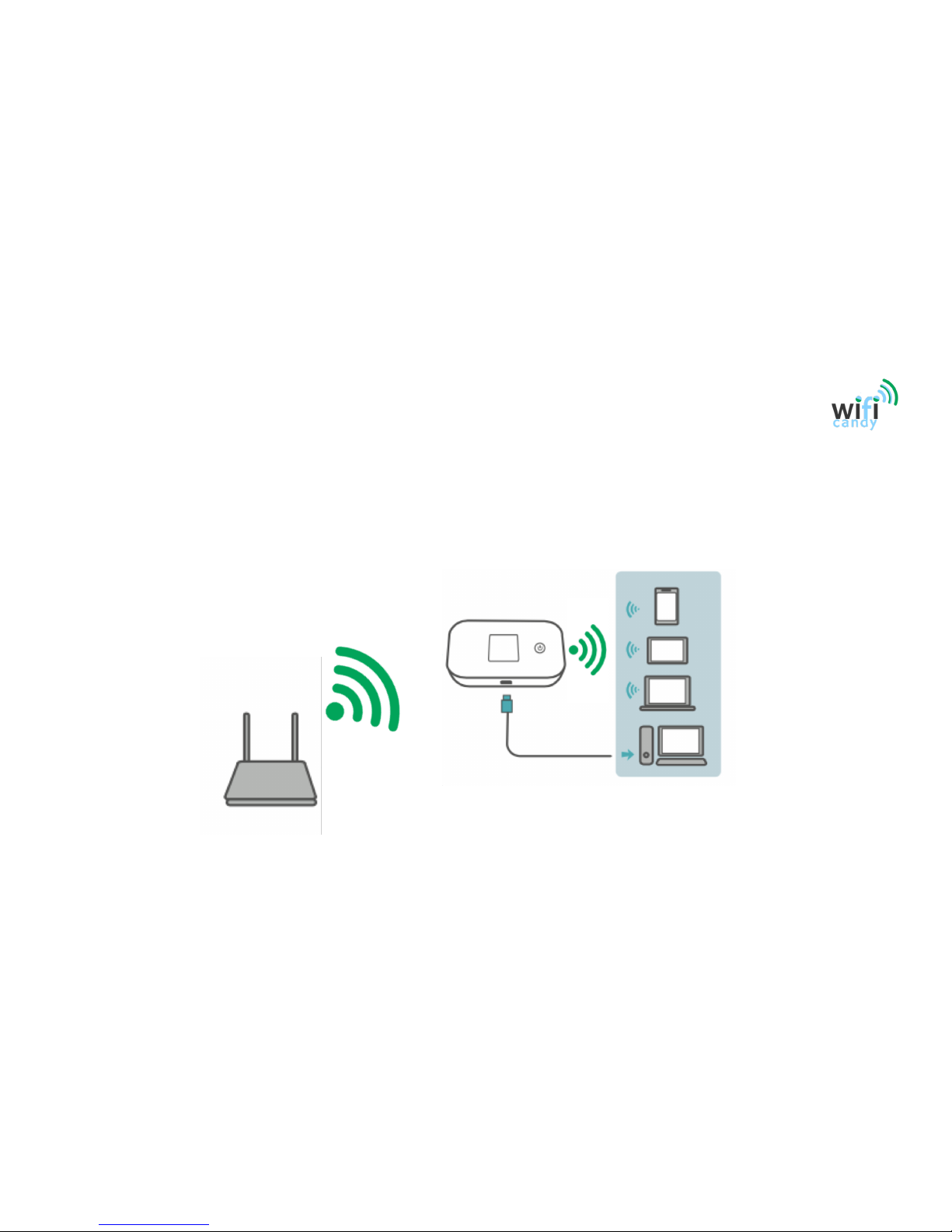
Wi-FiExtender(Optional)
• The Wi-Fi extender feature increases Wi-Fi coverage and connects to Wi-Fi networks where available to
reduce mobile data usage.
• On the HUAWEI HiLink App, enable the Wi-Fi extender function and connect WiFicandy to a Wi-Fi network.
Page 7
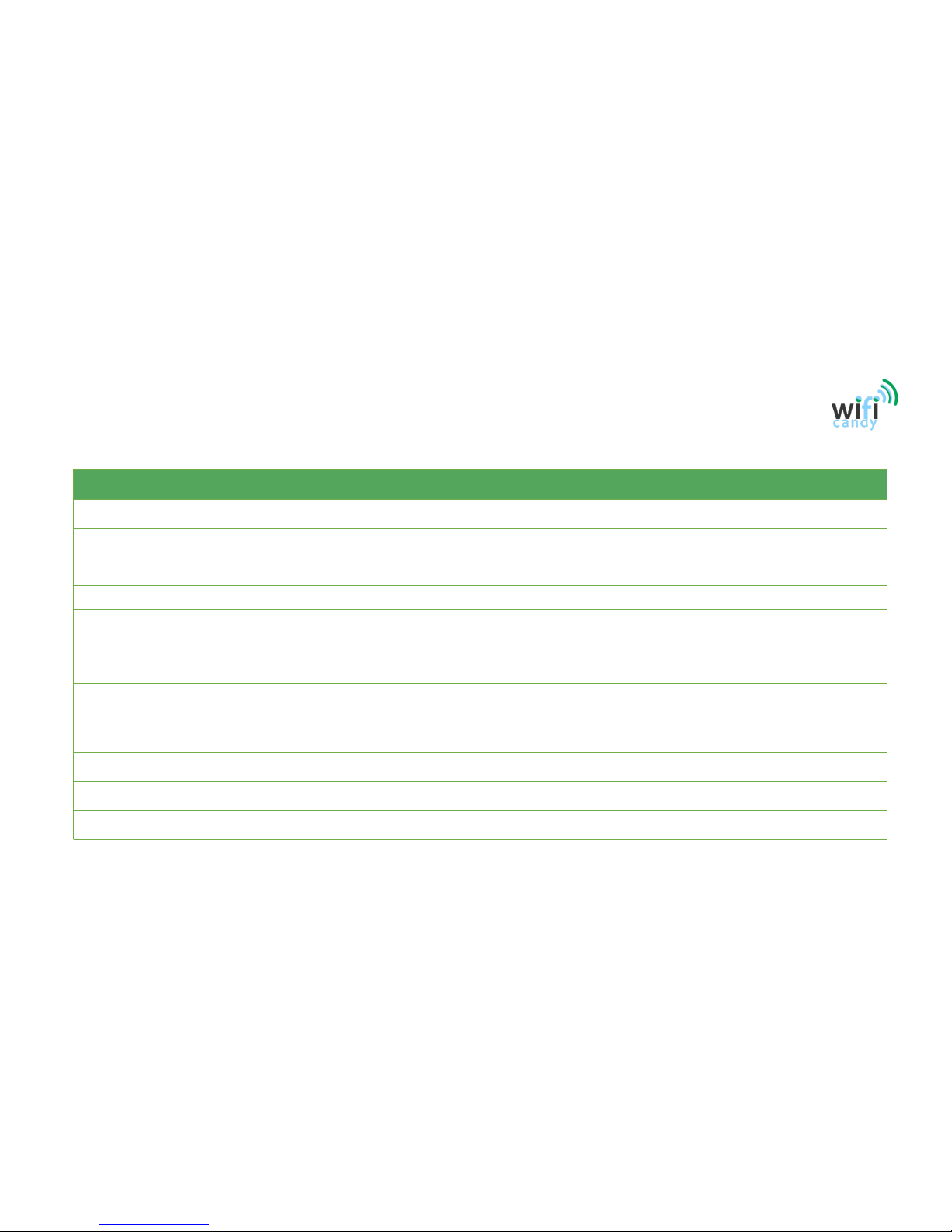
ProductSpecifications
Item
Specifications
Model
e5785
Manufacturer
Huawei
Description
Mobile
WiFi
Band
WLAN: 2.4 GHz, 5 GHz
Battery
Type: Li (rechargeable)
Capacity: 3.8 V, 3000
mAh
Maximum working time: 12 hours(depending on the network)
Maximum standby time: 600 hours (depending on the network)
Dimensions
(W x D x
108.0 mm x 62.0 mm x 17.3 mm
Weight
About 127g (including the battery)
Temperature
Operating: 0
°C to +35°C | Storage:-20°C to +70°C
Connection
16 users (2.4GHz Band) | 10 users (5GHz Band)
Speed
Up to 300
Mbps download speed | Up to 150 Mbps upload speed
Page 8

TIPS
What is the difference between 5GHz and 2.4GHz bandwidth?
The primary
differences between
the 2.4 GHz and
5GHz
wireless frequencies are range
and bandwidth.
5GHz
provides faster data rates at a shorter distance, whereas 2.4GHz
offers coverage for farther distances, but may perform at slower speeds.
Is 5GHz better for streaming?
Higher radio frequencies allow
faster
data transmission, so
5GHz
allows much
faster
network
connections than 2.4GHz. If you want to use high-bandwidth applications,
like streaming video, over your wireless network,
5GHz
is by far the
better
choice.
Why can't I connect to my Mobile WiFi sometimes?
To s ave p o we r, yo ur WiFicandy’s Wi-Fi auto off feature is designed to turn off Wi-Fi when
there haven't been connections for a while. You can press the
POWER
button to turn on Wi-
Fi again.
Page 9

TIPS
Why won't my WiFicandy device power on?
Your b att ery is p robabl y out of p ower.
Charge your WiFicandy for a while and power it back on.
Why did my WiFicandy power off all of a sudden?
Your WiFicandy device may overheat when you use it continuously over a long period of
time, and thereby trigger its automated protection system. Wi-Fi will be turned off and your
WiFicandy will power off if this occurs.
Please ensure the device is properly ventilated and cooled before you power it on again.
Why am I getting an “Out of Data” message if you provide unlimited wifi?
Our service needs to be reset once a month, if you can’t access the internet because you are
out of data, please contact WiFicandy Technical Assistance while having the
IMEI
and
Phone
number
ready (see next page how to do it).
Page 10
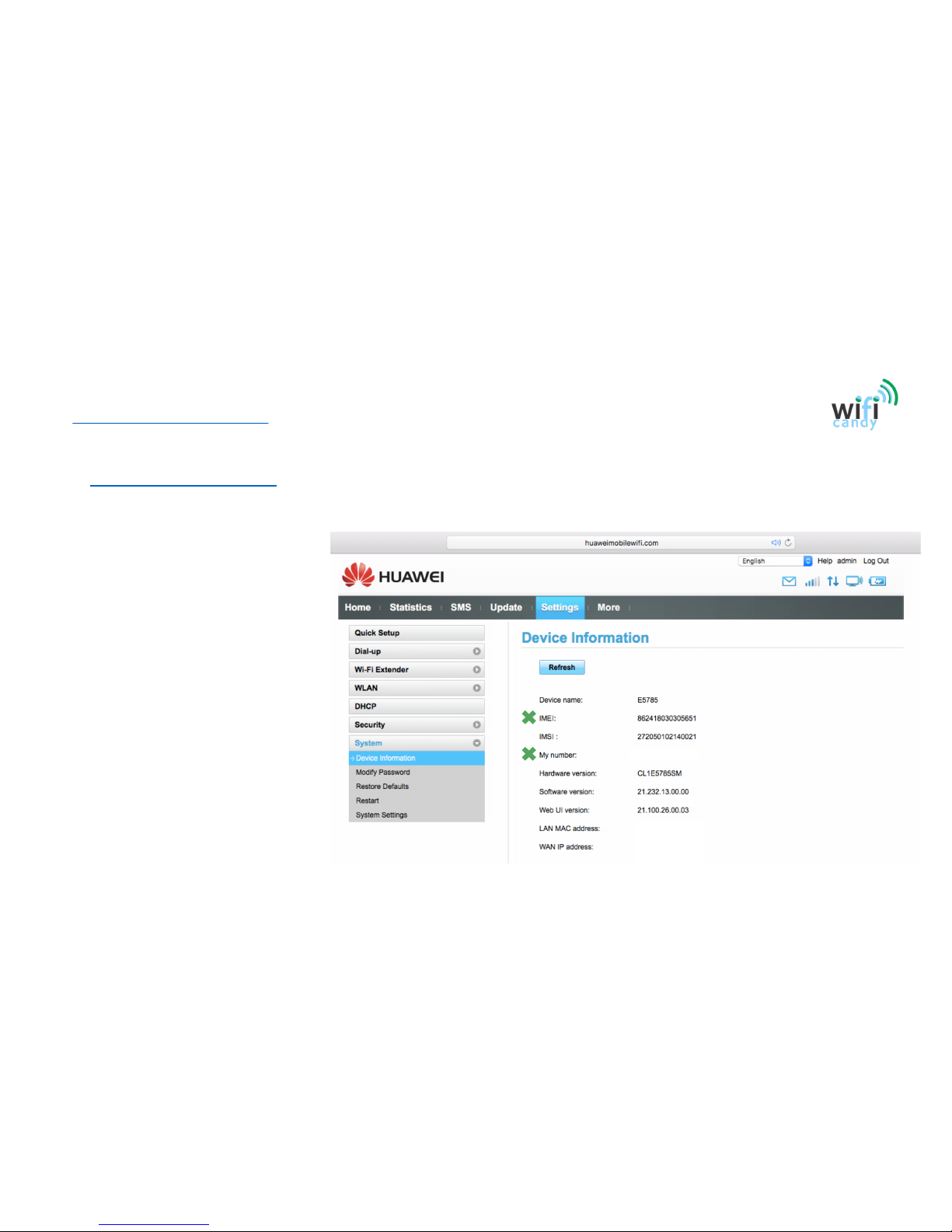
http://192.168.8.1 IP Address‒ WiFicandyTechnicalAssistance
• Make sure to connect your device to
WiFicandy before accessing the IP
address
• Once connected, connect the
WiFicandy device with the USB cable
to a laptop (select MobileWiFi from
the popup) or enter 198.168.8.1 in the
browser URL
• Enter login details admin / admin1
• Select Settings >> System >> Device
Information
• Access the IP address to find out the device
IMEI
or
Phone number
and have them ready when contacting the
Te ch n ic al A s si st an ce
+3583…….
xxxxxxx
xxxxxxx
• If you have any technical issues or running out of data, please contact WiFicandy Technical Assistance via
Email
WhatsApp: 0834047022
 Loading...