

Page 1

Elgin, Technician
–QUICK REFERENCE GUIDE–
om
TIPS SUPPORT,
t
wowway.com/
UltraTV-Support
WOW! Ultra TV
SM
With WOW! Ultra TVSM, you can enjoy your TV experience more with easy access to all your
entertainment content and play back on any TV in your home.
-Whole-Home HD DVR-
6 HD Tuners Record 6 HD shows at one time.
Multi-Room Solution
Start a recorded show in one room, pause it and then continue watching it in
another room.
Easily Setup Recordings
Whether a movie, show or whole series, easily program your DVR with the Smart
Menu. You can even change your settings after a show has started to record.
Online DVR Management Schedule, delete or change settings for a recording online.
Lots of Storage
e 500GB hard drive lets you store up to 300 hours of SD programming or 75
hours of HD programming. e storage meter is easy to check to see how much
you have recorded.
Automatic Conflict
Detection
e system will let you know if you have a conflict that would impact your ability to
record an upcoming show.
External Hard Drive Expand your storage capacity by connecting an eSATA external Hard Drive.
-WOW! ULTRA TVSM ADDITIONAL FEATURES-
Play Photos, Videos and
Music on Your TV
Play personal photos, videos and music from your computer on your TV screen.
Parental Controls Set controls so certain shows require you to enter a PIN to watch.
Games Play games on your TV screen.
Online Settings
Management
Set up the parental controls or closed caption setting online.
Flickr
®
View photos from Flickr® on your TV screen.
Caller ID to TV
See who is calling on your TV screen when the phone rings. You can also access a
call list for past calls on your TV.
Wireless Home Network Work on a computer anywhere in your home.
Mobile App
Use you iPhone, iPad, or Android device to manage your DVR and set recordings
when on the go, or use the app for your guide and remote control.
-SMART MENU-
TV Categories
View upcoming programs for Movies, Kids, News or Sports with programming
listings for live TV, PPV and recorded content, specific for those categories.
Search
Search for a program by keyword, title or category across all live TV, VOD and
recorded content.
Flip Bar
Allows you to view information on what is playing, what shows are coming or set a
recording all without having to change the channel.
Live TV Controls
Pause, play or rewind live TV. Watch a show on live TV, pause it, and continue
watching from where you left off in another room.
Favorites Set up a custom channel lineup, showing only the networks that you want to see.
Customize TV Listings Hide channels that you don’t want to show up in your main TV channels listing.
Grid Guide View listings with the Smart Menu or with a Grid Guide view.
VOD WOW! VOD offers access to 1000s of movies, free TV shows and events.
Page 2
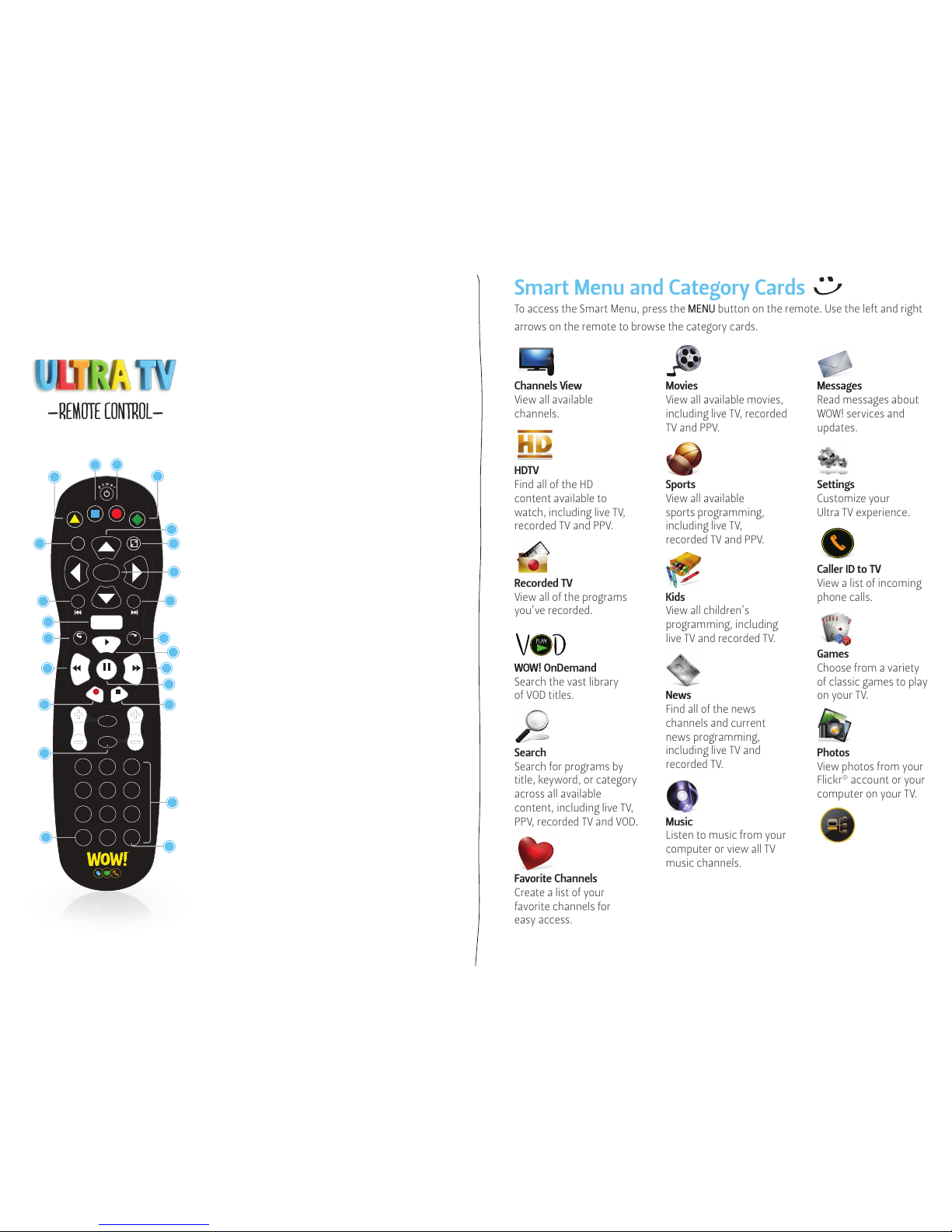
Smart Menu and Category Cards
To access the Smart Menu, press the MENU button on the remote. Use the left and right
arrows on the remote to browse the category cards.
Channels View
View all available
channels.
HDTV
Find all of the HD
content available to
watch, including live TV,
recorded TV and PPV.
Recorded TV
View all of the programs
you’ve recorded.
WOW! OnDemand
Search the vast library
of VOD titles.
Search
Search for programs by
title, keyword, or category
across all available
content, including live TV,
PPV, recorded TV and VOD.
Favorite Channels
Create a list of your
favorite channels for
easy access.
Movies
View all available movies,
including live TV, recorded
TV and PPV.
Sports
View all available
sports programming,
including live TV,
recorded TV and PPV.
Kids
View all children’s
programming, including
live TV and recorded TV.
News
Find all of the news
channels and current
news programming,
including live TV and
recorded TV.
Music
Listen to music from your
computer or view all TV
music channels.
Messages
Read messages about
WOW! services and
updates.
Settings
Customize your
Ultra TV experience.
Caller ID to TV
View a list of incoming
phone calls.
Games
Choose from a variety
of classic games to play
on your TV.
Photos
View photos from your
Flickr
®
account or your
computer on your TV.
HomeConnect
Access movies, music
or photos from your
computer on your TV.
0
clear
TV
Input
7 8 9
pqrs tuv wxyz
4
ghi5jkl6mno
1
2
abc3def
vol ch
last
mute
rec
pause
play
rew fwd
stop
skipreplay
menu
back next
OK
info
ticker
live
TV
A
B
C
D
dvr liveTV
vod grid
4
3
2
1
23
14
22
11
2019
16
13
15
17
18
21
6
7
5
9
10
8
12
0
clear
TV
Input
7 8 9
pqrs tuv wxyz
14
13
12
Shortcut Buttons
1. DVR
Go to the Recorded TV
categ ory.
2. VOD
Go to the WOW!
OnDemand category.
3. GRID
Alternates between
the Grid Guide view of
programming and the
Smart Menu setup.
4. LIVE T V
Go to full-screen, live T V.
Navigation
5. INFO
Brings up an action menu
of options related to the
item in focus.
6. ARROWS
Navigates the Smar t Menu.
Holding an arrow down
activates turbo scroll,
increasing your browsing
speed.
7. SCREEN SIZE
Alternate between
full-screen and the
Smart Menu.
8. OK
Press OK to select a menu
item or confirm an action.
9. BACK
Takes a list displaying TV
programming back to the
previous half hour. Also
pages back through an
info note.
10. NEXT
Takes a list displaying TV
programming forward to
the next half hour. Also
pages forward through
an info note.
11. LAST
Return to the last
channel viewed.
12. NUMBER KEYS
Entering numbers will
take you directly to the
corresponding channel.
13. CLEAR
Deletes a character during
text/number entries. Also
removes the Flip Bar.
14. TV INPUT
Enables easy switching
between TV input options.*
Player Controls
Control your recorded
or live program with the
following buttons:
15. MENU
From wherever you are,
MENU returns you one
step at a time back to the
Category Cards. Press
MENU twice to go directly
to TV Channels category.
16. RE PLAY
Rewinds the program
seven seconds, so you
can check out what you
missed. Also moves the
time slot a day back.
17. SKIP
Skips forward in your
program the numb er of
seconds that you predefine
in settings. Also moves the
time slot a day ahead.
18. PLAY
Begins playing the
selected program.
19. REWIND
Press up to three times
(for three speeds) to
rewind the show.
20. FA STFOR WAR D
Press up to three times
(for three speeds) to
fast-forward.
21. PAUSE
Pauses the show you are
watching.
22. RECORD
Press while watch ing a
show or when a show is in
focus to record.
23. STOP
Exits out of a recorded
show or stops a recording
in progress if you’re
watching that show
full-screen.
-REMOTE CONTROL-
*Not available on all TV models.
Page 3
Recorded TV
Managing Recorded TV
e Recorded TV category lists all your recorded shows in alphabetical order. Episodes of a
series are grouped into folders and individual episodes are seen in the preview panel to the
right.
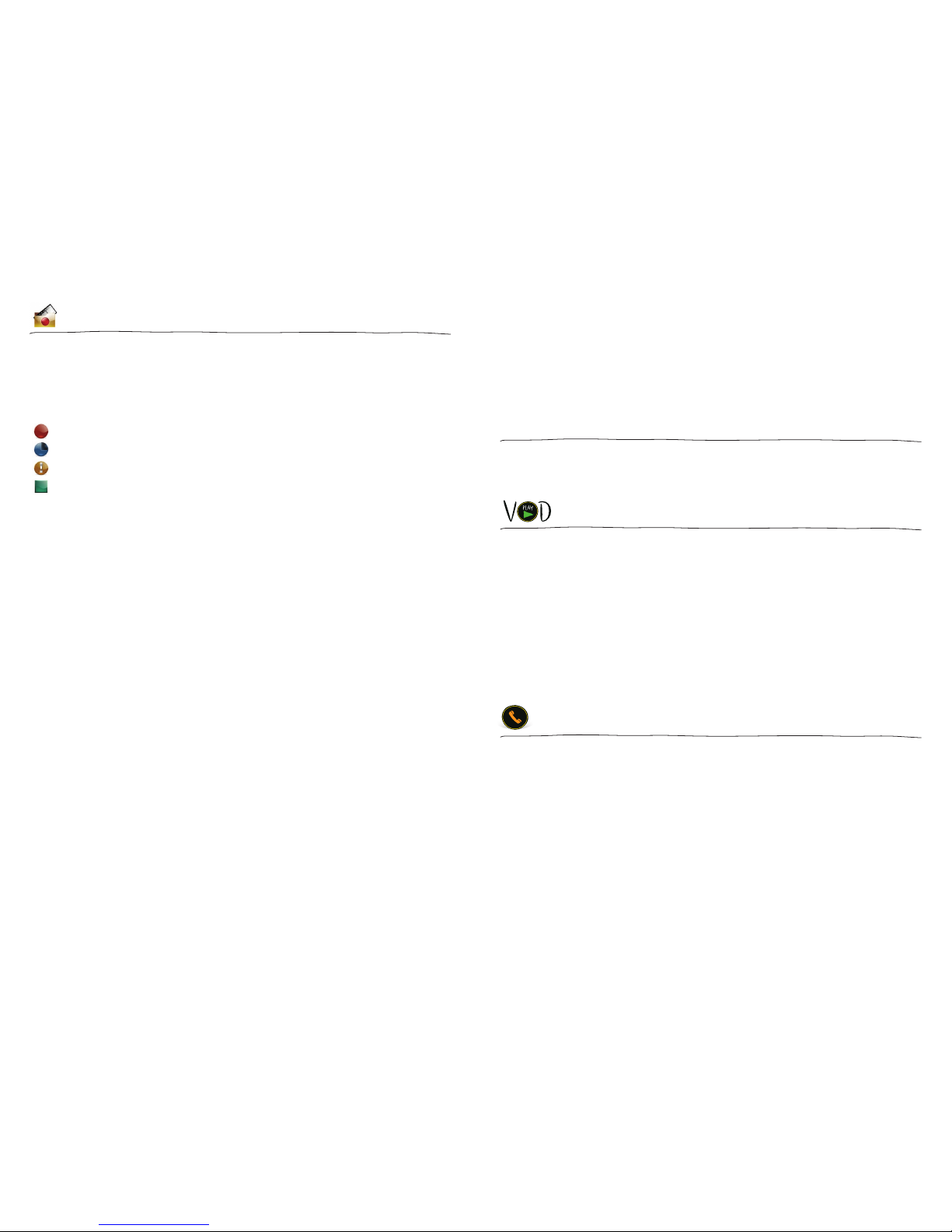
e recorded show icons let you know the following:
e show is recording right now.
e show is scheduled to record.
e show is recorded and may be deleted when space is needed.
e show is recorded and will not delete unless deleted manually.
e Options card in the Recorded TV category lets you manage your recorded TV.
• Scheduled to Record in Options lets you see all the programs that are set to record.
Here you can also cancel a recording or alter your recording settings for each show.
Just pick the show you want to manage and press the INFO button.
• Recording Defaults in Options let you determine your default preferences for how
long to keep a recording, how many episodes to record, when the recording starts
and stops, and whether to record first runs or repeats.
How To Set A Recording & Series Recording
When watching a show: To record the show you are currently watching press RECORD and
the show will begin recording. If you are watching a show and want to record the series,
press INFO. en select “Record Series.”
Via the Search category: You can search for the show in the Search category by title,
keyword or category. Select the show in the results by pressing OK and then select “Record
Once” or “Record Series” in the action menu.
In TV Channels category: You can scroll through the TV channel lineup. When you find a
show that is in progress you want to record either in the listing or in the preview panel, press
record. If you want to record an upcoming show, press INFO. An action menu will appear
where you can select “Record Once” or “Record Series.”
Automatic Conflict Management
You can record or watch up to six shows at once. A conflict detection note will pop up, if you
are already using all six tuners – which means that you may be recording five shows and
watching Live TV. If this happens, an action menu will show up automatically on the screen
giving you options to choose which recordings you want to keep.
How Much Space is Left on My DVR to Record Shows?
e Storage Meter lets you know how much space you have left to record more programs.
It’s located in two places in the Smart Menu. In Recorded TV, the Options card displays the
amount of space remaining. In Settings, select the the Recording Space card.
WOW! OnDemand
Search the vast library of movies, TV shows and events.
• Select the VOD category in the Smart Menu.
• You’ll see a list of video folders in the vertical band, as well as a My Rentals folder.
When you scroll over each folder, the available programs in each will appear in the
preview panel to the right. Press OK to select any of the folders in the VOD library.
When you see a program you like, press OK and you’ll get the following list of options:
• preview - Plays the trailer for the selected movie.
• lock - Uses Parental Controls to block access to that channel.
• buy - Purchases the movie so that you can watch it immediately.
Caller ID to TV
For WOW! Phone customers with Caller ID to TV, the Smart Menu maintains a list of calls
you’ve received. You can access this list in two ways: through the Caller ID to TV category
on the Smart Menu or by pressing OK on the Caller ID to TV indicator when call information
appears.
When you access the list, you’ll see your phone lines listed along the horizontal band.
• Select a phone number to see a list of recent calls. Press “OK” to get an action menu.
Options include “clear call log,” which will delete the call record, and “settings,”
which provides a shortcut to the phone settings section.
Page 4
Accessing Music, Photos, and Videos
From Your Computer
Select the HomeConnect category to view your music, photos and videos from your connected
computers. You need to set up a DLNA
®
server to view content on your Ultra TV. Use the
HomeConnect category to browse through your computer files and select content to be added
to shortcut folders for easy access.
To Add Content:
(Example is related to music, but the same can be done for photos and video files.)
1. Select the HomeConnect category.
2. Select the computer whose content you would like to add. Your computer must be on and
connected to the network. If one is not showing up, select Search for Media Servers and
choose “Search.”
3. Browse through that computer’s file structure until you find the music files.
4. Press OK and choose “add folder to my music” or “add item to my music.”
5. e music files or folder containing music files will automatically be added to the My Music
shortcut folder in both the HomeConnect category and the Music category.
To View Content:
1. In the HomeConnect category select the computer that you want to access and
press OK.
2. To view content, select My Content and then choose either the My Music, My Photos, or
My Videos shortcut folder.
3. Select an individual file you would like to play and press OK.
4. If you have a folder selected and you would like to view a list of options for the content of
that folder press INFO.
ere are four approved DLNA servers for various operating systems: Windows Media Player
(Windows), Twonky (Mac, Windows, Linux), TVersity (Windows) and PlayOn (Windows). For
more information on HomeConnect, please go online to the TV Apps section of Manage My
TV on the WOW! Customer Home Page.
Online TV Management
rough the WOW! Customer Home Page, you can manage your DVR and more while you’re
away from the TV.
• Log into your WOW! email account at wowway.net.
• Once logged in, click on the TV tab in the “Email, Phone, TV” box and then select
“Manage My TV.”
• From here, you can schedule recordings, manage recording settings, monitor how
much storage space you used, view full TV listings, set parental controls and add
Flickr
®
accounts.
Favorites
You can create a channel lineup of only your favorite channels.
To Add A Channel To Your Favorites:
• In the TV Channels category, tune to the channel you want to add and press INFO.
• Choose “add item to favorites.”
• You can delete a channel by selecting the channel and choosing “remove from
favorites.”
Browse your Favorites channel lineup by selecting the Favorites category card. You can clear
the entire favorites list by selecting the Options card in the Favorites category, then choosing
“clear all” from the action menu.
Ultra TV Apps
Ultra TV has apps for the iPad, iPhone and Android devices available for download today.
WOW! Ultra TV
SM
apps have full remote functionality and let you manage your DVR directly
from your mobile device. Visit wowway.com to view the full WOW! Ultra TV
SM
App User
Manual.
• Set up new DVR recordings
• Manage DVR recordings
• Use your mobile device as a remote control
• Search TV listings for up to two weeks out
• Set your favorite channels or hide channels from your lineup
© 2014 WideOpenWest Finance, LLC. 0614
 Loading...