

Page 1

RS-232 And Telnet
Control Manual
WHIRLWIND
99 LING RD., ROCHESTER, NY 14612
www.whirlwindusa.com
1-800-733-9473
Page 2

Page 3

Table of Contents
Overview
RS-232 Control
Telnet Control
ETP String Components:
Command
Device Number
Attribute
Instance ID Numbers
Index
Value
Responses
Control Dialog
Overview
Levels
Presets
Meters
HyperTerminal
IP Address Commands
Pgs 2 ~ 3
Pg 4
Pg 5
Pgs 6 & 7
Pg 8
Pgs 9 ~ 25
Pg 26
Pg 27
Pg 28
Pg 29
Pg 30
Pg 31
Pg 32
Pg 33
Pg 34
Pg 35
1
Page 4

Overview
E Desk can be controlled via the control dialogs in the E Desk software, or via
third-party controllers using RS-232 or Telnet.
For control of E Desk, Whirlwind created ETP (E Desk Text Protocol). This
simply means that E Desk will accept strings of ASCII characters to control and
read settings of gain, mute, logic state, frequency, audio levels, and other
parameters of DSP Blocks in E Desk products.
ETP strings can be sent via third-party controllers using RS-232 (see page 4) or
Telnet via TCP/IP (see page 5). A line feed needs to be sent after each
command string sent.
The ETP strin g is structured in the following order: Command DeviceNumber
Attribute InstanceIDNumber Index1 Index2 Value <LF>
ETP strings require a space between each parameter; the last character in the
string needs to be a line feed <LF>.
For each control string a few components will need to be derived from the E
Desk software: Device Number, InstanceIDNumber, and Index. Command and
Attribute are derived from this document. In a SET command, Value is used to
specify what the DSP block attribute is to be set to. In an increment or
decrement (INC or DEC) command Value is used to specify how much the DSP
block attribute is to be changed by.
**Note** E Desk software will assign an Instance ID to each DSP block on the
initial compile of the system. Subsequent compiles will not change the Instance
IDs unless the “Reassign Instance IDs” check box is selected in the ‘Compile’ tab
of the ‘Options’ screen (located on the Tools pull-down menu) in the E Desk
software.
Example: A string to control a fader might look like this:
SET 1 FDRLVL 2 1 9 <LF>. The individual components for this string are:
Command Device
Number
Attribute
Instance
ID
Number
Index1 Index2 Value Line
feed
SET 1 FDRLVL 2 1 9 <LF>
Notice that Index2 is not used since there is nothing entered in this parameter.
2
Page 5
Overview
Example: A string to mute a standard mixer output might look like this:
SET 3 SMMUTEOUT 5 5 1 <LF> The individual components for this string are:
Command Device
Attribute
Number
SET 3 SMMUTEOUT
Instance
ID
Number
Index1 Index2 Value Line
5 5 1 <LF>
feed
Notice that Index1 is not used since there is nothing entered in this parameter.
Example: A string to turn up a cross point on a matrix mixer might look like this:
INC 2 MMLVLXP 4 3 2 1 <LF> The individual components for this string are:
Command Device
Attribute
Number
INC 2 MMLVLXP
Instance
ID
Number
Index1 Index2 Value Line
4 3 2 1 <LF>
feed
In this example Index1 and Index2 are both used, together they specify which
cross point is to be changed.
3
Page 6

RS-232 Control
The RS-232 port on the back of an E Desk unit is set to a default baud rate of
38400, 8 data bits, no parity, 1 stop bit, and no flow control. (38400:8:None:1). If
multiple E Desks are connected together in a system then only one RS-232 port
needs to be connected to a third-party control system; communication data is
shared via Ethernet through a switch.
When controlling multiple E Desk units that are not part of the same DAP file,
each E Desk unit will need to be addressed via its own RS-232 port from a
control system or PC. E Desk units cannot be linked together via RS-232, like
some other WHIRLWIND Advantage products can.
(The RS-232 baud rate can be set to 9600, 19200, or 38400 – default is 38400)
A straight through PC Serial Cable is used to communicate from an RS-232 port
on a third-party controller (or PC*) to the RS-232 port located on the back of an E
Desk unit.
(* A PC can be used with a terminal emulator program, such as HyperTerminal
etc, to send/receive ETP Strings…E Desk software must be connected via
Ethernet in order to communicate.)
4
Page 7

Telnet Control
E Desk can be controlled using Telnet via TCP/IP. The same command strings
that are used for RS-232 Control are used for Telnet.
When controlling multiple E Desks that are not a part of the same DAP file, each
E Desk device will need to be addressed via its own Telnet session from a
control system or PC.
5
Page 8

ETP String Component: Command
SET – Tells E Desk that a DSP attribute is to be set to a specific value – may
contain negative numbers and/or decimal points
GET - Tells E Desk that a DSP attribute is to be read – Response may contain a
decimal point and/or a negative number.
INC - Tells E Desk that a DSP attribute is to be incremented by a specific amount
DEC- Tells E Desk that a DSP attribute is to be decremented by a specific
amount
RECALL – Tells E Desk that a preset is to be recalled.
SETL and GETL can be used if negative numbers and/or decimals are not
supported by a control system.
SETL – Tells E Desk that a DSP attribute is to be set to a specific value, no
decimal places or negative numbers –To convert a dB number: add 100 to the
desired level and then multiply by 10.
Example: To set a level to –60.5dB, add 100 (-60.5 +100 = 39.5). Then
multiply by 10 (39.5 X 10 = 395). Instead of Value being –60.5, Value
after this SETL command will equal 395.
GETL - Tells E Desk that a DSP attribute is to be read without negative numbers
or decimals. To convert this number to dB: divide the number by 10, then
subtract 100.
Example: With a returned GETL response of 405, divide by 10 (405 / 10 =
40.5), and then subtract 100 (40.5 – 100 = -59.5dB)
For your reference, the SETL/GETL Table on the following page shows .5dB
increments converted into the SETL/GETL format.
Some Attributes do not support all commands. The Attribute section defines
which commands support SET/SETL, GET/GETL, INC, or DEC functions.
RECALL is only used on preset commands.
*When GET or GETL is used, a Value will not need to be specified since
GET/GETL is a request command. A Value must be specified in order for strings
with SET/SETL, INC, DEC, and RECALL to work.
6
Page 9

ETP String Component: Command
Level Value Level Value Level Value Level Value Level Value
12 1120 -10.5 895 -33 670 -55.5 445 -78 220
11.5 1115 -11 890 -33.5 665 -56 440 -79.5 215
11 1110 -11.5 885 -34 660 -56.5 435 -79 210
10.5 1105 -12 880 -34.5 655 -57 430 -79.5 205
10 1100 -12.5 875 -35 650 -57.5 425 -80 200
9.5 1095 -13 870 -35.5 645 -58 420 -80.5 195
9 1090 -13.5 865 -36 640 -58.5 415 -81 190
8.5 1085 -14 860 -36.5 635 -59 410 -81.5 185
8 1080 -14.5 855 -37 630 -59.5 405 -82.5 175
7.5 1075 -15 850 -37.5 625 -60 400 -83 170
7 1070 -15.5 845 -38 620 -60.5 395 -83.5 165
6.5 1065 -16 840 -38.5 615 -61 390 -84 160
6 1060 -16.5 835 -39 610 -61.5 385 -84.5 155
5.5 1055 -17 830 -39.5 605 -62 380 -85 150
5 1050 -17.5 825 -40 600 -62.5 375 -85.5 145
4.5 1045 -18 820 -40.5 595 -63 370 -86 140
4 1040 -18.5 815 -41 590 -63.5 365 -86.5 135
3.5 1035 -19 810 -41.5 585 -64 360 -87 130
3 1030 -19.5 805 -42 580 -64.5 355 -87.5 125
2.5 1025 -20 800 -42.5 575 -65 350 -88 120
2 1020 -20.5 795 -43 570 -65.5 345 -88.5 115
1.5 1015 -21 790 -43.5 565 -66 340 -89 110
1 1010 -21.5 785 -44 560 -66.5 335 -89.5 105
.5 1005 -22 780 -44.5 555 -67 330 -90 100
0 1000 -22.5 775 -45 550 -67.5 325 -90.5 95
-.5 995 -23 770 -45.5 545 -68 320 -91 90
-1 990 -23.5 765 -46 540 -68.5 315 -91.5 85
-1.5 985 -24 760 -46.5 535 -69 310 -92 80
-2 980 -24.5 755 -47 530 -69.5 305 -92.5 75
-2.5 975 -25 750 -47.5 425 -70 300 -93 70
-3 970 -25.5 745 -48 520 -70.5 295 -93.5 65
-3.5 965 -26 740 -48.5 515 -71 290 -94 60
-4 960 -26.5 735 -49 510 -71.5 285 -94.5 55
-4.5 955 -27 730 -49.5 505 -72 280 -95 50
-5 950 -27.5 725 -50 500 -72.5 275 -95.5 45
-5.5 945 -28 720 -50.5 495 -73 270 -96 40
-6 940 -28.5 715 -51 490 -73.5 265 -96.5 35
-6.5 935 -29 710 -51.5 485 -74 260 -97 30
-7 930 -2.5 705 -52 480 -74.5 255 -97.5 25
-7.5 925 -30 700 -52.5 475 -75 250 -98 20
-8 920 -30.5 695 -53 470 -75.5 245 -98.5 15
-8.5 915 -31 690 -53.5 465 -76 240 -99 10
-9 910 -31.5 685 -54 460 -76.5 235 -99.5 5
-9.5 905 -32 680 -54.5 455 -77 230 -100 0
-10 900 -32.5 675 -55 450 -77.5 225
Table of SETL and GETL levels converted from integers.
7
Page 10
ETP String Component: Device Number
DSP block
without Device
number
DSP block with
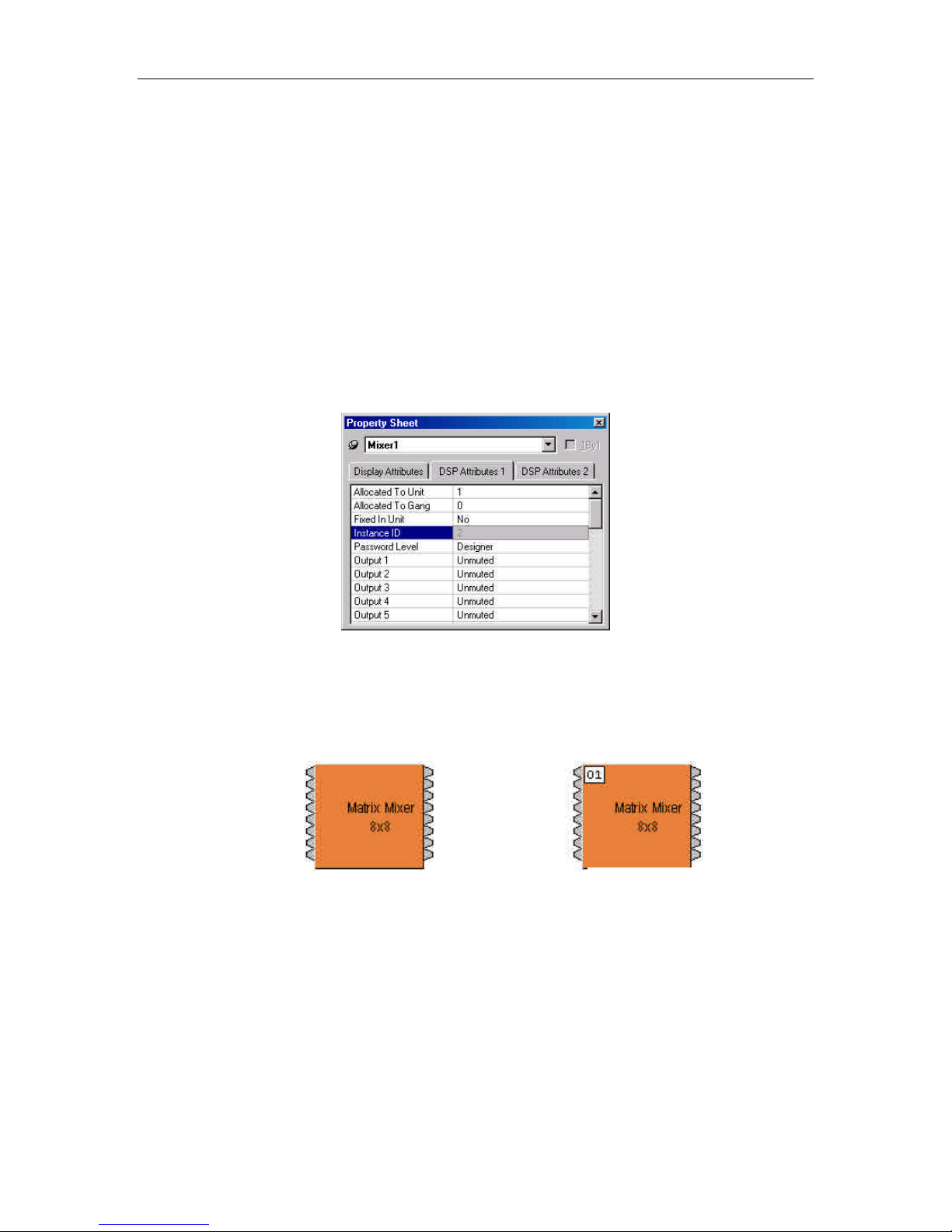
An E Desk Device Number represents the physical E Desk box’s defined
address. The E Desk software automatically sets this number when a system is
Compiled and loaded.
The Device number that a DSP block has been assigned to can be determined in
3 ways:
First Way:
1) Right click on the DSP block and select ‘Properties’.
2) Click on DSP 1 attributes tab and scroll down. The device that the block is assigned to
will be displayed in the ‘Allocated To Unit’ field.
*Note: Each DSP block can be assigned to a device by changing ‘Fixed In to Unit” to ‘Yes’
(this is defaulted to no).
Second Way:
1) In the Display tab of the Options screen select “Display Device Assignment in
DSP Block info field”.
2) This will display the device that each DSP block is assigned to on the main
screen.
Device number
Third Way:
1) While connected an E Desk’s RS -232 port, type the string; GET 0 DEVID E
Desk will return the Device Number of the unit you are connected to.
8
Page 11

ETP String Component: Attribute
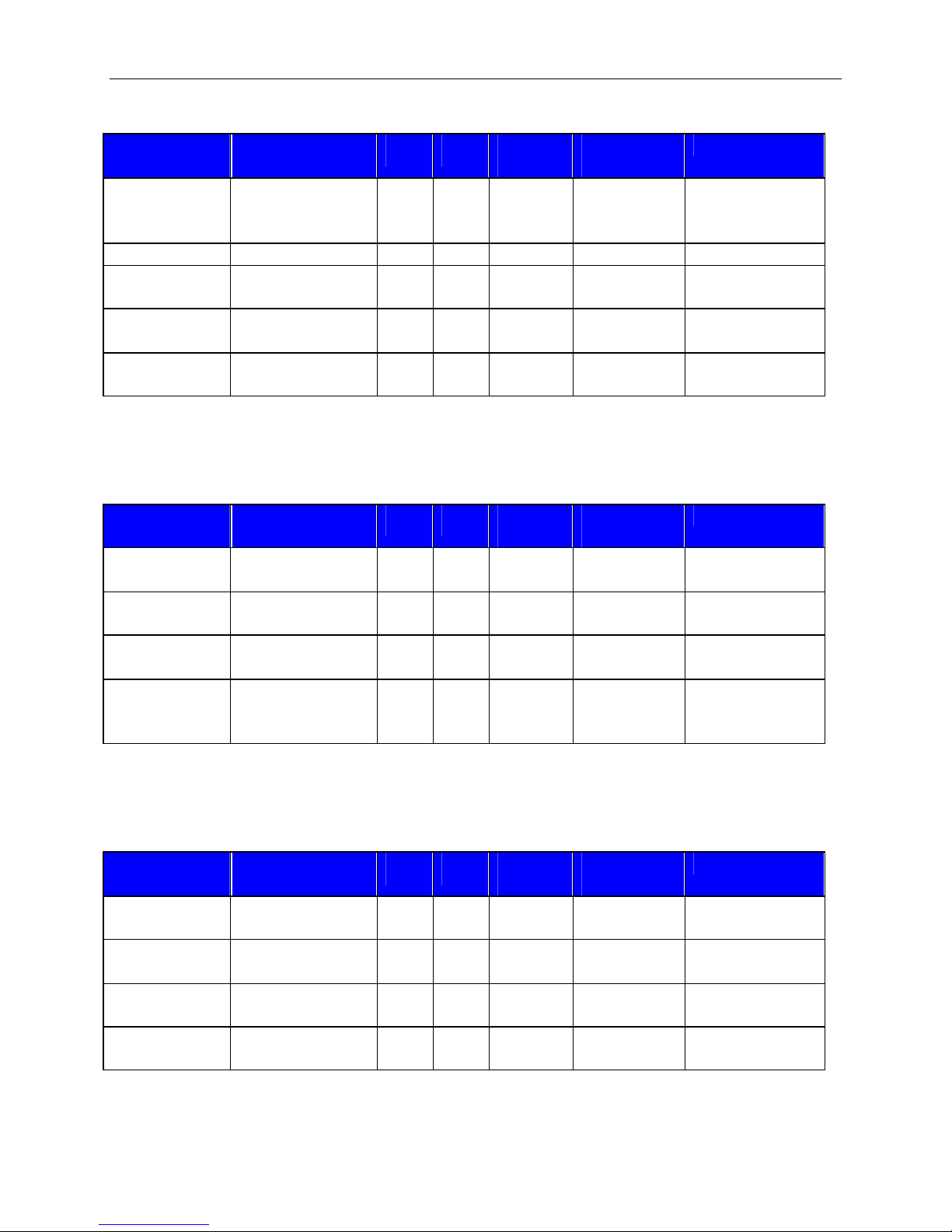
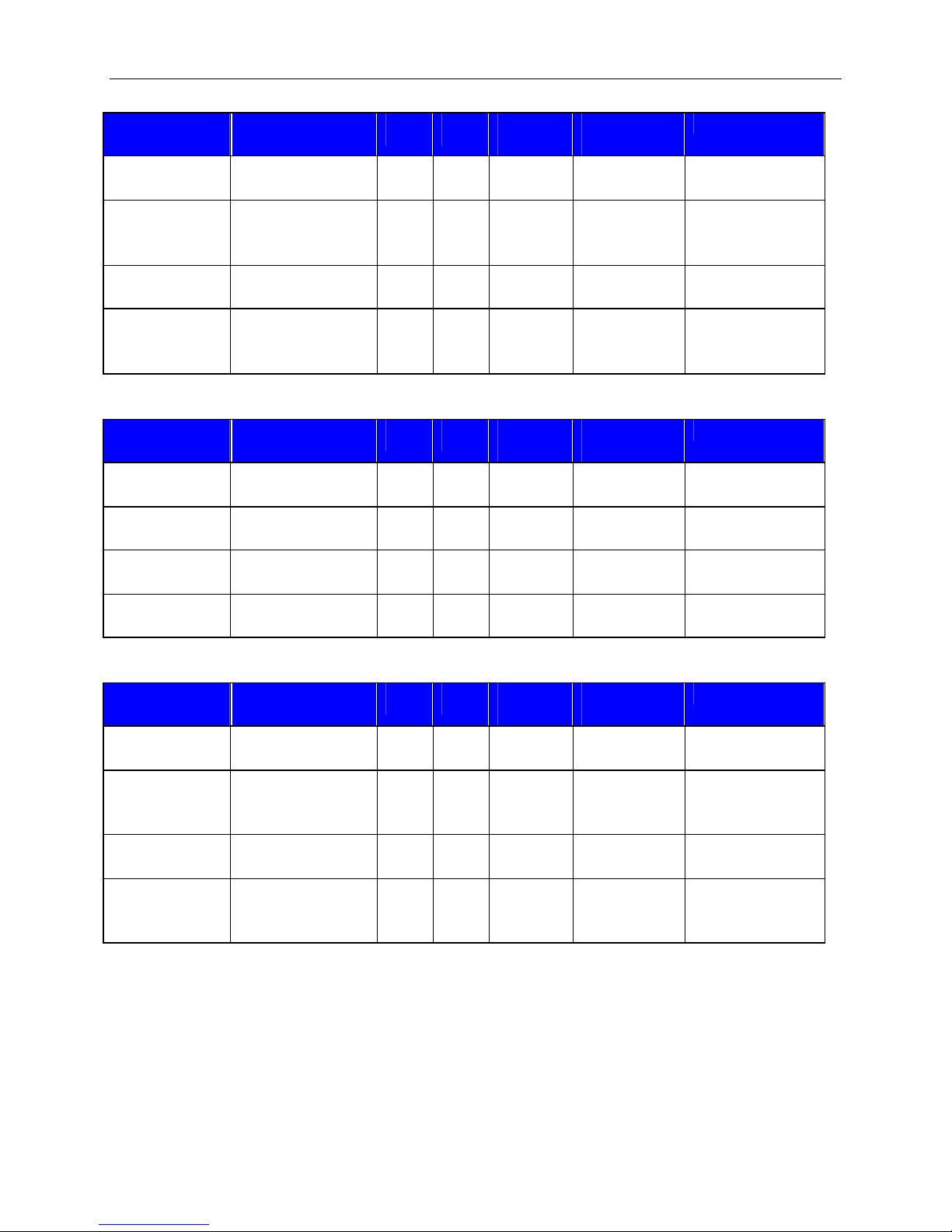
The Attribute defines the portion of the DSP block to be controlled (fader level,
crosspoint mute etc). The following tables show whether each ETP Attribute supports
SET/SETL, GET/GETL, INC, and DEC Commands, as well as the Value range that the
Attribute will accept. Index1/Index2 determines whether Index1, Index2 or BOTH are
needed for a ETP String to be complete.
ETP Strings can address:
Input/Output Blocks
Mixer Blocks
Equalizer Blocks
Filter Blocks
Crossover Blocks
Dynamic Blocks
Routers
Delays
Meters
Generators
9
Page 12
ETP String Component: Attribute
Input/Output Blocks
Analog
Inputs
Attribute
SET /
SETL
GET /
GETL
INC /
DEC
Index1/
Index2
Value Range
Input Gain MICGAIN Y Y Y Index1 0, 6, 12, 18,
24, 30, 36, 42,
48, 54, 60, 66
Input Level INPLVL Y Y Y Index1 -100 ~ 12 *
Phantom
Power
PHPWR Y Y N Index1 0 = off
1= on
Input Mute INPMUTE Y Y N Index1 0=unmuted
1=muted
Invert
Polarity
INPINVRT Y Y N Index1 0=normal
1=inverted
* Can contain a decimal number.
Example: In the command: SET 1 INPLVL 6 3 –10<LF>
We are telling E Desk device 1 to set an input fader, Instance ID 6, input 3 (index1), to
–10dB. (We set channel 3 input level of instance 6 to –10dB)
Analog
Outputs
Output
Attribute
SET /
SETL
OUTLVL Y Y Y Index2 -100 ~ 0 *
GET /
G ETL
INC /
DEC
Index1/
Index2
Value Range
Level
Output Mute OUTMUTE Y Y N Index2 0=unmuted
1=muted
Invert
Polarity
Mic level
pad (FLEX
OUTINVRT Y Y N Index2 0=normal
1=inverted
OUTPAD Y Y N Index2 0 = off
1= on
only)
* Can contain a decimal number.
Example: In the command: SET 2 OUTMUTE 3 4 1<LF>
We are telling E Desk device 2 to set the output mute Instance ID 3, output 4 (index1) to
on. (We muted the 4th output of Instance ID 3 of an E Desk)
CobraNet
Input
CobraNet
Attribute
SET /
SETL
CNINBNDL Y Y N None 0 ~ 61439
GET /
GETL
INC /
DEC
Index1/
Index2
Value Range
RX bundle
CobraNet
CNINLVL Y Y Y Index1 -100 ~ 12 *
Input Level
CobraNet
Input Mute
CobraNet
Input Invert
CNINMUTE Y Y N Index1 0=unmuted
1=muted
CNININVRT Y Y N Index1 0 = off
1= on
• Can contain a decimal number.
10
Page 13
ETP String Component: Attribute
CobraNet
Attribute
Output
CobraNet
CNOUTBNDL Y Y N None 0 ~ 61439
TX Bundle
CobraNet
CNOUTLVL Y Y Y Index1 -100 ~ 0 *
Output
Level
CobraNet
CNOUTMUTE Y Y N Index1 0=unmuted
Output Mute
CobraNet
CNOUTINVRT Y Y N Index1 0 = off
Output
Invert
.
DCS88 Input Attribute
DCS88 RX
EXPIBNDL Y Y N None 0 ~ 61439
Bundle
DCS88 Input
EXPILVL Y Y Y Index1 -100 ~ 12 *
Level
DCS88 Input
EXPIMUTE Y Y N Index1 0=unmuted
Mute
DCS88 Input
EXPIINVRT Y Y N Index1 0 = off
invert
DCS88
Attribute
Ouput
DCS88 TX
EXPOBNDL Y Y N None 0 ~ 61439
Bundle
DCS88
EXPOLVL Y Y Y Index1 -100 ~ 0 *
Output
Level
DCS88
EXPOMUTE Y Y N Index1 0=unmuted
Output Mute
DCS88
EXPOINVRT Y Y N Index1 0 = off
Output
invert
SET /
SETL
SET /
SETL
SET /
SETL
GET /
GETL
GET /
GETL
GET /
GETL
INC /
DEC
Index1/
Index2
Value Range
1=muted
1= on
• Can contain a decimal number.
INC /
DEC
Index1/
Index2
Value Range
1=muted
1= on
• Can contain a decimal number.
INC /
DEC
Index1/
Index2
Value Range
1=muted
1= on
• Can contain a decimal number
11
Page 14
ETP String Component: Attribute
MLI Input Attribute
MLI RX
EXPIBNDL Y Y N None 0 ~ 61439
SET /
SETL
Bundle
MLI Input
EXPILVL Y Y Y Index1 -100 ~ 12 *
Level
MLI Input
EXPIMUTE Y Y N Index1 0=unmuted
Mute
MLI Input
EXPIINVRT Y Y N Index1 0 = off
invert
MLO Output Attribute
SET /
SETL
GET /
GETL
GET /
GETL
INC /
DEC
Index1/
Index2
Value Range
1=muted
1= on
• Can contain a decimal number.
INC /
DEC
Index1/
Index2
Value Range
MLO TX
Bundle
MLO Output
Level
MLO Output
Mute
MLO Output
invert
EXPOBNDL Y Y N None 0 ~ 61439
EXPOLVL Y Y Y Index1 -100 ~ 0 *
EXPOMUTE Y Y N Index1 0=unmuted
1=muted
EXPOINVRT Y Y N Index1 0 = off
1= on
• Can contain a decimal number.
12
Page 15
ETP String Component: Attribute
Mixer Blocks
Automixer Attribute
SET /
SETL
GET /
GETL
INC /
DEC
Index1/
Index2
Value Range
Input Level AMLVLIN Y Y Y Index1 -100 ~ 12 *
Output
AMLVLOUT Y Y Y None -100 ~ 12 *
Level
Input Mute AMMUTEIN Y Y N Index1 0=unmuted
1=muted
Output Mute AMMUTEOUT Y Y N None 0=unmuted
1=muted
Crosspoint
Mute
Logic
Output
AMMUTEXP Y Y N Index1 1=unmuted
0=muted
AMLOGOUT Y Y N Index 2 0=off
1=on
* Can contain a decimal number.
Example: In the command: SET 1 AMMUTEXP 3 1 0<LF>
We are telling E Desk device 1 to set the automixer’s crosspoint (row 1, column 1) on
instance ID 3 to off.
Note: For attributes with 2 Index fields, Index1 is the row, and Index2 is the column.
Matrix
Mixer
Attribute
SET /
SETL
GET /
GETL
INC /
DEC
Index1/
Index2
Value Range
Input Level MMLVLIN Y Y Y Index1 -100 ~ 12 *
Output
MMLVLOUT Y Y Y Index2 -100 ~ 12 *
Level
Input Mute MMMUTEIN Y Y N Index1 0=unmuted
1=muted
Output Mute MMMUTEOUT Y Y N Index2 0=unmuted
1=muted
Crosspoint
Level
Crosspoint
Mute
MMLVLXP Y Y Y Index1 &
Index2
MMMUTEXP Y Y N Index1 &
Index2
-100 ~ 0 *
1=unmuted
0=muted
* Can cont ain a decimal number.
Note: For attributes with 2 Index fields, Index1 is the row, and Index2 is the column.
13
Page 16
ETP String Component: Attribute
Standard
Mixer
Attribute
SET /
SETL
GET /
GETL
INC /
DEC
Index1/
Index2
Value Range
Input Level SMLVLIN Y Y Y Index1 -100 ~ 12 *
Output
SMLVLOUT Y Y Y Index2 -100 ~ 12 *
Level
Input Mute SMMUTEIN Y Y N Index1 0=unmuted
1=muted
Output Mute SMMUTEOUT Y Y N Index2 0=unmuted
1=muted
Crosspoint
Mute
SMMUTEXP Y Y N Index1 &
Index2
1=unmuted
0=muted
* Can contain a decimal number.
Note: For attributes with 2 Index fields, Index1 is the row, and Index2 is the column.
Room
Combiner
Attribute
SET /
SETL
GET /
GETL
INC /
DEC
Index1/
Index2
Value Range
Wall State RMCMBWALL Y Y N Index1 0 = down
1 = up
Output
RMCMBLVL Y Y Y Index1 -100 ~ 12 *
Level
Output Mute RMCMBMUTE Y Y N Index1 0=unmuted
1=muted
Group
RMCMBGROUP
Y Y N Index1 0-16
State+
* Can contain a decimal number.
Example: In the string SET 1 RMCMBWALL 4 2 1 <LF>
We are telling E Desk to set the 2nd ‘wall’ in the room combiner, Instance ID 4, up
(separate rooms).
Note: For wall state, Index1 represents the wall being opened or closed.
+Note: The behavior of RMCMBGROUP is the same as that of the "Set Selected Group"
commands in the right-click-context menus in the Room Combiner control dialogue in the E
Desk Software: the specified room is isolated, meaning all moveable walls at its borders are put
up. All neighboring rooms maintain their previous group assignments. Index1 represents the
room being addressed. As rooms are combined the room levels will become ganged so only
one output needs to be addressed.
14
Page 17

ETP String Component: Attribute
Mix-minus
Combiner
Attribute
SET /
SETL
GET /
GETL
INC /
DEC
Index1/
Index2
Value Range
Group State MCMBGROUP Y Y N Both 0 = not
grouped
1 = grouped
Note: Index1 is the input number being addressed. Index2 is the group number; this is
represented by a letter in the software, but addressed as a number in ETP commands.
(Example: A=1, B=2, C=3….)
15
Page 18
ETP String Component: Attribute
Equalizer Blocks
Graphic EQ Attribute
EQ Band
GEQLVLBND Y Y Y Index1 -30 ~ 15 *
SET /
SETL
GET /
GETL
INC /
DEC
Index1/
Index2
Value Range
Level
Bypass All
Bands
GEQBYPALL Y Y N None 0 = active
1 = bypassed
Can contain a decimal number.
The Index field represents the filter to be controlled. EQ filter farthest to the left is #1,
next one is #2 and so forth. Upper left hand area of Graphic EQ dialog screen displays,
which numbered filter, is being adjusted, use this number as the Index1 for Graphic EQ
strings.
Example: In the string SET 2 GEQBYPALL 9 1 <LF>
We are telling E Desk to bypass all bands on Graphic EQ Instance ID 9.
Parametric
EQ
EQ
Attribute
SET /
SETL
PEQBWBND Y Y N Index1 0.01 ~ 4.0 *
GET /
GETL
INC /
DEC
Index1/
Index2
Value Range
Bandwidth
Bypass EQ
Band
PEQBYPBND Y Y N Index1 0 = active
1 = bypassed
Center Freq. PEQFCBND Y Y Y Index1 20 ~ 20000
EQ Band
PEQLVLBND Y Y Y Index1 -30 ~ 15 *
Level
Bypass All
Bands
PEQBYPALL Y Y N None 0 = active
1 = bypassed
• Can contain a decimal number.
Upper left hand area of Parametric EQ dialog screen displays, which numbered filter, is
being adjusted, use this number as the Index1 for Parametric EQ strings.
Example: In the string INC 1 PEQLVLBND 11 3 2<LF>
We are telling E Desk to increment the second parametric EQ filter on Instance ID 11 by
2dB.
Feedback
Suppressor
Reset All
Attribute
SET /
SETL
FBSRESET Y N N None None
GET /
GETL
INC /
DEC
Index1/
Index2
Value Range
Filters
Example: In the string SET 1 FBSRESET 4<LF>
We are telling E Desk to reset all of the filters on the feedback suppressor on Instance
ID 4.
16
Page 19
ETP String Component: Attribute
Filters Blocks
HPF Attribute
Cut off
HPFLTFC Y Y N None 20 ~ 20000 *
SET /
SETL
GET /
GETL
INC /
DEC
Index1/
Index2
Value Range
freq.
Filter
Bypass
HPFLTBYP Y Y N None 0 = active
1= bypassed
LPF Attribute
Cut off
LPFLTFC Y Y N None 20 ~ 20000 *
SET /
SETL
GET /
GETL
INC /
DEC
Index1/
Index2
Value Range
freq.
Filter
Bypass
LPFLTBYP Y Y N None 0 = active
1 = bypassed
High
Shelf
Cut off
Attribute
SET /
SETL
HSFLTFC Y Y N None 20.0 ~ 20000 *
GET /
GETL
INC /
DEC
Index1/
Index2
Value Range
freq.
Gain HSFLTGAIN Y Y Y None -27.0 ~ 9.0
Filter
Bypass
HSFLTBYP Y Y N None 0 = active
1 = bypassed
Low
Shelf
Cut off
Attribute
SET /
SETL
LSFLTFC Y Y N None 20.0 ~ 20000 *
GET /
GETL
INC /
DEC
Index1/
Index2
Value Range
freq.
Gain LSFLTGAIN Y Y Y None -27 ~ 9
Filter
Bypass
LSFLTBYP Y Y N None 0 = active
1 = bypassed
* Can contain a decimal number.
Example: SET 1 HSFTGAIN 100 –10<LF>
We are telling E Desk to set the High Shelf filter gain on instance ID 100 to –10dB.
All Pass
Filter
Bandwidth
Attribute
SET /
SETL
APFLTBWBND Y Y N Band
GET /
GETL
INC /
DEC
Index1/
Index2
Value Range
0.01 ~ 4.0 *
Number
Center
Freq.
Filter
Bypass
Bypass
All
APFLTFCBND Y Y N Band
20.0 ~ 20000 *
Number
APFLTBYPBND Y Y N Band
Number
0 = active
1 = bypassed
APFLTBYPALL Y Y N None 0 = active
1 = bypassed
* Can contain a decimal number.
17
Page 20
ETP String Component: Attribute
Crossover blocks
2-Way Attribute
Cutoff
XOVR2FC Y Y N Index1 20 ~ 20000 *
SET /
SETL
GET /
GETL
INC /
DEC
Index1/
Index2
Value Range
Freq.
3-Way Attribute
Cutoff
XOVR3FC Y Y N Index1 20 ~ 20000 *
SET /
SETL
GET /
GETL
INC /
DEC
Index1/
Index2
Value Range
Freq.
4-Way Attribute
Cutoff
XOVR4FC Y Y N Index1 20 ~ 20000 *
SET /
SETL
GET /
GETL
INC /
DEC
Index1/
Index2
Value Range
Freq.
* Can contain a decimal number.
Example: GET 2 XOVR3FC 40 1 <LF>
We are asking E Desk to tell us the 3-way crossover low -pass cutoff frequency on
instance ID 40.
2-way crossover:
Index1 = 1 is the low -pass cutoff frequency
Index1 = 2 is the high -pass cutoff frequency
3-Way crossover:
Index1 = 1 is low-pass cutoff frequency
Index1 = 2 is the lower slope of the mid cutoff frequency
Index1 = 3 is the higher slope of the mid cutoff frequency
Index1 = 4 is the high -pass cutoff frequency
4-way crossover:
Index1 = 1 is the low -pass cutoff frequency
Index1 = 2 is the lower slope of the low -mid cutoff frequency
Index1 = 3 is the higher slope of the low -mid cutoff frequency
Index1 = 4 is the lower slope of the mid-high cutoff frequency
Index1 = 5 is the higher slope of the mid-high cutoff frequency
Index1 = 6 is the high -pass cutoff frequency
18
Page 21
ETP String Component: Attribute
Dynamic Blocks
Leveler Attribute
SET /
SETL
GET /
GETL
INC /
DEC
Index1/
Index2
Value Range
Bypass LVLRBYP Y Y N None 0=active
1=bypassed
Comp /
Limiter
Attribute
SET /
SETL
GET /
GETL
INC /
DEC
Index1/
Index2
Value Range
Bypass CLIMBYP Y Y N None 0=active
1=bypassed
Ducker Attribute
Input
level
Level
DKRLVLIN
DKRLVLSENSE Y Y N None -100 ~ 12 *
SET /
SETL
Y Y N None -100 ~ 12 *
GET /
GETL
INC /
DEC
Index1/
Index2
Value Range
sense
Bypass
Ducker
Mute
sense
Input
mute
Logic in
enable
Logic out
enable
Logic
input
invert
Logic
output
invert
DKRBYP
DKRMUTESENSE
DKRMUTEIN
DKRENLOGIN
Y Y N None 0= active
1= bypassed
Y Y N None 0 = unmuted
1 = muted
Y Y N None 0 = unmuted
1 = muted
Y Y N None 0 = disabled
1= enabled
DKRENLOGOUT Y Y N None 0 = disabled
1= enabled
DKRINVLOGIN
Y Y N None 0= normal
1= inverted
DKRINVLOGOUT
Y Y N None 0= normal
1= inverted
* Can contain a decimal number.
Noise
Gate
Bypass
Attribute
NGBYP
SET /
SETL
Y Y N None 0 = active
GET /
GETL
INC /
DEC
Index1/
Index2
Value Range
1 = bypassed
Example: SET 3 CLIMBYP 55 0<LF>
We are telling E Desk to set the Comp/Limiter on instance ID 55 to active.
19
Page 22

ETP String Component: Attribute
Ambient
Noise
Compensator
Attribute
Program
Mute ANCMUTEPGM
Program
Level
Program
Threshold
Program
Response
ANCLVLPGM
ANCTHRSHPGM
ANCRSPTMPGM
Ambient
Mute ANCMUTEAMB
Ambient
Level
Ambient
Threshold
Ambient
Response
Min Gain
Setting
ANCLVLAMB
ANCTHRSHAMB
ANCRSPTMAMB
ANCGAINMIN
Max Gain
SET /
SETL
GET /
GETL
INC /
DEC
Index1/
Index2
Value Range
Y Y N None 0 = unmuted
1 = muted
Y Y N None -100 ~ 12 *
Y Y N None -60.0 to 24 *
Y Y N None 500 to
300000*
Y Y N None 0 = unmuted
1 = muted
Y Y N None -100 ~ 12 *
Y Y N None -60.0 to 24 *
Y Y N None 500 to
300000*
Y Y N None -25.0 to 25.0 *
Y Y N None -25.0 to 25.0 *
Setting ANCGAINMAX
Gain
Ratio
Gain
Response
Time
ANCGAINRATIO
ANCGAINRSPTM
Y Y N None 0.25 to 4.0 *
Y Y N None 500 to
300000*
* Can contain a decimal number.
Example: SET 1 ANCMUTEPGM 20 0<LF>
We are telling E Desk to set the ANC to unmute the program input on instance ID 20.
20
Page 23

ETP String Component: Attribute
Router Blocks
Router Attribute
Cross
point
RTRMUTEXP
SET /
SETL
Y Y N Both 1 = off
GET /
GETL
INC /
DEC
Index1/
Index2
Value Range
0 = on
Example: SET 1 RTRXP 98 4 5 0<LF>
Note: For attributes with 2 Index fields, Index1 is the row, and Index2 is the column.
21
Page 24
ETP String Component: Attribute
Delay Blocks
Delay Attribute
Delay in
Milliseconds
Delay in
Centimeters
DLYMSEC
DLYCM
Delay in
SET /
SETL
Y Y N None 0 ~ ?*
Y Y N None 0 ~ ?*
Y Y N None 0 ~ ?*
GET /
GETL
INC /
DEC
Index1/
Index2
Value Range
Meters DLYM
Delay in
Inches
Delay in
DLYIN
Y Y N None 0 ~ ?*
Y Y N None 0 ~ ?*
feet DLYFT
* Can contain a decimal number.
Example: SET 1 DLYCM 24 40<LF>
We are telling E Desk to set the delay block at instance ID 24 to 40 centimeters.
Note: Value range is 0 to max value for the specific delay block. Example: a 50mSec
delay has a maximum setting of 1763 centimeters, 17meters, 694 inches, and 57 feet.
22
Page 25
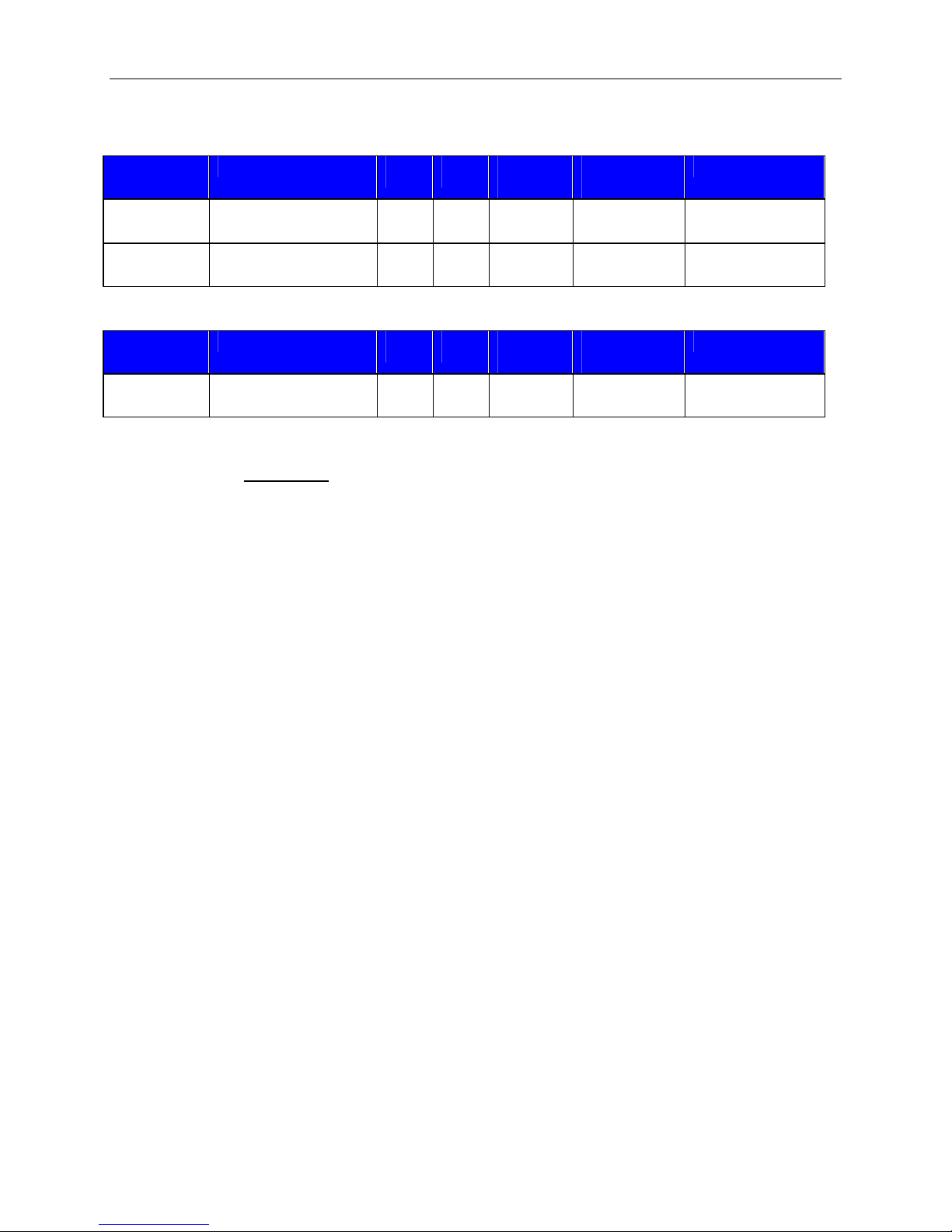
ETP String Component: Attribute
Control Blocks
Level
Faders
Fader
Levels
Mute
Fader
Attribute
FDRLVL
FDRMUTE
SET /
SETL
Y Y Y Index1 -100 ~ 12 *
Y Y N Index1 0 = unmuted
GET /
GETL
INC /
DEC
Index1/
Index2
Value Range
1 = muted
* Can contain a decimal number.
Presets Attribute
Preset
PRESET
SET /
SETL
N N N None
GET /
GETL
INC /
DEC
Index1/
Index2
Value Range
1001 to max
preset number
Note: Instead of SET/SETL, GET/GETL, INC, or DEC; the preset attribute uses
RECALL as the Command. Preset numbers begin at 1001, regardless of preset name
(the first preset defined is 1001, the next 1002, and so forth).
Example: in the string: RECALL 1 PRESET 1001<LF>
We are telling E Desk to recall the first preset on an E Desk system. Since presets
apply to entire systems, or DAP files, the Device Number will always be 1 for Preset
strings.
23
Page 26

ETP String Component: Attribute
Meter Blocks
Meters Attribute
SET /
SETL
GET /
GETL
INC /
DEC
Index1/
Index2
Value Range
Signal SPMTRLVL N Y N Index1 -100 ~ 36 *
Peak PKMTRLVL N Y N Index1 0 = off
1 = peak
RMS RMSMTRLVL N Y N Index1 -100 ~ 36 *
* Can contain a decimal number.
Example: GET 1 RMSMTRLVL 48 1 <LF>
We are asking E Desk the RMS Meter 1 level on instance ID 48.
24
Page 27

ETP String Component: Attribute
Generator Blocks
No Attributes are specified at this time
25
Page 28
ETP String Component: Instance ID Number
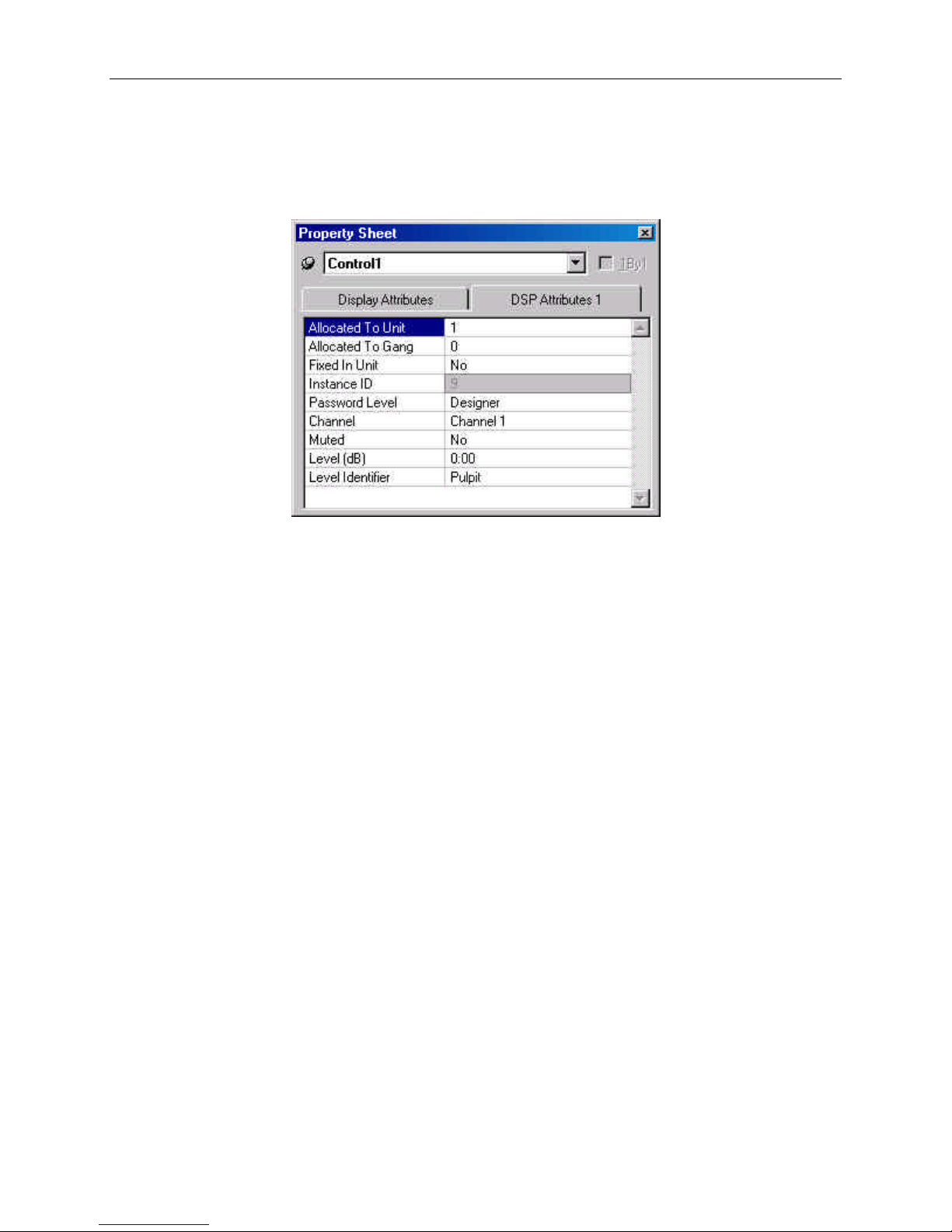
E Desk uses an instance ID number to specify the exact DSP block to be controlled.
Right click on the DSP block and select “Properties”, the instance number can be found
the DSP Attributes 1 tab.
The property sheet can only be accessed
in an offline screen.
**Note** E Desk software will assign an Instance ID to each DSP block on the initial
compile of the system. Subsequent compiles will not change the Instance IDs unless
the “Reassign Instance IDs” check box is selected in the ‘Compile’ tab of the ‘Options’
screen (located on the Tools pull-down menu) in the E Desk software.
If one or more DSP blocks are disconnected from the audio path (when connections are
not made to at least one input or output) the Instance IDs will be unassigned. New
Instance ID(s) will be reassigned once the DSP block(s) are properly connected again.
26
Page 29
ETP String Component: Index
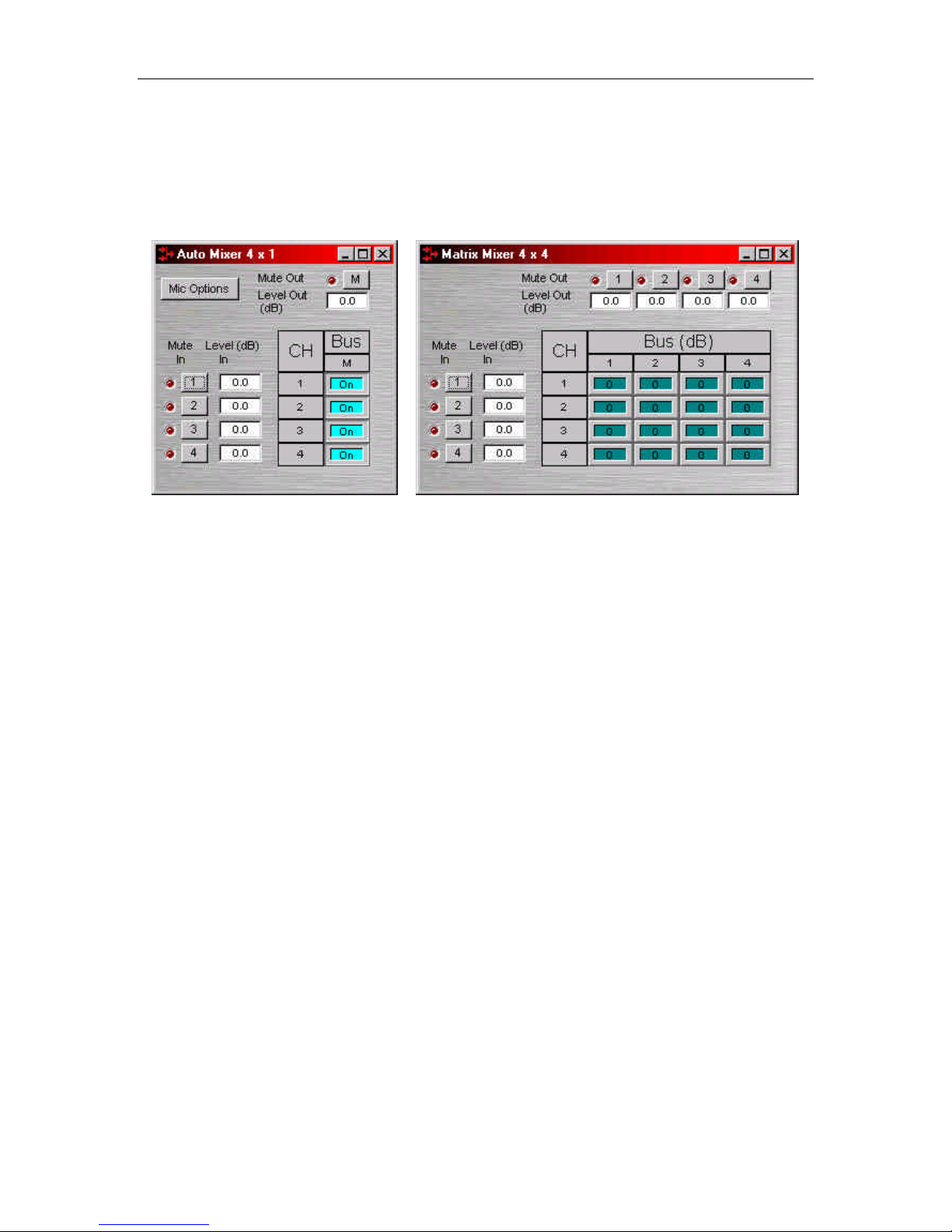
Index refers to inputs, outputs, or crosspoints of an Attribute. Some Attributes
will need an Index1 (Input or Row) and/or an Index2 (output or Column). The
tables in the Attribute section will define which, if any, indexes are required for
the string.
Example: INC 1 AMLVLIN 4 1 1<LF>
In an Automatic mixer on device 1 we are increasing the level of input 1 on
instance ID 4 by 1dB. Index1 is used to represent the input number.
Example: DEC 2 AMLVLOUT 6 1 2<LF>
In an Automatic mixer on device 2 we are decreasing the level of output 1 on
instance ID 6 by 2dB. Index2 is used to represent the output number.
Example: SET 1 MMLXP 5 1 2 –5<LF>
In a matrix mixer on device 1 we are setting cross point 1:2 (row 1, column 2)
level to –5dB on instance ID 5.
Note for commands with 2 Index fields, Index1 is the row, and Index2 is the
column.
27
Page 30

ETP String Component: Value
Value determines what a DSP block is being set to, incremented by, or decremented by.
The Attribute section will define which type of value the string will need in order to
execute the ETP string.
Example: INC 1 AMLVLIN 4 1 1<LF>
In an Automatic mixer input level string, the Value equal to 1 states that the fader is to
be incremented by 1 dB.
Example: SET 2 MMLVLIN 5 2 –100<LF>
In a matrix mixer input level string, the value is set to –100dB.
Example: RECALL 1 PRESET 1004<LF>
For a preset recall we are telling device 1 to recall the fourth preset.
*When GET is used, a Value will not need to be specified since GET is a request
command. A Value must be set in order for SET, INC, DEC, and RECALL command
strings to work.
Example: GET 4 MMLVLOUT 5 <LF>
We are asking the level of a matrix mixer’s output. There is no Value required for this
string.
28
Page 31

Responses
When a successful SET, SETL, INC, DEC, or RECALL command is sent to an E Desk
device via RS-232 or Telnet, E Desk will respond with: ‘+OK’ followed by a carriage
return and line feed.
Example: Sending the string: SET 2 AMLVLIN 4 2 1< LF> will result in an:
+OK<CR><LF> response.
A successful GET or GETL command will result in a numerical response to the
command string followed by <CR><LF>.
The response from an ETP string with a GET command may contain a decimal
point (with 4 numbers after the decimal) and/or negative numbers, depending on
type of Attribute addressed. If the control system does not support negative
numbers or decimal places a GETL command may be used instead (see page
6).
Example: After sending the above example to an E Desk device the string:
GET 2 AMLVLIN 4 2<LF> would result in the response: 1.0000<CR><LF> this tells us
that the level is currently set to 1dB.
If an incorrect command string is sent, an E Desk will respond with: -ERR <CR><LF>
29
Page 32
Control Dialog - Overview
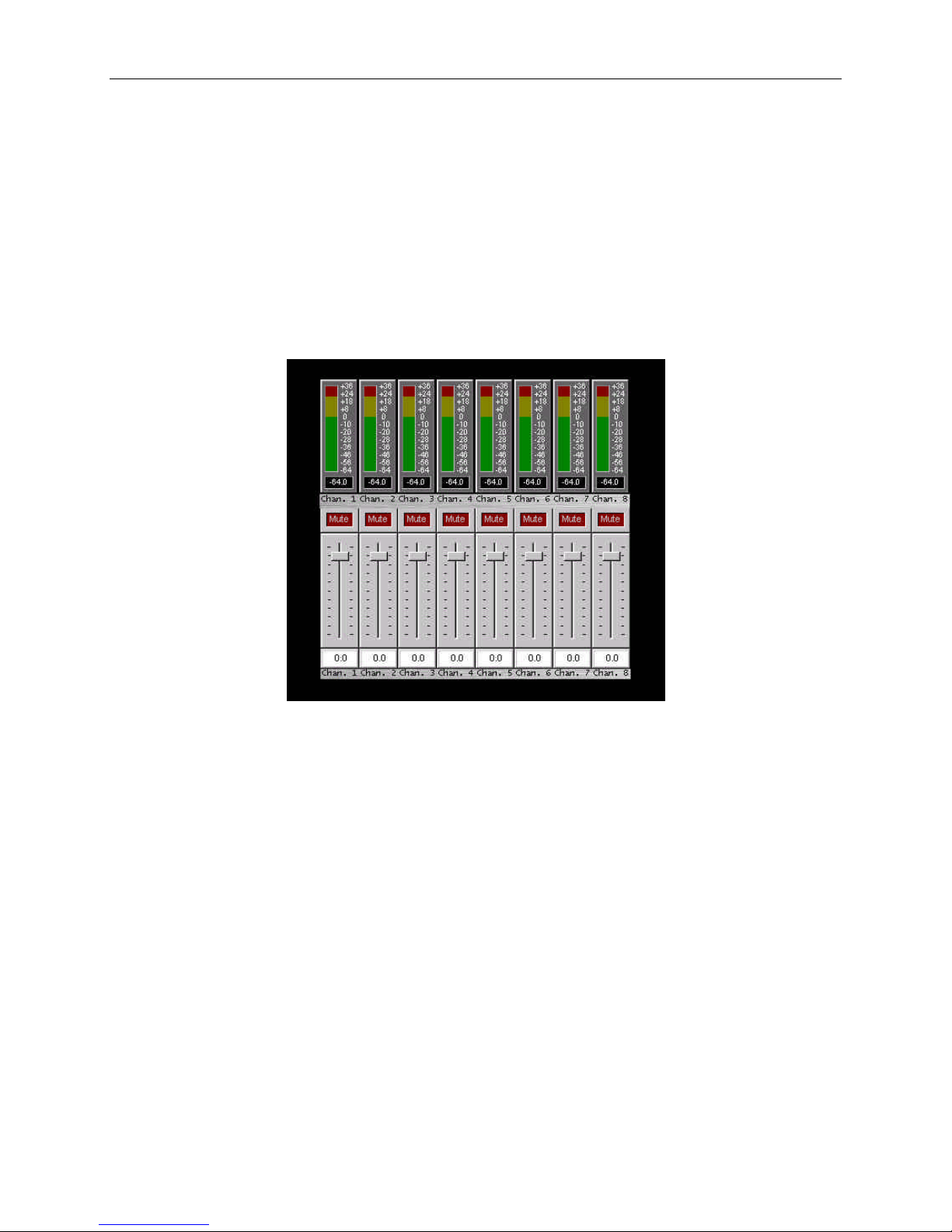
E Desk software can be used to control E Desk units real time via a network. After
connecting to an E Desk device, users, technicians, and designers (as determined by
passwords) can access their appropriate level of control of the system. Depending on
the authorized access level of control Levels, Meters, Presets, and layers can be
accessed and changed.
Level Controls, Meters, and, Preset control dialog screens can be minimized and
arranged to provide a simple, and intuitive, user interface for the system. Connecting E
Desk’s Ethernet port, through a switch, to network jacks in various locations can provide
control to the system from different locations via a Laptop or Desktop computer.
*Note – E Desk’s control network can be easily shared on an existing network without
compromising network bandwidth, but CobraNet data should be routed on its own
network to ensure CobraNet audio and existing network reliabilit y.
30
Page 33

Control Dialog - Levels
Once level controls are placed in a signal path audio levels can be increased,
decreased or muted as needed.
31
Page 34

Control Dialog - Presets
Once Presets are created, Preset buttons can be placed on screen and used to easily
recall different scenarios.
32
Page 35
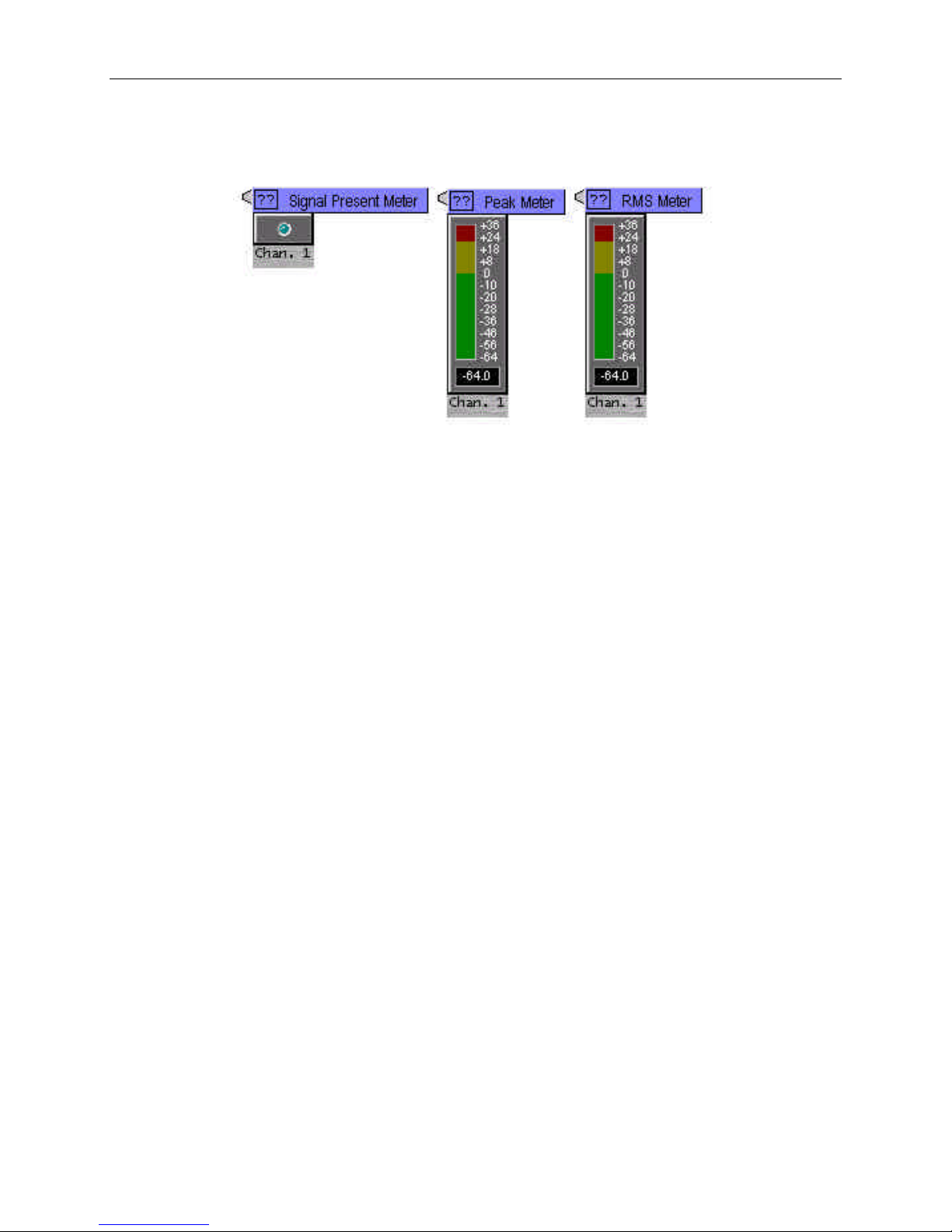
Control Dialog - Meters
If meters are placed on screen, users can view real time Signal Present, RMS, and
Peak indications.
33
Page 36
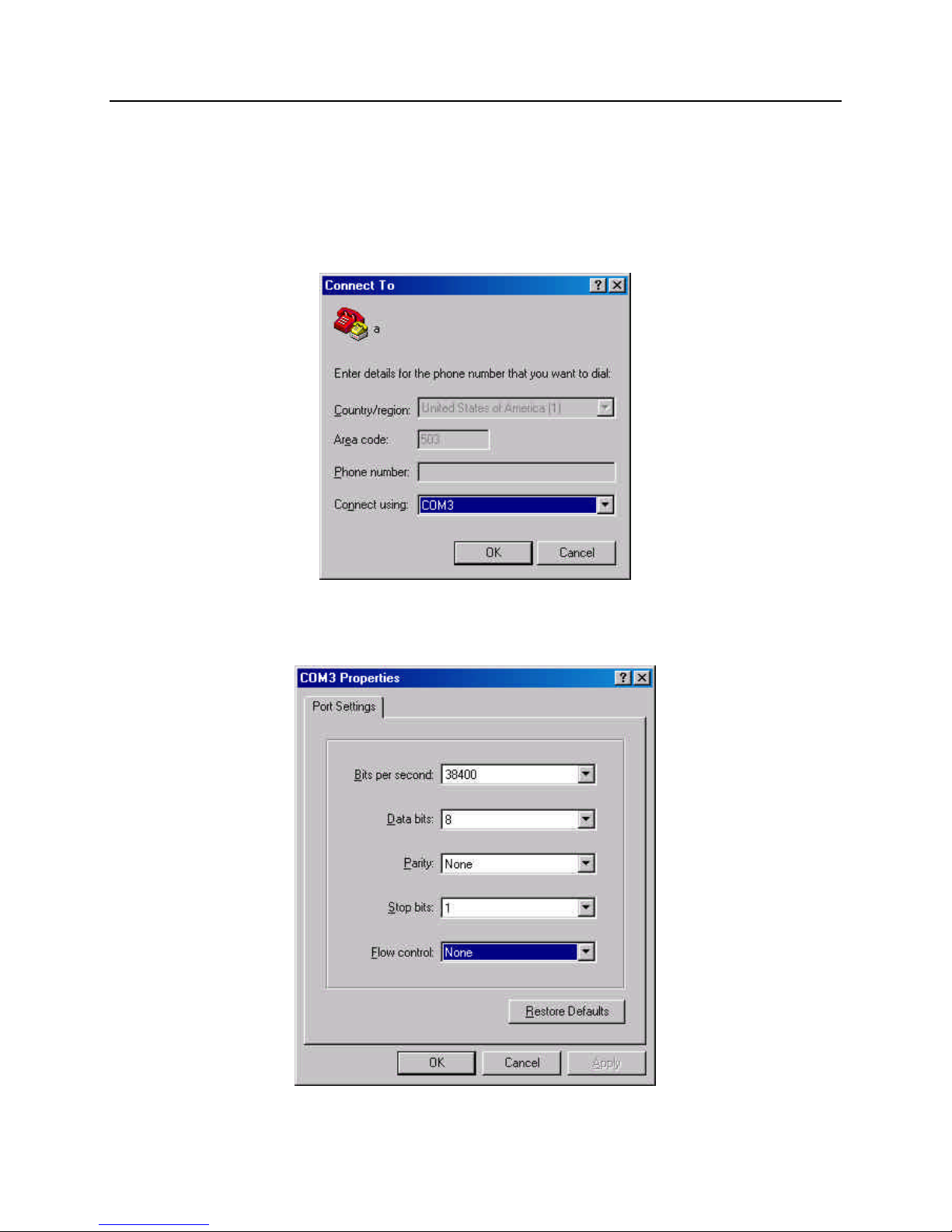
HyperTerminal
HyperTerminal is a useful tool that comes with Windows and can be used for RS-232
purposes. Simply open a HyperTerminal session by going to: Start> Programs>
Accessories> Communications> HyperTerminal. Enter a name for your connection and
click ‘OK’. Under the pull-down menu labeled ‘Connect Using’ select the location of
your RS-232 Comm. port.
Under the Comm. port properties set it to 38400, 8, None, 1, and None as shown below.
Now HyperTerminal is ready to use. E Desk does not echo characters typed, so if you
want to view what is being typed into E Desk, click on “echo typed characters locally” in
the ASCII setup screen
34
Page 37

IP Address Commands
E Desk has some useful IP and reset tools that may be useful when returning to older
systems for service work.
E Desk will automatically output its IP Address through the RS-232 port when it is
powered up and functioning. Simply have a straight through RS-232 cable connected to
E Desk and a PC with HyperTerminal running. When E Desk is powered up it will print
the data in the HyperTerminal screen.
Get/Set IP Address
By typing ‘GET 0 IPADDR<LF>’ in HyperTerminal E Desk will reveal the IP Address it
is set to. Substituting the ‘0’ for a 1, 2, 3, etc will tell E Desk to reveal the IP Address for
the device who’s number is 1, 2, 3 etc. A ‘0’ asks for the IP Address of the E Desk you
are currently connected to. Note: You can only use a 1, 2, 3 etc if there is a system
loaded into the E Desk’s. If it is a single device system, the only device number will be
1.
If an E Desk does not have a system loaded into it, you can set the IP Address via the
RS-232 port. Example: SET 0 IPADDR 169.254.1.200<LF>. If there is no DAP file in
the E Desk, and the command is typed correctly, E Desk will send back a ‘+OK’
response. You will need to power cycle the E Desk for the new IP Address to take
effect. As stated above, E Desk will output the IP Address when powered up, or you
can use the GET I PADDR command mentioned above.
Reset
In rare instances it may become necessary to reset the E Desk device. A reset can be
accomplished through the device maintenance screen, and this is the desired method
for a reset. However, there is a reset command available via the RS-232 port. Simply
type: CLEAR 0 DEVCONFIG<LF> and the device will be reset.
35
 Loading...