

Page 1
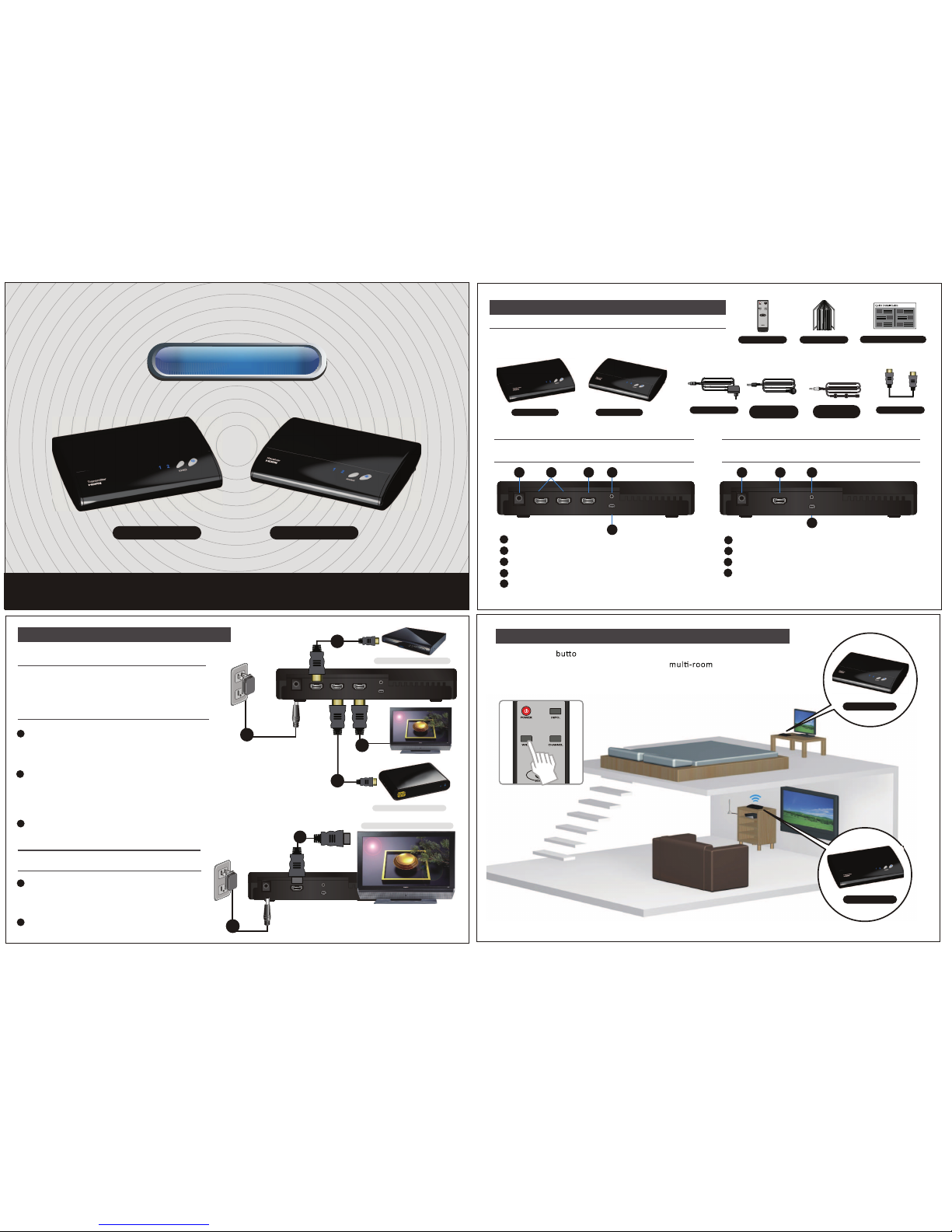
Part 1 Package Content and Connectors
transmi tter
Receiver
DC IN
HDM I OUT
IR IN
Servi ce Port
1
2
DC IN
IR IN
SERVICE
HDMI OUT
1
3
2
4
Rear View of the receiver
3
4
Quick Installation Guide
ZRC-0000
User 's Manu al
Powe r Adapto r x2
IR Sen sor
Exte nder Ca ble
Remo te Cont rol
DC IN
HDM I IN
HDM I OUT
IR OUT
Servi ce Port
5
6
7
Quic k Insta llati on Guid e
8
Rear View of the transmitter
IR Bla ster
Exte nder Ca ble
DC IN HDMI IN
IR OUT
8
5
SERVICE
HDMI IN HDMI OUT
6 7
9
9
Pre ss the Wi de n on the remo te con trol to enable the ''Wi de'' m ode for
lon ger di stanc e tran smiss ion; I ts suita ble fo r
aud io/vi deo
tra nsmis sion o r tra nsmiss ion be twee n diffe rent flo ors .
Part 3 Boost Video Transmission Range
HDMI C able
transmi tter
receiver
DC IN
IR IN
SERVICE
HDMI OUT
Part 2 Quick Installation Description
High Def. Fl at-pan el TV
1
Har dware Insta ll at io n
Con nect t he trans mitte r t o you r H D
sou rce de vi ce s:
two HD video /audi o sour ces
can be conne cted t o the trans mit ter via t he two
"HD MI IN" po rts
Use two HDMI ca bl es co nn ec ti ng t he trans mitte r
on o ne en d v ia "H DM I I N" , and t he other end to
the A/V sour ce s.
Use anoth er HD MI ca bl e to c on nec t one en d to
the via "H DM I OUT ", a nd th e o th er
end to th e H DTV 's "H DMI IN" port , only if the
loo p-thr ou gh fe at ure is desir ed .
Plu g in the p ow er ad ap te r t o the tra nsmit te r
and th e red PO WE R LED sho uld be li t in r ed .
Con nect t he recei ver to th e HDTV se t:
Con nect t he "H DM I O UT " por t o f the rec eiver
to t he "HDMI IN " por t o f the HD TV wit h a n
HDM I c ab le .
Con nect t he power adapt er to the re ceive r.
tra nsmit te r
HD Me dia Pl ayer
3
2
1
DC IN HDMI IN
IR OUT
SERVICE
HDMI IN HDMI OUT
Blu- ray Pl ayer
1
3
1
2
1
2
2
WHDI Device
Transmitter
Receiver
Page 2
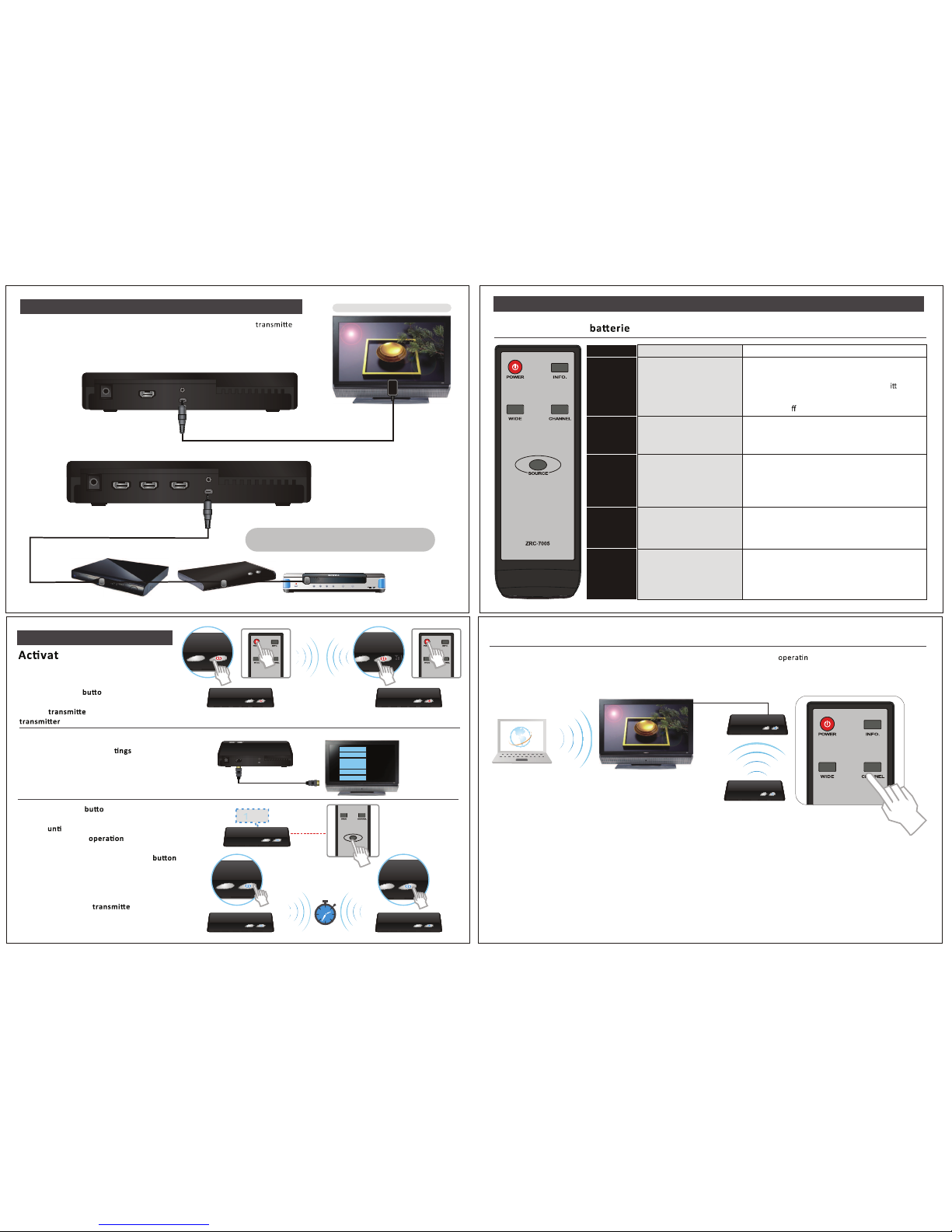
Pla ce th e two AAA s into the remo te contro l.
Part 5 Remote Control Unit Instruction
DC IN
IR IN
SERVICE
HDMI OUT
IR Sensor Extender cable
Hig h Def. Flat- panel TV
DC IN HDMI IN
IR OUT
SERVICE
HDMI IN HDMI OUT
IR Blaster Extender cable
If t he Inf ra red (I R) Blast er & Senso r (inc luded ) are con necte d to the
and so y ou can poi nt hand- held r emote con trols of your H D A/V
equ ipment at the re ceive r or at your H DTV inst ead of at the A/ V
equ ipment . The tra nsmis sion d istan ce is 65 feet , line -of-s ight.
r
rec eiver
Part 4 IR Blaster and Extender Setup
Y/Pb/ Pr
Video
RGB
S-Vid eo
HDM I
DC IN HDMI OUT
IR IN
12
SERVICE
Part 6 Operation
Pres s the POW ER n on t he remot e
con trol or on the top o f the
and to t urn on the
and r eceiv er.
Pow er on your TV set an d go to the
sou rce men u under t he set
men u
of y our HDTV s et.
The n selec t the HDM I input to which
the receiv er is con necte d.
Pres s the SOU RCE
n on t he remot e cont rol
or o n the top o f the recei ver to se lect t he inpu t
sou rce,
l ava ilabl e video /audi o is s hown o n
the TV screen . If al l
is nor mal, t he
POWE R LED a nd SOURCE LED wi ll be lit i n sol id
blu e, and t he user ca n press t he INF O
on
the remote co ntrol to check t he statu s of signa l
qua lity an d A/V sou rce sel ected .
NOTE : W hen th e system i s warmin g up, the R F
lin king be tween th e
r and the
rece iver w ill take up to one min ute to co nnect .
rece iver
the
r
1 2 1 2
NOT E:
1 2
1 2
1 2
Inter net
1 2
1 2 1 2
e the Devic e
and Set up the Link
DOLBY
DIGITAL
POWER
EXIT
MENU
SELECT
Blu -ray Pl ayer or H igh-D ef Set- top Box o r
Hig h-Def G ame Con sole
ZRC-0000
Bu tt on
PO W ER
IN F O .
SO U RC E
CH A N N E L
W I D E
(108 0i cont ent onl y)
FunctionDes cription
Press to turn the
Transmitter/Receiver
on/off.
Press to display between
"Channel","Source", "Resolution",
"WIDE mode" and ' Signal Q uality'
Press this button to change the
frequency of IR blaster among
38KHz, 47Kz and 58KHz .
Default frequency is 47KH z .
Press this button to change
between wireless channels manually
if the user experiences video noise.
Pressthisbuttontoboost video
transmissiondistancewirelessly.
The default settingistohave
thisfeature disabled.
Operation
Press once to display the current status.
Press again to exit OSD.
Pressonc eto displaythe current"Channel "status.
Pressagain within 5 secondsto switch toanother channel,
and thechannelnumberwill bedisplayed ontheOSD .
Pressthisbutto n toenablea nd disable W idemode.
Pressagain within 5 secondsto enableW IDE mode, and
the status will bedisplayedon theOSD .
Press it when pointing at the receiver to enter the
"Standby Mode" with the loop-through connection is
already on; press it w hen pointing
at the transm
er
to enter the "Standby Mode " with the loop-through
connection is o
.
Press once to display the c urrent frequency of IR blaster.
Press again to change to next frequency, a nd the frequency
will be displayed on the OSD .
If y ou have el ectro nic devic es suc h as cord less pho nes, w irele ss AC poin ts/ro uters g in th e 5GHz ban d and n ear the
dev ice, t he audio/ video quali ty on the displa y or TV may s uffe r. Pr ess the "C HANNE L" butto n twic e on the remo te con trol
to s witch to a n appropr iate c hanne l for the dev ice.
 Loading...