

Page 1
WFE Technology Corp.
1
■
Content
•
Specifcation
................................................................................................... 02
•
Appearance
.......................................................................................... 03
•
Program New User Card/Program New Pin Code
........................................... 04
•
Program New Finger P rin t/Open door with U ser Card ( L ock st atu s )
........... 05
•
Open door with Pin Code / Open door with Finger Print / Backup Mechanical Key
............06
•
Delete All User Cards / Delete All Pin Codes
................................................07
•
Dele t e Indiv i dual P i n Code / Delete All Fing e r Prin t .
....... . . ......... . . ......... 08
•
Se t Voice Vo lume /How to enable key al arm f unction. ............. ........ .................
09
•
How to A c tivat e / Dea c tivat e key al arm
............. . . . . .................. . . . . . ...10
•
Deactivate Security Mode/Low Battery Warning/Exter nal Power Supply
........... 11
•
Troubleshooting Q & AQ&A........................................................................................
12
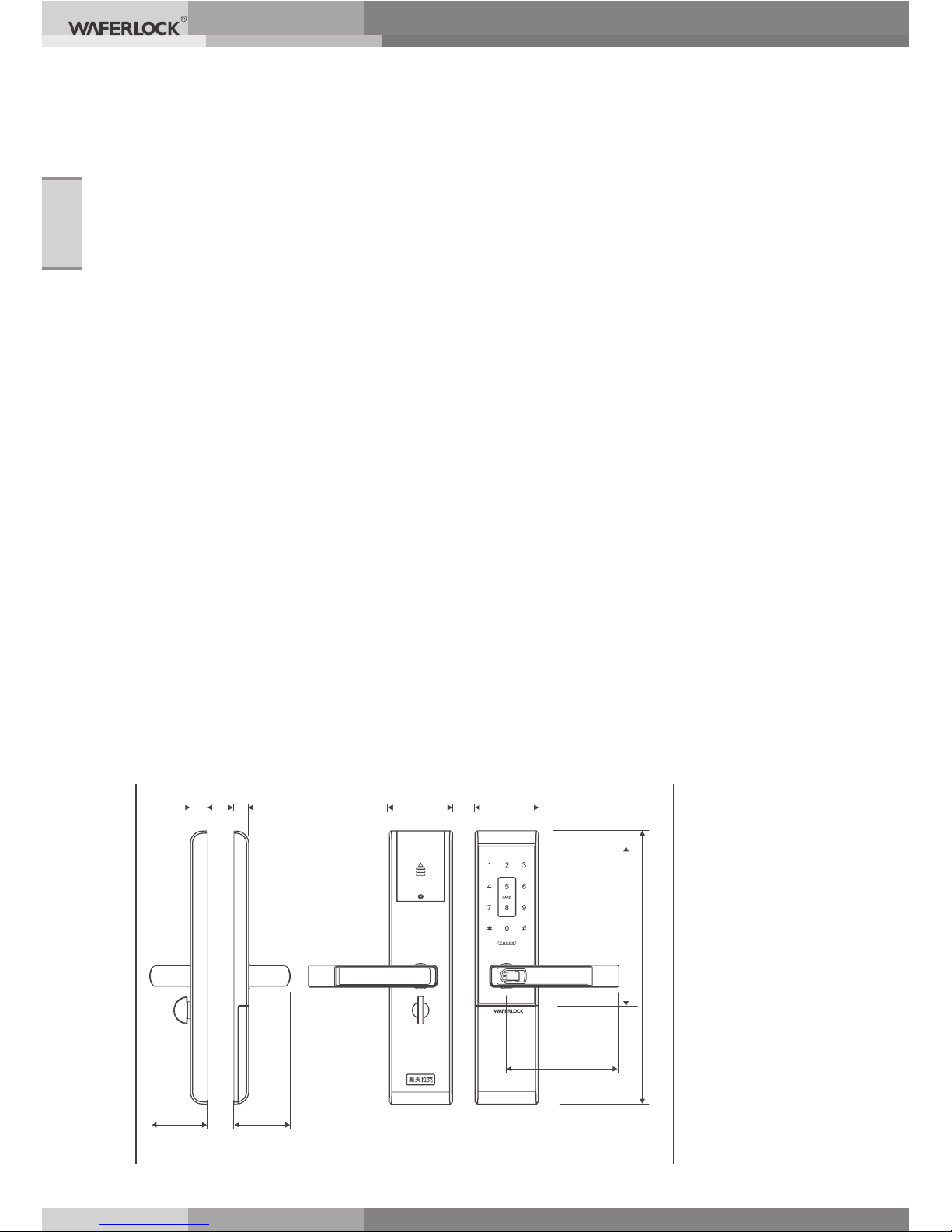
Measurements indicated in mm
20
17.5
75
130
75
67.5
66
183.6
320
Page 2

WFE Technology Corp.
2
■
SPECIFICATIONS
• Door thickness: (L379) 40mm ~ 100mm / (L779) 35mm~60mm
• Latch & Deadbolt: Solid Brass with Steel Roller
• Anti-panic Exit Function
• Mechanical Key Override
• Fingerprint + M-touch Panel keypad + Mifare Reader
• Transponder: Mifare Classic (13.56Mhz)
• Reading Distance up to 30 mm
• Total User Code & Card: 90
• Adjustable Voice Volume
• Battery Life: 60,000 Operation or 2 Years Standby
• Ba
ttery Spec: AAA 1.5V x 4pcs
• Smart Sleep Mode
• Acoustic Low Power Warning
• Operation Temperature:-20°C ~ 60°C
• Support 9V External Power Supply
• US ANSI Grade 1 Mortise Lock
• UL 3H Fire Rated Mortise Lock
Page 3
WFE Technology Corp.
3
■
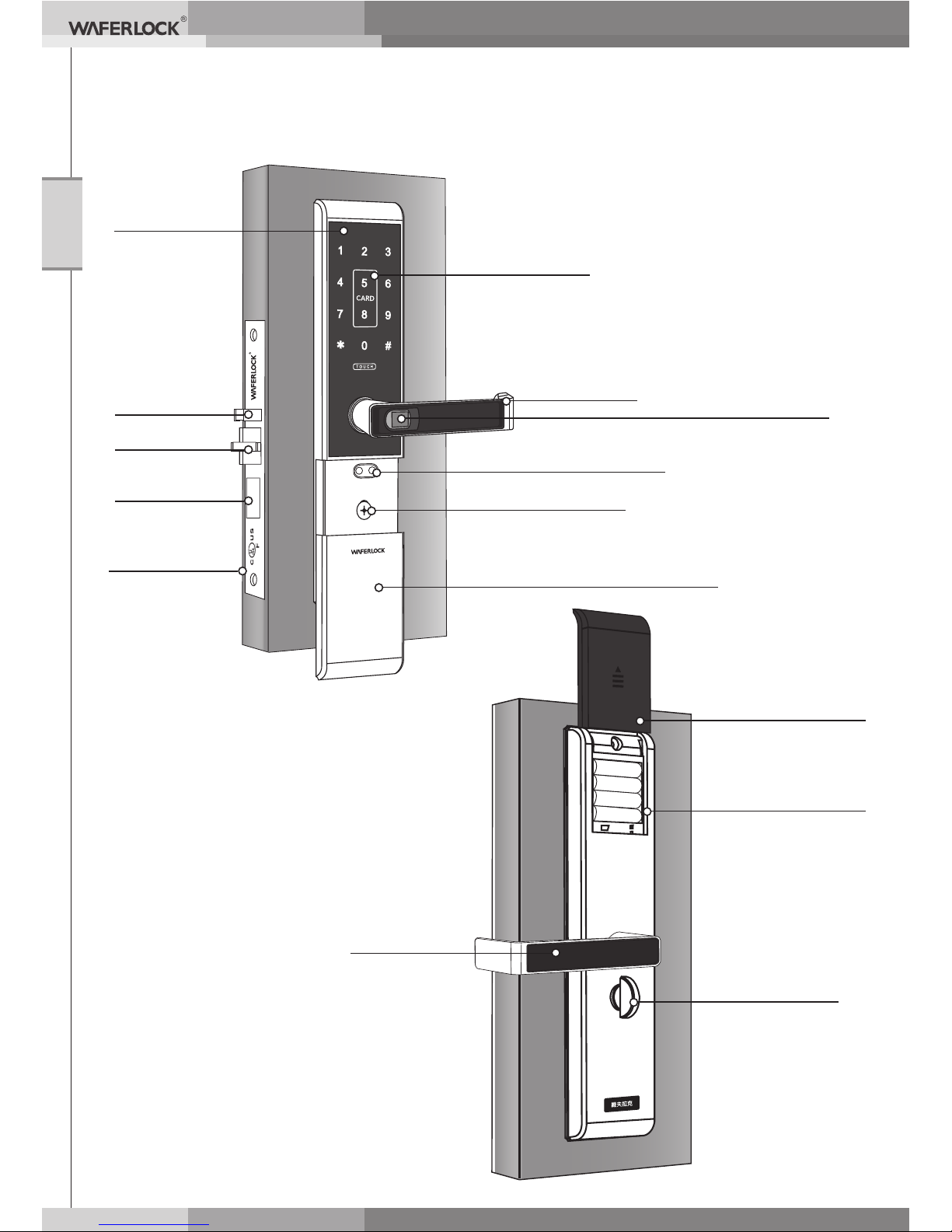
Apperance
Deadbolt
Key Pad
Card Reading Area
9V Battery Contact Point
Mechanical Cylinder
Mechanical Cylinder Slide Cover
Outer Handle
Finger Print Sensor
Latch
Tamper-proof
Sensor
Side Plate
Inner Handle
AAA Battery X 4pcs
Inner Knob
Battery Slide Cover
Page 4
WFE Technology Corp.
4
■
Operation
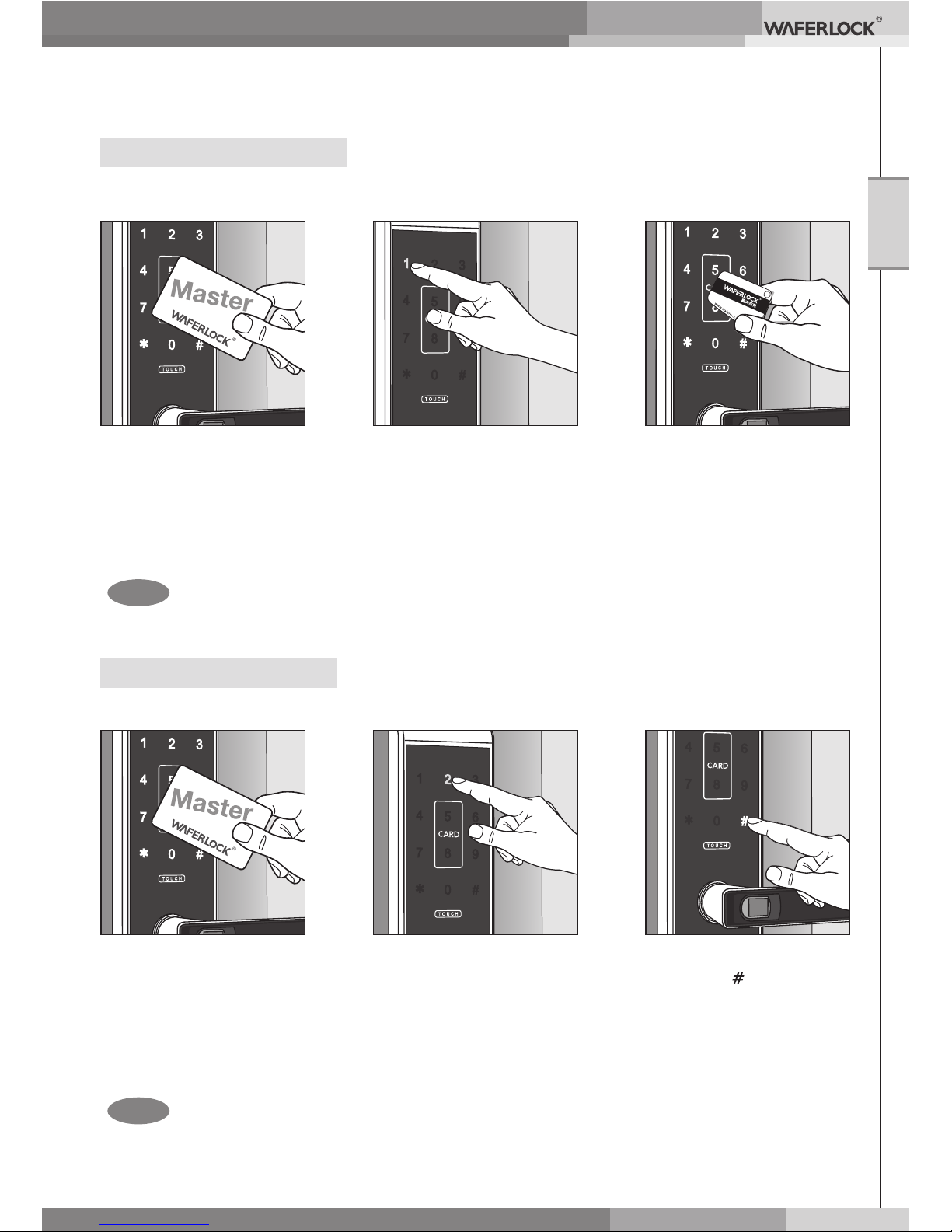
Program New User Card
●
You could program user cards continuously when blue light ashes
Step 1:
Step 1:
Step 2:
Step 2:
Step 3:
Step 3:
Approach the card you
would like to program
as user card, and there
will be a voice sound
meaning program is
successful.
Approach reading area
with programming card,
there will be a voice
sound instruction, and
number (1,2,3) light
ashes.
Press digit one, there
will be a voice sound,
and blue light ashes.
●
Press "touch" button and repeat step 3 to program new pin codes
during white light ashing.
●
When key in digits more or less than 6, there will short beeps X 4
and red lights X 2.
Program New Pin Code
Approach reading area
with programming card,
there will be a voice
sound instruction, and
number (1,2,3) light
ashes.
Press digit two, there
will be a voice sound,
numbers light up and blue
light ashes.
Key in 6 digit pin codes
and press as end up.
there will be a voice
sound meaning new
code is programmed
successfully.
Remark
Remark
Page 5
WFE Technology Corp.
5
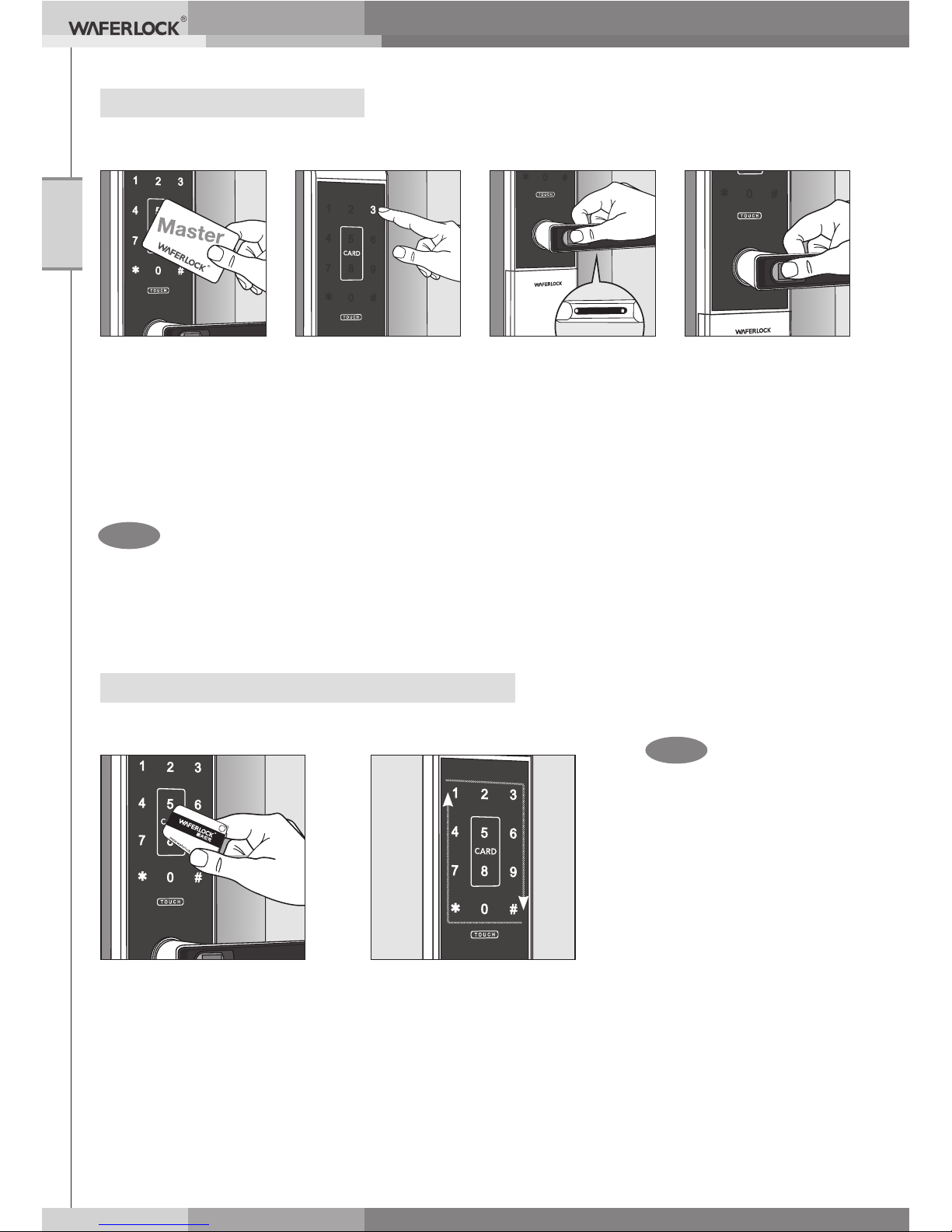
Open door with User Card ( Lock status )
Step 1: Step 2:
●
When user cards are
wrong, there will red
lightsX 2.
Approach reading area
with user cards, and
there will be a voice
sound meaning door
unlock.
White numbers light up
in cycles and open door.
●
The max. is 20 sets to program nger prints.
●
Water will aect the sensitivities, so please swab the water and make sure there is no
water on the sensor before using your nger print.
●
Kid nger prints may change during the growth. Please reprogram again when it is invalid.
Program New Finger Print
Step 2: Step 3:
Step 4:
Press digit three,
there will be a voice
sound, and blue light
ashes.
Press the nger
print wakeup button
and follow the voice
instruction to press
the sensor with your
nger print.
Follow the voice
instruction to
remove your nger
print and repress
until you hear voice
instruction, nger
print is programmed.
Approach
reading area with
programming card,
there will be a voice
sound instruction,
and number (1,2,3)
light ashes.
Step 1:
Remark
Remark
Page 6
WFE Technology Corp.
6
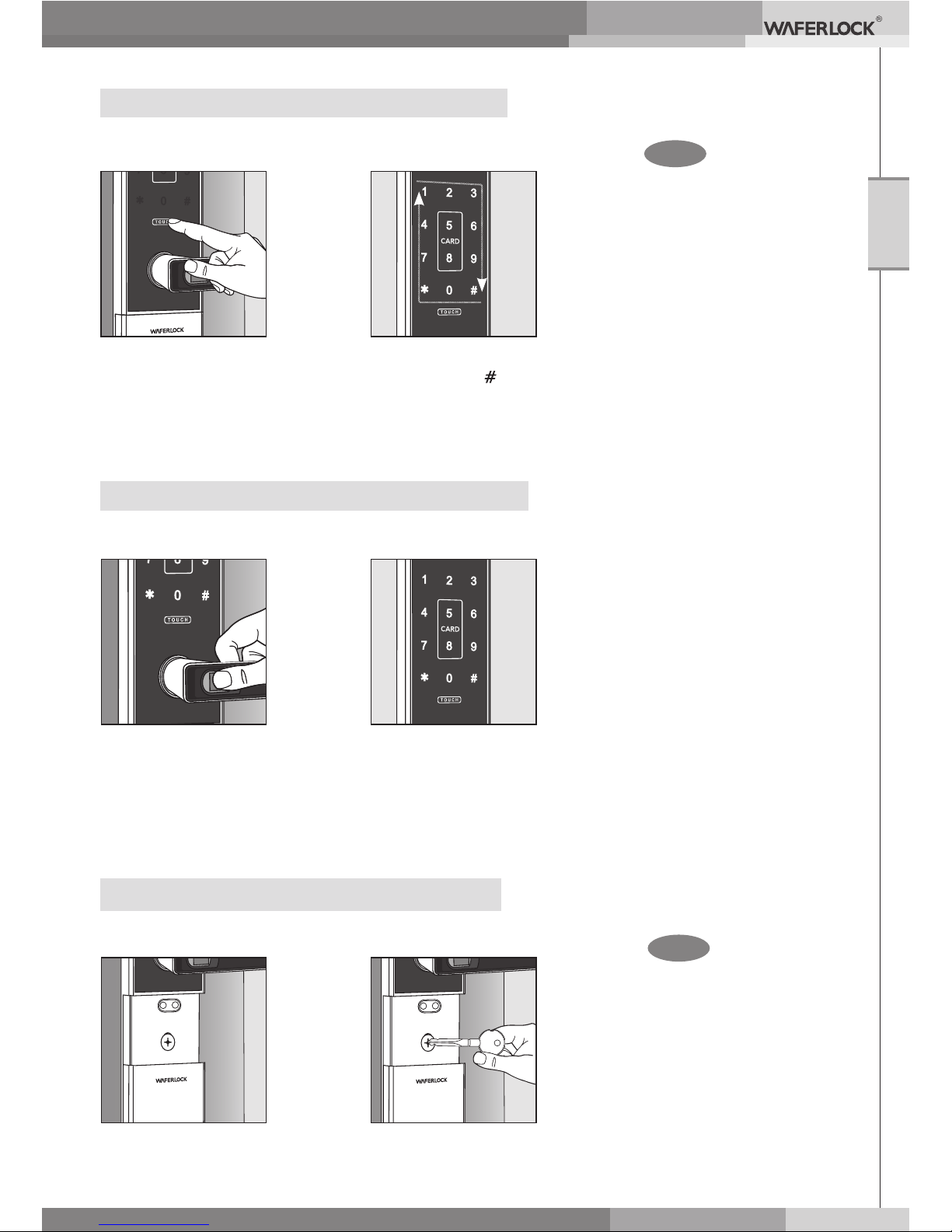
Open door with Finger Print ( Lock status )
Backup Mechanical Key
( Lock status )
Open door with Pin Code ( Lock status )
●
When key in wrong pin
codes 5 times, door
key pad will be locked
automatically and. key
pad will not response to
any codes until using
programmed user
cards to open door or 3
minutes pass.
●
When pin codes are
wrong, there will short
beeps X 4 and red
lightsX 2.
●
Press wakeup "TOUCH"
button again, and rekey
the pin codes when
pressing wrong number.
Step 2:
Step 2:
Step 2:
Press wakeup
"TOUCH" button
and white numbers
light up.
Press 6 digit pin codes
and end with , and there
will be a voice sound with
white numbers light up
in cycles meaning door
unlock, and open door.
Step 1:
Step 1:
Step 1:
Hold the outer handle and
press nger print wakeup
button. When LED light
up, press the sensor with
thumb, and there will be a
voice sound meaning door
unlock.
Slide the cover
down to bottom.
White numbers
light up in cycles
meaning door
unlock, and open
door.
Use mechanical key
to unlock and open
door.
● Using mechanical key
does not go through
electronic control, so it
will trigger alarm.
Please use programmed
user cards or pind codes
to disarm the alarm.
Remark
Remark
Page 7
WFE Technology Corp.
7
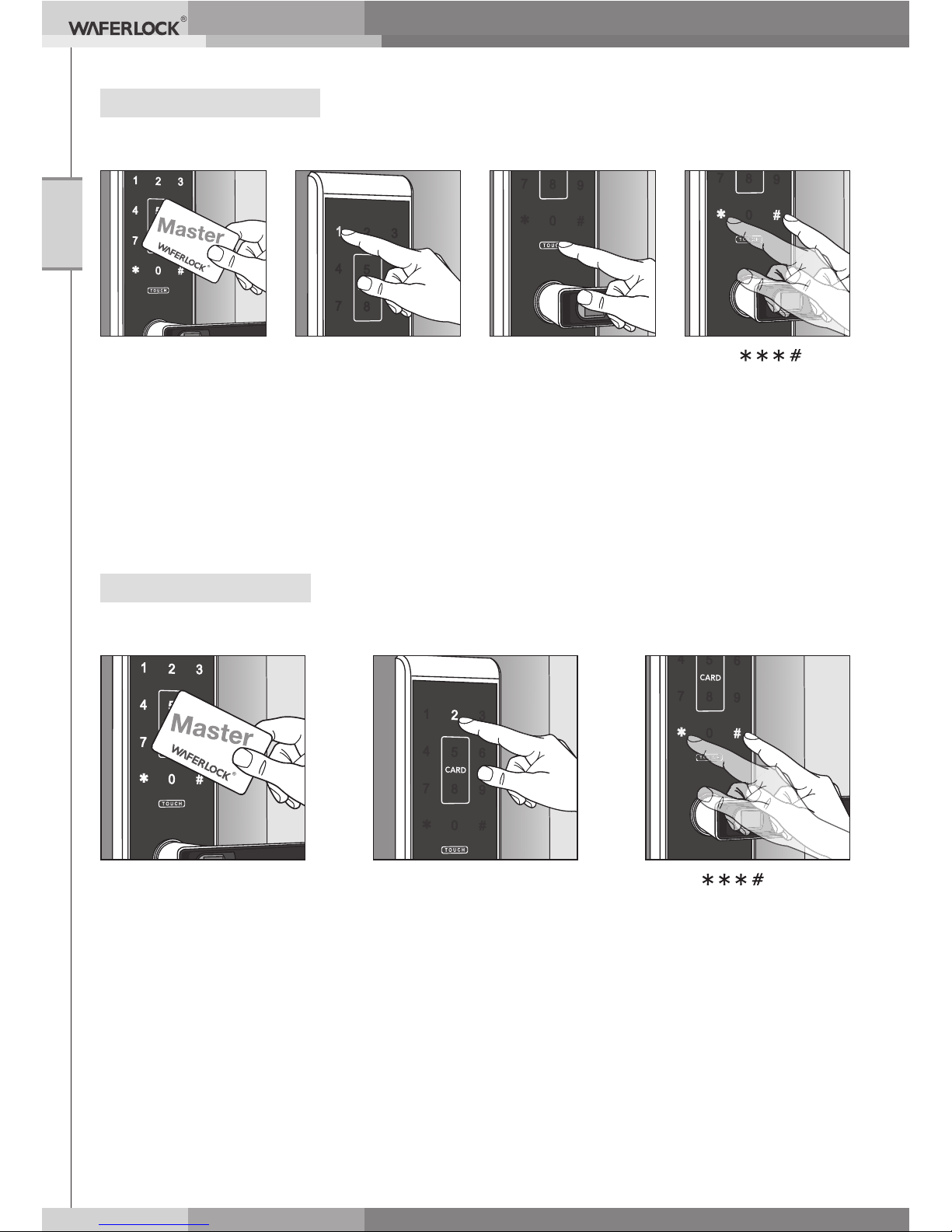
Delete All User Cards
Step 2: Step 3:
Step 4:
Press digit one,
there will be a voice
sound, and blue light
ashes.
Press wakeup
"TOUCH" button and
numbers light up.
Key in
, and
there will be a voice
sound instruction
meaning all user
cards are deleted,
then light off.
Approach
reading area with
programming card,
there will be a voice
sound instruction,
and number (1,2,3)
light ashes.
Step 1:
Delete All Pin Codes
Approach reading area
with programming card,
there will be a voice
sound instruction, and
number (1,2,3) light
ashes.
Step 1: Step 2: Step 3:
Press digit two, there
will be a voice sound,
numbers light up and
blue light ashes.
Key in , and
there will be a voice
sound instruction
meaning all pin codes
are deleted, then light
off.
Page 8
WFE Technology Corp.
8
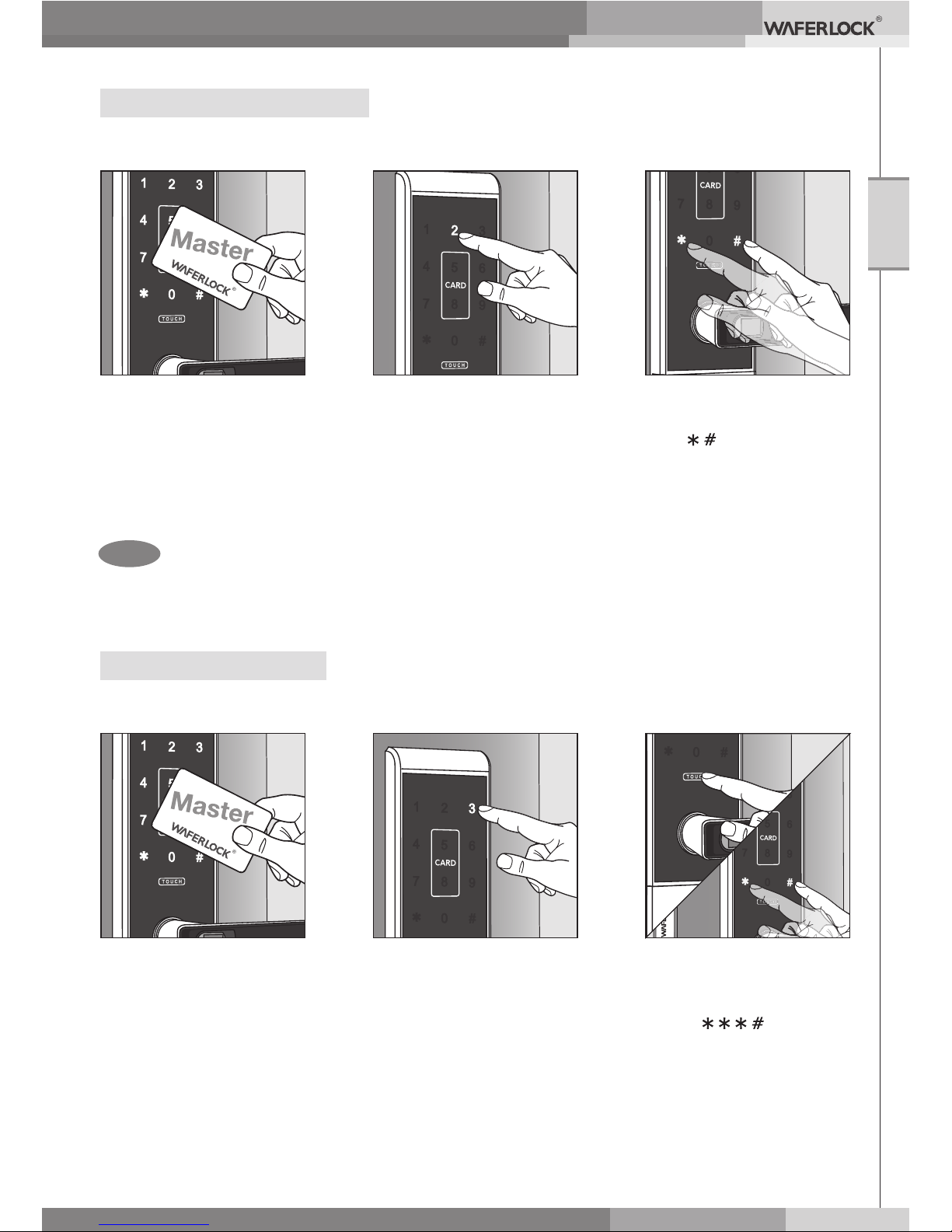
Delete All Finger Print
Approach reading area
with programming card,
there will be a voice
sound instruction, and
number (1,2,3) light
ashes.
Step 1: Step 2: Step 3:
Press digit three, there
will be a voice sound,
numbers light up and
blue light ashes.
Press wakeup "TOUCH"
button and numbers
light up.
Key in , and
there will be a voice
sound instruction
meaning all user cards
are deleted, then light
off.
●
Press "touch" button and repeat step 3 to program new pin codes during
blue light ashing.
●
When pin codes are wrong, there will short beeps X 4 and red lights X 2.
Delete Individual Pin Code
Step 1: Step 2: Step 3:
Approach reading area
with programming card,
there will be a voice
sound instruction, and
number (1,2,3) light
ashes.
Press digit two, there
will be a voice sound,
numbers light up and
blue light ashes.
Key in the pin code you
would like to delete, and
then
. There will be
a voice sound meaning
the pin code is deleted.
Remark
Page 9
WFE Technology Corp.
9
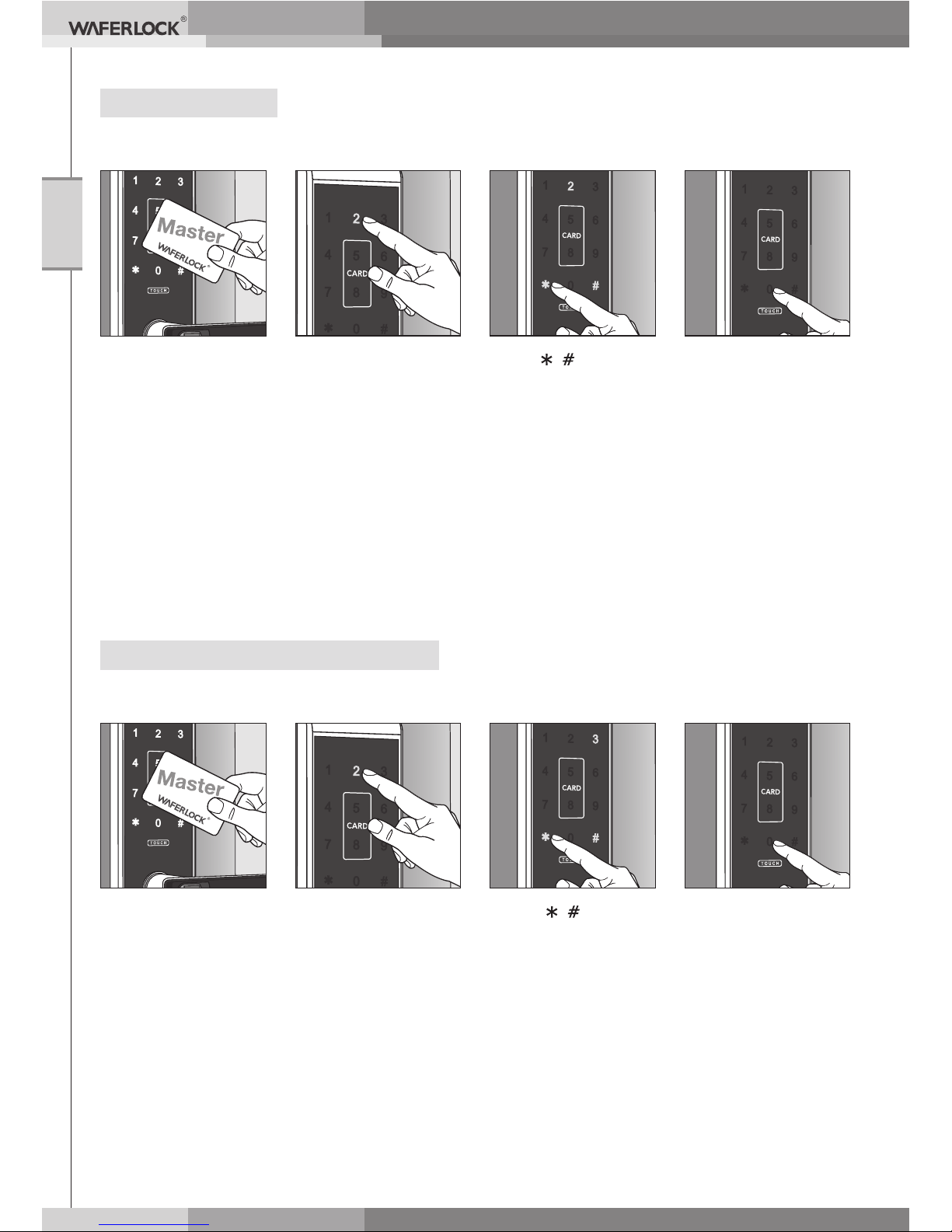
Set Voice Volume
Approach
reading area with
programming card,
there will be a voice
sound instruction,
and number (1,2,3)
light ashes.
Step 1: Step 2: Step 4:Step 3:
Press digit two,
there will be a voice
sound, numbers light
up and blue light
ashes.
Press( 3 ) to
enter voice volume
setting
press:
001# to change to
silence mode with
two short beeps.
or 002#, to change
to low voice mode
with two short
beeps.
or 003#, to change
to loud voice mode
with two short
beeps.
How to enable key alarm function
Approach
reading area with
programming card,
there will be a voice
sound instruction,
and number (1,2,3)
light ashes.
Step 1: Step 2: Step 4:Step 3:
Press digit two,
there will be a voice
sound, numbers light
up and blue light
ashes.
Press( 3 ) to enter
alarm setting
『0 01#』:
Disable key alarm
『0 02#』:
Enable key alarm
Page 10
WFE Technology Corp.
10
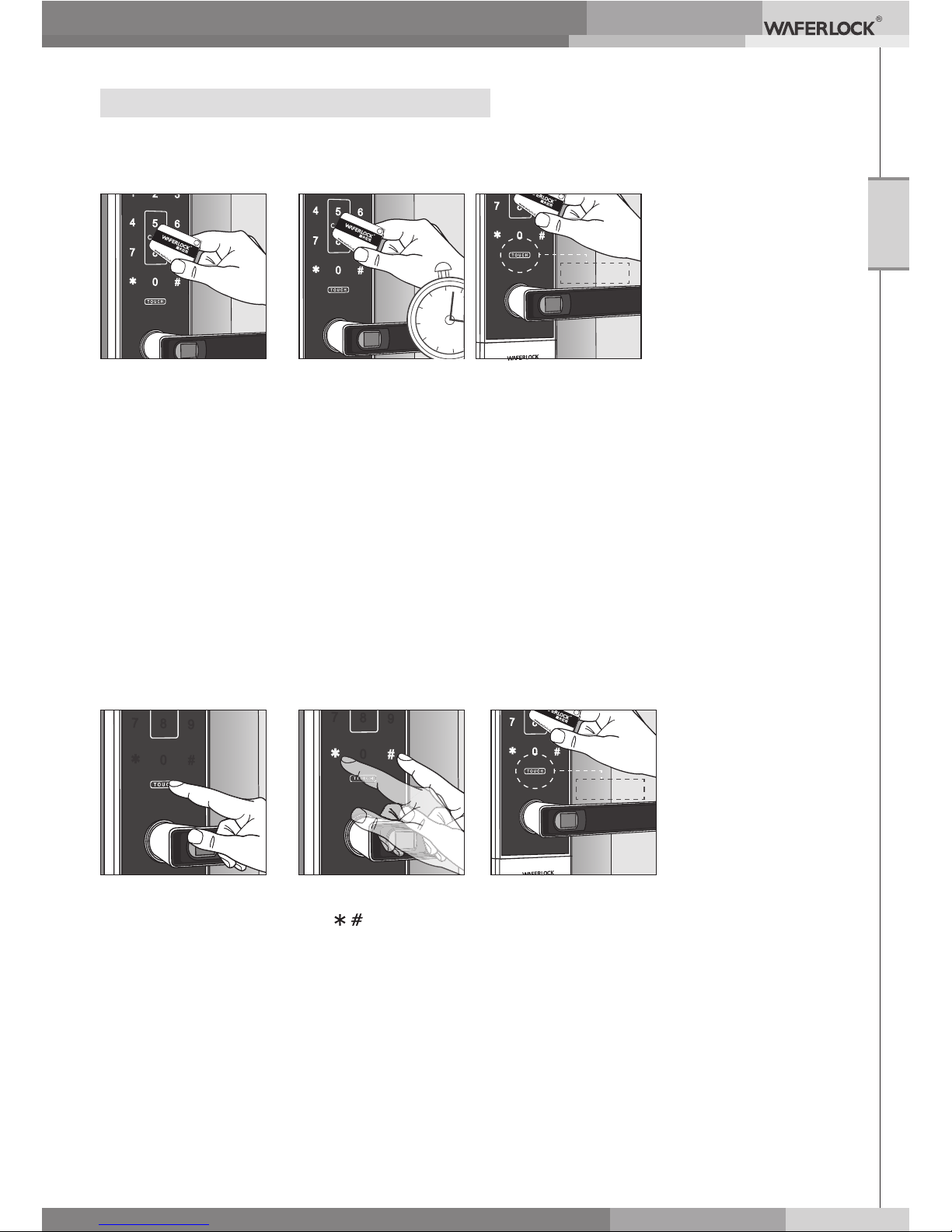
Approach reading
area with user card.
Step 1: Step 2:
Steady the user cards at reading area for 5
seconds, and there will be long beep with
blue light on meaning the security mode is
setting.
5
s
e
c
Press "TOUCH"
button and numbers
light up.
Step 1: Step 2: Step 3:
Key in pin codes
and . There will
be a voice sound,
door lock, no matter
it is lock or unlock
status.
there will be long
beep with blue light
on meaning the
security mode is
setting.
How to Activate / Deactivate key alarm
Activate by card
:
Activate by Pin code
:
blue light
blue light
Page 11
WFE Technology Corp.
11
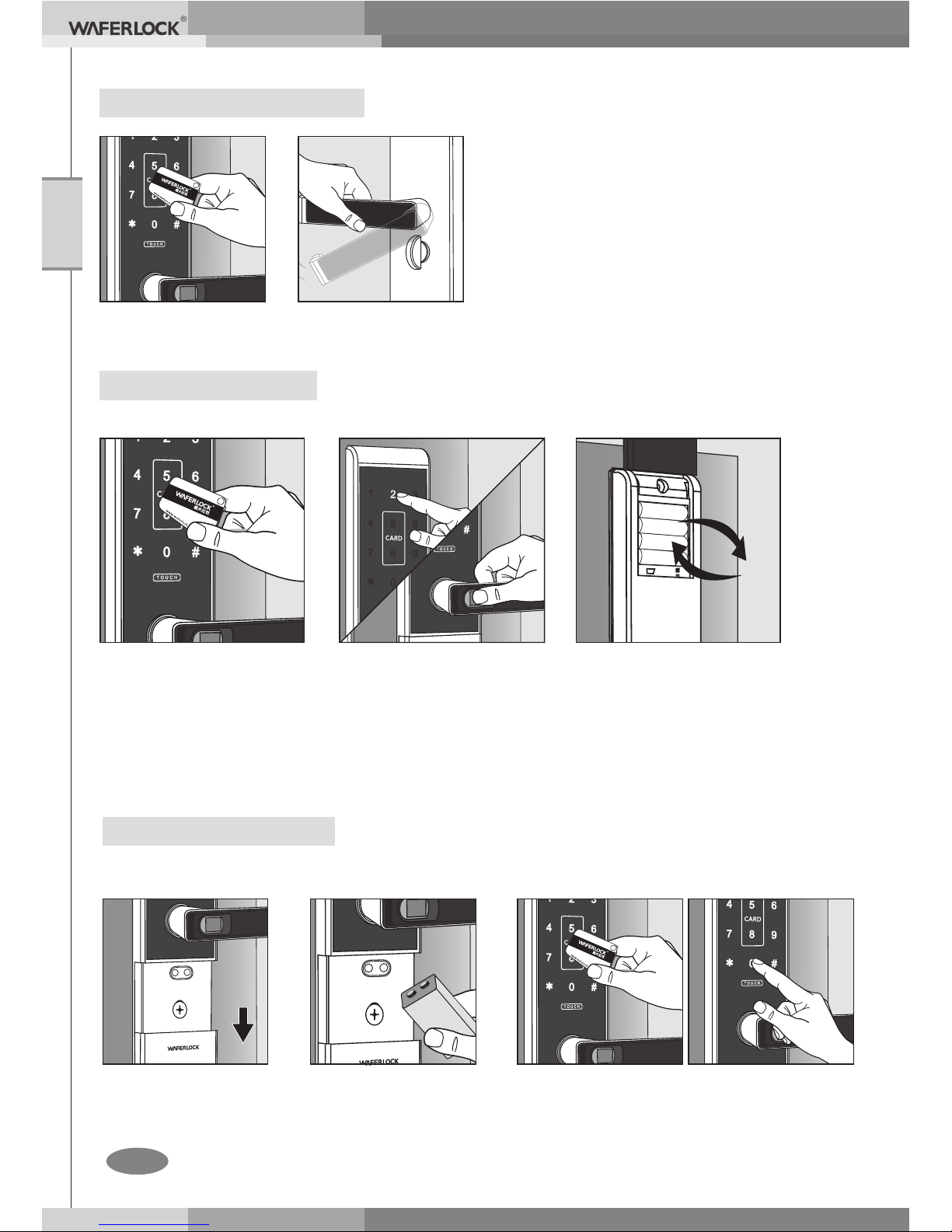
Low Battery Warning
Step 2:Step 1:
When using pin codes/
nger print to open or
lock door…
Silence mode: if the buzzer play 3
short beep 5 times and Touch button
ash blue LED 5 times.
Sound mode: if the voice says
(Door opened, please change the
batteries)
It means the battery power is low,
please change the battery as soon
as possible.
When using user cards
to open or lock door, or
programming card to
program…
OR
Please replace batteries immediately once door open, then remove
the 9V battery, and slide the cover up to close position.
External Power Supply
Slide the cover
down to bottom.
Step 1: Step 2: Step 3:
Connect 9V battery
with contact points.
Using programmed user cards, pin
codes, or nger print to unlock door.
Deactivate Security Mode
Use Programmed user card to unlock door.
Remark
Page 12

WFE Technology Corp.
12
Q: Why cannot open door when unlocking door with user card, there is no beep
sound and light signal?
A: Batteries probably have no power totally. Please use mechanical key or 9V
external power supply with user card or pin codes to open door, and change
batteries immediately. If the same problem is there, please contact local
distributor for service.
Q: Why cannot open door when reading user card wit
hout beep sound and red
light ash?
A: The user card may be deleted. Please use programming card to program the
user card again. If thesame problem is there, please contact local distributor
for service.
Q: Why there is no voice instruction when unlock door or lock door?
A: May be the voice is turn off. Please follow the steps on page 15 to change the
voice volume. If the same problem is there, pleas
e contact local distributor for
service.
Q: Why cannot key in pin codes?
A: When key in wrong pin codes 5 times, door key pad will be locked
automatically and. key pad will not response to any codes until using
programmed user cards to open door or 3 minutes pass.
Q: Why cannot program new user cards or pin codes?
A: The max. is 90 sets to program cards and pin codes. There will be 10 beep
sounds and
red light ashing 3 times when reaching max. number. Please
delete all user cards or some pin codes before programming new one.
* Please contact local distributor for service if your questions are not in the
above list.
■
Troubleshooting Q & A
Page 13

WFE Technology Corp.
13
Federal Communication Commission Interference Statement
This equipment has been tested and found to comply with the limits for a Class B digital
device, pursuant to Part 15 of the FCC Rules. These limits are designed to provide
reasonable protection against harmful interference in a residential installation.
This equipment generates, uses and can radiate radio frequency energy and, if not
installed and used in accordance with the instructions, may cause harmful interference
to radio communications. However, there is no guarantee that interference will not occur
in a particular installation. If this equipment does cause harmful interference to radio or
television reception, which can be determined by turning the equipment off and on, the user
is encouraged to try to correct the interference by one of the following measures:
. Reorient or relocate the receiving antenna.
. Increase the separation between the equipment and receiver.
. Connect the equipment into an outlet on a circuit different from that to which the receiver
is connected.
. Consult the dealer or an experienced radio/TV technician for help.
FCC Caution: To assure continued compliance, any changes or modications not expressly
approved by the party responsible for compliance could void the user's authority to operate
this equipment. (Example - use only shielded interface cables when connecting to computer
or peripheral devices).
This device complies with Part 15 of the FCC Rules. Operation is subject to the following
two conditions:
(1) This device may not cause harmful interference, and (2) This device must accept any
interference received, including interference that may cause undesired operation.
Page 14

WFE Technology Corp.
14
Page 15

WFE Technology Corporation
Page 16
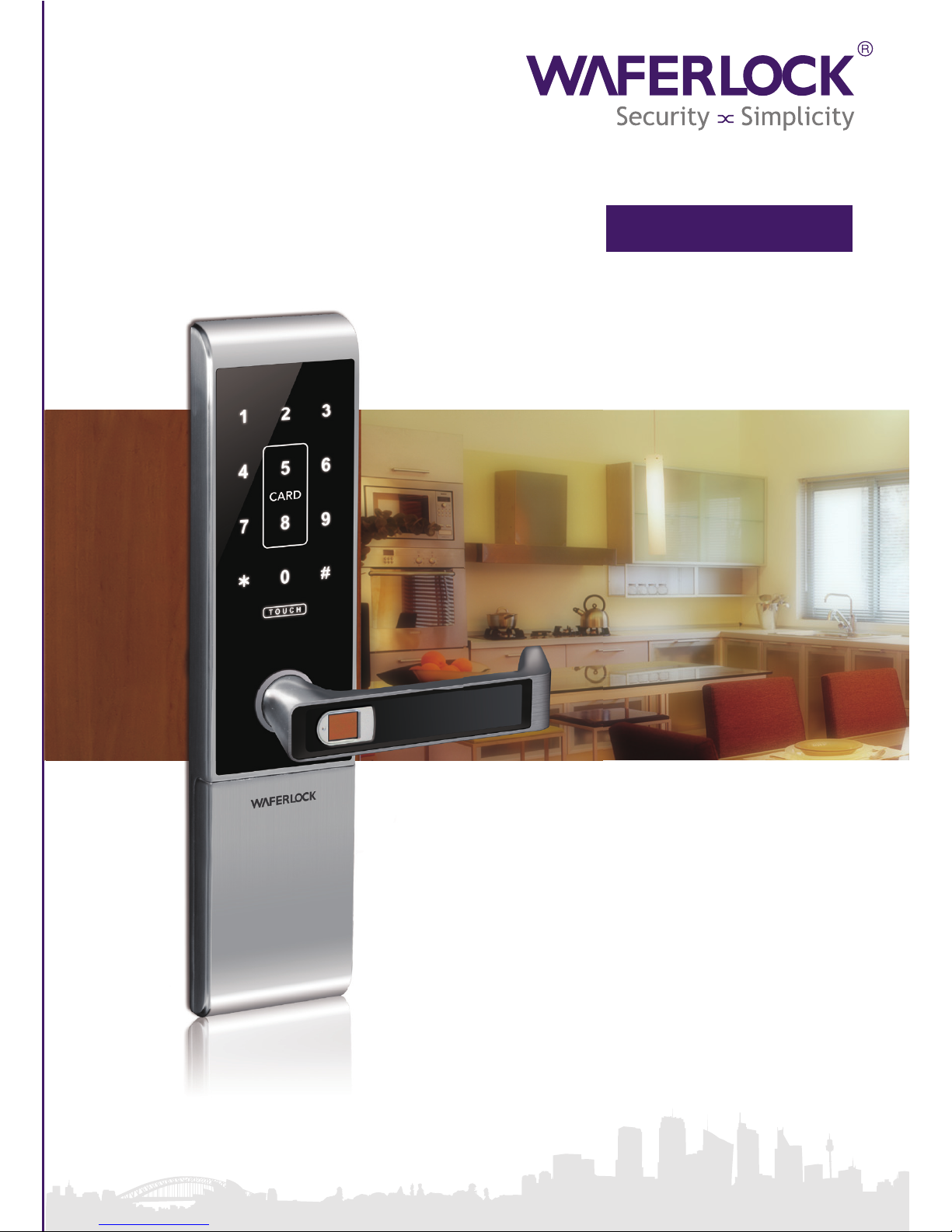
L379 / L779
www.waferlock.com
ISO 9001:2015
RFID Electronic Lock
User Manual
 Loading...