

Page 1
Confidential Page 1 6/4/2008
PC-EFTPOS
Reference Guide
Version 1.08
April 2008
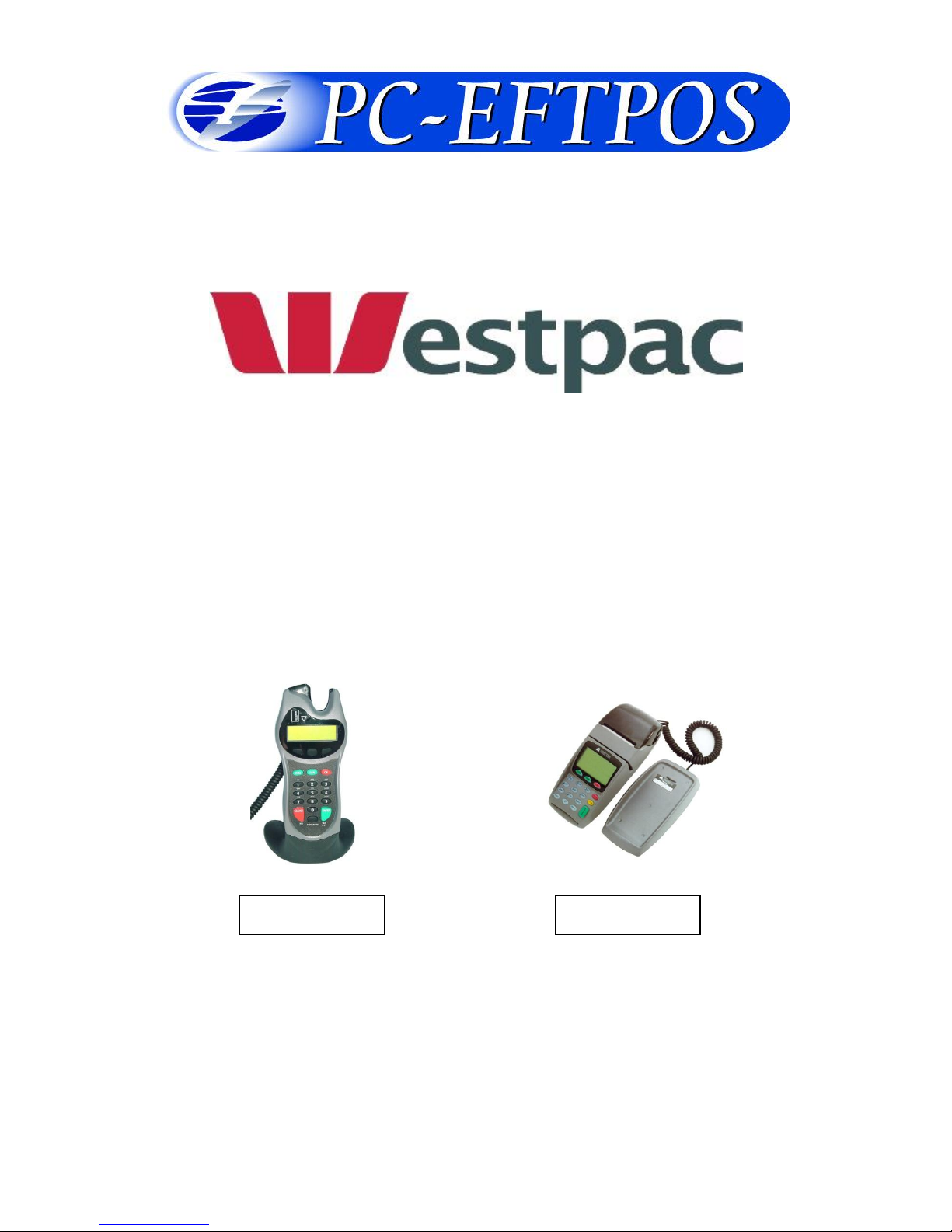
PX328
NPT-710
Page 2

Confidential Page 2 6/4/2008
Table of Contents
PC-EFTPOS Contact Details ............................................................................................................................. 2
Introduction ........................................................................................................................................................ 2
Using PC-EFTPOS with a POS ......................................................................................................................... 3
Westpac Specific Details ................................................................................................................................... 3
Terminal Functionality Supported by Westpac ................................................................................................. 3
PC-EFTPOS Overview ...................................................................................................................................... 4
PC-EFTPOS Hardware Installation ................................................................................................................... 5
PC-EFTPOS Software Installation .................................................................................................................... 7
Function Key Menu’s ........................................................................................................................................ 8
Standalone Mode ............................................................................................................................................. 10
System Timeouts .............................................................................................................................................. 12
PC-EFTPOS Generated Response Codes ........................................................................................................ 12
Bank Generated Response Codes .................................................................................................................... 14
TMS Generated Response Codes ..................................................................................................................... 16
Argent Error Codes .......................................................................................................................................... 17
Settlement Receipts and Options ..................................................................................................................... 19
Receipt Layouts ............................................................................................................................................... 22
Trouble Shooting ............................................................................................................................................. 24
Who to Contact for Help .................................................................................................................................. 26
PC-EFTPOS Contact Details
PC-EFTPOS office hours are Monday to Friday, 8:30am to 5:30pm EST.
PC-EFTPOS Reception: Phone (02) 9998 9800
PC-EFTPOS Website: http://www.pceftpos.com/
Support Website: http://support.pceftpos.com/
General Enquiries Email: [email protected]
Introduction
The PC-EFTPOS terminal allows online transactions to be processed for Debit Cards (Savings and Cheque
accounts), Credit Cards (Bankcard, Visa and MasterCard) and Charge Cards (American Express, Diners
Club and JCB)
The features of PC-EFTPOS include:
Process Purchases, Cashout, Refunds
Process Mail/Telephone Order Transactions
Integrate to POS
Standalone EFTPOS terminal (model NPT710 only)
PSTN, Argent ISDN or WAN communications
Page 3

Confidential Page 3 6/4/2008
Using PC-EFTPOS with a POS
When PC-EFTPOS is configured to be used with a POS, all the EFTPOS functionality is initiated through
the POS. Consult your POS vendor on the operation of EFTPOS through your POS.
When configured in Standalone Lite Mode PC-EFTPOS offers a limited functionality standalone EFTPOS
pinpad. Depending on the model the pinpad can be configured to use the internal modem or an external
connection via a PC.
Westpac Specific Details
Westpac Help Desk Number: 1800 029 749
Requires a terminal ID (8 digits), Merchant ID (8 digits)
Dial-up system uses TPDU headers. The default NII is 020
Terminal Functionality Supported by Westpac
Functionality
EFTPOS Functionality:
Purchase
Cash Out
Refund
MOTO processing
Pre-Authorisation
Completion
Tipping
Training Mode
Balance Enquiry
Voucher Entry
Electronic Fallback (EFB)
EMV processing
Settlement Options
Settlement
Pre-Settlement
Last Settlement
Sub-Totals
Summary Totals
Shift Totals
Hardware Options:
PX318 Pinpad
PX328 Pinpad
PX368 Pinpad
NPT Terminal
Page 4
Confidential Page 4 6/4/2008
PC-EFTPOS Overview
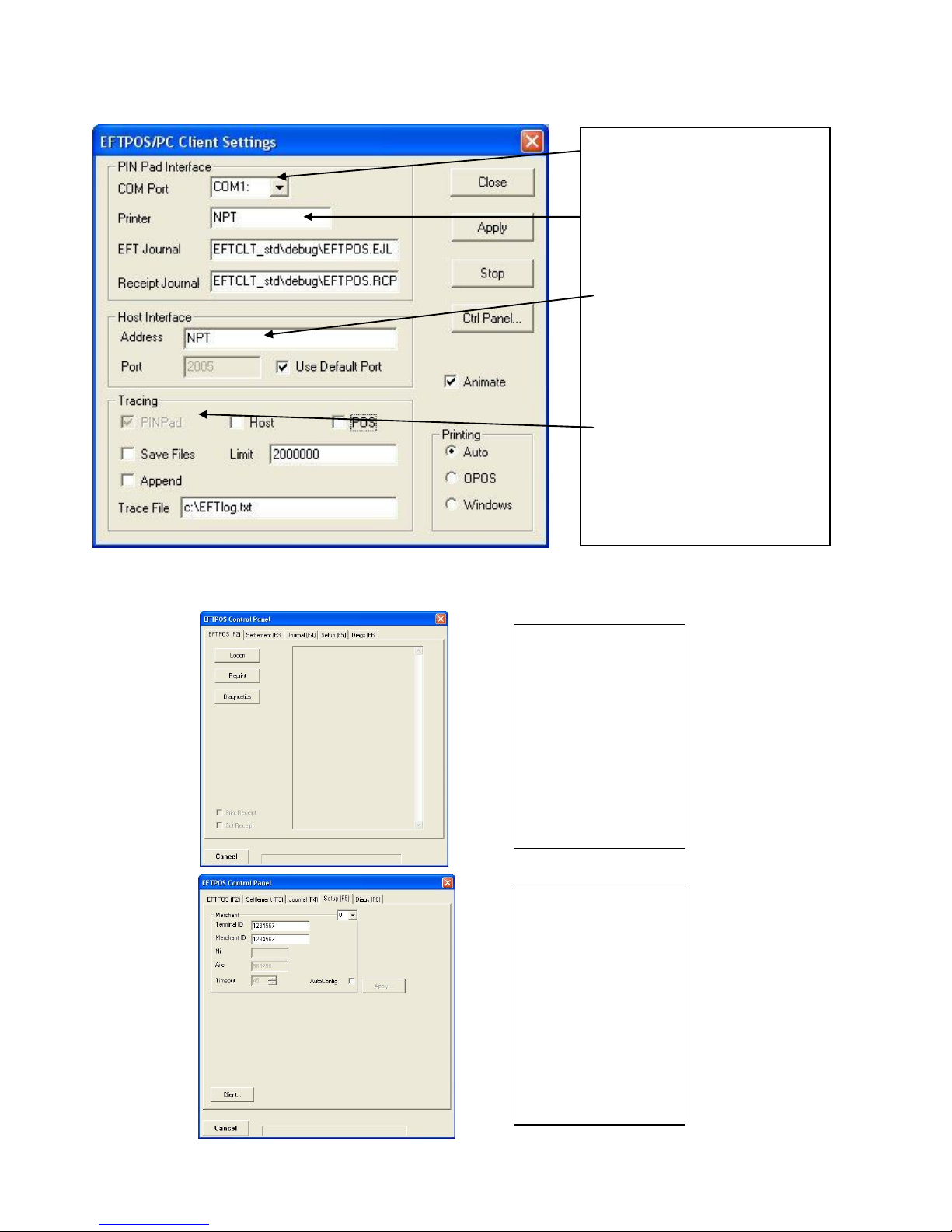
EFT-Client Settings:
EFTPOS Control Panel
Press the control panel button on the Client settings page (above) to activate the control panel.
COM port: that the pinpad is
plugged into.
Printer: (Not used when POS is
printing). NPT denotes using
the internal printer of NPT
Host Interface: This is
normally blank. It is the IP
address of the EFTSRV which
is normally on this machine.
NPT indicates to use the
internal NPT modem.
Tracing: This is enabled by
default and records information
on the hard-drive to help us
track down any issues.
Logon: Performs a
logon to the host
Reprint: reprints
last receipt
Diagnostics:
Provides reports on
s/w configuration
and version
Setup Page:
Enter terminal
details.
Press APPLY and
then 7410 as the
password
Page 5

Confidential Page 5 6/4/2008
PC-EFTPOS Hardware Installation
PX328 EFTPOS PINpad
Supplied Equipment with terminal:
EFTPOS PINpad
PINpad Power Supply
Installation Steps
1. Plug the supplied power adaptor into a
power point
2. Connect the power supplies DB9 connector
into the PC Com Port that will be used for the
PINpad
3. Plug the PINpad into the RJ45 connector on
the powered adaptor
NPT-710 EFTPOS Terminal
Supplied Equipment with terminal:
NPT-710 Terminal
Power brick and cord
POS connector cable (RS232 Cable)
Dial-up phone cable
Installation Steps
1. Power the terminal. Connect the brick and
cord then plug into a power point.
2. Connect the power adaptor to the power
socket on the back of the terminal
3. Connect the RS232 cable (supplied) to the
COM port on the back of the PC (normally
COM 1)
4. For a terminal integrated to a POS, connect
the other end of the RS232 cable to the RS232
connector on the back of the terminal. (The
slot next to the power supply)
5. If the terminal is using the internal modem,
plug the phone cable in to the phone connector
on the back of the terminal.
Page 6
Confidential Page 6 6/4/2008
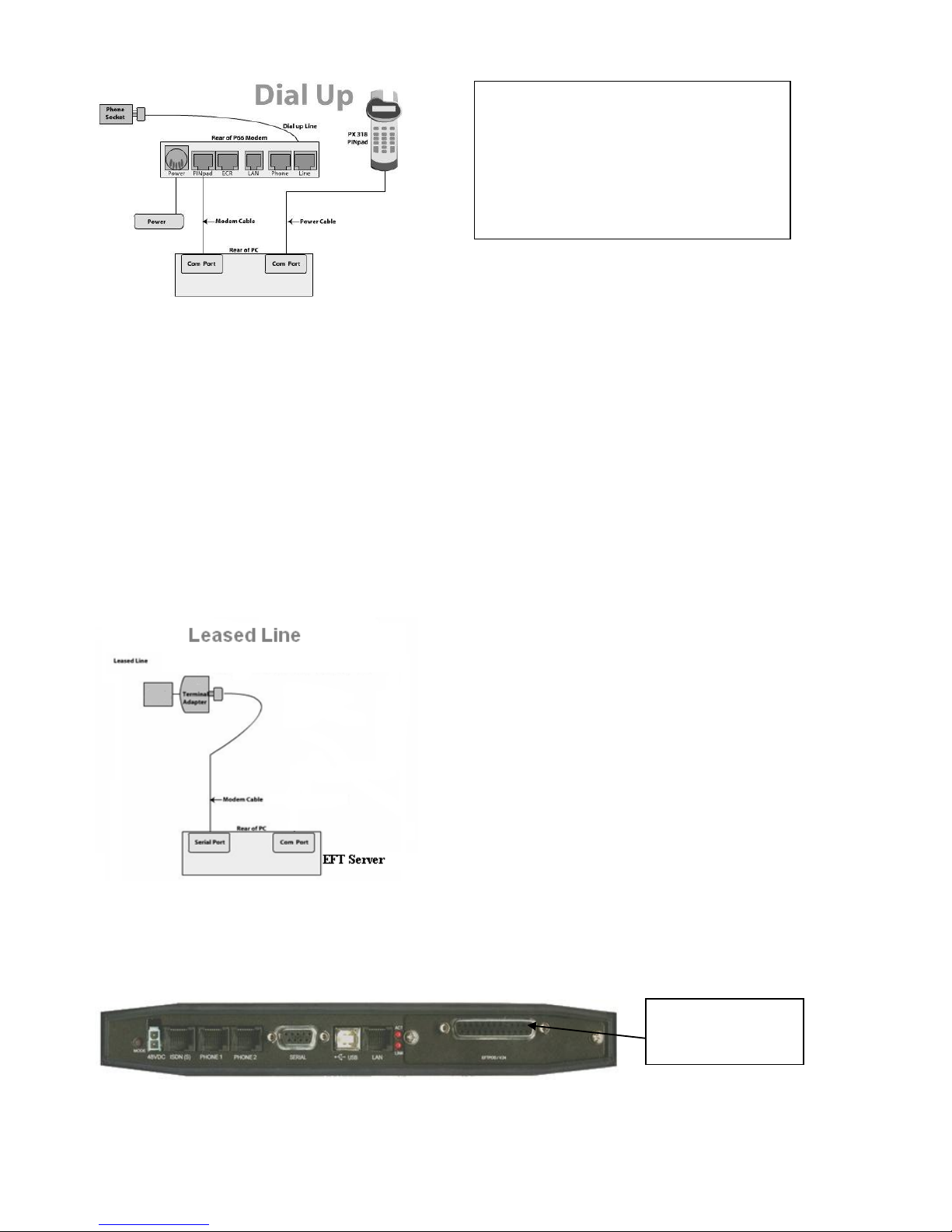
P66 Dialup Modem
Installation Steps
1. Power the P66 modem
2. Connect the power adaptor to the power socket on the back of the modem, and plug the cord into a
power socket.
3. Connect the P60 Load cable (modem cable) into the “PINpad” slot and the other end to the com port
on the pc.
4. Connect the Dial Up phone cable into the “Line” slot and the other end into the phone socket in the
wall.
Telstra Argent Terminal Adapter
Telstra use an ATA. Optus supply an MTA.
PC-EFTPOS connects to both devices the same way.
Argent Enhanced Terminal Adaptor Back-plate
Supplied Equipment:
P66 Modem
Power brick and cord
P60 Load Cable (Modem cable)
Dial Up Phone Cable
RS232 cable
connects to here
Argent does not need a P66 modem
The connection from ATA to PC is via a
standard 25-pin to 9-pin RS232 modem cable.
This is generally not supplied by Telstra and
will need to be purchased separately.
See back-plate of ATA for correct connection
of RS232 cable.
You will need your “POSAME” or “Argent
Terminal ID” when installing the Telstra ATA.
You can get this number from Telstra or your
bank. The Telstra Argent help desk number is
1300137100 option 4. Ensure you have your
Argent line number ready when you call.
Page 7
Confidential Page 7 6/4/2008
PC-EFTPOS Software Installation
1. Install Terminal
See Hardware Installation for PINpad.
2. Install Software
If the POS does not have the latest PC-EFTPOS software installed, install the software from the PCEFTPOS installation CD, or the setup file available for download from our website.
Follow installation wizard closely.
3. Configure Terminal
To configure the terminal, either
Press FUNC, 7410, ENTER, 1 and then enter the Terminal ID (8 digits) and then 2, ENTER and
enter the Merchant ID (8 digits).
From the Client Control Panel, go to the setup page and enter the details and press APPLY. The
confirmation password is 2468
OR
Consult your POS provider to see how the details are entered into the POS
6. TMS Logon
You must complete a successful TMS logon before you can attempt a bank logon. To do the TMS logon
press the FUNC key on the pinpad and type 102 then press ENTER. Type in 3824 for the “Access Code”
and press ENTER. The TMS logon will start. The TMS logon may take 5 minutes to complete.
5. Bank Logon
Open the PC-EFTPOS EFTPOS Control Panel and click on the “Logon” button.
6. Ready to Go
If the previous steps were successful the PINpad is ready to use.
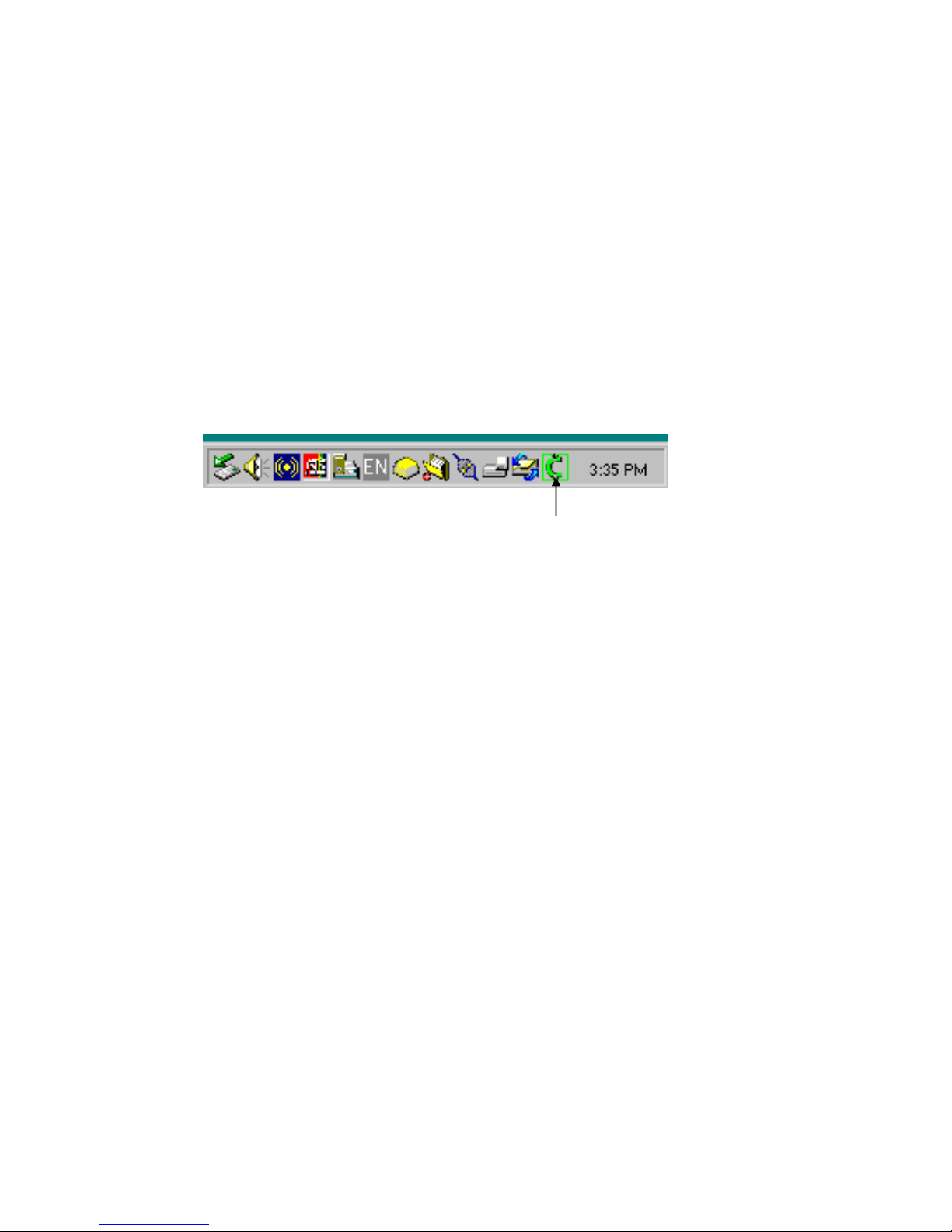
PC-EFTPOS Client icon
Page 8
Confidential Page 8 6/4/2008
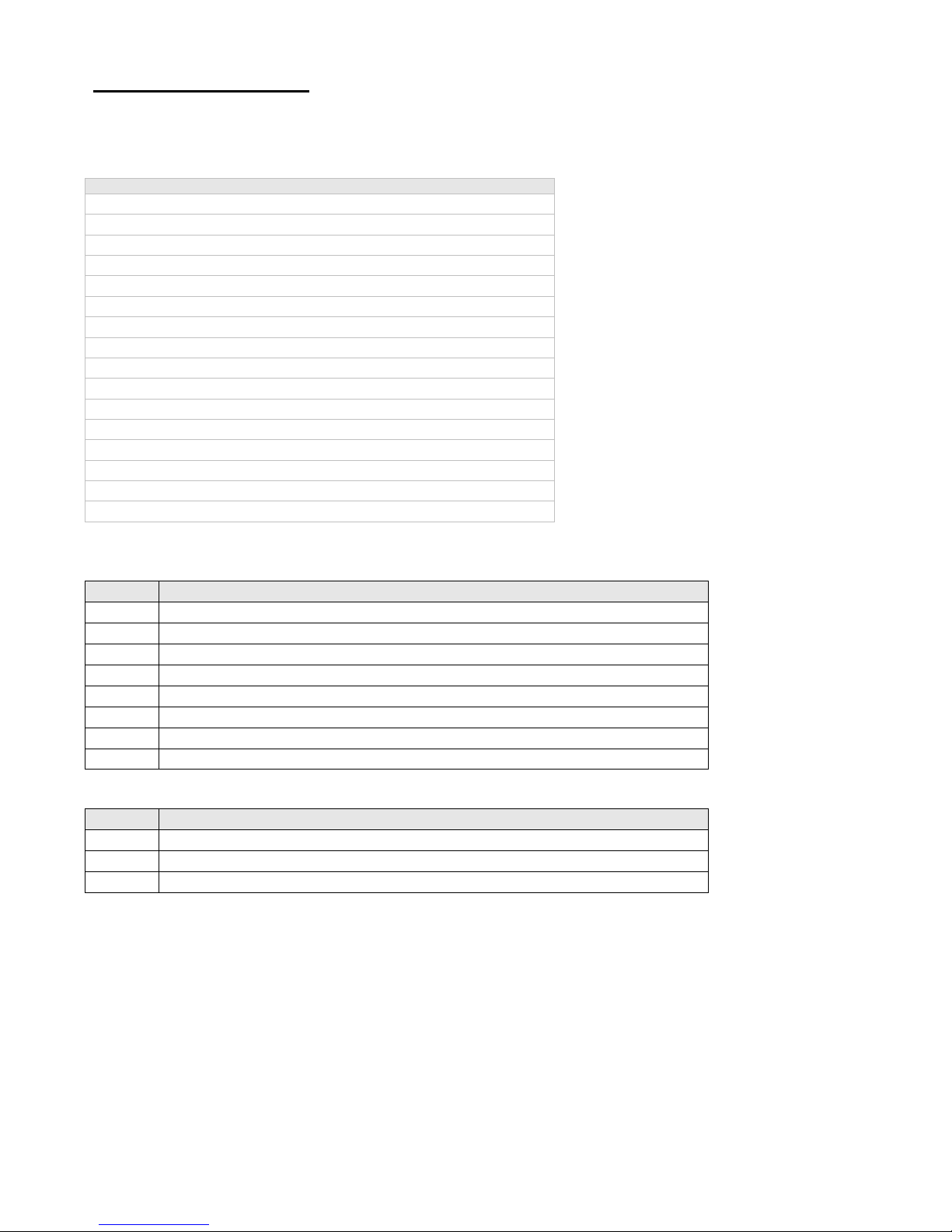
Function Key Menu’s
To access the functions, press the FUNC key on the pinpad when the terminal is in its IDLE mode. The
following function menus are available:
Function Number
Description
3824
View terminal config
11112222
Switch to standalone mode
11112223
Configure Standalone mode
11112224
Configure Idle Display
11112225
Show or Hide EFTPOS Menu for standalone Mode
11113333
TMS Logon
11113334
TMS Configuration for PC-EFTPOS TMS
11114440
Show EFT-Client on POS
11114441
Show EFTSRV on POS
11114442
Show EMS-client on POS
11114455
N-TMS only
11114456
Set Date/Time in terminal
2 + 3824
TMS Configuration
4 + 3824
Turn Auto Settlement receipt printing ON/OFF
10 + 3824
Set Date/Time
102 + 3824
TMS Logon
3824 - (Maintenance Functions - Display Only)
Option
Description
0
Display S/W Version
1
Display TID
2
Display MID
3
Display PPID
4
Tran$end ID
5
SAF and TIP count.
8
Display Dallas Version
9
Card Read Test
99 + 787237 + 9 +
Option
Description
1
Memory Reset
2
Clear Batch
6
Clear All Reversals
Page 9
Confidential Page 9 6/4/2008
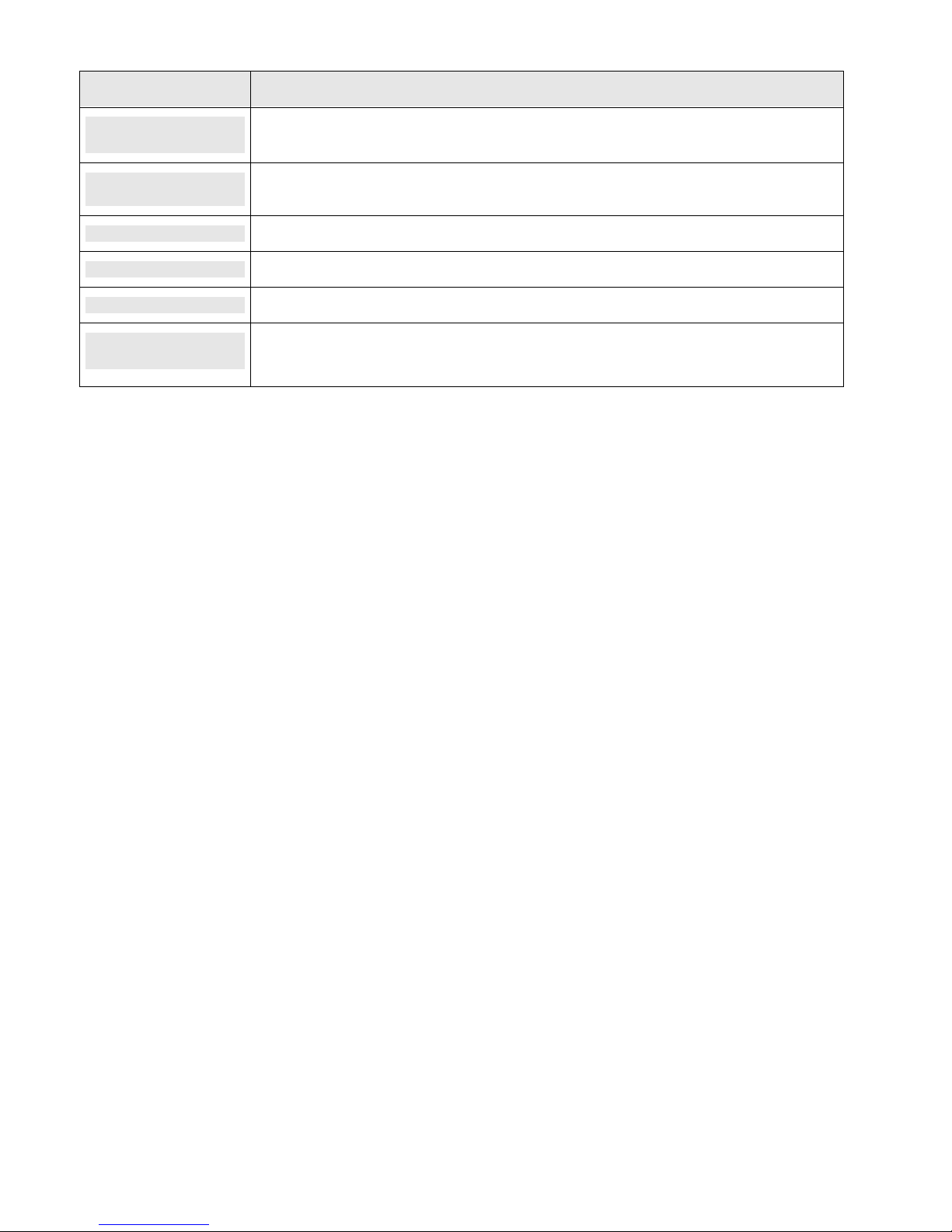
11112224 - Configure idle mode
Terminal display
Comment
FUNCTION
********
Press [FUNC] then enter [1] [1] [1] [1] [2] [2] [2] [4] and press [ENTER].
ENABLE IDLE
MODE?
If the operator selects [ENTER], the terminal will revert to Idle mode after a defined timeout
when in Standalone-lite mode.
ENABLE IDLE IMG
Pressing [ENTER] will allow the terminal to display its customer logo on the Idle screen.
DISPLAY THE DATE
Pressing [ENTER] will display the current date on the bottom line of the Idle display
DISPLAY THE TIME
Pressing [ENTER] will display the current time on the bottom line of the Idle display
IDLE TIMEOUT
-10 20 +10
This allows the setting of the Idle Timeout. The middle value indicates the current value (inc
seconds). Selecting the function key under -10 decreases the value by 10 and the function key
under the +10 increases the value by 10. Pressing [ENTER] selects the new value
11112222 - Invoke Stand-Alone Lite Mode.
This function will switch the terminal to/from standalone mode.
102, ENTER, 3824, ENTER - Connect to TMS
This function connects the terminal to TMS.
Page 10
Confidential Page 10 6/4/2008
Standalone Mode
The NPT710 and PX328 support a simple standalone mode.
Configure Standalone Mode
1. If using the internal NPT modem, ensure Dial-up parameters are set up.
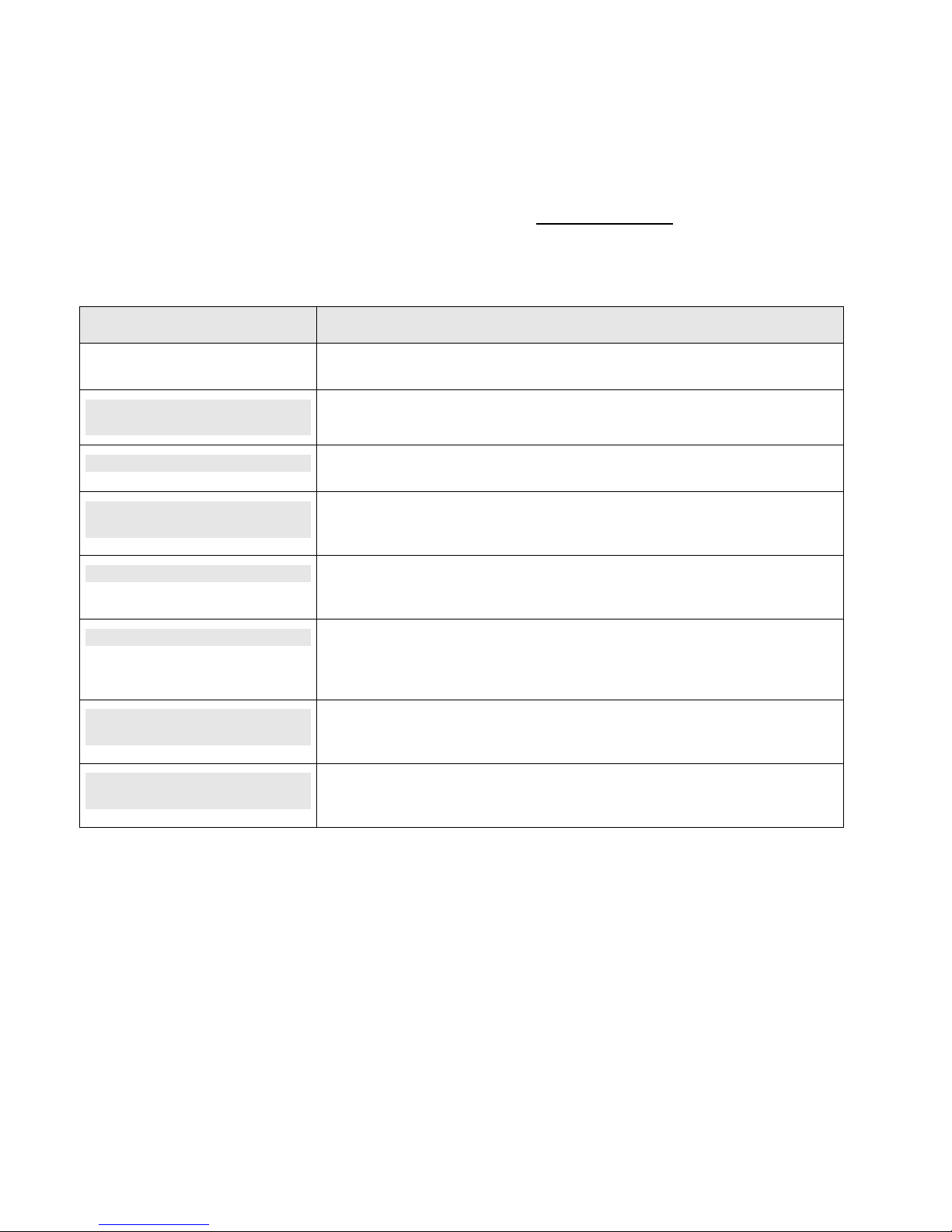
2. Configure Standalone Mode options (Function 11112223), refer to table below.
3. Switch to Standalone Mode by pressing [Func] button then enter, followed by 11112222 then enter. The
terminal will prompt switch to standalone mode, press enter to accept.
Terminal display
Comment
The merchant press [FUNC].
FUNCTION
********
The merchant enters [1] [1] [1] [1] [2] [2] [2] [3] and press [ENTER].
INTERNAL PRINT?
Pressing [ENTER] will enable the terminal to use the internal printer. Pressing
[CLEAR] will allow the terminal to send receipts to the POS to be printed.
USE WINDOWS
DEFAULT PRINTER?
If the operator selected [ENTER] from above, this will prompt. Select [ENTER] if the
default Windows printer is to be used on the POS. Select [CLEAR] if the POS printer
is to be used for printing.
INTERNAL MODEM?
Pressing [ENTER] will enable the terminal to use the internal modem. Pressing
[CLEAR] will allow the terminal to use the POS to send messages to and from the
bank.
JOURNAL TXNS?
If both Internal Print and Internal modem were both selected, this option will be
displayed. It allows the terminal to journal the transactions to the EFT-Client on the
POS. It should only be selected if the POS will be connected and the Eft-client is
running.
PRINT SECOND
RECEIPT?
Selecting [ENTER] will allow the standalone mode to prompt for the printing of a
customer receipt after the merchant receipt has been printed. Selecting [CLEAR] will
only print the customer copy of debit card receipts.
SWIPE START
TRANSACTIONS?
Selecting [ENTER] will allow the standalone mode to start a transaction by the
customer swiping a card or selecting the option from the menu, Selecting [CLEAR]
will only allow a transaction to be started by the menu.
Page 11
Confidential Page 11 6/4/2008
Using Standalone Mode
Terminal Menu Screens
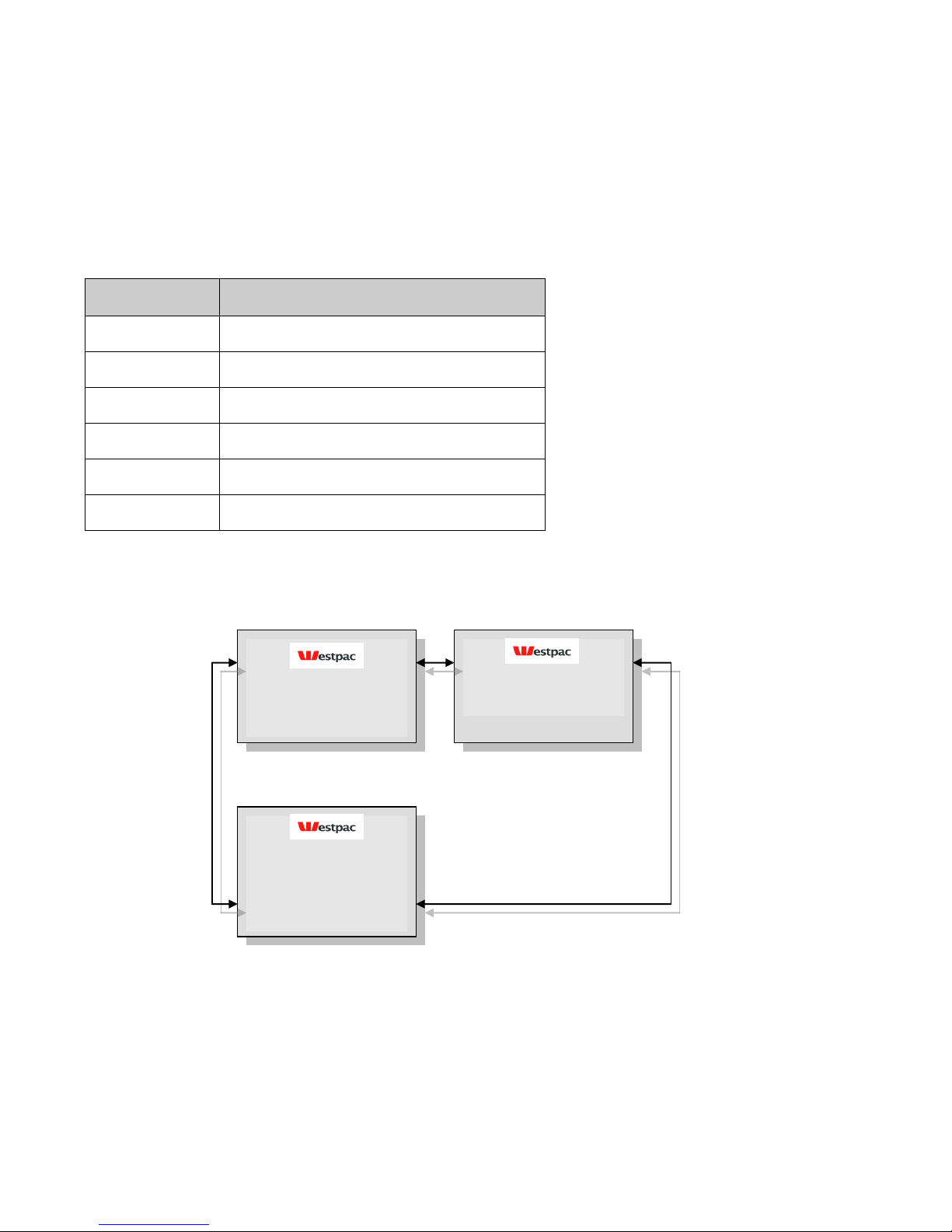
The menu system represents the user interface for the terminal. The menu allows the operator to access all of
the terminal functionality without the need for a POS system.
The terminals functionality is grouped with similar functions and is accessed via menus. A menu contains up
to 3 menu items. Each of the menu items allows access to a function or sub menu. If the terminal as other
applications installed, these menus will follow on from EFTPOS
Key
Description
ENTER
Cycles clockwise through the menus.
CLEAR
Cycles anti-clockwise through the menus.
CANCEL
Exit from Totals Sub-menu
CHQ
Selects the menu item directly above the soft function key.
SAV
Selects the menu item directly above the soft function key.
CR
Selects the menu item directly above the soft function key.
The diagram below illustrates the terminal’s menu structure
EFTPOS
PURC CASH RFND
SETTLEMENT
SETL PRE LAST
SUPERVISOR
SHFT INIT COPY
Page 12
Confidential Page 12 6/4/2008
System Timeouts
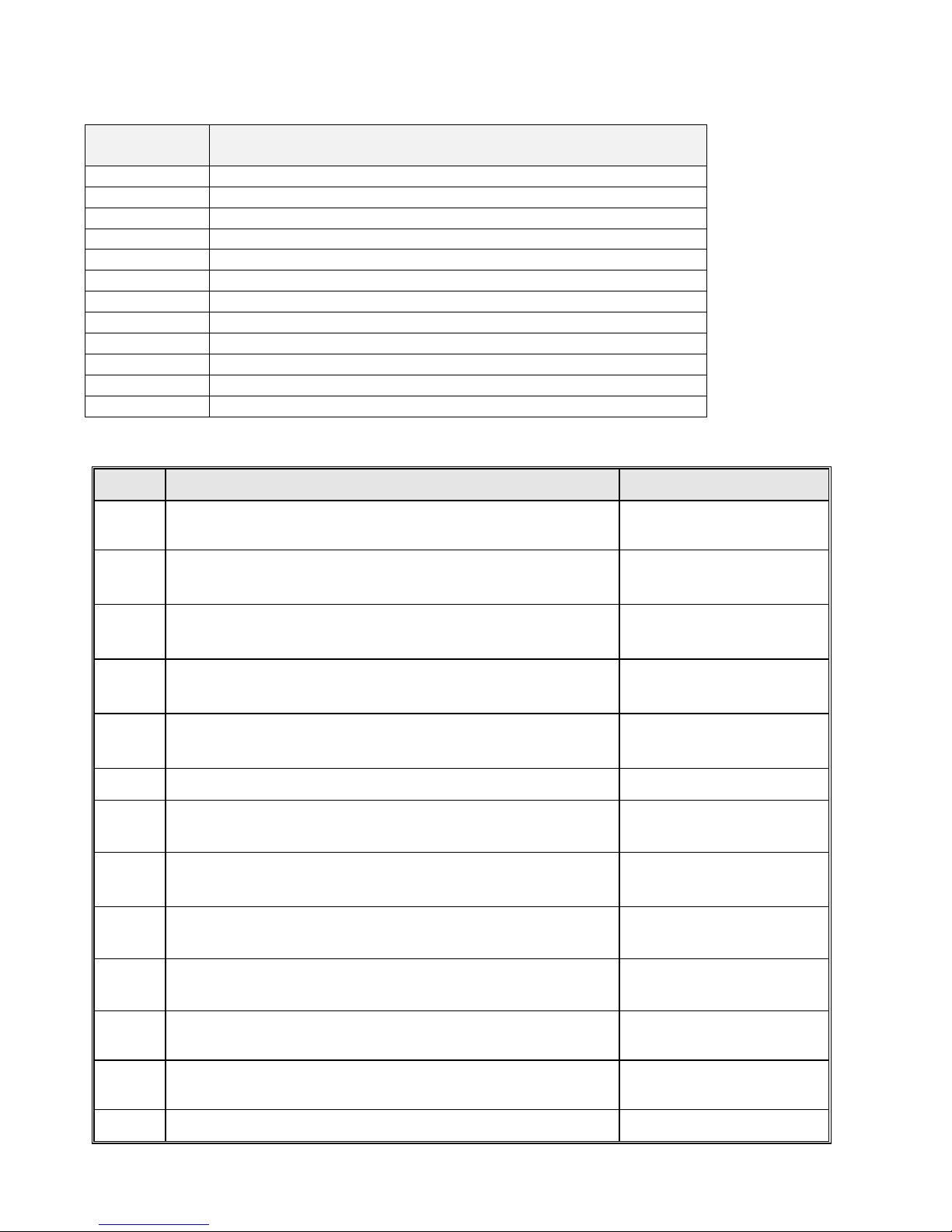
The PIN pad will support the following 'time outs' for its PCEFTPOS Client and Network interface:
PINPAD
TIMEOUT
EVENT
3 seconds
PCEFTPOS Client ACK to PIN pad request
3 seconds
PCEFTPOS Client ACK to send Host message request
10 seconds
PCEFTPOS Client response to display request
10 seconds
PCEFTPOS Client response to print request
45 seconds
Host response to Financial Transaction requests
45 seconds
Host response to administration requests
45 seconds
Host response to Reversals and SAF uploads
60 seconds
Customer response to Card entry prompt
30 seconds
Customer response to Account prompt
60 seconds
Customer response to PIN entry prompt
180 seconds
PCEFTPOS Client response to insert slip request
120 seconds
PCEFTPOS Client response to verify signature request
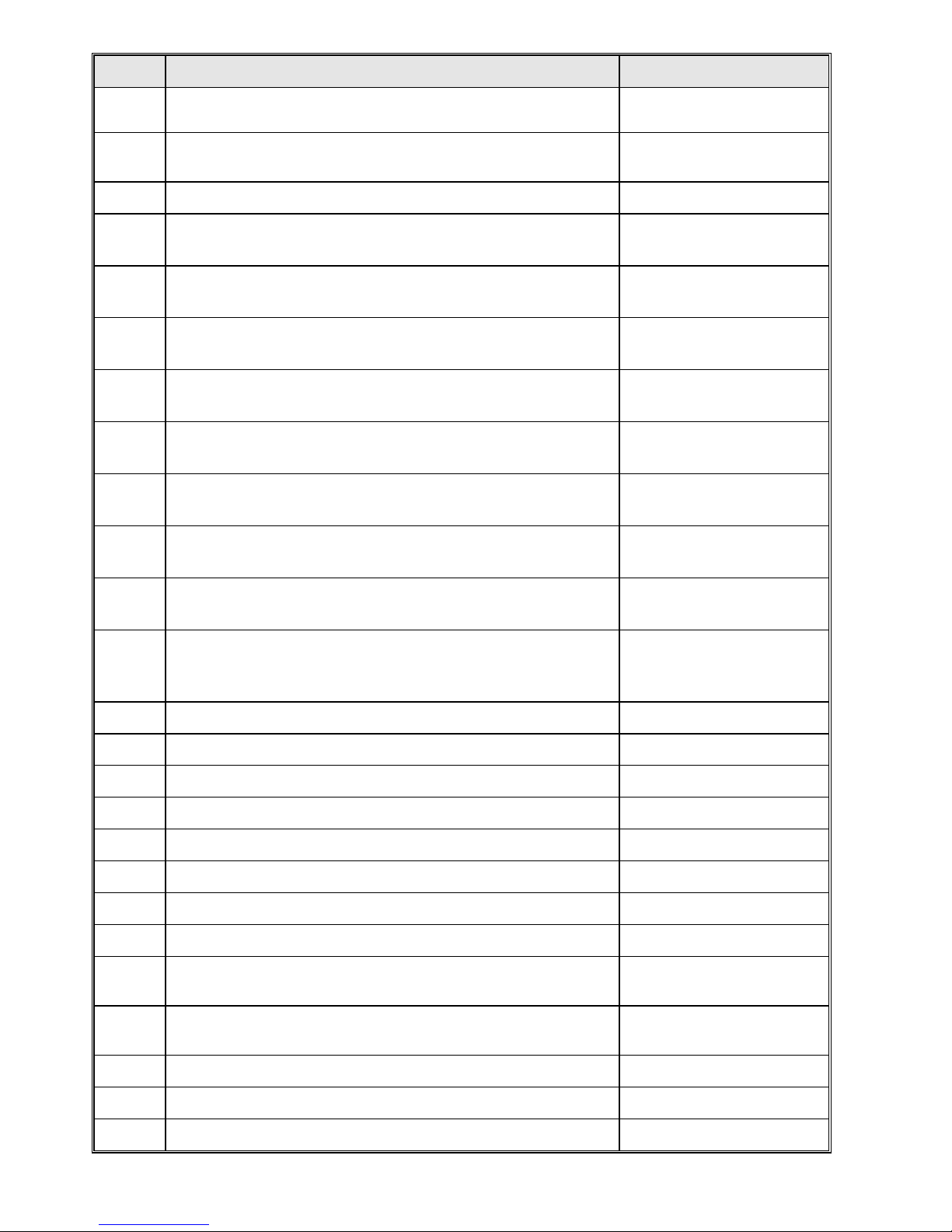
PC-EFTPOS Generated Response Codes
CODE
DESCRIPTION
PINPAD DISPLAY
T0
PINpad is in the Idle mode awaiting a PCEFT Client request.
READY
T8
Invalid amount or zero amount (when not allowed) was
received from the PCEFT Client System
TRAN CANCELLED
SYSTEM ERROR
TB
No CPAT entry for swiped card.
DECLINED
TE
No cash out allowed on credit card sales.
DECLINED
TF
The pinpad is not logged on.
DECLINED
SYSTEM ERROR
TH
Printer Error
TI
The customer has exceeded the PINpad's time out limit.
TRAN CANCELLED
OPERATOR TIMEOUT
TJ
TMS Init required.
TMS INIT
REQUIRED
TL
The operator has cancelled the transaction because of an
invalid signature.
DECLINED
SIGNATURE ERROR
TM
The operator has cancelled the transaction when a card or PIN
or Account retry prompt is being displayed.
TRAN CANCELLED
BY OPERATOR
TQ
Expiry error.
DECLINED
TV
PINpad has a Reversal and cannot be re-configured
DECLINED
REVERSAL PENDING
TX
The PINpad is unable to process the request because it is not
TRAN CANCELLED
Page 13
Confidential Page 13 6/4/2008
CODE
DESCRIPTION
PINPAD DISPLAY
ready or the Host has rejected a Reversal or Payment advice
transaction.
CANNOT PROCESS
TY
Card rejected by Pinpad.
DECLINED
TZ
Account error.
INVALID ACCOUNT
X0
No answer was received from the Bank for the transaction
request.
DECLINED
NO RESPONSE
X4
The PINpad has received a Host message with an incorrect
System Trace Audit Number (STAN).
DECLINED
SYSTEM ERROR
X6
The PINpad has received a Host message with an incorrect
Terminal Id.
DECLINED
SYSTEM ERROR
X7
The PINpad has received a message from the Bank that failed
its authentication.
DECLINED
SYSTEM ERROR
X8
An error code has been returned from the Tran$end network 'XX' represents the PDU error and 'YY' the PDU Code.
DECLINED
SYSTEM ERROR
X9
A message with an incorrect length was received from the
network.
DECLINED
SYSTEM ERROR
XA
A message with an incorrect address was received from the
network.
DECLINED
SYSTEM ERROR
XB
A message with an incorrect Response Code has been received
from the Bank.
DECLINED
SYSTEM ERROR
XC
A message with an incorrect Message Type has been received
from the Bank OR the message received is greater than 360
bytes.
DECLINED
SYSTEM ERROR
XD
The luhn check on a manual card read has failed.
XE
The month of the expiry date on a manual card read is invalid
XG
The transaction is not supported by the pinpad.
XN
Transaction not allowed.
XT
Configuration required.
XU
No cashout allowed
XV
No refund allowed
XW
No pre-auth allowed
Z0
General modem error
DECLINED
MODEM ERROR
Z1
No dial tone.
DECLINED
NO DIAL TONE
Z2
No Answer. The number that was dialled did not answer.
Z3
Line Busy. The number that was dialled was engaged.
Z4
No phone number programmed in terminal
Page 14
Confidential Page 14 6/4/2008
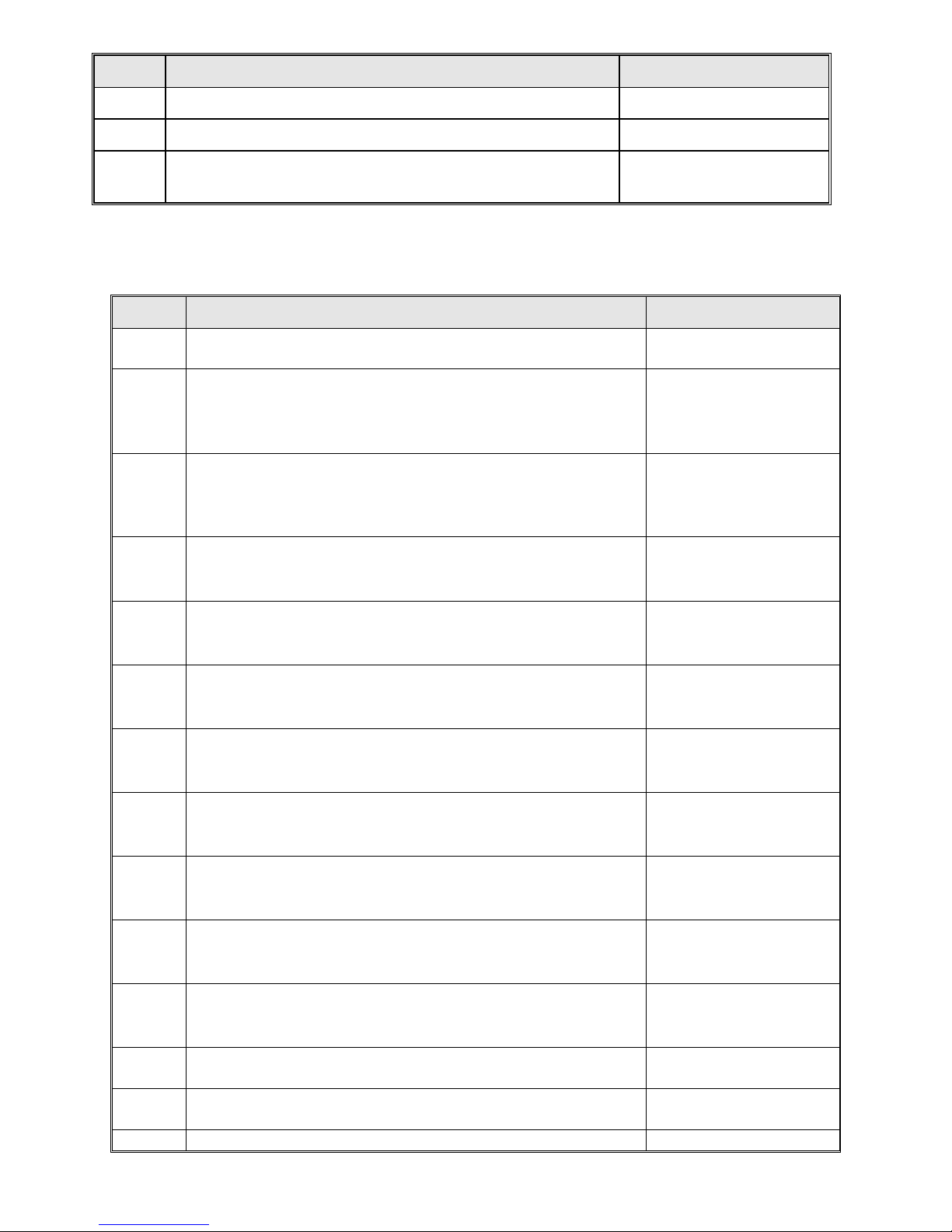
CODE
DESCRIPTION
PINPAD DISPLAY
Z5
Power fail. The terminal has power failed during processing
Z6
No Carrier. The modem lost carrier during processing
Z7
No EFT Server. The connection from the client to the
EFTSRV is missing.
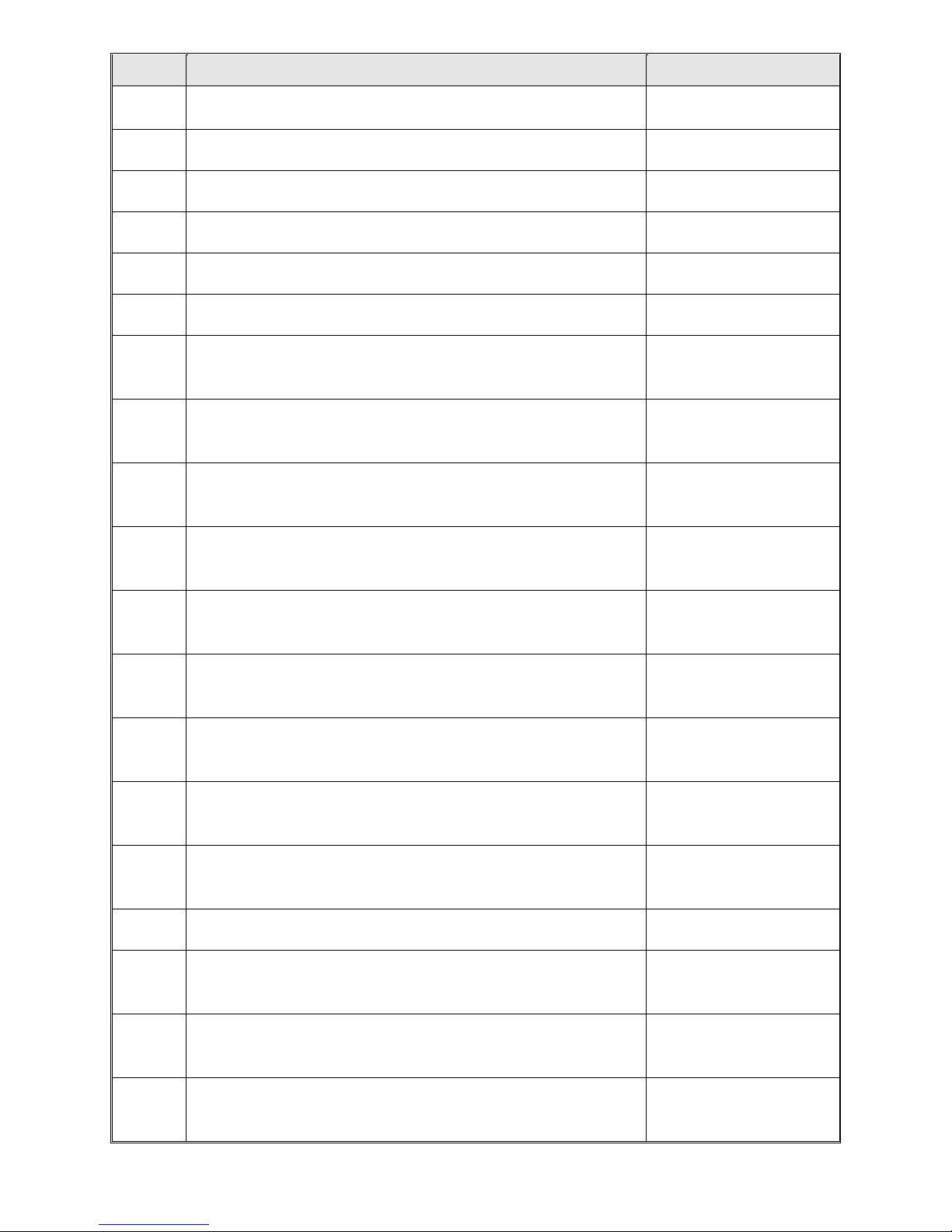
Bank Generated Response Codes
*For assistance with the following codes, contact your Bank.
CODE
DESCRIPTION
PINPAD DISPLAY
00
Approved or completed successfully
APPROVED
01
Declined-refer to card issuer
Unable to obtain electronic authorisation
Call for authorisation from appropriate card issue and
then complete manual sales voucher if approved.
CONTACT BANK
02
Declined-issuer’s special conditions
Unable to obtain electronic authorisation
Call for authorisation from appropriate card issue and
then complete manual sales voucher if approved.
CONTACT BANK
03
Invalid sequence number
Power reset terminal
Call Westpac if problems continues
CONTACT BANK
04
Contact Card Issuer
Obtain another form of payment
Cardholder to contact issuing bank
CONTACT CARD
ISSUER
05
Do not honour
Obtain another form of payment
Cardholder to contact issuing bank
CANNOT PAY
06
Error
Obtain another form of payment
Cardholder to contact issuing bank
CANNOT PAY
08
Honour with identification.
The transaction is approved if the signature is correct
Cardholder should sign the receipt.
VERIFY SIGNATURE
12
Invalid Transaction
Retry the transaction using a different account
Obtain another form of payment if the problem continues
INVALID TRANS
13
Invalid Amount
Obtain another form of payment
Cardholder to contact issuing bank
CANNOT PAY
14
Invalid card number (no such number)
Obtain another form of payment
Cardholder to contact issuing bank
CONTACT ISSUER
15
No such issuer
DECLINED
21
No action taken
DECLINED
30
Format Error
CALL HELP – FE
Page 15
Confidential Page 15 6/4/2008
CODE
DESCRIPTION
PINPAD DISPLAY
Power reset the terminal and retry the sale
Contact Westpac if the problem continues
31
Bank not supported by switch
CALL HELP – NS
33
Expired card
DECLINED
34
Suspected fraud
DECLINED
36
Restricted card
DECLINED
38
Allowable PIN retries exceeded
DECLINED
39
No credit account
Retry the transaction using a different account
Obtain another form of payment if the problem continues
WRONG ACCOUNT
41
Lost card.
Contact Manual Credit Card Authorisations
Ask for extension 500
CONTACT ISSUER
43
Stolen card
Contact Manual Credit Card Authorisations
Ask for extension 500
CONTACT ISSUER
51
Not sufficient funds
Obtain another form of payment
Cardholder to contact issuing bank
CANNOT PAY
52
No cheque account.
Retry the transaction using a different account
Obtain another form of payment if the problem continues
DECLINED
53
No savings account
Retry the transaction using a different account
Obtain another form of payment if the problem continues
DECLINED
54
Expired card.
Obtain another form of payment
Cardholder to contact issuing bank
CANNOT PAY
55
Incorrect PIN
The cardholder has entered the wrong PIN
Retry transaction with different PIN
INCORRECT PIN
56
No card record
Obtain another form of payment
Cardholder to contact issuing bank
DECLINED
57
Transaction not permitted to cardholder
DECLINED
58
Transaction not permitted to terminal
Obtain another form of payment
Cardholder to contact issuing bank
INVALID TRANS
61
Exceeds withdrawal amount limit
Obtain another form of payment
Cardholder to contact issuing bank
DECLINED
62
Restricted Card
Obtain another form of payment
Cardholder to contact issuing bank
DECLINED
Page 16
Confidential Page 16 6/4/2008
CODE
DESCRIPTION
PINPAD DISPLAY
63
Security Violation
Power reset the terminal and try again.
DECLINED
75
Allowable number of PIN tries exceeded
Retry the transaction.
Seek another form of payment if the problem continues
CANNOT PAY
91
Issuer or switch is inoperative
The bank is unavailable. Retry.
For credit card, check Warning Bulletin. If card checks
are valid, use paper voucher.
For Debit card, process as a paper voucher if under the
floor limits
ISS NOT AVAIL
94
Duplicate transmission
Obtain another form of payment
Cardholder to contact issuing bank
CANNOT PAY
96
System malfunction
Obtain another form of payment
Cardholder to contact issuing bank
CALL HELP - SE
97
Advises that reconciliation totals have been reset
A settlement has already been attempted within the last
24 hours
SETTLE N/A
98
MAC error
* Power reset the terminal and try the transaction again.
SYSTEM ERROR
TMS Generated Response Codes
*For assistance with the following codes, contact your Bank.
CODE
DESCRIPTION
PINPAD DISPLAY
00
Successful TMS request.
TMS LOGON
SUCCESSFUL
N8
Terminal cannot get pages from OS necessary for download.
TRAN CANCELLED
SYSTEM ERROR N8
N9
Application activation failed.
TRAN CANCELLED
SYSTEM ERROR N8
I8
The terminal has not been configured.
TRAN CANCELLED
SYSTEM ERROR I8
Page 17

Confidential Page 17 6/4/2008
Argent Error Codes
Argent Basics
The seven segment display on the Argent Terminal Adaptor will light up and will move
through a sequence of numbers on start-up. The numbers displayed will be steady when
the call is progressing and the configuration downloading normally on the D-channel during
start-up. The display will flash continuously if call progress encounters an error condition
during start-up.
The table below provides a list of “start-up status codes” that the ATA will display in order of
sequence when the power is being applied, the call is being set up and the configuration is being
downloaded by the Argent Network Management System (NMS).
Argent Error Codes
Display Interpretation
Building Bars..........Program decompressing into memory
Steady 1 .................Power-on test executing. Dot will pulse on/off
Steady 2 ................D-channel interface active for EFTPOS
Steady 3 ................Pre-configuration in progress, learning identity
Steady 4.................Remote management in progress, configuration
Steady 5 ................Software download in progress
Steady 6 ................Reserved
Steady 7 ................Reserved
Steady 8 ................Reserved
Steady 9 ................Reserved
Steady 0 ................Reserved
Steady dot..............Normal Operation (no fault)
ATA Seven Segment Display Start-up Status Codes
Display Interpretation
Flashing 1...............Power up test fails
Flashing 2...............ISDN connection down
Flashing 3..............No carrier on EFTPOS port
Flashing 4..............Data overrun/underrun on Serial V.24 port
Flashing 5 .............No stations responding to polls on EFTPOS port
Flashing 6 .............Last call attempt failed-Channel
(X.25 fault or Argent server or NMS unavailable)
Flashing 7 .............Not applicable
Flashing 8 .............NMS has no pre-configuration to download
Flashing 9 .............NMS main configuration failure
Flashing 0 .............Not applicable
Page 18

Confidential Page 18 6/4/2008
CLNP error codes
CLNP error codes are reported as XX/YY where XX =Information code and YY=Error code
as below:
Info Code Meaning
0 Unspecified
1 Validation failure on incoming Terminal message
2 Not Supported
3 Reserved
4 Reserved
5 Validation failure on sign-on command
6 Successful sign-on
7 Validation failure on sign-off command
8 Successful sign-off
Error Code Meaning
0 No Error
1 Unknown terminal ID
2 Invalid AME
3 Not Supported
4 Not Supported
5 Unknown Host reference
6 (Reserved)
7 Not Supported
8 Destination unreachable
9 Not Supported
10 Not Supported
11-16 (Reserved)
17 Not Supported
18 Not Supported
19 (Reserved)
20 Not Supported
21 Not Supported
22 Undefined Symbolic Host Address
23 Invalid Station for Terminal
24 Invalid Command from Terminal
25 Not Supported
26 Not Supported
27-29 (Reserved)
30 No Data in PDU
31 Not Supported
32 Unknown Host
33 Not Supported
Page 19

Confidential Page 19 6/4/2008
Settlement Receipts and Options
Pre-Settlement Receipt
------------------------
MERCHANT NAME
MERCHANT ADDRESS 1
MERCHANT ADDRESS 2
TERMINAL ID xxxxxxxx
Terminal ID of terminal
SEQUENCE NO 999999
STAN
PRE SETTLEMENT AS AT
DD/MM/YY HH:MM 999999
PRE SETTLEMENT SUMMARY
CREDIT CARD
Bank totals for credit and Debit
Purch nnn $$$$$$$.cc
Ref nnn $$$$$$$.cc
nnn $$$$$$$.cc
DEBIT CARD (chq/sav)
Purch nnn $$$$$$$.cc
Ref nnn $$$$$$$.cc
Cash nnn $$$$$$$.cc
nnn $$$$$$$.cc
TOTALS
Purch nnn $$$$$$$.cc
Ref nnn $$$$$$$.cc
Cash nnn $$$$$$$.cc
nnn $$$$$$$.cc
Not For Value Totals
Totals for non bank affiliated cards.
CREDIT CARD
Auth nnn $$$$$$$.cc
DINERS
Purch nnn $$$$$$$.cc
Ref nnn $$$$$$$.cc
AMEX
Purch nnn $$$$$$$.cc
Ref nnn $$$$$$$.cc
JCB
Purch nnn $$$$$$$.cc
Ref nnn $$$$$$$.cc
GREETING TEXT 1
GREETING TEXT 2
------------------------
Page 20

Confidential Page 20 6/4/2008
Settlement Receipt
------------------------
MERCHANT NAME
MERCHANT ADDRESS 1
MERCHANT ADDRESS 2
TERMINAL ID xxxxxxxx
Terminal ID of terminal
SEQUENCE NO 999999
STAN
PRE SETTLEMENT AS AT
DD/MM/YY HH:MM 999999
PRE SETTLEMENT SUMMARY
CREDIT CARD
Purch nnn $$$$$$$.cc
Ref nnn $$$$$$$.cc
nnn $$$$$$$.cc
DEBIT CARD (chq/sav)
Purch nnn $$$$$$$.cc
Ref nnn $$$$$$$.cc
Cash nnn $$$$$$$.cc
nnn $$$$$$$.cc
TOTALS
Purch nnn $$$$$$$.cc
Ref nnn $$$$$$$.cc
Cash nnn $$$$$$$.cc
nnn $$$$$$$.cc
Not For Value Totals
CREDIT CARD
Auth nnn $$$$$$$.cc
DINERS
Purch nnn $$$$$$$.cc
Ref nnn $$$$$$$.cc
AMEX
Purch nnn $$$$$$$.cc
Ref nnn $$$$$$$.cc
JCB
Purch nnn $$$$$$$.cc
Ref nnn $$$$$$$.cc
GREETING TEXT 1
GREETING TEXT 2
------------------------
Page 21

Confidential Page 21 6/4/2008
Shift Totals Receipt
------------------------
MERCHANT NAME
MERCHANT ADDRESS 1
MERCHANT ADDRESS 2
SHIFT TOTALS
DD/MM/YY HH:MM 999999
TERMINAL ID ttttttttttt
SHIFT TOTAL
SUMMARY
PURCHASE nnn $$$$$$$.cc
Totals calculated by terminal
CASH OUT nnn $$$$$$$.cc
TIPS nnn $$$$$$$.cc
REFUND nnn $$$$$$$.cc
NET nnn $$$$$$$.cc
OFFLINE nnn $$$$$$$.cc
------------------------
Page 22

Confidential Page 22 6/4/2008
Receipt Layouts
Logon Receipt
---------------------------
MERCHANT NAME
MERCHANT ADDRESS 1
MERCHANT ADDRESS 2
TERMINAL ID tttttttt
SEQUENCE NO 999999
System Trace Audit Number
************************
dd/mm/yy hh:mm
If a response is received from the host within the allowed communication
timeout period, then the date from the host’s response message shall be
printed, otherwise the terminal’s local date shall be printed.
LOGON SUCCESSFUL
APPROVED - otherwise error lines
PLEASE RETAIN FOR
YOUR RECORDS
GREETINGLINE 1
GREETINGLINE 2
---------------------------
Debit Card Receipt
---------------------------
MERCHANT NAME
MERCHANT ADDRESS 1
MERCHANT ADDRESS 2
CUSTOMER COPY
TERMINAL ID tttttttt
CARD cccccc…ccc
Card number
ACCT TYPE YYYYYYY
Where YYYYYY is either Credit or Debit
tttttttt AUD $$$$$$.cc
tttttttt - Purchase, Refund / $$$$$$.cc - Transaction amount
Cccccccc AUD $$$$$$.cc
Cash out (only appears if a cash out amount is present)
TOTAL AUD $$$$$$.cc
Total transaction record amount. For a two part transaction, it shall be
the sum of both the purchase and cash out amounts. The “AUD” shall be
printed immediately to the left of the most significant digit.
dd/mm/yy hh:mm
If a response is received from the host within the allowed communication
timeout period, then the date from the host’s response message shall be
printed, otherwise the terminal’s local date shall be printed.
APPROVED 00
Approved or Declined Text
AUTH NUMBER aaaaaa
Where aaaaaa is the Auth number returned from the bank
GREETING LINE 1
GREETING LINE 2
---------------------------
Page 23

Confidential Page 23 6/4/2008
Merchant Receipt for signature
---------------------------
MERCHANT NAME
MERCHANT ADDRESS 1
MERCHANT ADDRESS 2
CUSTOMER COPY
TERMINAL ID tttttttt
CARD cccccc…ccc
Card number
ACCT TYPE YYYYYYY
Where YYYYYY is either Credit or Debit
tttttttt AUD $$$$$$.cc
tttttttt - Purchase, Refund / $$$$$$.cc - Transaction amount
Cccccccc AUD $$$$$$.cc
Cash out (only appears if a cash out amount is present)
TOTAL AUD $$$$$$.cc
Total transaction record amount. For a two part transaction, it shall be
the sum of both the purchase and cash out amounts. The “AUD” shall be
printed immediately to the left of the most significant digit.
X___________________
SIGNATURE
dd/mm/yy hh:mm
If a response is received from the host within the allowed communication
timeout period, then the date from the host’s response message shall be
printed, otherwise the terminal’s local date shall be printed.
APPROVED 00
Approved or Declined Text
AUTH NUMBER aaaaaa
Where aaaaaa is the Auth number returned from the bank
GREETING LINE 1
GREETING LINE 2
---------------------------
Page 24

Confidential Page 24 6/4/2008
Trouble Shooting
Installation Problems
PINpad offline
The most common reason for this error message is that the PINpad is not connected to the PC correctly.
Check the power to the PINpad. The PINpad should be showing something on its display screen.
Check the PINpad is connected to the COM port on the PC
Check that the PC-EFTPOS Client Settings is configured to use the correct COM port, usually
COM1.
No Response from bank to logon
Check the terminal and merchant ID from the logon receipt
Have the bank verify that the terminal ID being used is setup on the bank system
If the TID is correct at the bank, check the EFTSRV settings to ensure the message is being sent to
the correct bank.
Client Offline
This error means that one of the following has occurred:
The most common cause of this error on a correctly installed machine is that there are more than one
application running that uses our EFTPOS system. Examples are the POS system and our test POS
system. There can only be one POS running. Shutdown any other applications that may also use
EFTPOS.
The EFT client is not running (or installed). Check if the client icon (little cents sign) is on the task
bar near the clock. (Warning…. Not all POS system shows the task bar). Start client by rebooting
POS.
Certain cards won’t process
If the EFTPOS system only fails on Refunds, American Express or Diners cards or Cash Out the bank may
have disabled them. Check with the bank to see if they are enabled on your terminal settings.
Hardware Problems
Hardware error troubleshooting
Try to access one of the supported functions by pressing the function key
If the PINpad goes into maintenance functions the PINpad hardware is working
If the PINpad will not respond, it is probably broken
Check power & cables
If possible try another PINpad on this power point
If there is still no activity on the PINpad screen the PINpad is probably broken
PINpad issues that may require a replacement
Card reader fails card reading on call cards
PINpad has been dropped and the display is smashed
Missing keys on keyboard
Non-responsive keys on keyboard. Re-power on PINpad and try keys again before replacing
If the PINpad display contains the text APPLI NOT OK, then the PINpad has lost its software.
Return the PINpad for repair
If the terminal response code 63 or 96 after an RSA logon, the PINpad has lost its keys. Return the
PINpad for repair.
Page 25

Confidential Page 25 6/4/2008
Communication Problems
The most common reason for a P66 modem line to fail is that it is not communicating to the PC. All
parameters can be altered manually but if any are wrong it’s advised to re-run the installation wizard and
answer the questions correctly.
Ensure all cables are plugged in correctly
Check that the modem is getting power. The power indicator on the power pack is on. The modem
will click while connecting & disconnecting to the power supply
Check that the modem is connected to a COM port on the PC
Ensure the correct COM port is configured in EFT server (Lines tab)
If you are using a PABX line (ie dial 0 for outside line) the number dialled will need to be prefixed
eg 0,1800032027
Common Dial-up Errors
No Dial Tone ~ Check the phone is connected
Line Busy ~ Check phone number and PABX
No Answer ~ Check phone number and PABX
No Carrier ~ Check modem settings to see if correct for this bank
Argent Line
An Argent line needs to be configured to run the AABP Protocol at 9600bps. Ensure that Telstra installs this
type of line. Telstra will provide an Argent Terminal Adaptor (ATA) and an ISDN line.
Argent Terminal Adaptor Connection to the PC
The Argent TA must be connected to the PC
Via a 25-pin (V.24 port on TA) to 9-pin (COM port on PC) standard RS-232 modem cable (available
from any PC or Electronics Store)
This connection will fail if….
The cable is incorrect, you CANNOT use a null-modem cable (type 1), and you must use a standard
RS232 modem cable.
The incorrect COM port is configured for the Argent line in EFT server (lines tab)
If the Argent ATA display is a steady dot, then the Argent ATA is configured for AABP and is ready to be
connected to the PC running the EFTSRV software.
CLNP Errors
If the EFTSRV can communicate with the ATA, then errors will be reported via CLNP error codes on the
display receipt. (Refer to error codes on page 25)
The most common errors are:
X8 CNP 01 08 ~ this means that the Argent systems can’t communicate with the bank. Check the POS ame
and the Host Address, and then call Telstra.
X8 CNP 01 01 ~ this means that the POSAME is wrong. Confirm it with Telstra.
Page 26

Confidential Page 26 6/4/2008
Who to Contact for Help
For a financial Transaction enquiry:
Westpac Help Desk
1800 029 749
For hardware and software assistance:
Your POS vendor
Credit Card Authorisations
Visa MasterCard 1800 999205
Amex & JCB 1300 363 614
Diners 1800 331 112
For assistance with Argent:
Telstra Argent Help Desk
1300 137 100 option 4
PC-EFTPOS
(02) 9998 9800
Monday to Friday 9am to 5pm
Email: [email protected]
Web: www.pceftpos.com.au
The web site contains full installation diagrams and instructions.
 Loading...