

Page 1
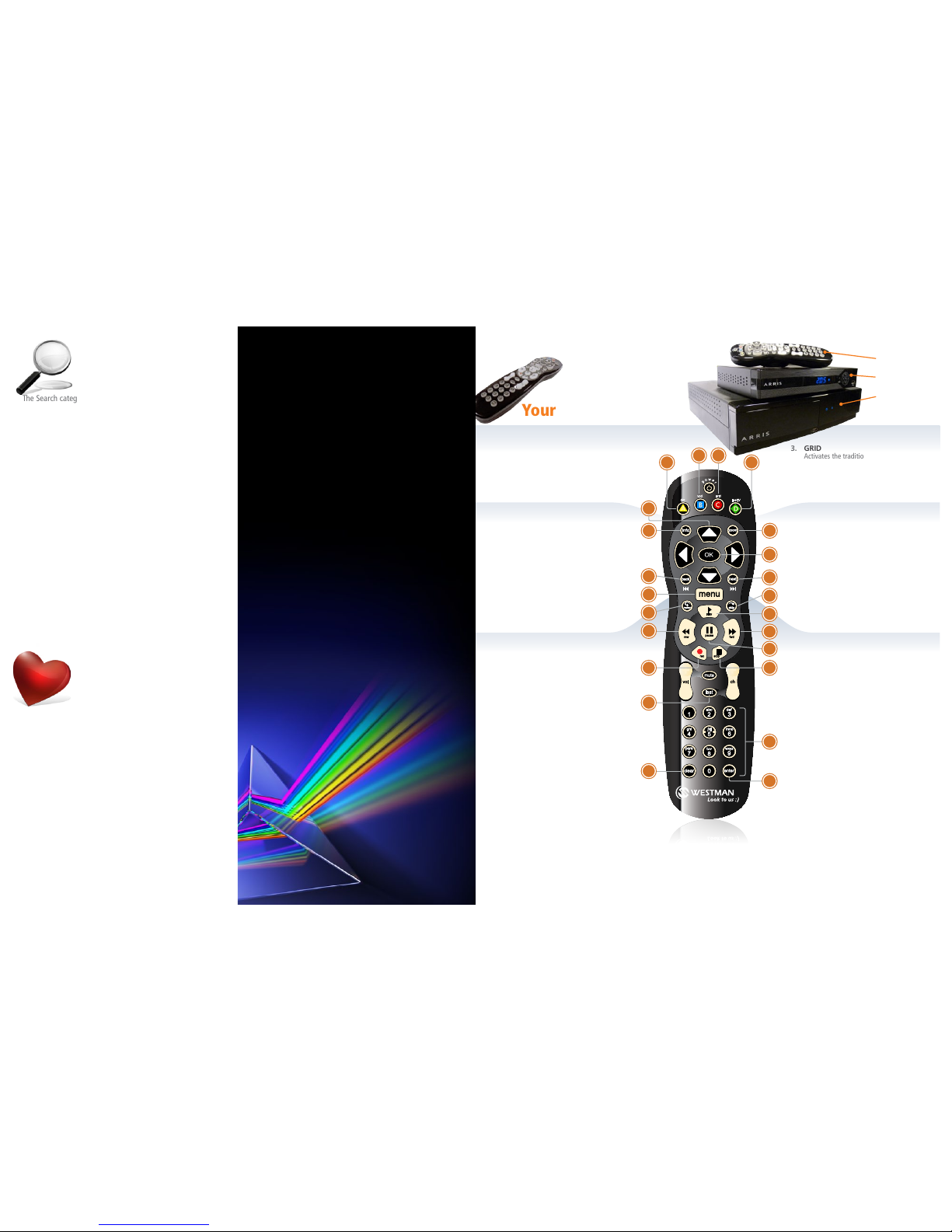
Player Controls - Control your recorded
or live program with the following buttons:
Menu Navigation
Shortcut Buttons - Press once for instant action.
1. DVR
Goes to the Recorded TV category.
2. VOD
Goes to the Westman Video On Demand category.
3. GRID
Activates the traditional Grid Guide
view of TV programming.
4. LIVE TV
Instantly goes to full-screen, live TV.
8. OK
Begins playing the item in focus or executes
an option in a menu. Also used to wake the
system up from the screen saver mode.
9. BACK
Takes a vertical list displaying TV program-
ming back to the previous half hour.
Also pages back through an info note and
backs out of a second-level menu.
10. NEXT
Takes a vertical list displaying TV program-
ming forward to the next half hour. Also
pages forward through an info note.
5. ARROWS
Moves backward or forward one item in the
Smart Menu. Holding them down activates
Turbo Mode, increasing your browsing speed.
6. INFO
Brings up an action menu of options related
to the item in focus. Also allows for
individual recording settings.
7. ZOOM
Alternates between full screen and the main
menu. Also turns the SuperTicker on and off.
11. MENU
From wherever you are, MENU returns
you one step at a time toward the
top level of the main menu.
12. REPLAY
Rewinds seven seconds. Also takes a vertical
list of TV programming back in time 24 hours.
13. SKIP
Skips forward the number of seconds that you
predefine in settings. Also takes a vertical list
of TV programming forward in time 24 hours.
14. PLAY
Begins playing the TV show or media
file in focus. Also allows you to view
the show where you last left off.
15. REWIND
Use the REWIND button to review live
or recorded content. Press it again to
increase the speed up to three times
(for three speeds) to rewind the show.
16. FAST-FORWARD
Press up to three times (for three
speeds) to fast-forward.
17. PAUSE
Pauses the show you are watching.
18. RECORD
Press RECORD while watching a show or
with a show in focus to record a progrom.
19. STOP
Exits out of a recorded show or stops a
recording in progress if you’re watching
that show in full screen.
20. LAST
Return to the last channel viewed.
21. NUMBER KEYS
Entering numbers will take you directly
to the corresponding channel.
22. CLEAR
Deletes a character during
text/number entries. Also removes the
Flip Bar and can delete recorded TV.
23. ENTER
Enters text/number entries.
Your Remote Control
PRISM Remote
PRISM Player
PRISM Gateway
For more user guides and instructional video, please visit westmancom.com/personal/support/
QUICK
START
GUIDE
WESTMAN
PRISM
TELEVISION HOME PHONE INTERNET
WHOLE HOME ENTERTAINMENT
11
15
18
20
22
12
8
7
6
5
1
32
4
10
9
17
19
21
23
16
14
13
The Favourites category provides easy access to the media
you like the most. You can build your Favourites list from
any channel that appears in the TV channels category or TV
filters, excluding any channels blocked by parental controls.
You can also add a folder or file from your computer.
To add an item, press INFO with that item selected, and
choose add item to favourites.
You can delete a single item by selecting it and choosing
remove from favourites from the action menu. You can also
press CLEAR on the remote control.
Clear the entire favourites list by selecting the Options card
(you might need to scroll down to see it) and then choosing
clear all from the action menu.
Favourites
Search
The Search category contains three different ways to search
for programming: By Title, By Keyword, and By Category.
Search results are thorough and may display results from
Live TV, Recorded TV and VOD.
Find by Title or Keyword: When you select “Find By Title”
or “Find By Keyword,” a screen will appear that allows you
to enter what you are looking for. Use the arrow buttons to
navigate the onscreen keyboard; to enter a letter, press OK
with that letter highlighted. You will see results on the left
filter down with each letter you enter. To browse the search
results, press the left arrow until that panel is in focus. Use
the up and down arrows to scroll through search results.
Find by Category: When you select “Find by Category”,
scroll left or right to view categories. Scroll up or down to
view programs available in that category. A card labeled
“More” in each category will take you one level deeper into
the menu and allow you to browse subcategories.
Page 2

In the horizontal menu, you’ll find the Recorded TV category.
All of the recorded and currently-recording shows are listed
in the vertical band in alphabetical order. Episodes of a series
are grouped into folders; you’ll see the individual episodes in
the preview panel to the right. To watch a show, select it, and
press OK. And if you’ve already watched half of the show,
you can choose whether to resume where you left off or start
over from the beginning.
How To Set A Recording & Series Recording
You can set a recording while watching a show, by searching
for a show in the Search category or by finding a listing in
the TV Channels category.
When watching a show: If you are watching a show press
INFO and an action menu will appear. Select Record Once
or Record Series.
Via the Search category: You can search for the show in
the Search category by title, keyword or category. Select the
show in the results by pressing OK and then select Record
Once or Record Series in the action menu.
In TV Channels category: You can scroll through the TV
channels lineup. When you find a show you want to record,
either in the listing or in the preview panel for upcoming
shows on that channel, press INFO. An action menu will
appear where you can select Record Once or Record Series.
Managing Recorded TV
The Recorded TV category lists all your recorded shows in
alphabetical order. Episodes of a series are grouped into
folders and individual episodes are seen in the preview
panel to the right.
The recorded show icons let you know the following:
The Options card in the Recorded TV category lets you manage your recorded TV. Scheduled to Record in Options lets
you see all the programs that are set to record. Here you
Search the vast library of movies, TV shows and events.
• Select the On Demand category in the Smart Menu.
• You’ll see a list of video folders in the vertical band, as well
as a My Rentals folder. When you scroll over each folder, the
available programs in each will appear in the preview panel
to the right. Press OK to select any of the folders in the VOD
library.
When you see a program you like, press OK and you’ll get
the following list of options:
• Preview -
Plays the trailer for the selected movie.
• Lock - Uses Parental Controls to block access to that channel.
• Buy - Purchases the movie so that you can watch it immediately.
Recorded TV Recorded TV cont.
Online TV
Management
iPad App for PRISM
Westman
On Demand
can also cancel a recording or alter your recording settings
for each show.
Just pick the show you want to manage and press the INFO
button. Recording Defaults in Options let you determine
your default preferences for how long to keep a recording,
how many episodes to record, when the recording starts and
stops, and whether to record first runs or repeats.
Automatic Conflict Management
You can record or watch up to six shows at once. A conflict
detection note will pop up, if you are already using all six
tuners – which means that you may be recording five shows
and watching Live TV. If this happens, an action menu will
show up automatically on the screen giving you options to
choose which recordings you want to keep.
To order a PPV movie or event, call
204-725-4300 or toll free at 1-800-665-3337 then choose
option 2 to speak with one of our customer service reps.
Pressing OK with the SuperTicker category in focus will
launch full screen TV with the SuperTicker displayed along
the bottom of the screen.
The SuperTicker displays information on the latest news
headlines, sports scores, financial news, entertainment
news, and weather. The SuperTicker will automatically scroll
through each topic, subtopic, and news item.
Pay Per View
SuperTicker
The show is recording right now.
The show is scheduled to record.
The show is recorded and may be deleted
when space is needed.
The show is recorded and will not delete
unless deleted manually.
Easily manage your PRISM DVR experience online right from
your Westman account. Schedule a program to record on
your Westman PRISM DVR, from any computer with Internet
access.
To get started, go to westmancom.com and click on
My Account. Log in, then click on the Manage PRISM DVR
tab then click on the blue Manage PRISM DVR button.
Online scheduling uses real-time conflict resolution,
so you’ll know immediately if there are any problems
recording your program.
Summary Page
The PRISM summary page displays a snapshot of your
recorded and scheduled shows and gives you quick access
to manage your DVR, view full TV listings, manage your TV
apps and change settings on your Media Players.
NOTE: When you make a change, be sure to click the UPDATE
button in order for any changes to take effect.
Online Scheduling
The Online Scheduling link takes you to a grid guide of
TV programming. The page defaults to showing you what
programs are on currenly. You can also use the “SEARCH”
field to search for something specific in the lineup. All the
channels shown may not be part of your channel package,
depending on the level of service you have. Please call us
at 204-725-4300 if you see something you’d like to add to
your service.
To schedule a recording, simply click on the program and
select RECORD ONCE. If you click on RECORD SERIES,
Westman PRISM will instantly set the series recording for
that program using your default settings. Get more details
by clicking on mORE INFO. You can sort your search by
clicking on the tabs above (HD, Movies etc.) or you can enter
a keyword into the search tool bar, then click the search
button, for more specific results.
When all your recordings are set, you should see these
symbols beside the progam you are recording or are about
to record.
Recording and Scheduled for recording.
The ARRIS iPad app allows you to manage your Westman
PRISM DVR with your iPad. Go to the iTunes App Store
on your iPad (or PC) , search the store using the keyword
“ARRIS”, then select and install “ARRIS Whole Home Solution
Mobile Application”.
ARRIS iPad App Setup
Press mENU on your Westman remote and go to settings.
You should now see the Moxi Mobile section.
Press OK, then select ADD.
Your Westman PRISM DVR will display a pairing code on
your TV screen.
Launch the ARRIS app on your iPad and then enter the
same code in the blank boxes on your iPad. On your TV it
will display the message, “Your Moxi Mobile application was
successfully added to your account. You can now begin
using Moxi Mobile”.
TV Settings
Now in your TV settings, select Remote Control of Media
Player. Press OK. Then select ON. Your iPad app is now
ready to use.
Launching The App
On your iPad, launch the ARRIS iPad app and from
there you’ll be able to Manage your Westman PRISM
DVR in the same manner that you would when in the
My Account section of our website.
 Loading...