

Page 1
Get Started: greatergoods.com/start
H
E
E
R
R
’
E
W
E
CUSTOMER SUPPORT
Email: info@greatergoods.com
T
O
P
L
E
H
Phone: (866) 991-8494
Website: greatergoods.com
Page 2

Table of Contents
Important Safety Notes 2
Introduction 3
Scale Description 4
Physical Features
Measuring Units
Setting the Measuring Unit
Things To Know Before Using Your Scale 5
Measuring
Auto-On
Auto-Detection
Press-Awake
User Setup 6
SYNC With Your Scale 7
Reading Your Results 8
Traditional
Weightless
Switching Modes
Tips and Tricks 9
Reset Weightless
For Best Results
Troubleshooting 10
Cleaning, Maintenance, and Disposal 11
Technical Specications 12
Manufacturer’s Warranty 13
1
Page 3

Important Safety Notes
Warnings
• Do not step on the edge of the scale while getting on or o,
otherwise it may tip.
• Do not jump on scale.
• Protect scale from hard knocks, temperature uctuations and
heat sources that are too close (e.g. Stoves, heating units)
• Do not drop scale or drop any objects on it as this may damage
the sensors.
• Do not step or stand on the scale when your body and/or feet
are wet. For example, after taking a shower.
• Do not step on the scale when the surface is wet. There is a
danger of slipping.
• Do not step on this scale if you weigh more than 400 lbs.
• Place the scale on level ooring, otherwise it may tip.
• Clean the scale with a slightly damp cloth, DO NOT immerse the
scale in water or use chemical/abrasive cleaning agents.
2
Page 4
Introduction
“The past does not predict, nor does it dictate your future.”
That’s the inspiration behind the design of The Weightless Scale.
Traditional scales can be demotivating as they reduce past eating,
exercise and lifestyle habits into one stigmatizing number.
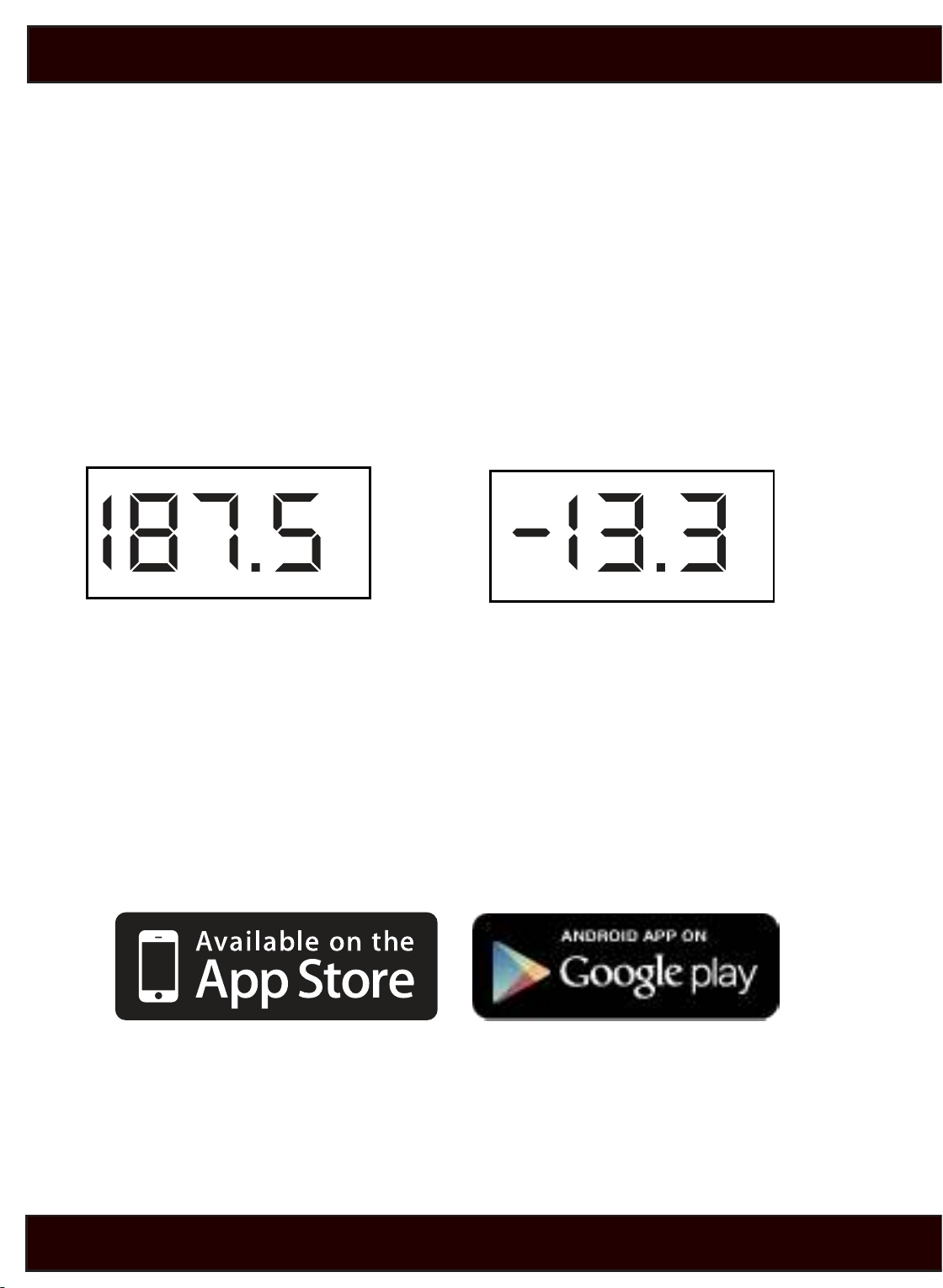
The Weightless Scale lets you decide how to view your weight.
Traditionally like other scales, or Weightlessly to make weighing
encouraging.
-or-
Free Smart Phone App Included
Use the smartphone you love to Set Goals, Track Progress and
Achieve Results. To automatically sync your results to your
smartphone, download the free Weight GURUS app.
Available in these app marketplaces:
For more product information, please visit GreaterGoods.com
3
Page 5
Scale Description
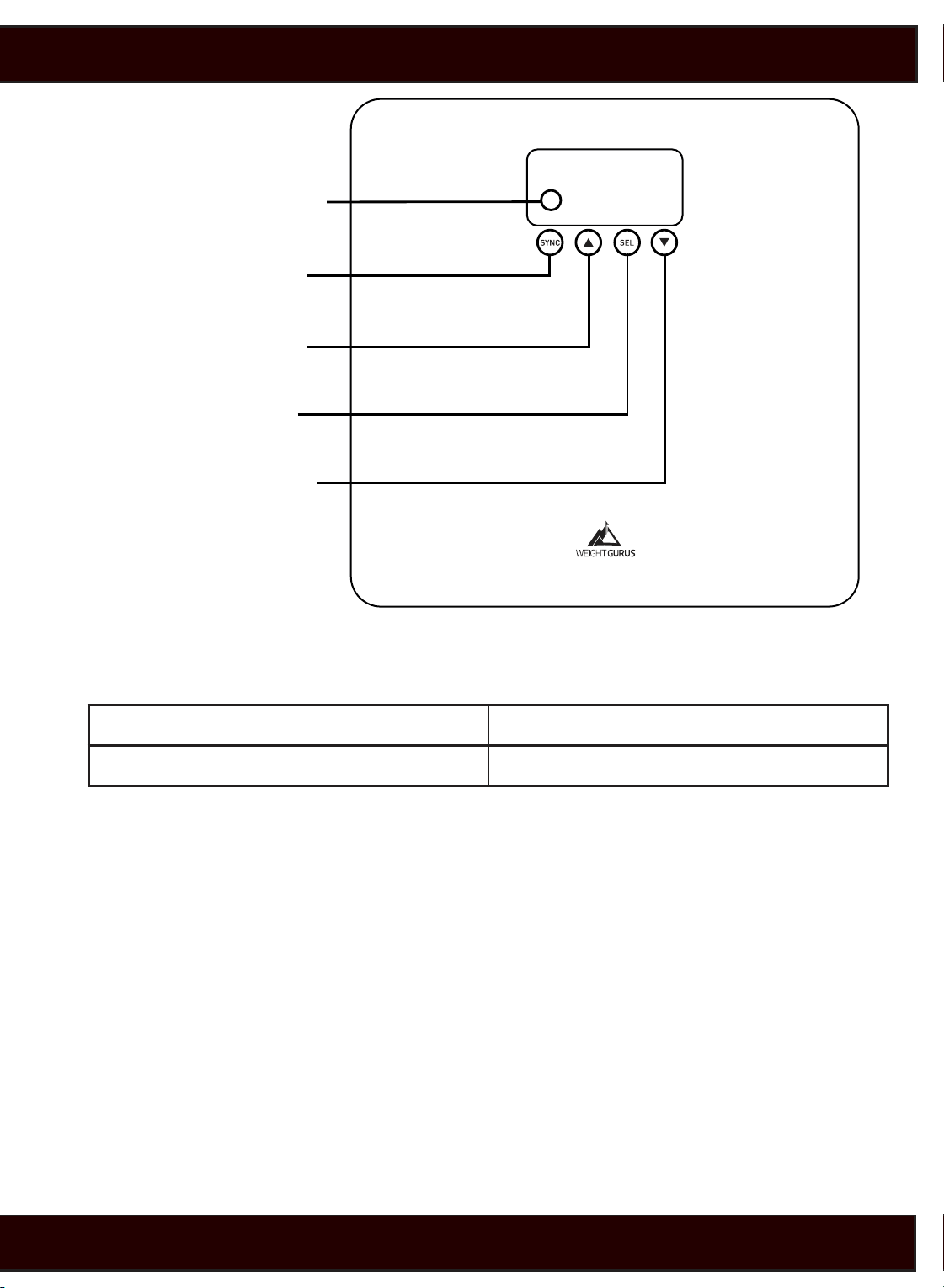
Physical Features
Display
SYNC key
Up key
SEL key
Down key
Measuring Units
lb pound
kg kilogram
Setting the measuring unit
By pressing the button on the back of the scale, you can switch
between lb. (pound) and kg (kilogram).
4
Page 6

Things To Know Before Using Your Scale
Measuring
Measuring your weight is easy. Simply step on your scale and
evenly distribute your weight.
Auto-On
Auto-on is the easiest way to use your scale. Simply step on the
weighing surface with both feet and evenly distribute your weight.
Once you complete user setup (page 6), Auto-Detection will match
you to your prole automatically. If no match is made to a user
prole, then the scale will only display your weight information.
Weightless Mode requires a user to be setup in order to display
weight information as changes over time.
Auto-Detection
Once a prole has been setup, your scale will automatically match
you to your correct prole by weight. The scale determines who
the user is by a range of 10 lbs. and in some cases a conict may
arise if two or more users are within 10 lbs. of each other (see
“Troubleshooting” for resolving an auto-detection conict).
Press-Awake
Another easy way to turn on your scale is to briey step-on, then o
the weighing area of your scale. “Press-Awake” allows you to enter
setup mode to create or edit a new user (see User Setup, page 6).
If needed, it also allows you to select your user prole manually.
5
Page 7
User Setup
IMPORTANT: Place your scale on a hard at surface, and be ready to
record your rst weight entry on the last step.
This scale can be customized for up to 8 users.
Setup User
1. Press-Awake your scale ON
2. Press and hold SEL
3. Use and to make selections, then tap SEL to select and
continue for each option below.
User Number Choose a user prole number
Weight Mode Choose “#” for Traditional or “+/-” for Weightless
IMPORTANT: YOU MUST NOW WEIGH TO RECORD YOUR INITIAL WEIGHT ENTRY
Weight Step on the scale with bare feet, evenly
distribute your weight.
*At any time in the setup process, if you have to leave or the screen shuts o due to
inactivity, just start over from number one above.
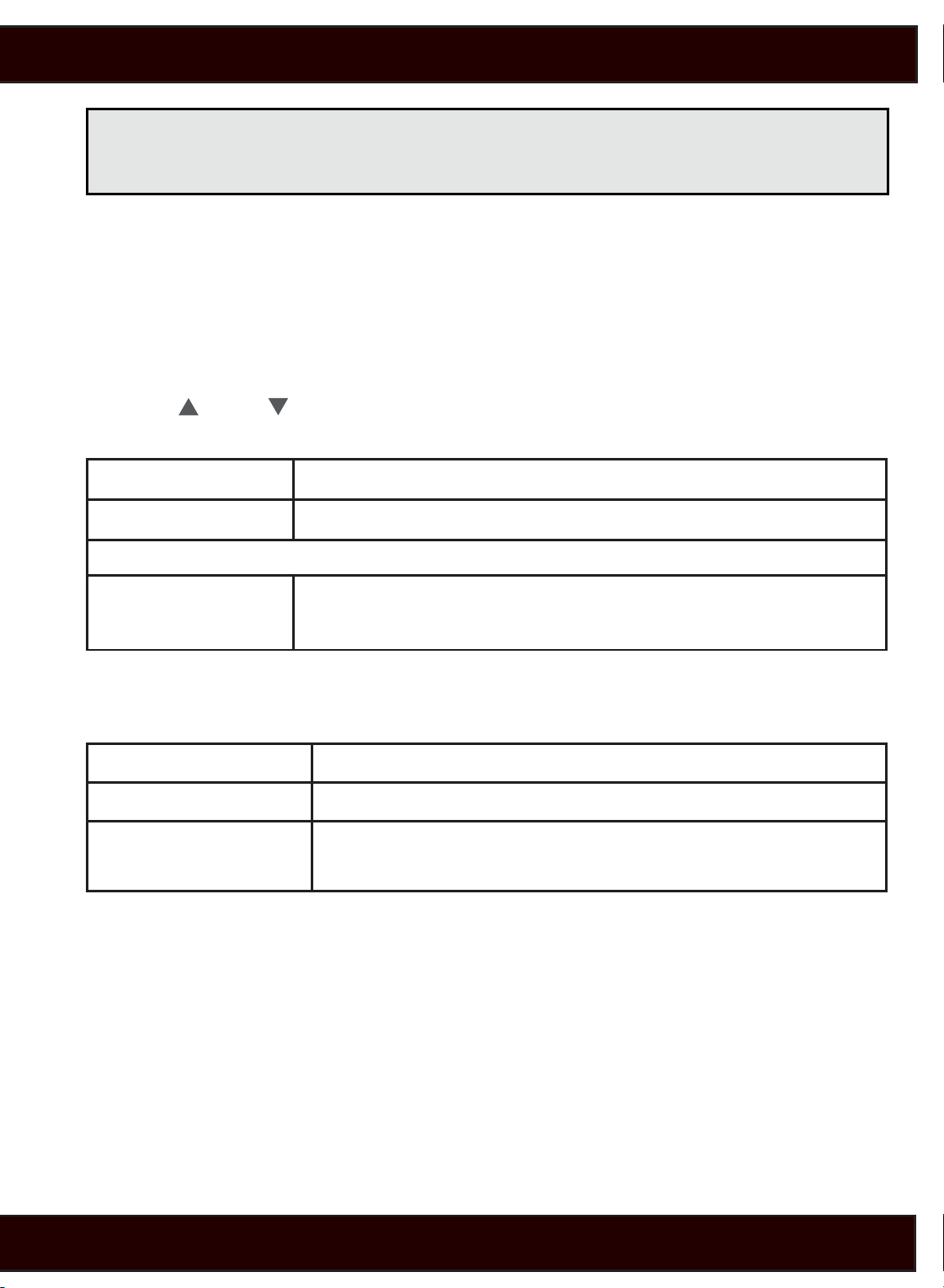
Weight Modes Description
Traditional Traditional Mode displays your actual weight
Weightless Weightless mode displays your + or - changes in
weight relative to your rst time weighing.
6
Page 8
Sync With Your Scale
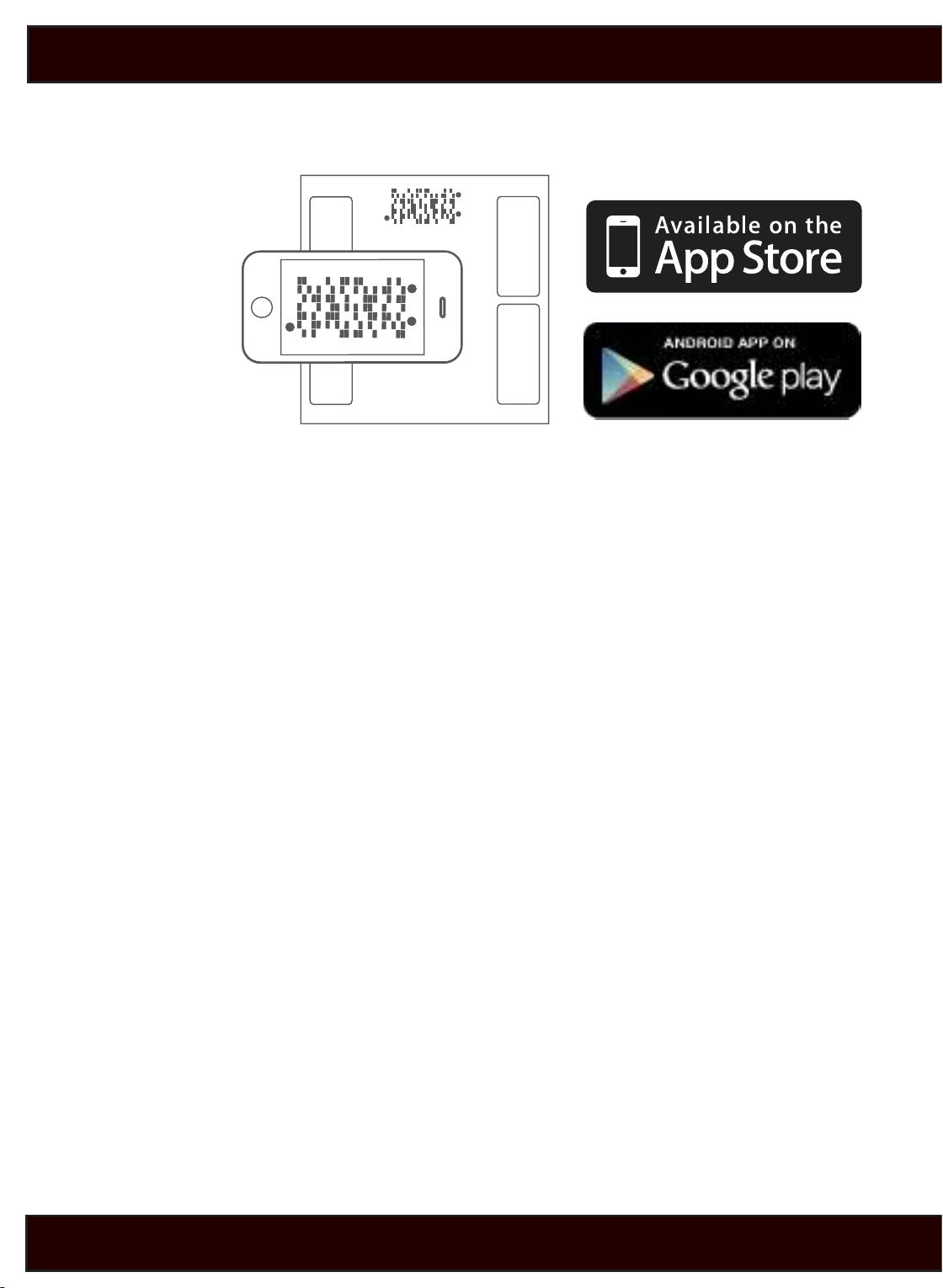
Syncing your results to your smart phone is easy.
1. Get the App
2. Step on the scale
3. After the scale completes measuring, your barcode will
automatically display after showing you your results.
4. Use the Weight GURUS App and your smart phone’s camera to
scan the barcode. Make sure to align the brackets on your phone’s
screen to the scale’s barcode screen.
TIPS:
ZOOM: Use the zoom buttons on the left to get closer or further
away to properly align the app screen’s brackets with the scale’s
screen.
GLARE: Lean from side to side when scanning to avoid direct glare
from overhead lights. If a bright reection is blocking your view of
the barcode, the scanner may not detect your results.
Learn more at GreaterGoods.com
7
Page 9
Reading Your Results
Once you have properly weighed yourself, the scale will display your
measurement for you.
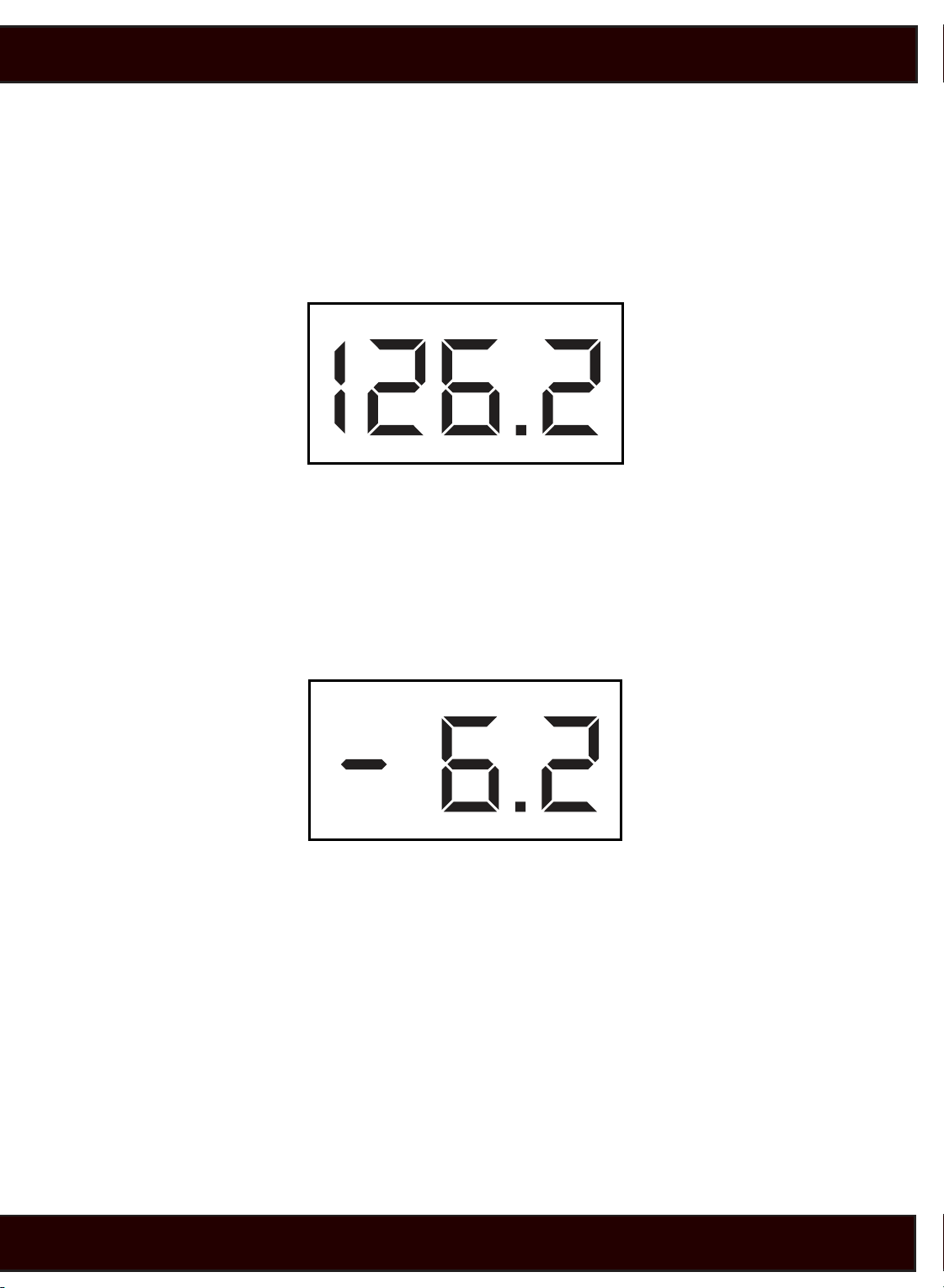
Traditional Mode (#)
Traditional Mode displays your actual weight in either pounds (lb)
or kilograms (kg) just like a traditional scale would.
Weightless Mode (+/-)
Weightless Mode displays your weight as progress, allowing you to
weigh without actually seeing your absolute number. Over time,
you’ll see your changes in weight shown as + or - numbers, relative
to your starting weight entry.
*When in Weightless Mode, recording an initial reading will display
zeros because you haven’t recorded any changes over time yet.
At any time, press the SEL key to see weight results in Traditional
Mode.
Switching Modes
After weighing, In order to switch between modes, tap SEL. If you
want to switch modes permanently, go through setup again on
page 6 to change your user prole selections.
8
Page 10

Tips and Tricks
Reset Weightless
When in Weightless Mode, you may want a fresh start to begin at
0 lbs again. To do this, clear your user prole (see page 10) and resetup your user again (page 6).
For Best Results
For best results, remember to place your scale on a hard level
surface. Step on the scale with bare feet, evenly distributing your
weight.
Using this scale on carpet will not give accurate results.
It’s important to follow a routine. We recommend weighing daily
around the same time each day. Alternatively, you can weigh
weekly. When weighing weekly we recommend weighing on the
same day each week.
Weighing under the same conditions will help ensure accurate
results. Weight can vary due to dierent clothing selections,
weighing at dierent times of day, weighing before or after meals,
etc. Following a routine will help achieve accurate results.
9
Page 11

Troubleshooting
Low battery
“Lo” is displayed when the batteries need to be replaced. Open the
battery door on the back of the scale, and remove and replace the
batteries with four AAA batteries.
Overload
Overload occurs when the scale has too much weight (Capacity:
180kg / 397lb). Please remove the weight on the scale to protect
the scale sensors.
Measuring error
If the scale has trouble measuring your weight, it will show “Err”
and turn o. This is most likely due to not settling on the scale fast
enough. Make sure that the scale is placed on a at hard surface
(not carpet), and you distribute your weight evenly while holding
still.
Failed to auto-detect your user prole while weighing
The weight data is shown only and the scale will turn o after a few
seconds. Please manually select your number and measure once
again (Press-Awake, select user number, Tap SEL).
Resolving an auto-detection conict
An auto-detection conict will occur if two or more users are within
10lbs. of each other. When an auto-detection conict occurs, your
scale will give you a chance to select your prole number manually.
Use the arrows to select your prole, tap SEL, and step on the scale.
The scale will now proceed measuring for the prole you have
selected.
How do I clear a user prole?
First, Press-Awake the scale on, then press and hold SEL. Now,
select the user to delete and press SEL. Once selected, press the up
arrow to change Clr to “Y.” Now press SEL to clear the user. The user
is now removed.
10
Page 12

Cleaning, Maintenance and Disposal
Cleaning
Your scale is not waterproof. Never immerse the scale in water
or place it in a dishwasher. To clean the scale platform, use a soft,
slightly damp cloth or sponge. For stains or other residue, use a
mild dish washing soap. Never use harsh cleaners or treated cloths.
Changing the batteries
Your scale uses 4 AAA batteries. To change the batteries, open the
battery door on the bottom of the scale, remove the old batteries
and replace them with the + end oriented as shown in the battery
compartment.
Disposal
Batteries should be disposed of separately from household waste.
Always dispose of batteries as per your local regulations.
Dispose of this device in accordance with your local regulations.
11
Page 13

Technical Specications
Weight unit: lb / kg
Capacity: 397lb / 180kg
Division: 0.1lb / 0.1kg
Minimal weight: 5kg
Function keys: SYNC, , SEL,
Display: Positive LCD, Optional Backlight
Batteries: 4 AAA
User No.: 8
Working temperature: 32ºF-104ºF / 0ºC-40ºC
working humidity:≤90% RH
Storage temperature: -4ºF - 140ºF / -20ºC - 60ºC
12
Page 14
Manufacturer’s Warranty
Your scale is warranted by the manufacturer against defects in
materials and workmanship for ve (5) years from the original
purchaser from the date of purchase. Proof of purchase is required.
The warranty is void if the product has been subjected to
mechanical damage or mistreatment, such as immersion. This
warranty is in lieu of all other warranties, and limits the liability of
the manufacturer. This warranty gives you certain legal rights and
you may have other rights depending on which state the product
was purchased.
If your scale is defective, please contact Greater Goods, LLC.
Greater Goods, LLC
125 N. Main St.
Suite 202
St. Charles, MO 63301
13
Page 15

14
Page 16
QUICK START GUIDE
1.
SETTING UP YOUR SCALE
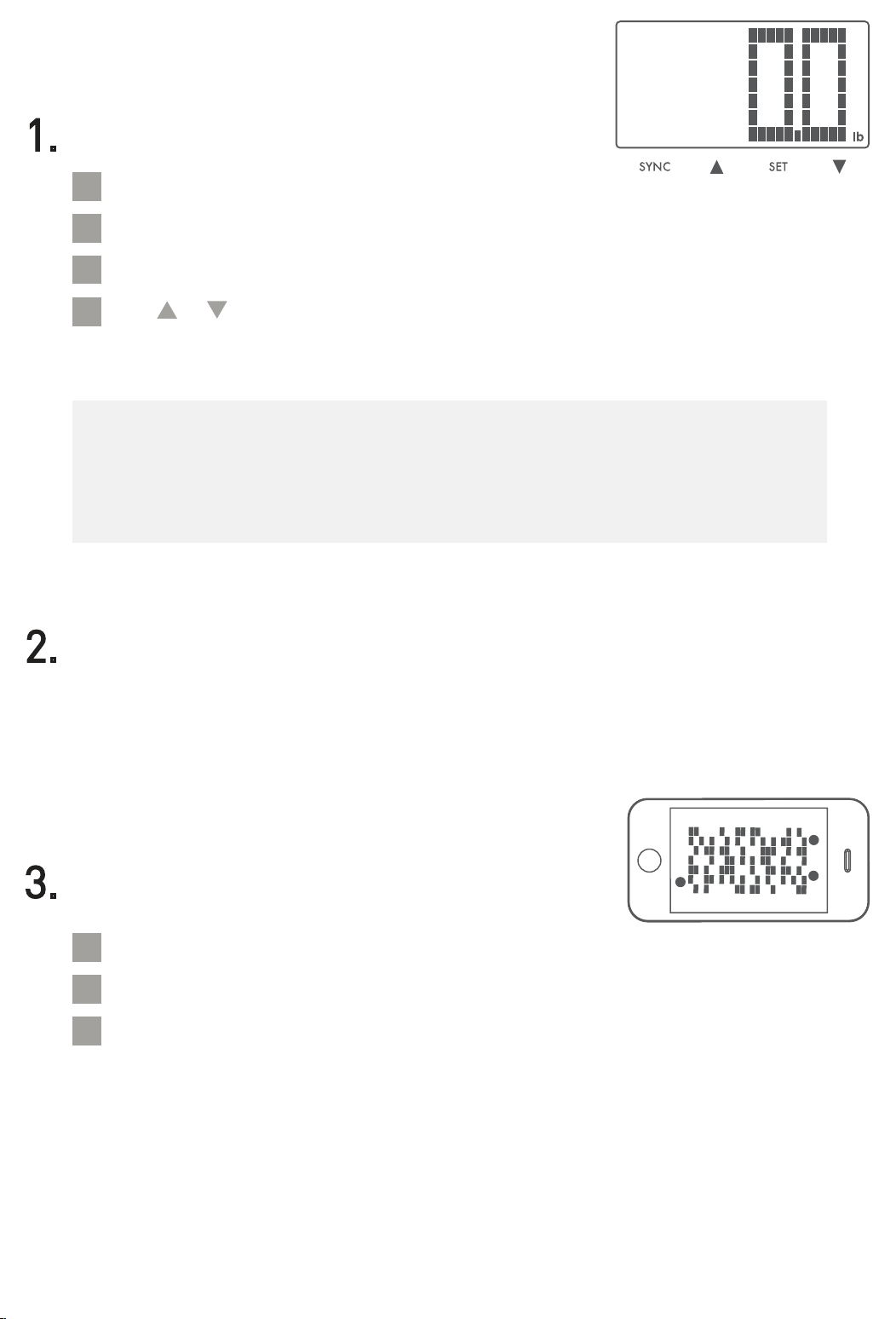
Remove the plastic pull tab from back of scale.
A
Tap-Awake the scale on. (Briefly step on, then off the scale.)
B
Press and hold SEL.
C
Use
D
Enter: USER NUMBER* and WEIGHT MODE*.
*
USER NUMBER -
WEIGHT MODE - Select Traditional or Weightless – #: for Traditional mode, see
your weight (125.6lbs) or +/- for Weightless, track your weight progress (-12.3lbs)
2.
WEIGH
Step on the scale evenly distributing your weight.
*If desired, press SEL to toggle between Traditional and Weightless modes
when viewing results.
& to make selections, then tap SEL to select.
Your personal user profile number (Select user 1-8)
3.
SYNC
Press SYNC on scale as it’s showing measurement results.
A
Open the Weight GURUS App’s Camera/Sync function.
B
Align the brackets on your phone’s screen with the scale’s LCD.
C
When the display shows the barcode, results will be automatically
transferred to your smartphone. Press ENTER to store your results.
For more info visit: www.greatergoods.com
 Loading...